Product Documentation
Product Documentation
Product Documentation
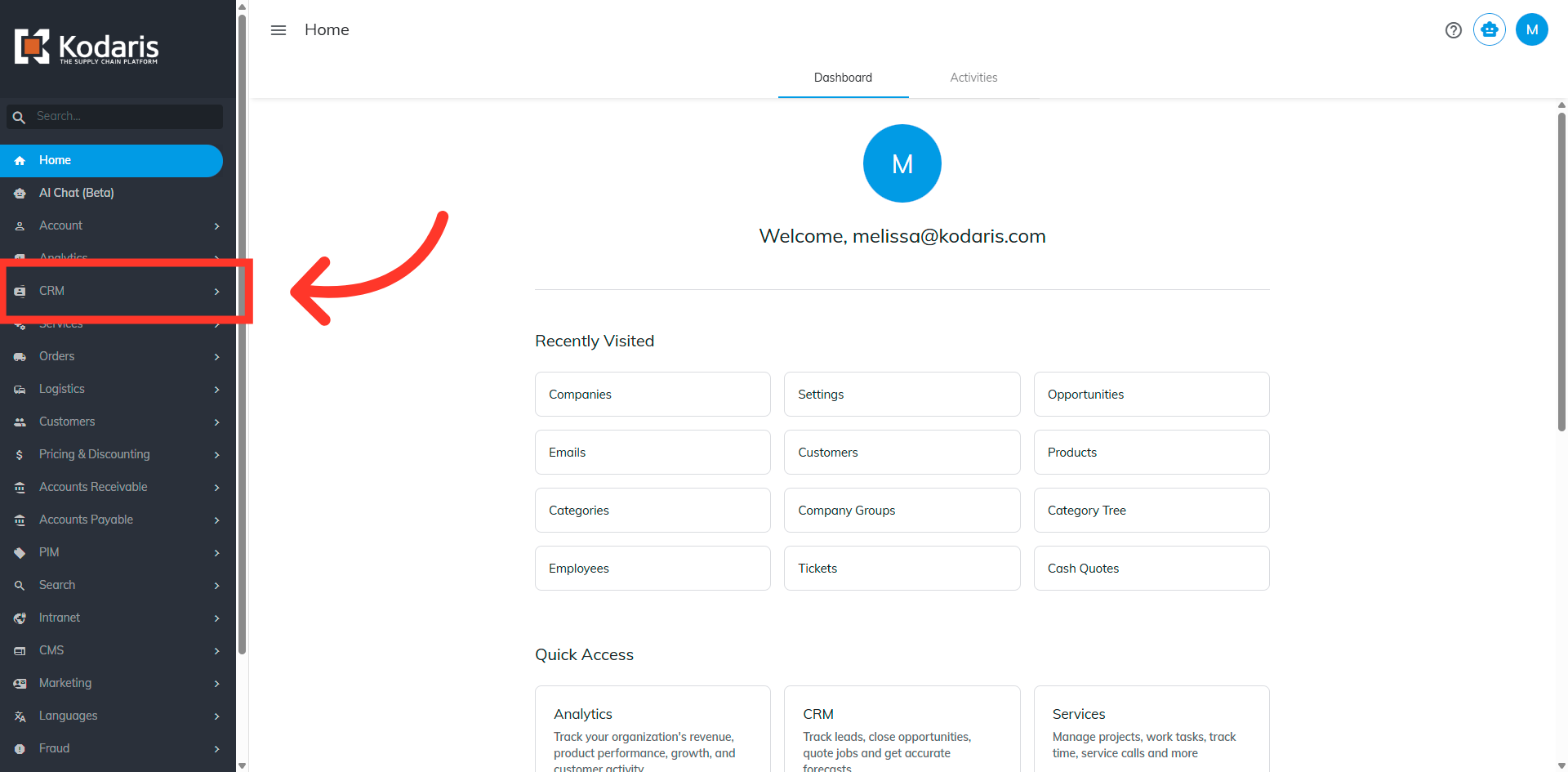
To manually assign a sales territory to a company, navigate to the CRM section.
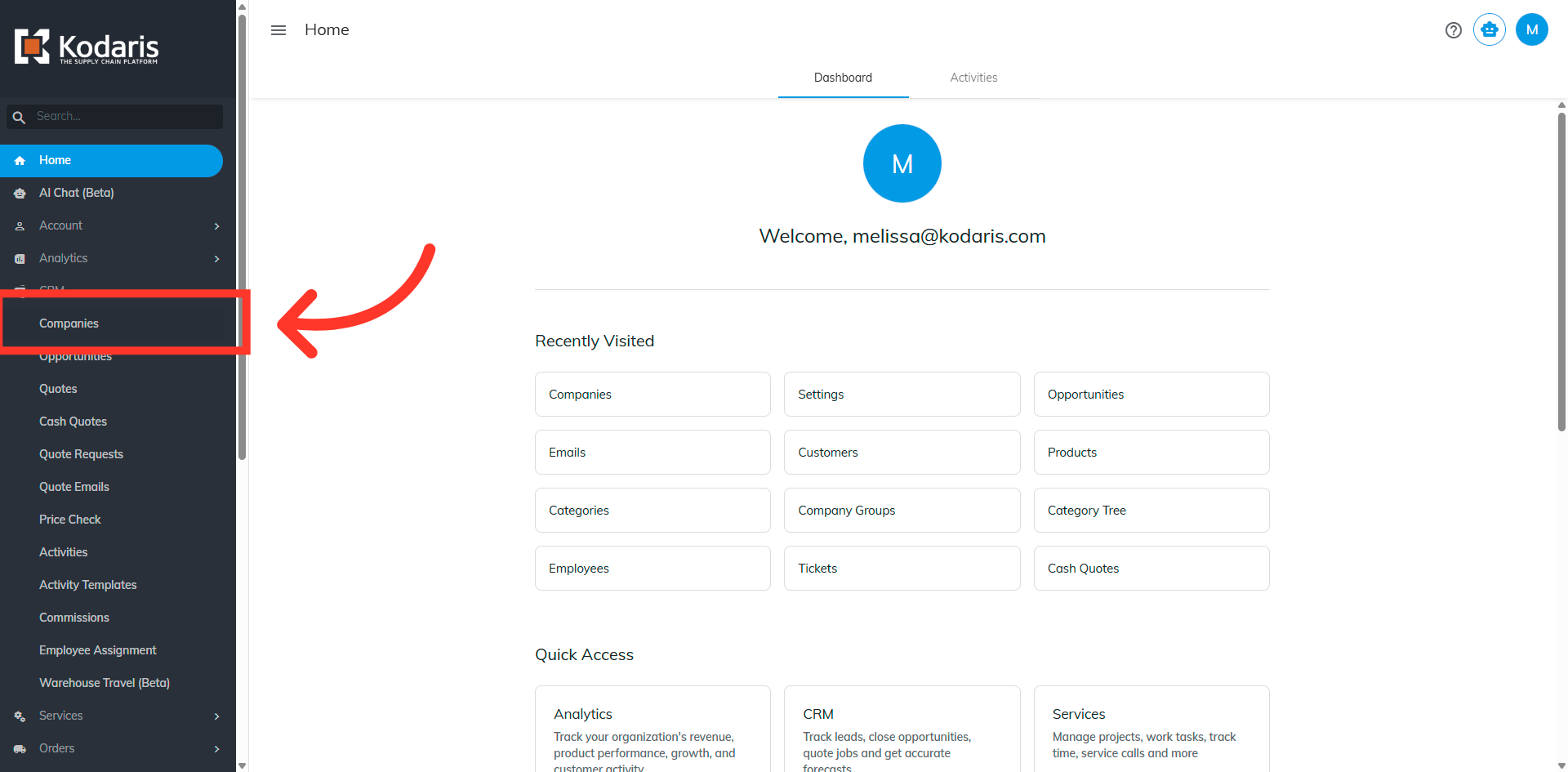
Click the "Companies". In order to access "Companies" you will need to be set up either as an "administrator" or a "superuser", or have the appropriate roles: "companyView and companyEdit", or "crmCompanyView and crmCompanyEdit". Just a reminder, "crmCompanyView and crmCompanyEdit" access only allows employees to view companies that are assigned to them.
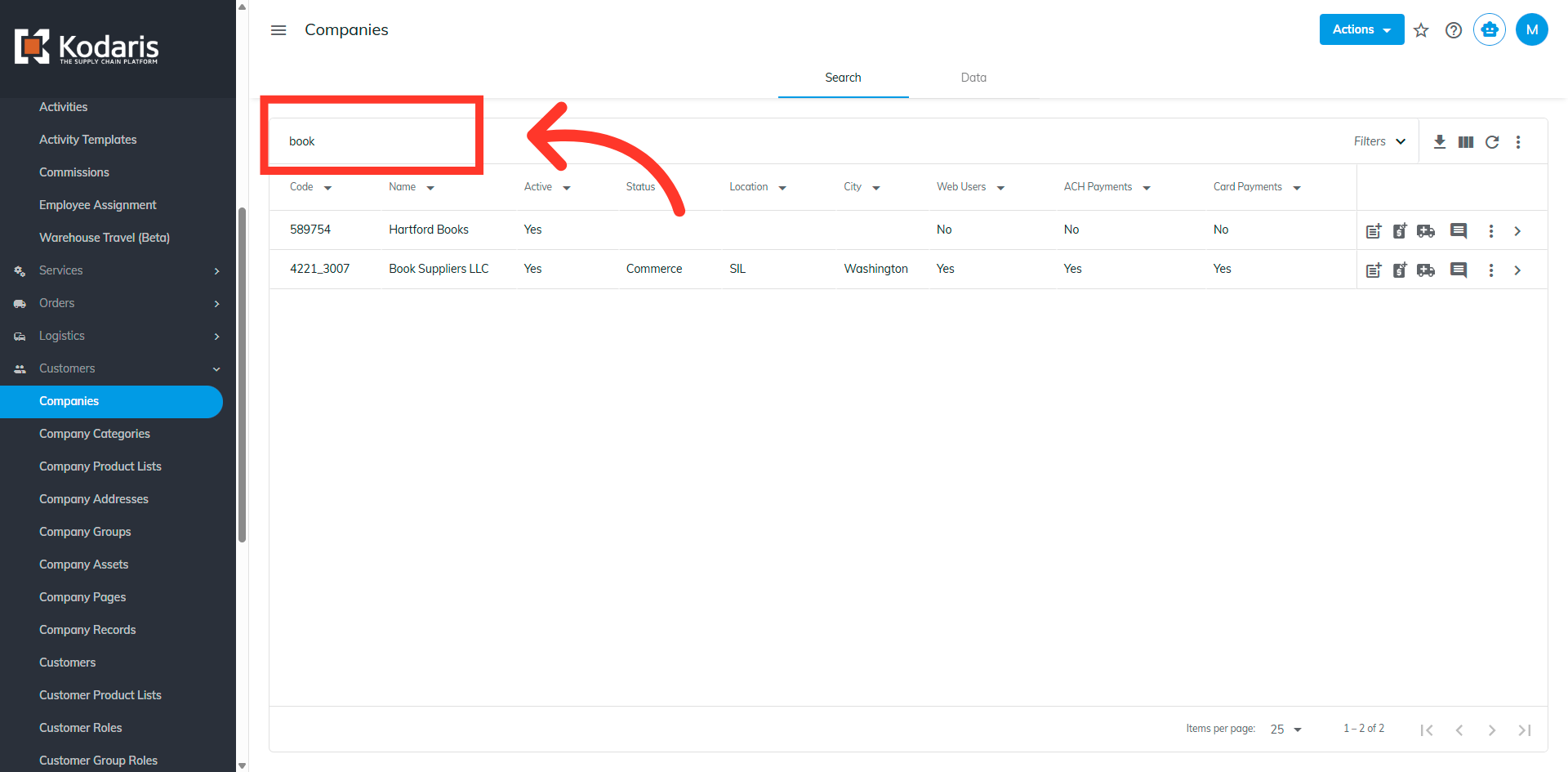
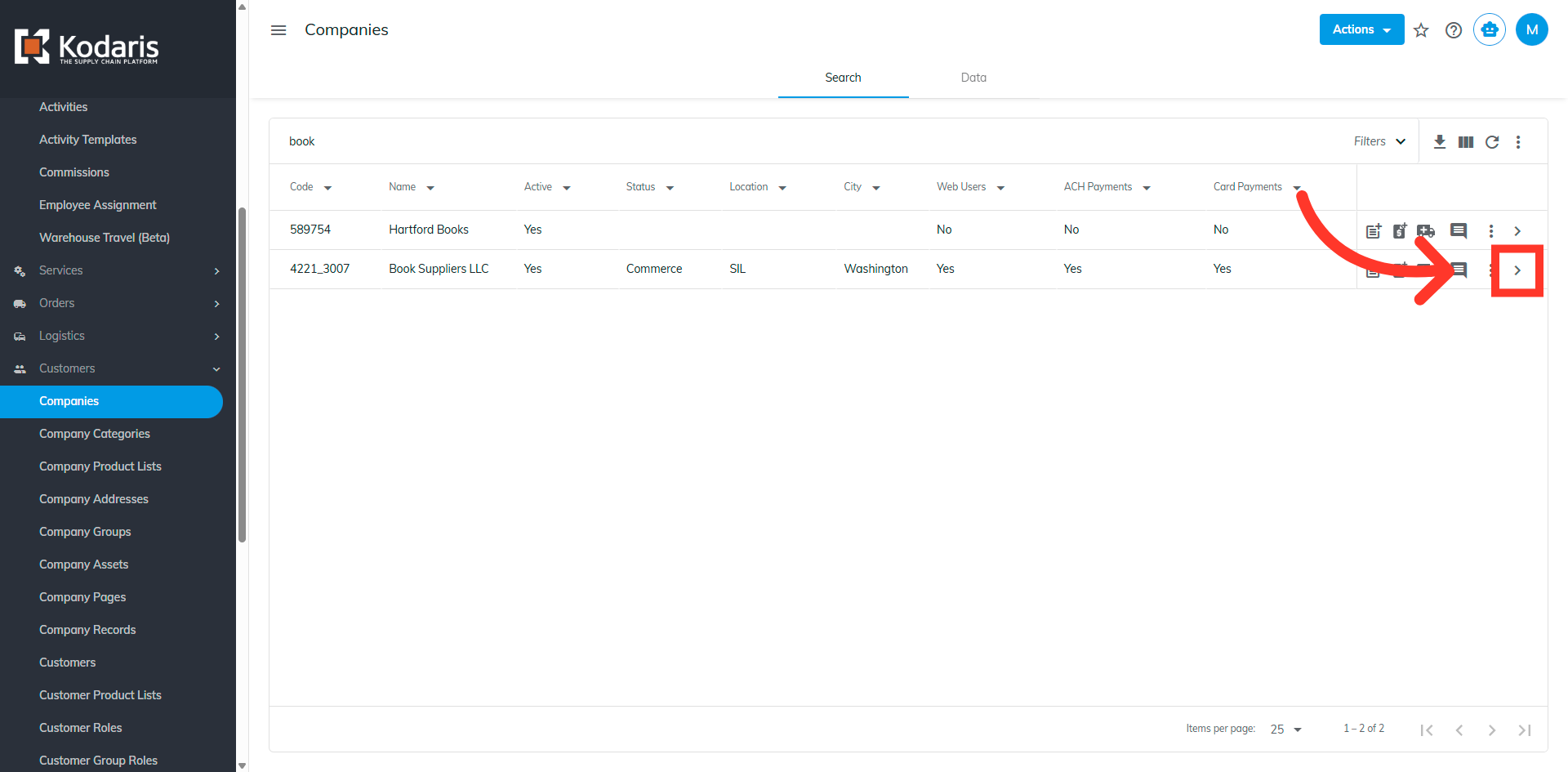
Search for a company.
Click the "more details" icon.
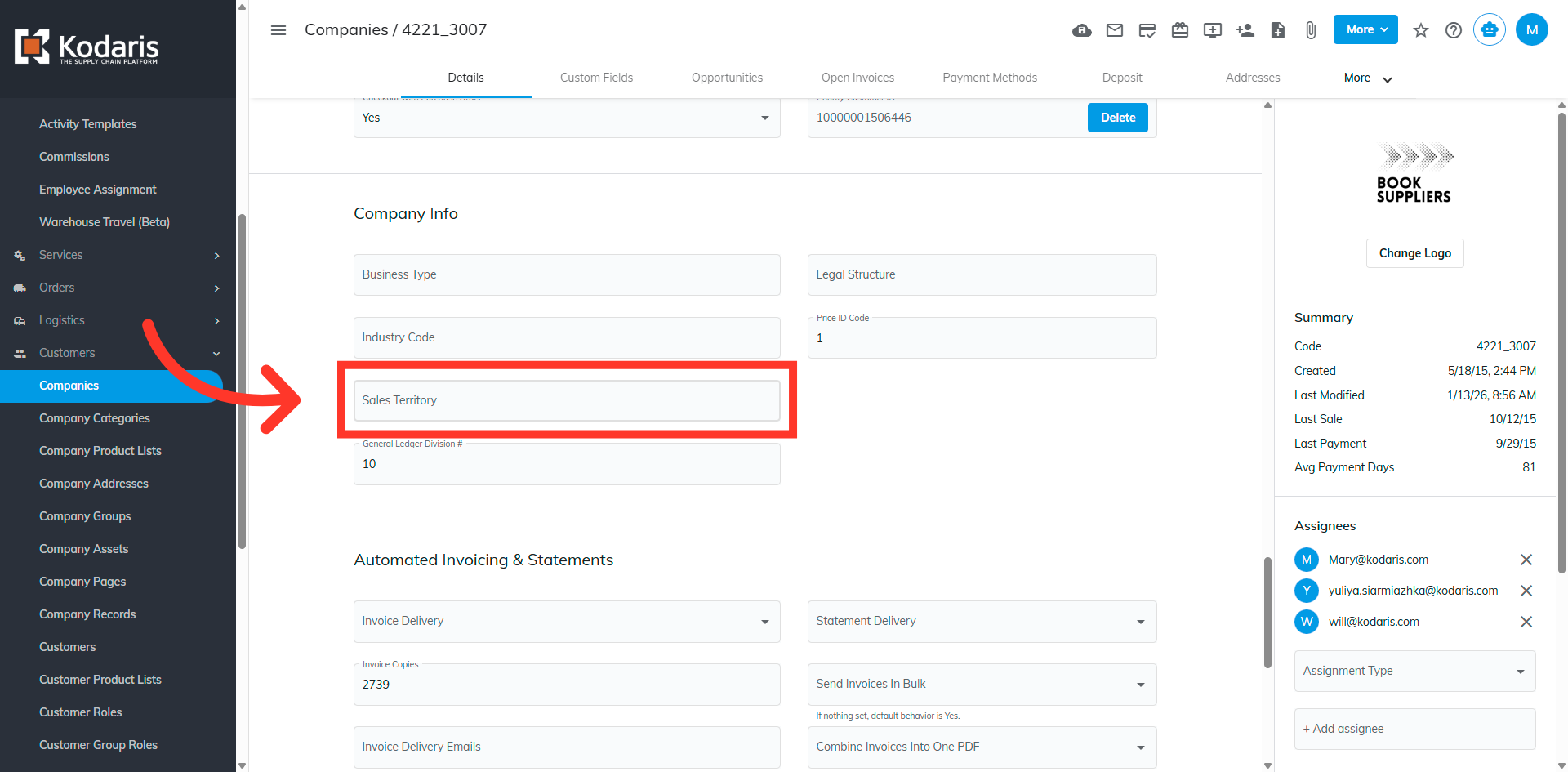
Click on the "Sales Territory" field.
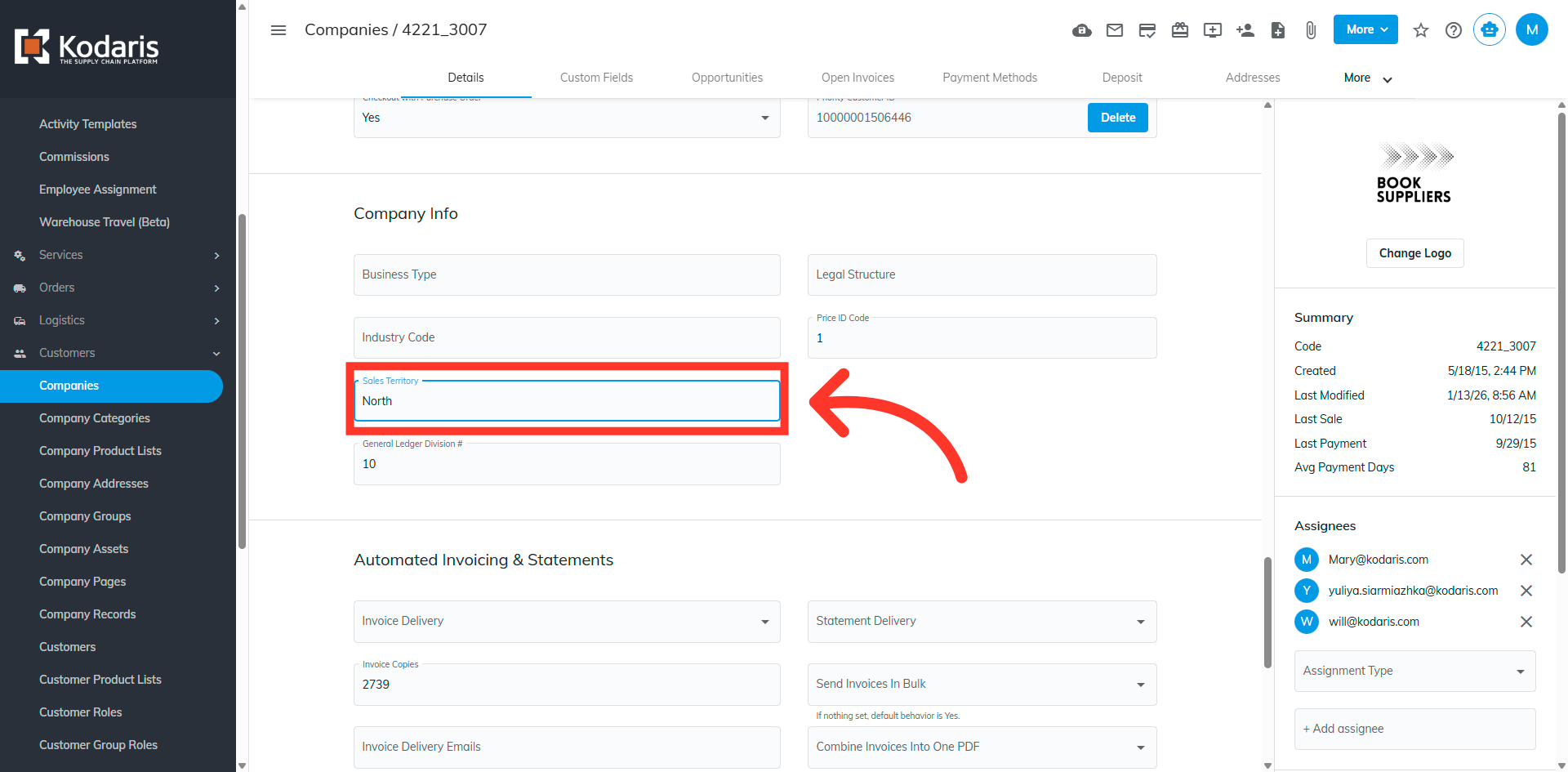
Scroll down and type in the territory name.
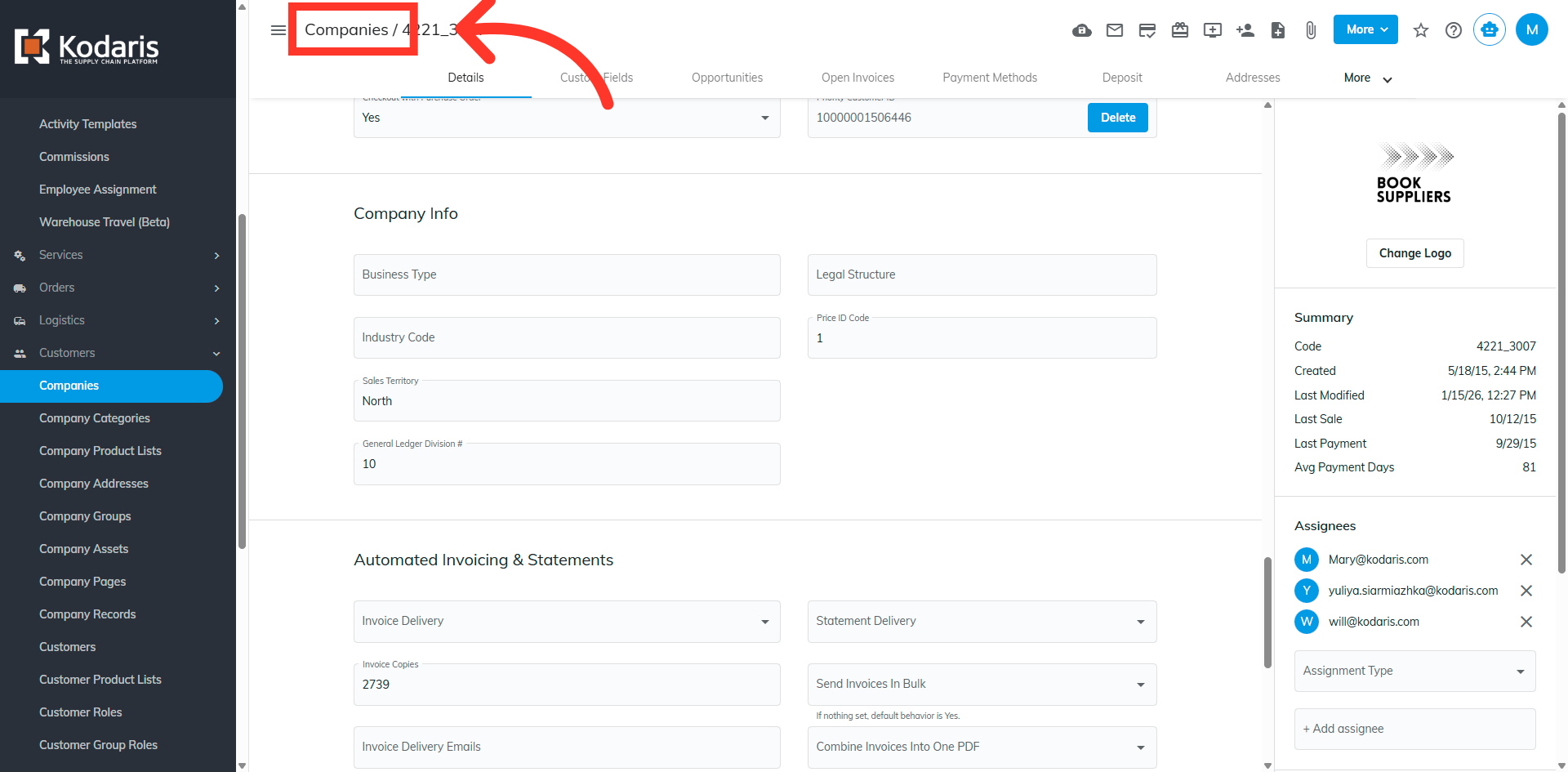
Navigate back to the "Companies" page.
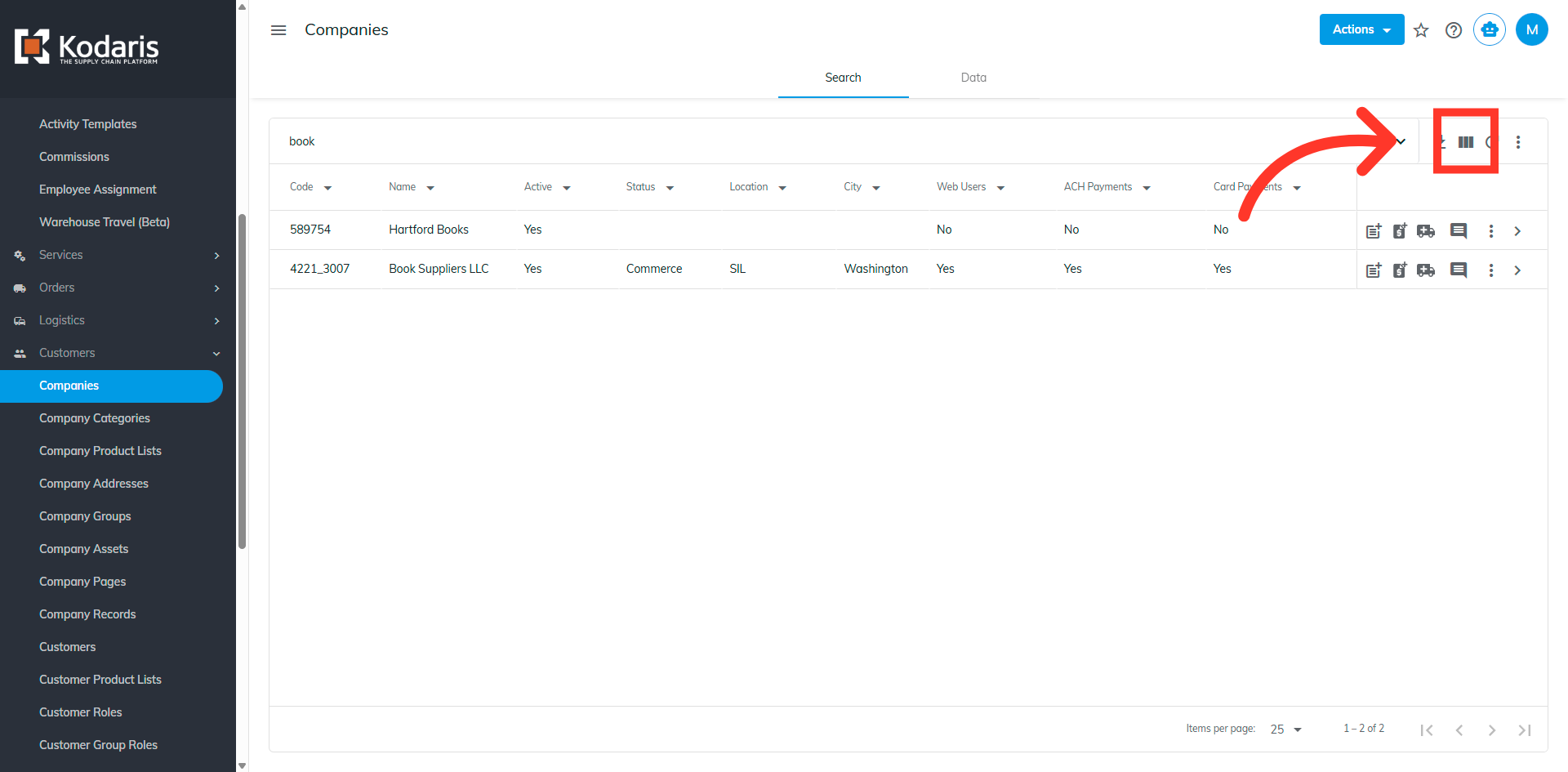
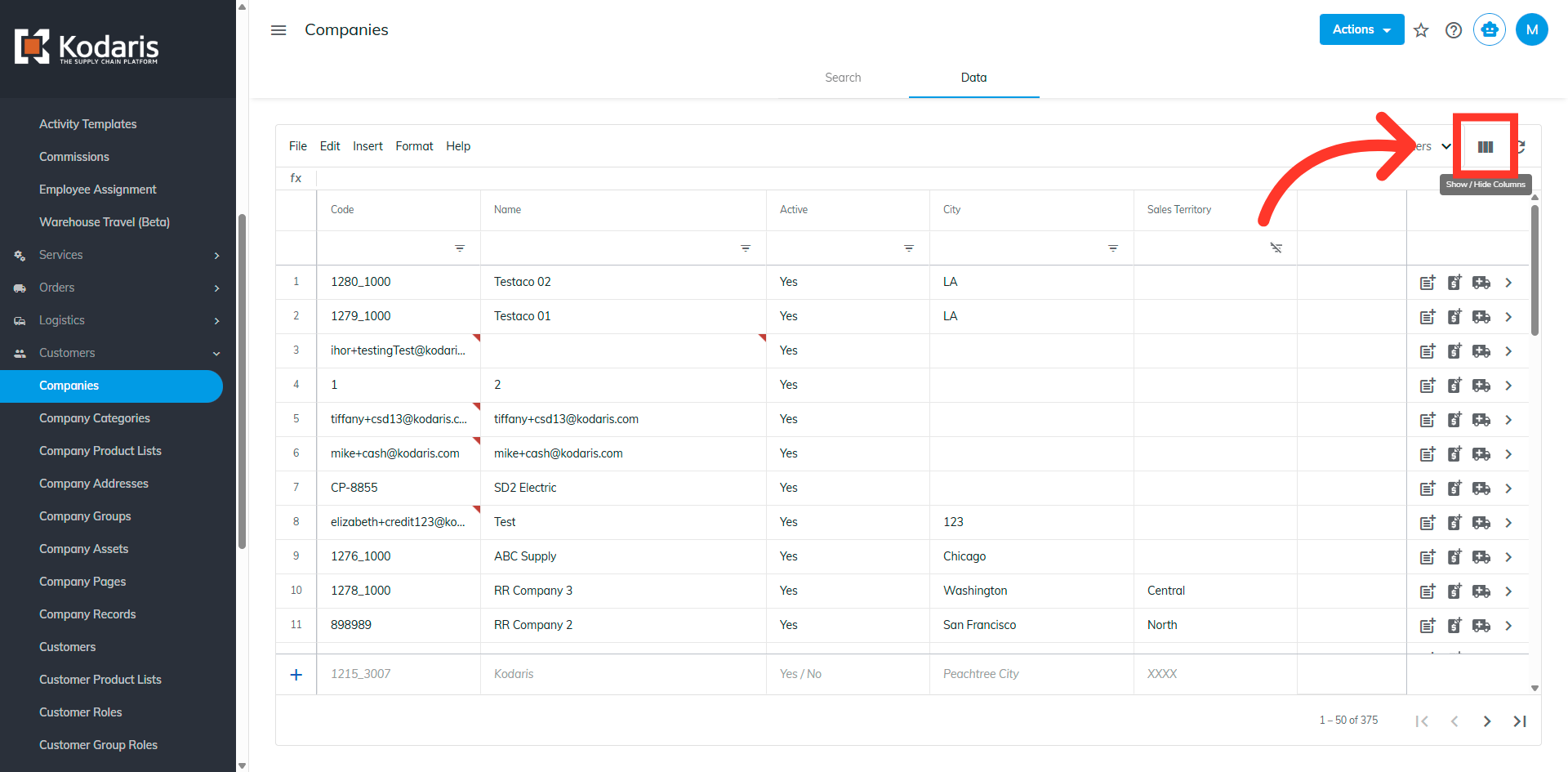
Click the "show/hide" columns icon.
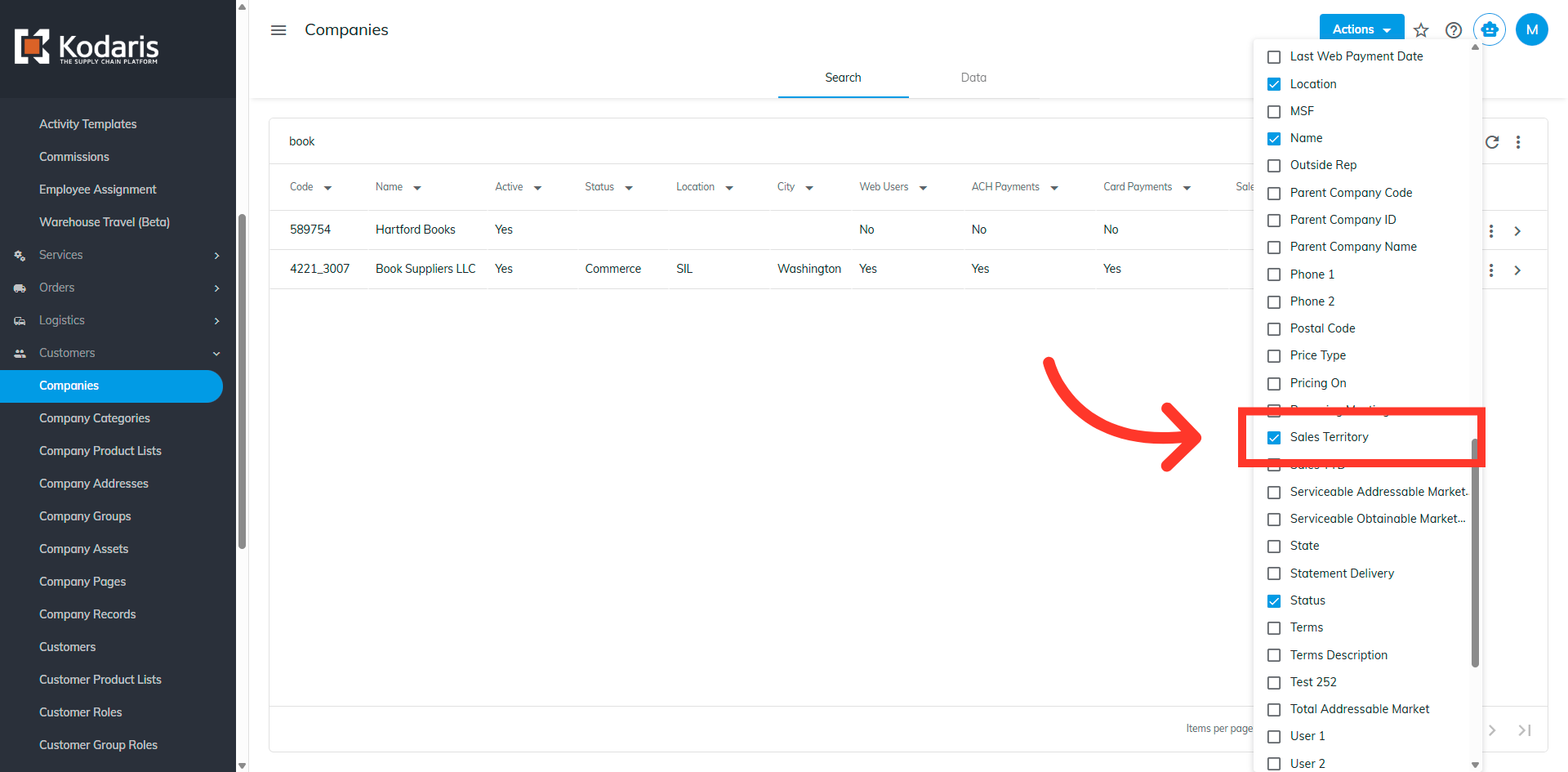
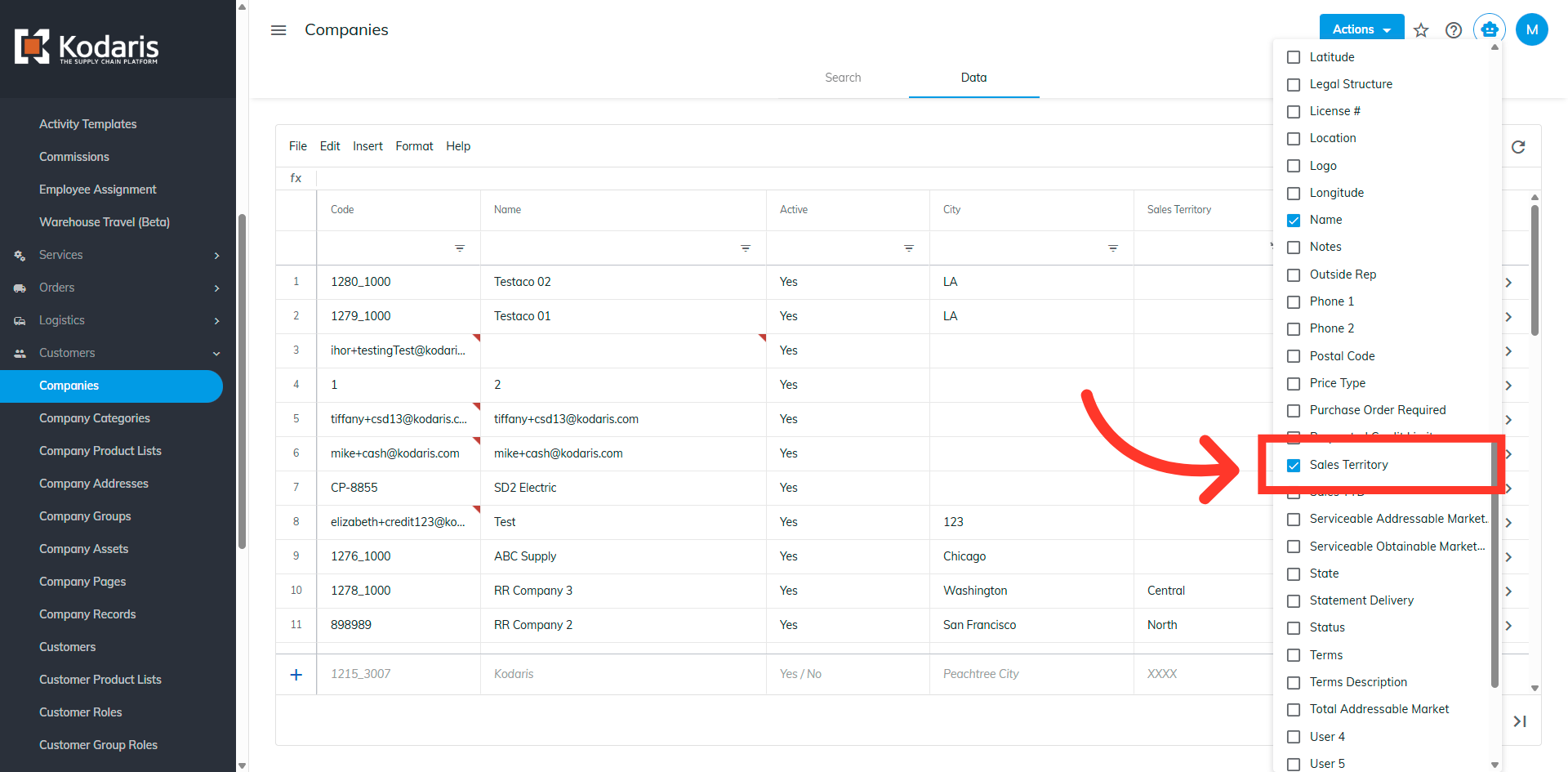
Click the "Sales Territory" option to have it display on the main grid.
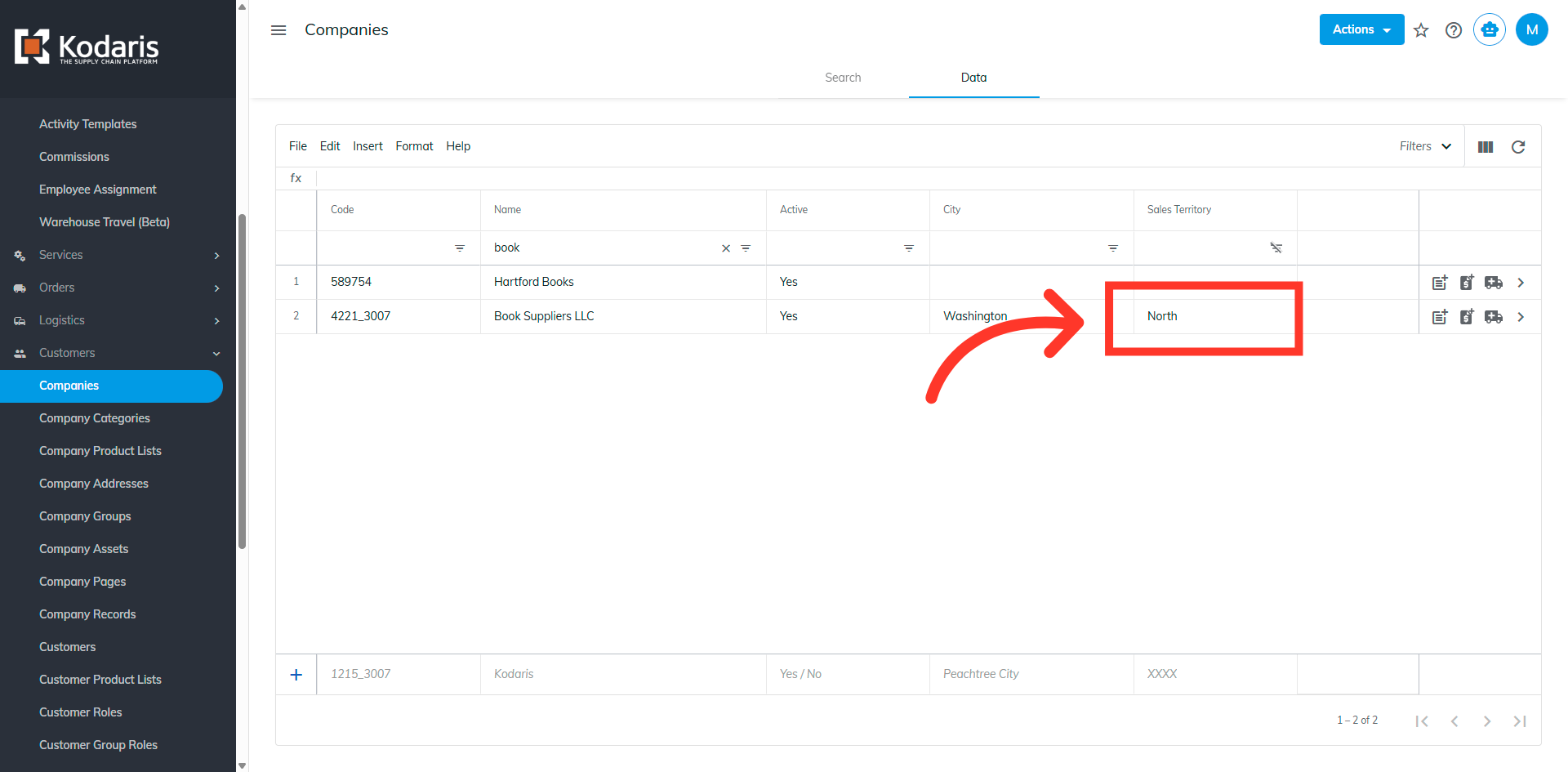
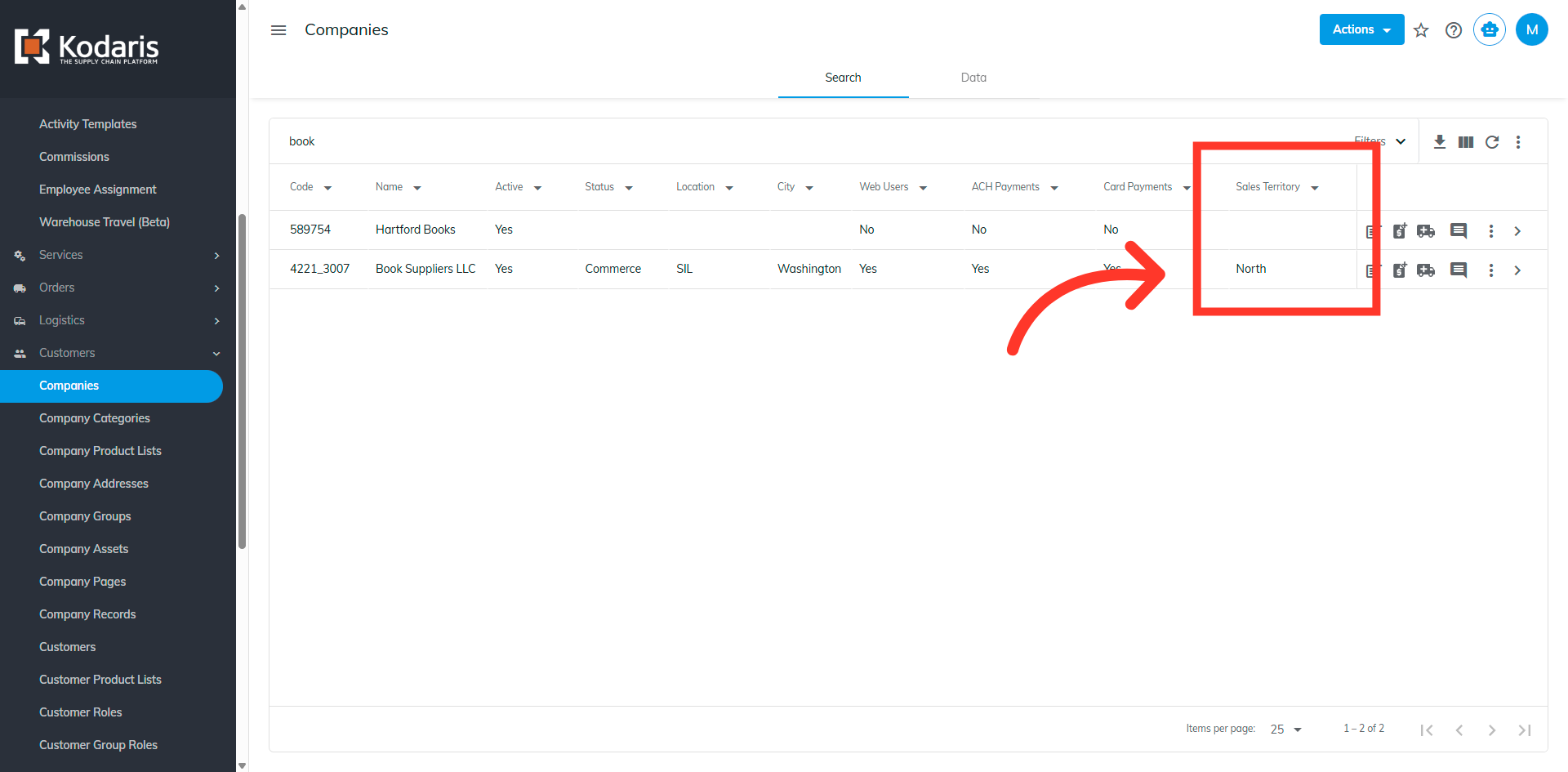
The "Sales Territory" column is now displaying and is updated with the value entered on the details page.
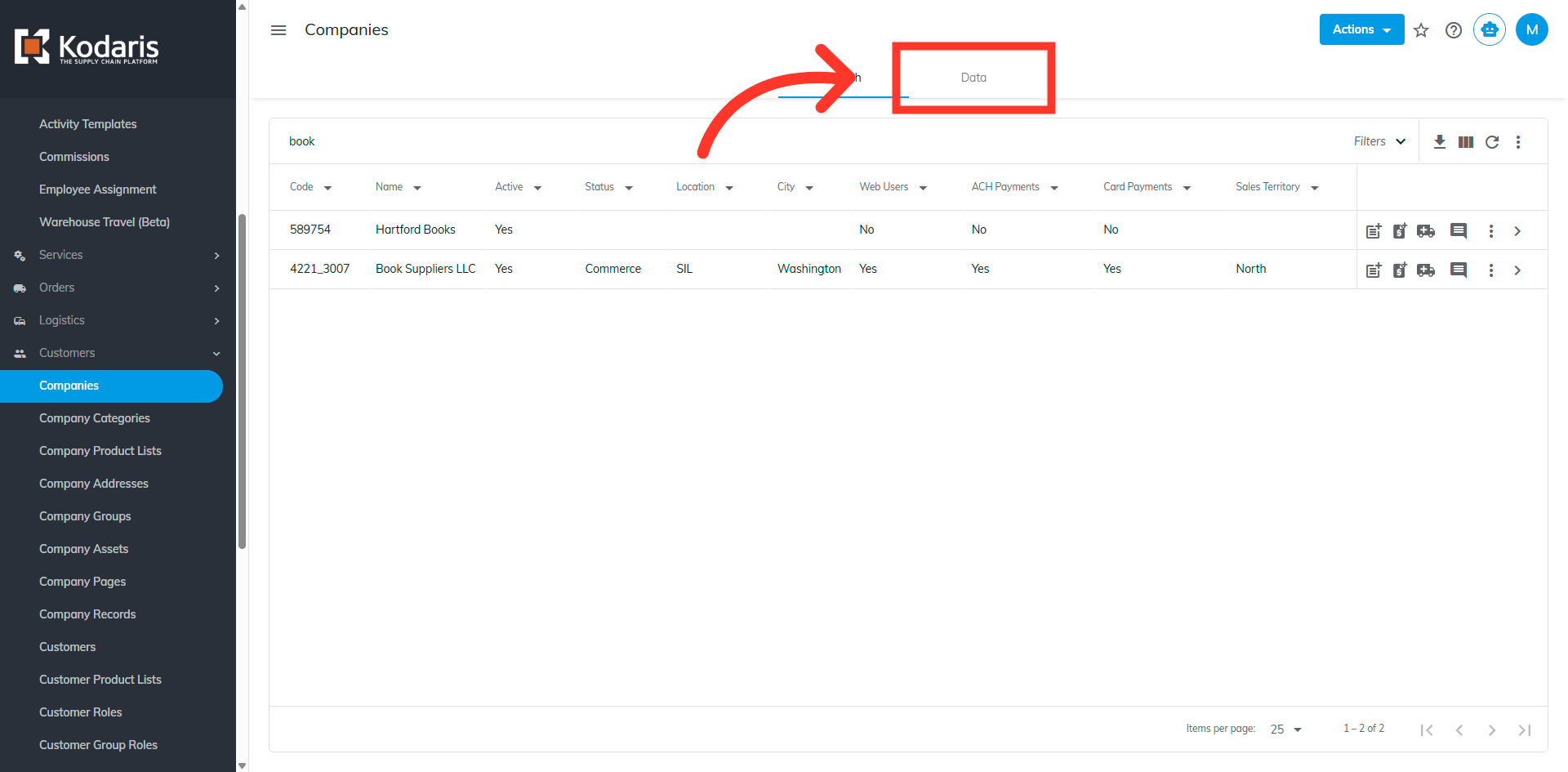
There are a couple of other ways this field can be updated. You can do this on "Data" tab.
Click the "Show/Hide" icon.
Click the "Sales Territory" option to have it display on the main grid.
Double click into the cell and update the value. Click outside of the cell to save the update.