Product Documentation
Product Documentation
Product Documentation
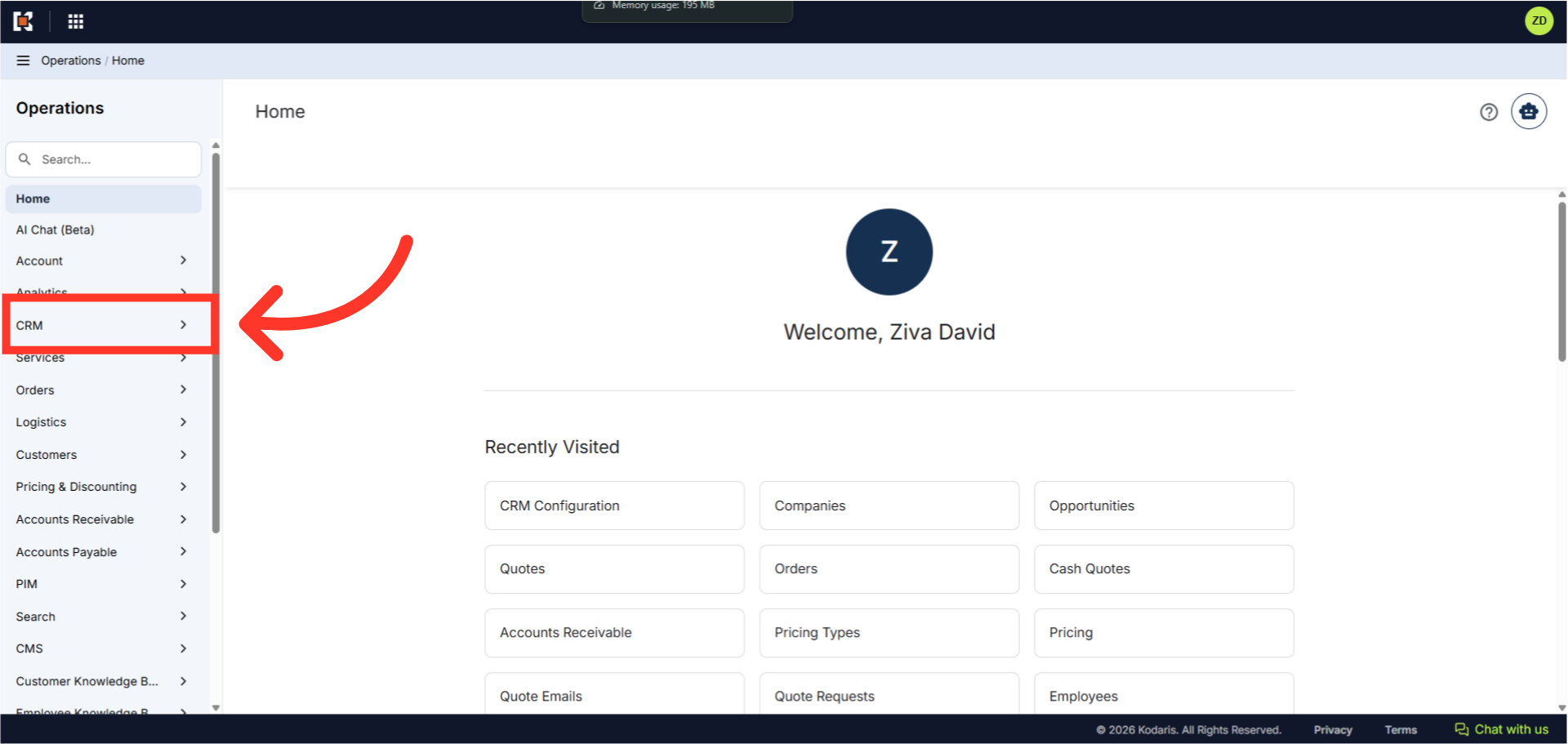
You can assign a Price Level to all the items on a quote. To do this navigate to the "CRM" section in the Operations Portal.
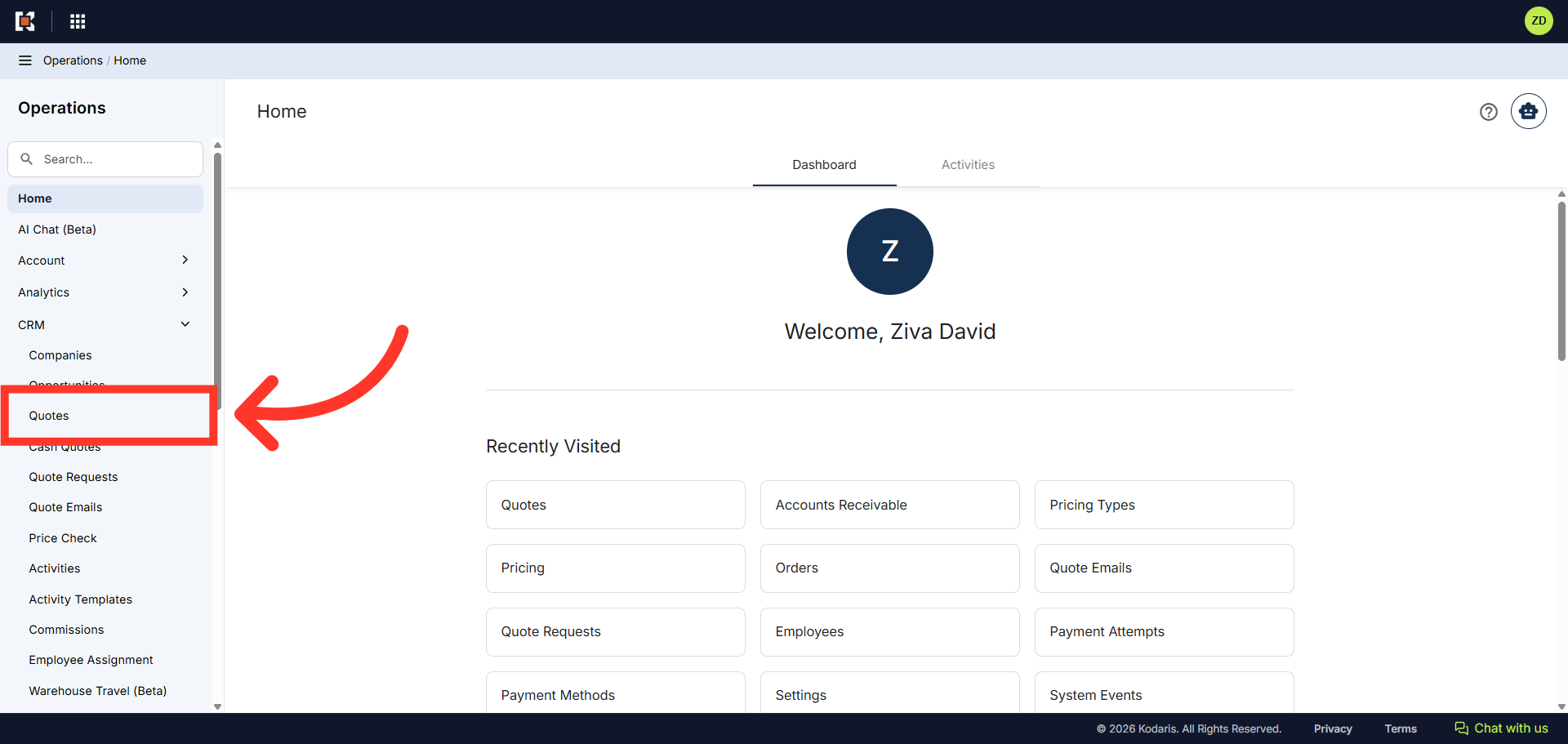
Then, click "Quotes". In order to access Quotes, you will need to have the role of "administrator" or "superuser", or have the roles of "quoteEdit" and "accountQuoting".
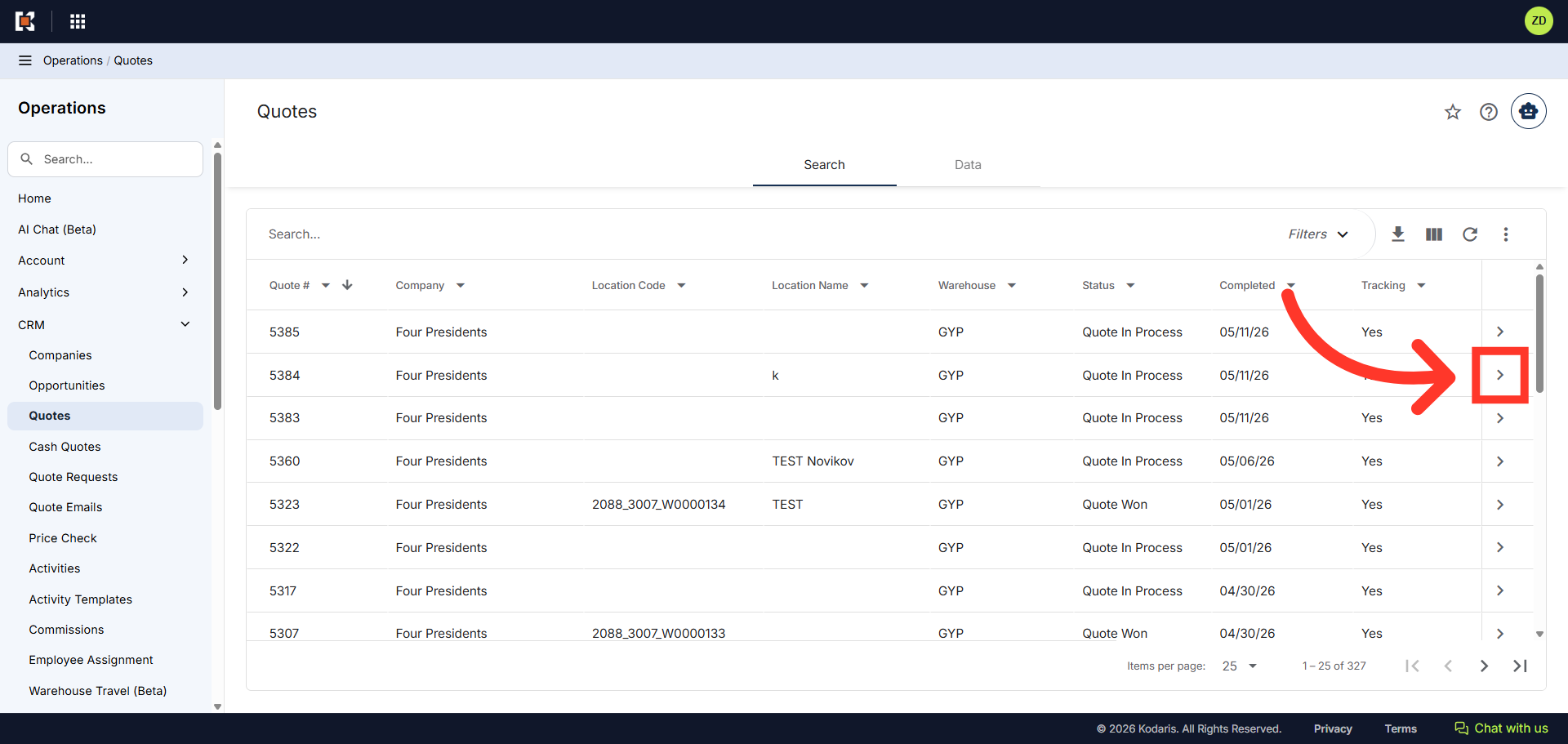
Next, locate the quote you wish to add the Price Level to, and click the more details icon to view quote details.
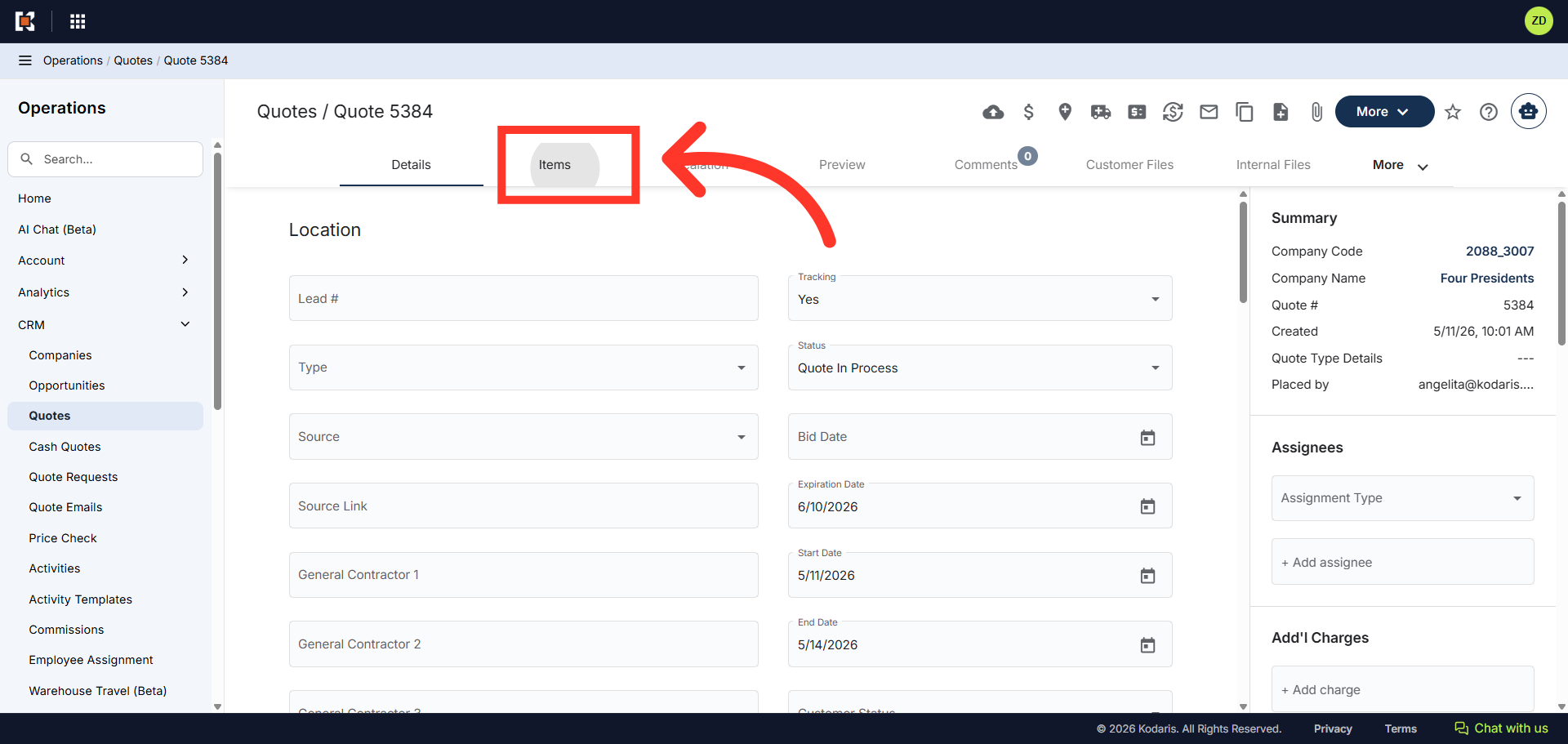
Then, click the "Items" tab.
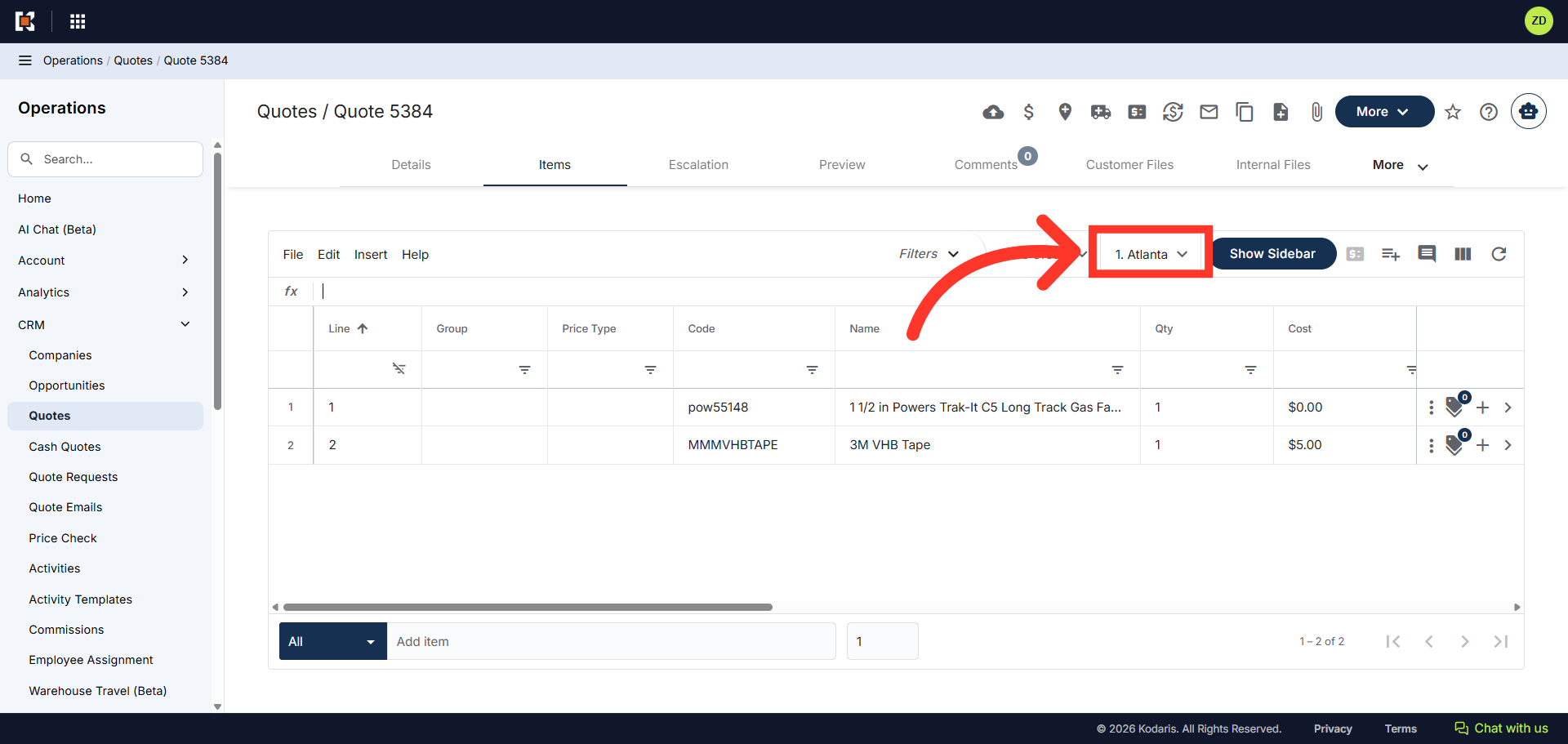
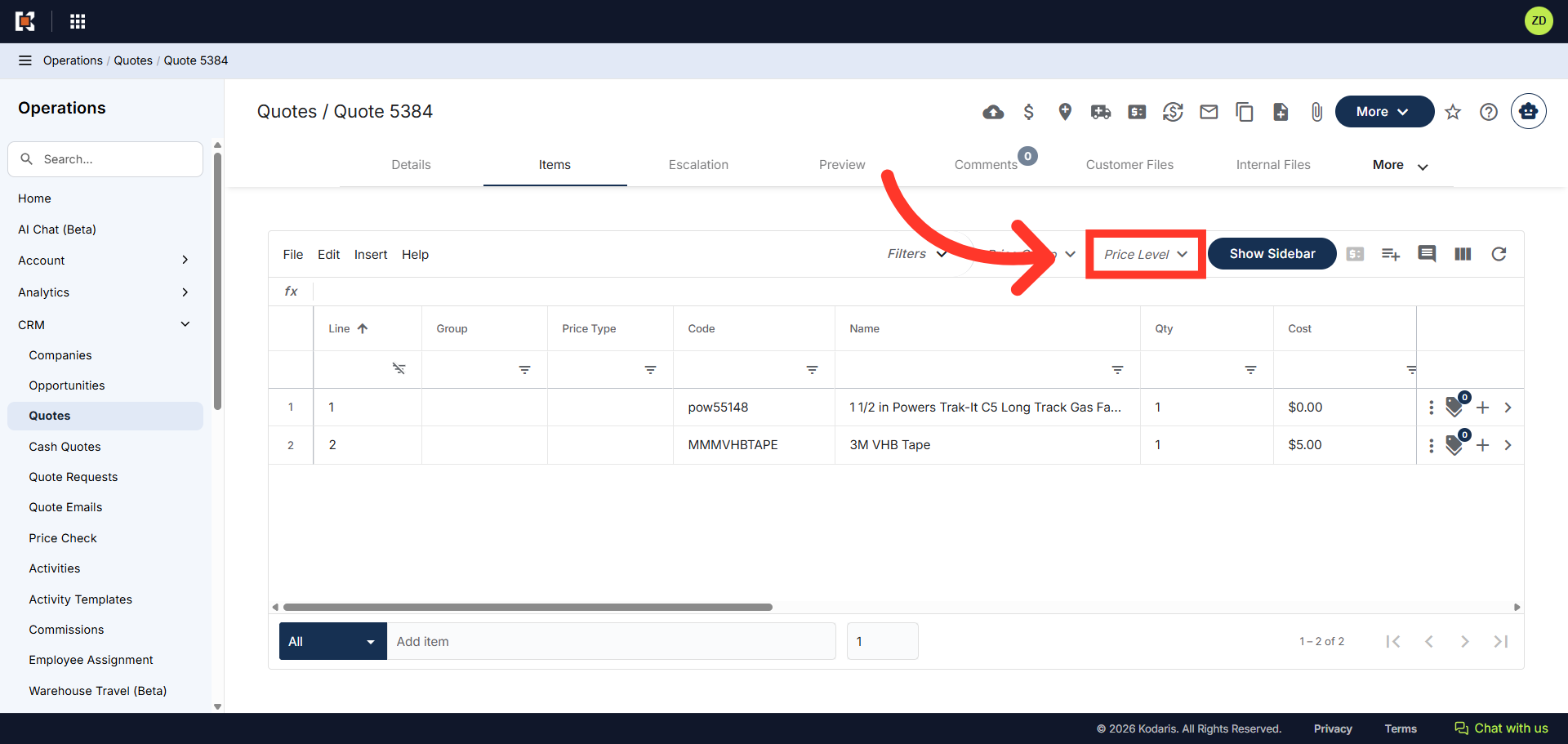
Click the "Price Level" drop down to display the different price level options available.
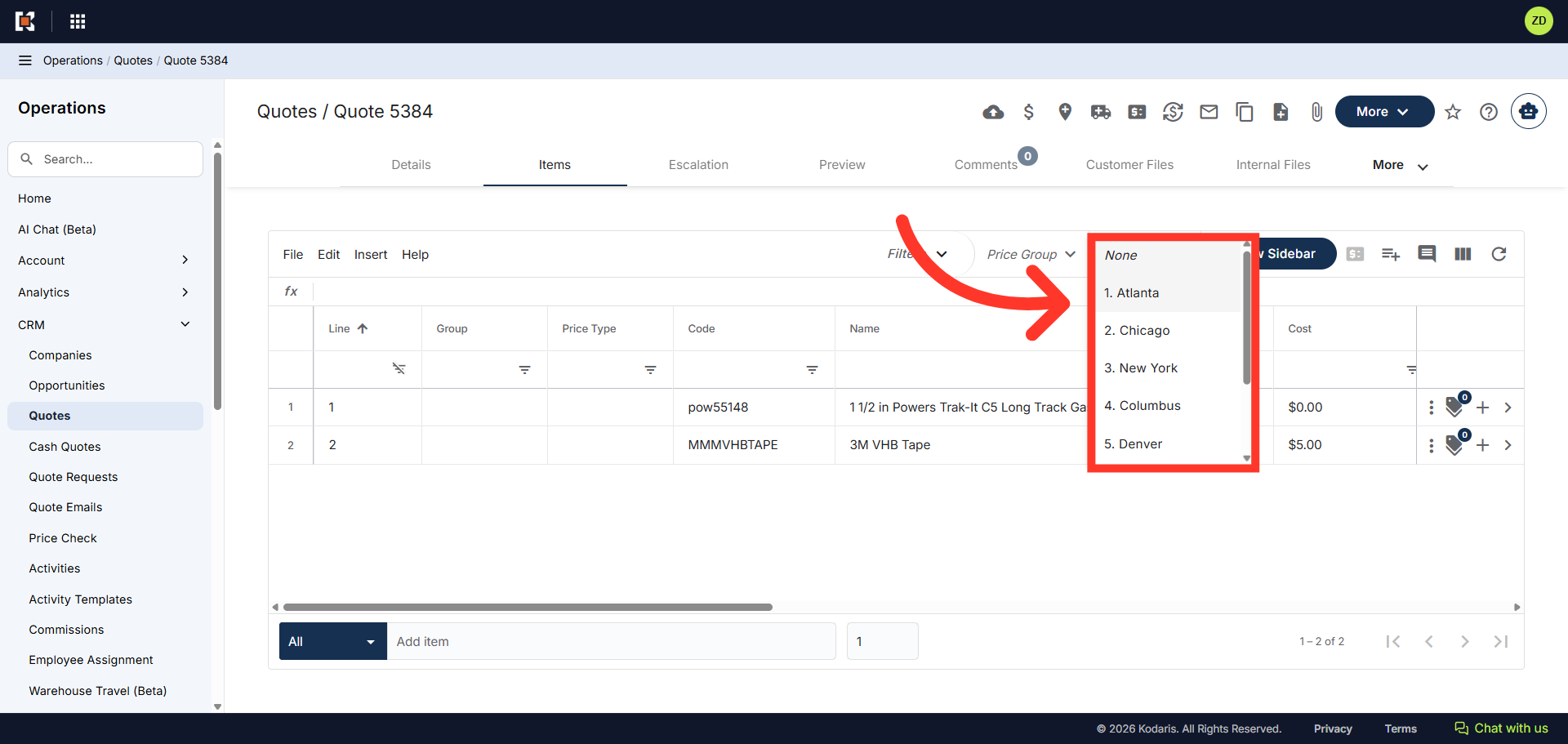
Choose the appropriate price level from the list.
The "Price Level" has been added to the quote. This will apply to all items on the quote by default.