Product Documentation
Product Documentation
Product Documentation
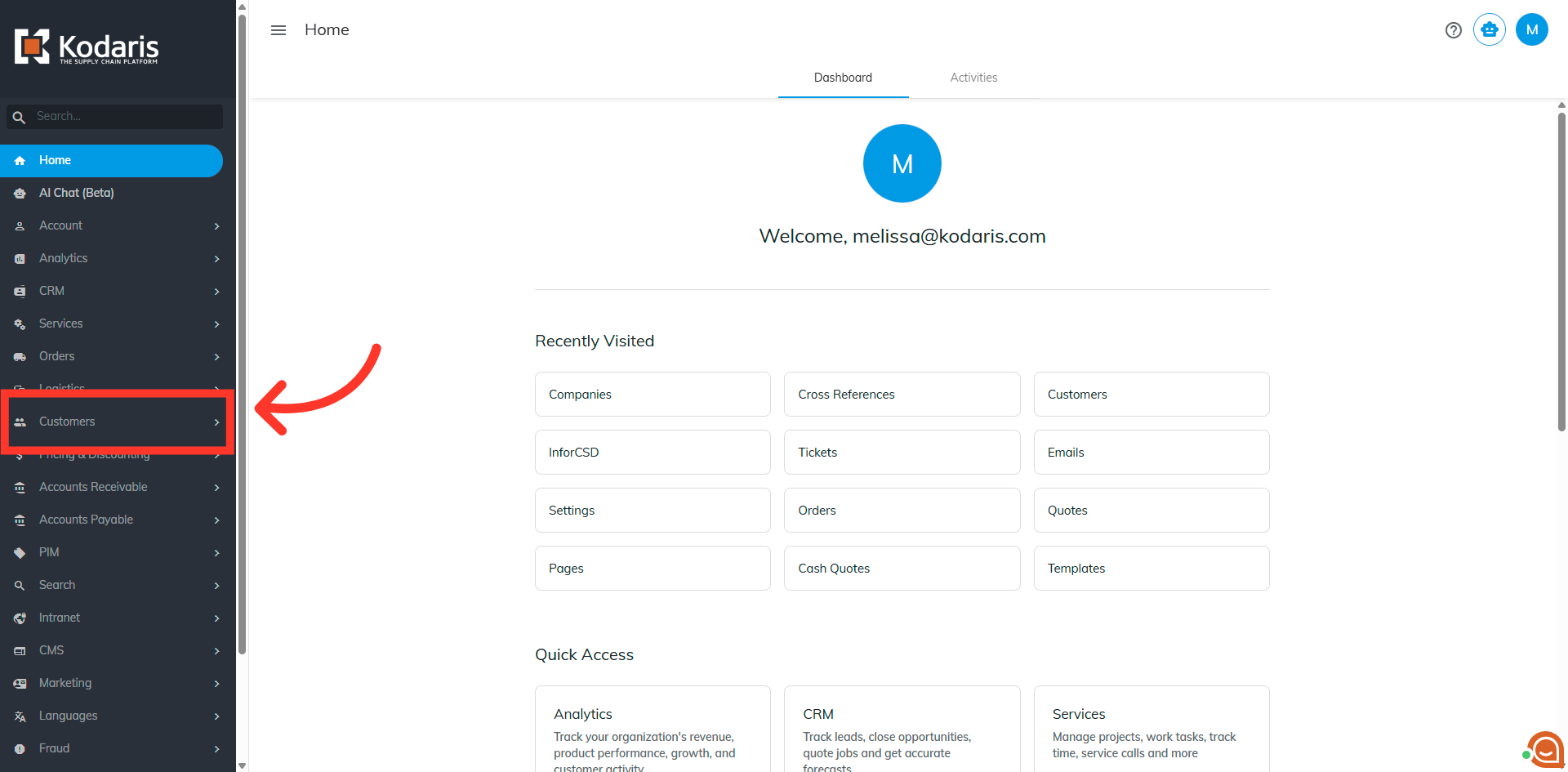
To export a price list from a Company Catalog, navigate to the "Customers" section in the Operations Portal.
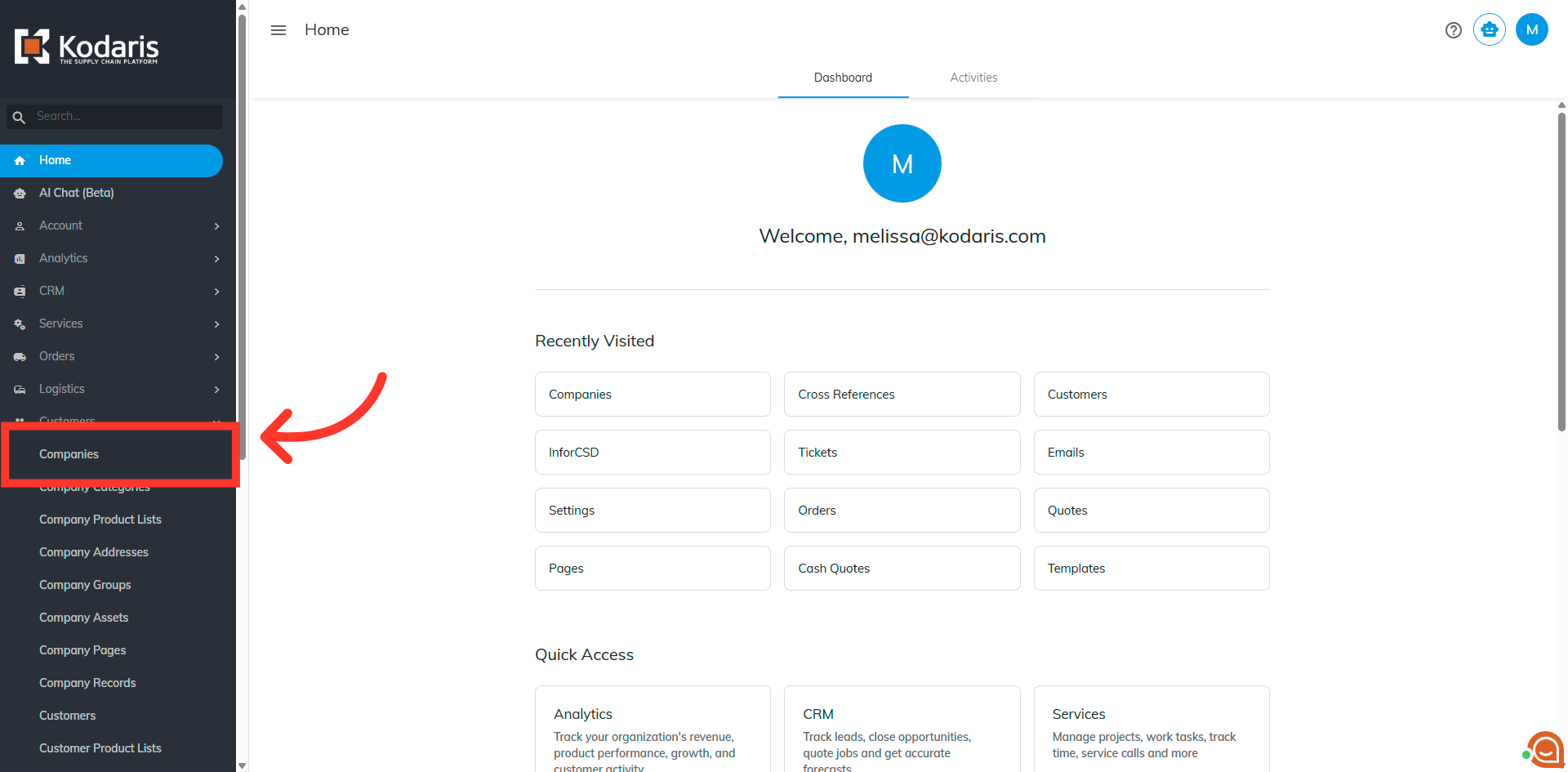
Then, click "Companies". In order to access "Companies" you will need to be set up either as an "administrator" or a "superuser", or have the appropriate roles: "companyView and companyEdit", or "crmCompanyView and crmCompanyEdit". Just a reminder, "crmCompanyView and crmCompanyEdit" access only allows employees to view companies that are assigned to them.
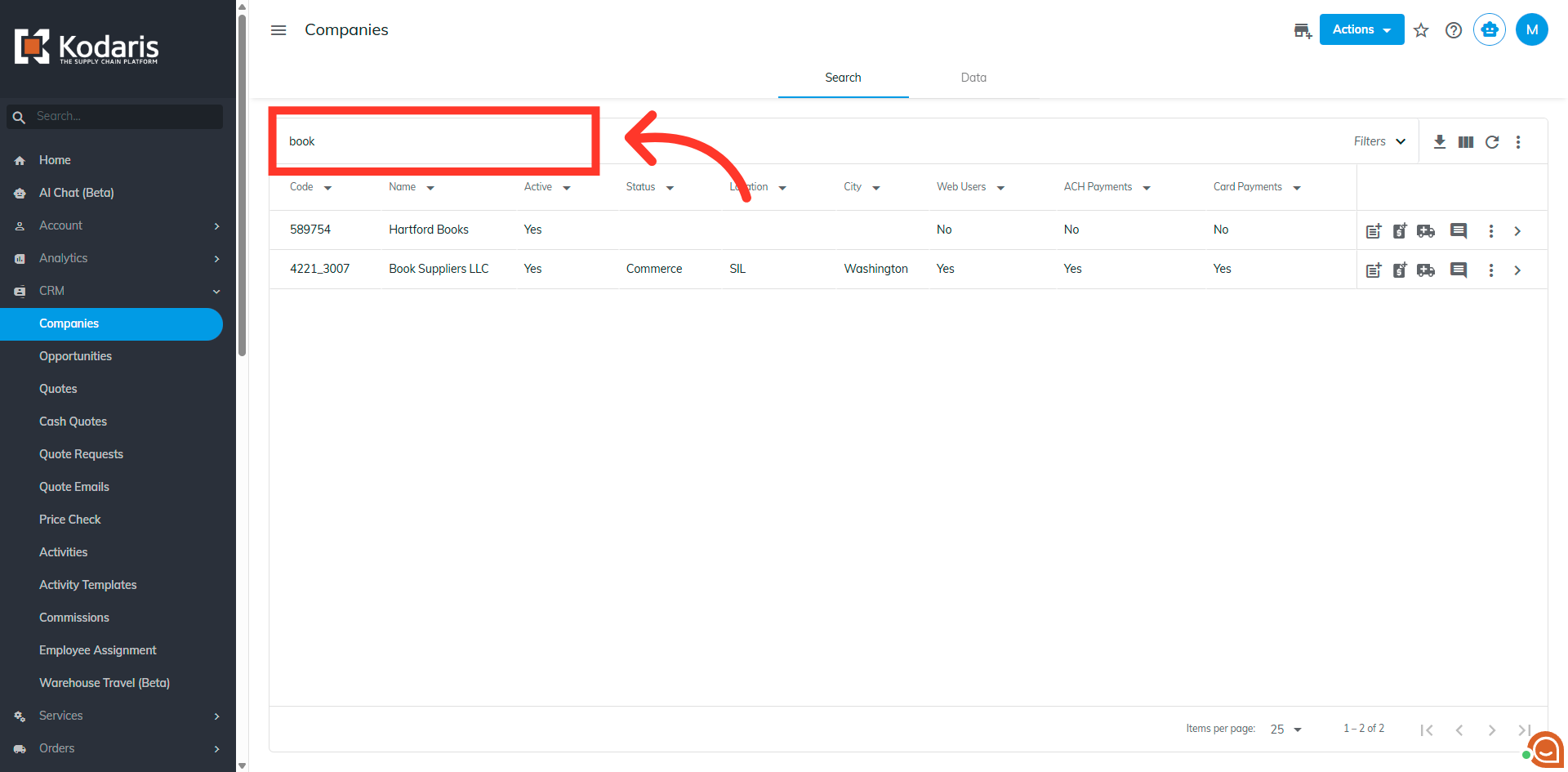
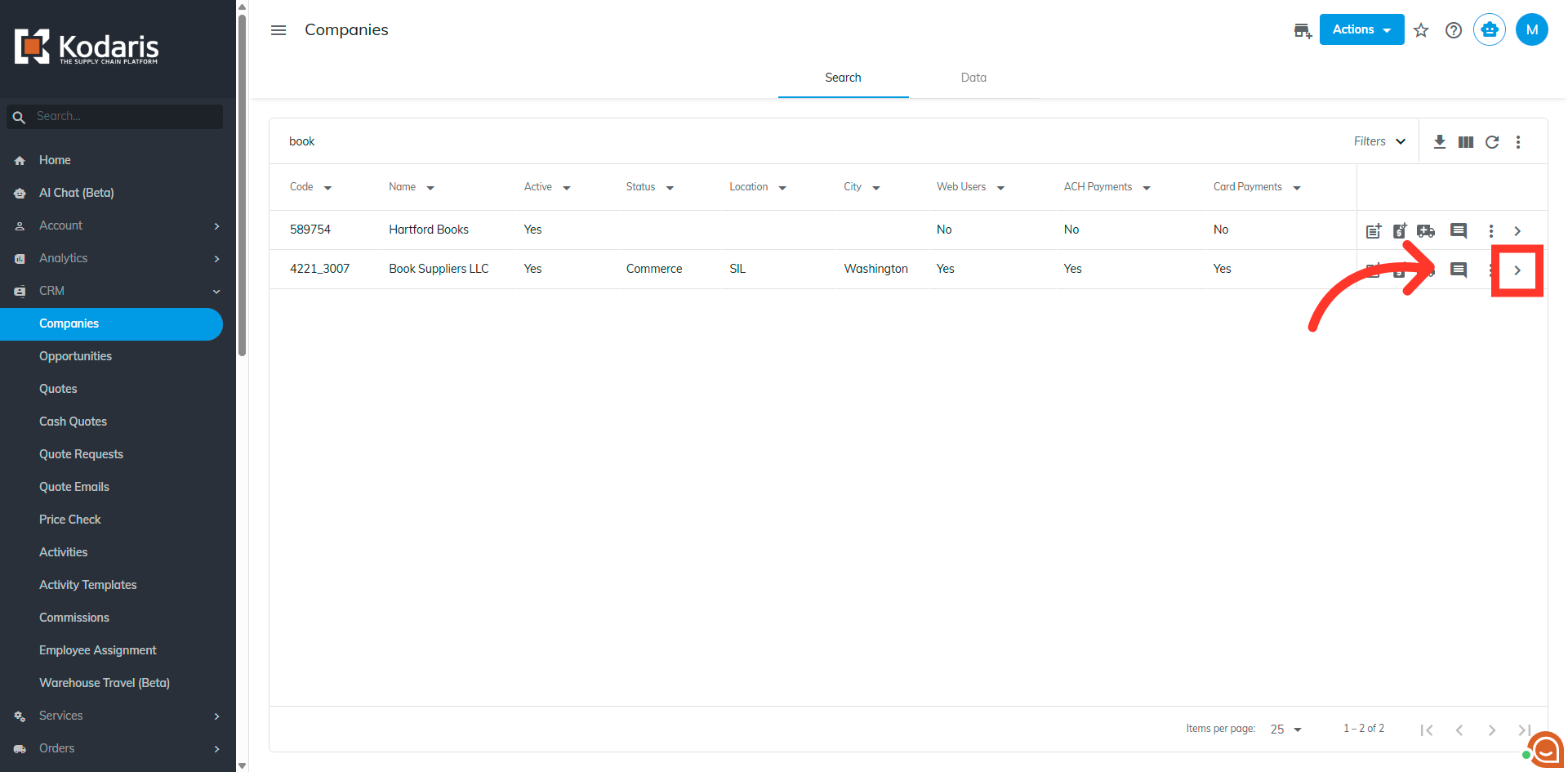
Search for the company in the "Search" field.
Click the more details icon to go to the details page of the company.
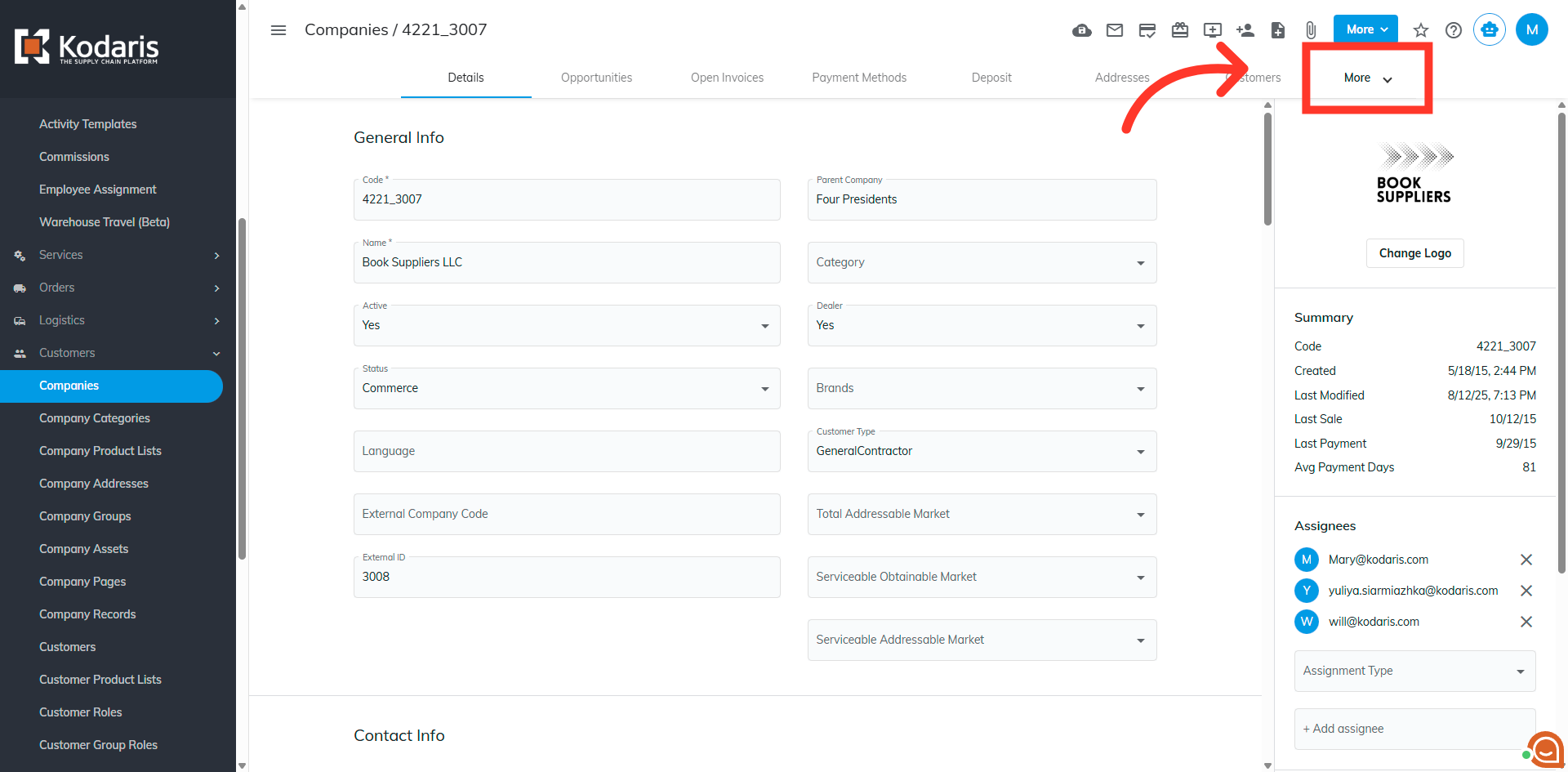
Click the "More" menu to reveal additional company management features.
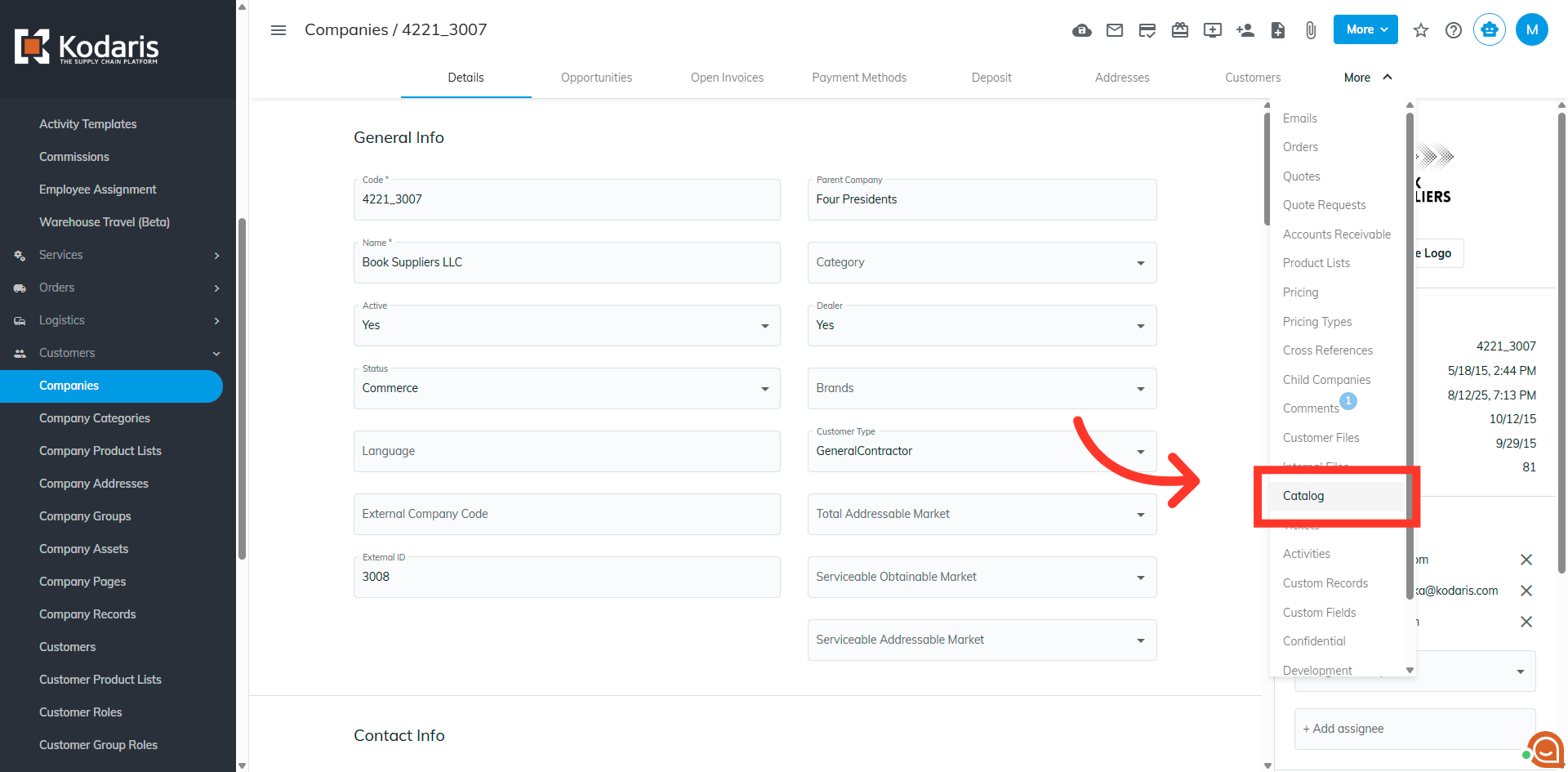
Then, click "Catalog".
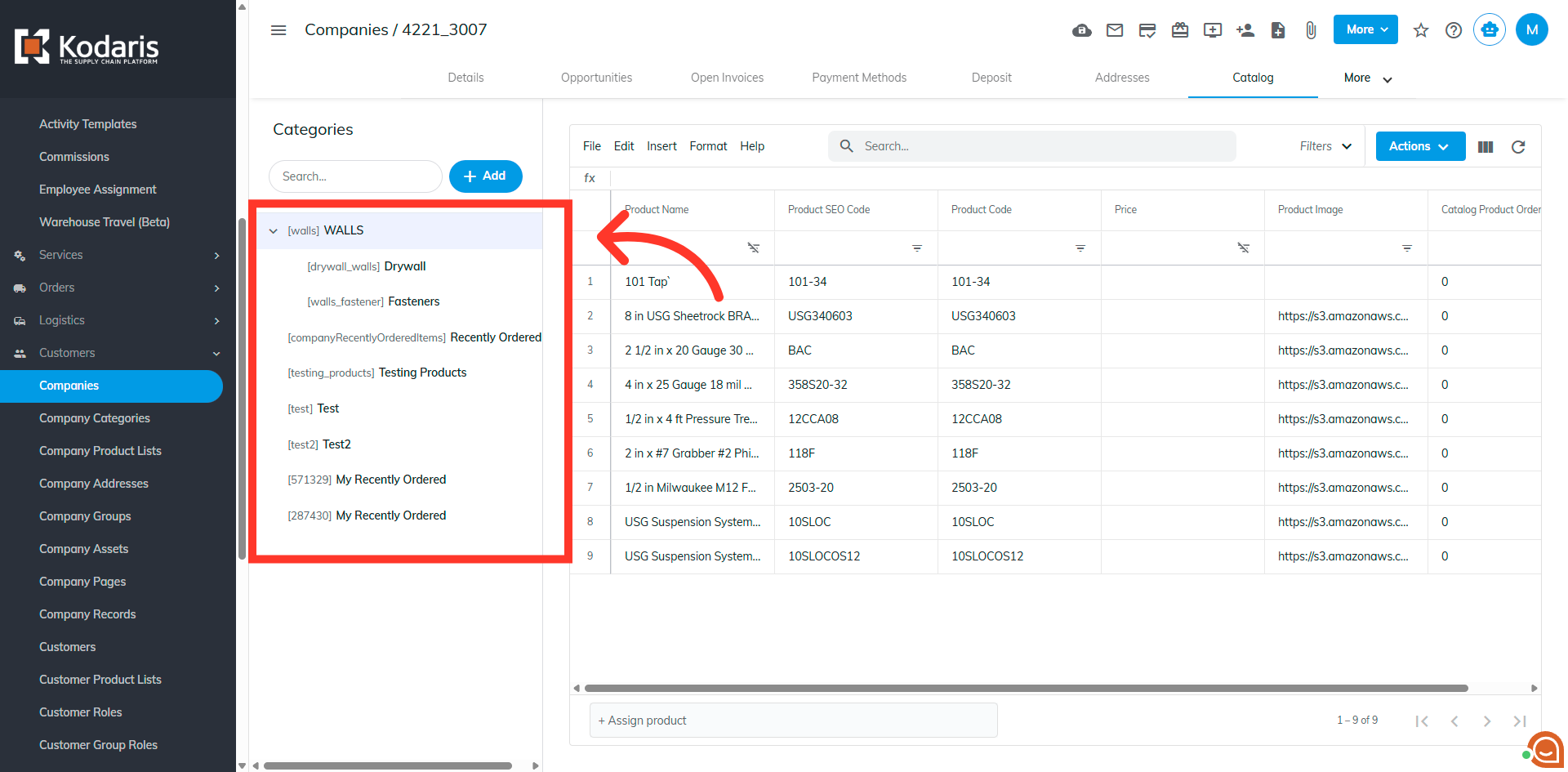
Select which list you would like export.
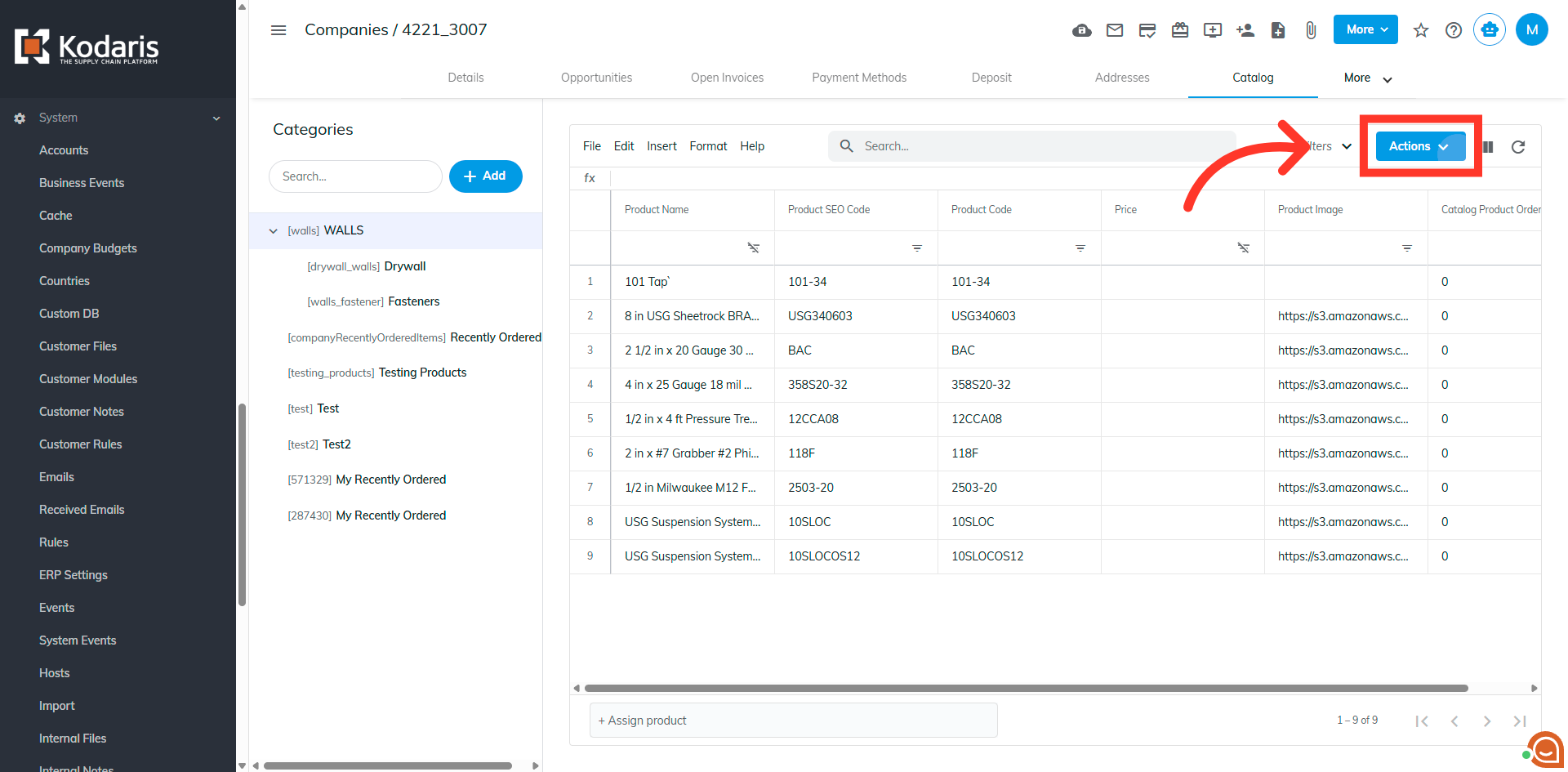
Now, click the "Actions" button.
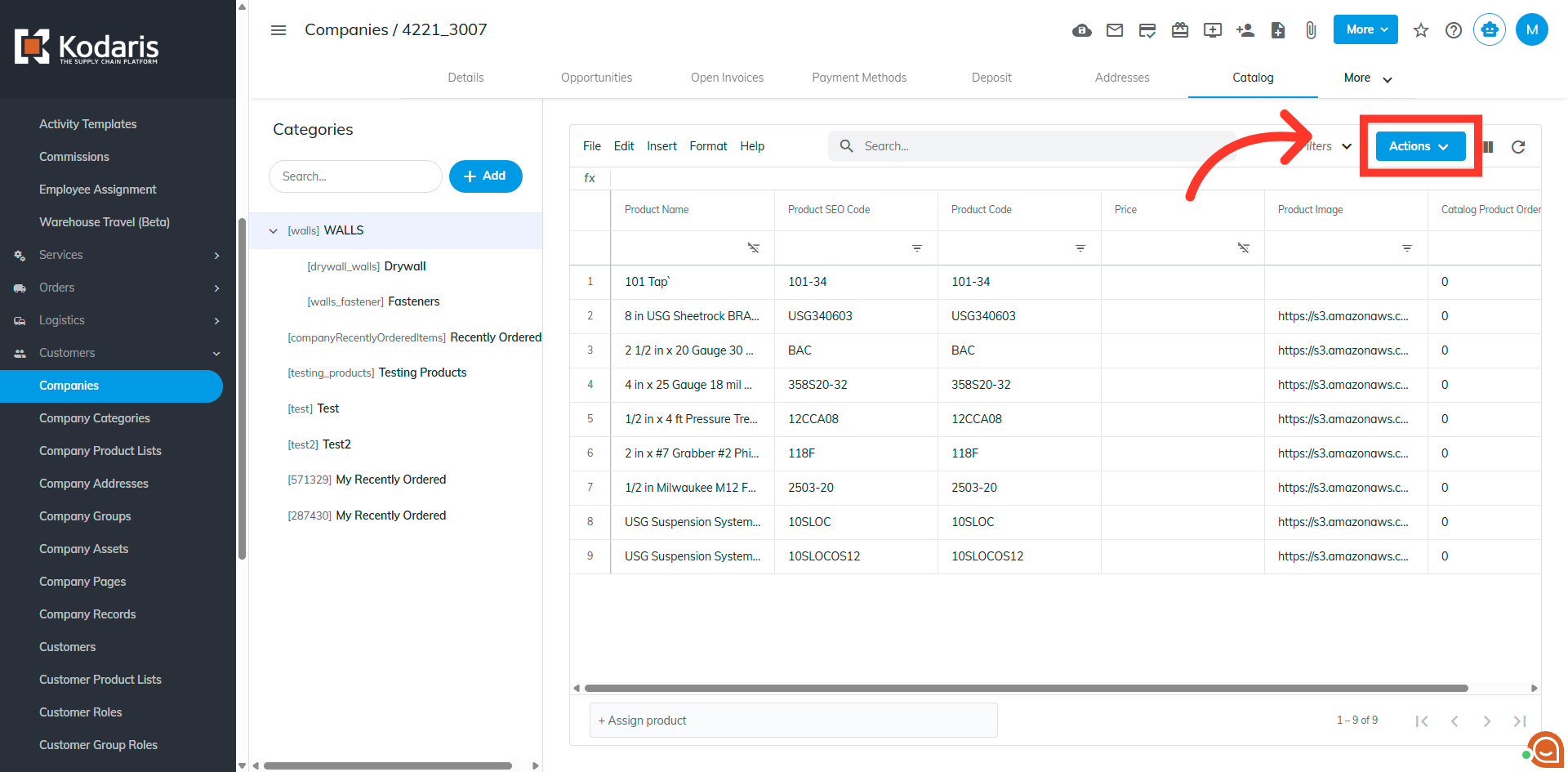
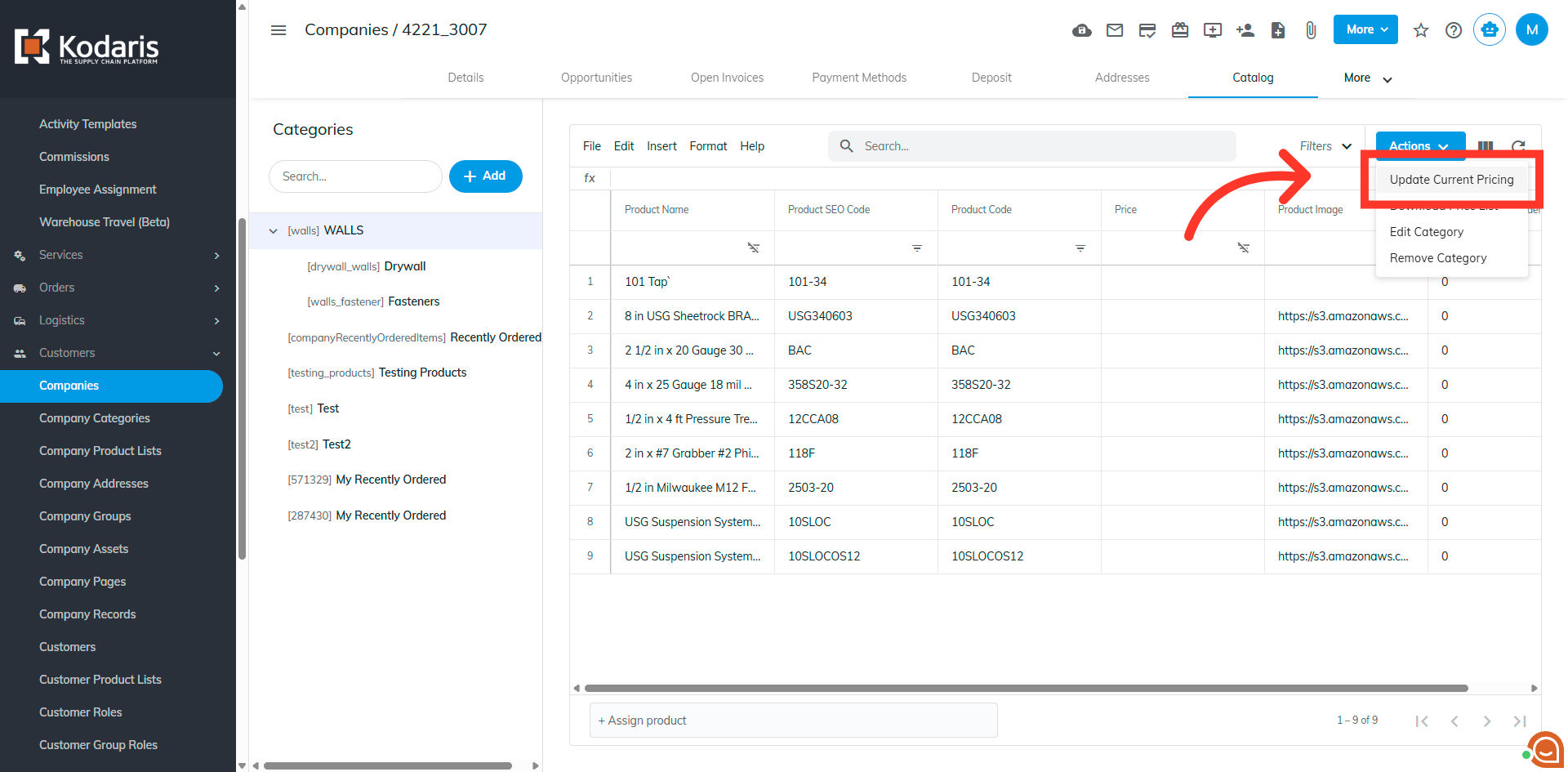
Select "Update Current Pricing" to refresh the pricing information for the company’s catalog.
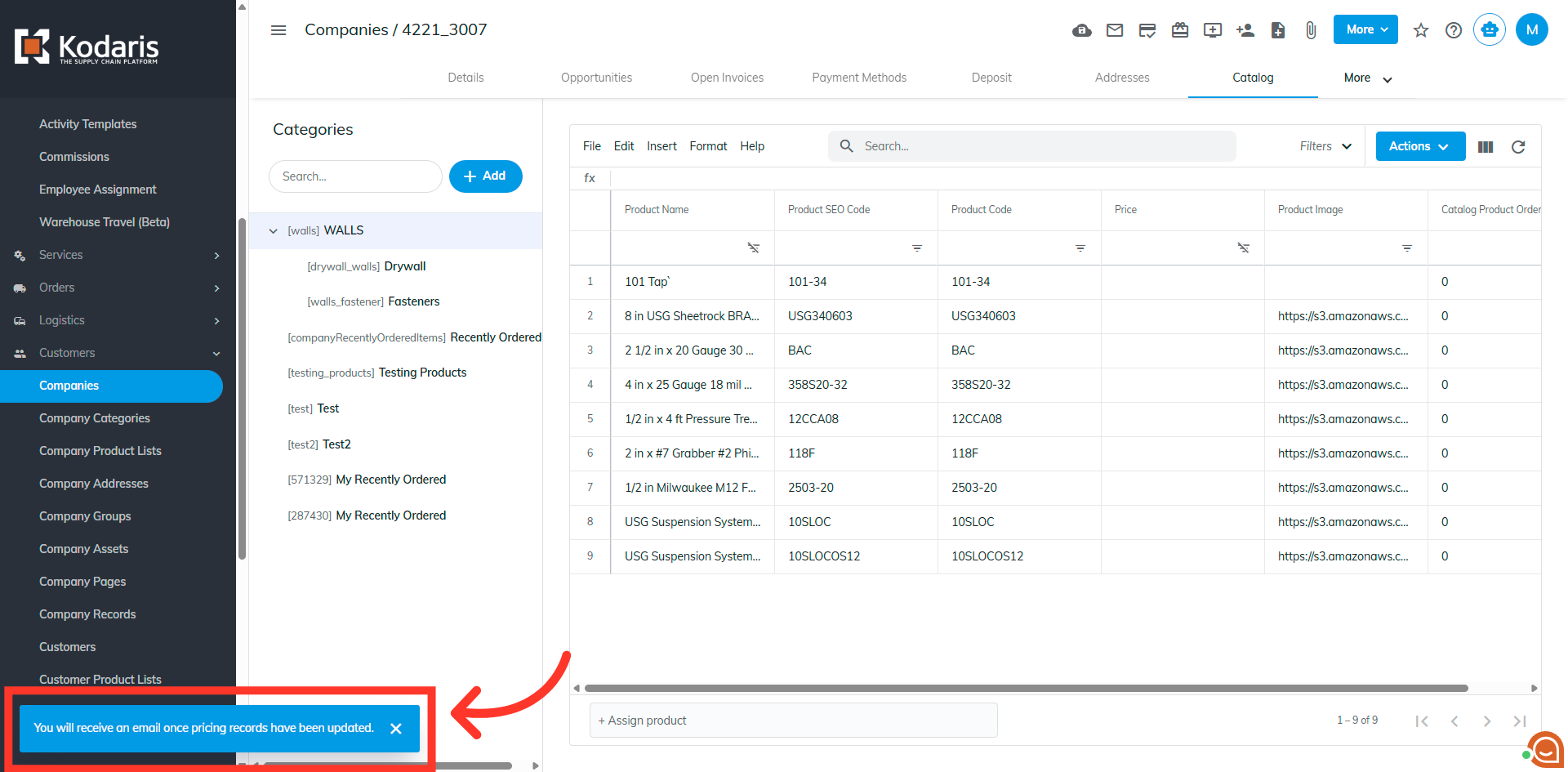
You will see a notification that says "You will receive an email once pricing records have been updated". If you want to export the updated price list, you will want to wait to receive the email notification before exporting.
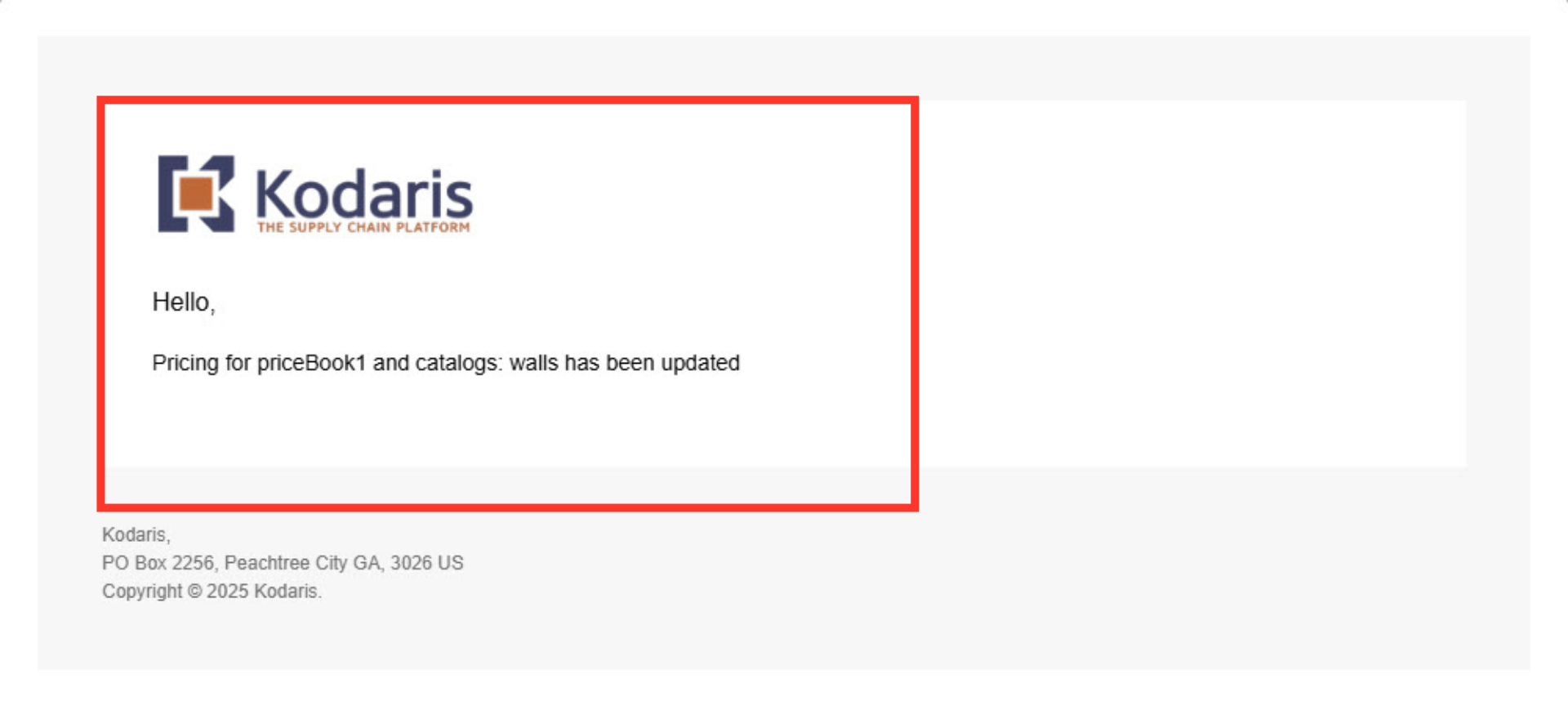
This is an example email you will receive once the pricing records have been updated.
Now, click the "Actions" button.
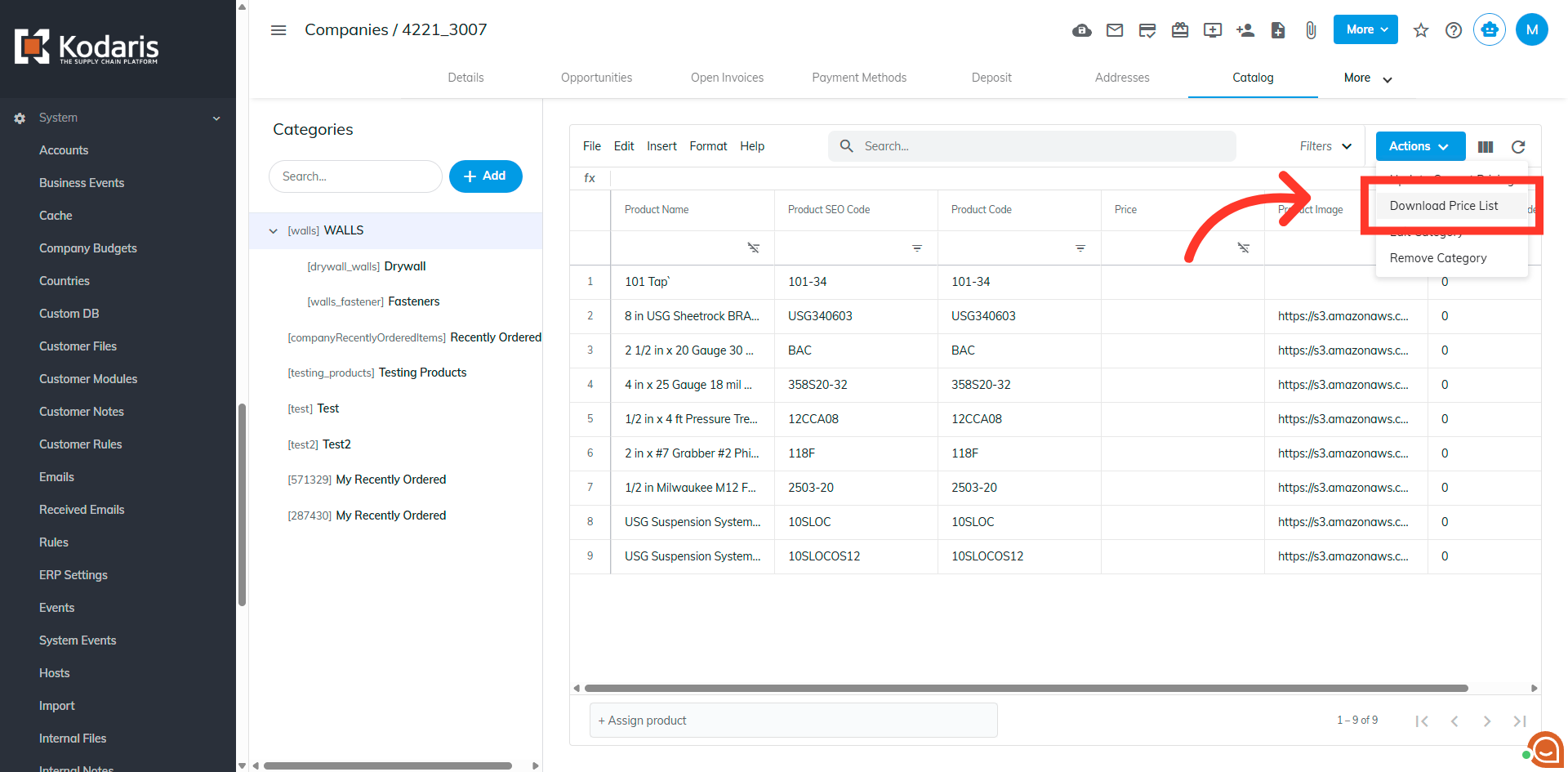
Then, click "Download Price List" to initiate the export of the current pricing data.
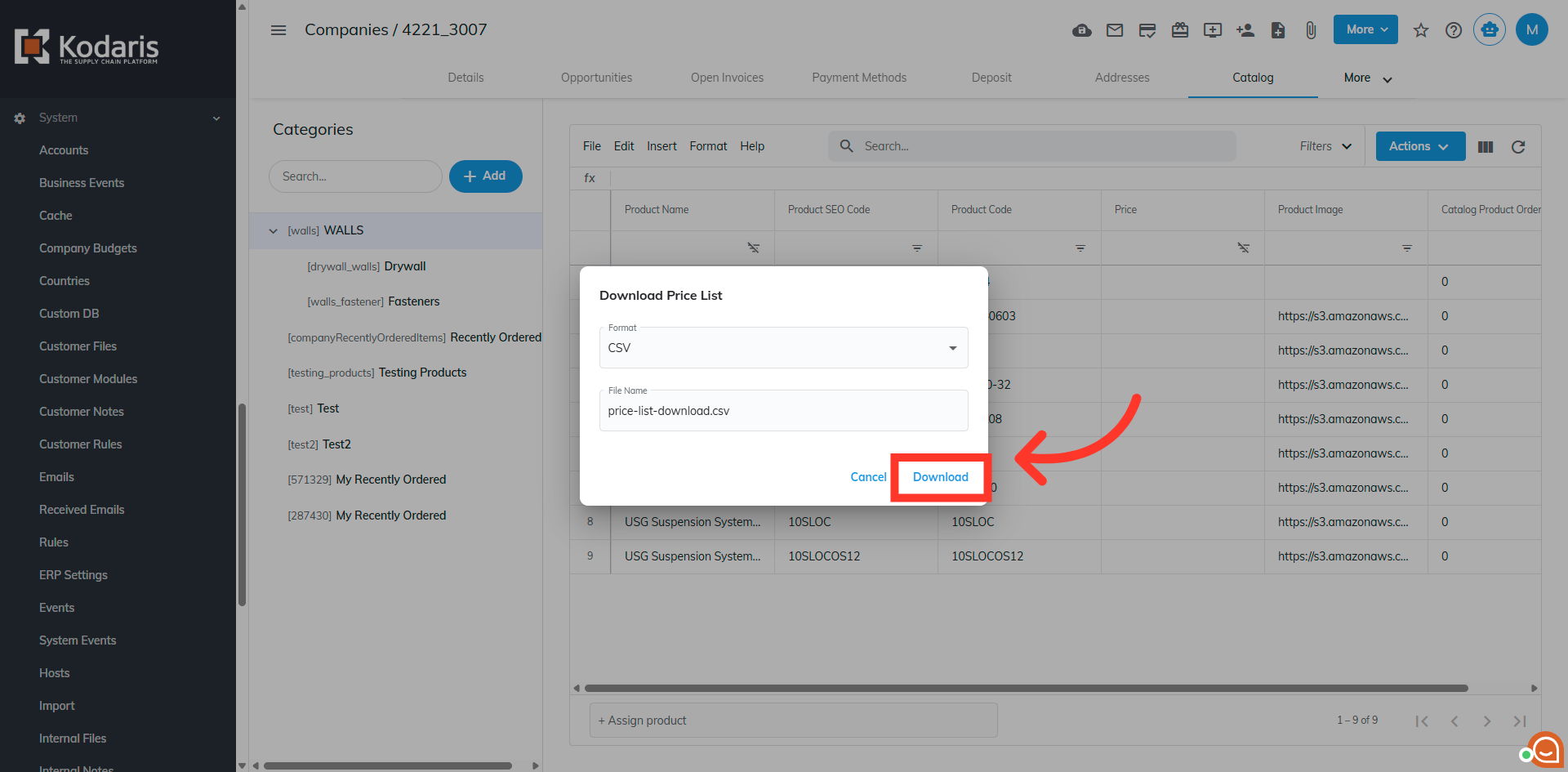
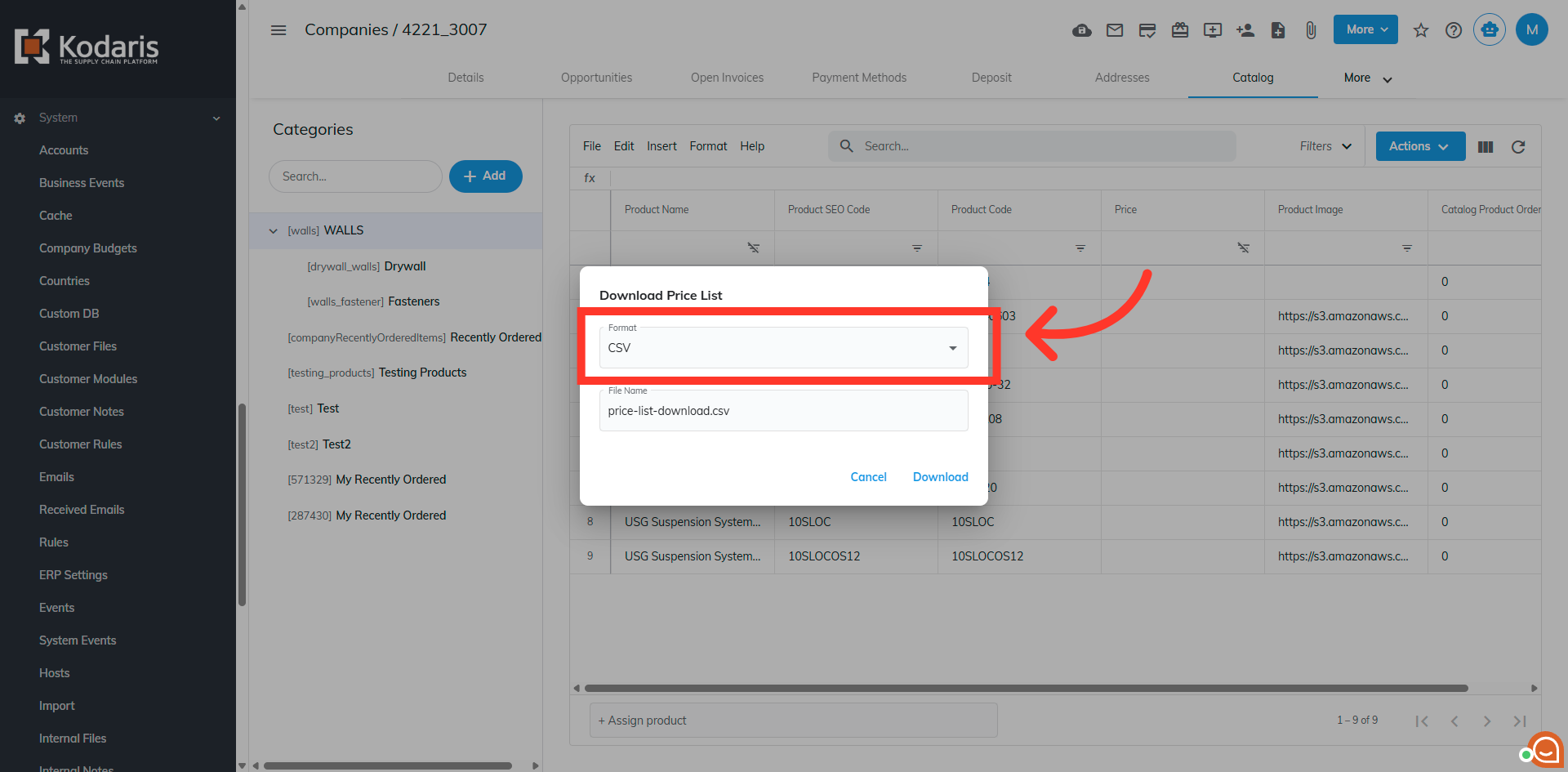
Select the format of the file here.
You can also rename the file if needed.
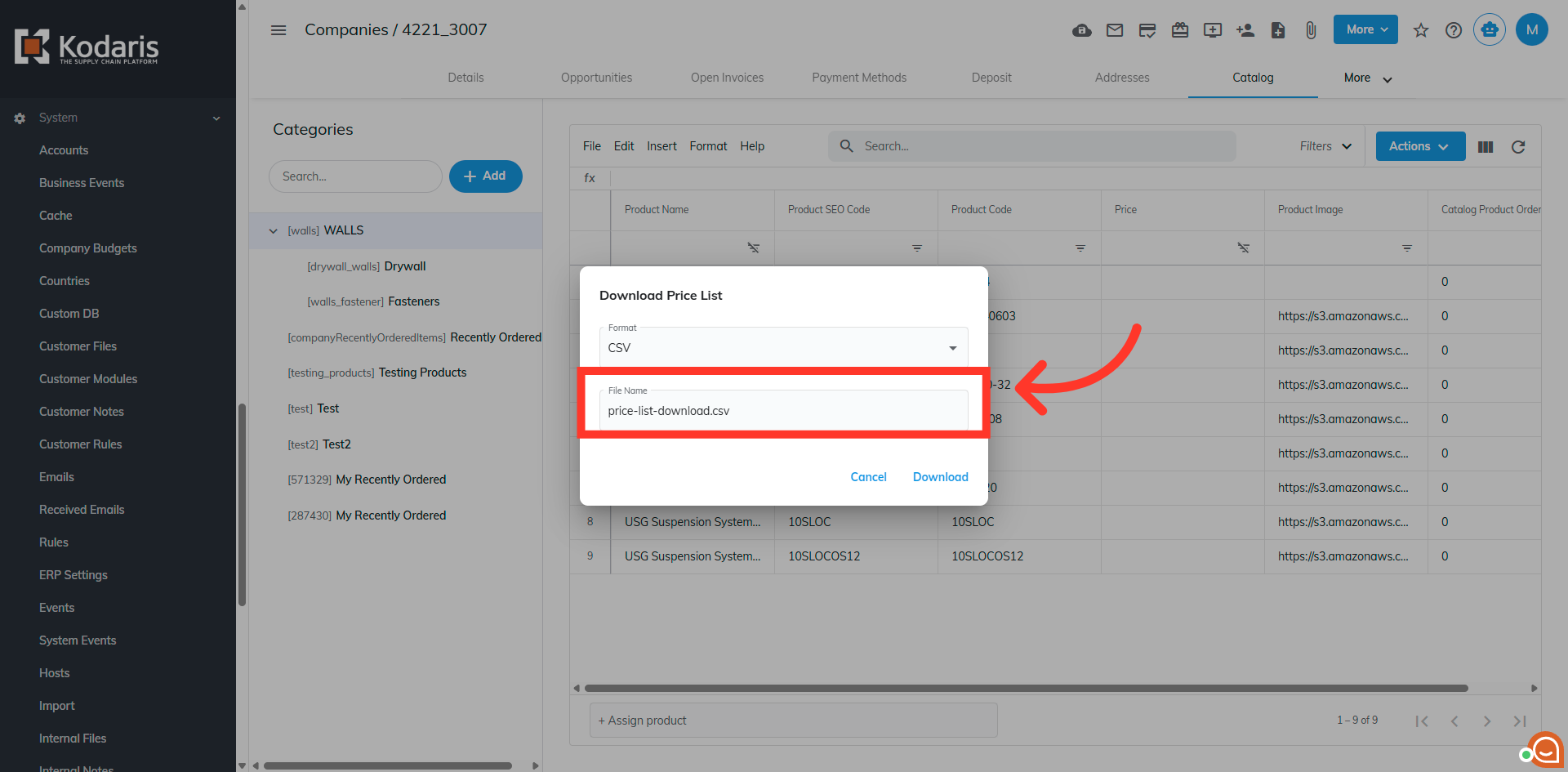
Complete the process by clicking "Download to export the price list to your device.