Product Documentation
Product Documentation
Product Documentation
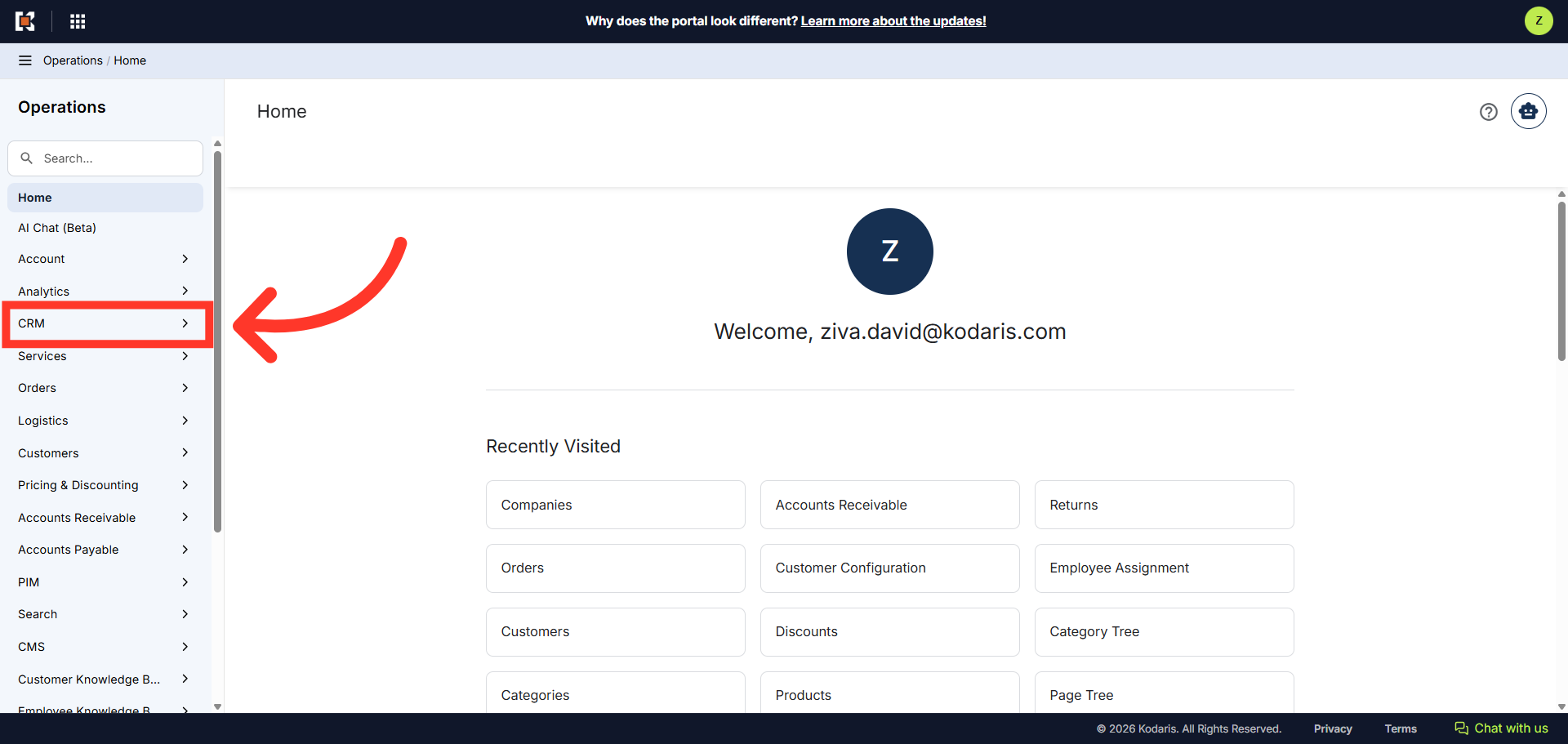
You can view the Accounts Receivable details for a specific company in the Operations Portal. First, navigate to the "CRM" section in the Operations Portal.
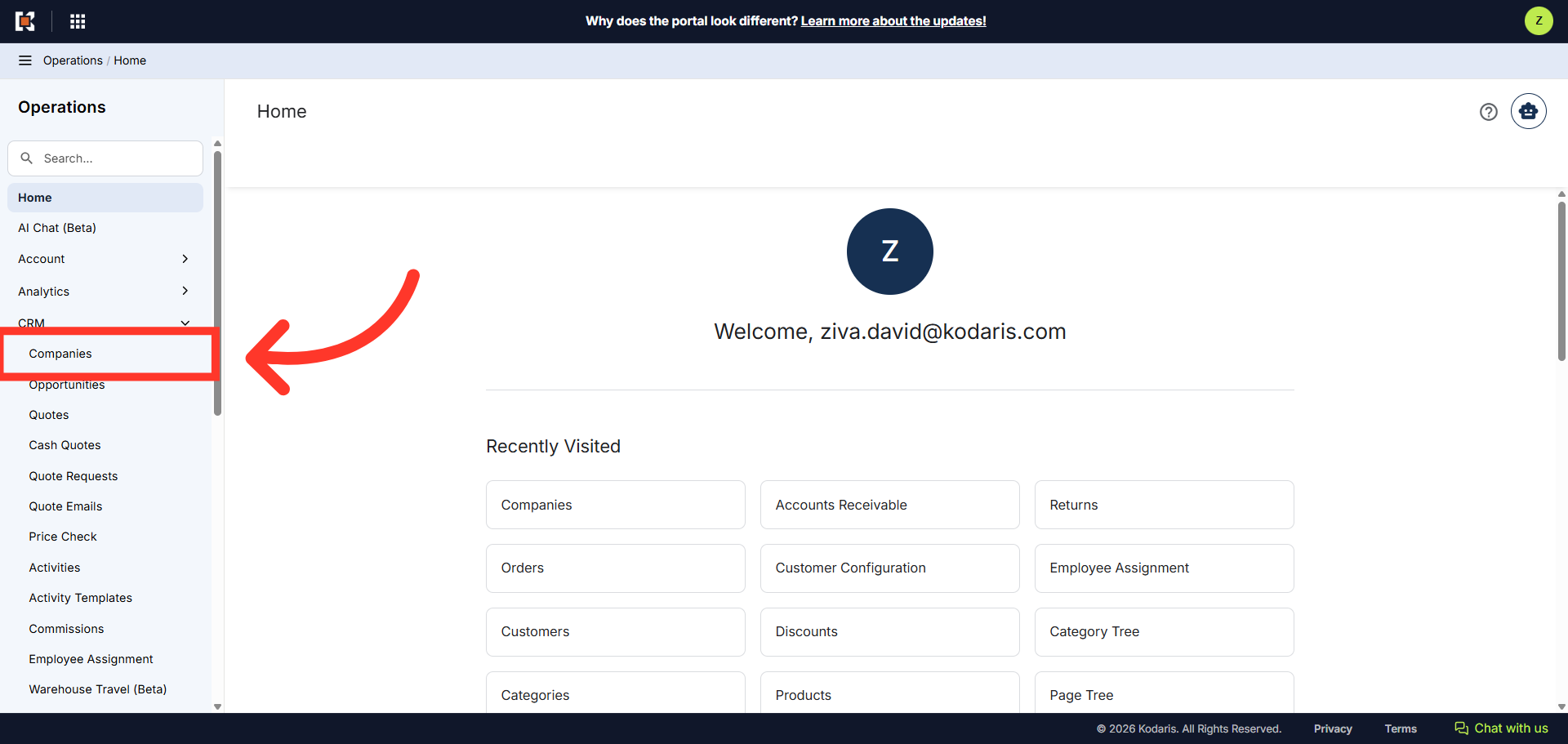
Then, click "Companies". In order to access "Companies" you will need to be set up either as an "administrator" or a "superuser", or have the appropriate roles: "companyView and companyEdit", or "crmCompanyView and crmCompanyEdit". Just a reminder, "crmCompanyView and crmCompanyEdit" access only allows employees to view companies that are assigned to them.
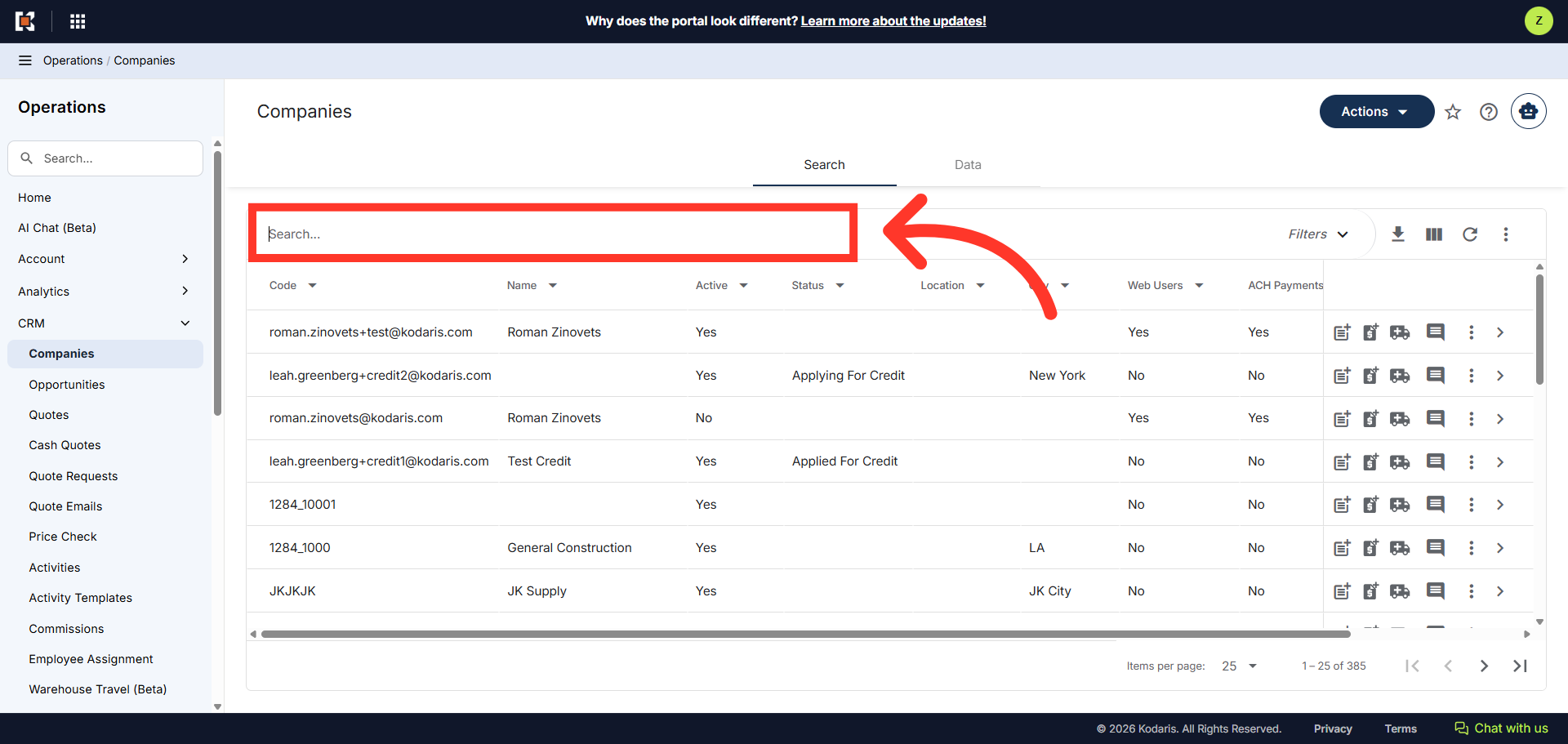
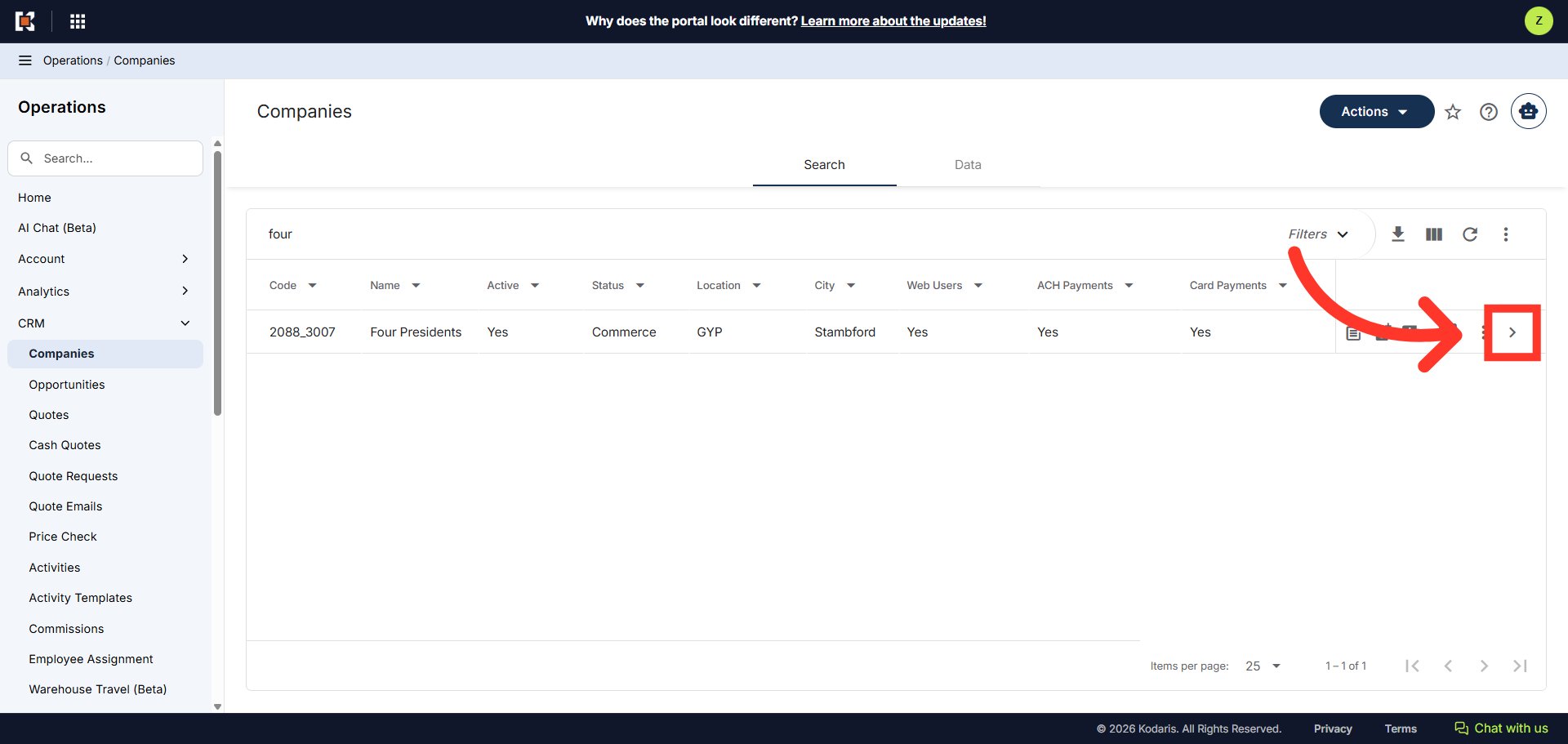
Enter the company name or code to search.
Click on the more details icon to open the Company's details page.
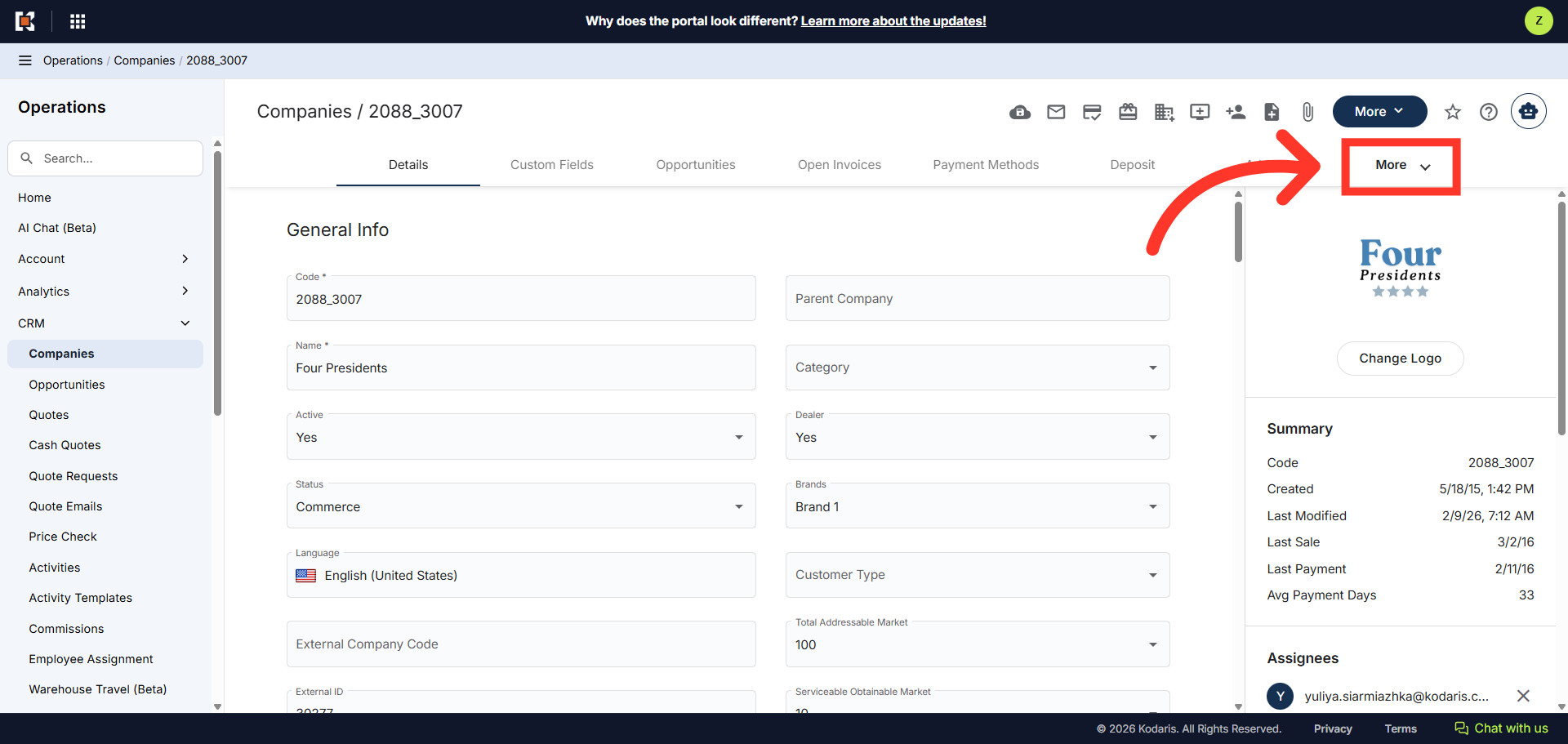
Click the "More" dropdown to view other tabs.
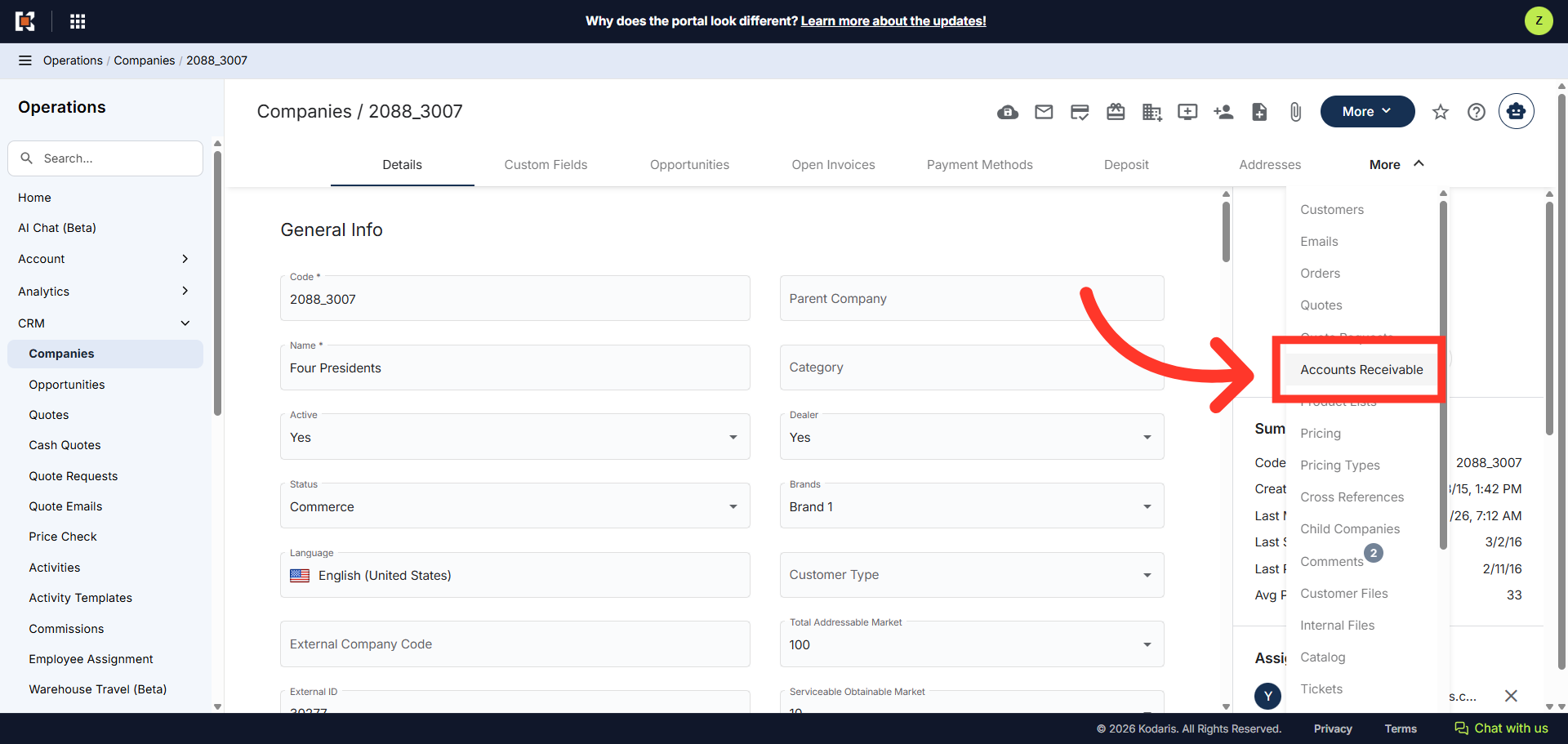
Then, click the "Accounts Receivable" tab. In order to access and update "Accounts Receivable" you will need to be set up either as an "administrator" or a "superuser", or have the following role: "paymentView"; allows access to view payments, "paymentEdit"; allows access to edit payments.
The "Accounts Receivable" view is similar to the general accounts receivable view in the Operations Portal. However, the transactions listed here are customer specific.
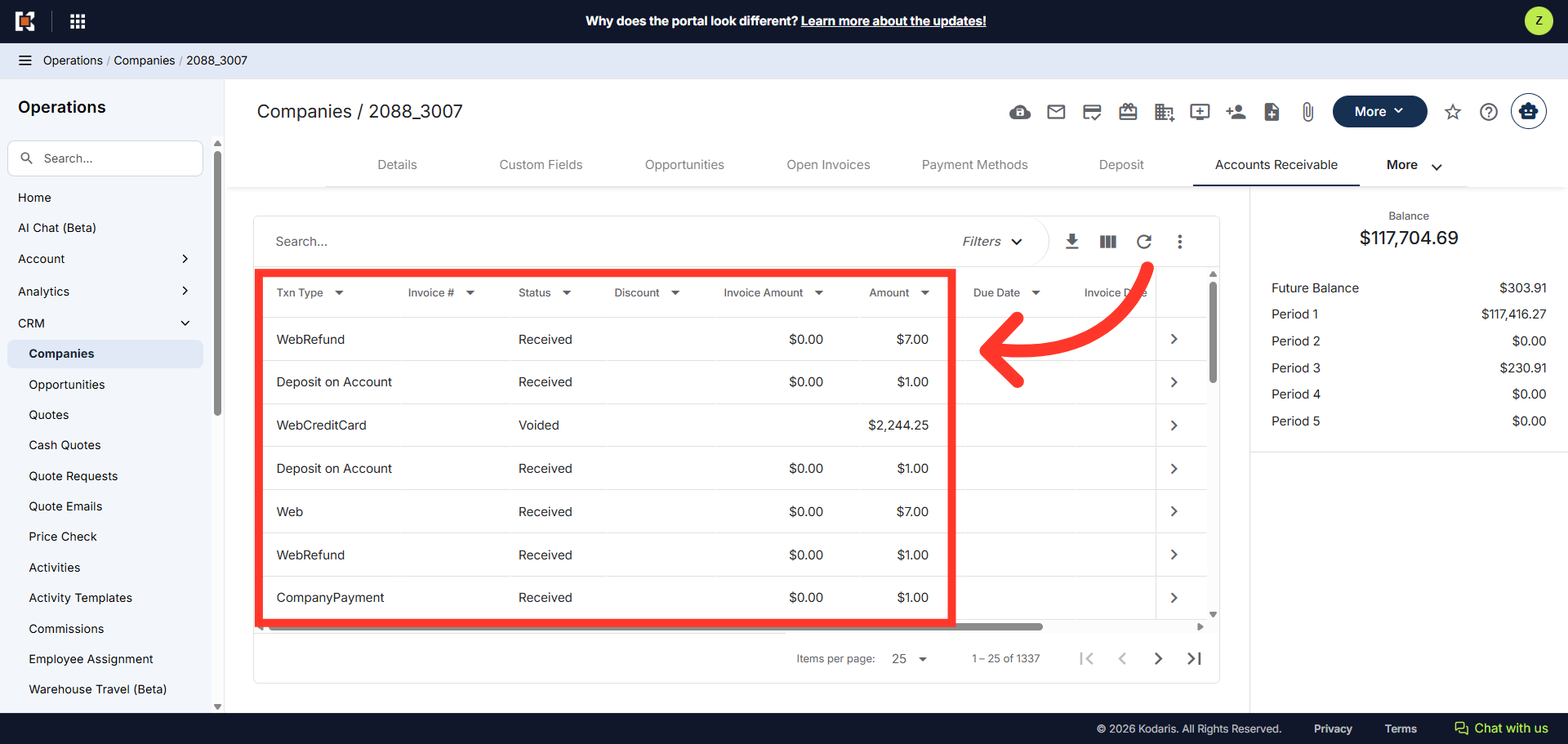
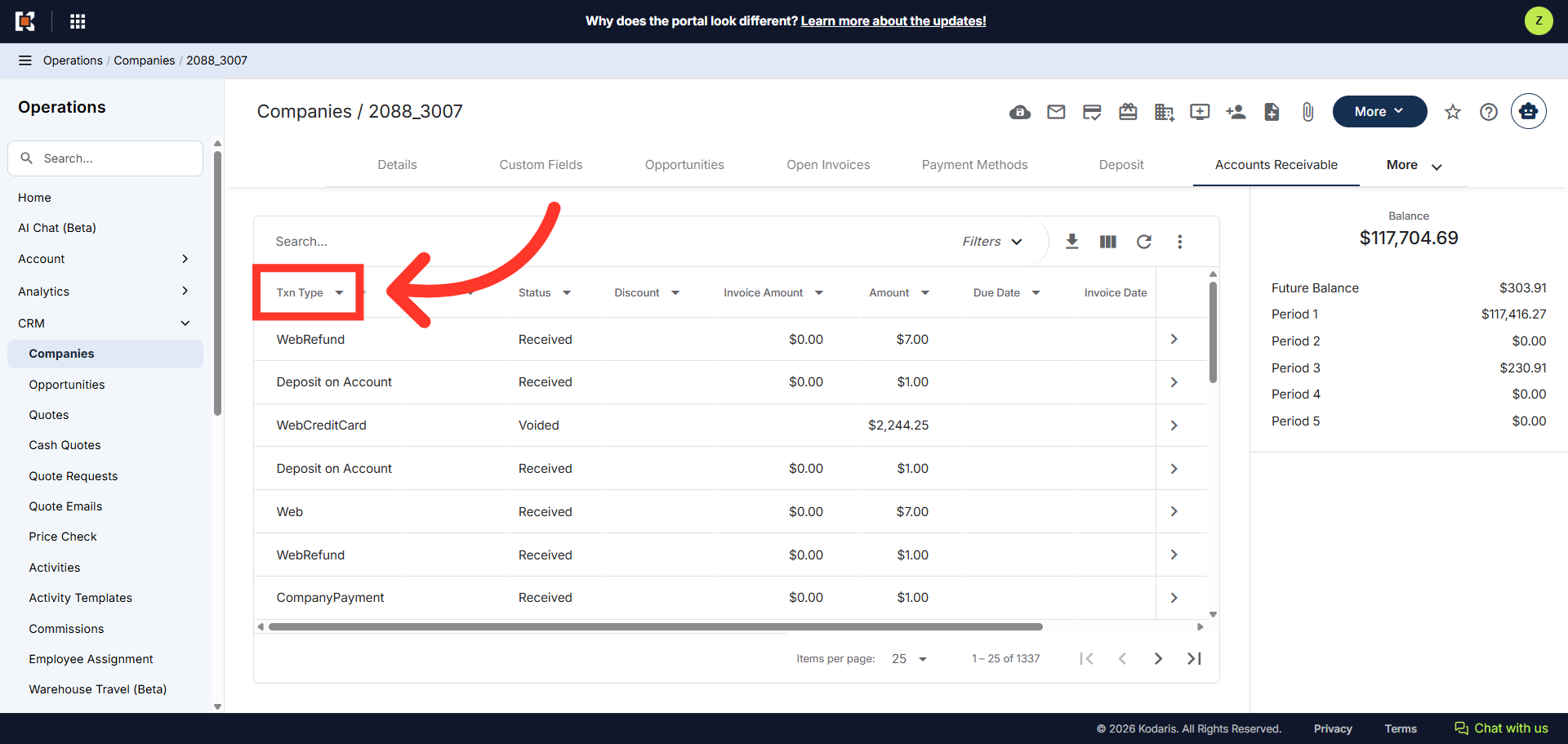
You can filter the transactions by type, by selecting the "Txn Type" filter and selecting an option from the drop down menu.
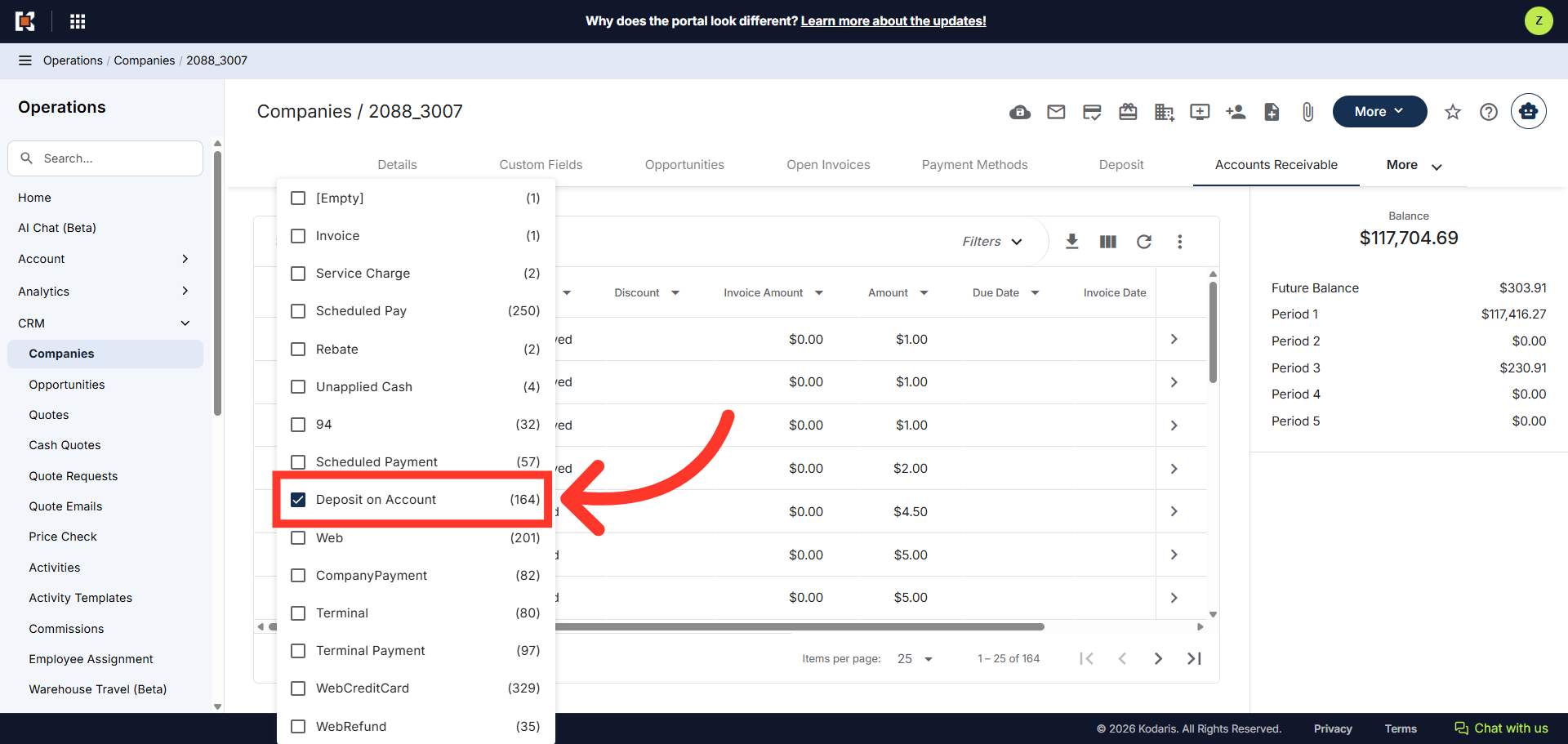
Select from the available type options.
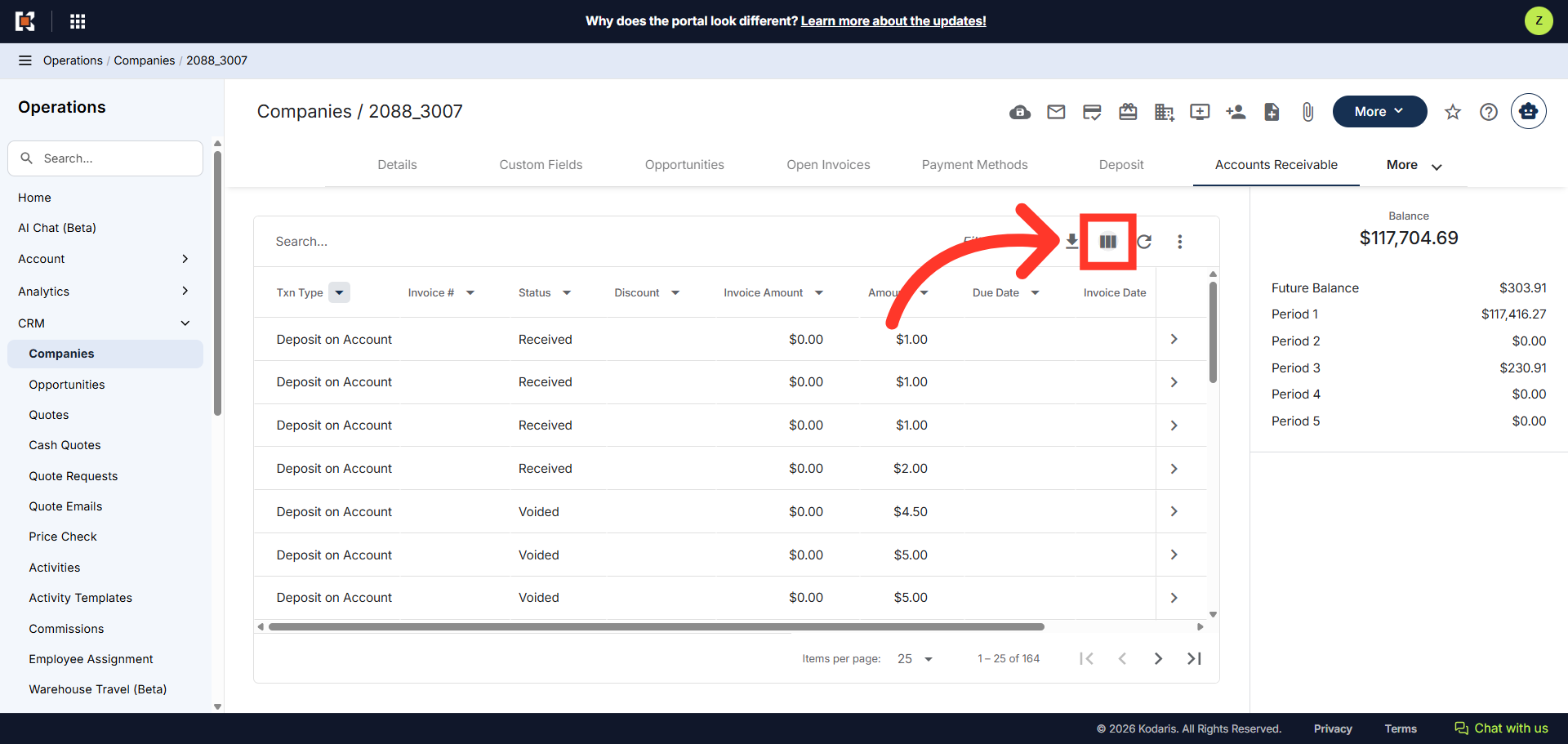
You can also use the "Show/Hide Columns" icon to add additional information and customize the grid view.
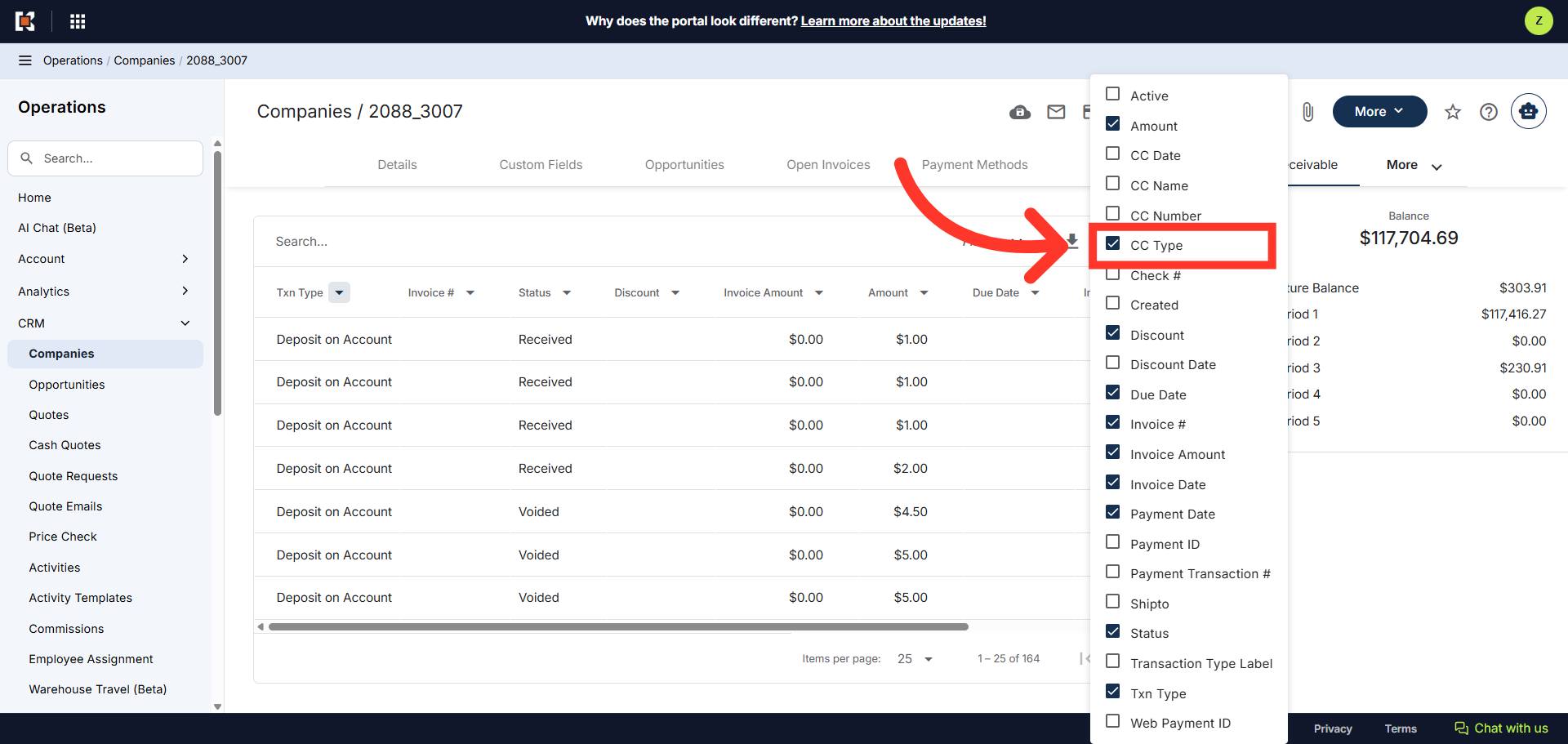
In this example we will add credit card types to our view. Click "CC Type" to add it to the grid.
The column has been added to our grid view and the credit card type is displayed. You can now filter the list using this column
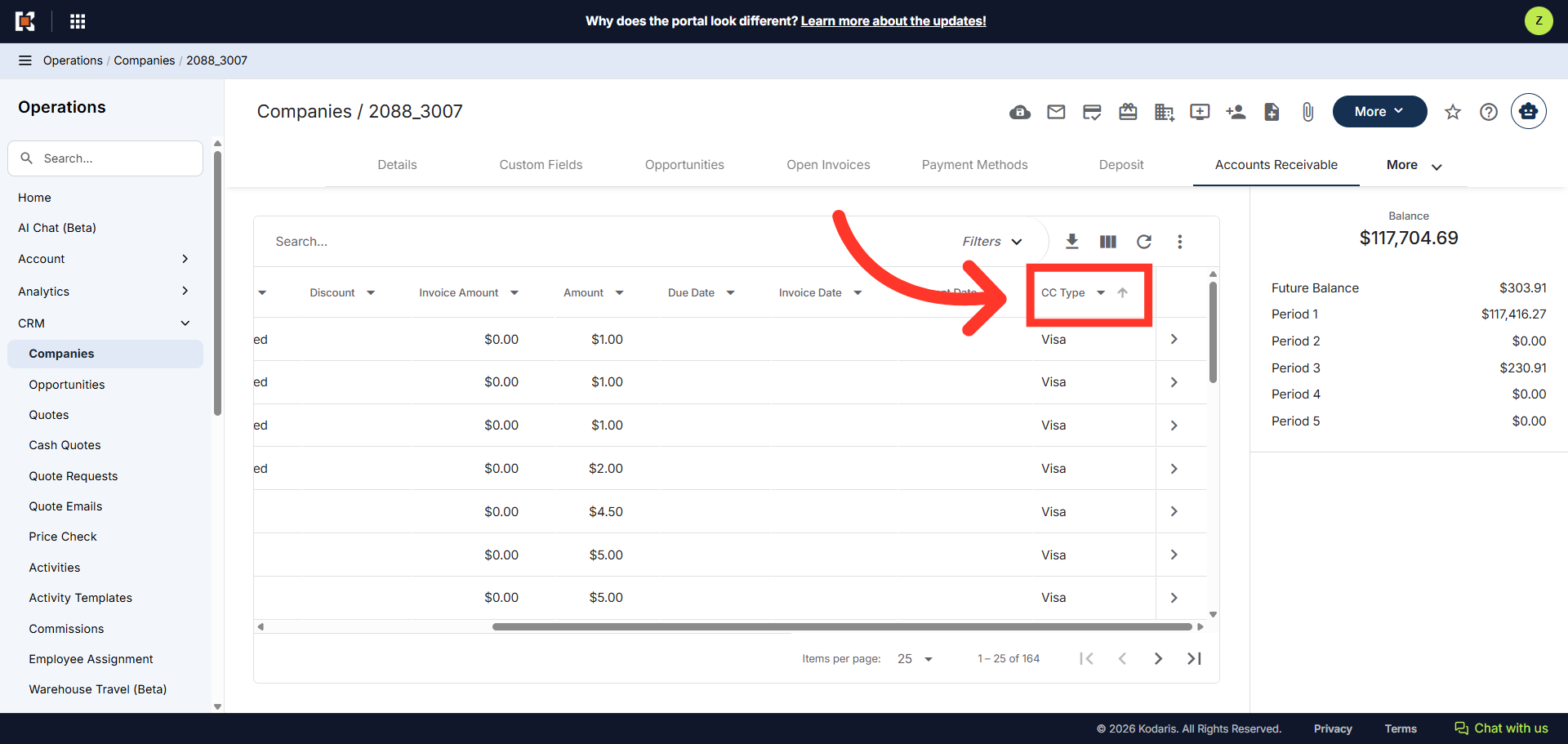
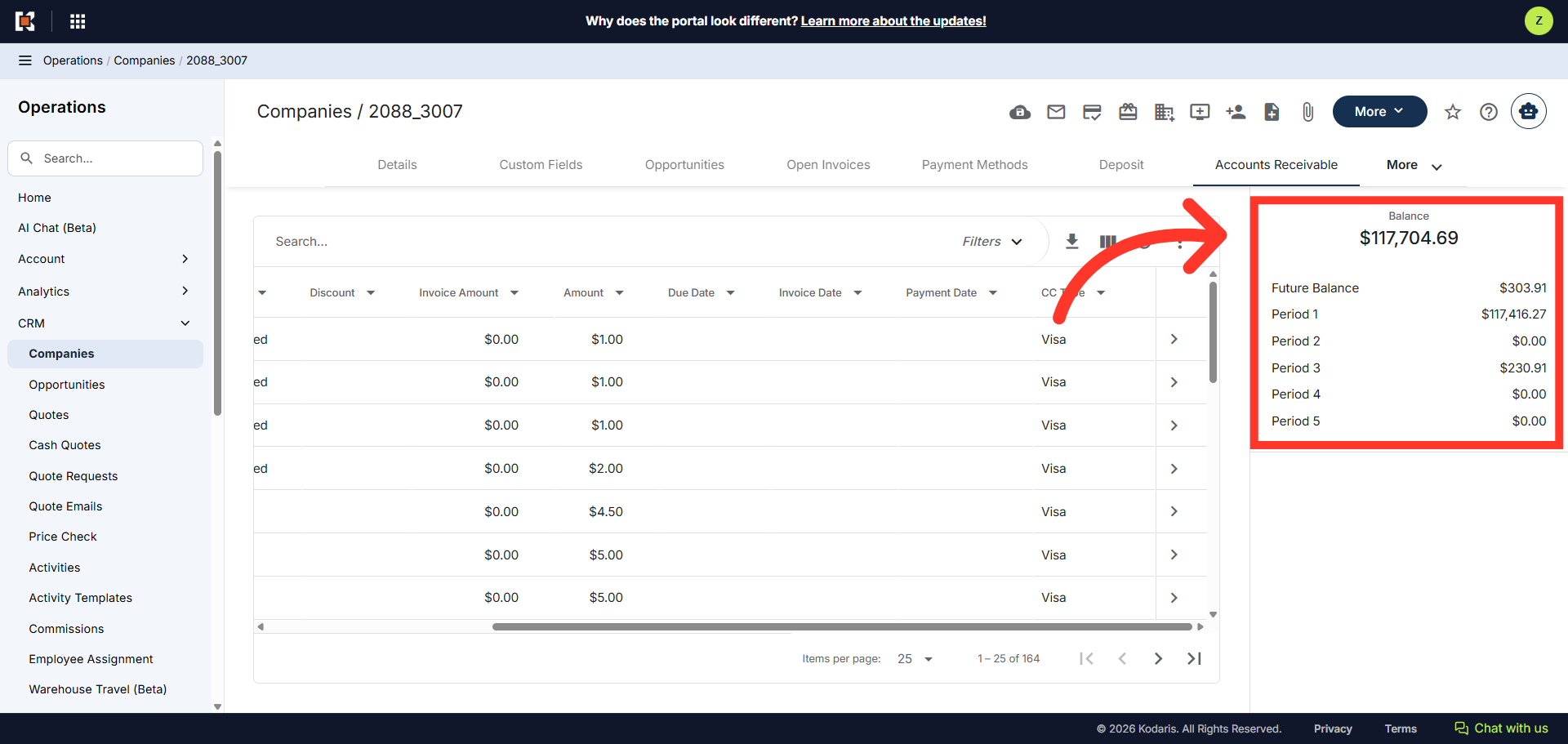
Finally, on the right panel of the screen, the customer balance is displayed. The total account balance as well as the balance by period is included. This is the same balance view the customer has in the Customer Portal.