 Product Documentation
Product Documentation
Product Documentation
To update company product lists by import, navigate to the "CRM" section in the Operations Portal.

Then, click on the "Companies" screen. In order to access "Companies" screens you will need to be set up either as an "administrator" or a "superuser", or have the appropriate roles: "companyView," "crmCompanyView," "companyEdit," "crmCompanyEdit," and "dispatch." along with "importEdit" and "importView". These last two roles are needed for importing.

Enter a keyword in the search field to find the company the product list is associated with.

Click on the more details icon to view the company details screen.

Click the "More" dropdown to find the "Product Lists" tab.
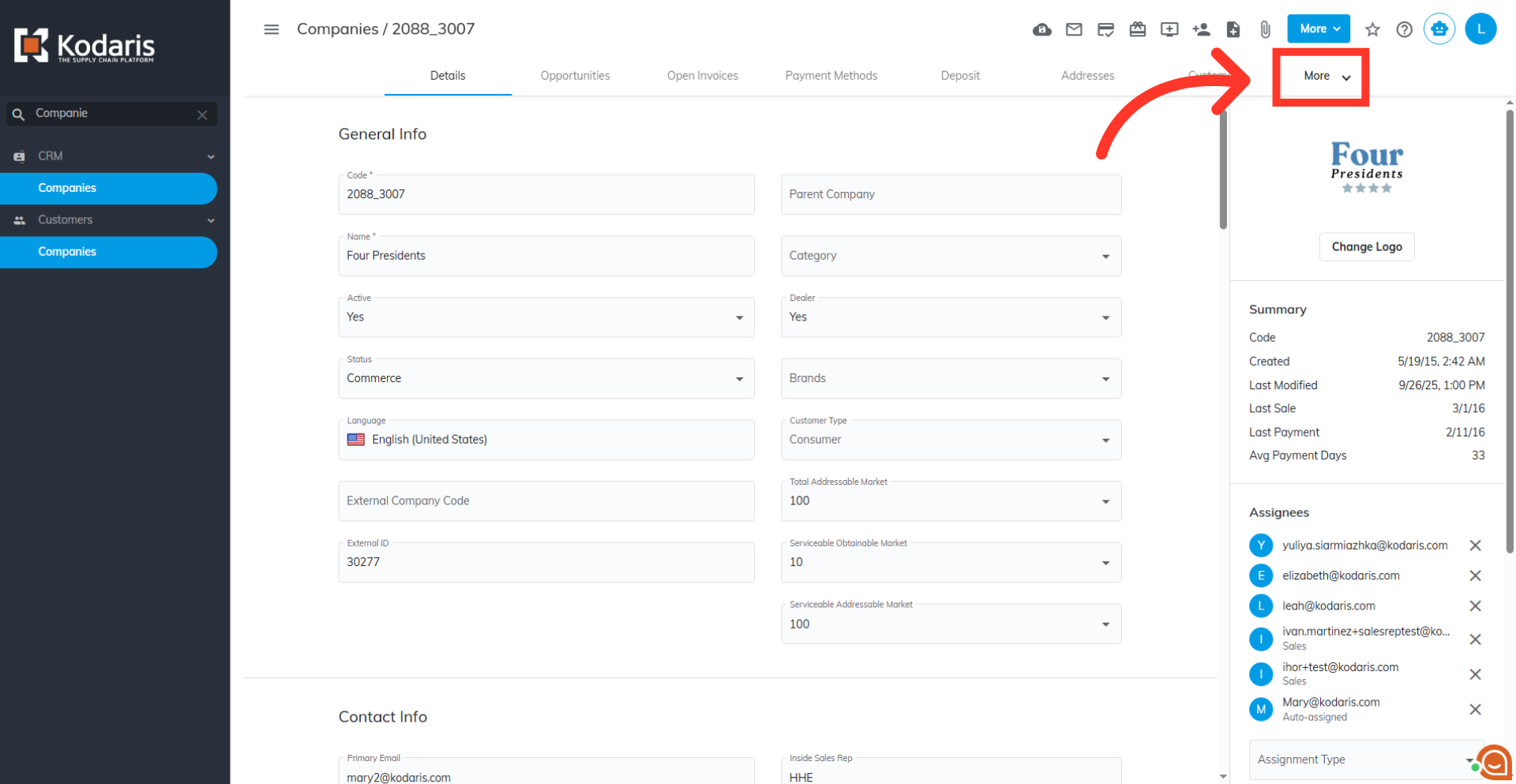
Go to the "Product List" tab.
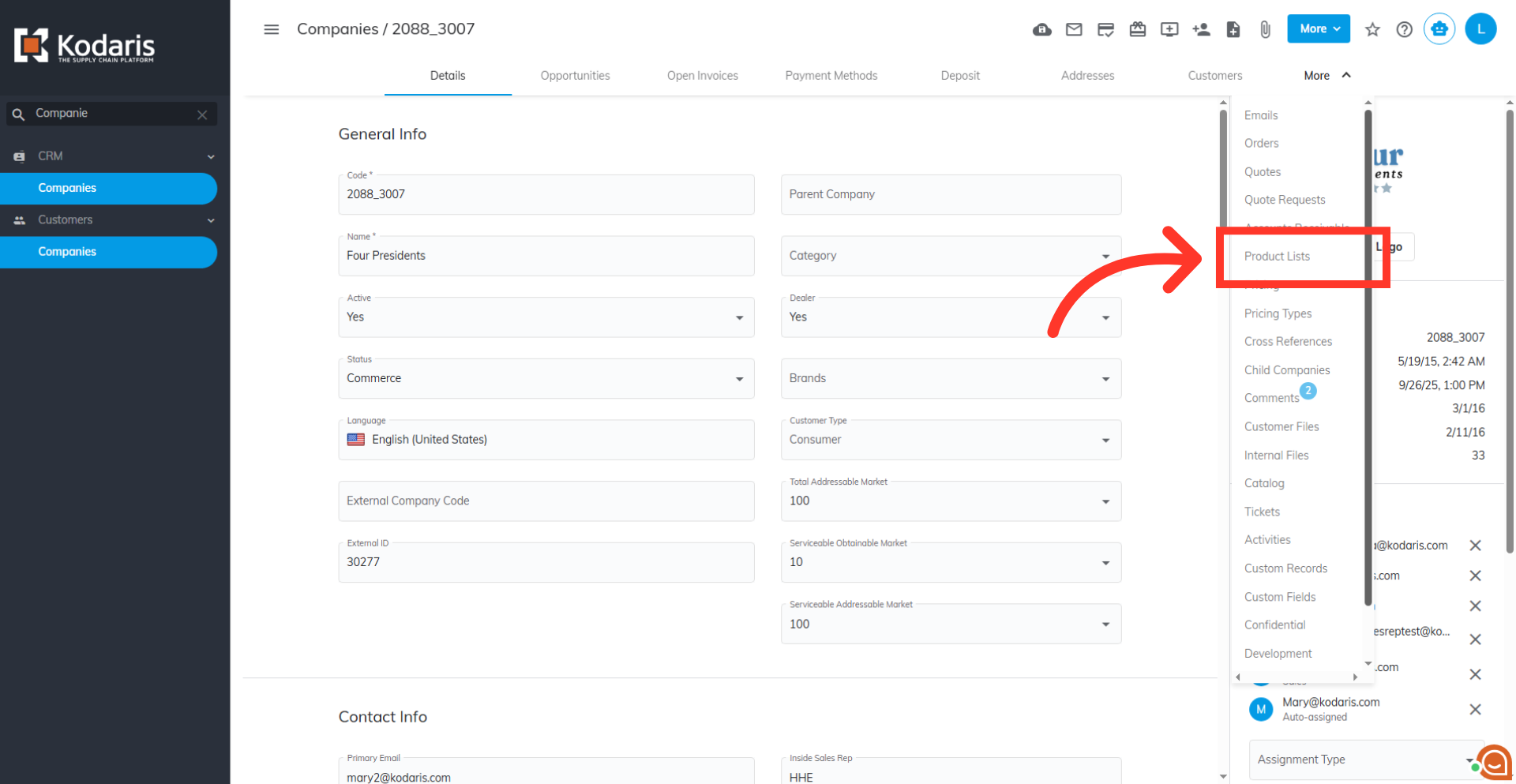
Find the product list you would like to update, and click on the more details icon to view the list items.
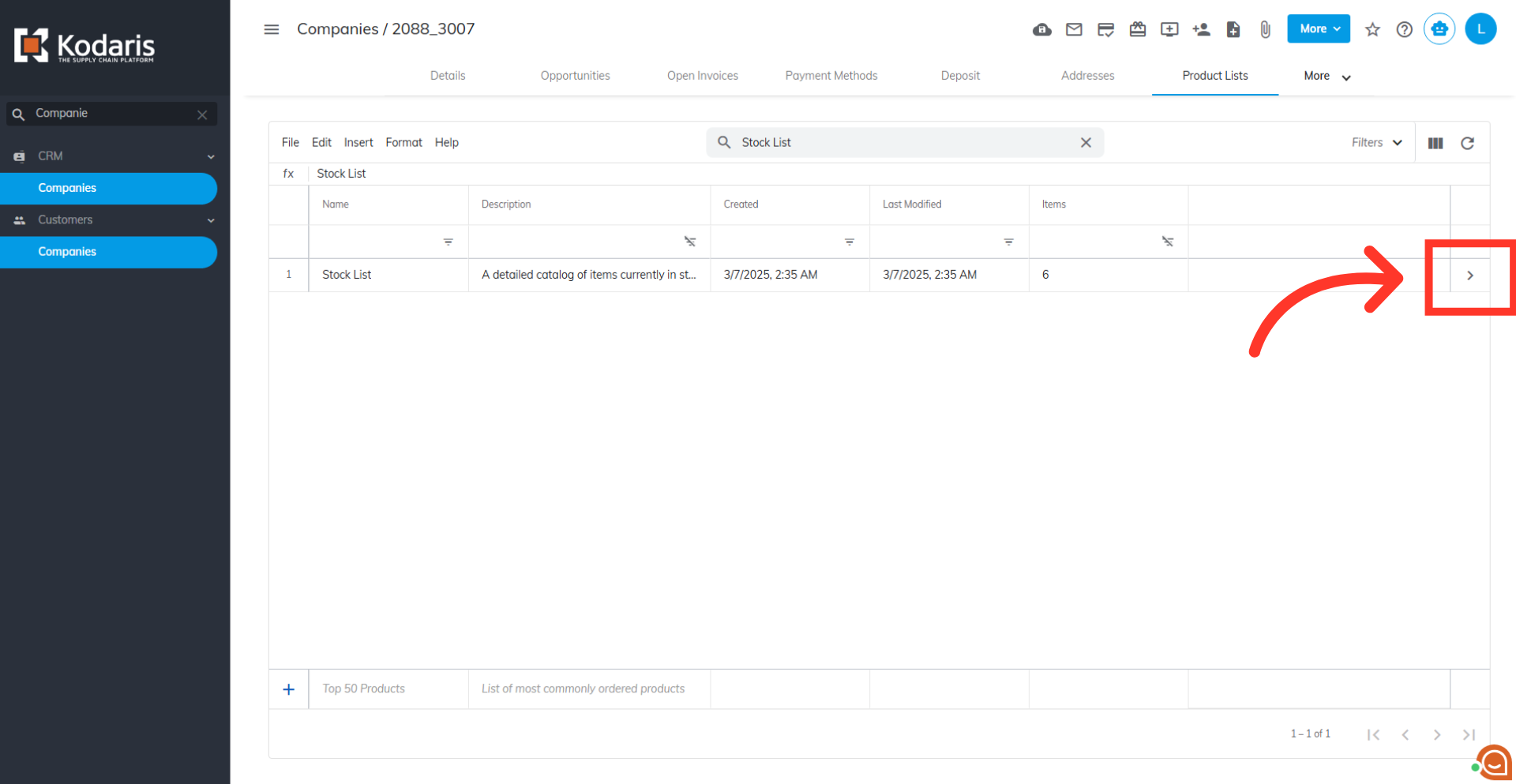
Click the "Show/Hide Columns" icon to select any columns you would like to add to the screen.
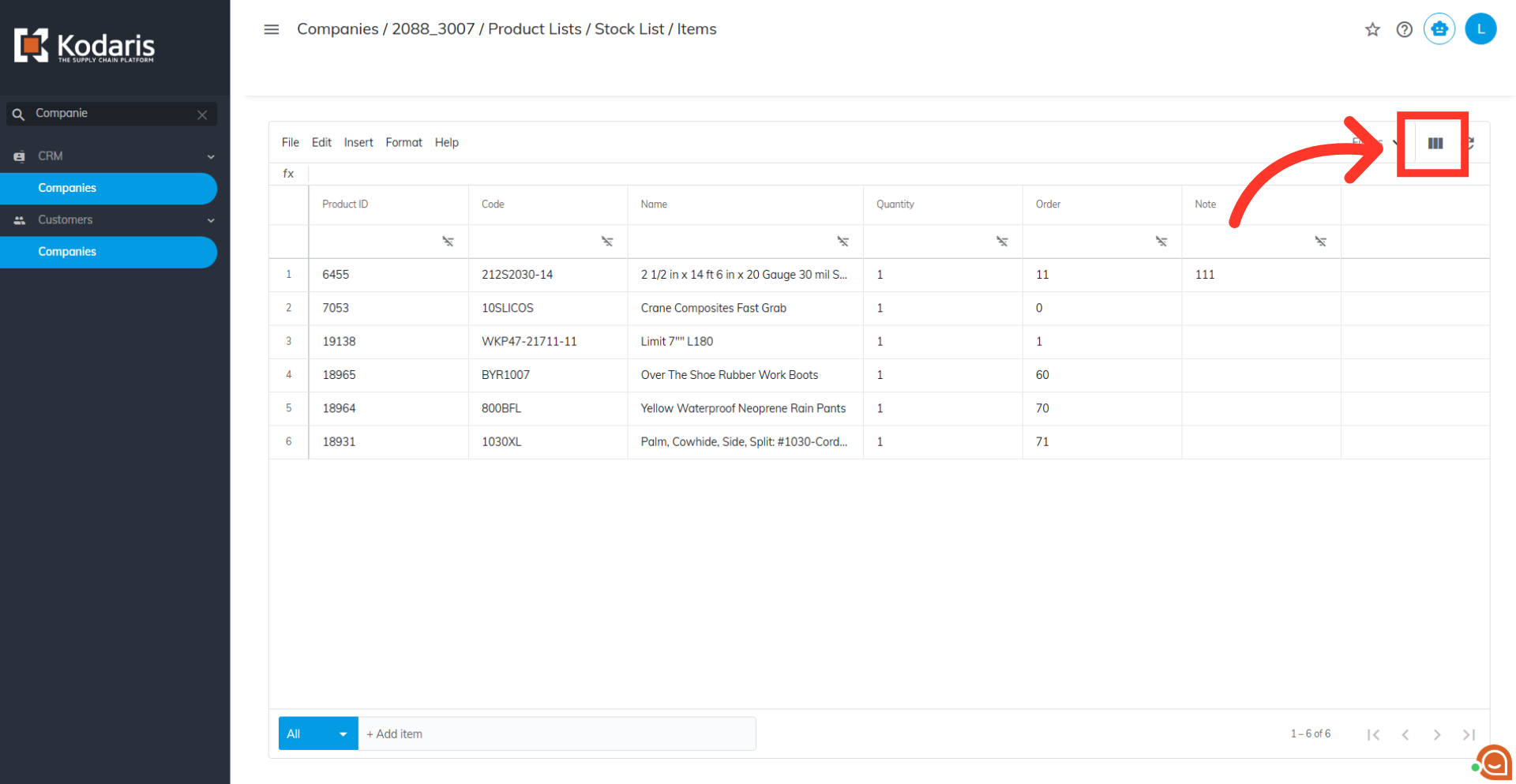
To export a file that can be used for importing data, you will need to make sure that the "Code" and "Product List ID" columns have been added to your grid. You can also include any other helpful columns at this time. Uncheck any columns that are not needed.

When ready to export, click "File".

Click the "Export" option.

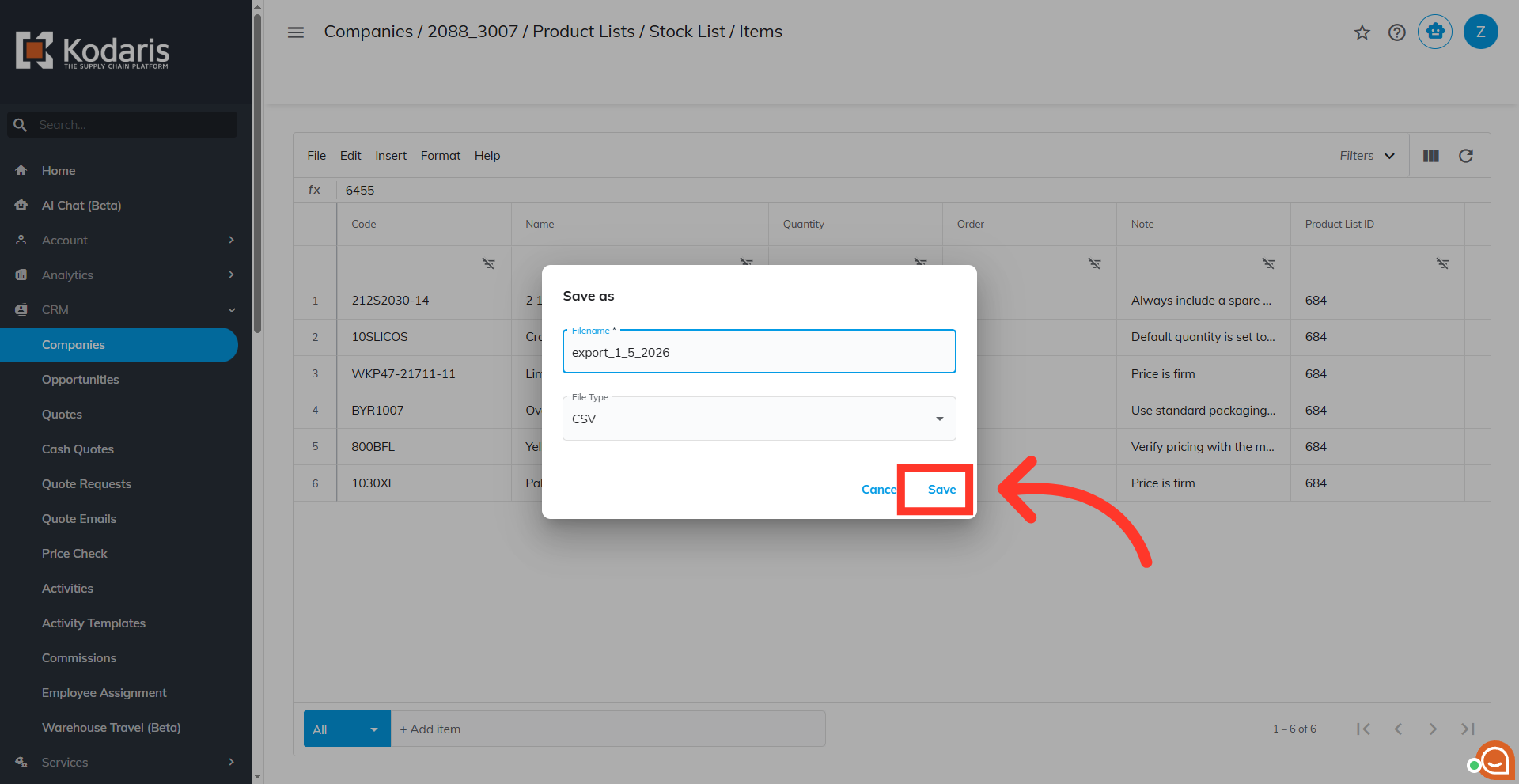
A "Save as" dialog box will appear. If you would like to rename your export, click in the filename field to type and enter the name of your file.

Then, click on the "Save" button. The file will be saved to your computer.
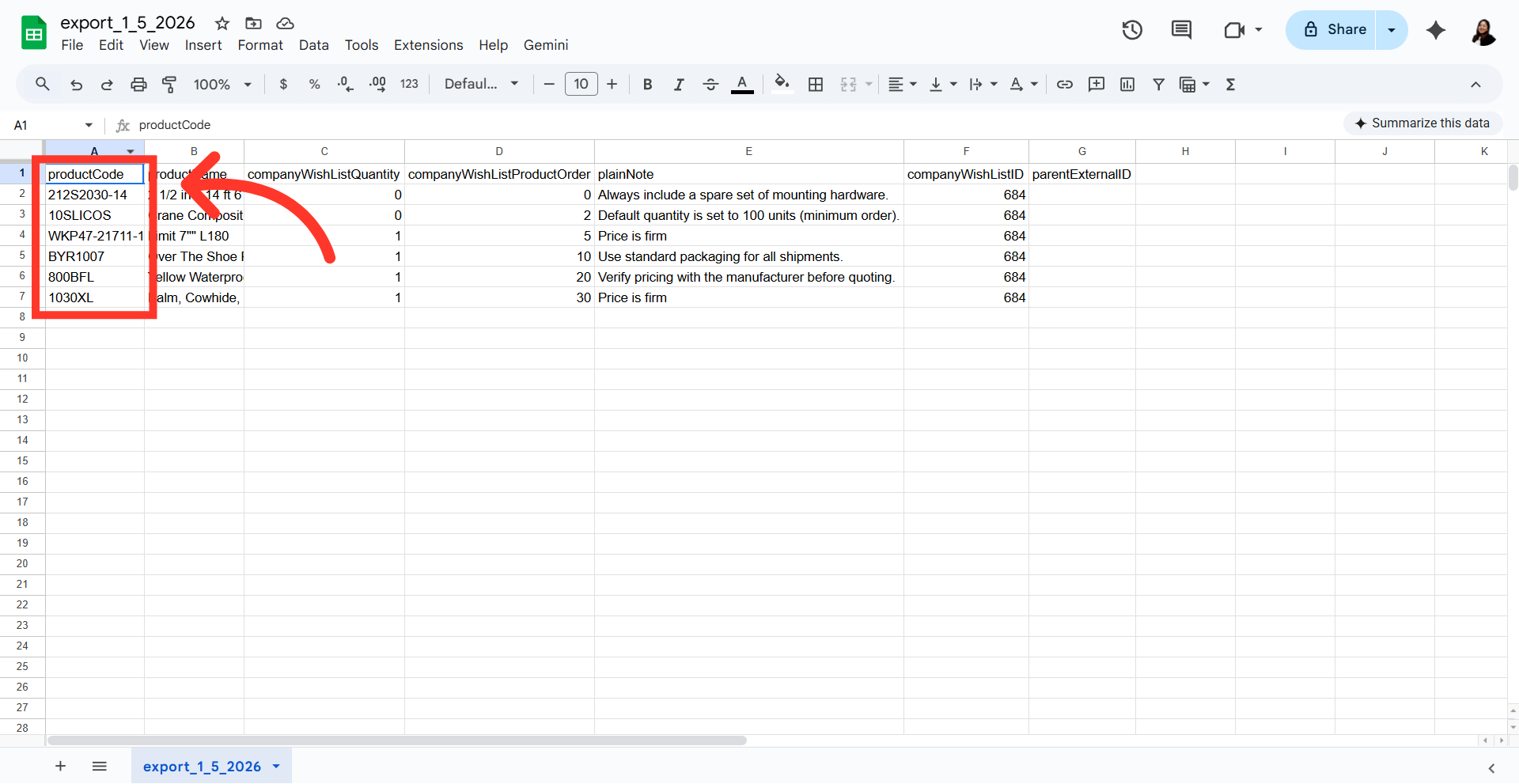
Here you can see an example export that includes the required columns "Code" and "Product List ID" along with any other columns chosen.

The "productCode" column contains the product code. When importing product data, the "ProductCode" is required as it is the identifying factor for matching information. Any product codes you would like to add to a product list by import should be included in this spreadsheet.
Though "productName" isn't required for import, it can be helpful in identifying the items you're updating in the spreadsheet. The name can be updated by import.

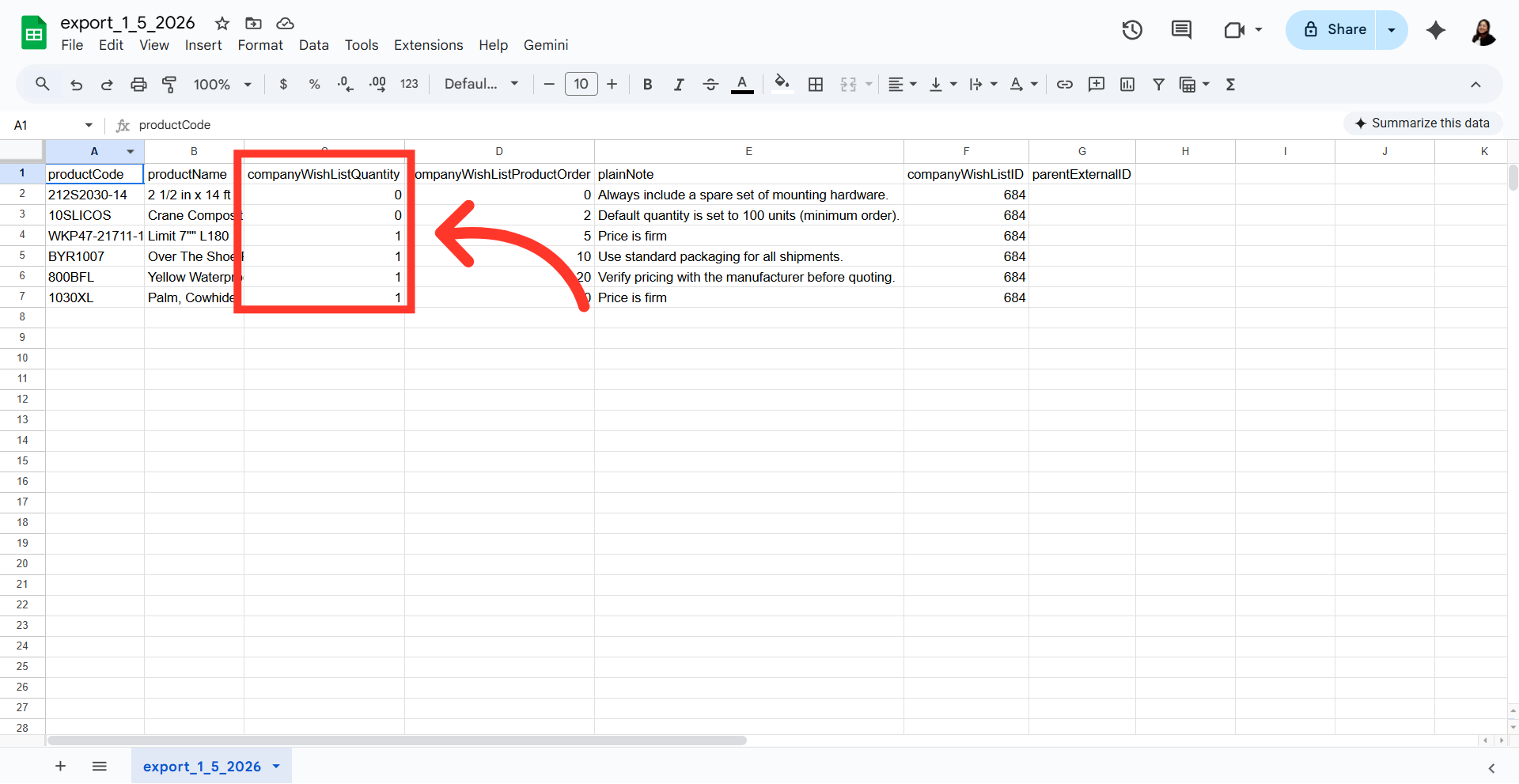
"companyWishListQuantity" is the product quantity. This is a numerical value and can be updated by import.
"companyWishListProductOrder" can also be updated by import. This can help order the products in your product list. The lower the value entered, the higher the product will be placed on the list.

"plainNote" is the note field, and can be updated by import. If updating note information with this import, the existing note in the system will be overwritten with the data that is being imported in the spreadsheet.

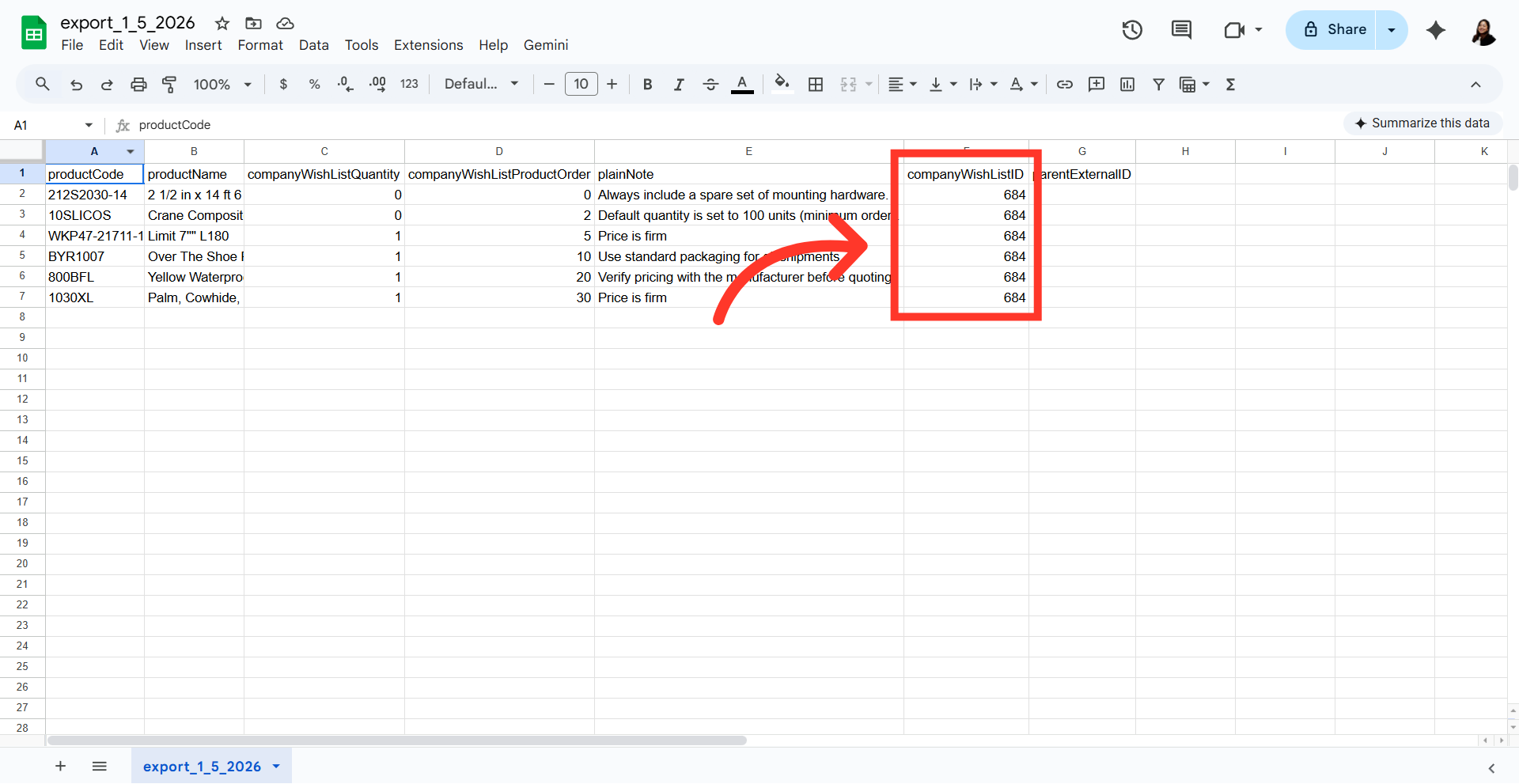
The "companyWishListID" is the "Product List ID" and is required when importing.
The "parentExternalID" column is included with the export by default. This column is not needed for this import and should be removed from the spreadsheet before importing.

After updating the needed changes in the export, save as a CSV file. Ensure that the spreadsheet contains only the data intended for the update.

Now that your file is ready to import, go back to the "Product List Items" screen and click the "File" menu.
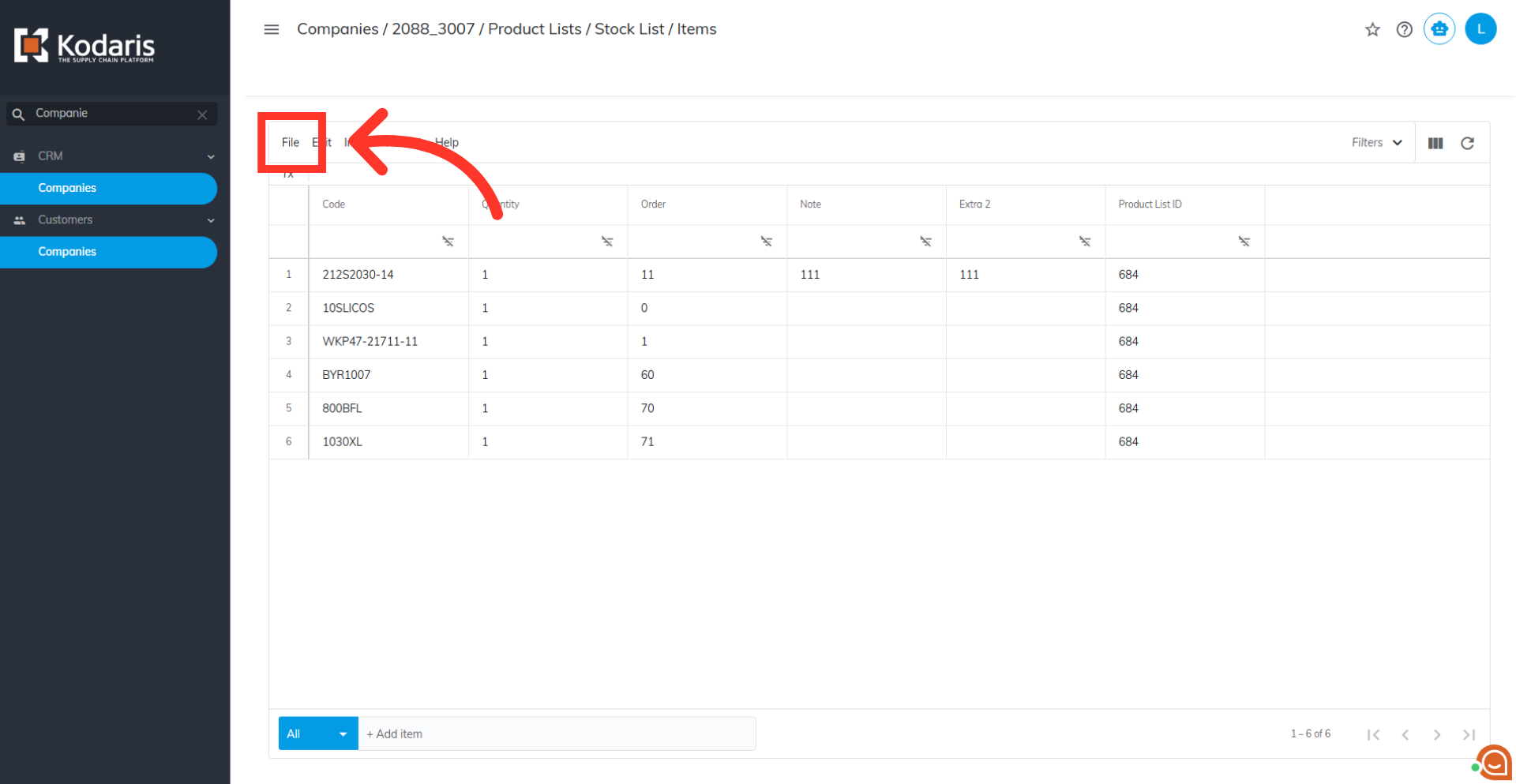
Now, select "Import" option.

Since you are only updating data from the existing products in the list, select the "Update Only" option. You can select "Create & Update" if you are also adding new products along with the updating. You will be prompted to select a filed for importing.

When the import has completed, refresh the product list items screen to see the updated list.

An email report will also be generated once the import has completed.
