Product Documentation
Product Documentation
Product Documentation
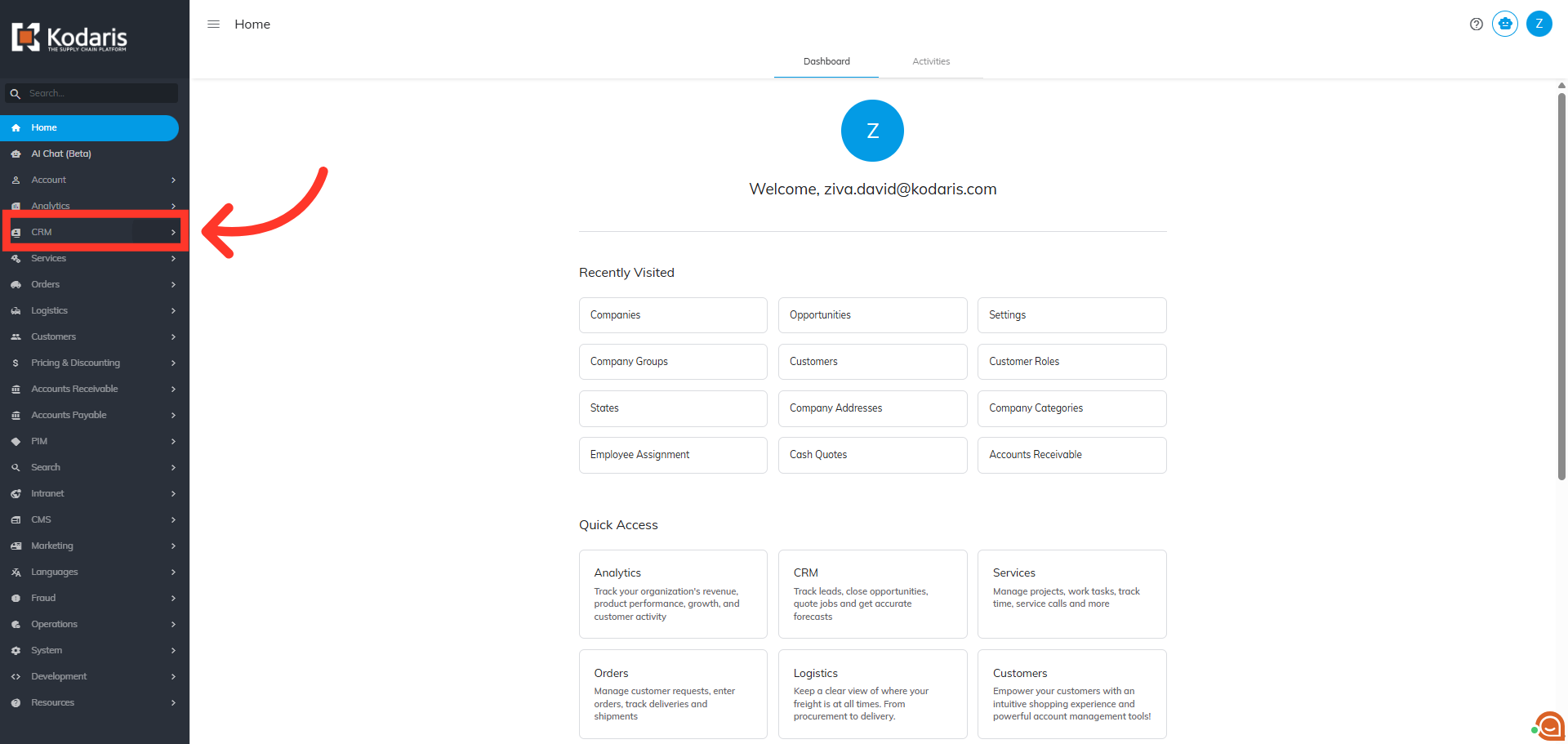
You can view store credits under a customer in the Operations Portal by first navigating to "CRM".
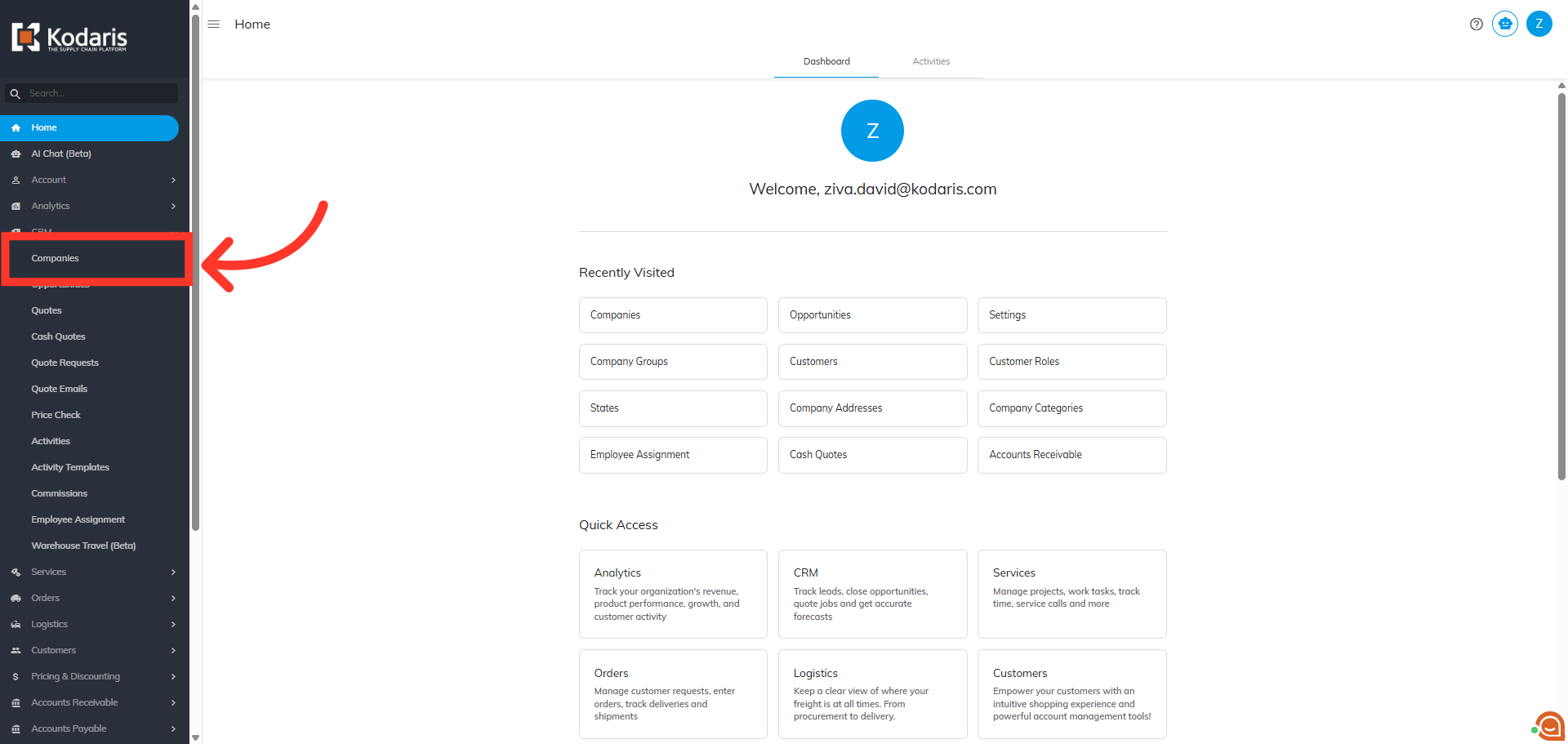
Then, click "Companies". In order to access "Companies" you will need to be set up either as an "administrator" or a "superuser", or have the appropriate roles: "companyView and companyEdit", or "crmCompanyView and crmCompanyEdit". Just a reminder, "crmCompanyView and crmCompanyEdit" access only allows employees to view companies that are assigned to them.
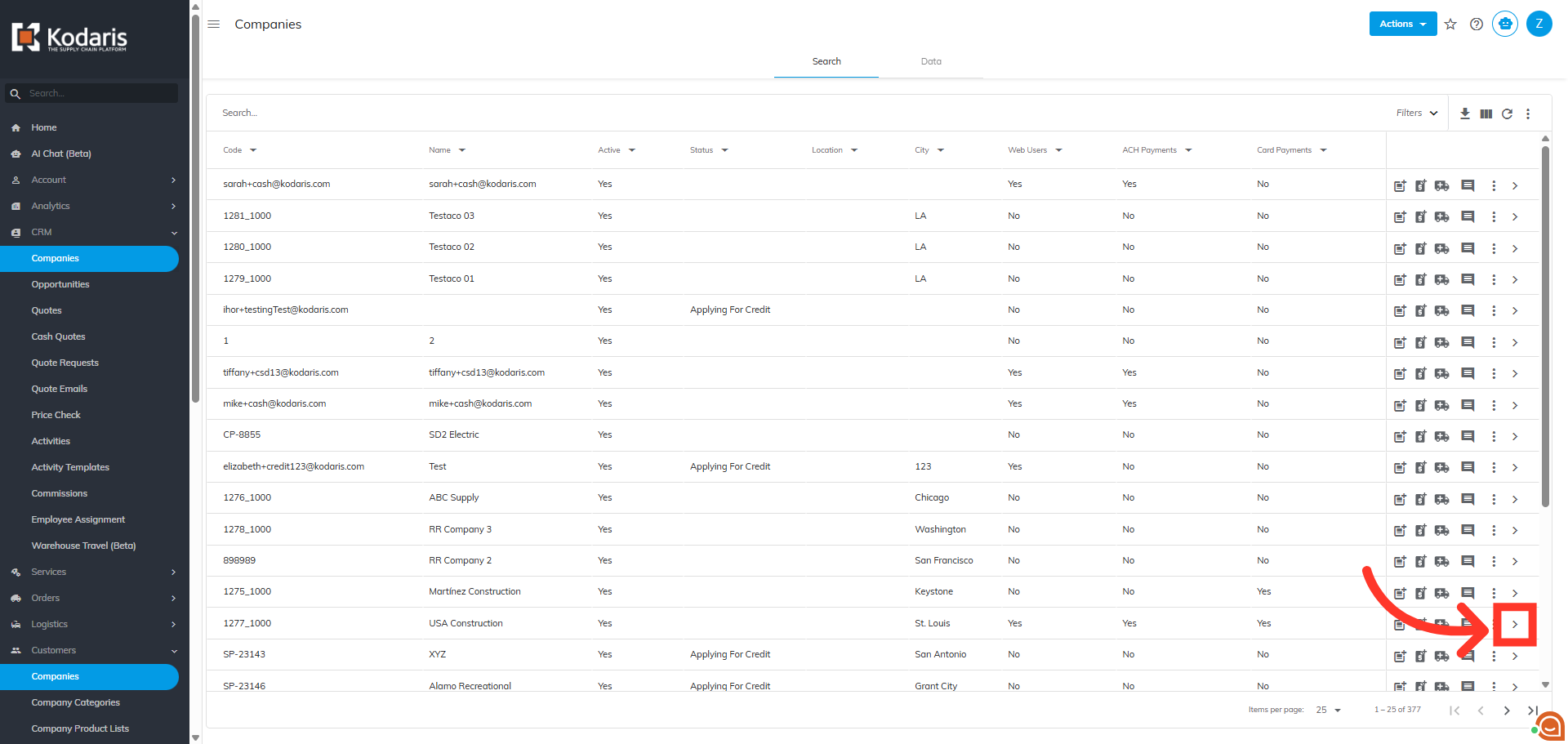
There are two options for viewing store credits. You can view cash sale customers that have store credits tied to an email address, or you can view existing customers that have credits applied to their account. In this example, we will look at an existing customer account. You can search for customers by email address, company code, or company name. If you are searching for a cash customer, you would use the email address . Click on the more details icon to view the details of the company you wish to view.
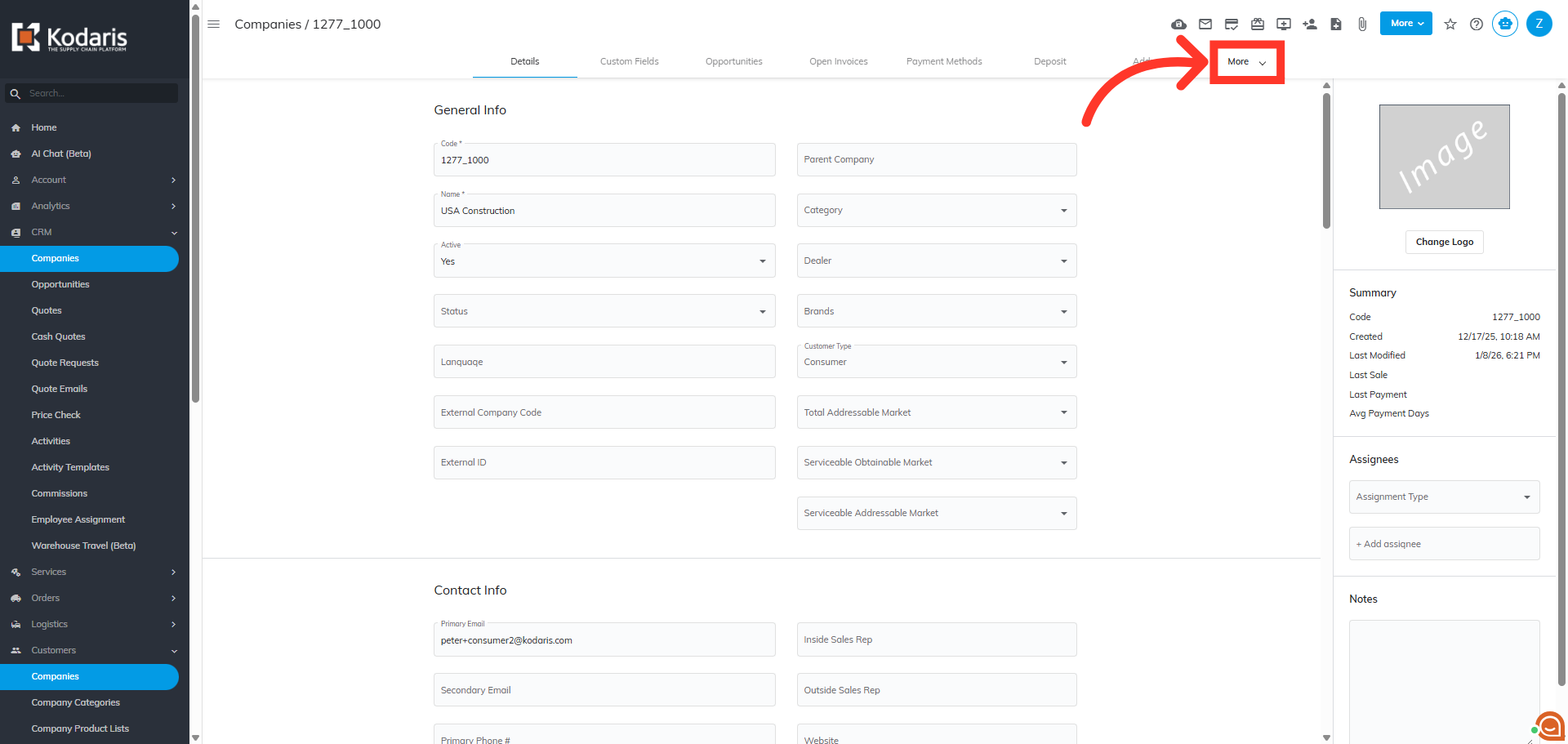
Click the "More" tab at the top of the "Details" screen to view the dropdown menu.
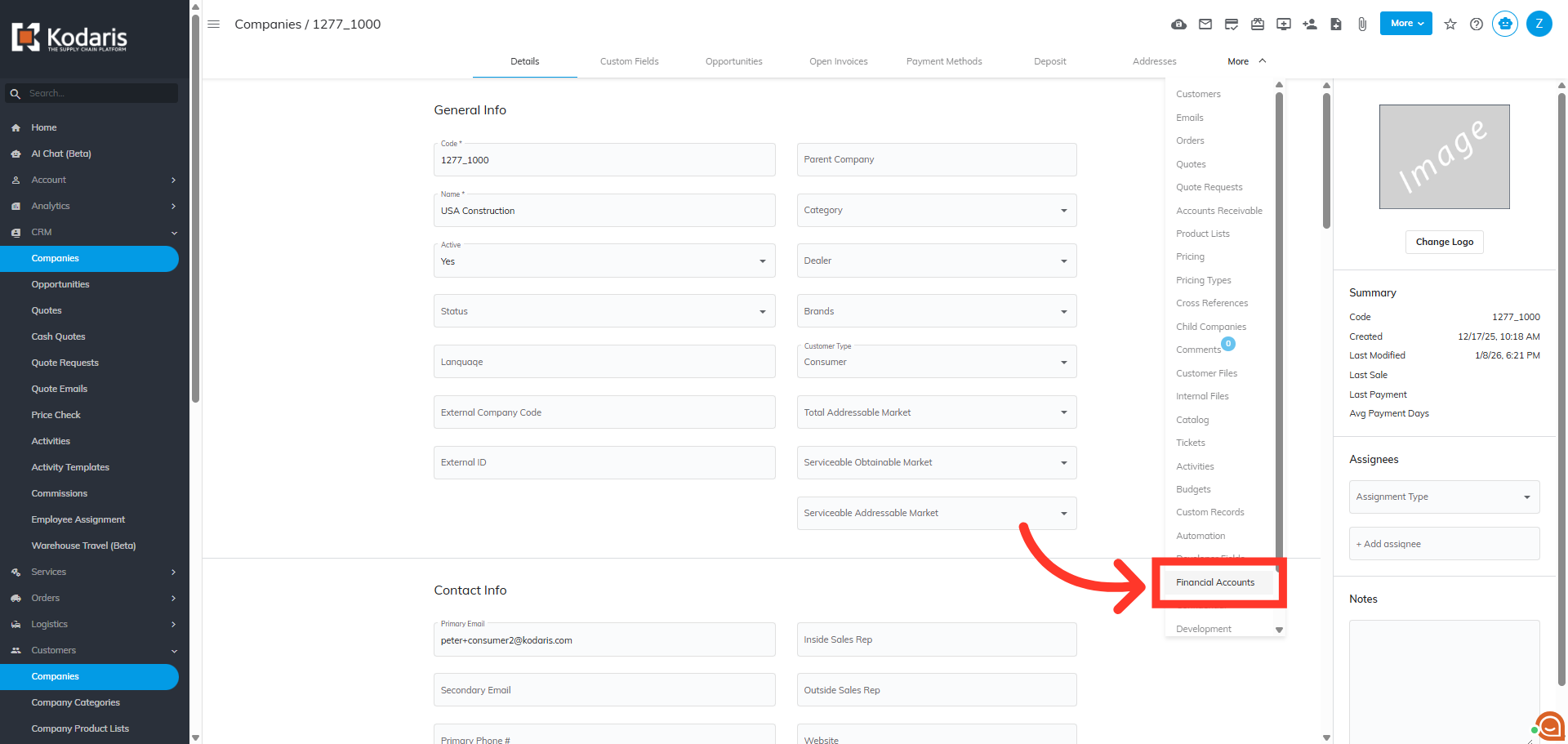
Then, click "Financial Accounts".
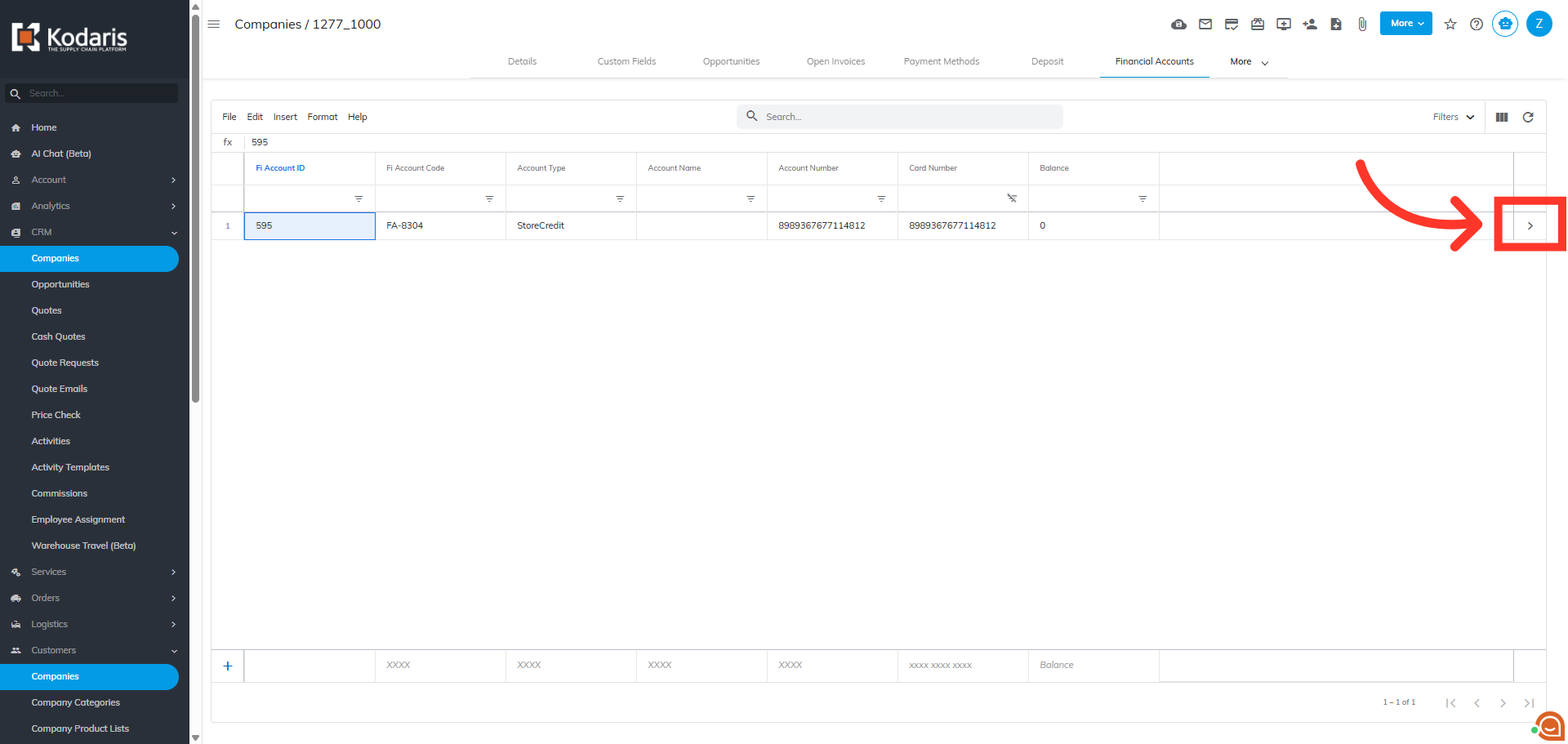
This screen will give you an overview of any store credits that are on the customer. On the store credit, click the more details icon to view the store credit details.
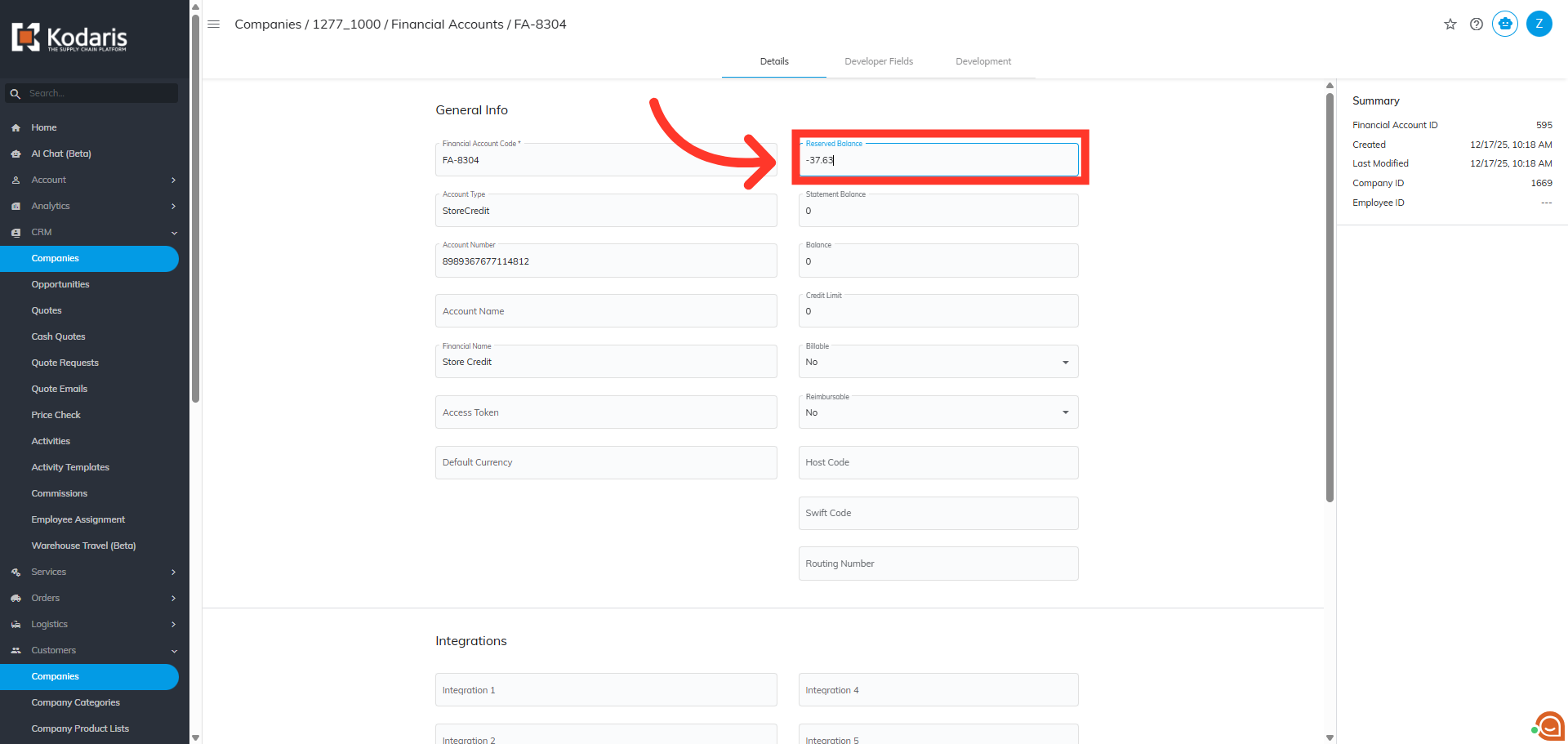
The "Reserved Balance" field displays the total amount of store credit available to the customer that was applied in CSD. As store credits are used, this field updates to reflect the updated balance.