 Product Documentation
Product Documentation
Product Documentation
The Company Category Field (also referred to as "Category" on company records) is a customizable dropdown that helps you classify your companies based on order types or business categories. This field is populated from a global setting that you can customize to match your business needs. To configure, navigate to the "System" section in the Operations Portal.
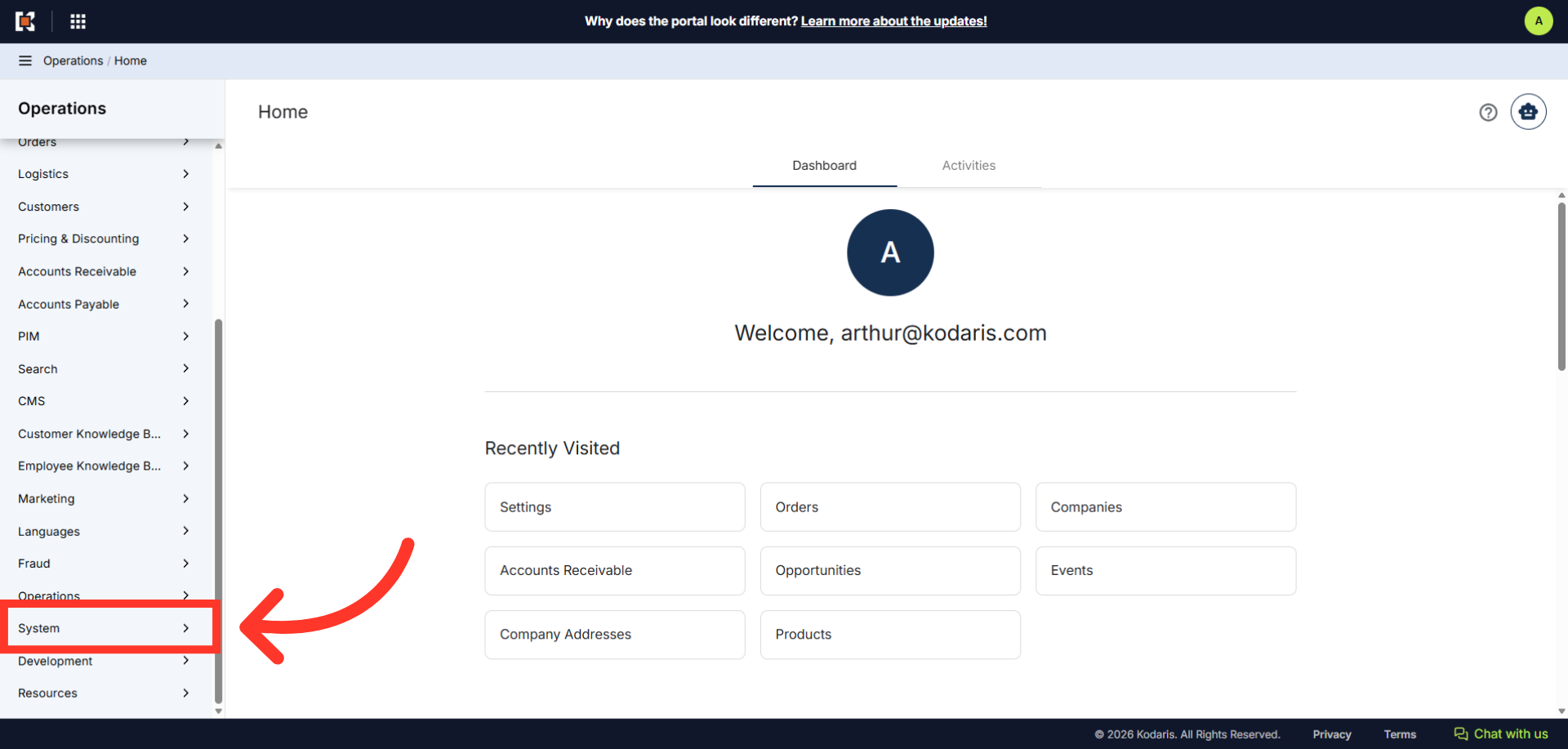
Then, click "Settings". In order to access and edit settings, you will need to be set up either as an "administrator" or a "superuser", or have the following roles: "settingEdit".

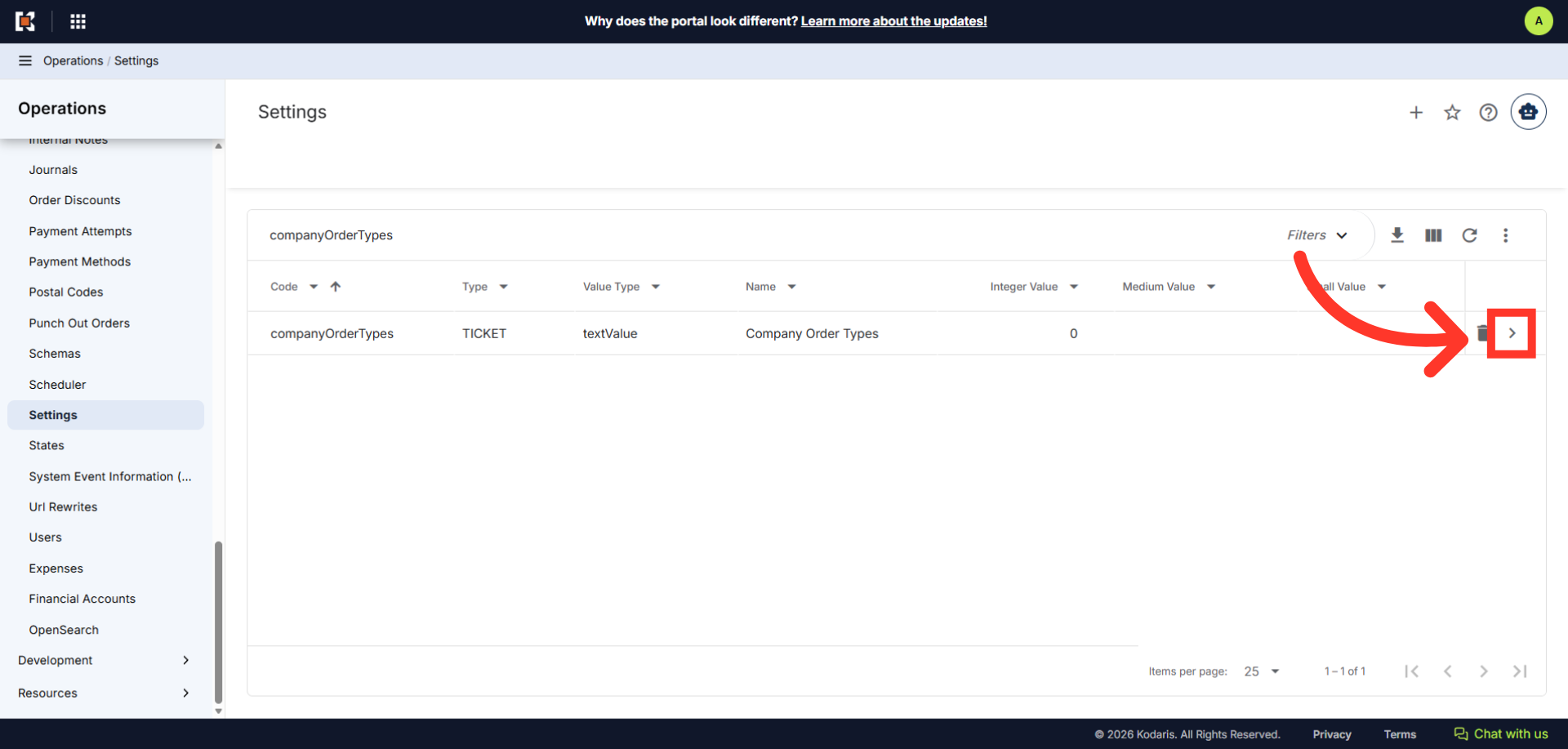
Search for "companyOrderTypes".

Click on the more details icon.
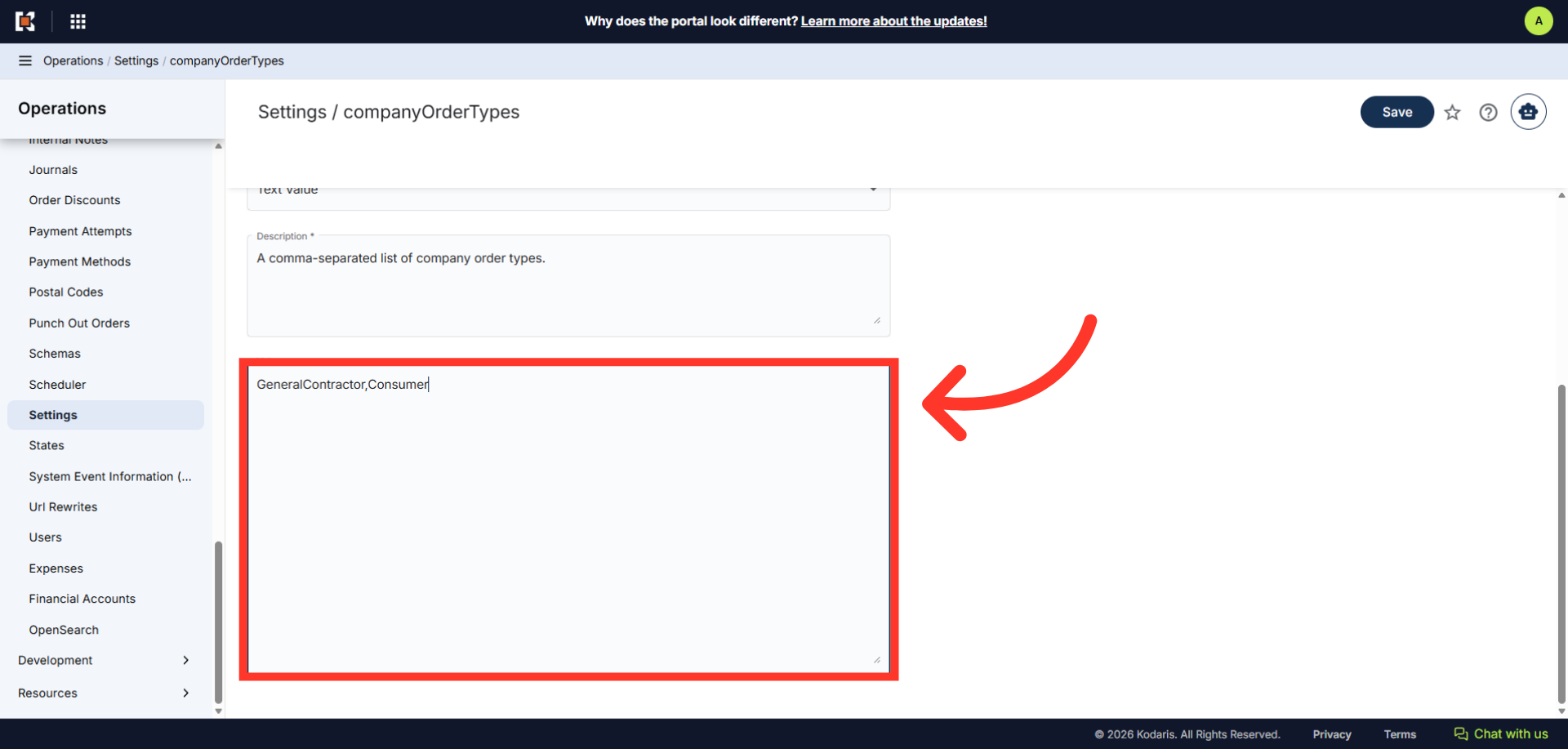
In the "Value" field, enter the Company Categories you would like to add, separated by commas.
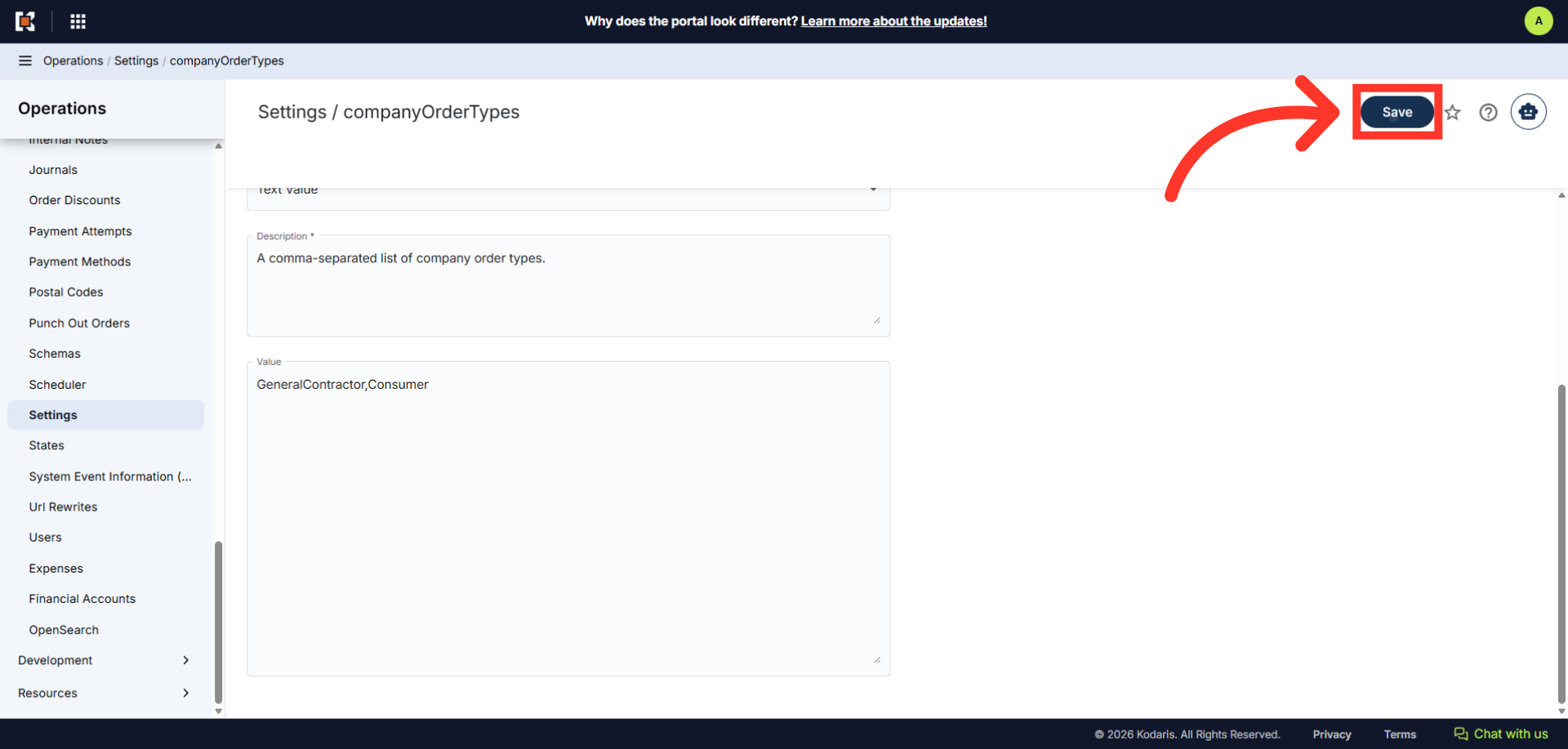
Once done, click the "Save" button to apply the changes.
To check this update, on the company details page, click the "Category" dropdown.
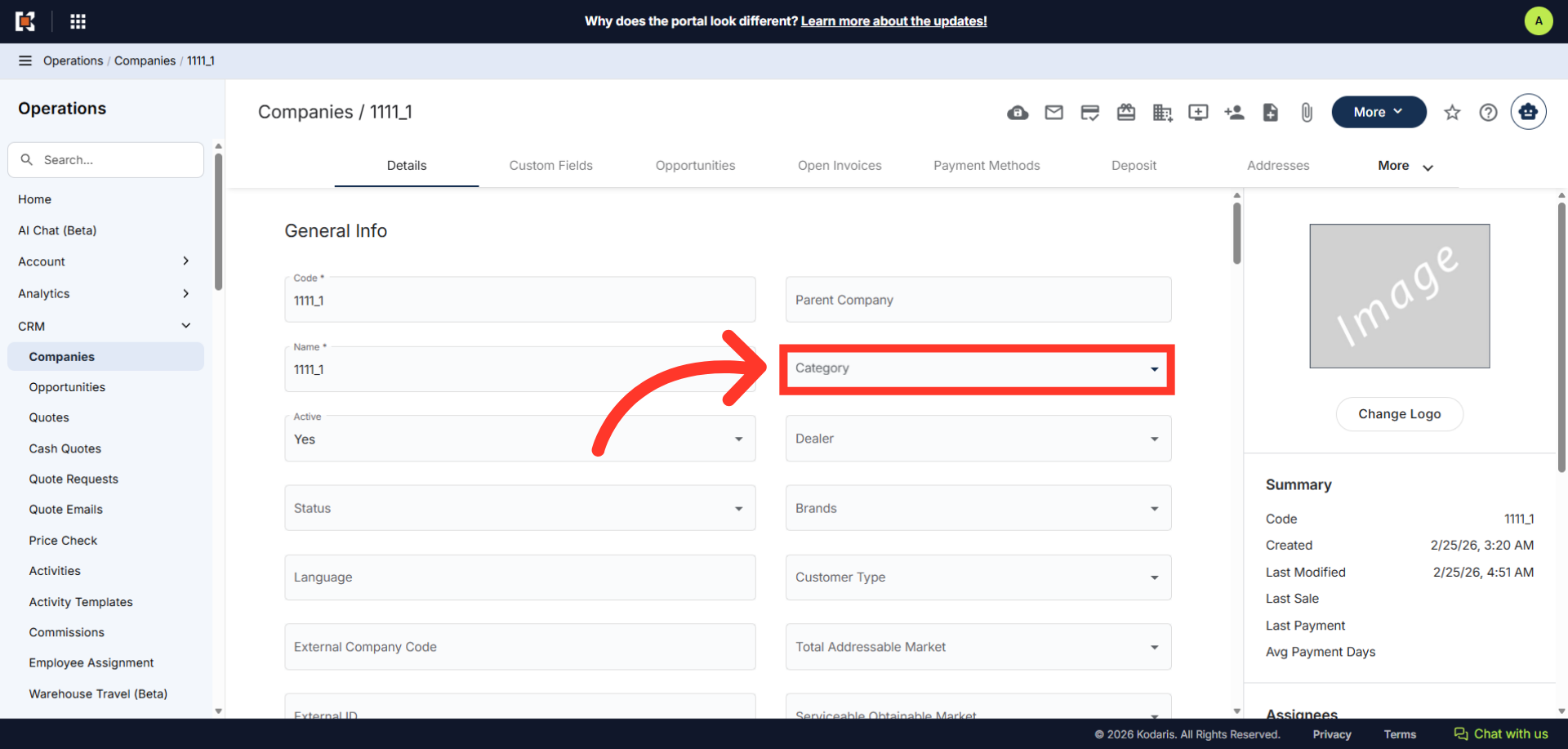
Verify that the dropdown list has been updated.
