Product Documentation
Product Documentation
Product Documentation
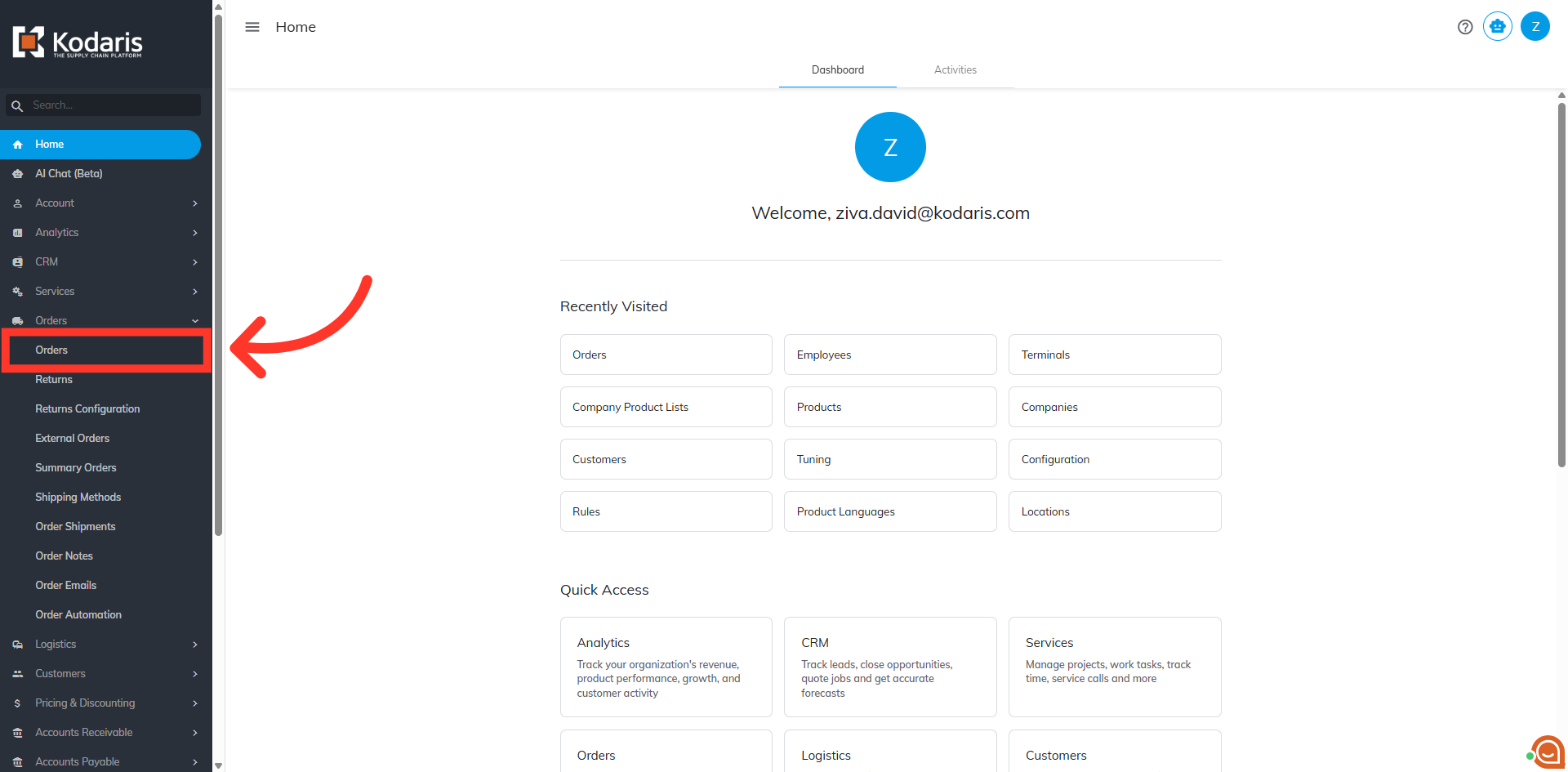
To view and edit purchase order numbers on line items in an order, you will first need to navigate to the "Orders" section in the Operations Portal. In order to access and update "Orders", you will need to be set up either as an "administrator" or a "superuser", or have the following roles: "dispatch", "orderEdit", "orderView", "crmCompanyOrderView" and "crmCompanyOrderEdit". Just a reminder, "crmCompanyOrderView" and "crmCompanyOrderEdit" access only allows employees to view company orders that are assigned to them.
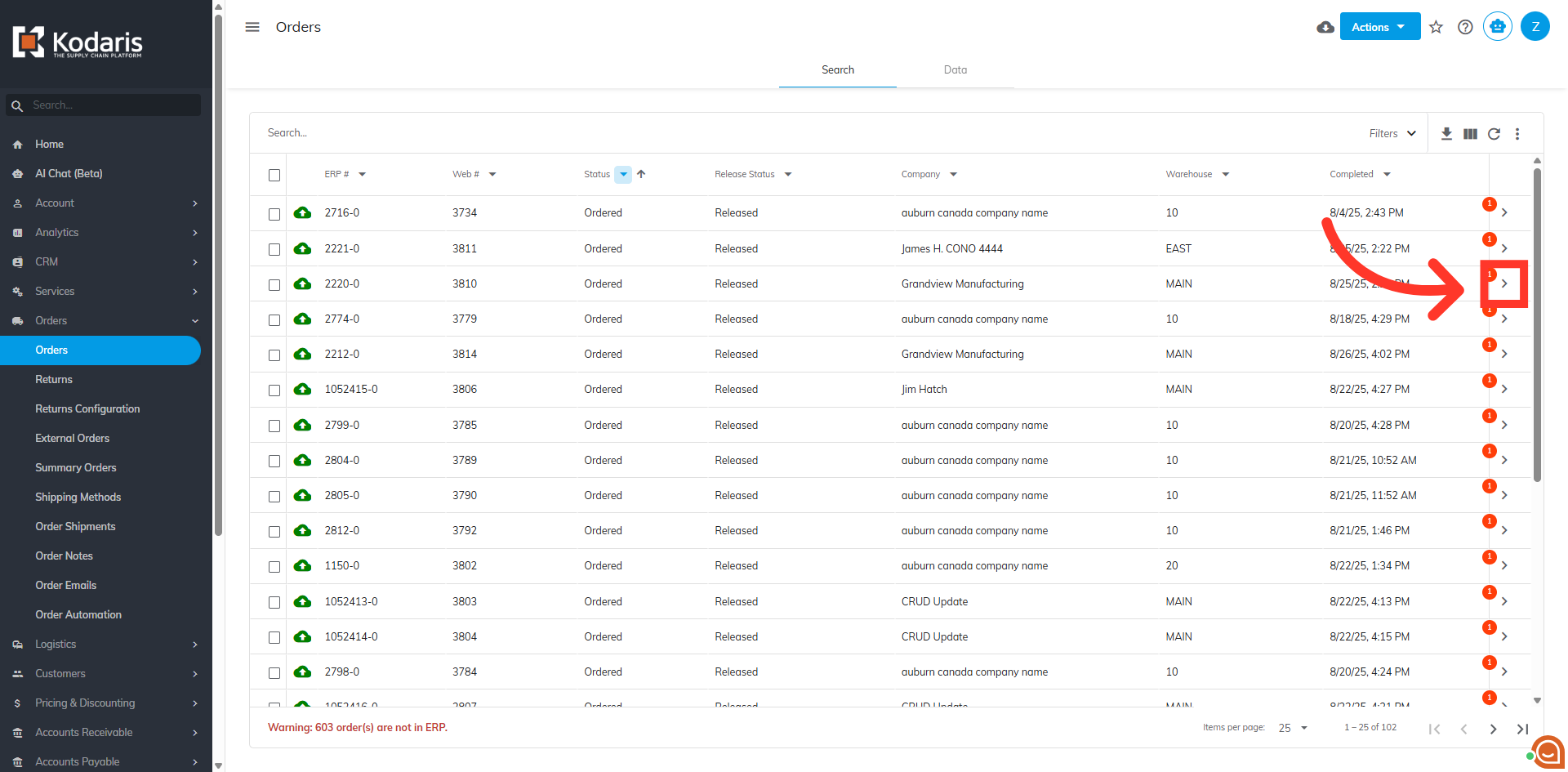
Locate your order and click on the more details icon to view additional order details.
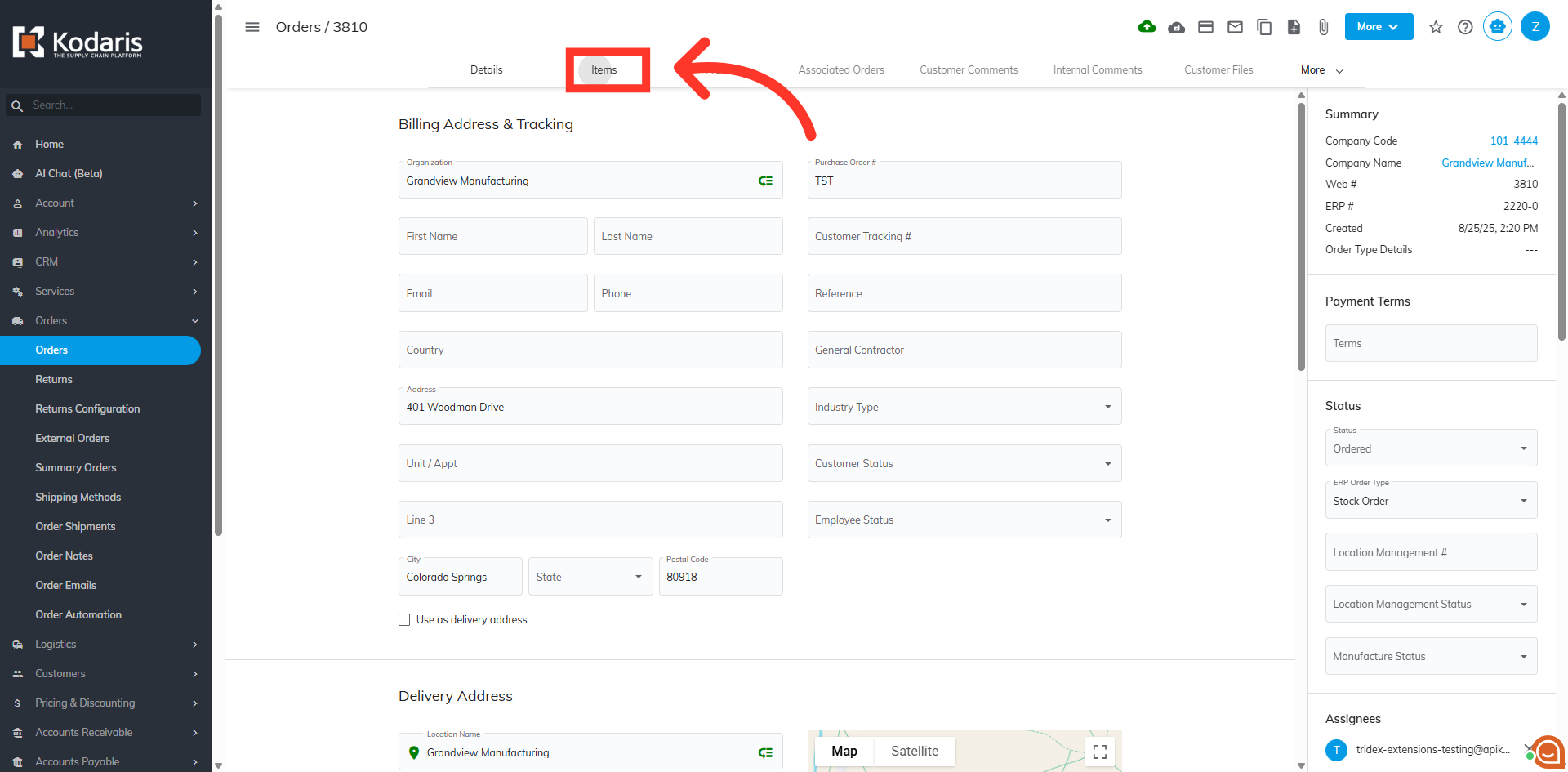
Then, click the "Items" tab to view the line items on the order.
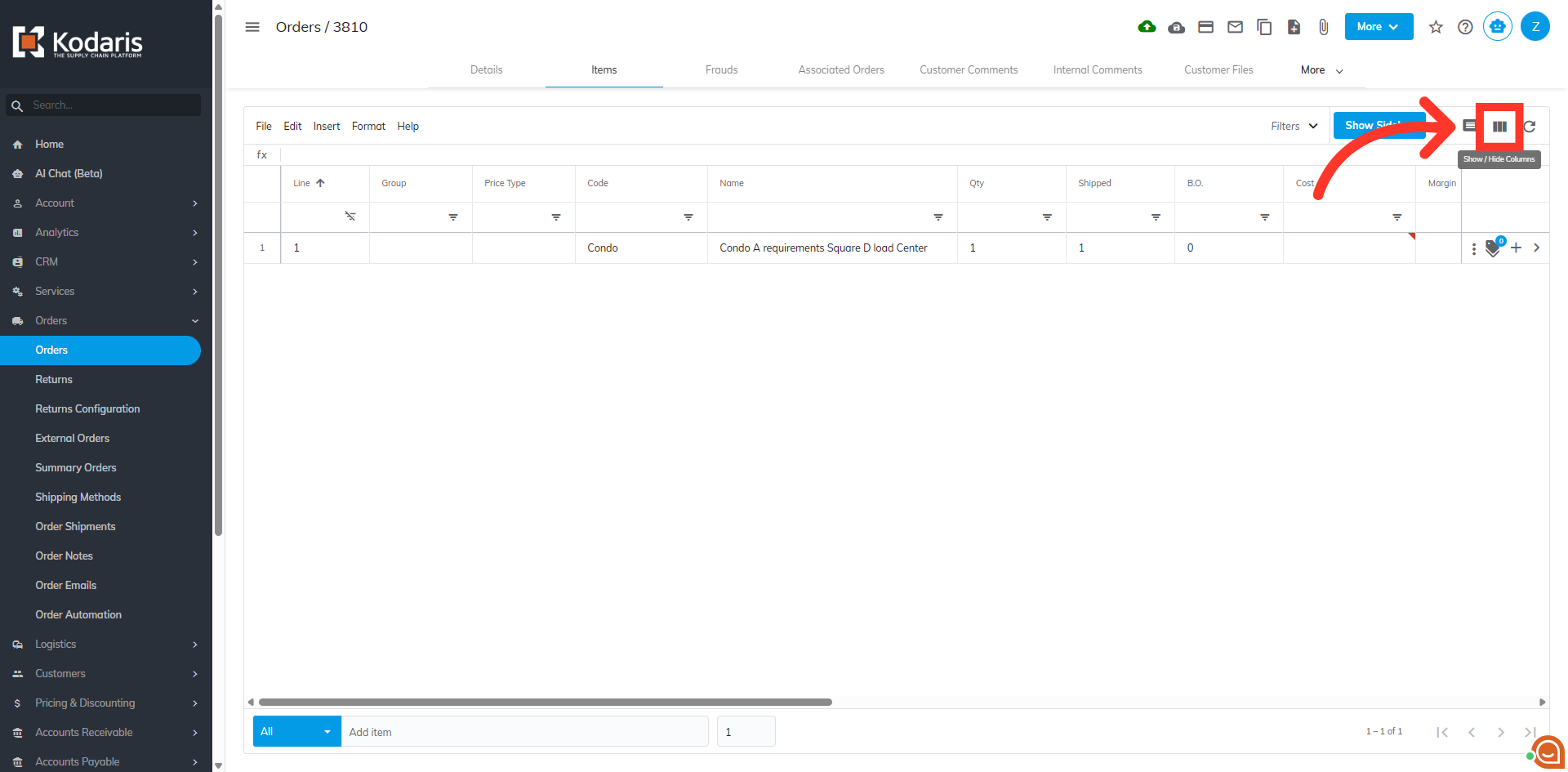
By default the "External Purchase Order #" and "Purchase Order #" fields are not displayed. To add them, click the "Show/Hide Columns" icon to expand the menu.
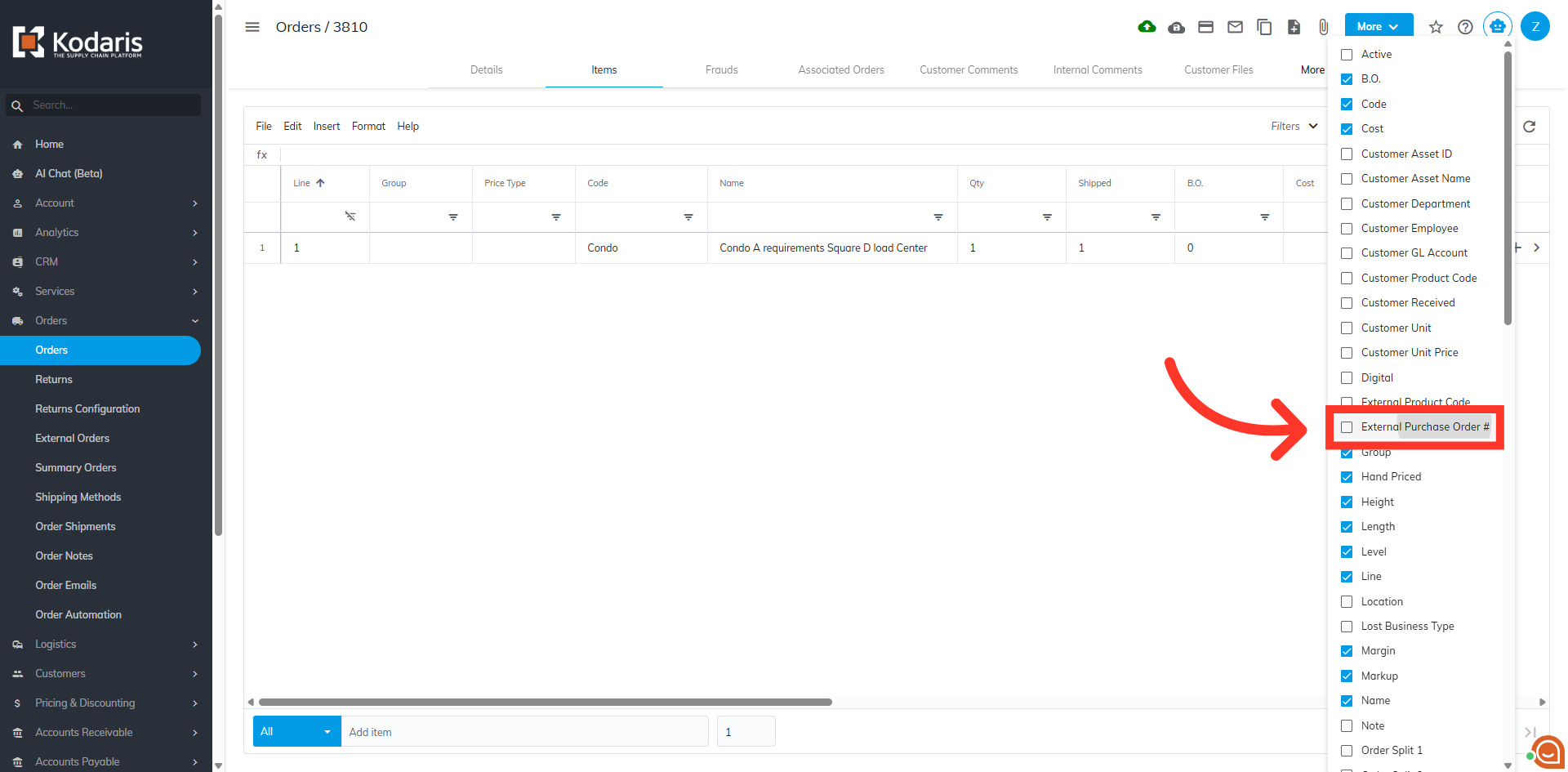
Select "External Purchase Order #".
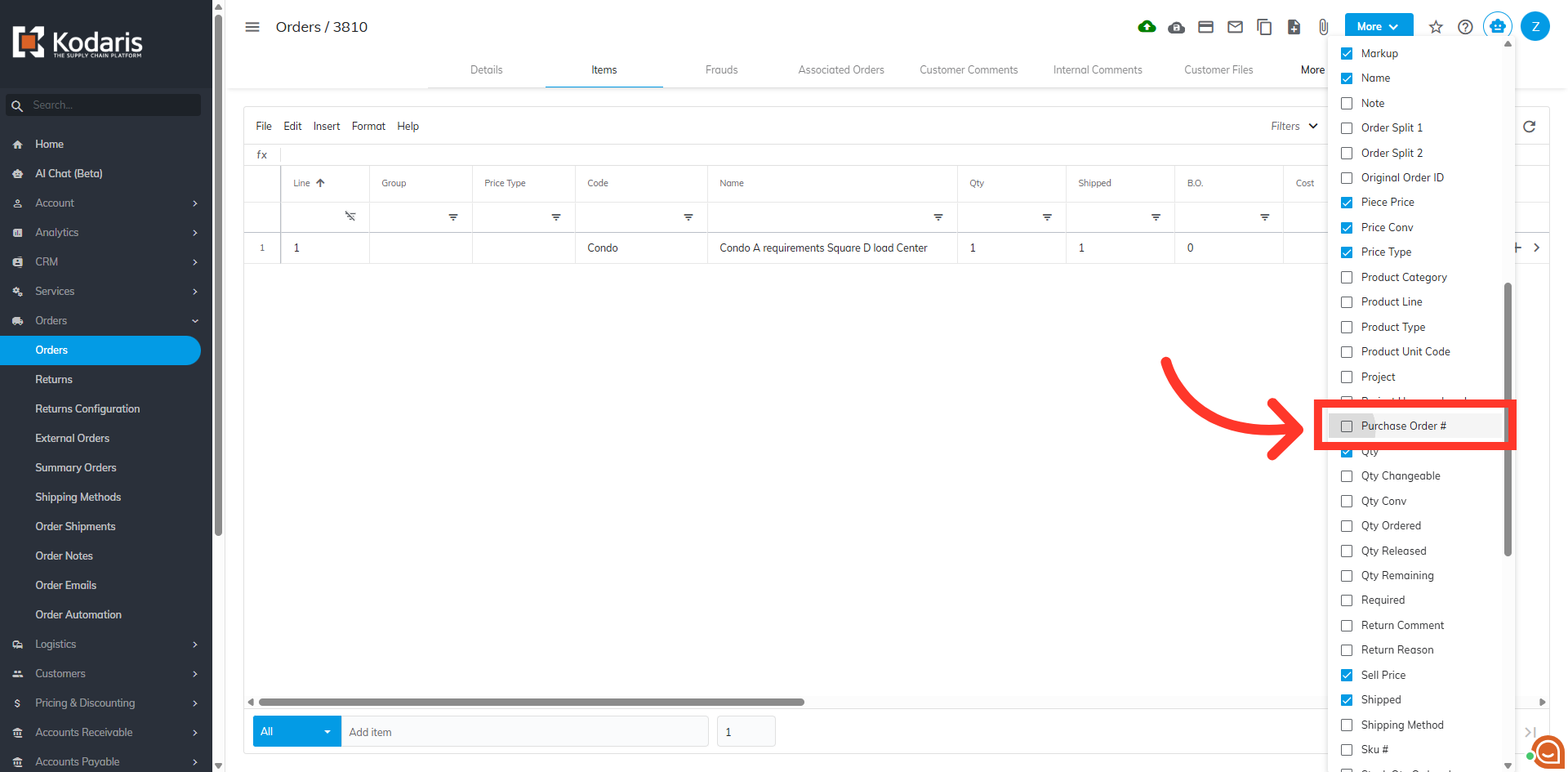
Also select "Purchase Order #".
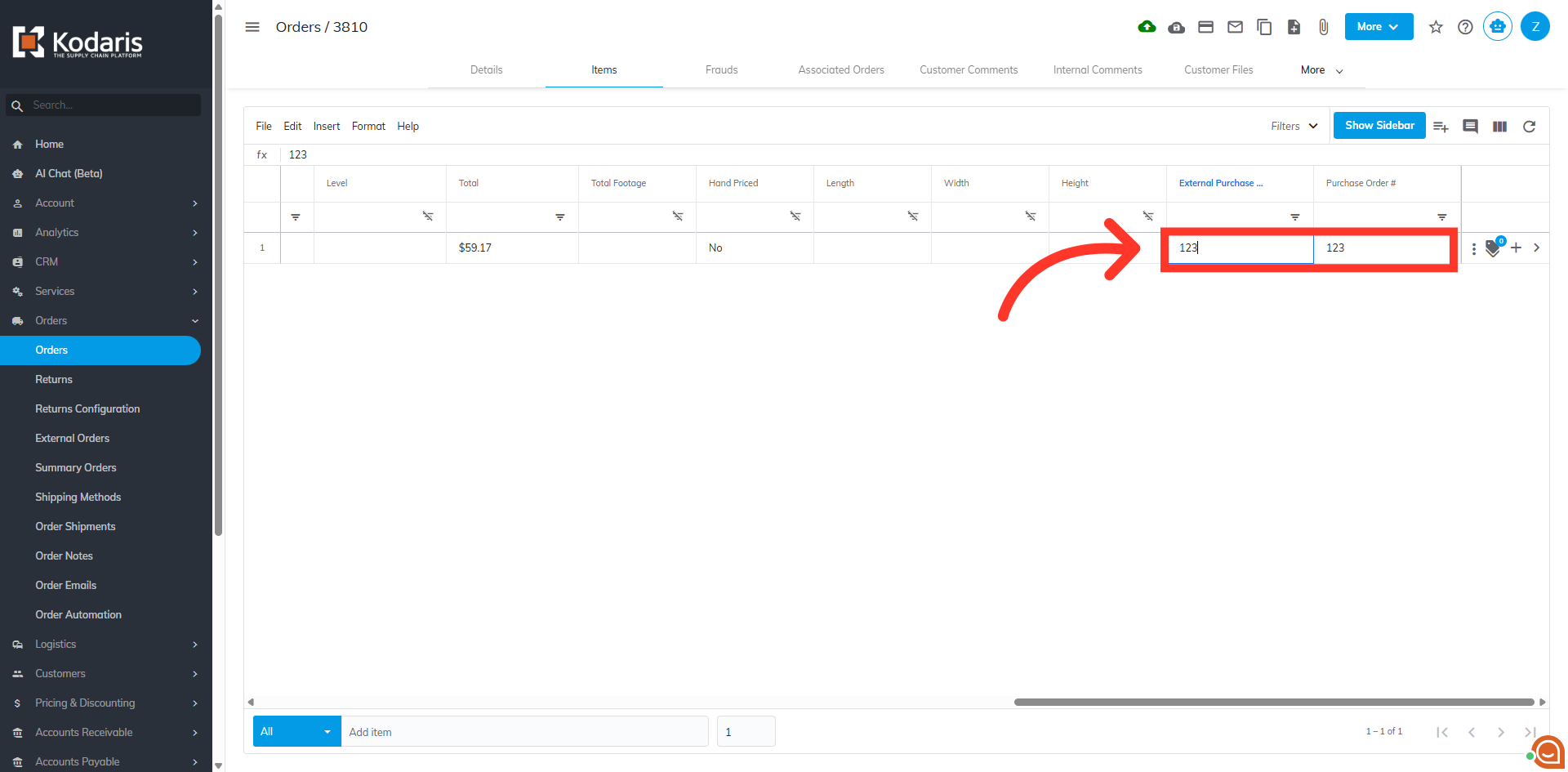
The added columns now appear in the grid.
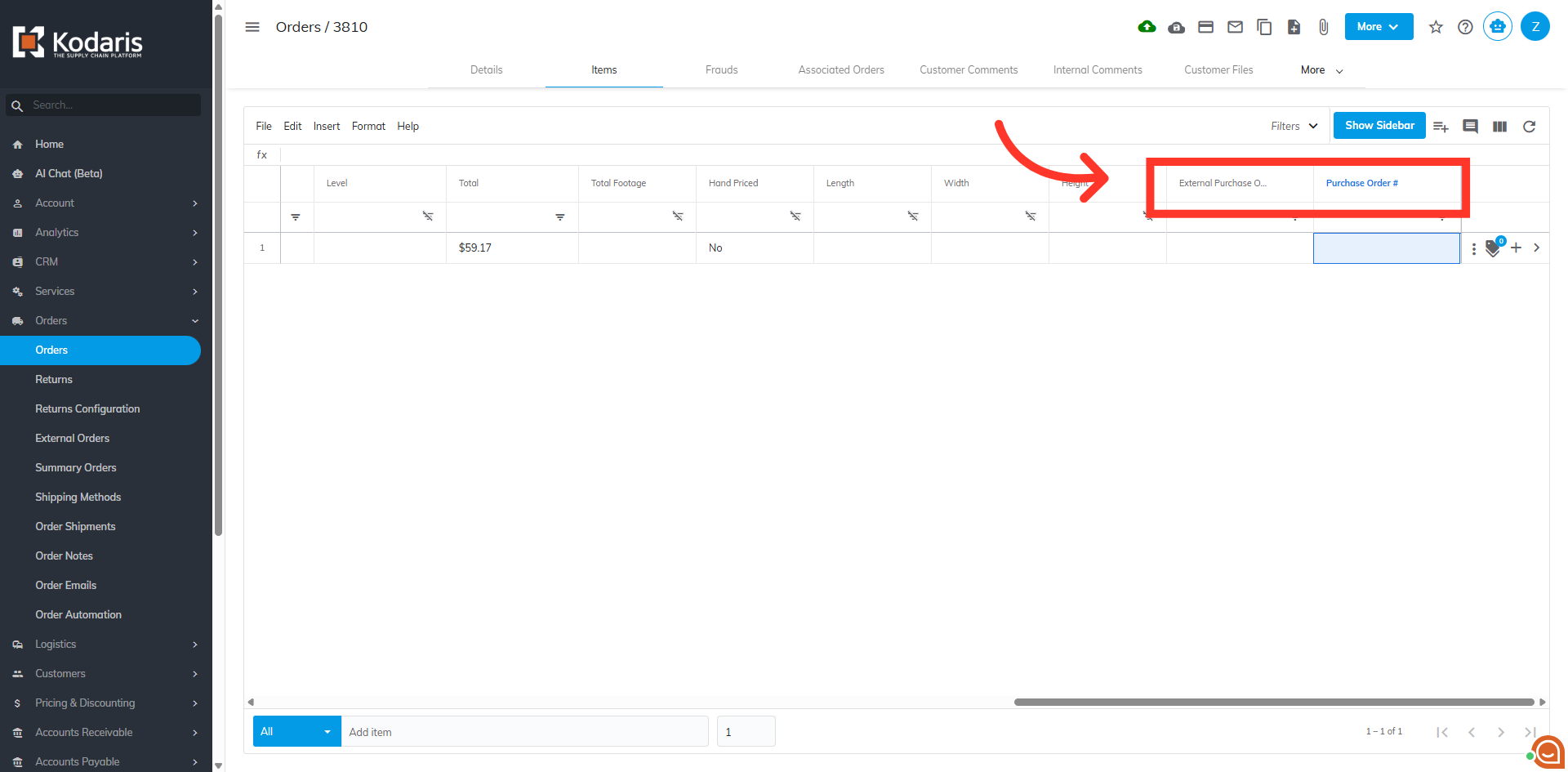
You can now view and edit these fields as needed.