 Product Documentation
Product Documentation
Product Documentation
In order to capture credit card signatures on an Order, you will need to navigate to the "Orders" section in the Operations Portal.

Then, click "Orders". In order to access and update "Orders", you will need to be set up either as an "administrator" or a "superuser", or have the following roles: "dispatch", "orderEdit”, “orderView", “crmCompanyOrderView" and "crmCompanyOrderEdit".
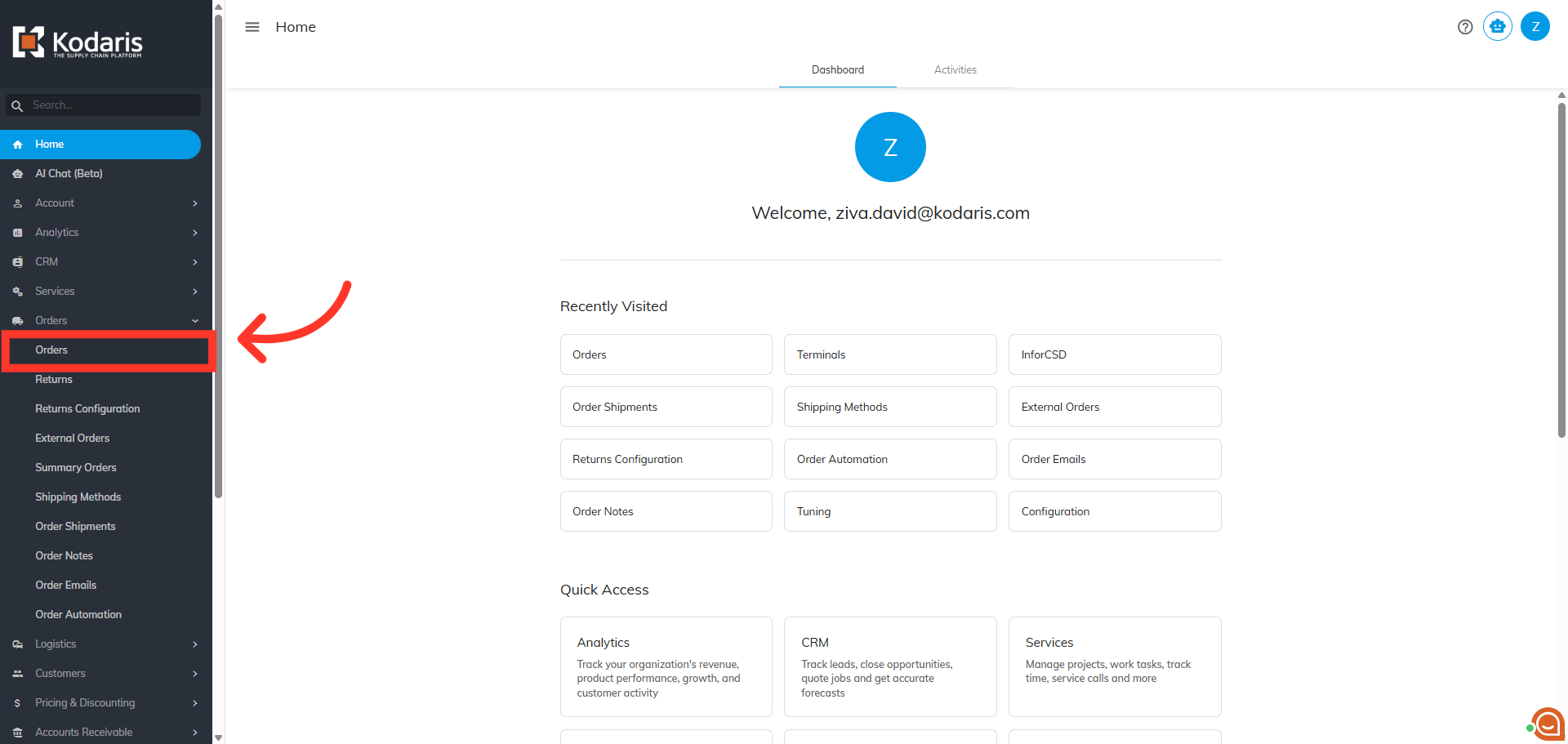
Locate the order you wish to capture a signature for and click on the more details icon.

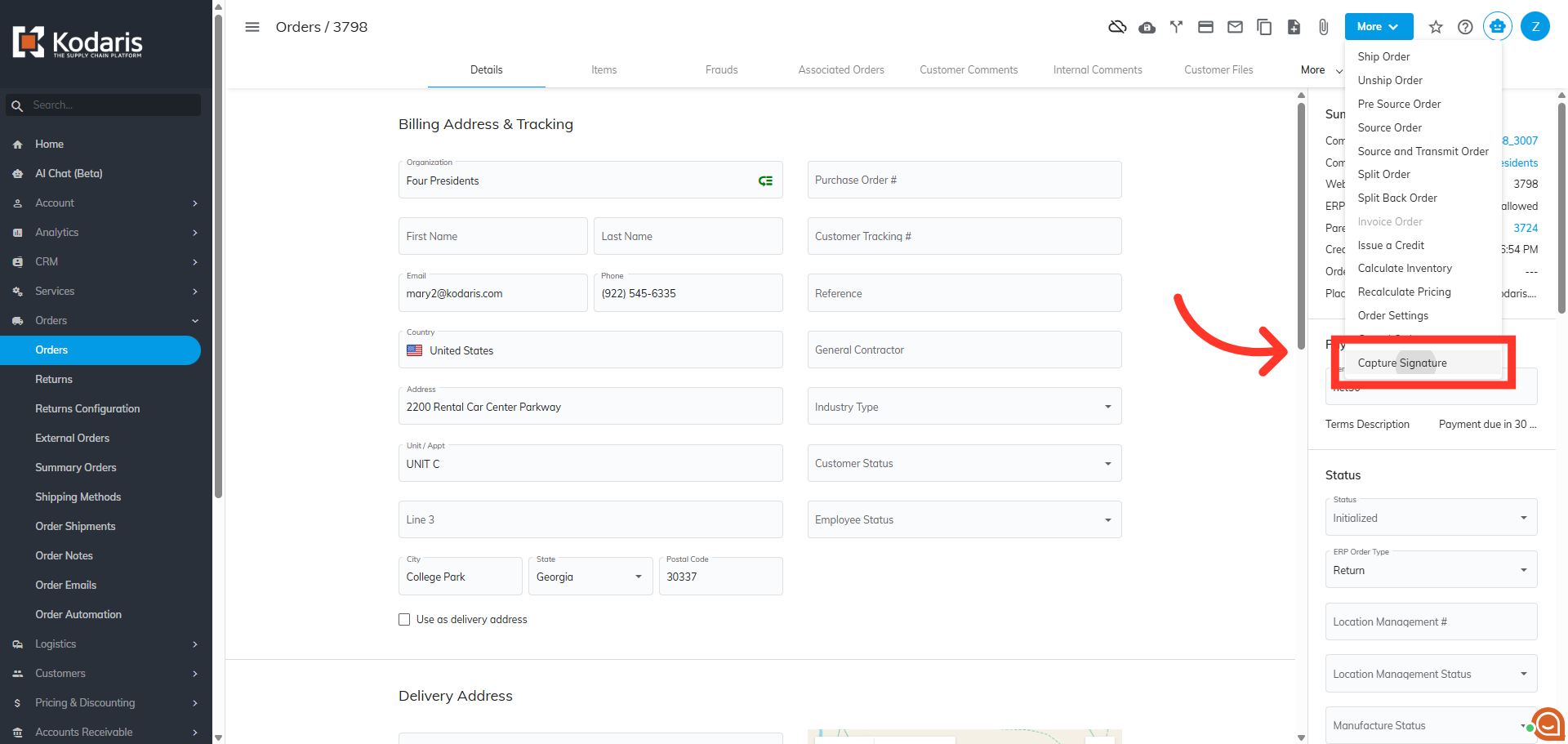
Next, click the "More" button to view additional order options.

Then, select the "Capture Signature" option.
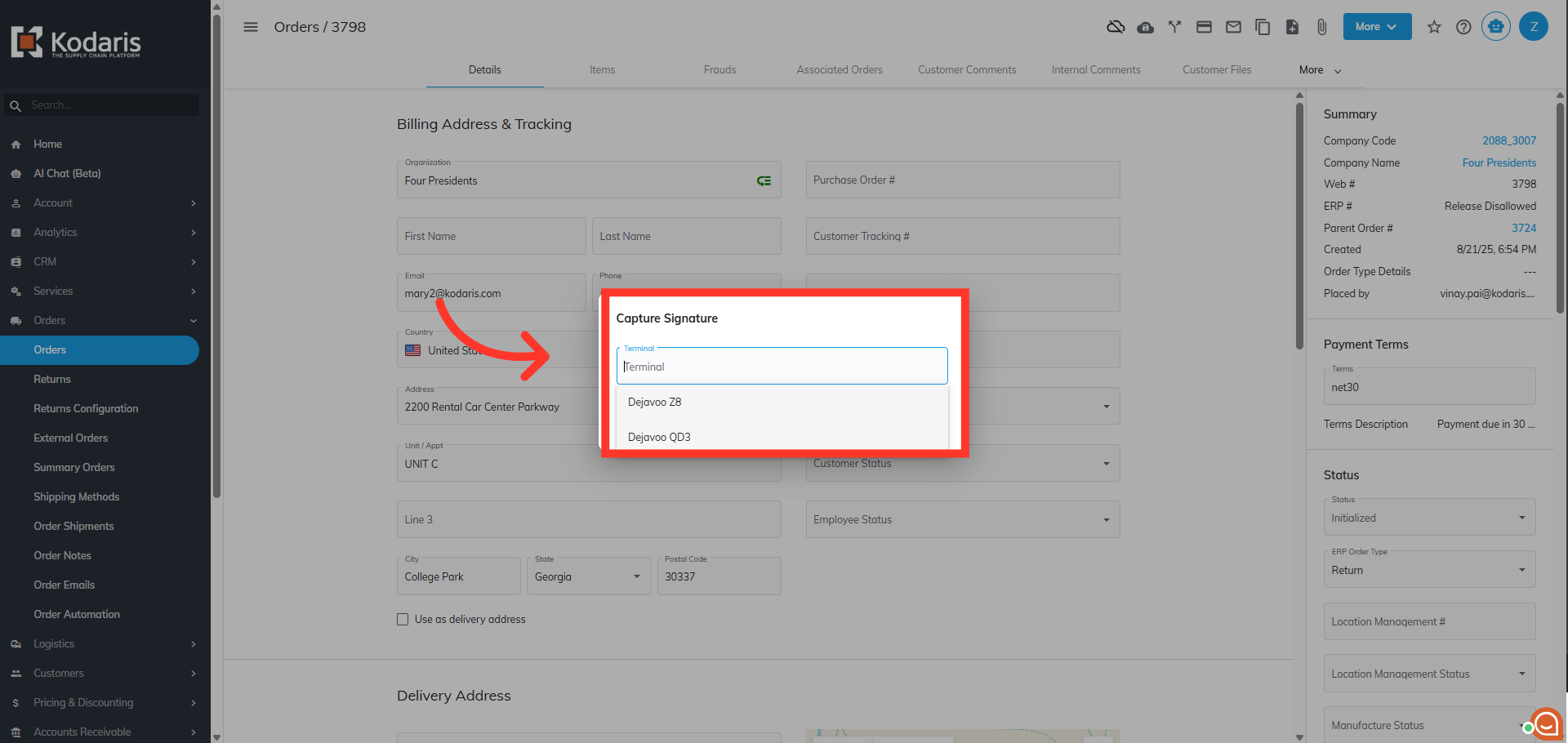
Click in the "Terminal" field from the "Capture Signature" dialog box and choose the terminal you wish to use.
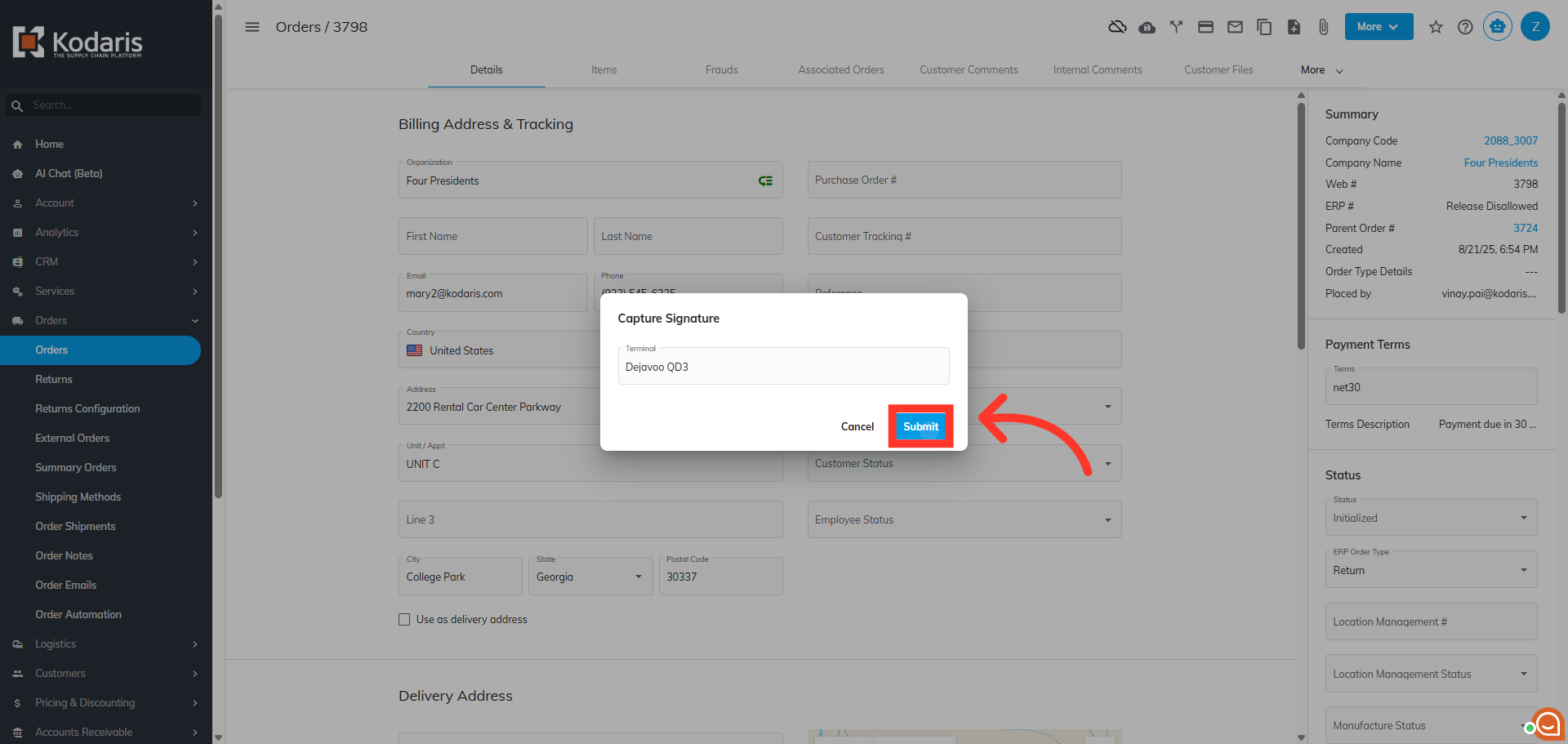
Then, click "Submit".
You will be directed to the "Customer Files" tab where you can download and preview the file of the signature.
