Product Documentation
Product Documentation
Product Documentation
In order to create company group catalogs by import, the import file will first need to be prepared.
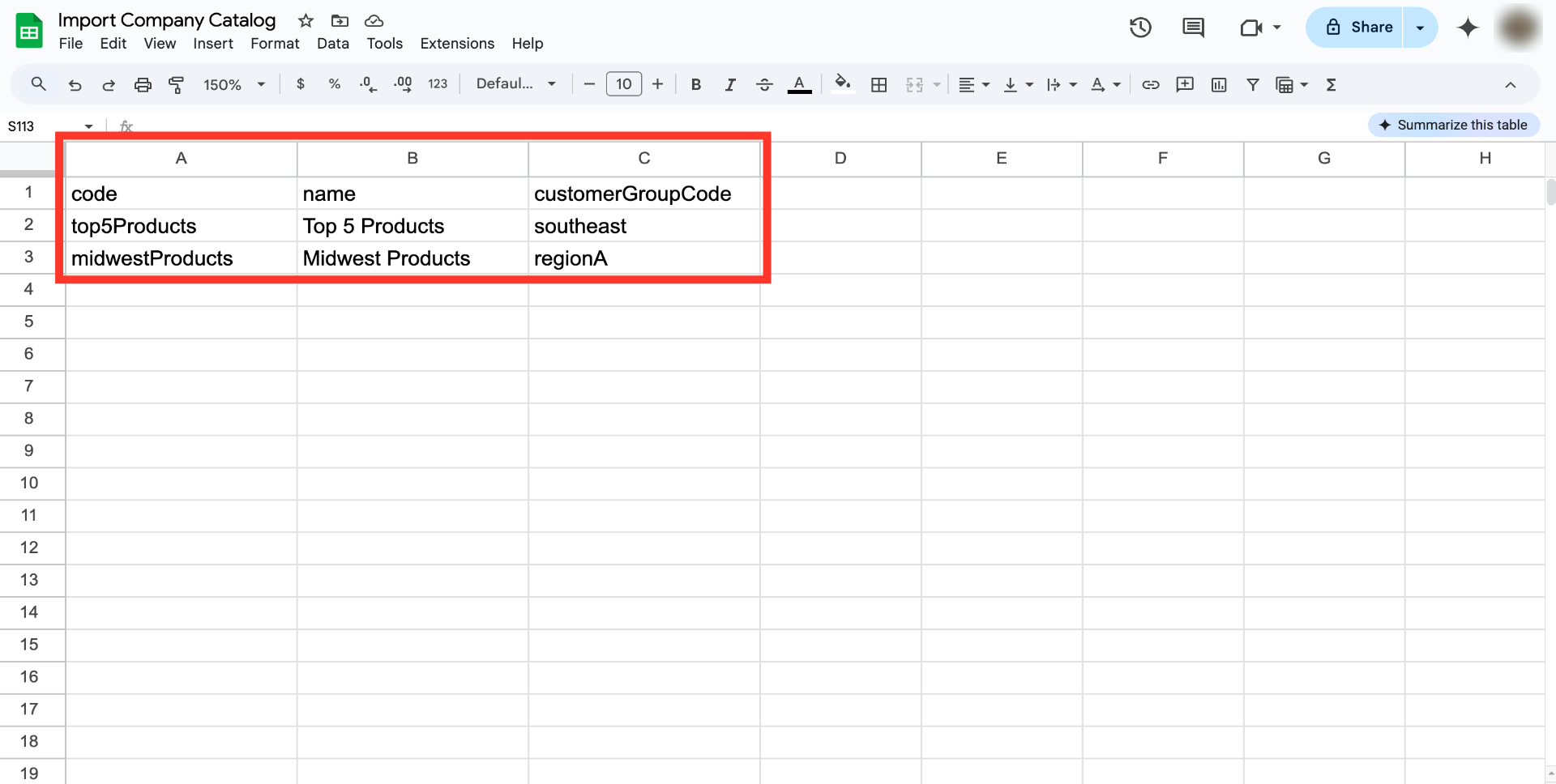
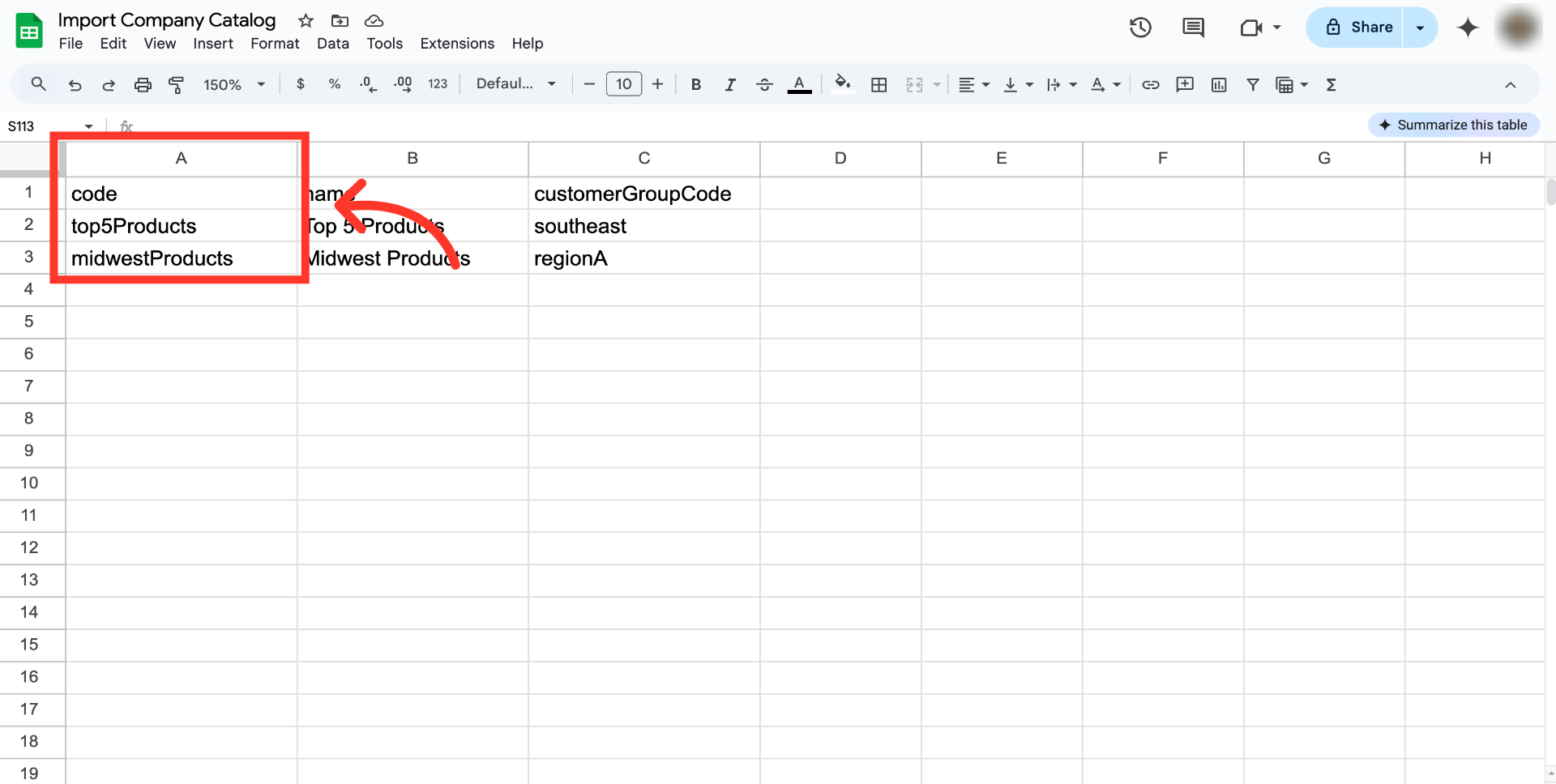
In the .CSV file, you will need three columns. The first column should be titled "code". This is the code value for the catalog. It is required and must be unique. Since we are creating here, the user would specify a new value for the code.
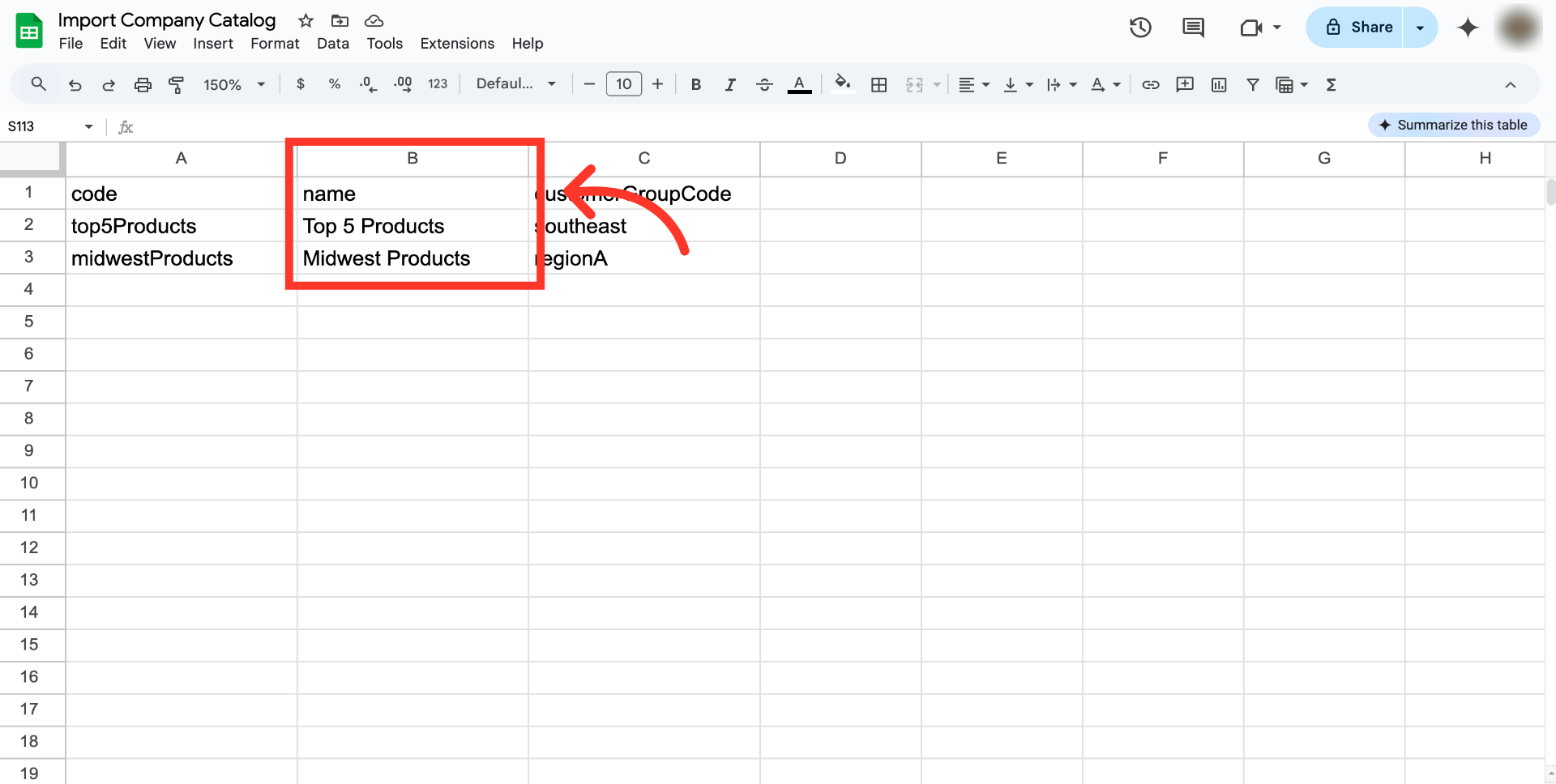
The second column should be titled "name". This the name of the catalog you are creating. The customer will see this on the commerce site, and while not required for import/export it is highly recommended to fill out.
The third column should be titled "customerGroupCode". This is the code value of the company group you want to add the new catalog to. It is a required field.

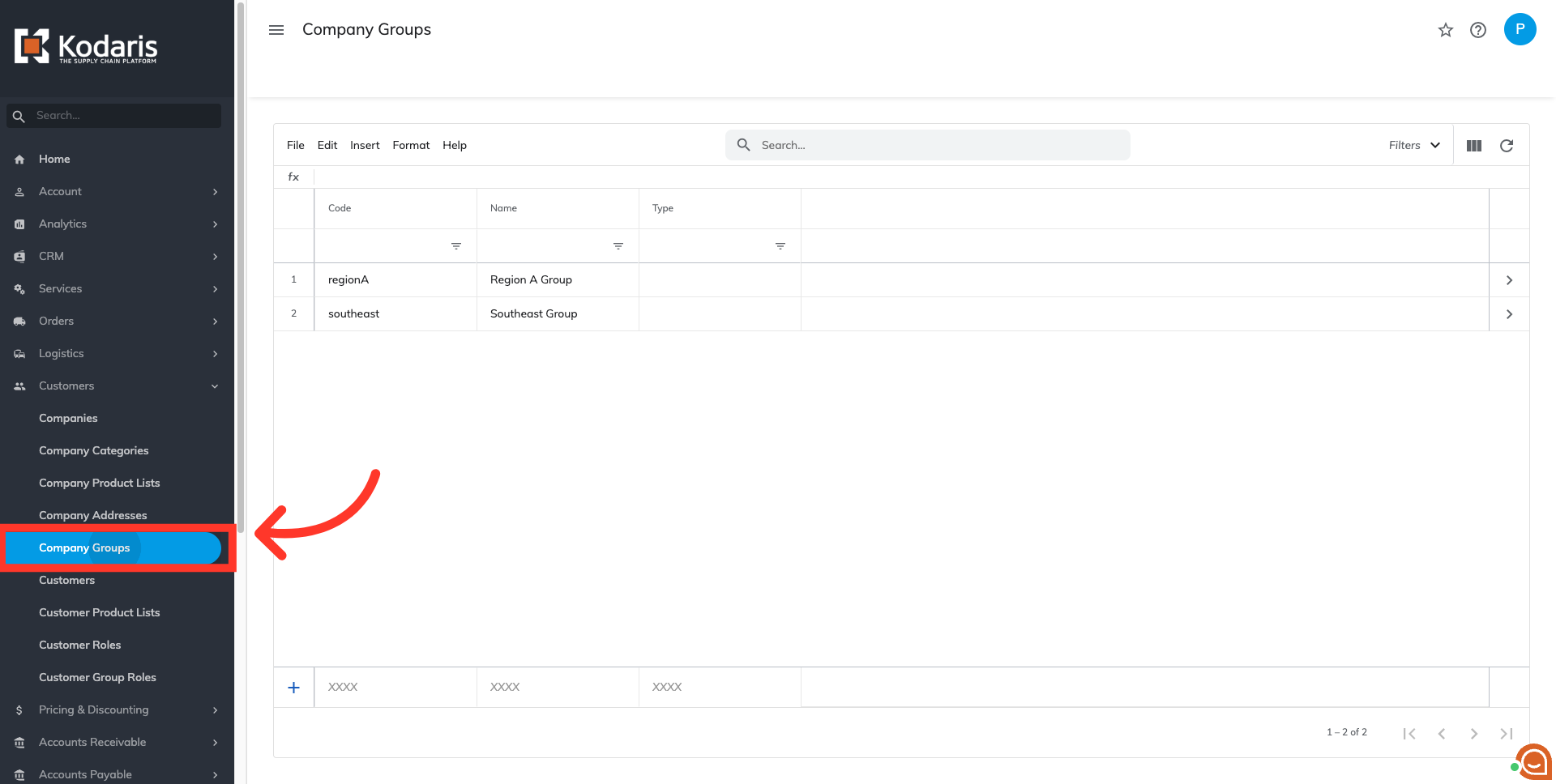
To know what customerGroupCode to use, navigate to the "Company Groups" section. In order to access "Company Groups" you will need to be set up either as an "administrator" or a "superuser", or have the appropriate roles: "customerGroupView" and "customerGroupEdit".

See the "Company Group Code" column to view the unique codes assigned to each company group.

Once your file is ready for importing, navigate to the "Import" screen in the Operations Portal. In order to access the "Import" screen, you will need to be set up either as an "administrator" or a "superuser", or have the roles of: "importEdit".

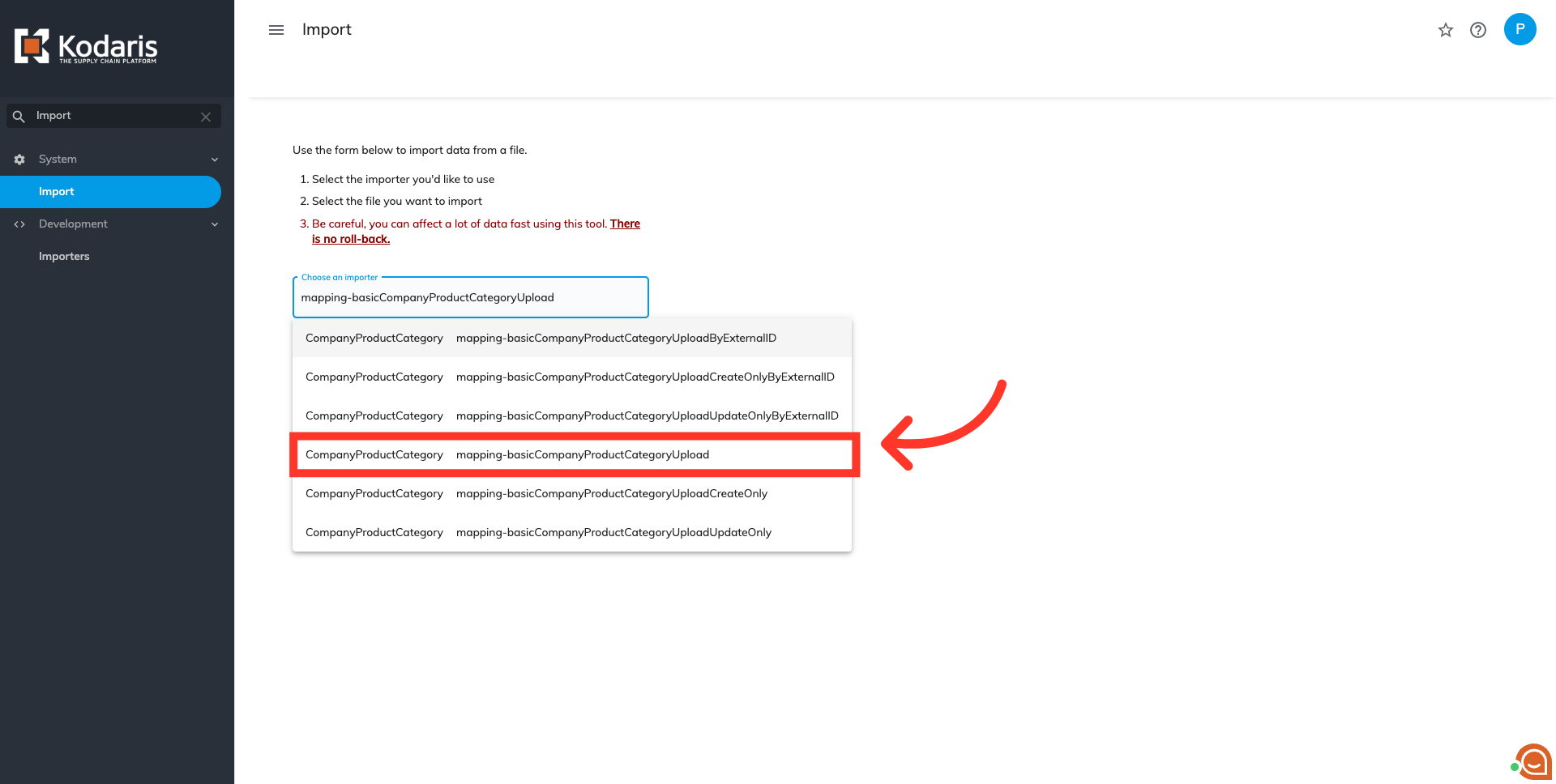
Click on the "Choose an importer" field to select the type of import you want to initiate.

Type the import code "mapping-basicCompanyProductCategoryUpload".

Select the correct code from the options that appear.
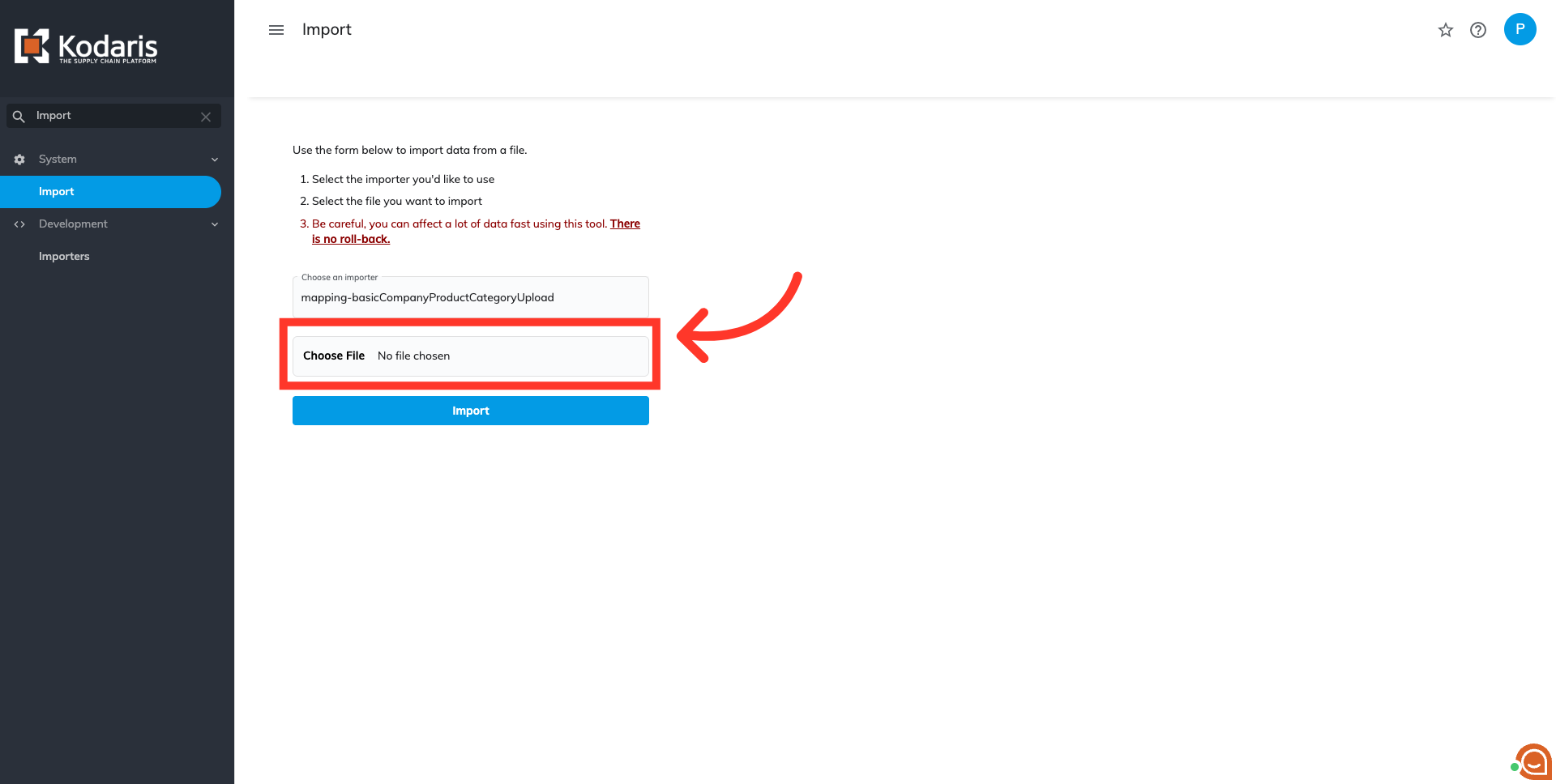
Next, you will need to choose the prepared .CSV file from your device's personal files. Click "Choose File".
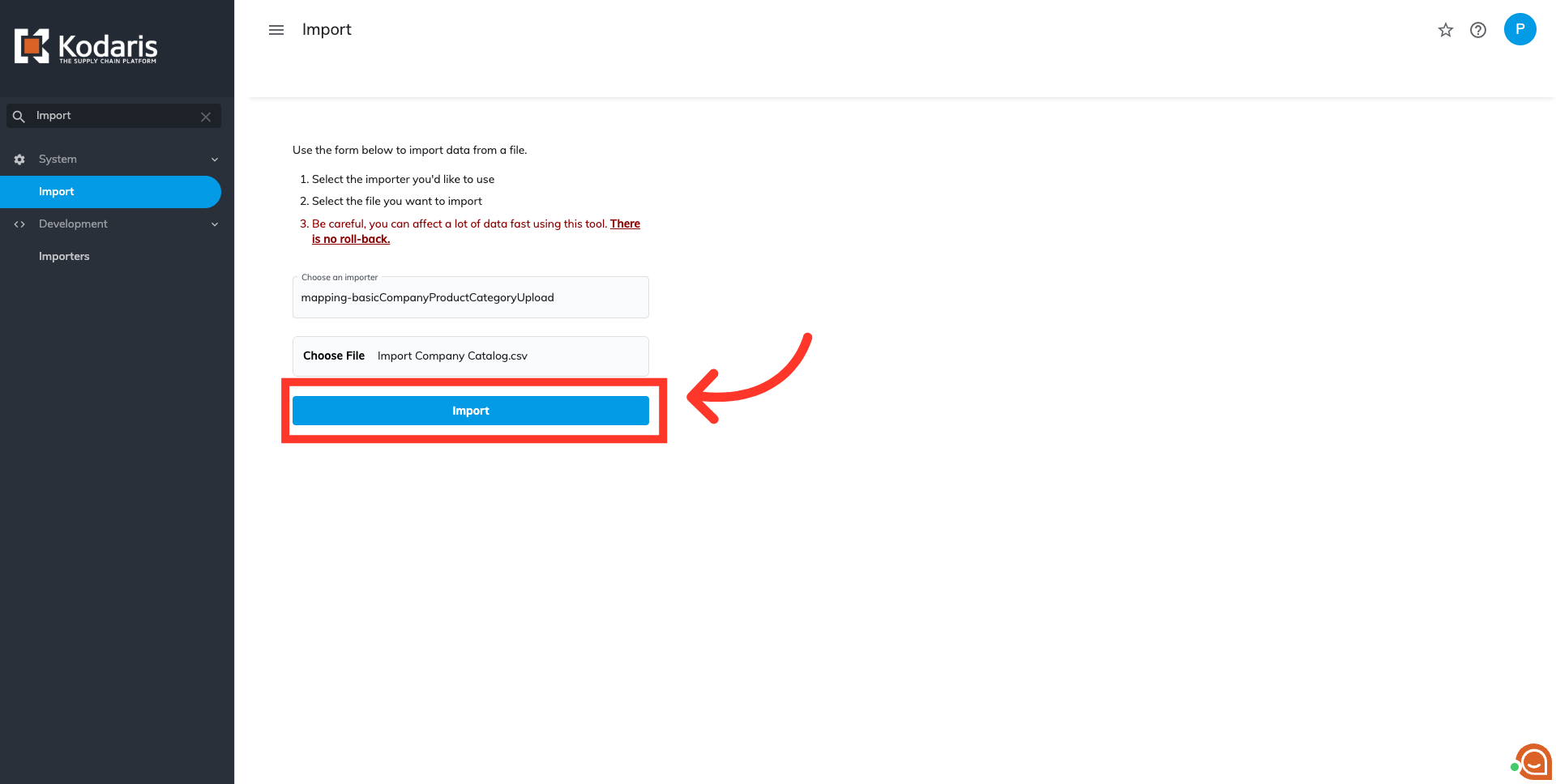
Once you've selected the file for import, click the "Import" button. Please be sure that you select the correct file, as there are no rollbacks for imports. If you are importing a large amount of data, it may take a short amount of time to complete. The import will continue to run in the background.
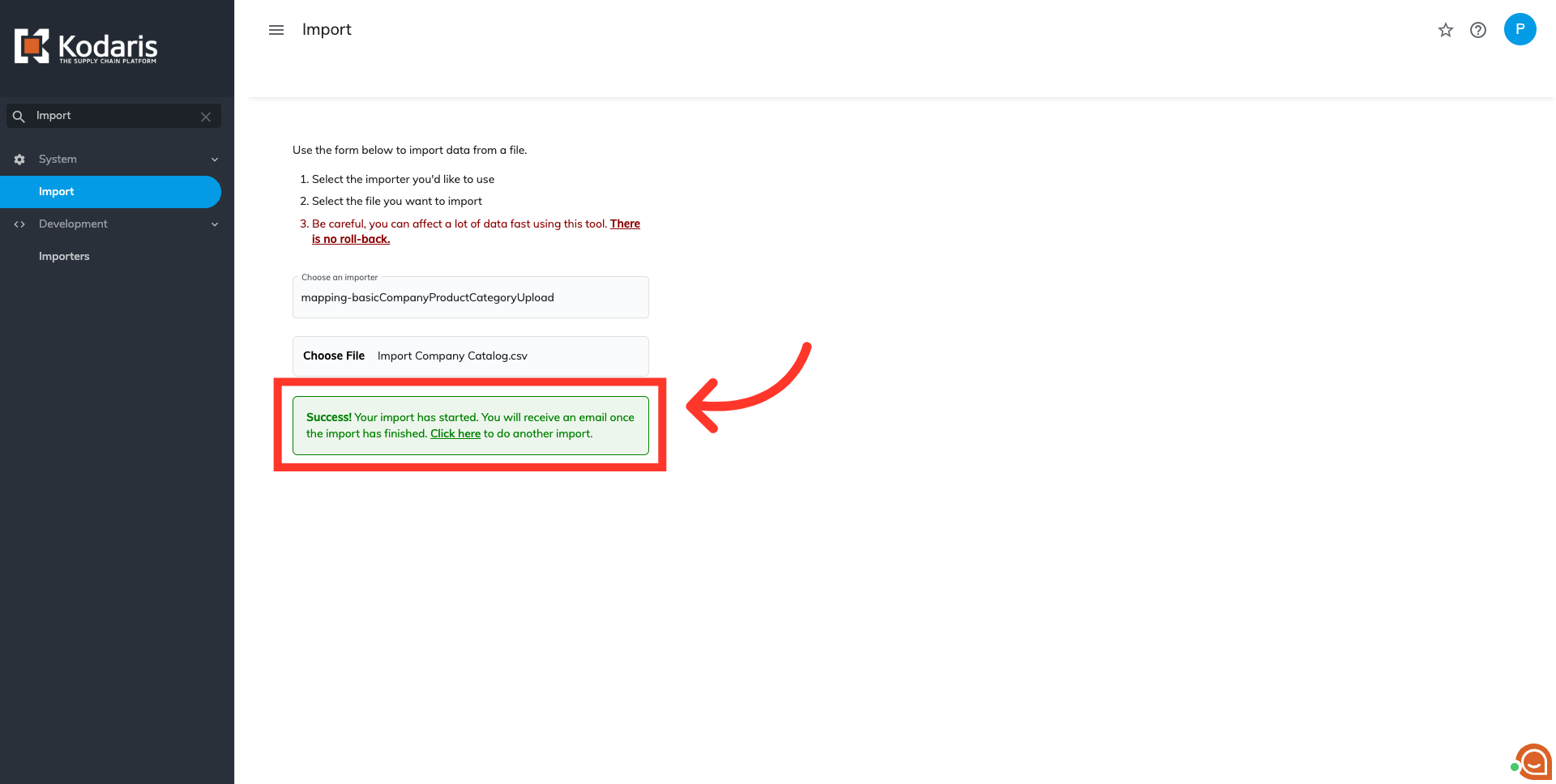
If the import is initiated successfully, you will see a success message. You will also receive an email report once the import has finished.
To confirm the import was successful, navigate to the "Company Groups" screen.
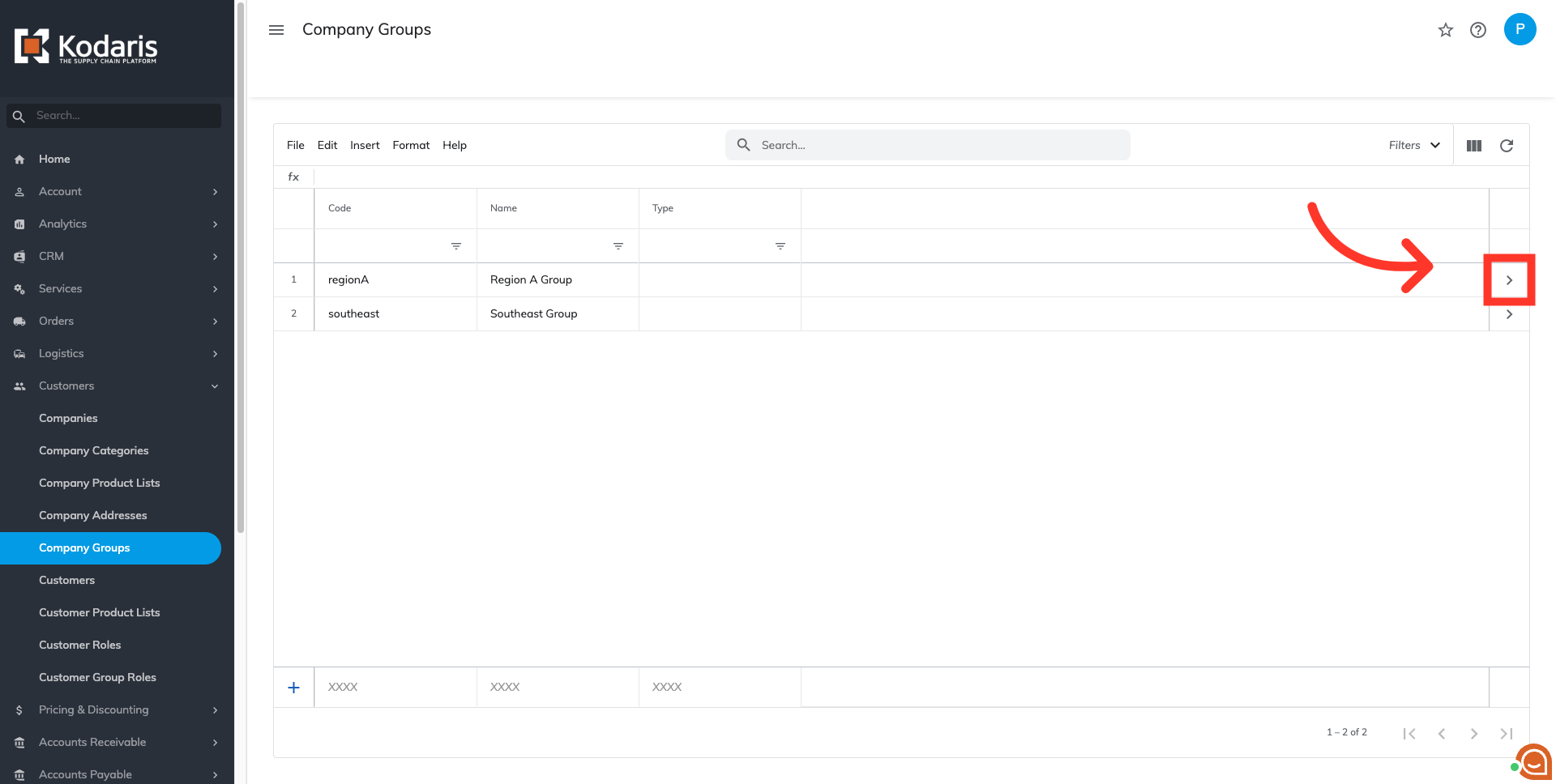
Select the "More Details" icon associated with the customer group code you added to your .CSV file.
Click the "Catalog" tab.

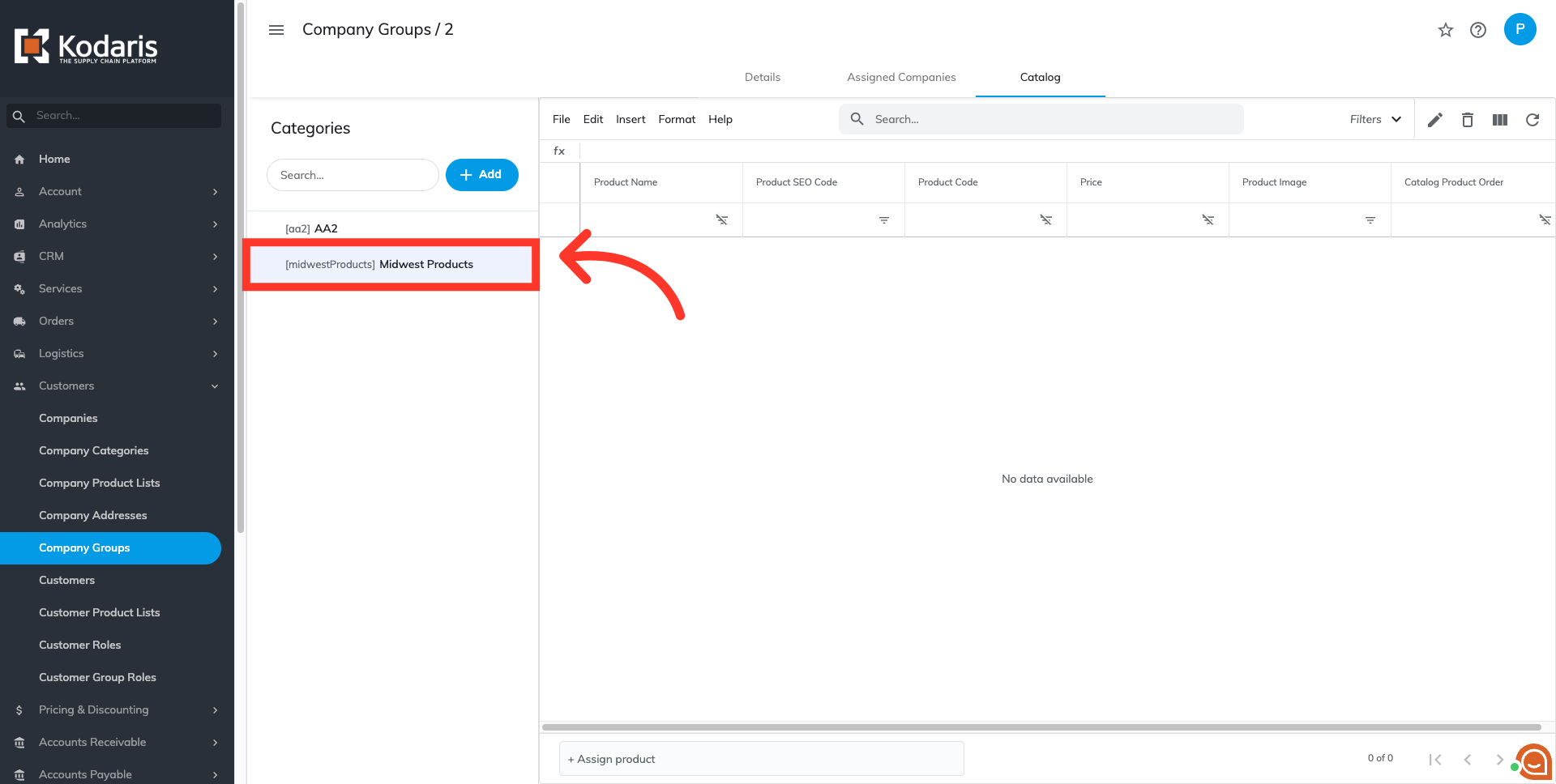
If the import was successful, you will see the newly added catalog here, and it should only be available to the assigned companies.