 Product Documentation
Product Documentation
Product Documentation
To view and export Vendor Pricing, you will first navigate to the "Accounts Payable" section in the Operations Portal.

Then, click "Vendor Pricing". In order to access and update “Vendor Pricing”, you will need to be set up either as an “administrator” or a “superuser”, or have the roles of: "vendorProductPriceView" and "vendorProductPriceEdit“.

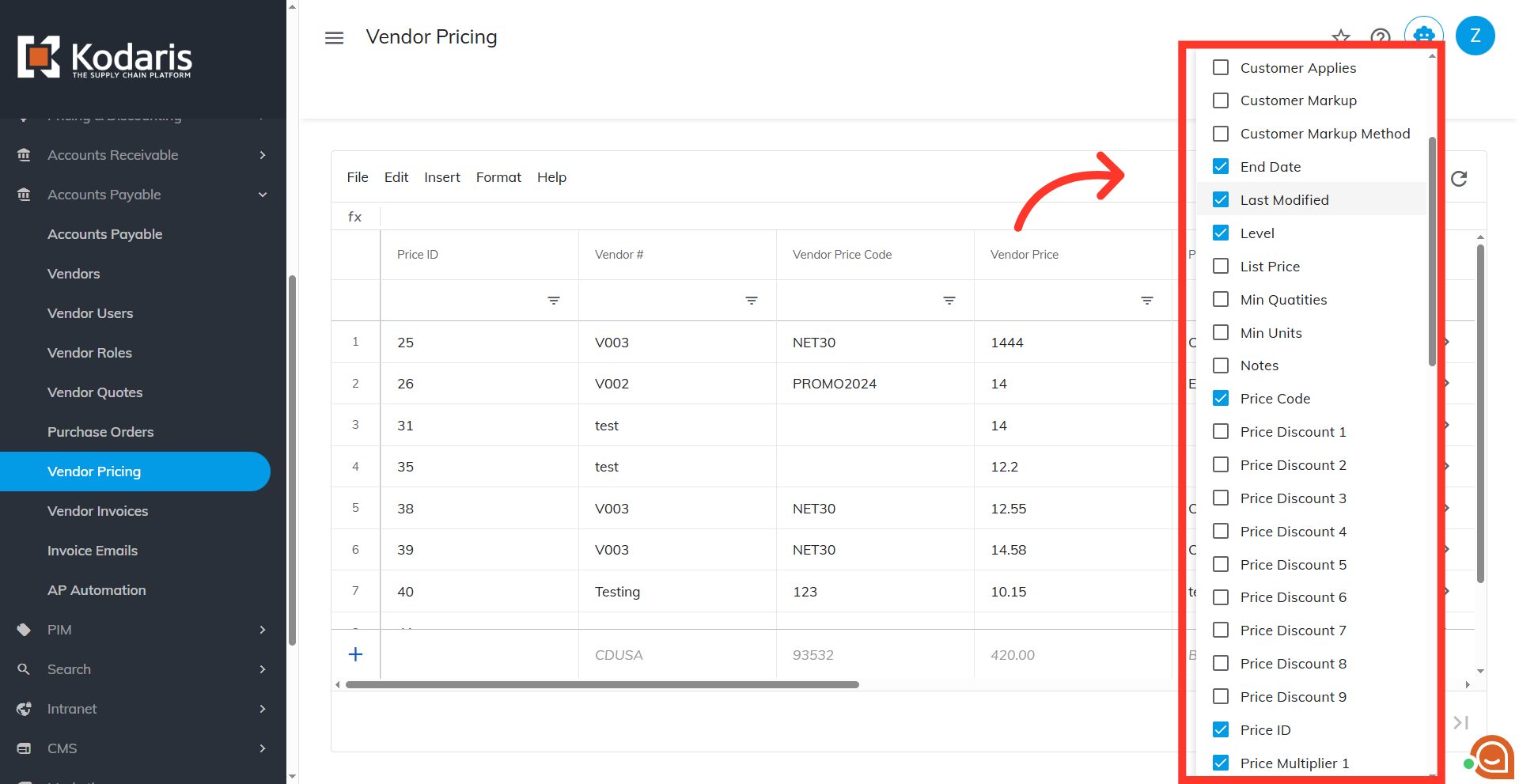
The vendor pricing is displayed in the grid.

To modify the columns you want included in the export, click the "Show/Hide Columns" icon.

Select or deselect columns.
Click the "File" menu to access export option for your current view.

Click the "Export" option to initiate exporting your data with the selected columns.

Rename file, if needed.

Click "Save" to confirm your export settings and generate the file.
