Product Documentation
Product Documentation
Product Documentation
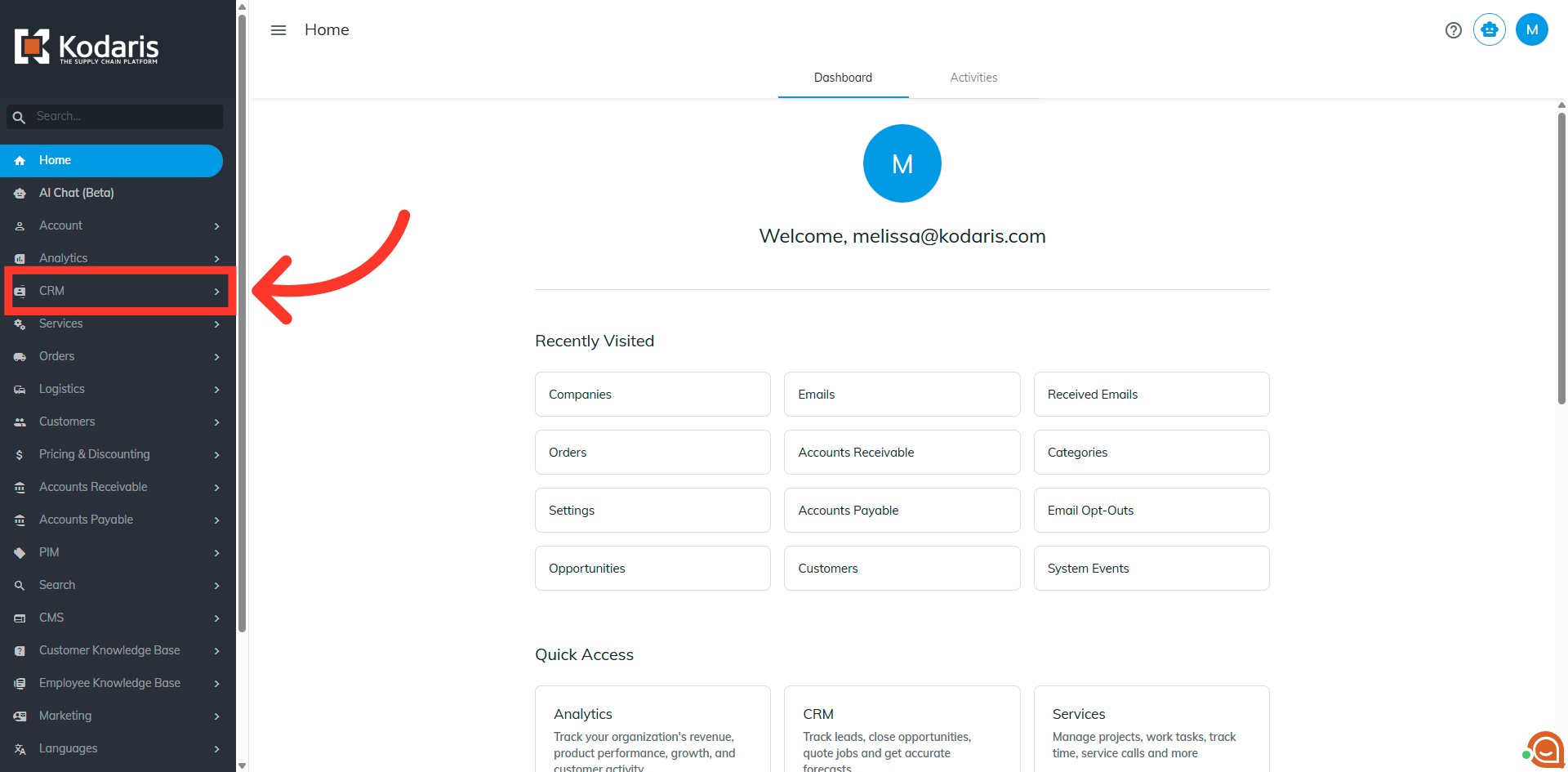
To issue a charge on a company, navigate to the "CRM" section in the Operations Portal.
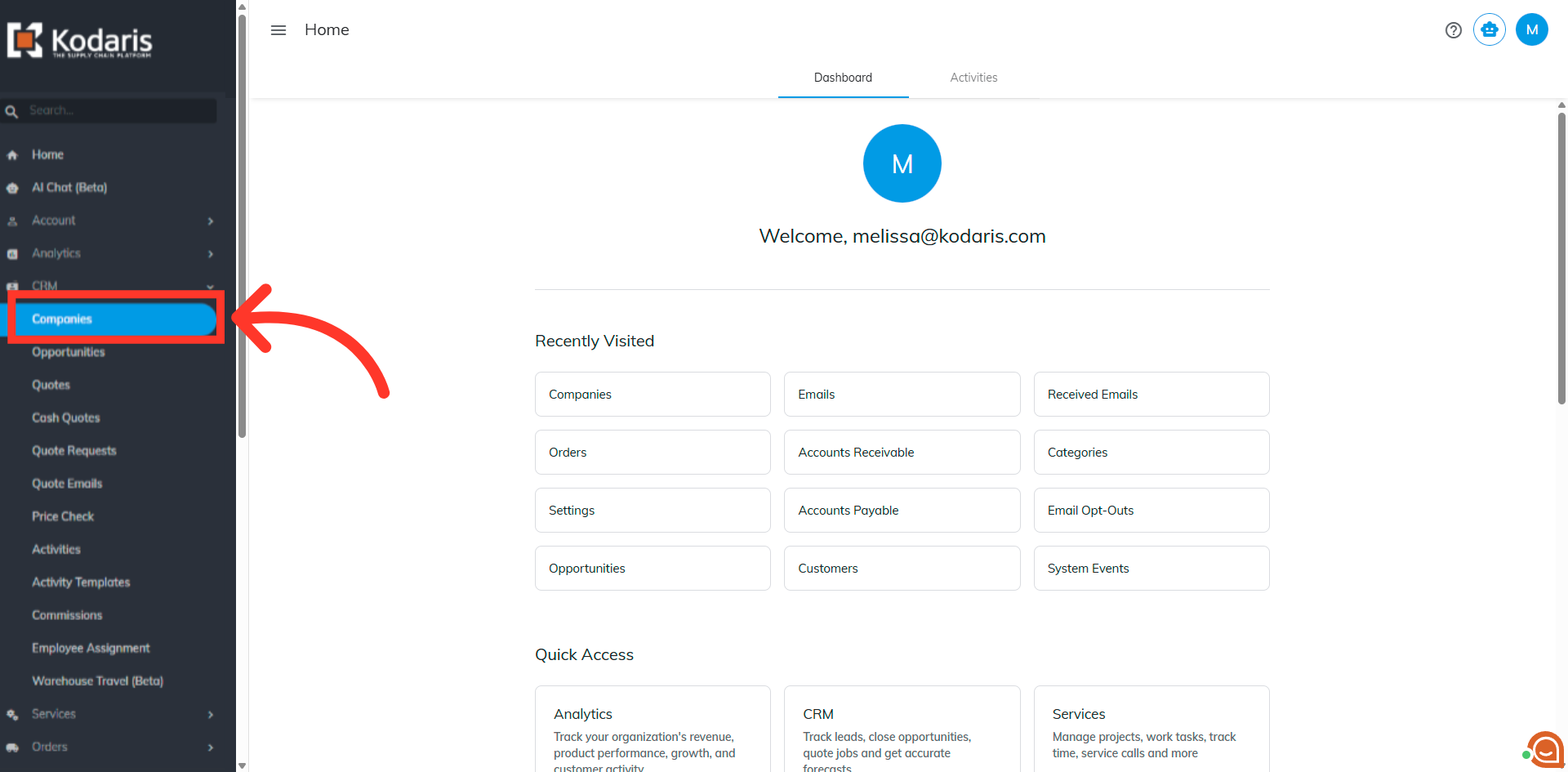
Then, click "Companies". In order to access "Companies" you will need to be set up either as an "administrator" or a "superuser", or have the appropriate roles: "companyView and companyEdit", or "crmCompanyView and crmCompanyEdit". Just a reminder, "crmCompanyView and crmCompanyEdit" access only allows employees to view companies that are assigned to them. You will also need to be set up with the additional "accountant" permission in order to issue a charge
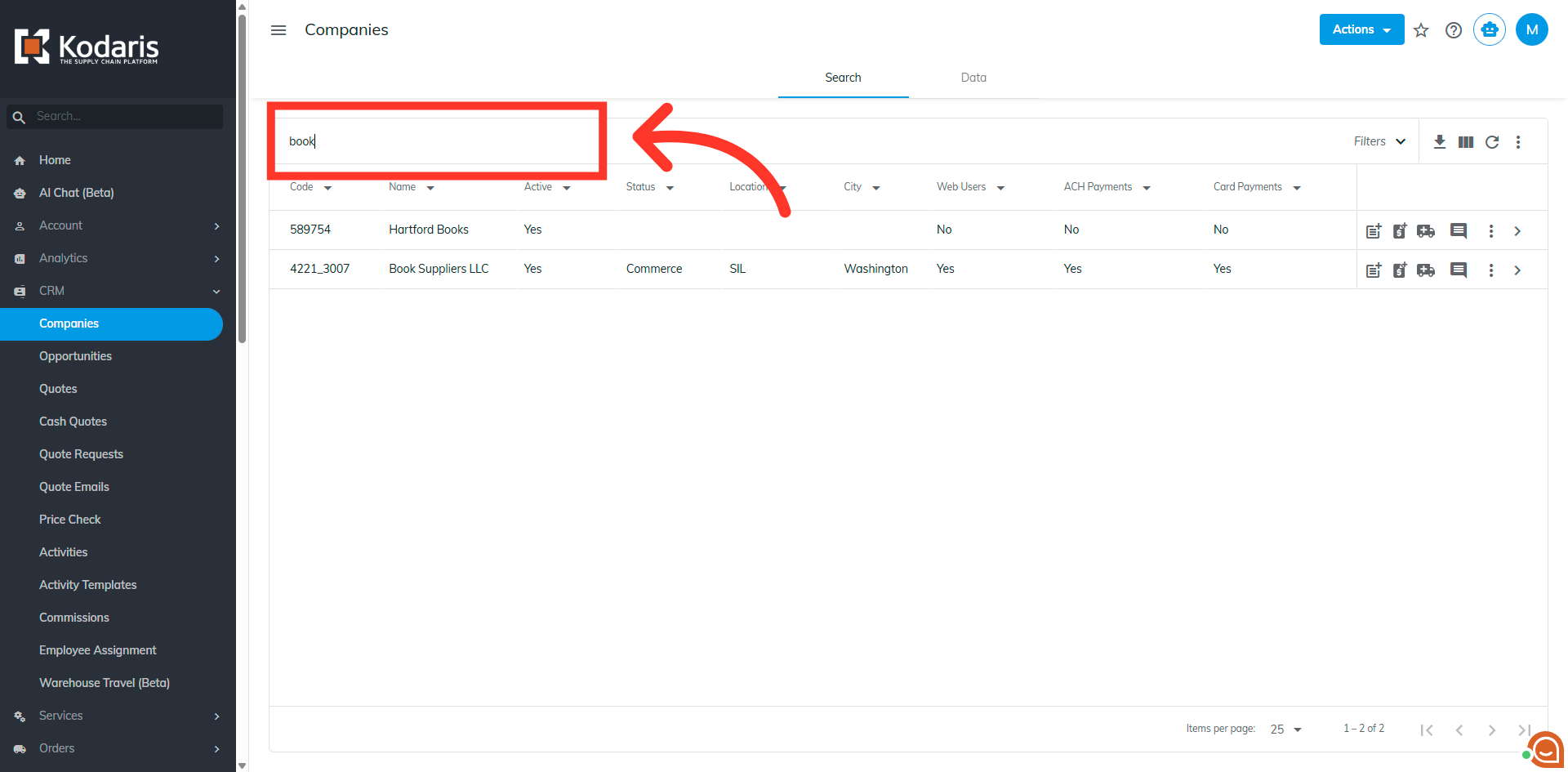
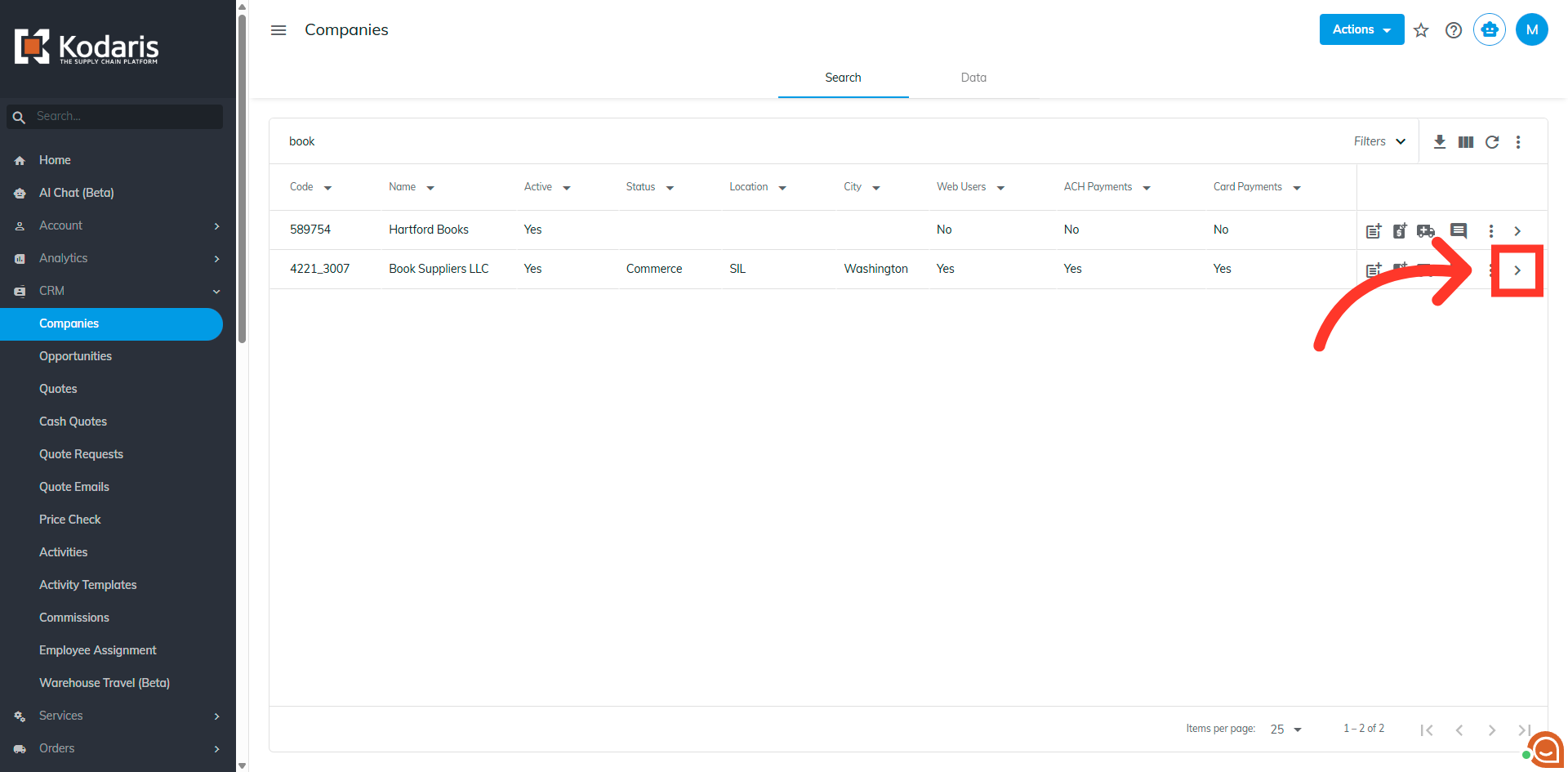
Search for a company. You can enter the company name or code in the "Search..." field to search.
Click on the more details icon to view company details.
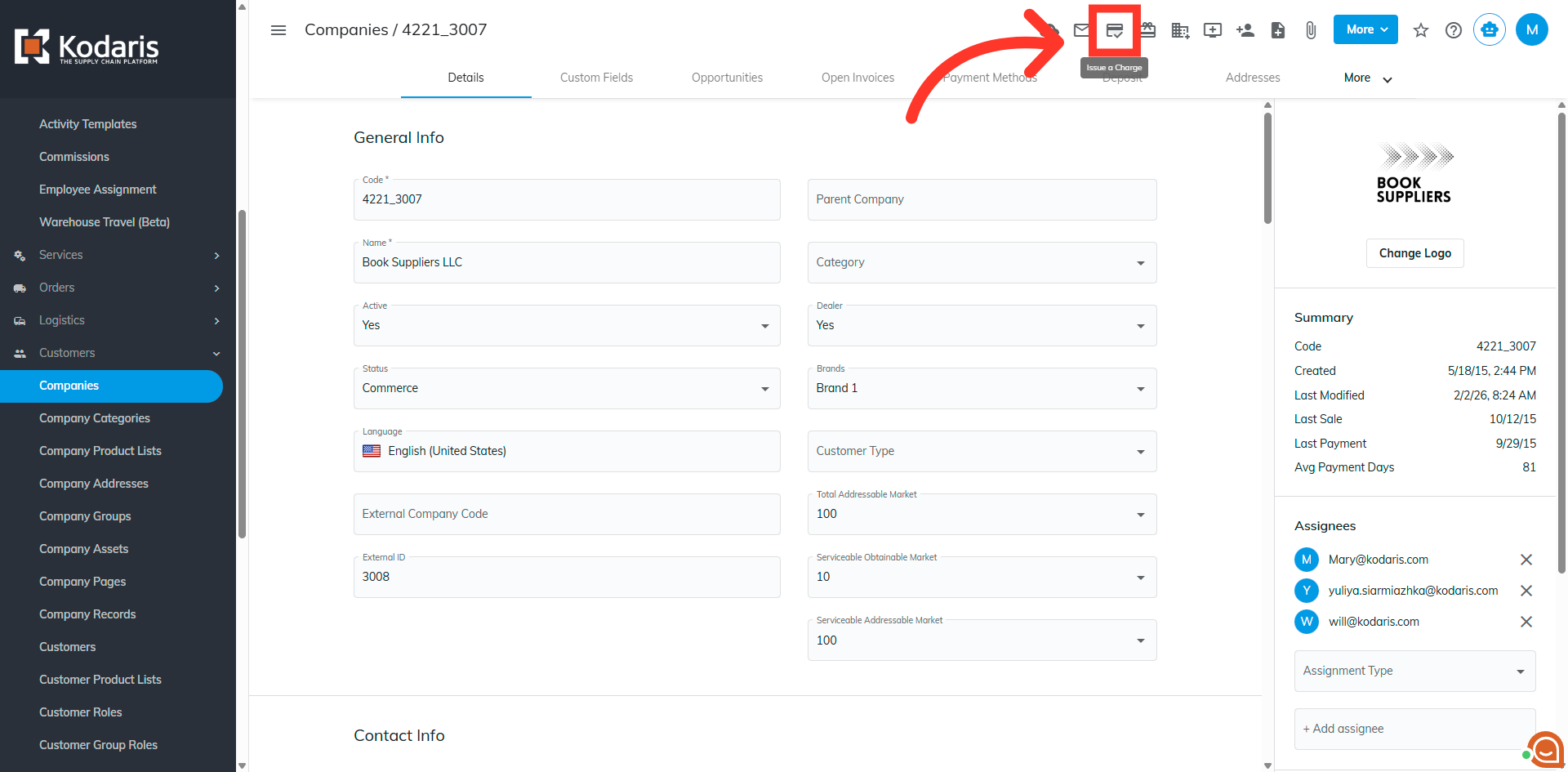
Now, click the "Issue a Charge" icon.
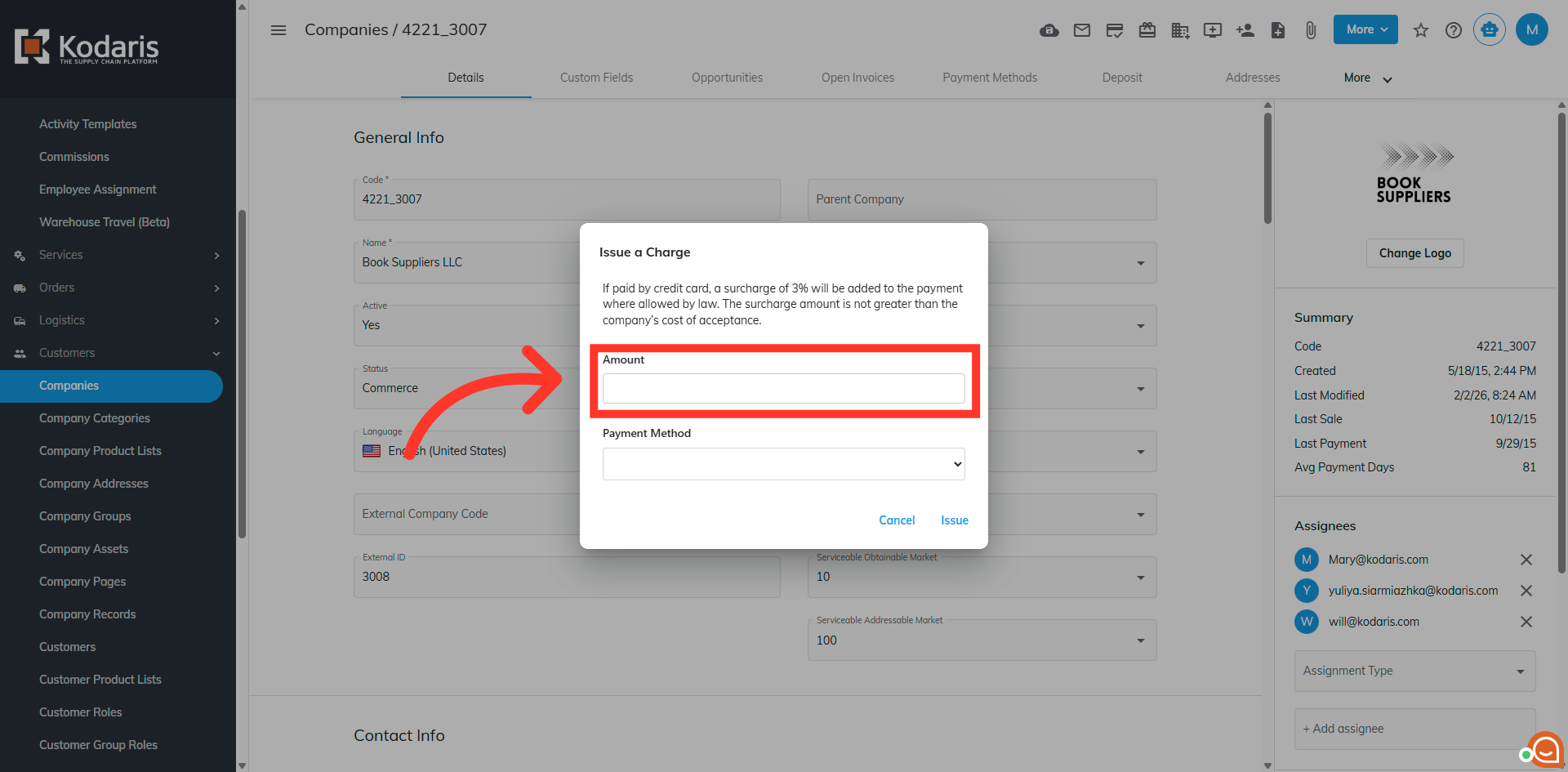
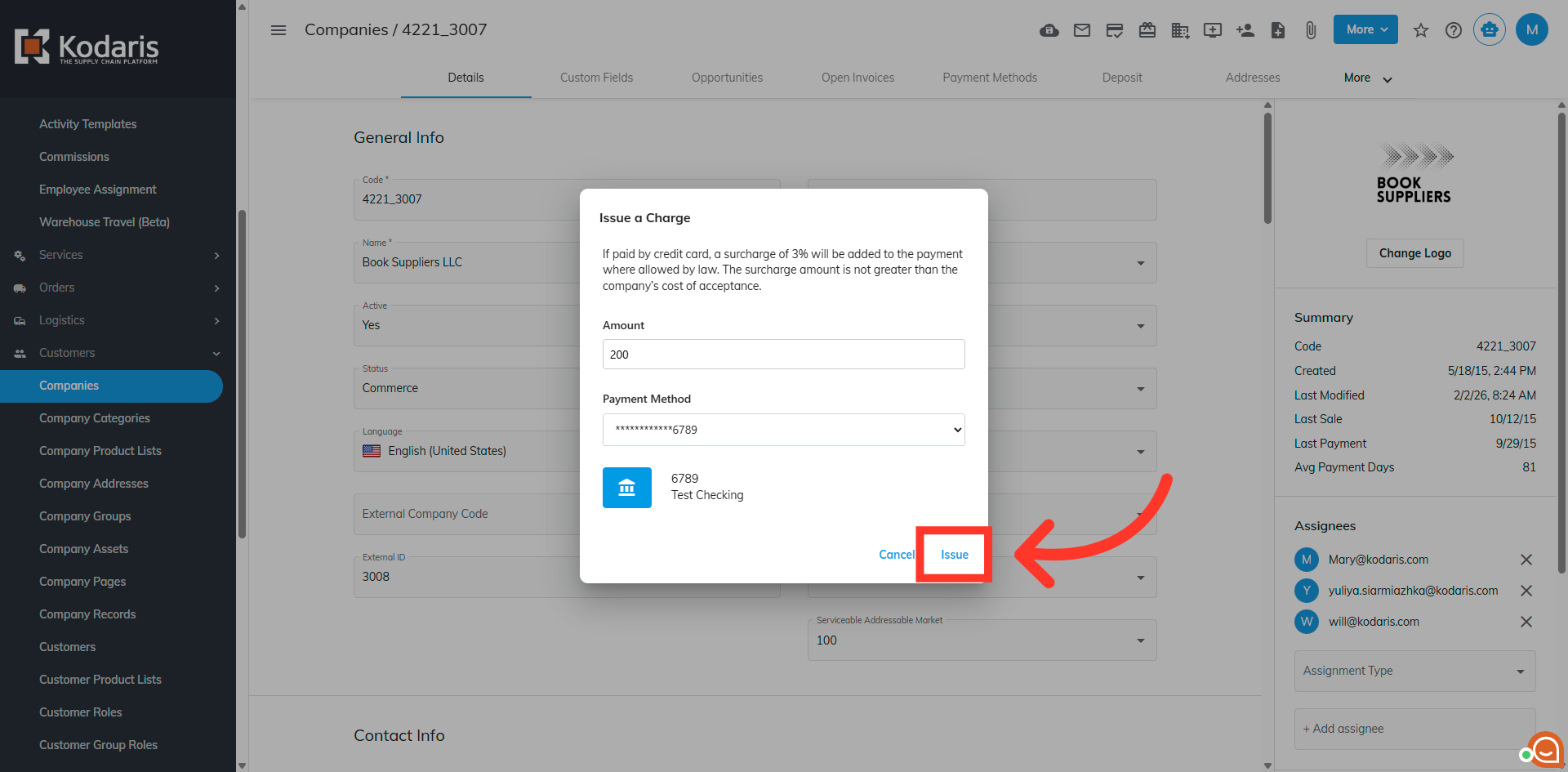
An "Issue a Charge" dialog box appears. You can fill in the amount for the charge in the "Amount" field.
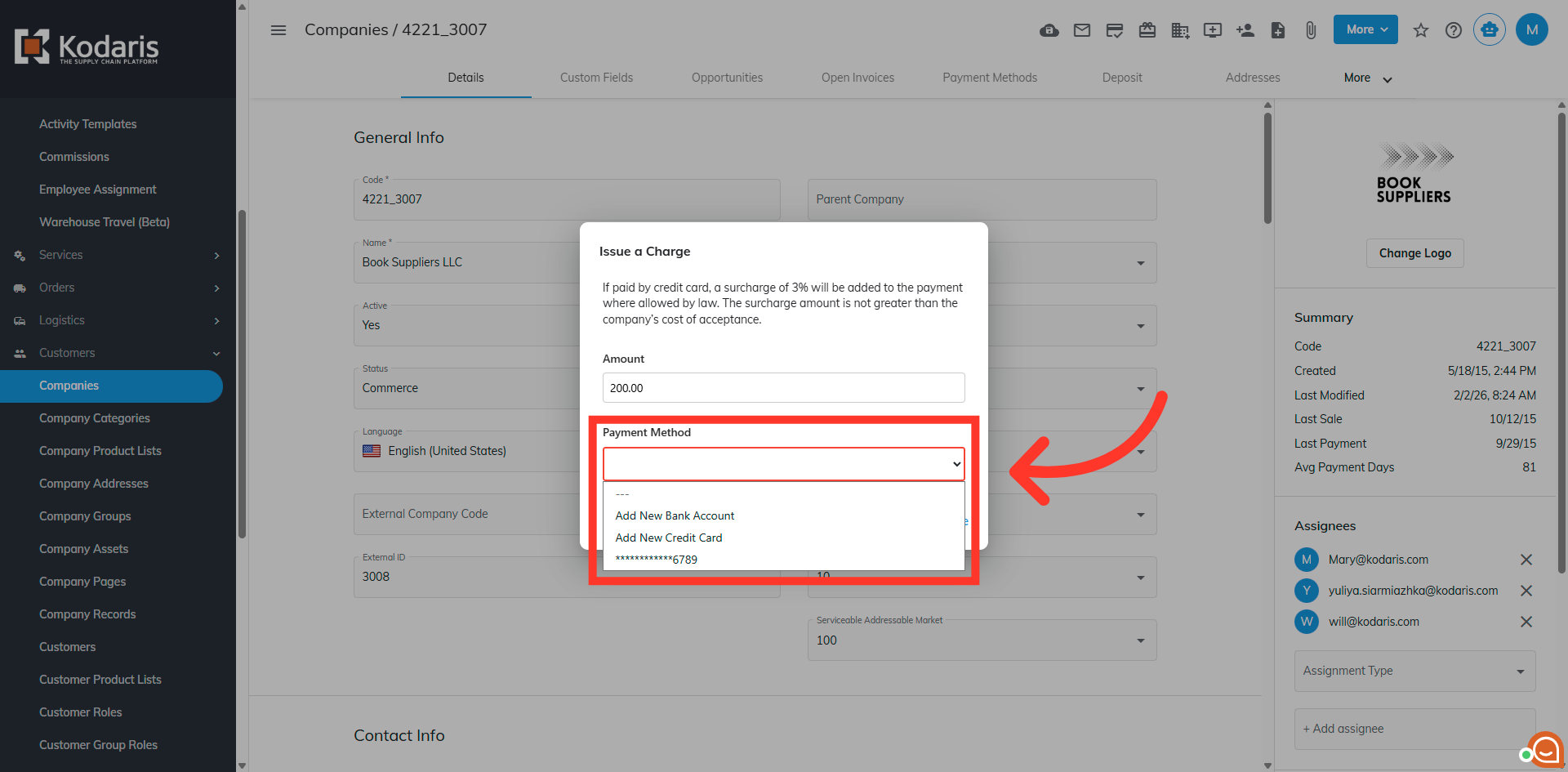
Next, you need to select a payment method from the "Payment Method" drop down.
Then, click "Issue" to issue the charge to the company.
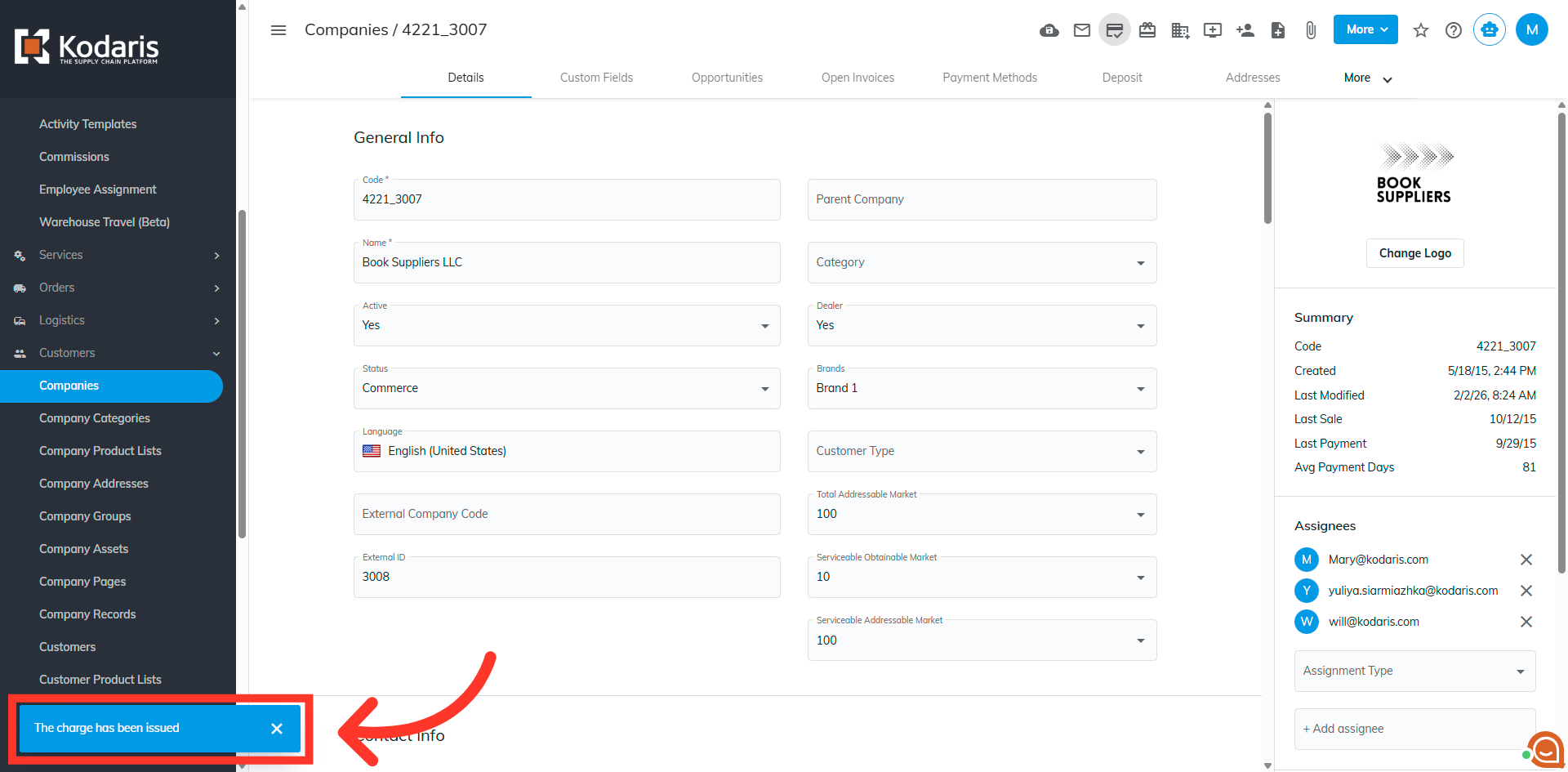
"The charge has been issued" message is shown once the issue has been charged to the company. The customer will also receive an emailed receipt.