Preview Order Templates
There are three different order templates setup in your Kodaris system. During implementation these are configured to match the order templates setup in your ERP environment. In this article, we'll walk through how you can preview each order template.
Customer Portal Template
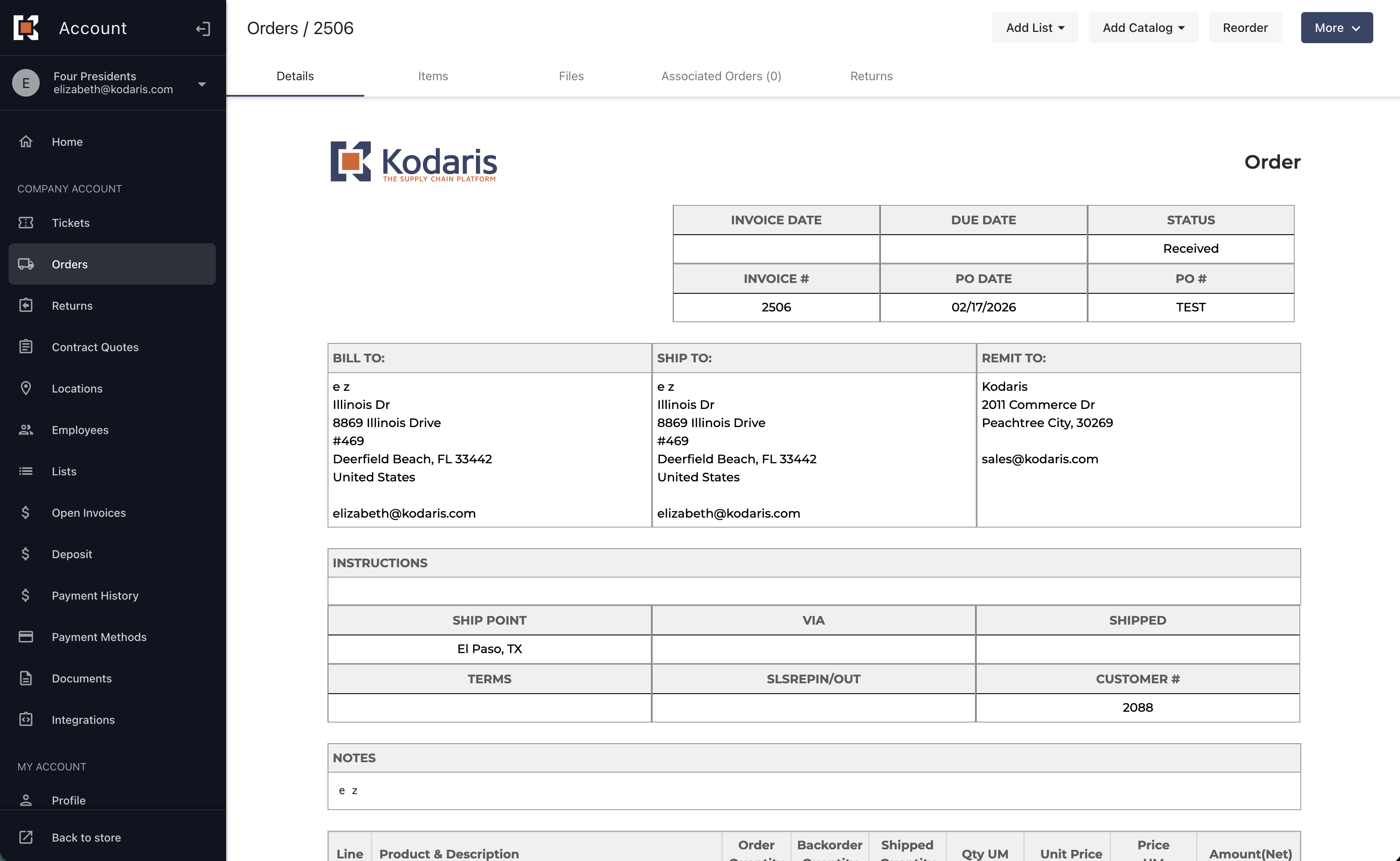
The first template is your customer portal template. When a user logs into the site, navigates to the customer portal, and goes to view the order details, this is the template shown. To preview it, follow the steps below:
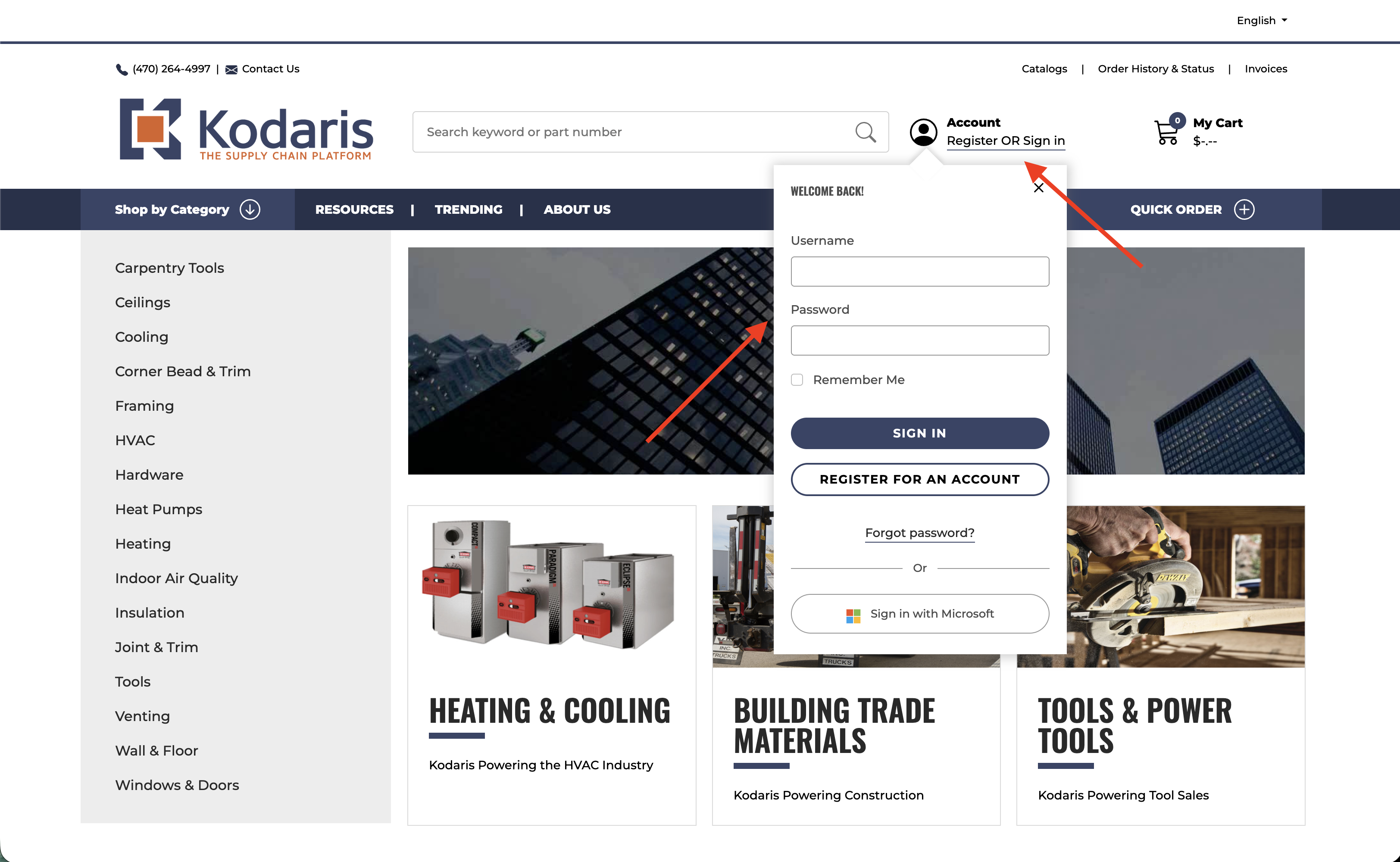
- Navigate to the website and login as a customer
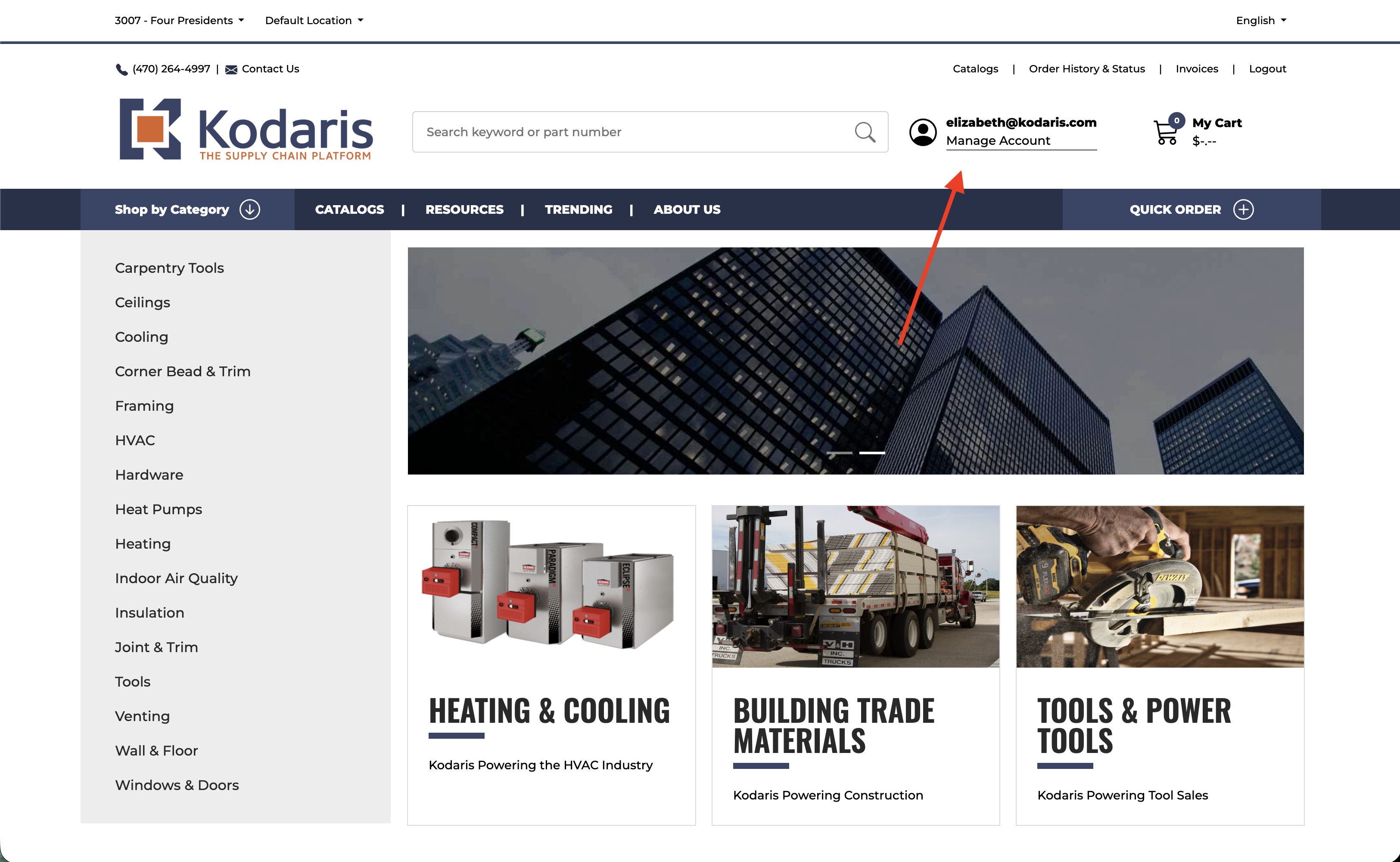
- Navigate to the customer portal by clicking Manage Account
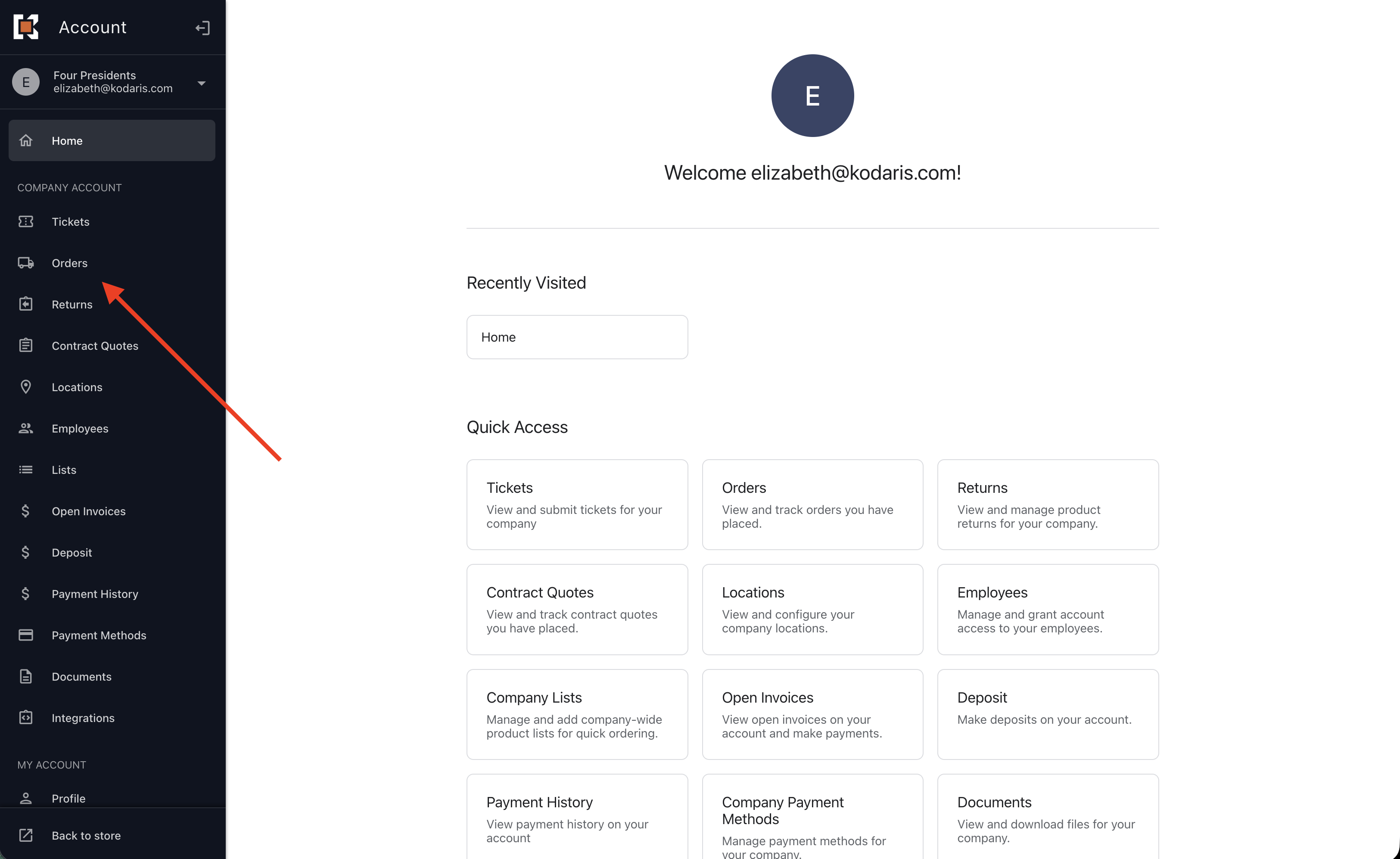
- In the customer portal, navigate to the Orders screen
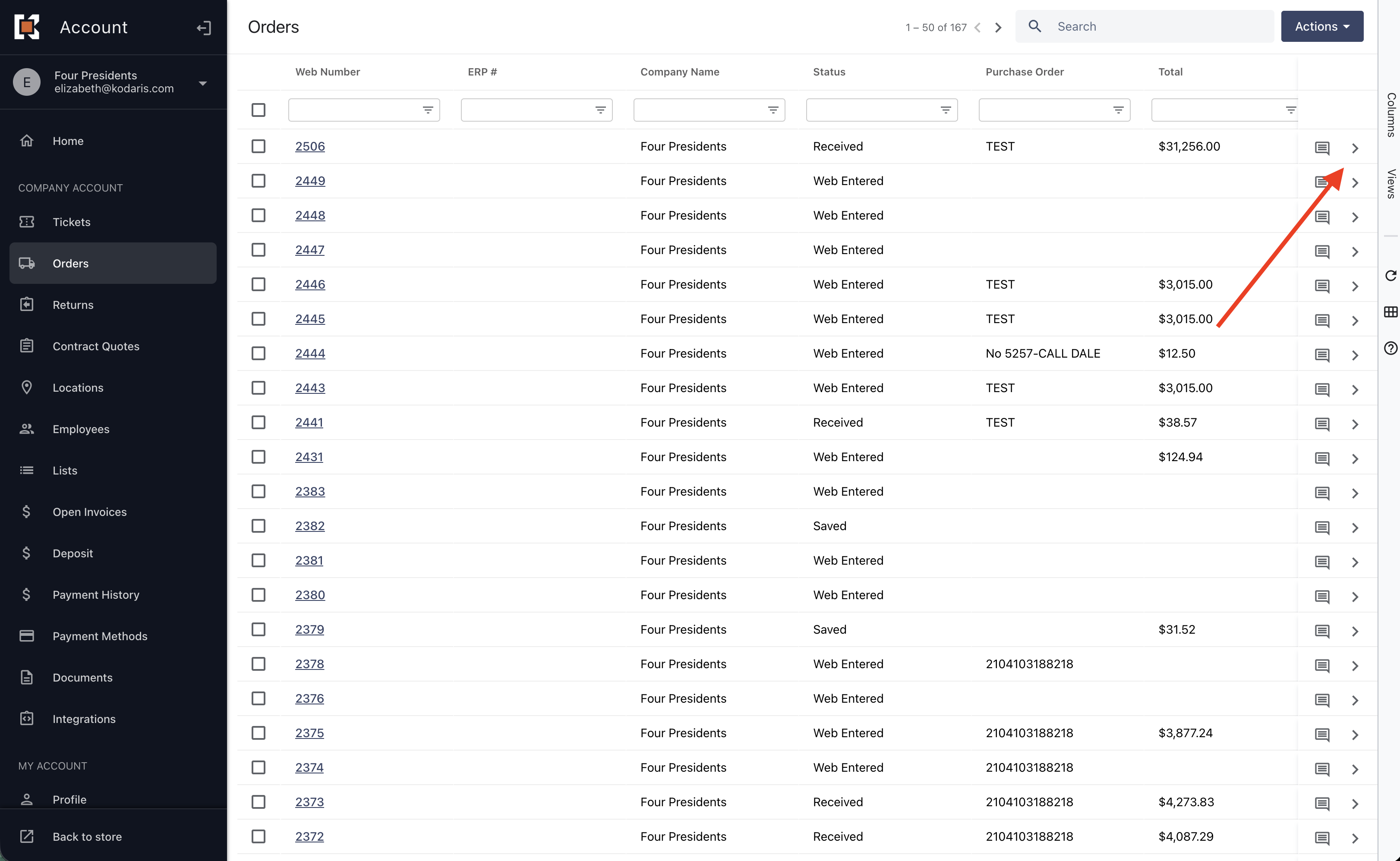
- There, navigate to the details of any order you want to view additional info for
- Displayed will be your customer portal order template
PDF Template
The next template is the PDF template. This template is displayed when employees or customers print orders from the operations portal or the customer portal among other cases. To preview this template, follow the steps below:
- Navigate to the operations portal and login
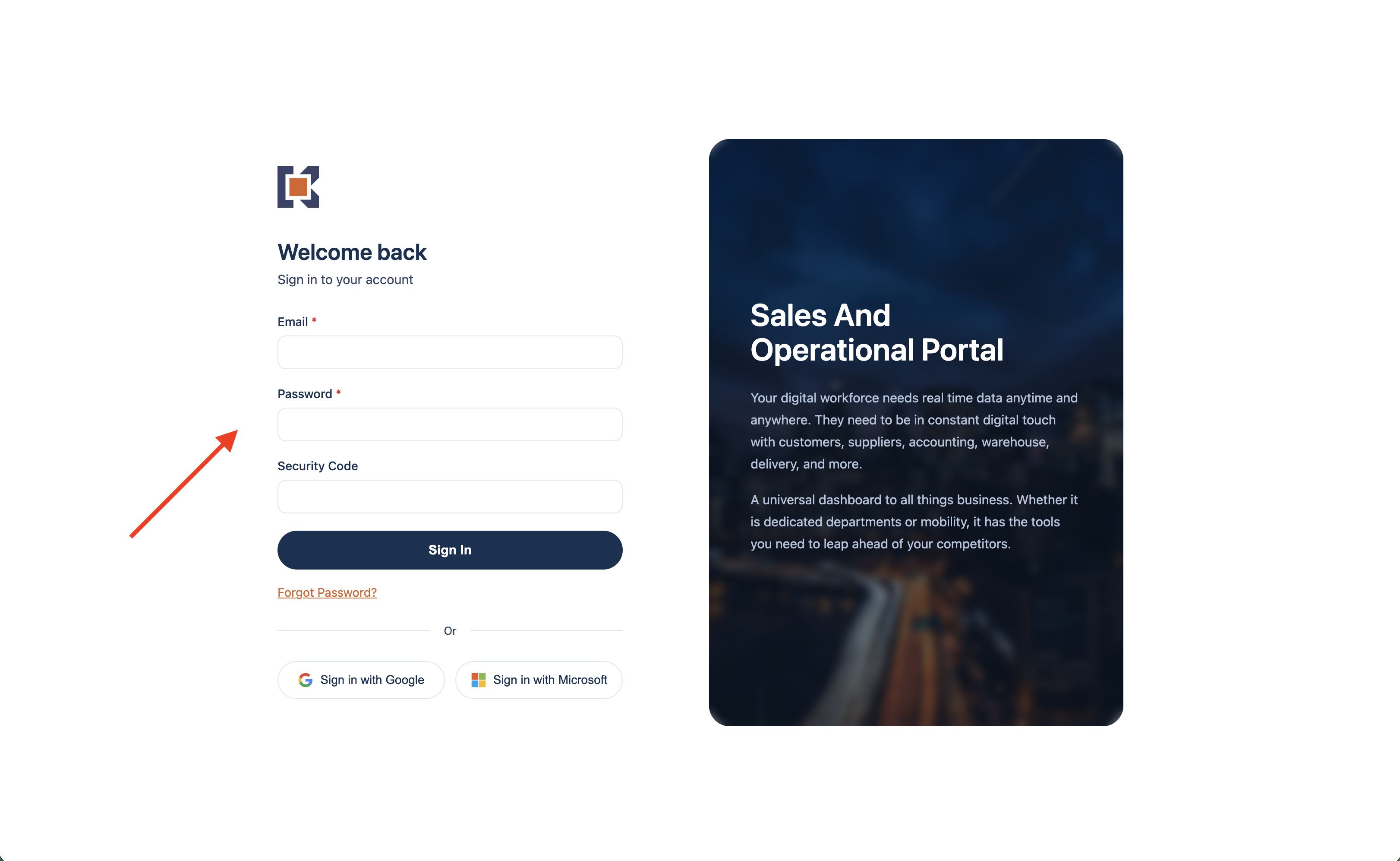
- Once logged in, navigate to the Orders screen
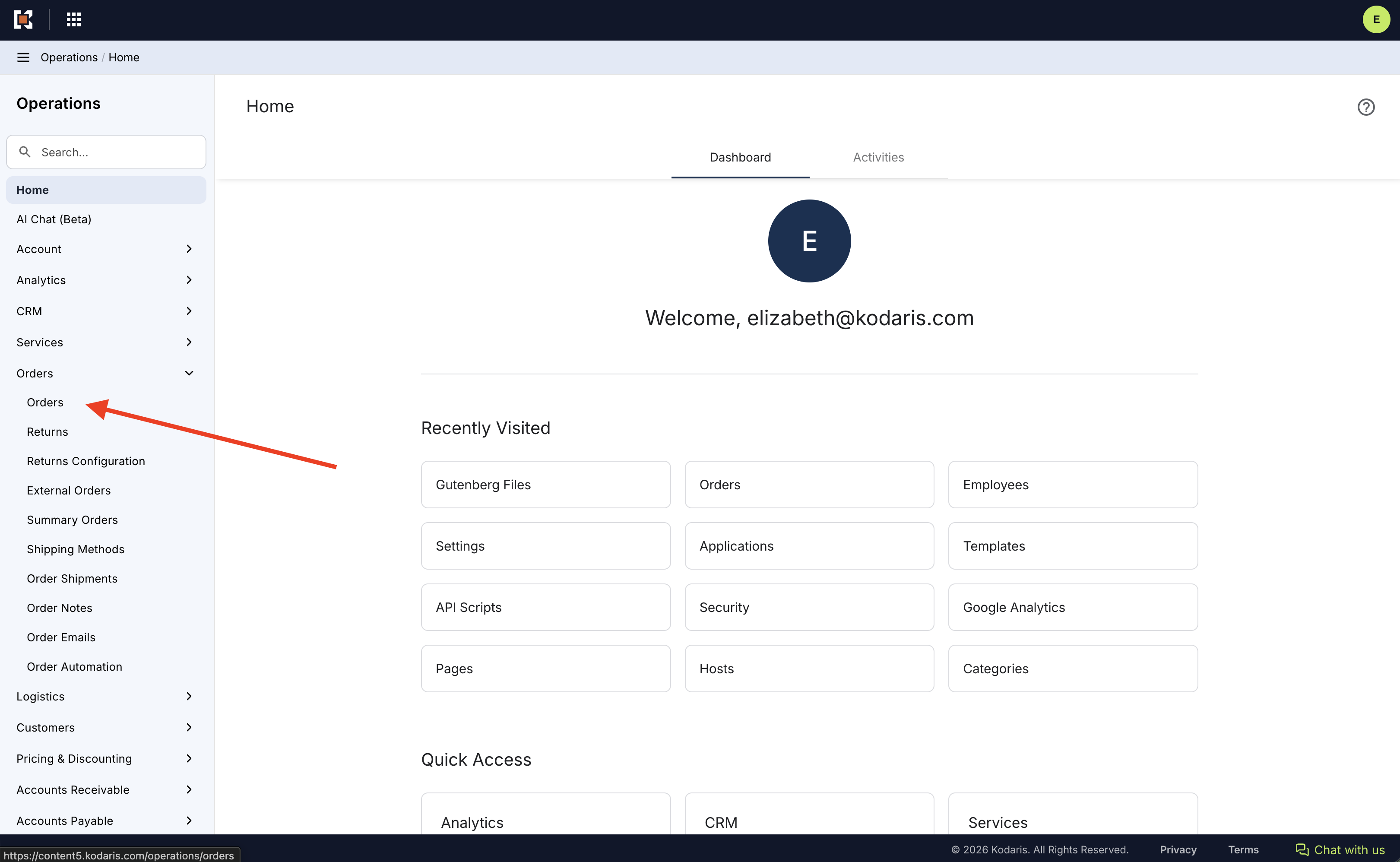
- There, go to the details of an order you want to preview the PDF for
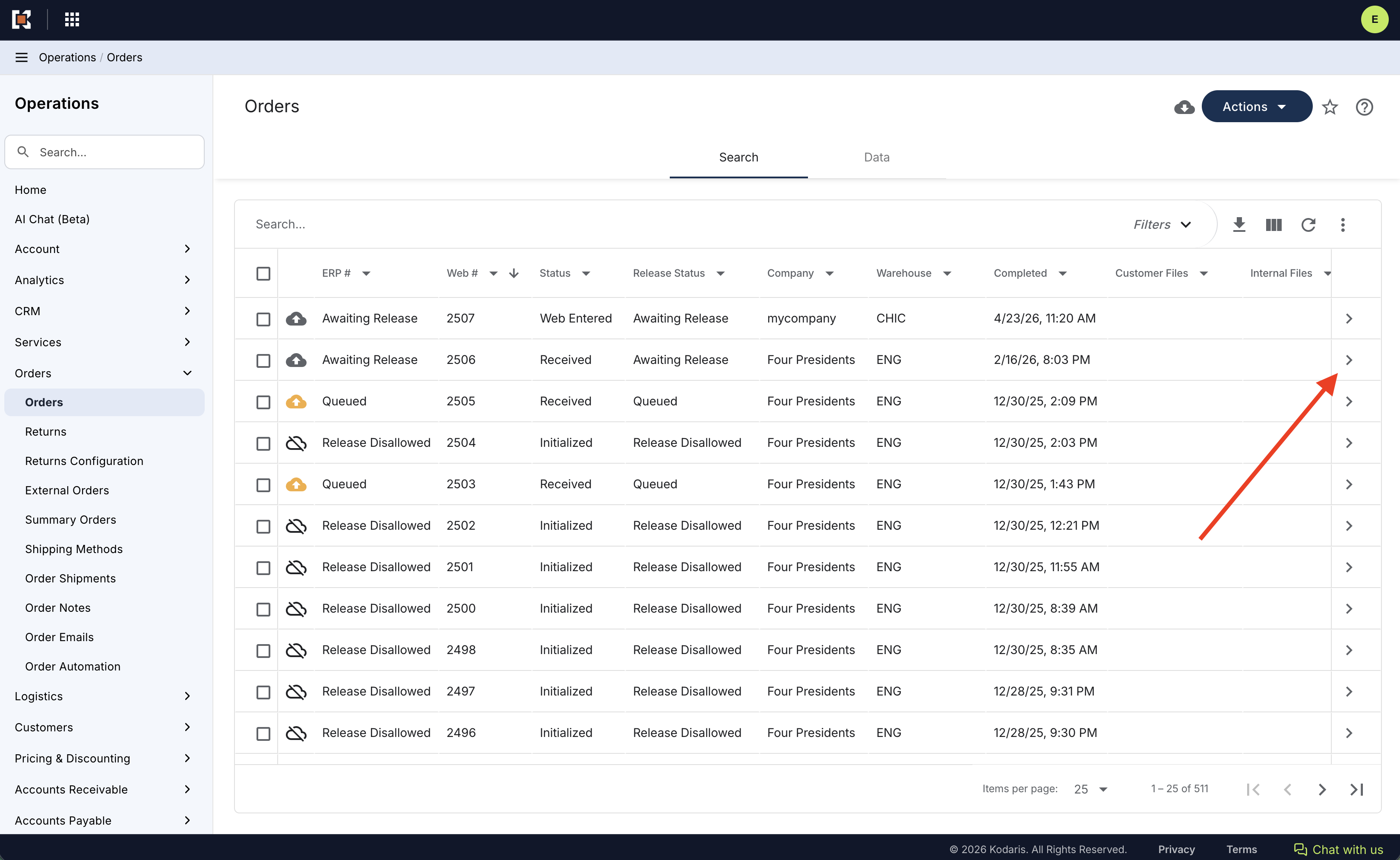
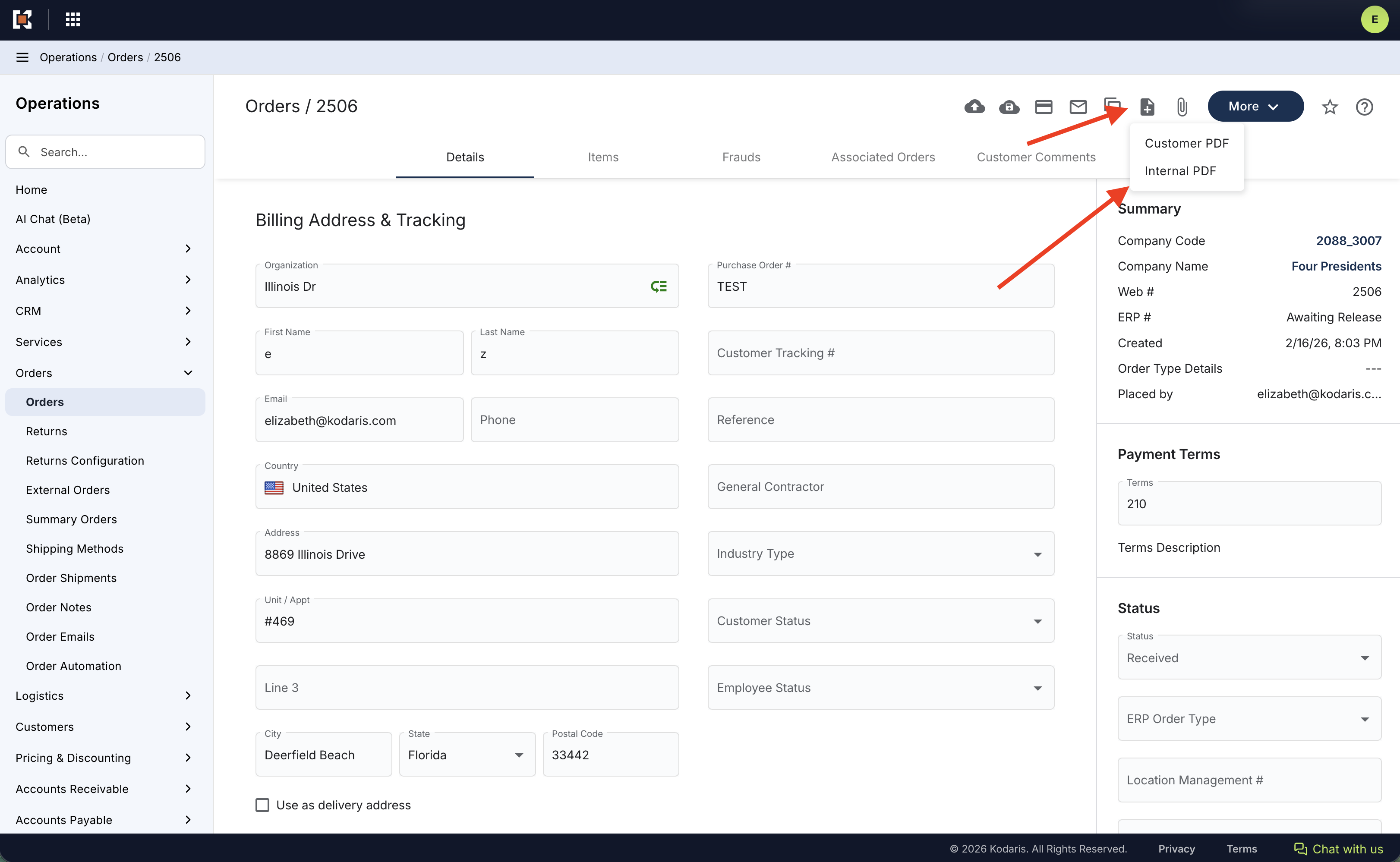
- There, in the top right menu, click Generate File > Internal PDF
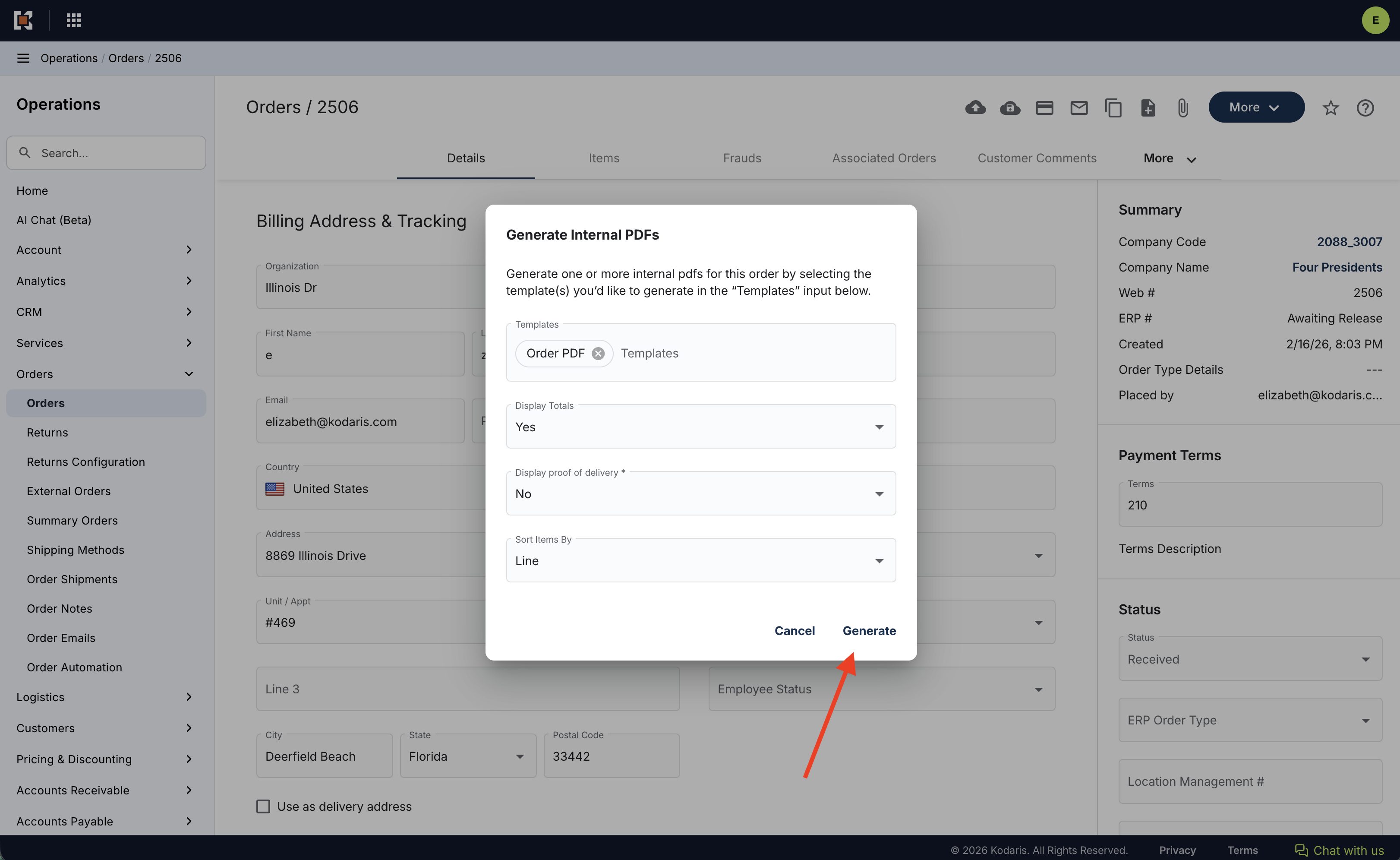
- In the resulting modal, you can leave the default options selected, and click Generate
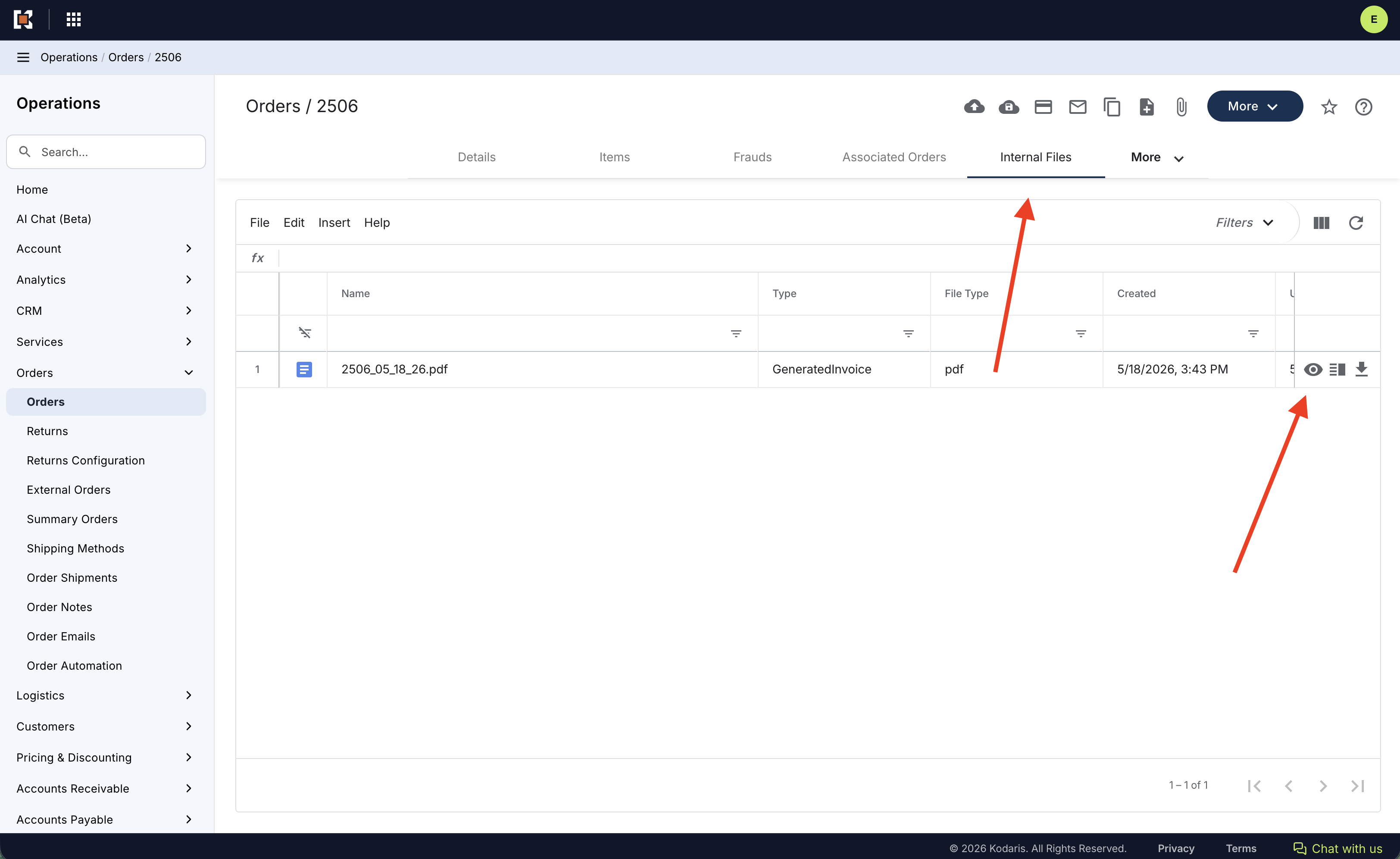
- The system will generate a PDF for that order and you'll be redirected to the Internal Files tab where you can view it
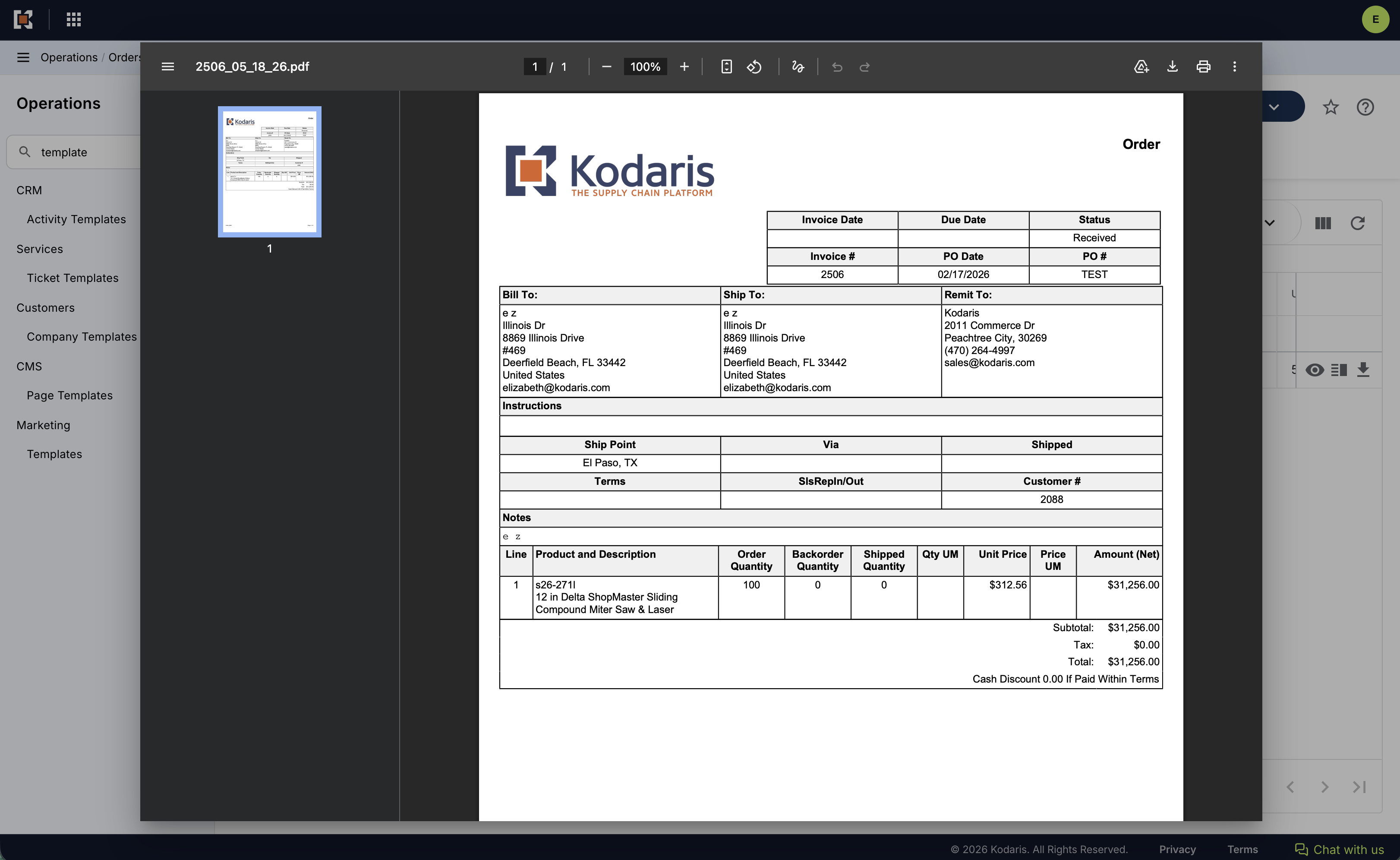
- Once you click the View icon, the system will show a preview of the order in PDF format
Email Preview
The last template is the Email template. This template is used to in the confirmation email sent to customers after they place an order on the website among other cases. To preview this template, follow the steps below:
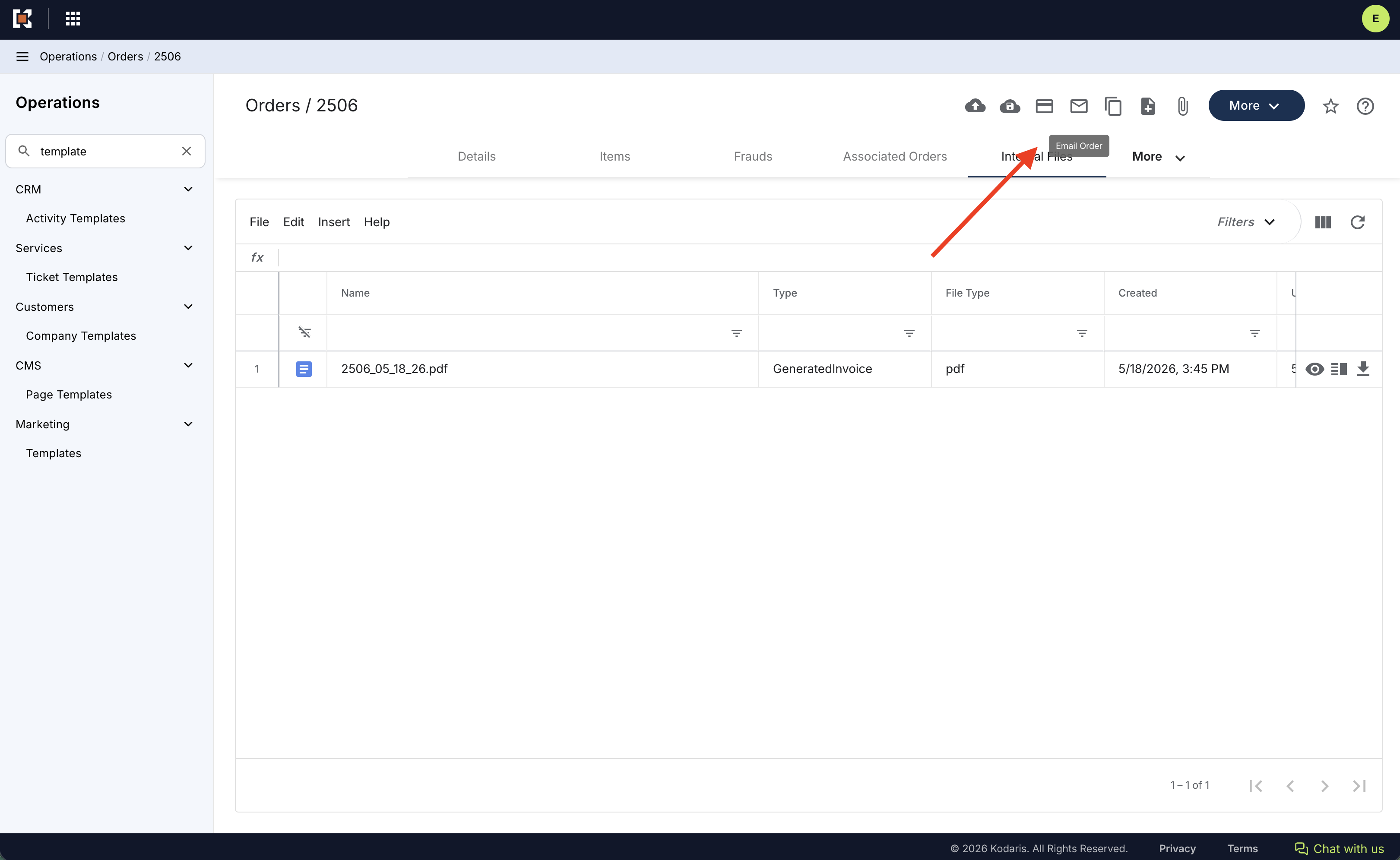
- On the same order from the previous steps when previewing the PDF template, in the top right menu, click on the Email Order option
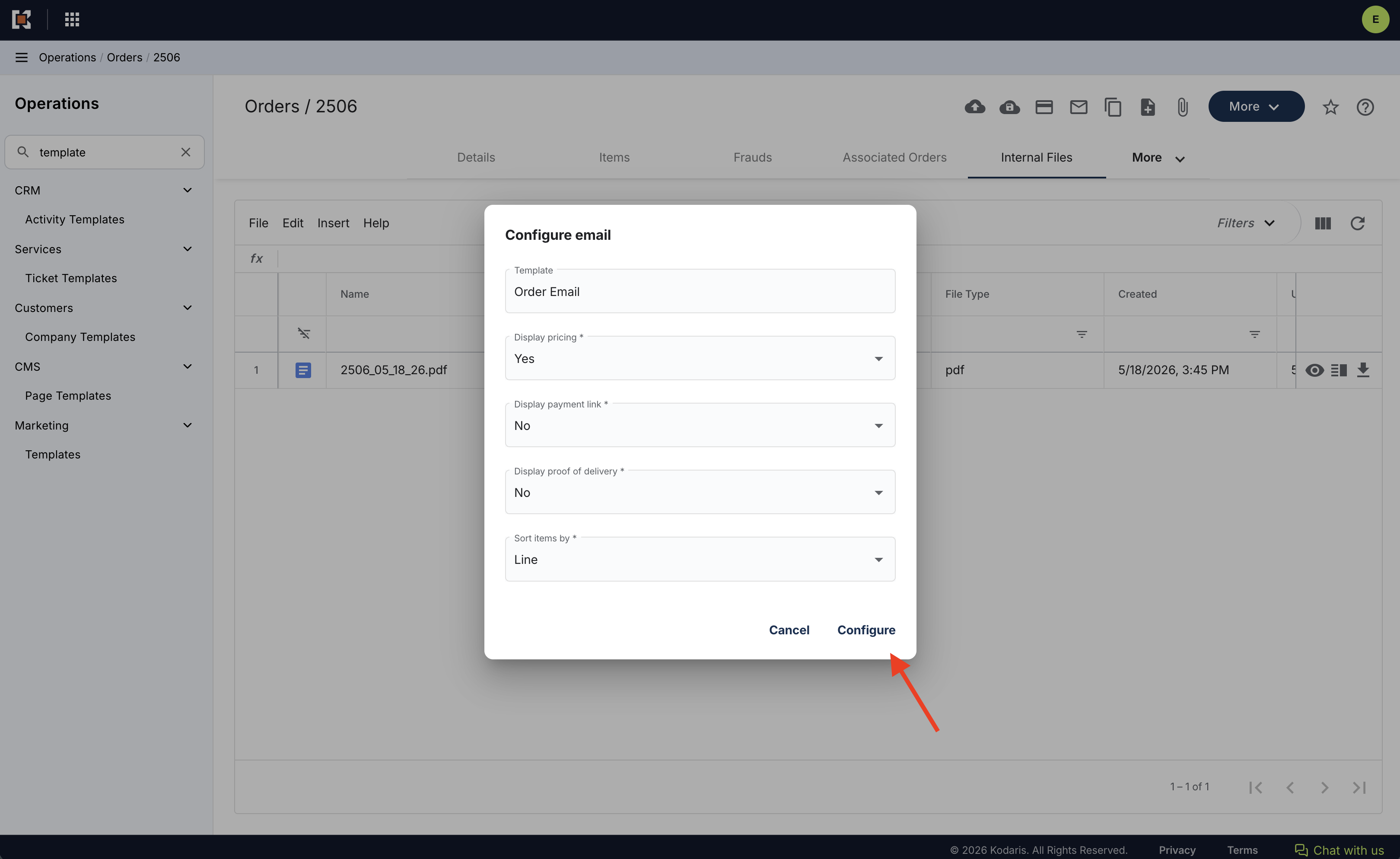
- In the resulting modal you can leave the default options and click Configure
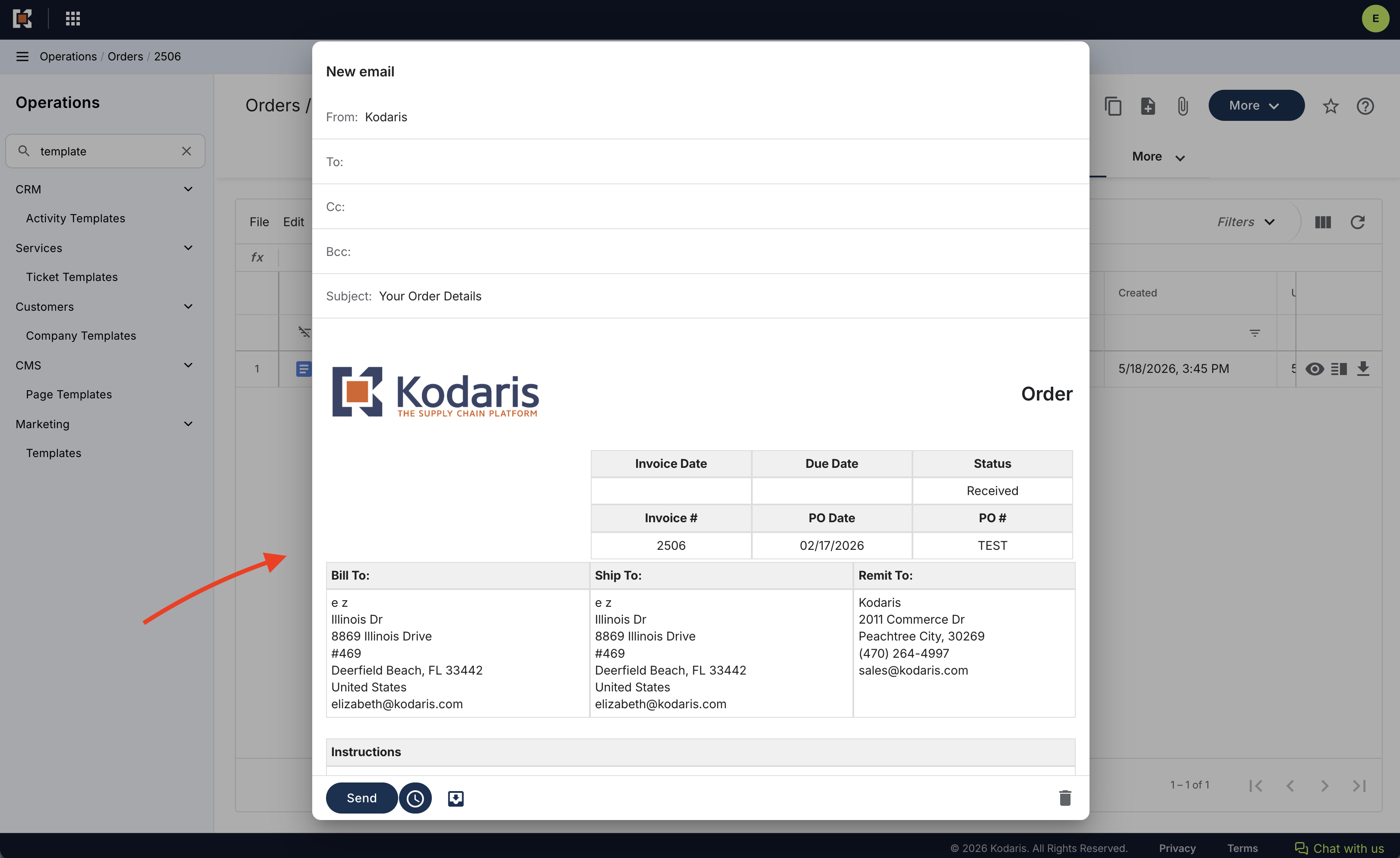
- The system will then show you a preview of what that order email template looks like
- If you would like to also preview the template in your actual email inbox, enter your email address in the To field at the top, and click Send
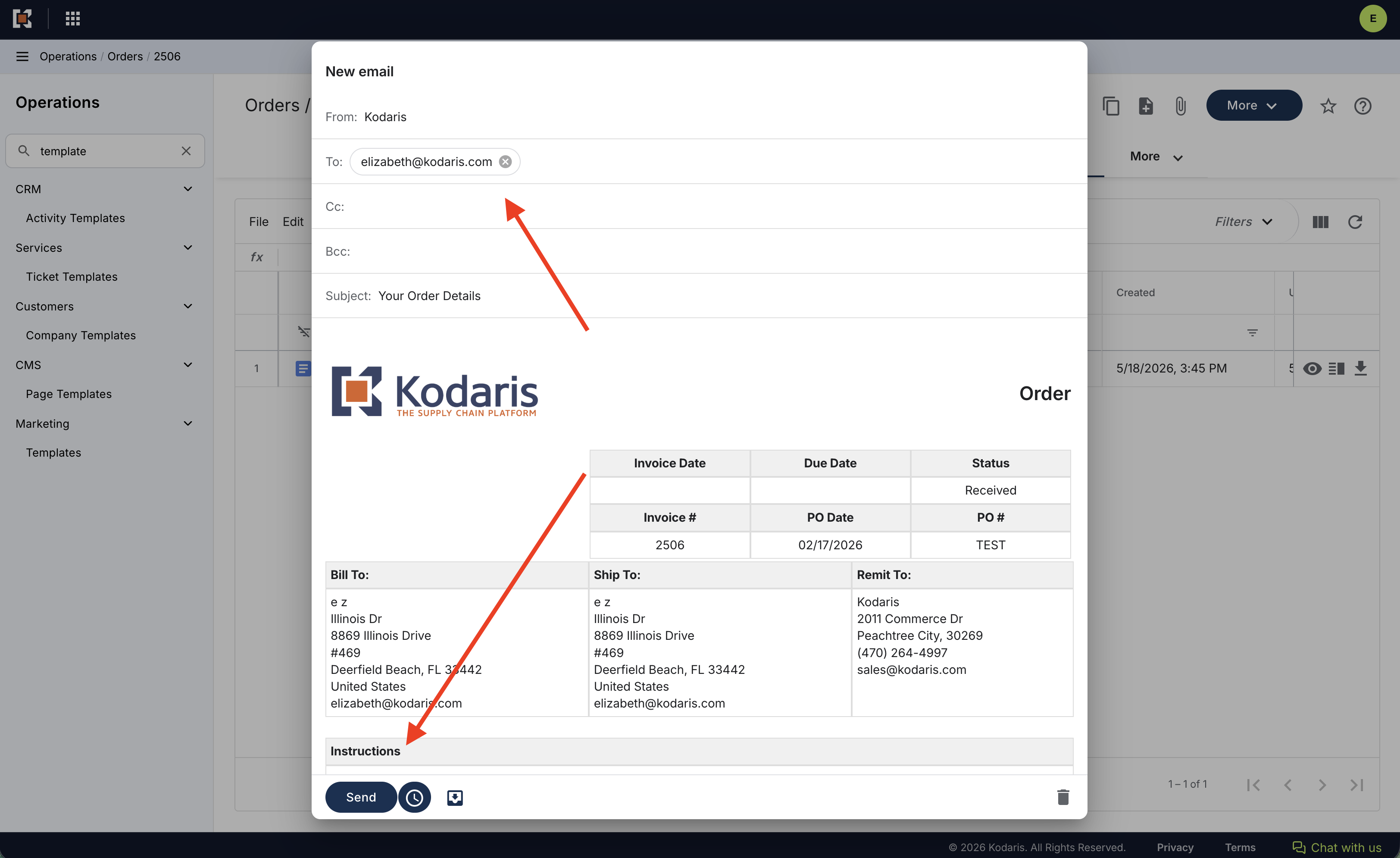
- The system will then send you an email using that generated email template
 Product Documentation