Product Documentation
Product Documentation
Product Documentation
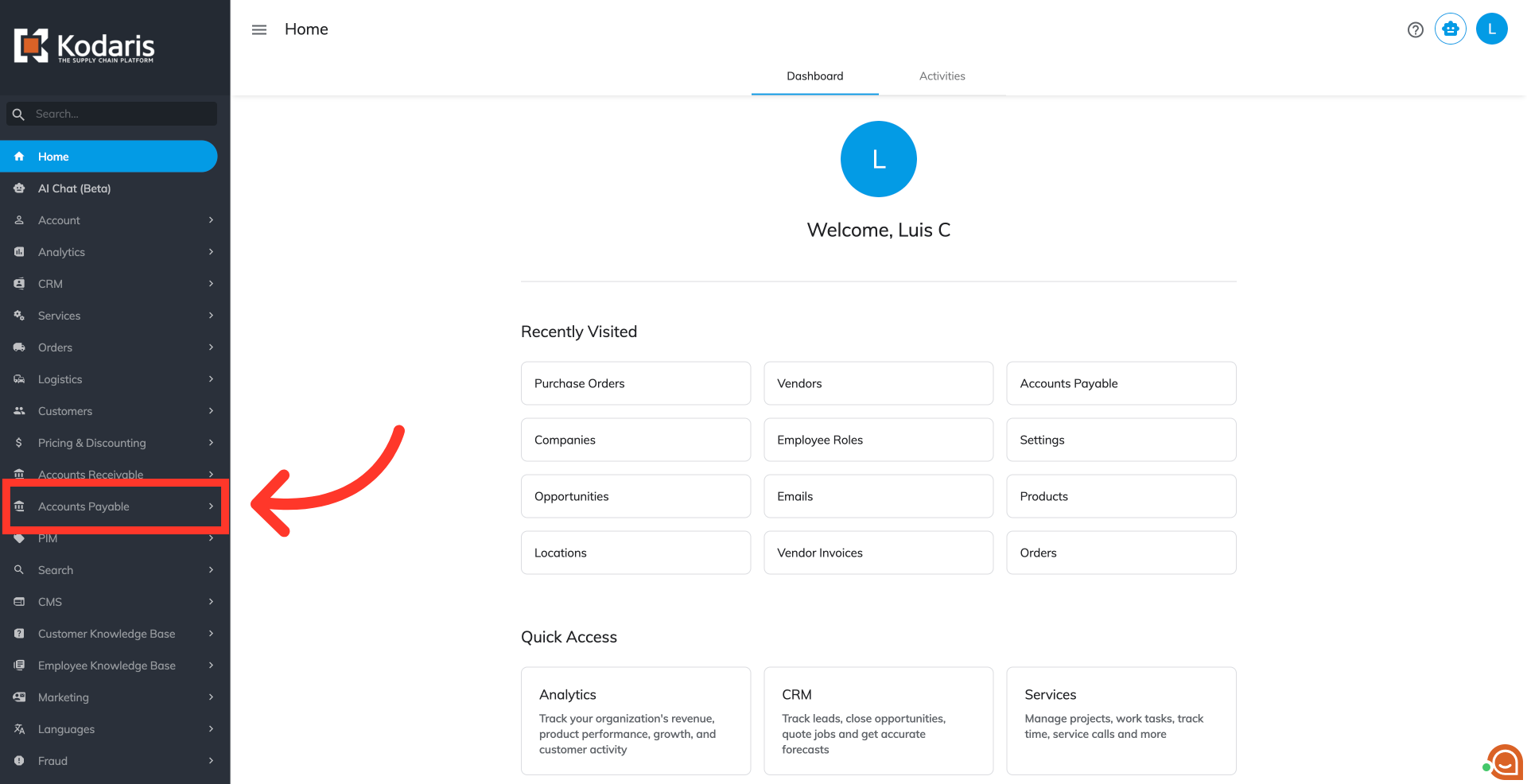
To add assignees to vendor purchase orders, navigate to "Accounts Payable" in the Operations Portal.
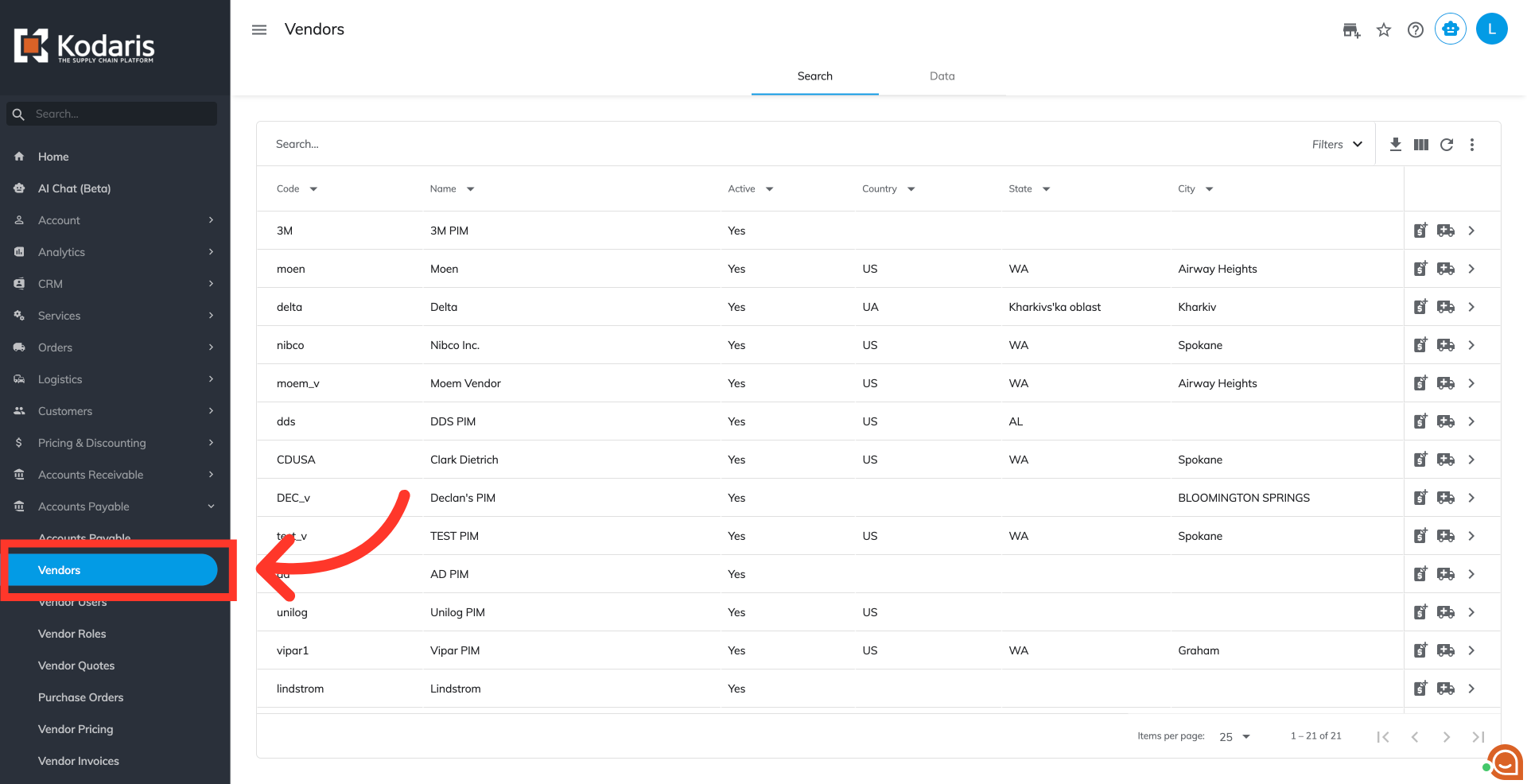
Then, click "Vendors". In order to access "Vendors" the account will need to be set up either as an "administrator" or a "superuser", or have the appropriate roles: "vendorView", "vendorEdit", "purchaseOrderView" and "purchaseOrderEdit."
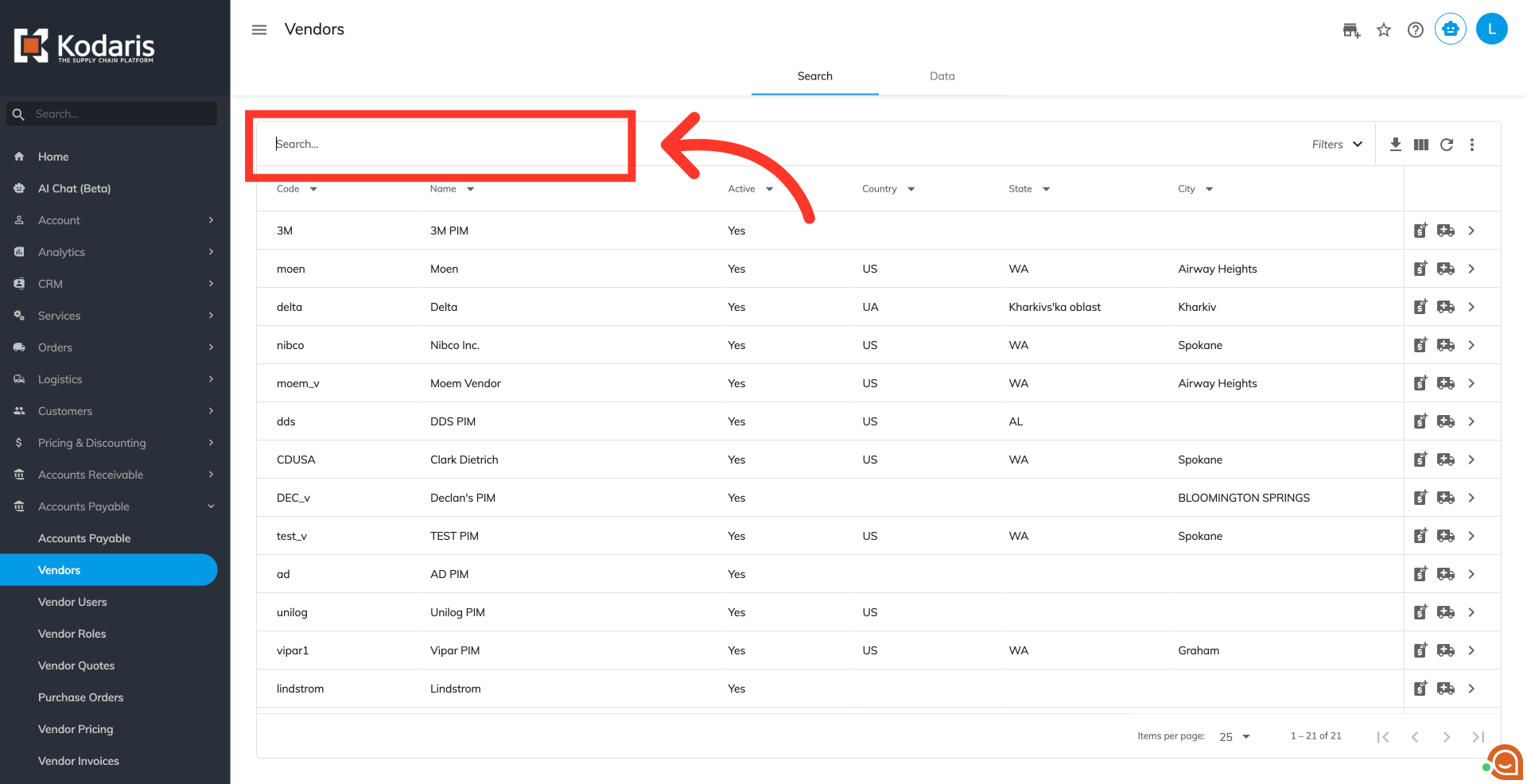
Search for the vendor. You can enter the vendor name or code in the "Search" field.
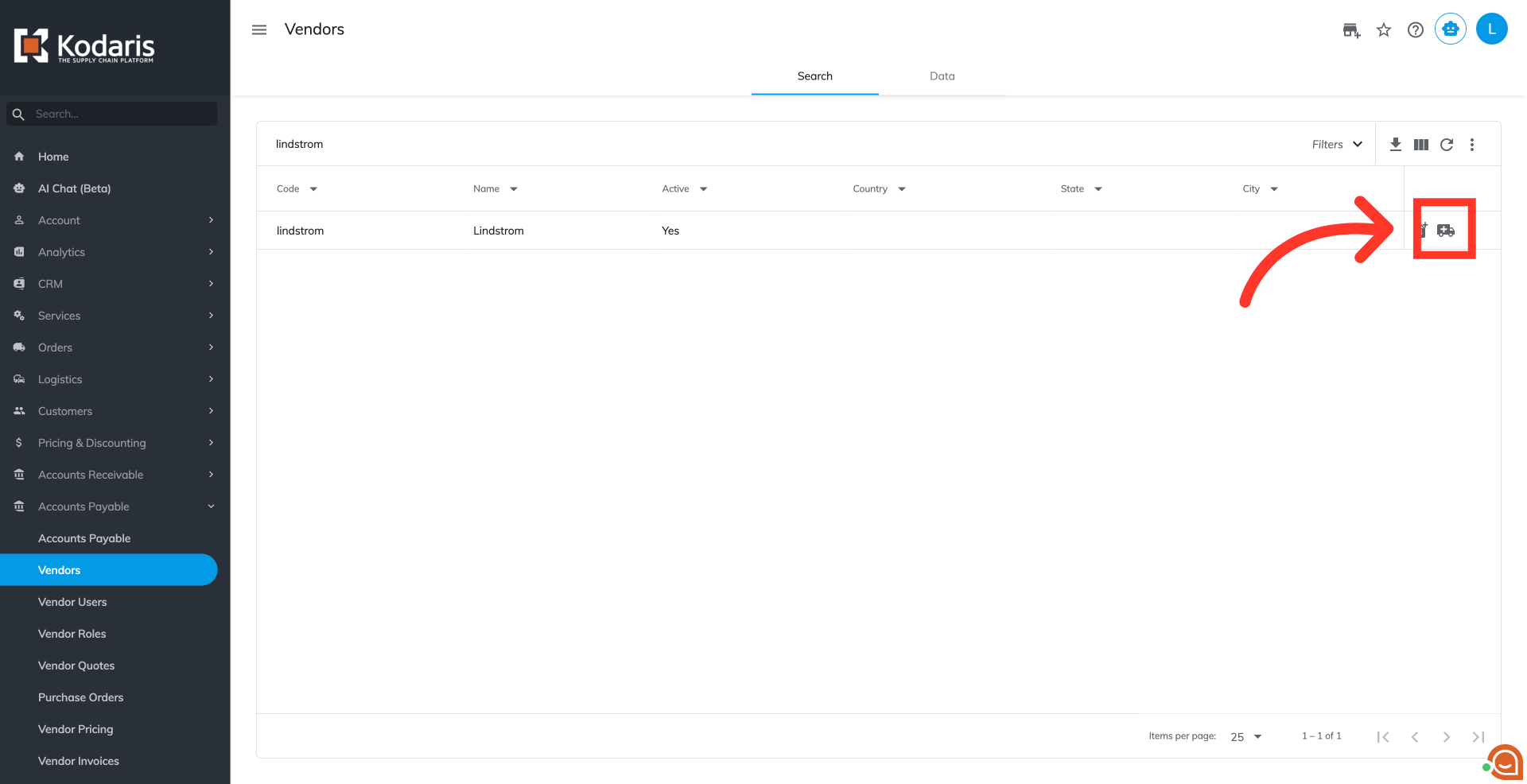
To add an assignee on a new purchase order, click the "Start Purchase Order" icon once the vendor appears in the grid. You can also add assignees to existing purchase orders after choosing a purchase order on the "Purchase Order" screen.
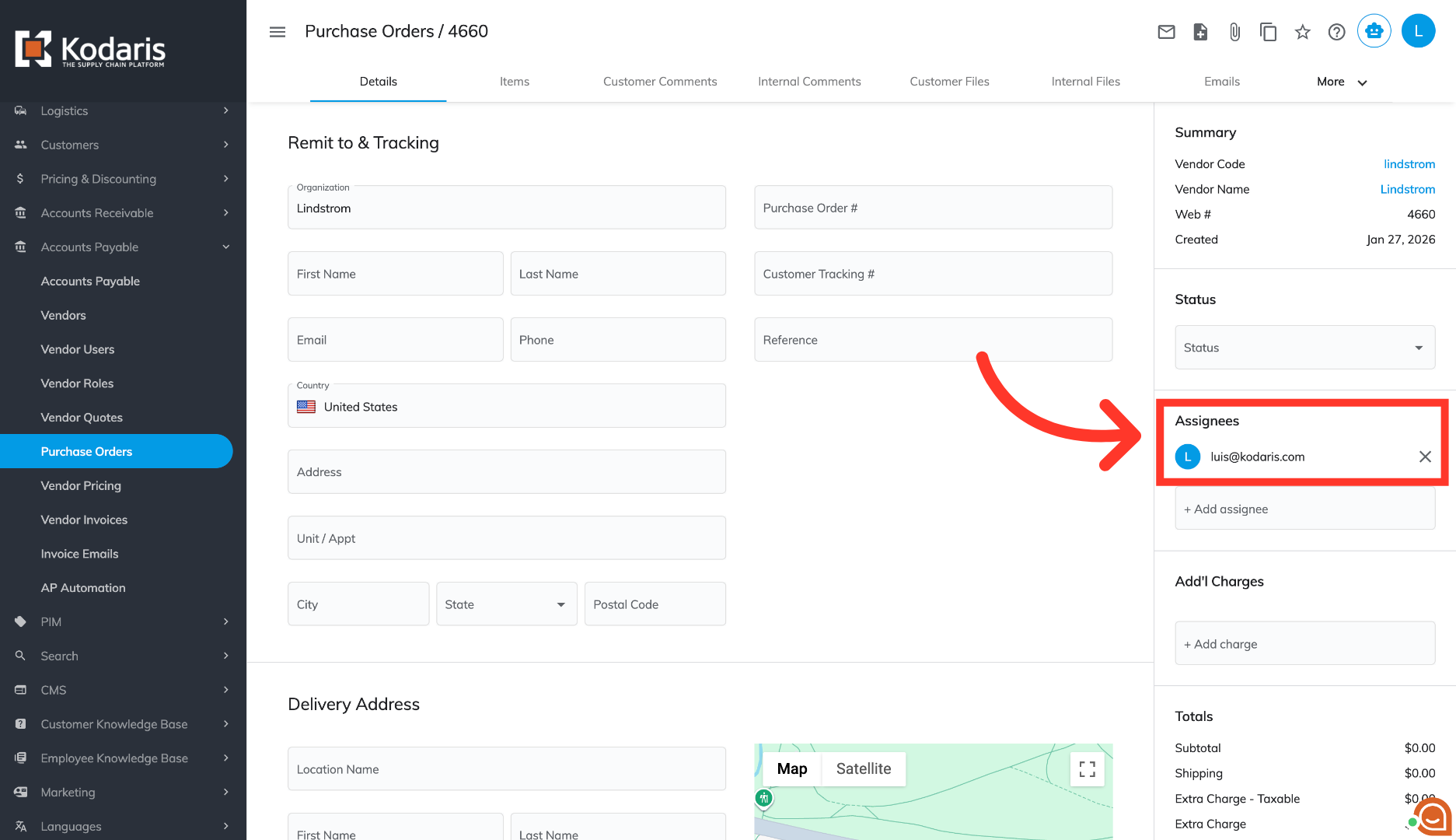
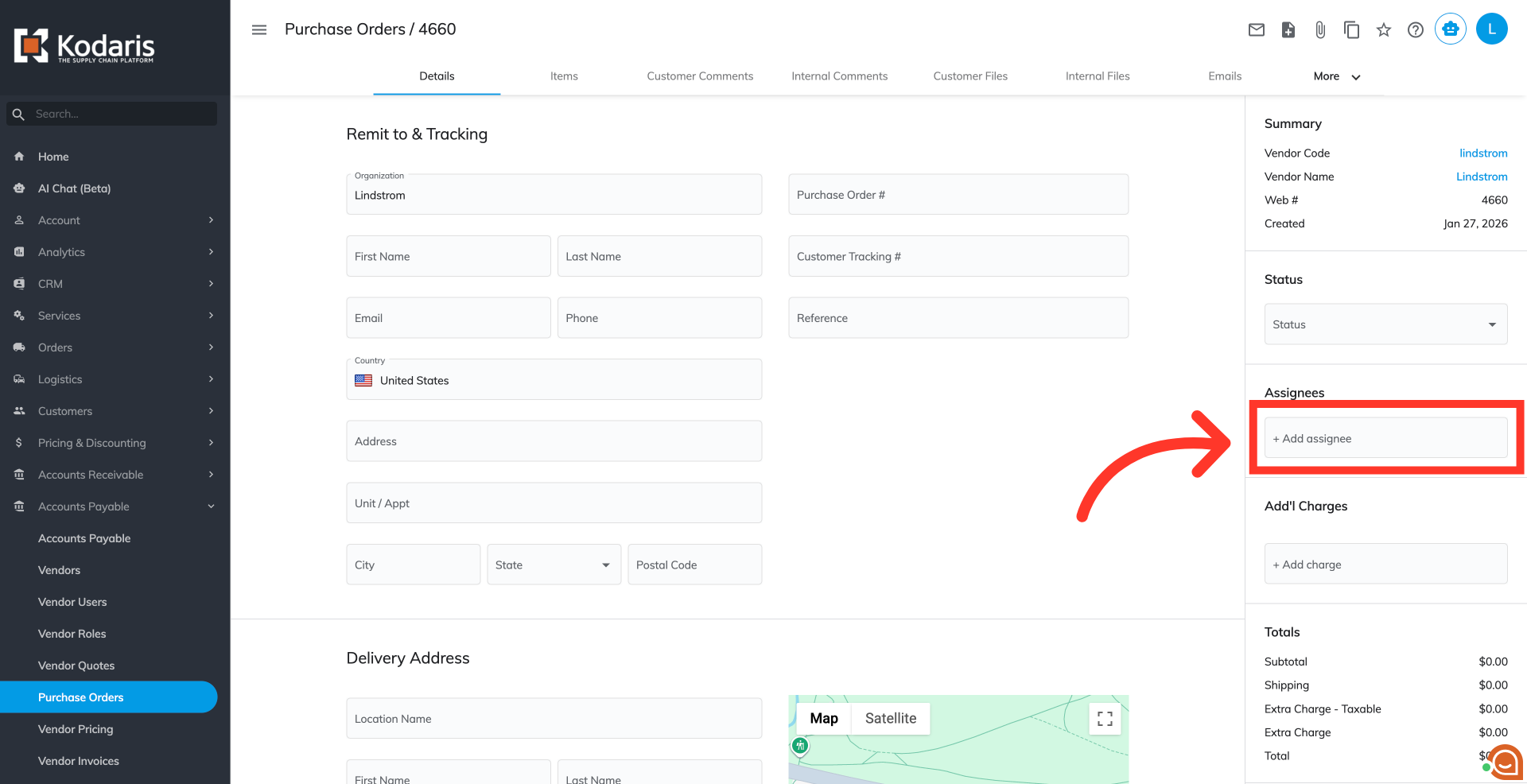
On the right side of the "Details" tab, click on the "+Add assignee" field to view the available email addresses in the dropdown menu.
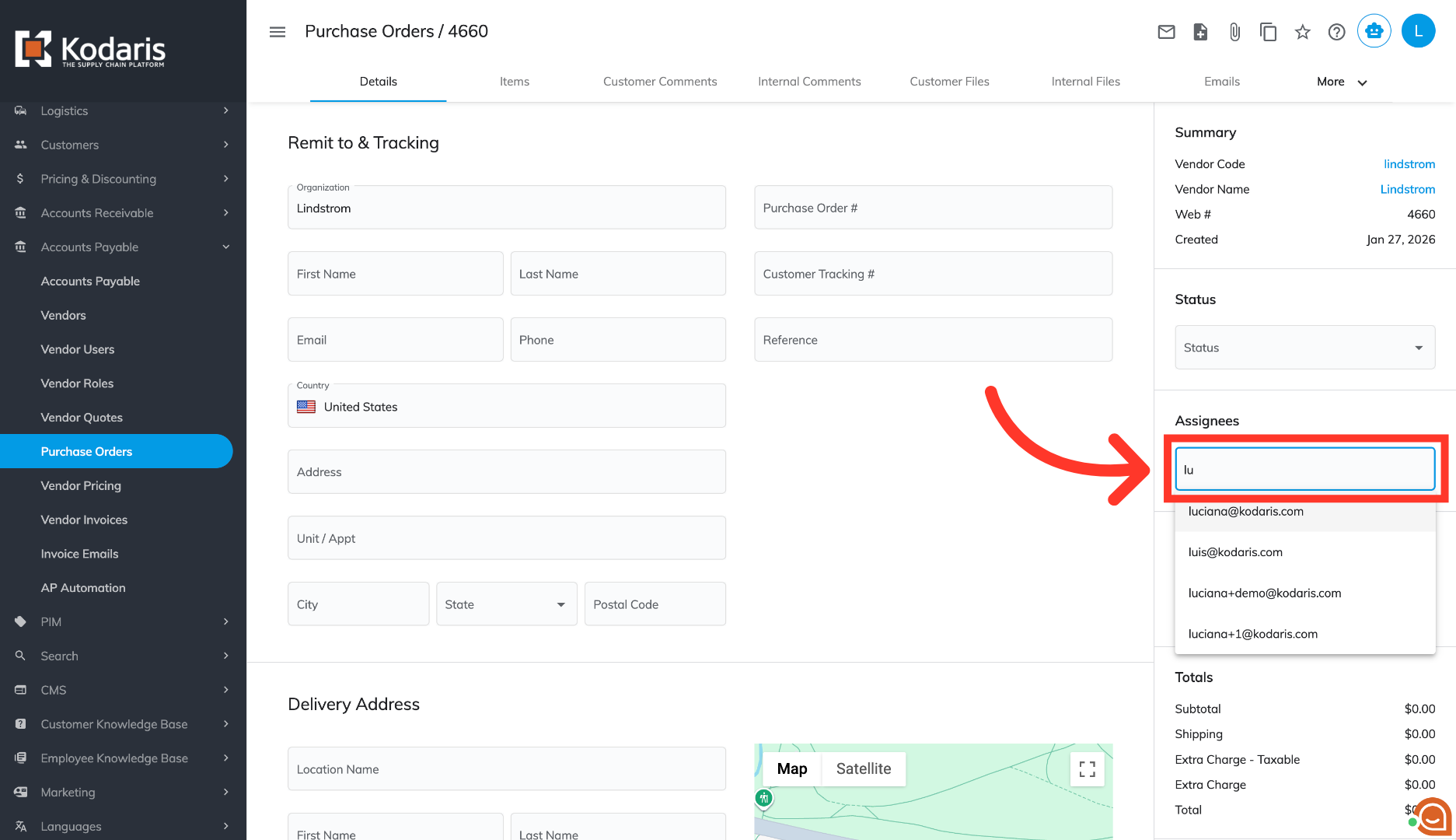
Enter the assignee's email address to filter down the list.
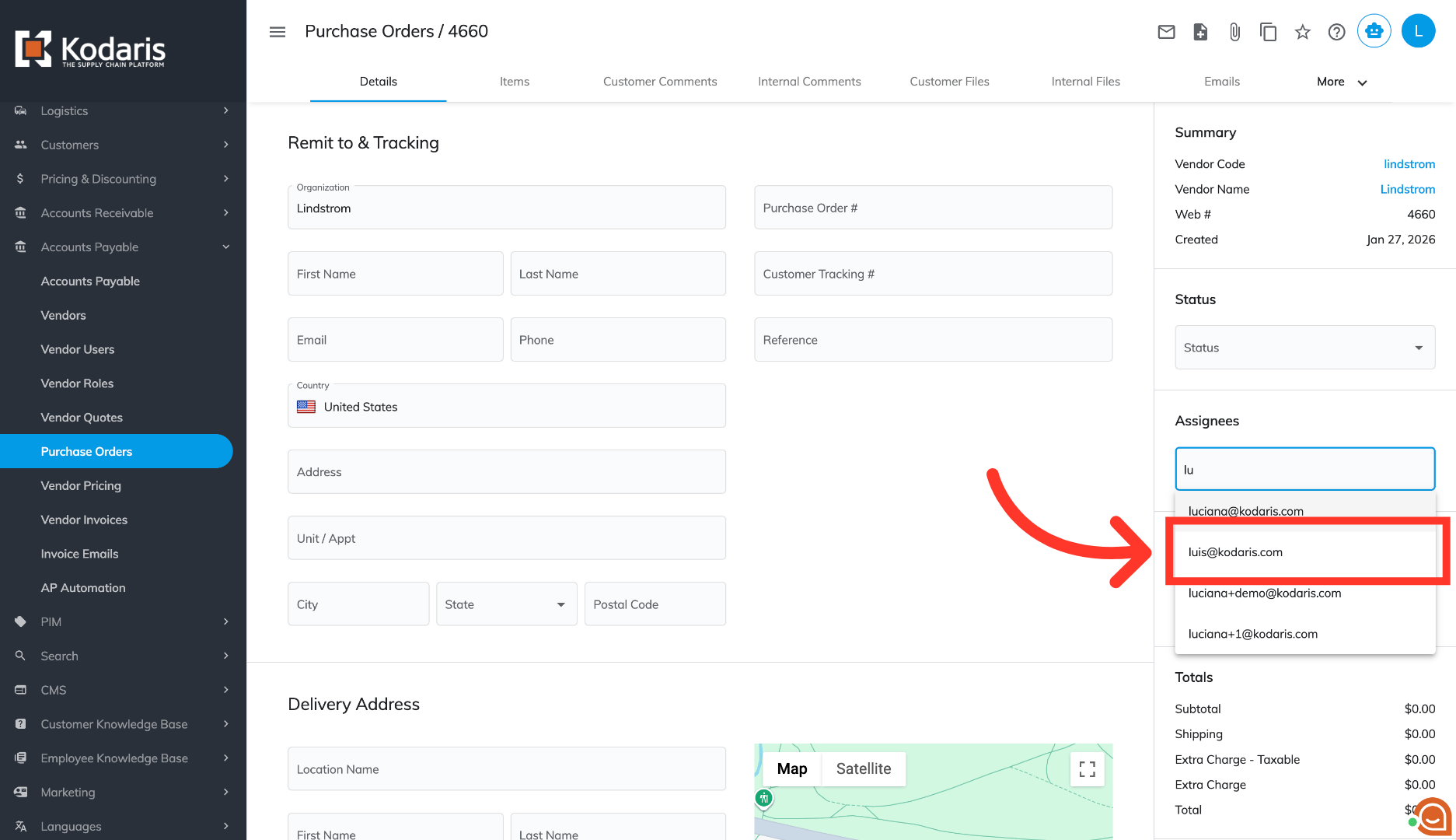
Select the assignee from the list.
Confirm the addition of the assignee.