Product Documentation
Product Documentation
Product Documentation
To pay for an order using a saved credit card, navigate to "Orders" in the operations portal.
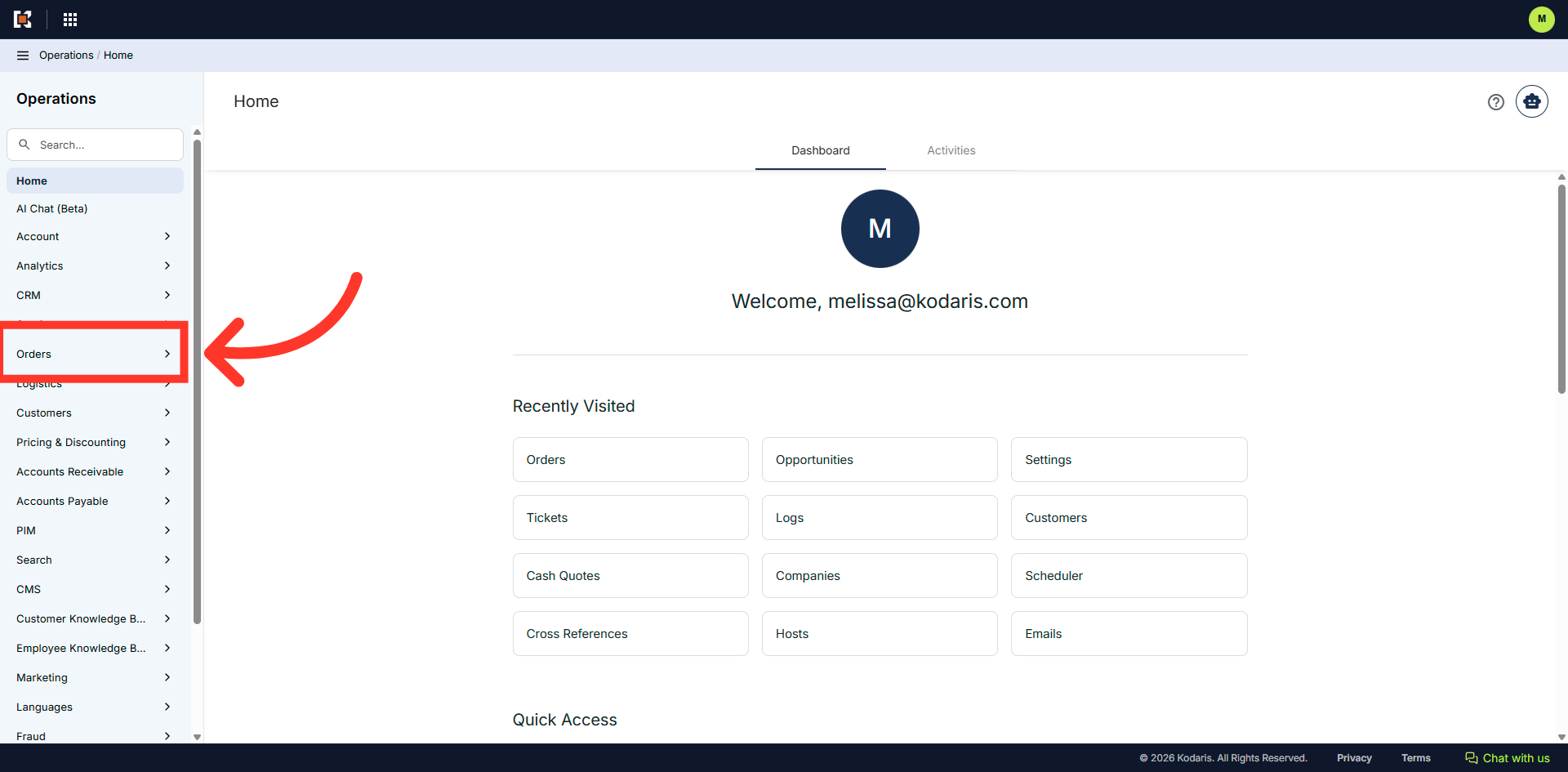
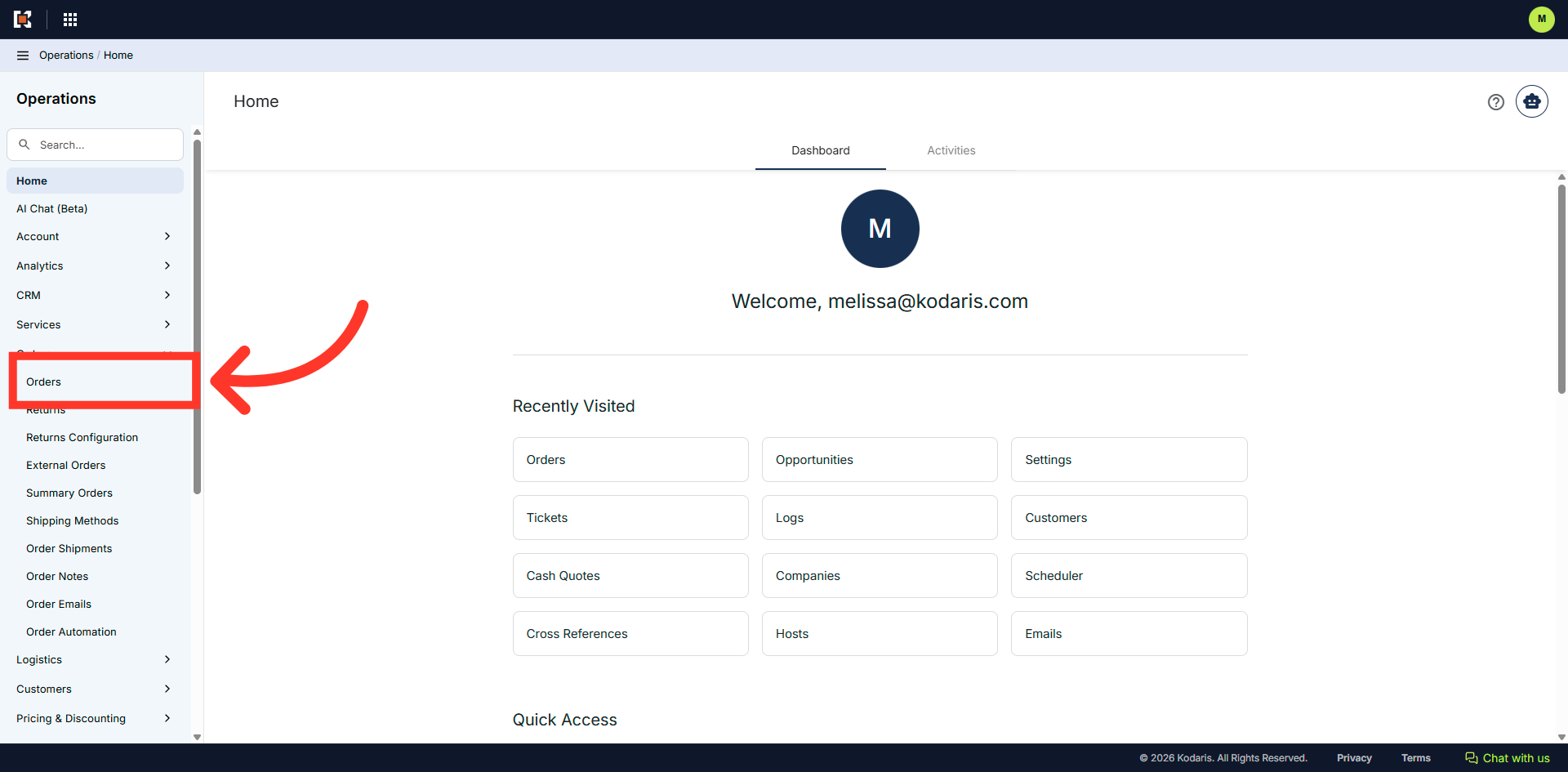
Click "Orders". In order to access and update "Orders", you will need to be set up either as an "administrator" or a "superuser", or have the following roles: "dispatch", "orderEdit", "crmCompanyOrderView" and "crmCompanyOrderEdit". Just a reminder, "crmCompanyOrderView" and "crmCompanyOrderEdit" access only allows employees to view company orders that are assigned to them.
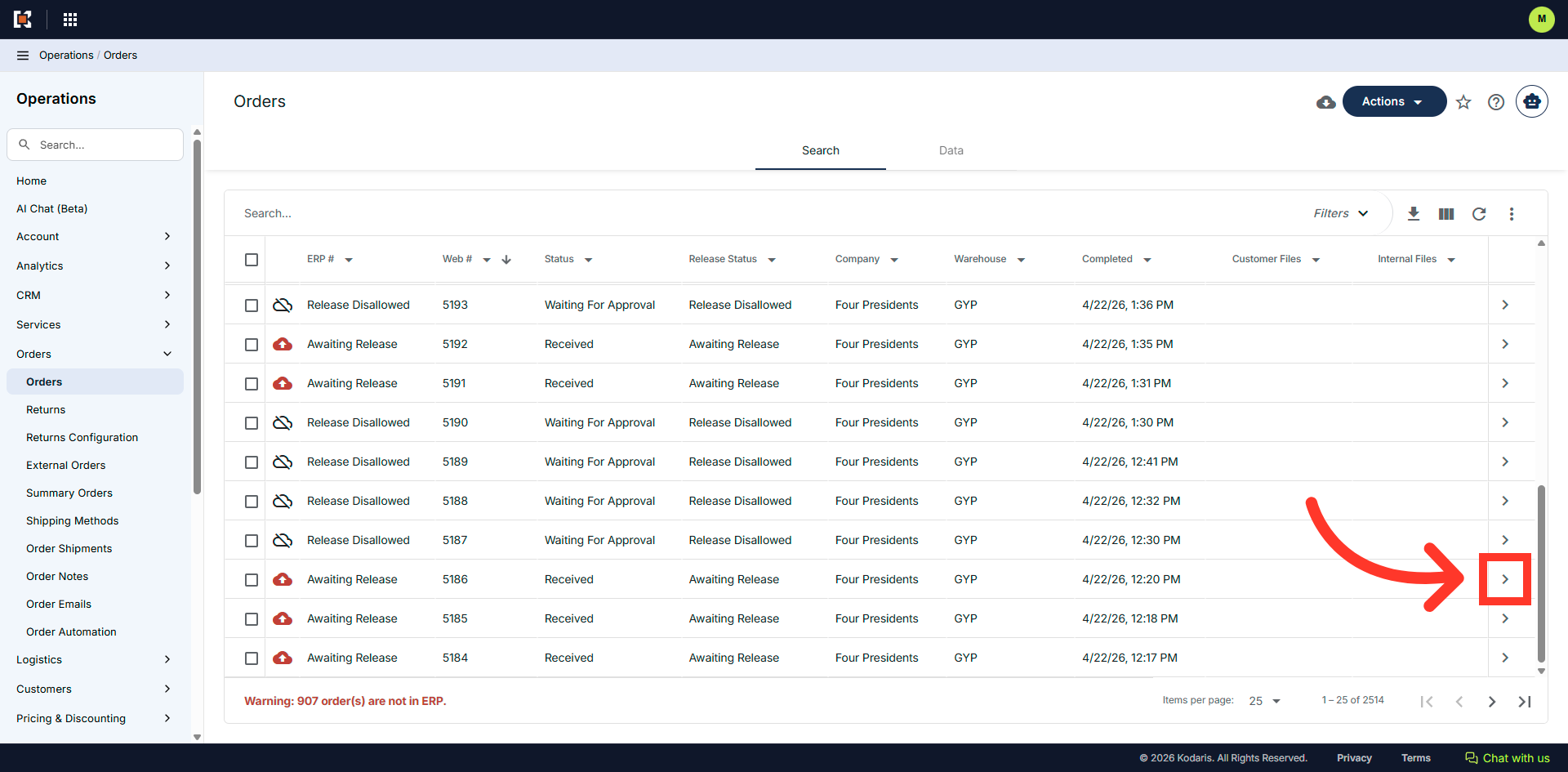
Click on the more details icon.
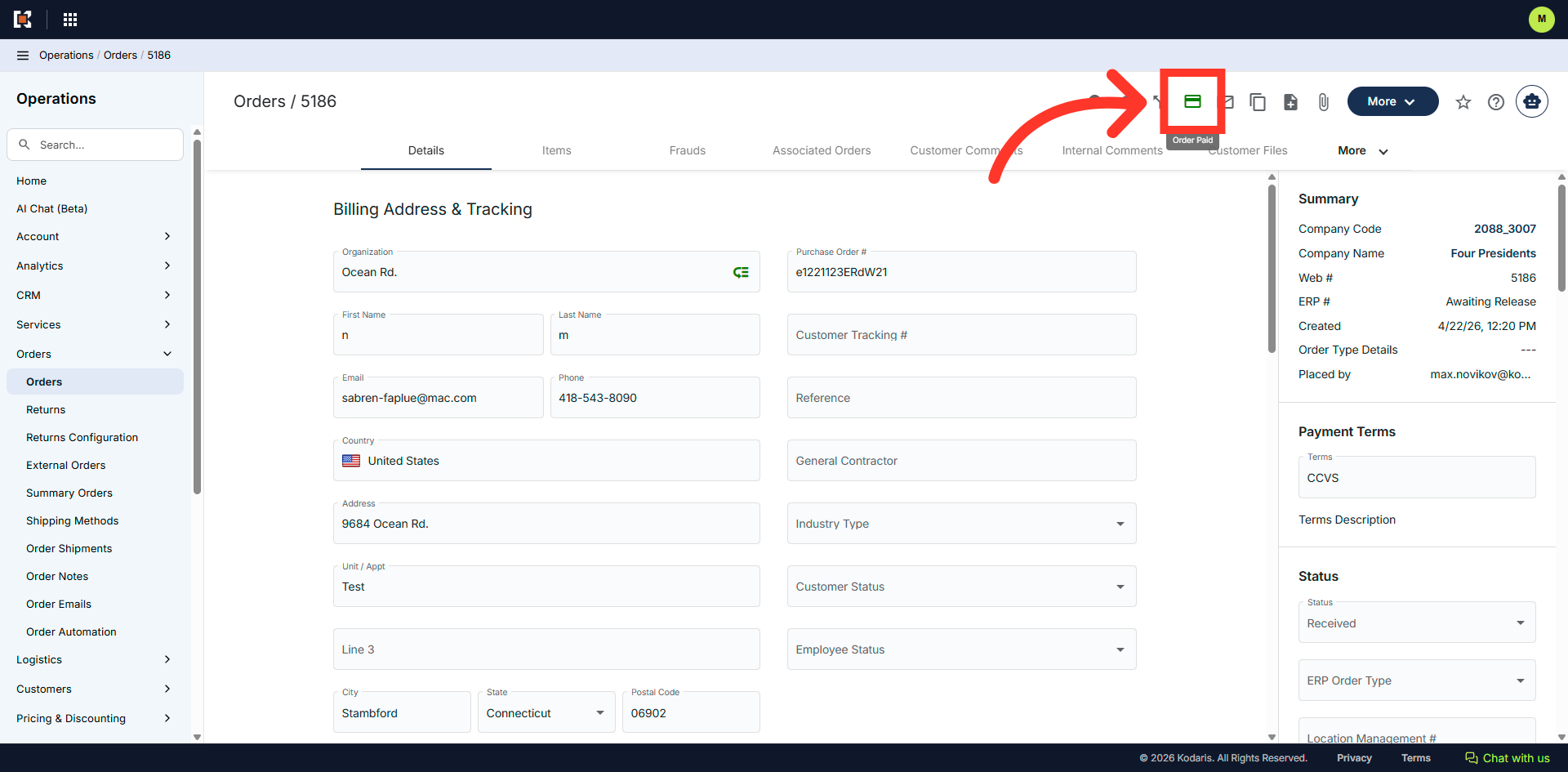
Click the "Pay Order" icon. In order to access and pay an order, you will need to be set up either as a "superuser" or "administrator" or have the roles of: "orderEdit" and "dispatch".
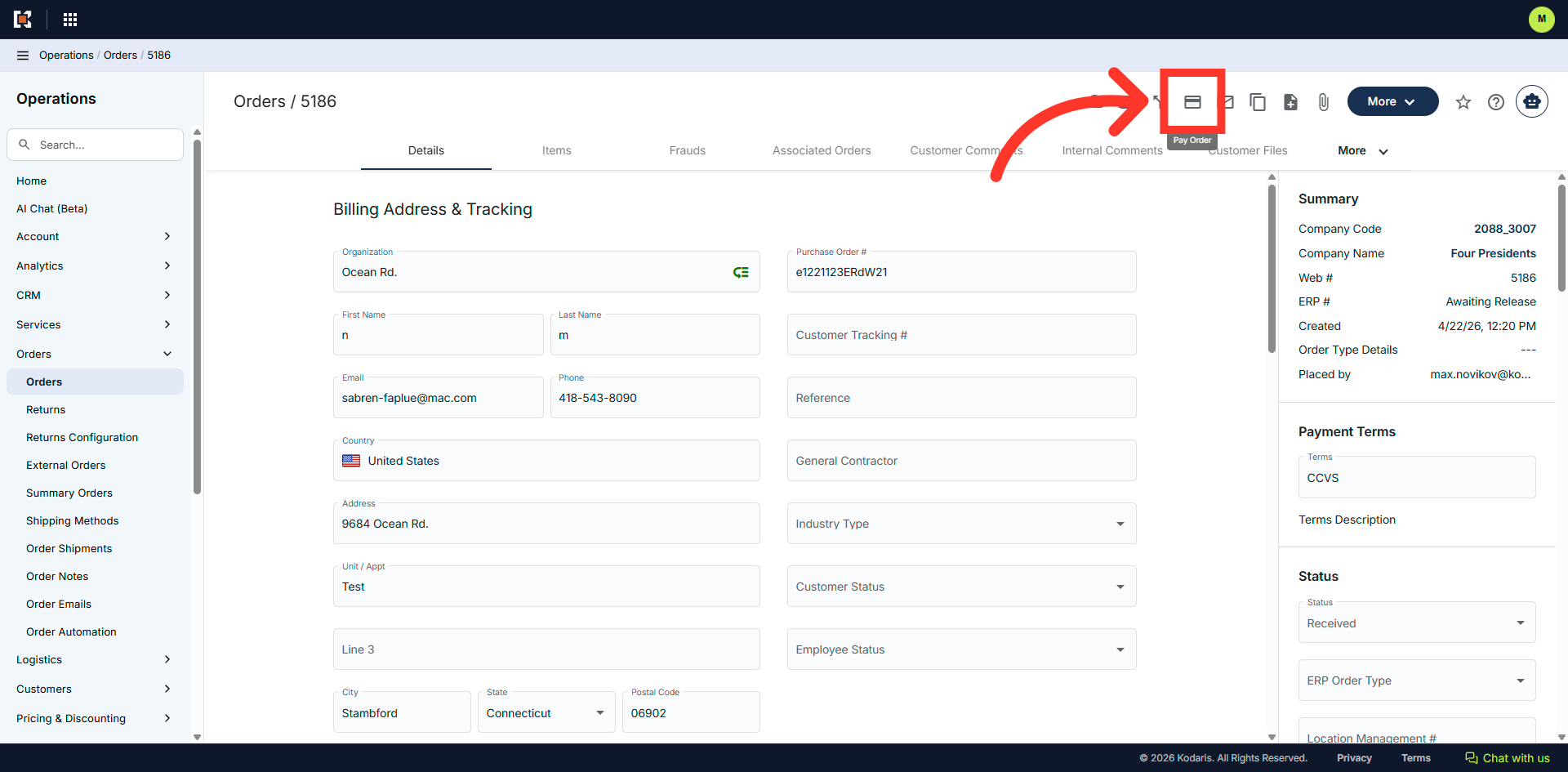
Click the "Credit Card" field.
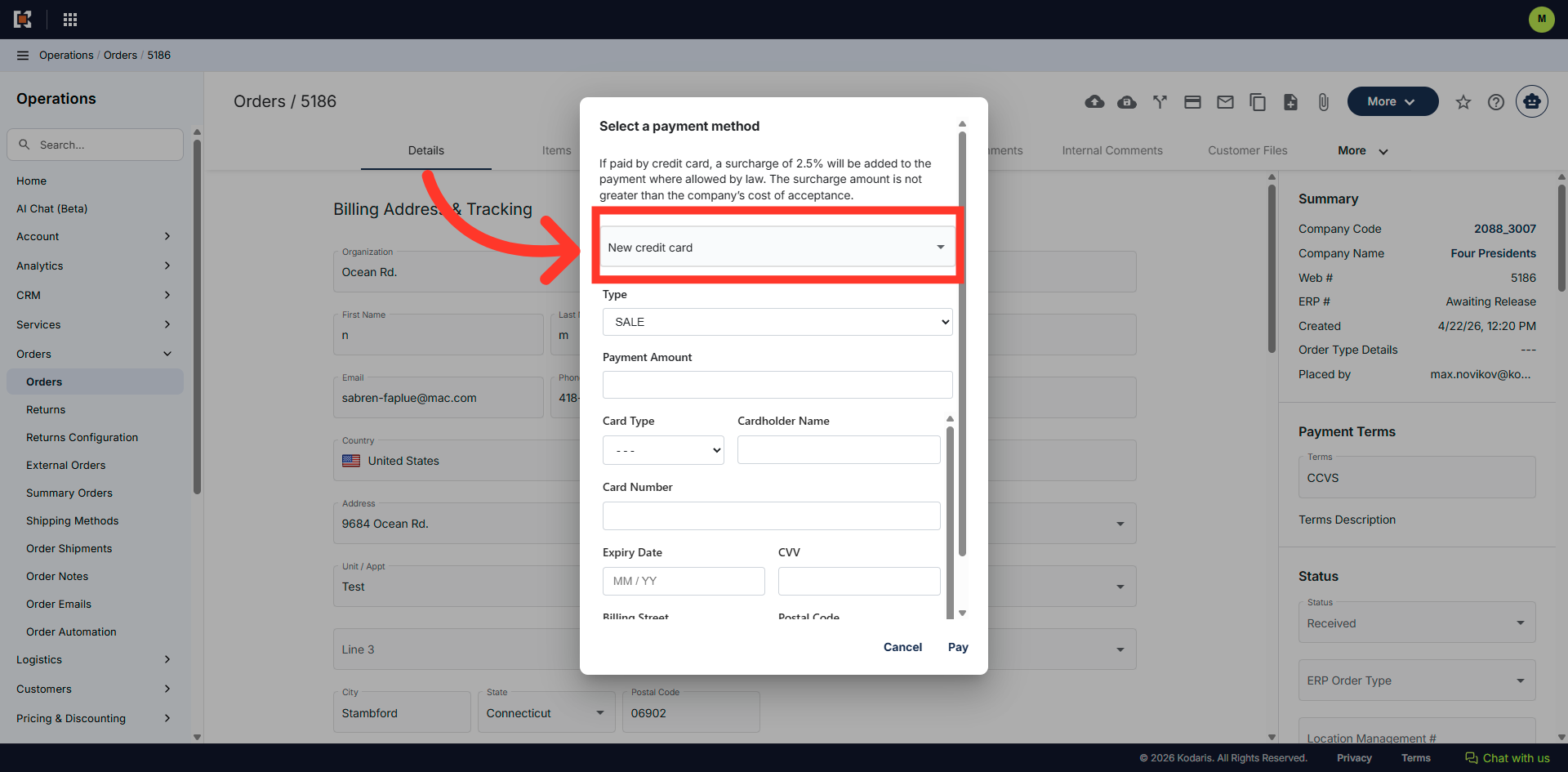
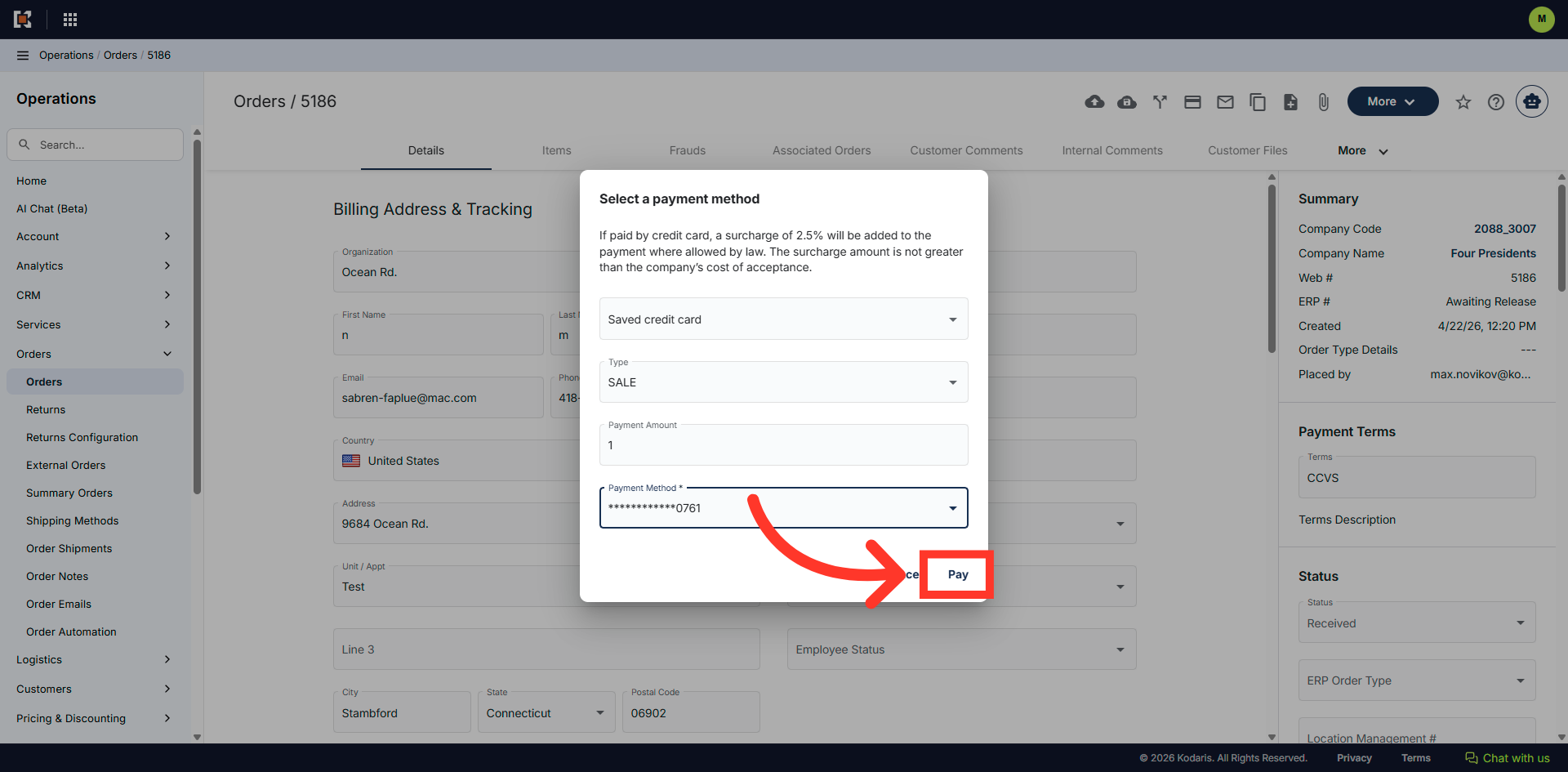
Click "Saved credit card" to choose from previously stored credit card information for payment.
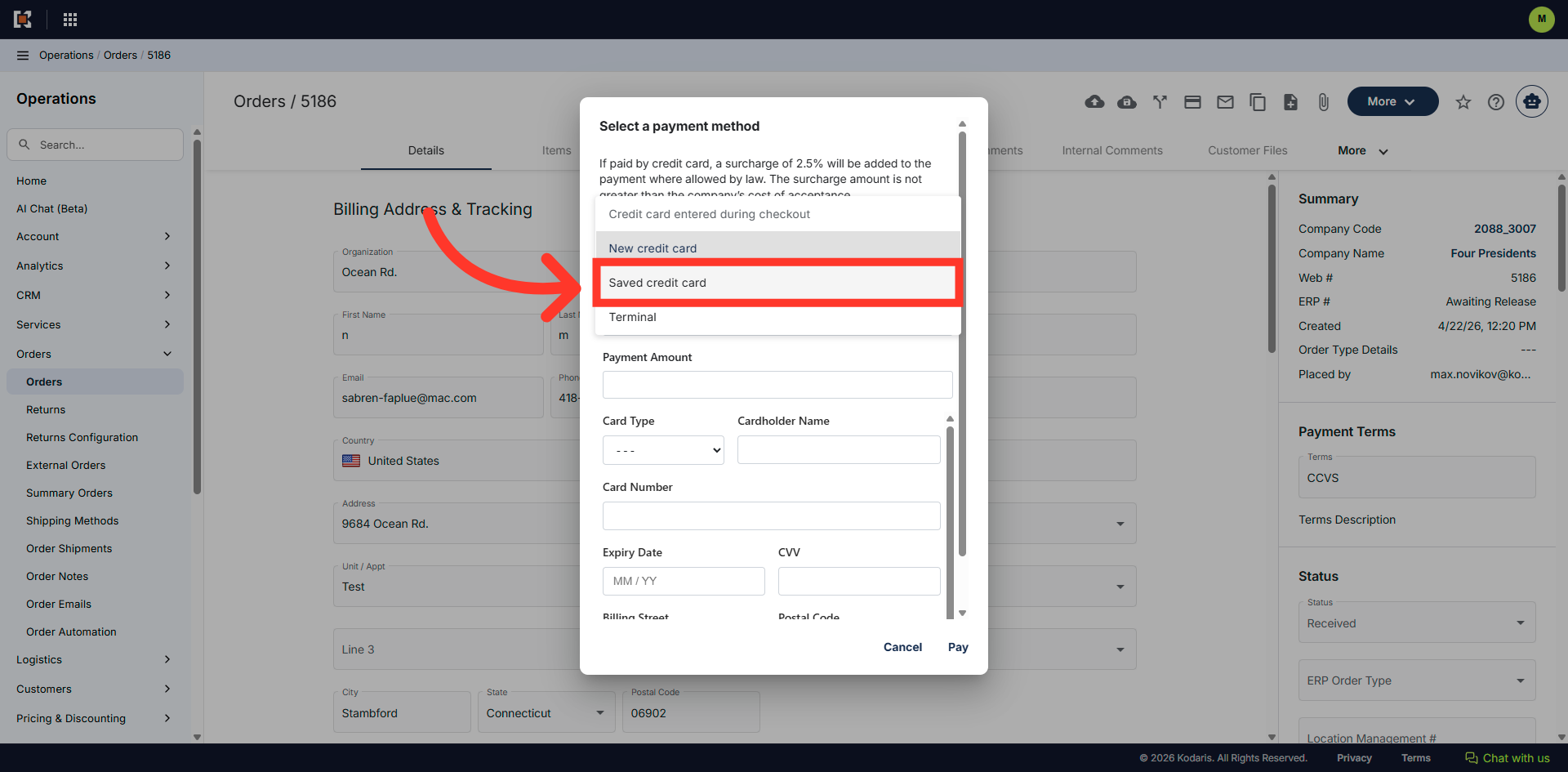
Select "Sale".
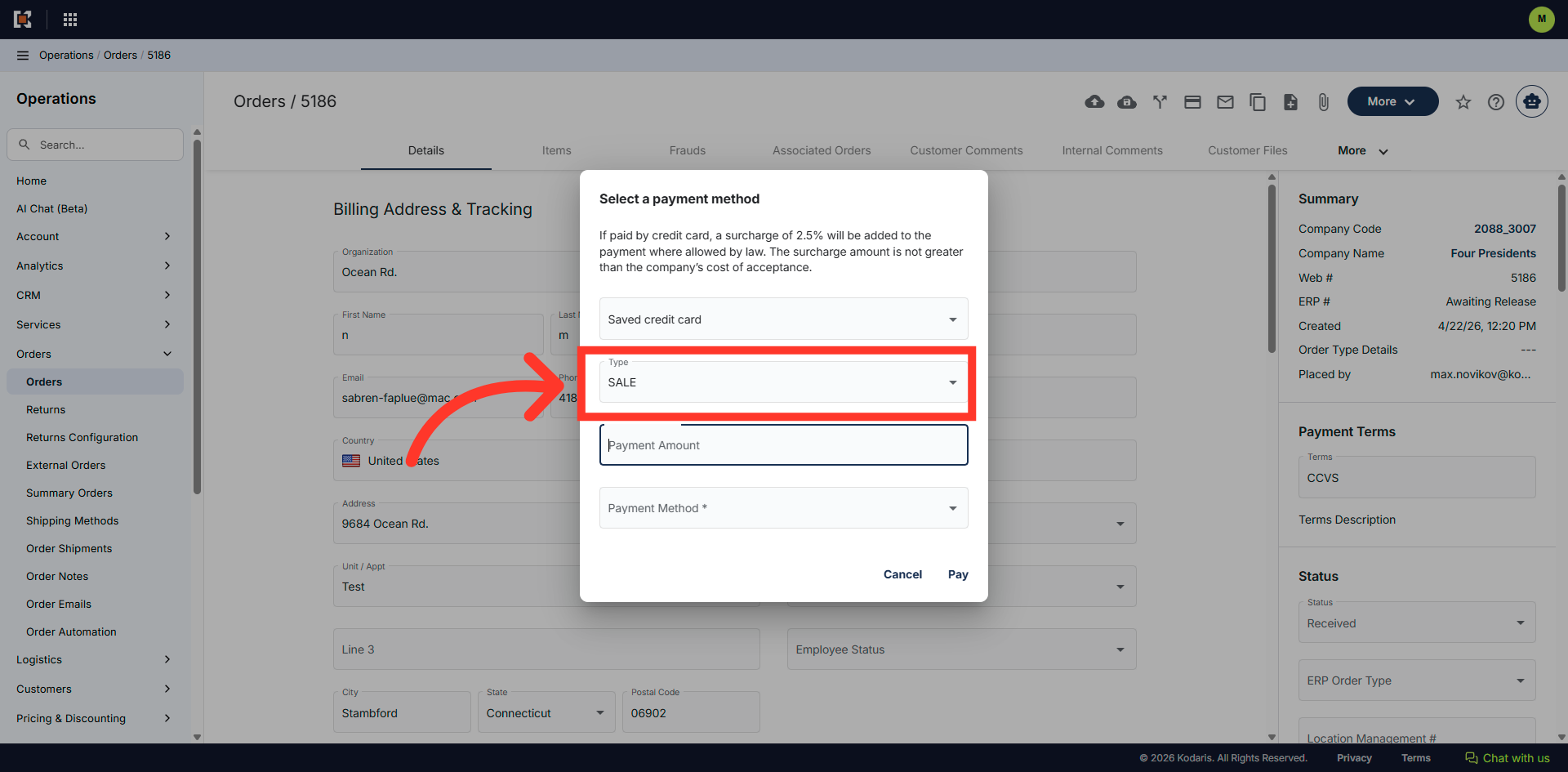
Click "Payment Amount" to specify the amount you wish to pay.
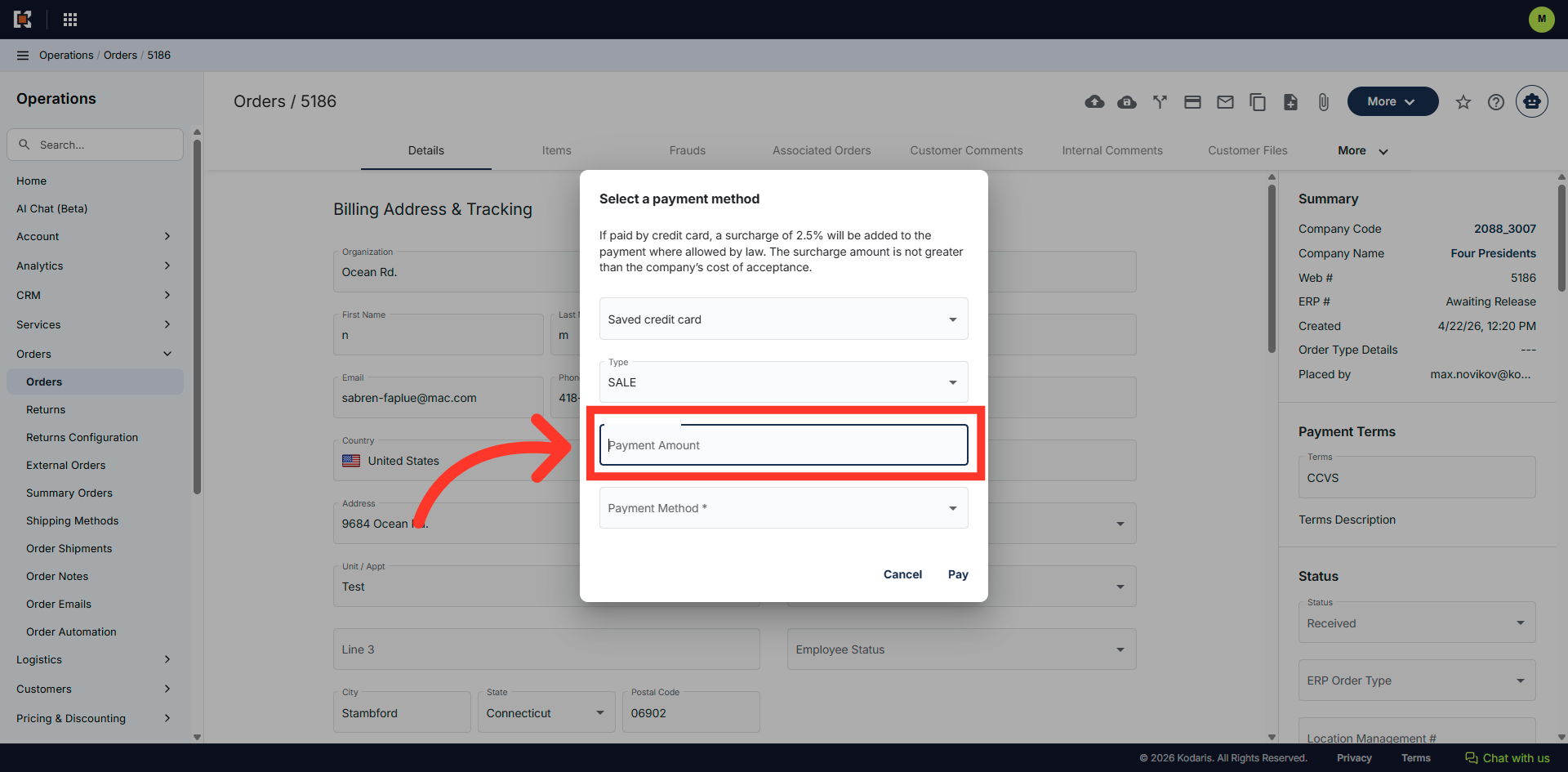
Click "Payment Method".
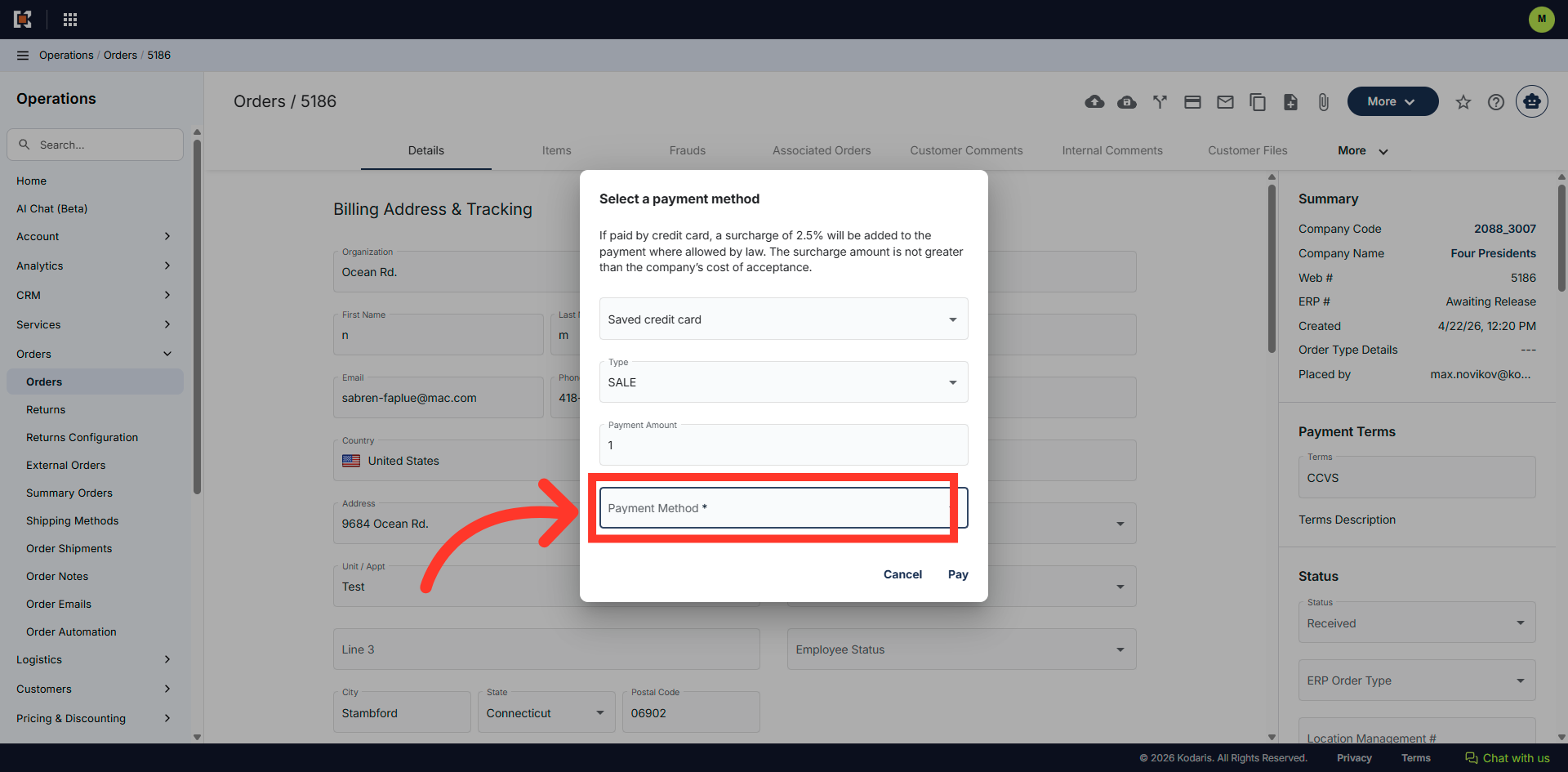
This field will populate the saved credit cards that are on the account.
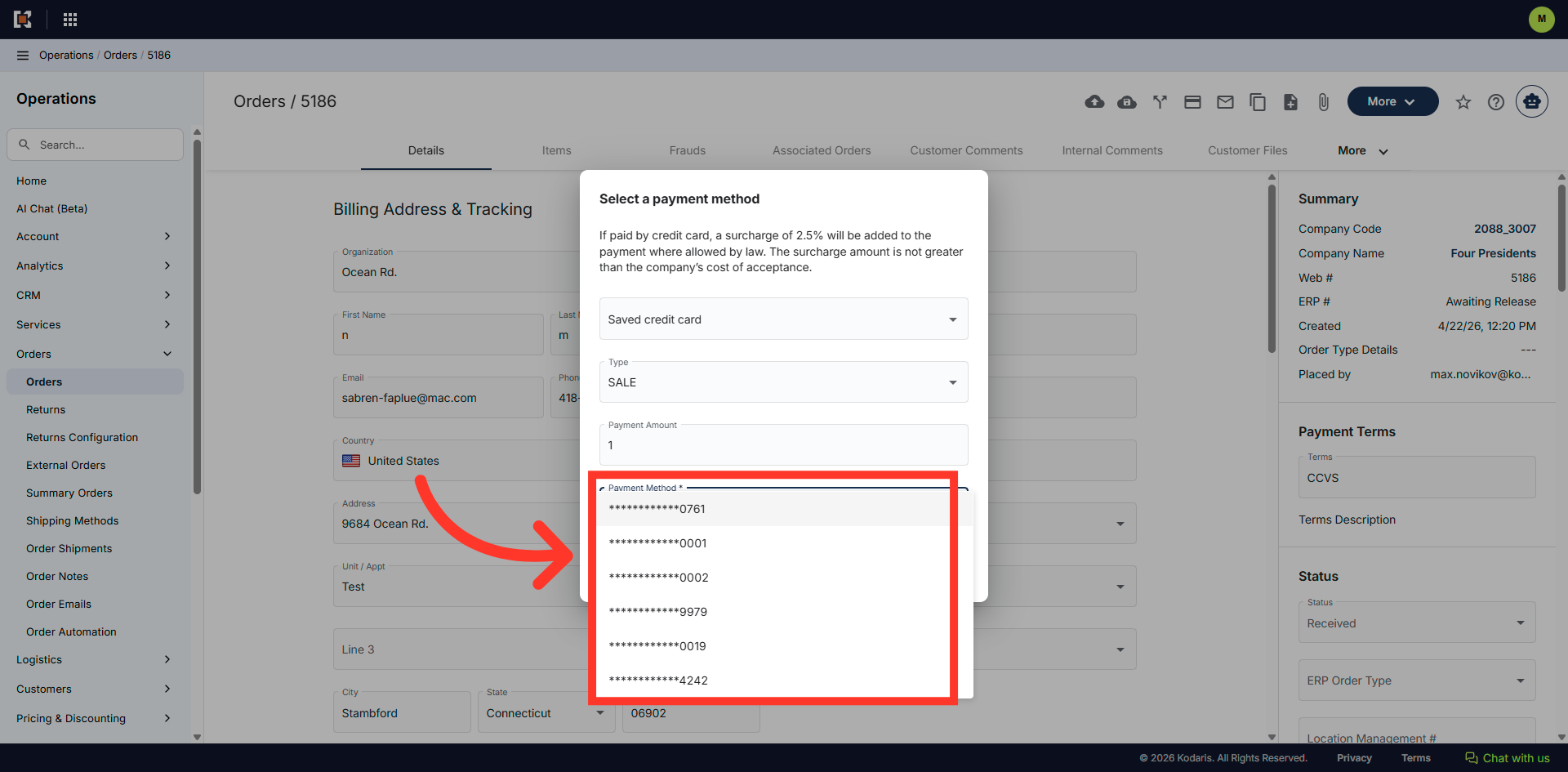
Select a saved credit card for payment.
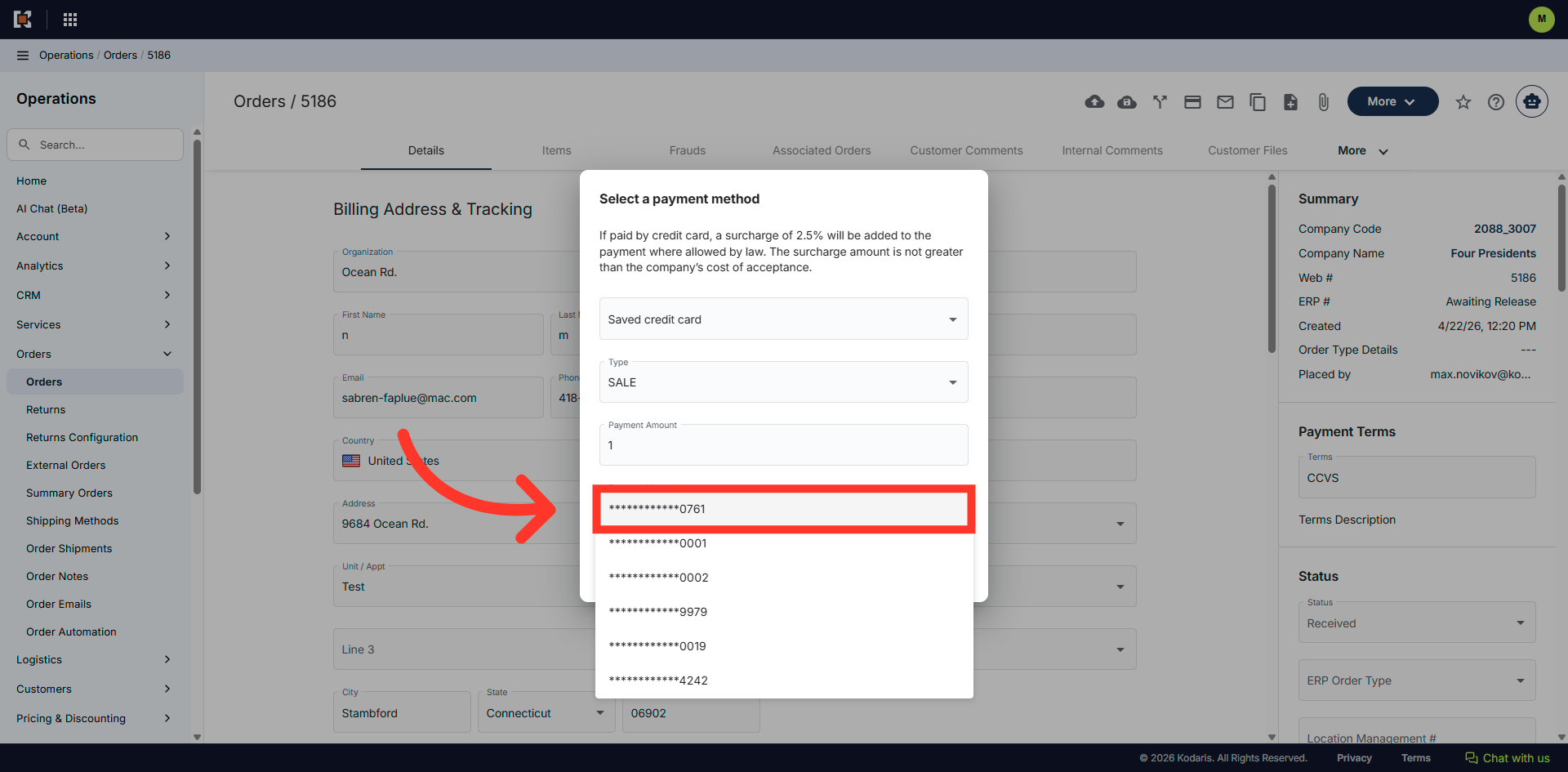
Click "Pay" to submit your payment and process the transaction.
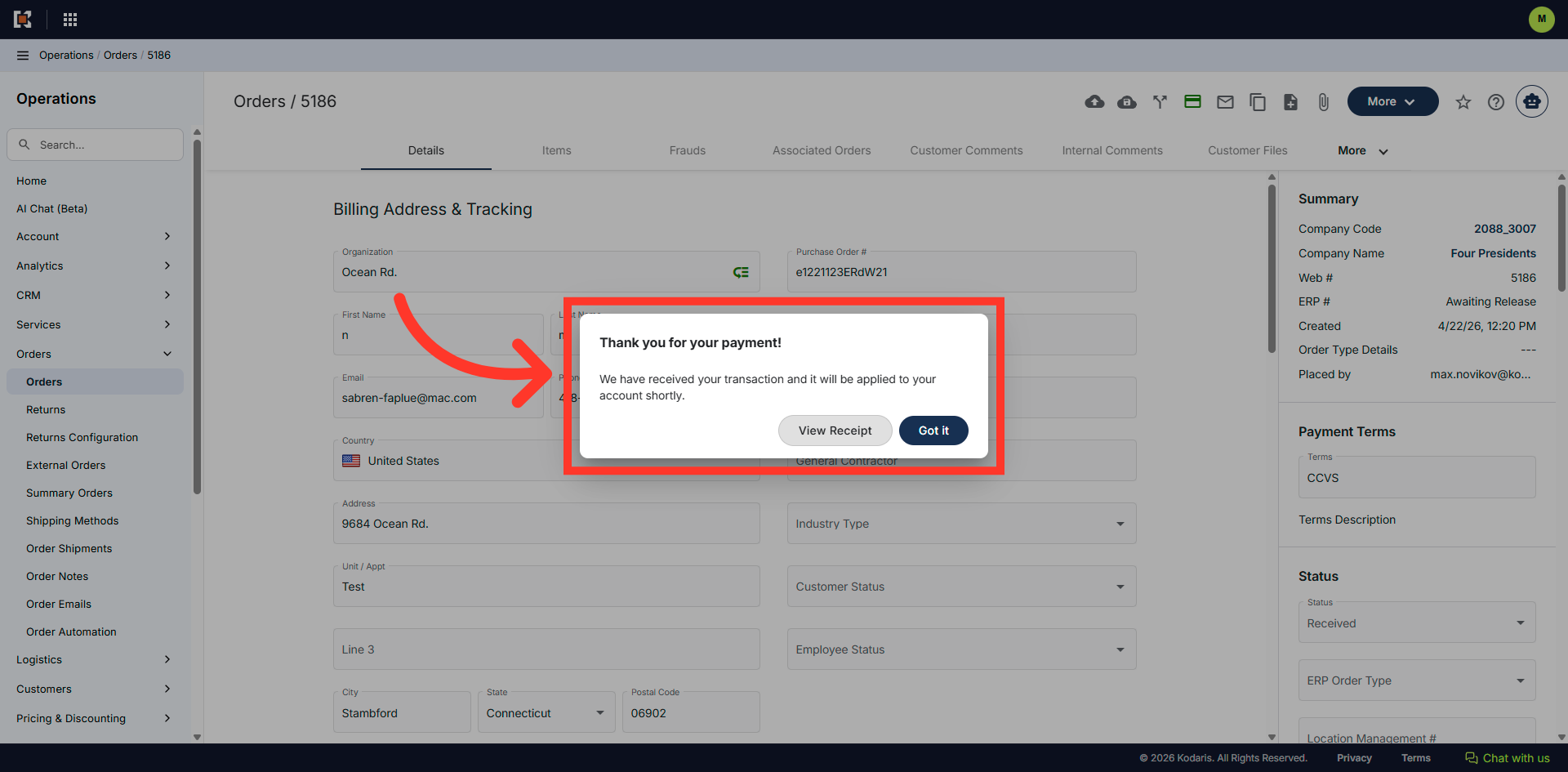
A payment confirmation will pop up.
Click "Got it" to close the payment confirmation and return to the order.
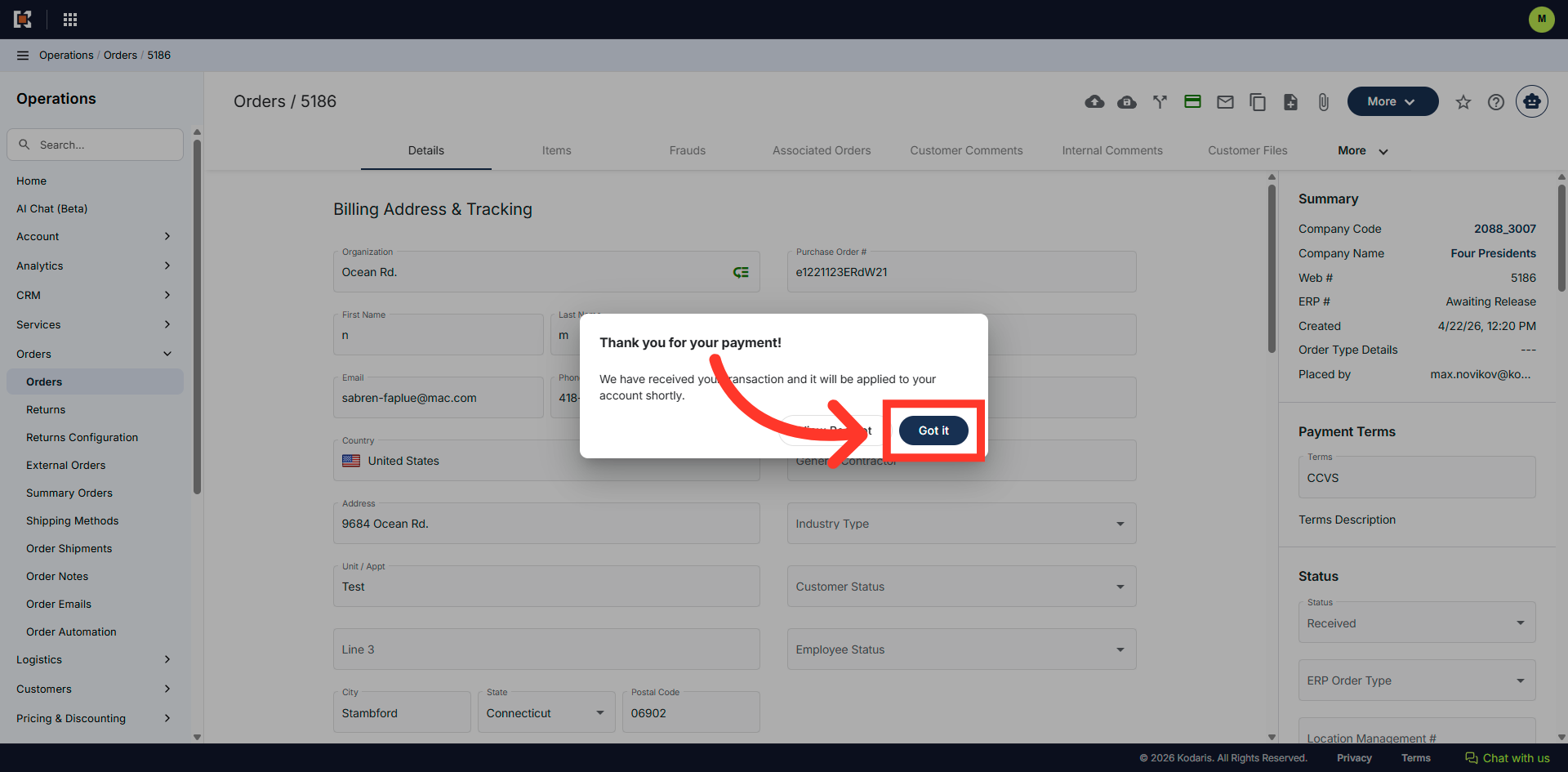
The "Pay Order" icon is now green.