Product Documentation
Product Documentation
Product Documentation
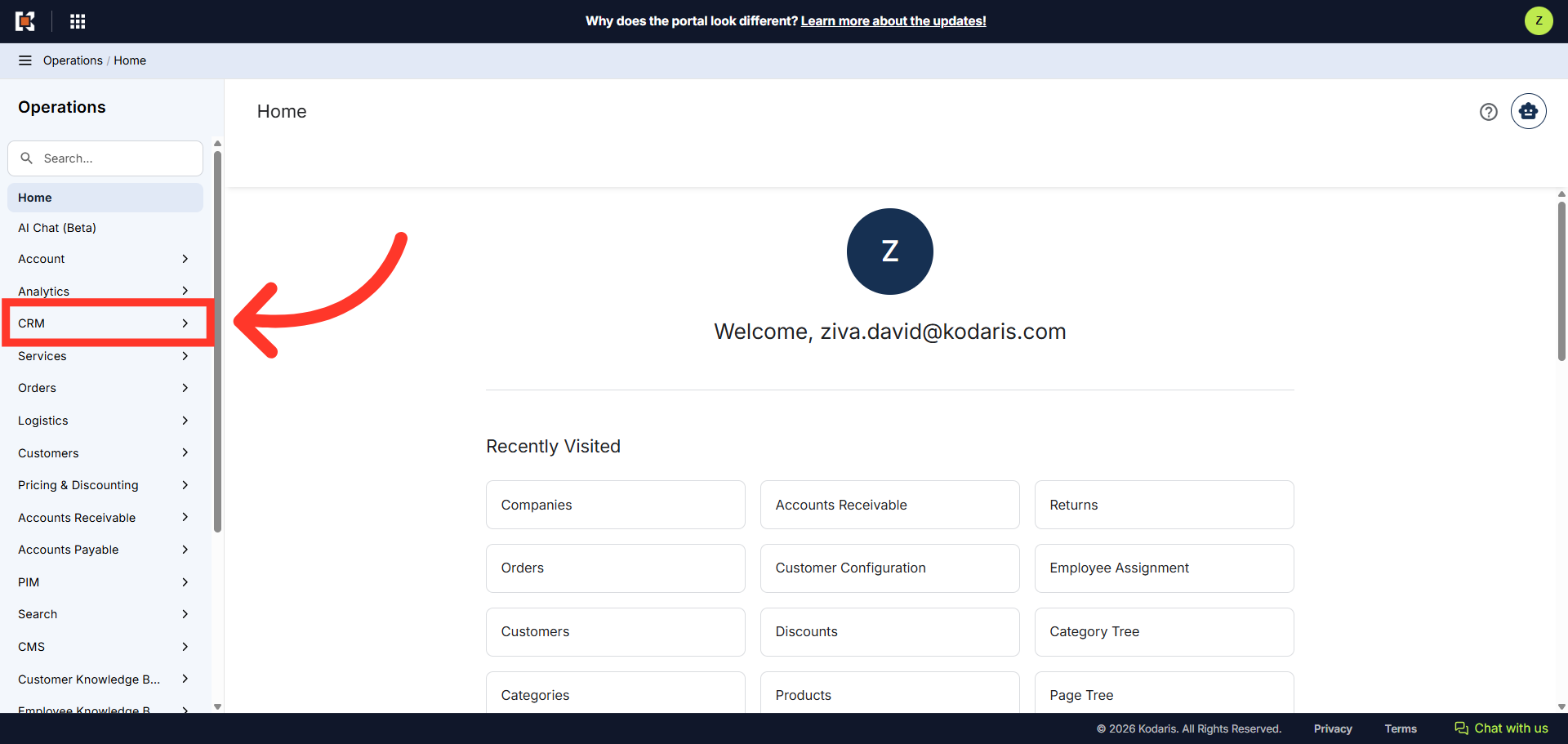
You can view orders, invoices, and accounts receivable transactions for a specific company in the CRM Companies section of the Operations Portal. Navigate to "CRM" section.
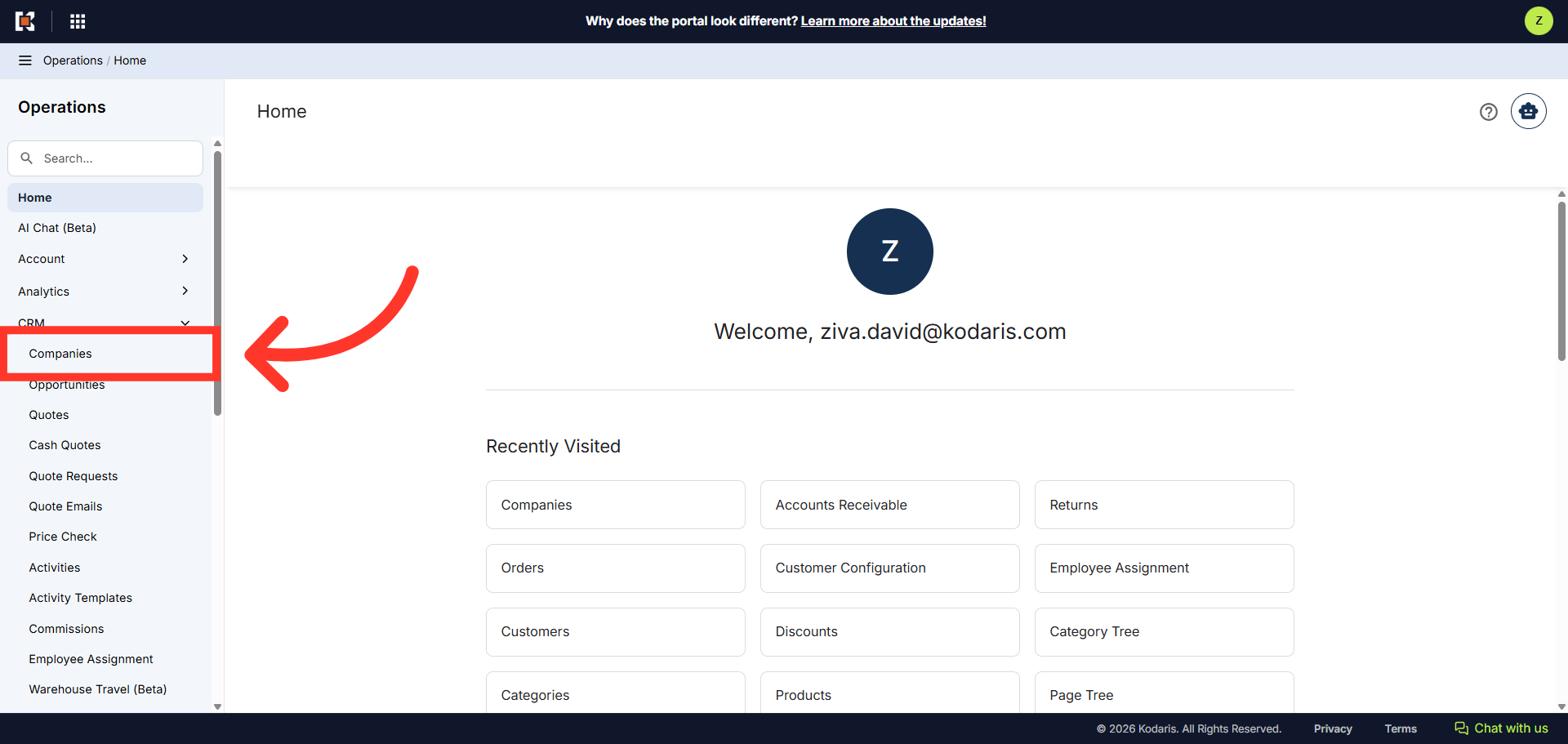
Then, click "Companies". In order to access "Companies" you will need to be set up either as an "administrator" or a "superuser", or have the appropriate roles: “companyEdit", or “crmCompanyEdit". Just a reminder, "crmCompanyEdit" access only allows employees to access companies that are assigned to them.
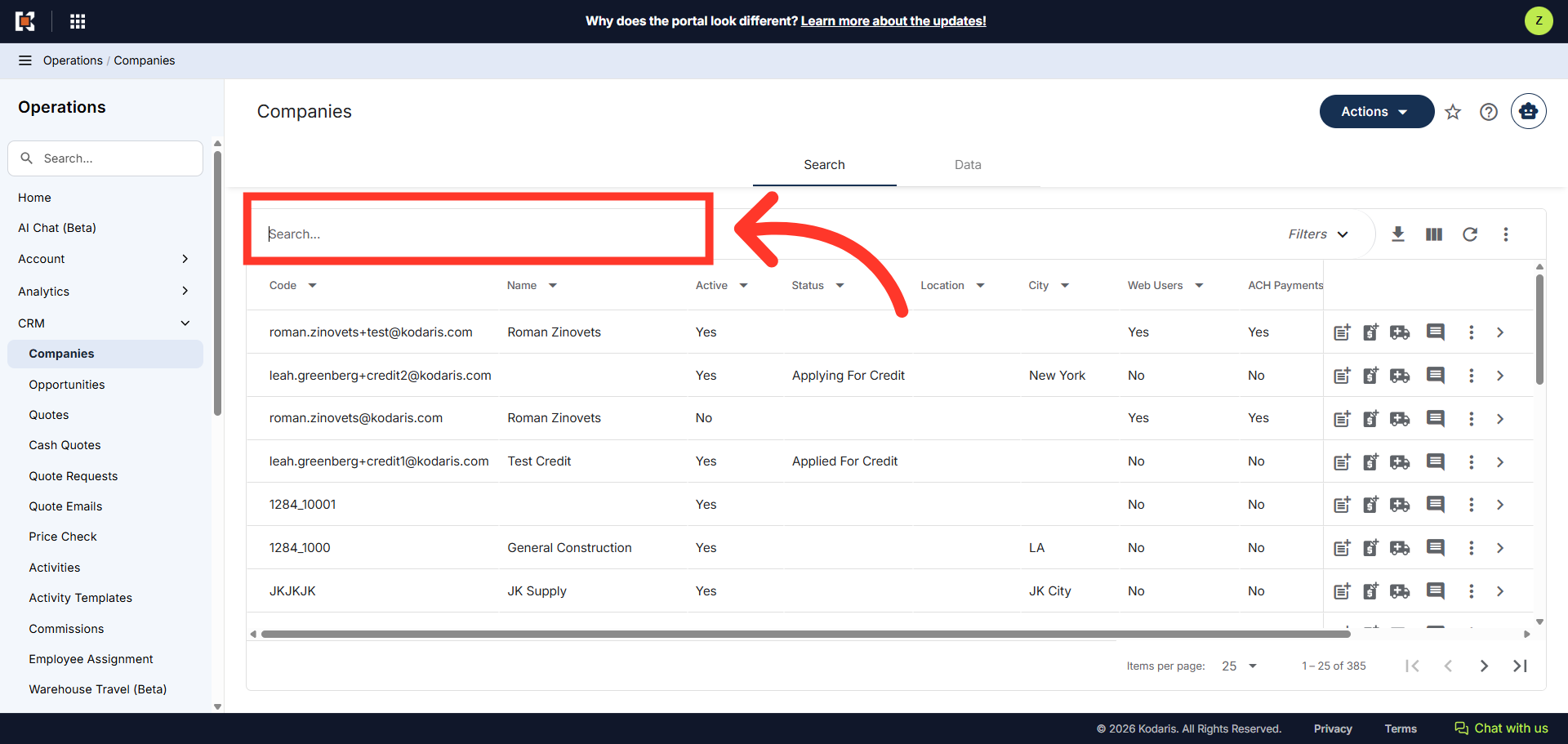
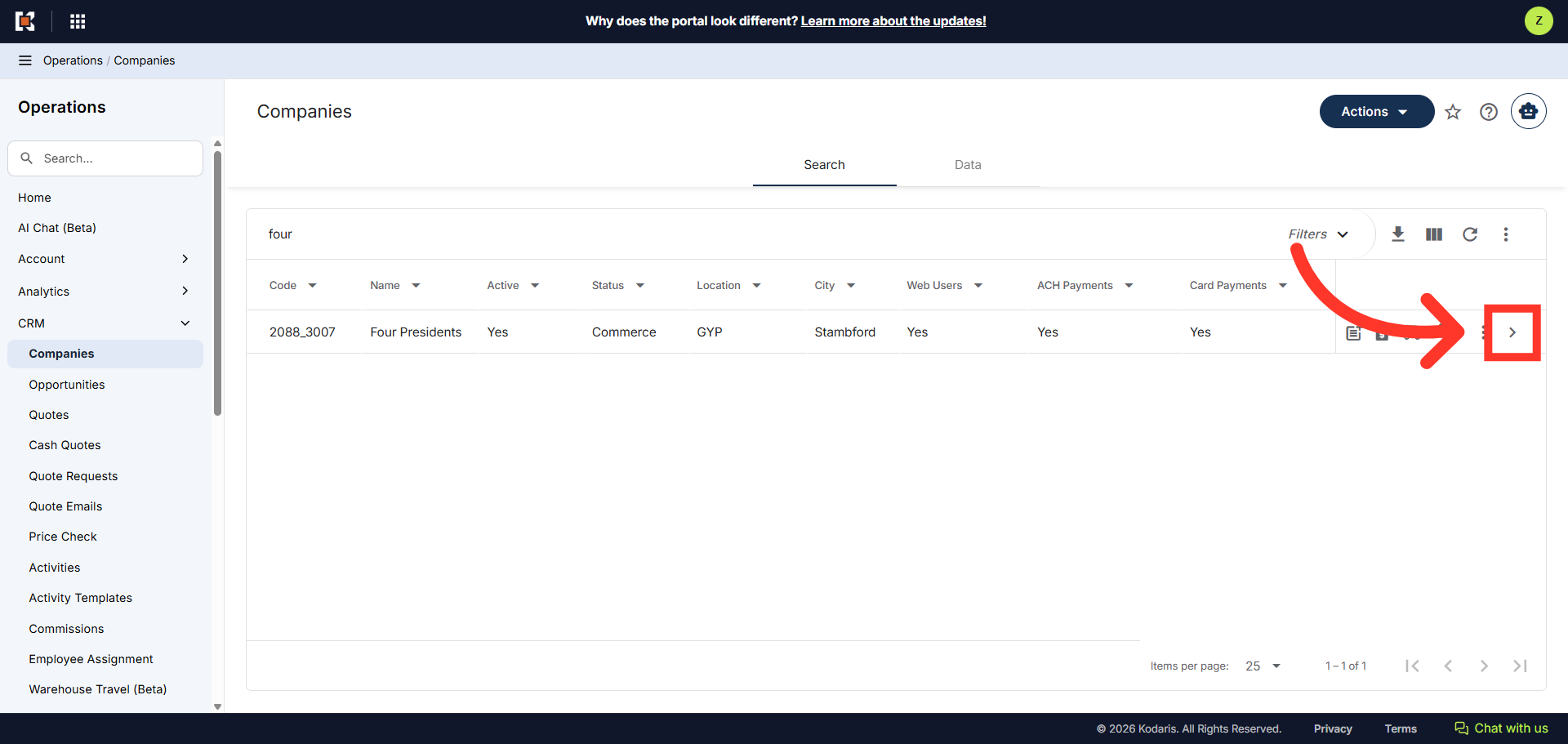
You can search for a company by entering a company code or company name in the search field.
Next, click on the more details icon.
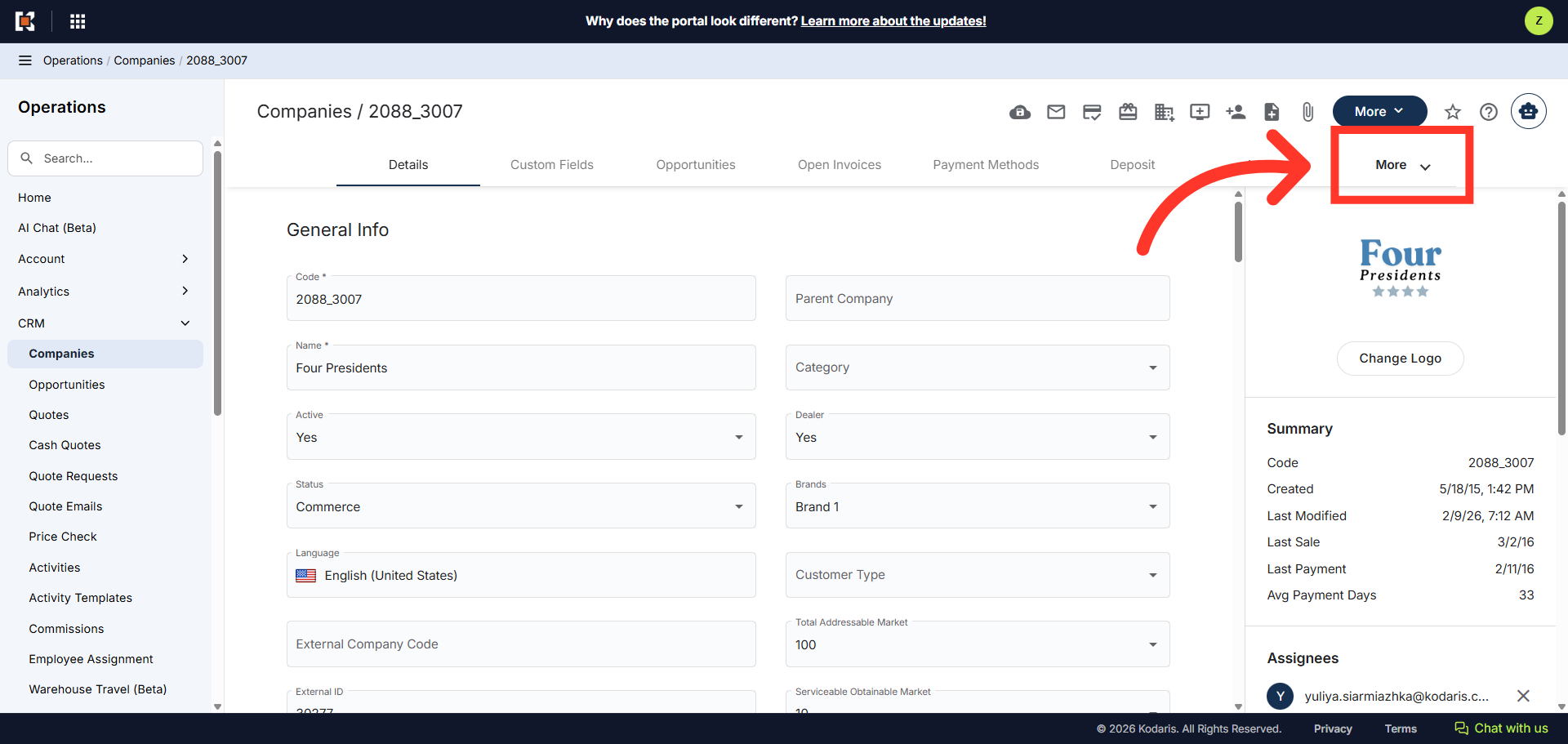
Then, click the "More" dropdown to reveal additional menu options.
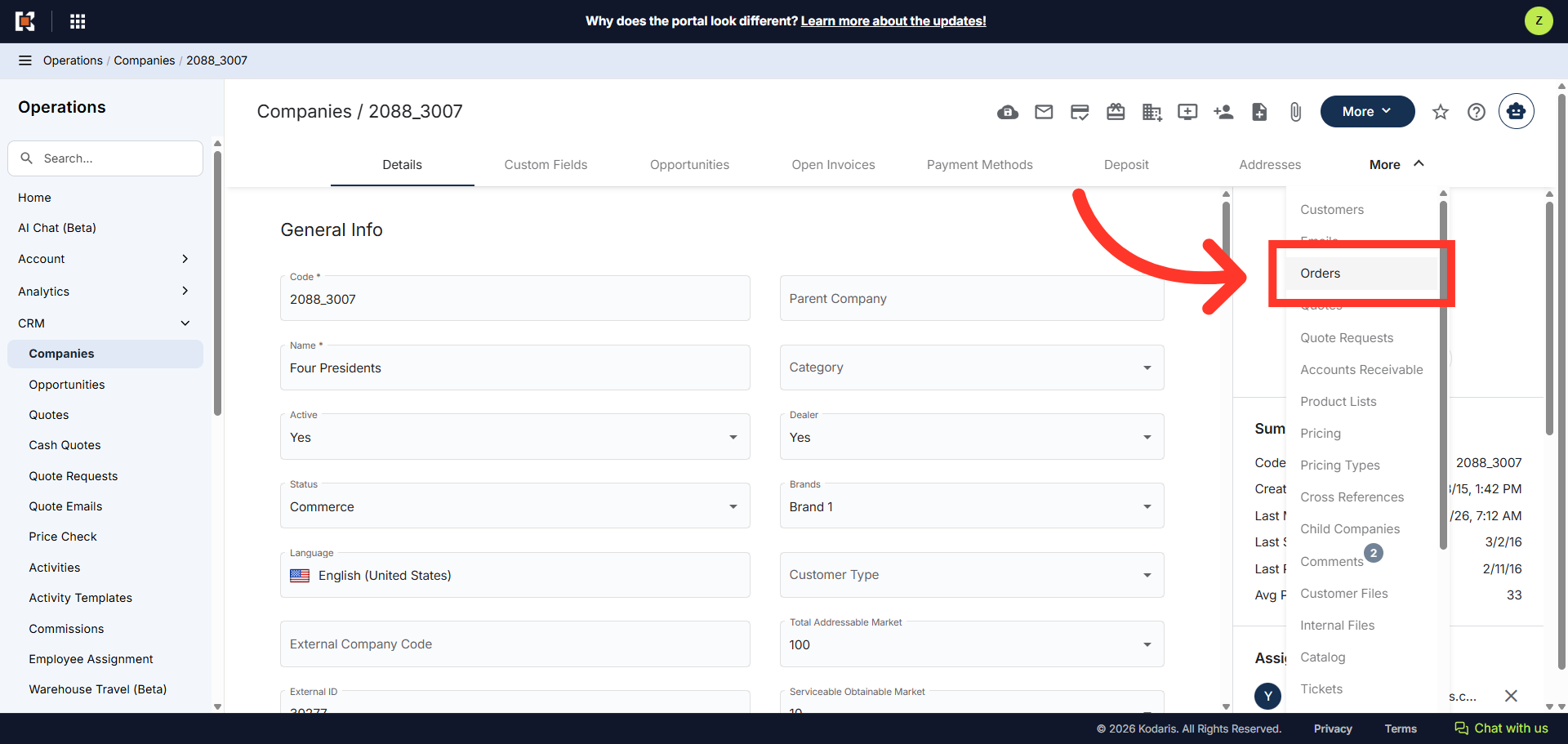
Now, click "Orders". In order to access and update "Orders", you will need the additional role of: "orderView"; this will also allow access to view the main order screen, "orderEdit"; allows access to view, edit, and delete orders, or "crmCompanyOrderView"; this allows access to view CRM Company orders of only assigned companies, or "crmCompanyOrderEdit"; which allows access to edit CRM Company orders.
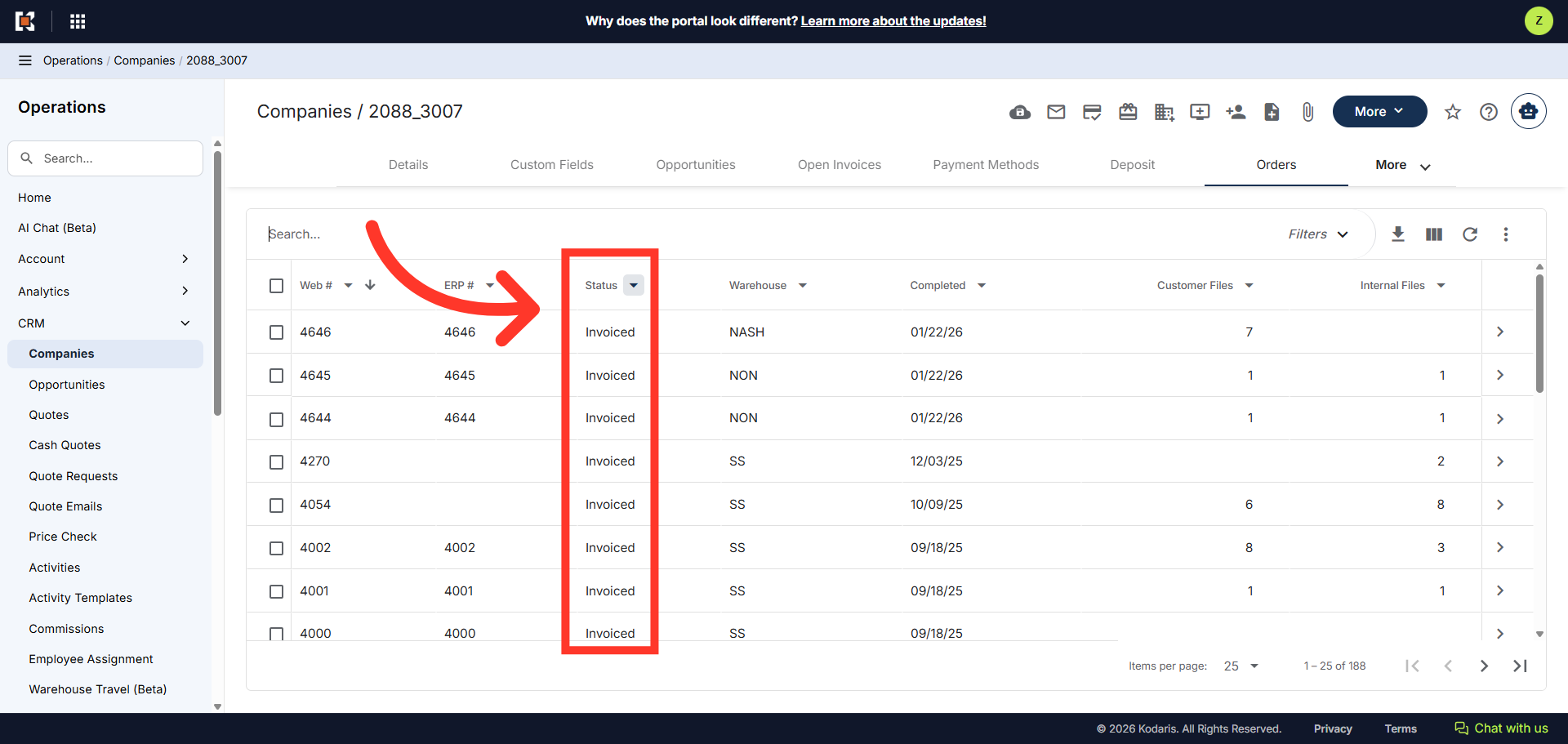
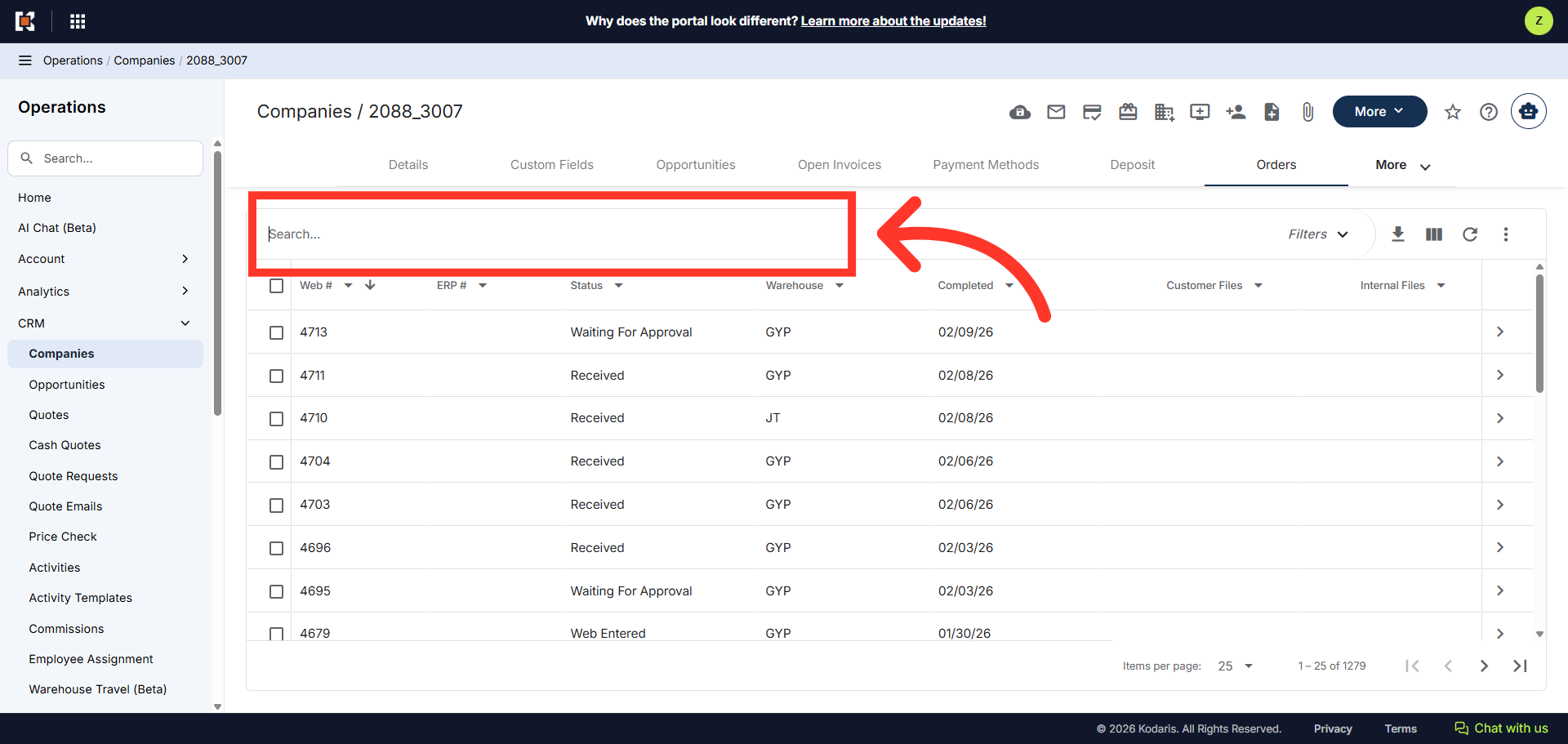
The grid displays all the orders associated with the company. You can search for an order, by entering the order number in the search box.
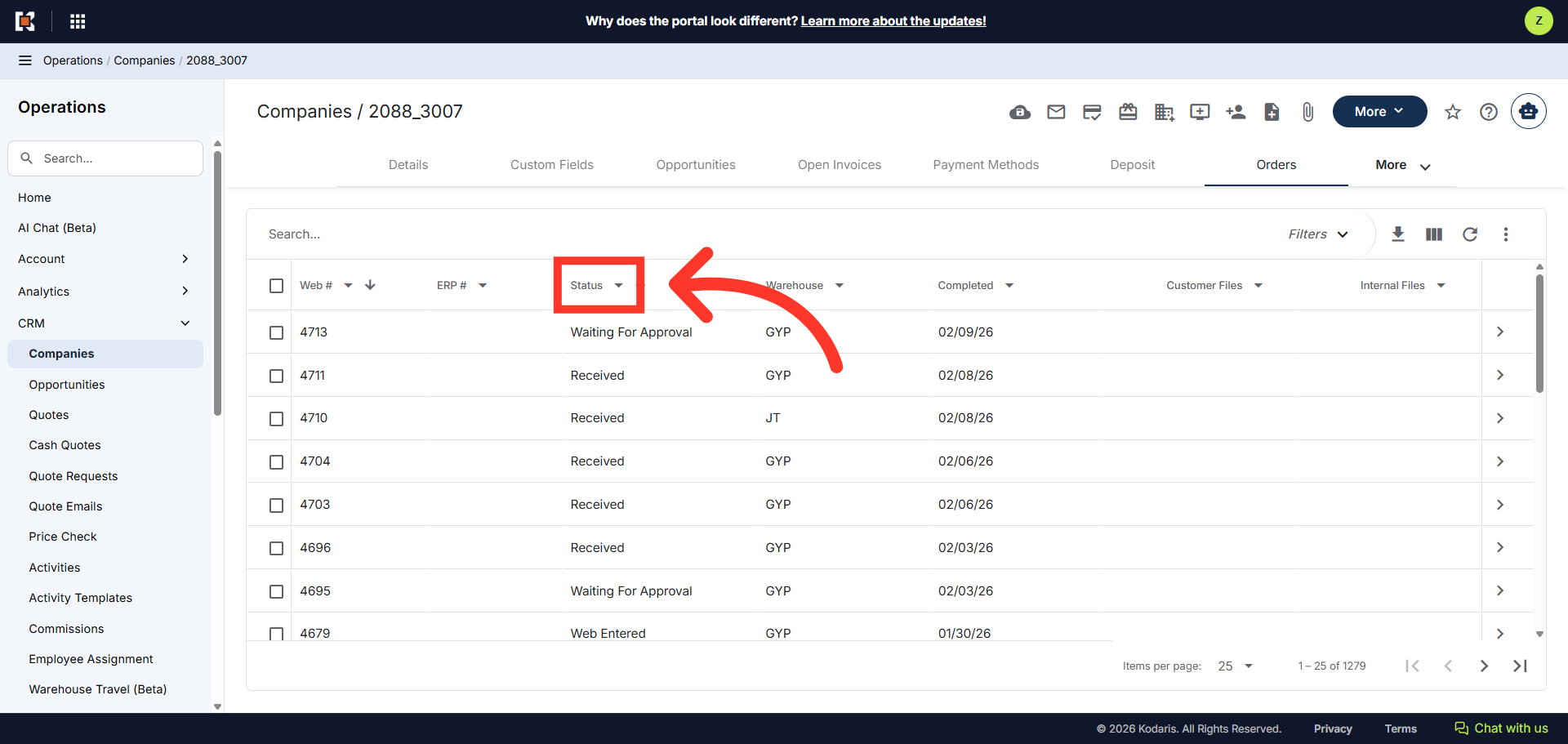
You can also narrow down the list of order by using column filters. Click on a column filter dropdown. We'll use the "Status" column in this example.
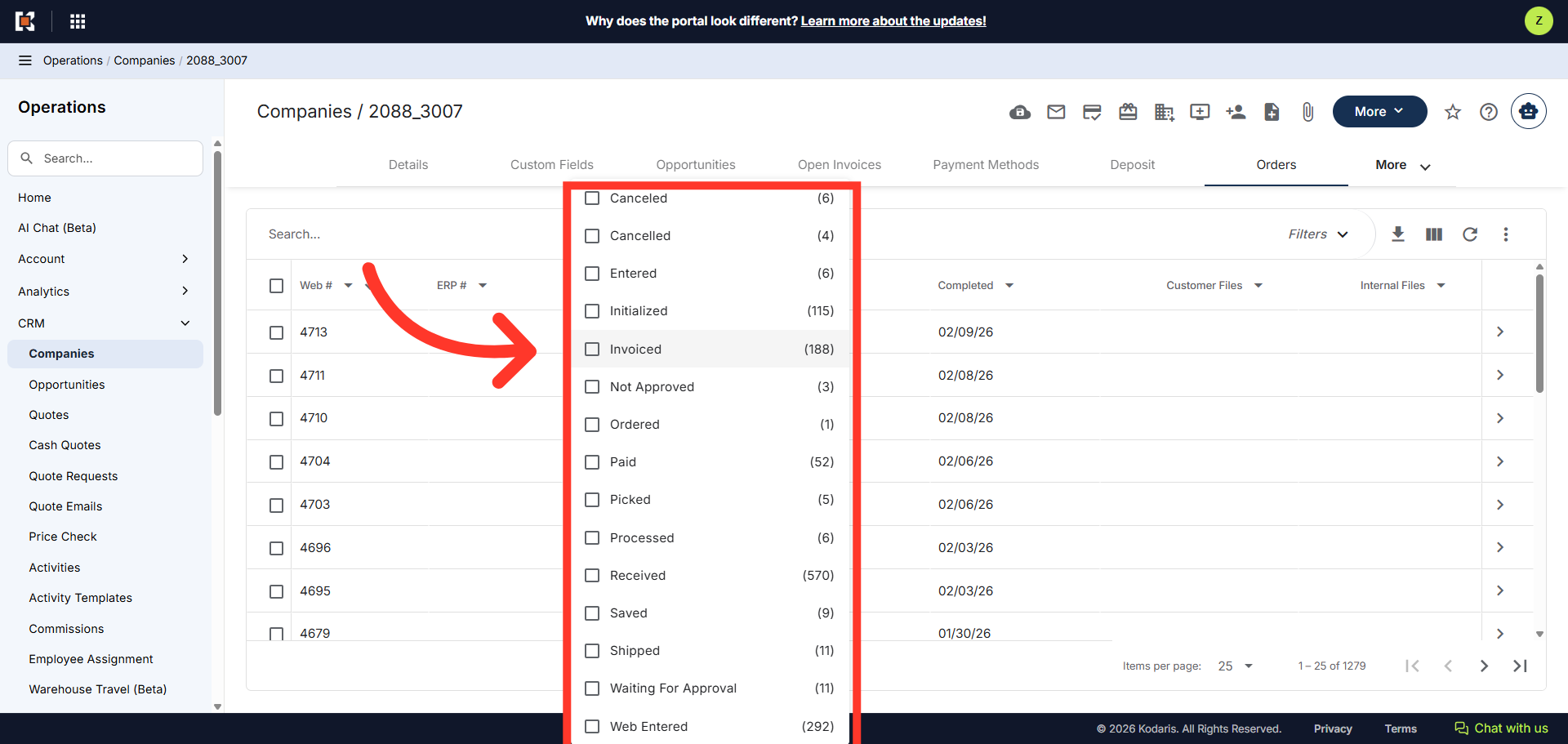
In this filter, you can select multiple-selections. In this example, we will select "Invoiced" to display all the orders in the invoiced stage.
The grid now displays all orders in the "Invoiced" stage. You can click the more details icon on a specific order to view order details such as line items on the order, additional charges, and customer comments.