Product Documentation
Product Documentation
Product Documentation
In order to access internal files from the companies order screen, navigate to the "CRM" section in the Operations Portal.
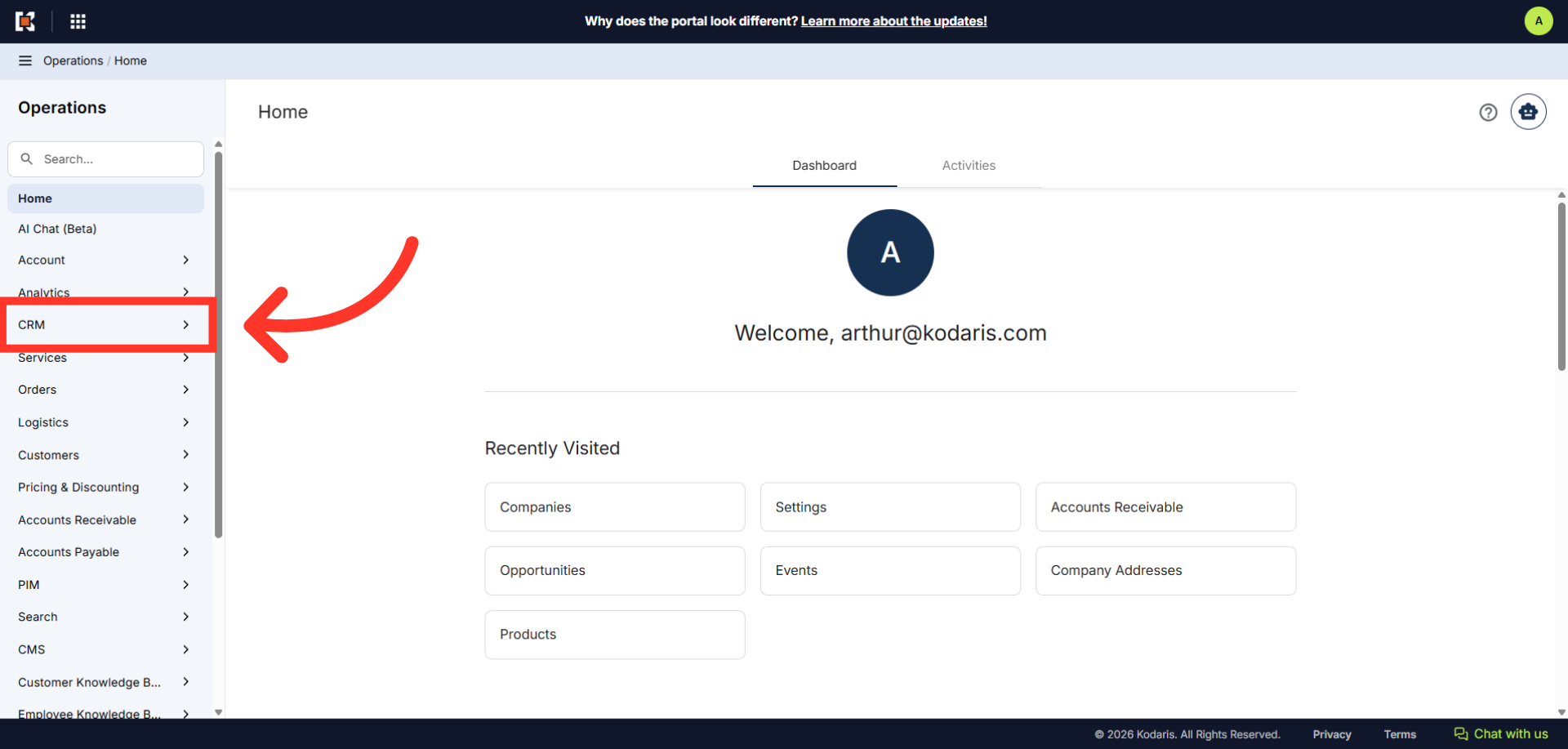
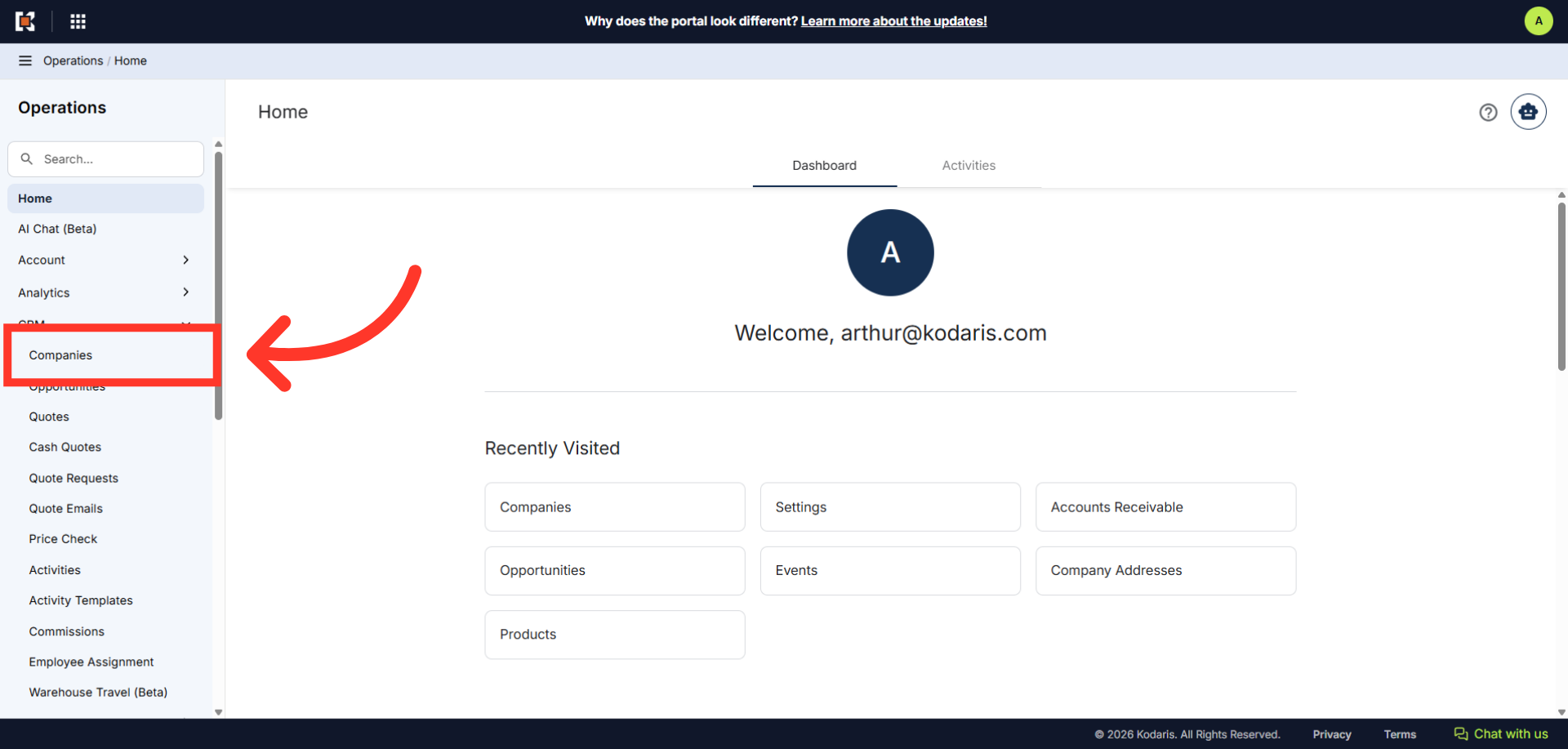
Then, click "Companies". In order to access "Companies" you will need to be set up either as an "administrator" or a "superuser", or have the appropriate roles: “companyEdit", or “crmCompanyEdit". Just a reminder, "crmCompanyEdit" access only allows employees to access companies that are assigned to them.
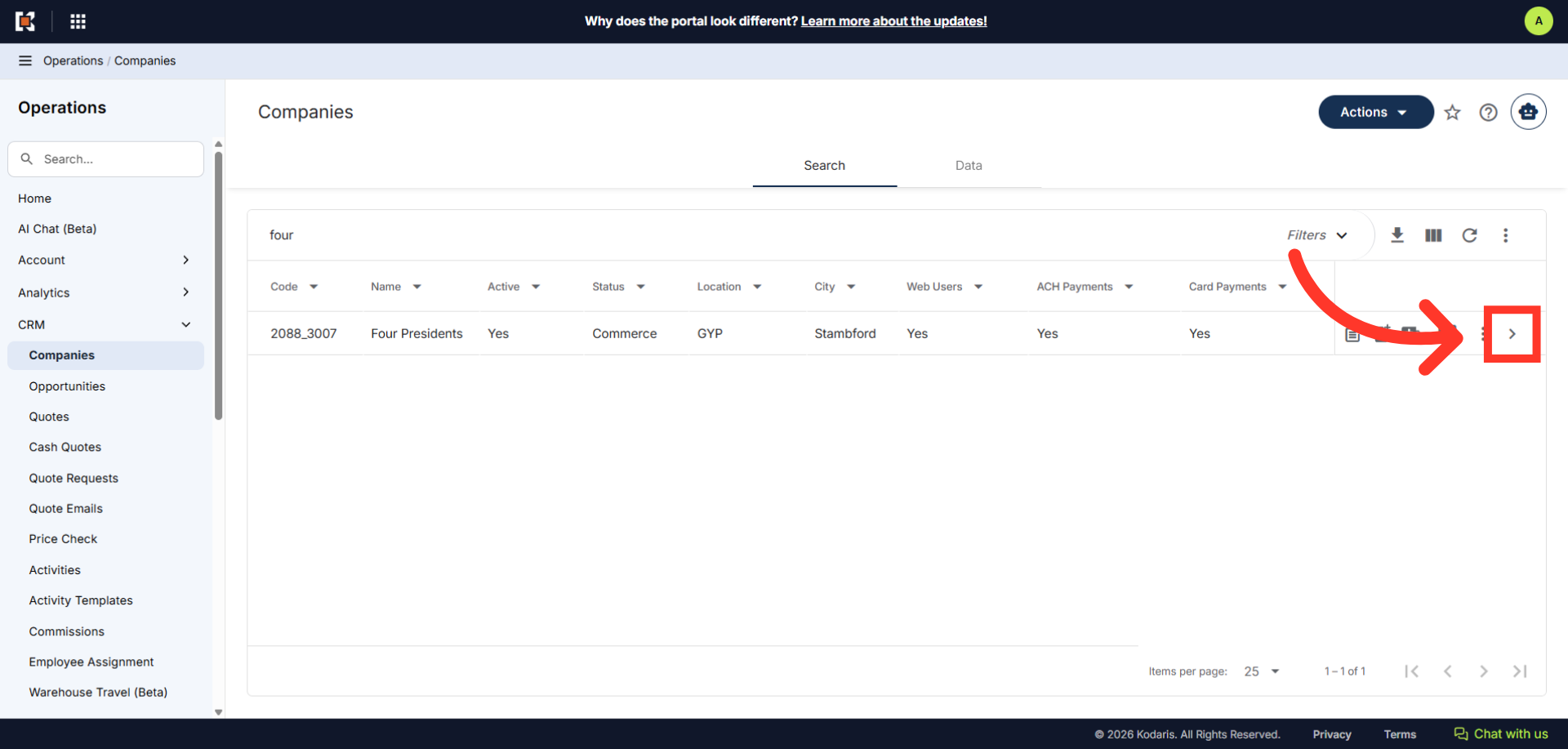
Enter the company name or code to search.
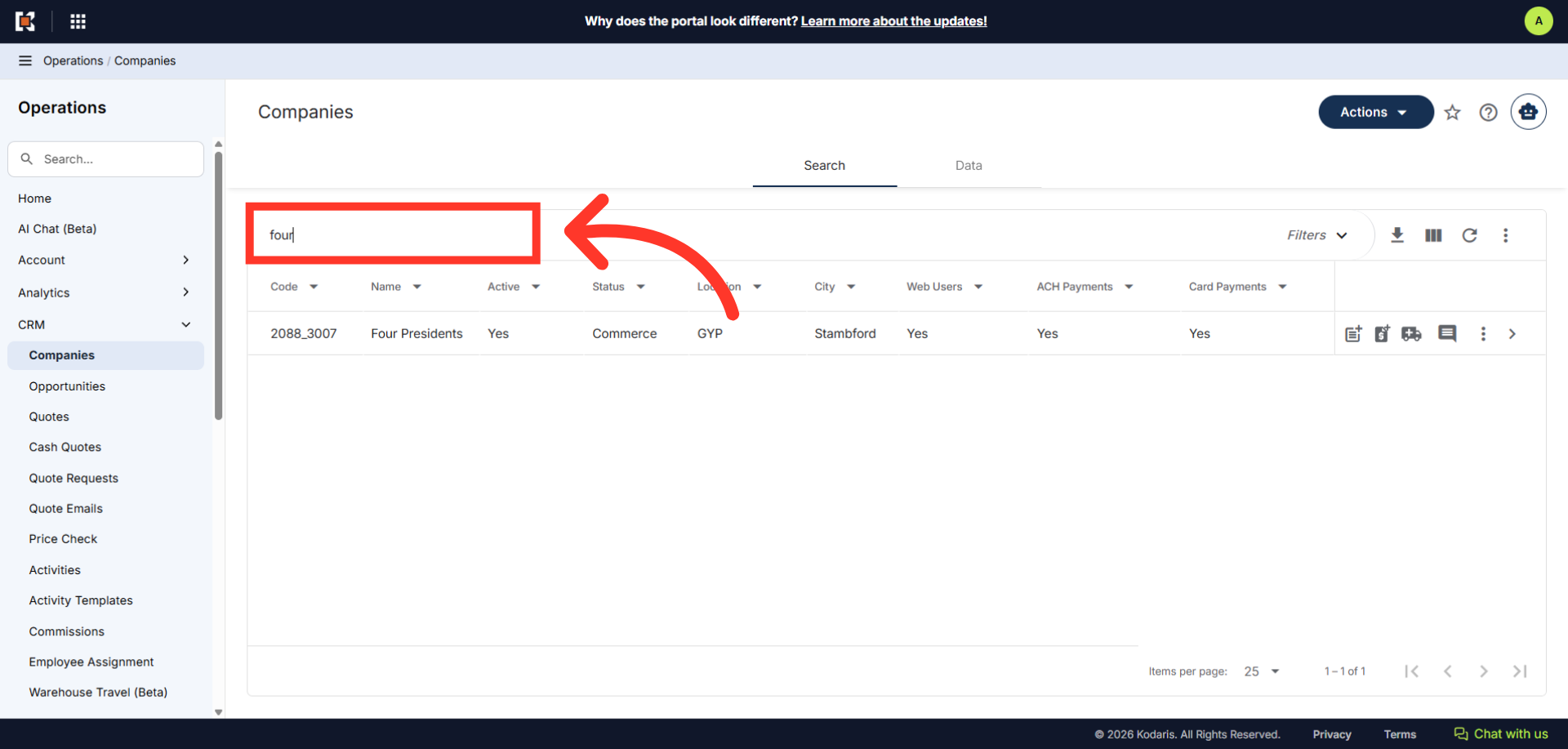
Click on the more details icon to open the Company's details page.
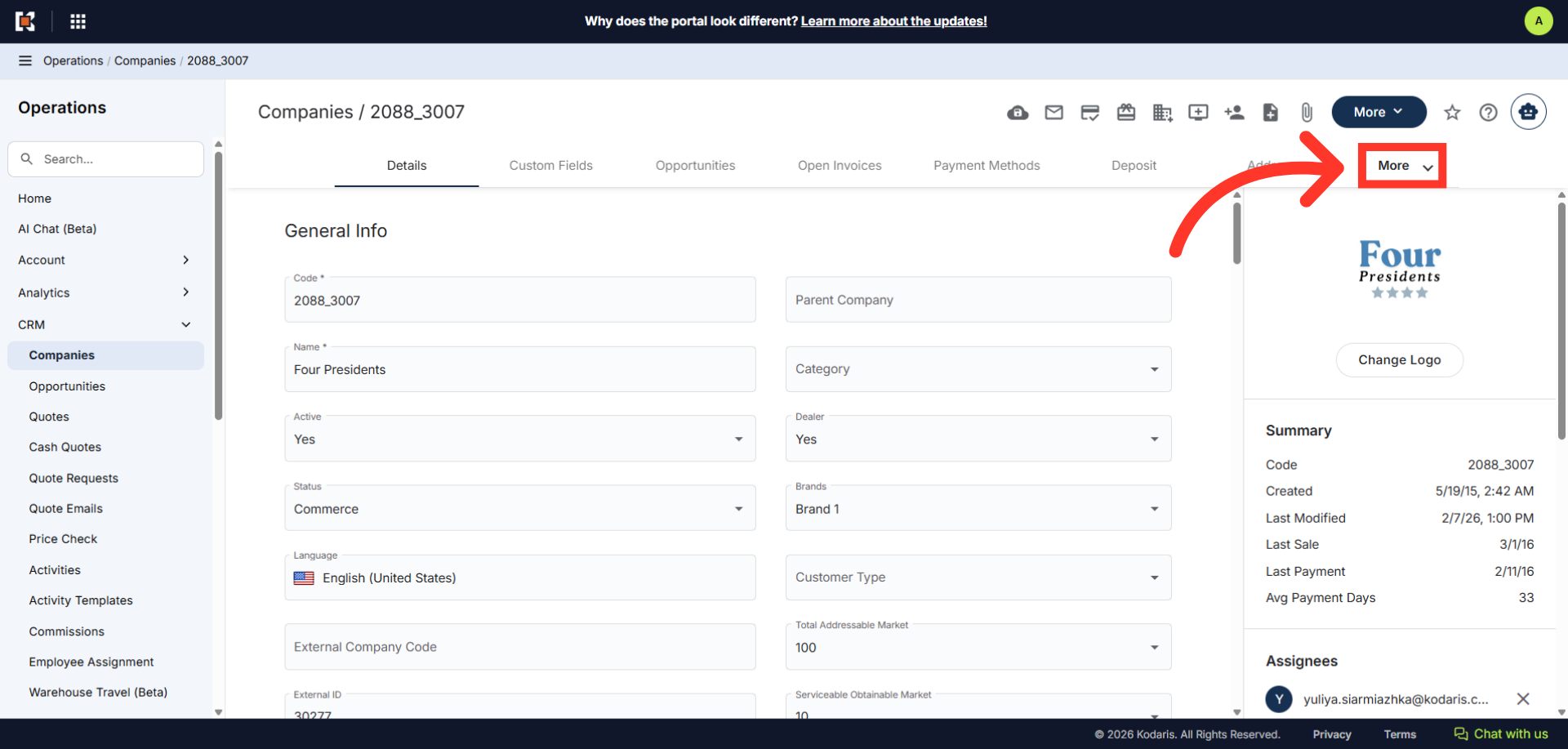
Click the "More" dropdown to view other tabs.
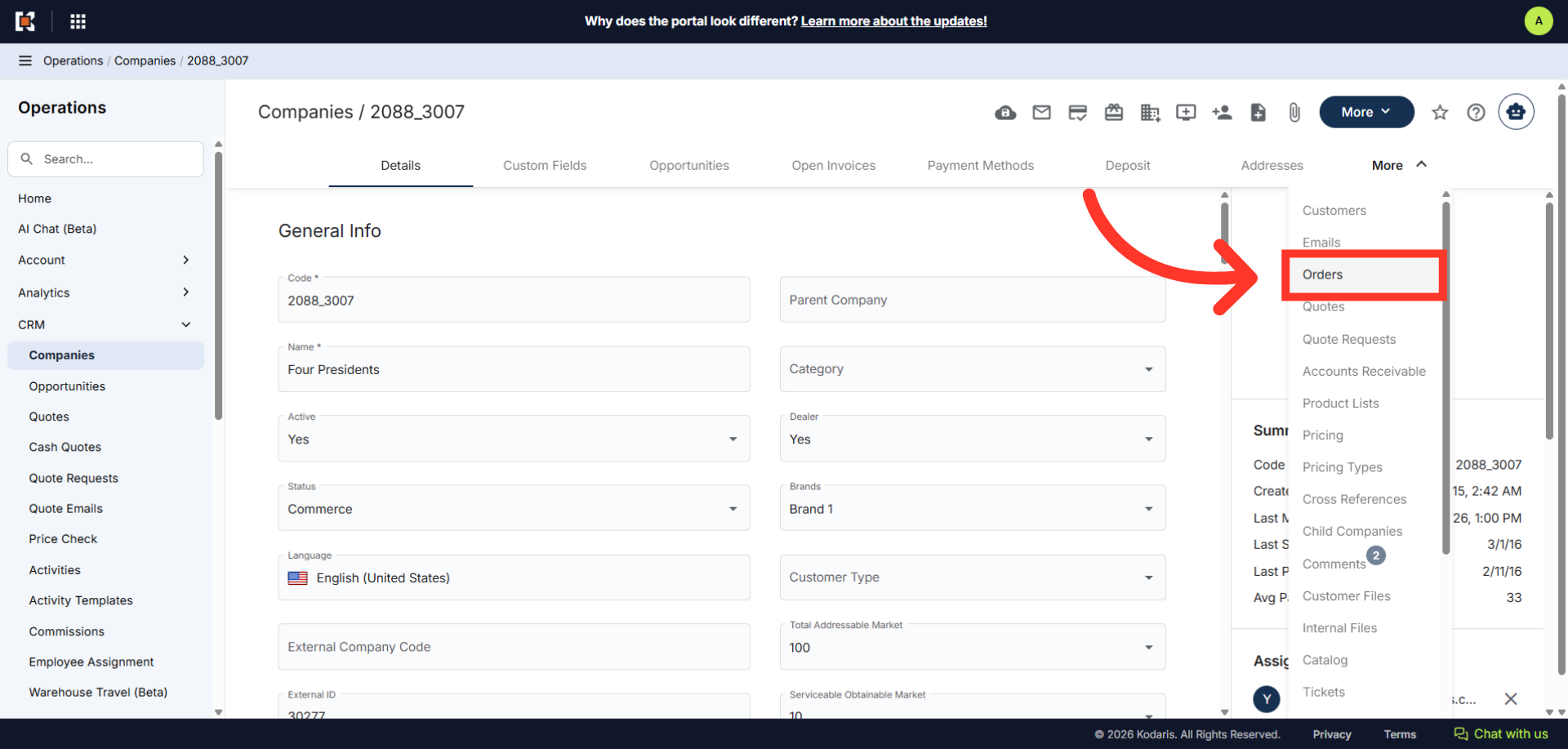
Select "Orders". In order to access and update "Orders", you will need the additional role of: "orderView"; this will also allow access to view the main order screen, "orderEdit"; allows access to view, edit, and delete orders, or "crmCompanyOrderView"; this allows access to view CRM Company orders of only assigned companies, or "crmCompanyOrderEdit"; which allows access to edit CRM Company orders.
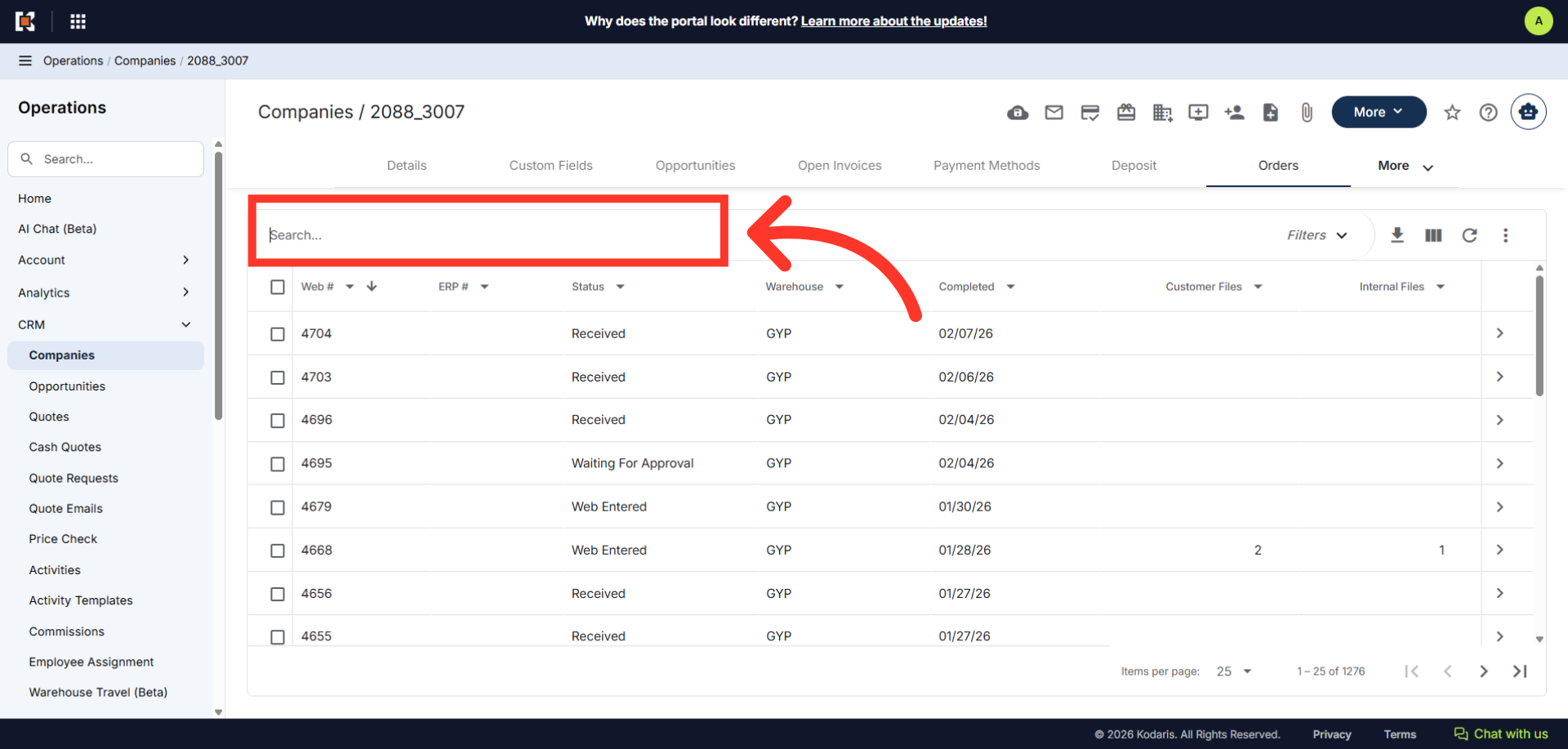
The companies "Orders" screen displays all orders associated with the company. Since we are going to access the "Internal Files" on an order, search for an order by entering the order number in the search box.
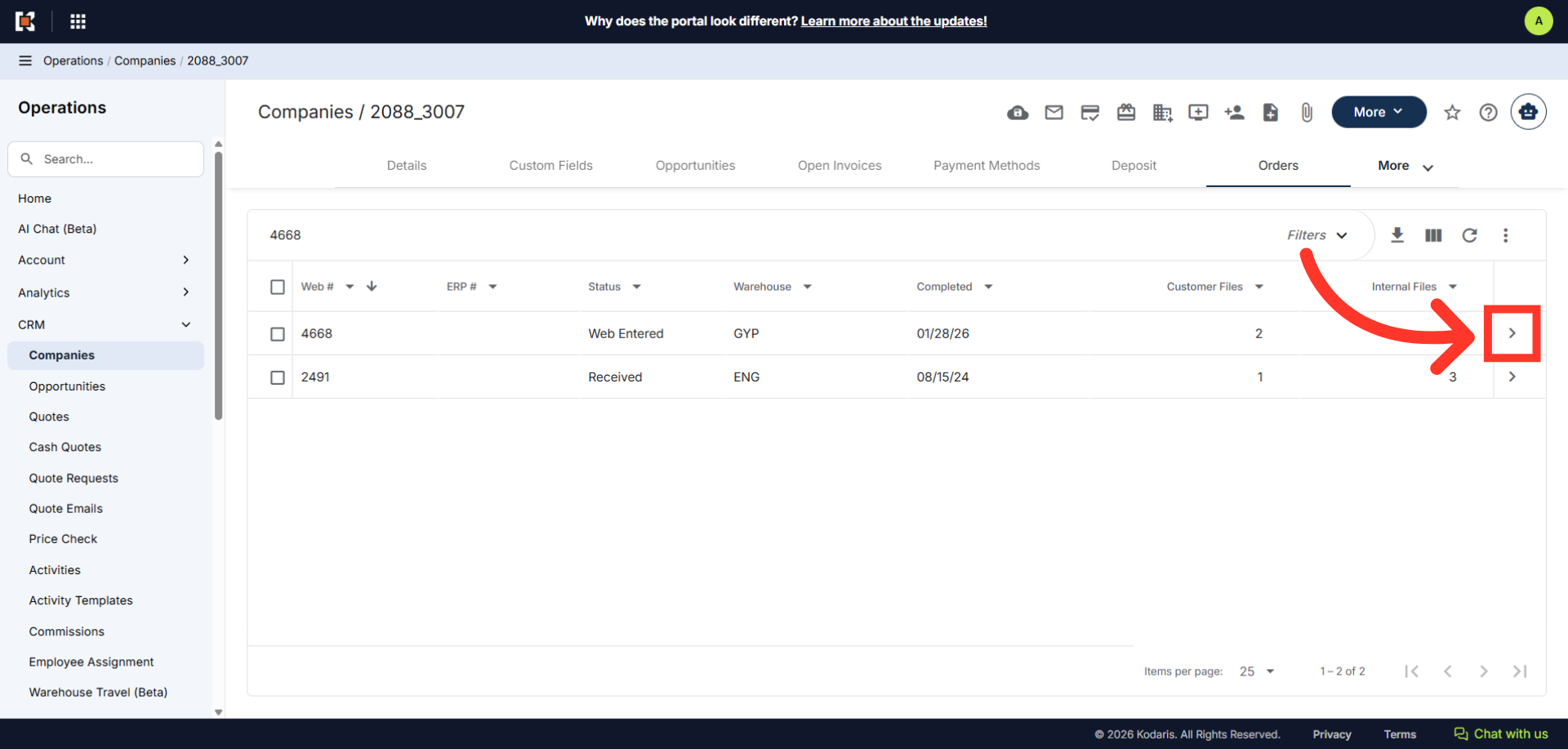
Click on the more details icon.
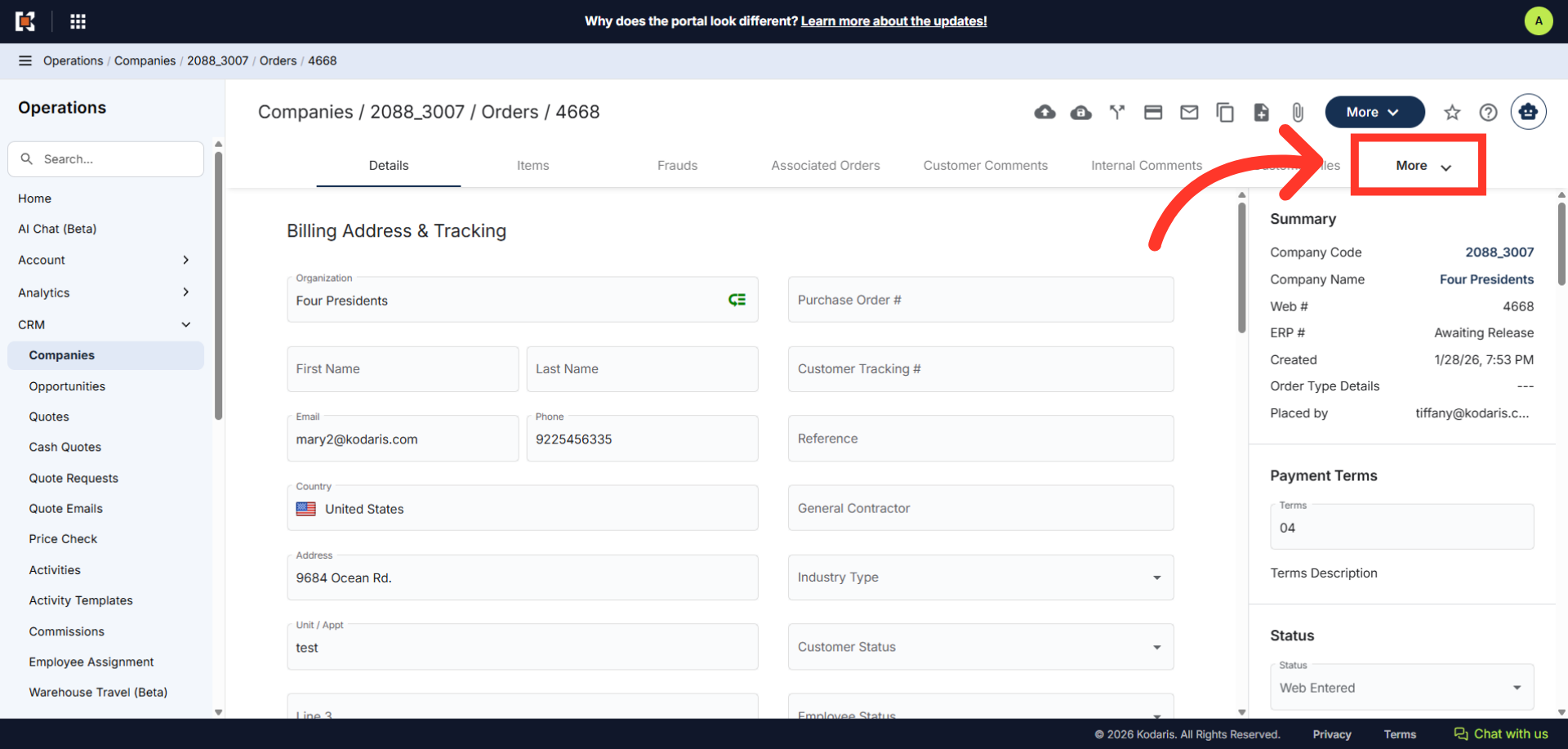
Then, click the "More" dropdown to view other tabs.
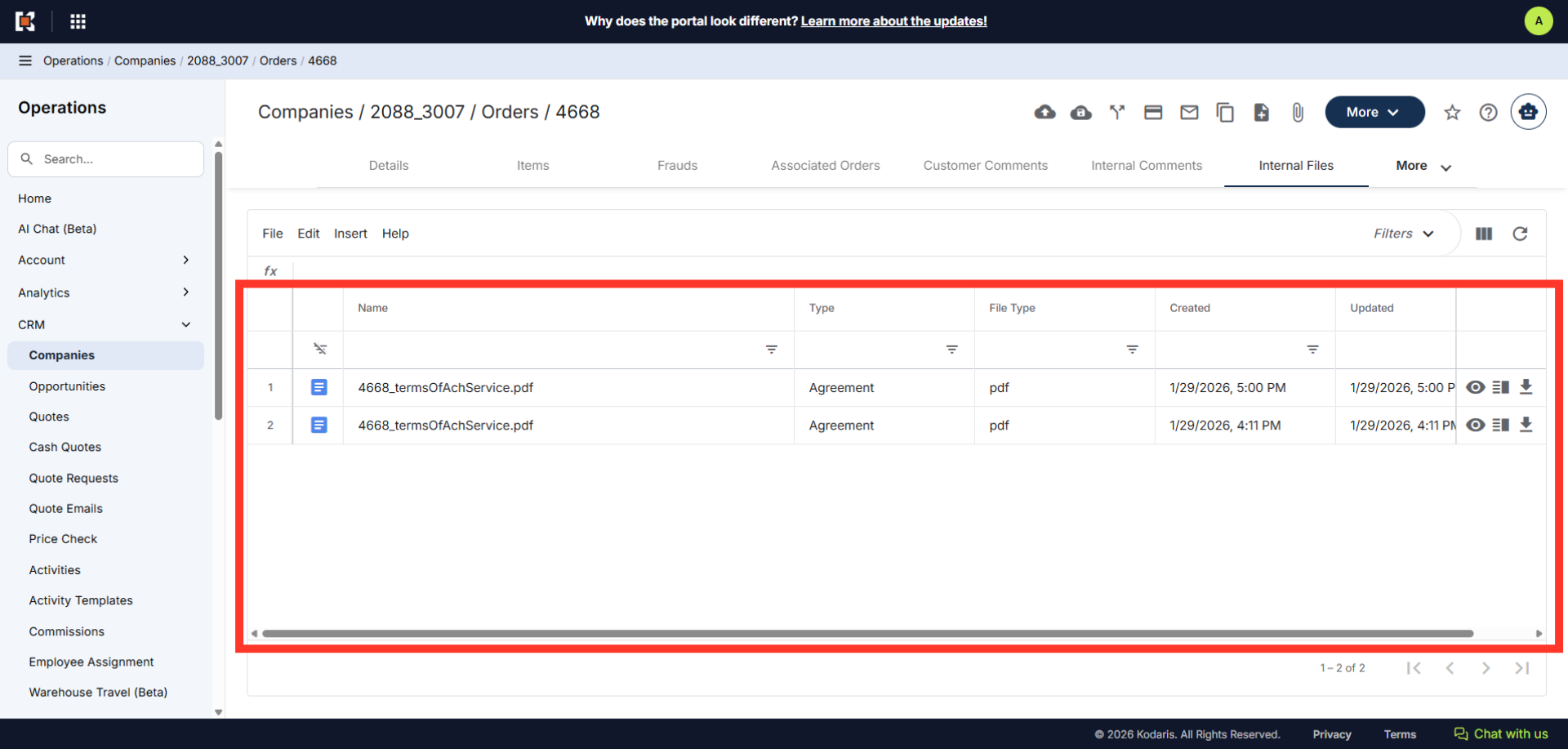
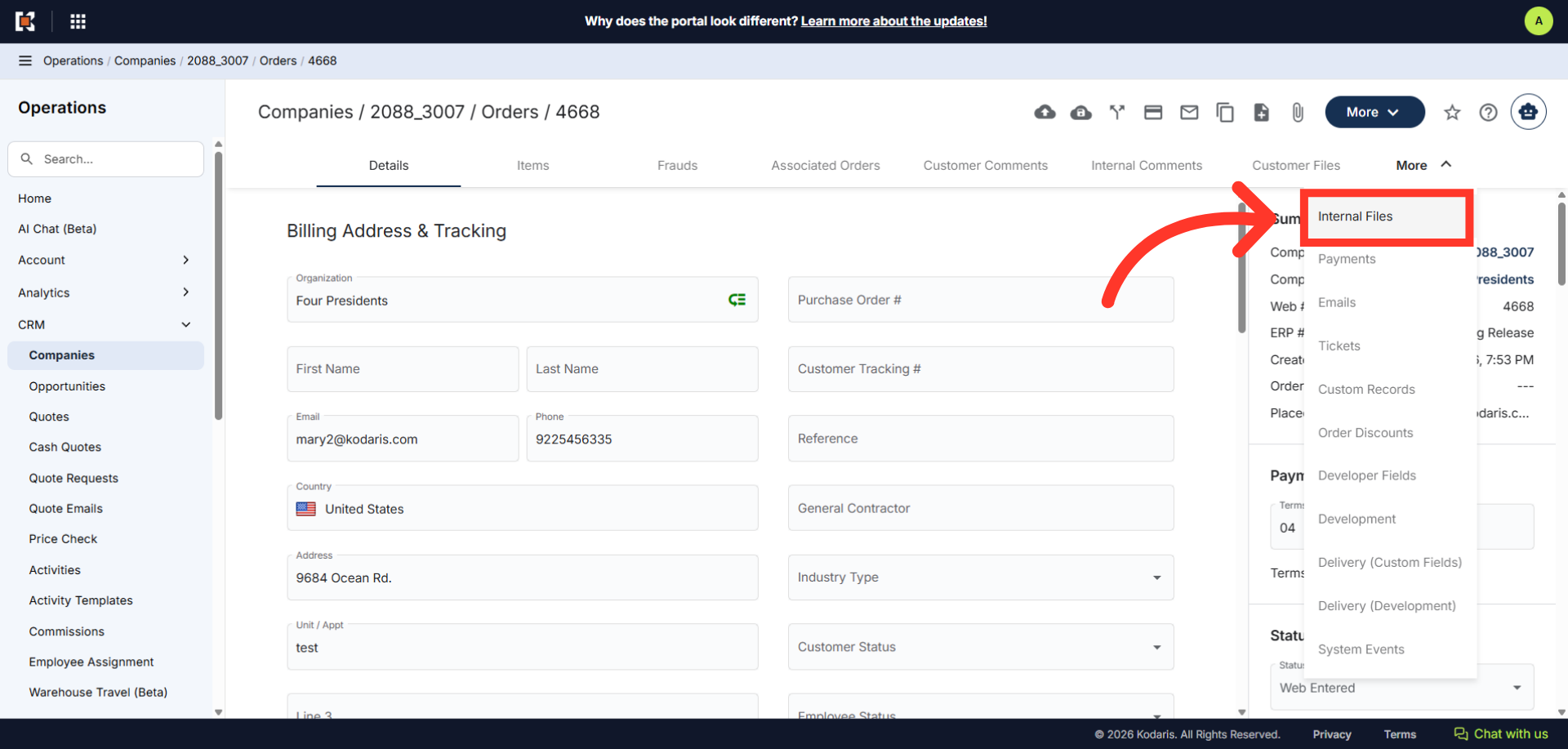
Click "Internal Files" tab to access files that have been uploaded to the order. In order to access this tab, you need the role of "orderInternalFileView". To view, edit, and delete "Internal Files" on an order, users will need the "orderInternalFileEdit" role.
All files that have been generated or saved as "Internal Files" will be available under the "Internal Files" tab on the order and are only visible to authorized operations portal users.