Product Documentation
Product Documentation
Product Documentation
When a customer orders from a product list, they can select the items they'd like to order or simply click "Start Order" which will add all the items on the list to their cart. With this setting enabled, customers can select the items they'd like to order before starting the order. This functionality is useful if your customers have very large lists and always order a subset of the items at a time. You can enable this setting by navigating to "System" section in the Operations Portal.
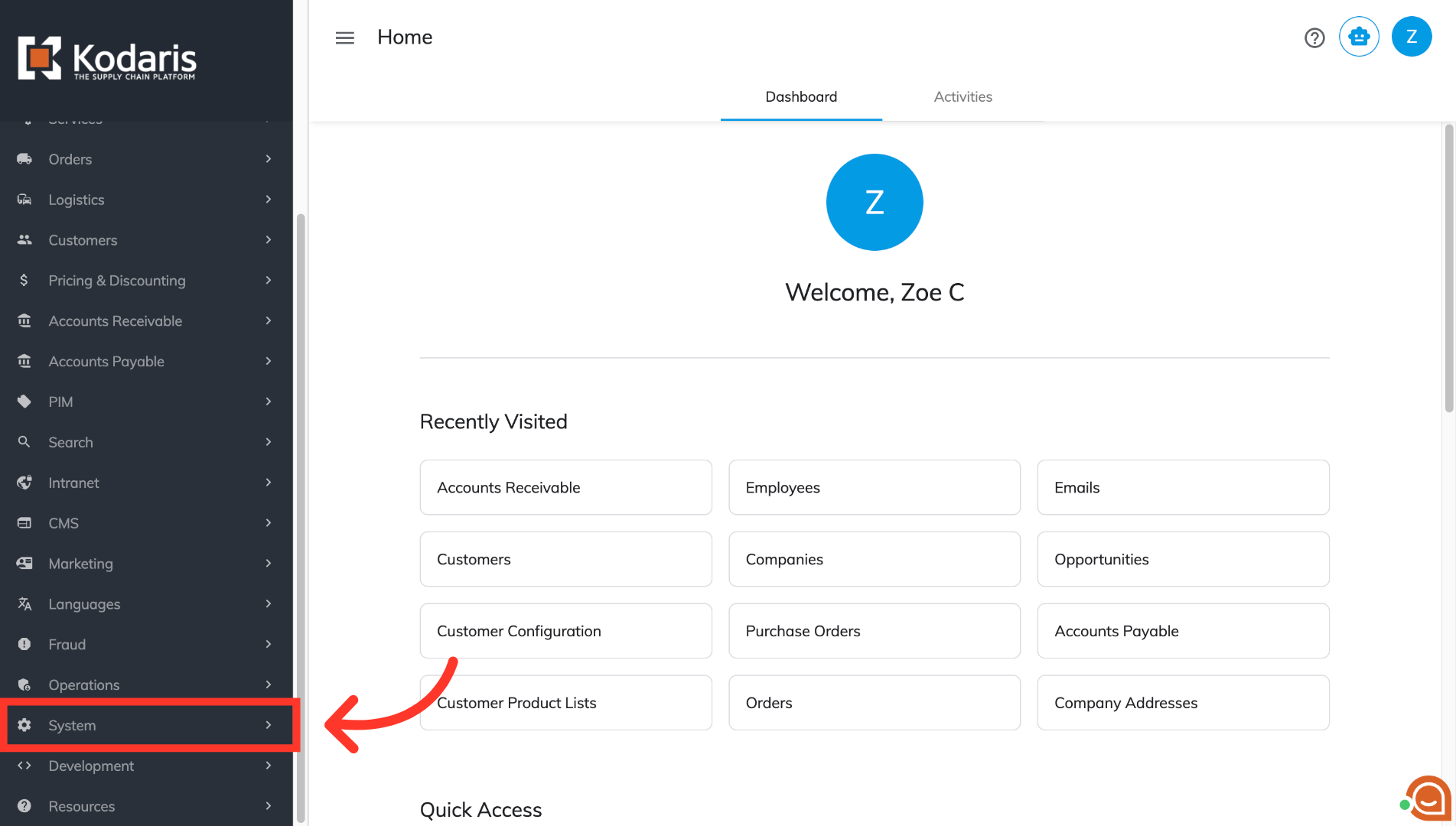
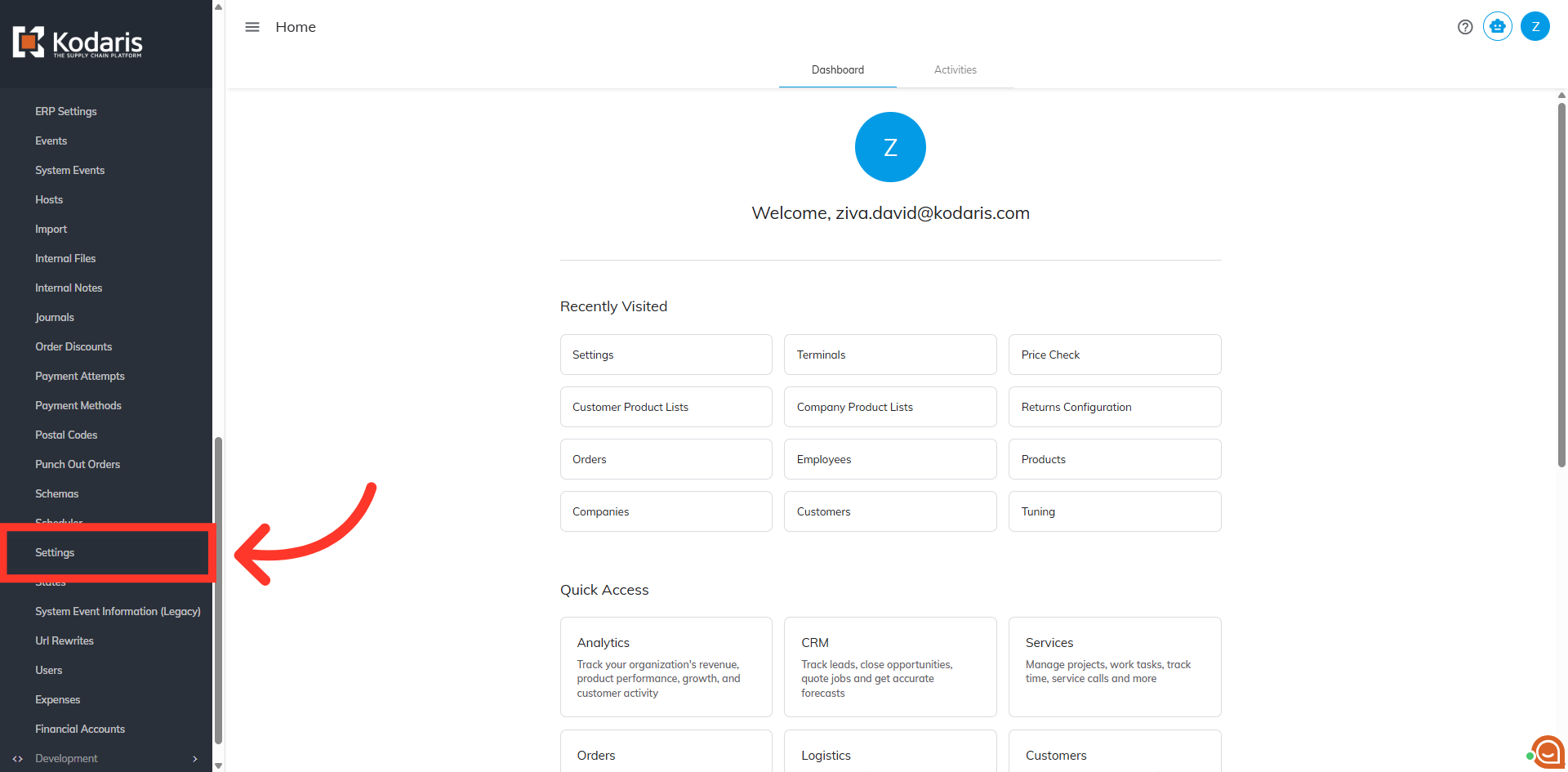
Then, click "Settings". In order to access and edit settings, you will need to be set up either as an "administrator" or a "superuser", or have the following roles: "settingEdit" and "settingView".
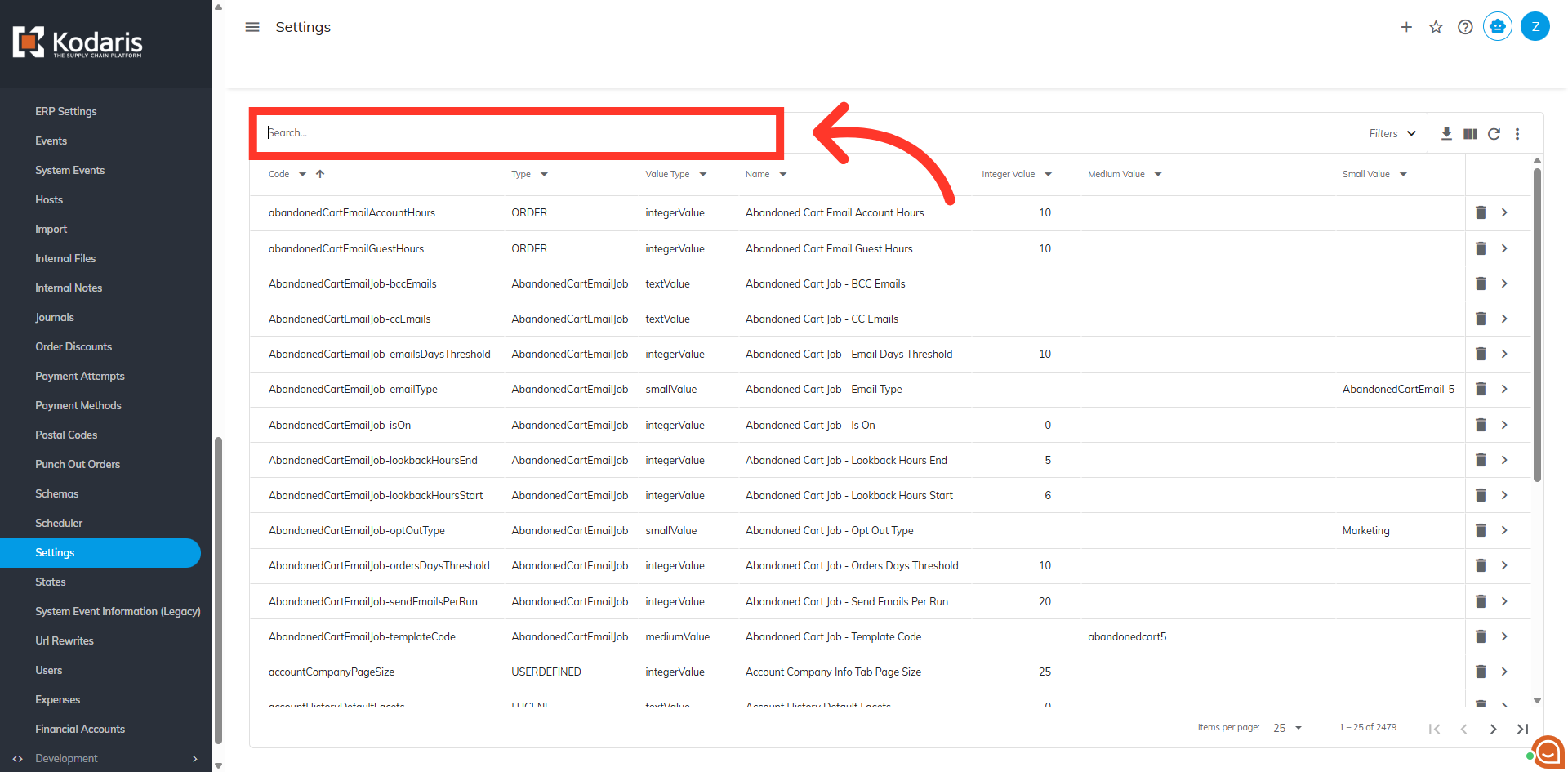
Search for the setting, "customerProductListOrderWithSelection", and hit enter.
Click the more details icon to view the setting details.
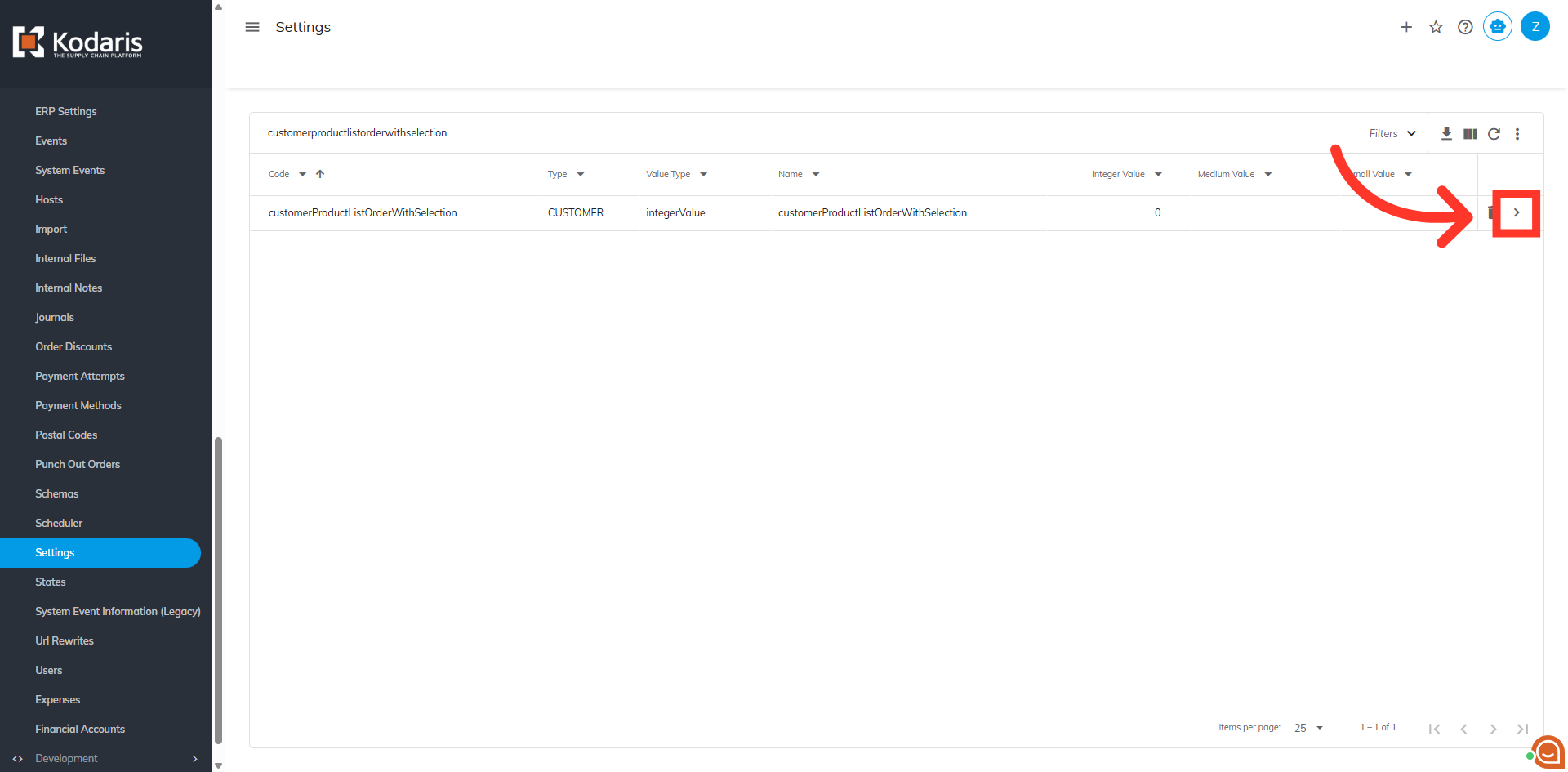
Enter "1" in the "Value" field to enable the setting. Note: When the value is set to "0", all the items on a product list are added to the cart when the customer selects "Start Order" from the list.
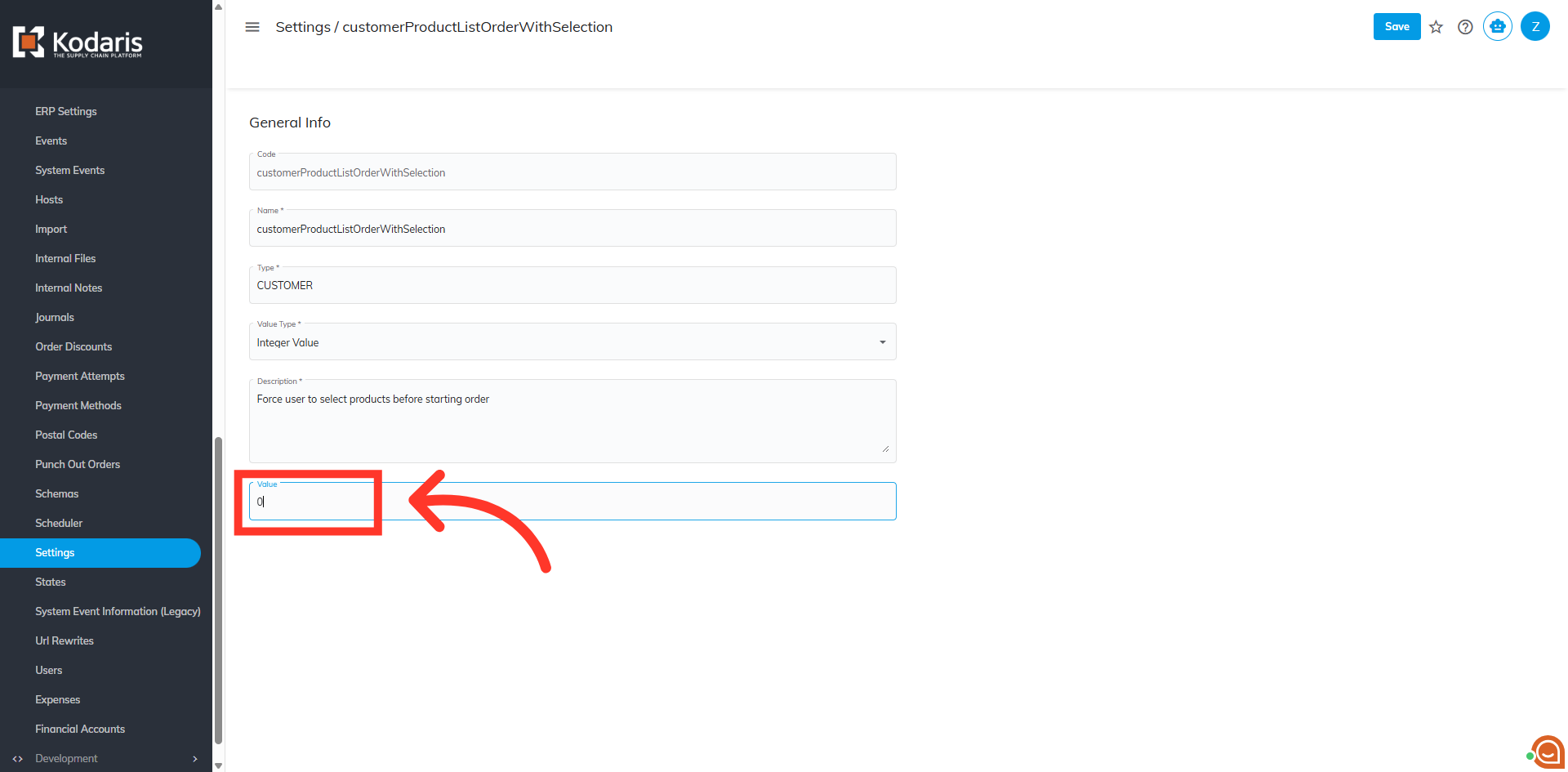
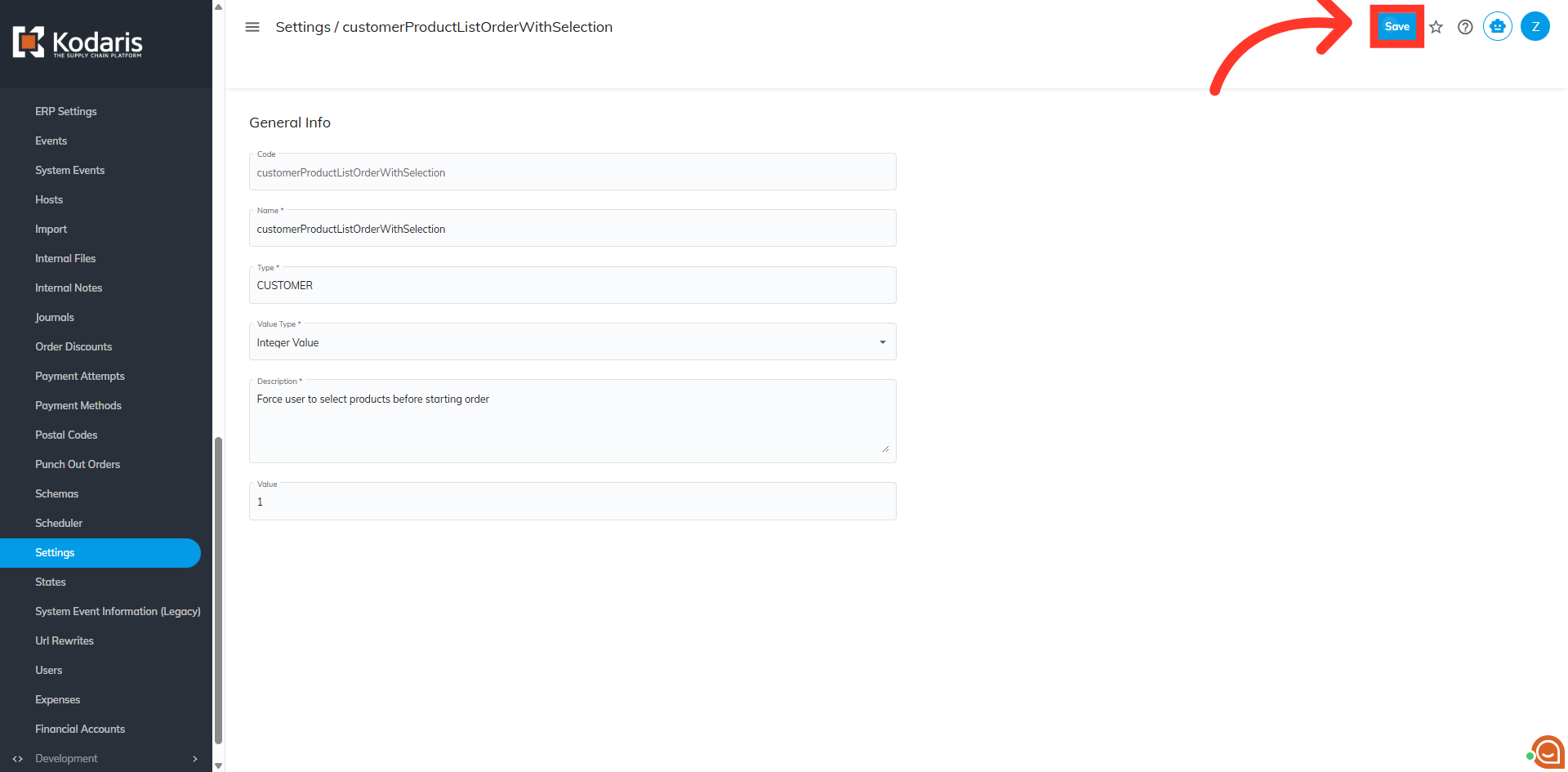
Click "Save" to apply the setting.
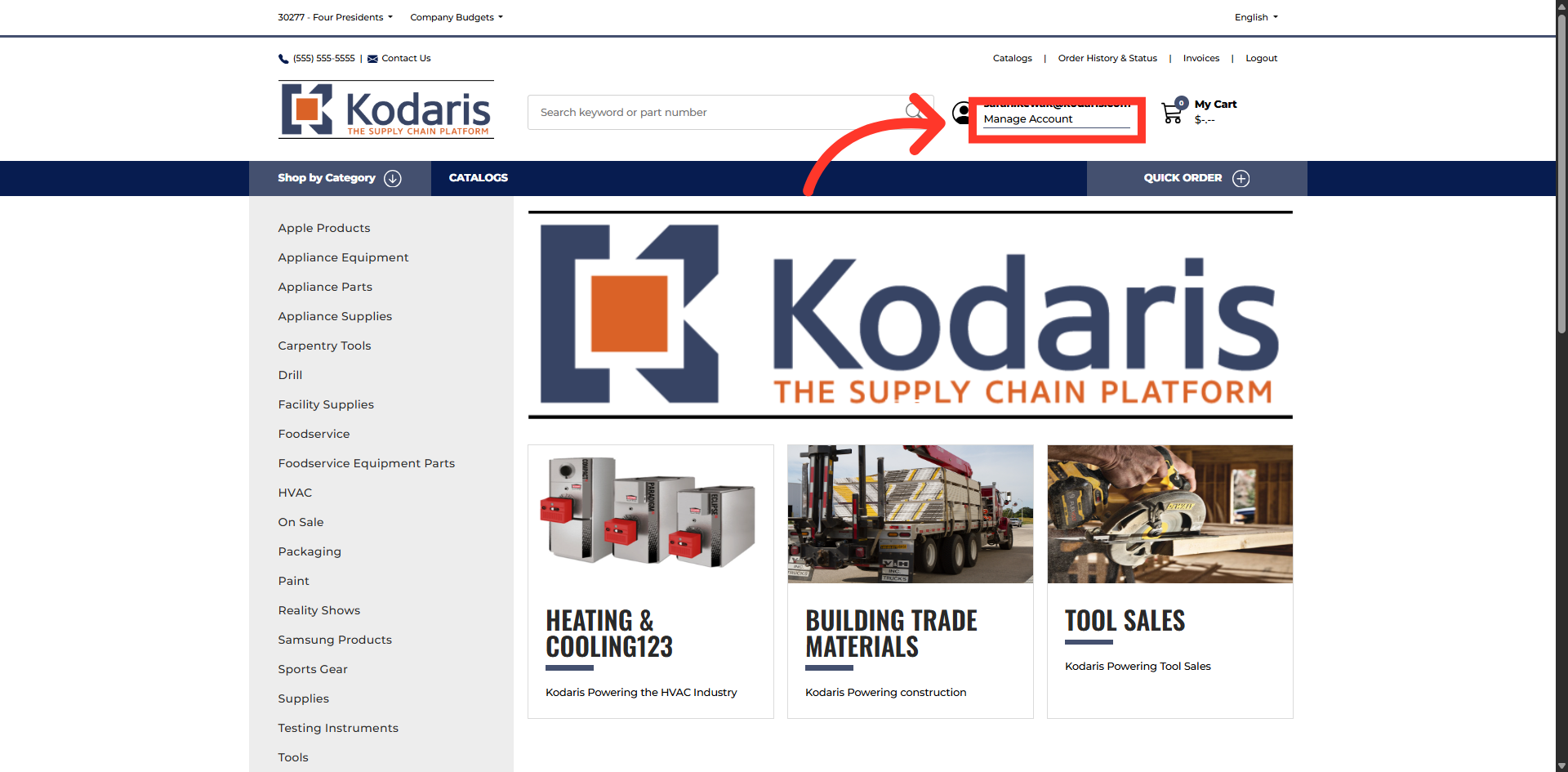
To verify that the setting has been enabled, log in to the commerce site and go to "Manage" Account.
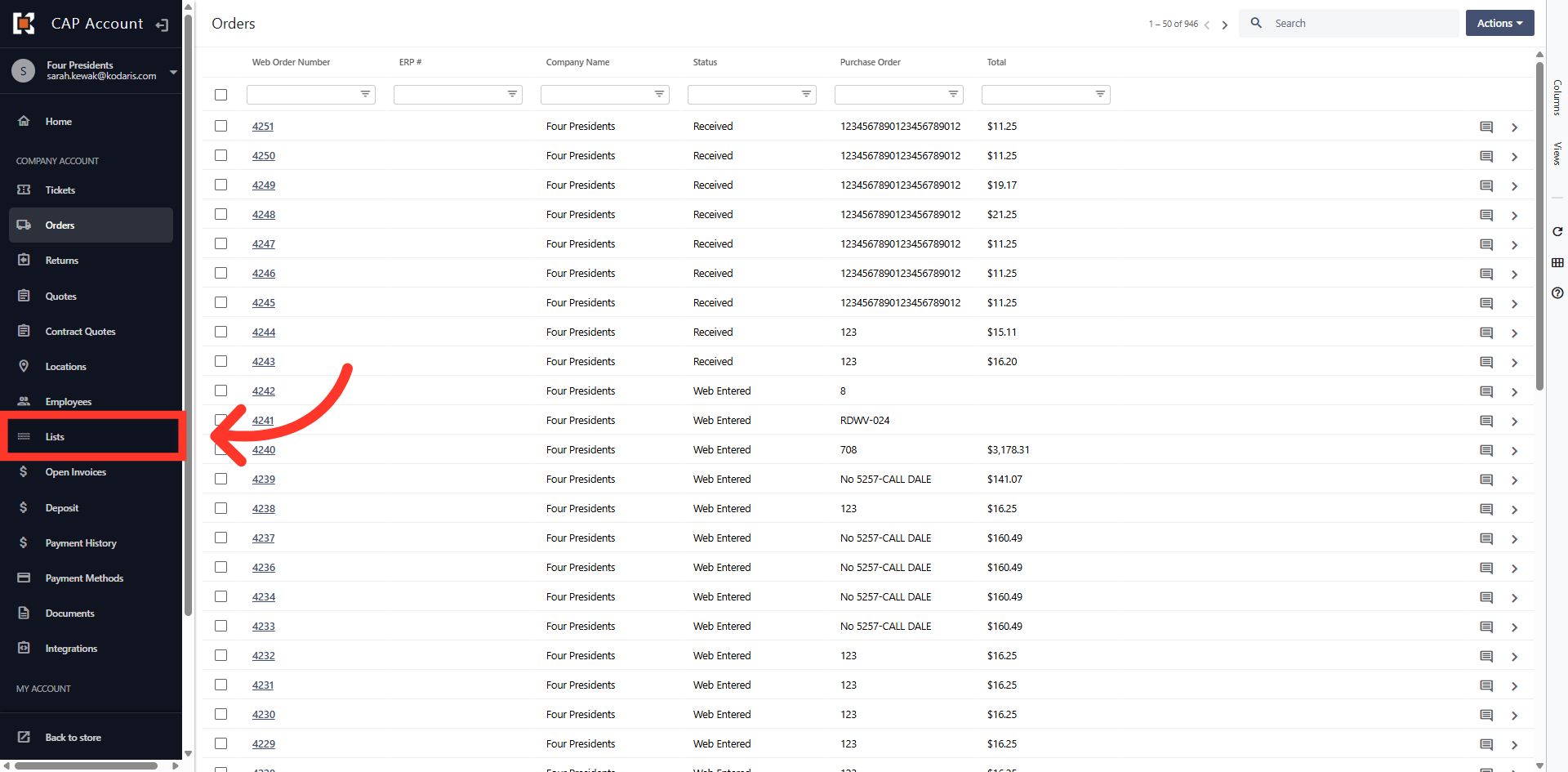
Then, navigate to the "Lists" section to view product lists.
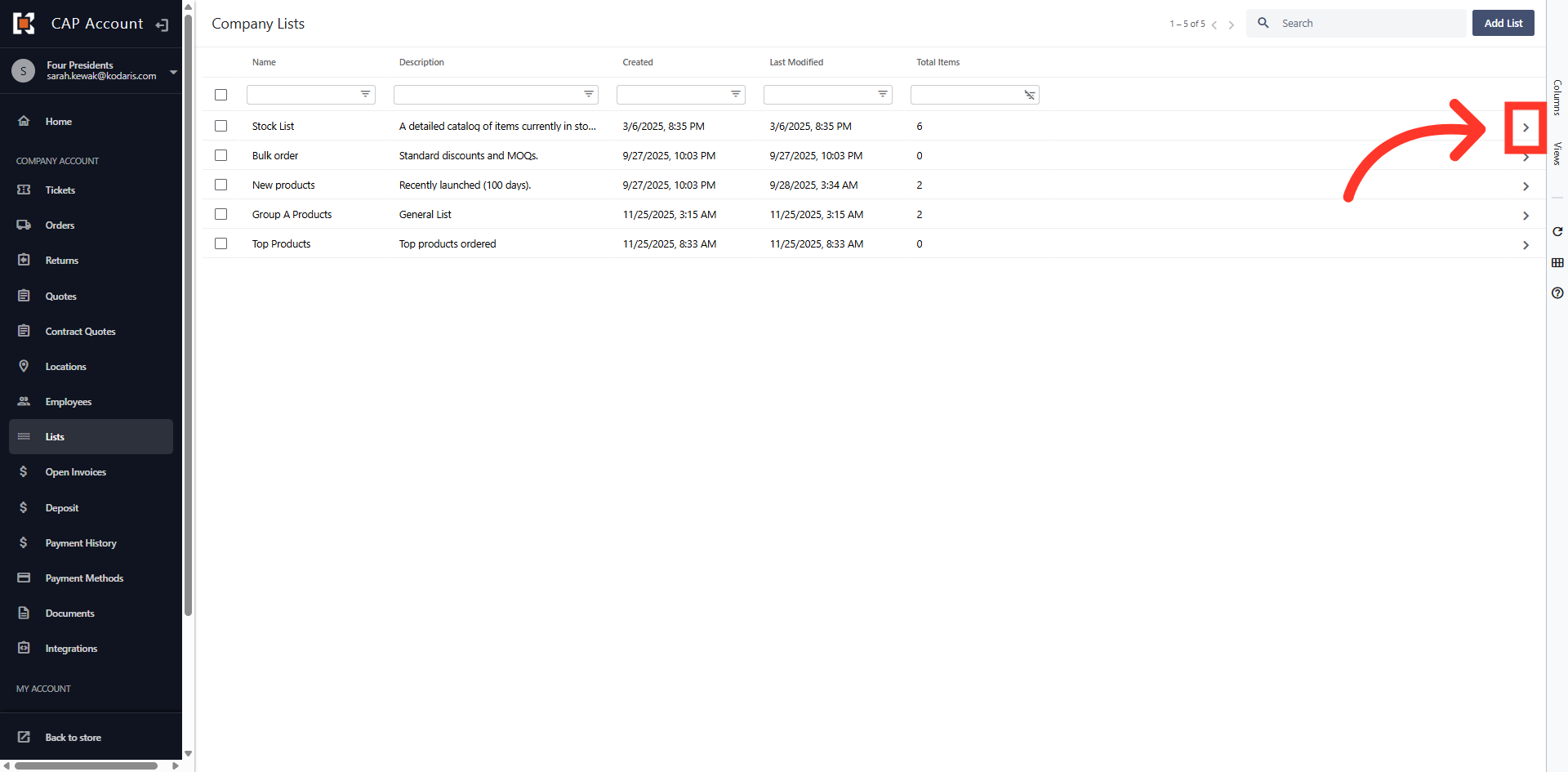
Locate your list and click the more details icon to view the items on the list.
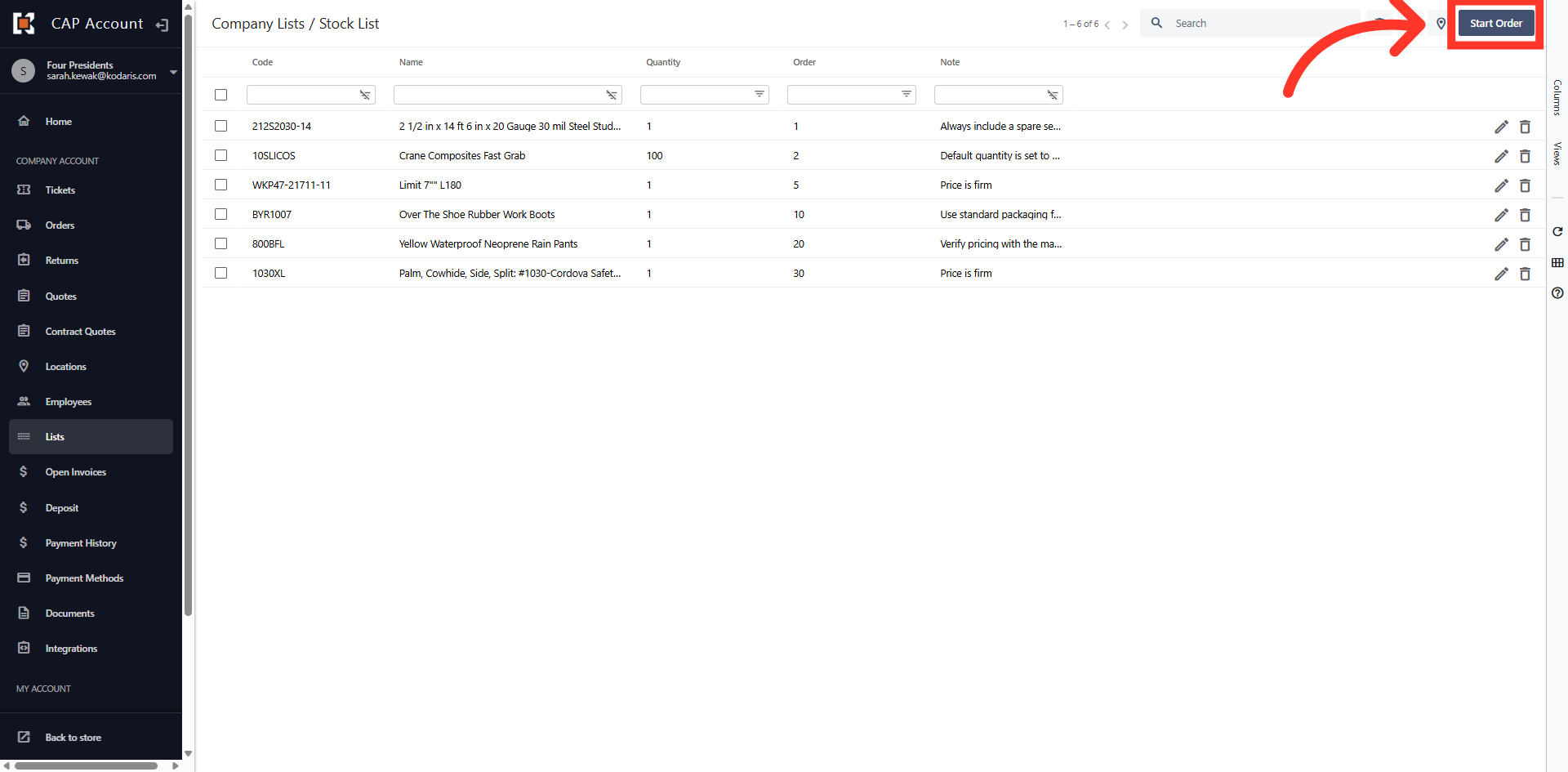
Click "Start Order" button without selecting any items.
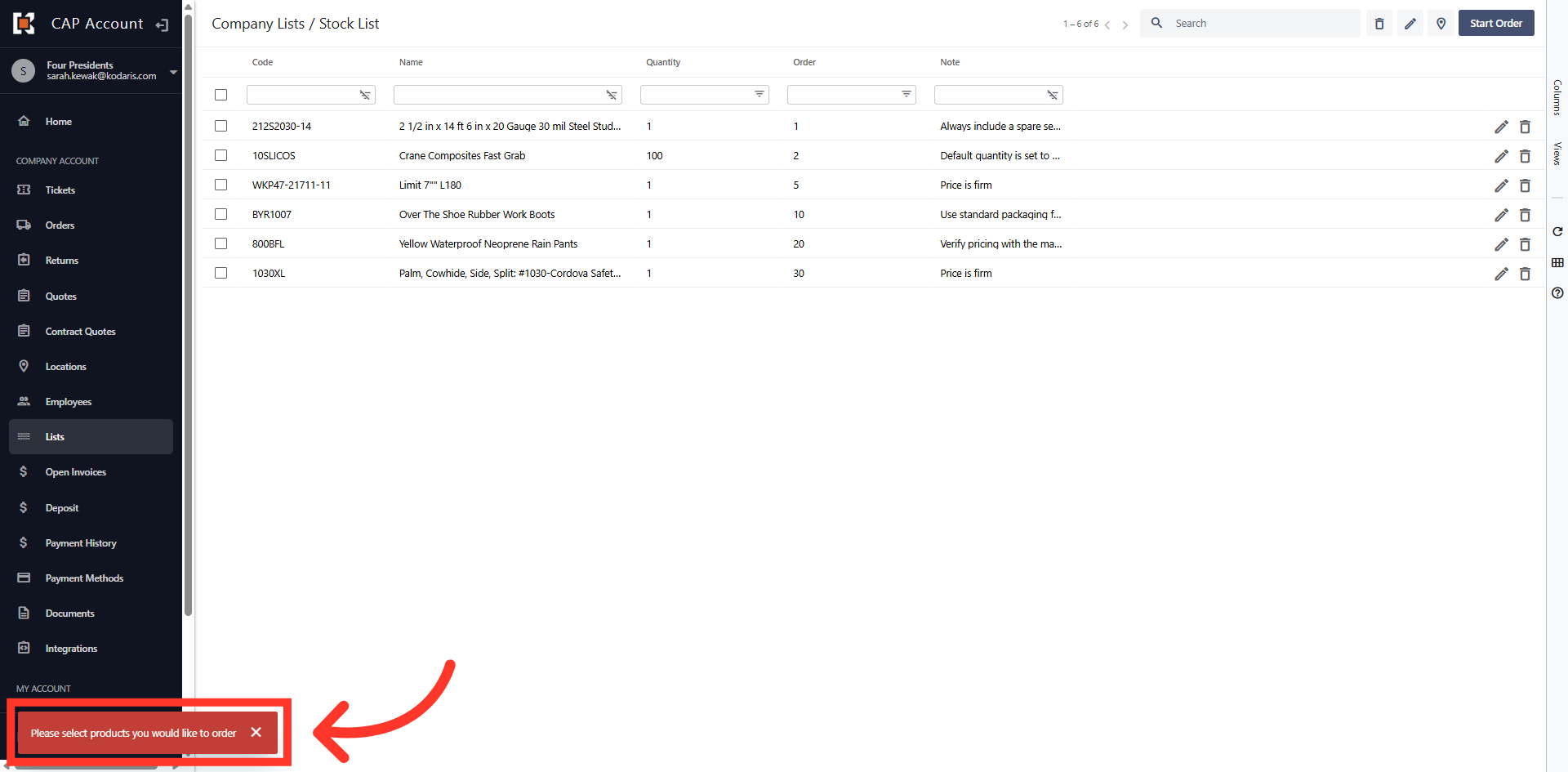
Since you enabled the setting, an error message will appear, asking you to select products you would like to order. Click the "X" to close the error and proceed.
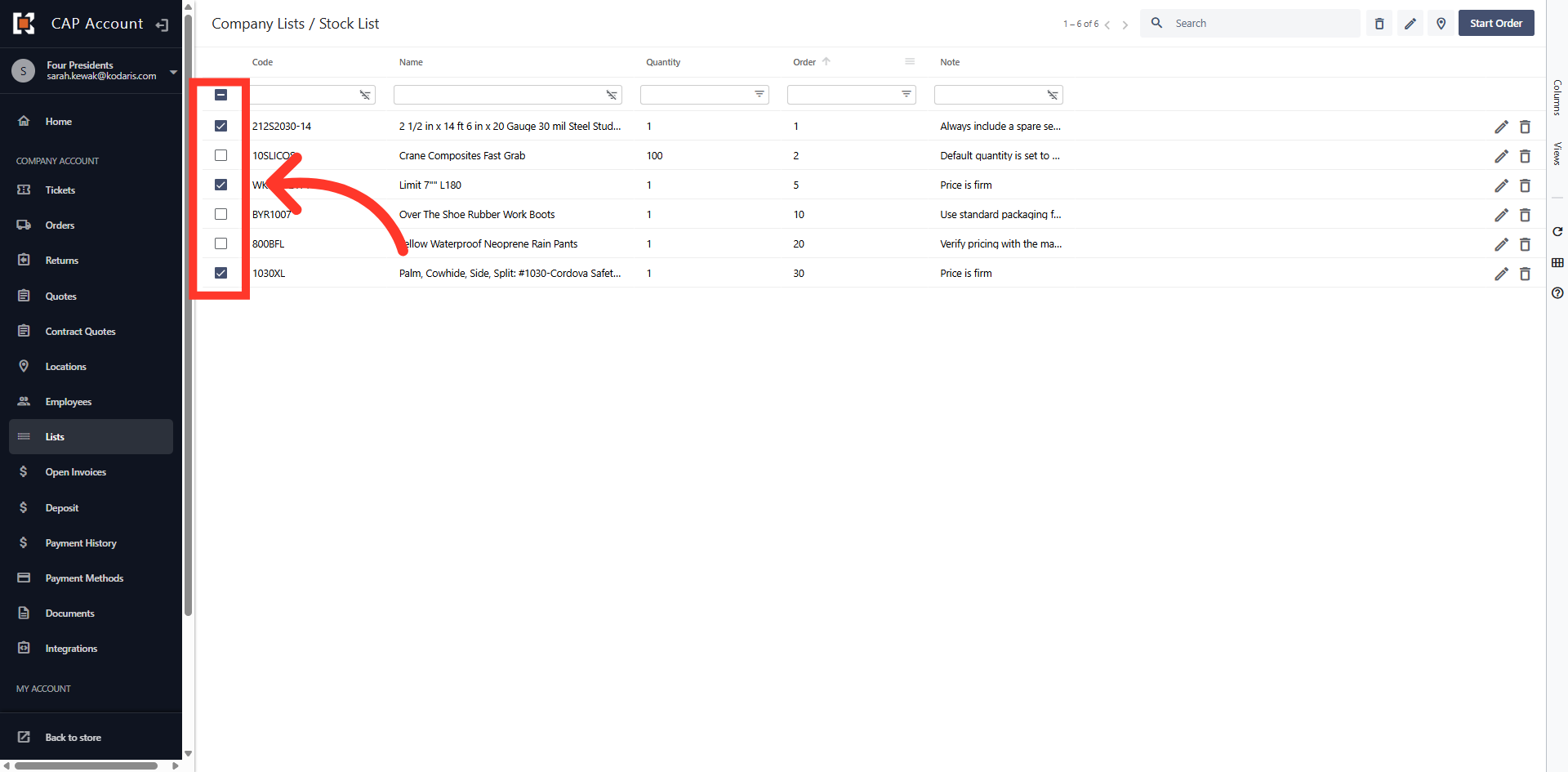
Select the items you wish to add to the order.
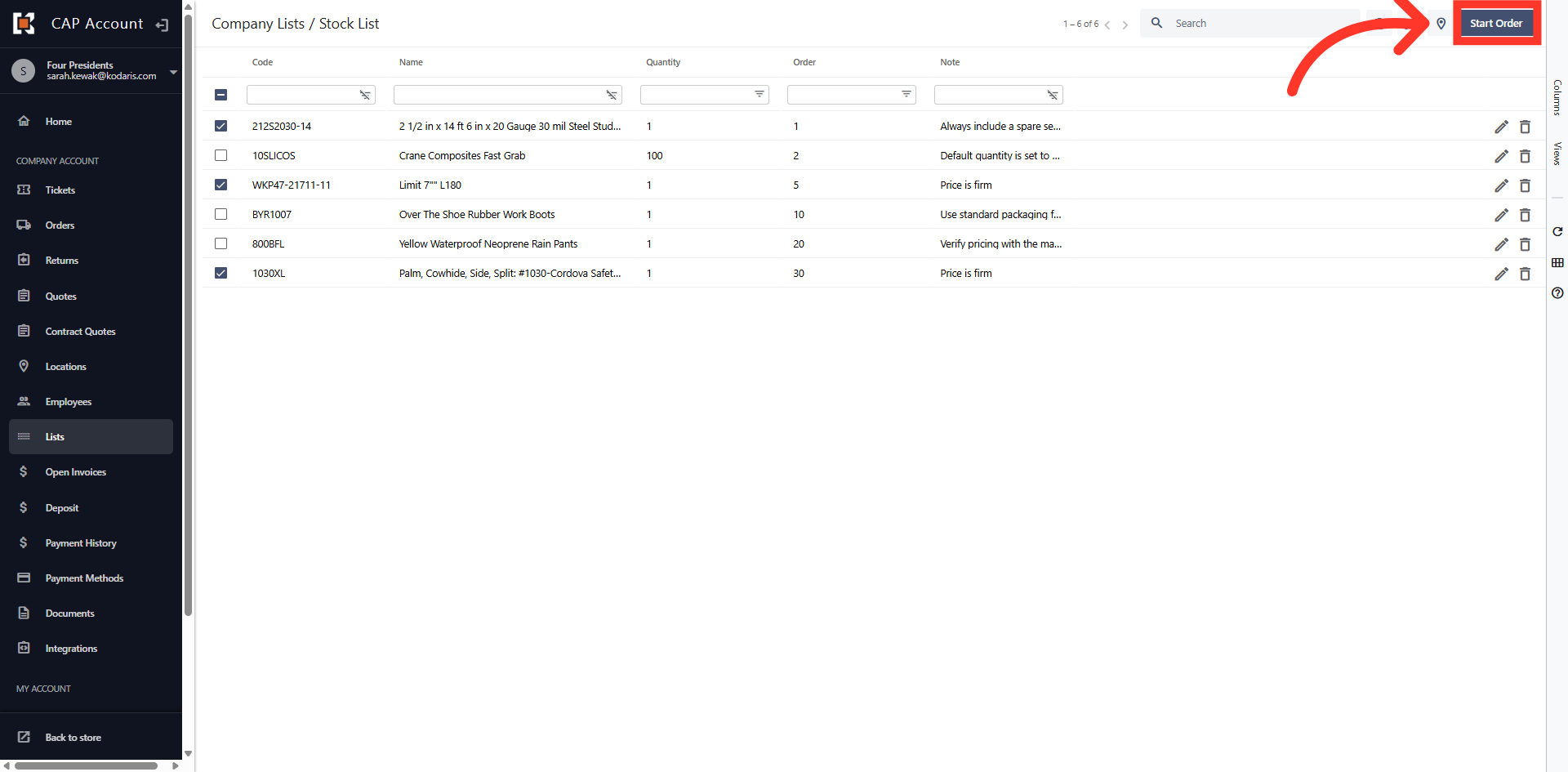
Click "Start Order" to create an order with the selected items.
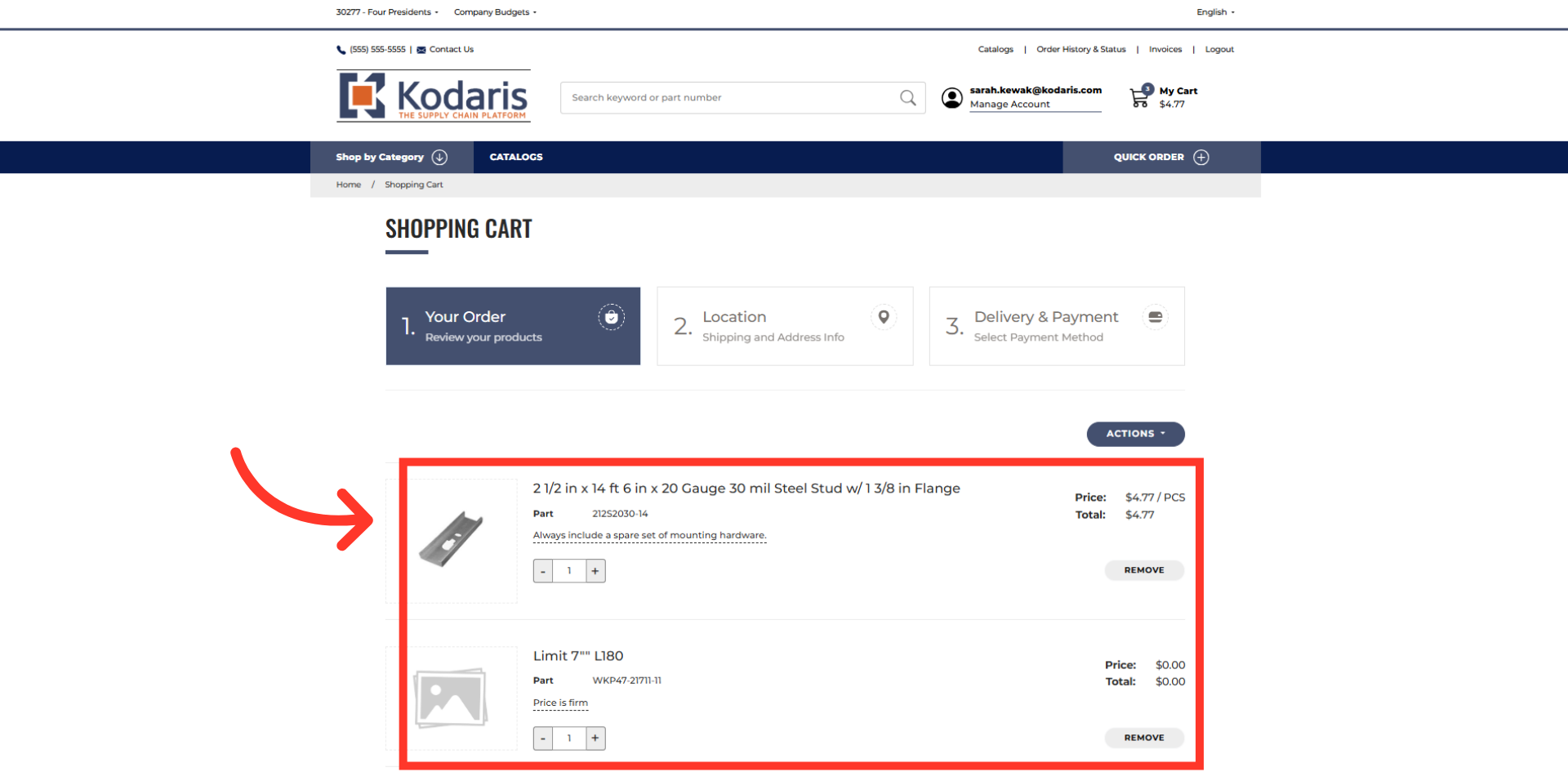
The items have successfully been added to the shopping cart.