Product Documentation
Product Documentation
Product Documentation
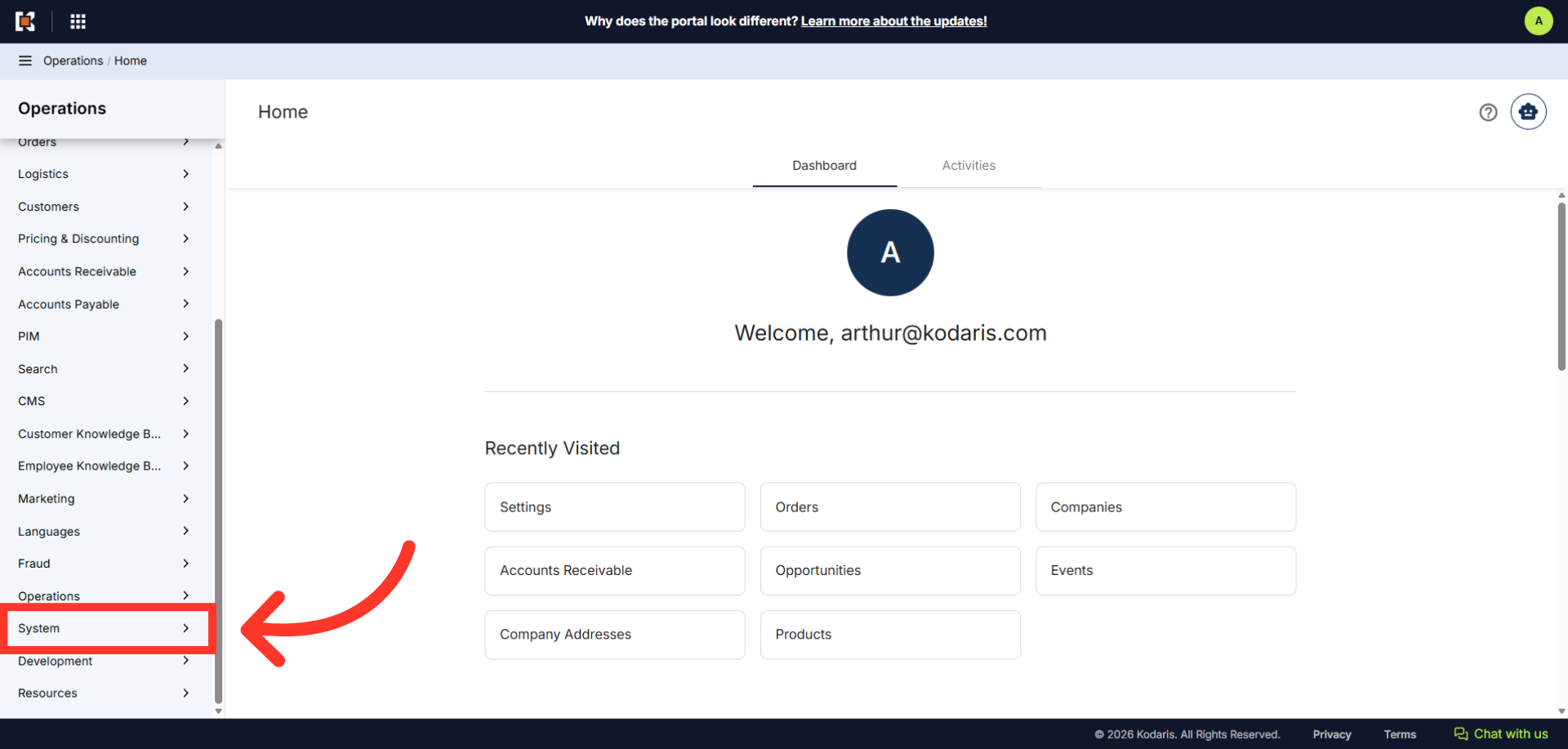
To configure the "Company Customer Type" field dropdown, navigate to the "System" section in the Operations Portal.
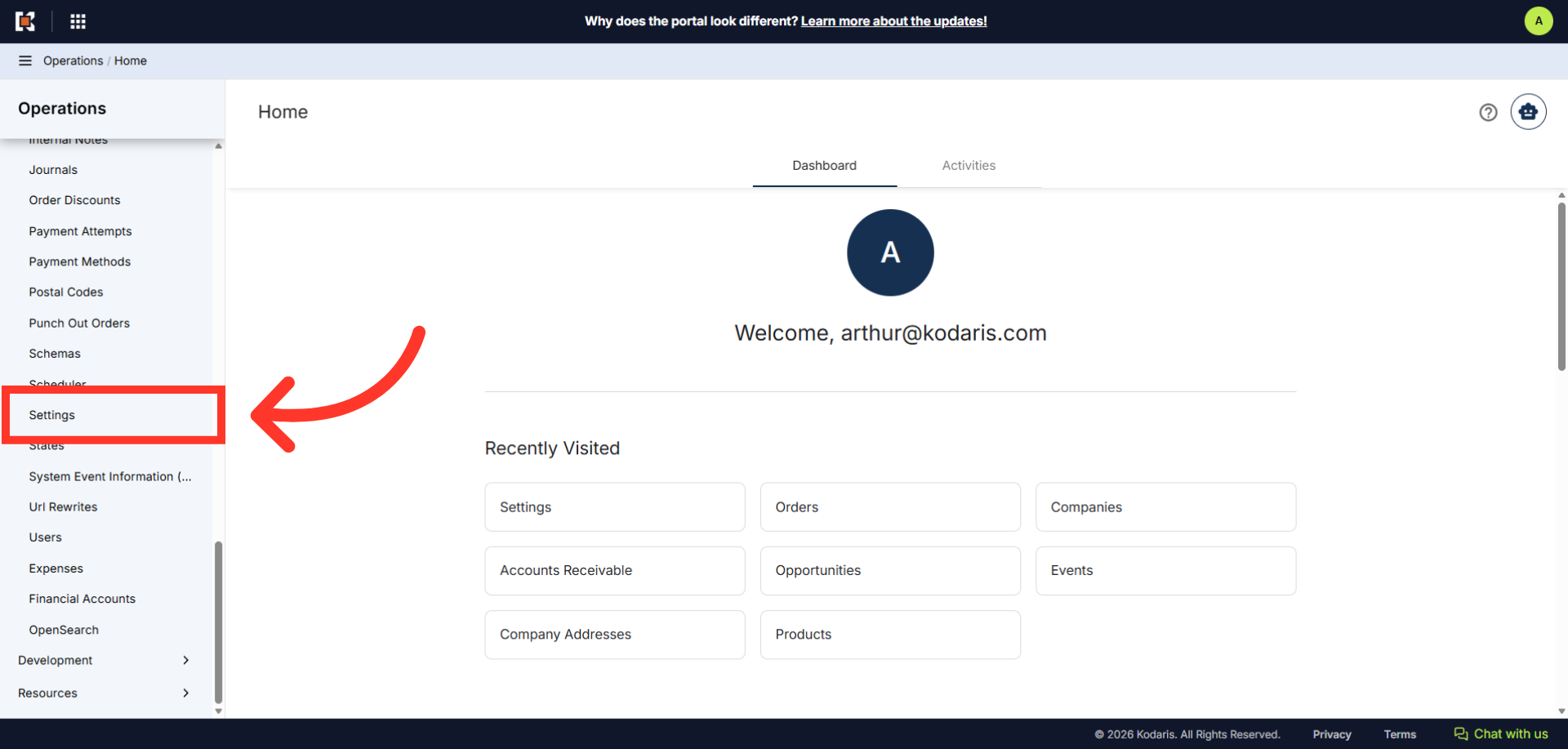
Then, click "Settings". In order to access and edit settings, you will need to be set up either as an "administrator" or a "superuser", or have the following roles: "settingEdit".
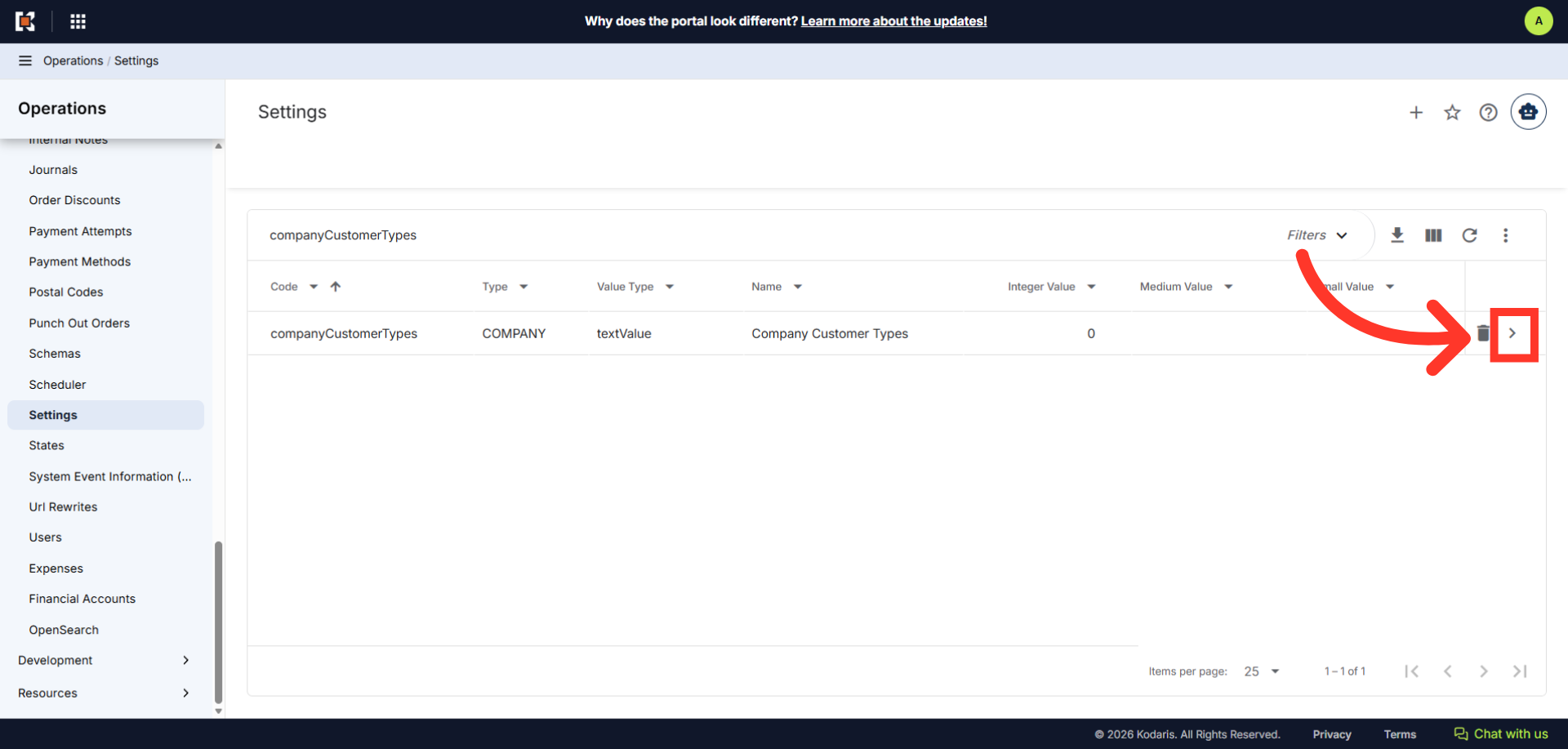
Search for "companyCustomerTypes".
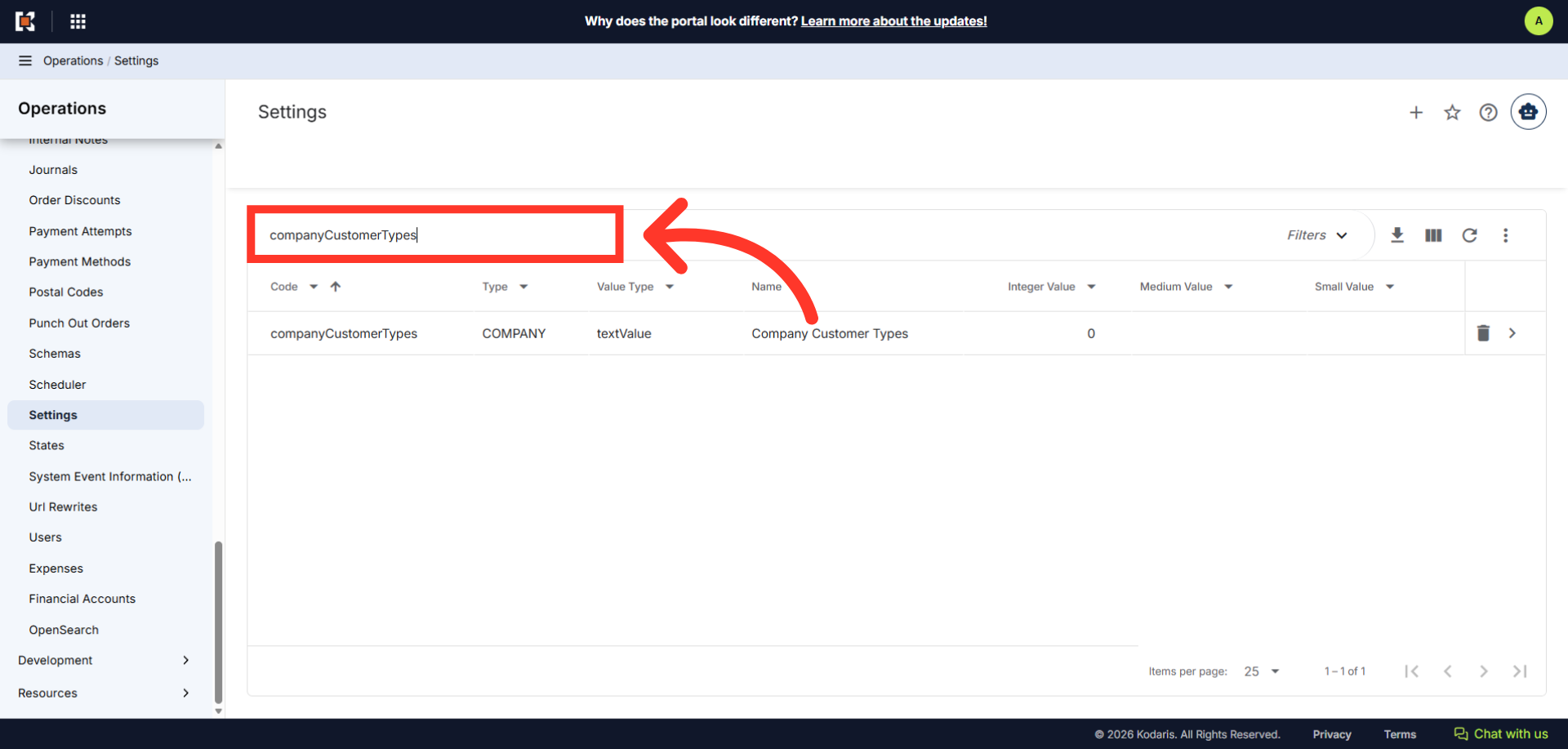
Click on the more details icon.
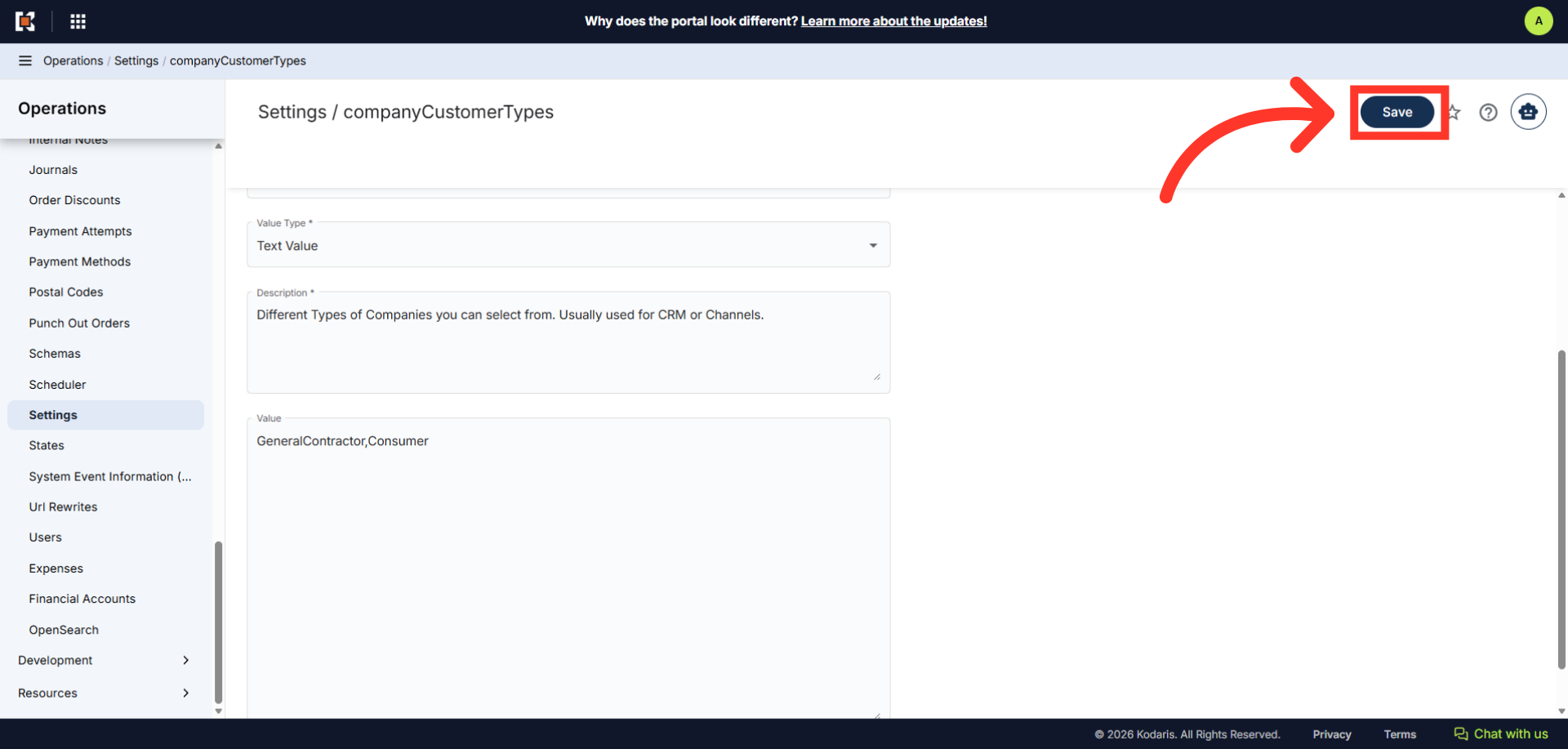
In the "Value" field, enter the company customer types you would like to add, separated by commas.
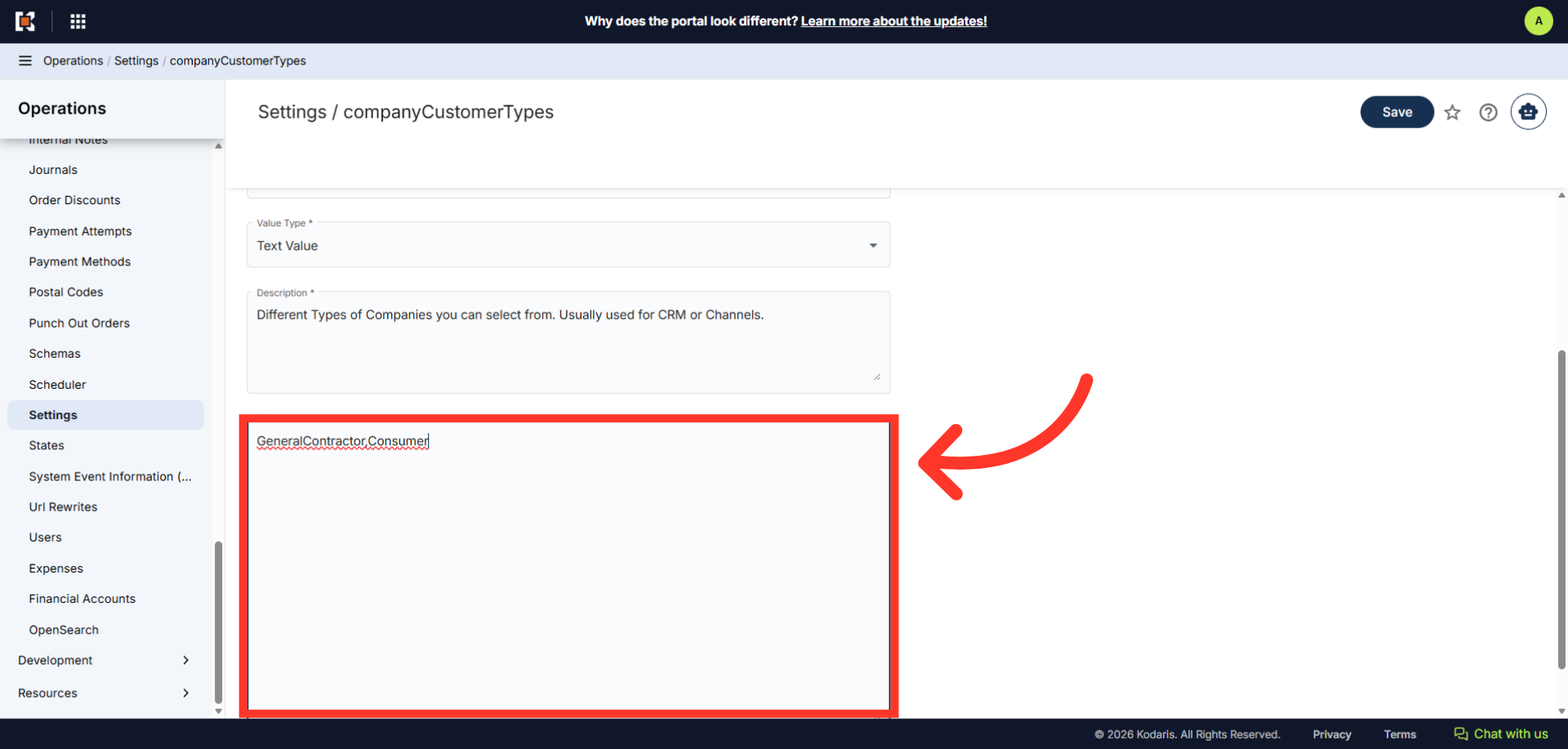
Once done, click the "Save" button to apply the changes. These values will now be configured for the "Company Customer Type" option.