Product Documentation
Product Documentation
Product Documentation
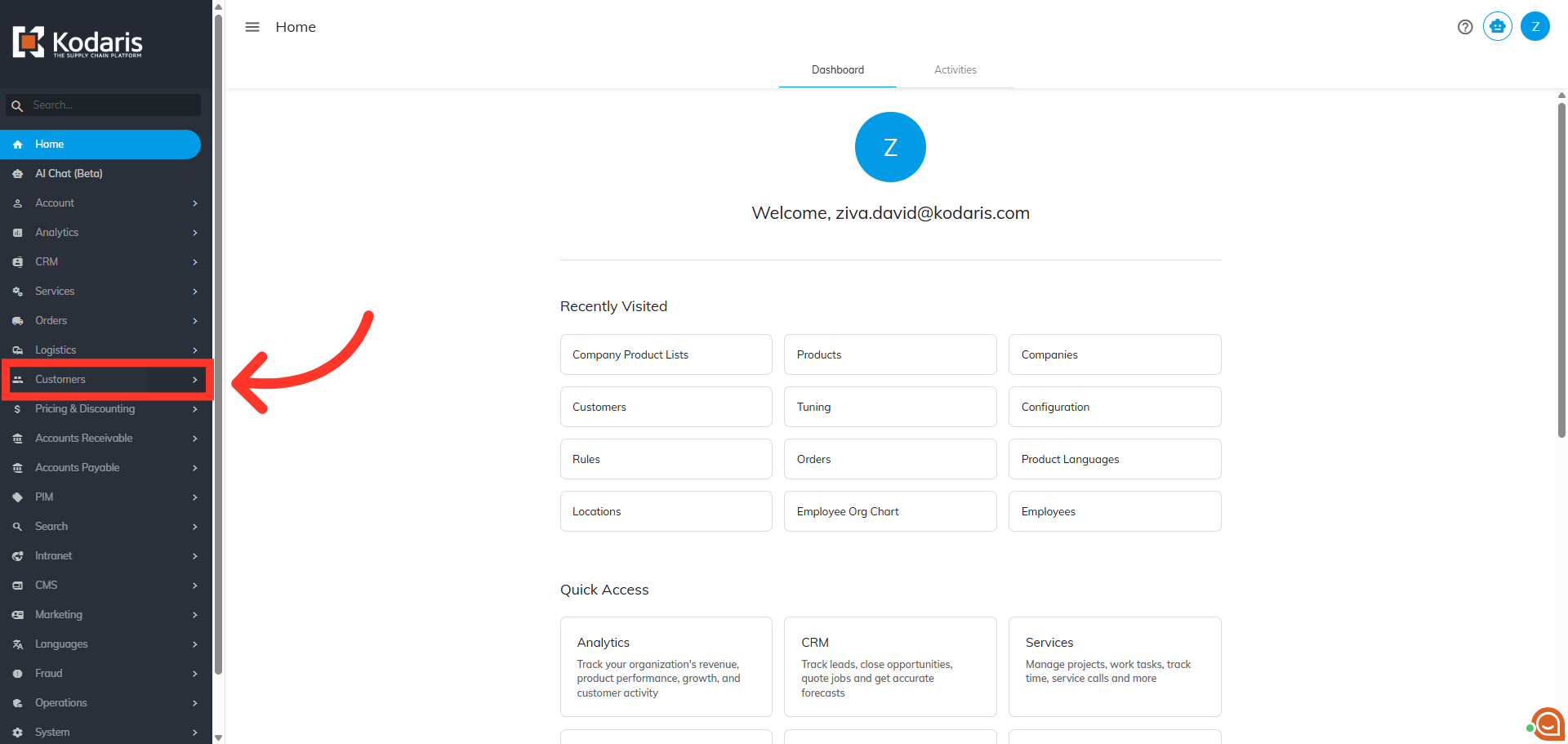
To export all the "Customer Product Lists", you will first need to navigate to the "Customers" section in the Operations Portal.
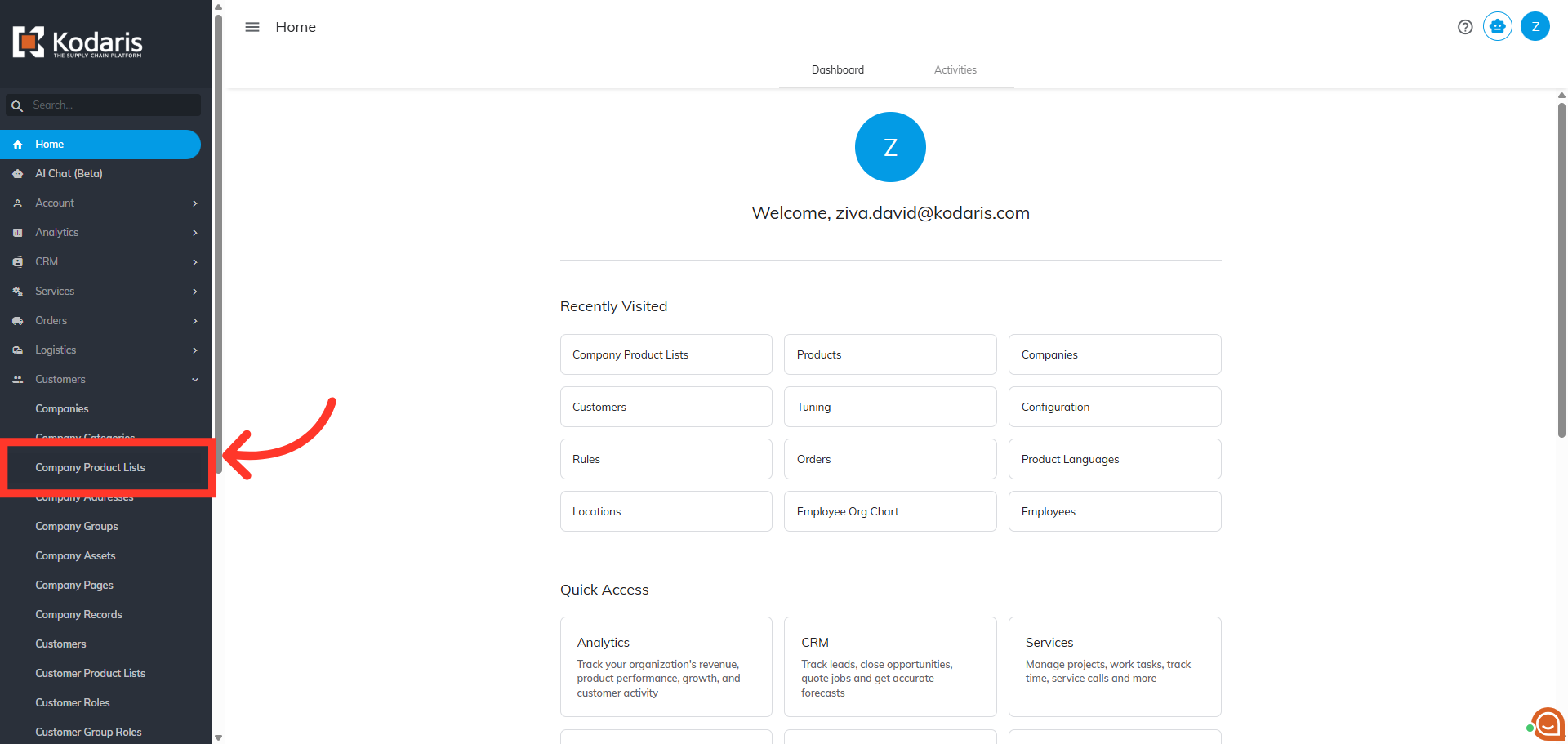
Then, click "Company Product Lists". In order to access and update “Company Product Lists” you will need to be set up either as an “administrator” or a “superuser”, or have the roles of: “companyWishListView” and “companyWishListEdit”.
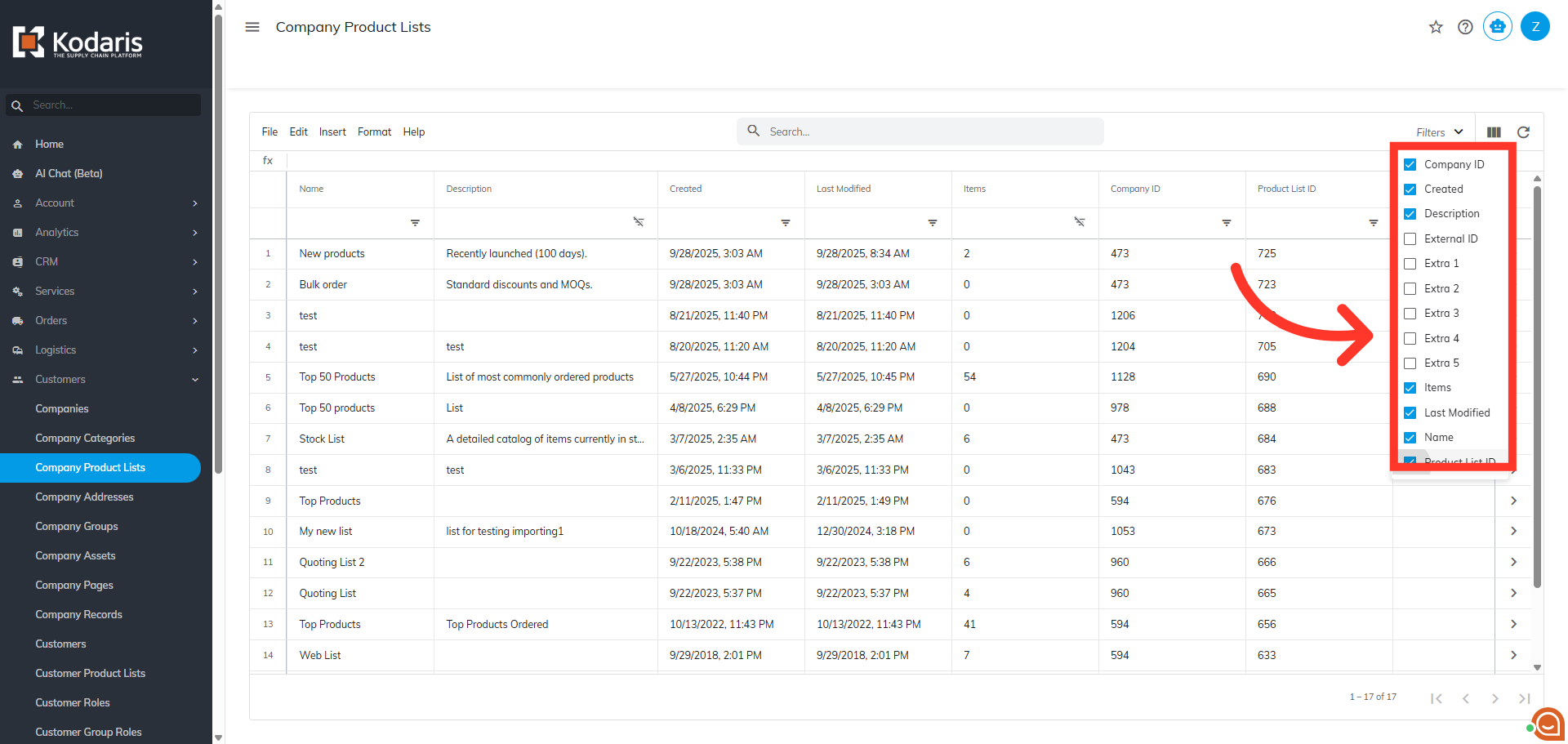
Click the "Show/Hide Columns" icon to customize which columns are displayed.
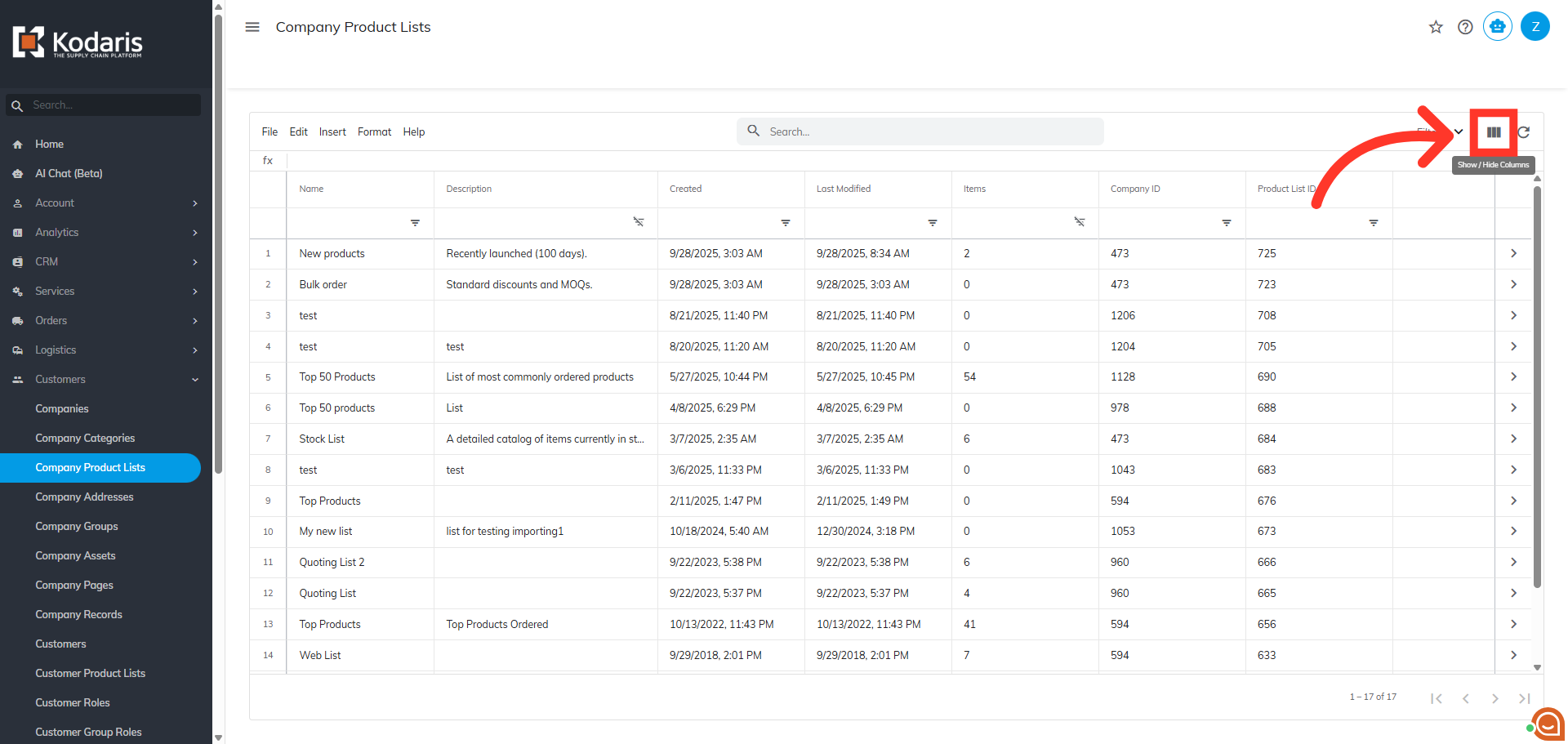
Choose the columns you would like to add to your export.
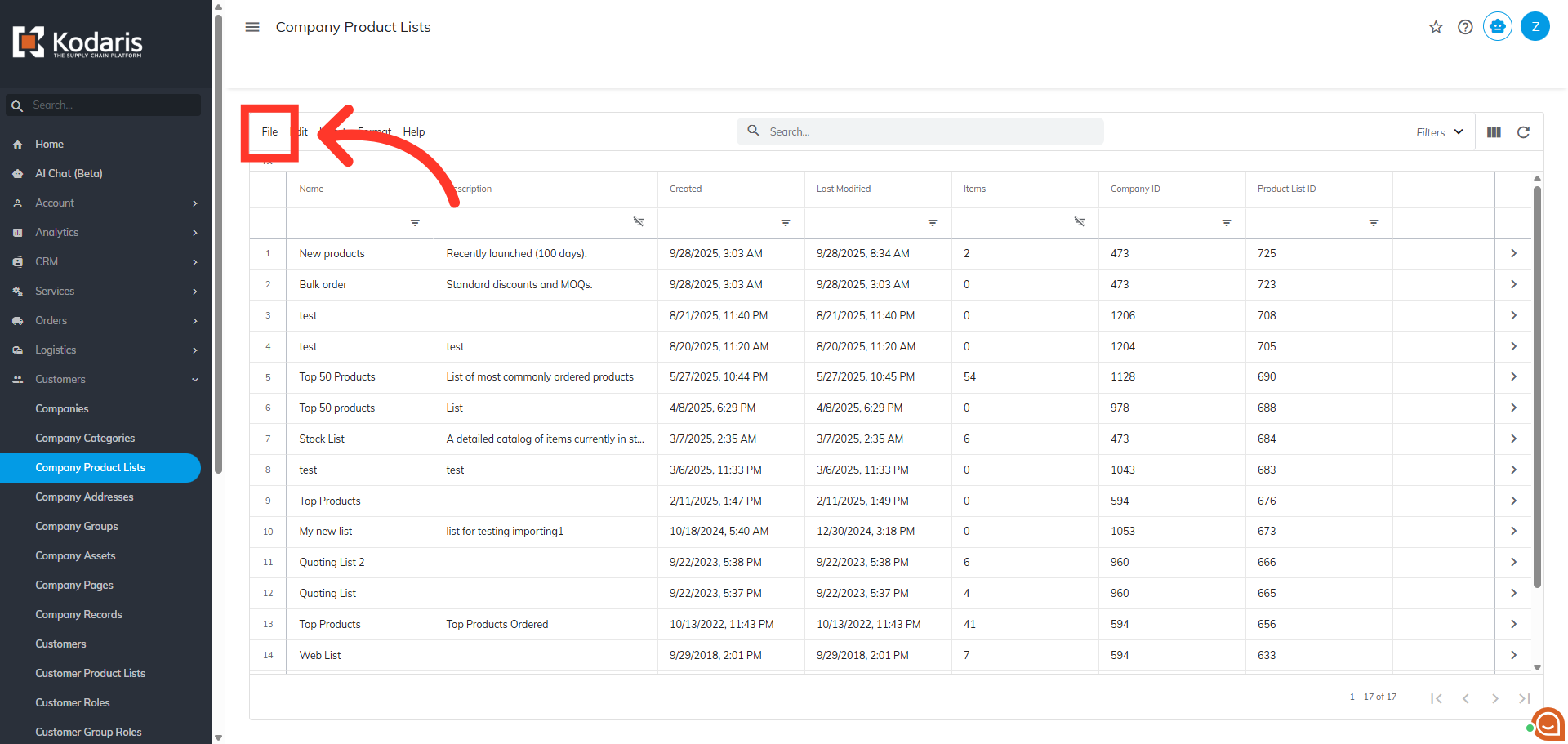
Next, click "File".
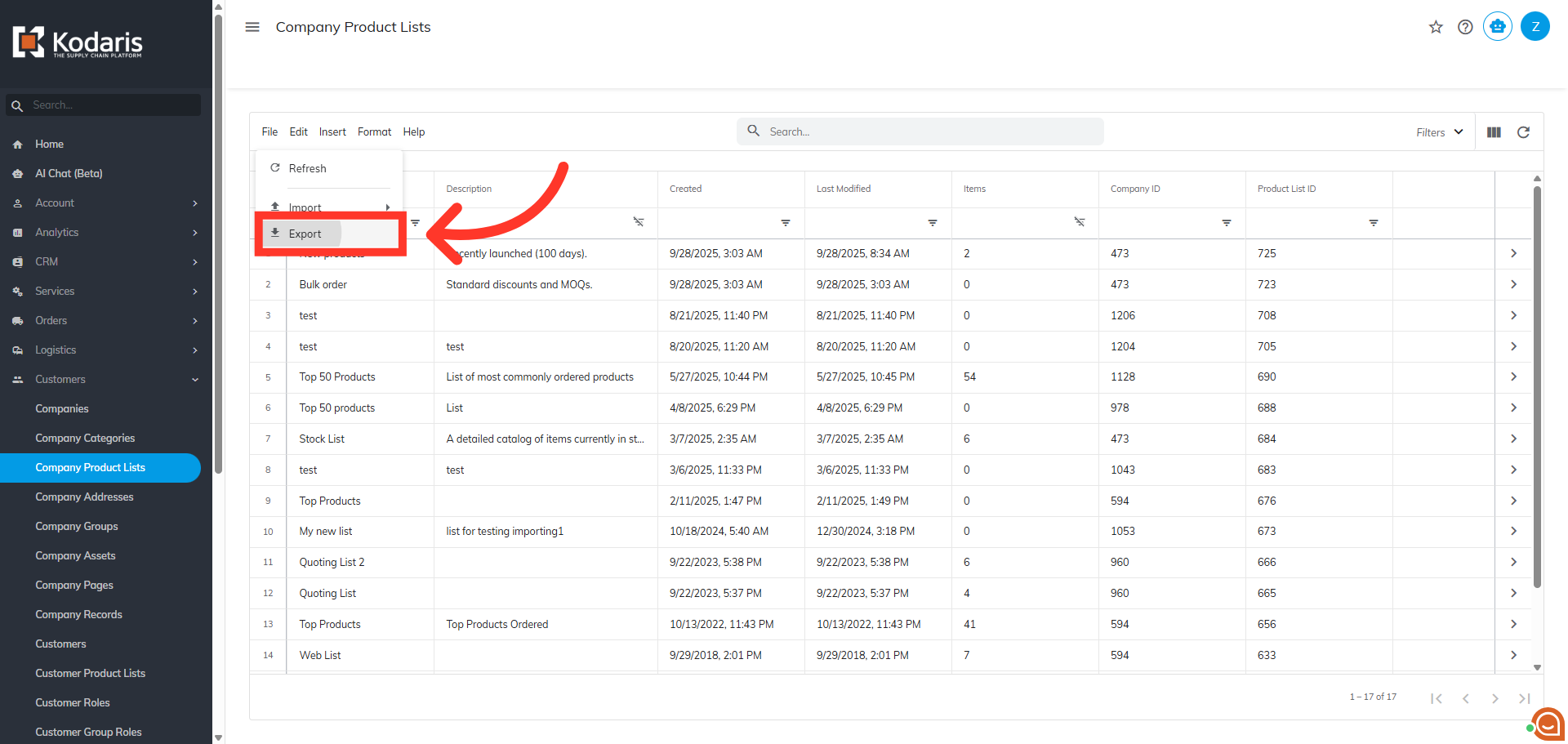
Then, select "Export".
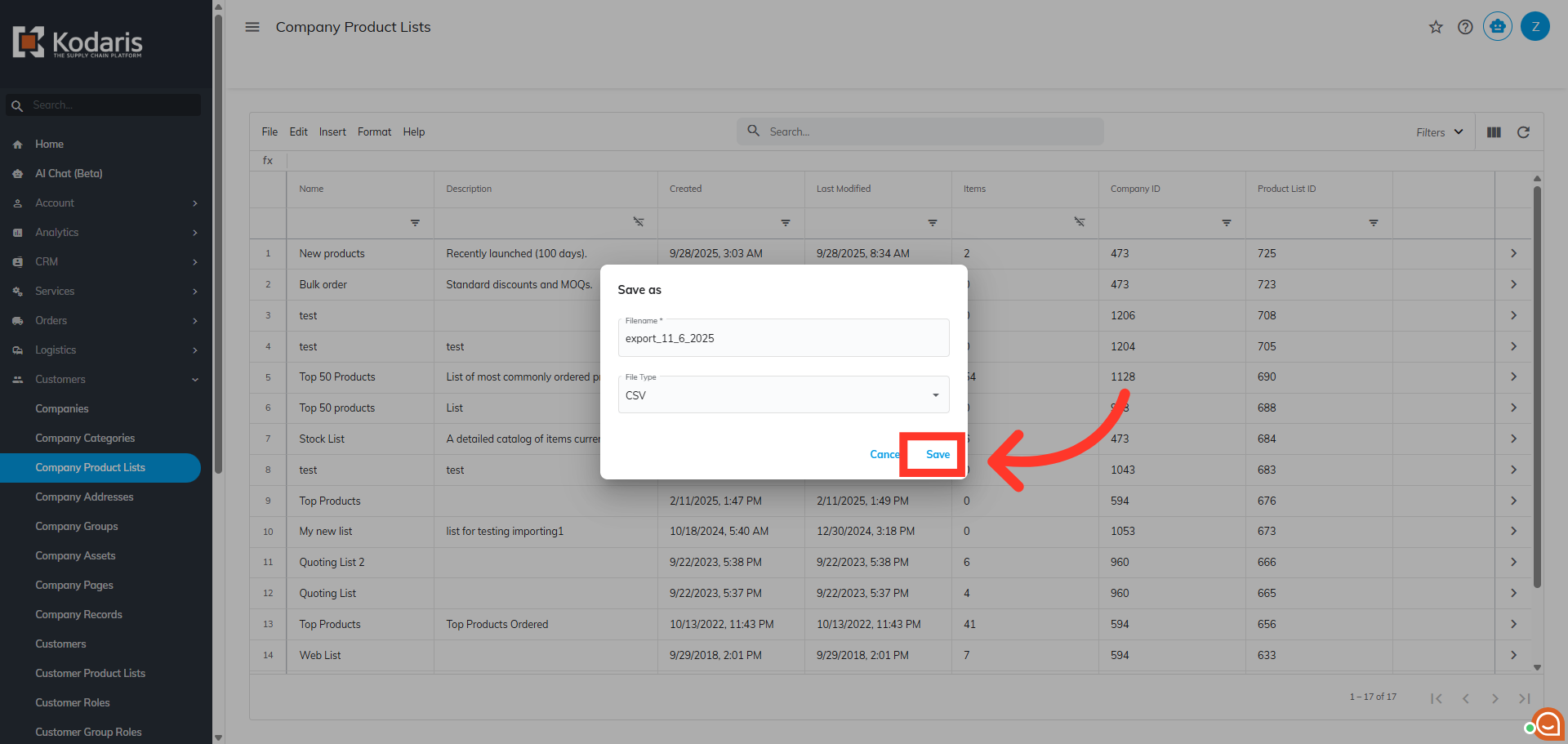
Enter a file name for the export or use the pre-populated default name.
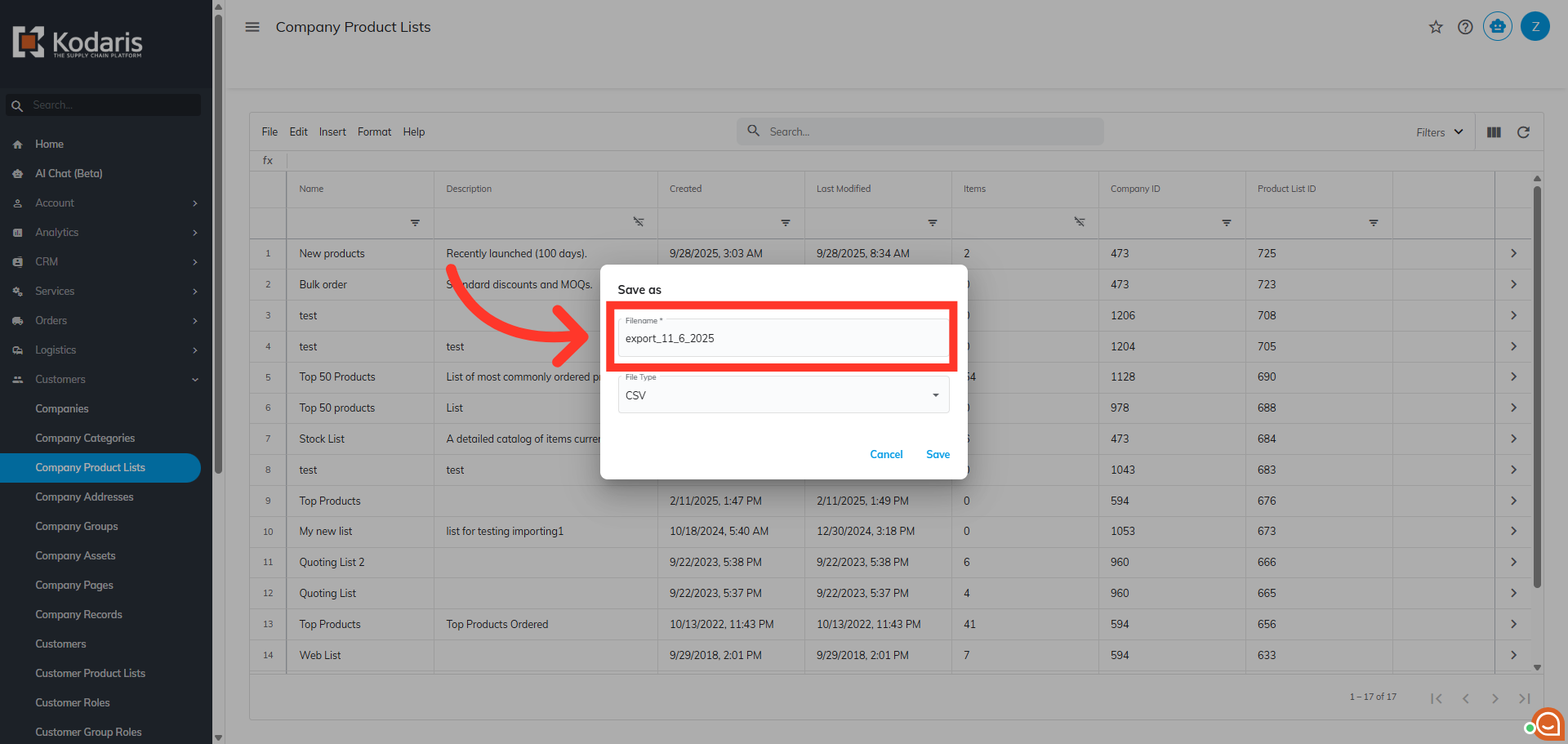
Then, click "Save". The file will be downloaded to your computer.