Product Documentation
Product Documentation
Product Documentation
To print or email receipts from payments that customers have made, navigate to the "Accounts Receivable" section in the Operations Portal.
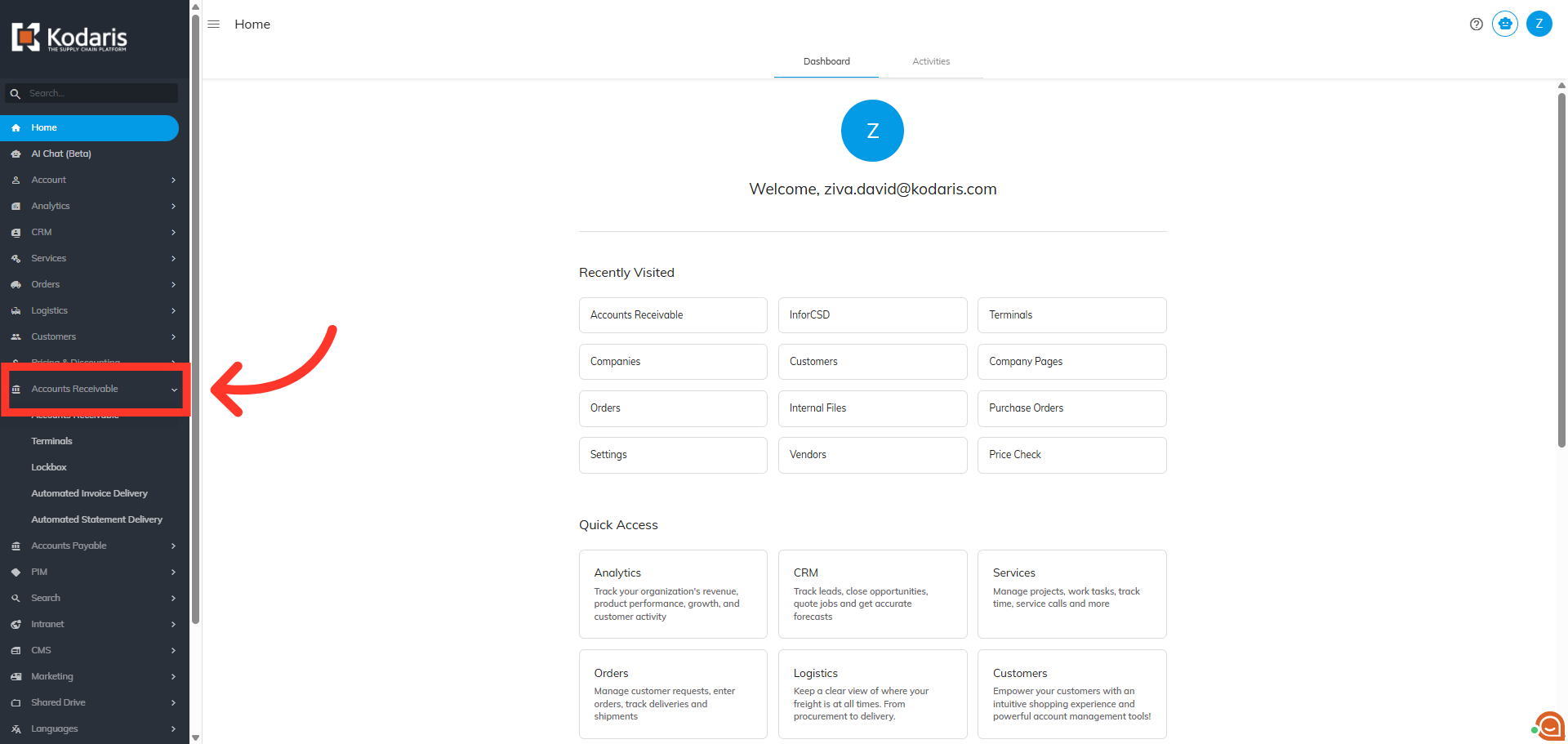
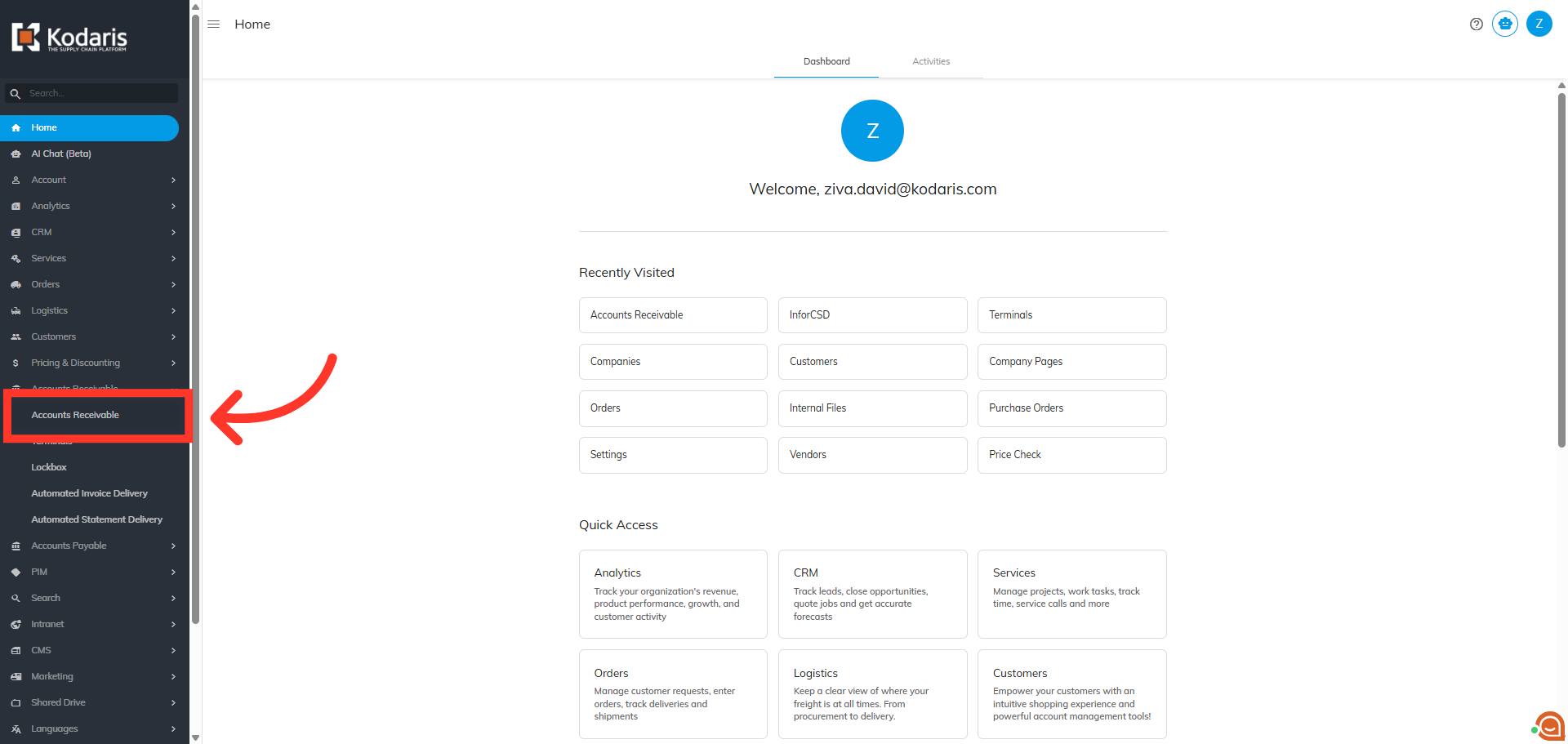
Then, click "Accounts Receivable". In order to access "Accounts Receivable" you will need to be set up either as an "administrator" or a "superuser", or “accountant” or have the following roles: "paymentEdit” and “paymentView”.
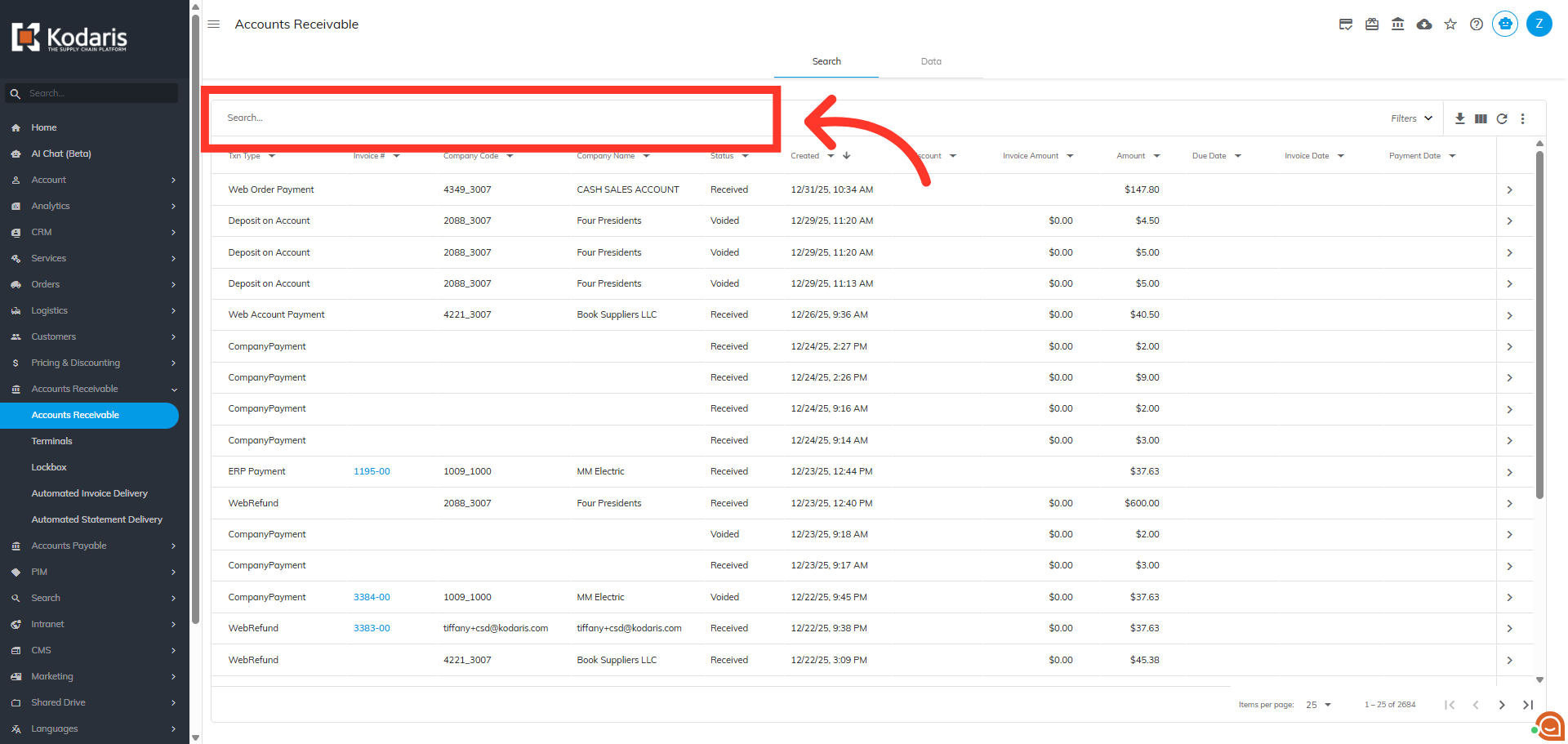
Search for the payment you wish to view in the "Search" field.
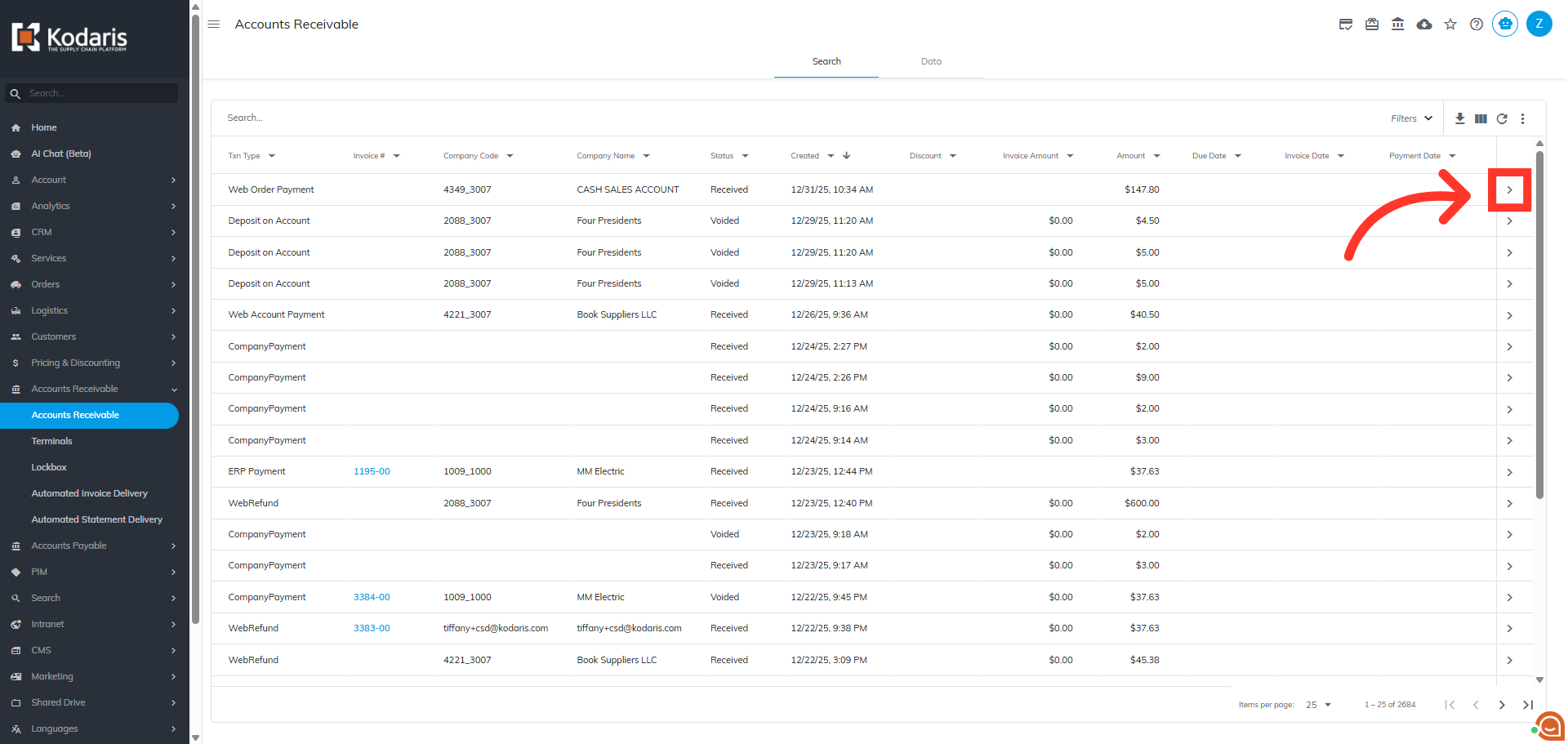
Then, click the more details icon on the payment you wish to view.
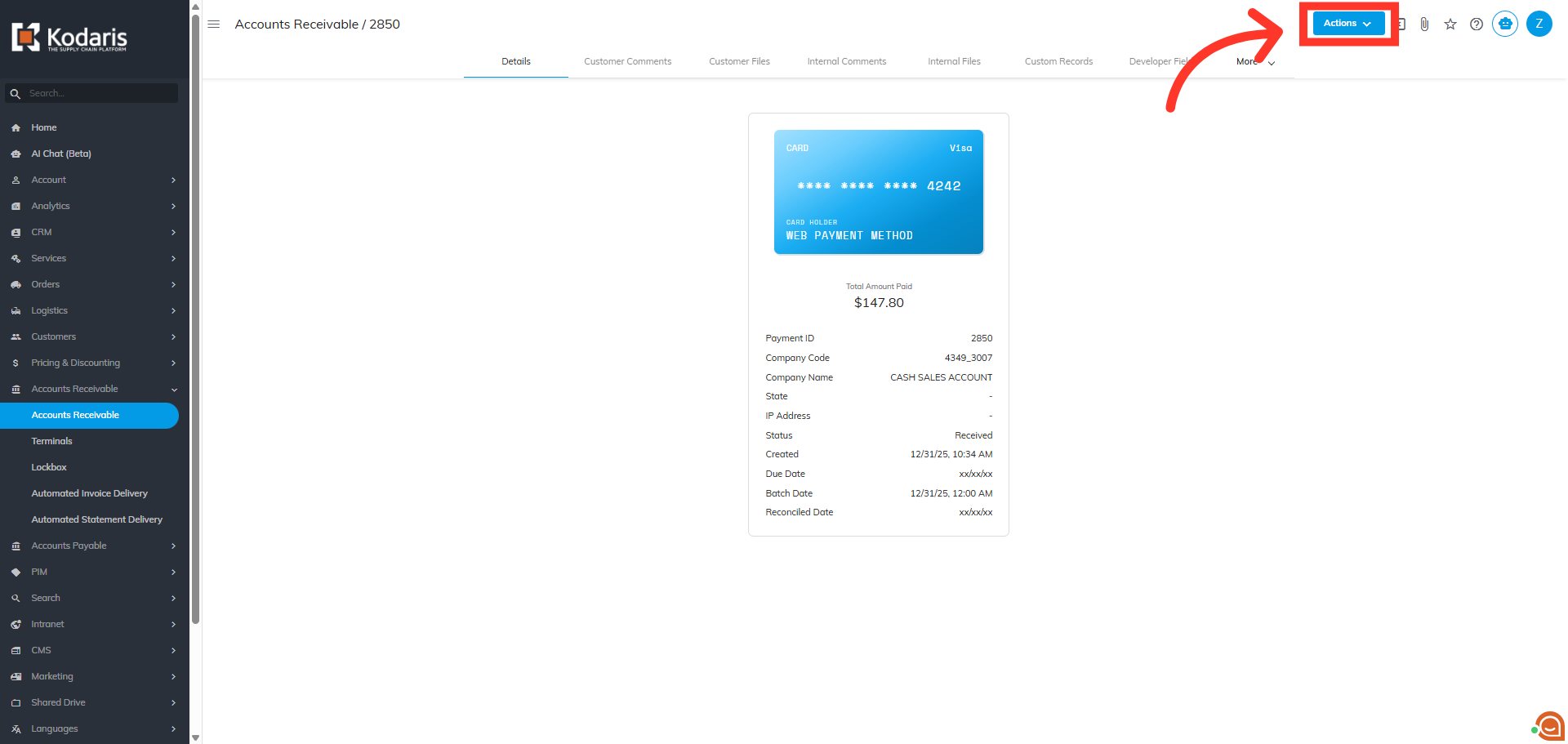
Next, click the "Actions" button on the upper right-hand corner of the screen.
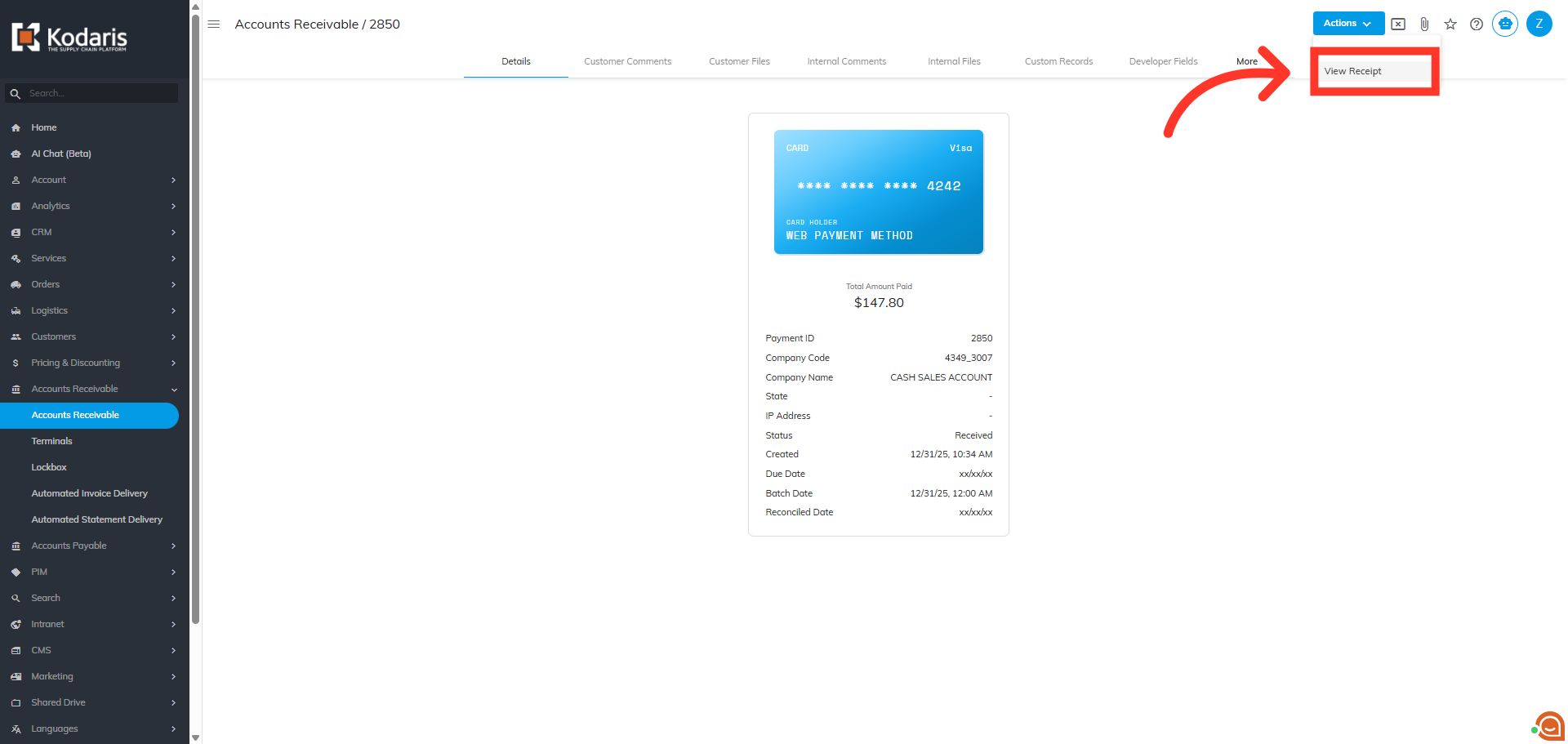
Click "View Receipt" to display the detailed information of the receipt.
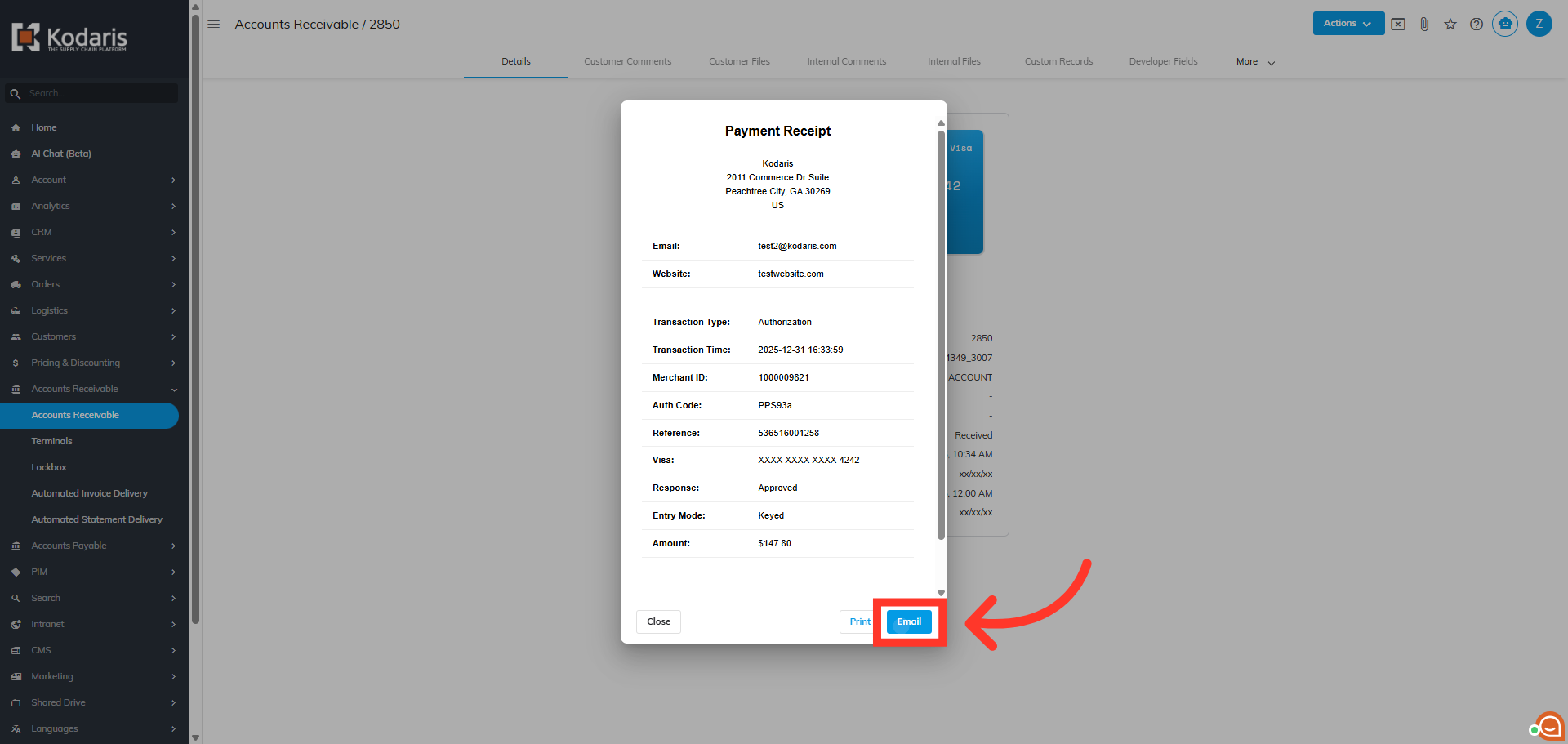
Click the "Print" button to generate a physical copy of the receipt for record-keeping or customer use.
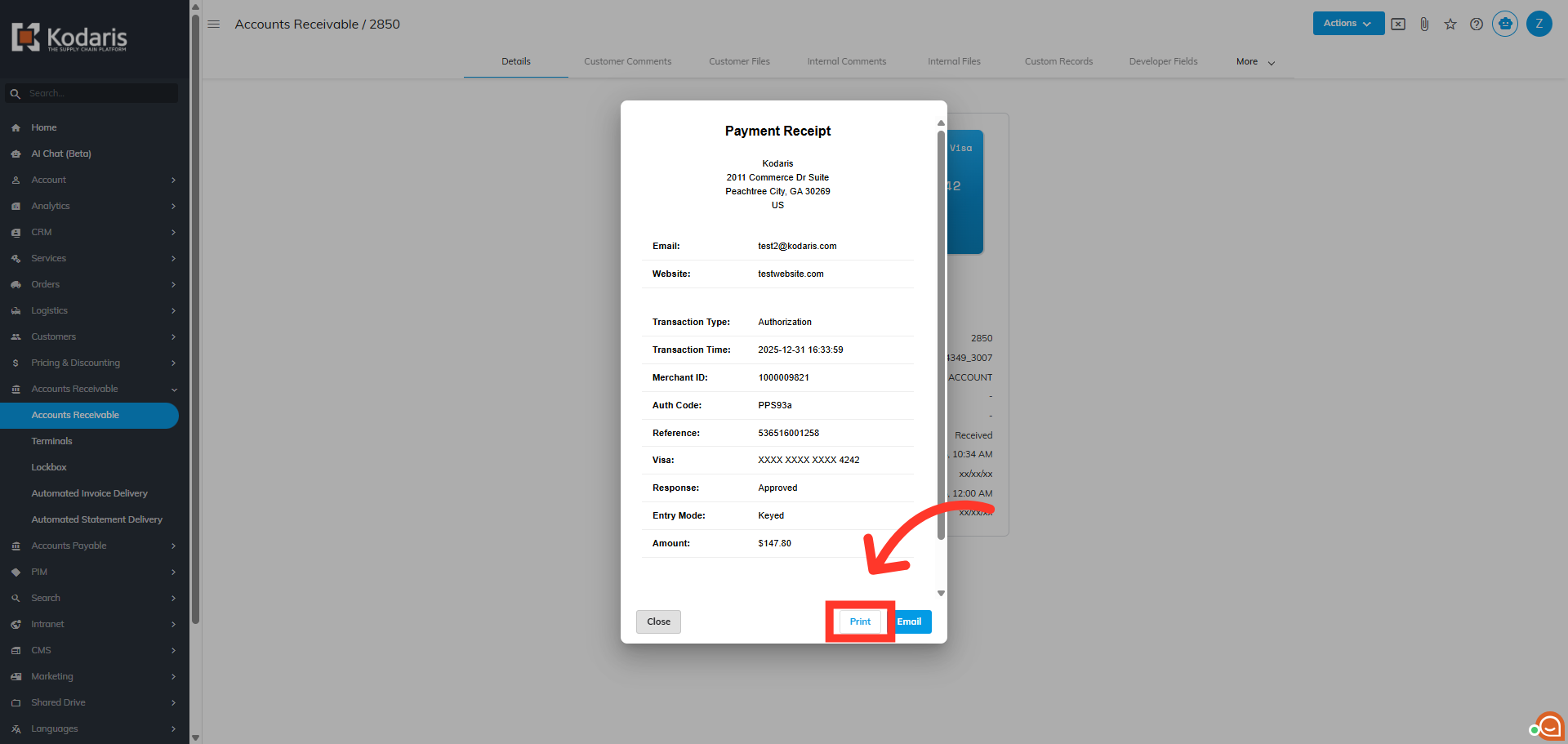
Click the "Email" button to prepare the receipt for electronic delivery to the customer.
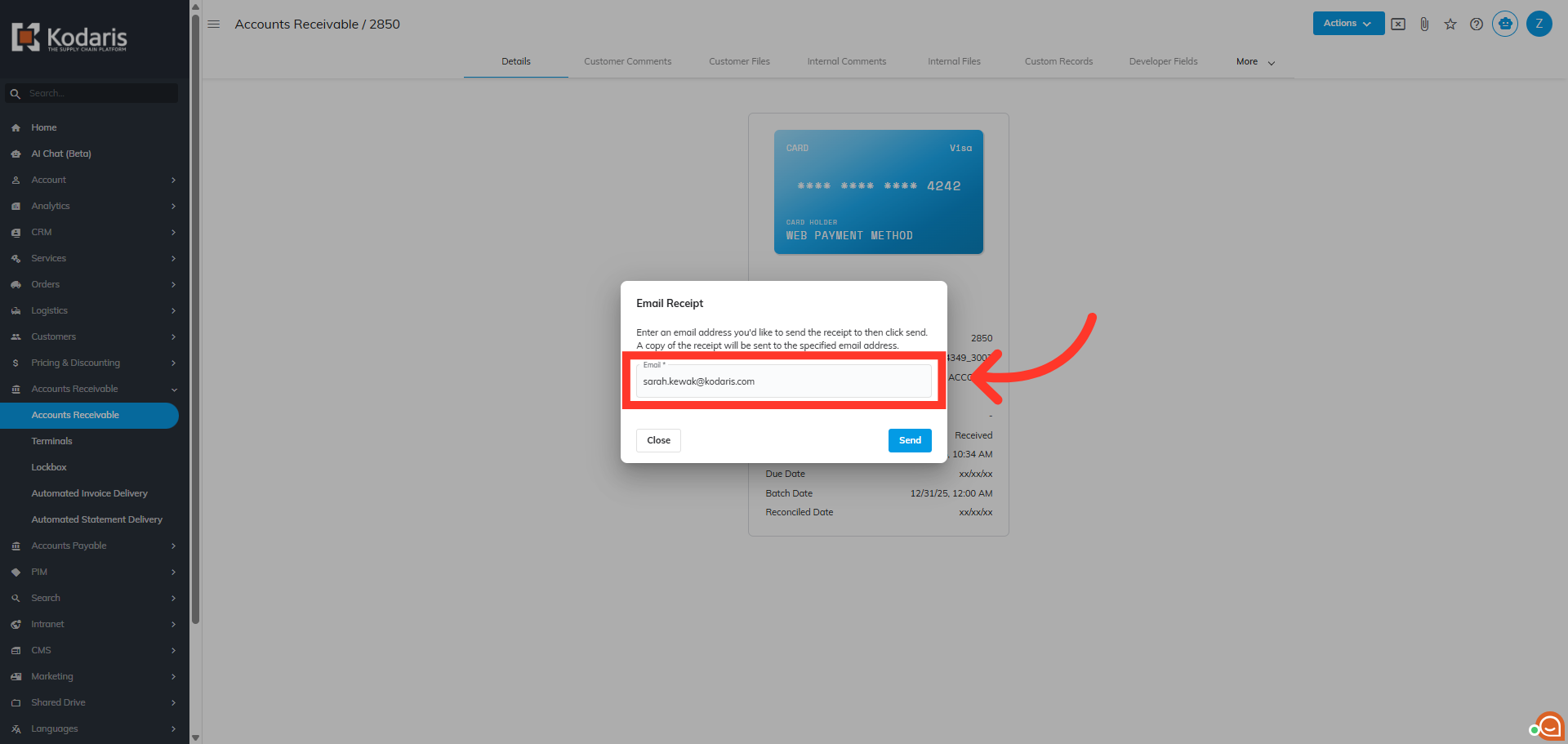
Enter the email address you'd like to send the receipt to. A copy of the receipt will be sent to the specified email address.
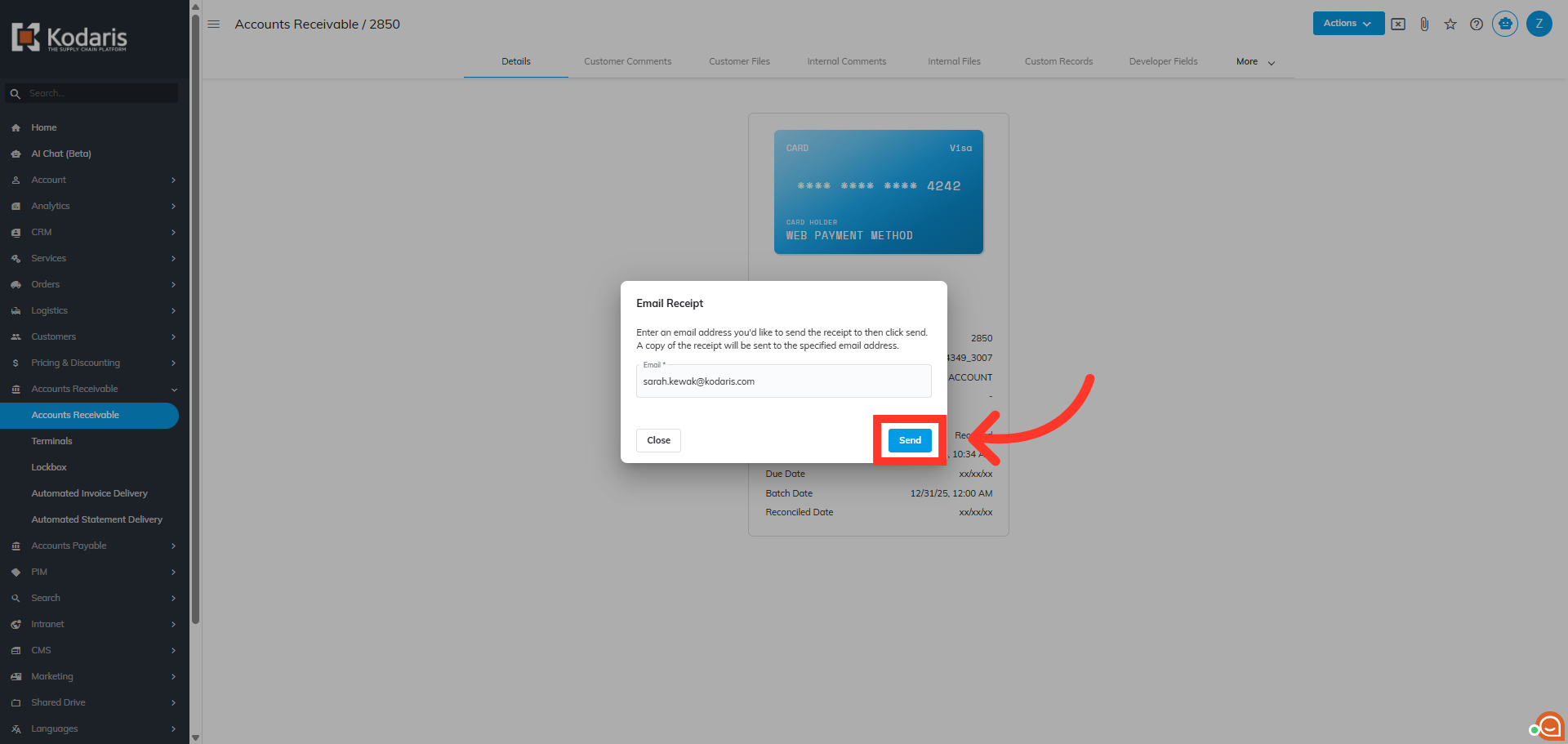
Then, click the "Send" button to deliver the receipt electronically to the specified email address.
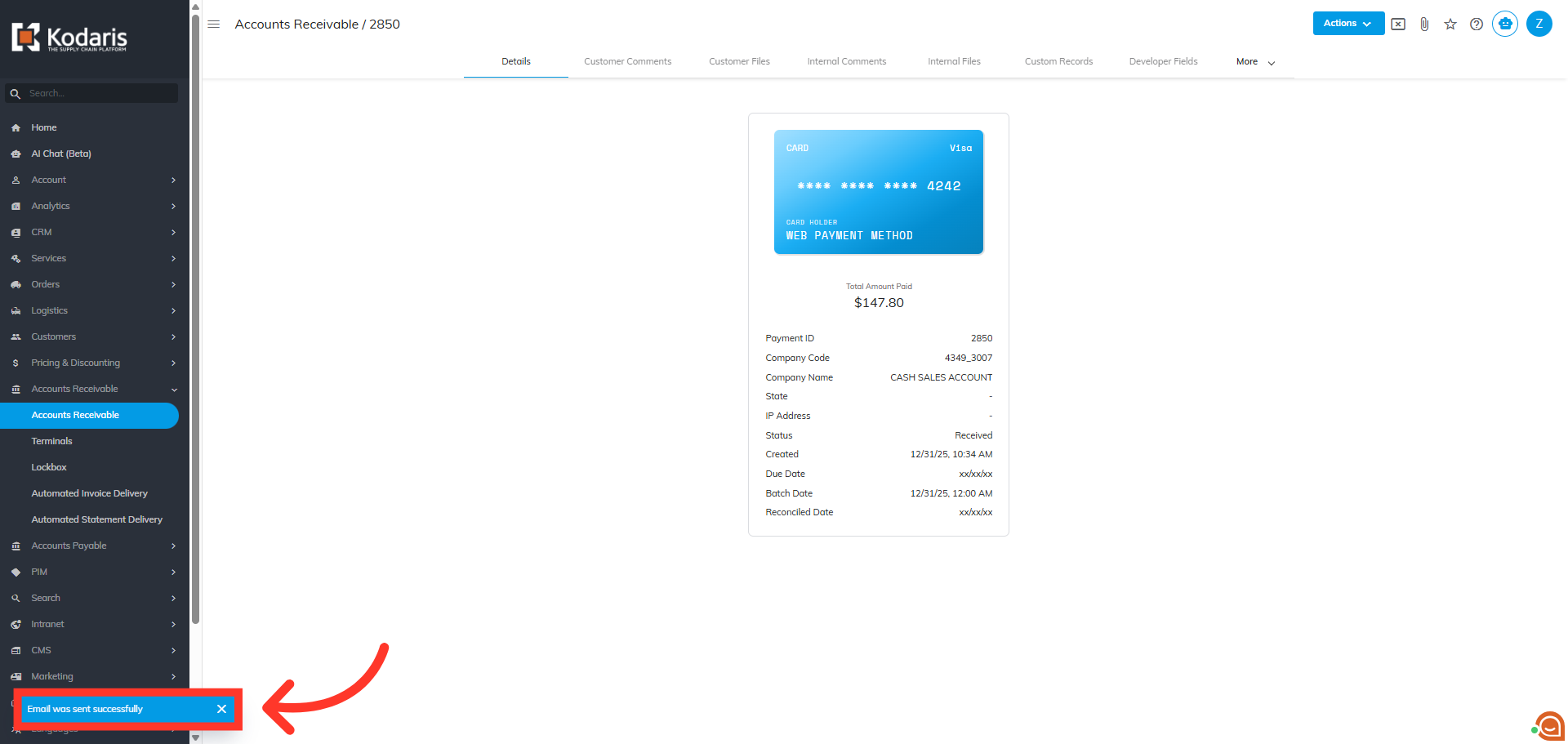
A confirmation message appears indicating the email was sent successfully.