 Product Documentation
Product Documentation
Product Documentation
You can notify employees by email when their account has been locked by updating their notifications in the operations portal. Navigate to the "Systems" screen in your operations portal.

Then, access the "Settings" screen. In order to access and edit settings, you will need to be set up either as an "administrator" or a "superuser", or have the following roles: "settingEdit" and "settingView".

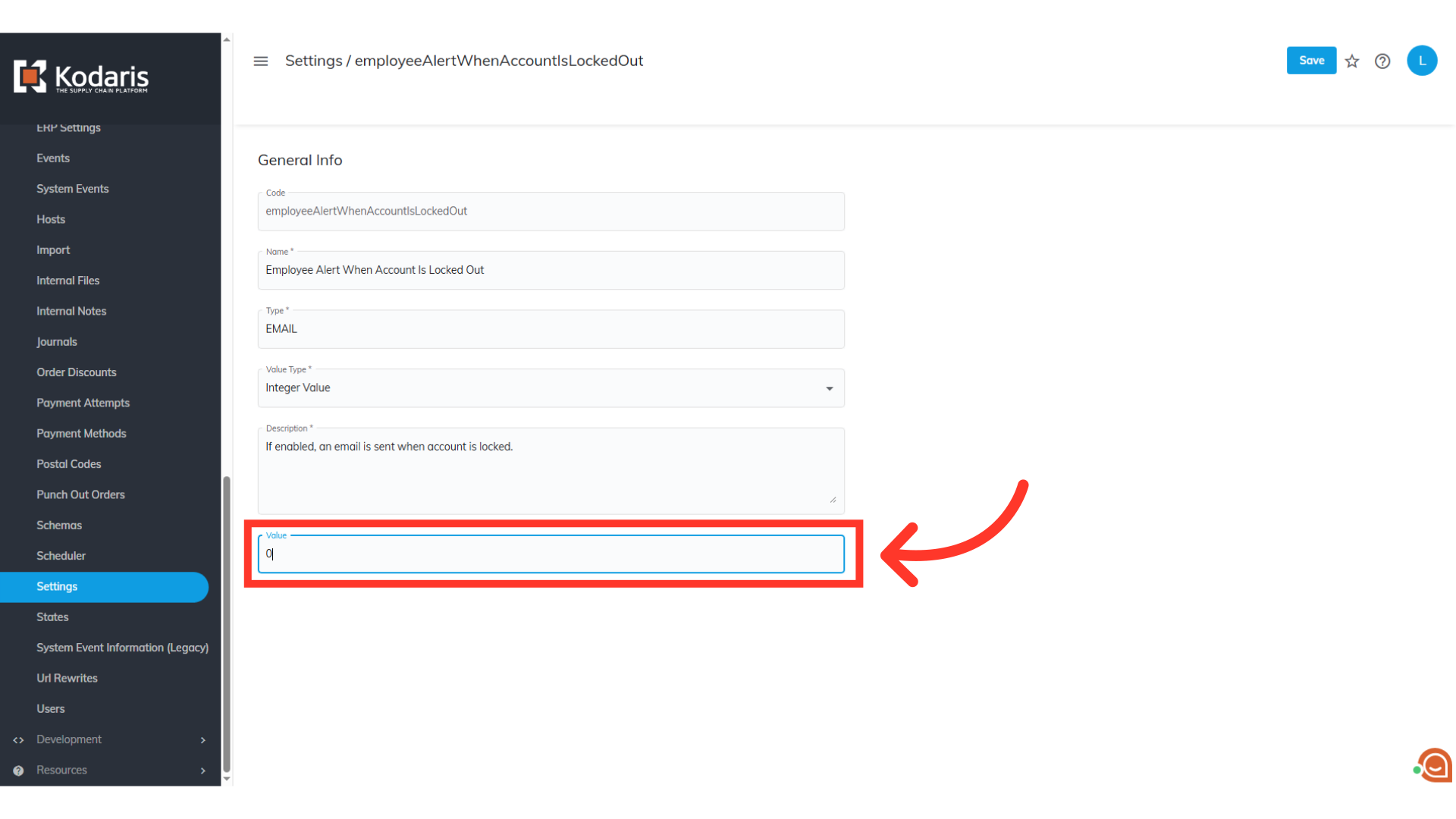
Search for the "employeeAlertWhenAccountIsLockedOut" setting that controls email notifications for account lockouts.

When you've found the setting, click the more details icon.

Activate this setting to ensure emails are sent when an employee account is locked. This is done by setting the "Value" field to "1".
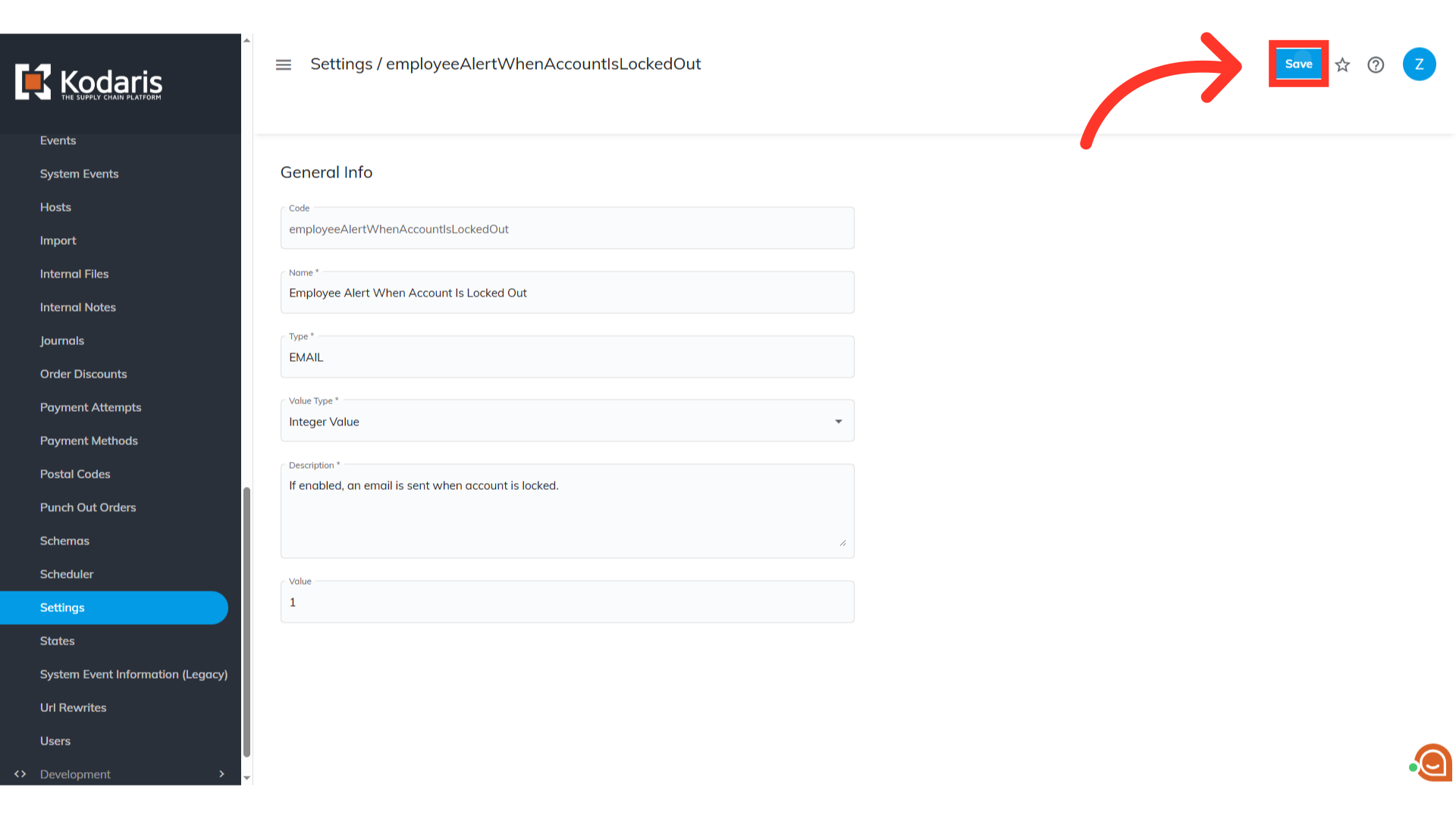
Click the "Save" button to confirm and save the changes made.
The user will receive a lockout notification by email if they have had too many failed login attempts.
