Product Documentation
Product Documentation
Product Documentation
To generate PDF files from multiple orders on a company, navigate to the "Companies" section of your operations portal. In order to access "Companies" you will need to be set up either as an "administrator" or a "superuser", or have the appropriate roles: "companyView," "crmCompanyView," "companyEdit," "crmCompanyEdit," and "dispatch."
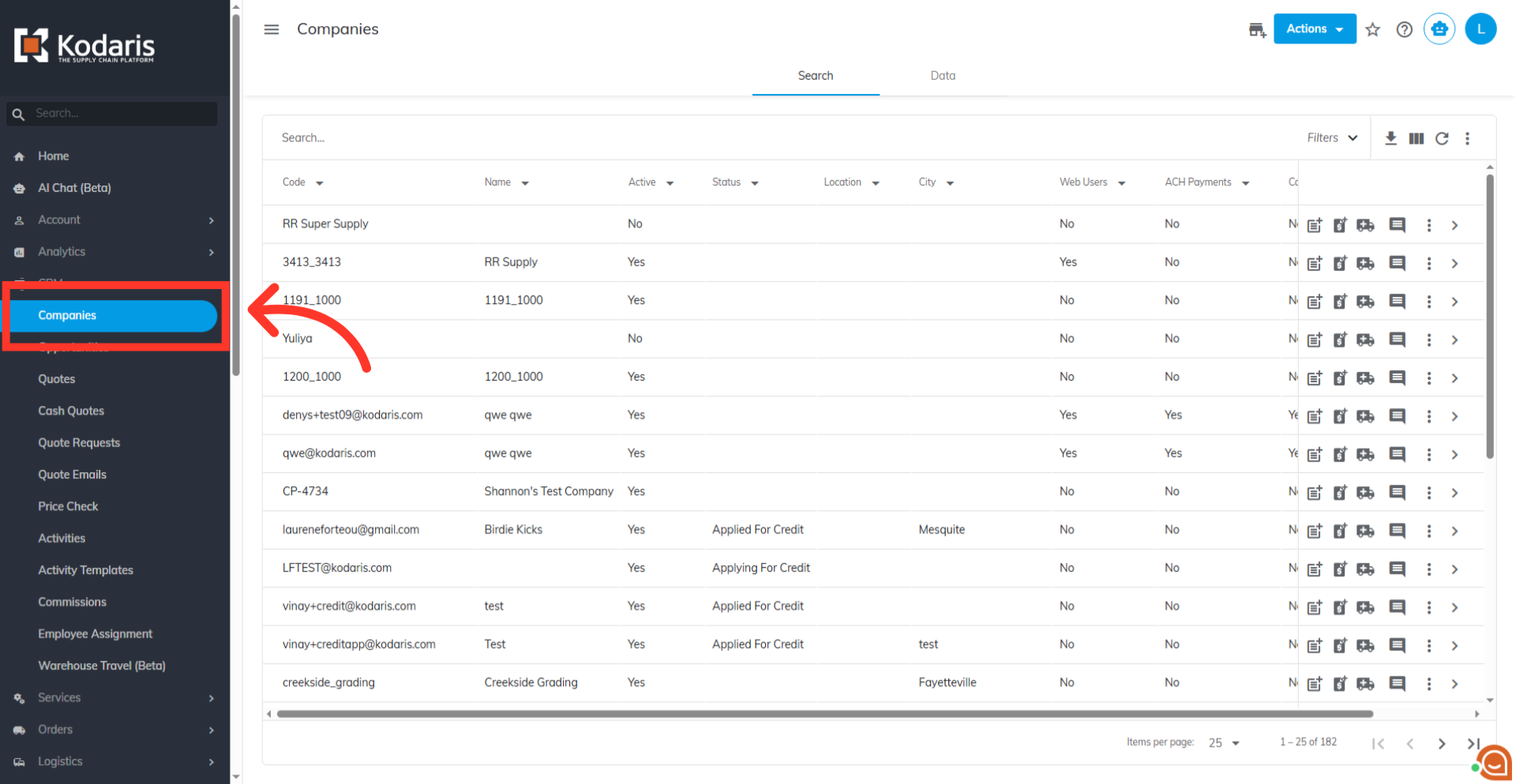
Use the "search bar" or "column filters" to find a company. Enter the company name or a keyword to narrow your search.
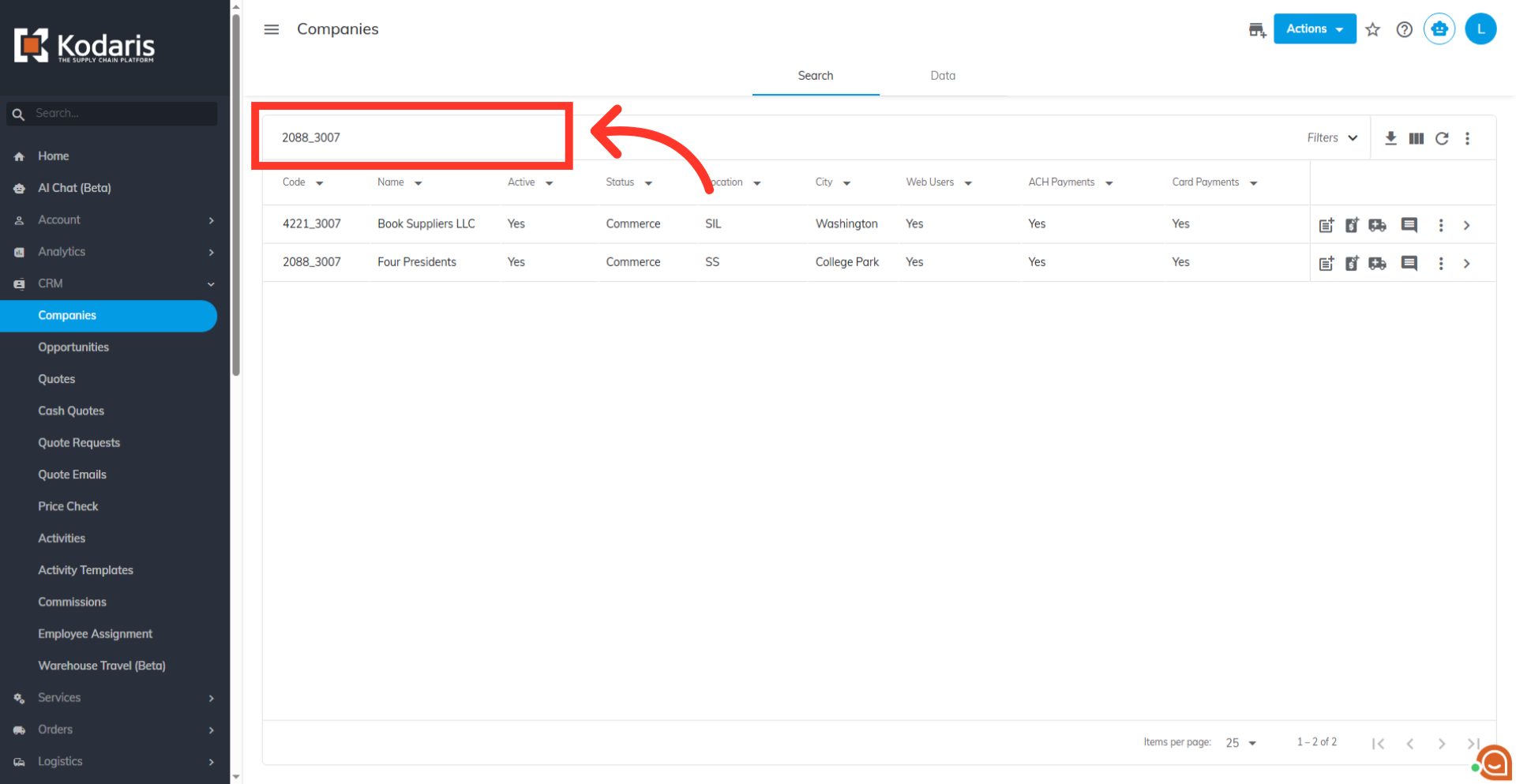
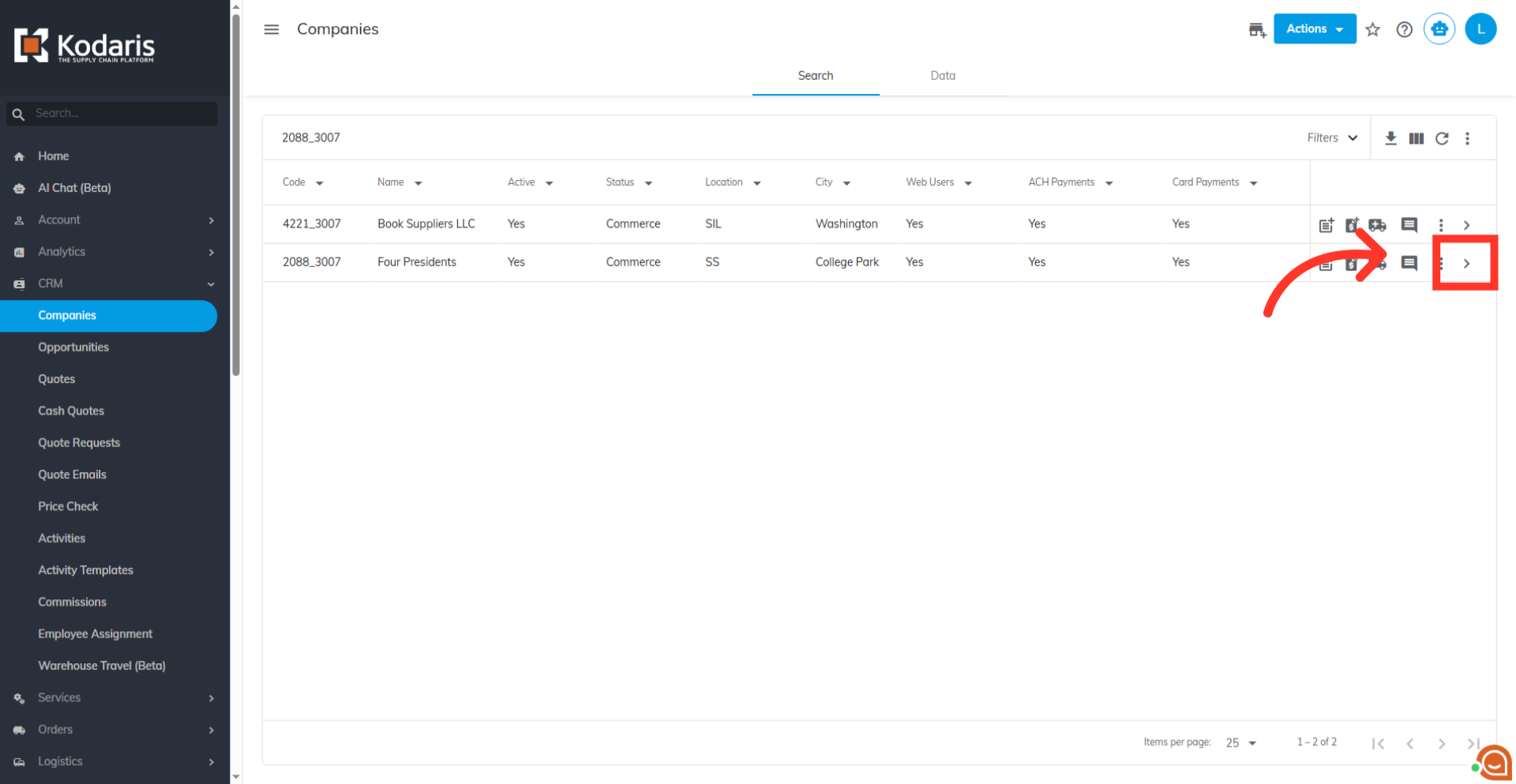
Then, click the more details icon to access company details.
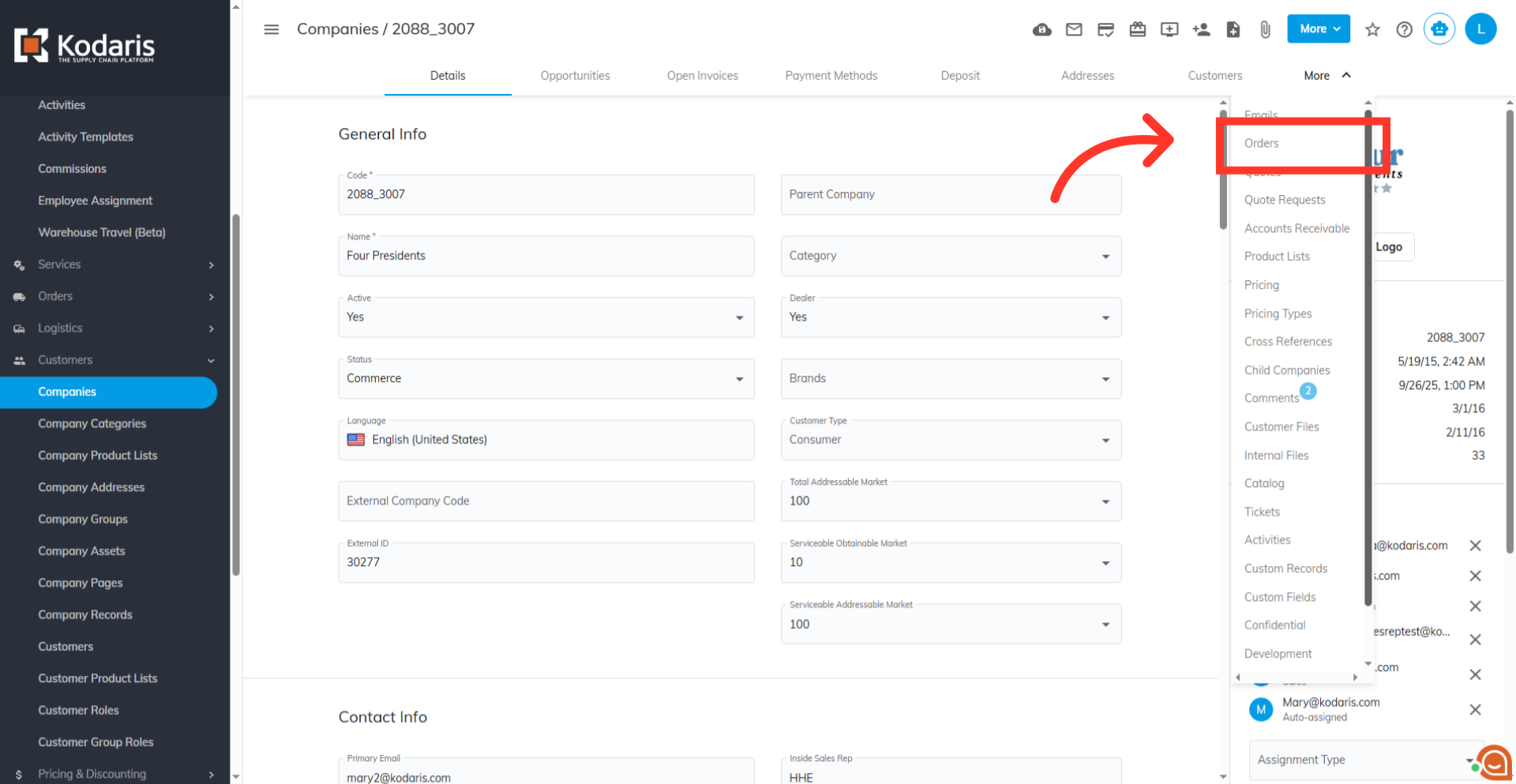
Under the "More" dropdown, click the "Orders" tab.
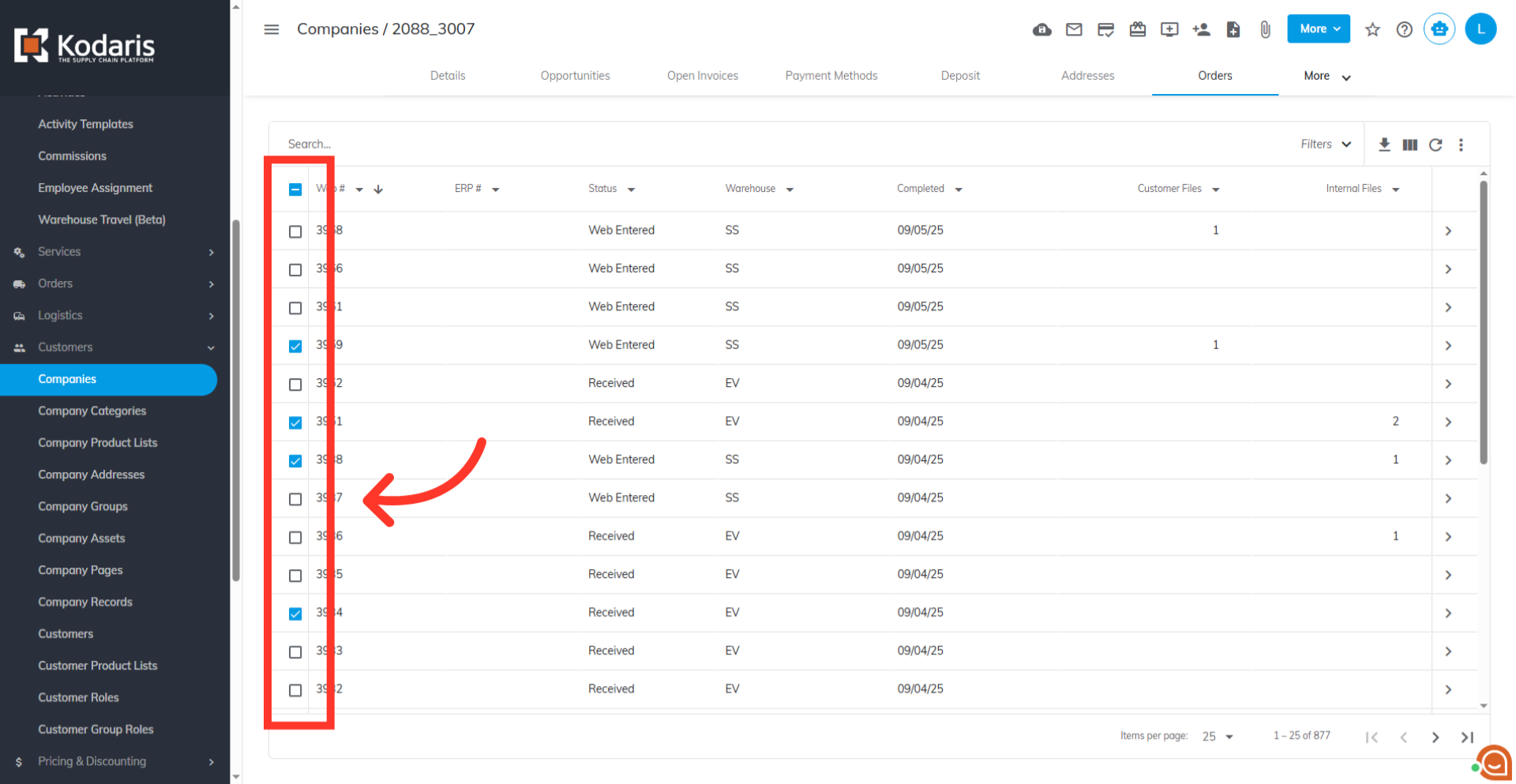
Here, select the orders you want to generate PDFs for by using the checkboxes next to each one. Use the top checkbox to select or deselect all orders at once.
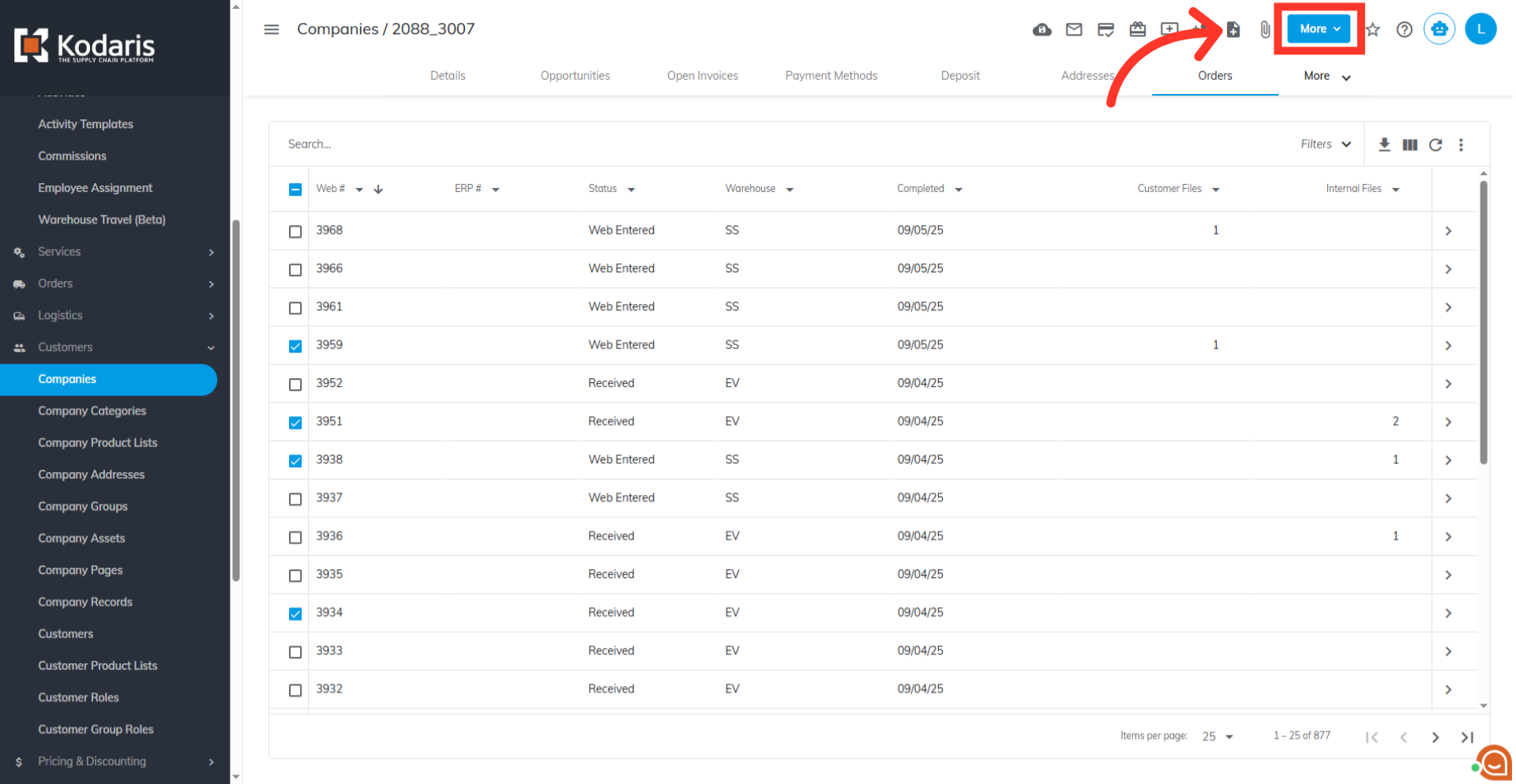
You can download the PDFs as either customer or internal files. Click the "More" button. Just a reminder, if the files are downloaded as "customer files" they will be viewable by the customer. Internal files are only viewable by your internal team.
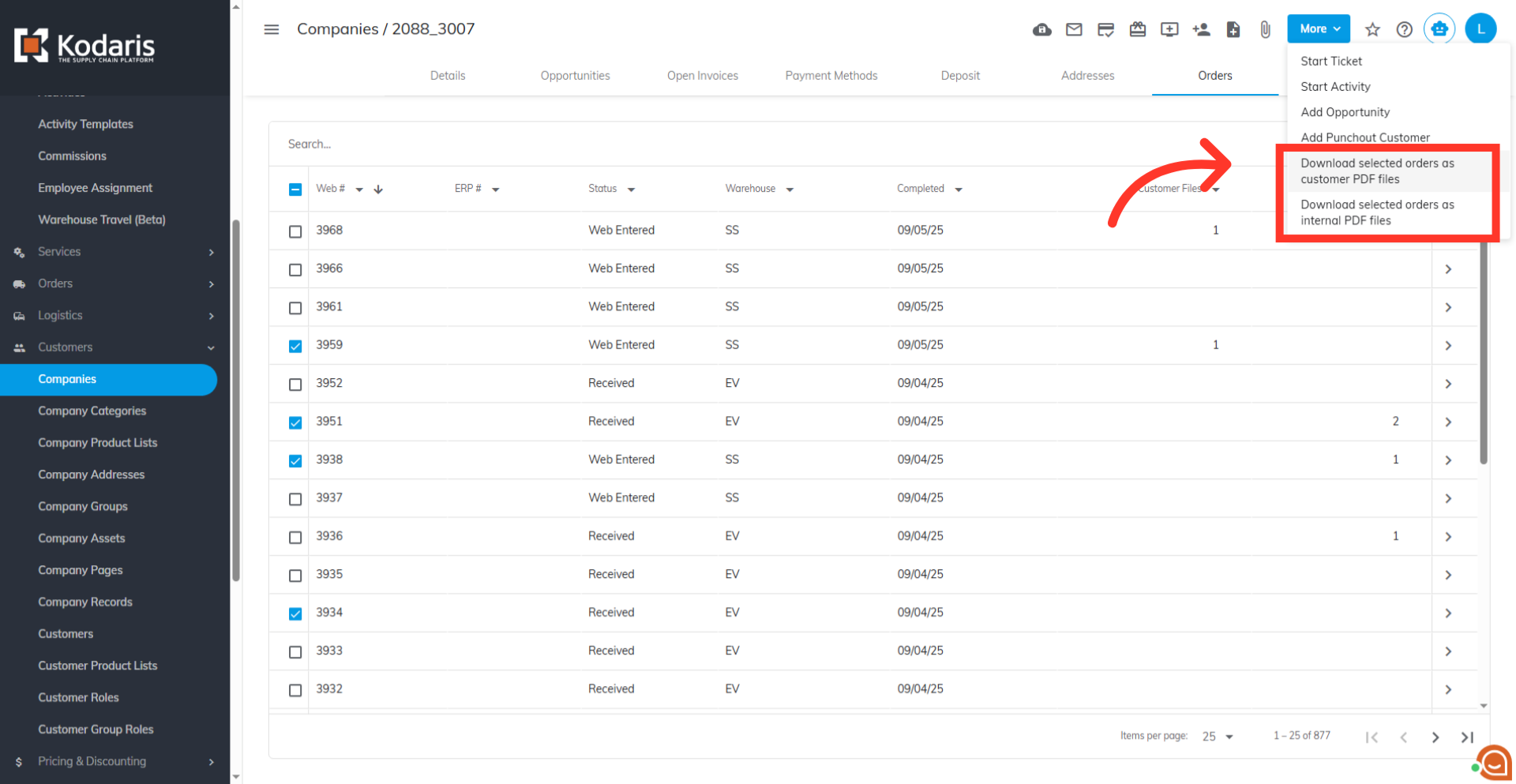
Then, select either "Download selected orders as customer PDF files" or "Download selected orders as internal PDF files".
Fill out the dialog box. You can choose a template, display totals, and sort items. When you're done, click "Generate."
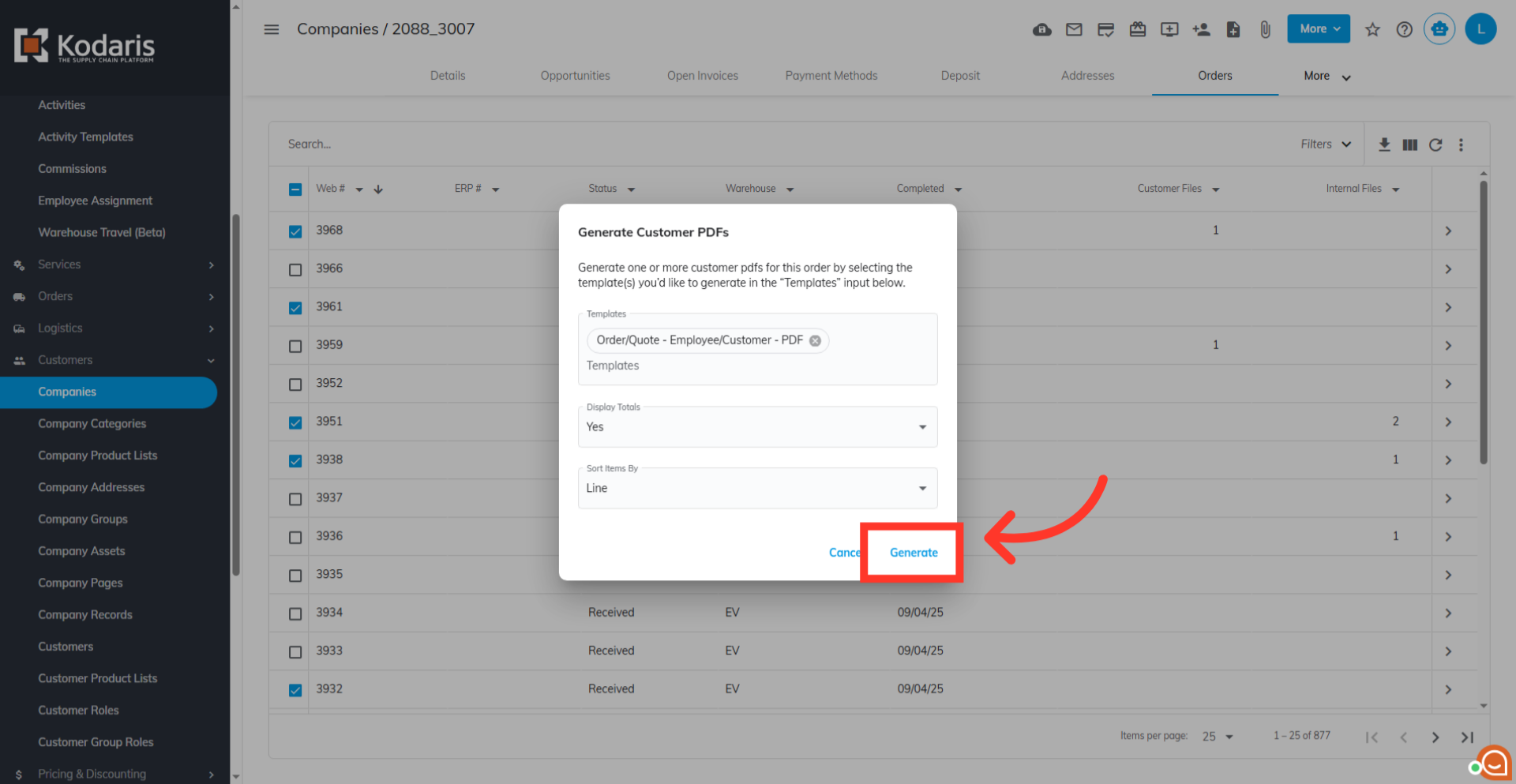
Your files will be automatically downloaded to your computer as ZIP files.
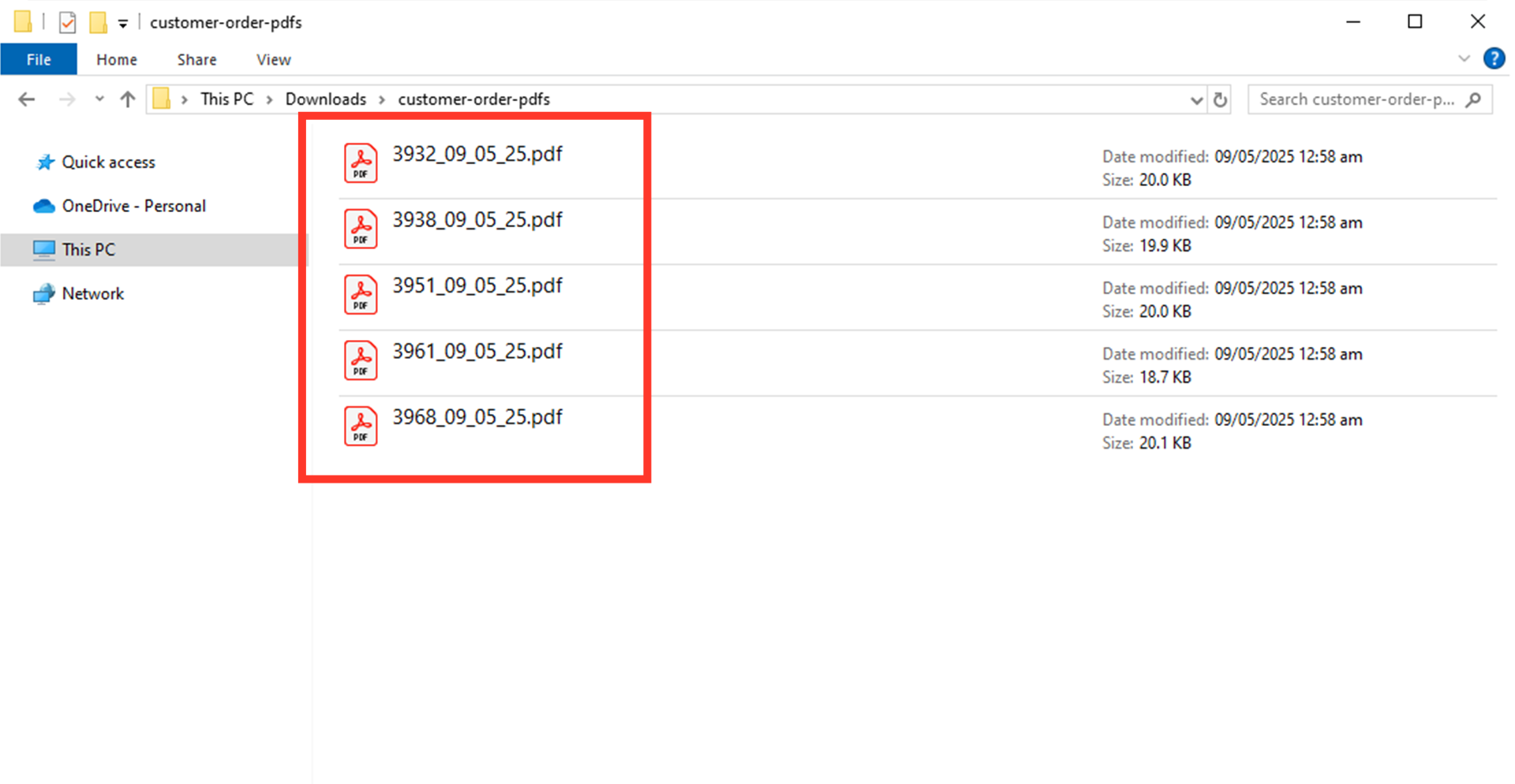
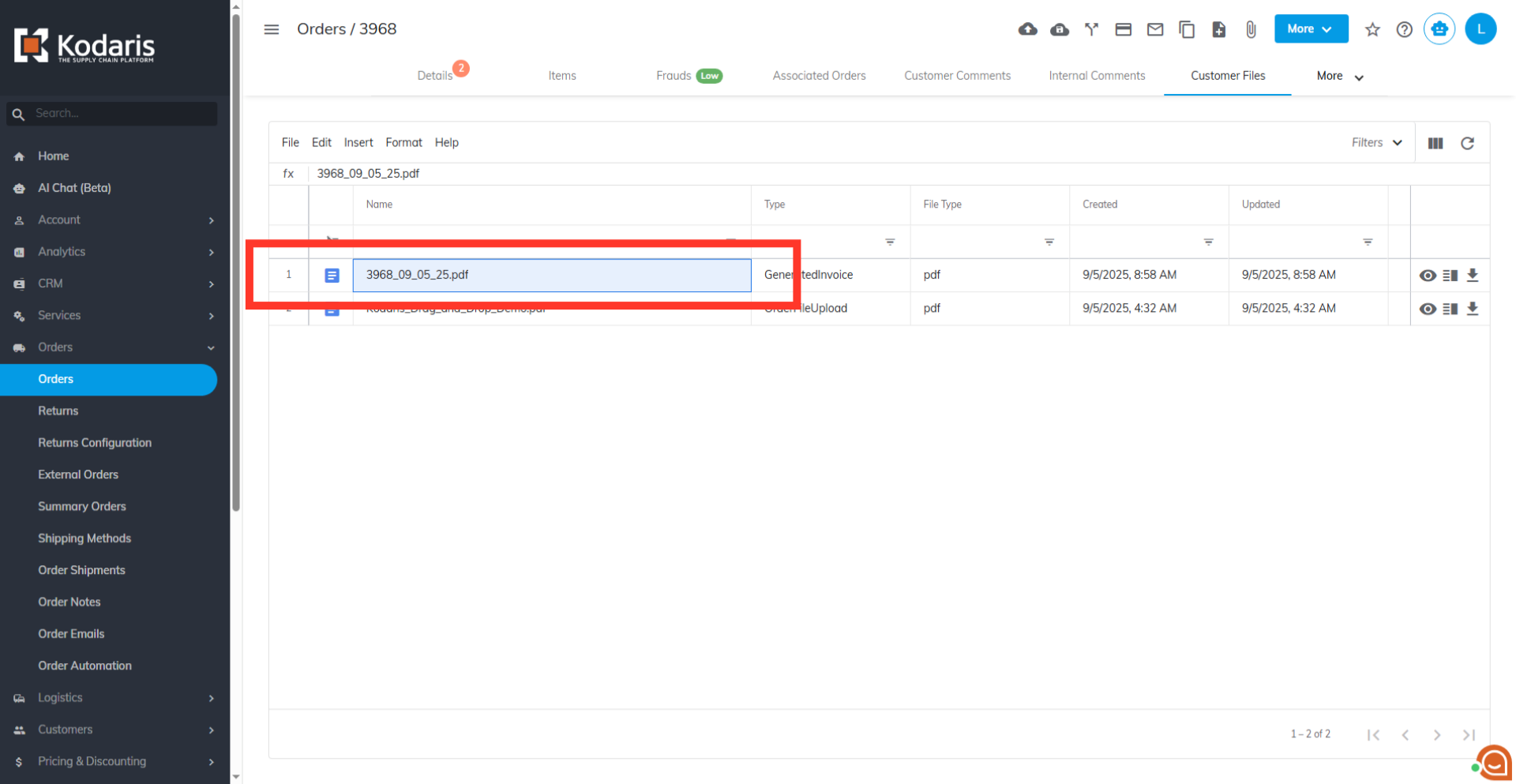
These PDFs will be automatically uploaded to each order, either in the "Customer files" or "Internal files" tab, depending on your selection. Go to the Orders screen and view the details of one of your selected orders. In order to access "Orders" you will need to be set up either as an "administrator" or a "superuser", or have the appropriate roles: "crmCompanyOrderView," "crmCompanyOrderEdit," "orderEdit," "orderView," and "dispatch." Use the search bar or column filters to find one of your orders. Enter the order name or a keyword to narrow your search, then access the order's details.
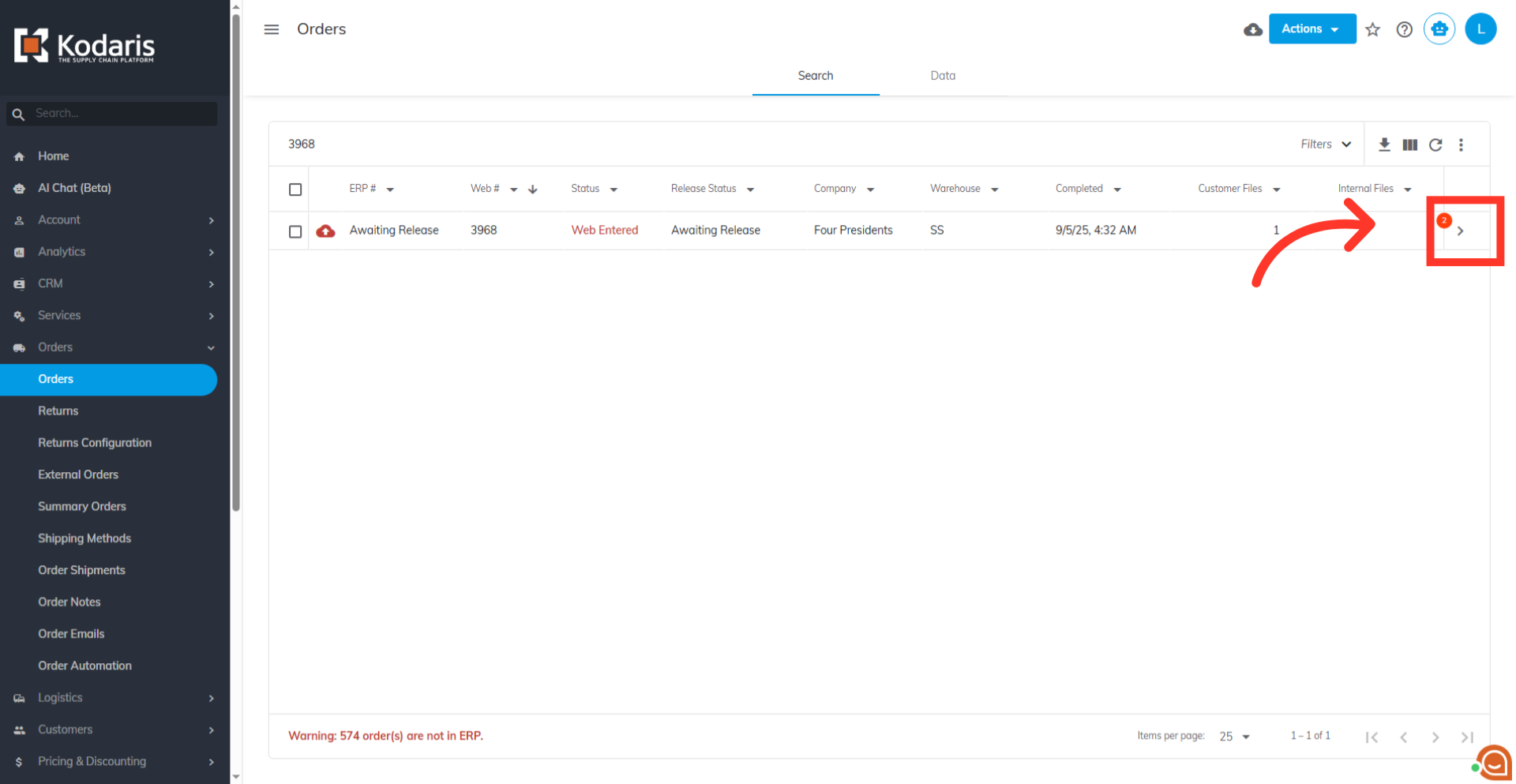
Here you can see the generated files.