Product Documentation
Product Documentation
Product Documentation
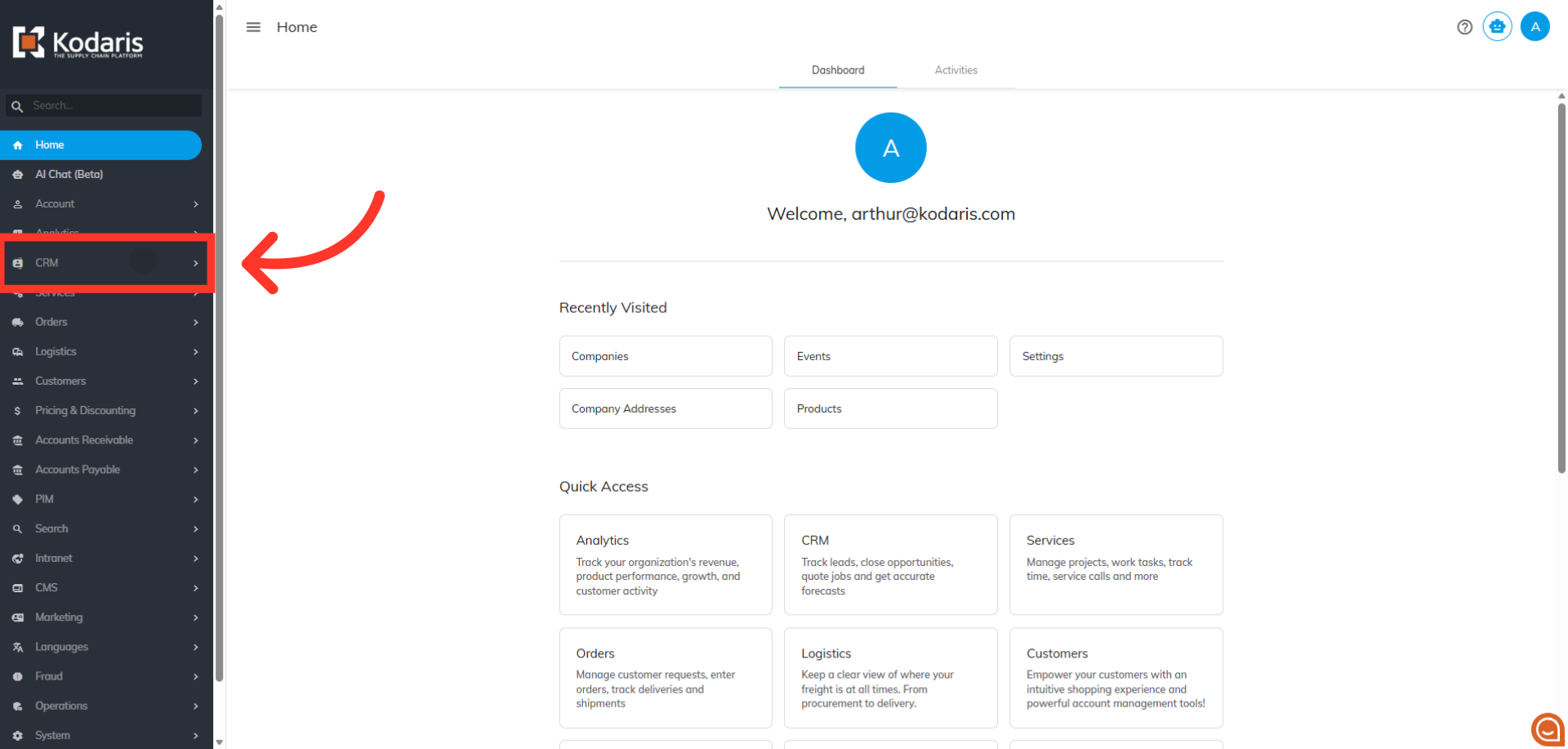
To manually add a new company using the CRM Companies screen in the operations portal, navigate to "CRM" section in the Operations Portal.
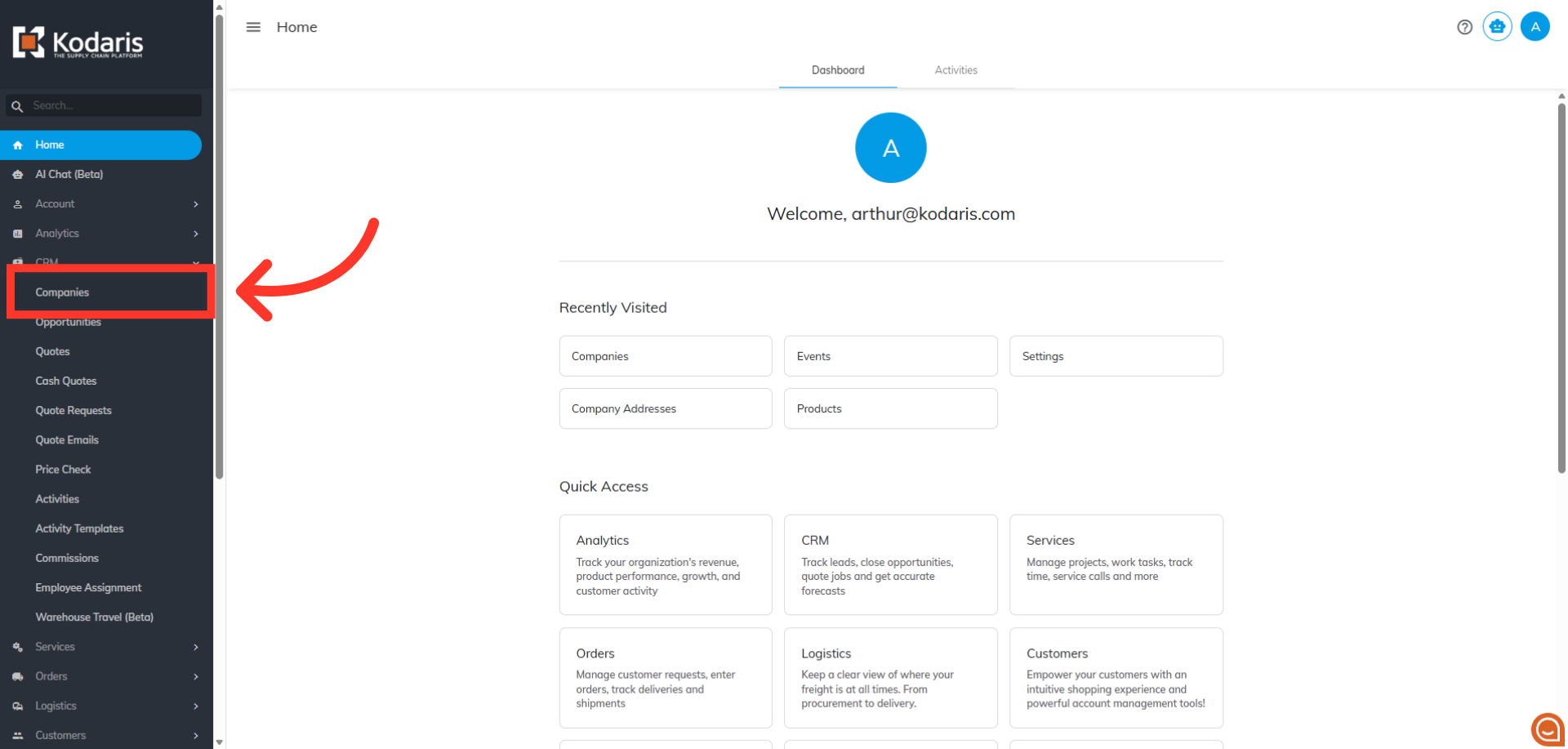
Then, click "Companies". In order to access "Companies" you will need to be set up either as an "administrator" or a "superuser", or have the appropriate roles: "companyView and companyEdit", or "crmCompanyView and crmCompanyEdit". Just a reminder, "crmCompanyView and crmCompanyEdit" access only allows employees to view companies that are assigned to them.
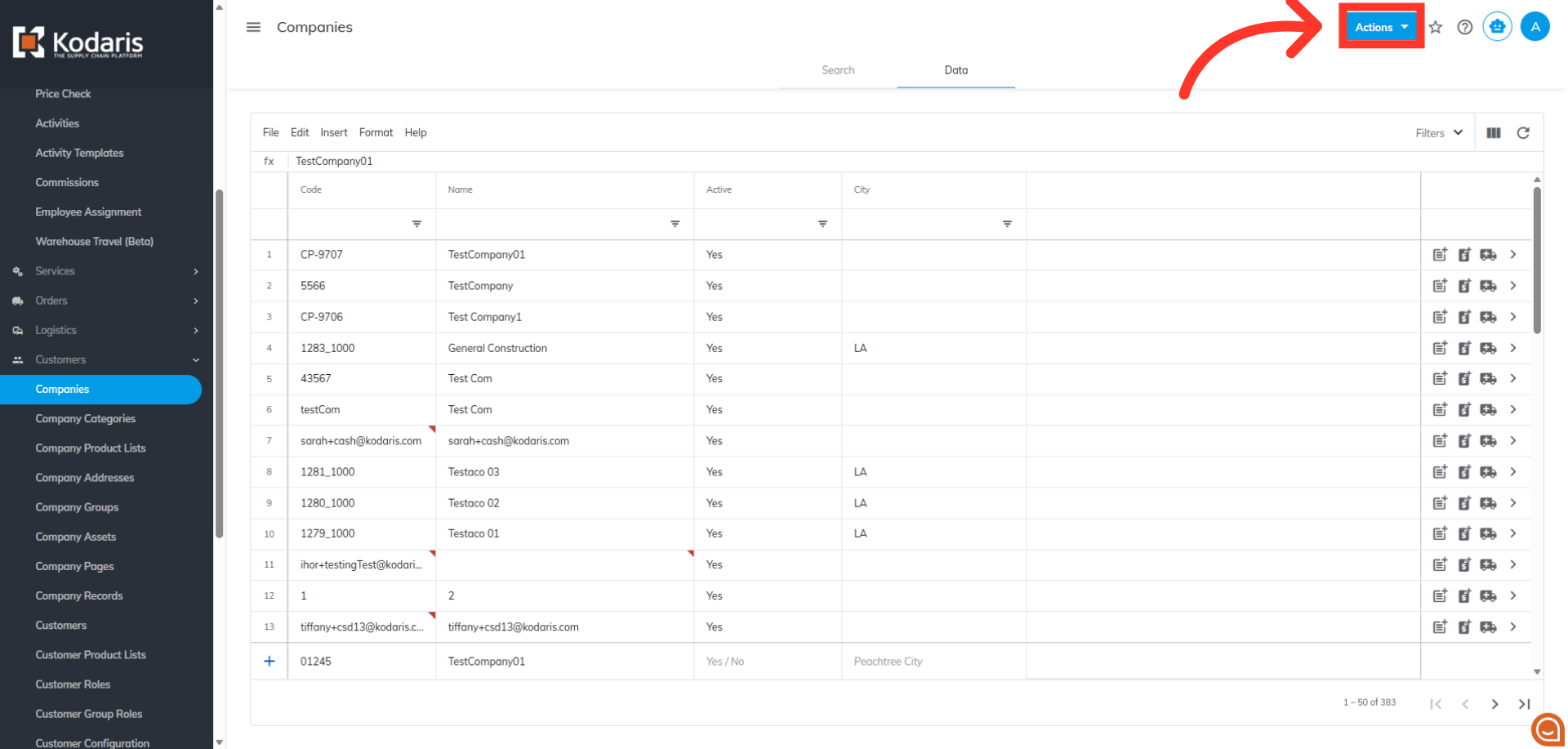
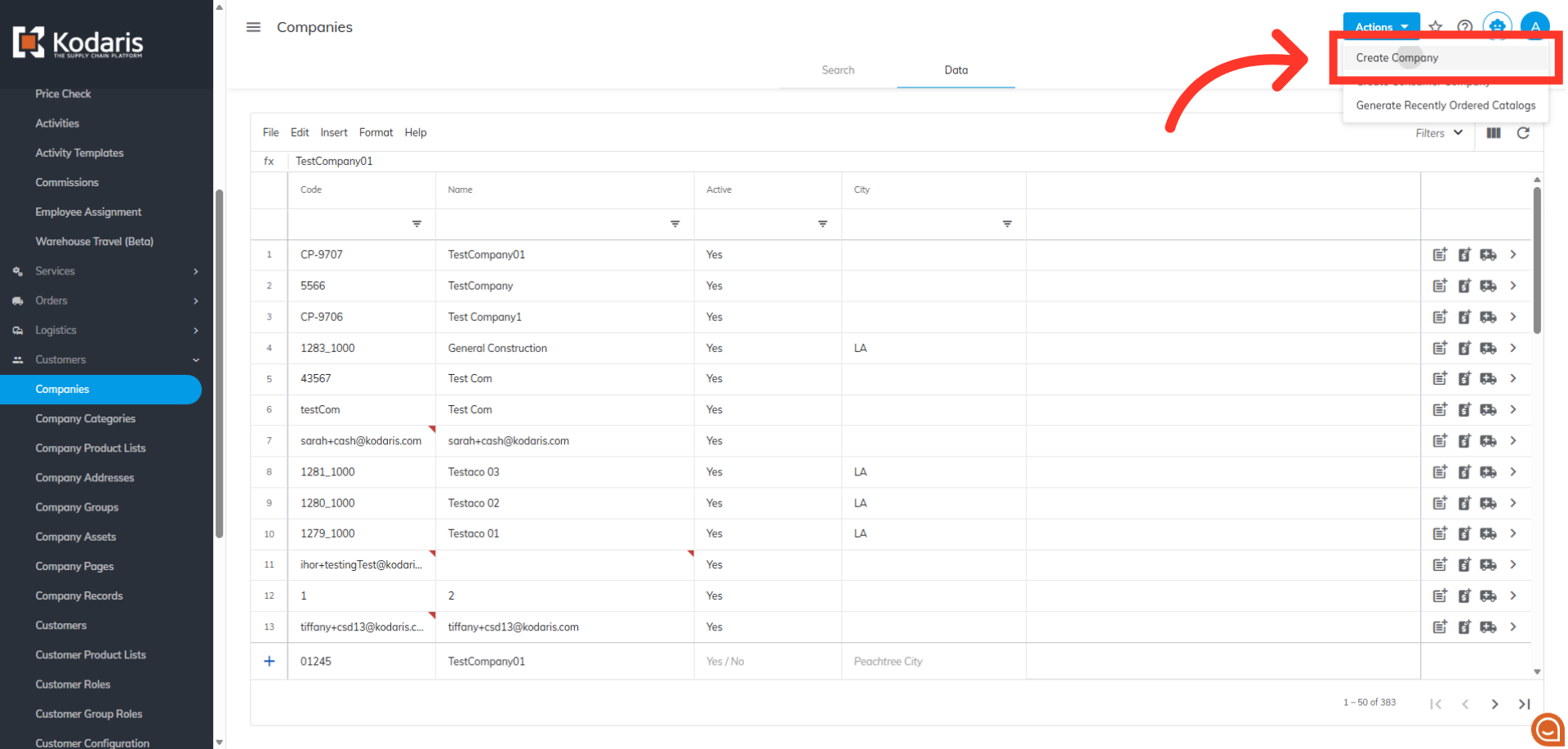
Next, click the "Actions" button.
Select "Create Company" from the options.
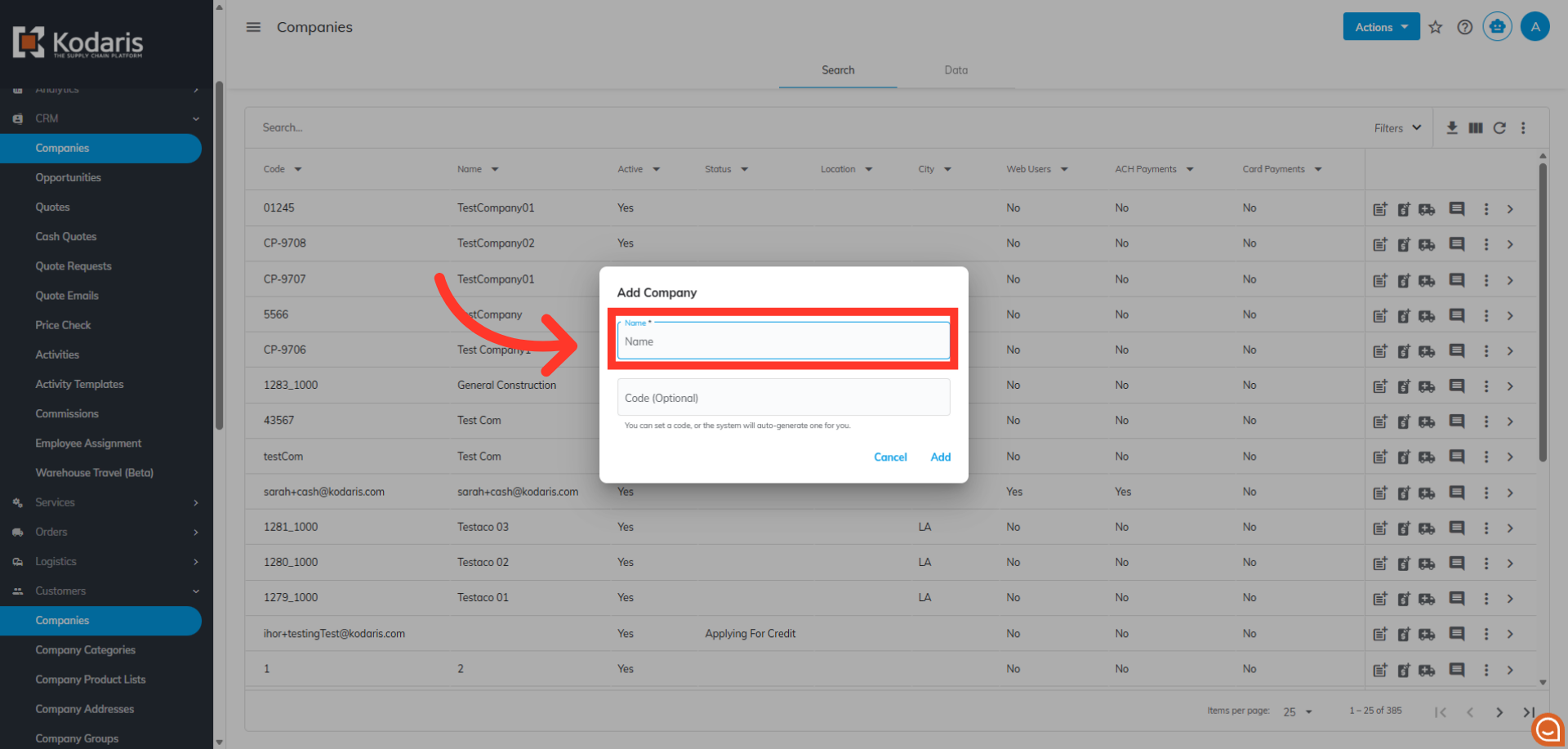
"Add Company" dialog box will appear. Enter Company Name. This field is required.
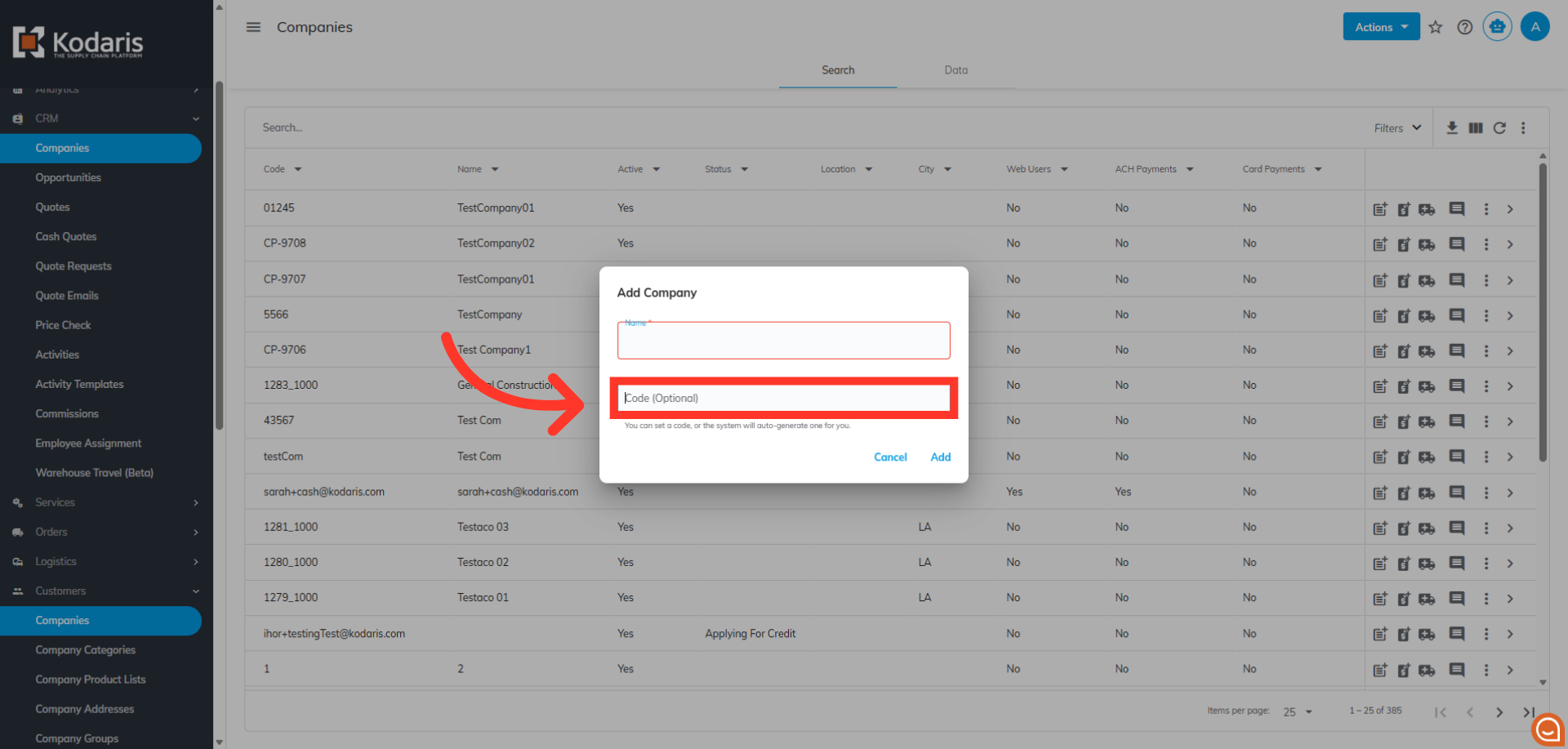
You can enter a code or the system will auto-generate one for you.
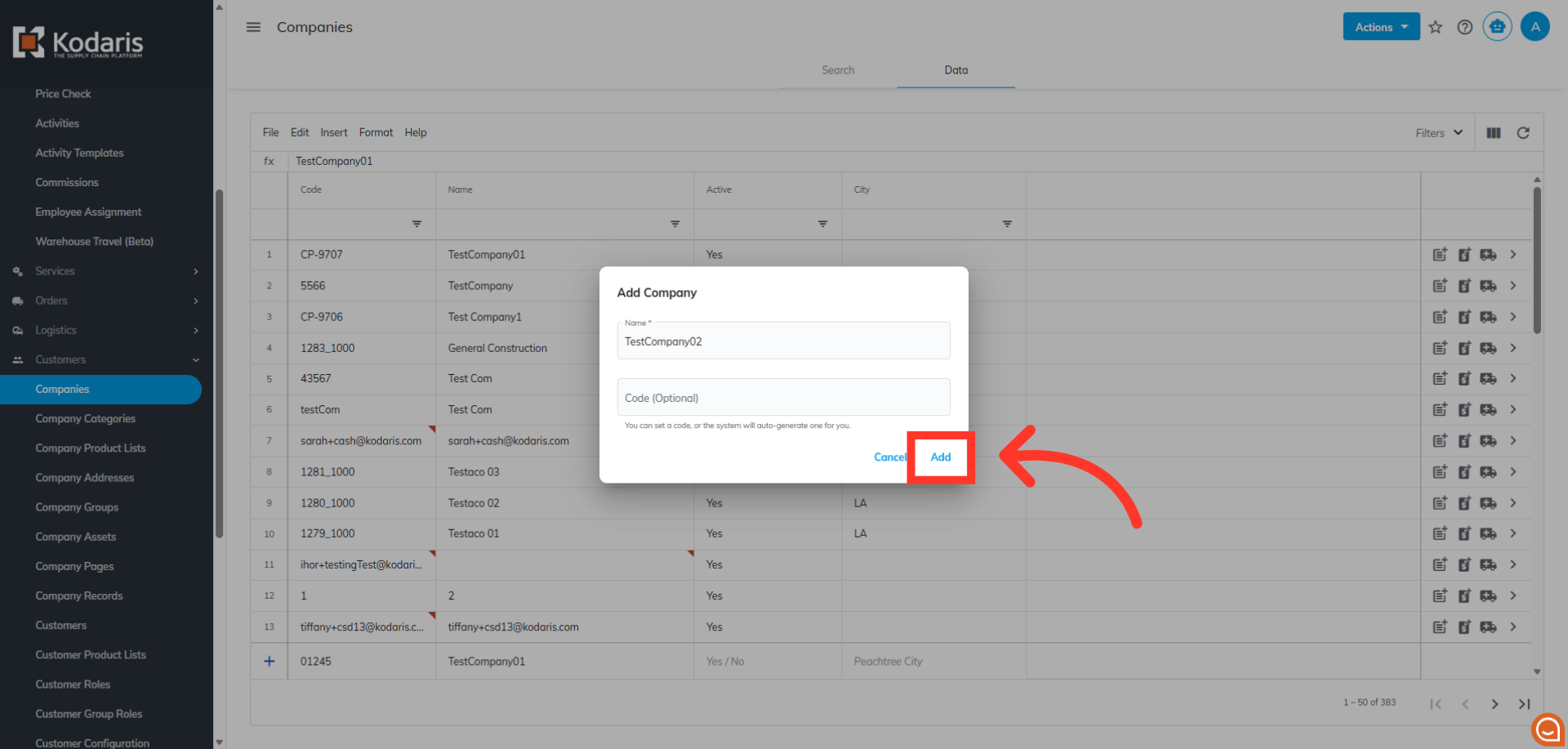
Click "Add".
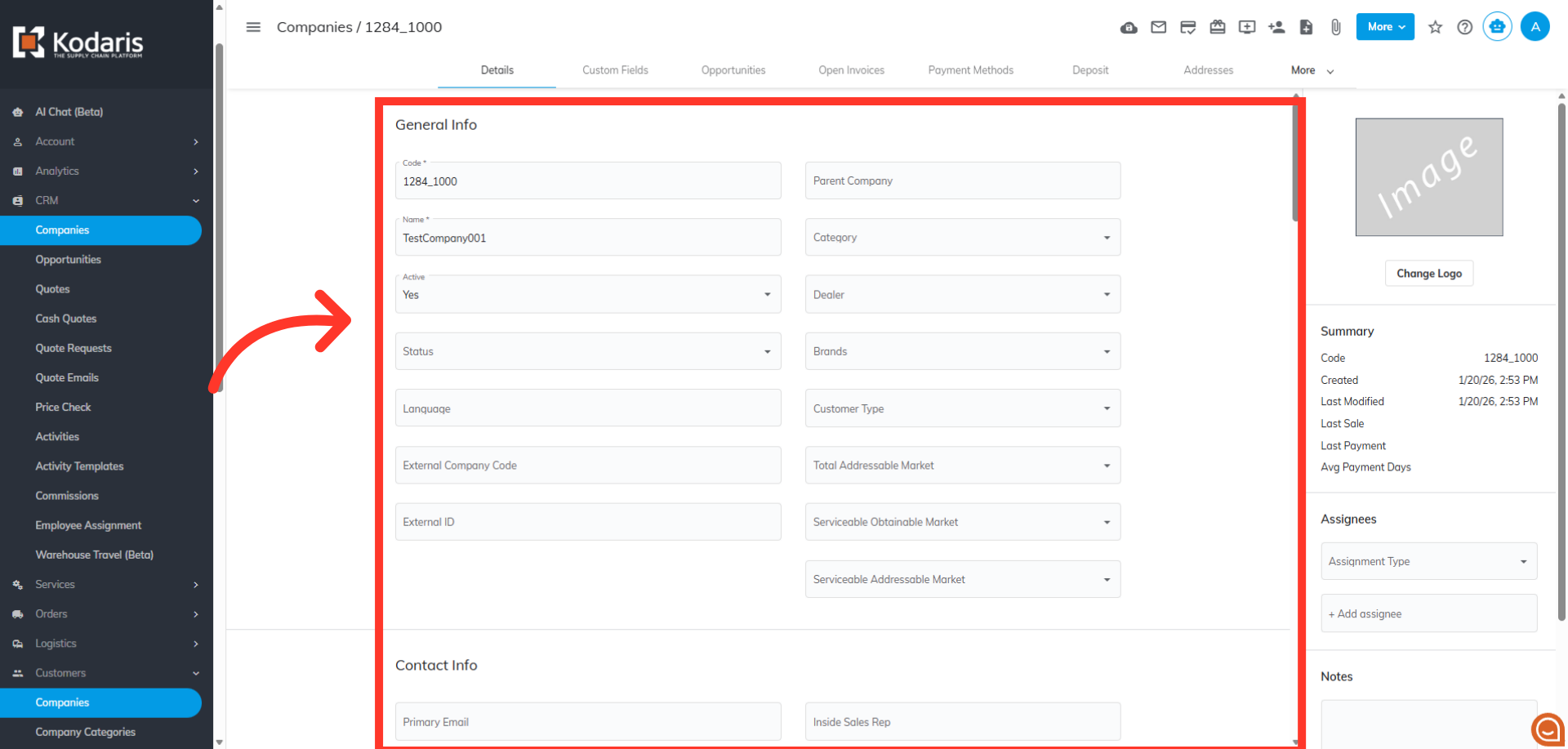
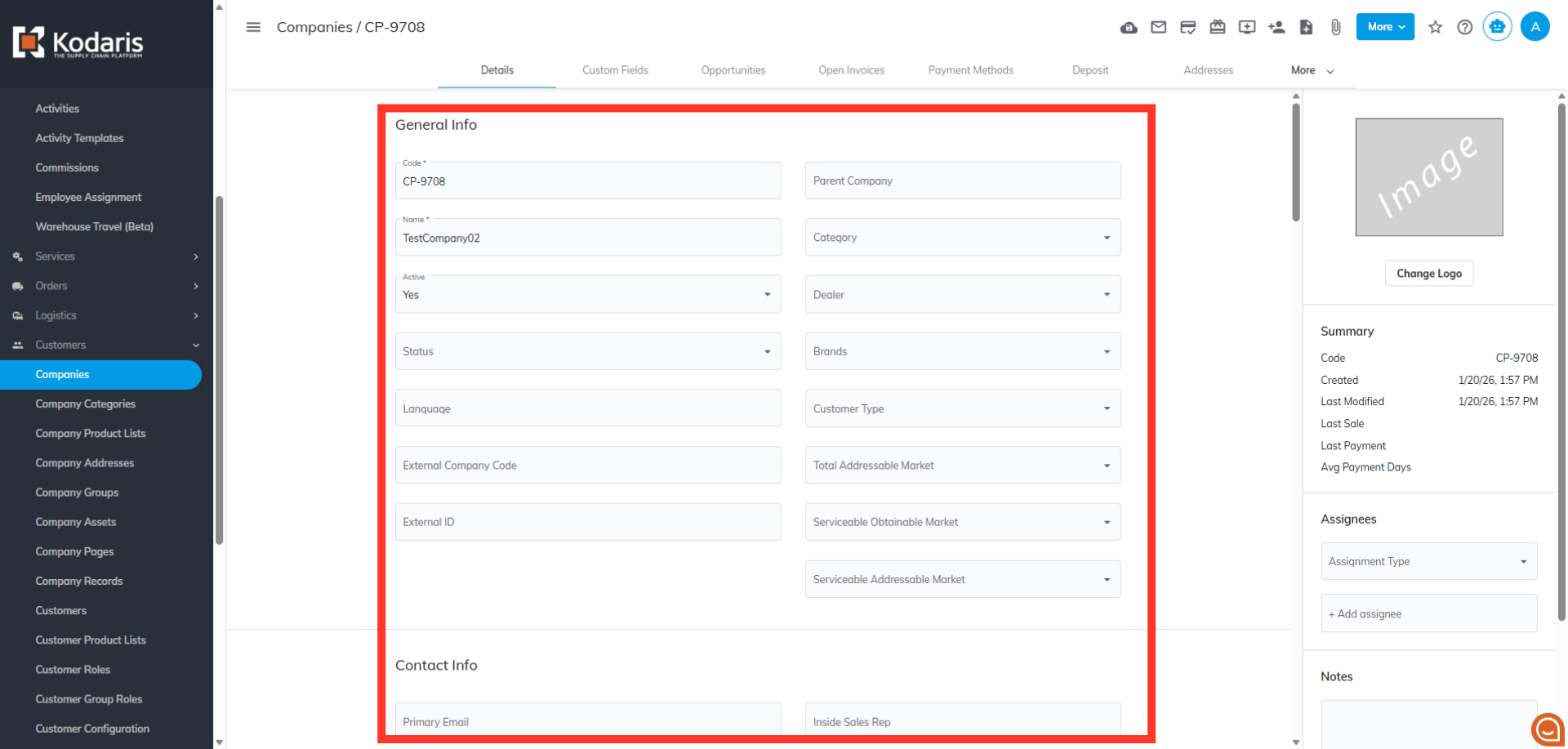
Once the company is created, you will be redirected to the details screen where you can update more of the company data.
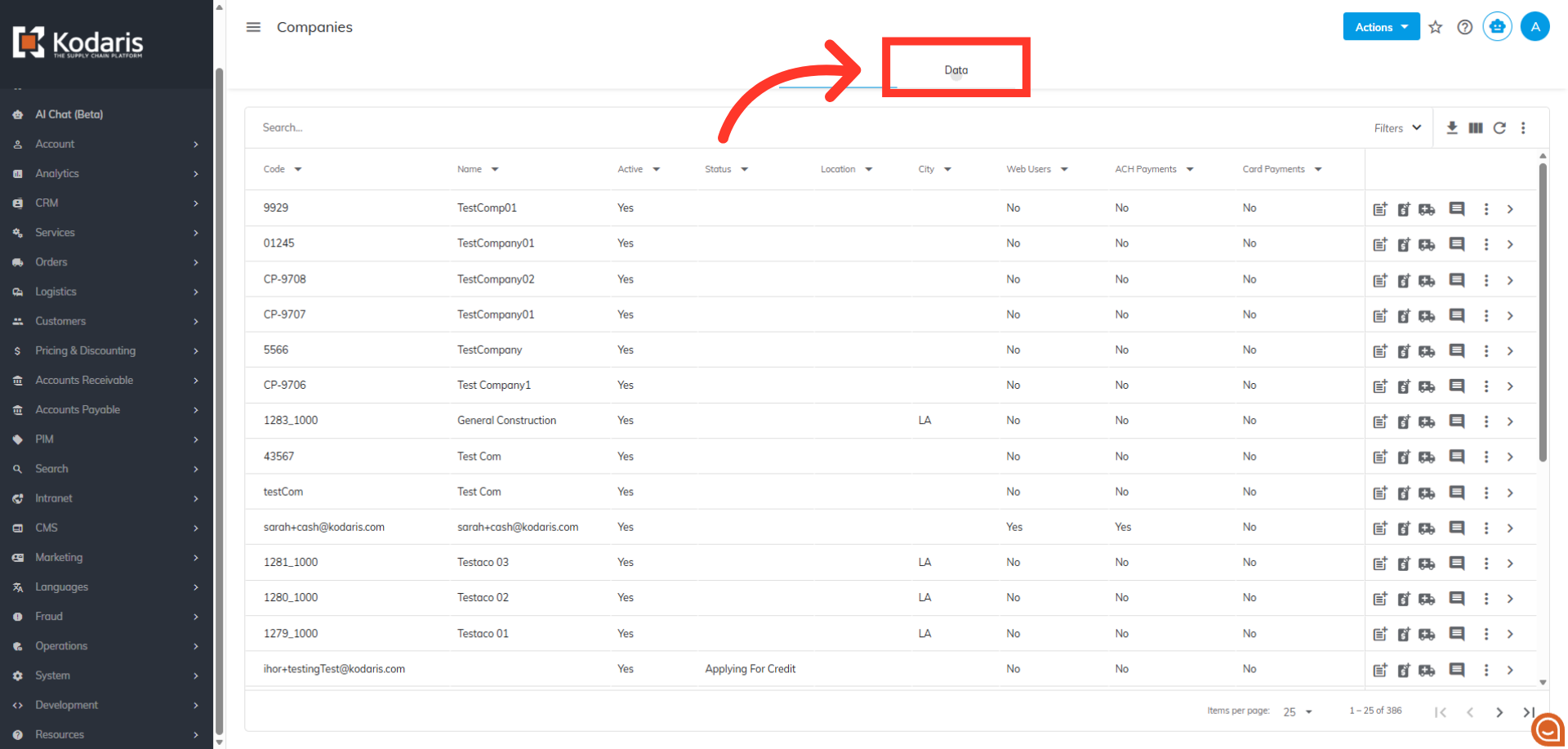
Another way to add a company is by going to the "Data" tab.
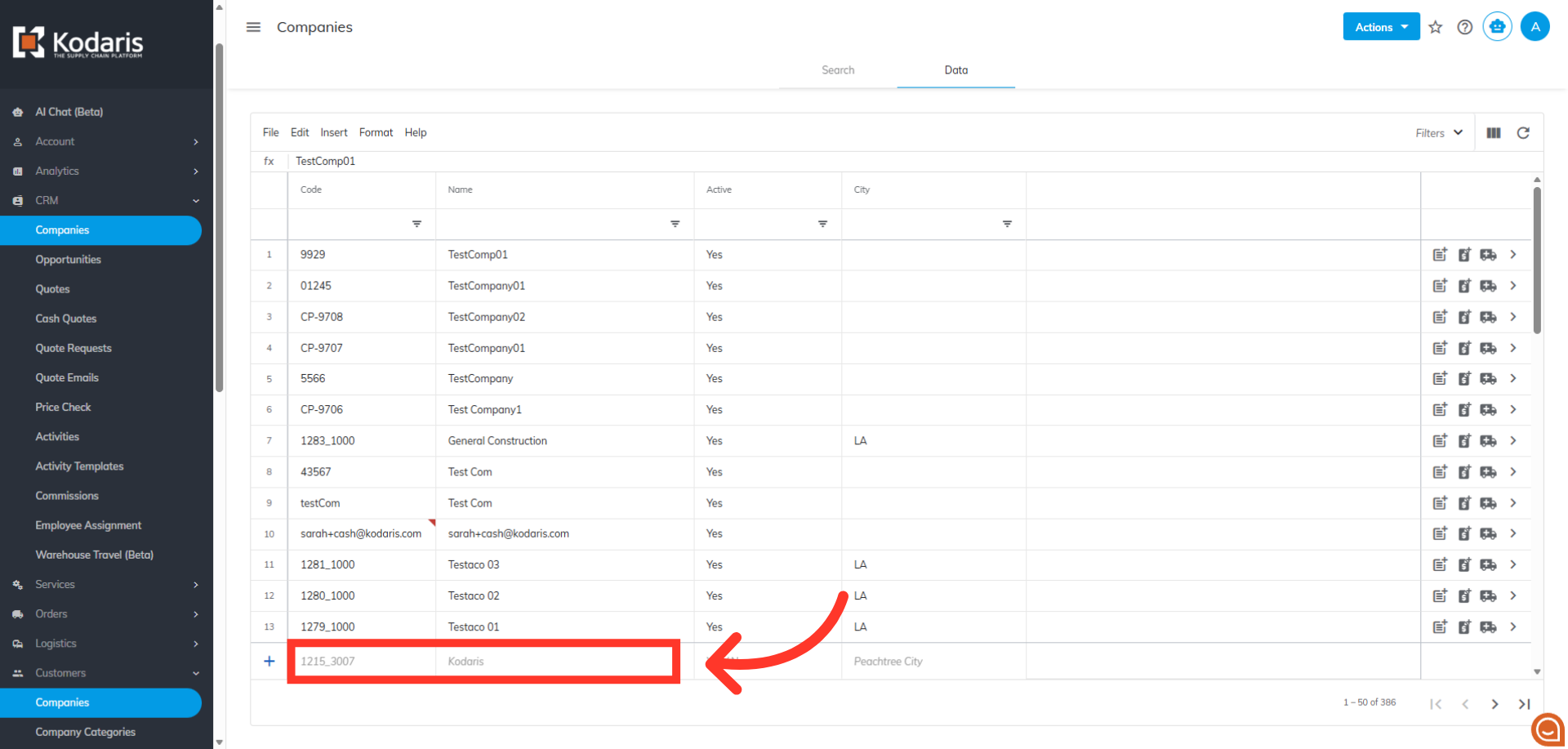
In the "Add a row" fields, fill in the "Code" and "Name" fields as they are both required.
Then, hit "Enter" to add the row.
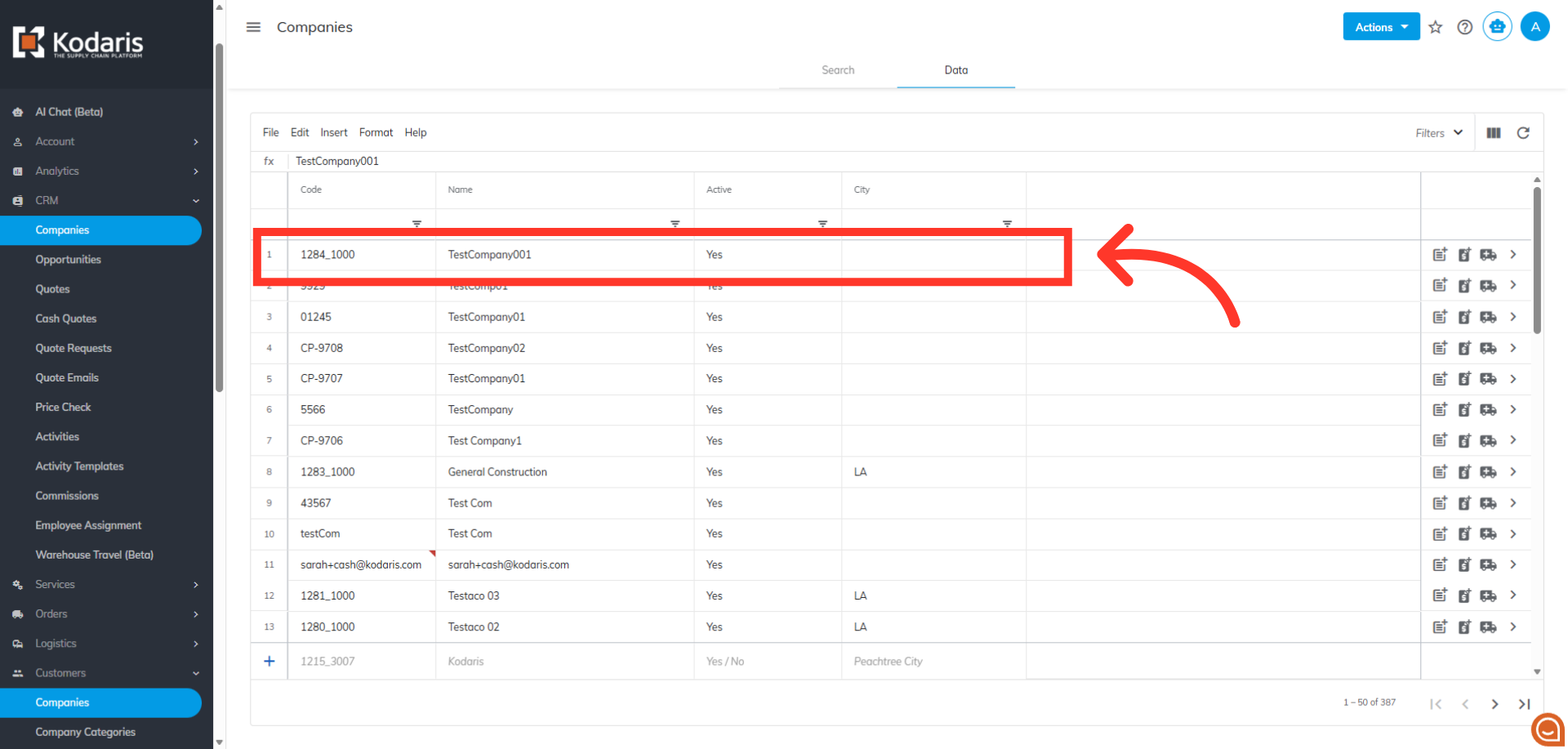
Now, to add more company data, click on the more details icon.
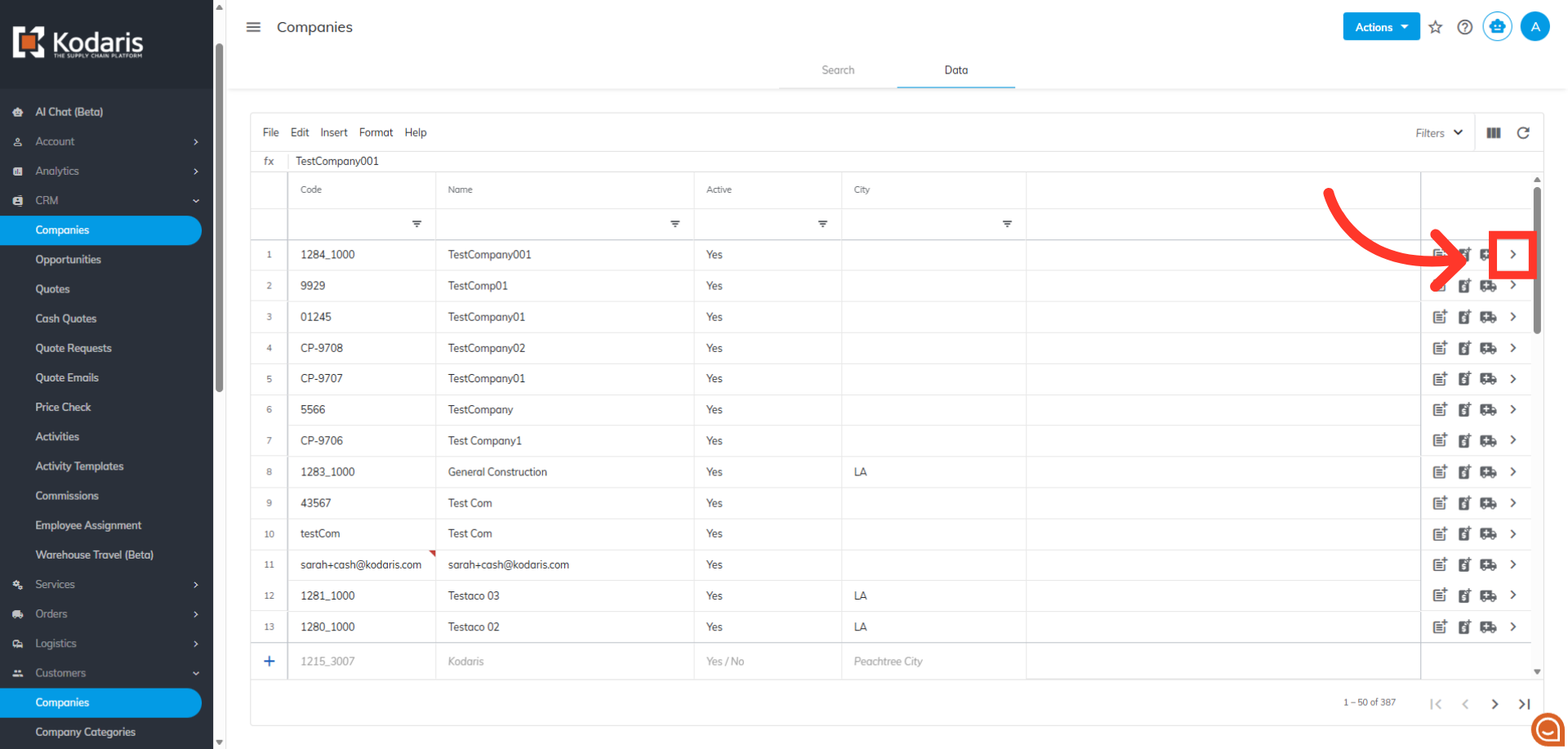
Fill in more details of the company.