Product Documentation
Product Documentation
Product Documentation
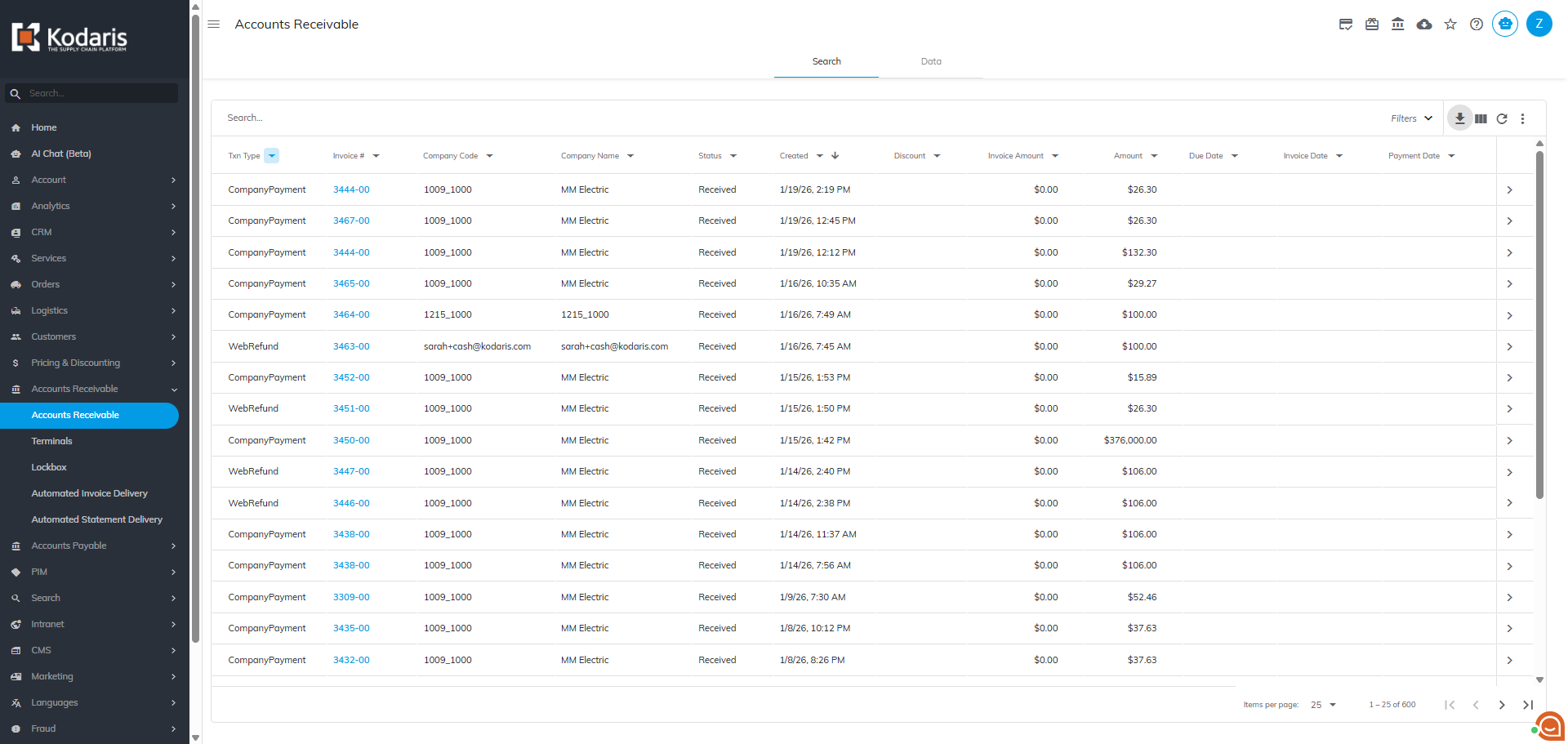
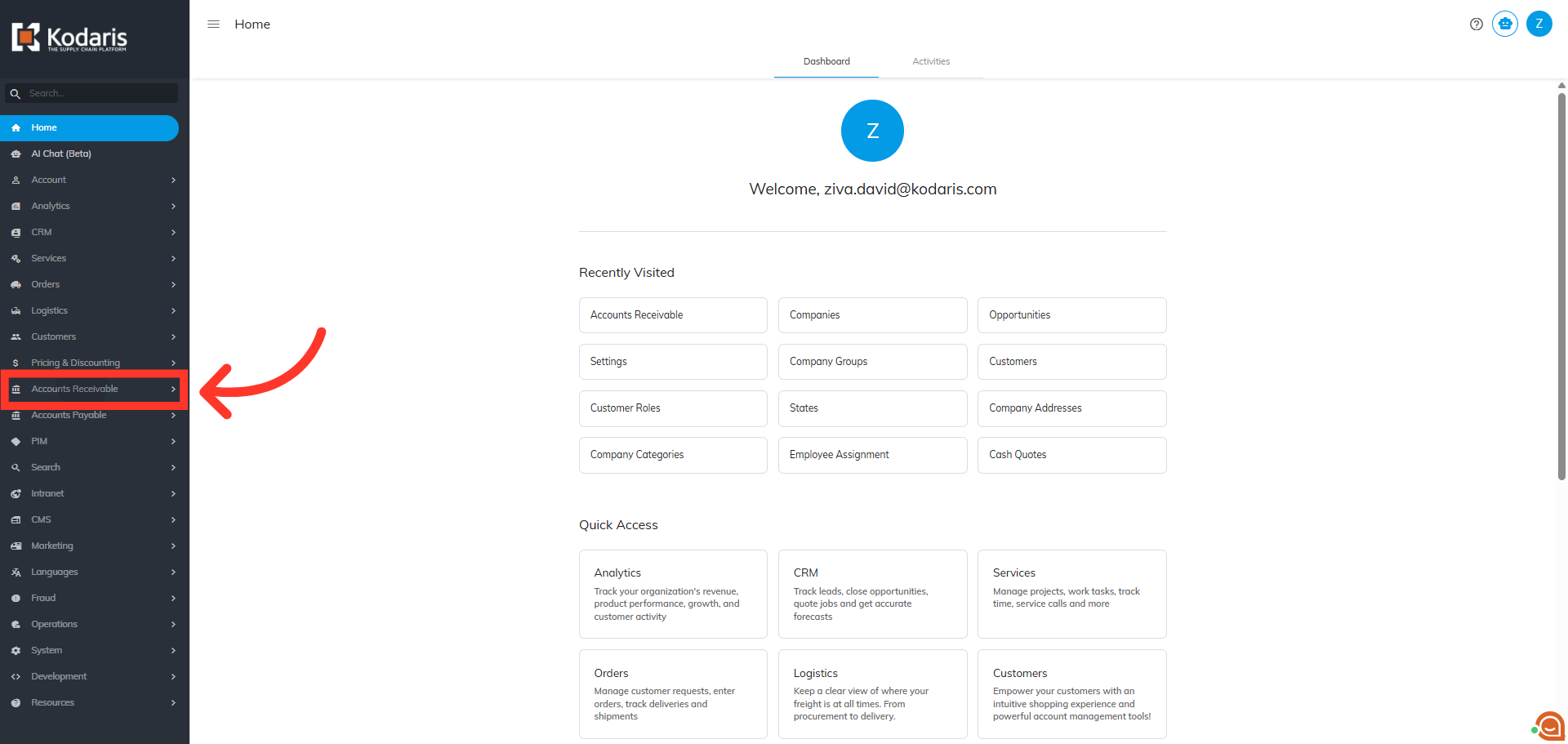
You can view and generate a report on store credits from the "Accounts Receivable" section in the Operations Portal. First, click the "Accounts Receivable" section.
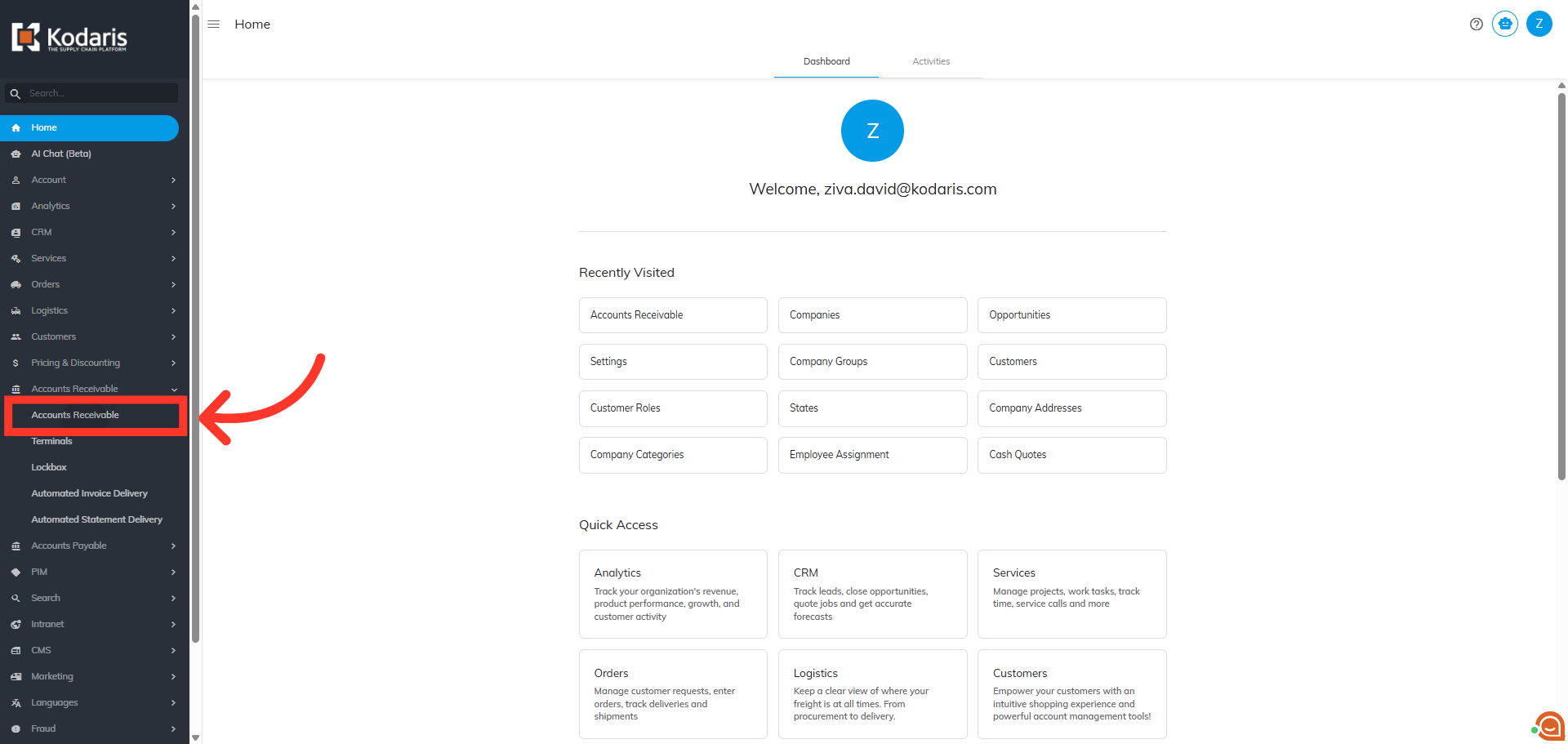
Then, click "Accounts Receivable". In order to access "Accounts Receivable" you will need to be set up either as an "administrator" or a "superuser", or “accountant” or have the following roles: "paymentEdit” and “paymentView”.
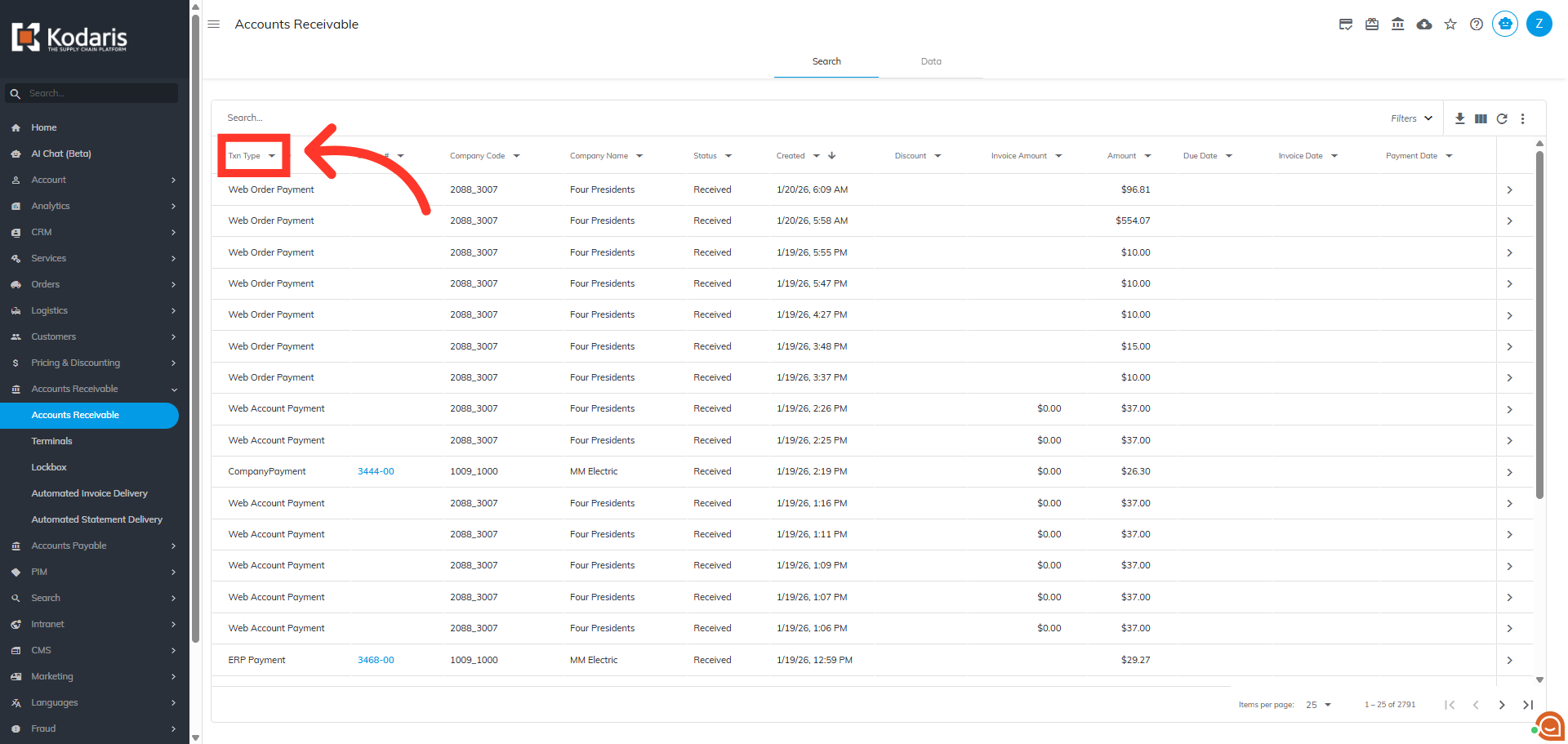
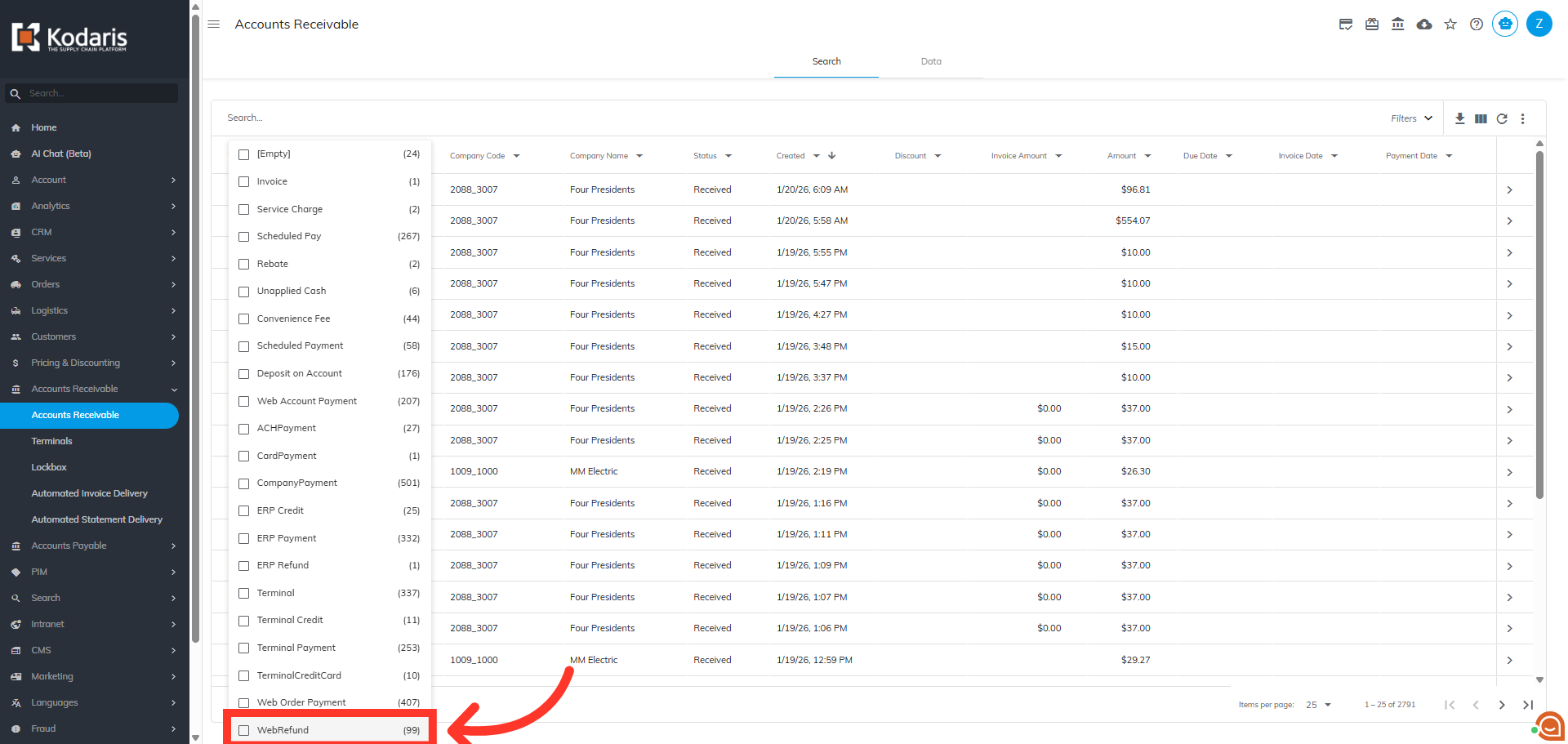
The grid overview displays all transactions from the ERP and the platform. To filter store credit transactions, click on the dropdown arrow for the column header, "Txn Type" to reveal options.
Next, select "WebRefund" by clicking the checkbox. Web Refund transactions are store credits that were issued in CSD.
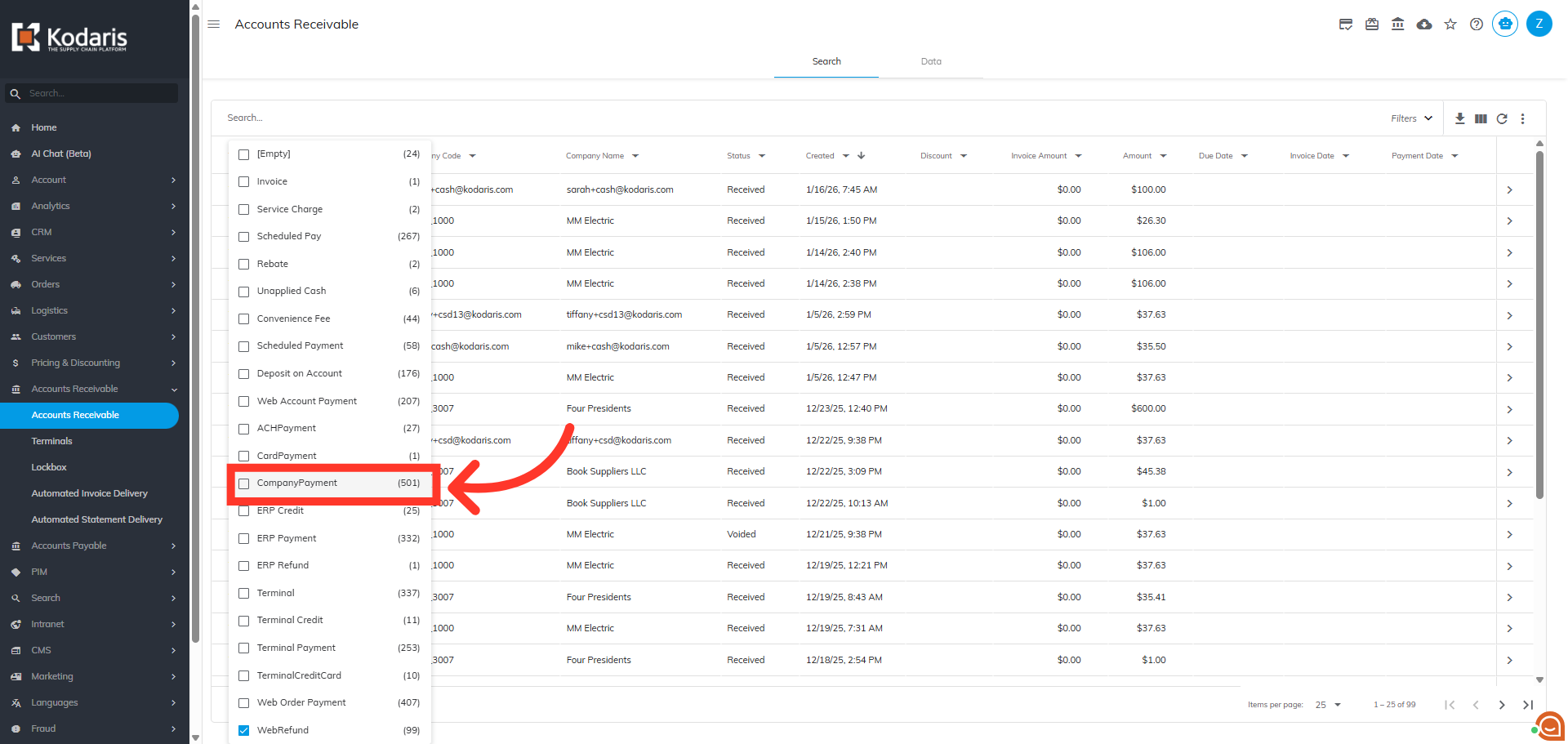
Then, select "CompanyPayment" by clicking the checkbox. Company Payment transactions include any transactions related to applying store credits to a customer in CSD.
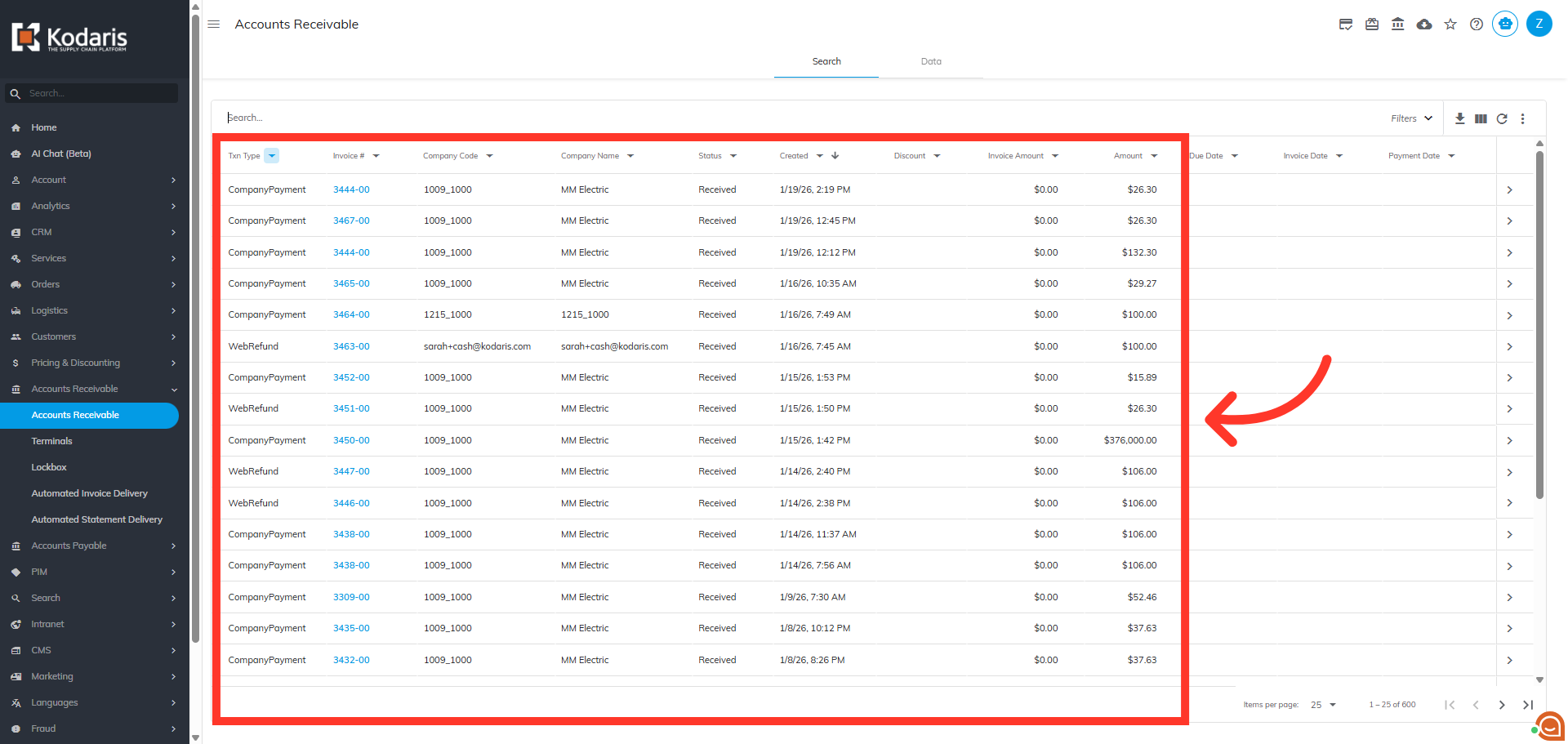
The filtered results are displayed and you can now see the company code, name, invoice number and other relevant information related to the credits. You can also filter transactions by a specific created date range by using the filters available.
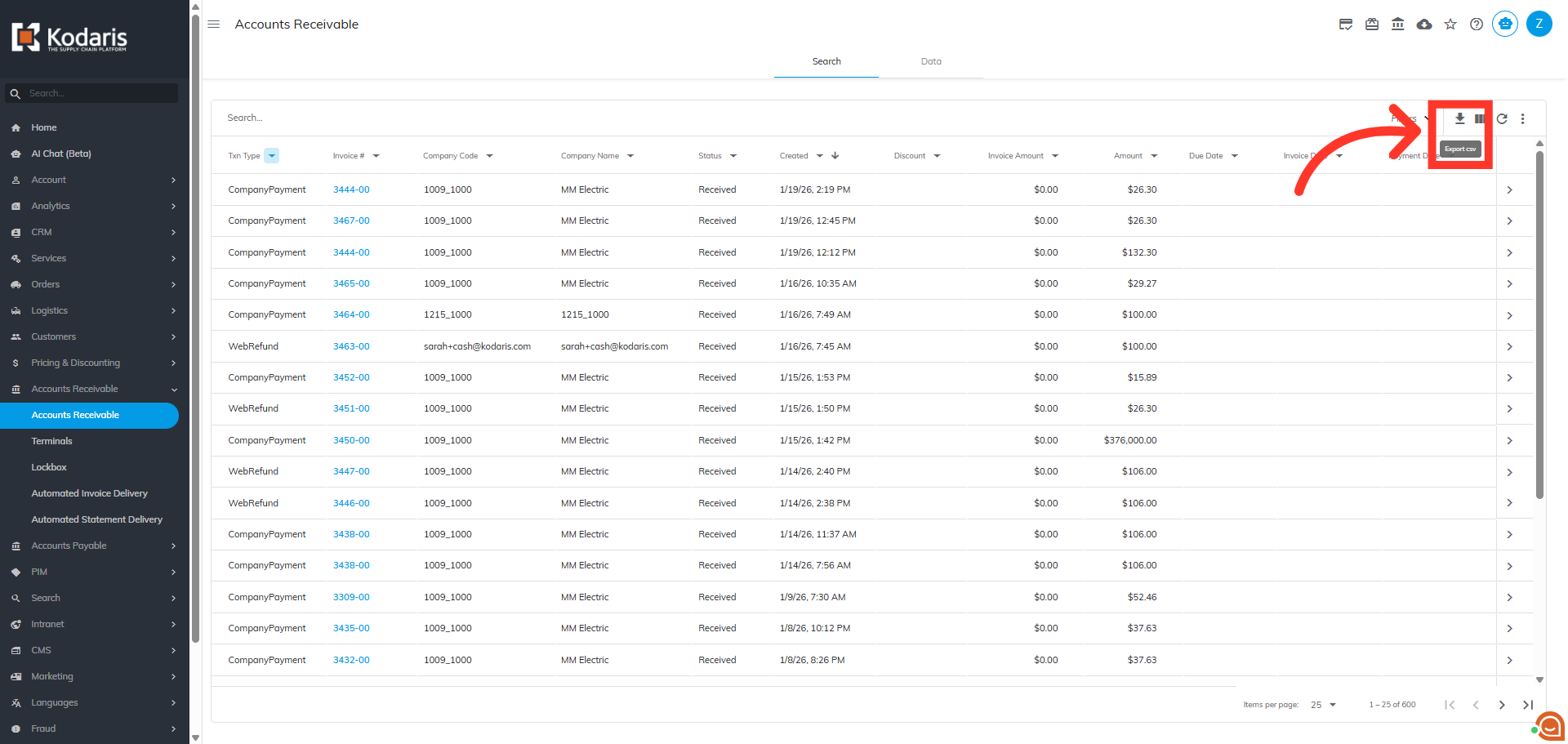
Next, click the "Export csv" download icon.
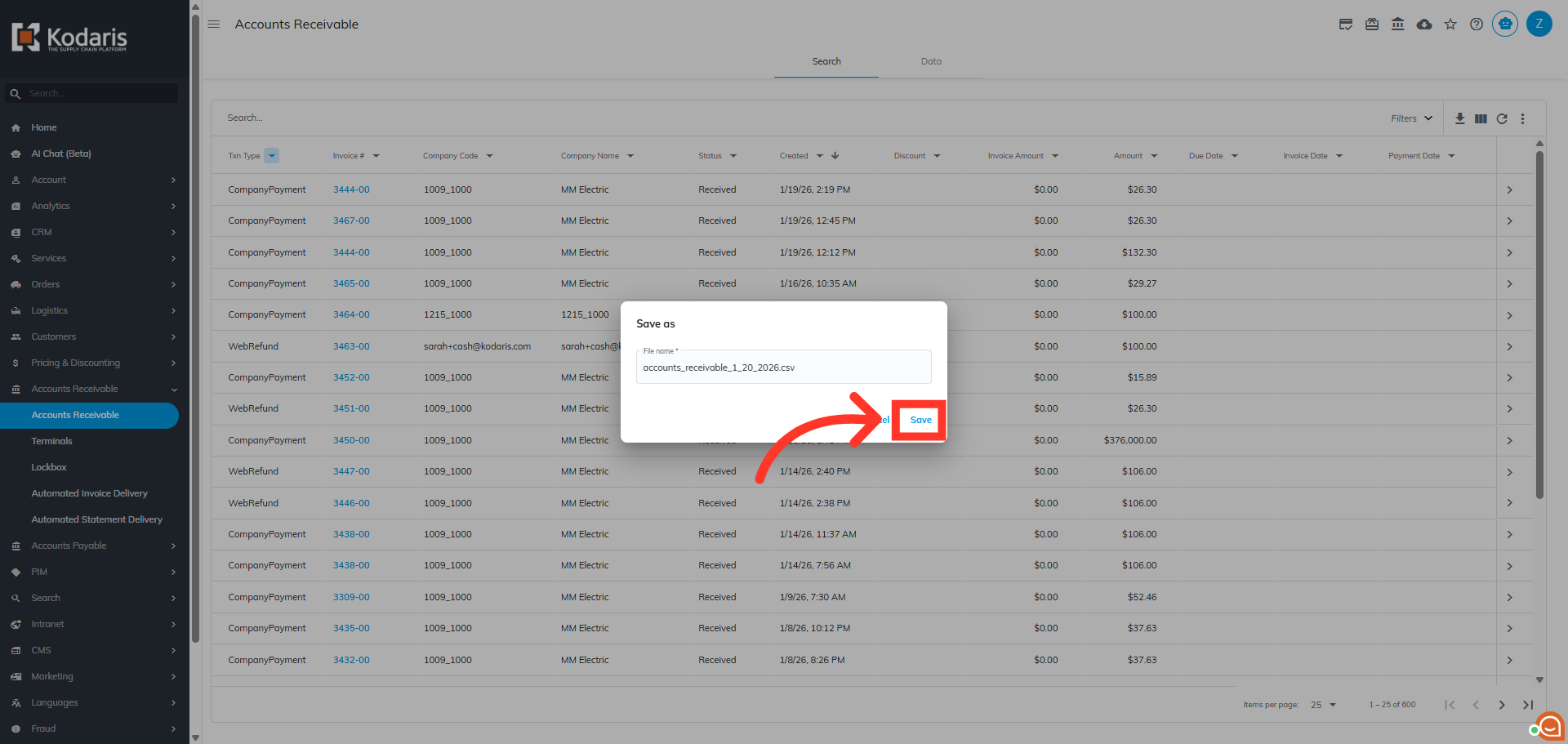
Enter a file name for the export file to ensure it reflects the content accurately, or use the prepopulated default name. Then, click "Save" to save the file to your computer.
Your file has been saved and you can review the exported data.