Product Documentation
Product Documentation
Product Documentation
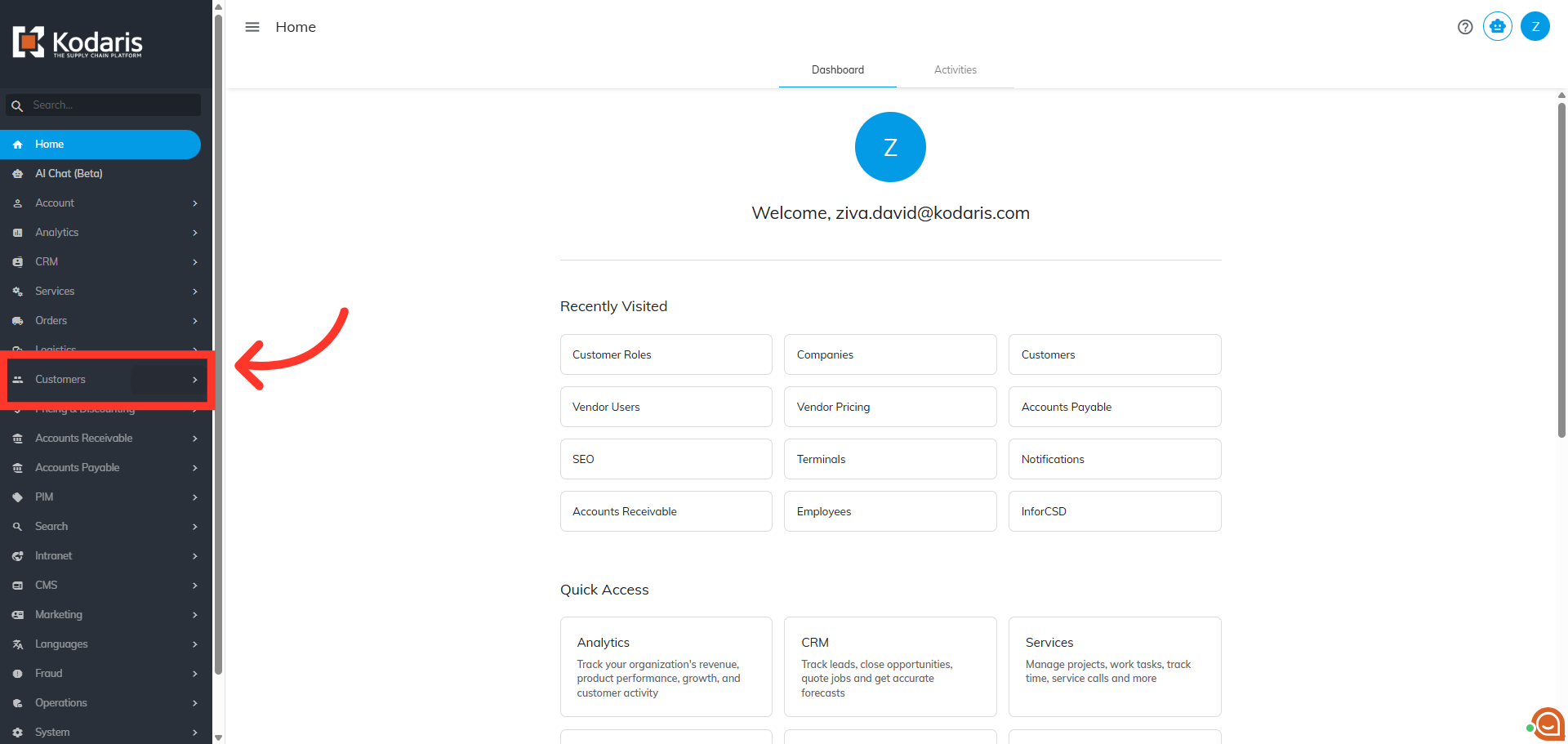
To create, view, edit or delete company catalogs on the commerce site, without being an administrator, you will need to assign a new role to the user. First, navigate to the "Customers" section in the Operations Portal.
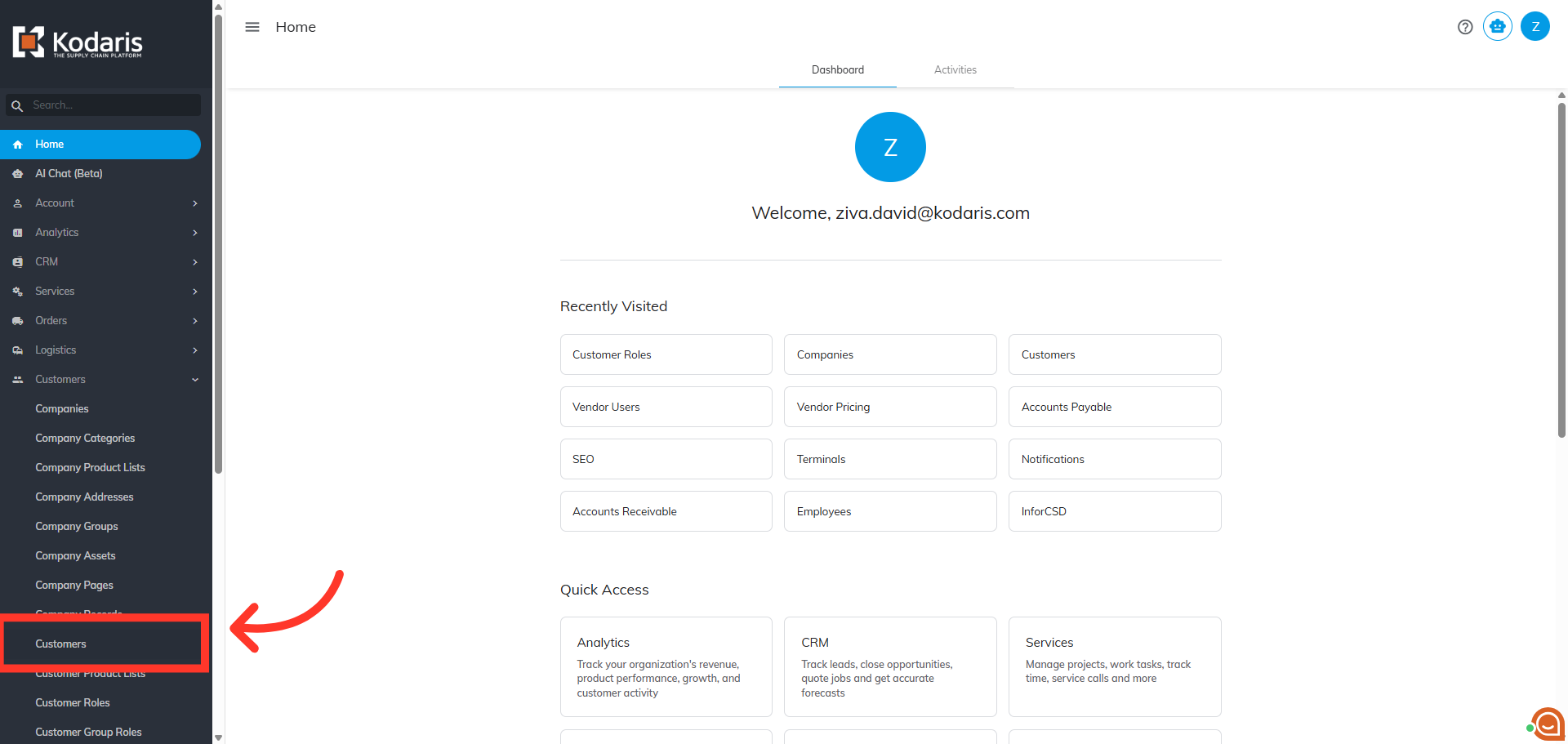
Then, click "Customers" to view the list of customers in the system. In order to access "Companies" you will need to be set up either as an "administrator" or a "superuser", or have the appropriate roles: "companyView", "companyEdit", "customerView", and "customerEdit".
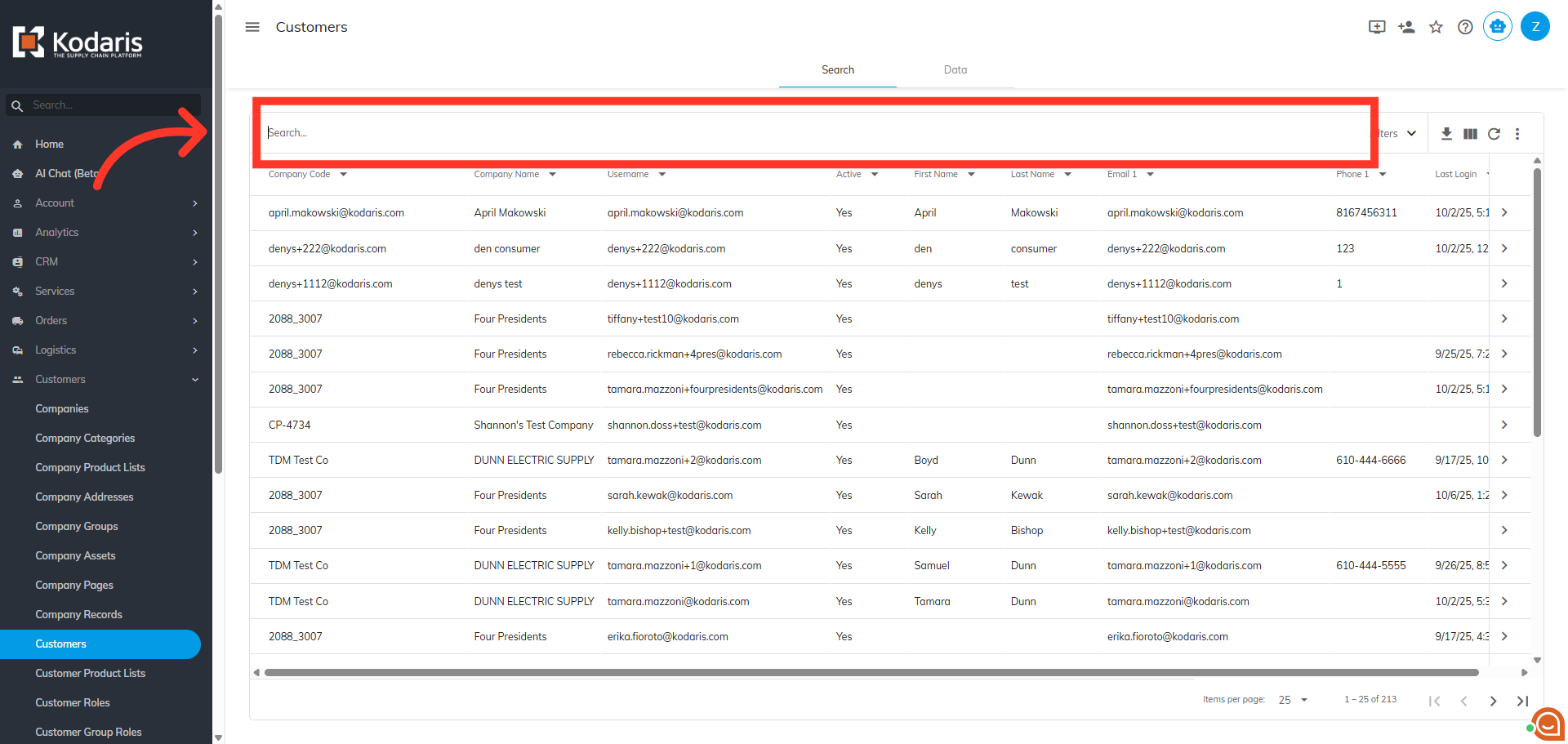
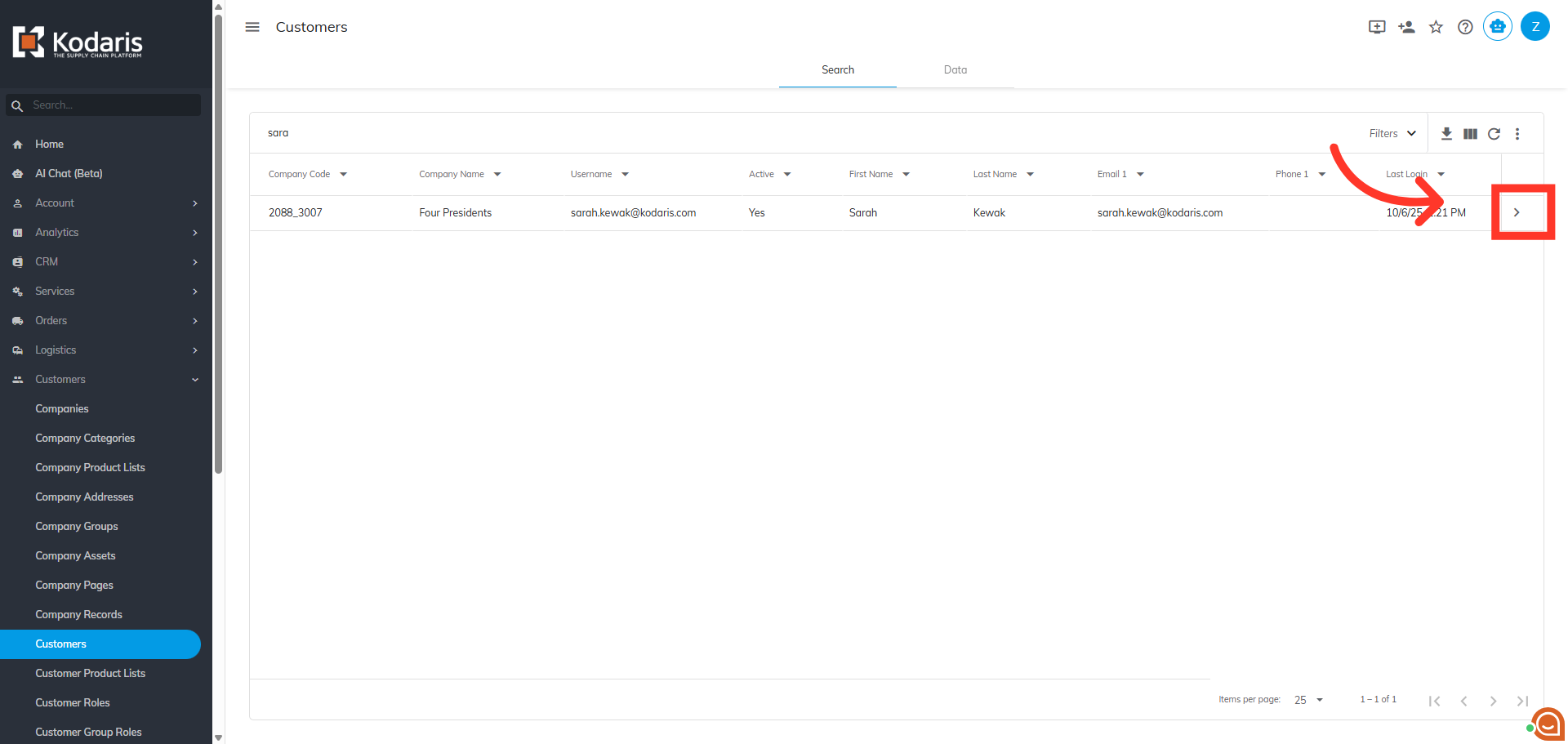
To locate the customer, use the "Search..." field
Next, click on the more details icon to go to the details screen.
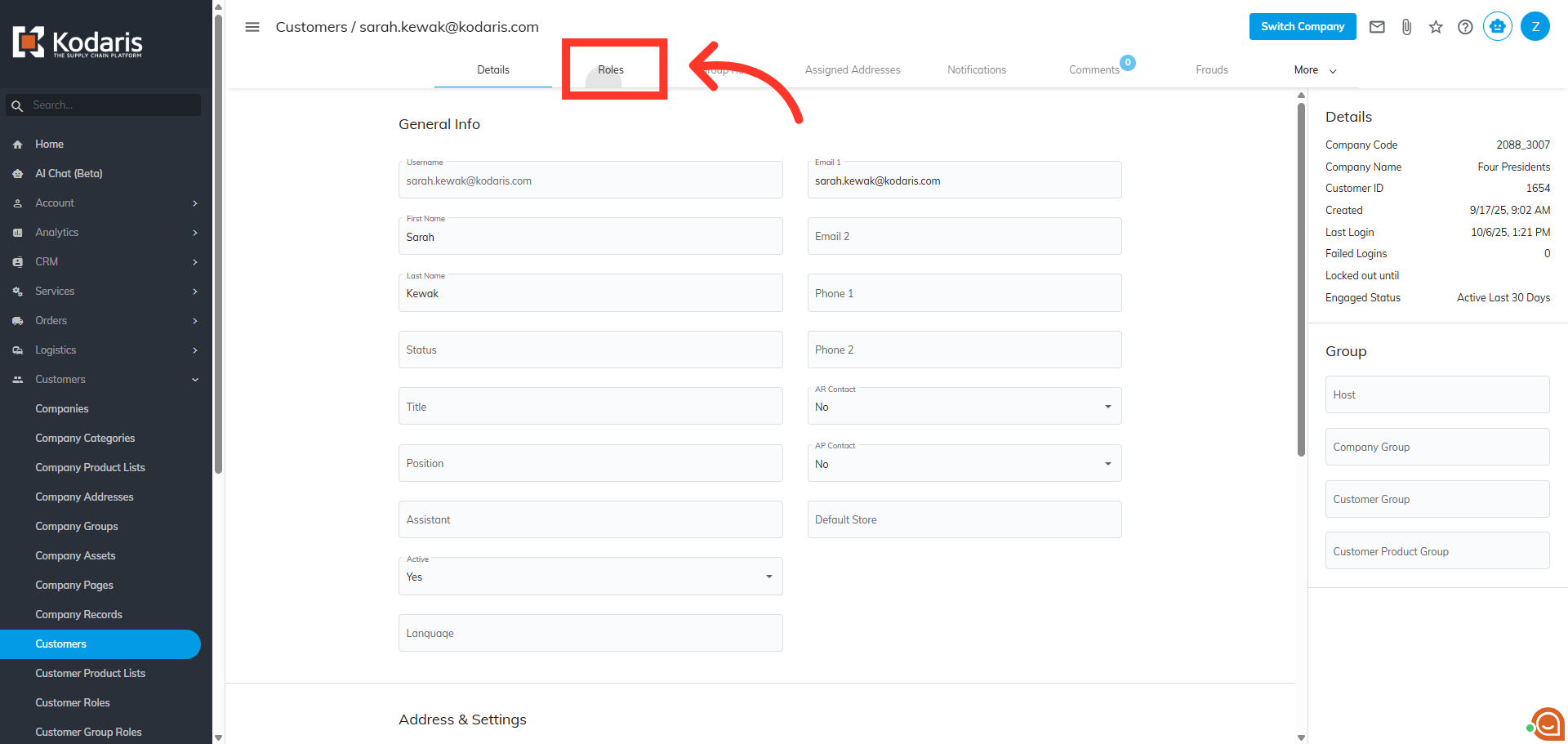
Next, click the "Roles" tab to view and manage the roles assigned to the selected customer.
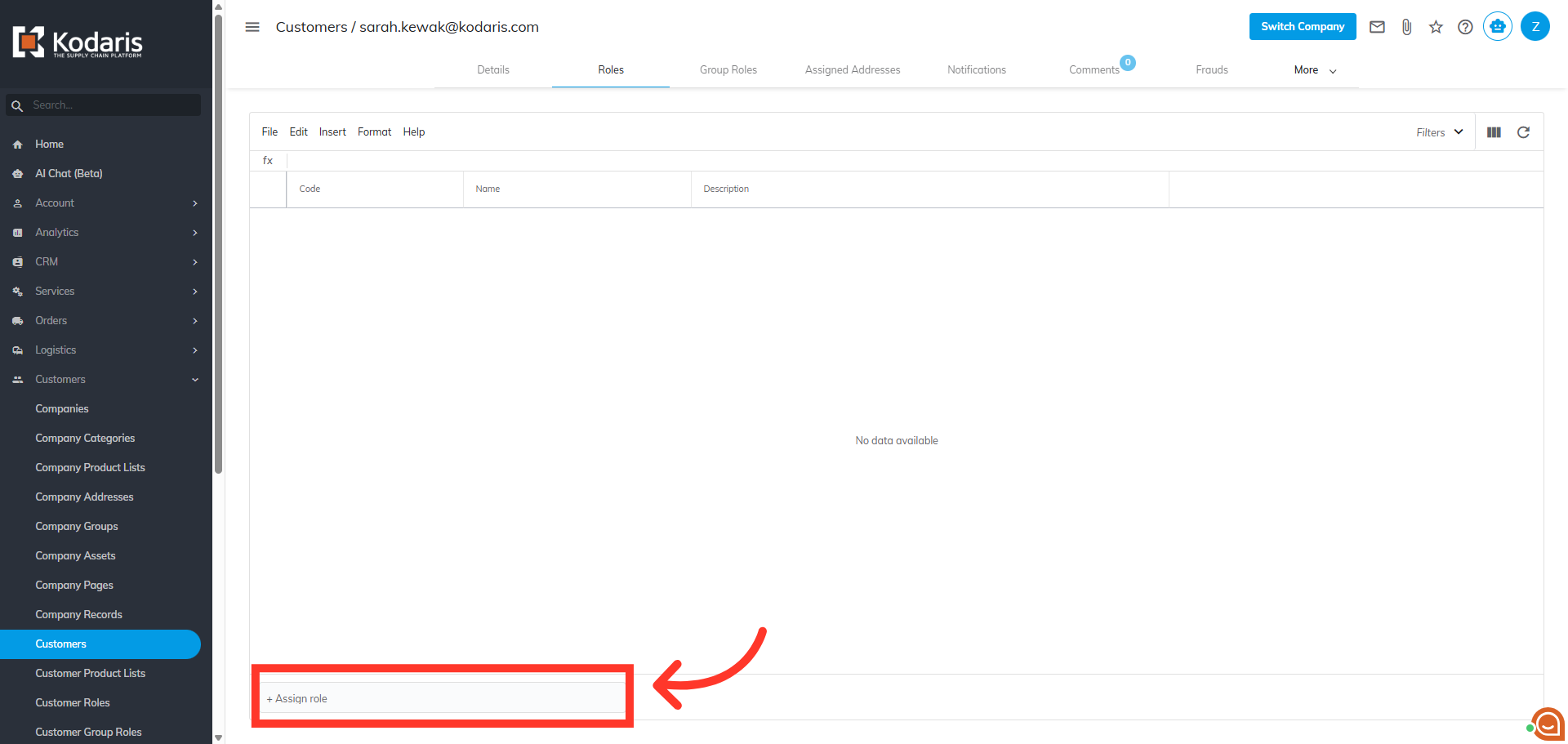
Click in the "Assign role" field at the bottom of the page.
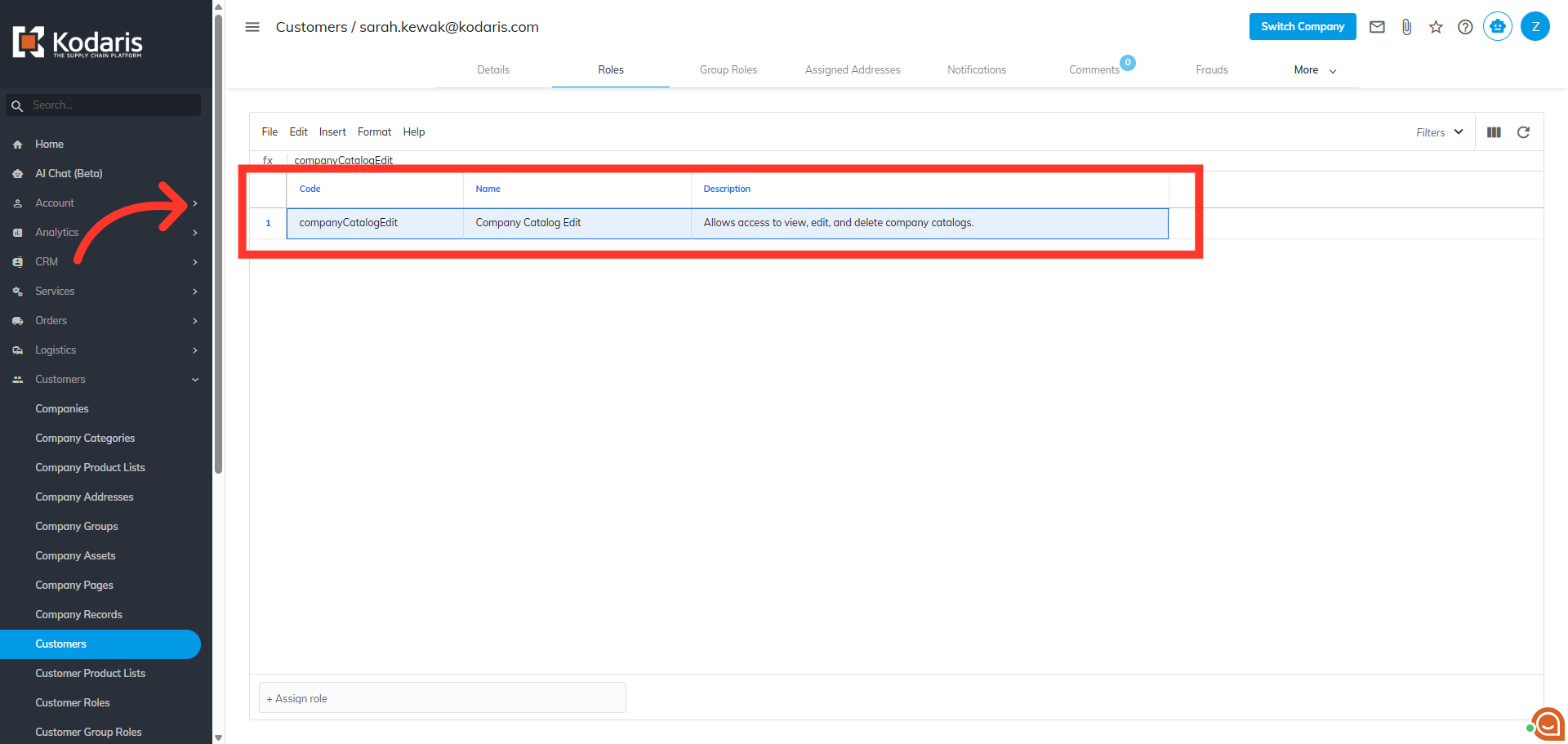
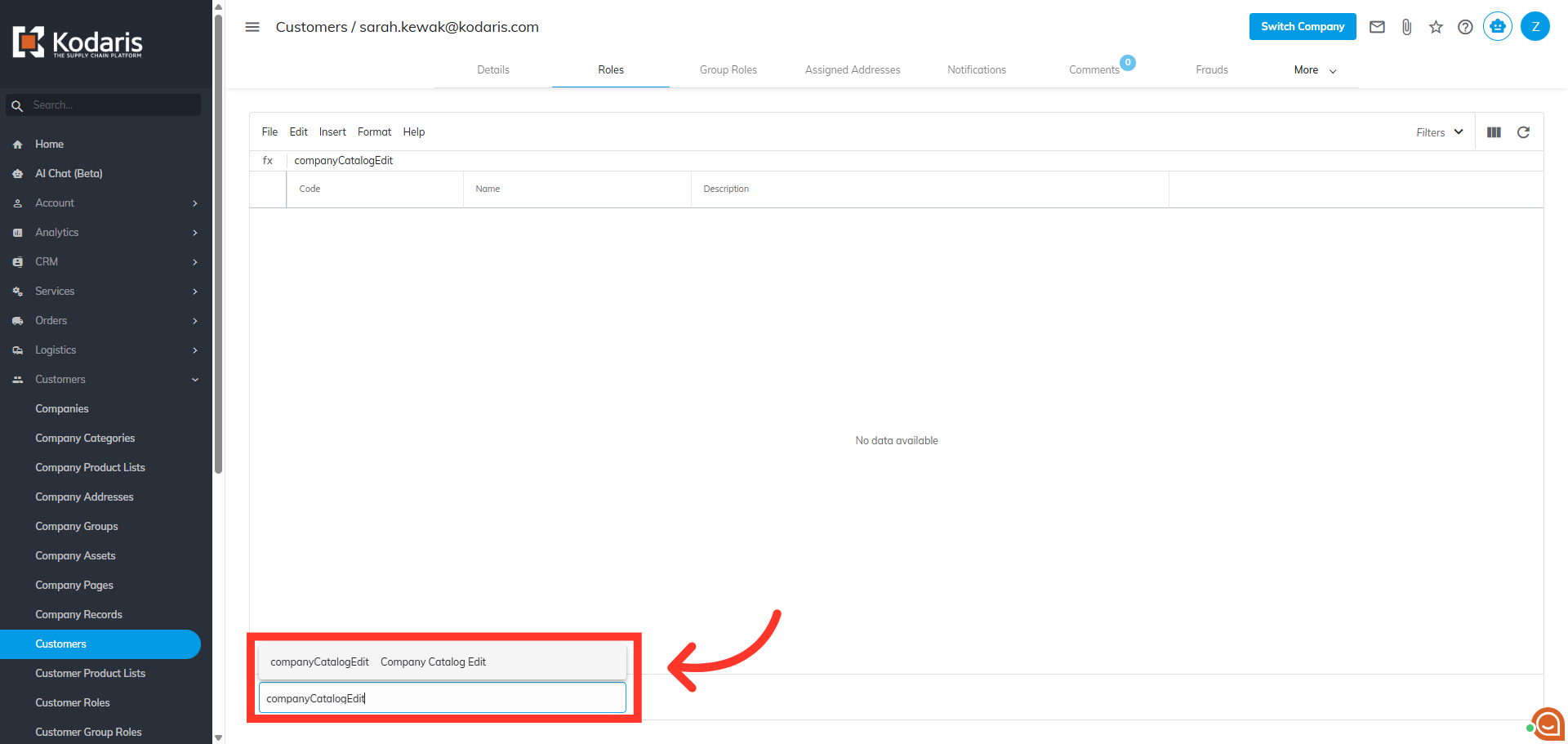
Begin typing the role, "companyCatalogEdit". The option will automatically appear as you type. Click the role name to add it to the company.
The role has been added and the customer can now manage company catalogs on the commerce site.