Product Documentation
Product Documentation
Product Documentation
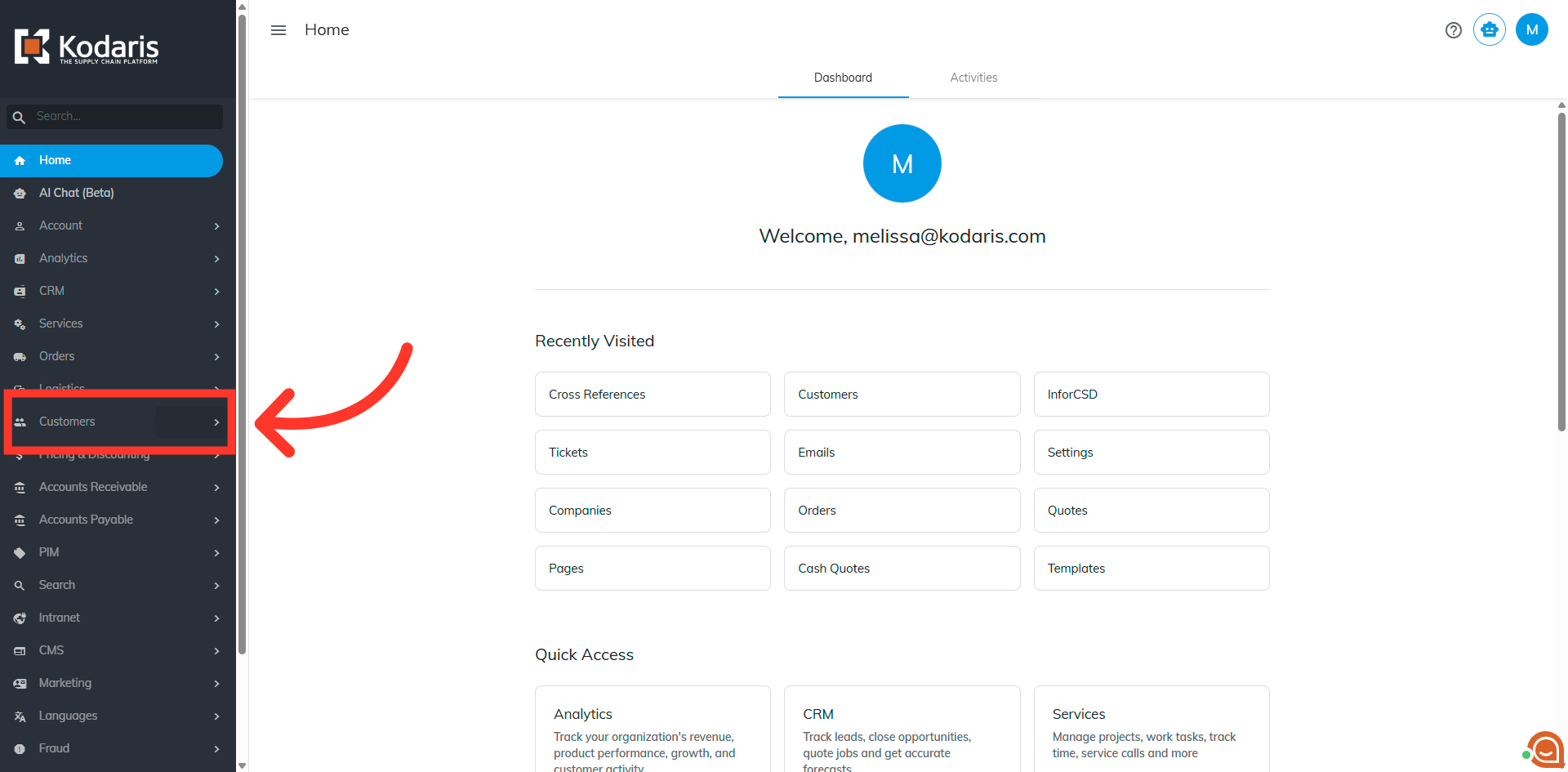
To export company cross references, navigate to the "Customers" section in the Operations Portal
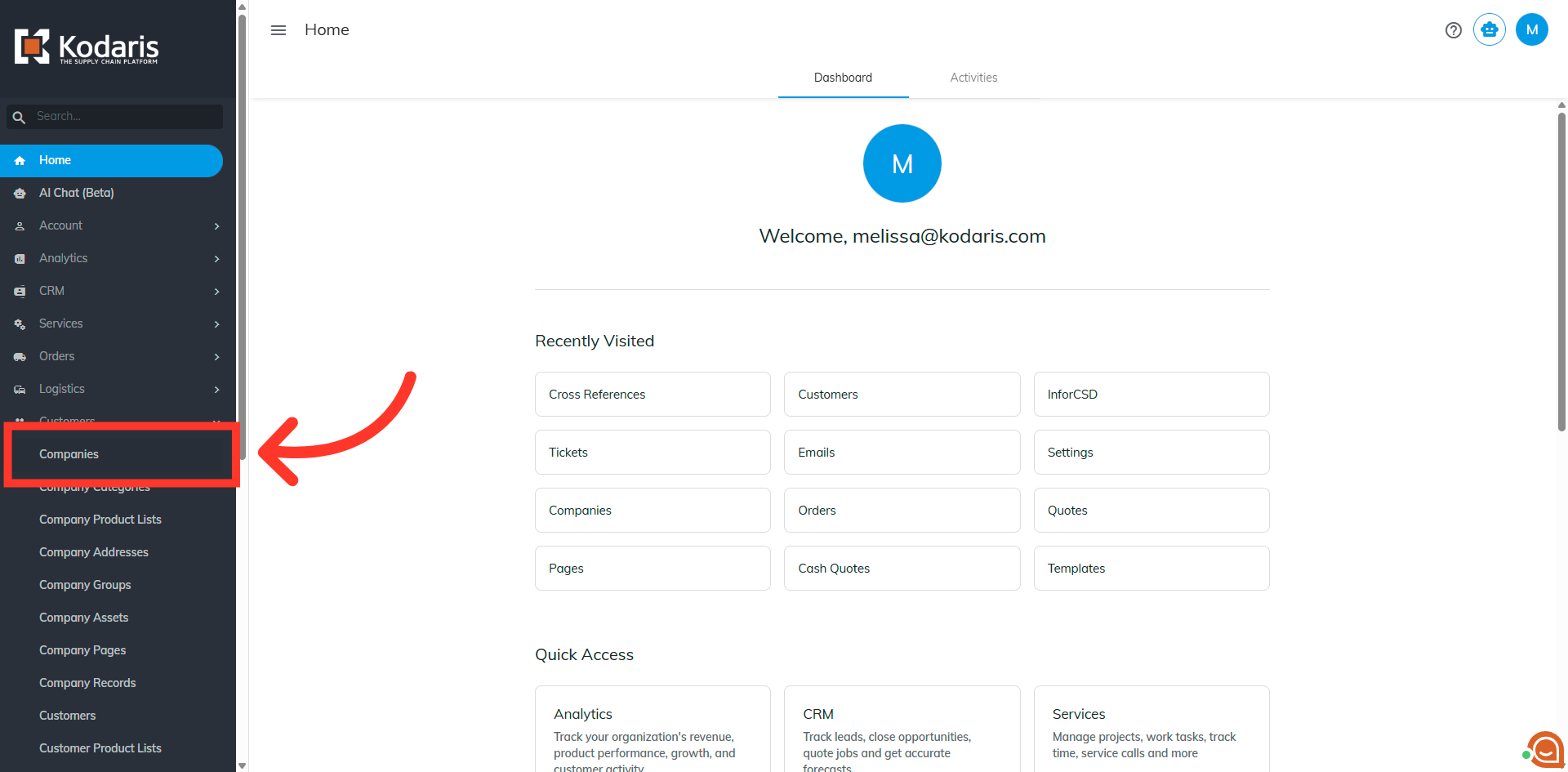
Then, click "Companies". In order to access "Companies" you will need to be set up either as an "administrator" or a "superuser", or have the appropriate roles: "companyView and companyEdit", or "crmCompanyView and crmCompanyEdit". Just a reminder, "crmCompanyView and crmCompanyEdit" access only allows employees to view companies that are assigned to them.
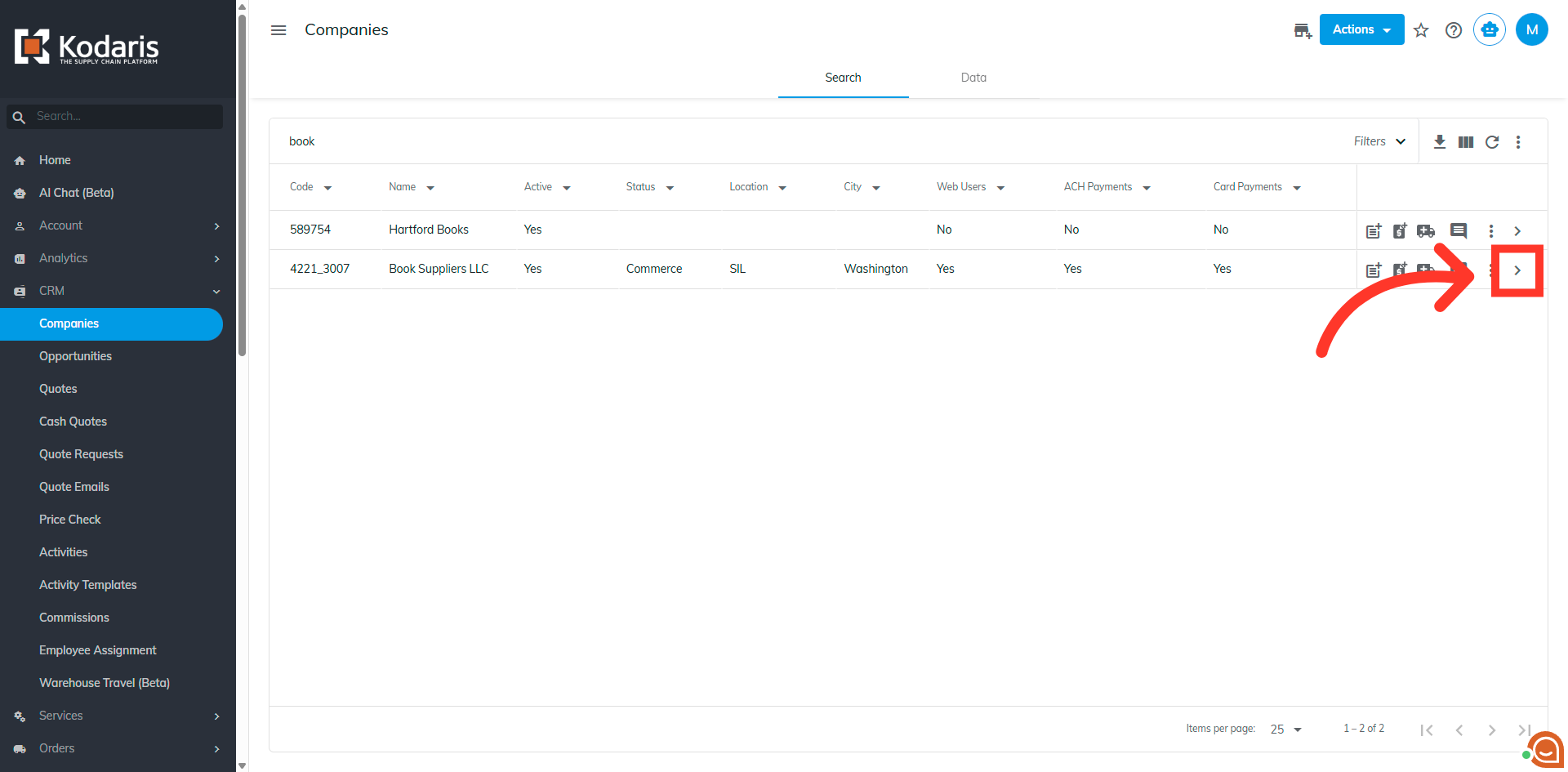
Search for the company. You can enter the company code or company name in the "Search" field.

Click the more details icon to access detailed company information.
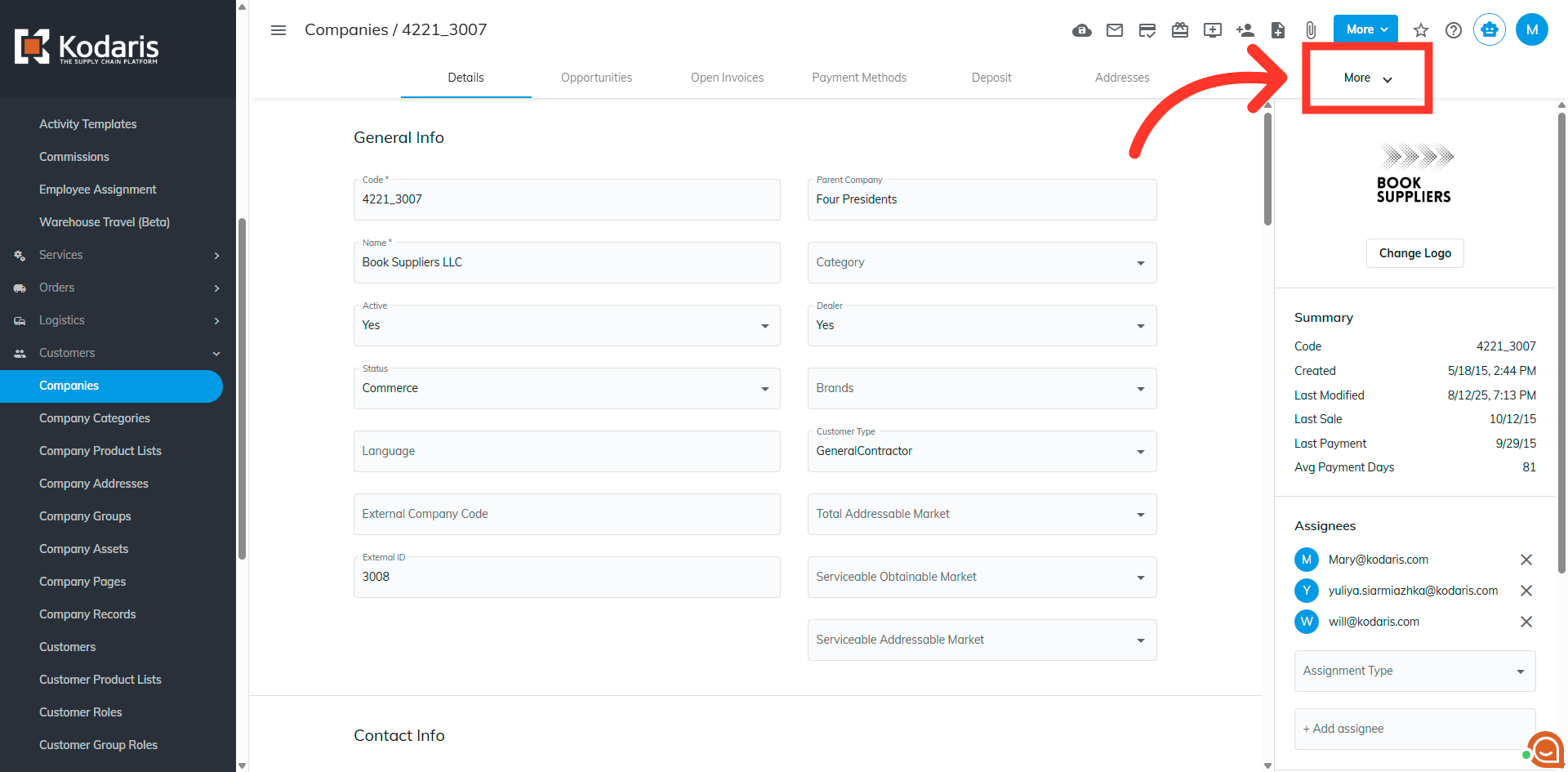
Open the "More" menu to find extended features related to company management.
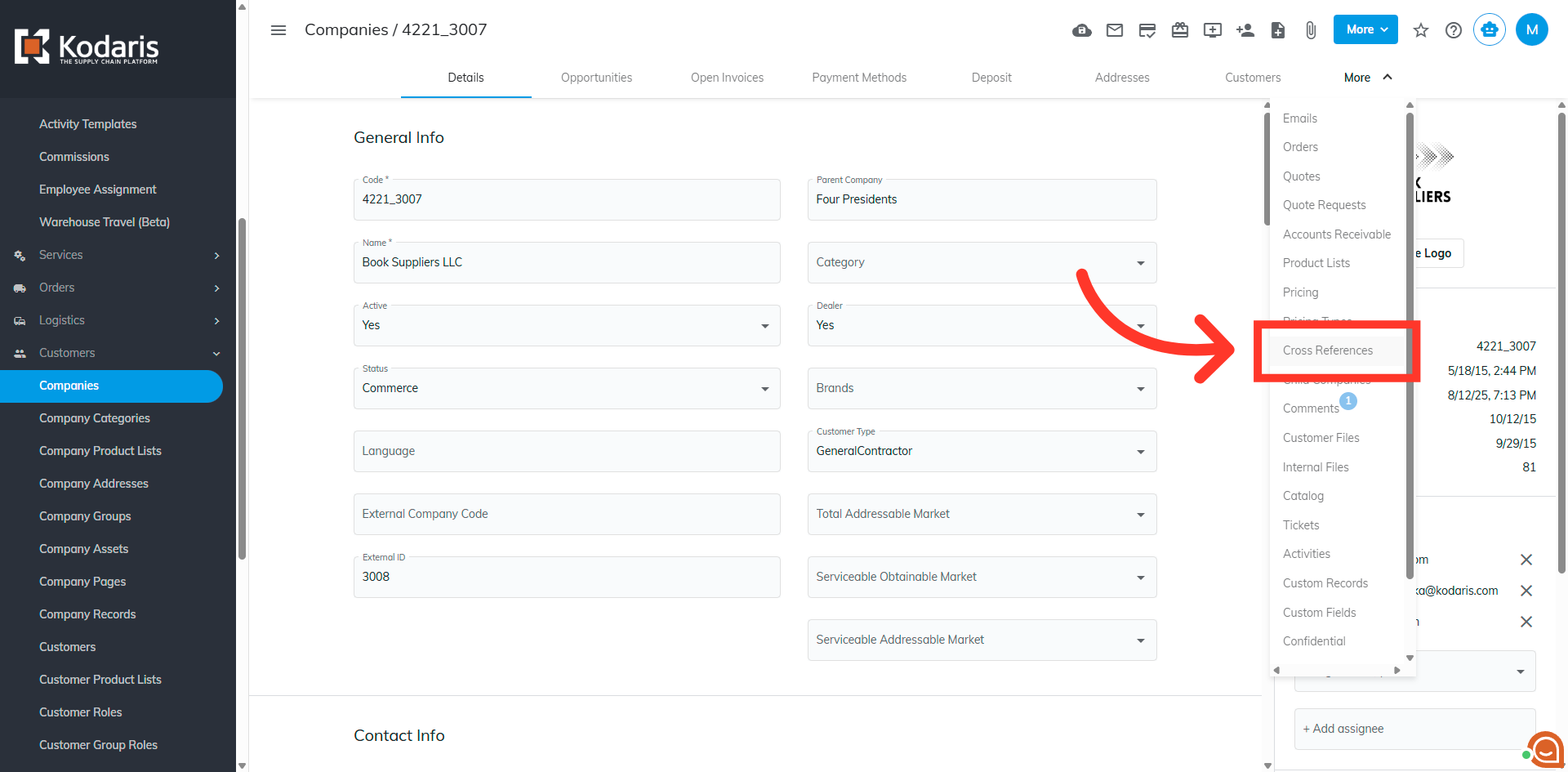
Choose the "Cross References" option.
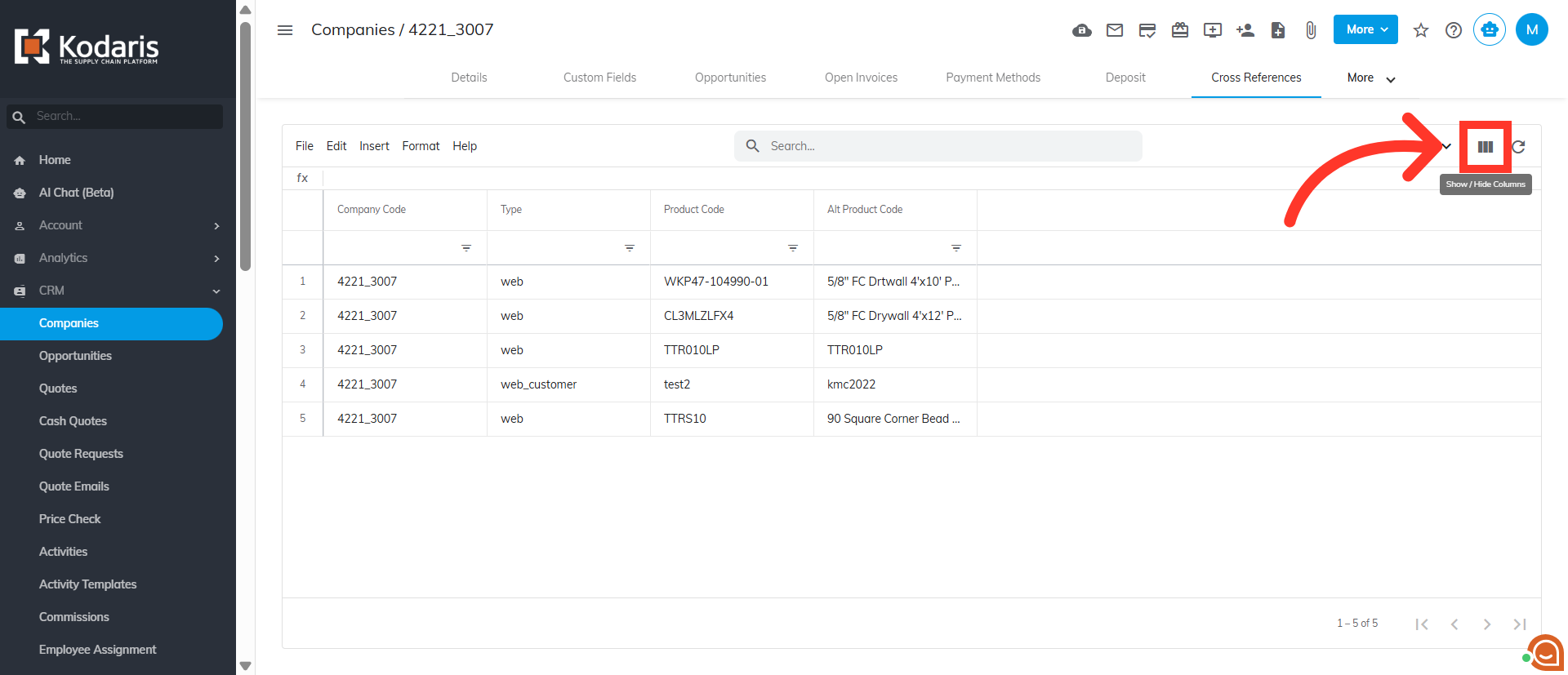
Click the "Show/Hide Columns" icon to select needed columns.
Select the columns you would like to include in the export.

When you are ready to export, click the "File" menu.

Then, select the "Export" option

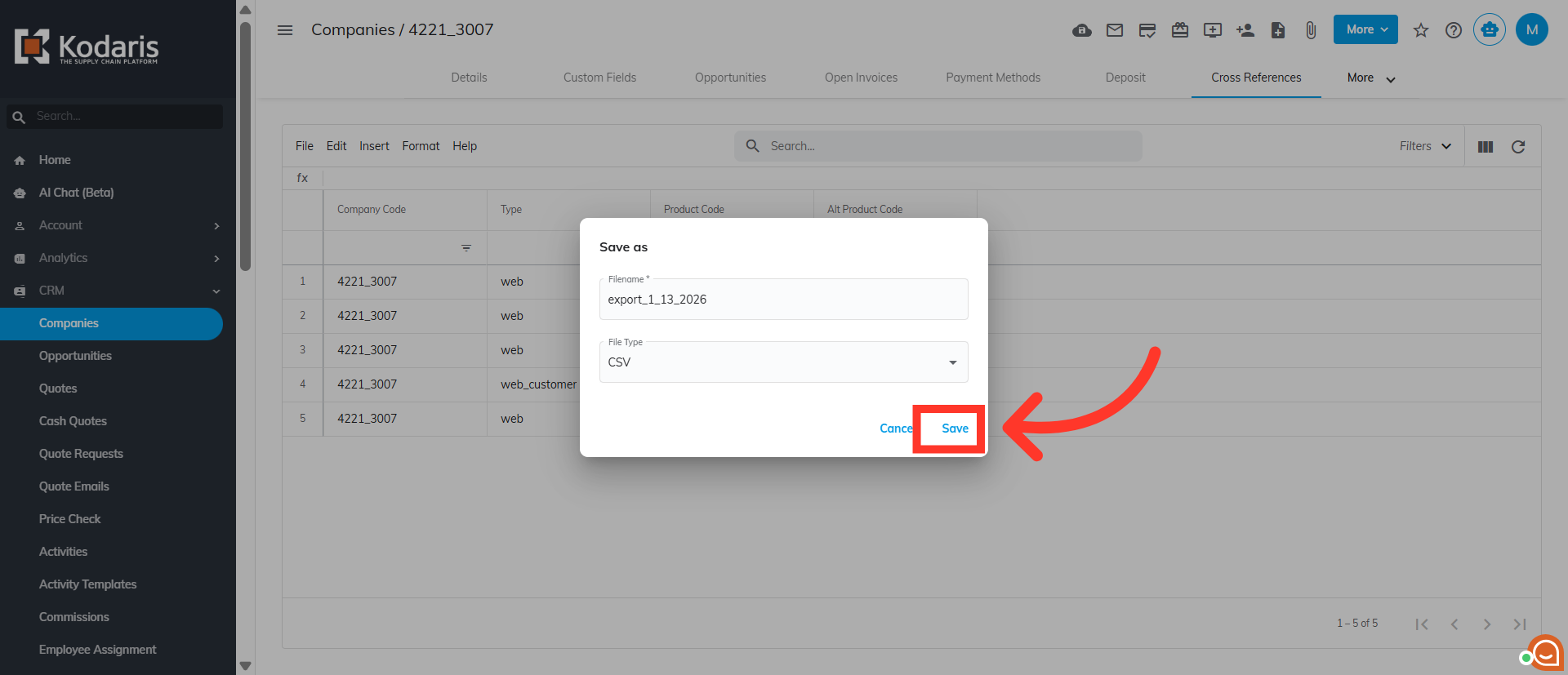
You can rename the file, if needed.
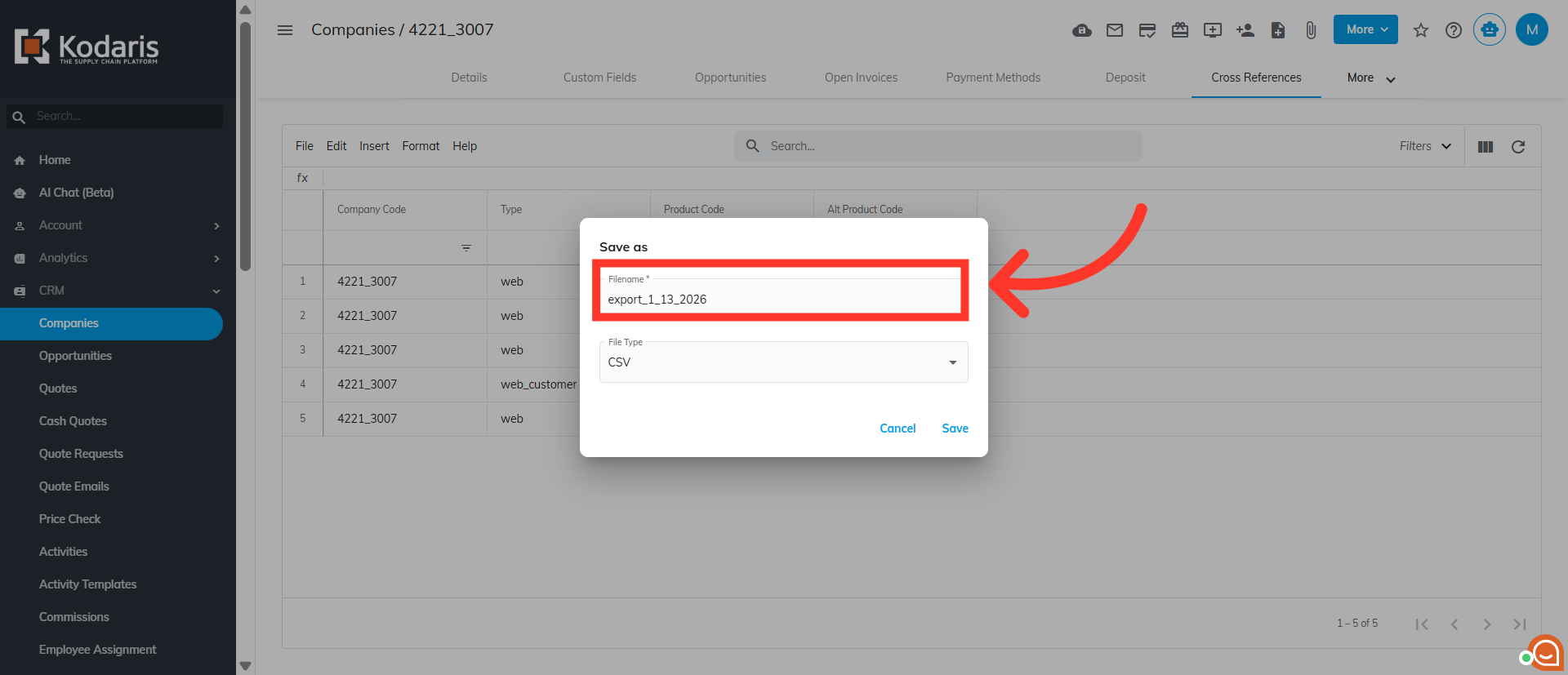
Now, click the "Save" button to initiate the export.