 Product Documentation
Product Documentation
Product Documentation
To manually edit or remove products from a product list, navigate to "CRM" section in the Operations Portal.

Then, click on the "Companies" screen. In order to access "Companies", you will need to be set up either as an "administrator" or a "superuser", or have the appropriate roles: "companyView," "crmCompanyView," "companyEdit," "crmCompanyEdit," and "dispatch."
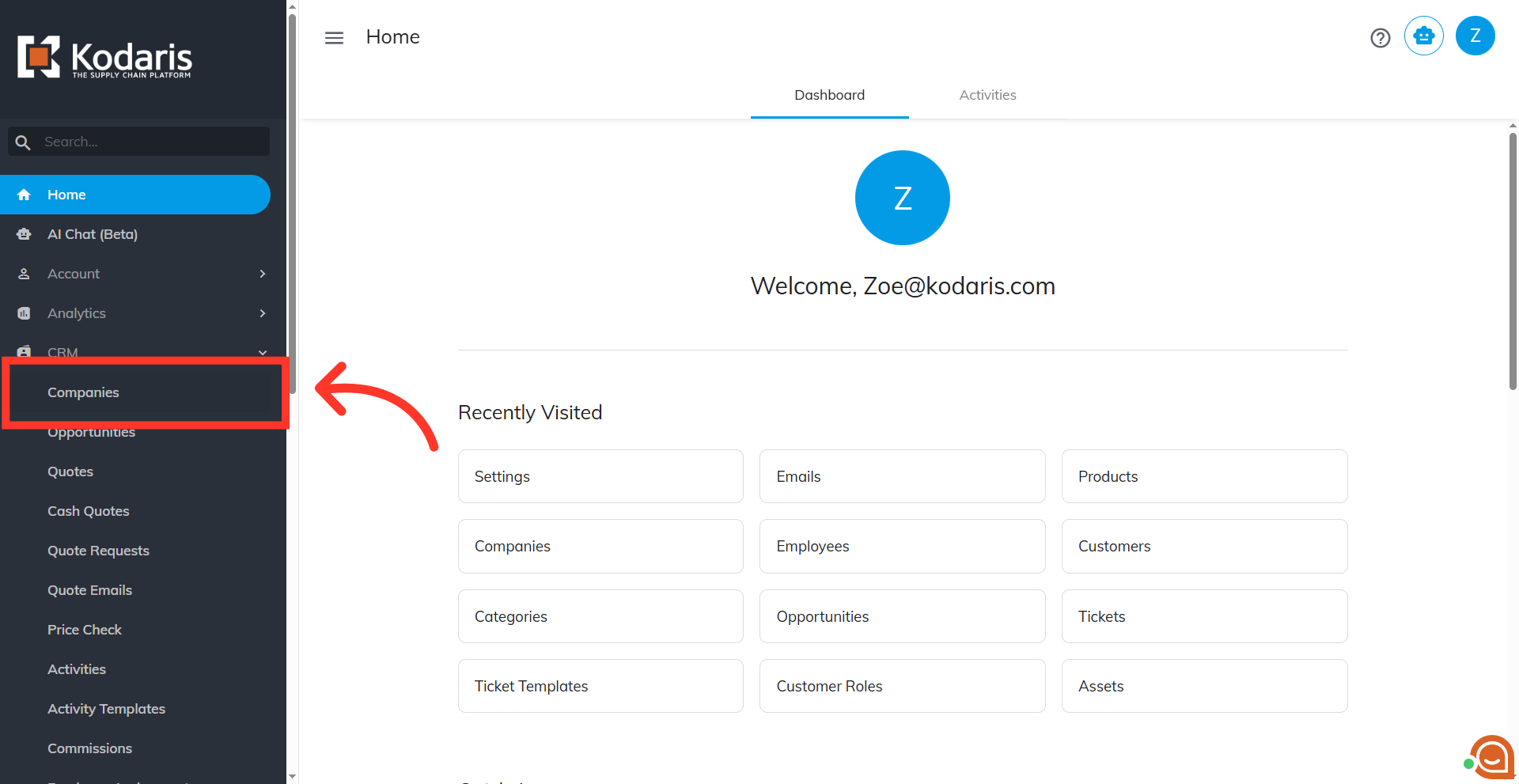
Type in the company code or name in the "Search..." field.

Locate the company and click the more details icon.

Click the "More" dropdown to find your "Product Lists" tab.
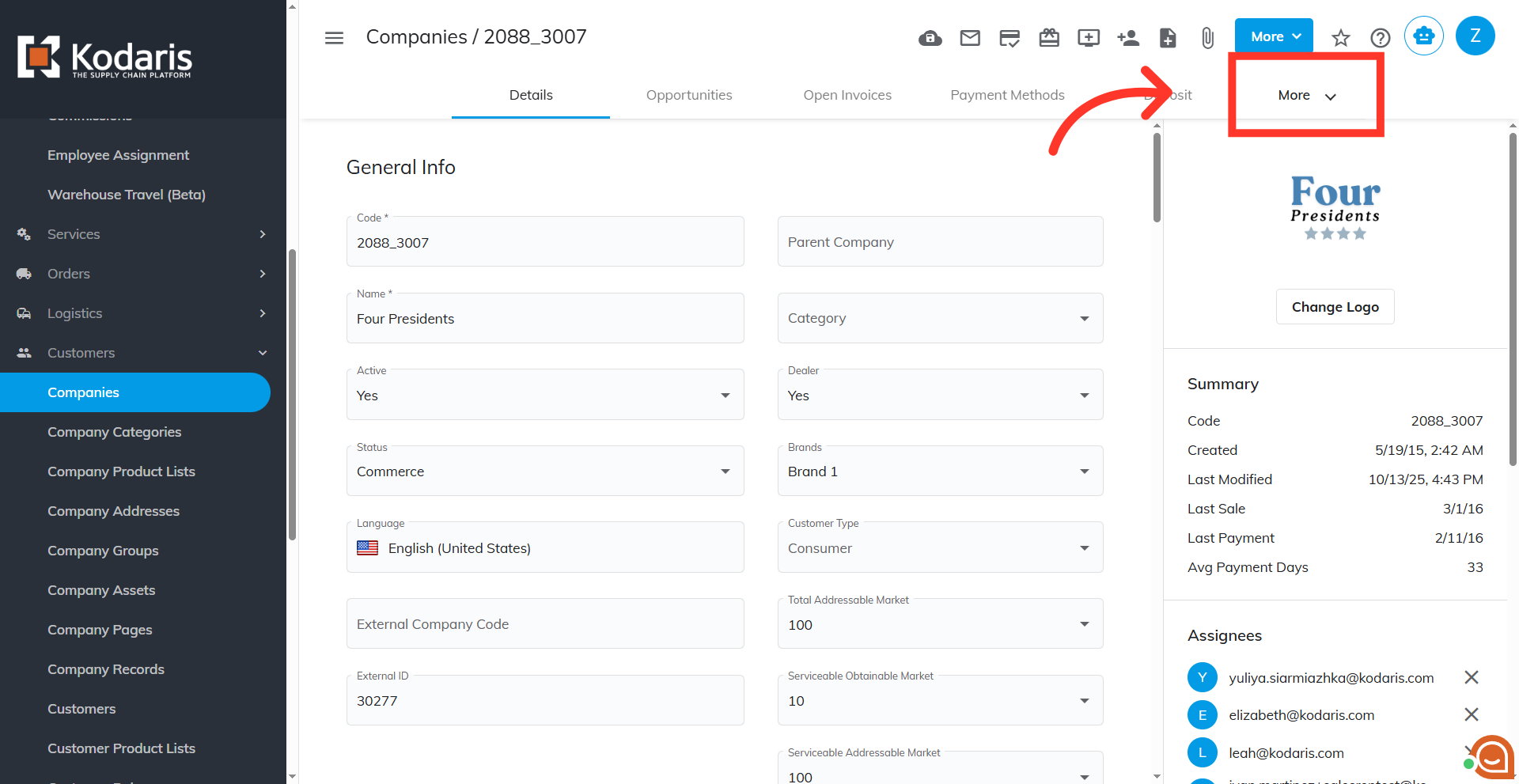
Click "Product Lists" from the tabs.

Search for the product list that you need to update. Use the search bar and type in a keyword to find the product list.
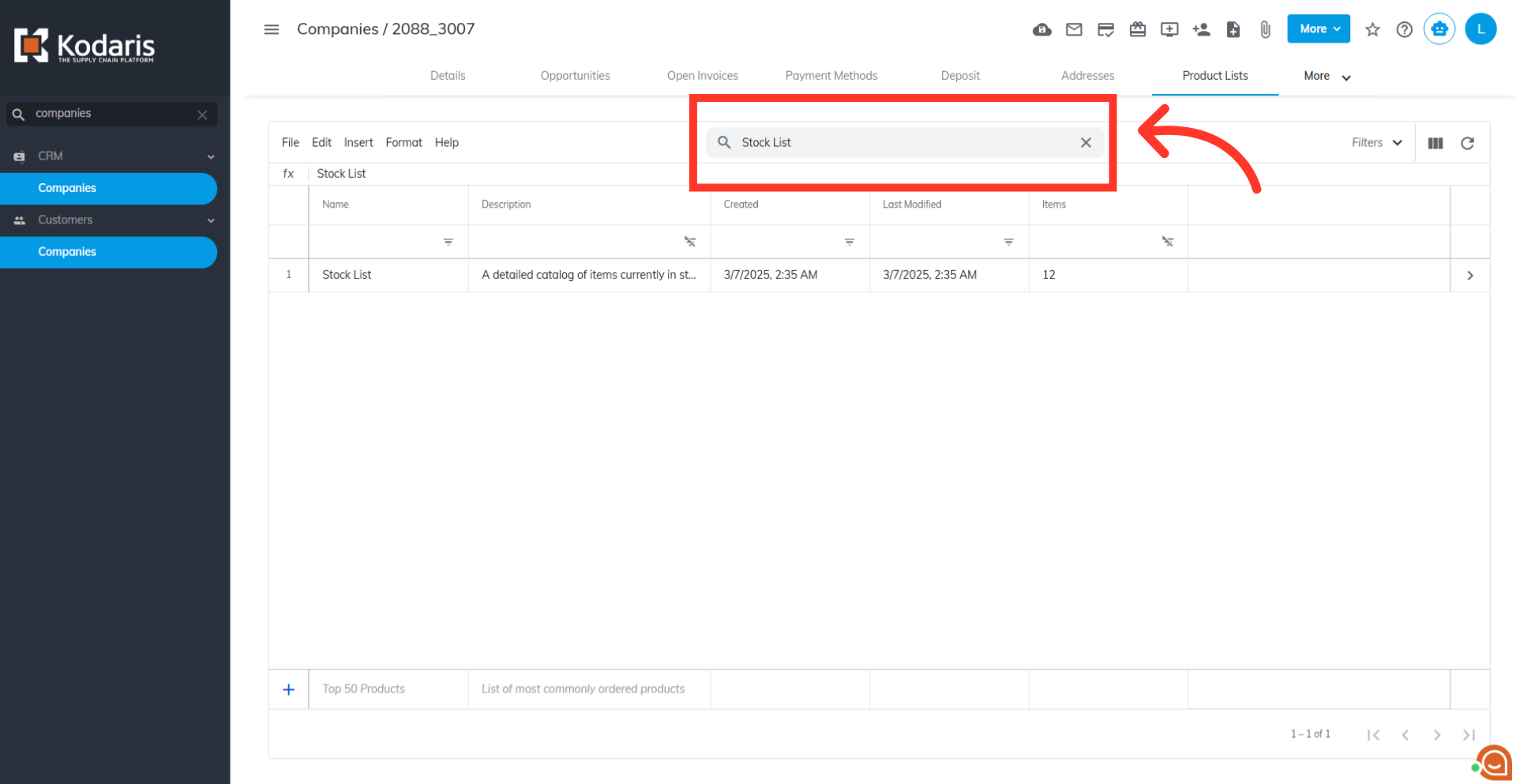
Locate the list and click the more details icon.

In this grid, you will see the list of items currently assigned to this particular product list.
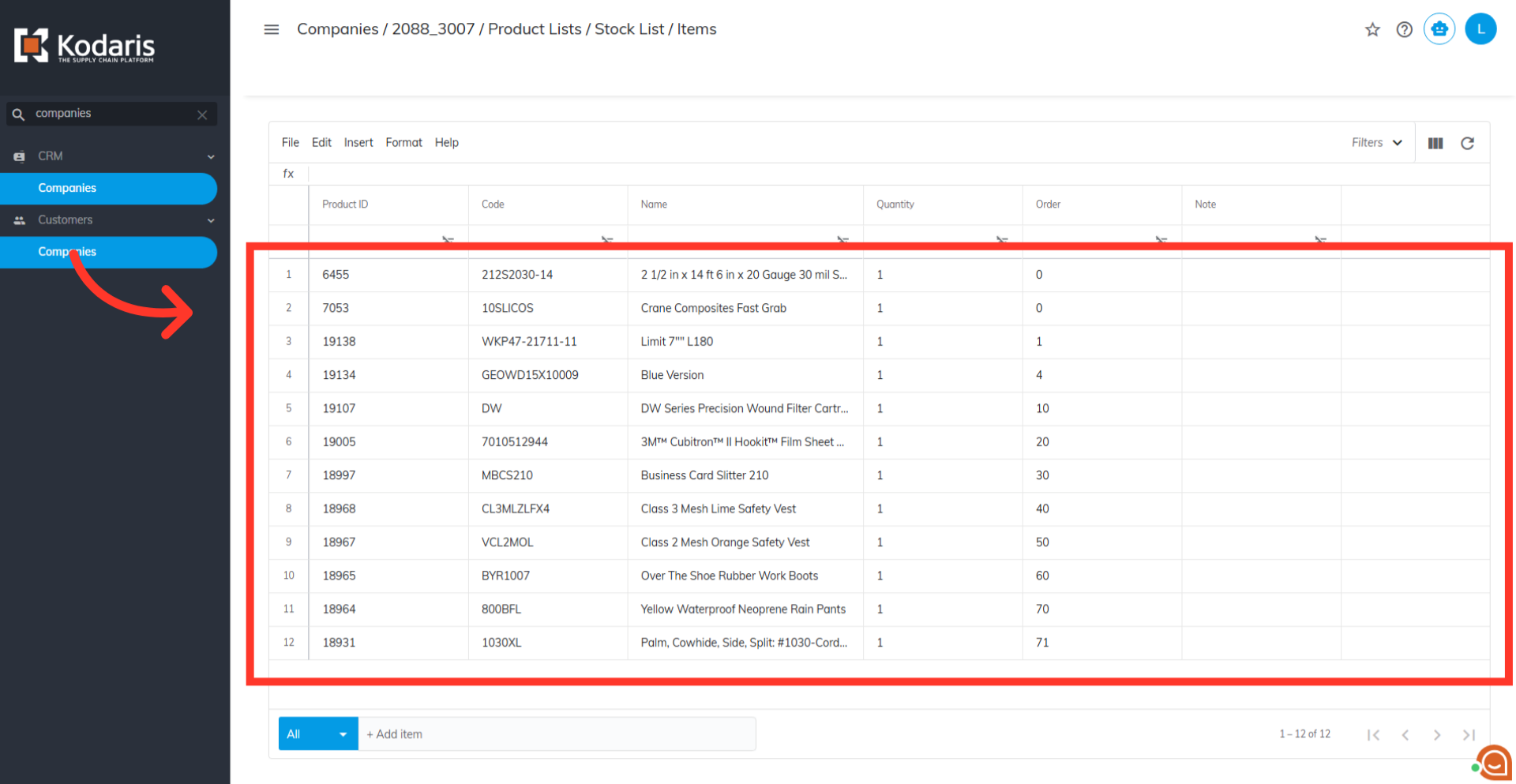
You can double-click the relevant cell to edit item details, such as "Quantity," "Order," and "Note" columns.
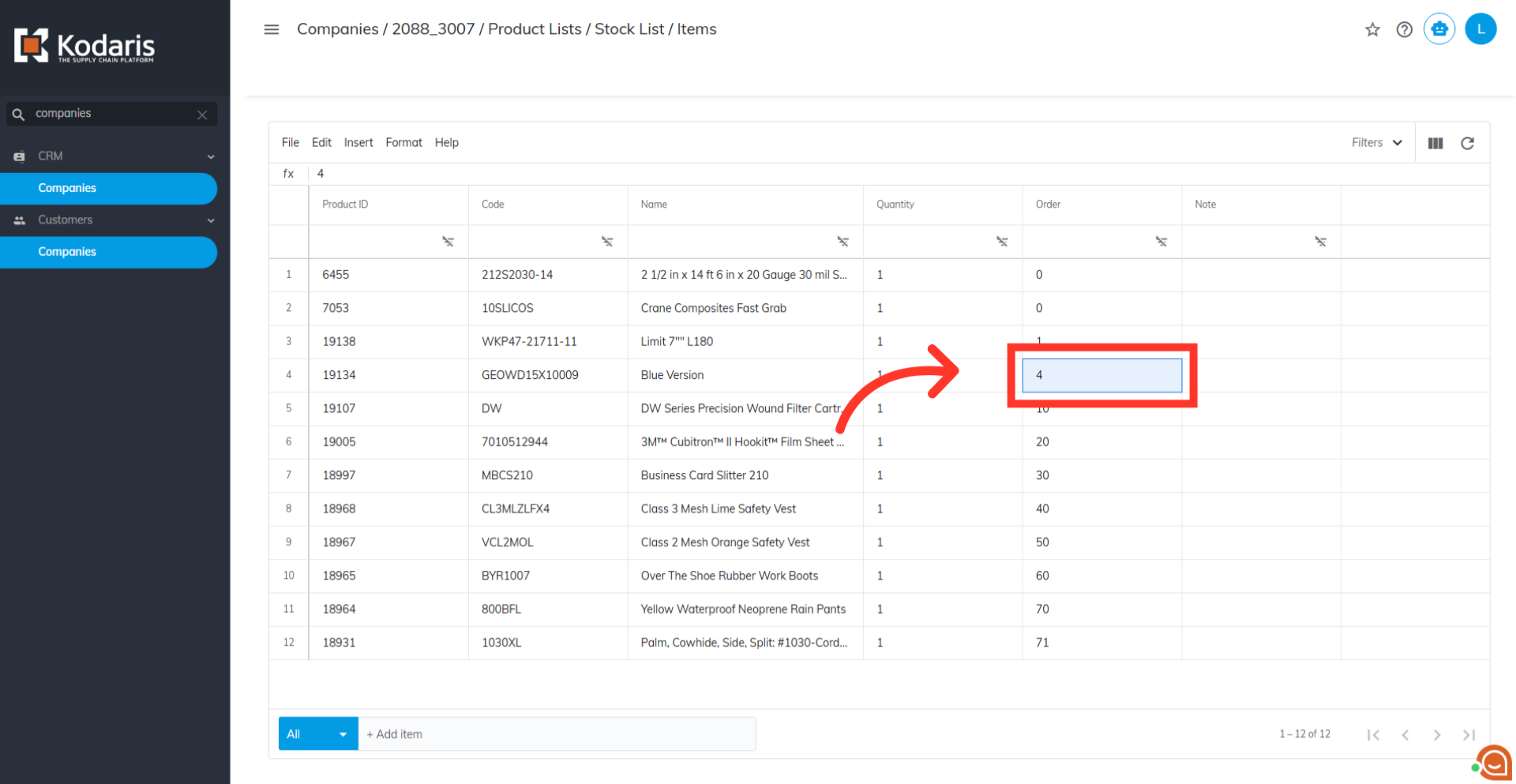
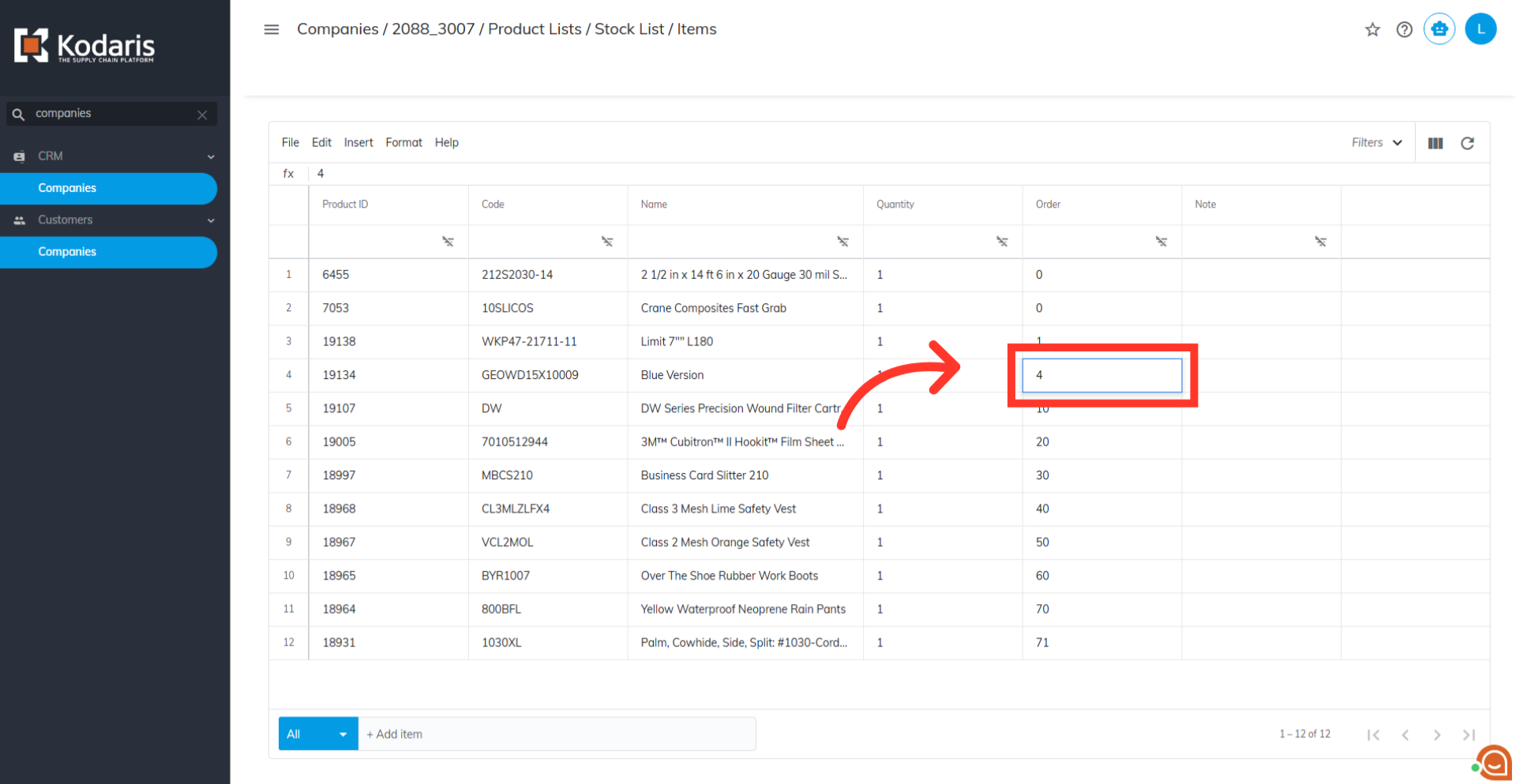
Enter a value. Click anywhere on the grid or hit the "Enter" key to save.
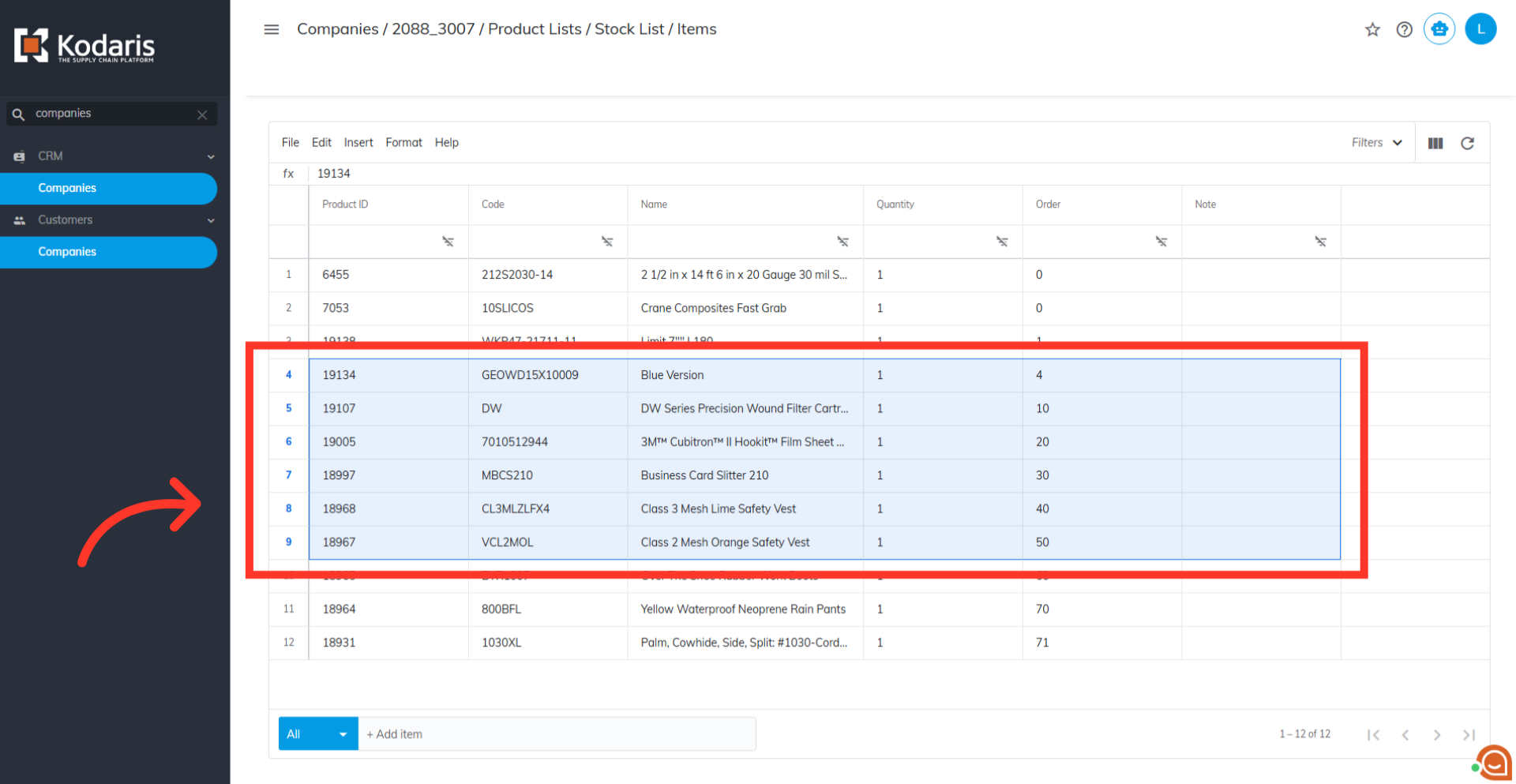
To delete specific items from the grid, select the item by clicking its row header. Highlight multiple items by clicking on one item and dragging to the item rows you want deleted
Then, click the "Edit" menu.
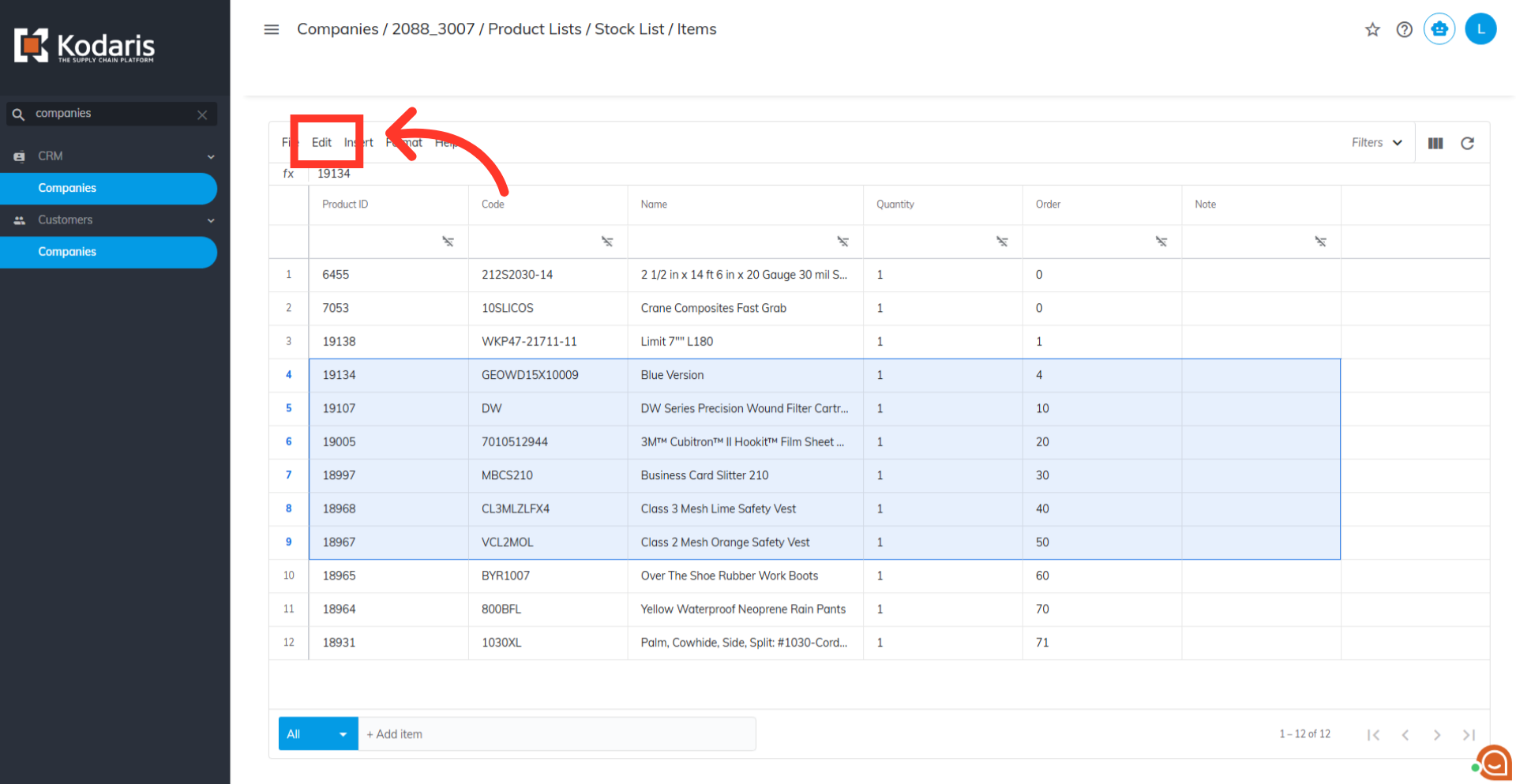
Select "Delete selected rows" to permanently remove the highlighted products from the list.

After performing the deletion, verify that the selected items are permanently removed from the product list's items grid.
