 Product Documentation
Product Documentation
Product Documentation
To manage additional charges or add-ons on a cash quote within your operations portal, navigate to CRM section

Then, go to the Cash Quotes screen. In order to access "Cash Quotes" you will need to be set up either as an "administrator" or a "superuser", or have the appropriate roles: "dashboardSearch, dispatch, orderView, orderEdit, crmCompanyOrderView and crmCompanyOrderEdit.
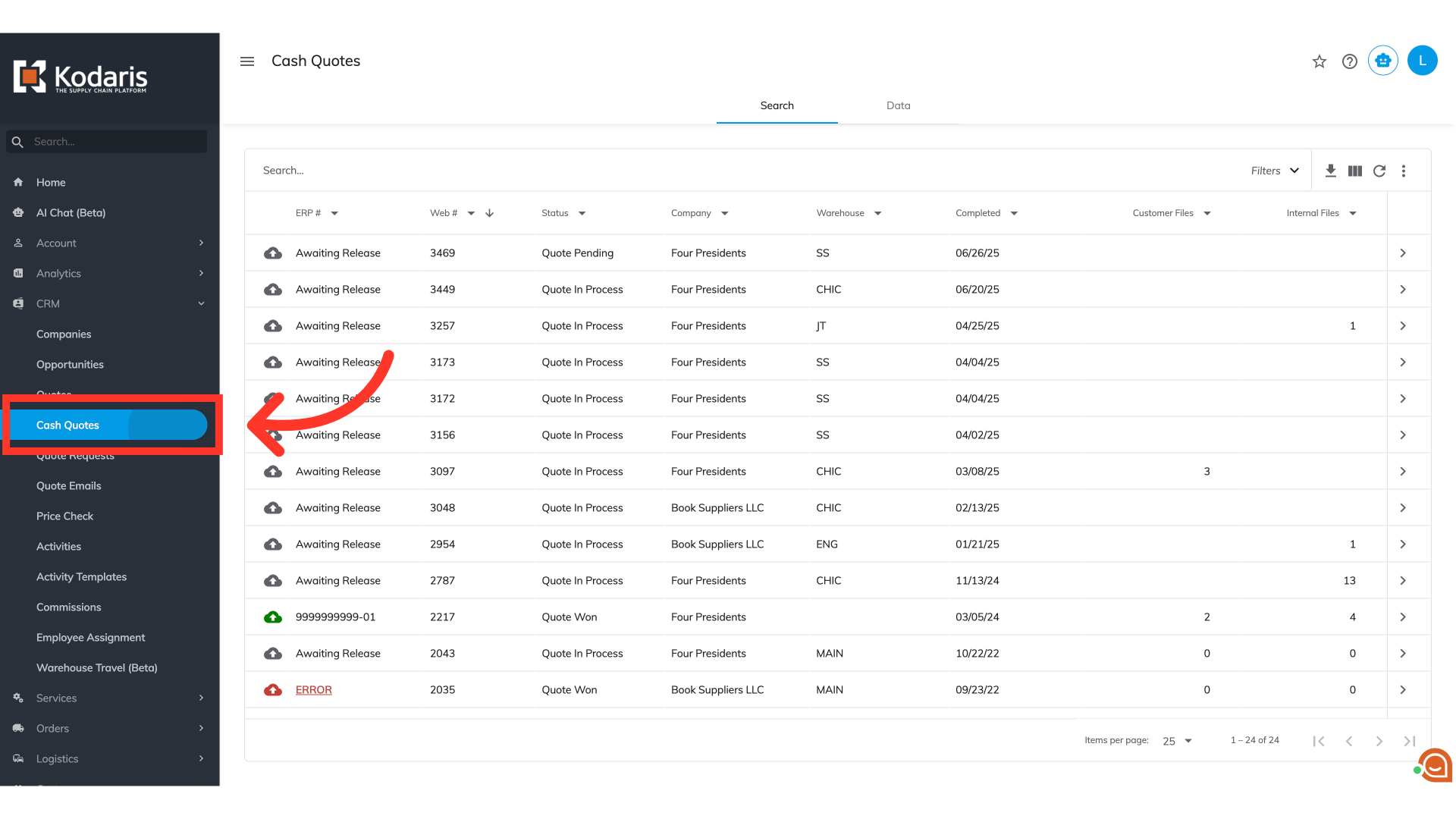
Search for the cash quote by entering keywords in the "Search..." field.

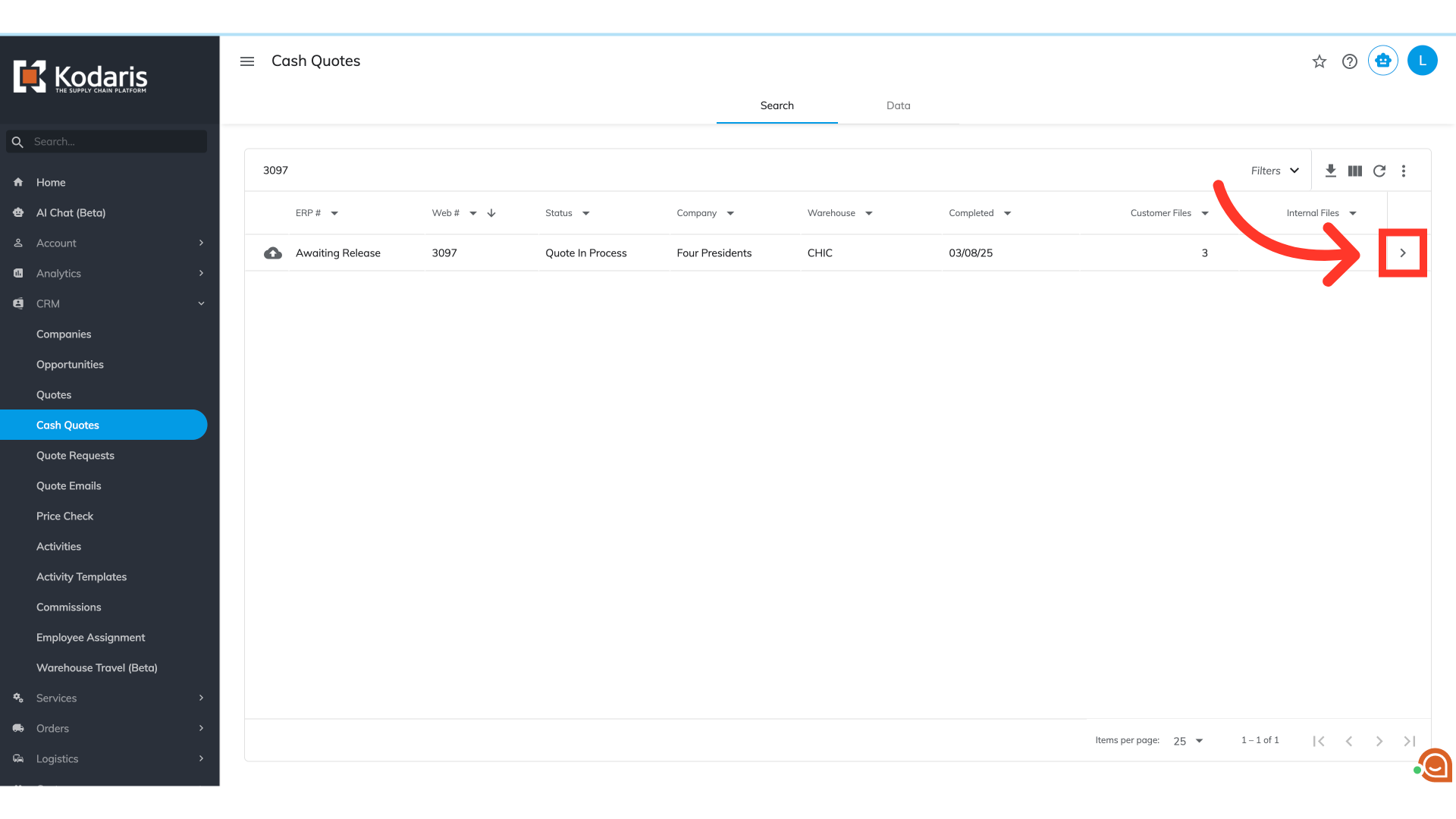
Locate the cash quote and click the more details icon.
On the right side of the cash quote screen, in the additional charges section, click the field labeled "Add charge".

After clicking, a list of available charges will appear, from which you can select one or multiple. You can also type to search for a specific one.

After selecting a charge, it will appear in the "Additional Charges" section above the search field. Click the charge value to edit it.

Then, enter your desired amount, and then click the check icon to confirm the update.
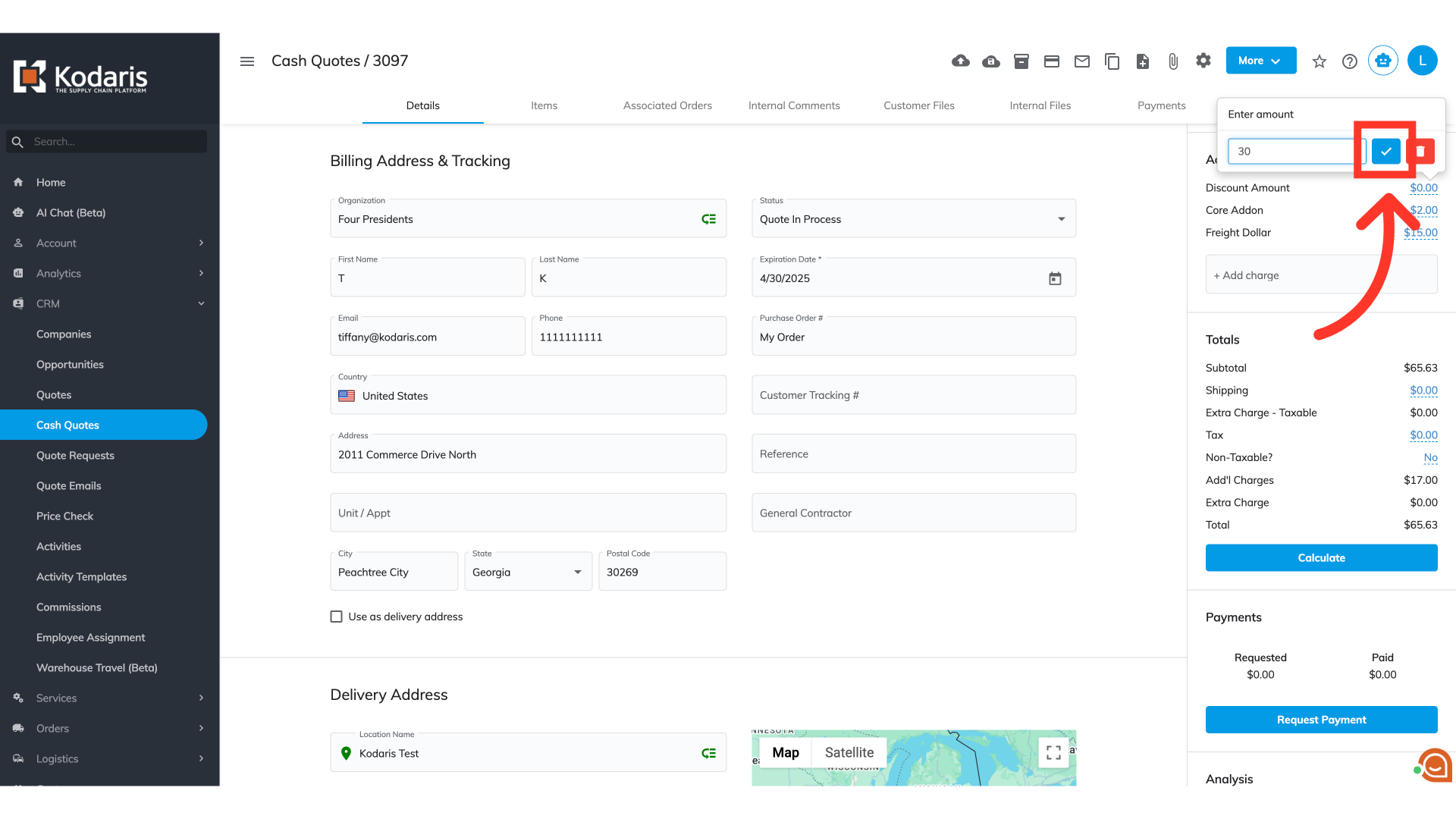
To remove an addon, click the trash icon next to it and the charge will be removed from the list.
