 Product Documentation
Product Documentation
Product Documentation
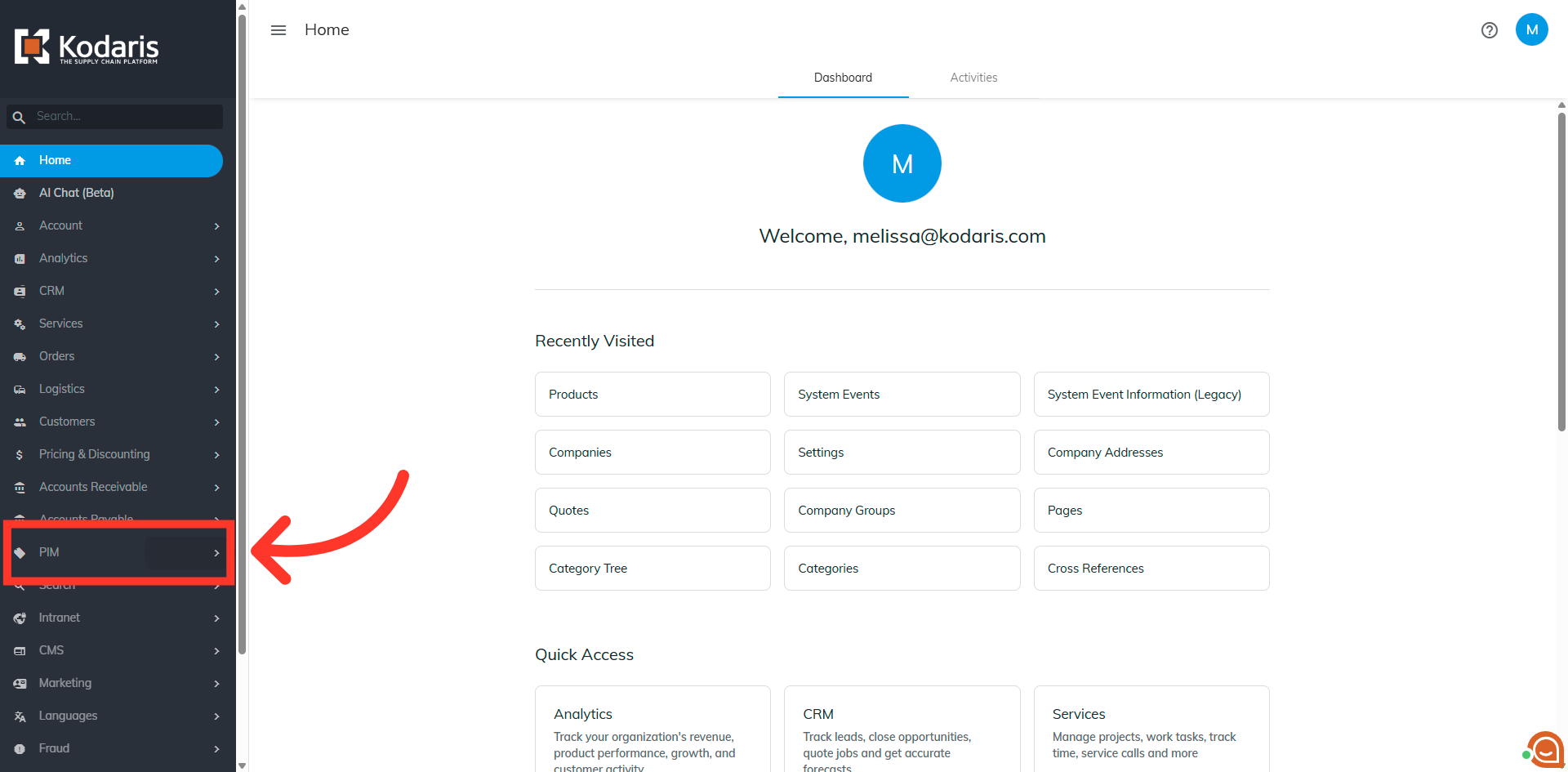
If you need to set a maximum order quantity on a product, navigate to the "PIM" section in the Operations Portal.
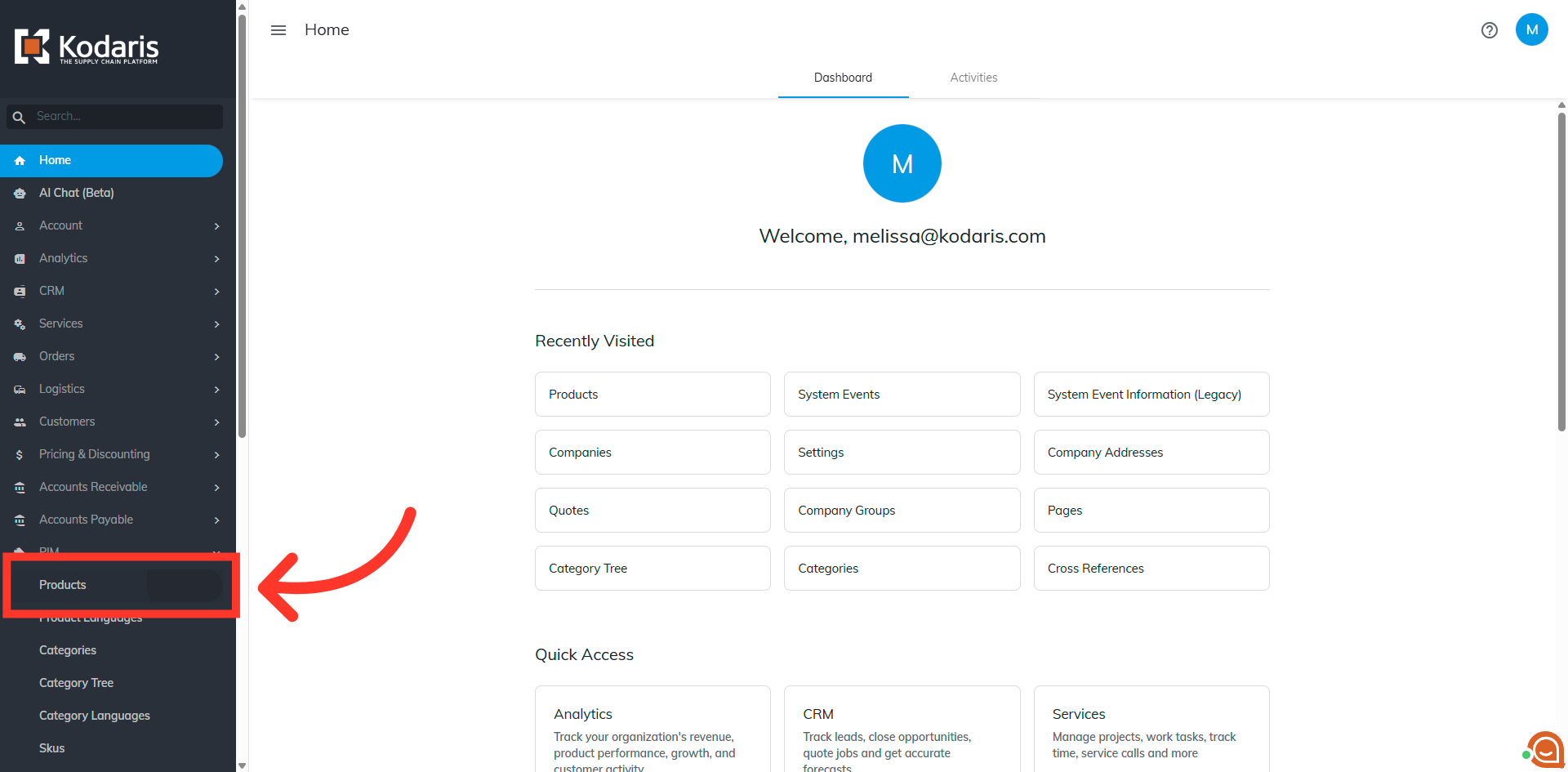
Then, click "Products". In order to access and update “Products” you will need to be set up either as an “administrator” or a “superuser”, or have the roles of: “productView” and “productEdit”.
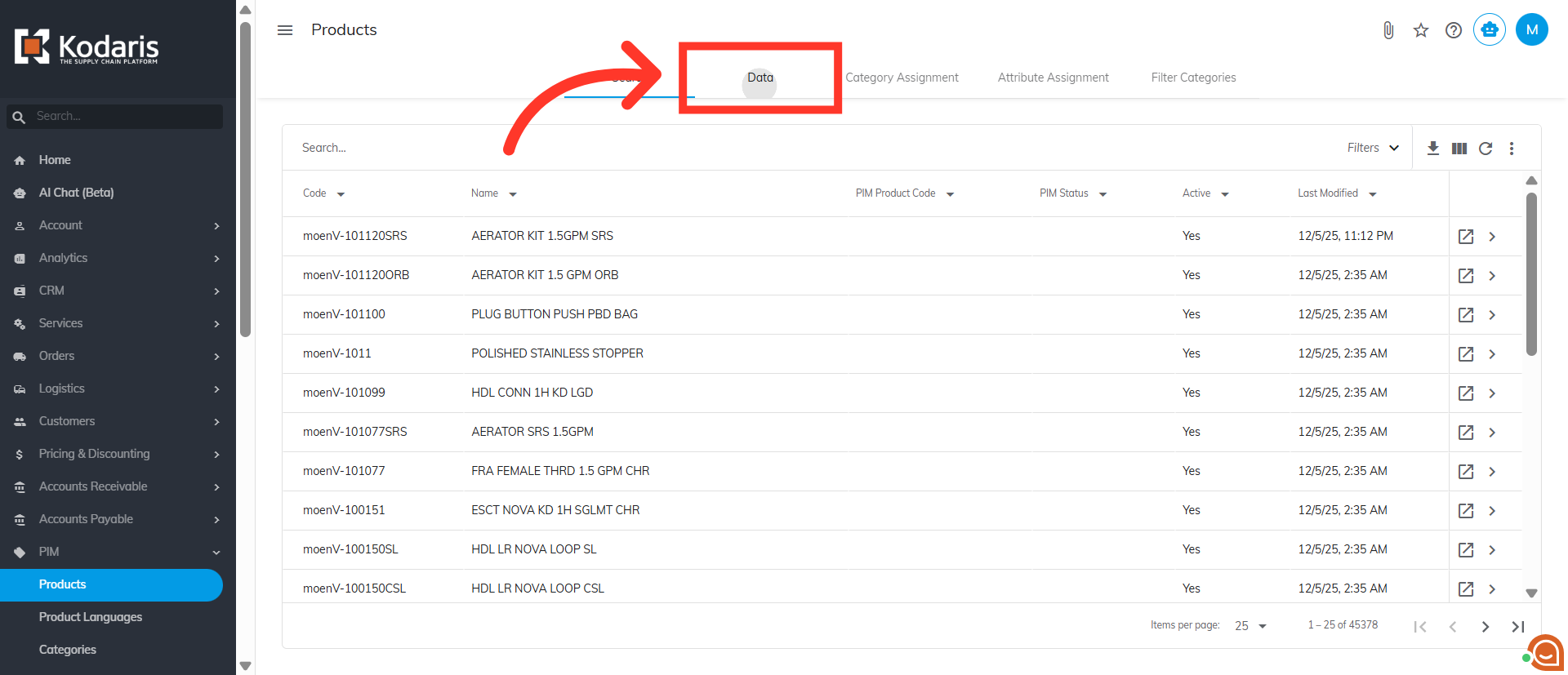
Go to the "Data" tab.
Search for the product by entering the product code in the search field, then hit the "Enter" key.

Click the "Show/Hide Columns" icon to show the list of columns.

Then, select "Maximum order Quantity".

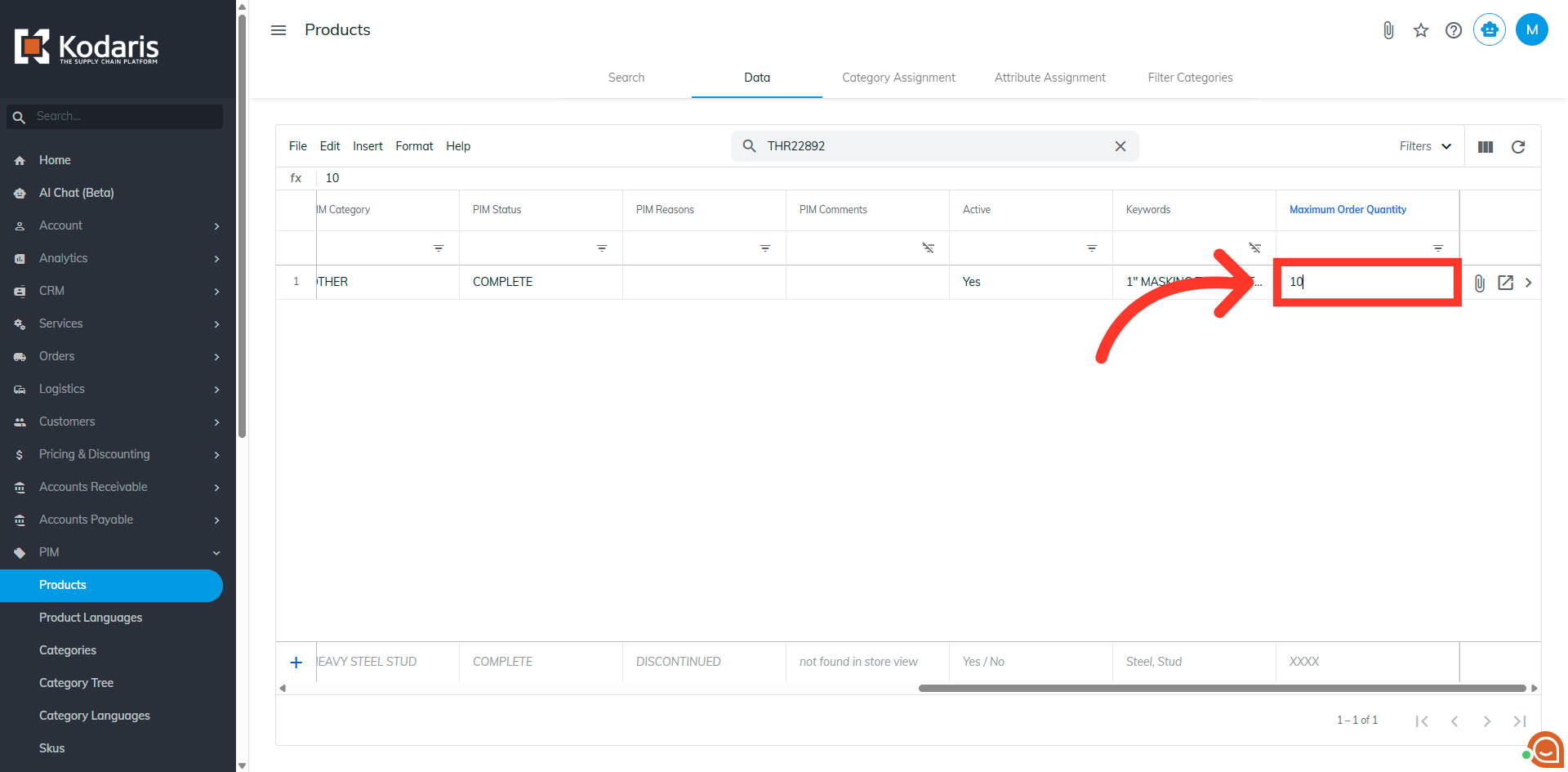
Double click the cell to enter in the maximum order value.
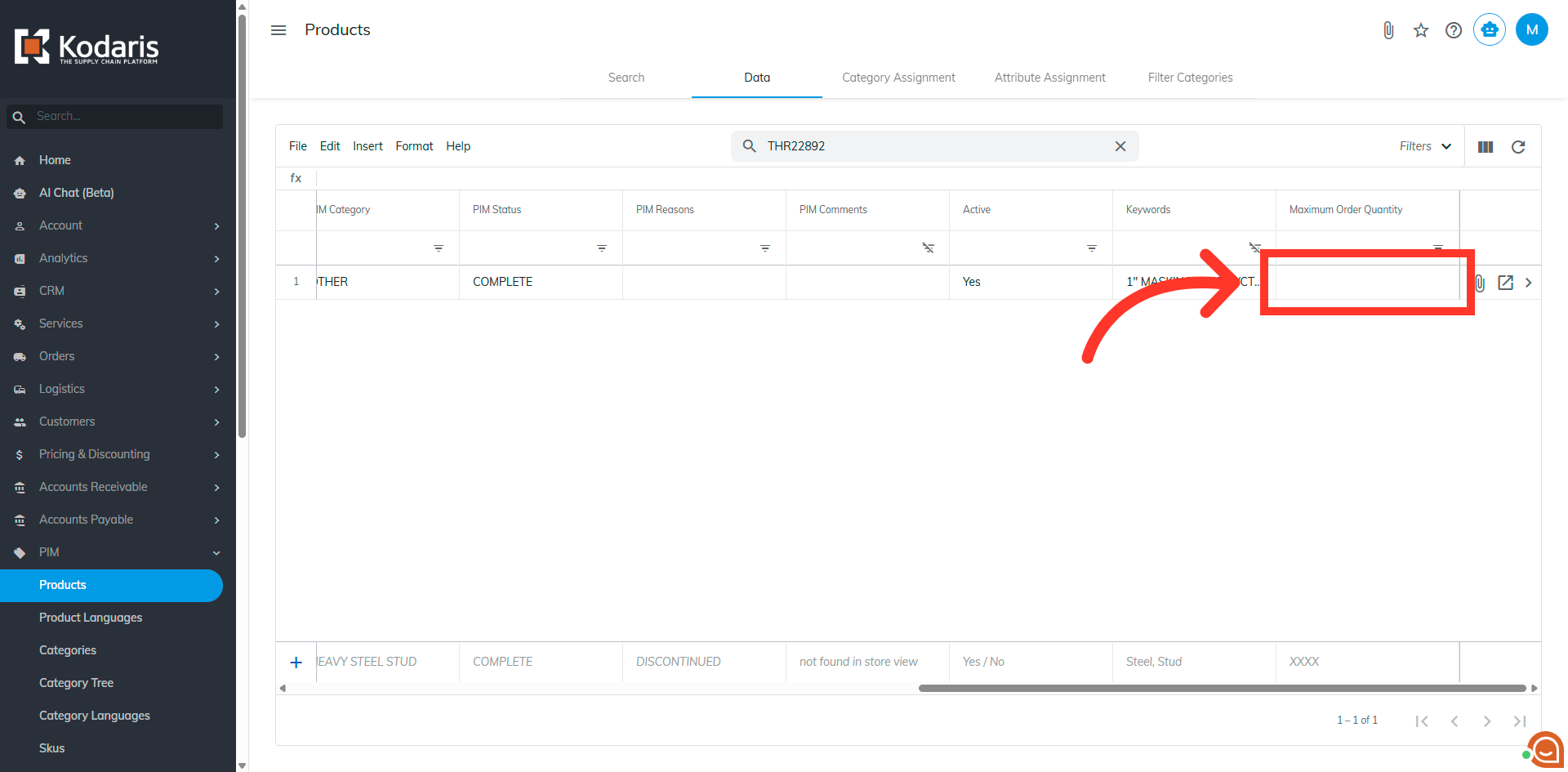
Enter in the maximum order value that can be ordered, and hit "Enter".
When the value has been set and the customer has entered in a quantity greater than what was set, they will see a message like this.
