 Product Documentation
Product Documentation
Product Documentation
To manually mark cross references active or inactive, navigate to the "PIM" section in the Operations Portal. If a cross reference is being synced from an ERP, the sync may be controlling the "Active" status on the cross reference.
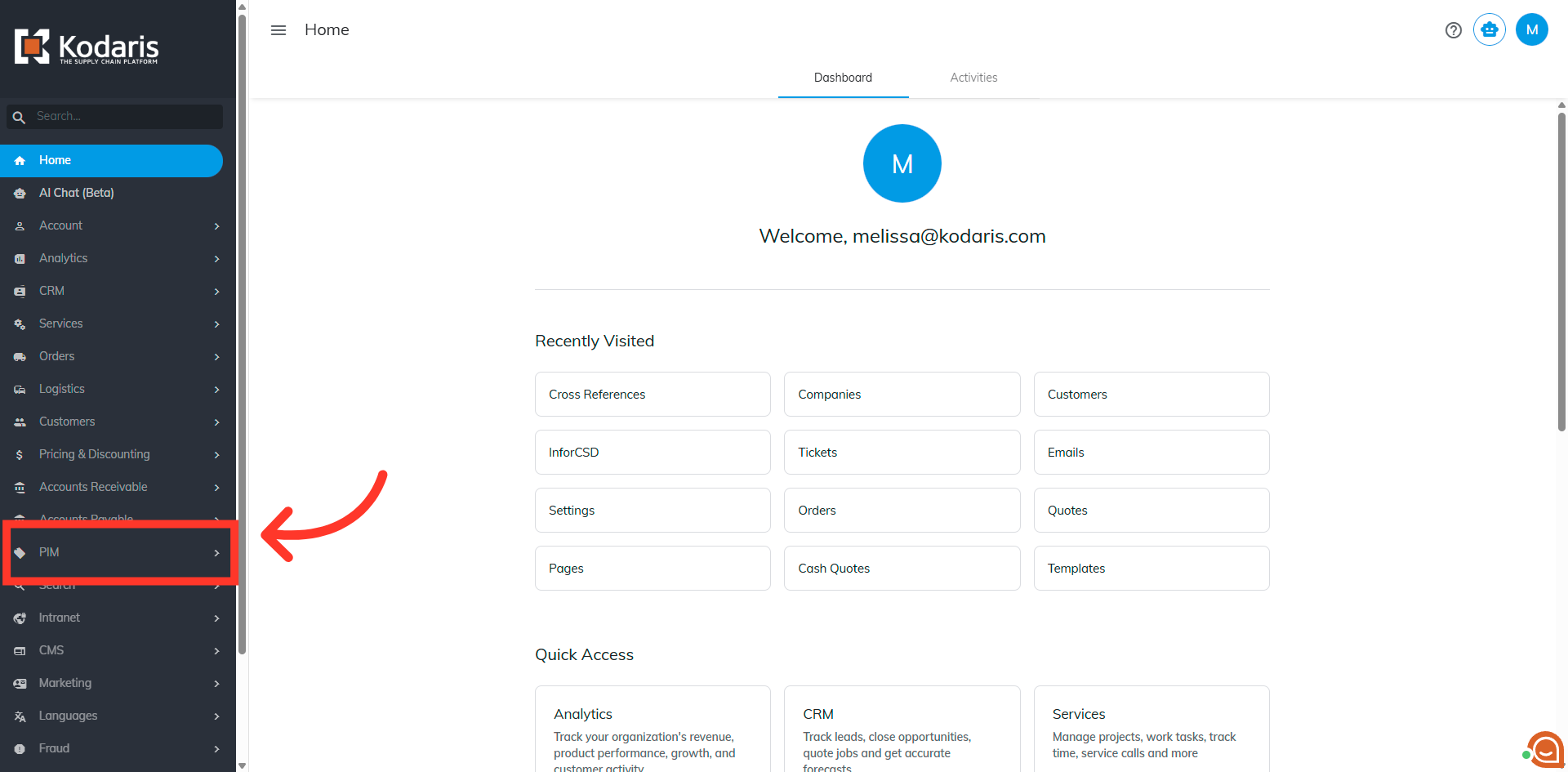
Then, click "Cross References". In order to access and update "Cross References" the account must be set up either as an "administrator" or a "superuser, or have the roles of "productCrossReferenceView" and "productCrossReferenceEdit."

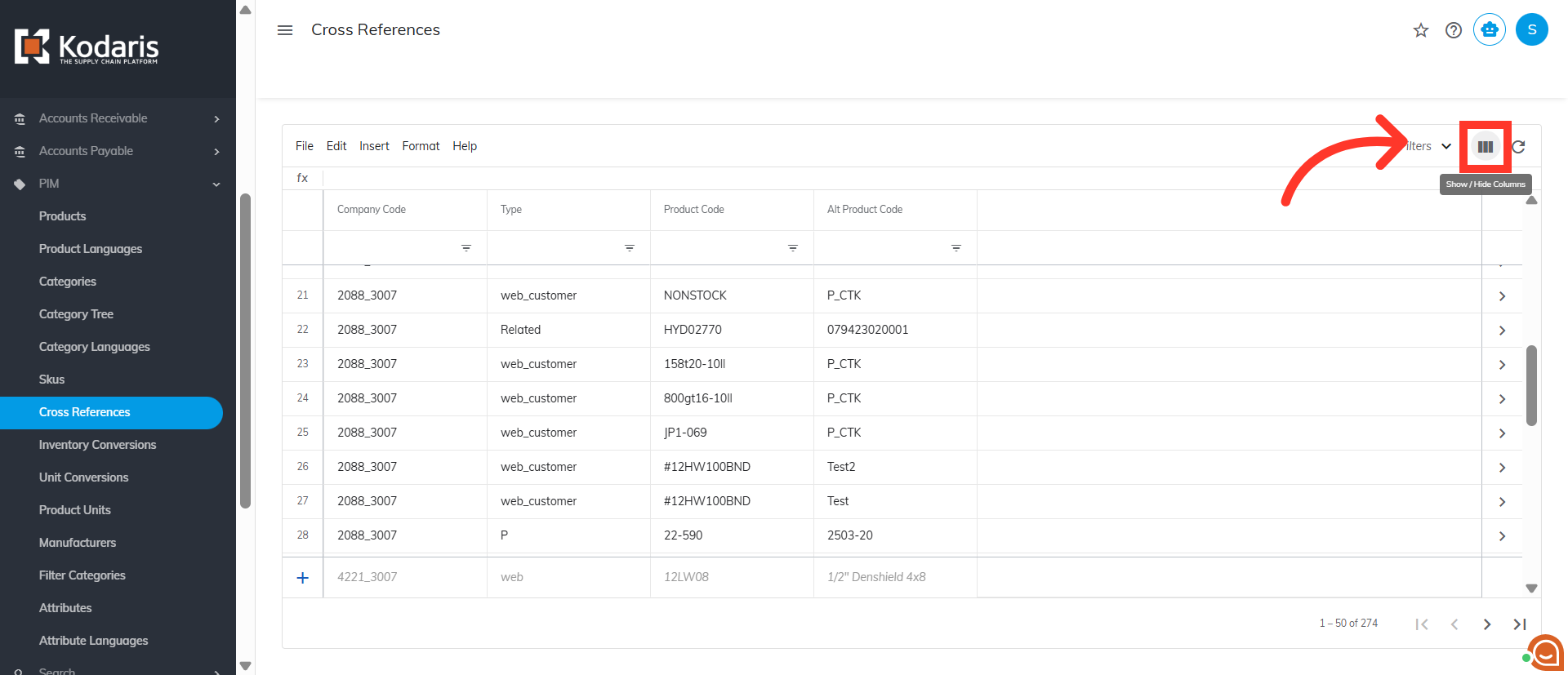
By default, the Active column is not available on the grid. To view it, click the "Show/Hide Columns" icon.
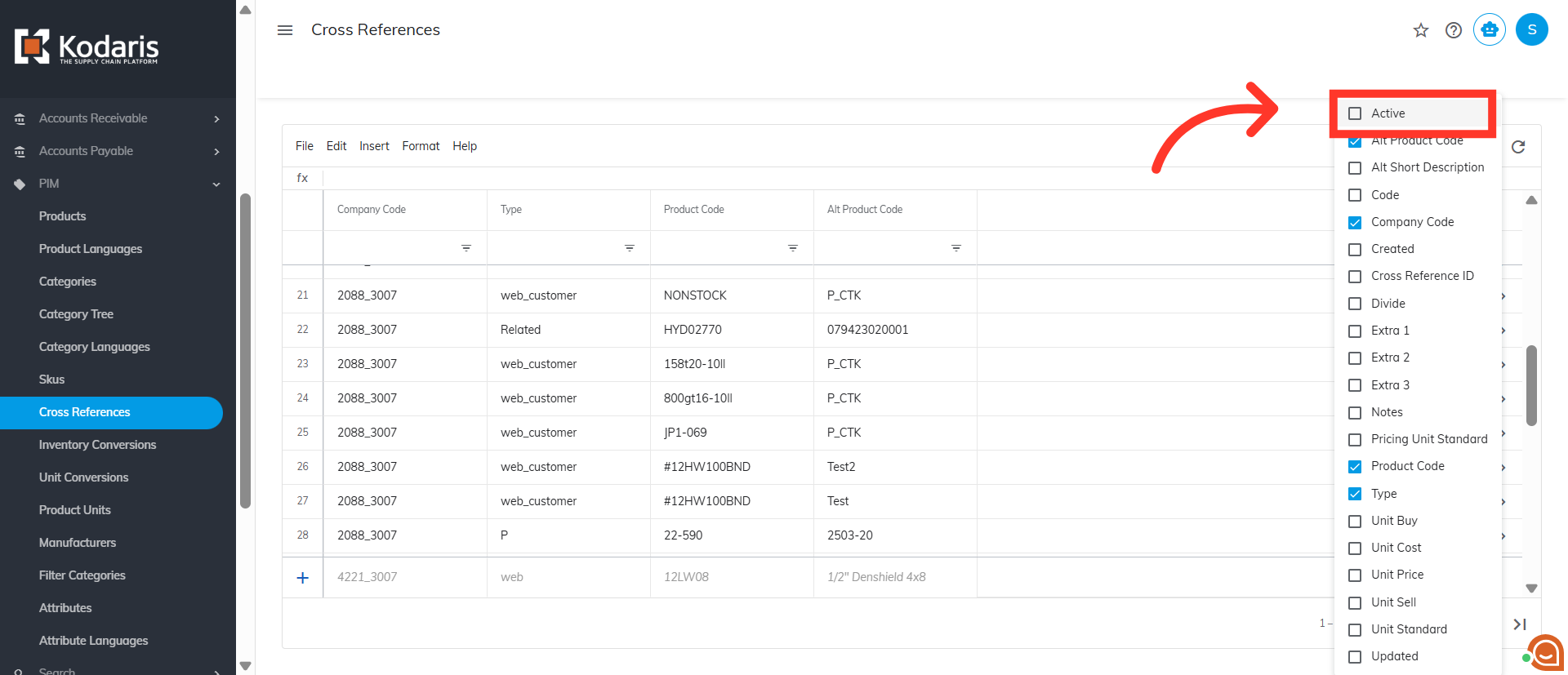
Click "Active" to add the column to the grid.
The "Active" column is filterable and sortable. You can click the arrow icon to sort the values either in ascending or descending order.
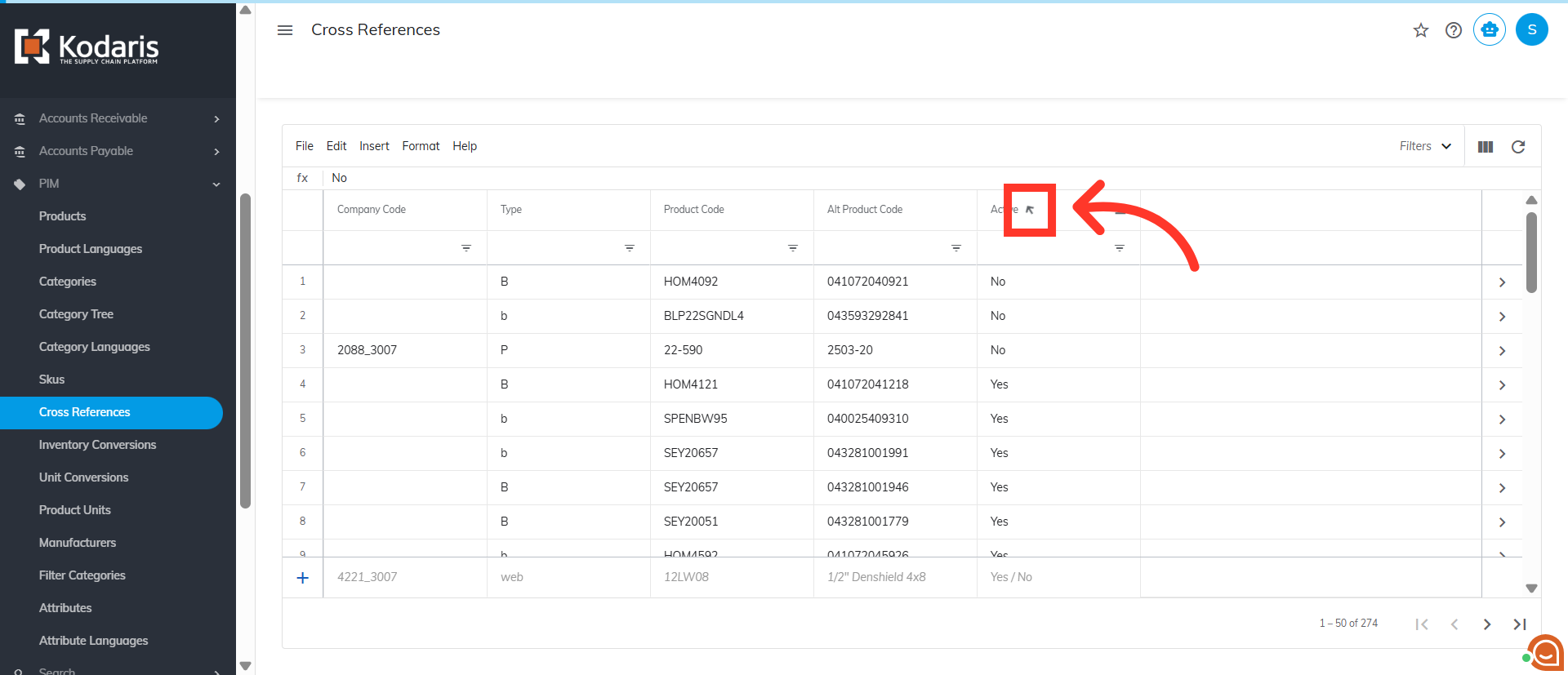
You can enter either "Yes" or "No" in the "Active" field to filter the data.

If you want to mark a specific cross reference active or inactive, you can enter the product code in the "Product Code" field to search.

Here, the cross reference is active. To mark it as inactive, double click the "Active" field.

Then, update the value to "No". Once you hit the "Enter" key or click anywhere in the screen, the cross reference will be marked as inactive. If you want to mark the cross reference as active, just update the value to "Yes".
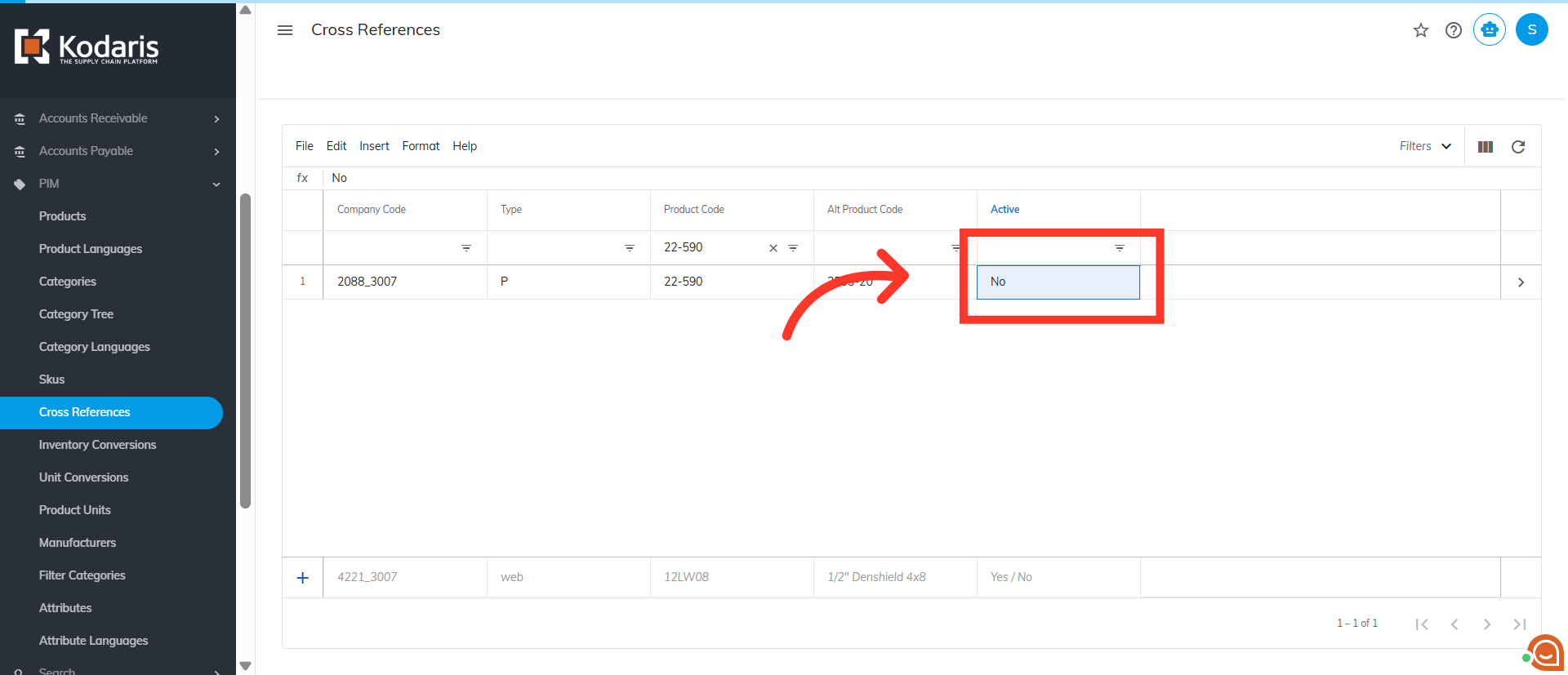
If you would like to mark multiple cross references to active or inactive, you can do that by filtering the data and then updating the field. In this example, enter "No" to get all inactive cross references.
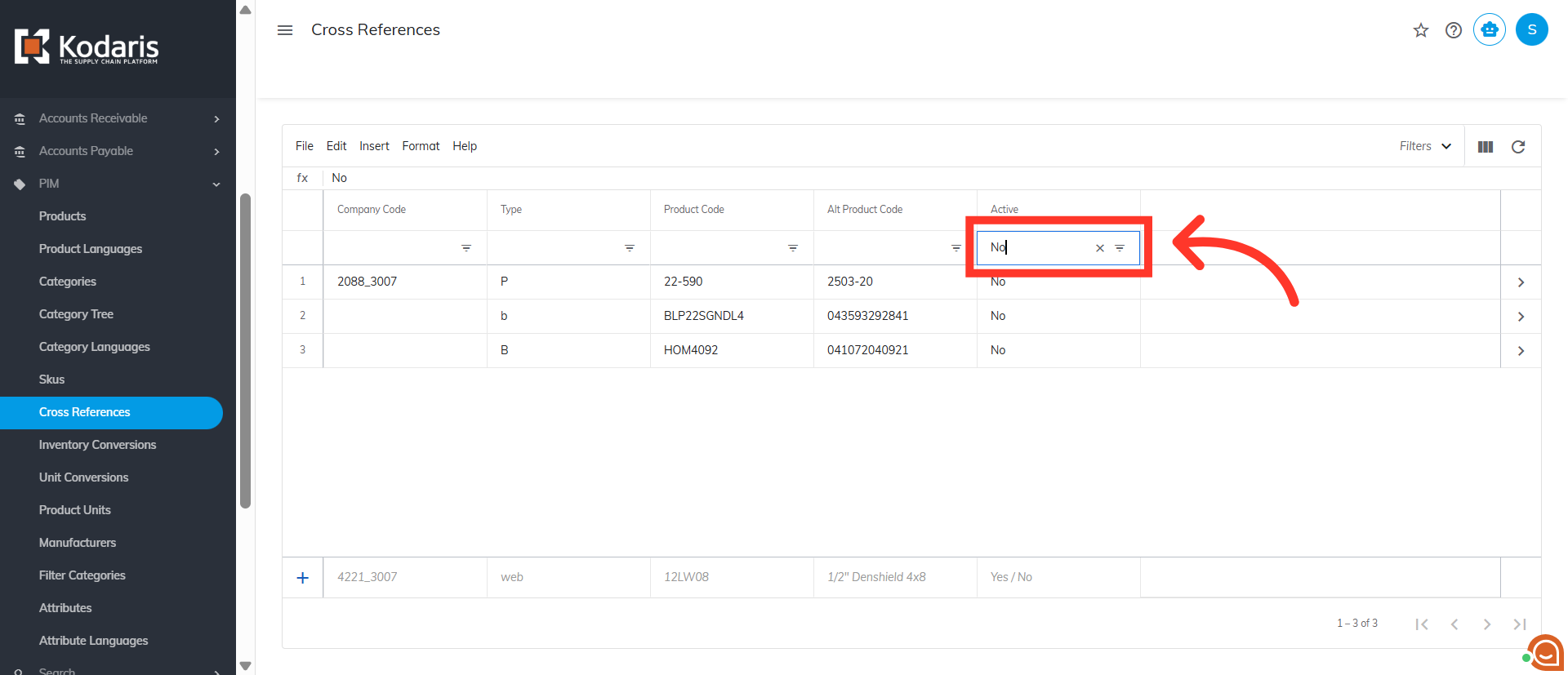
Select the cross references to be marked as active or inactive.

Enter the updated value in the formula bar. In this example, enter "Yes".

Multiple cross references have been marked as active. To marked them as inactive, update the value to "No".
