 Product Documentation
Product Documentation
Product Documentation
To view emails sent on a specific ticket, log in to the operations portal and go to the "Tickets" screen under the "Services" section. In order to access and update "Tickets" you will need to be set up either as an "administrator" or a "superuser", or have the roles of: "ticketView" and "ticketEdit".

Search for a ticket by entering the Ticket ID or Ticket Title.
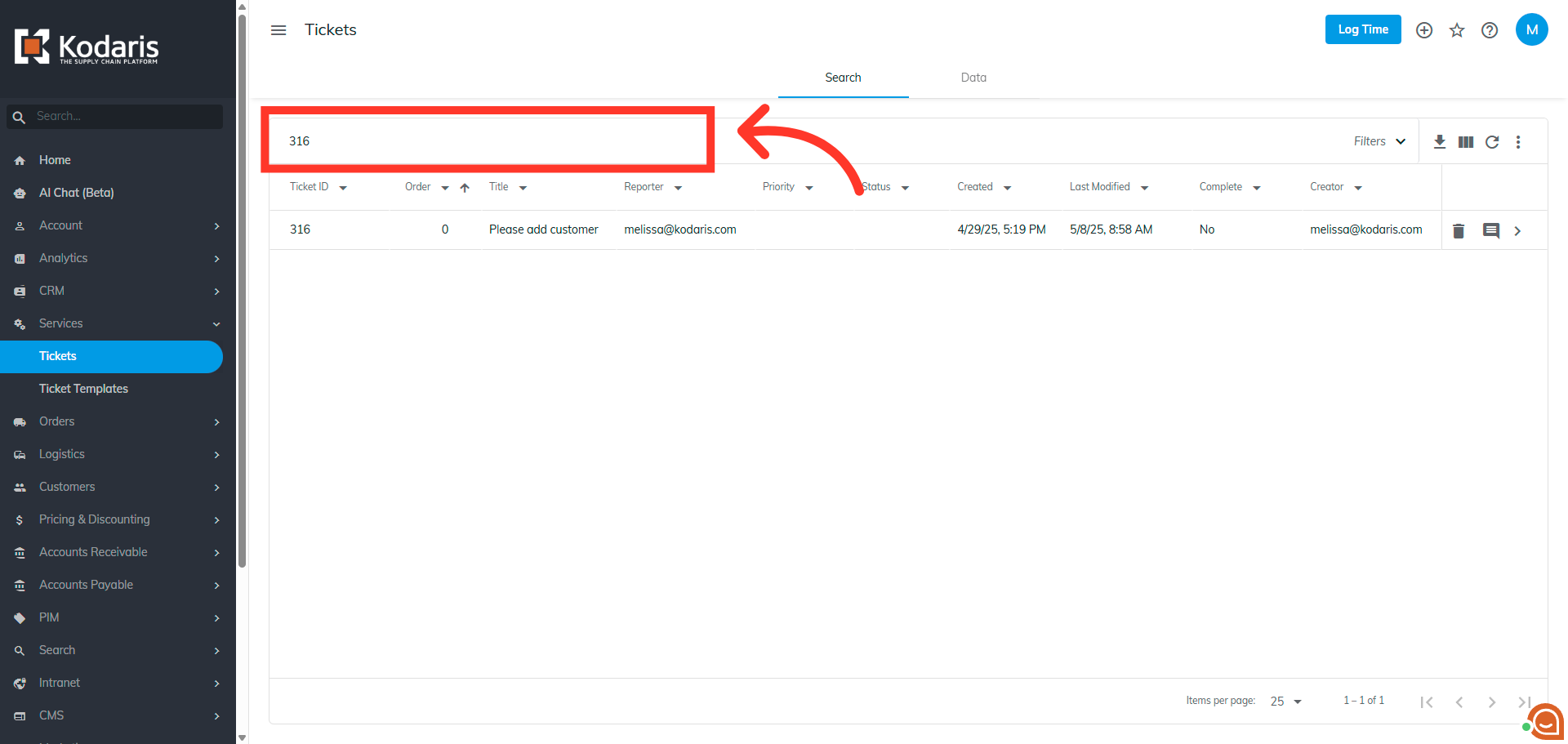
Click the more details icon.
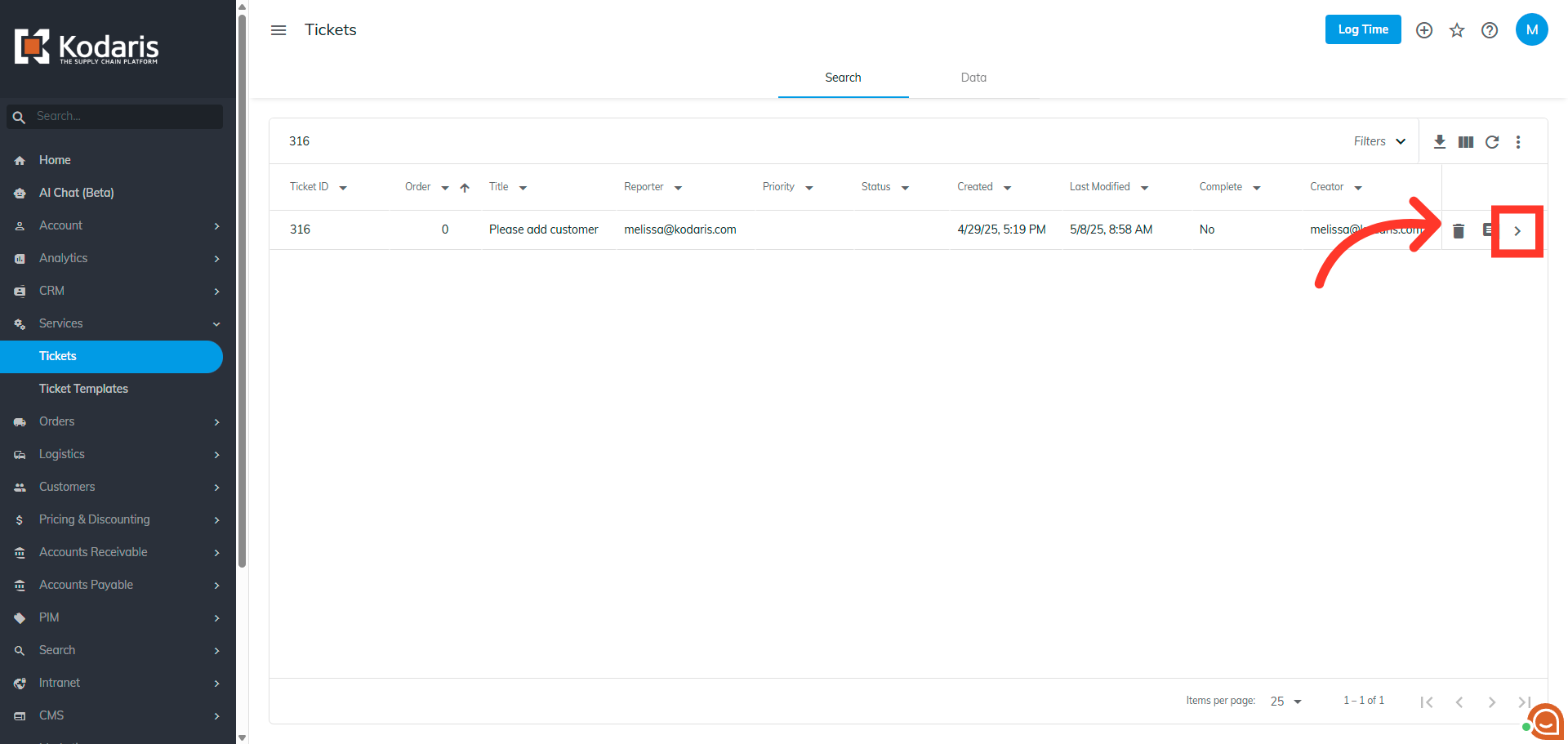
Go to the "Emails" tab, where all emails related to the ticket will be displayed.

To view a specific email, click the "View Email Body" icon to see the email body.
Here you can view the email body of the selected email.

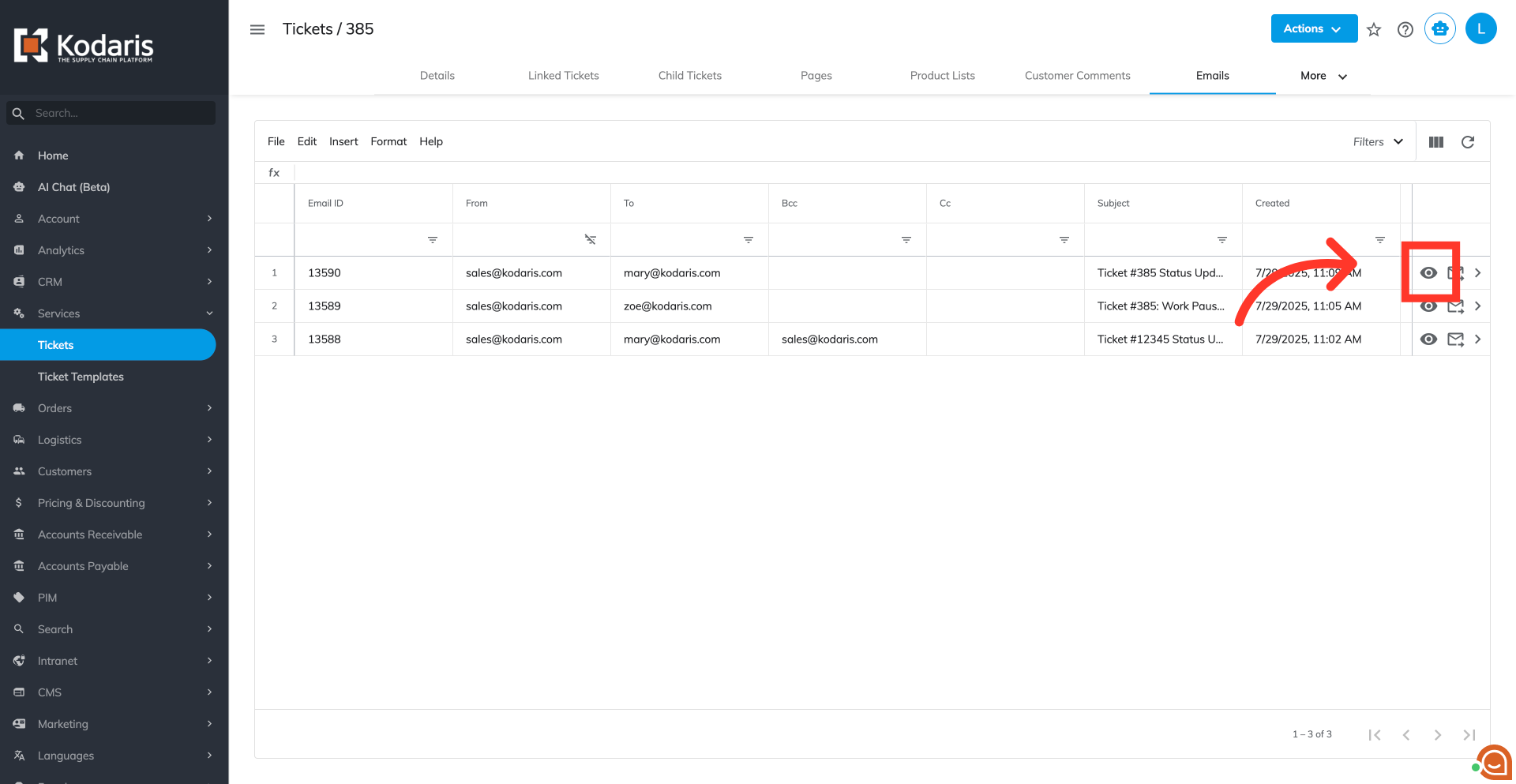
Click the "Show/Hide Columns" icon.

Using the "Show/Hide columns" menu, select "Email Body" to display it on the grid.
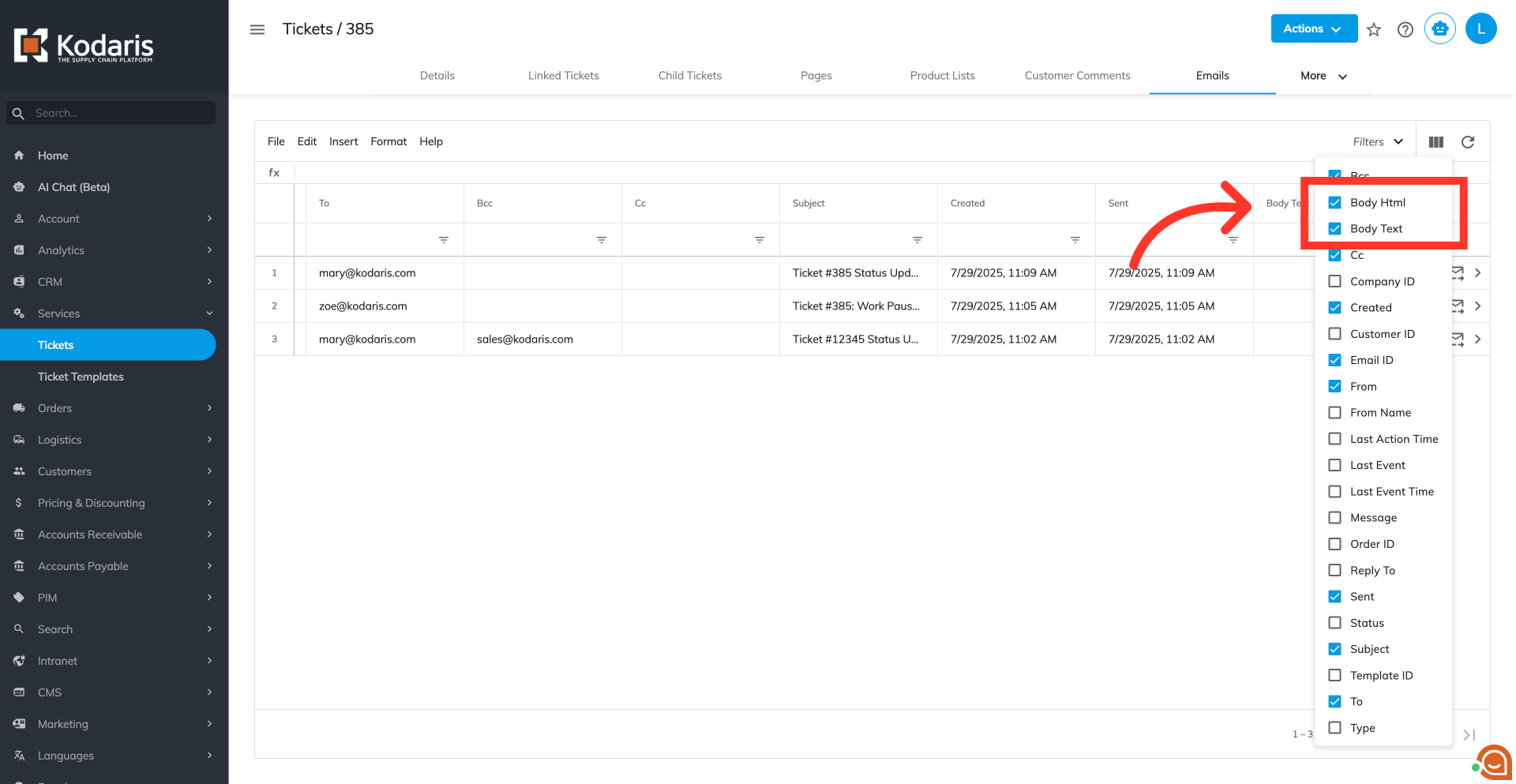
The grid also shows other email details, such as "Subject," "To," "Cc," and "Bcc."

For a more detailed view of the email, access the email details screen by clicking on its more details icon.

You can view the details about the selected email, showing sender, recipients, subject, date/time, full email body and other details.
