Product Documentation
Product Documentation
Product Documentation
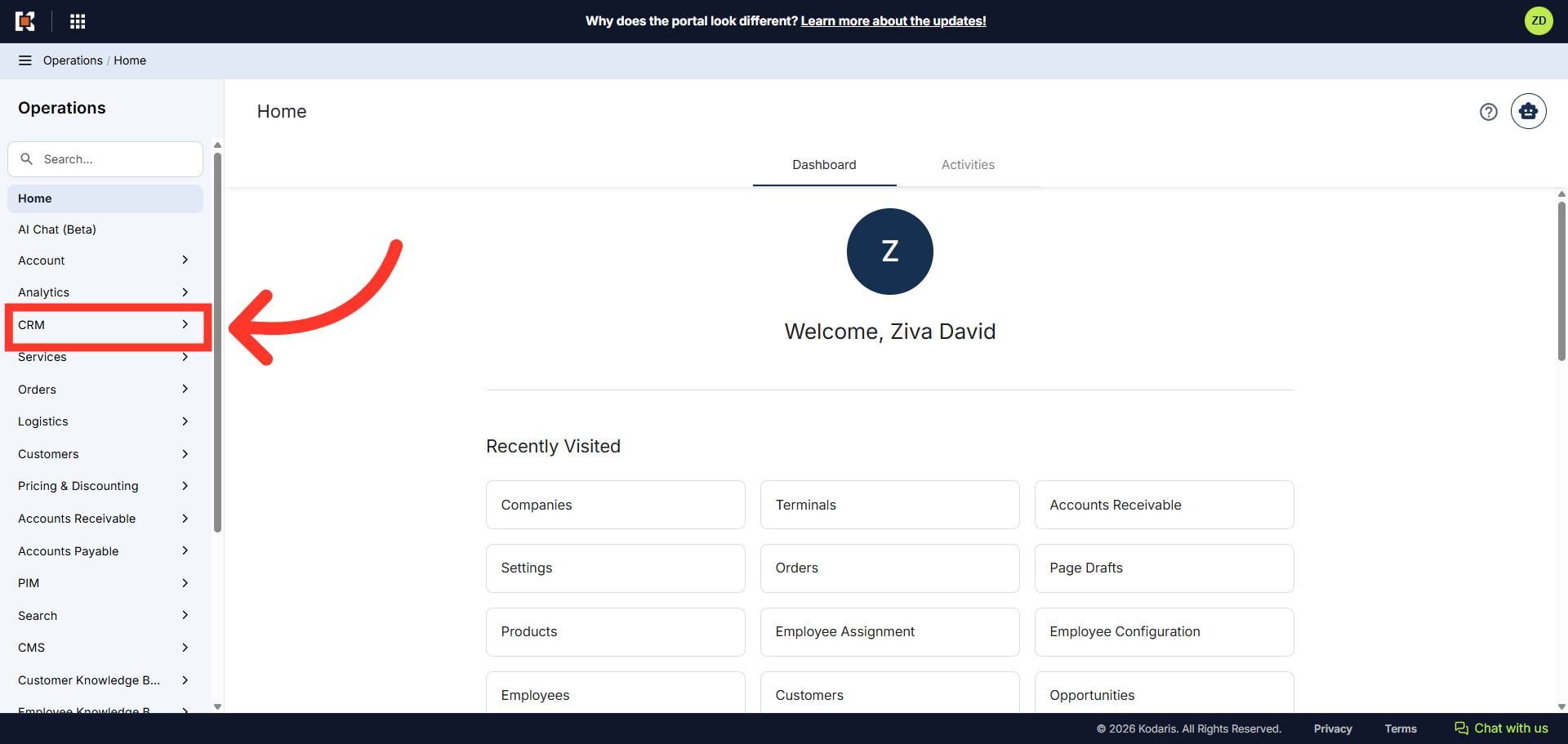
Customer Files are files that can be uploaded and viewed by customers in the Customer Portal and also accessible to Operations Portal users. You can upload and view documents on a customers account in the operations portal by first navigating to "CRM".
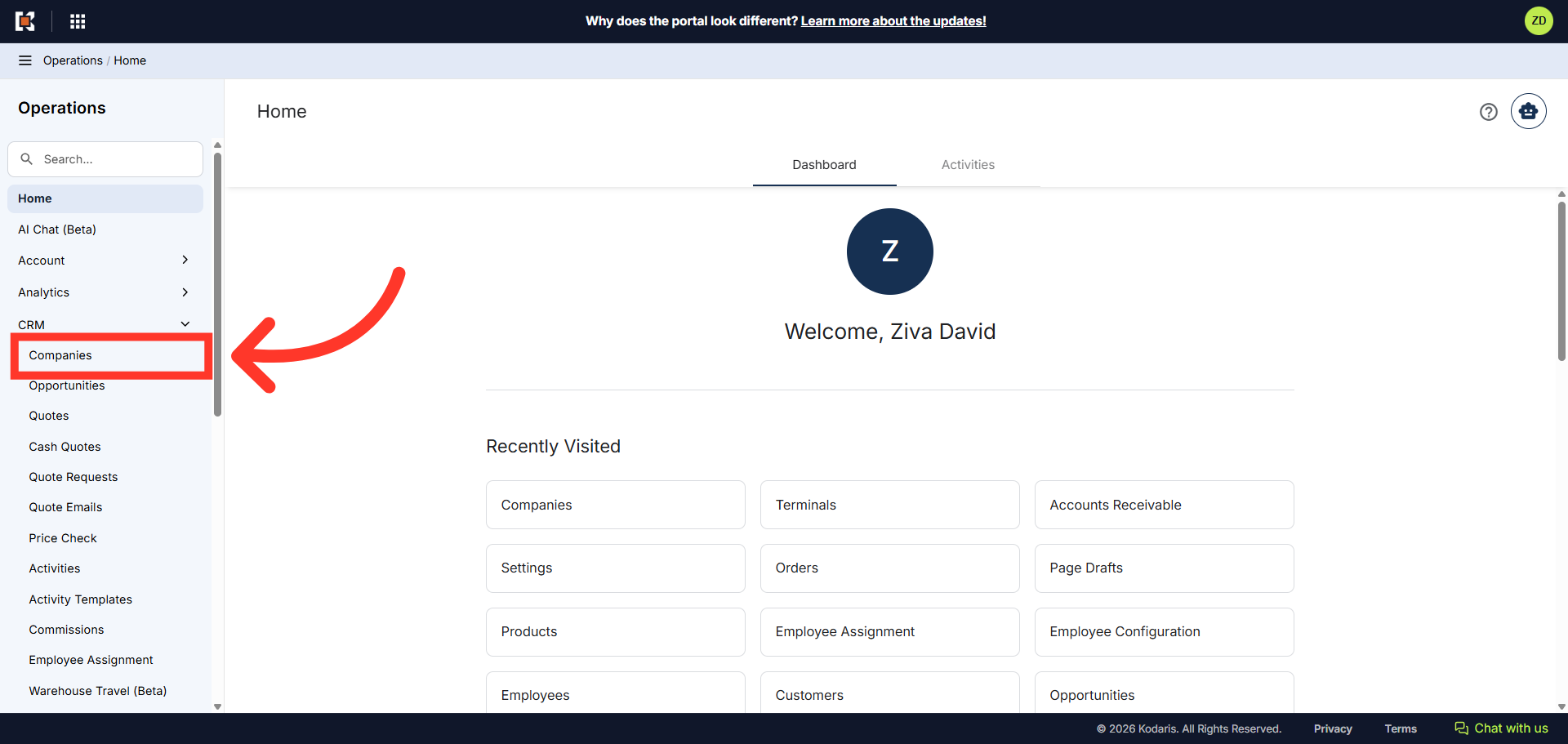
Then, click "Companies". In order to access "Companies" you will need to be set up either as an "administrator" or a "superuser", or have the appropriate roles: "companyEdit", or "crmCompanyEdit". Just a reminder, "crmCompanyEdit" access only allows employees to access companies that are assigned to them.
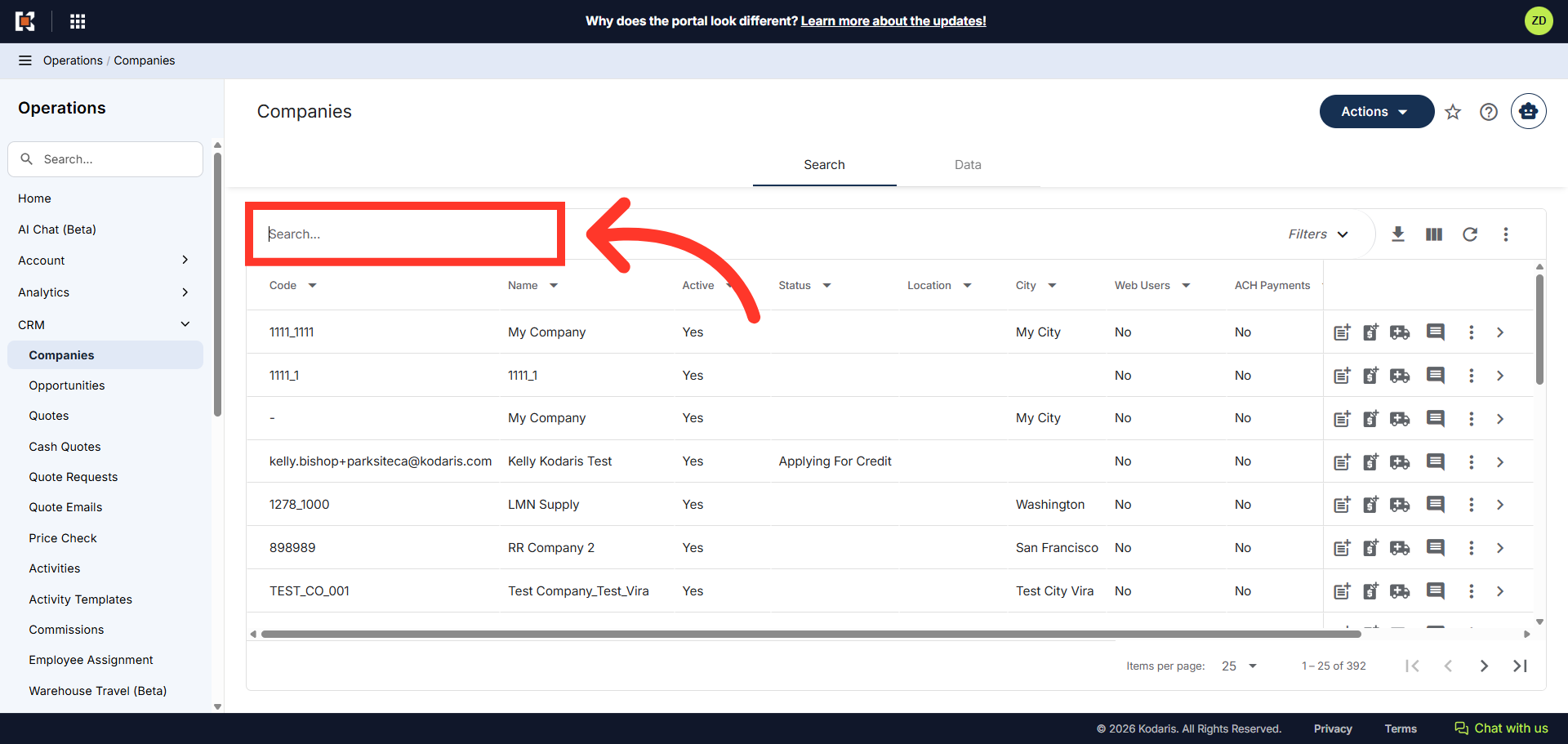
To quickly locate the company you wish to view, use the "Search..." field and search for the company using the company name or company code. In this example, we will a use company name.
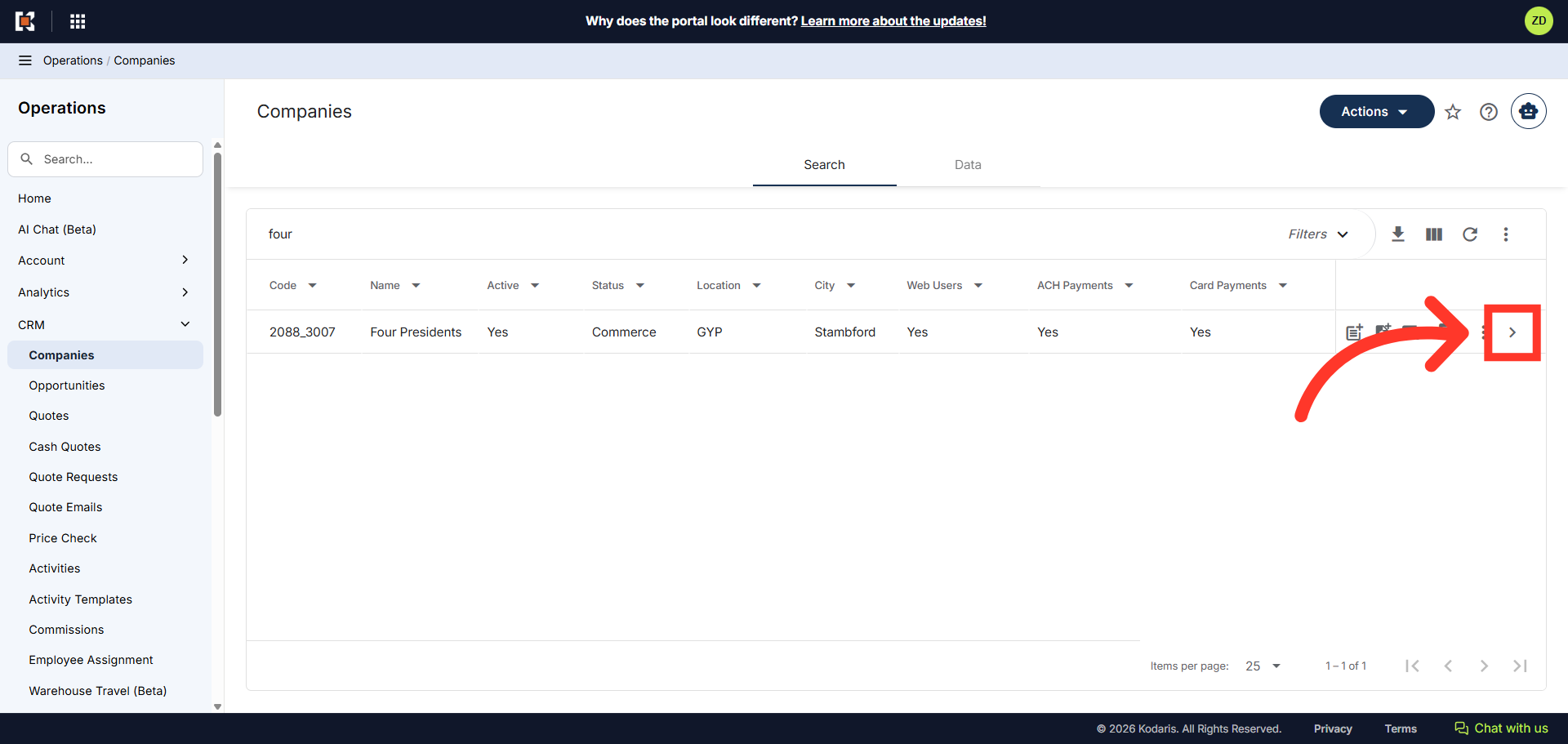
Then, click on the more details icon to access the company details.
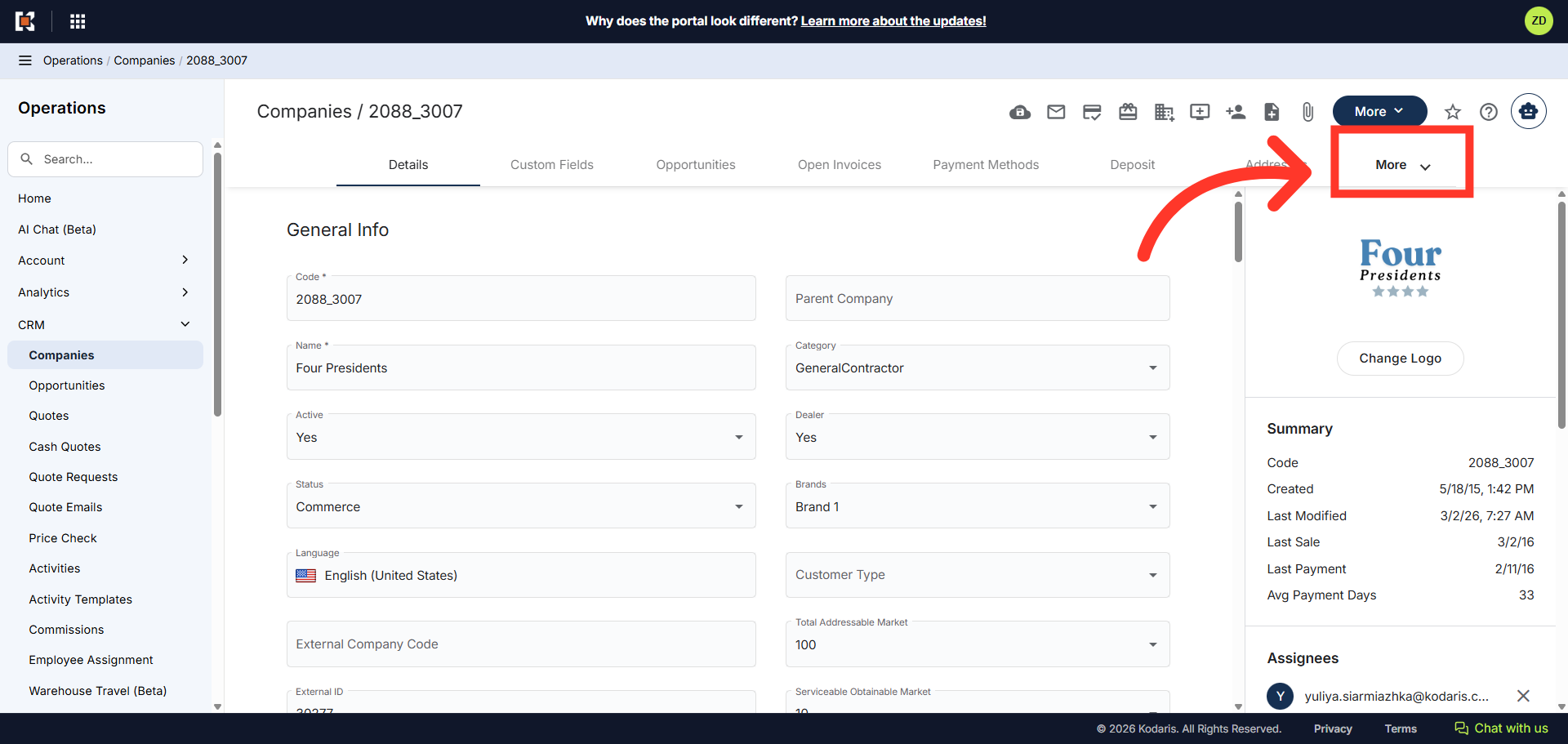
To view customer files that are saved to the company, click the "More" tab at the top of the company "Details" page.
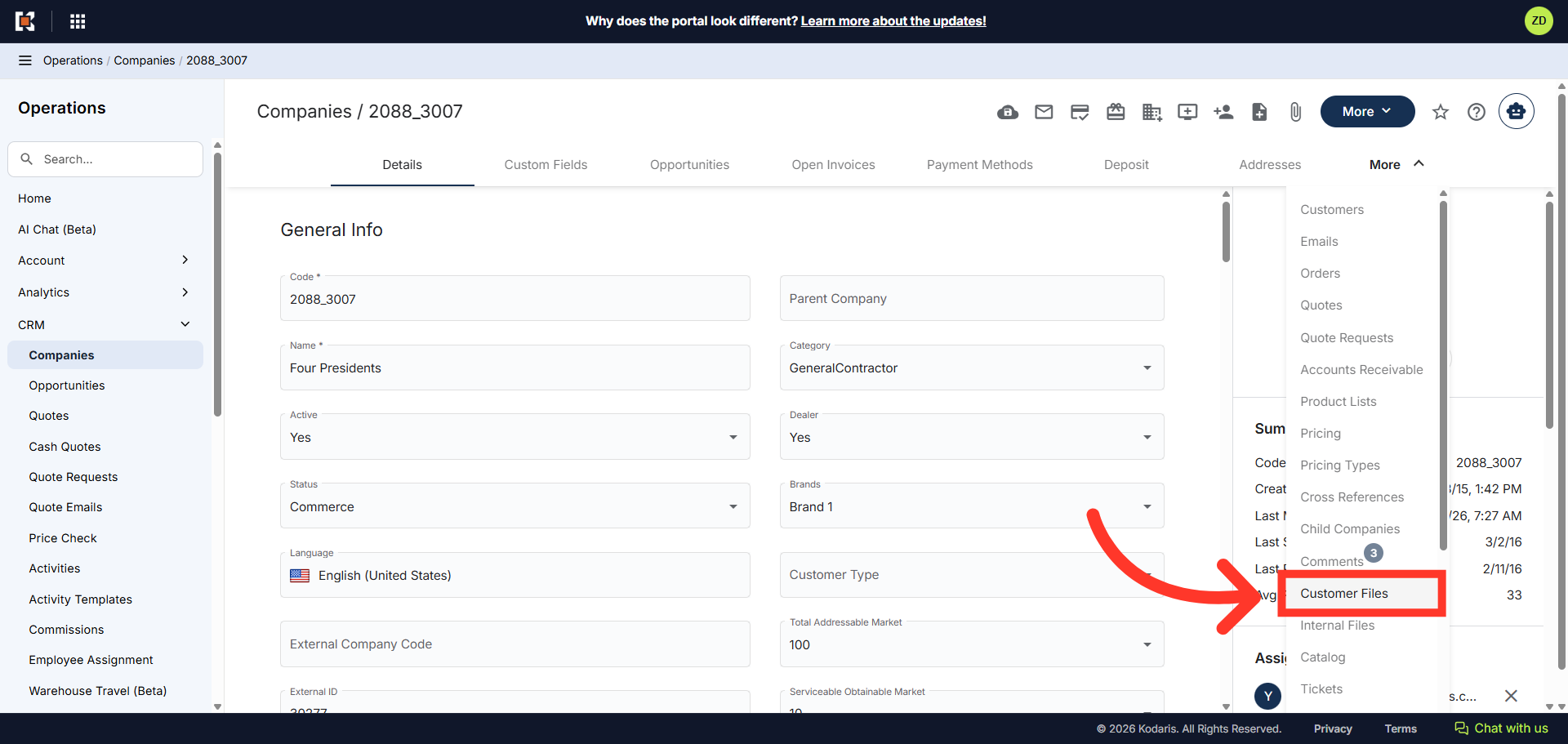
Then, click "Customer Files" from the drop-down menu.
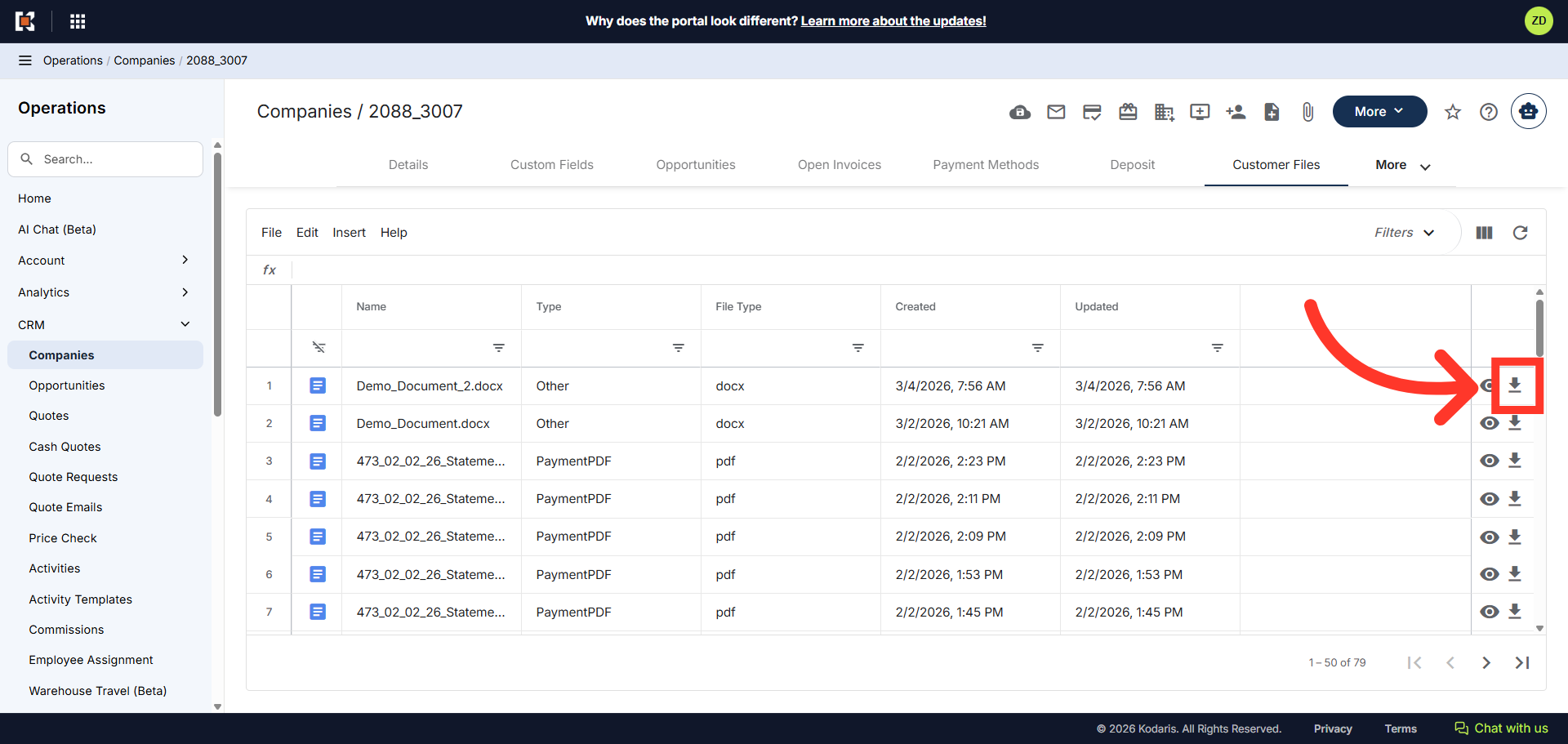
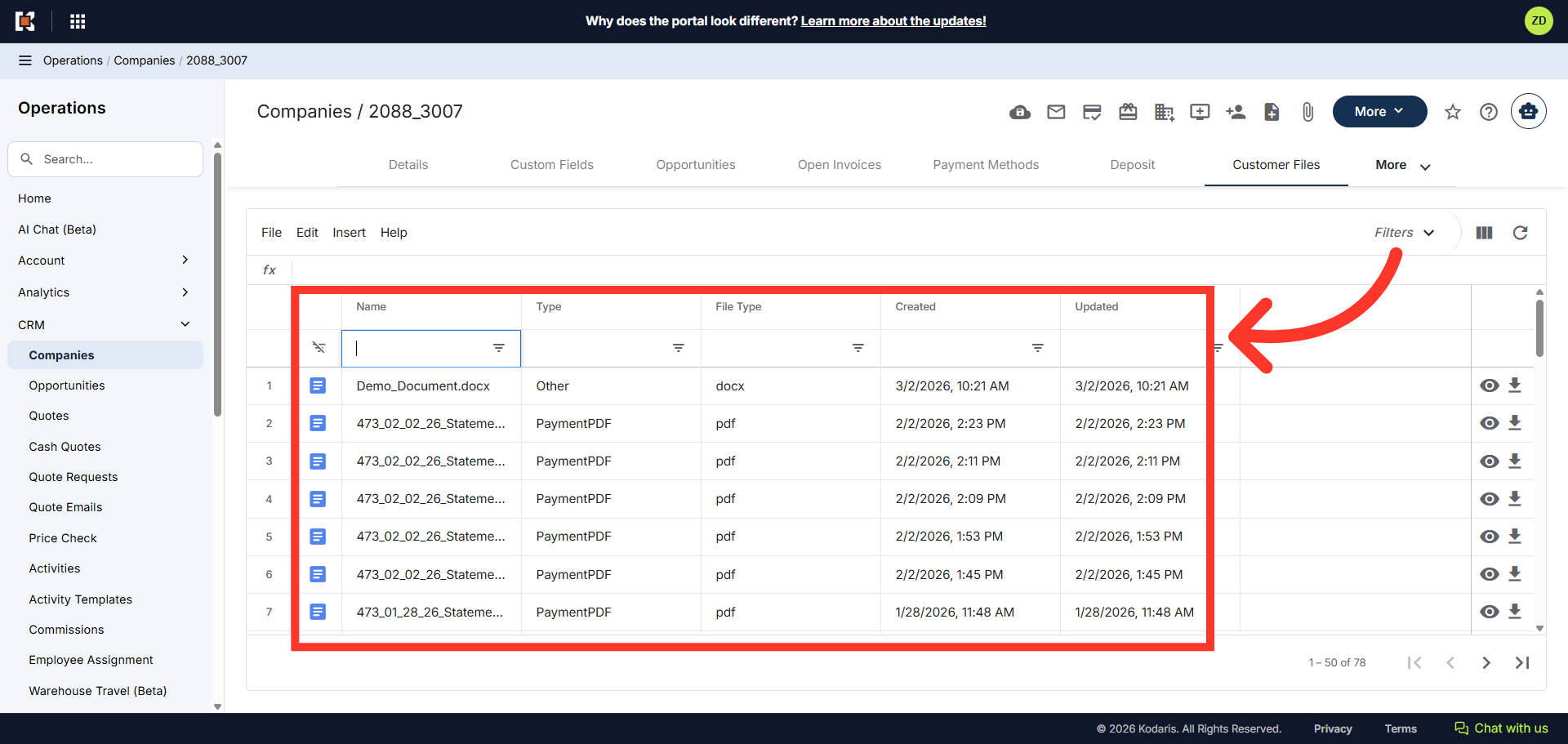
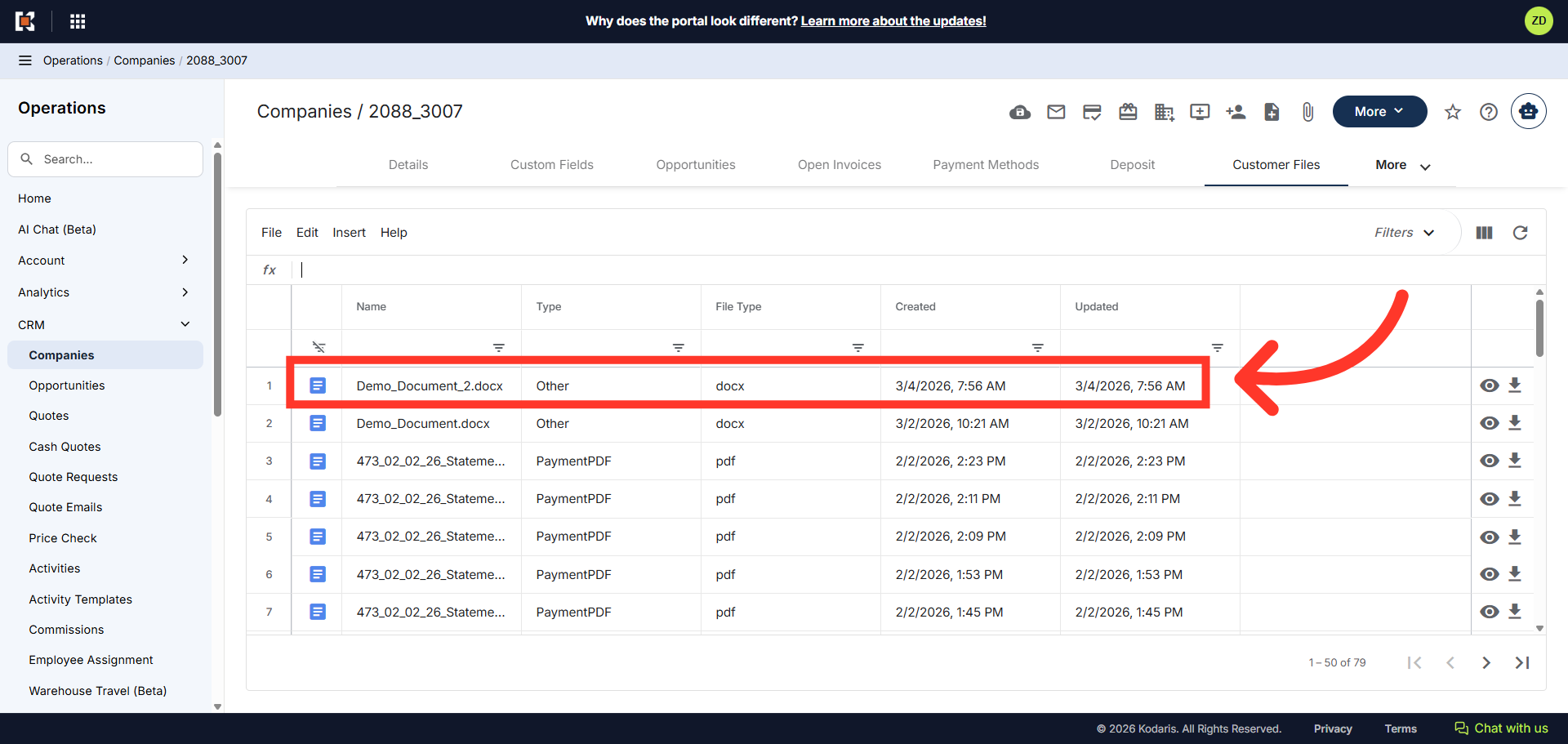
The grid view shows a list of all customer files that have been added. You can search for files using the column headers at the top of the grid.
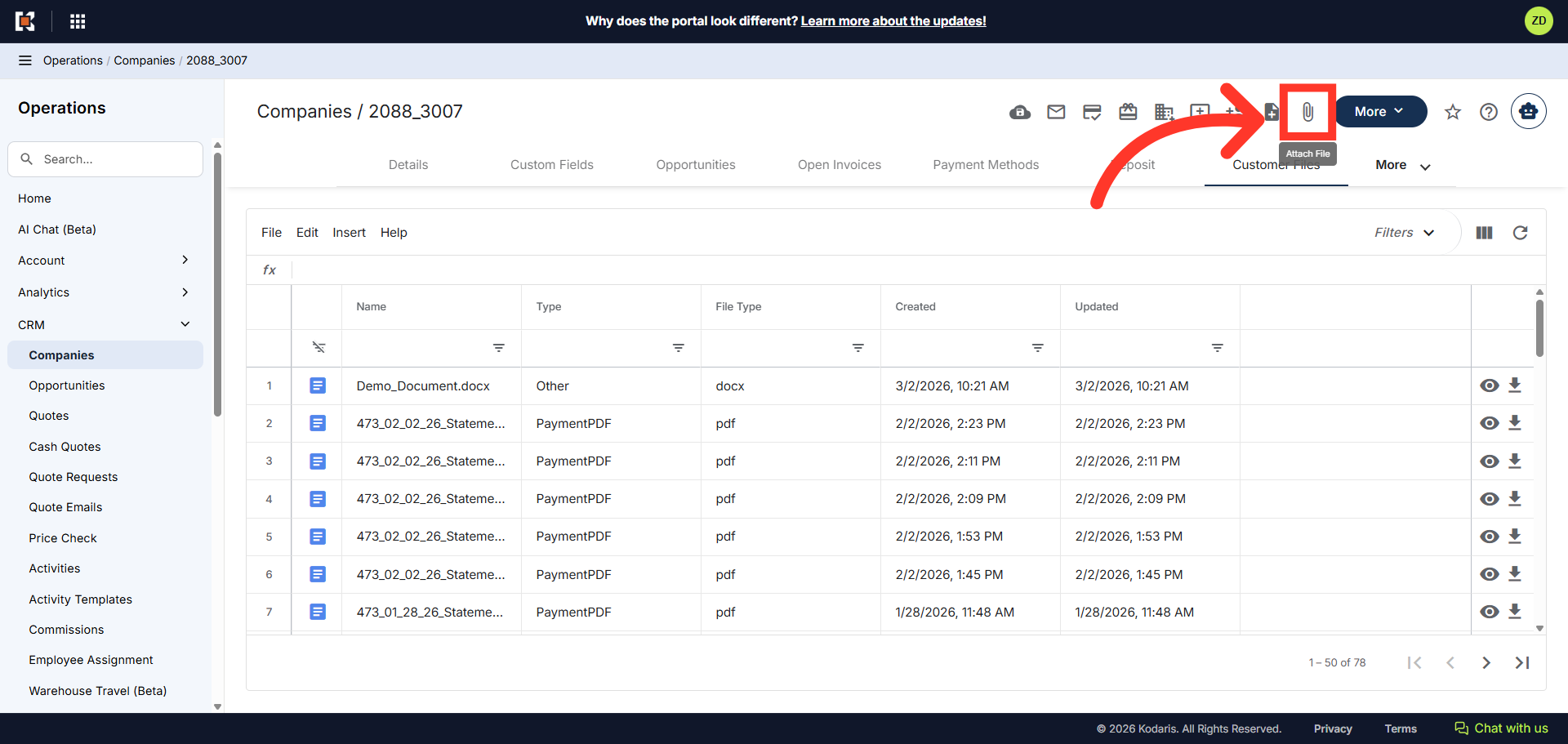
To attach a file, click the "Attach File" icon.
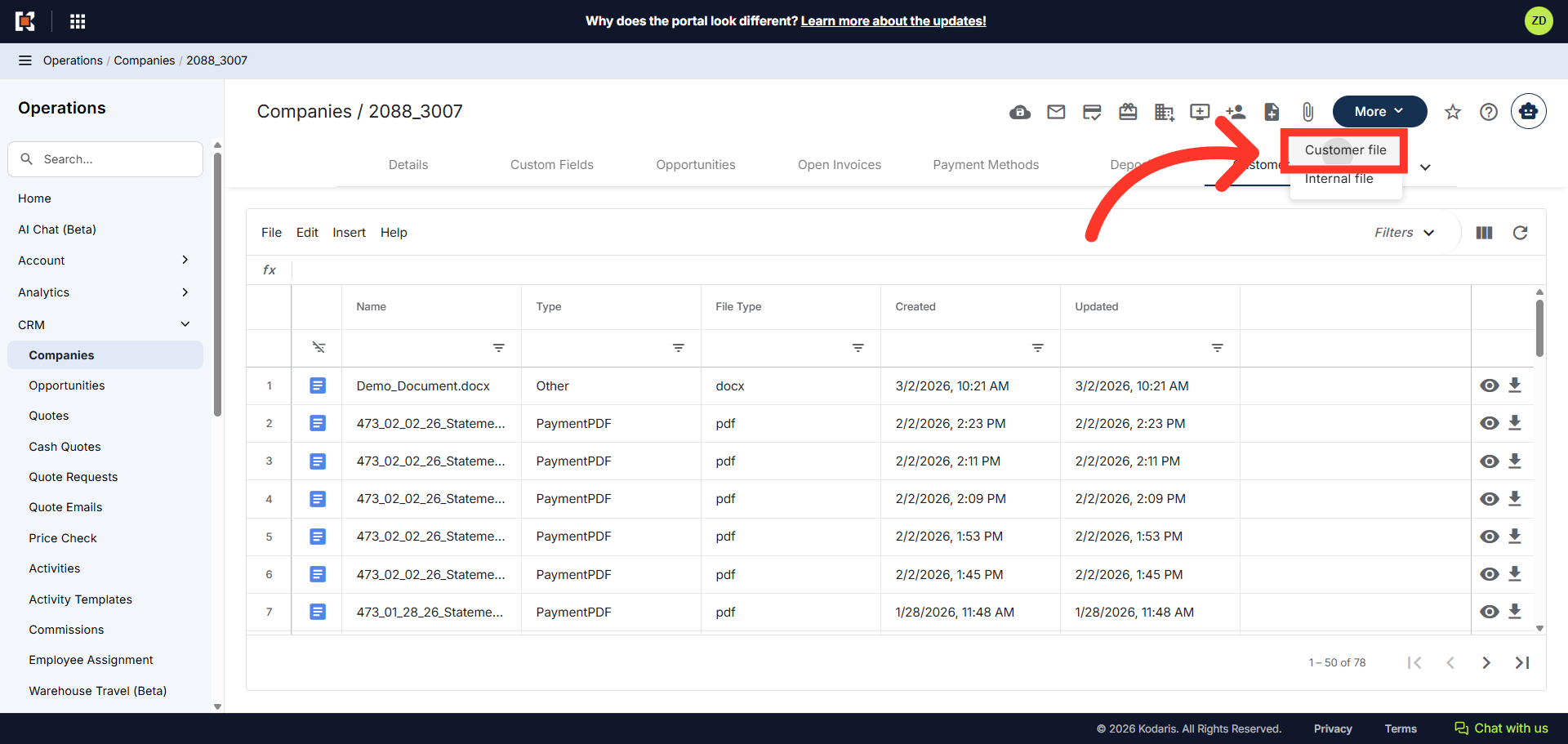
Then, select "Customer file" from the drop-down menu.
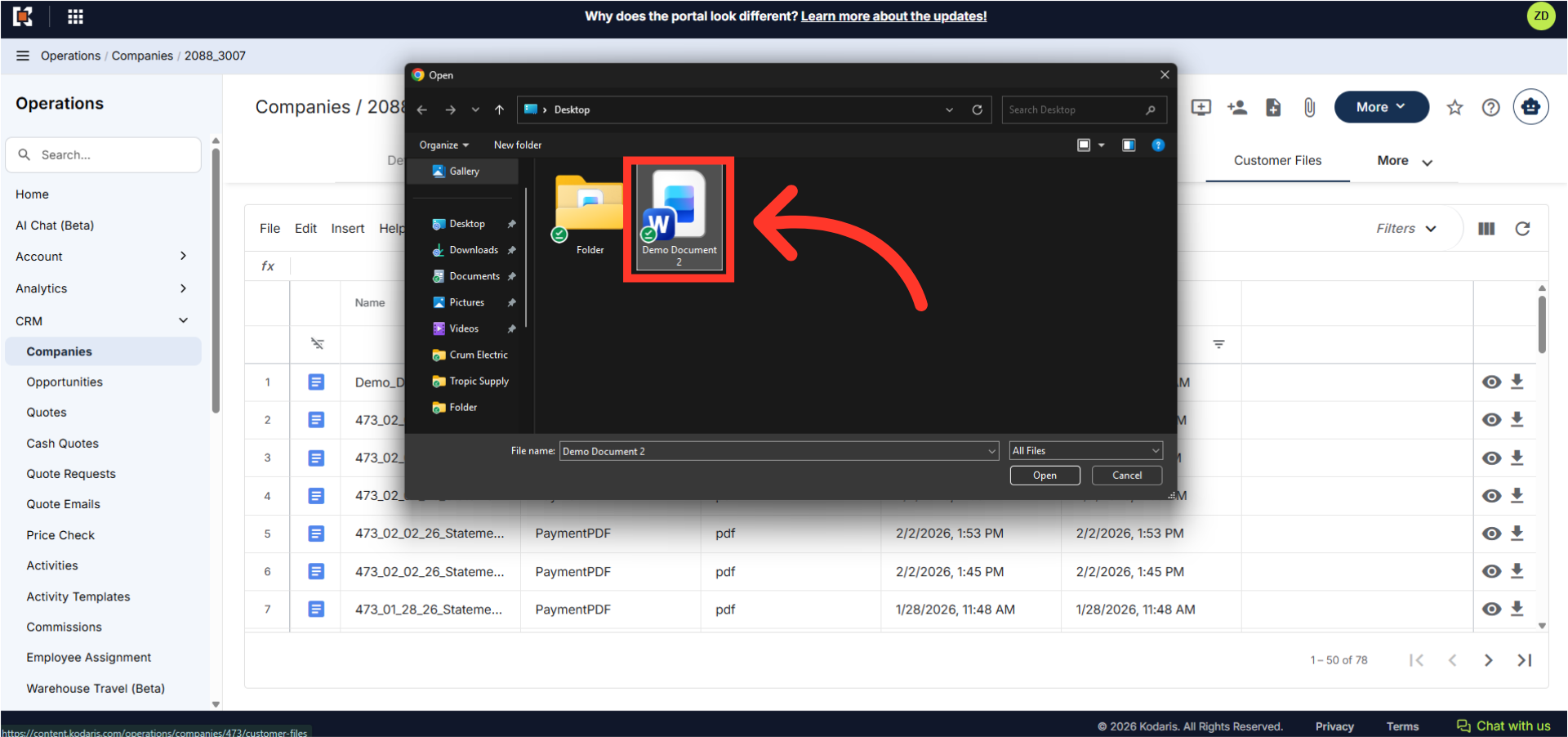
Select the file you want to upload from your device.
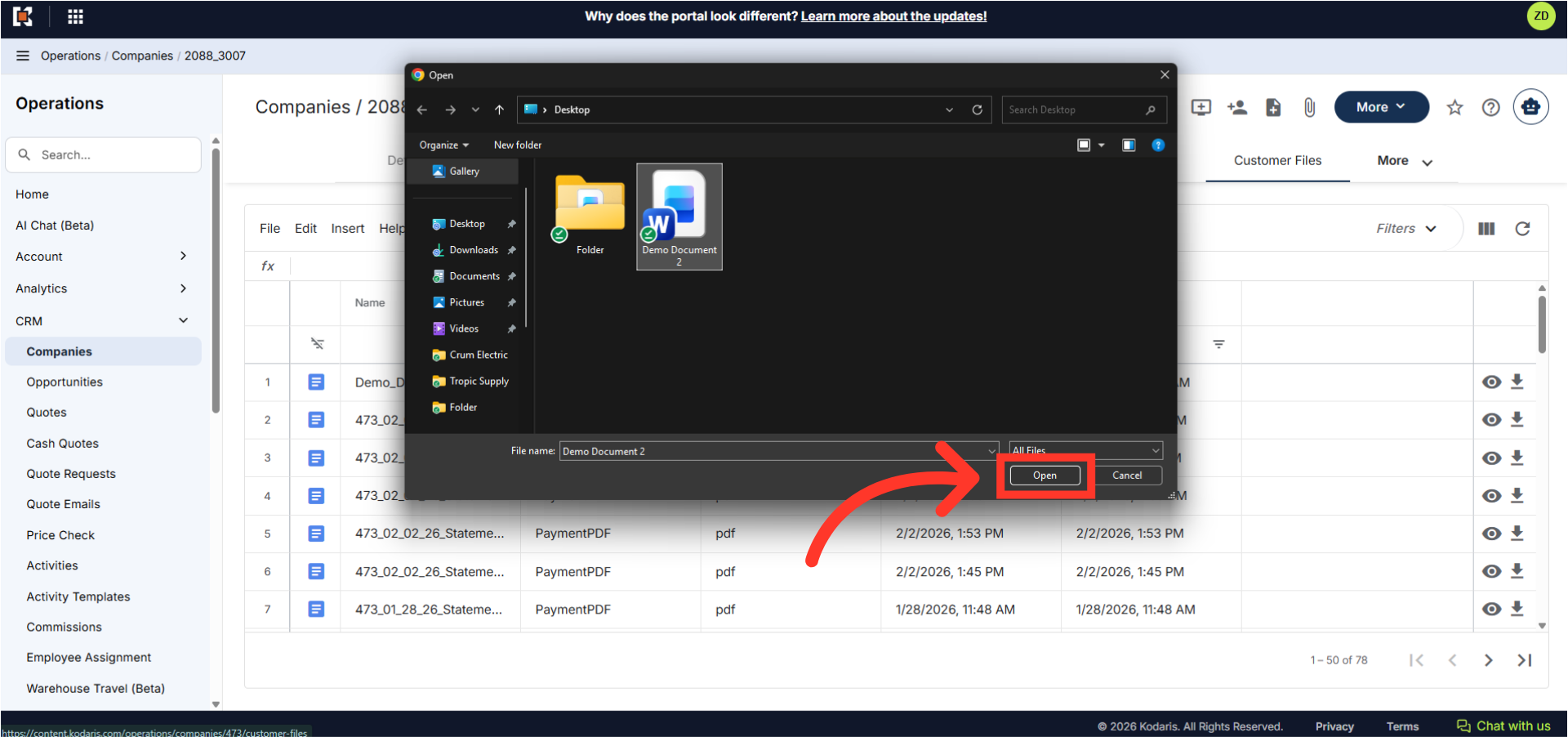
Then, click "Open" to upload the file.
Once the file has been uploaded, the file will appear in the grid view with the file details, such as name, file type and date uploaded. Note: Files uploaded to "Customer Files" are visible to the customers in their Customer Portal.
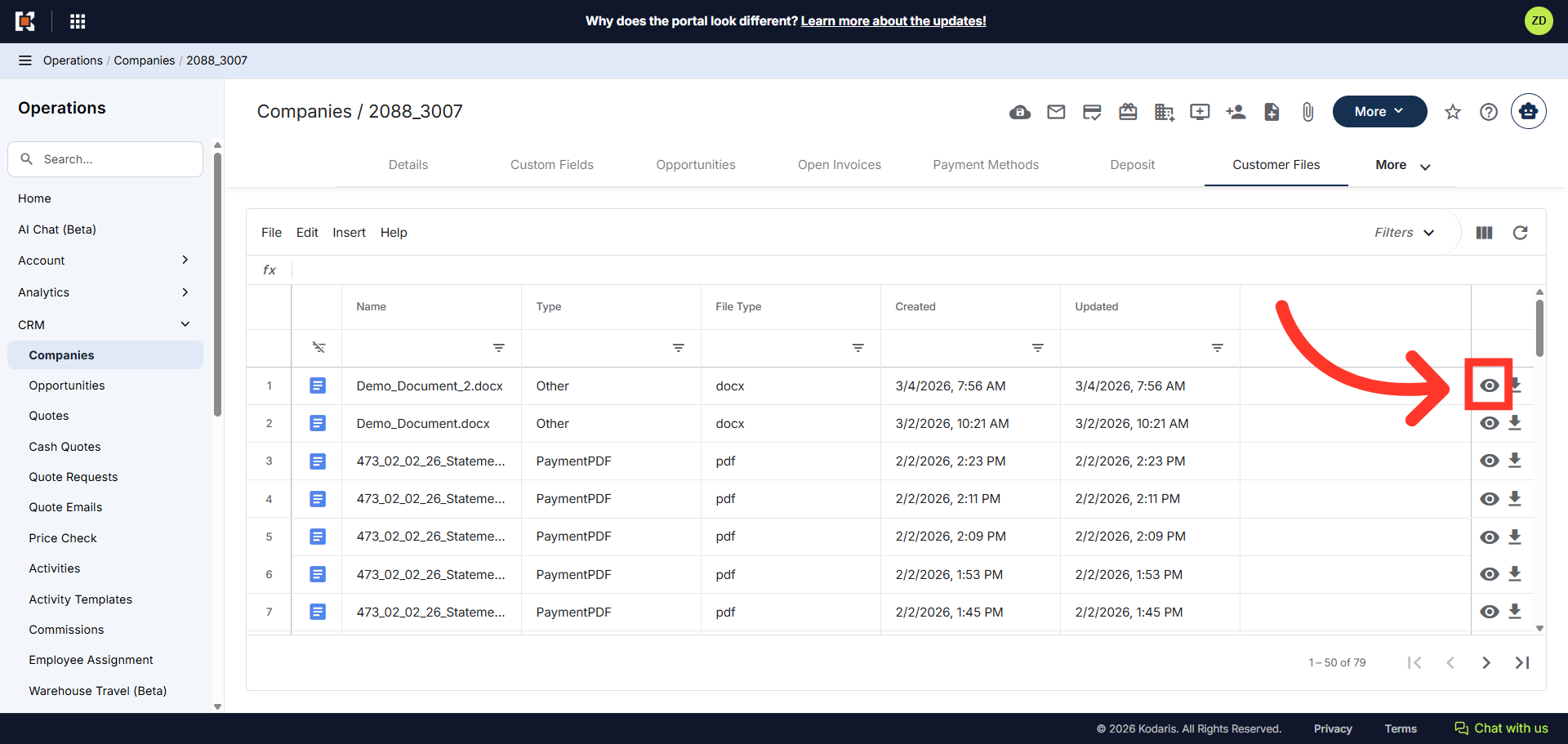
Click the view icon or eye icon next to any file to preview it directly in your browser.
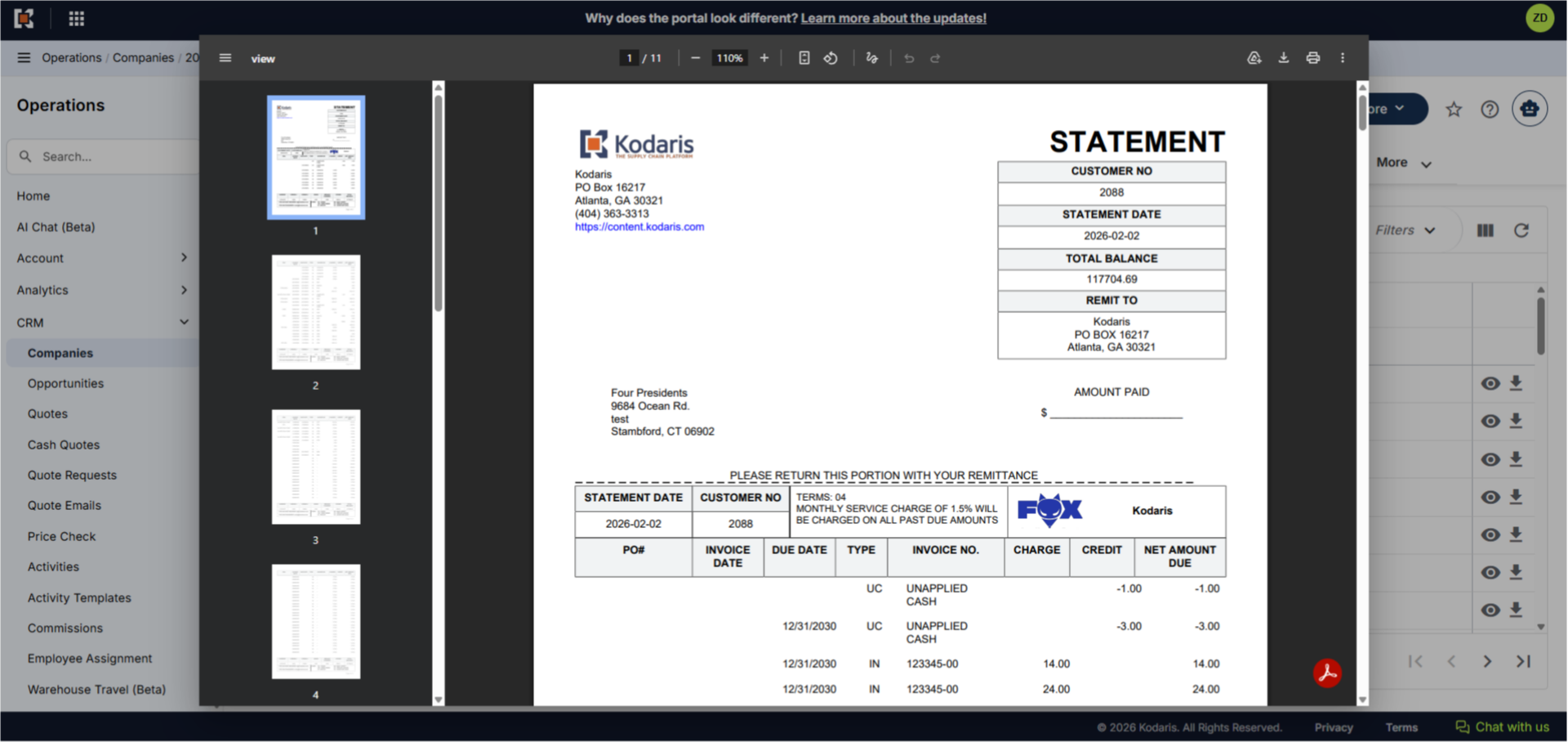
The document will open in a preview window where you can scroll through the pages, print or download the document to your device. To close the preview, click anywhere outside the preview window.
You can also click the download icon to download the file to your computer.