Product Documentation
Product Documentation
Product Documentation
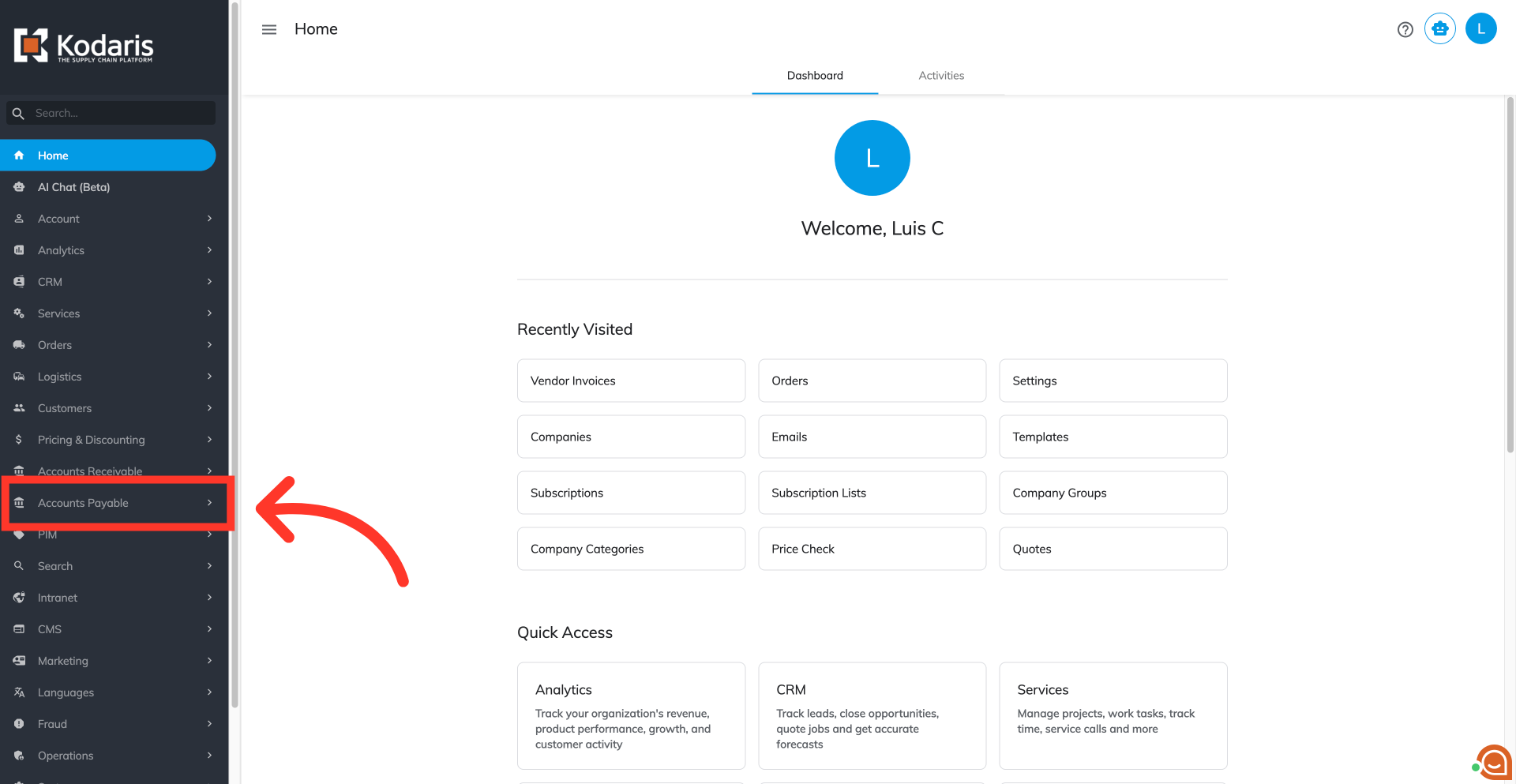
Filtering by assignee IDs and assignee names allows users to quickly search and filter invoice records based on who they're assigned to. To do this, navigate to "Accounts Payable" section in the Operations Portal.
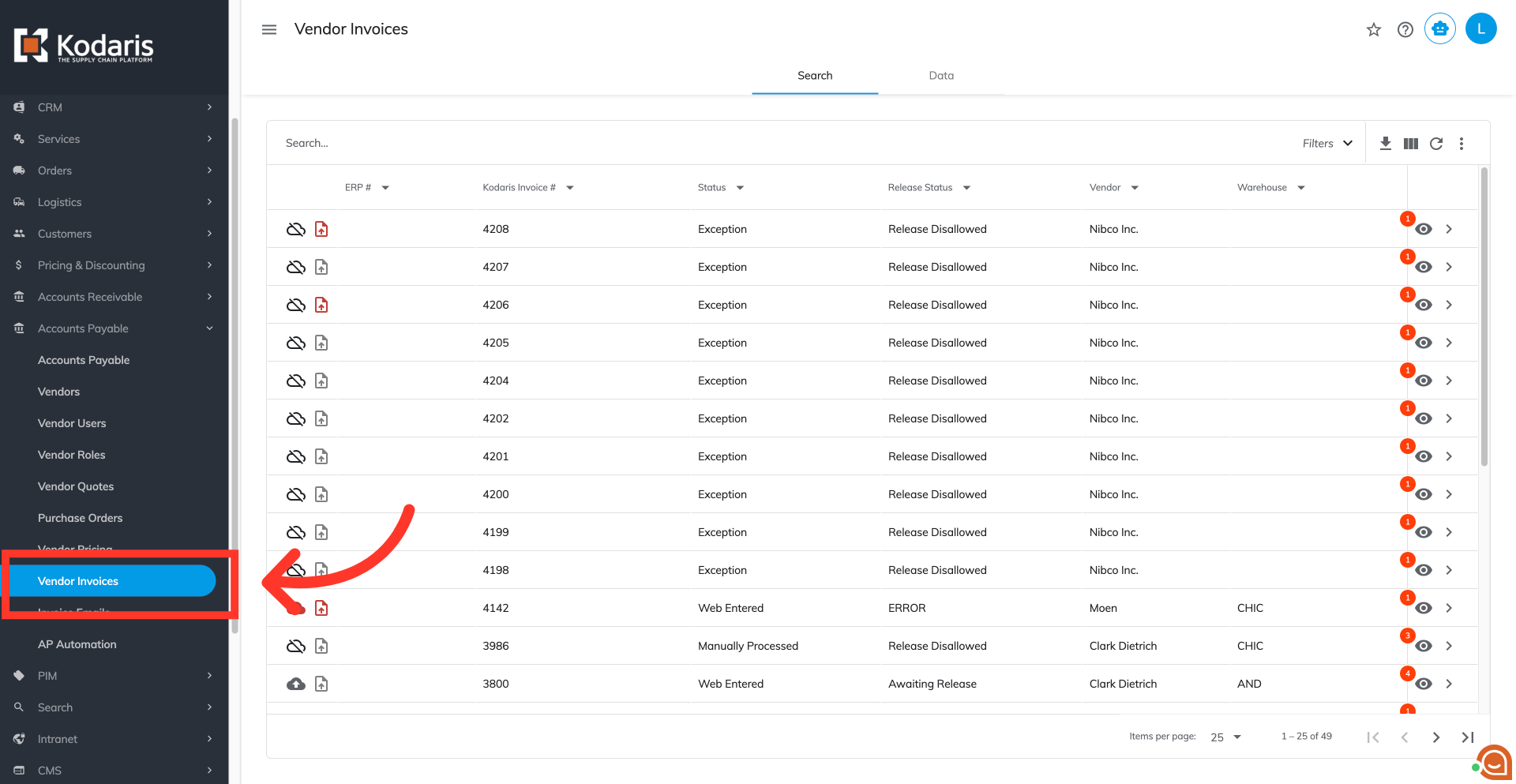
Then, click "Vendor Invoices." In order to access "Vendor Invoices" the account will need to be set up either as an "administrator" or a "superuser", or have the appropriate roles: "vendorInvoiceEdit" or "vendorInvoiceView."
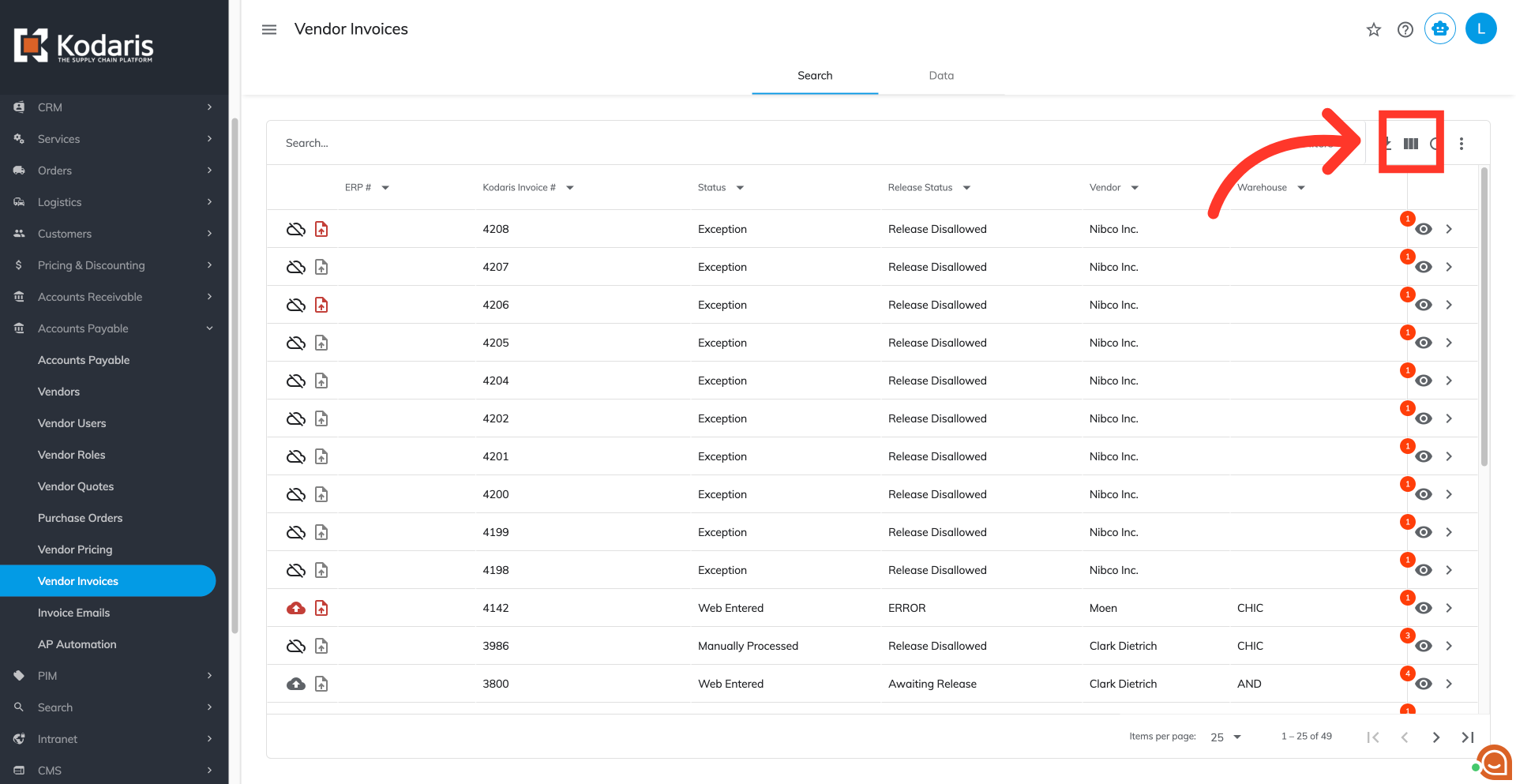
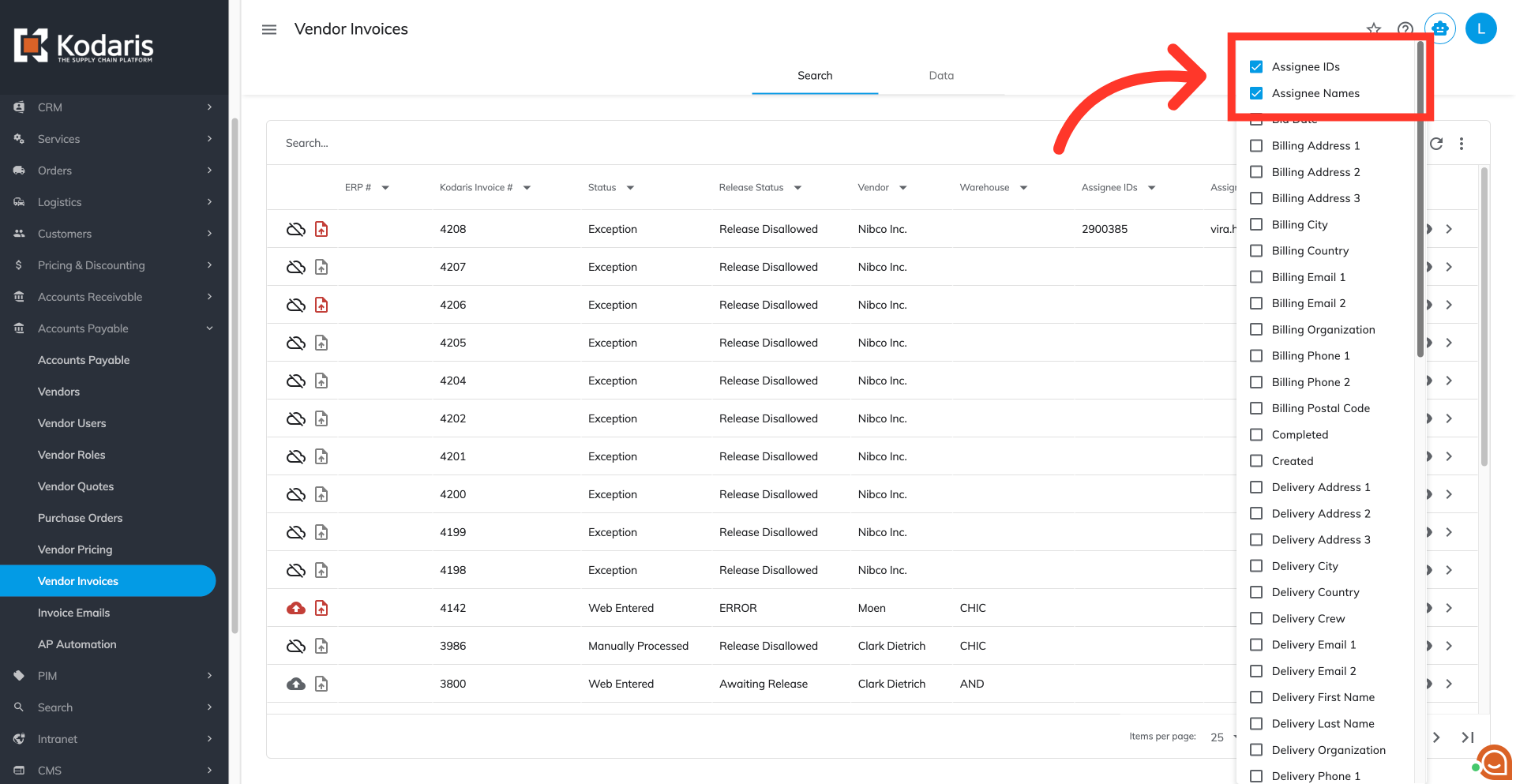
Assignee IDs and Assignee Names columns are hidden by default. To show these columns, click on the "Show / Hide Columns" icon.
Click the "Assignee IDs" and "Assignee Names" columns to show in the grid.
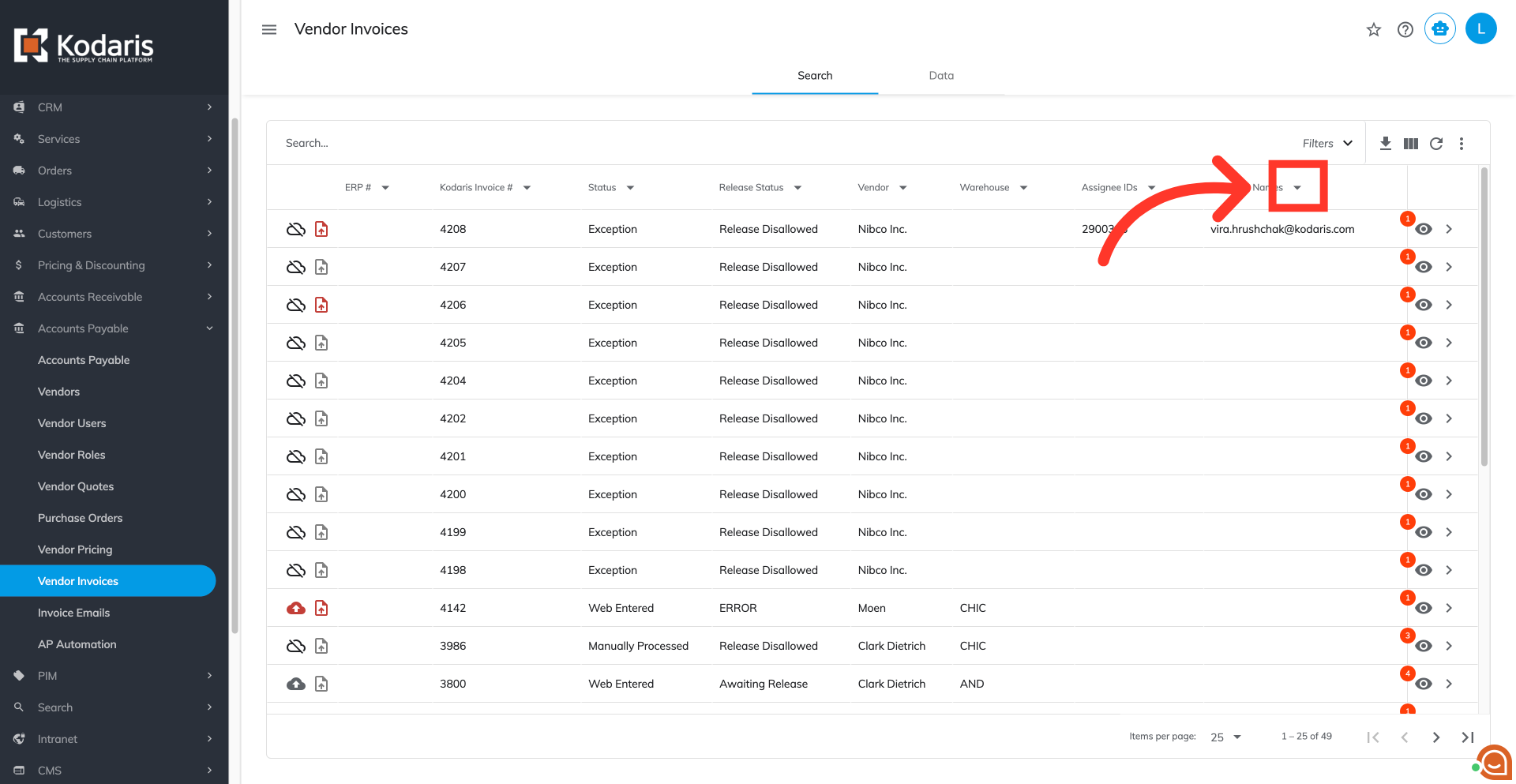
To filter by either columns, click on the column filter dropdown.
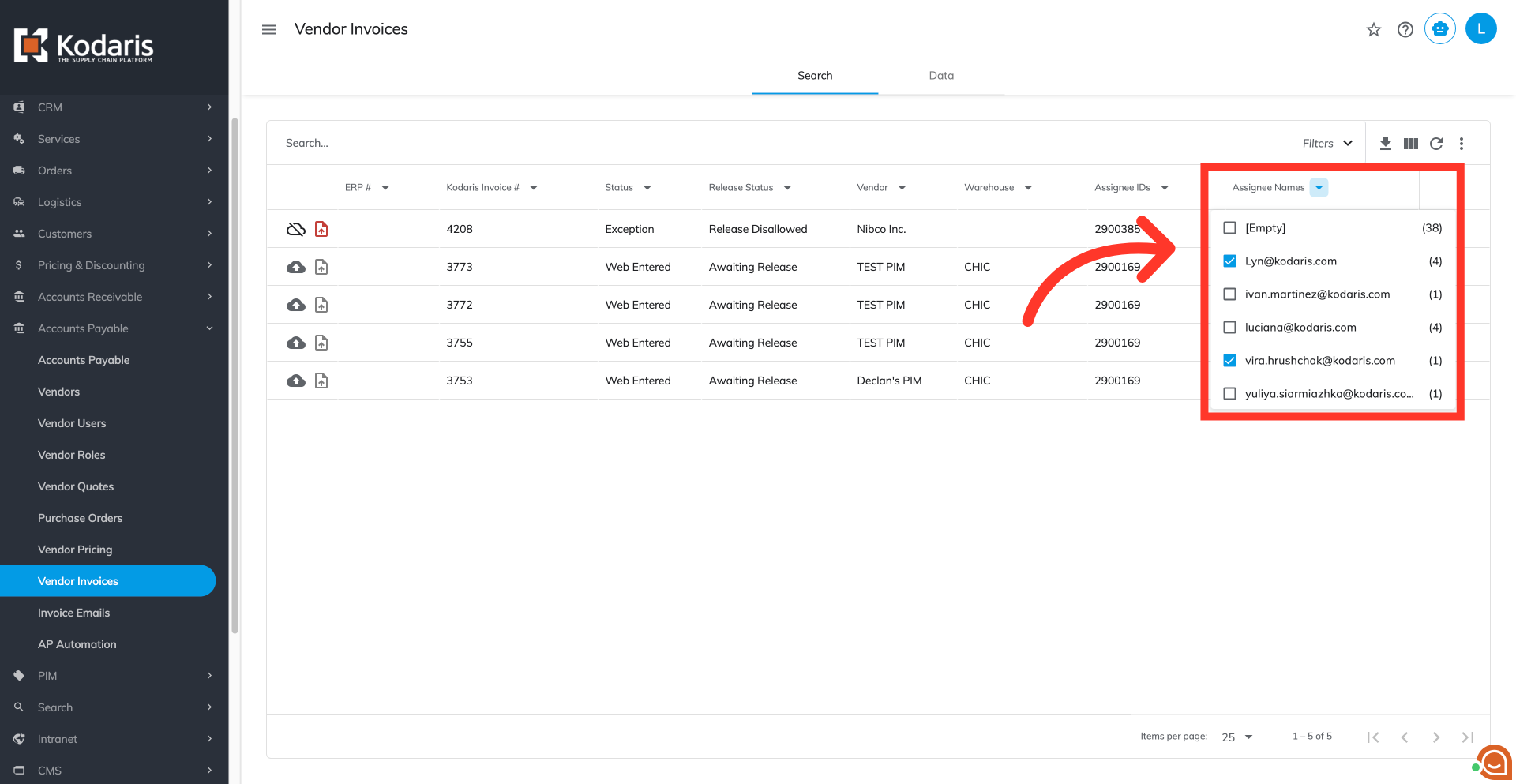
Click on the checkbox next to the assignee to select.
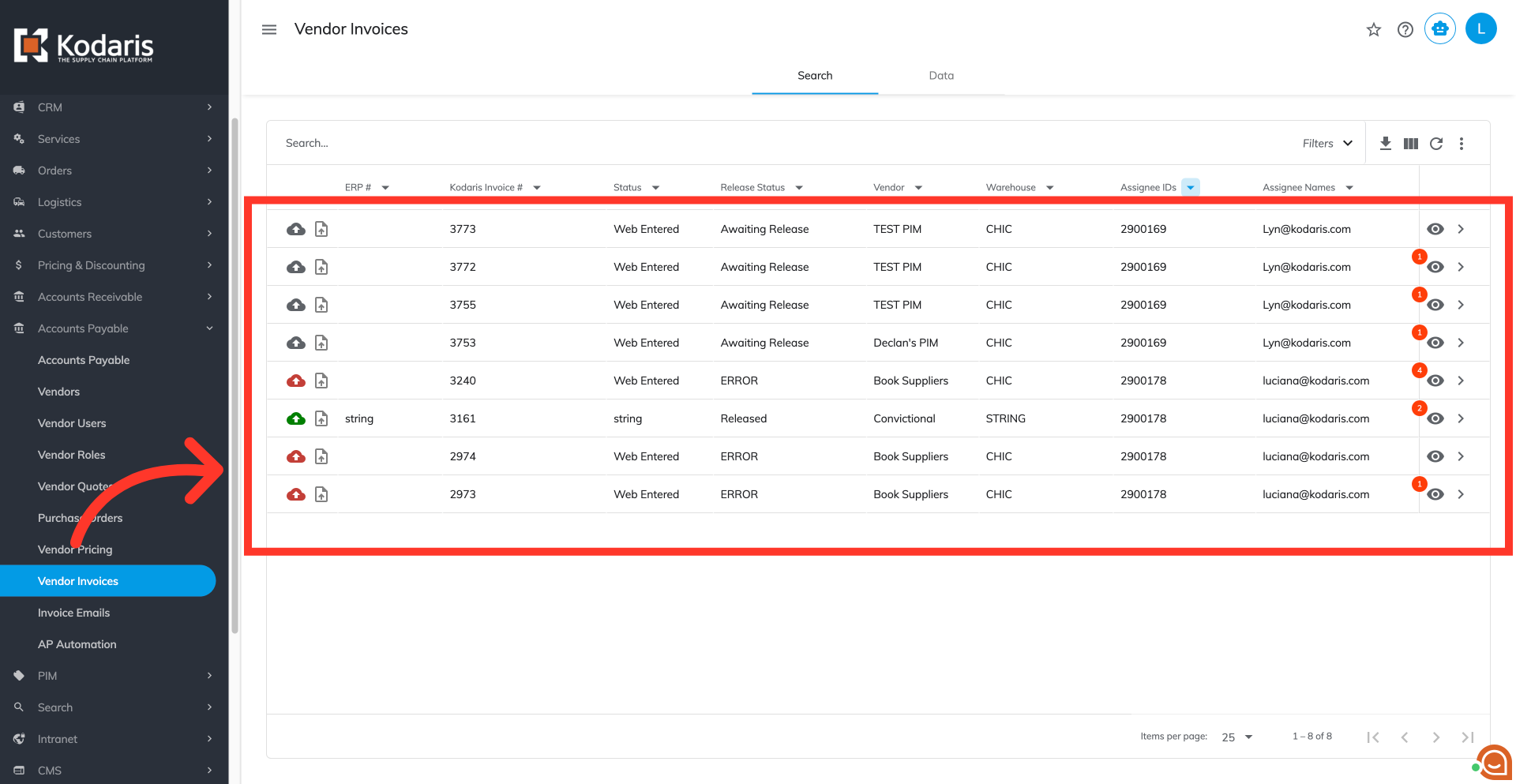
The grid displays the filtered results containing only the vendor invoices assigned to the selected assignee names.
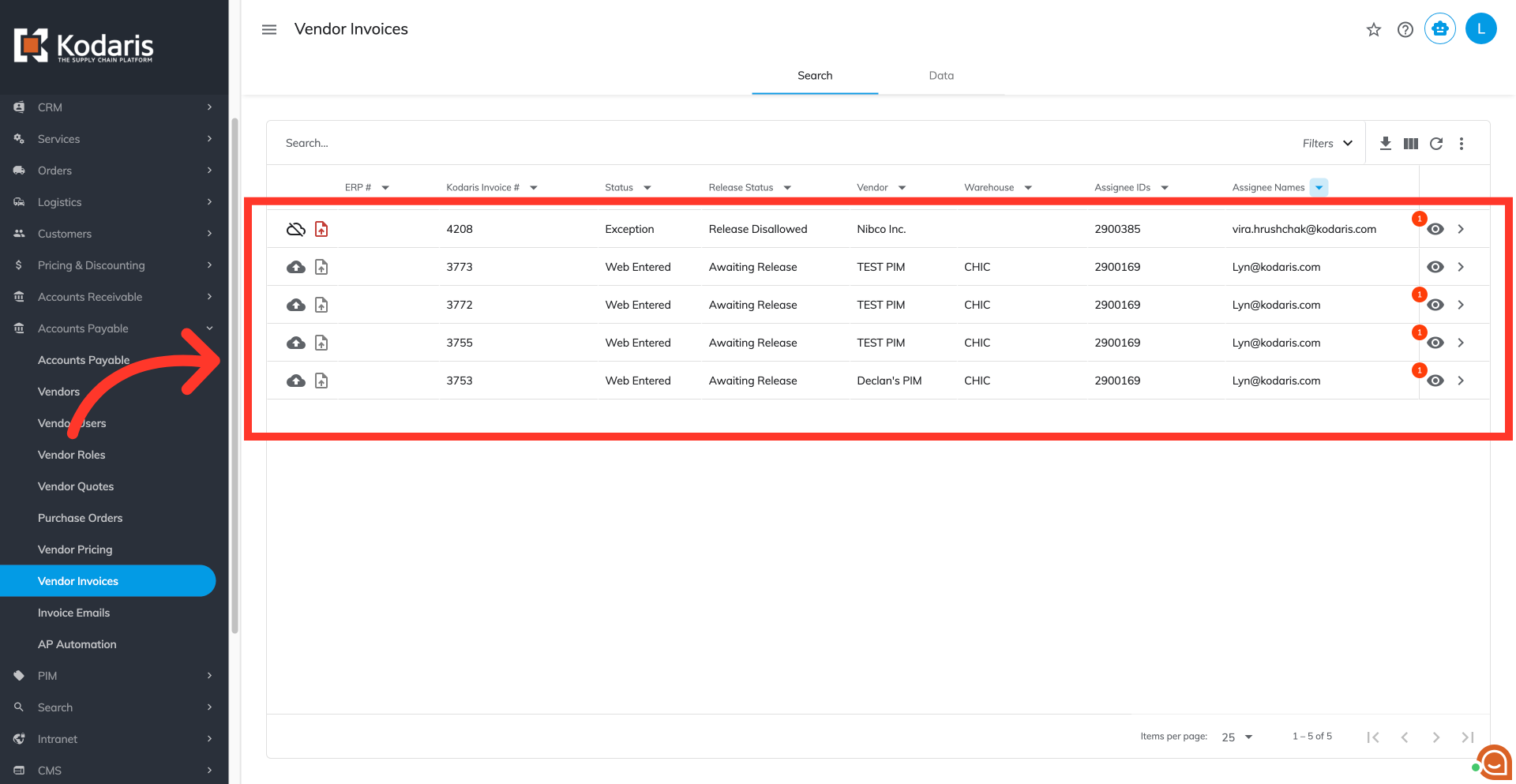
Repeat the same steps on "Assignee IDs" column to filter by the assignee IDs. The grid displays the filtered results for the vendor invoices assigned to the selected IDs.