Product Documentation
Product Documentation
Product Documentation
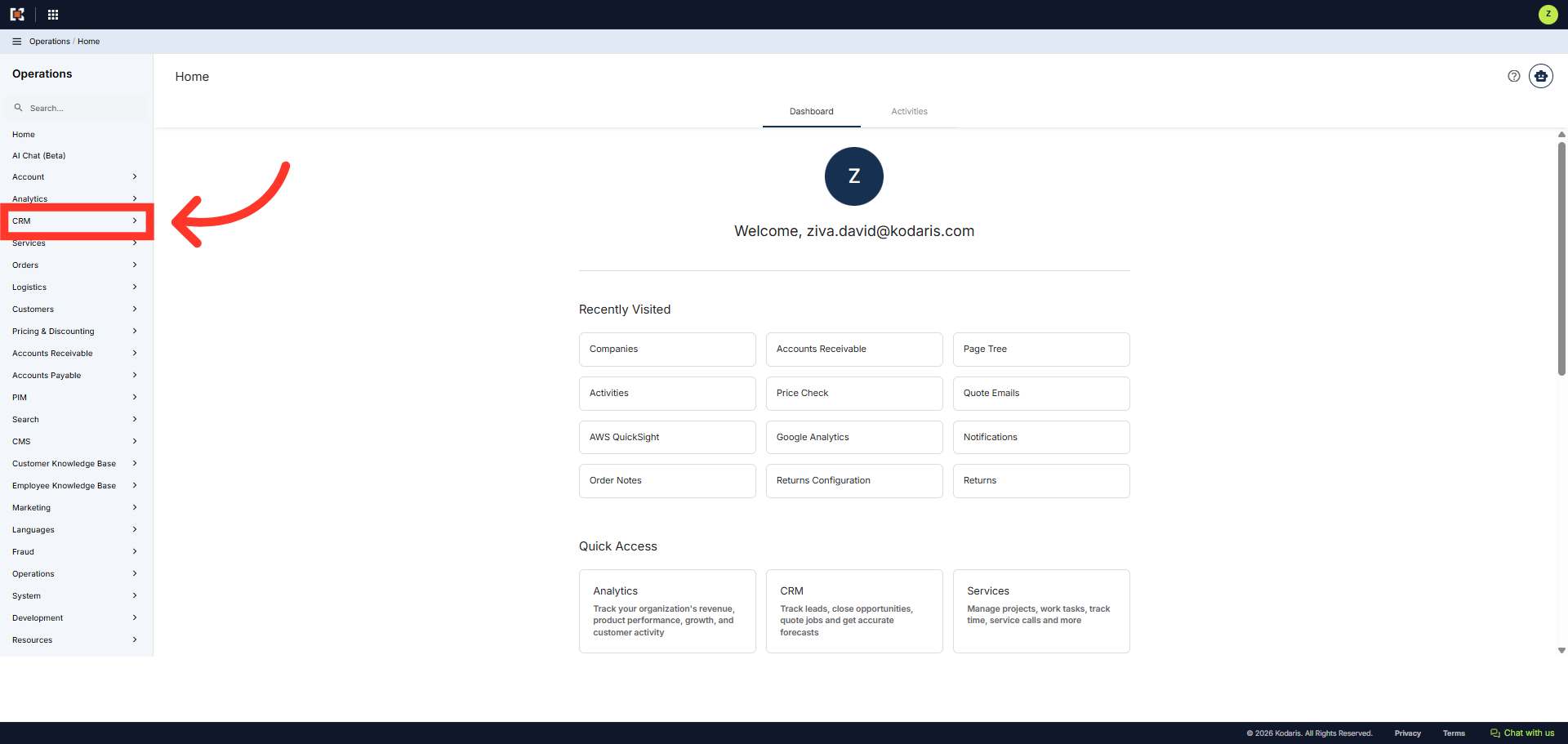
You can view, edit or delete vaulted payment methods from your customer account, in the Operations Portal. First navigate to the "CRM" section.
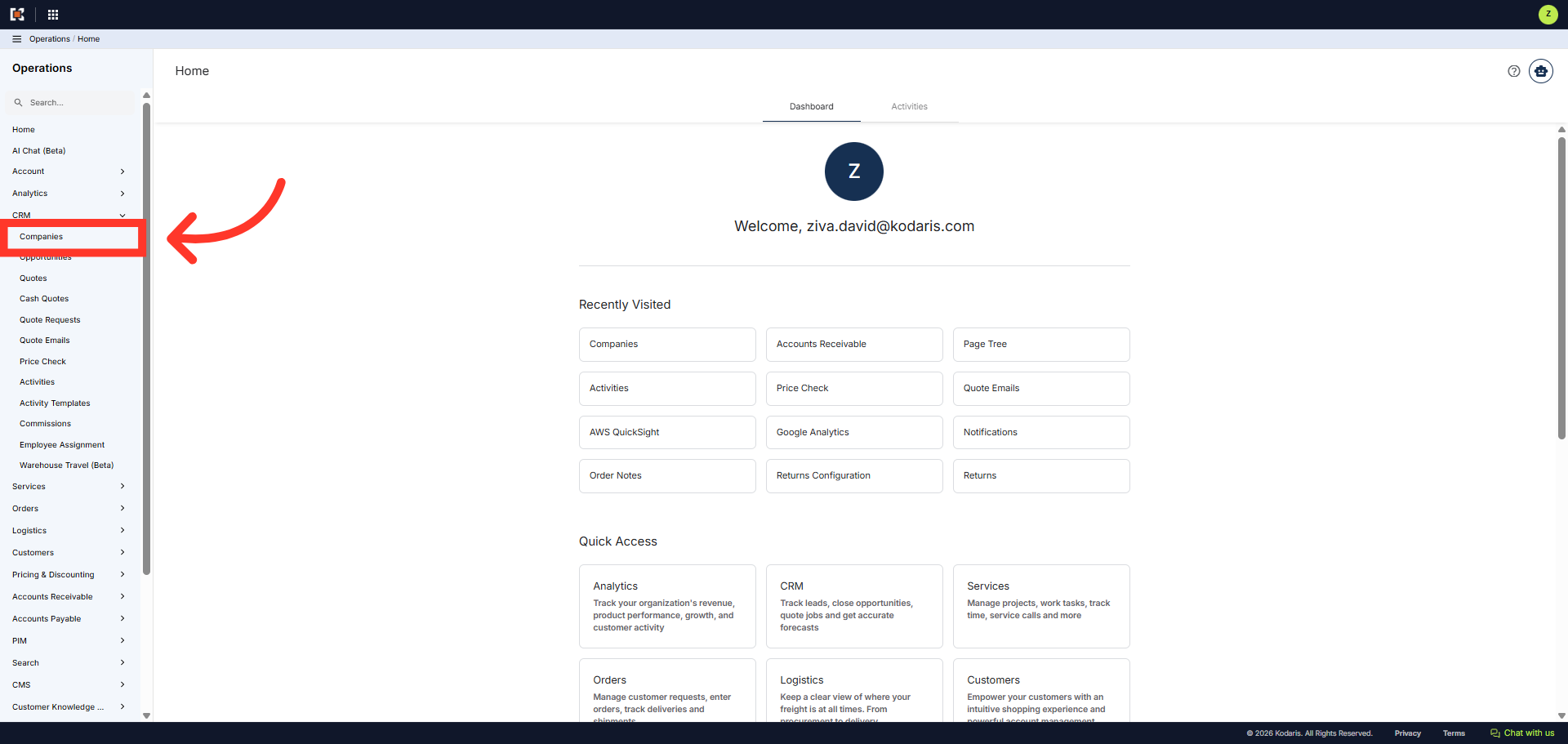
Then, click "Companies". In order to access "Companies" you will need to be set up either as an "administrator" or a "superuser", or have the appropriate roles: "companyView and companyEdit", or "crmCompanyView and crmCompanyEdit". Just a reminder, "crmCompanyView and crmCompanyEdit" access only allows employees to view companies that are assigned to them.
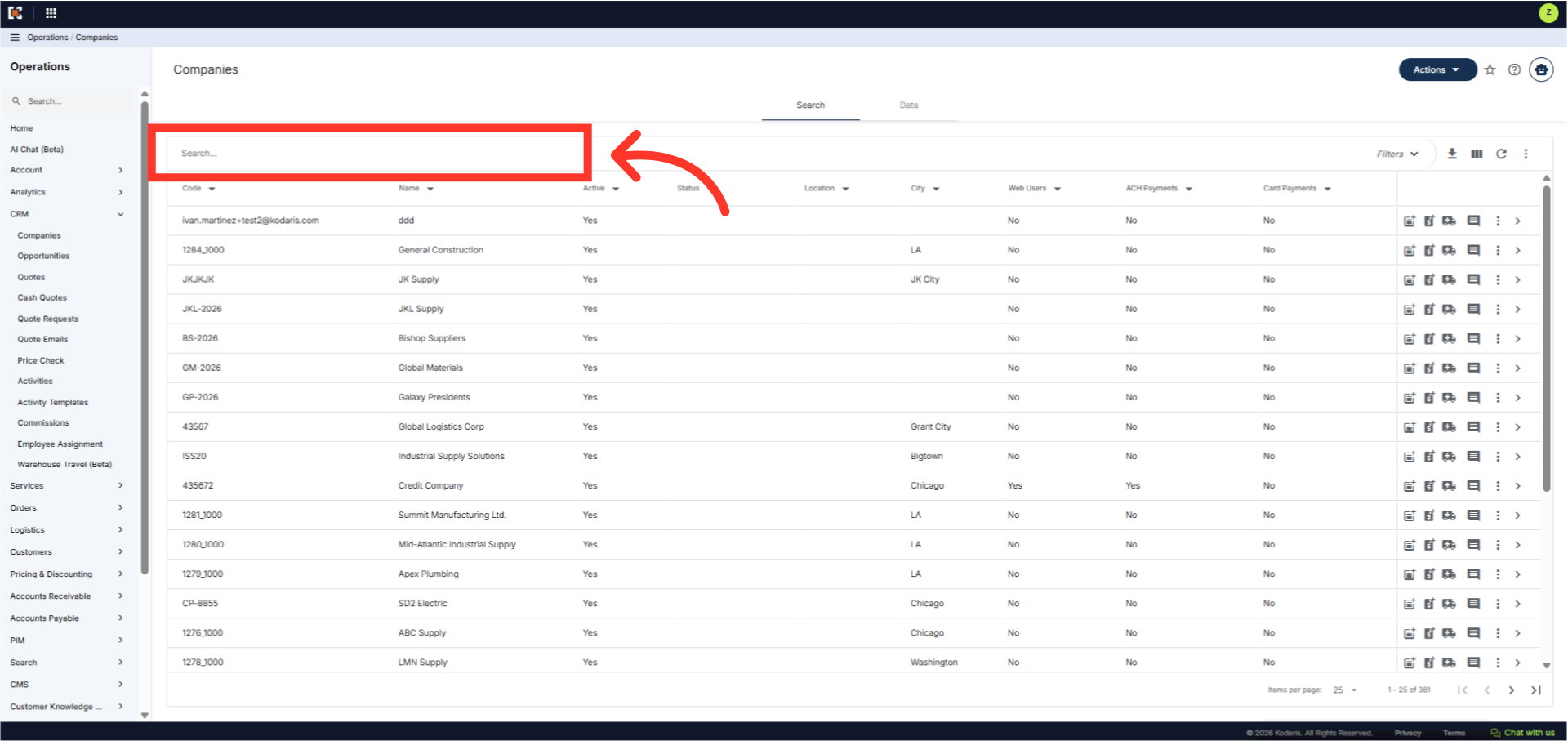
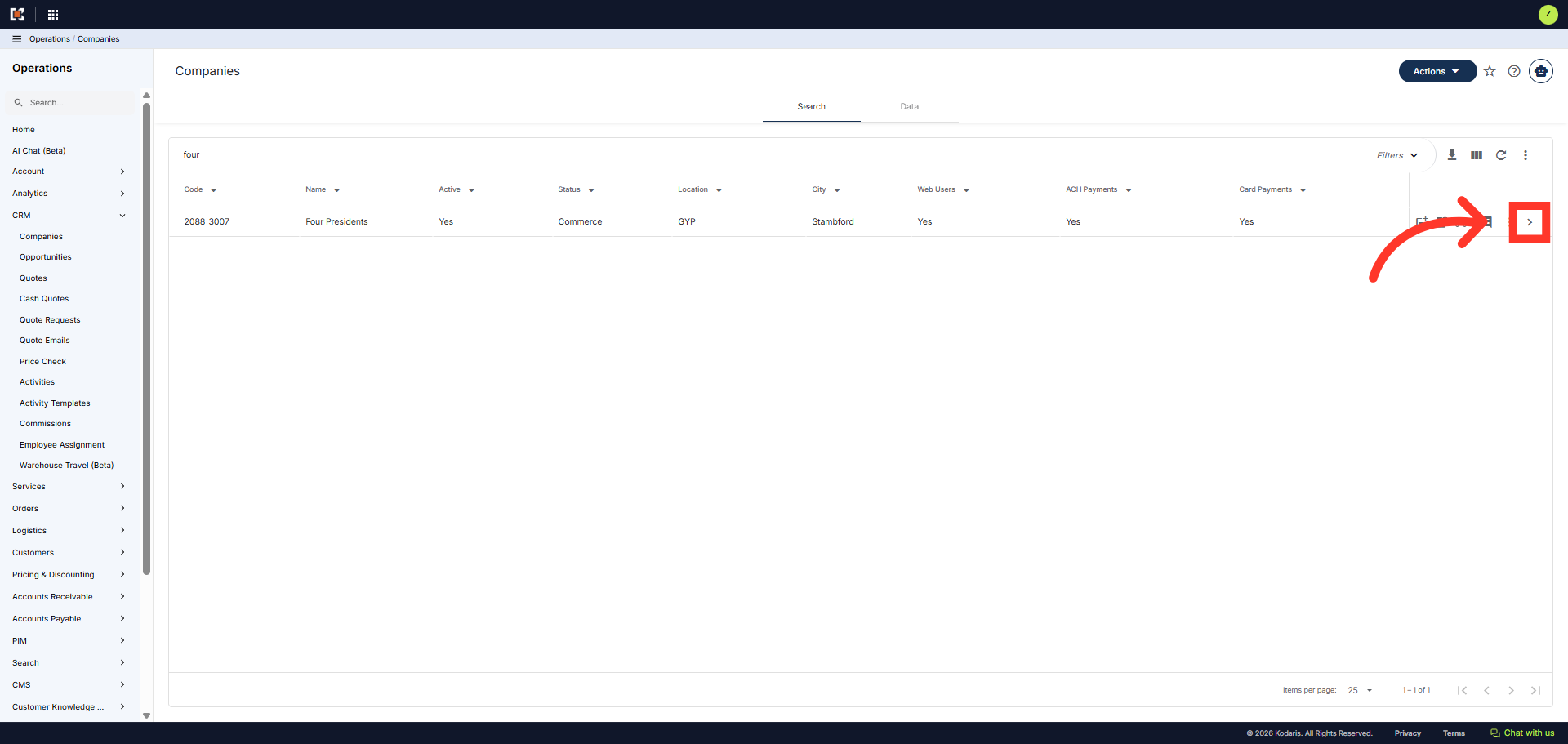
You can quickly search for a company by entering a company code or company name in the search box. In this example we will search by entering a company name.
Next, click on the more details icon to view the company details.
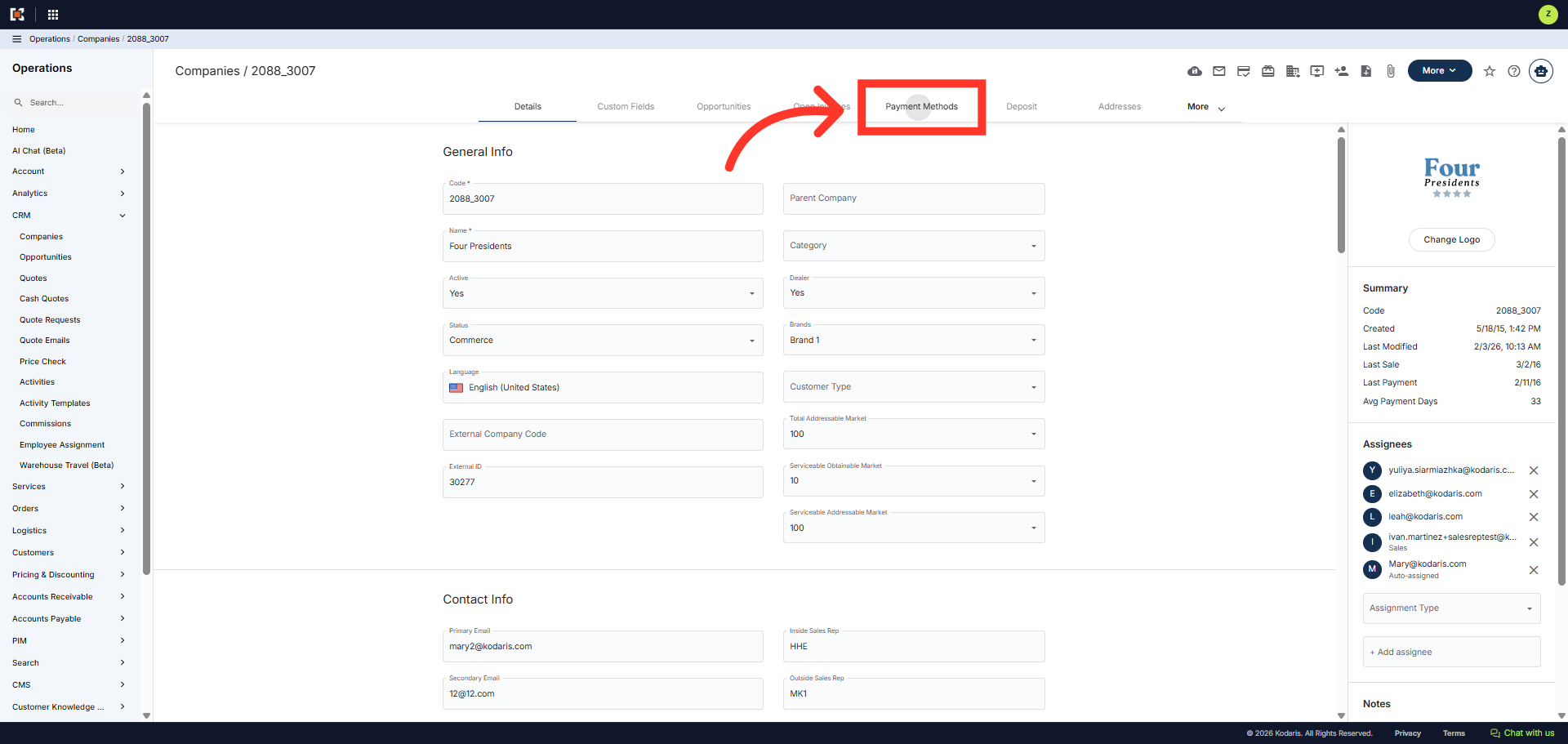
Then, click the "Payment Methods" tab to view customer vaulted payment methods.
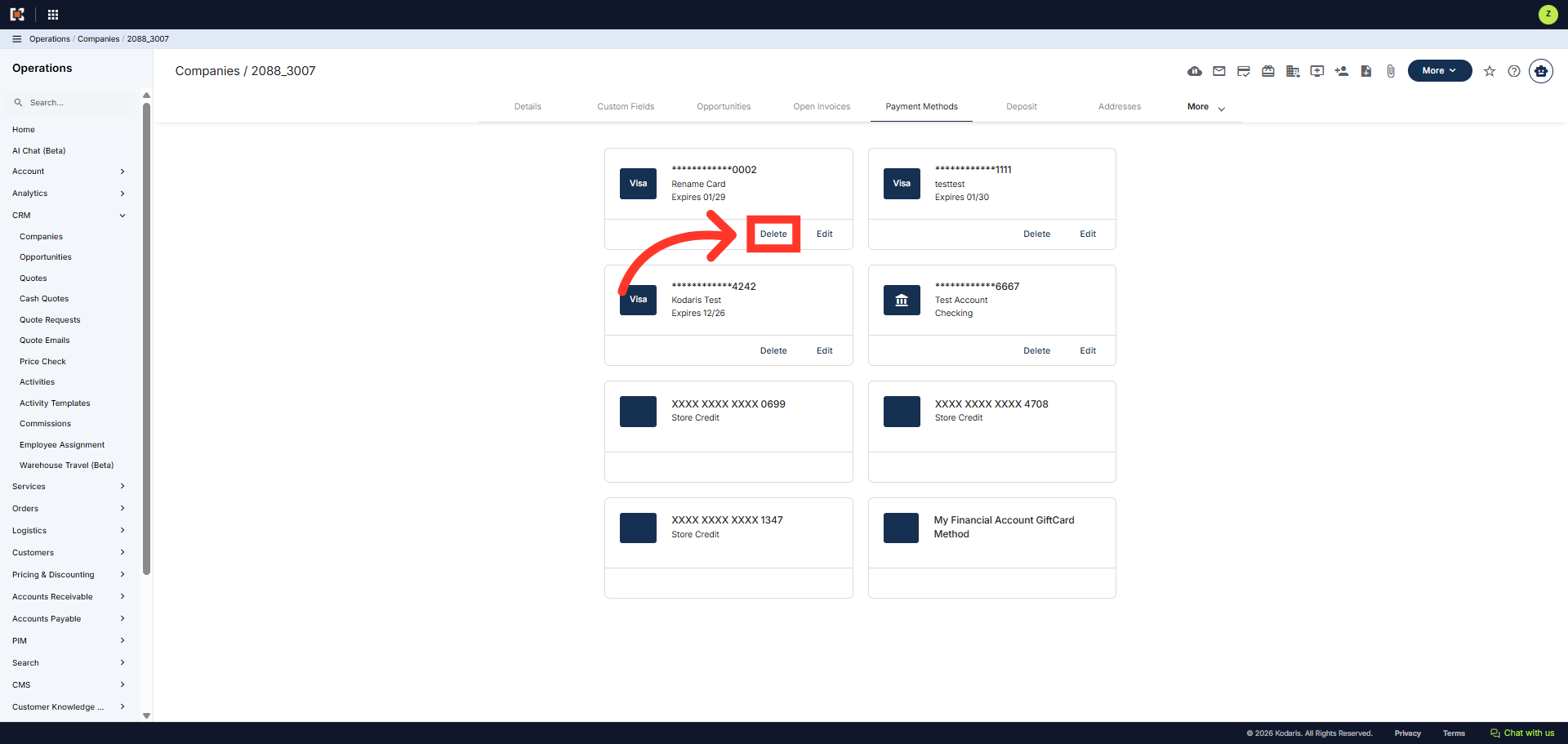
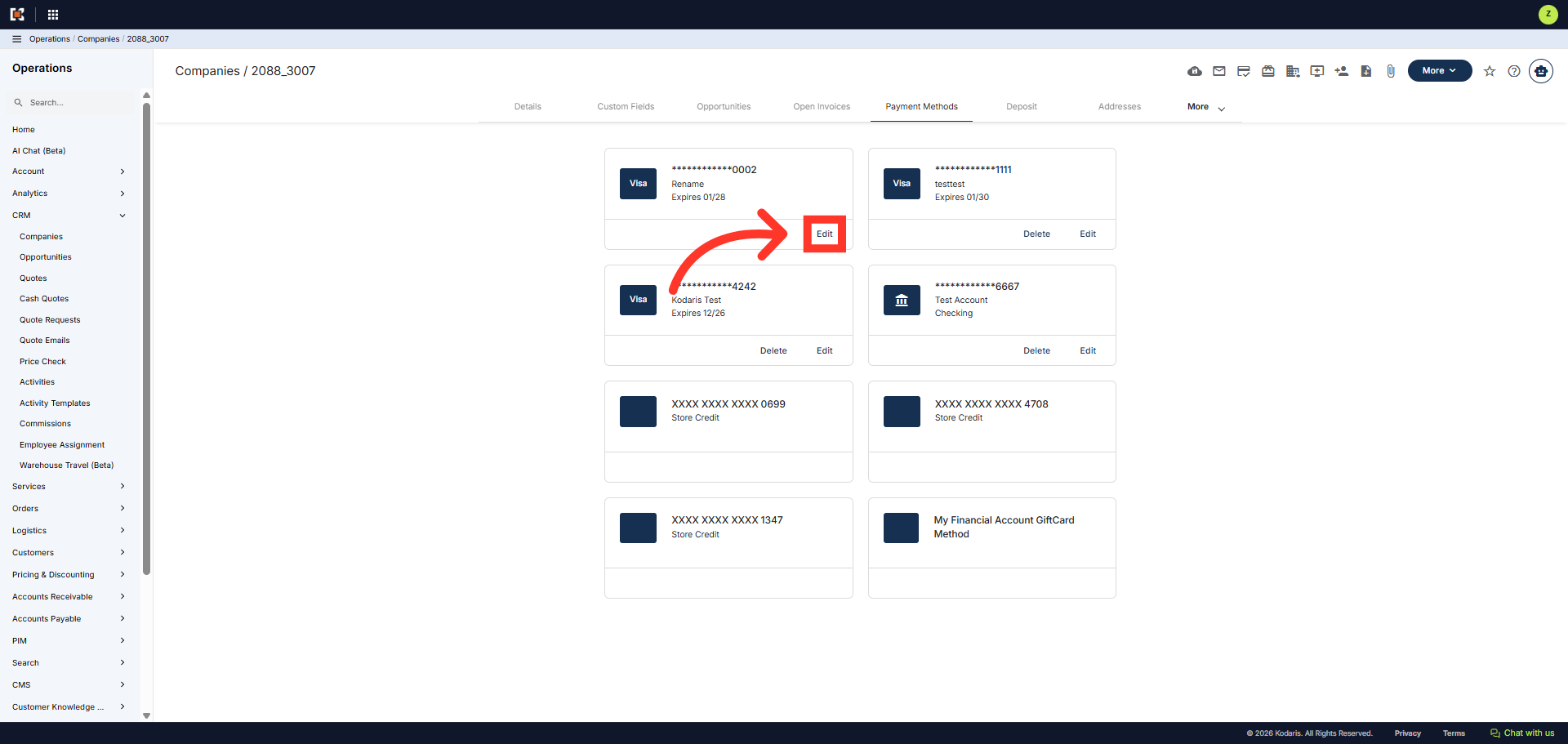
In the "Payment Methods" screen, you can edit or delete customer payment methods. Click the "Edit" option to modify details of an existing payment method.
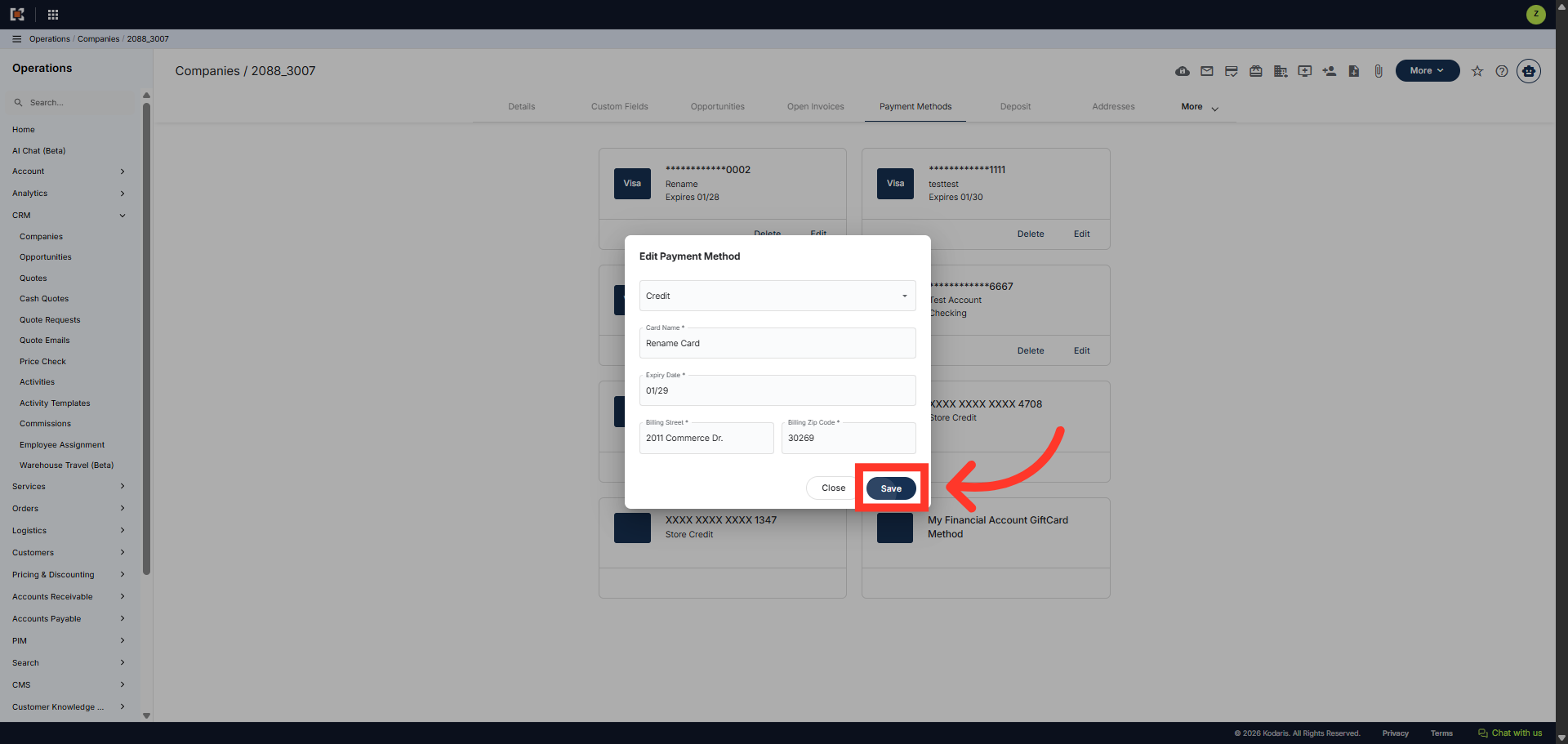
In the "Edit Payment Method" dialog box, you can edit payment details such as card name, expiration date, and address.
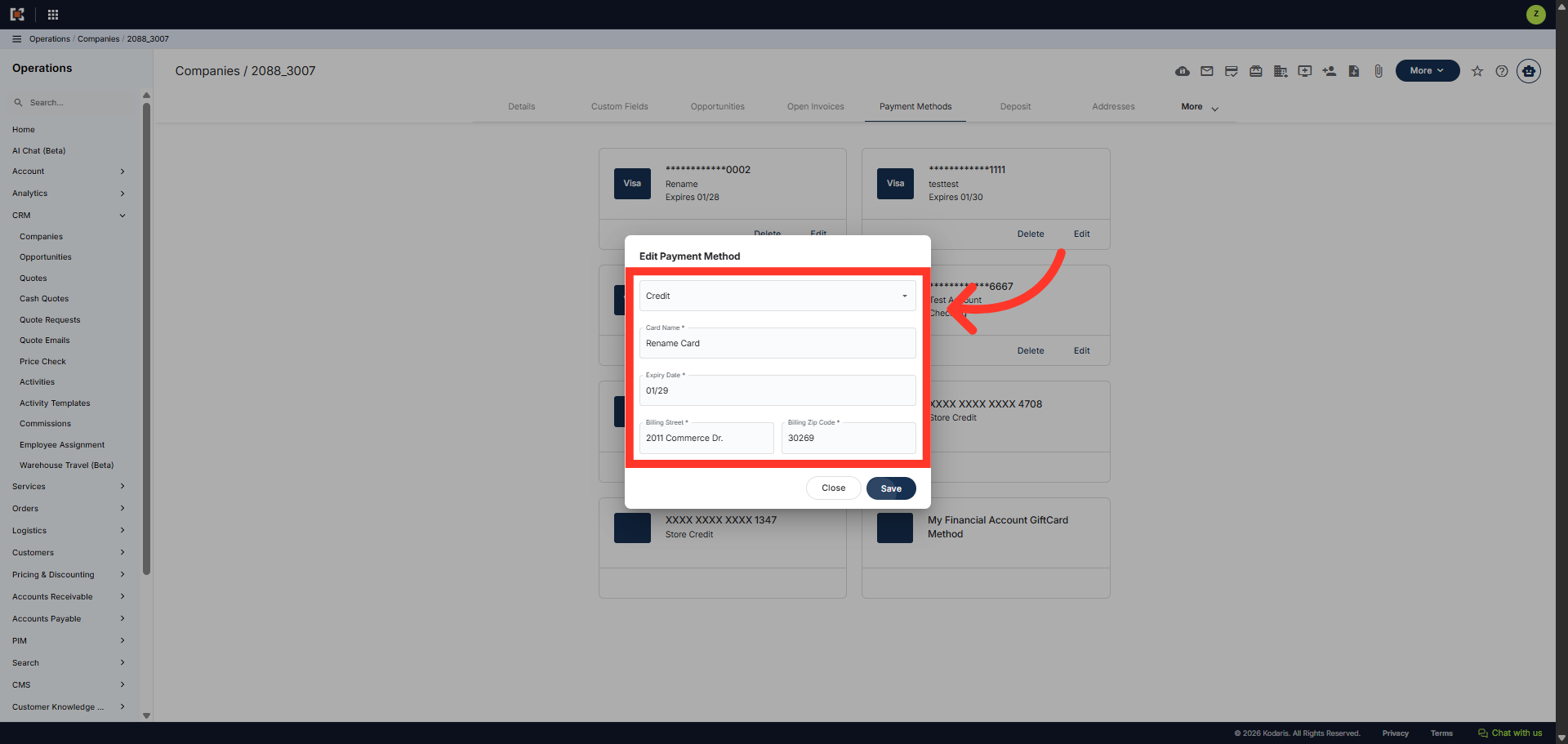
Then, click "Save" to apply your changes and update the payment method details.
In the "Payment Methods" screen, you can also remove a customer payment method. Click "Delete" to remove a payment method that is no longer needed or valid. Note: Once you click the delete button, the removal is instant.