Product Documentation
Product Documentation
Product Documentation
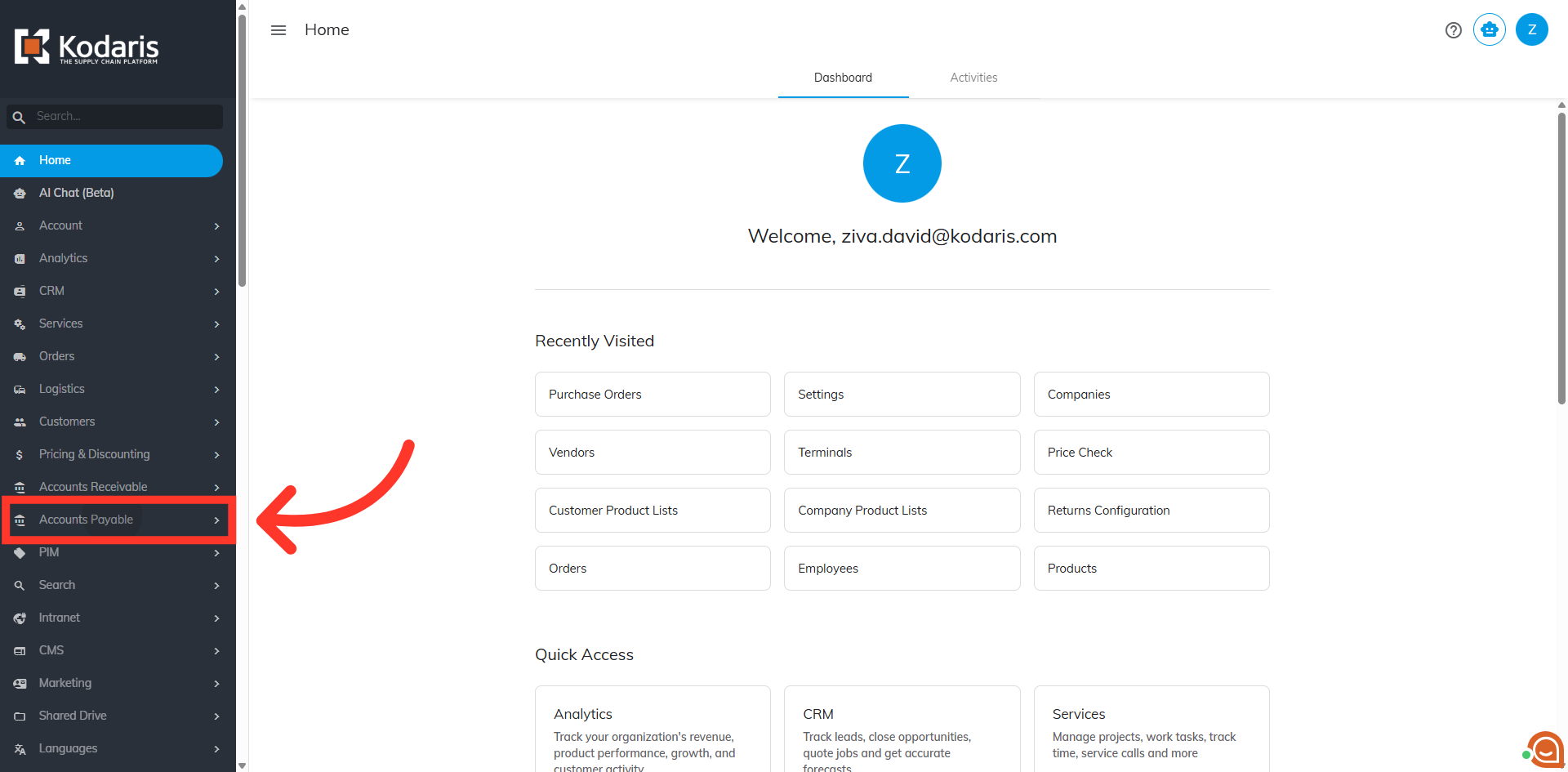
To add items to an existing purchase order, you will need to first navigate to the "Accounts Payable" section in the Operations Portal.
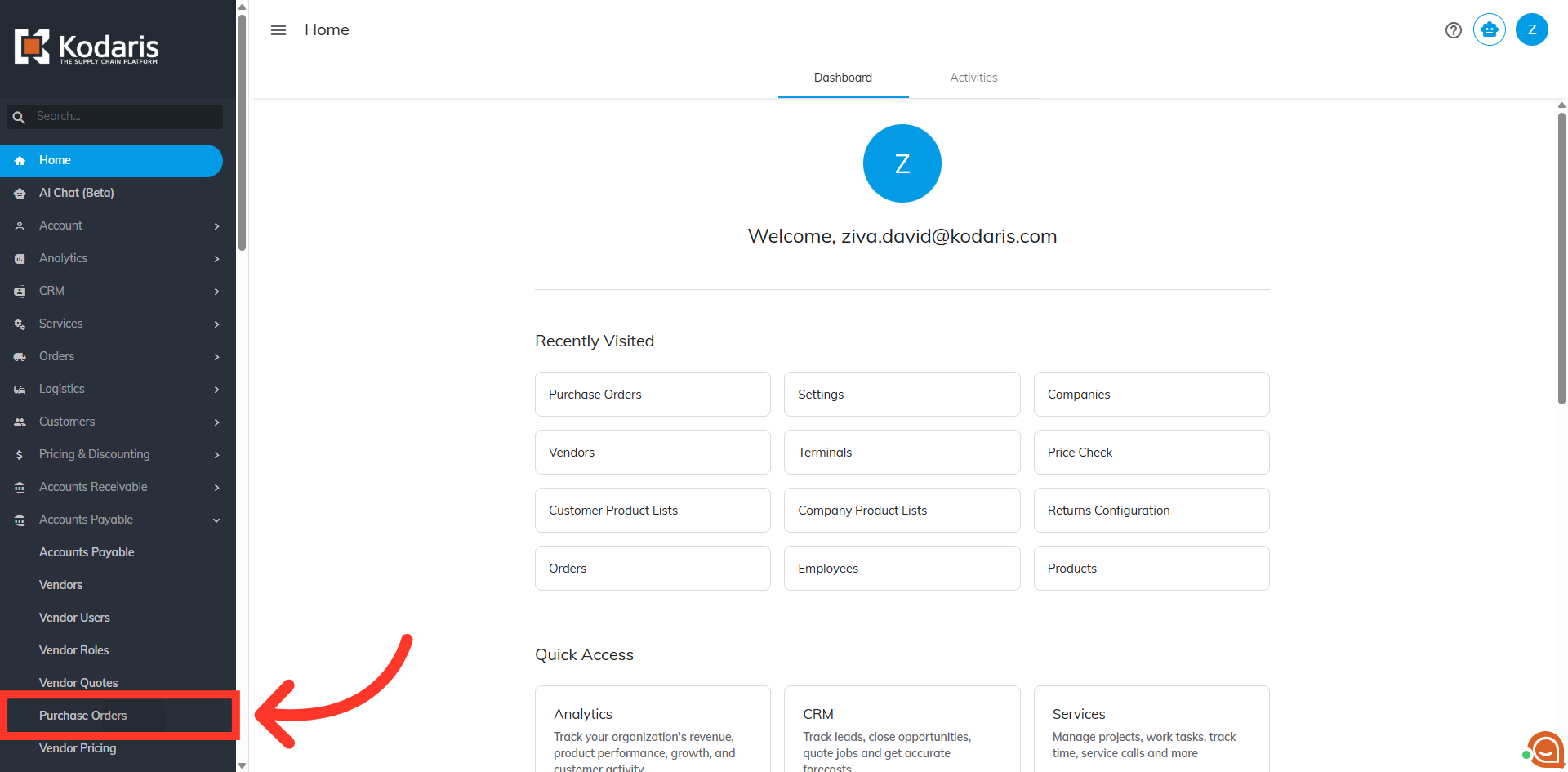
Then, click "Purchase Orders". In order to access and update "Purchase Orders" you will need to be set up either as an "administrator" or a "superuser", or have the roles of: "purchaseOrderView", and "purchaseOrderEdit". To be able to add items, the following roles are needed: "productView", "productEdit", and "orderEdit".
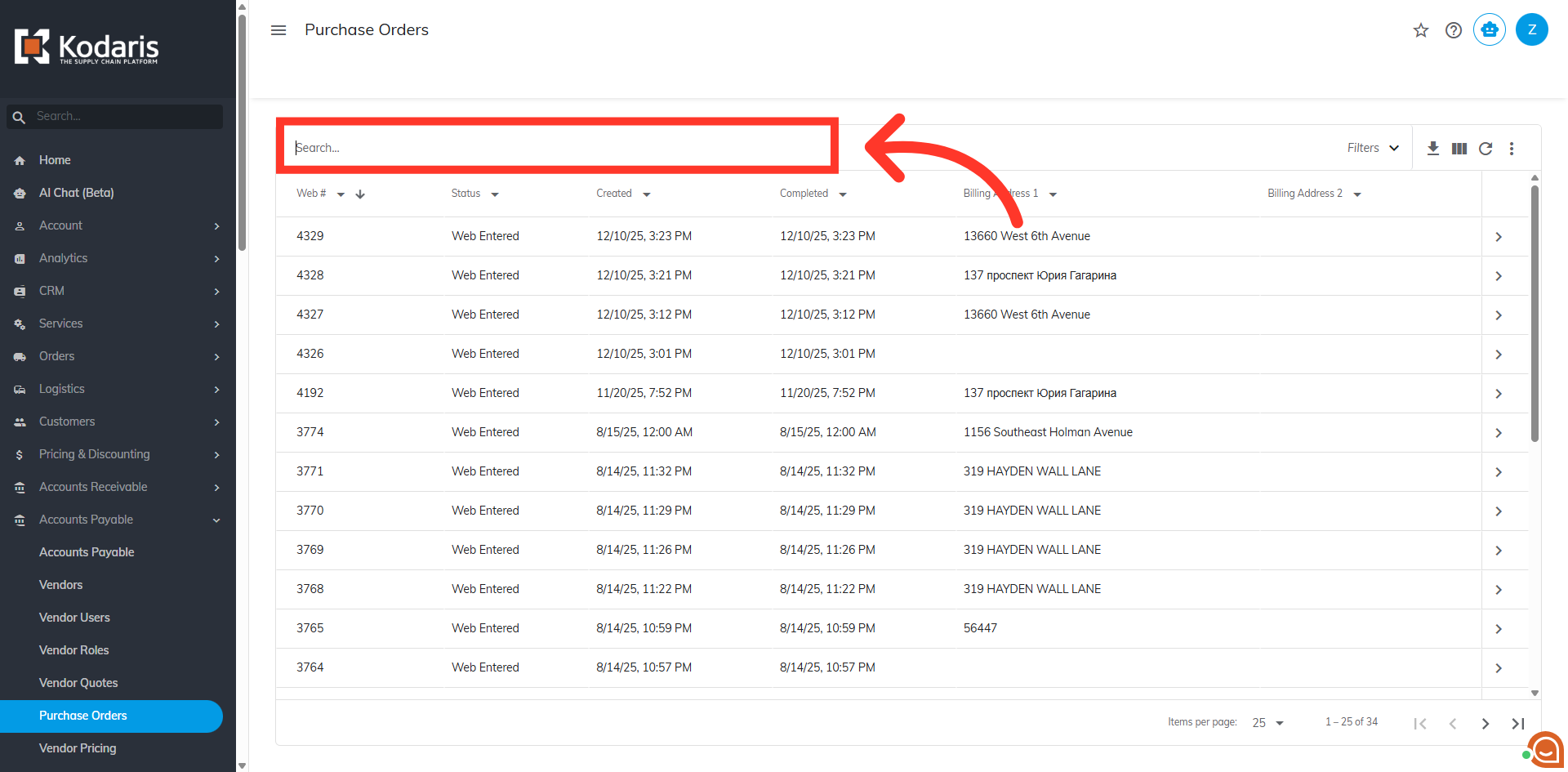
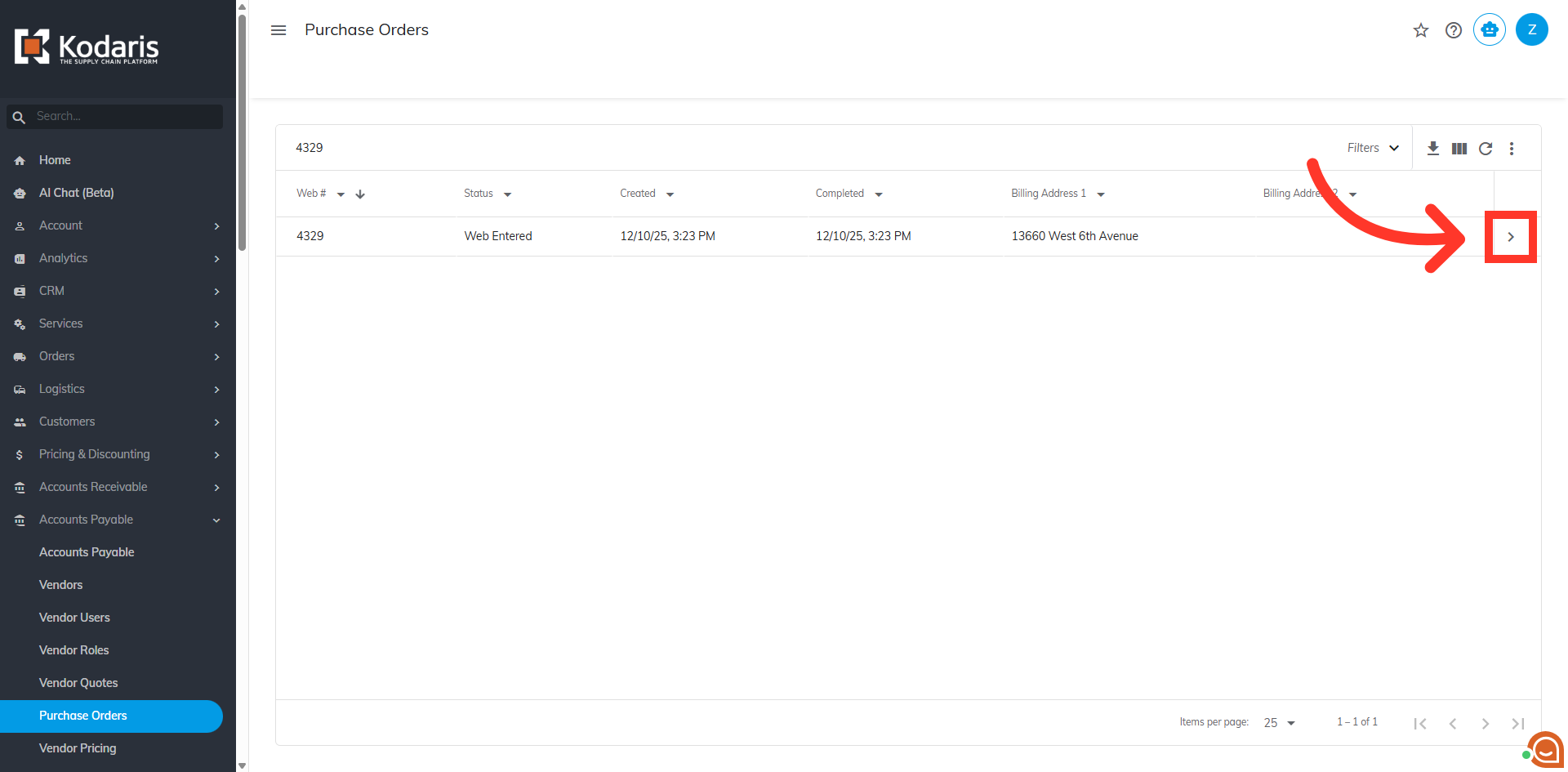
Using the search field, search for the purchase order number you wish to add items to, or select one from the grid list view.
Click the more details icon to view detailed information about the purchase order.
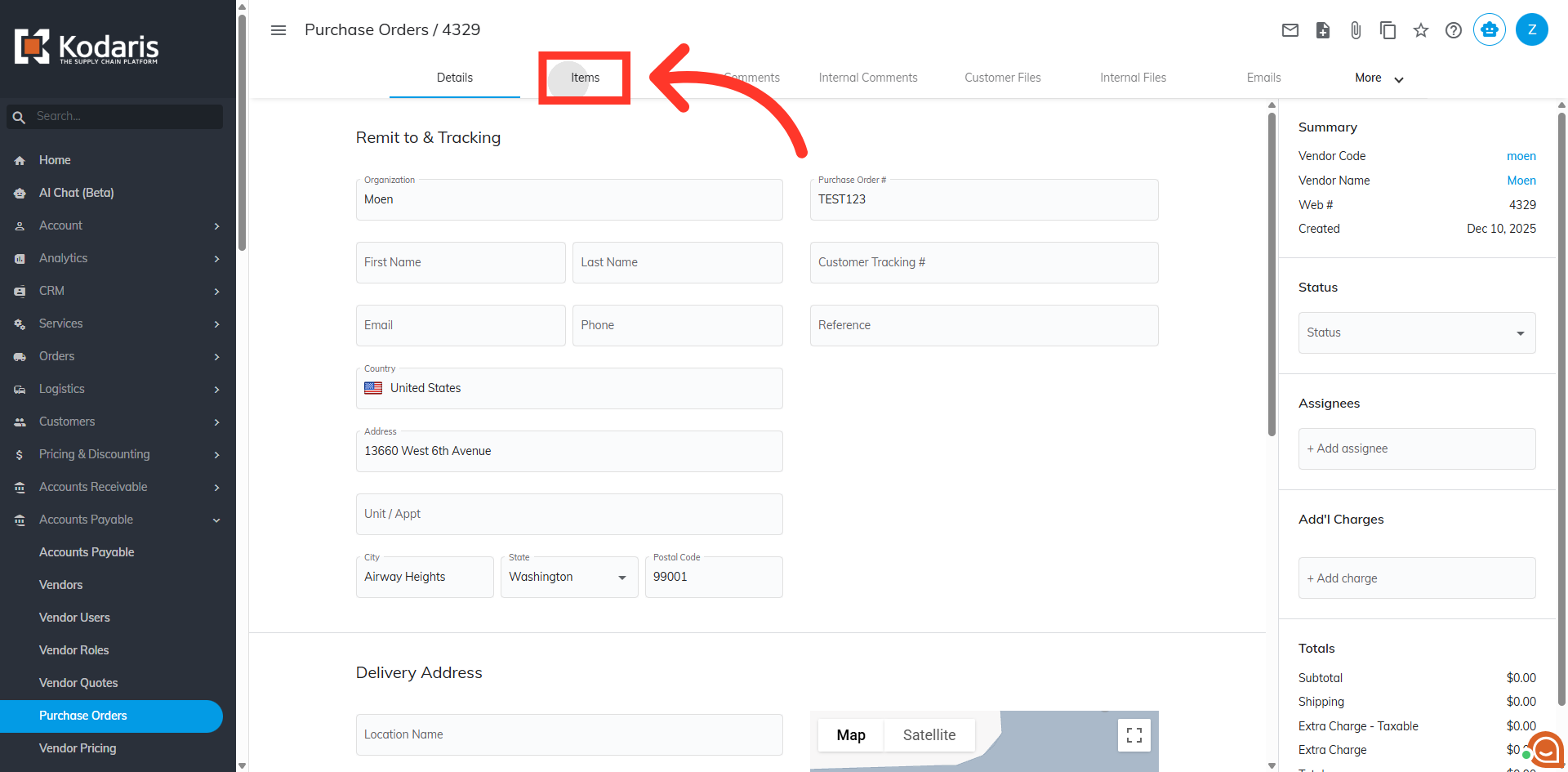
Next, click the "Items" tab to manage the products included in the purchase order.
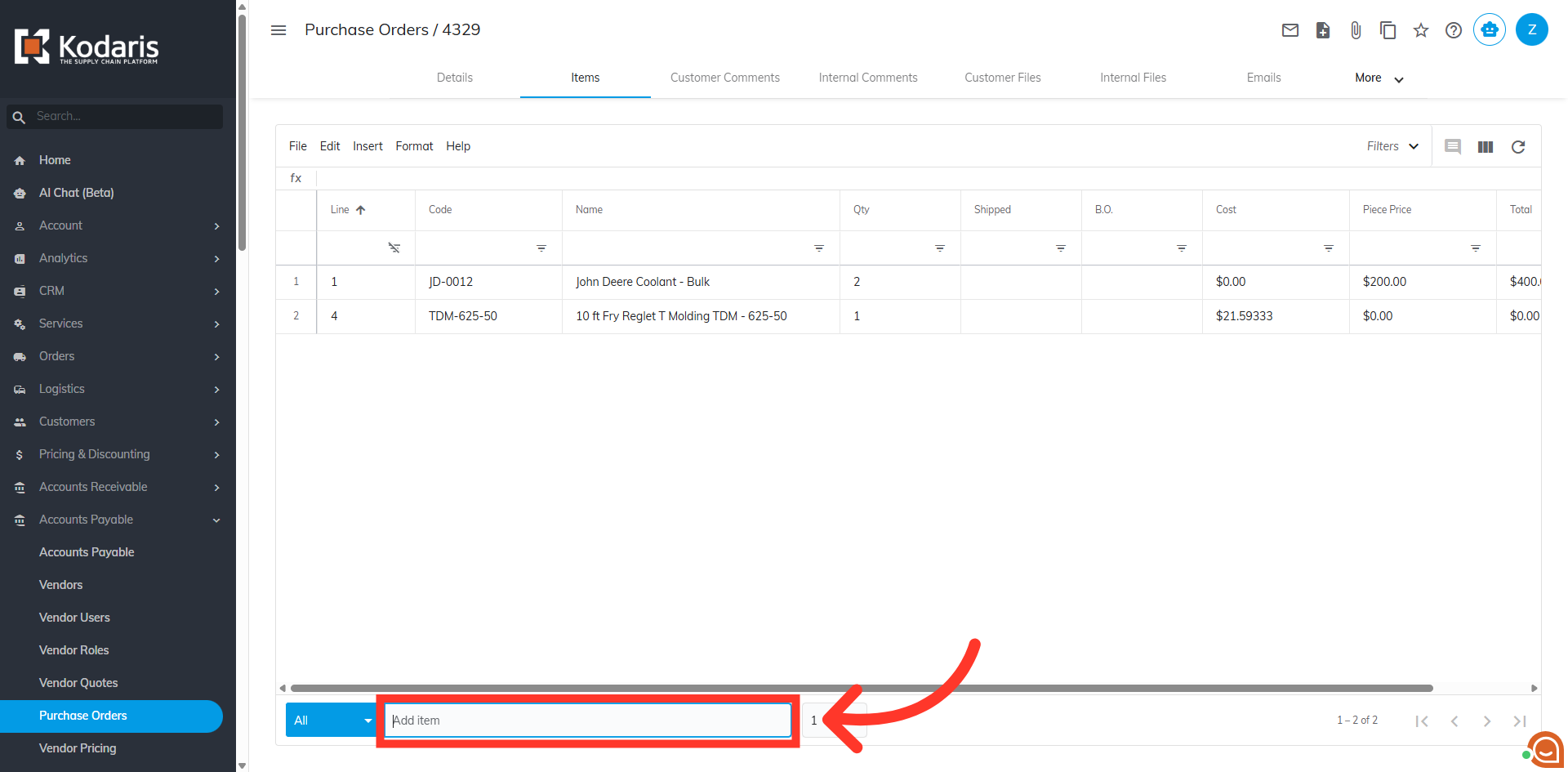
Then, click in the "Add item" field and start typing in the item's product name or code to search.
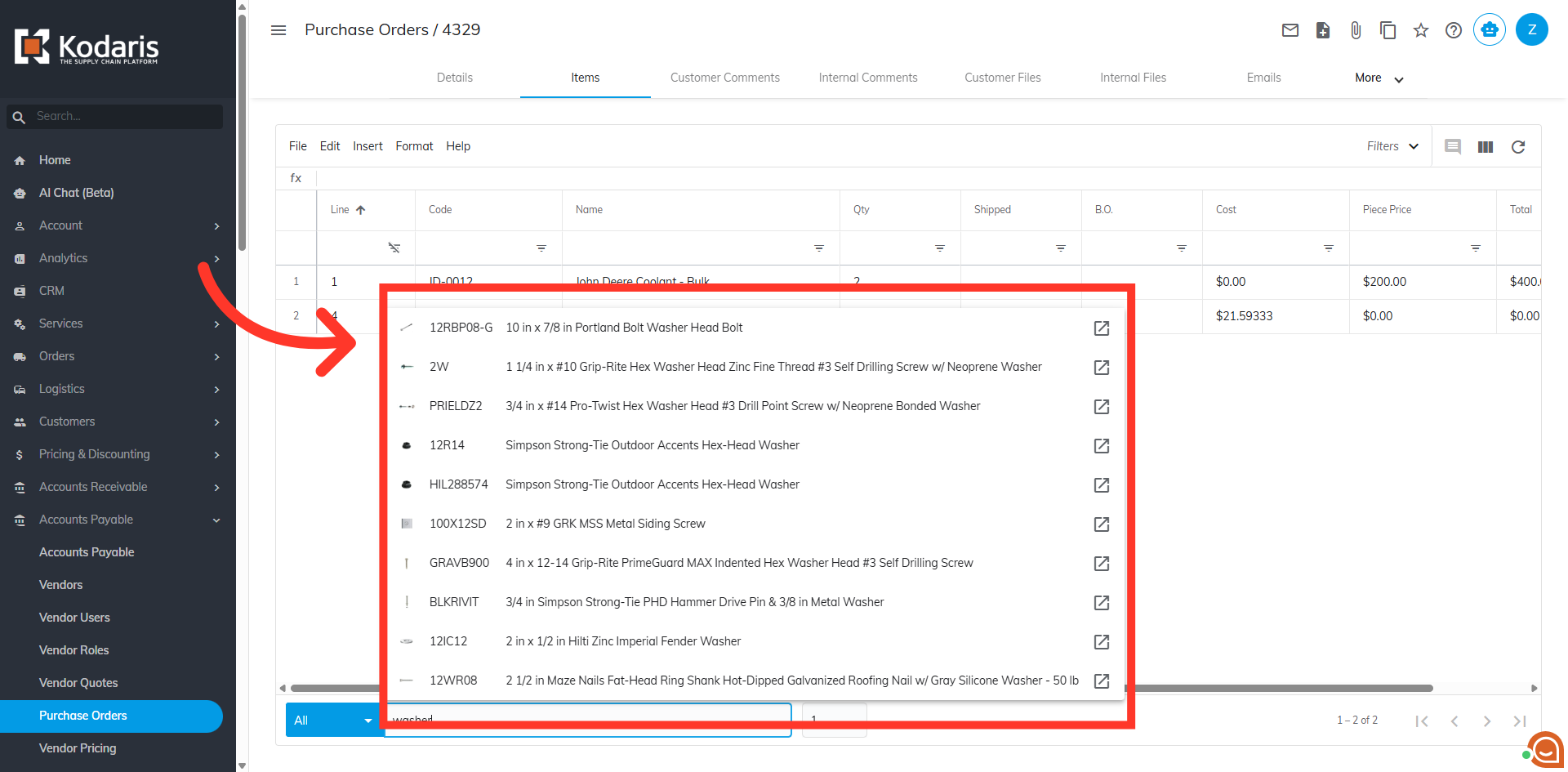
Select the item to choose the product.
Then, add the quantity you wish to order and hit enter to add the item to the Purchase Order.
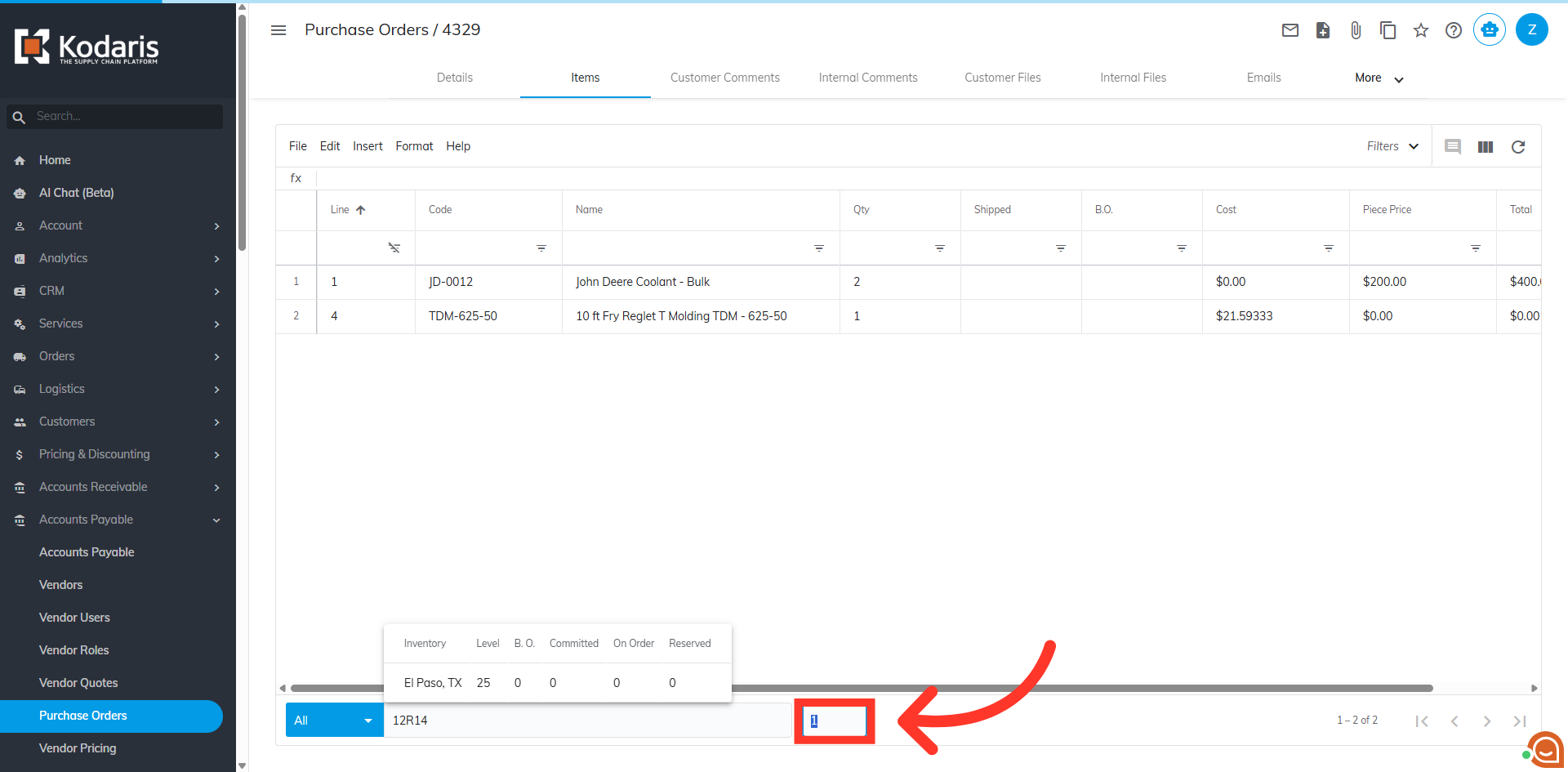
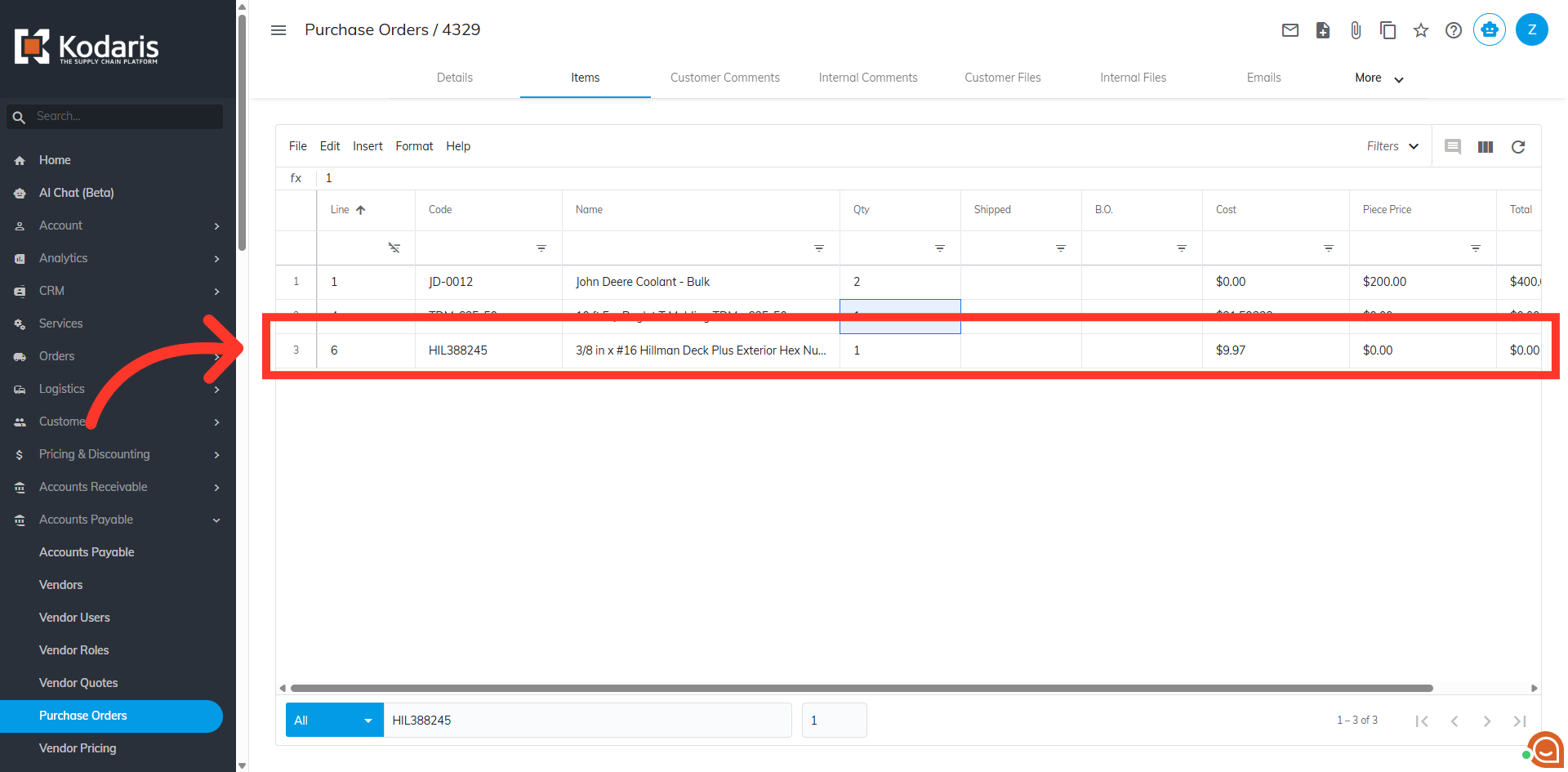
Hit the "Enter" key to add the item.
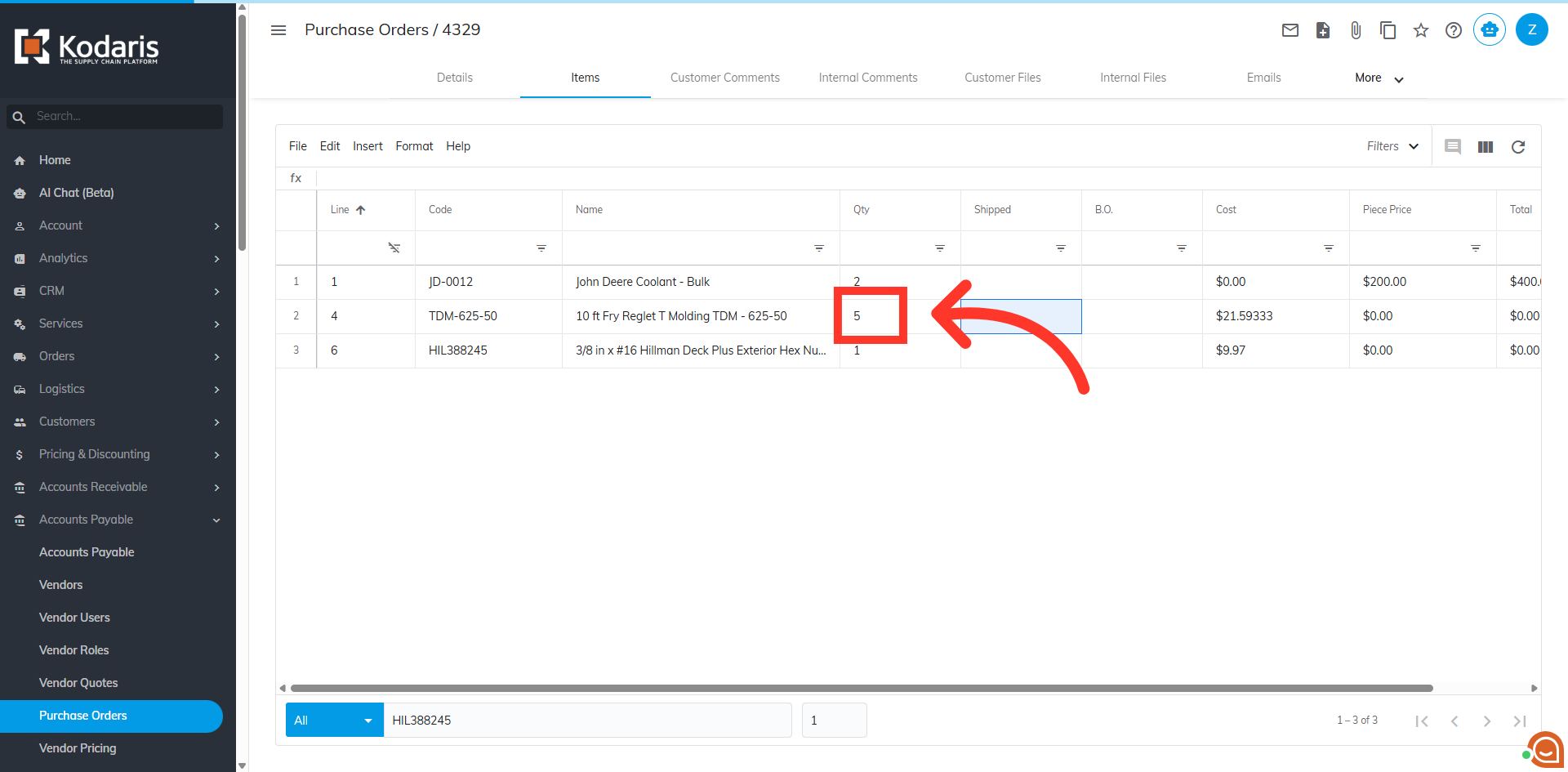
To edit the quantity of the item once it has been added to the item list, simply click in the "qty" field on the line item and adjust the number of units.
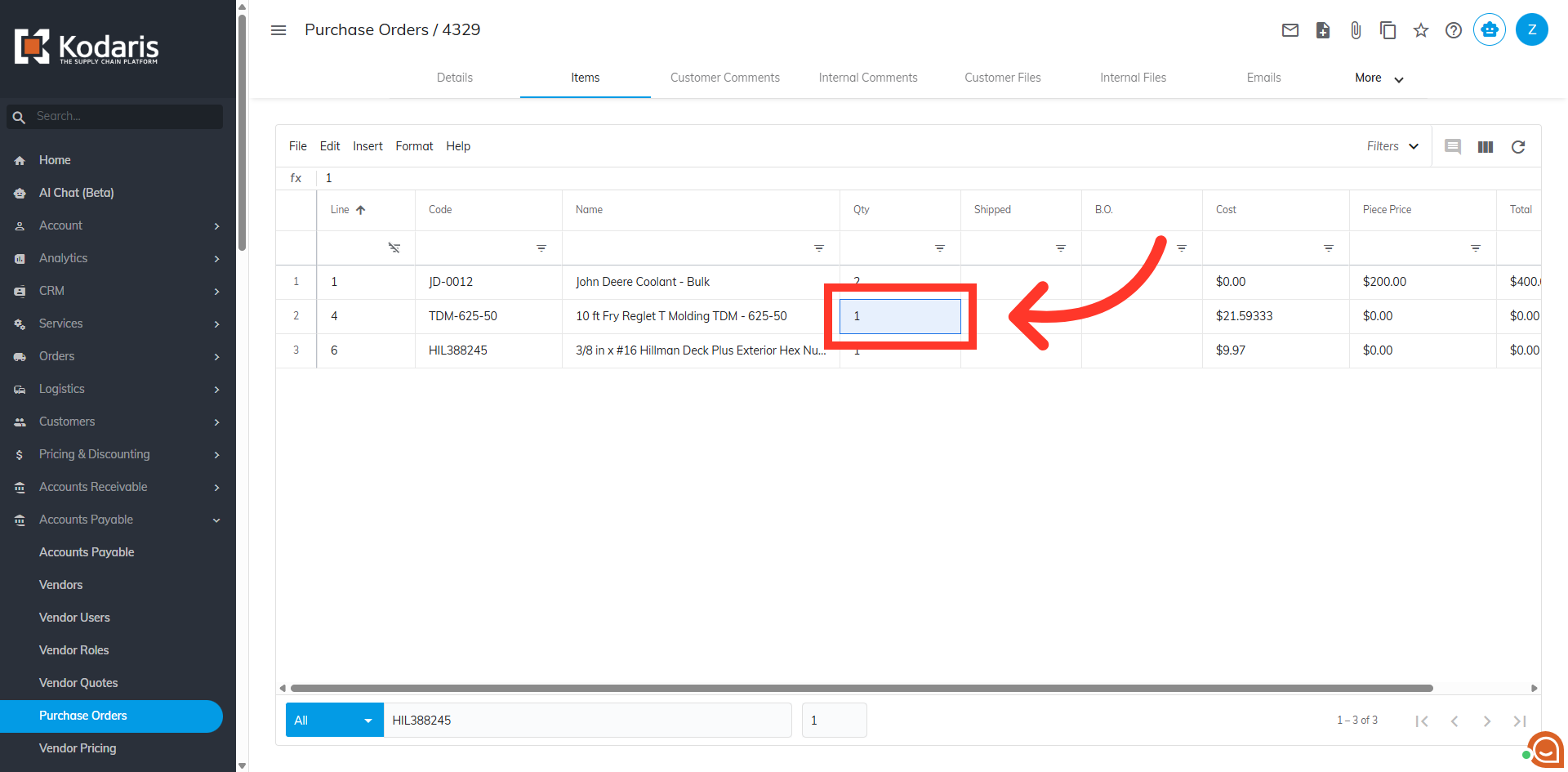
Hit "Enter" key or click anywhere on the screen to apply the update.