 Product Documentation
Product Documentation
Product Documentation
Operation portal users are able to assign role groups to new customers when creating their account. This is particularly helpful if customers need multiple capabilities or roles within the portal related to the same function. It will also allow you to better organize users’ roles within the Operations Portal.

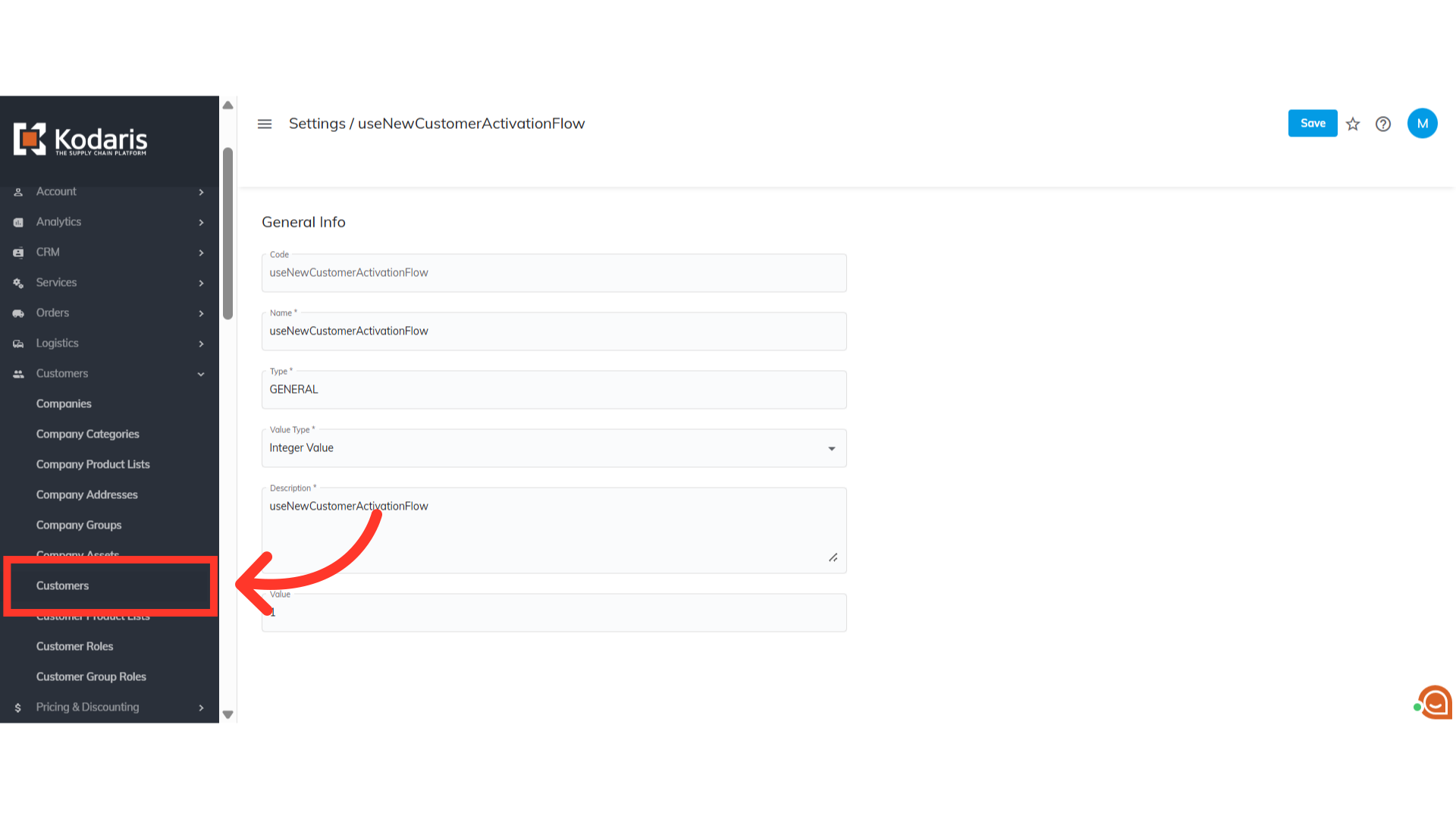
Navigate to the "Customers" section.

Then, click "Customers". In order to access "Customers" you will need to be set up either as an "administrator" or a "superuser", or have the appropriate roles: "customerView", and "customerEdit".
Click the "Add Customer" icon.

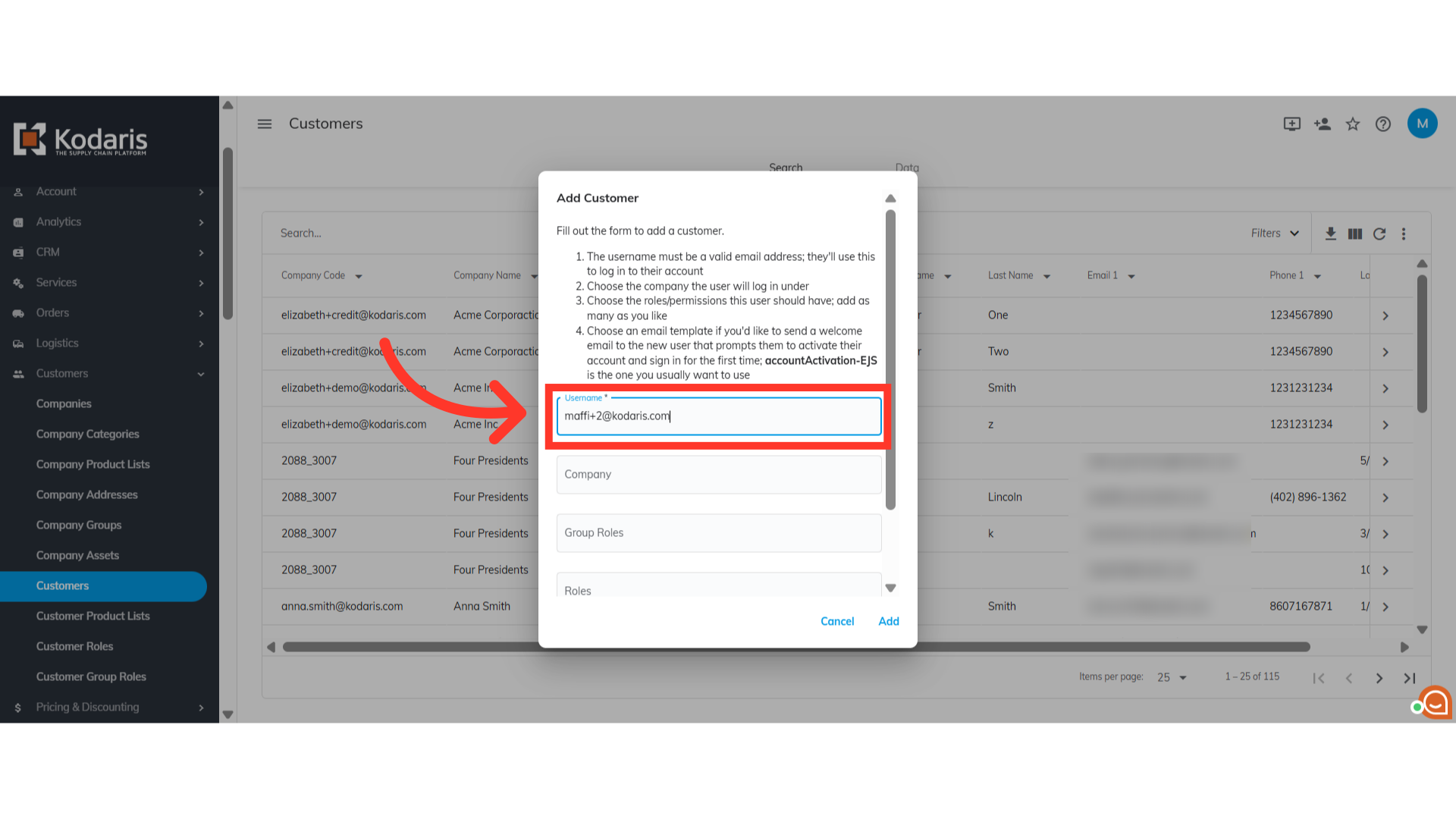
Fill in the username of the new customer in the "Username" field.
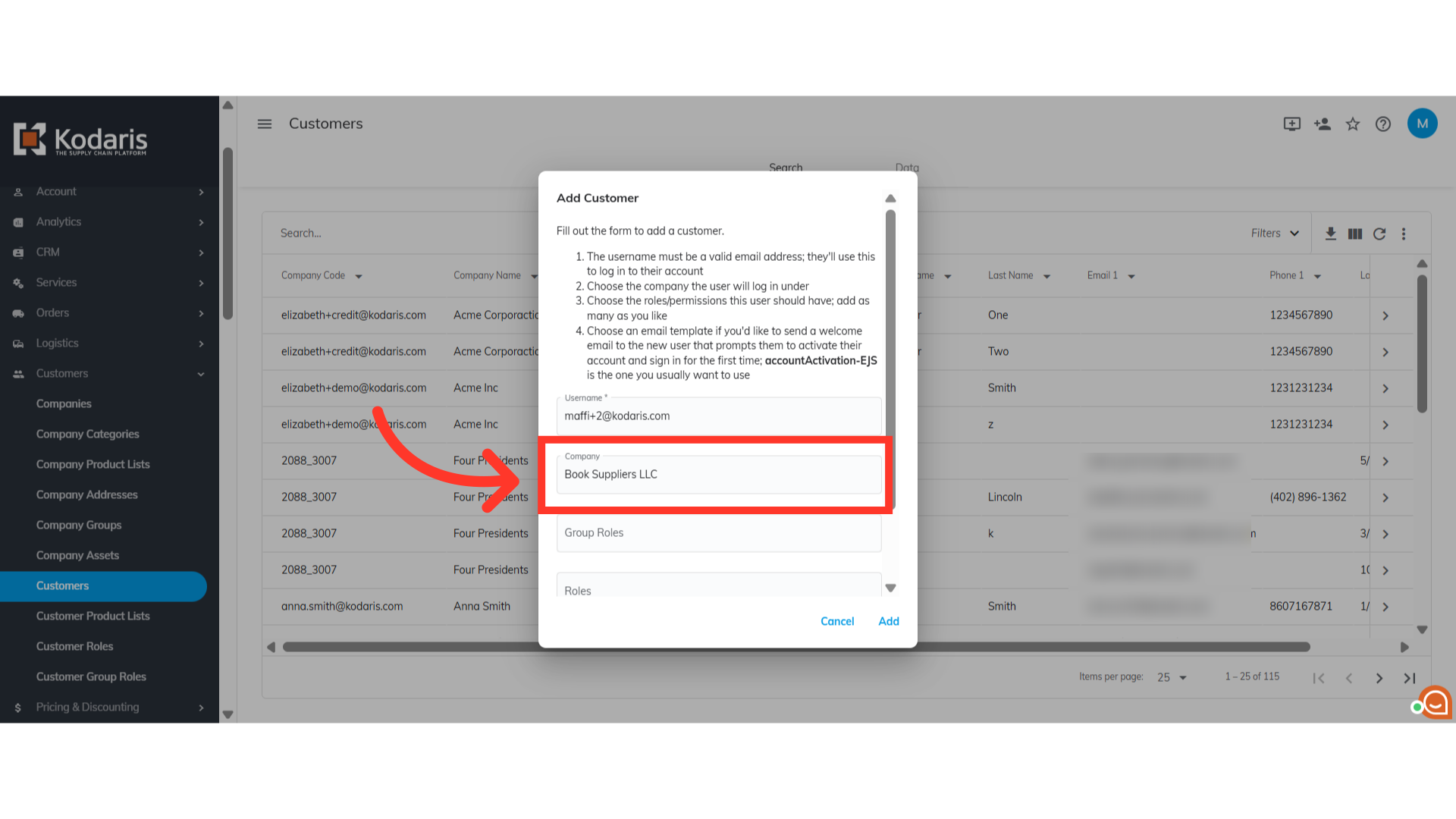
Next, you need to add the company of the customer. You can type to search the company name and select from the list shown.
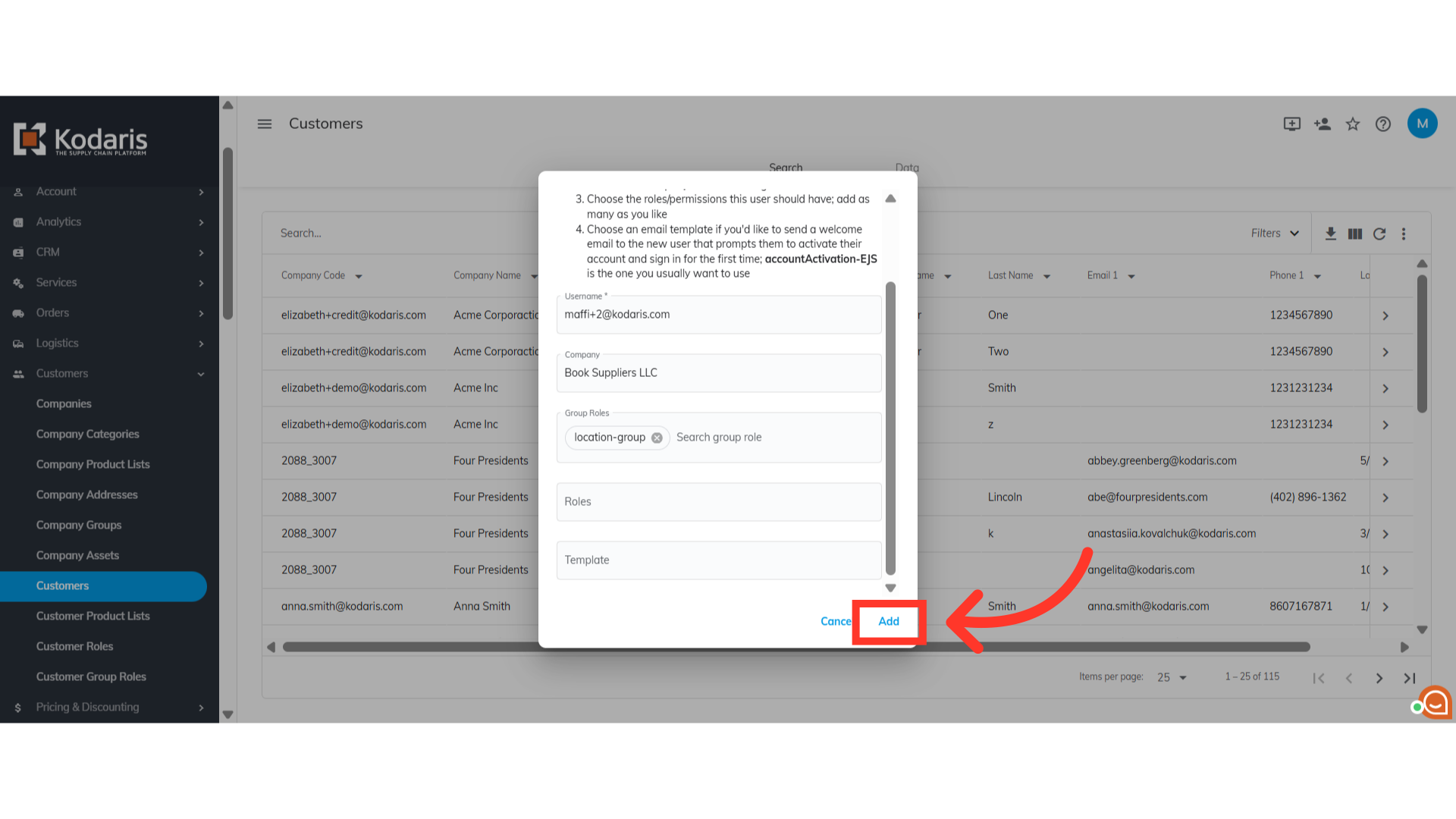
Now, assign role group(s) to the customer. Click "Group Roles".

Select a group role from the list. You can also type to search for the group to narrow down the list. Note that you can assign multiple group roles to the customer.

Click "Add" to add the new customer. Group role(s) are also assigned to the new customer.
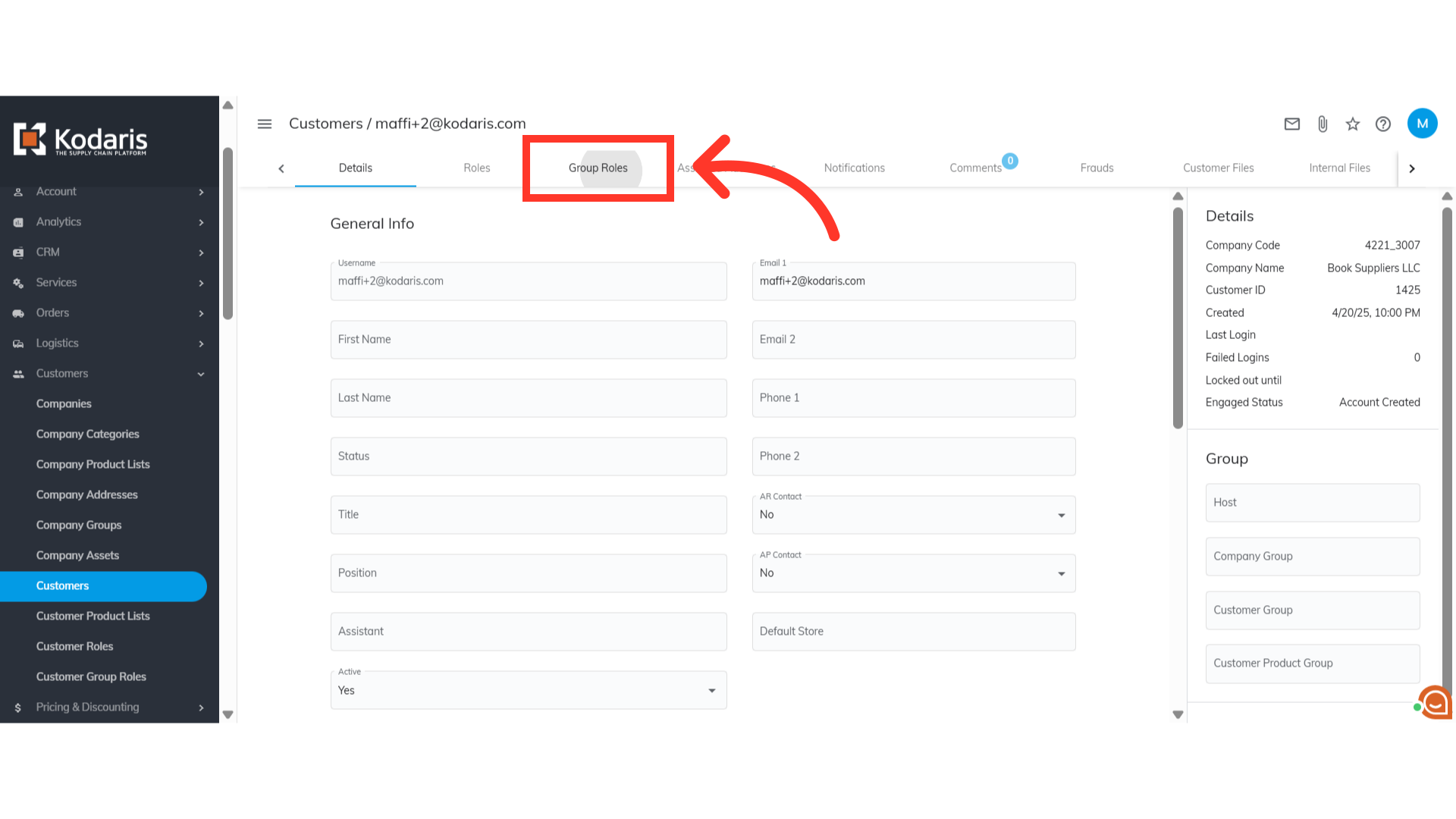
You will be redirected to the details page of the new customer. Go to the "Group Roles" tab.
Here, you will see the group role you assigned when adding the customer earlier.
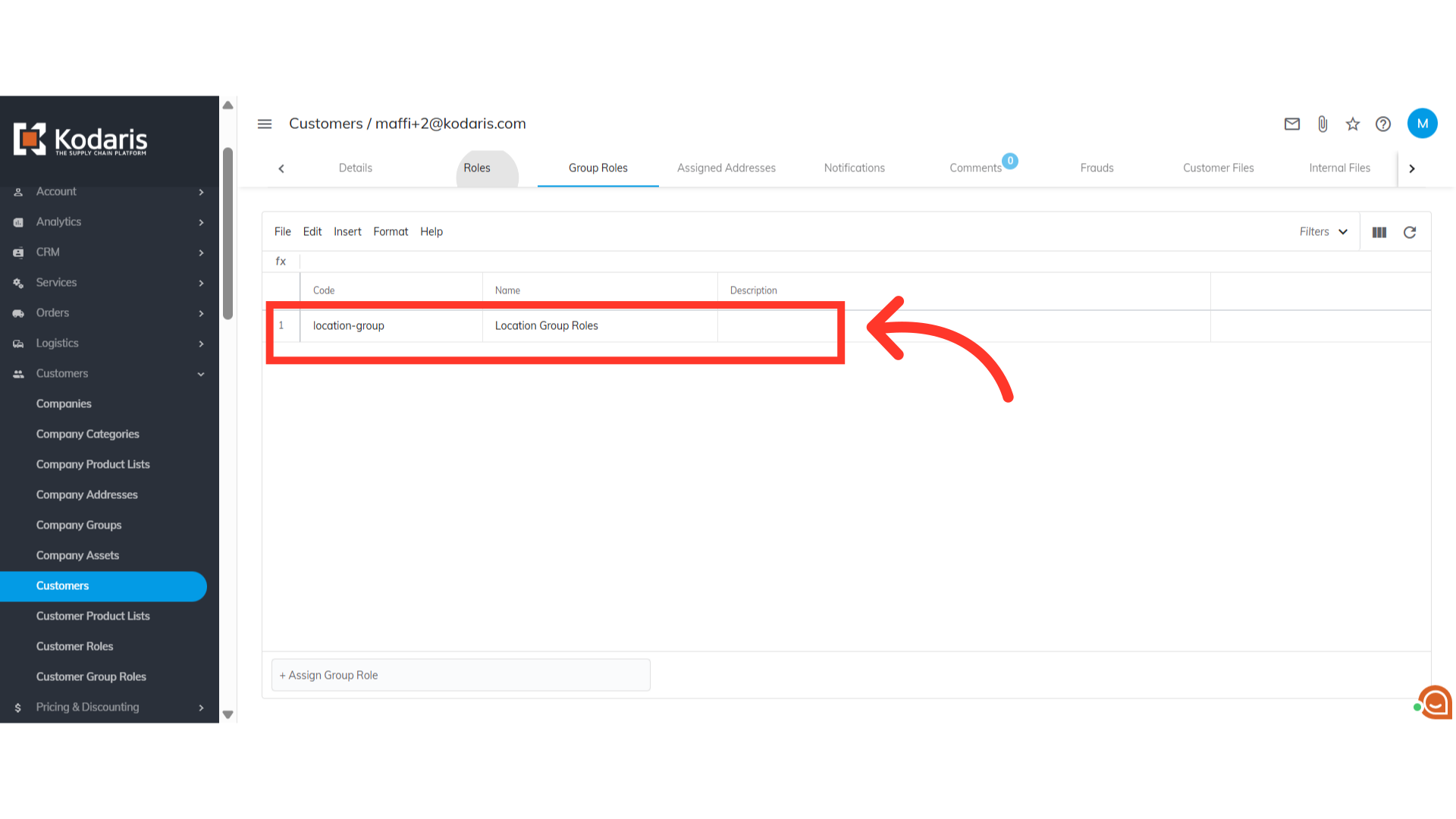
Now, go to the "Roles" tab.

All roles assigned to the group role will be listed here.
