Product Documentation
Product Documentation
Product Documentation
To issue a credit on a company, navigate to the "CRM" section in the Operations Portal.
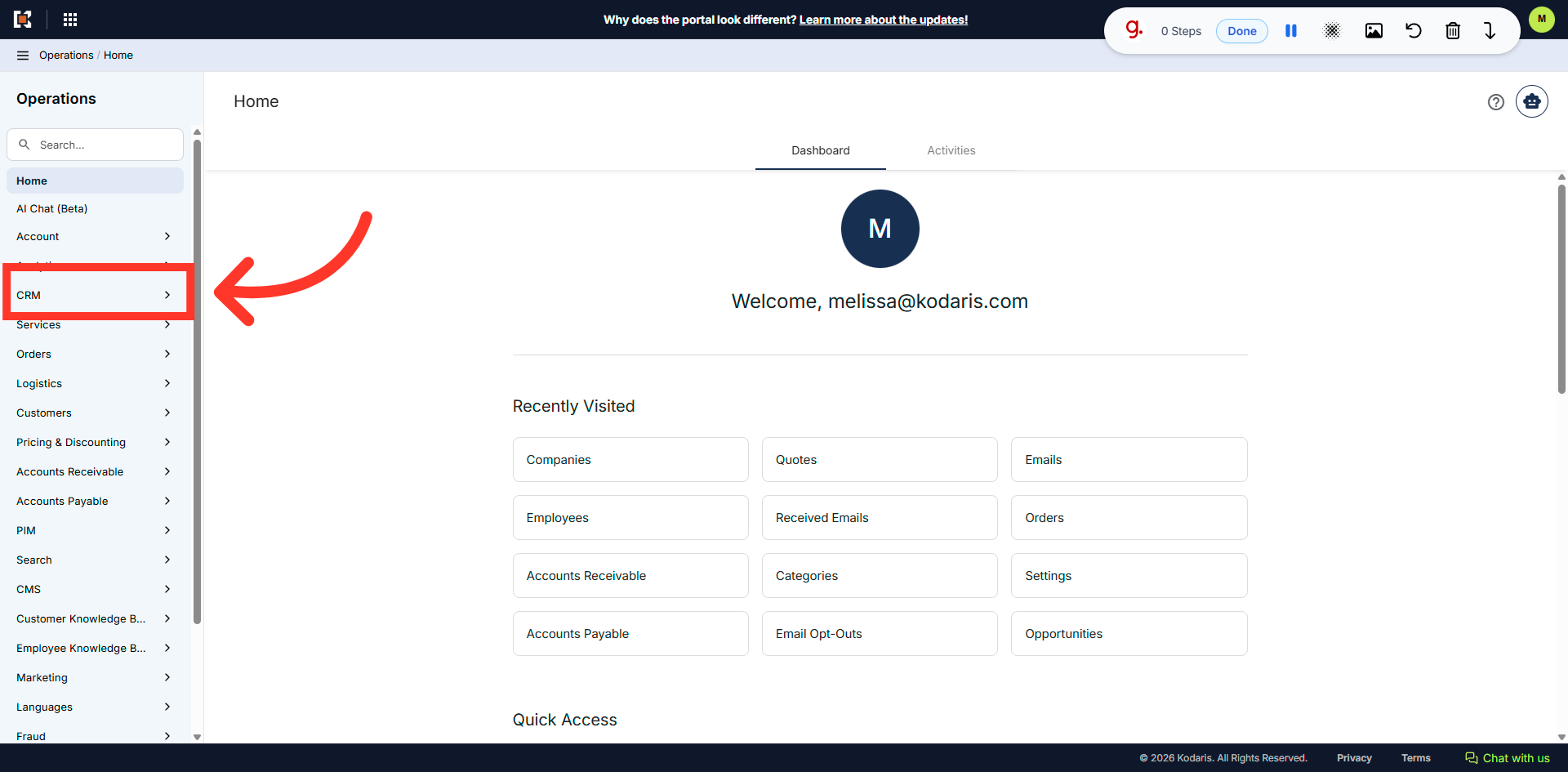
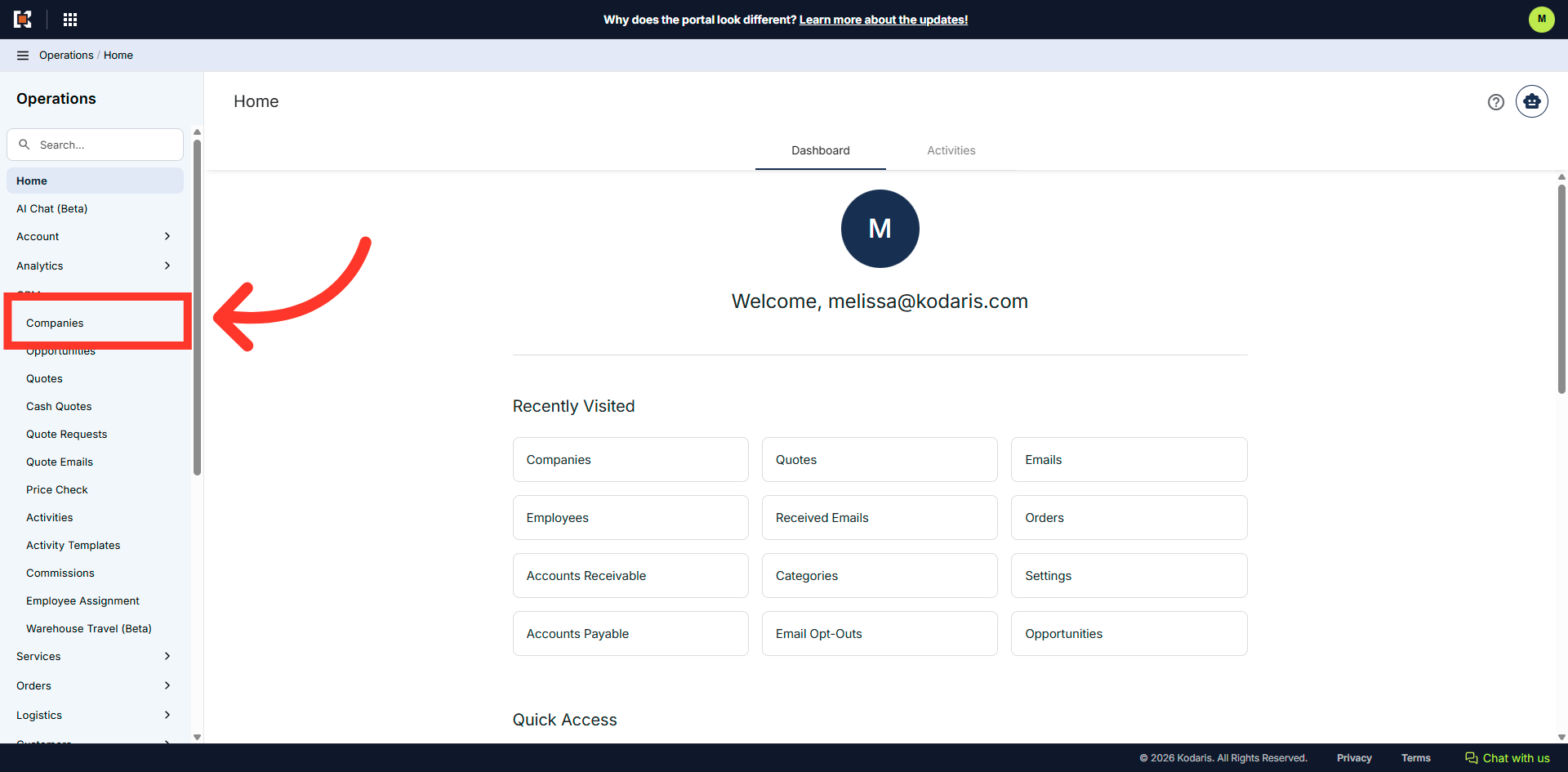
Then, click "Companies". In order to access "Companies" you will need to be set up either as an "administrator" or a "superuser", or have the appropriate roles: "companyView and companyEdit", or "crmCompanyView and crmCompanyEdit". Just a reminder, "crmCompanyView and crmCompanyEdit" access only allows employees to view companies that are assigned to them.
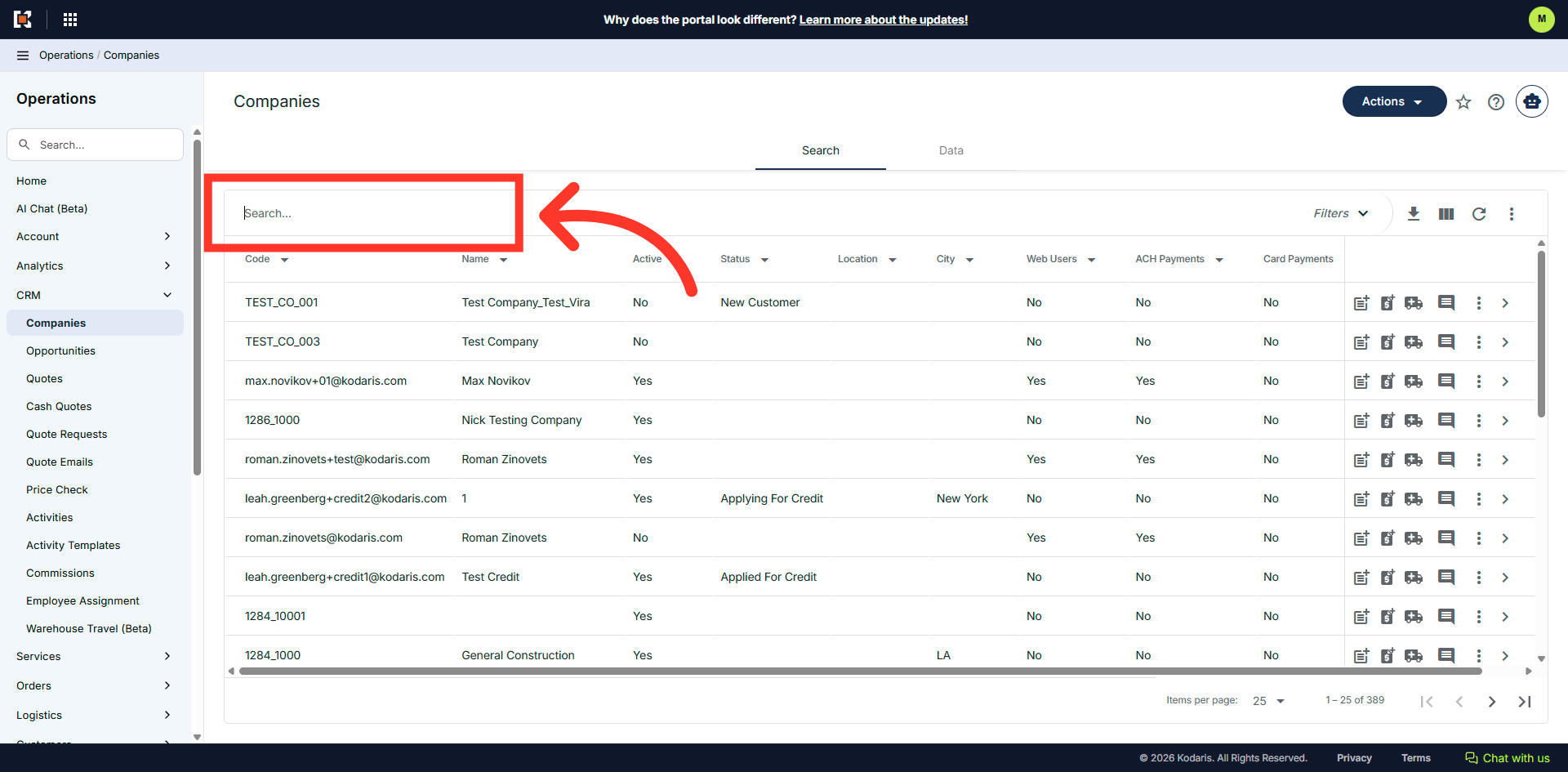
Search for the company. You can enter the company code or name in the "Search..." field.
Click on the more details icon to view company details.
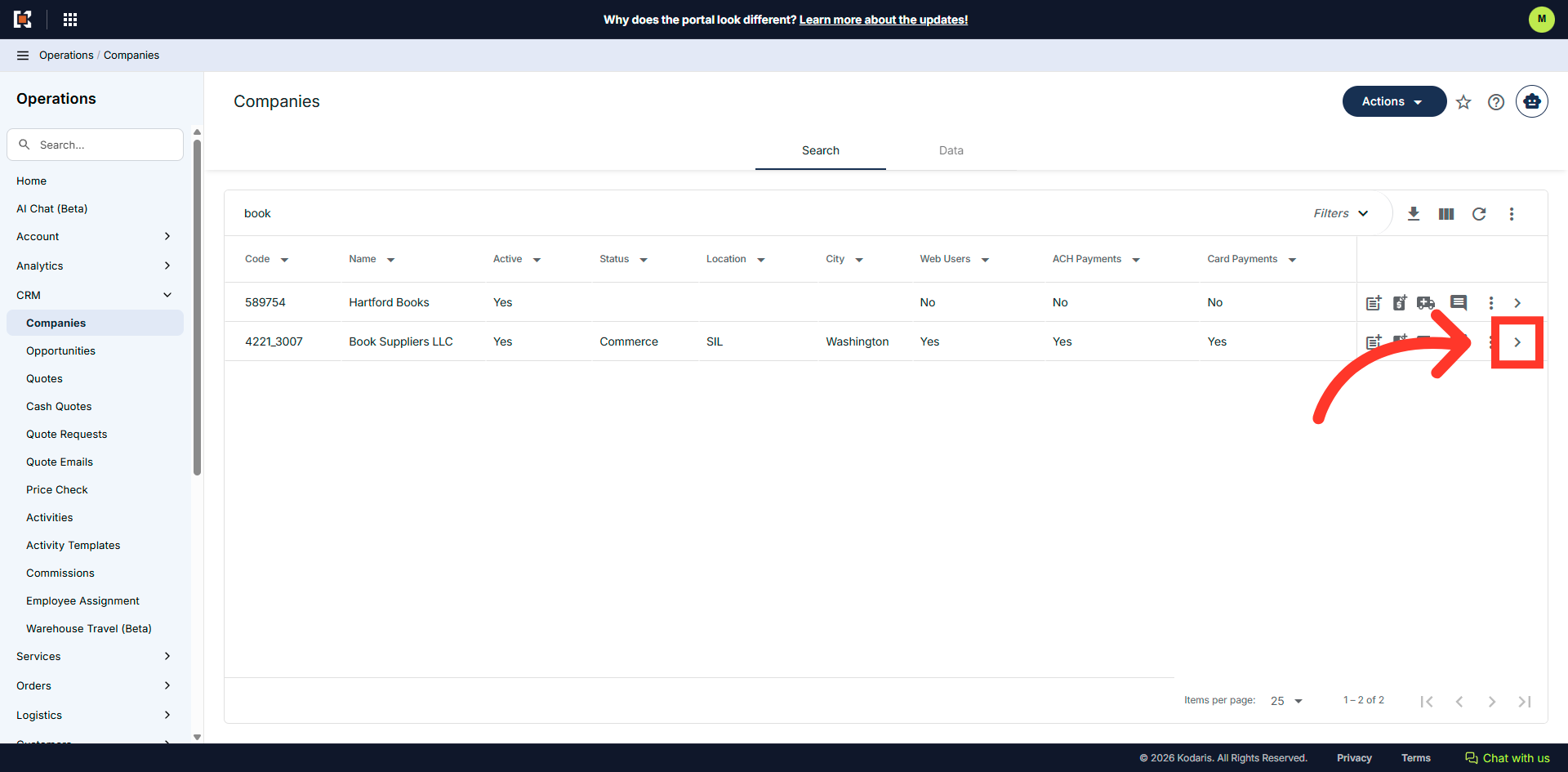
Click "Issue a Credit" icon. In order to issue a credit on a company, you will need to be set up with the additional "paymentCredit" permission.
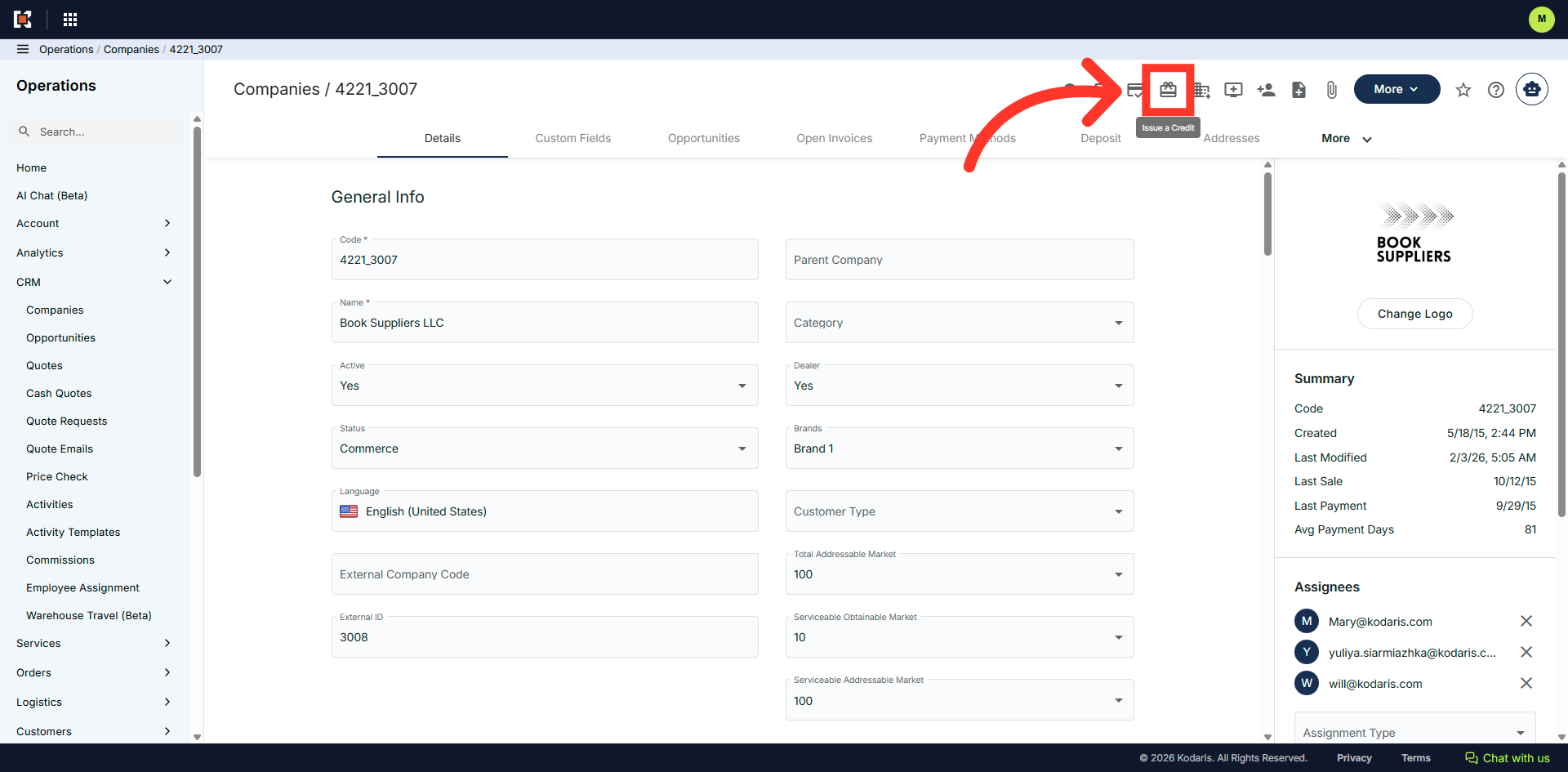
Click into the "Amount" field and enter the credit amount that you want to issue.
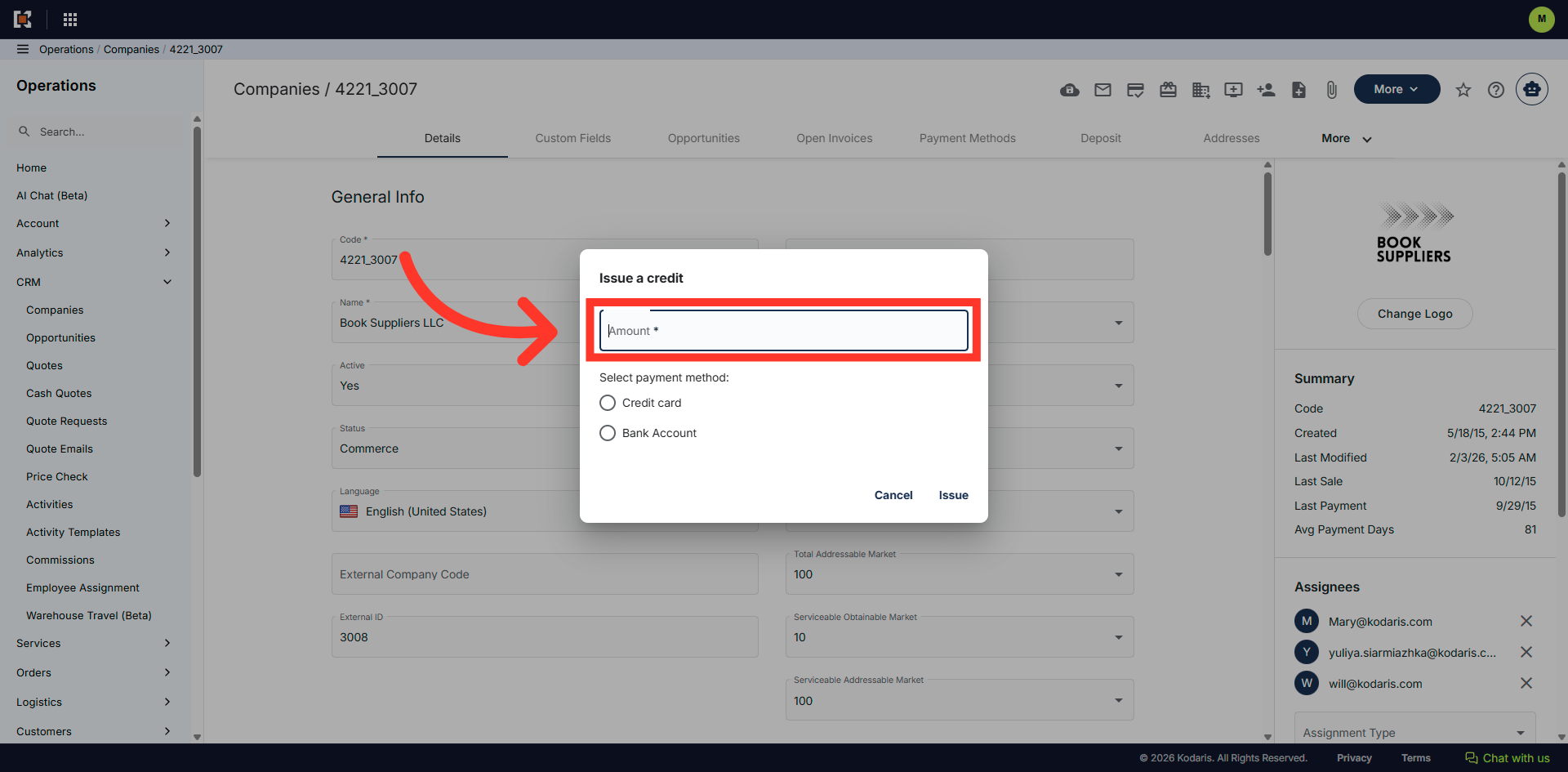
Click the radial button of the payment type.
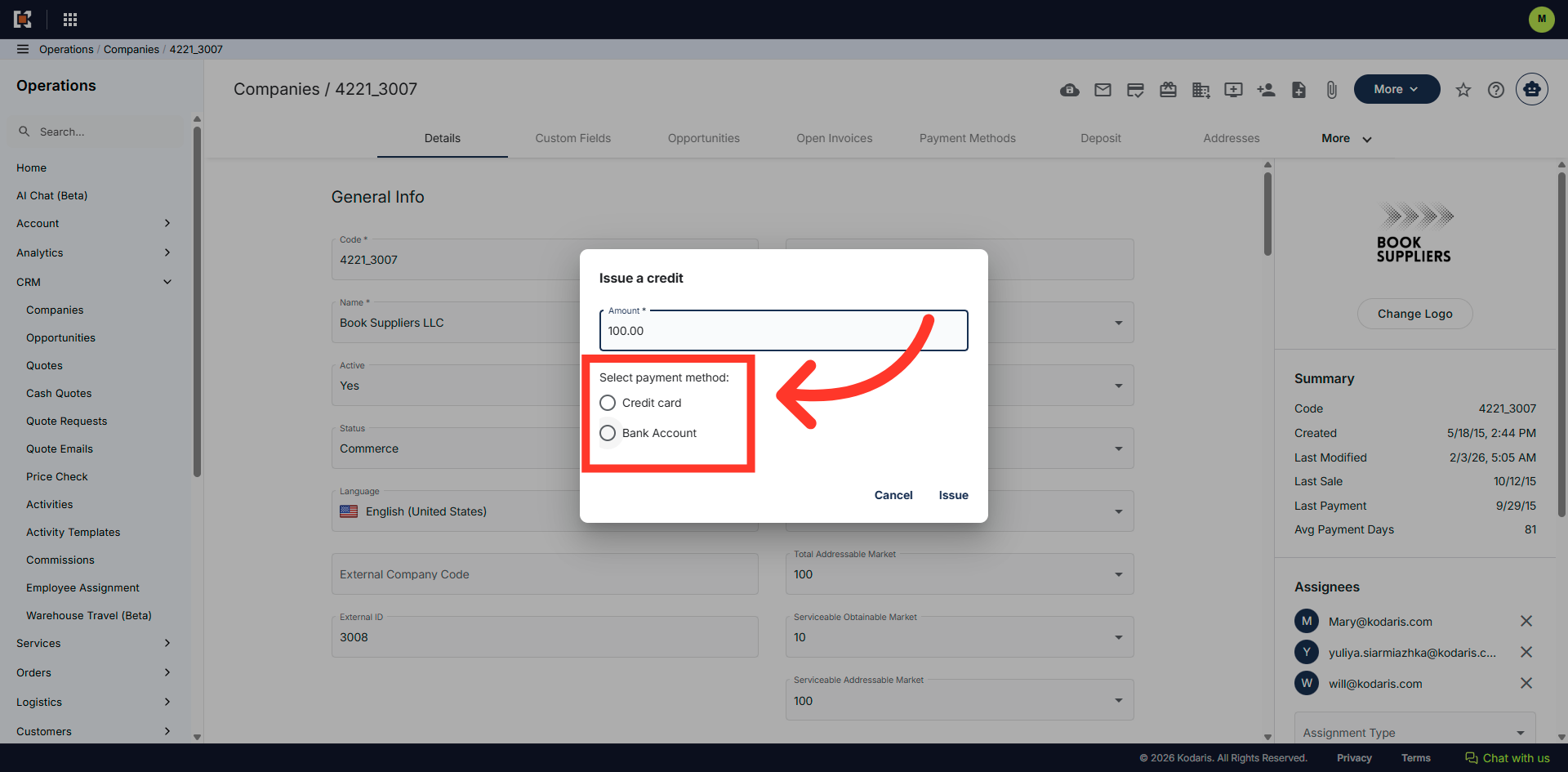
If the customer would prefer the credit to be applied to a bank account, click the "Bank Account" payment method.
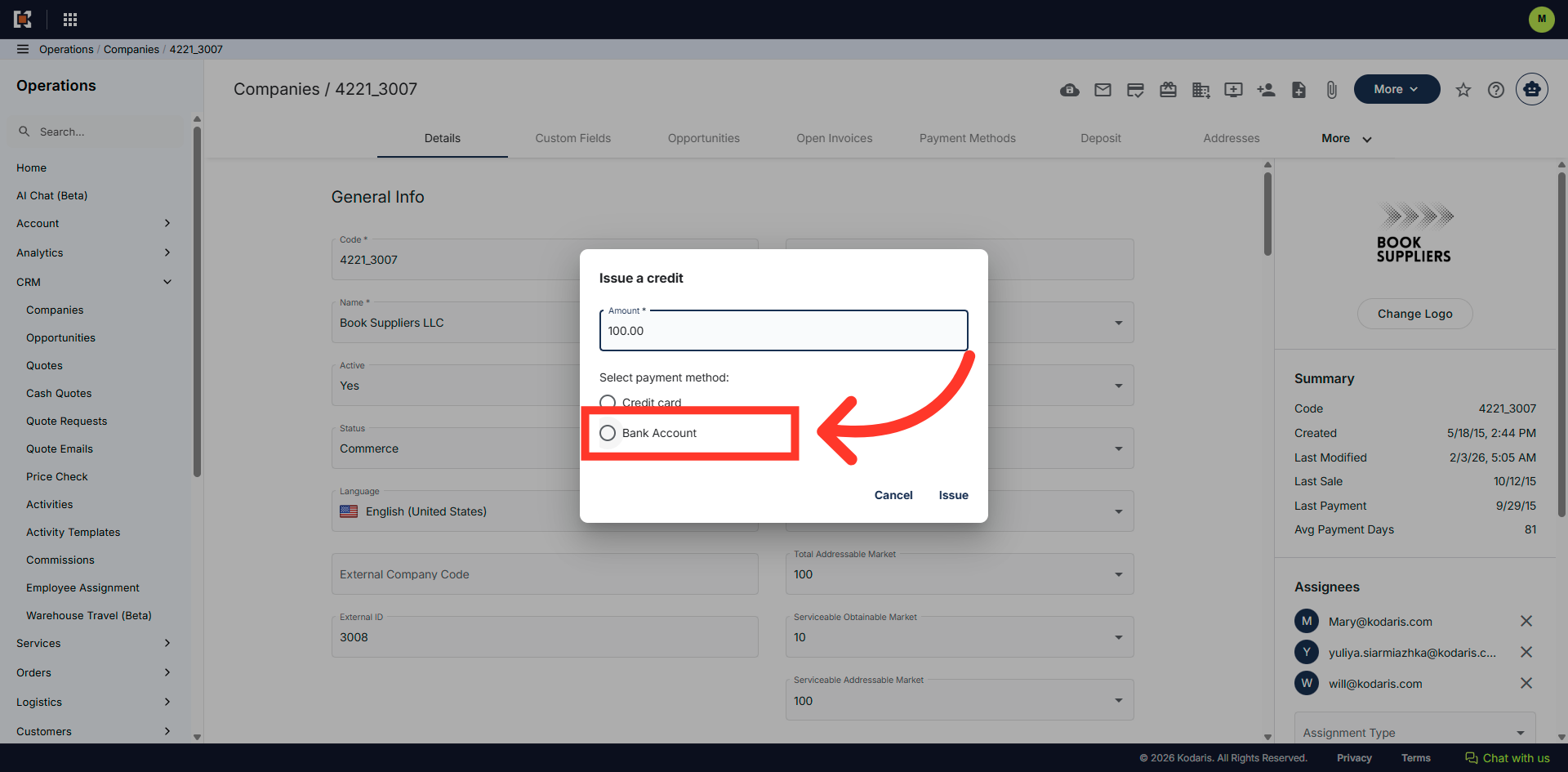
Enter the account name in the "Account Name" field.
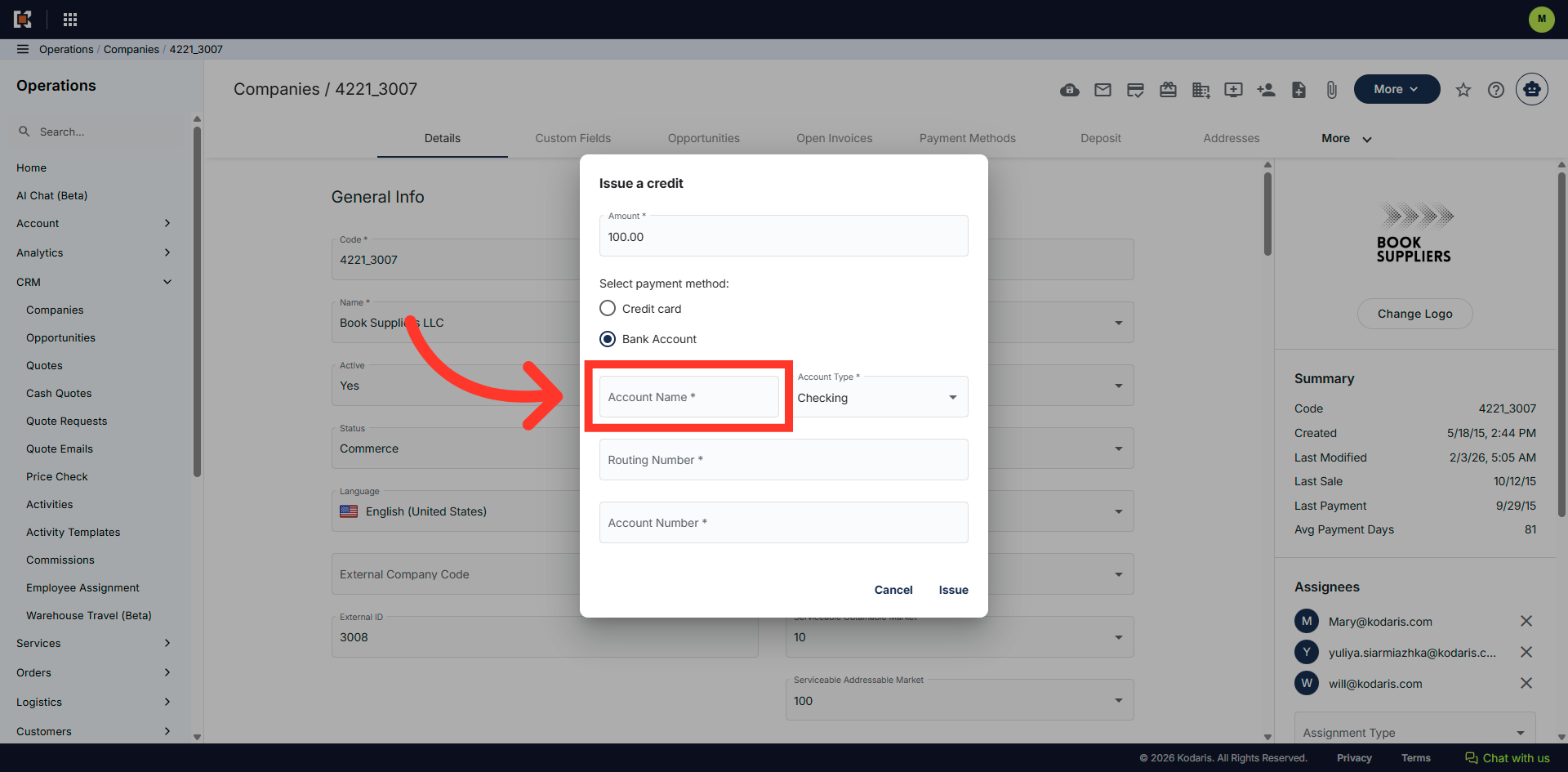
If you click on the "Account Type" dropdown, you can select if the account is a "Checking" or "Savings" type.
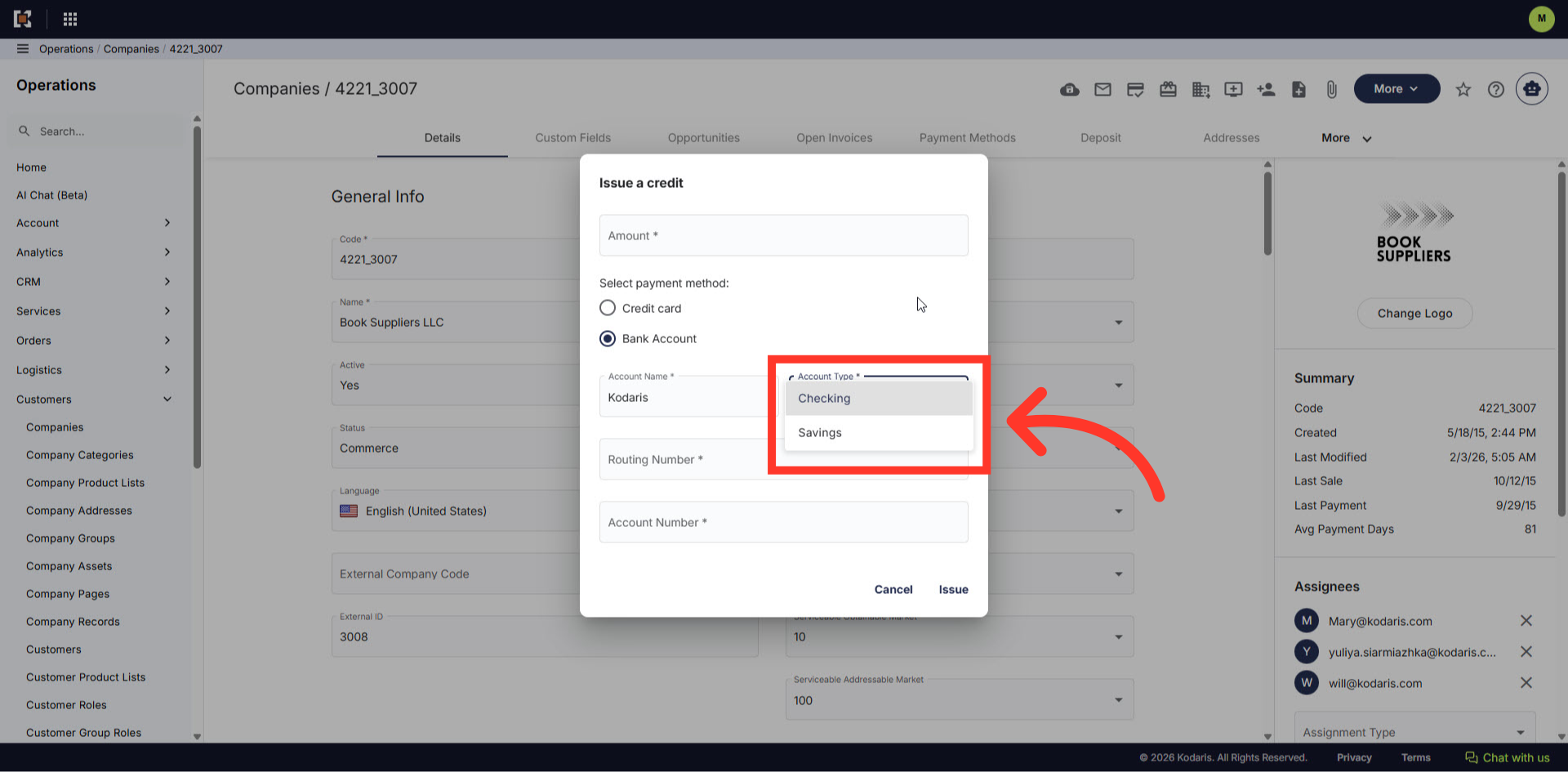
Enter the routing number in the "Routing Number" field.
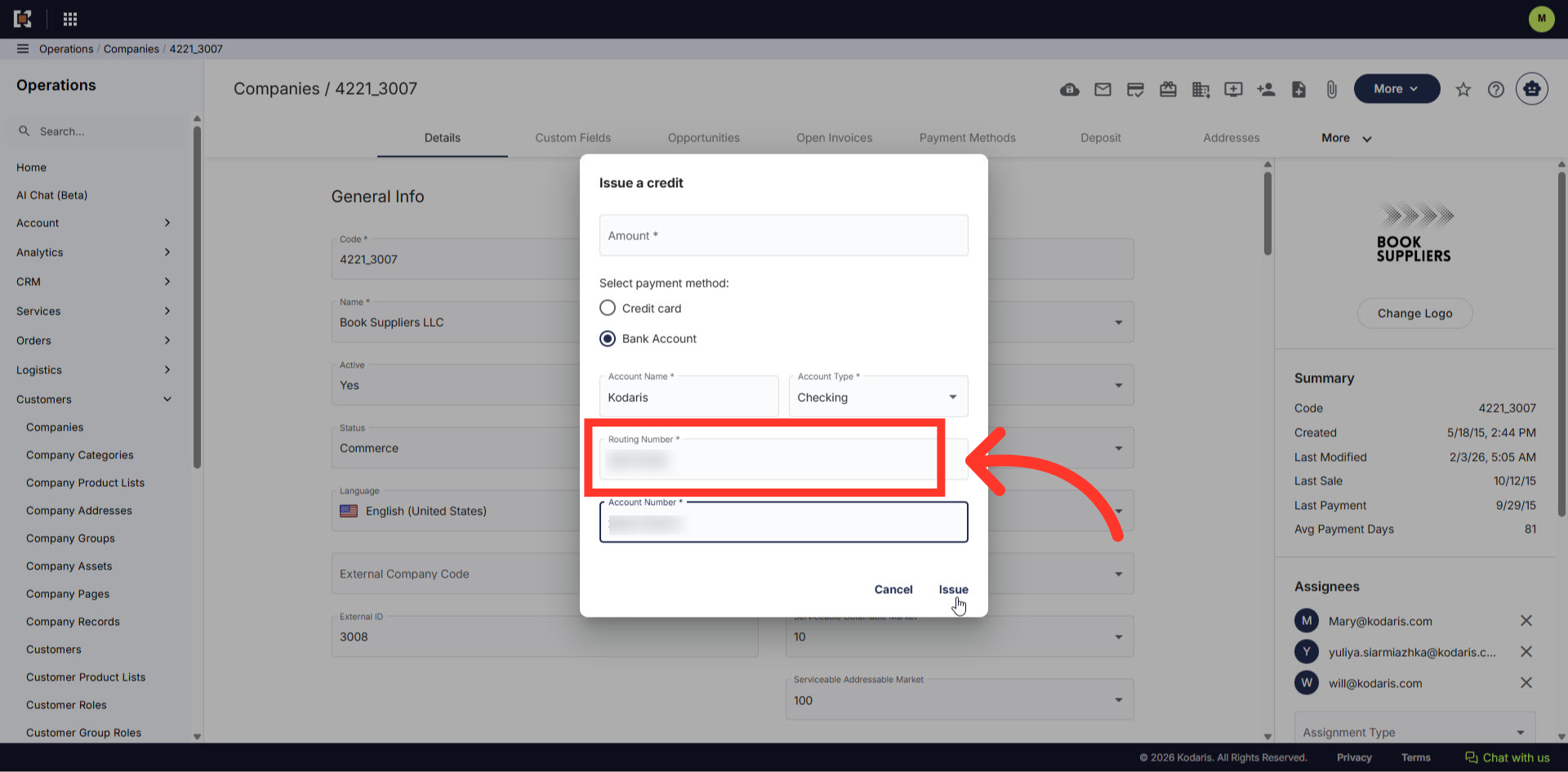
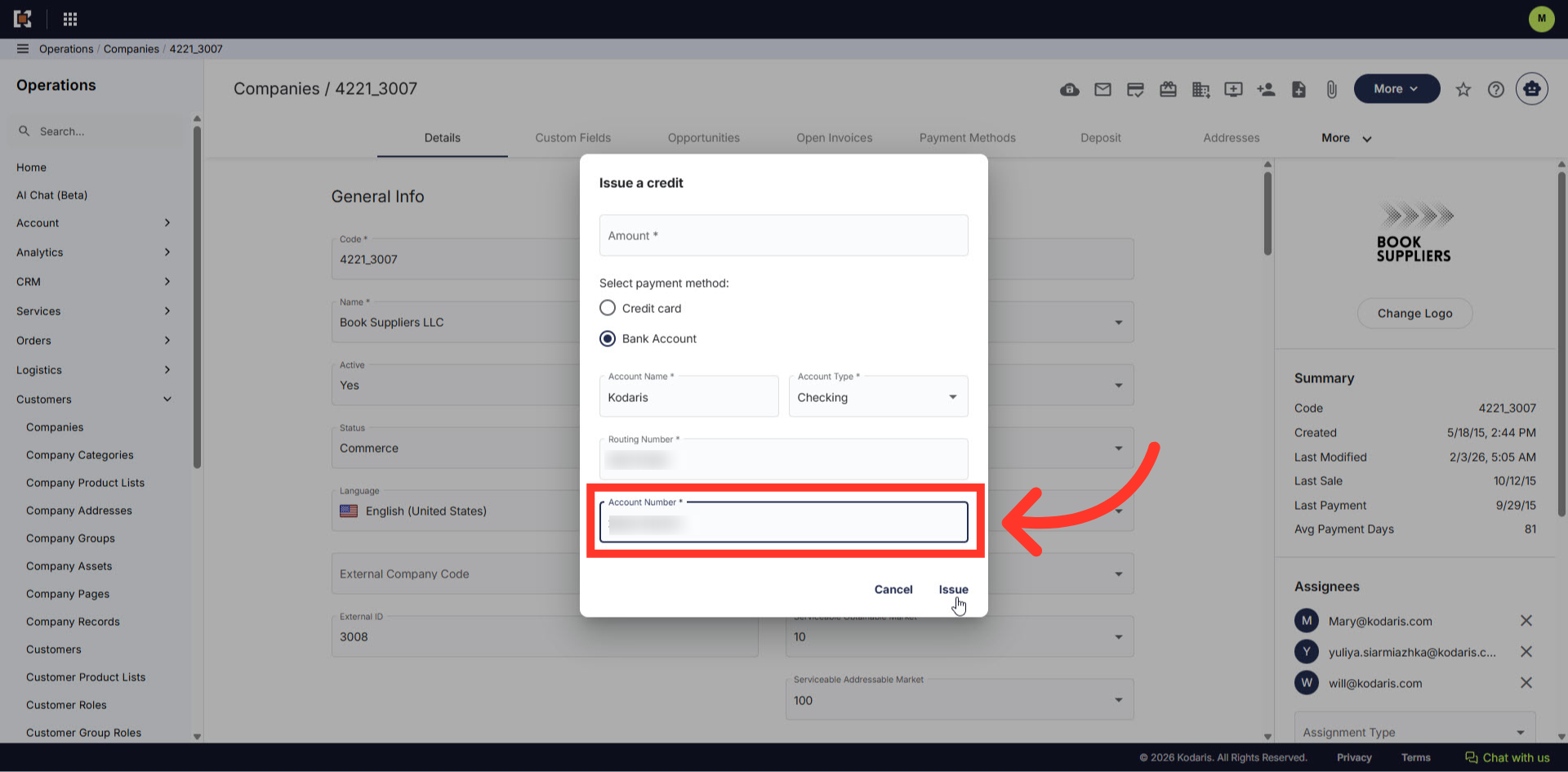
Click into the "Account Number" field and enter the account number.
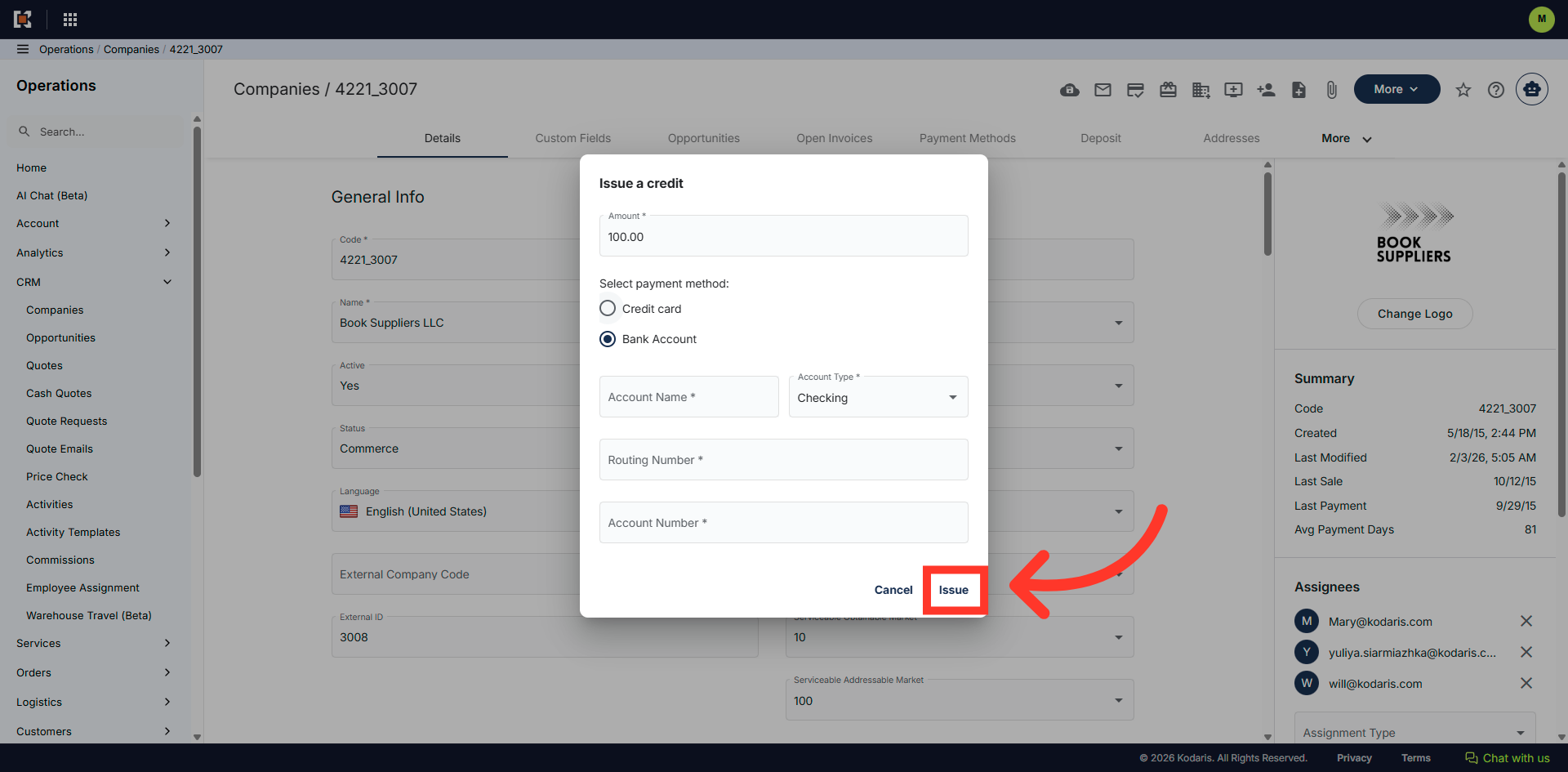
Click the "Issue" button to confirm and complete the transaction on the company account.
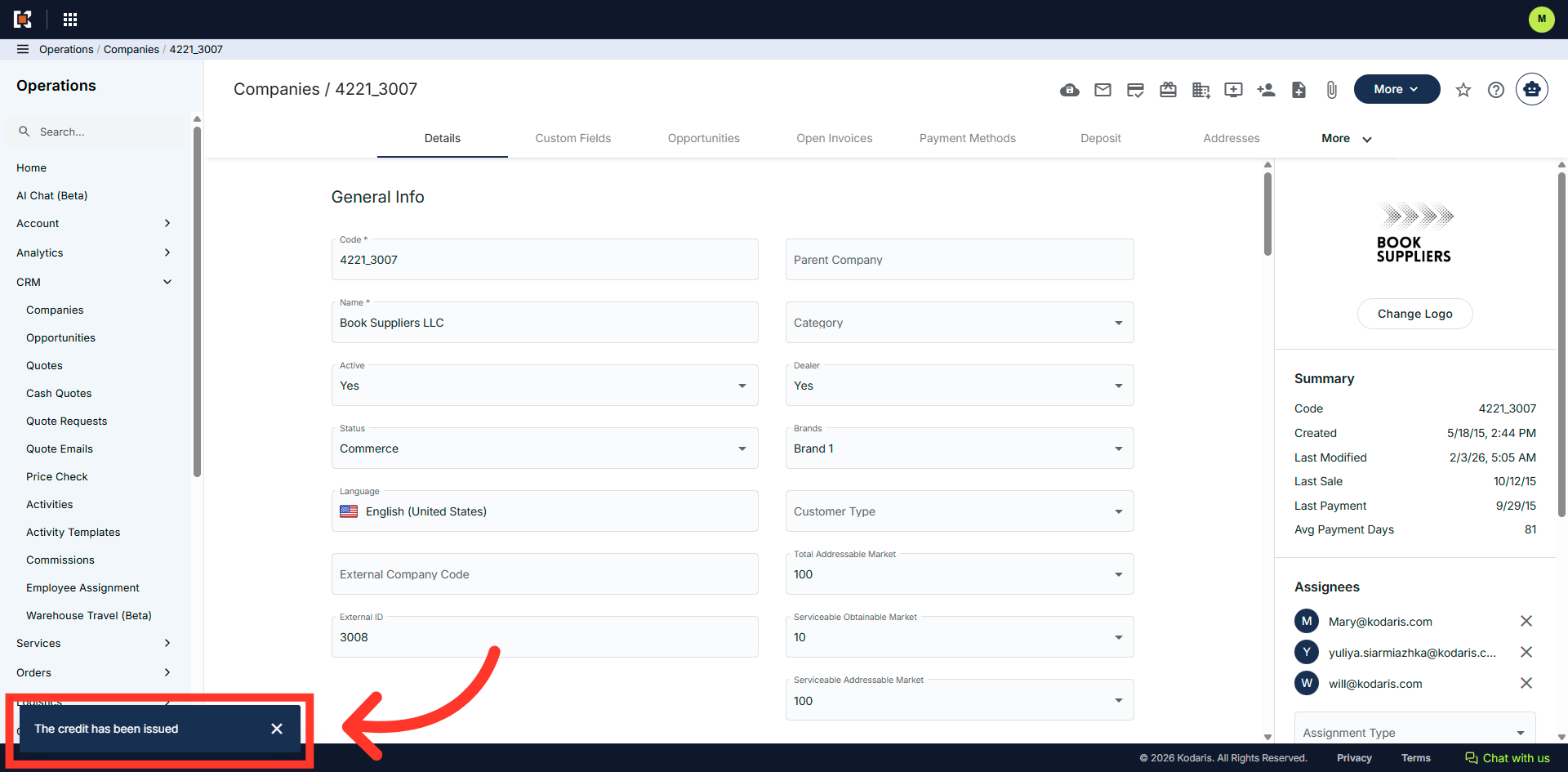
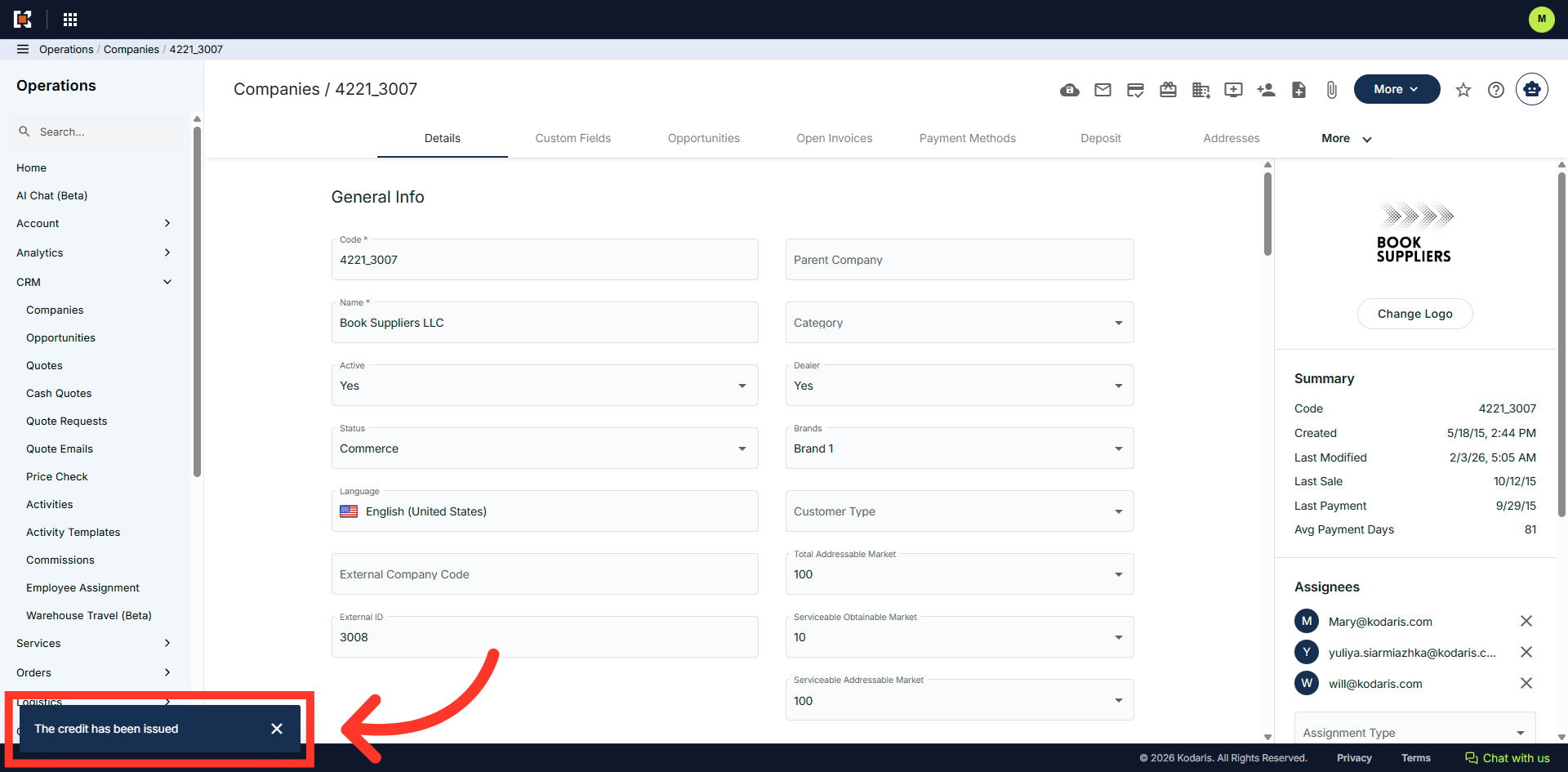
You will receive a success message that says "The credit has been issued" in the bottom-left corner.
If the customer would prefer the credit to be applied to a credit card, click the "Credit Card" payment method.
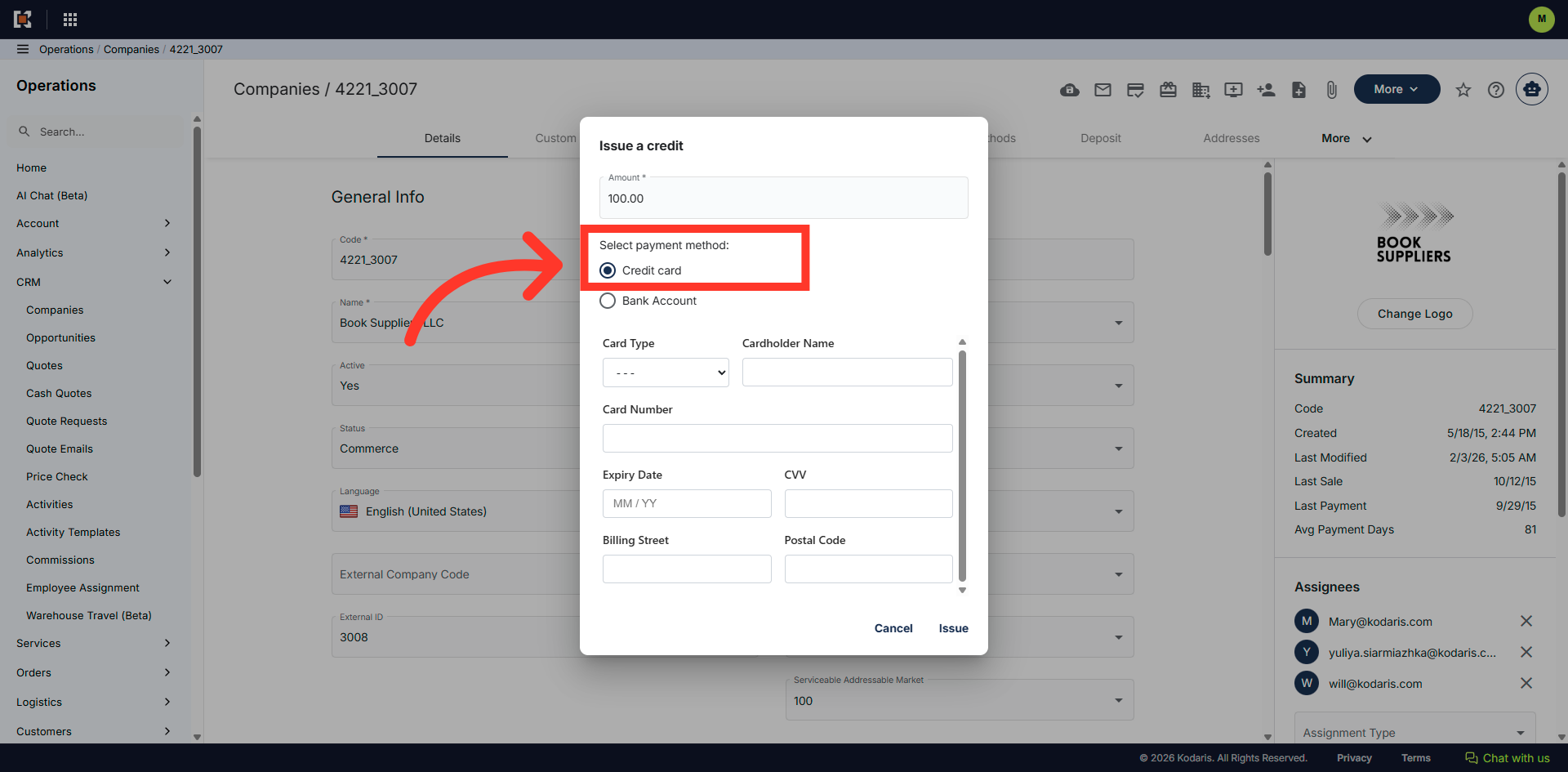
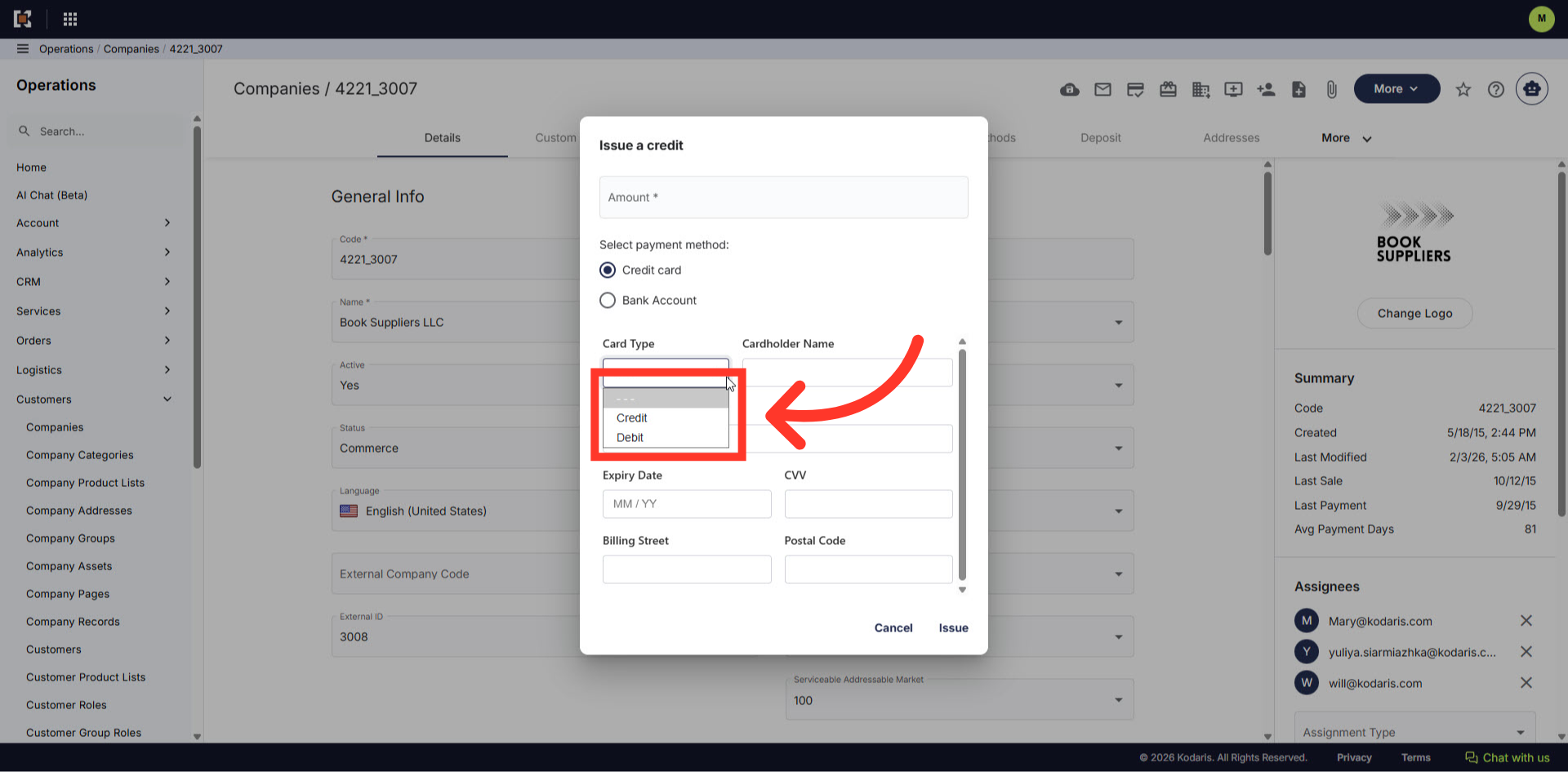
Select either "Credit" or "Debit" for the card type.
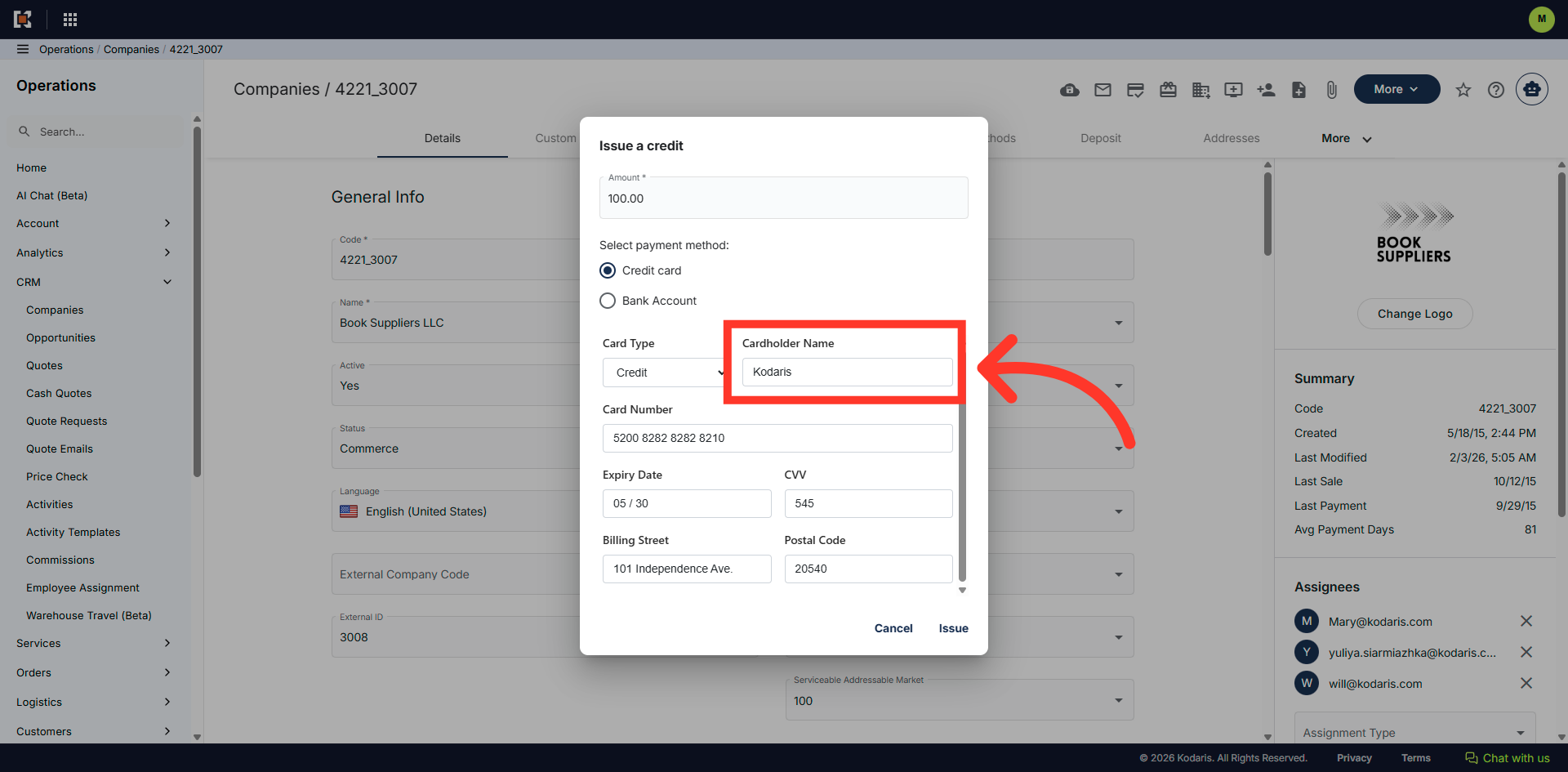
Enter the cardholder name in the "Cardholder Name" field.
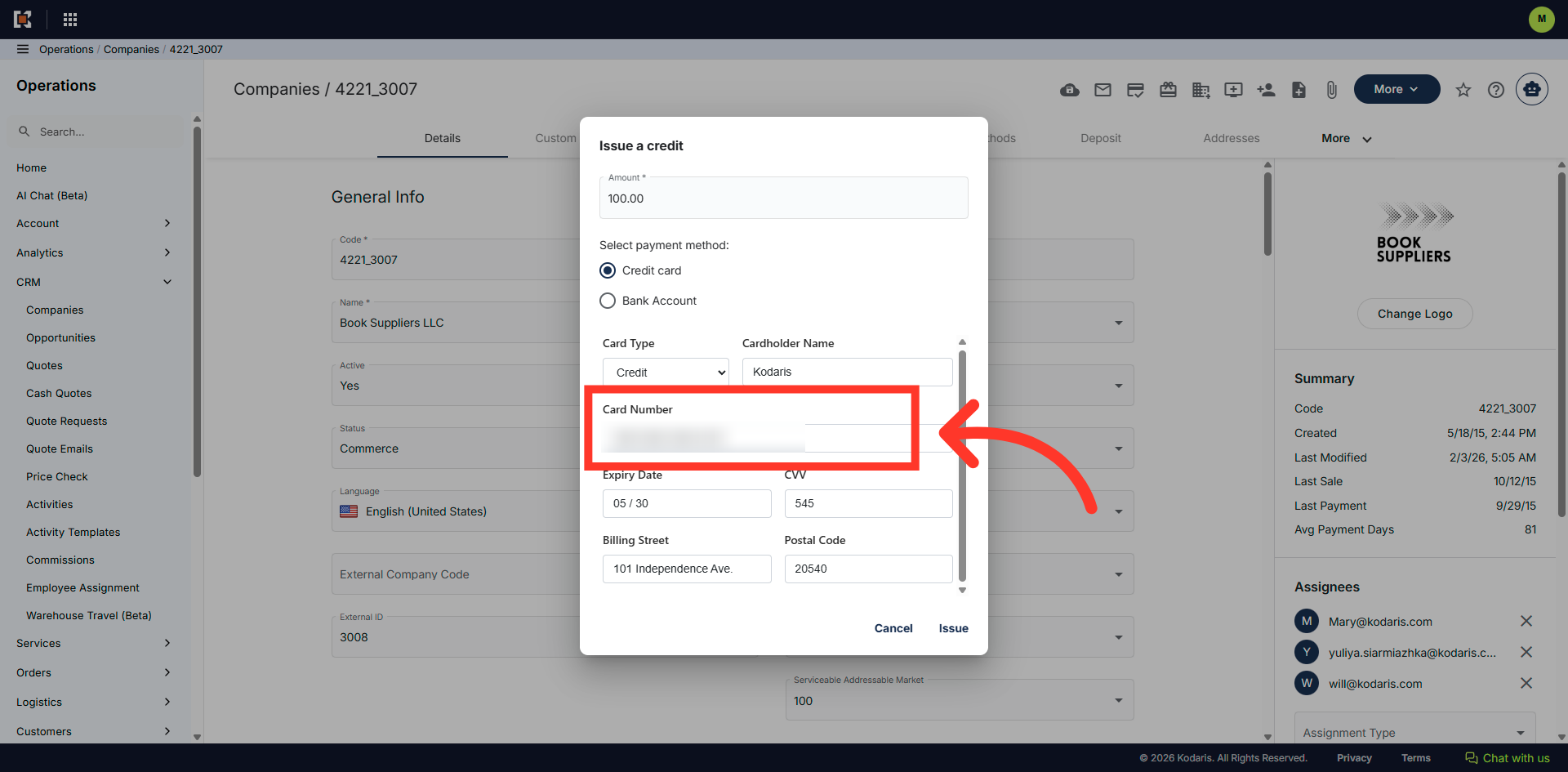
Enter the card number into the "Card Number" field.
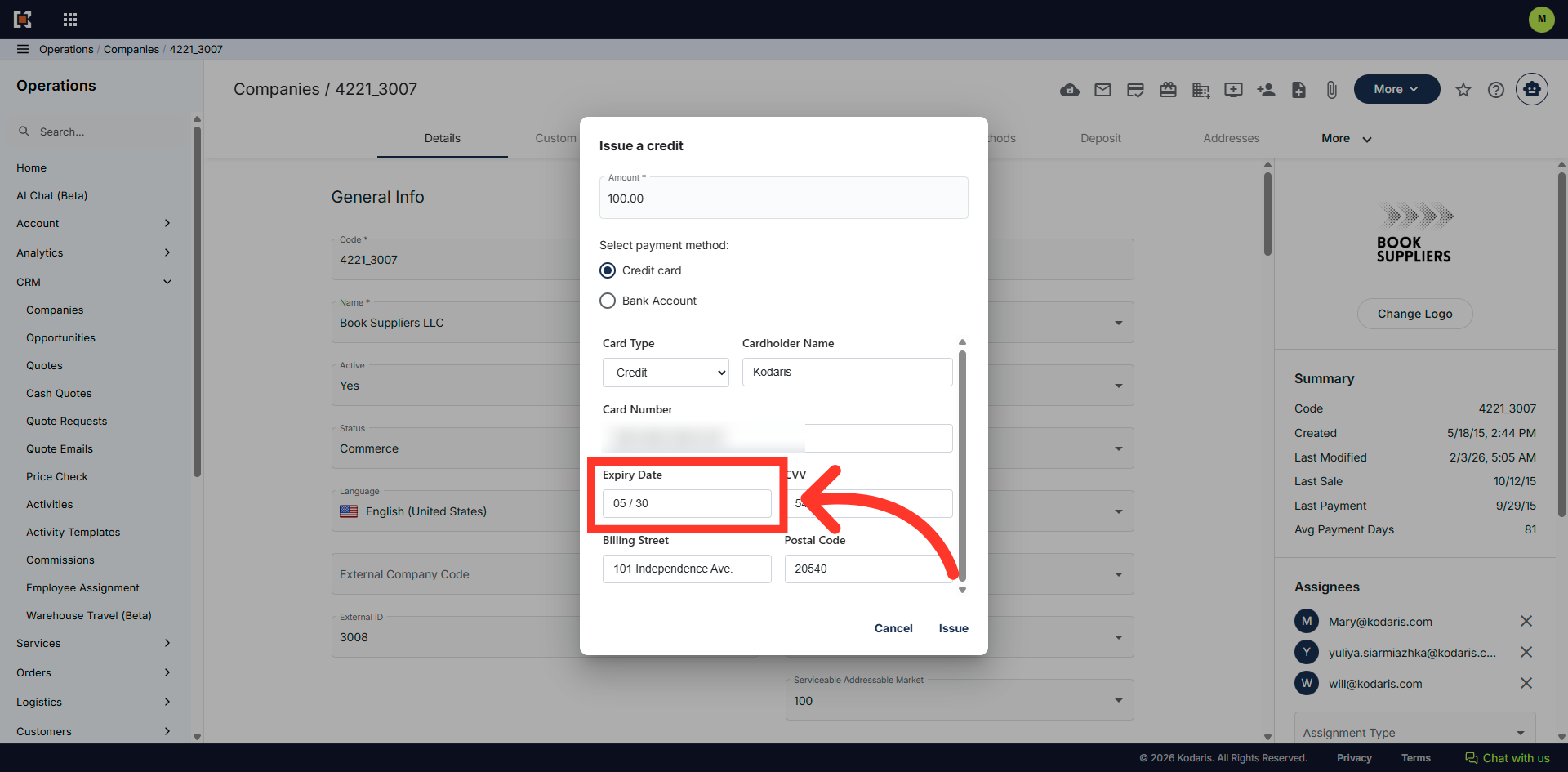
Enter the credit card's expiration date in the "Expiry Date" field.
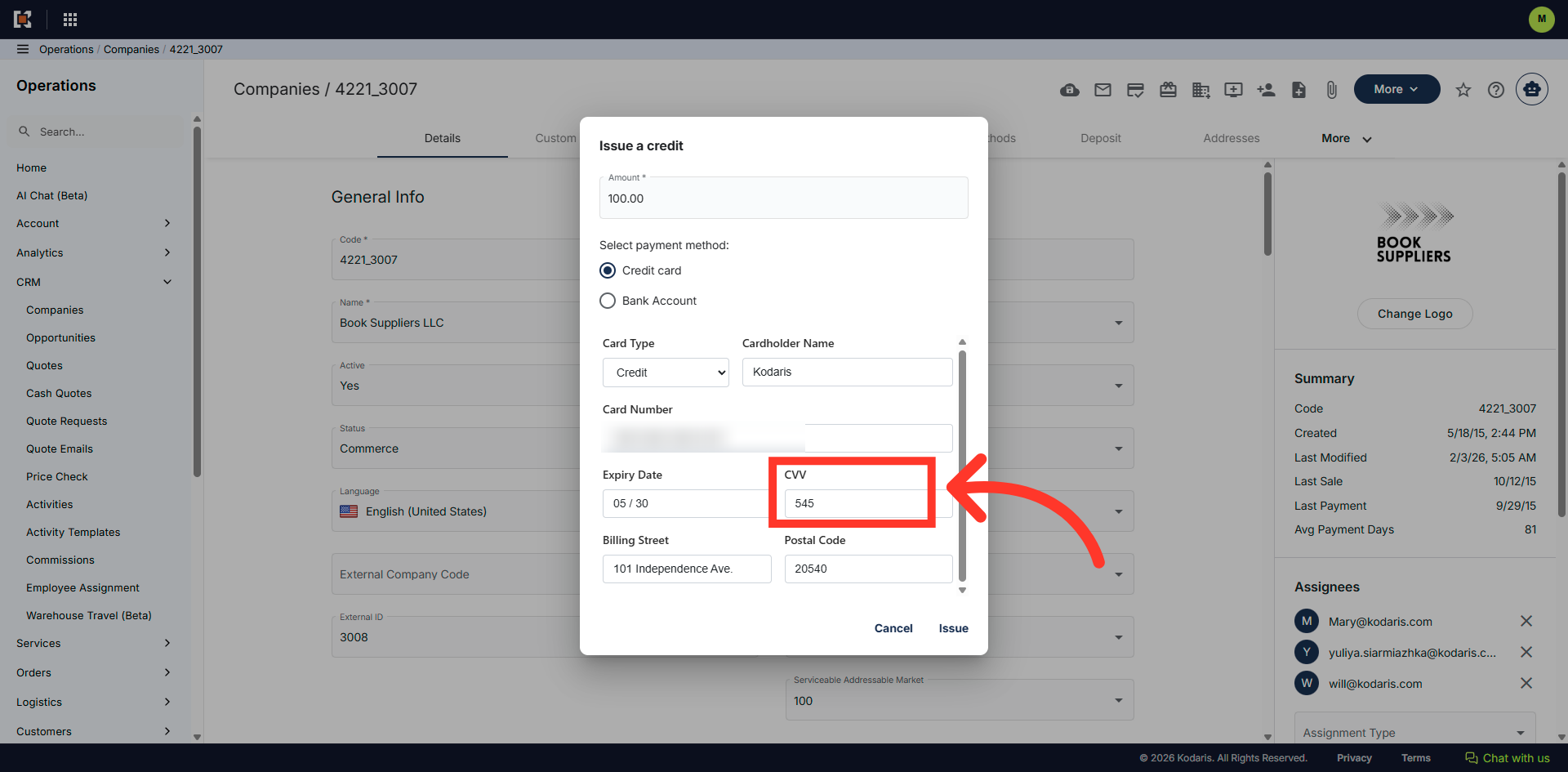
Enter the CVV number of the credit card in the "CVV" field.
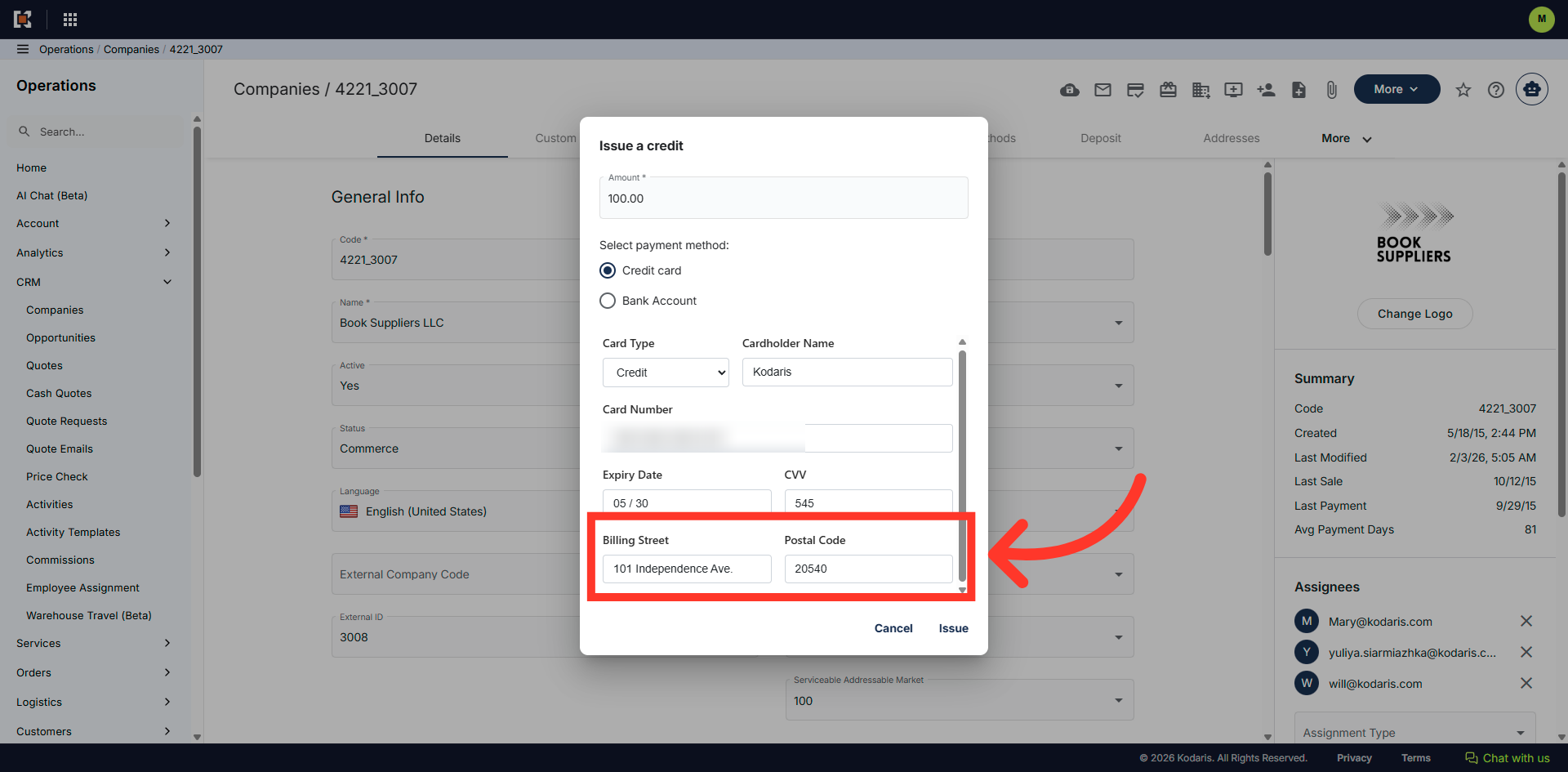
Enter the billing street and postal code that is on file with the credit company.
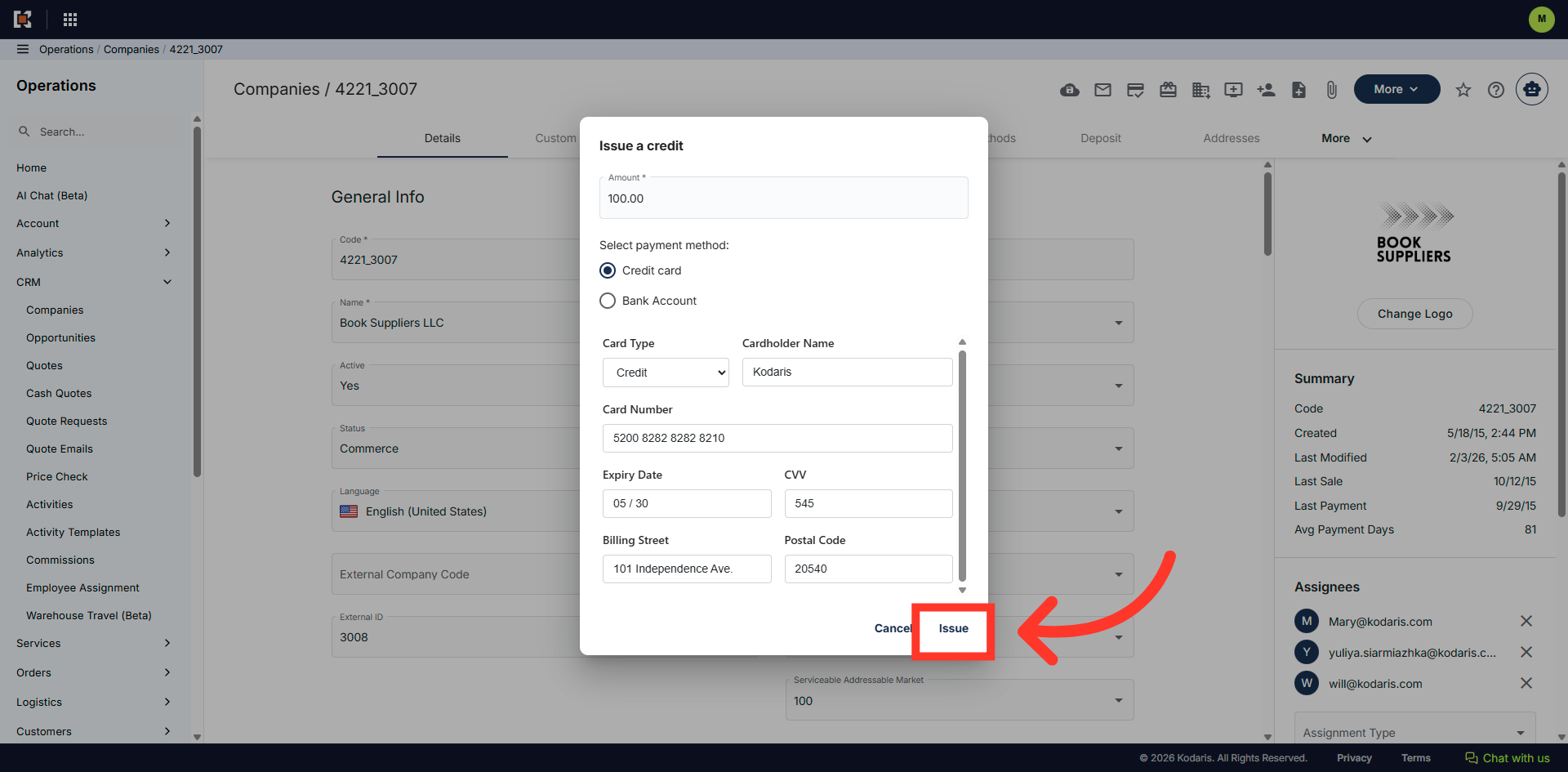
Now, click the "Issue" button to apply this credit.
"The credit has been issued" message will appear.