Product Documentation
Product Documentation
Product Documentation
To initiate a deposit under a company, navigate to the "CRM" section in the Operations Portal.
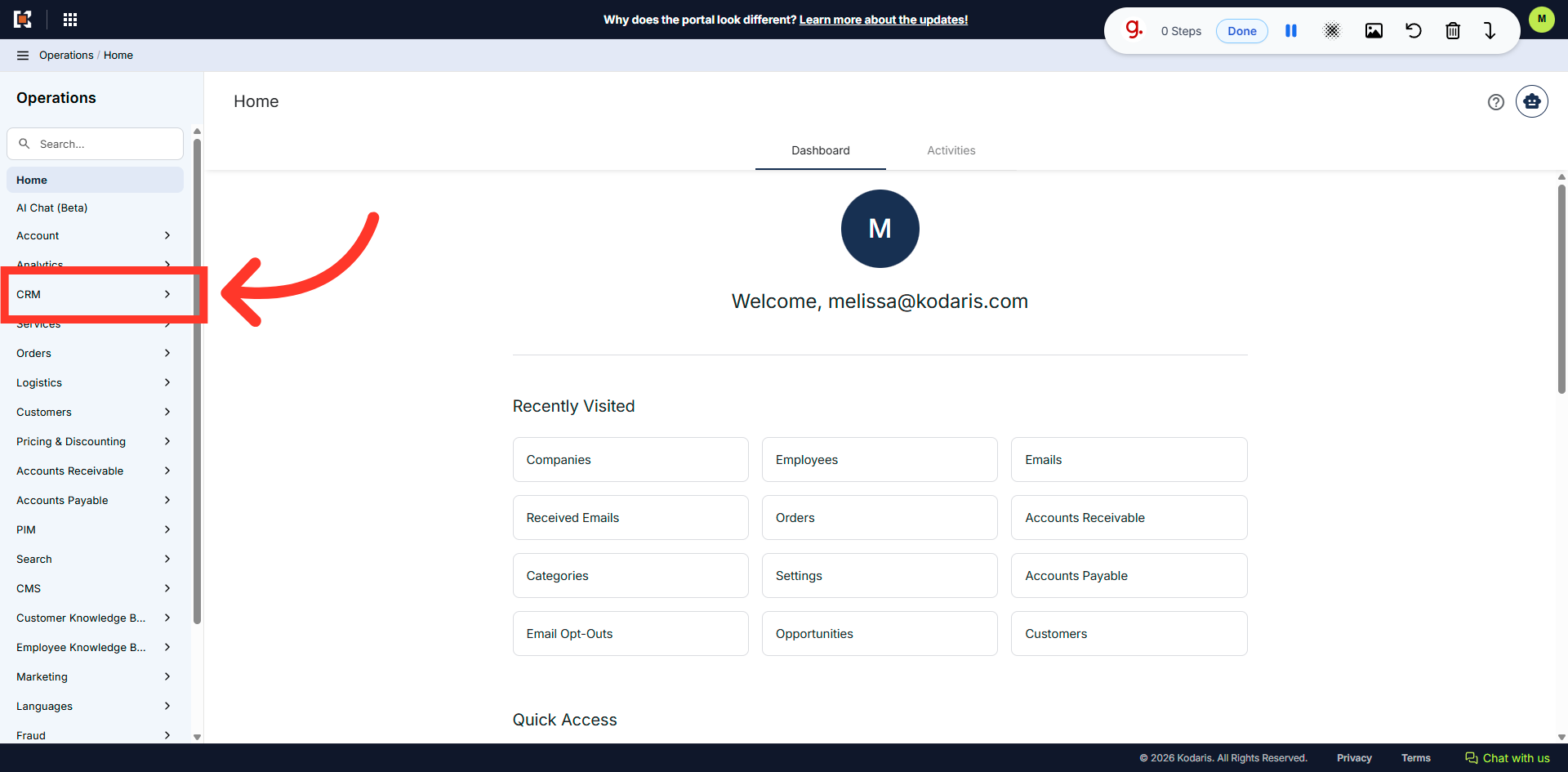
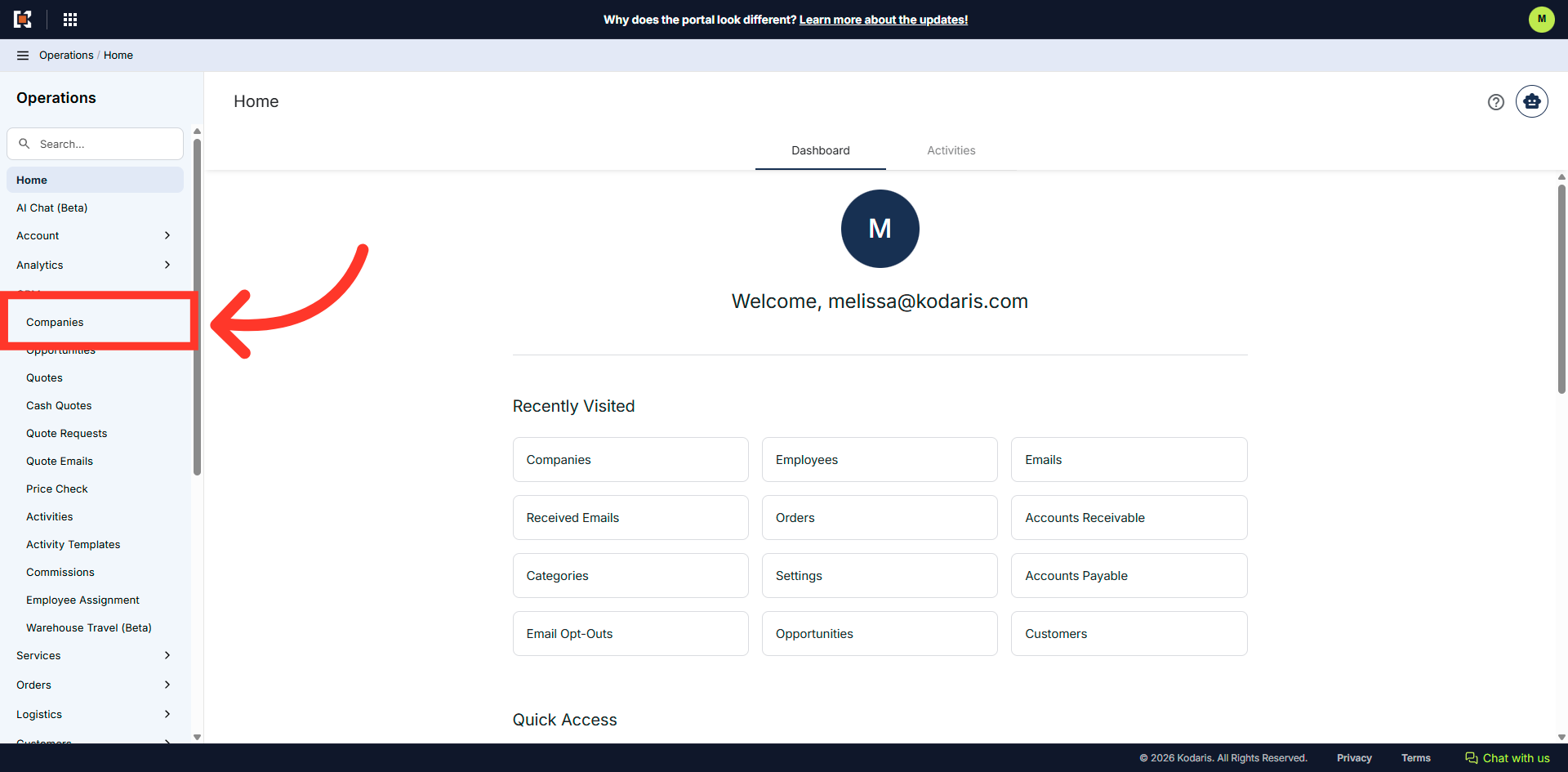
Click on "Companies". In order to access "Companies" you will need to be set up either as an "administrator" or a "superuser", or have the appropriate roles: "companyEdit", or "crmCompanyEdit". Just a reminder, "crmCompanyEdit" access only allows employees to access companies that are assigned to them.
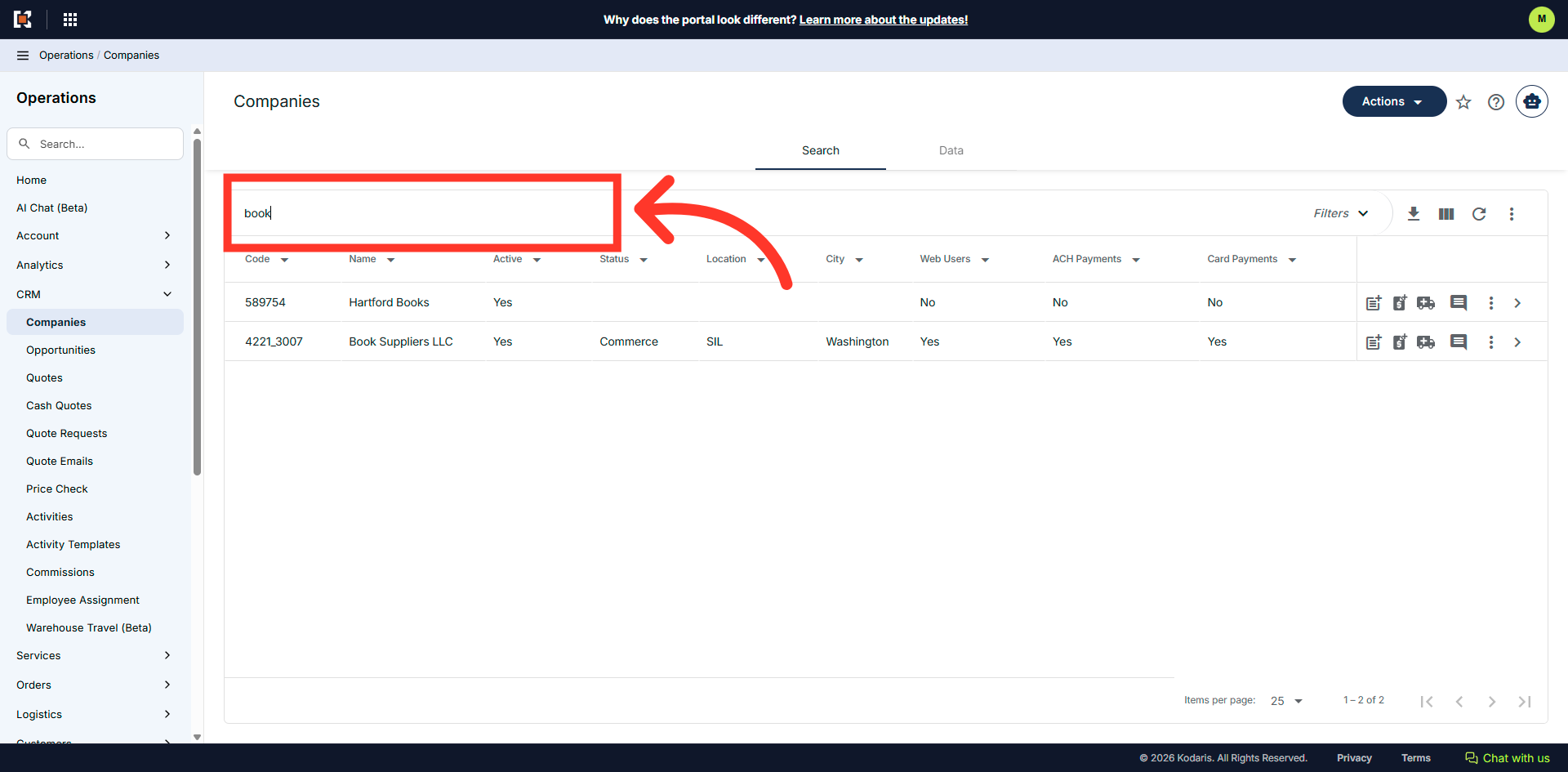
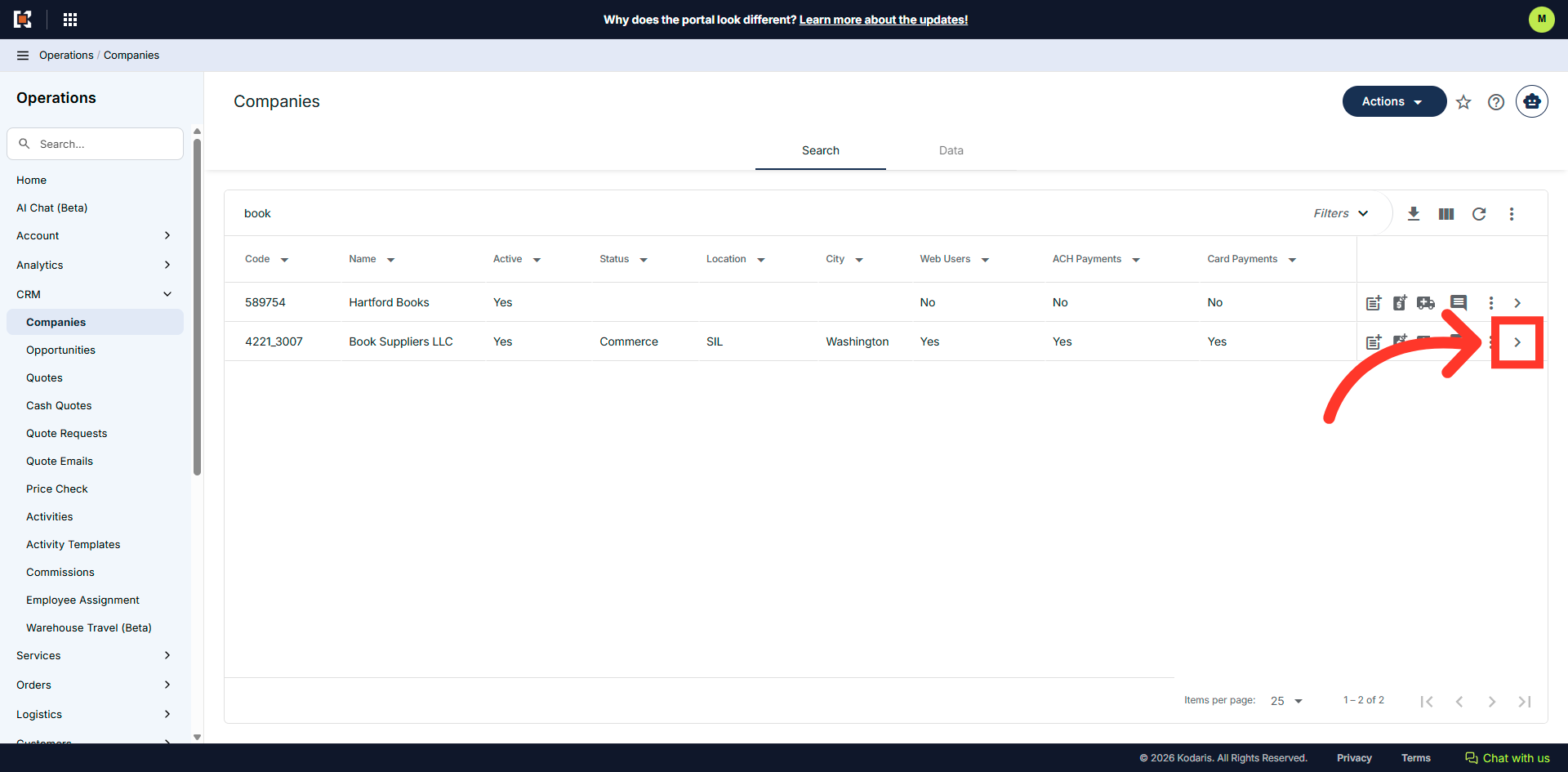
Enter the company code or name in the field to search for the company.
Then, click on the more details icon to view the company details.
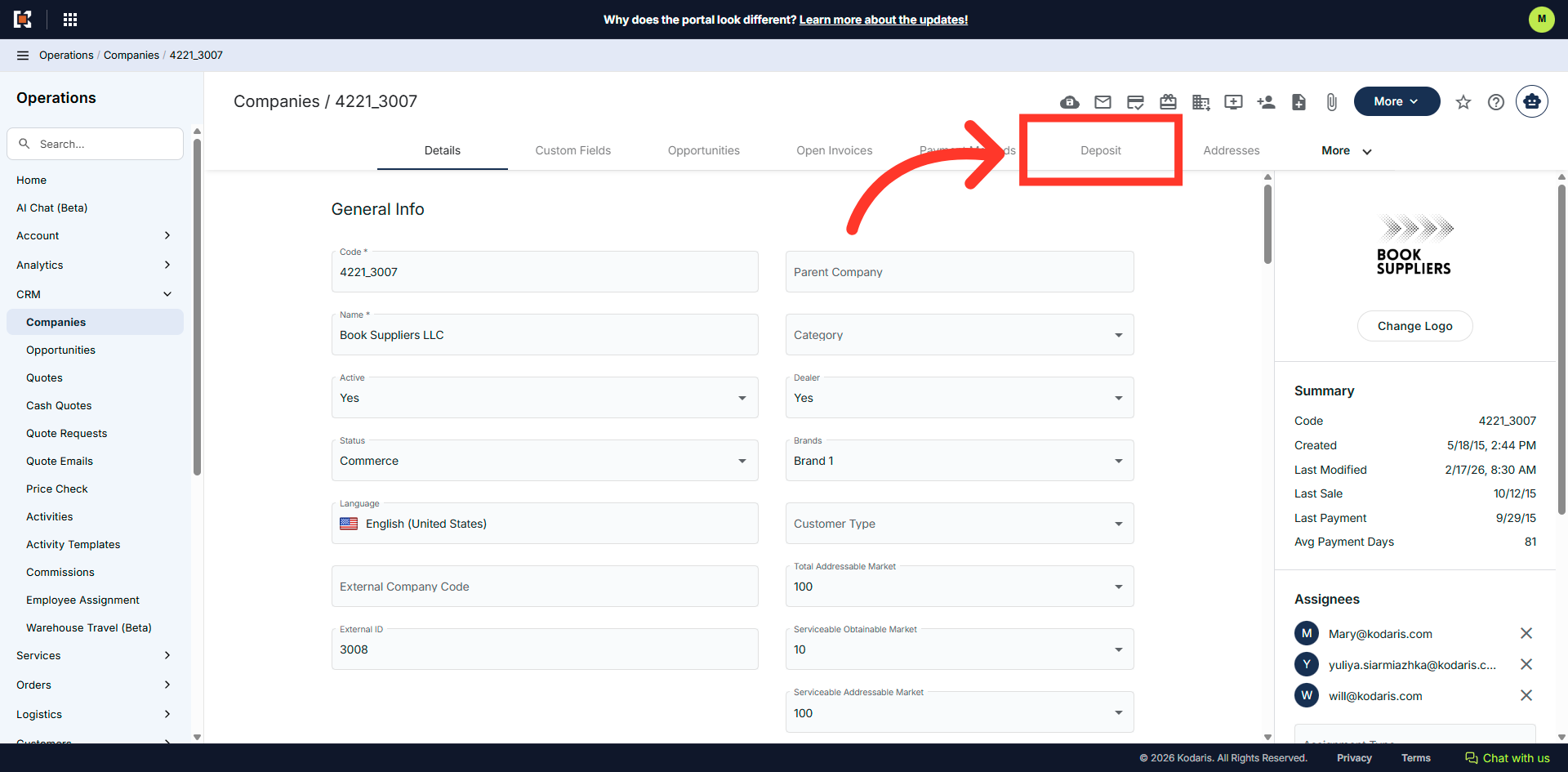
Click on the "Deposit" tab.
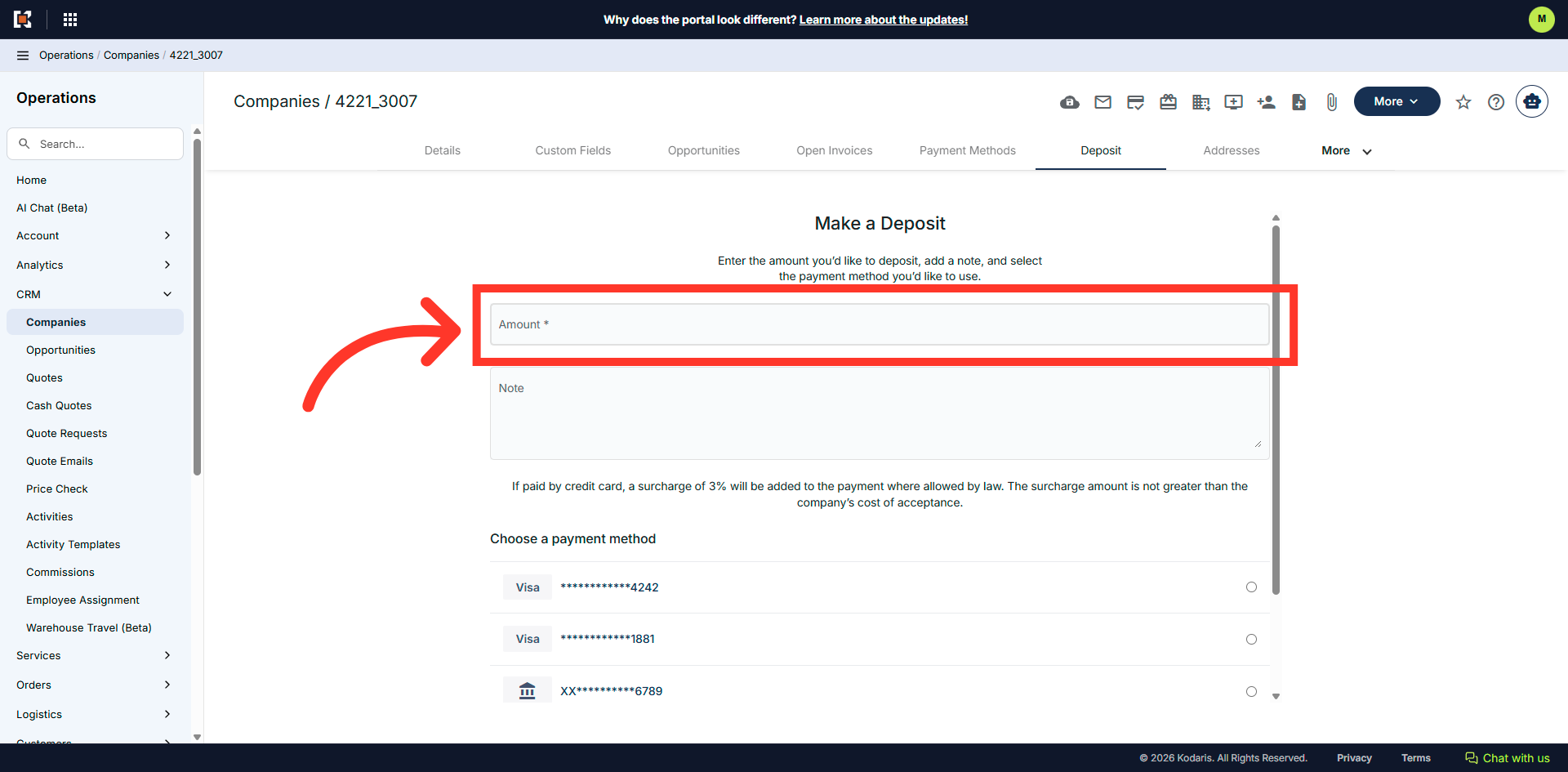
Click on the "Amount" field.
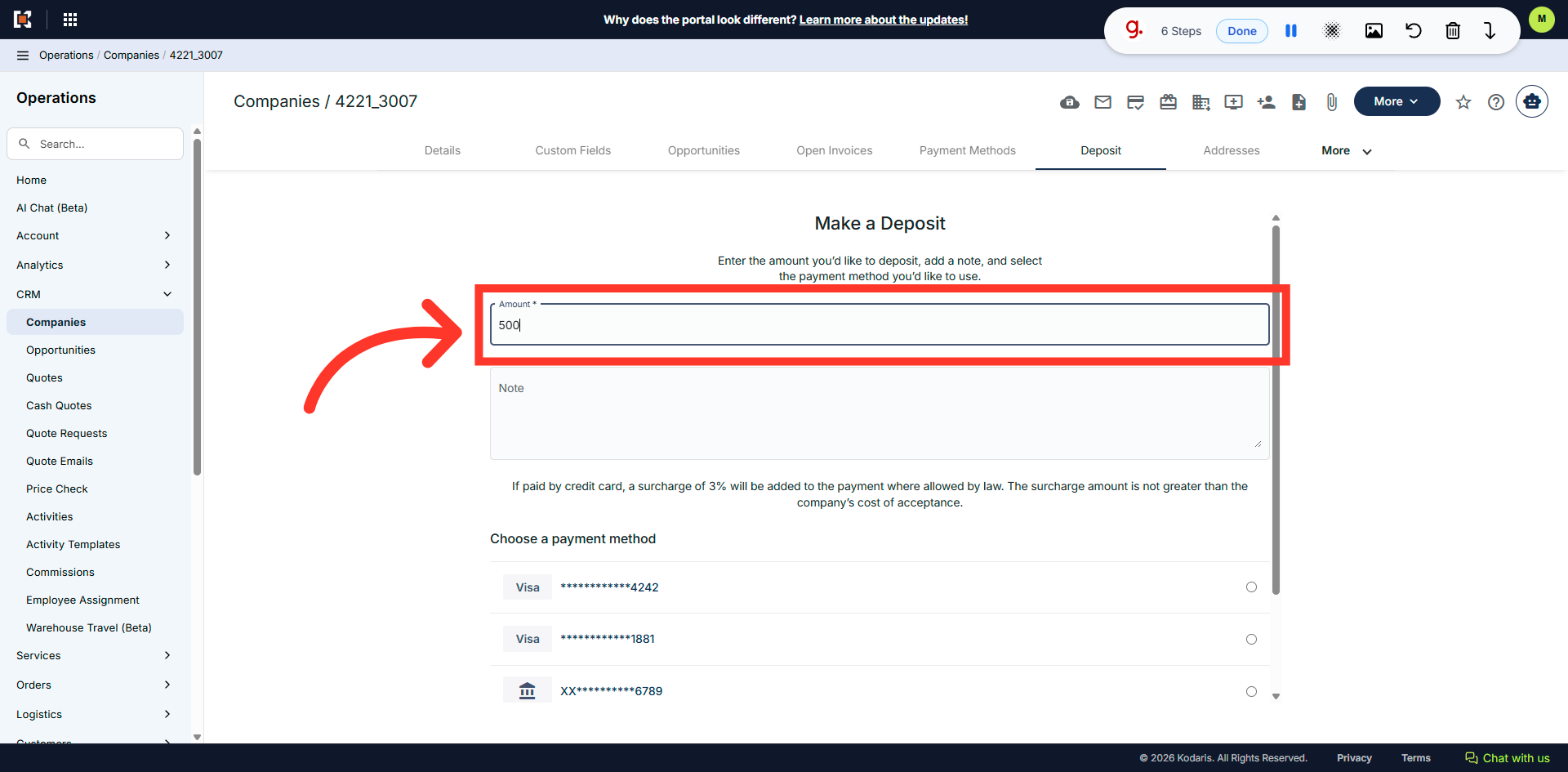
Enter the deposit amount.
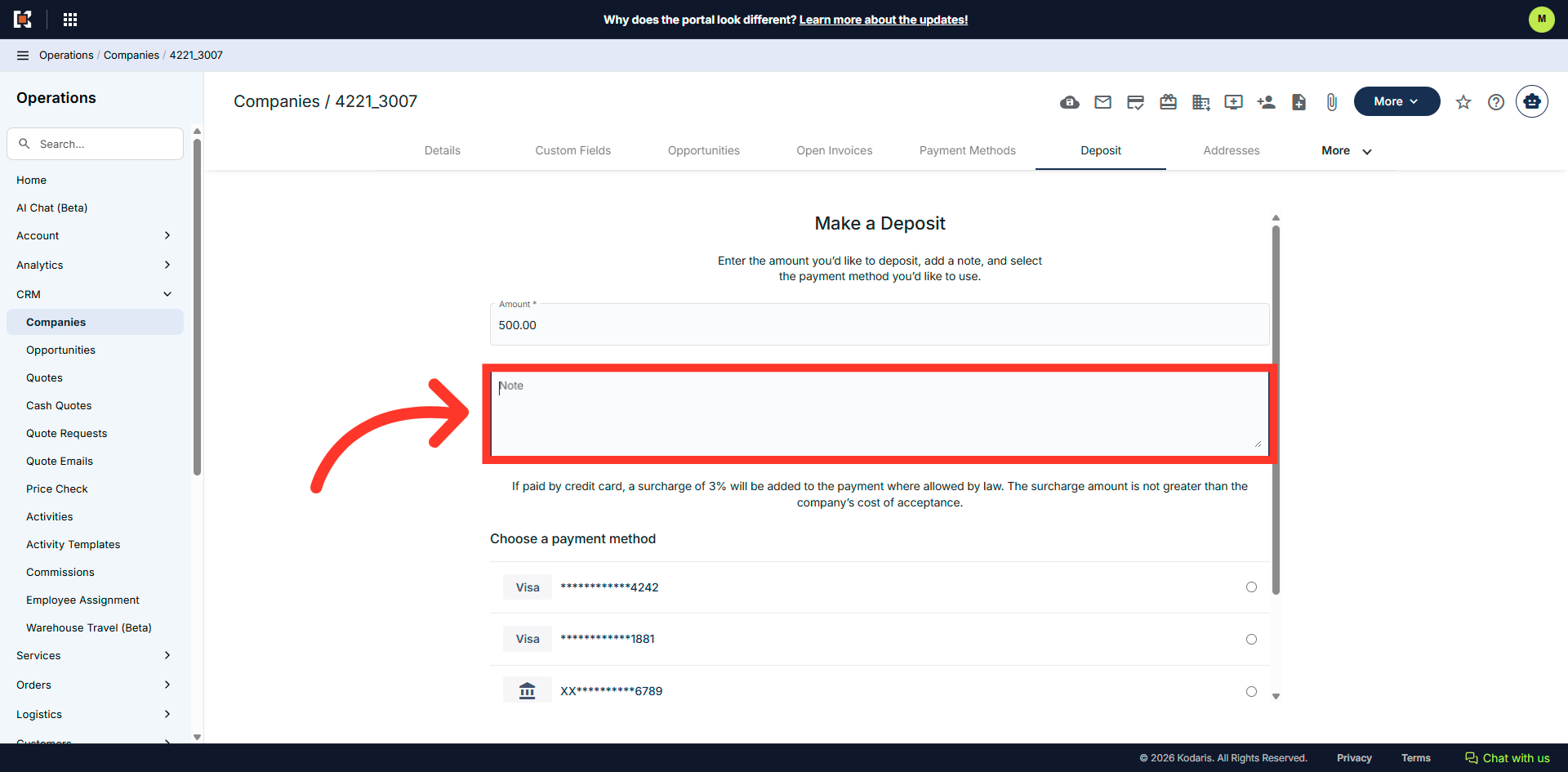
If needed, you can add a note to the deposit.
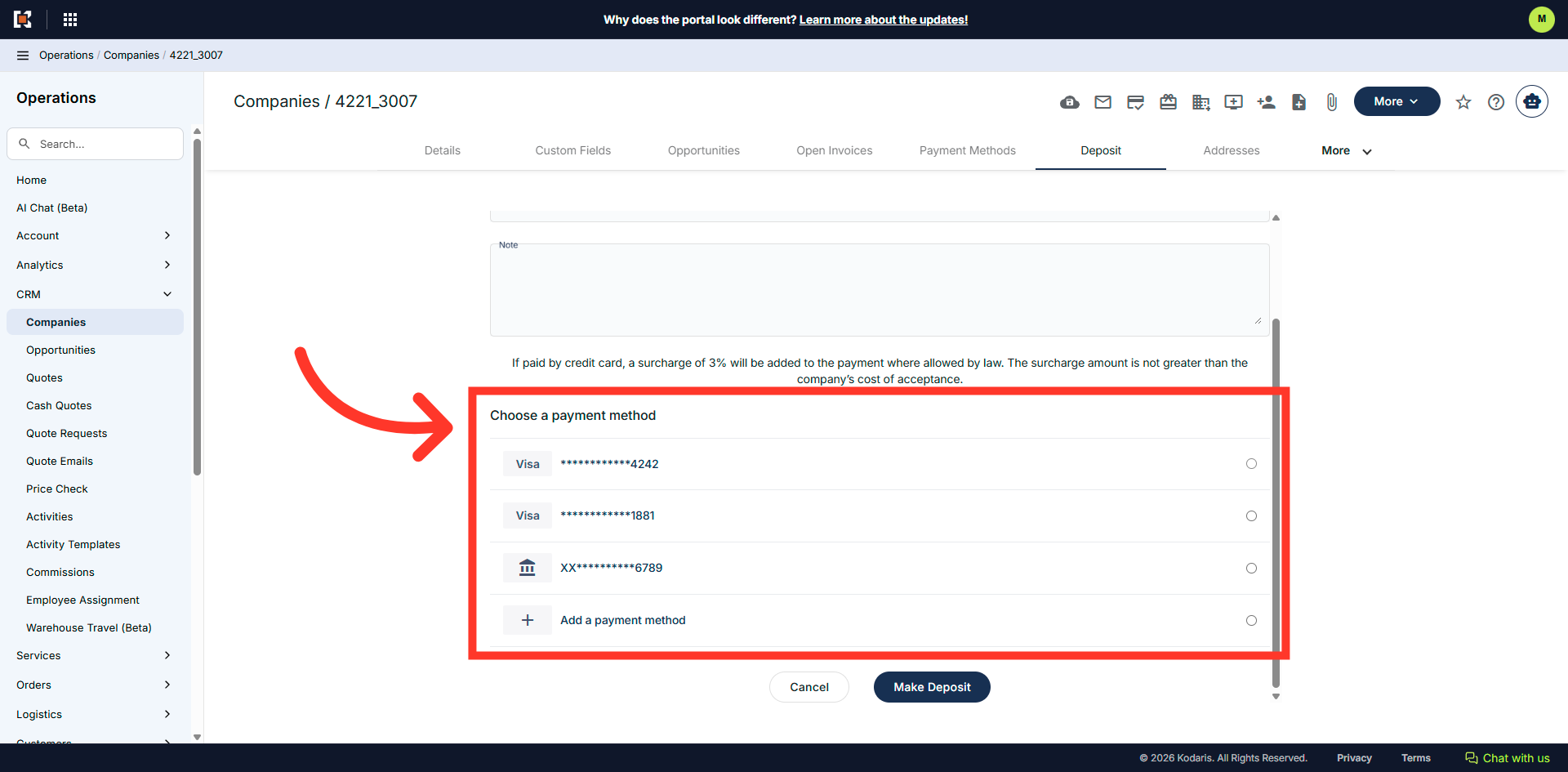
Select your payment method to indicate how the deposit will be processed.
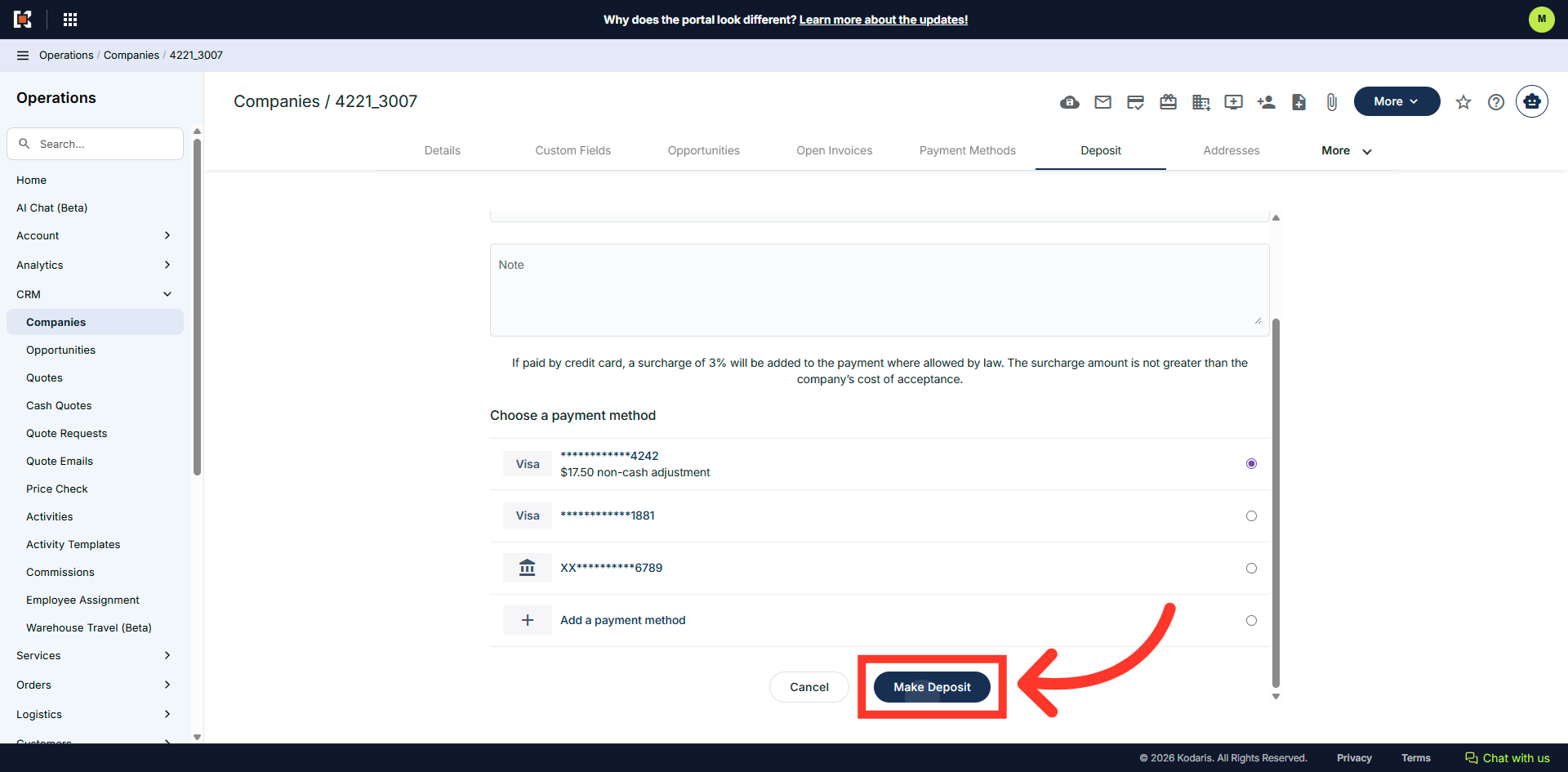
Click the "Make Deposit" button to submit the deposit information for processing.
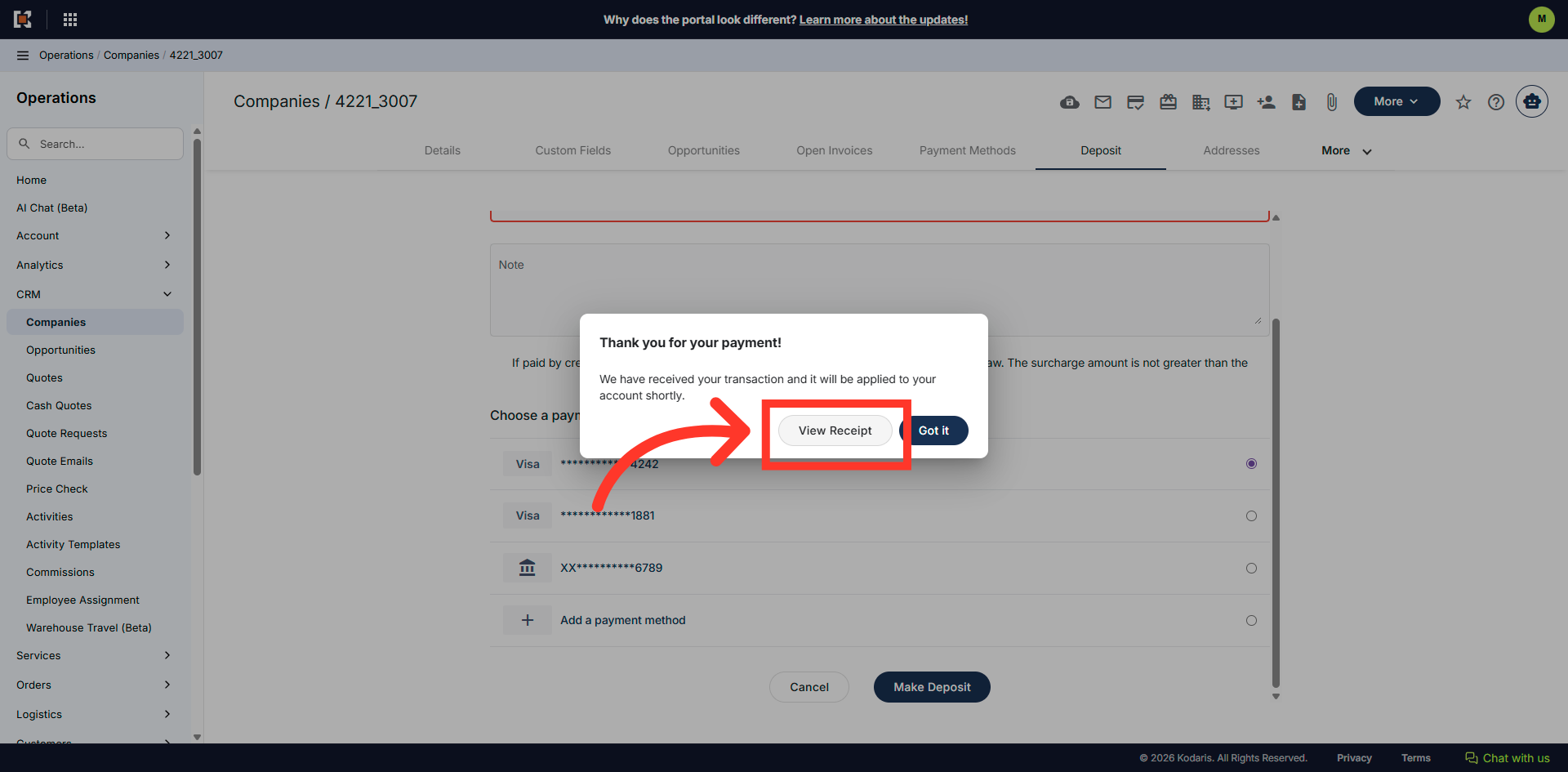
A success message will pop up letting you know the deposit has been made.
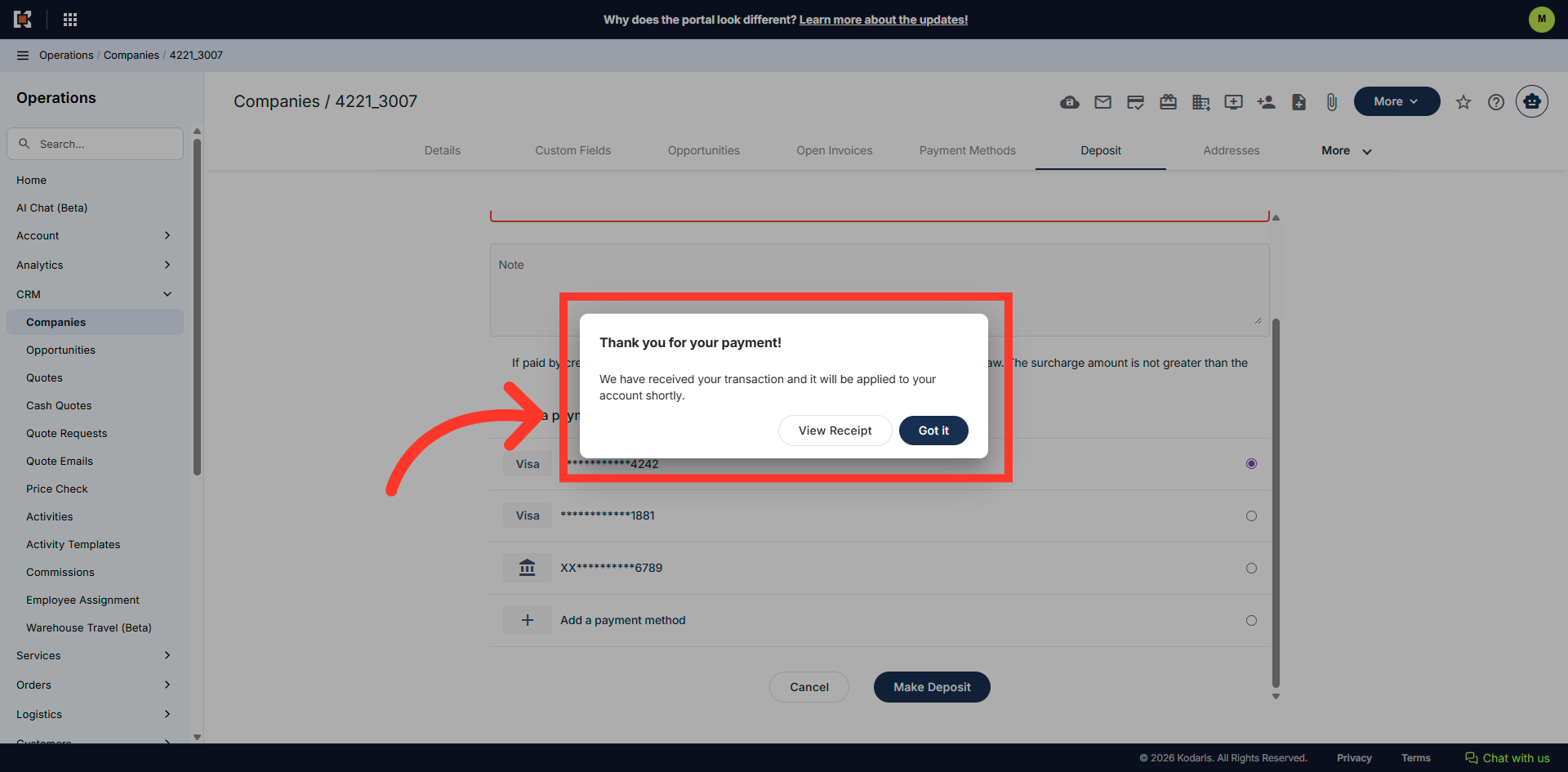
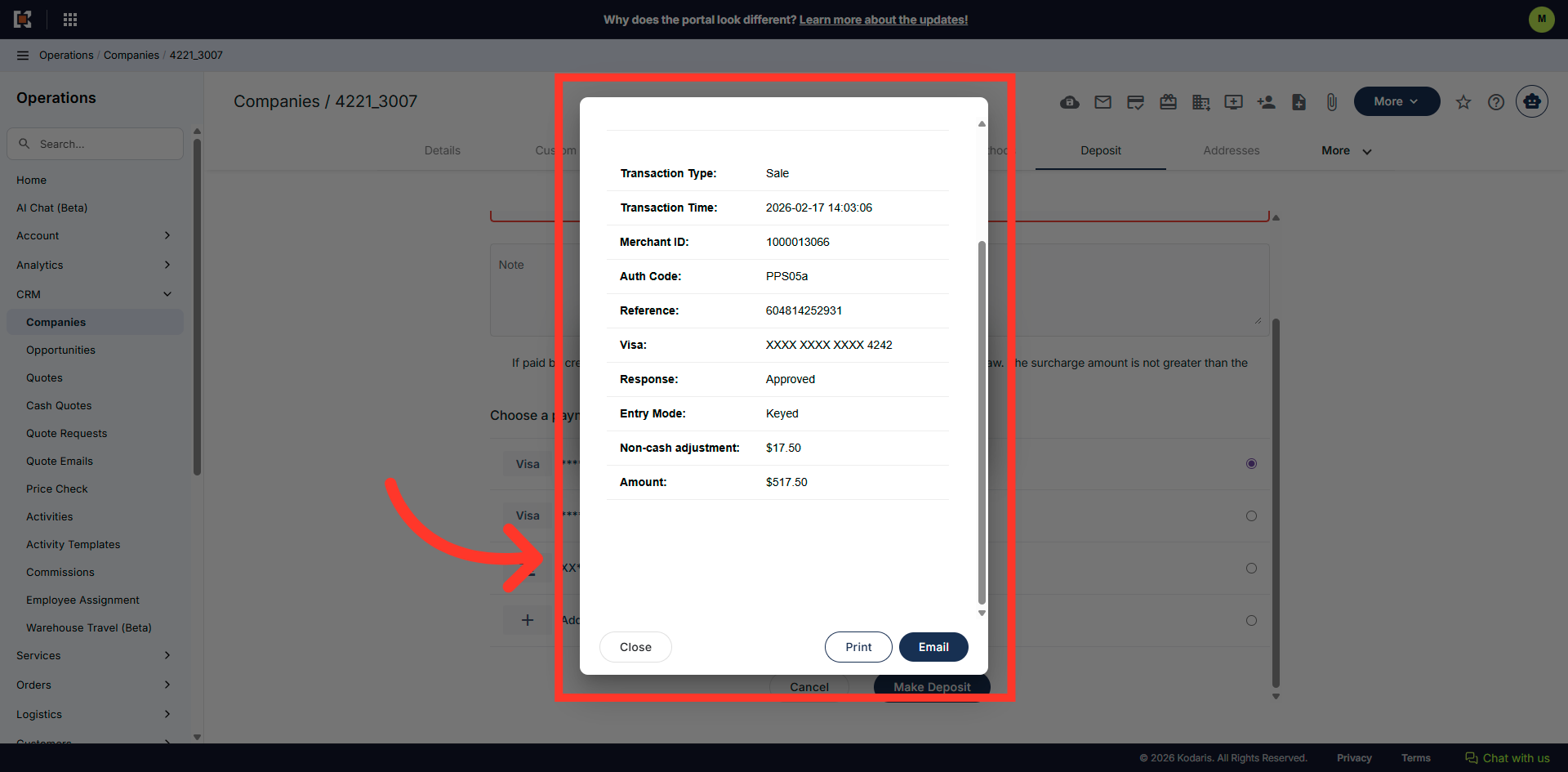
Click "View Receipt" to review the details of the deposit.
View the receipt details.
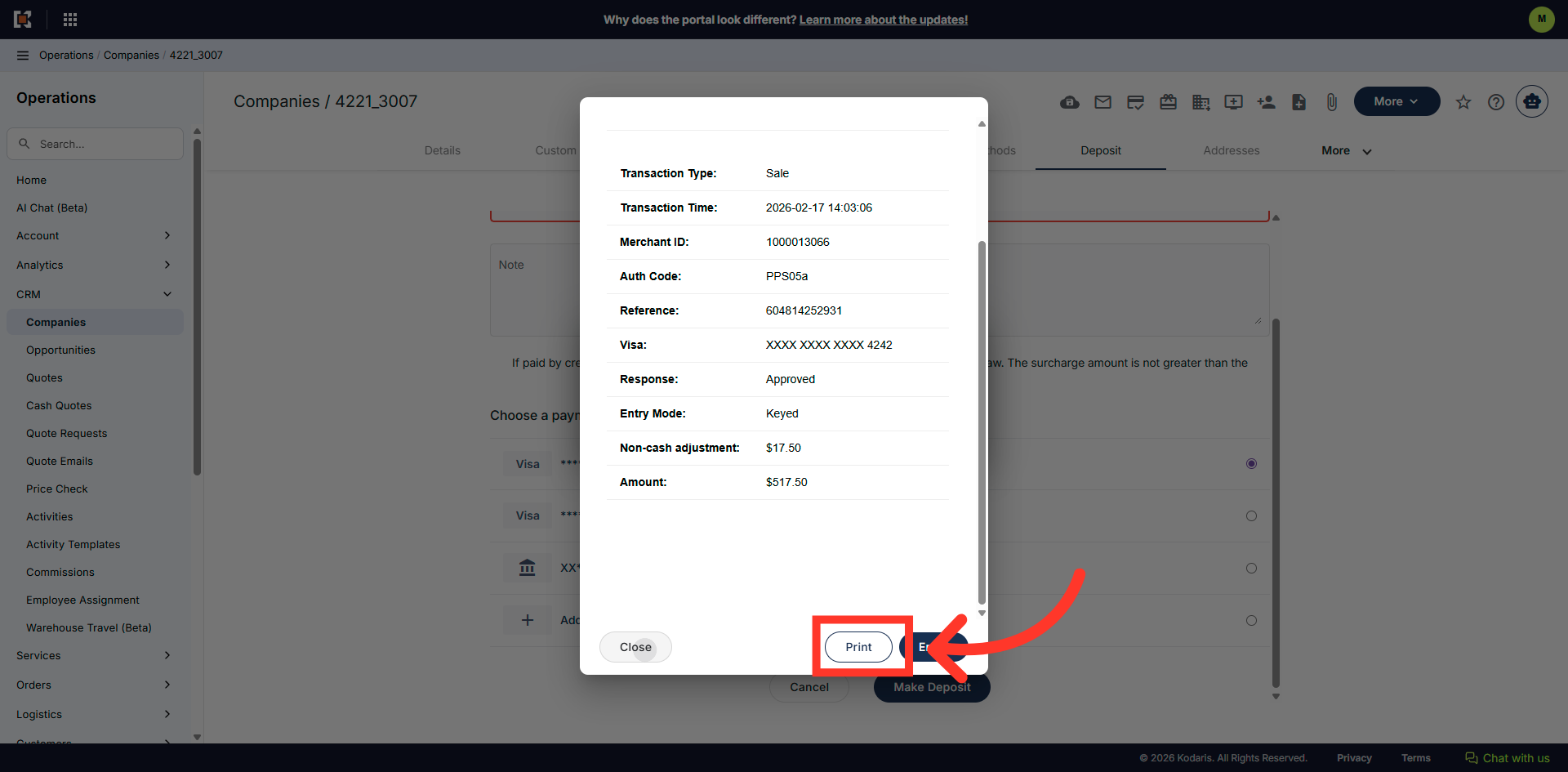
Click "Print" to print the Receipt.
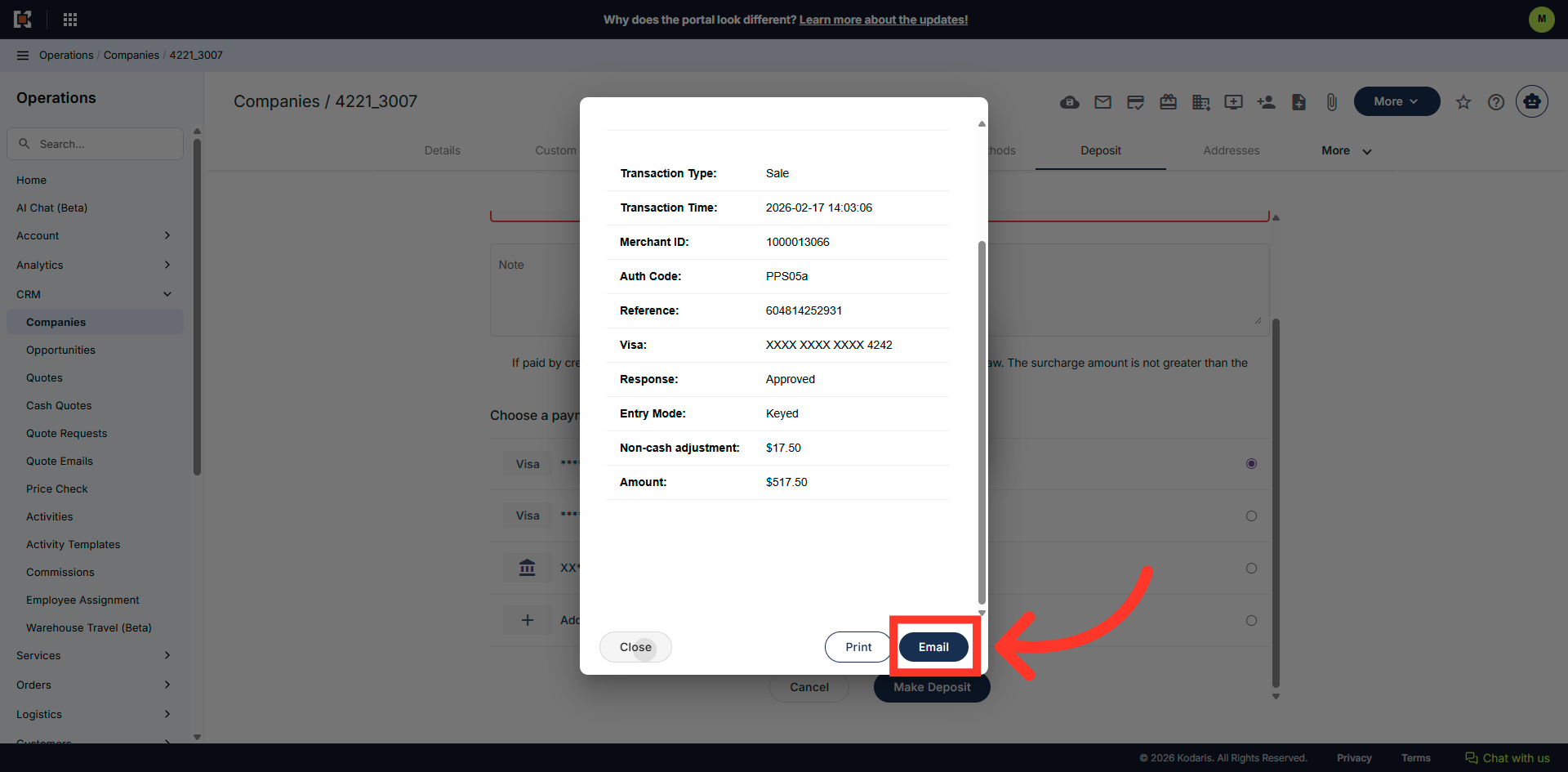
Click "Email" to email the Receipt.
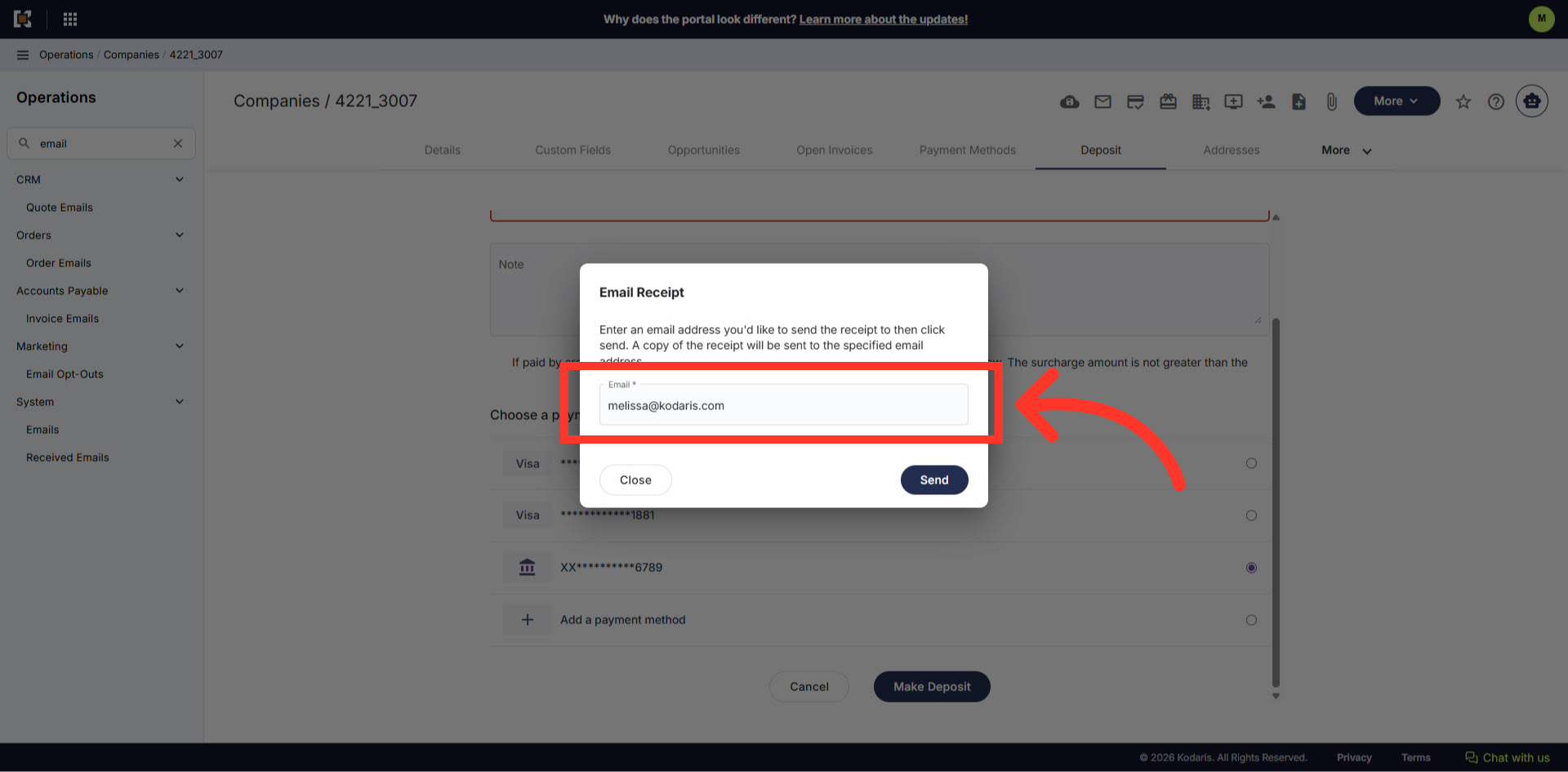
Enter an email address.
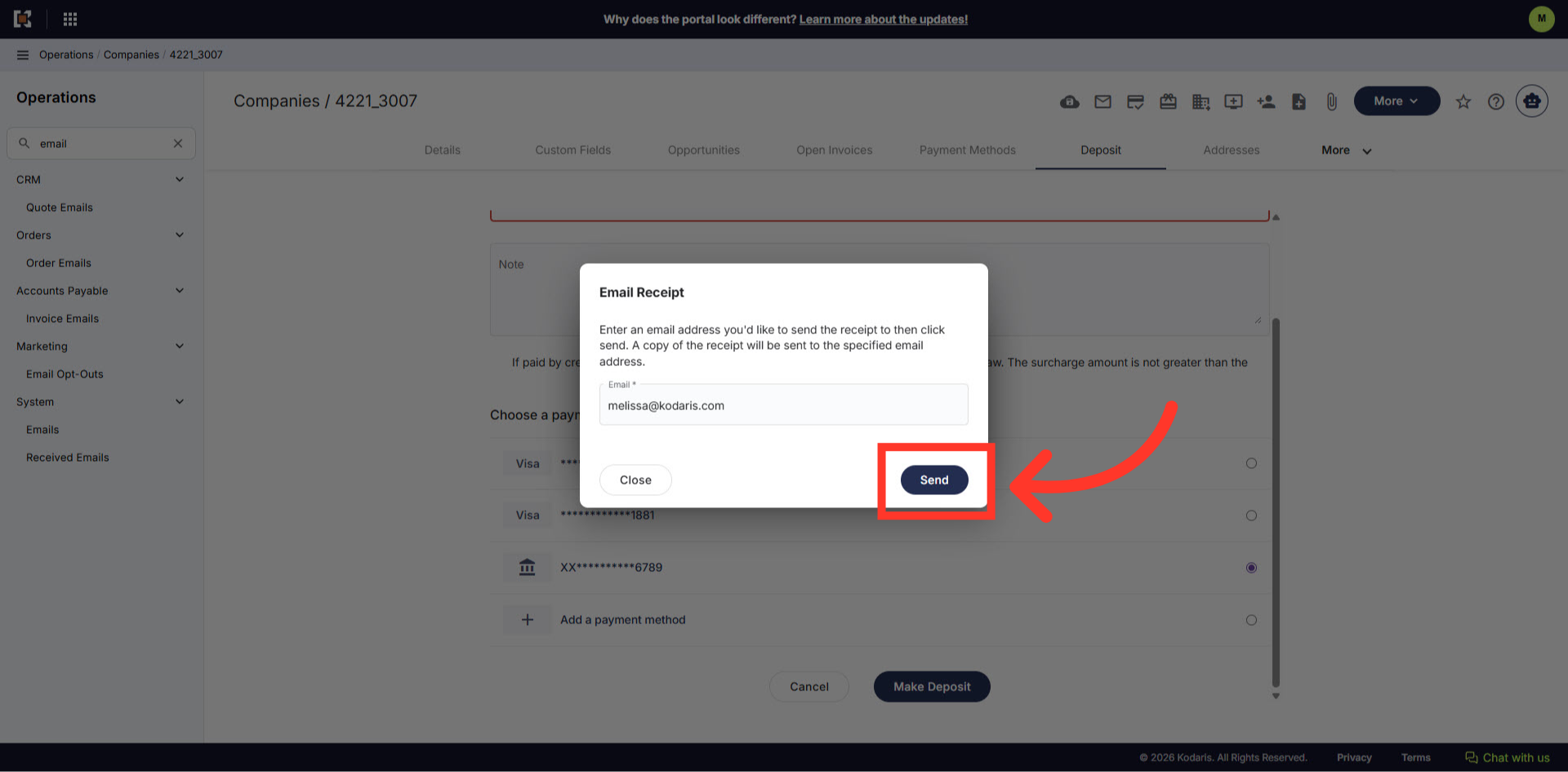
Click on the "Send" button.
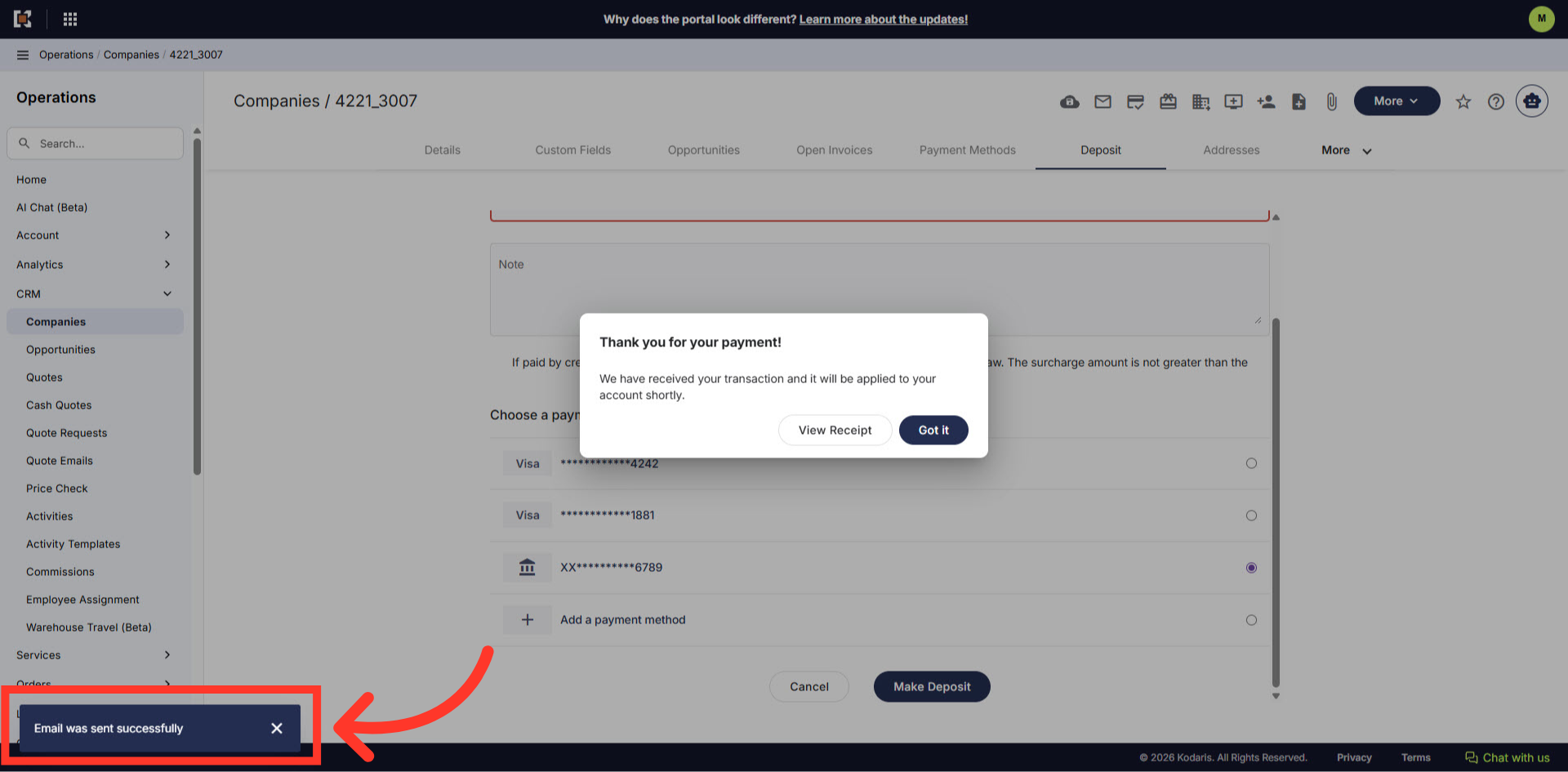
An email notification will appear at the bottom of the screen.
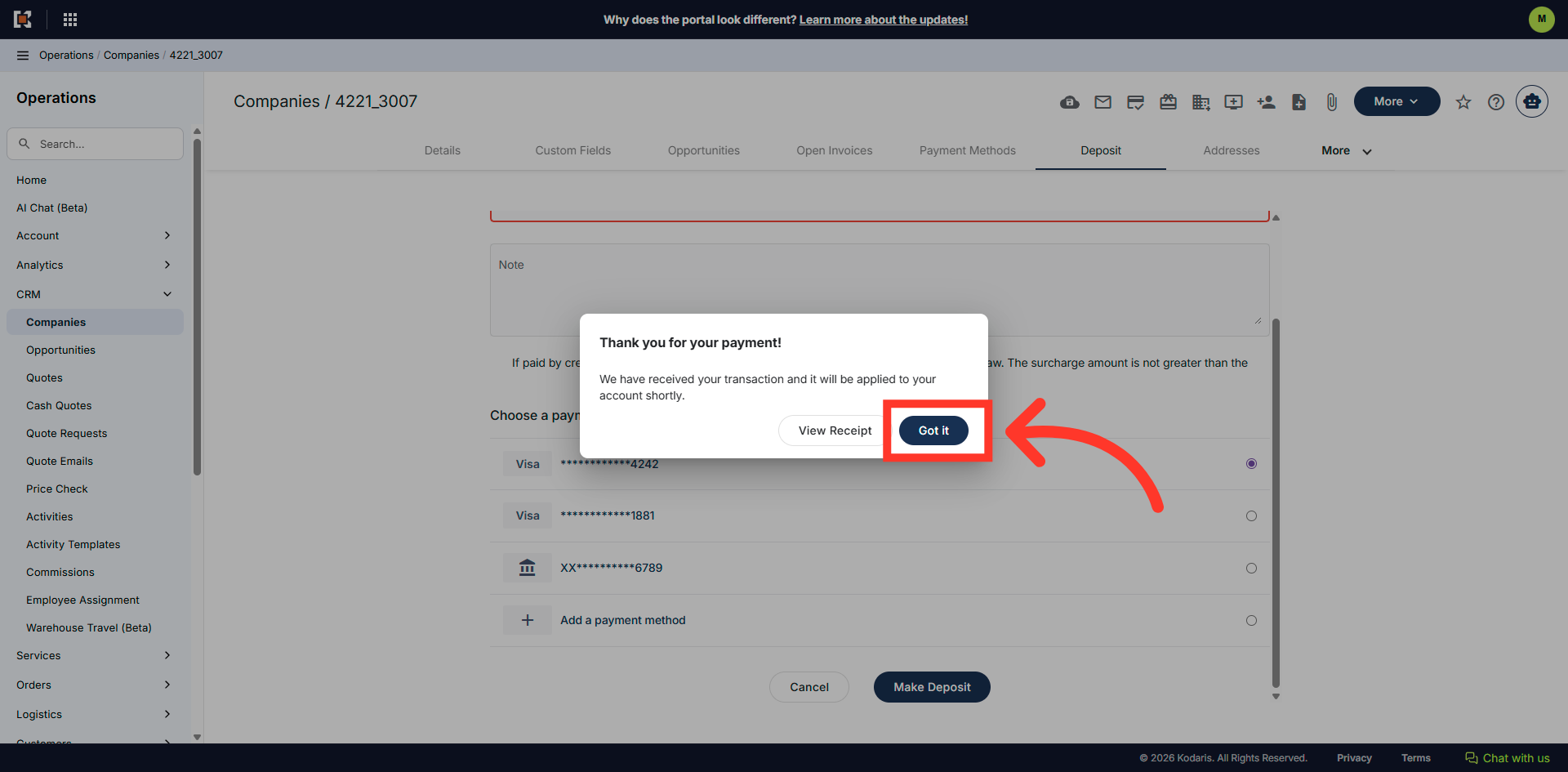
Click "Got it" to close any final prompts.
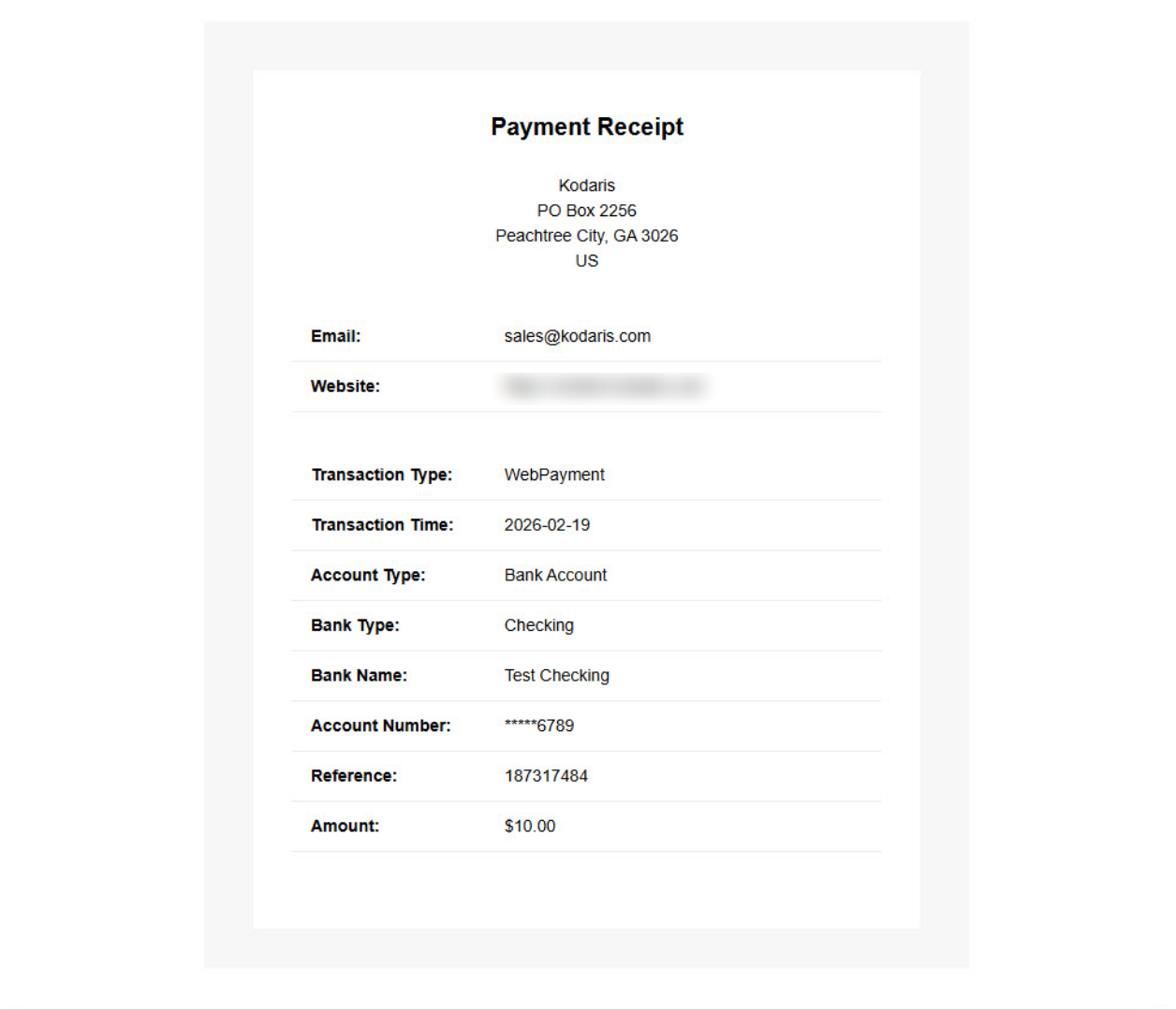
Here is an example of an emailed receipt.