Product Documentation
Product Documentation
Product Documentation
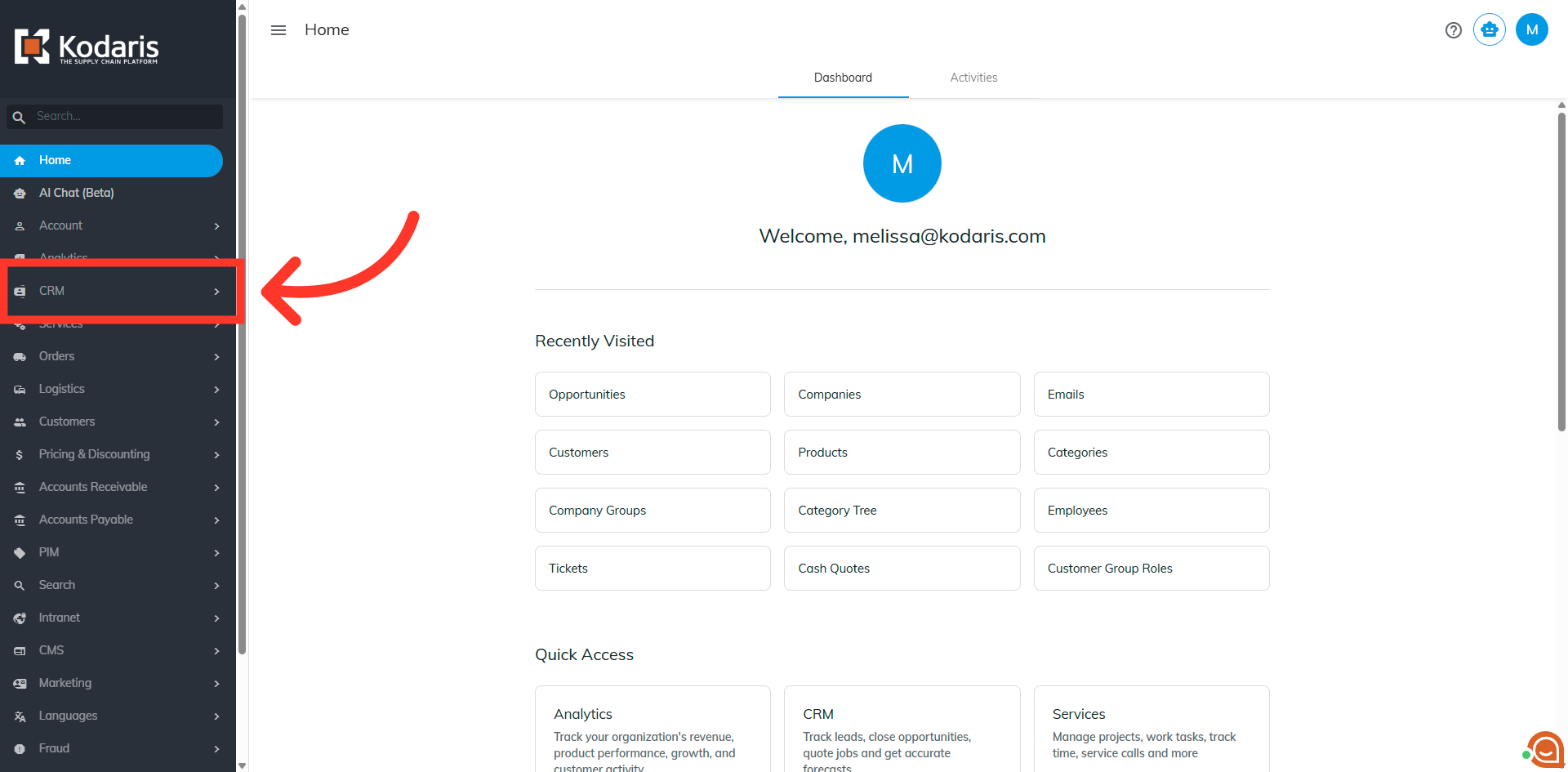
The "Sales Opportunity $" field allows users to enter and track sales opportunity values. To view and edit this field, navigate to the "CRM" section in the Operations Portal.
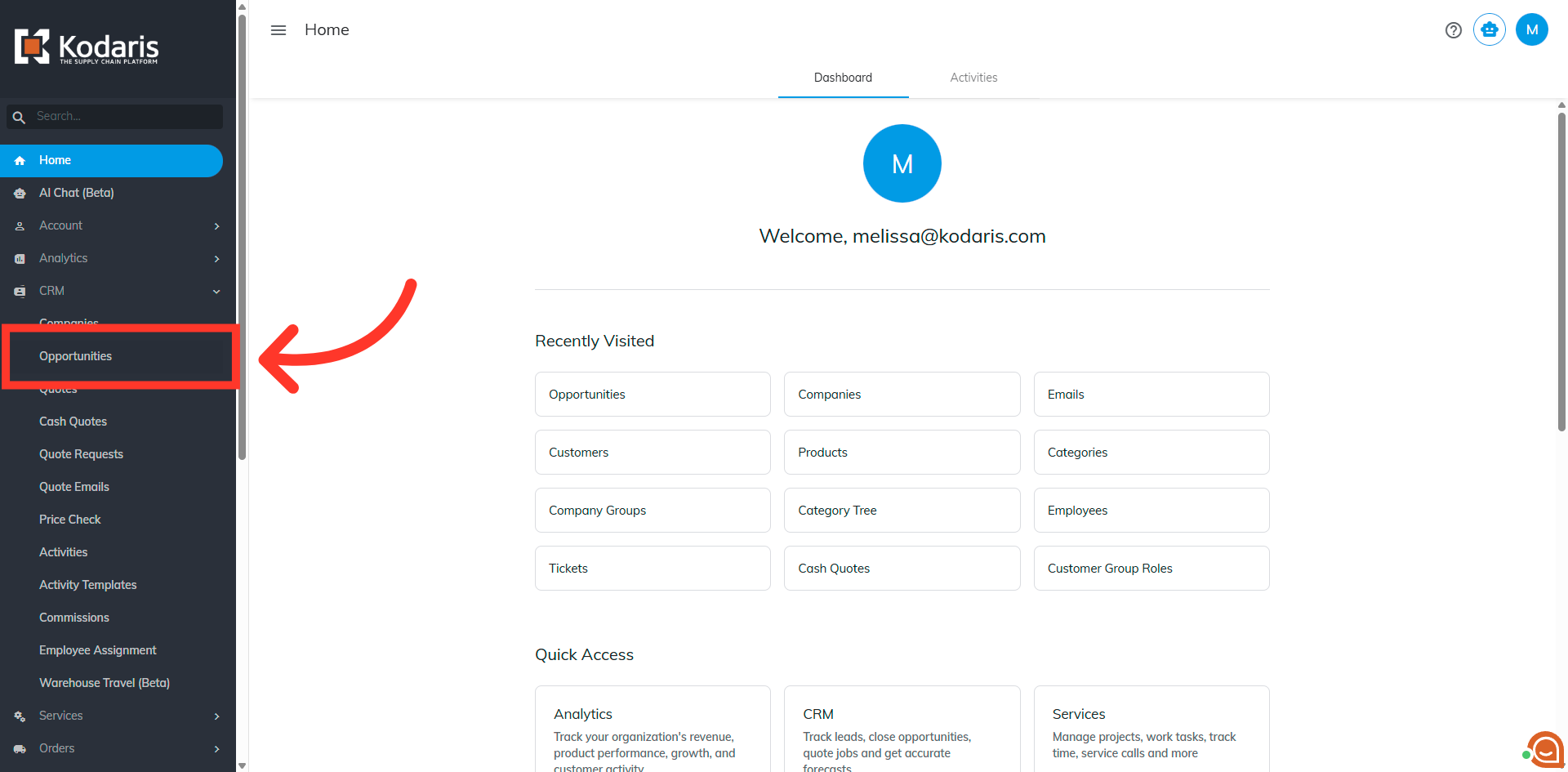
Then, click "Opportunities". In order to access the "Opportunities" screen, you will need to be set up either as an "administrator" or a "superuser", or have the role: "dashboardSearch". To view and edit, the role "leadEdit" is needed.
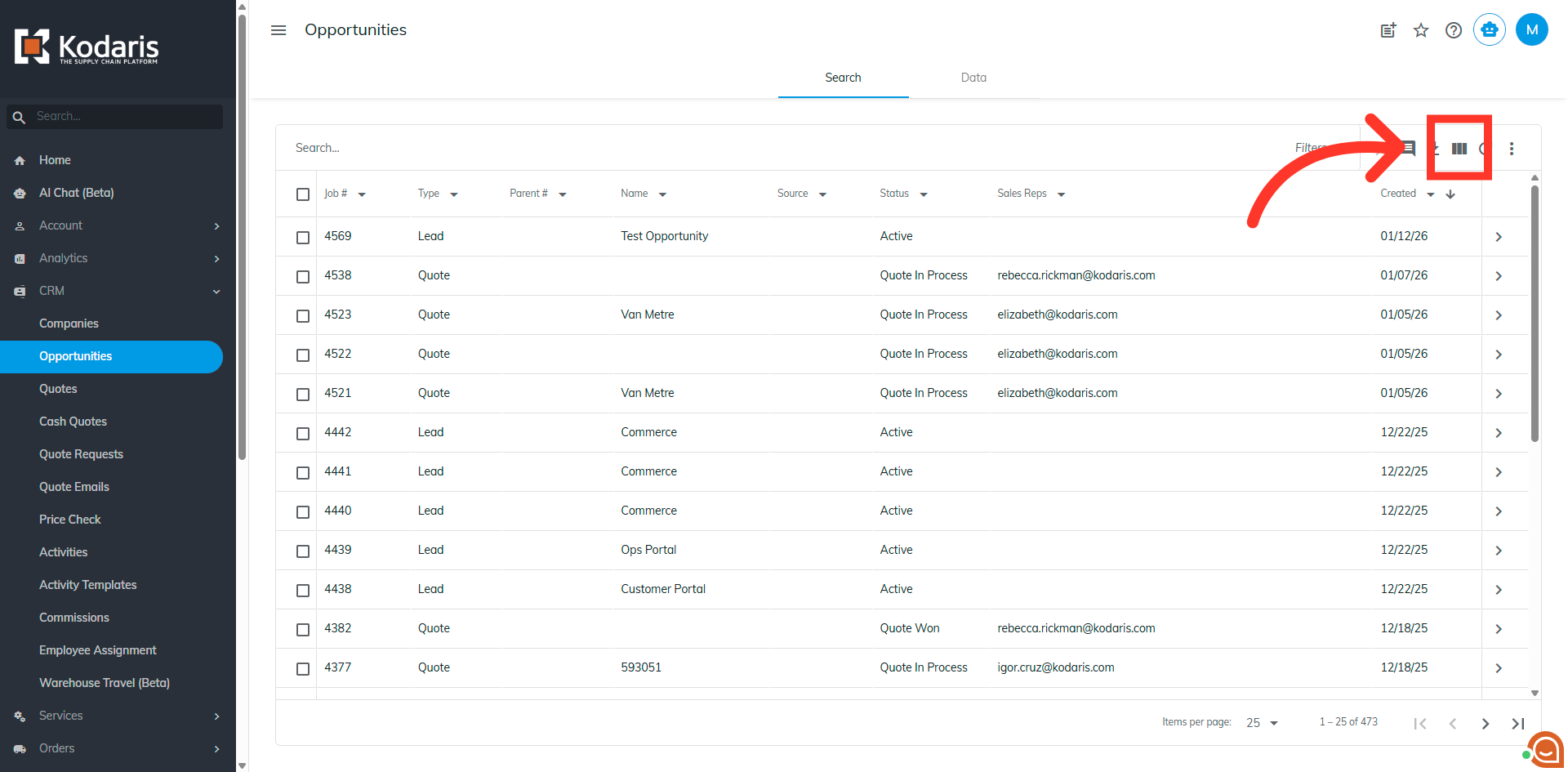
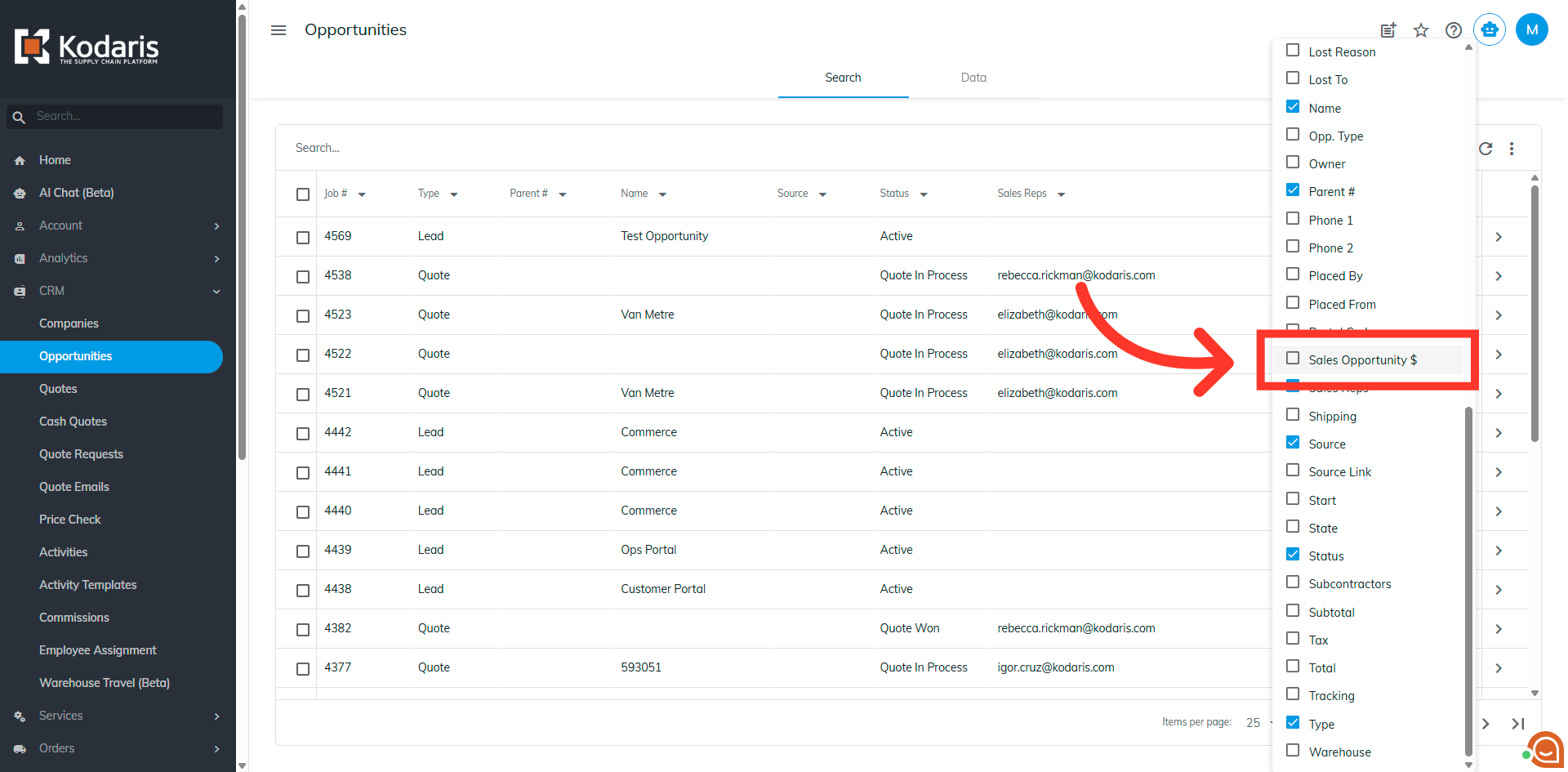
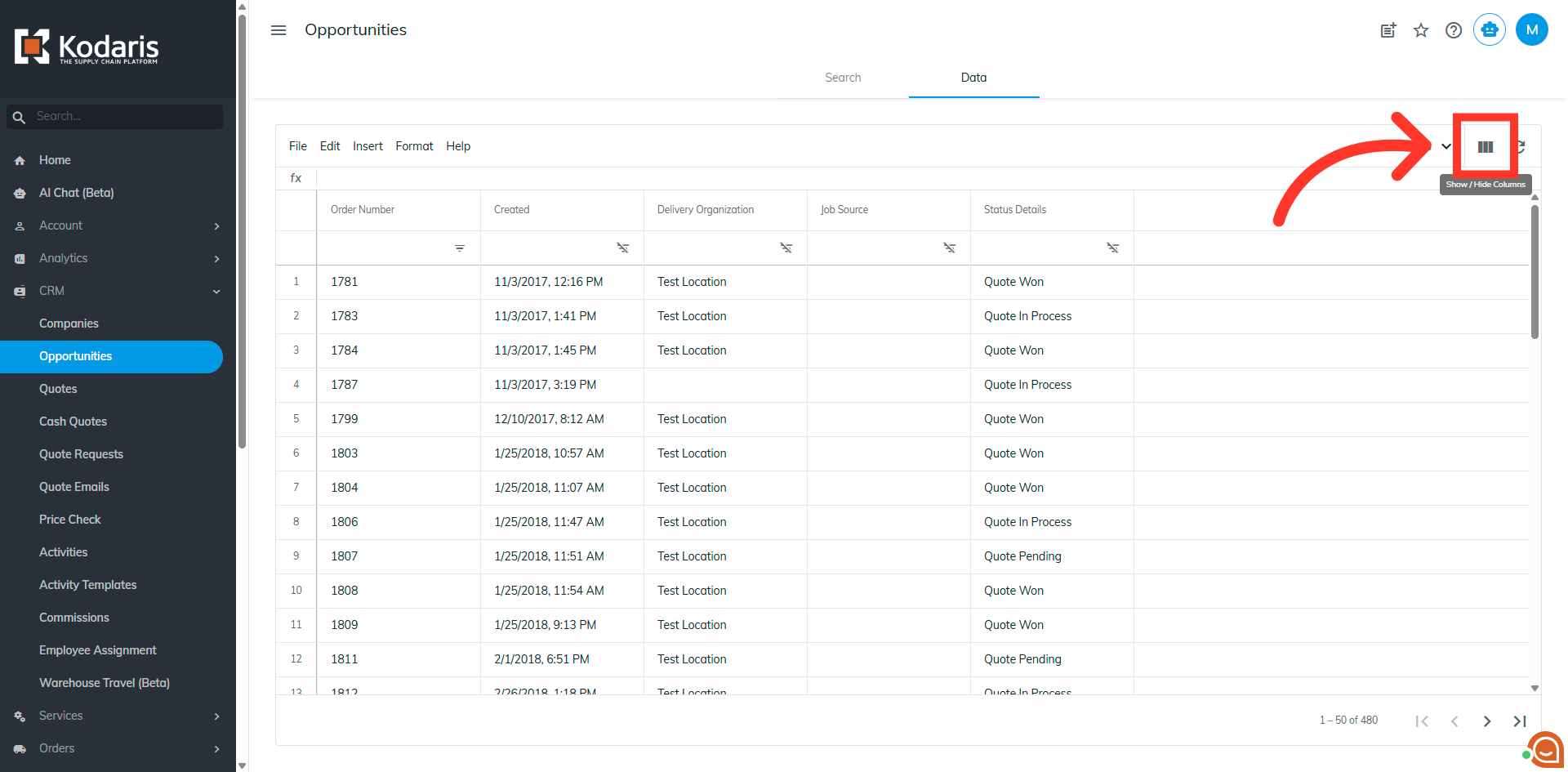
The column is hidden in the grid by default. Click "Show/Hide Columns" icon.
Select the checkbox for "Sales Opportunity $" so it will display on your screen.
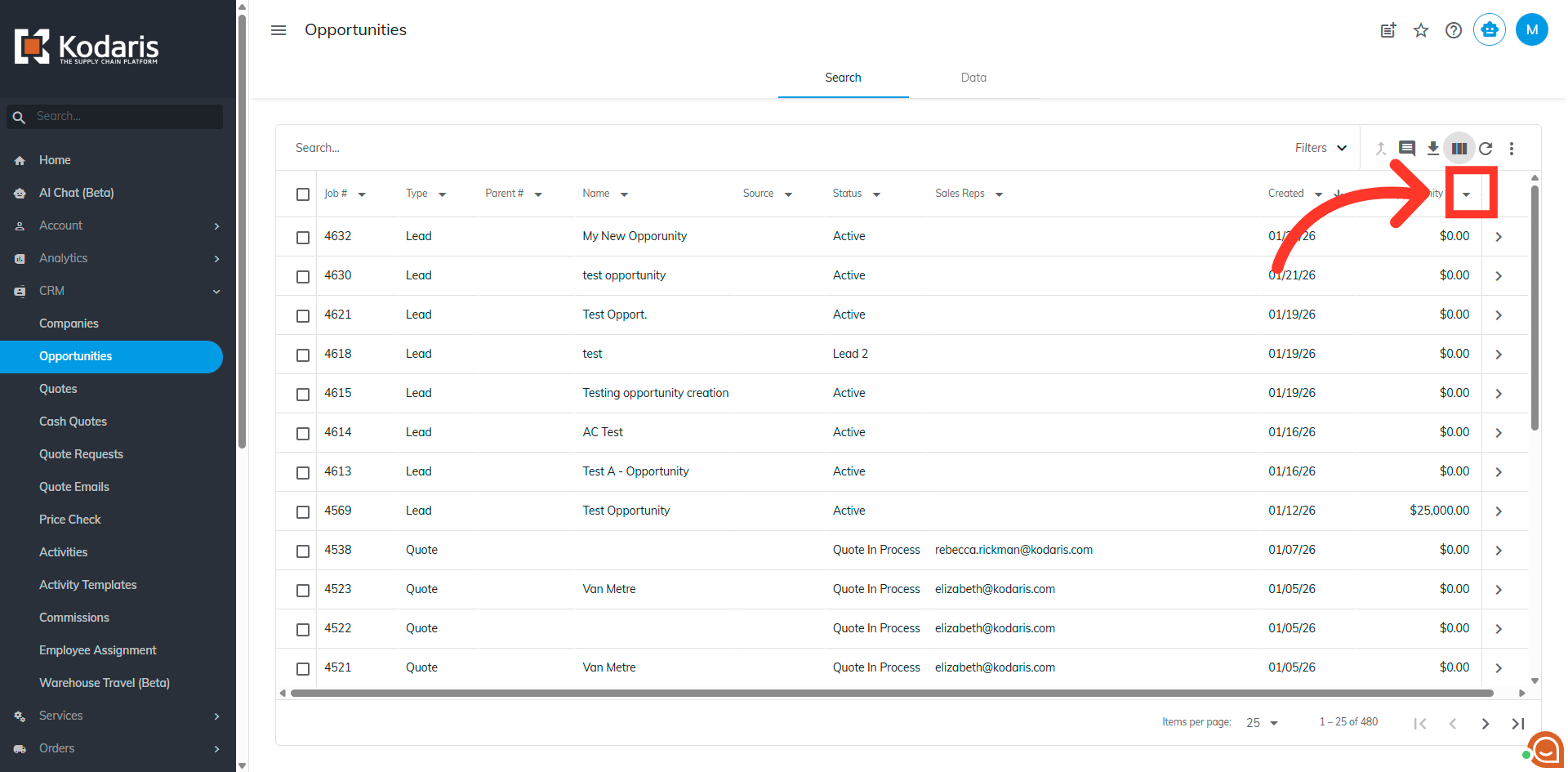
Once the column has been added, you can filter the data. Click on the column filter dropdown.
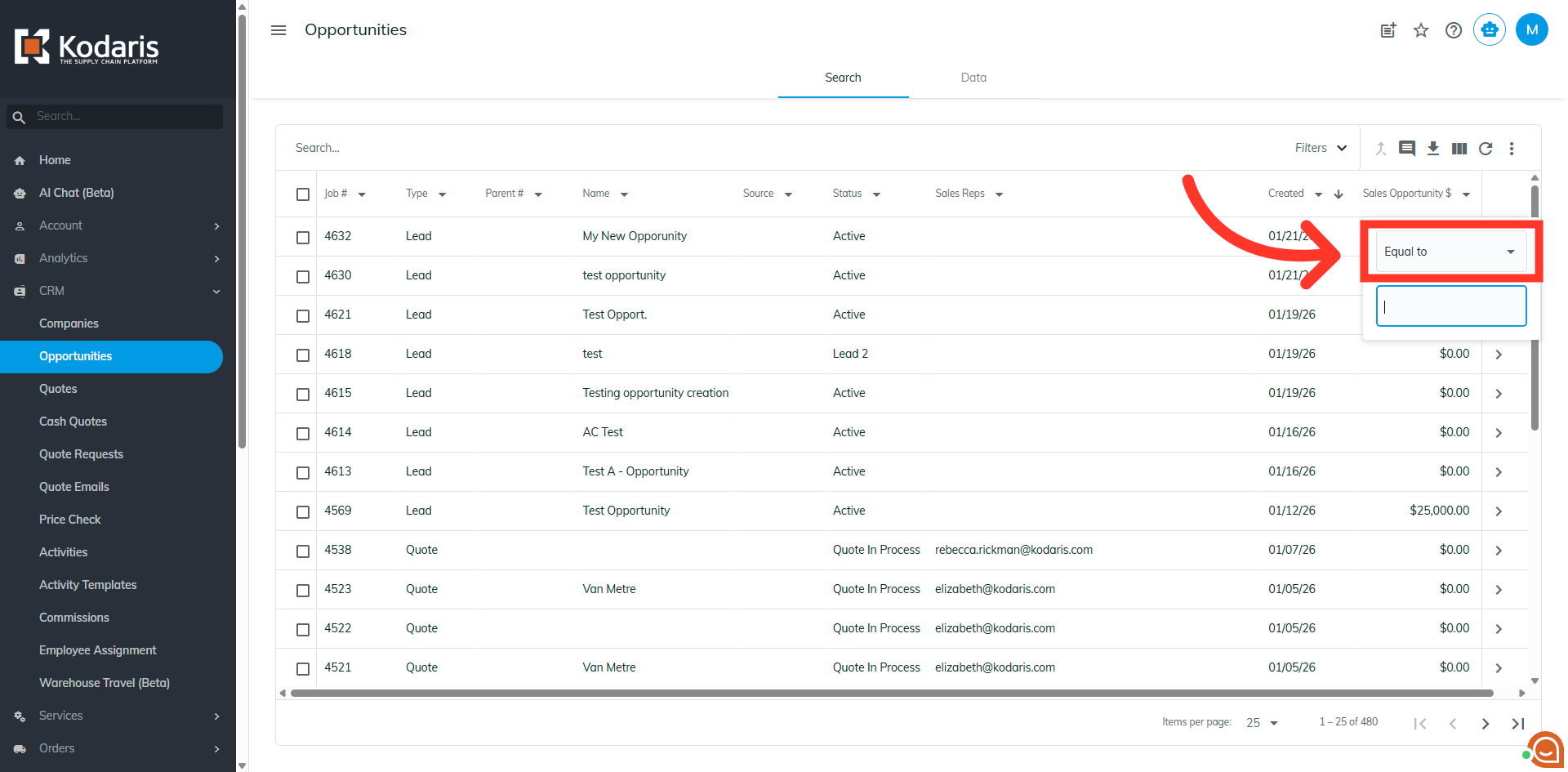
Choose "Equal to" if you know the exact value. Otherwise, select a filter operator that applies.
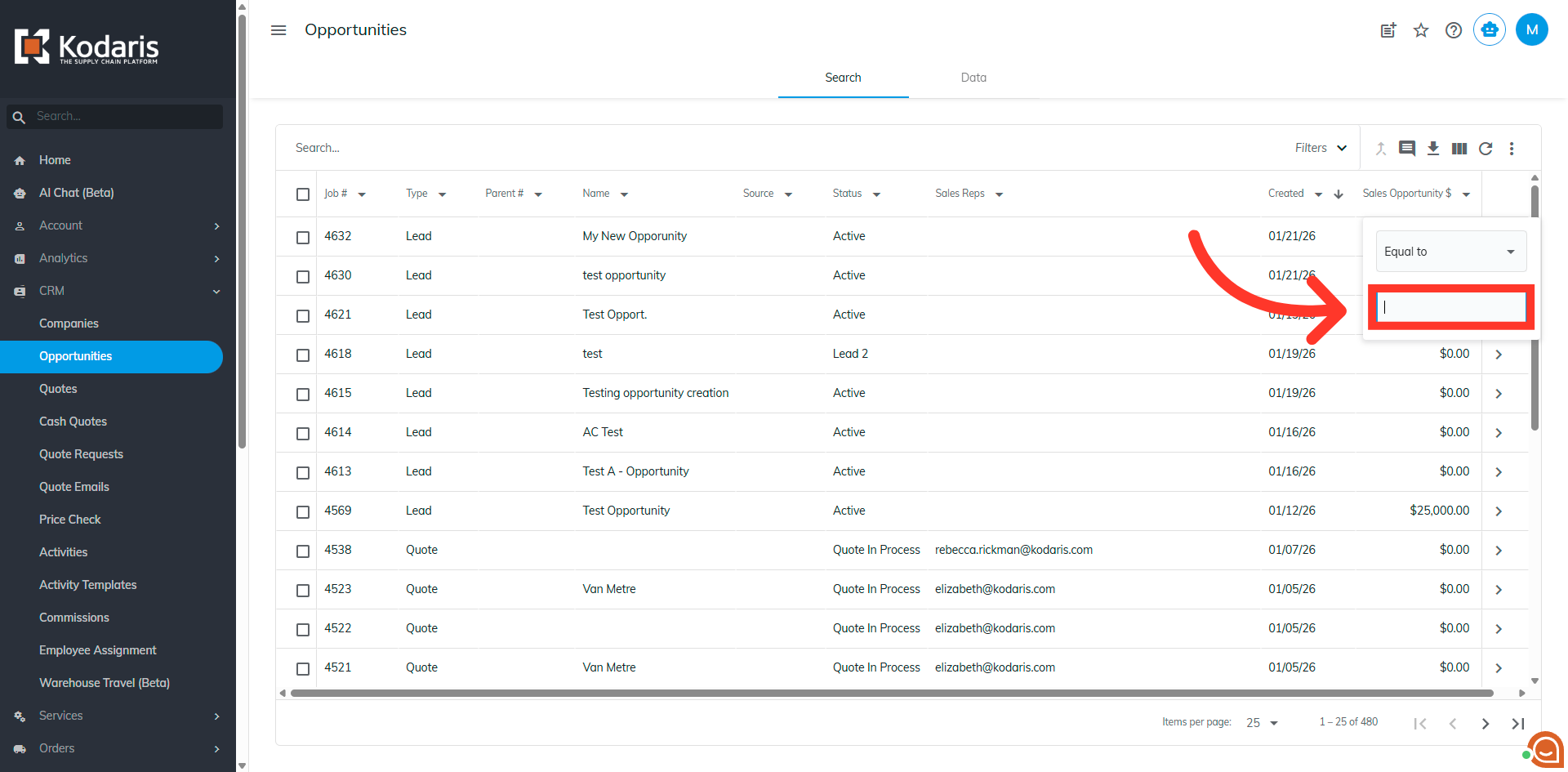
Enter a value to filter by. Then, press the "Enter" key.
Filtered results will appear in the grid.
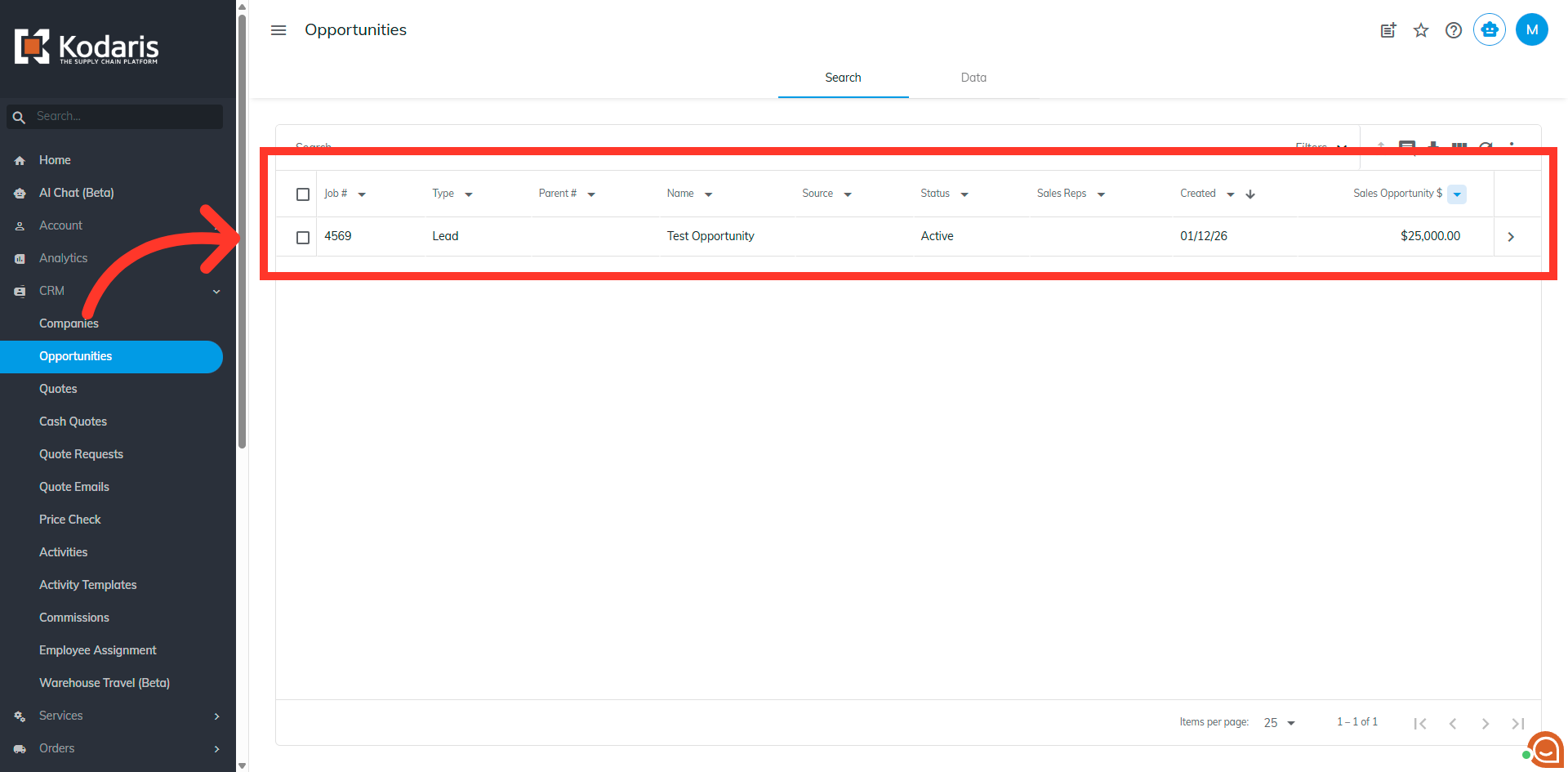
To edit the opportunity's "Sale Opportunity" amount, click on the more details icon.
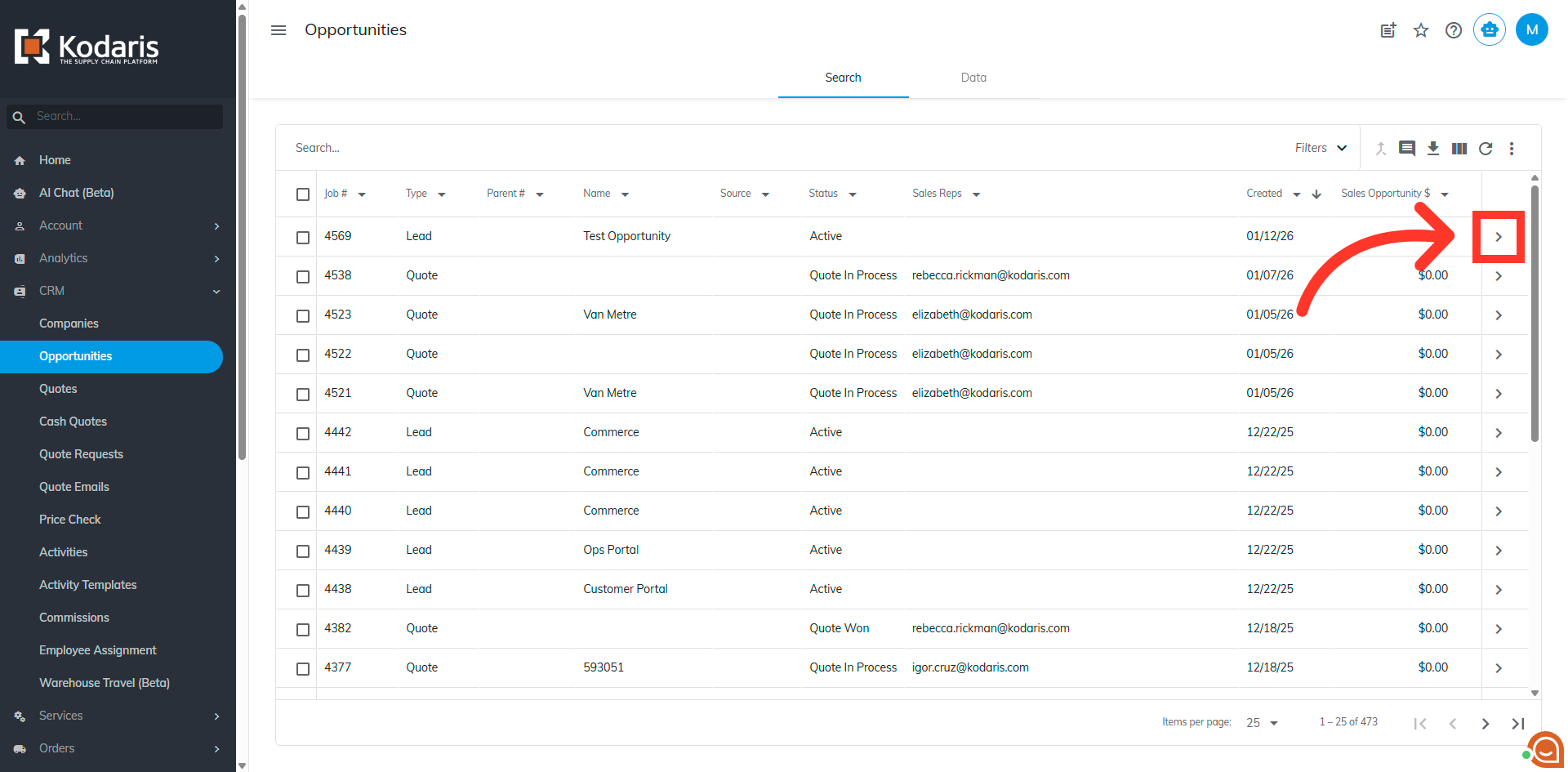
Then, scroll down and look for the "Sales Opportunity $" field. Click and enter the preferred value to update.
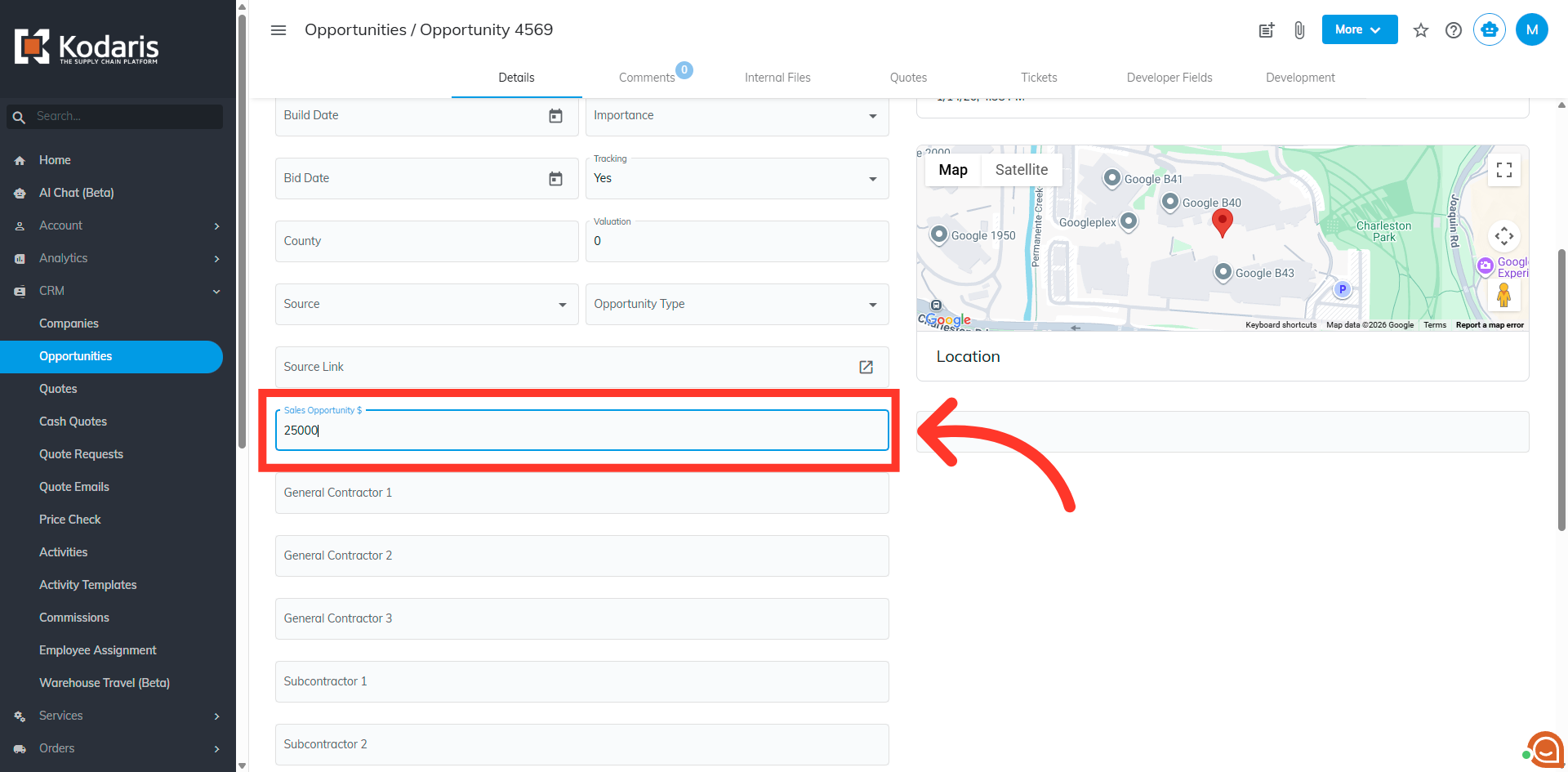
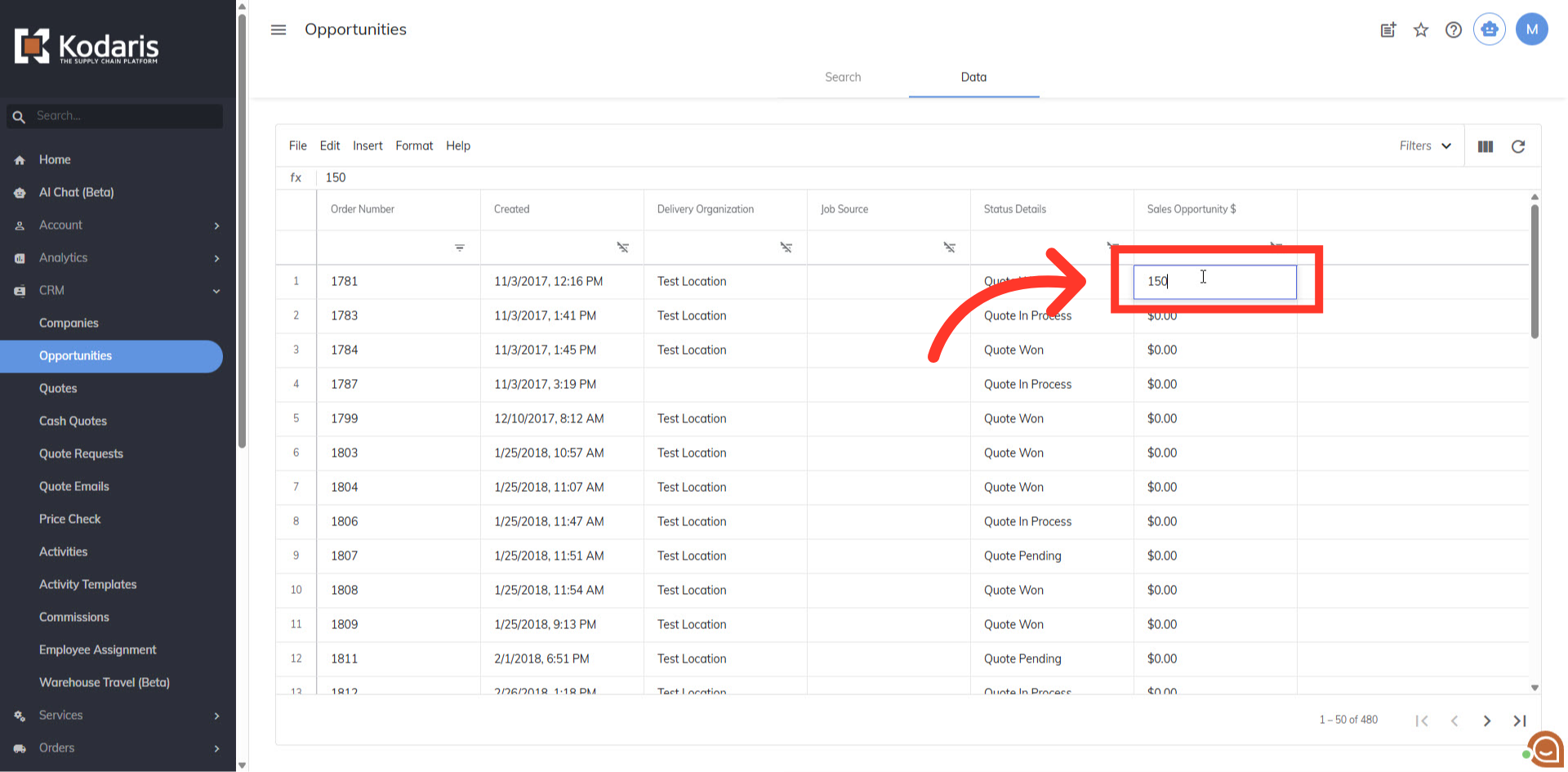
Another way to update this field is by going to the "Data" tab.
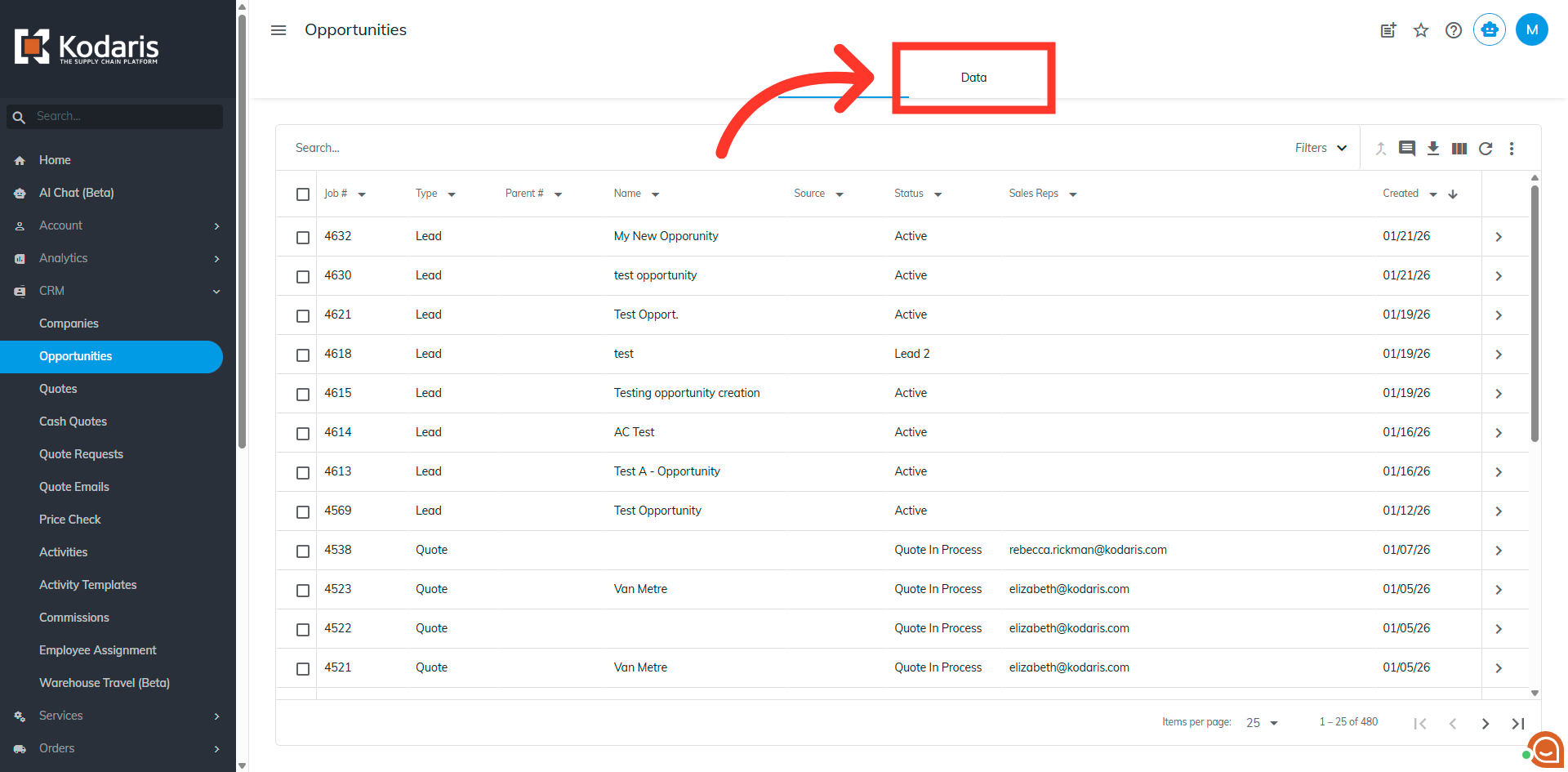
Add the column to your screen by clicking the "Show/Hide Columns" icon and select the column.
Now that the column is displayed in the grid, double click into the opportunity cell to edit the value. Click an part of the screen or press the "Enter" key to save the update.