Product Documentation
Product Documentation
Product Documentation
To create a Punchout Customer, navigate to the "CRM" section in the Operations Portal.
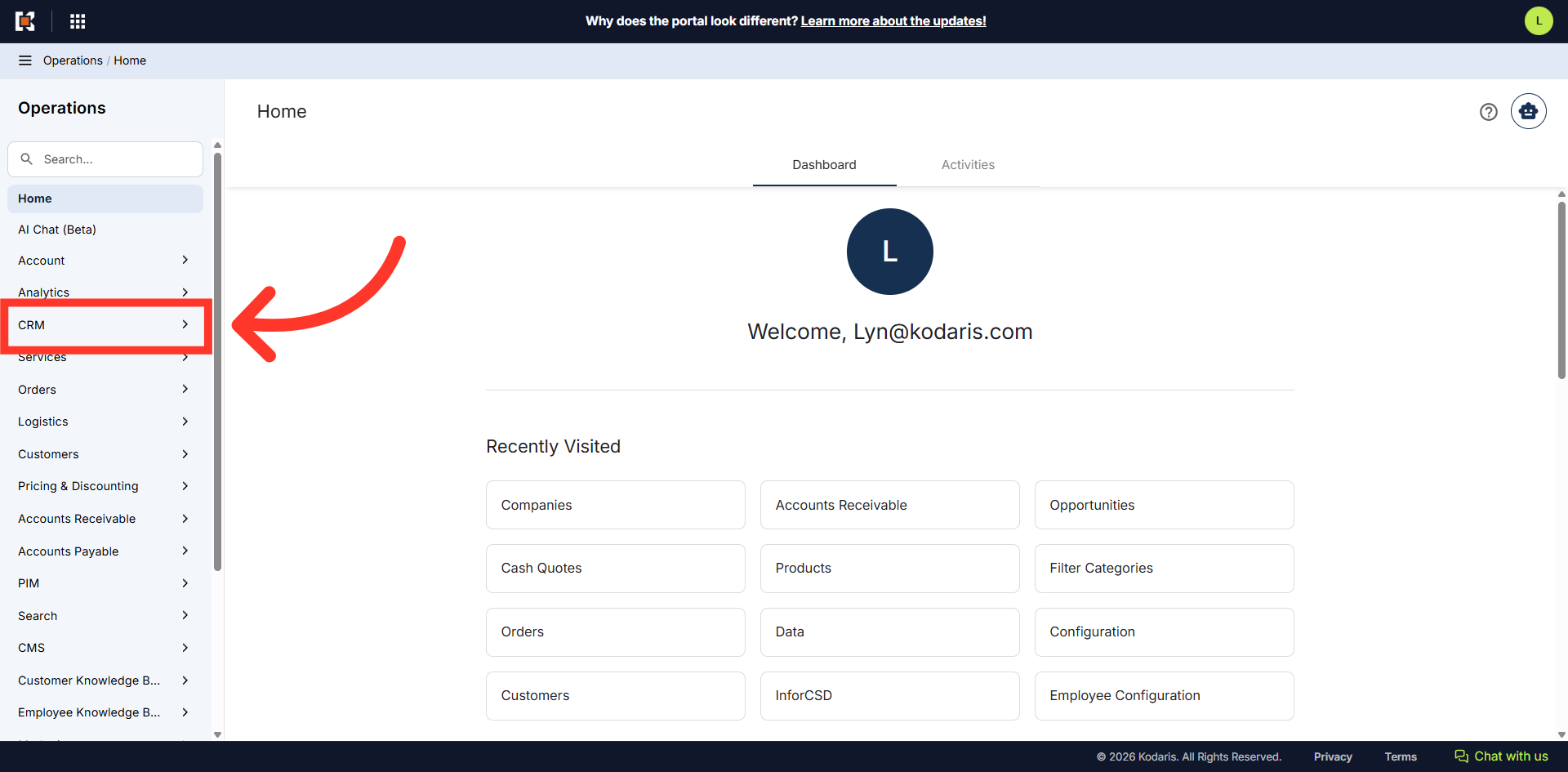
Then, click "Companies. In order to access "Companies", you will need to be set up either as an "administrator" or a "superuser", or have the appropriate roles: "companyEdit", or "crmCompanyEdit". Just a reminder, "crmCompanyEdit" access only allows employees to access companies that are assigned to them.

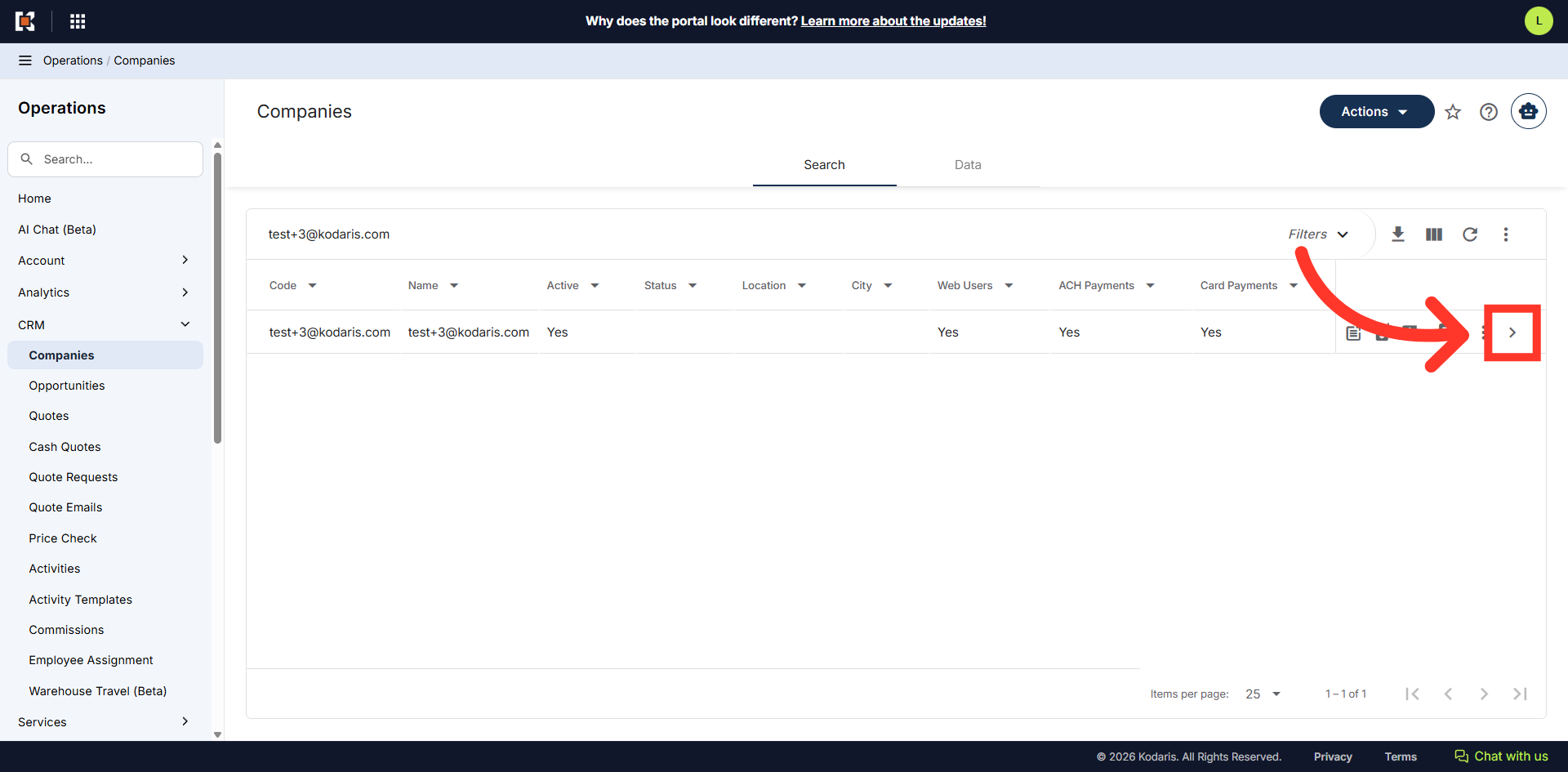
Search for the company that will be the parent to the Punchout Customer. Companies matching your keywords will appear as you type.

Click on the more details icon.
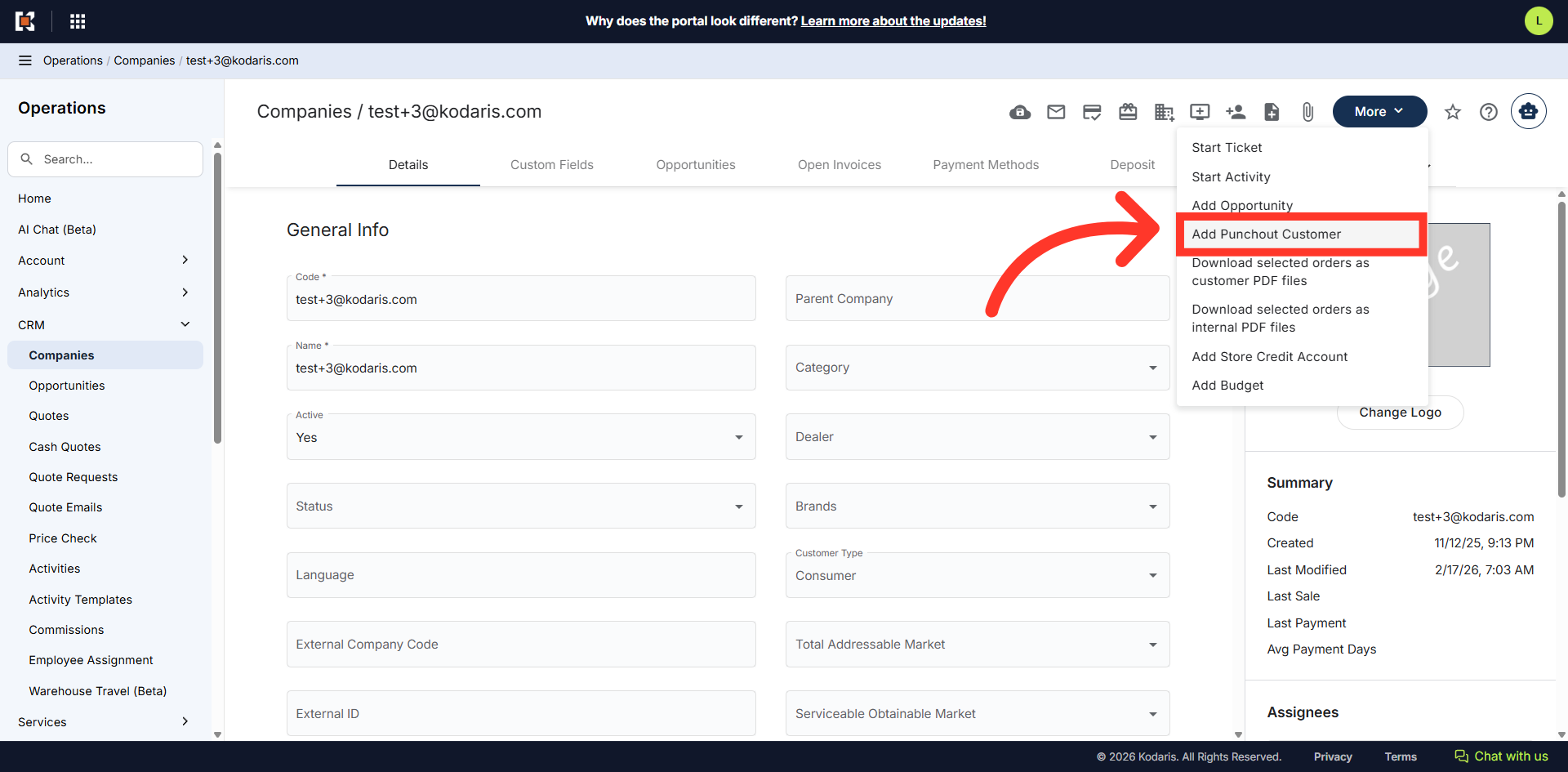
Then, click "More".

Click "Add Punchout Customer" to start adding a new Punchout Customer. In order to add a Punchout Customer, you will need to be set up either as an "administrator" or a "superuser."
Enter the Punchout Customer username or email. You can use something to help identify the customer, such as the customer code. Example: punchout-114729@yourdomain.com.
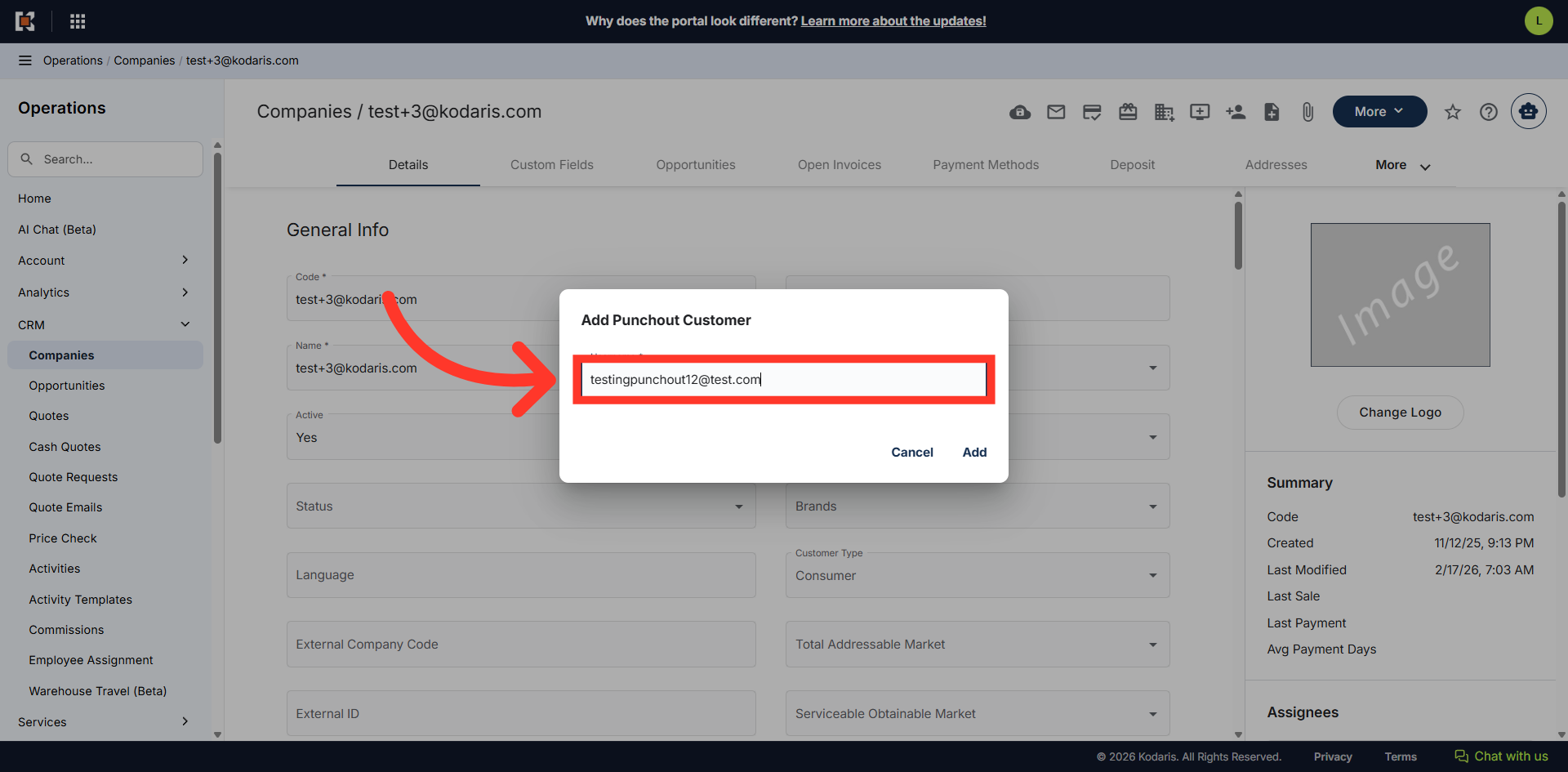
Then, click "Add" to save.

Once added, you will be redirected to the new customer "Details" screen. Click on the "Roles" tab.
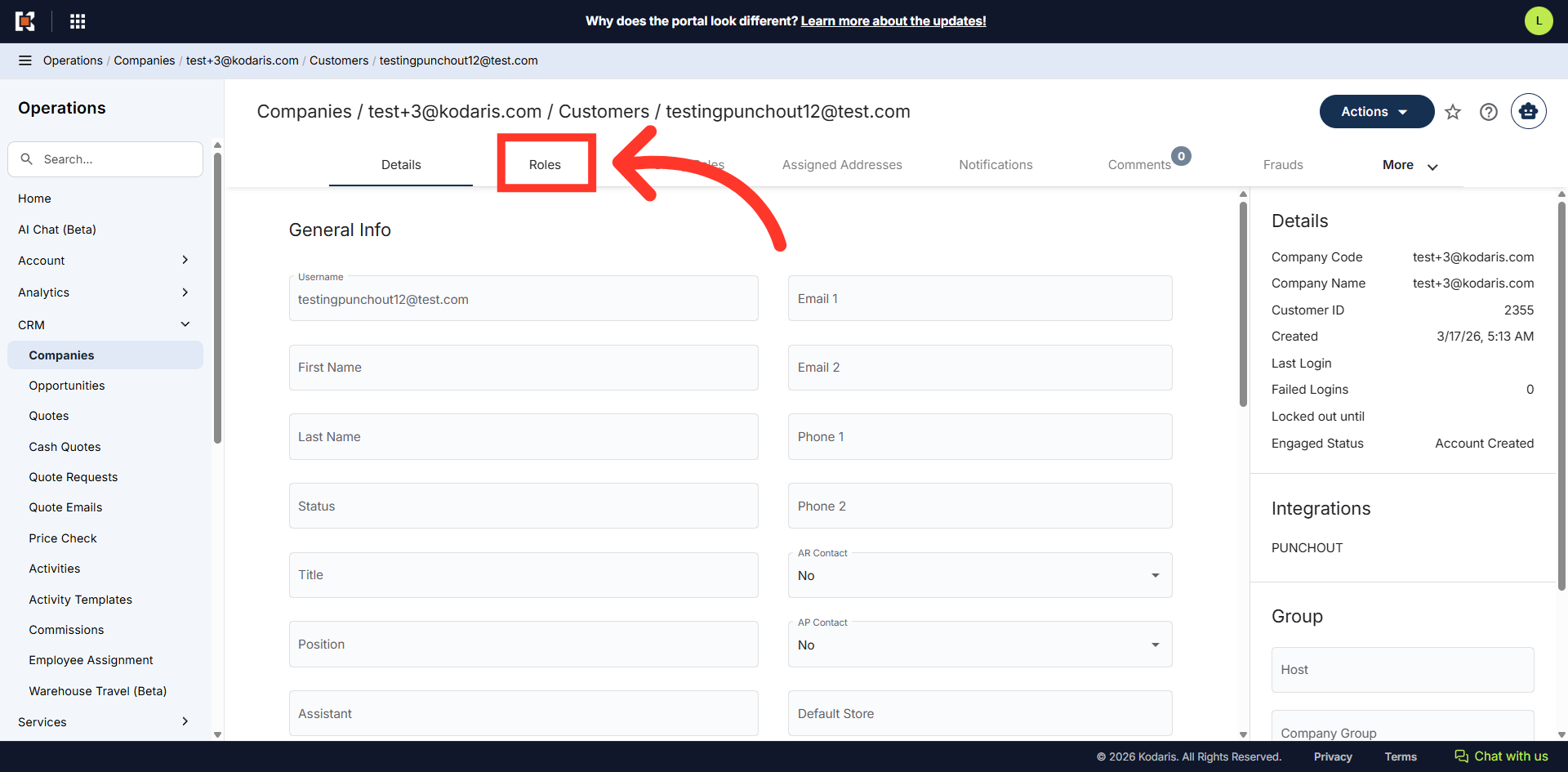
On the "+ Assign role" field, enter and select the "companyAdmin" role or other roles you would like the customer to have.

Then, click on the "More" tab.
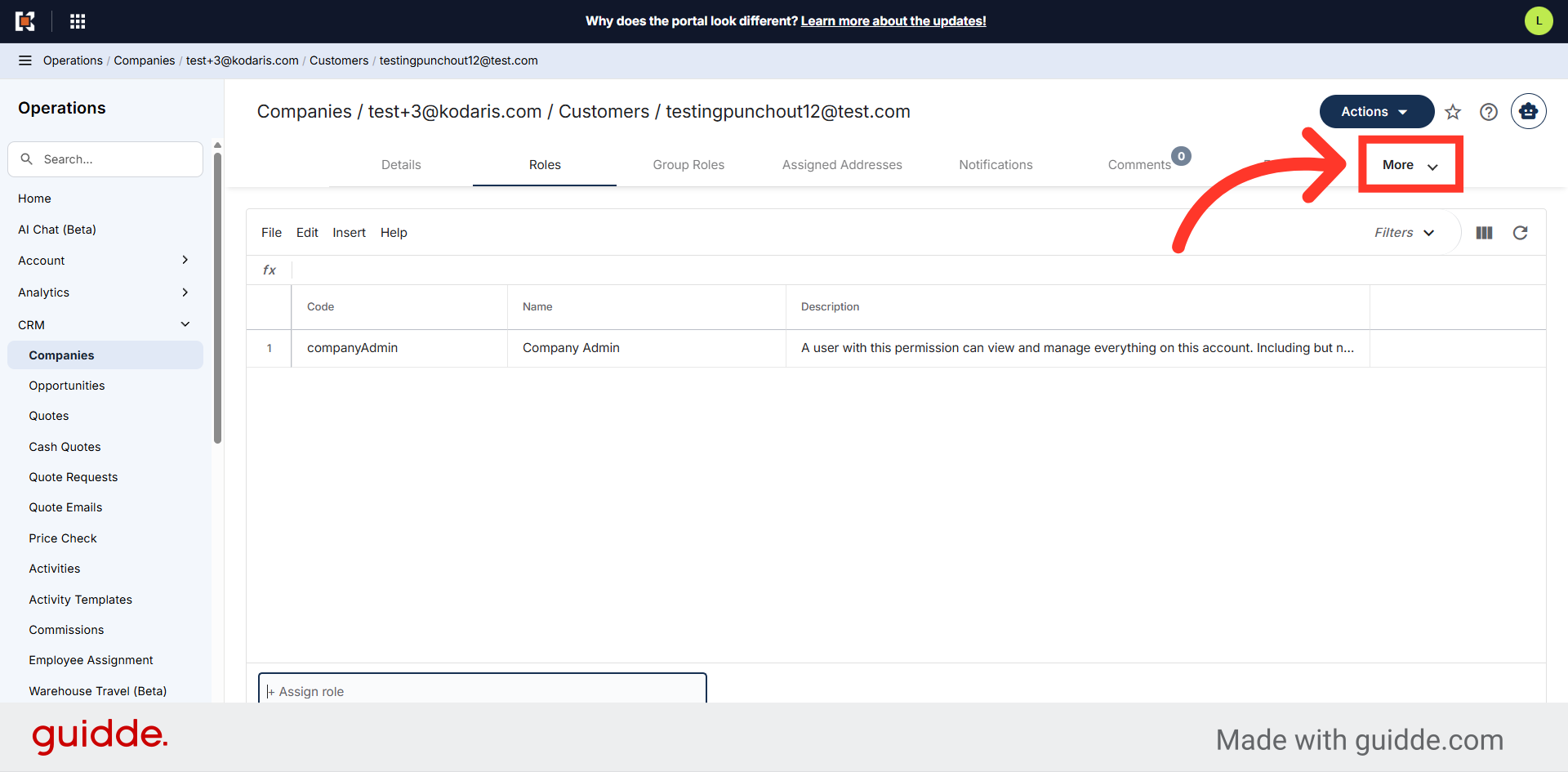
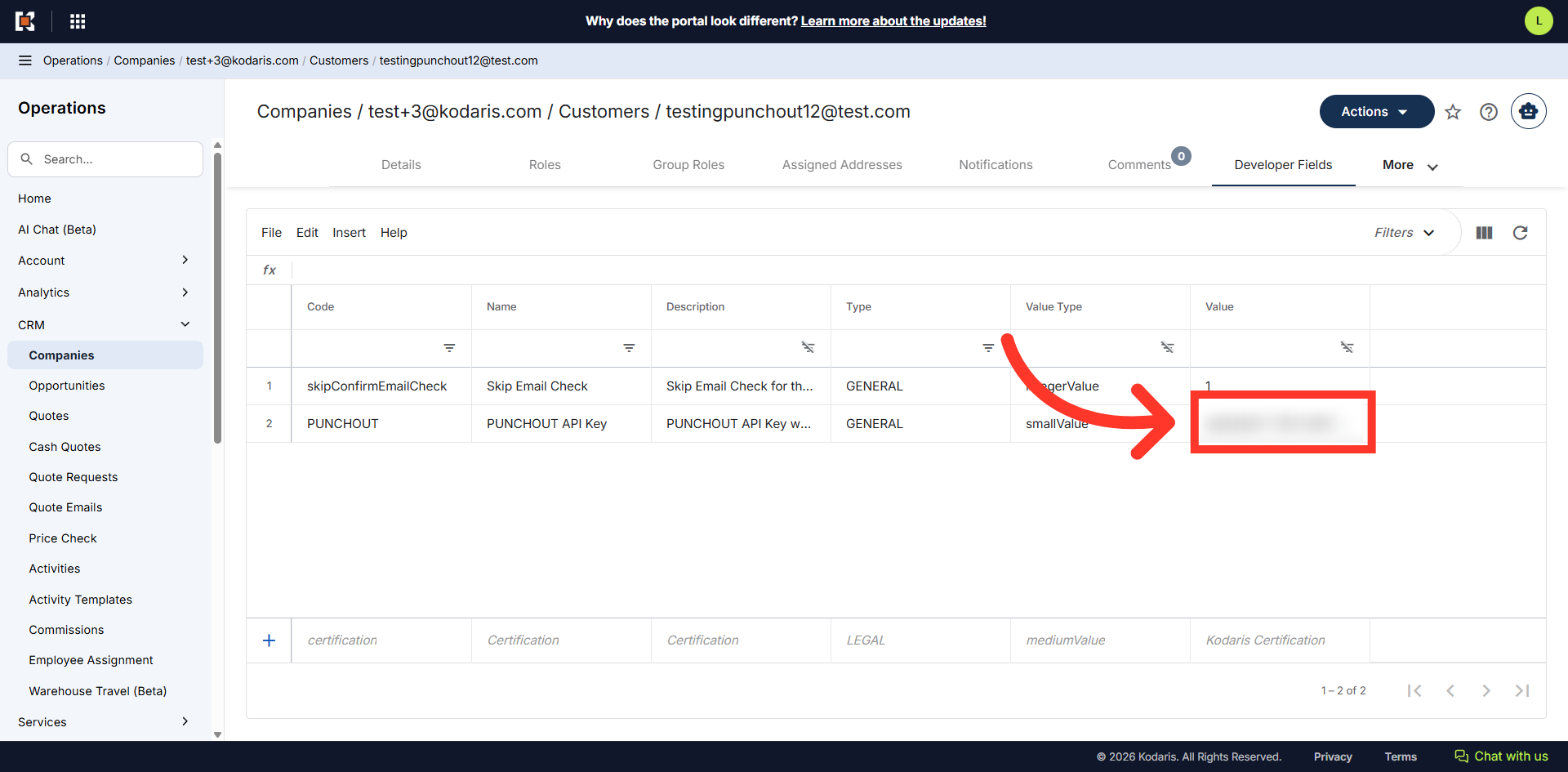
Select the "Developer Fields" tab to view your customer settings.
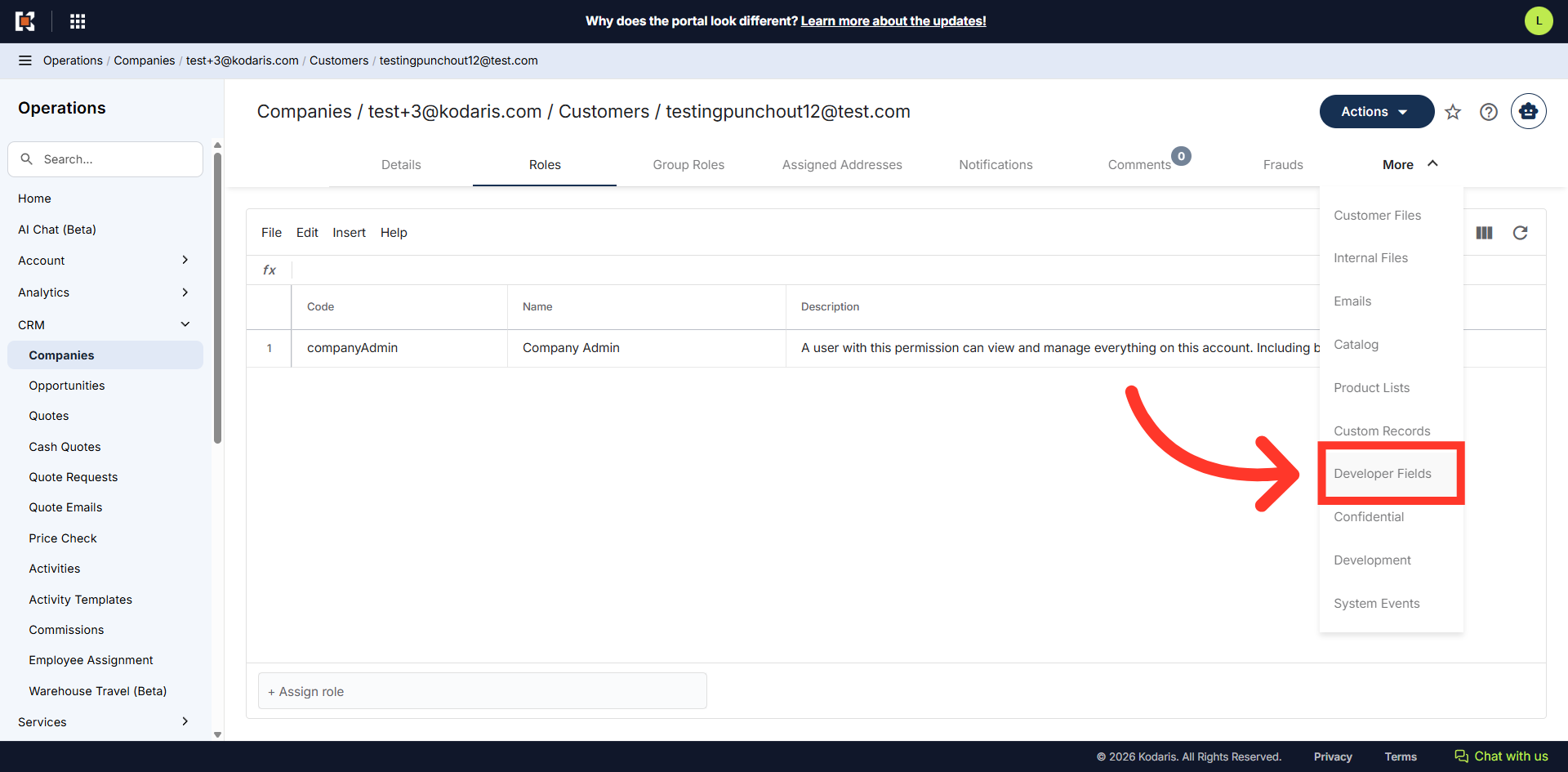
Under the "Value" field of "PUNCHOUT API Key" setting is the "Key" that will be used to connect to the site.
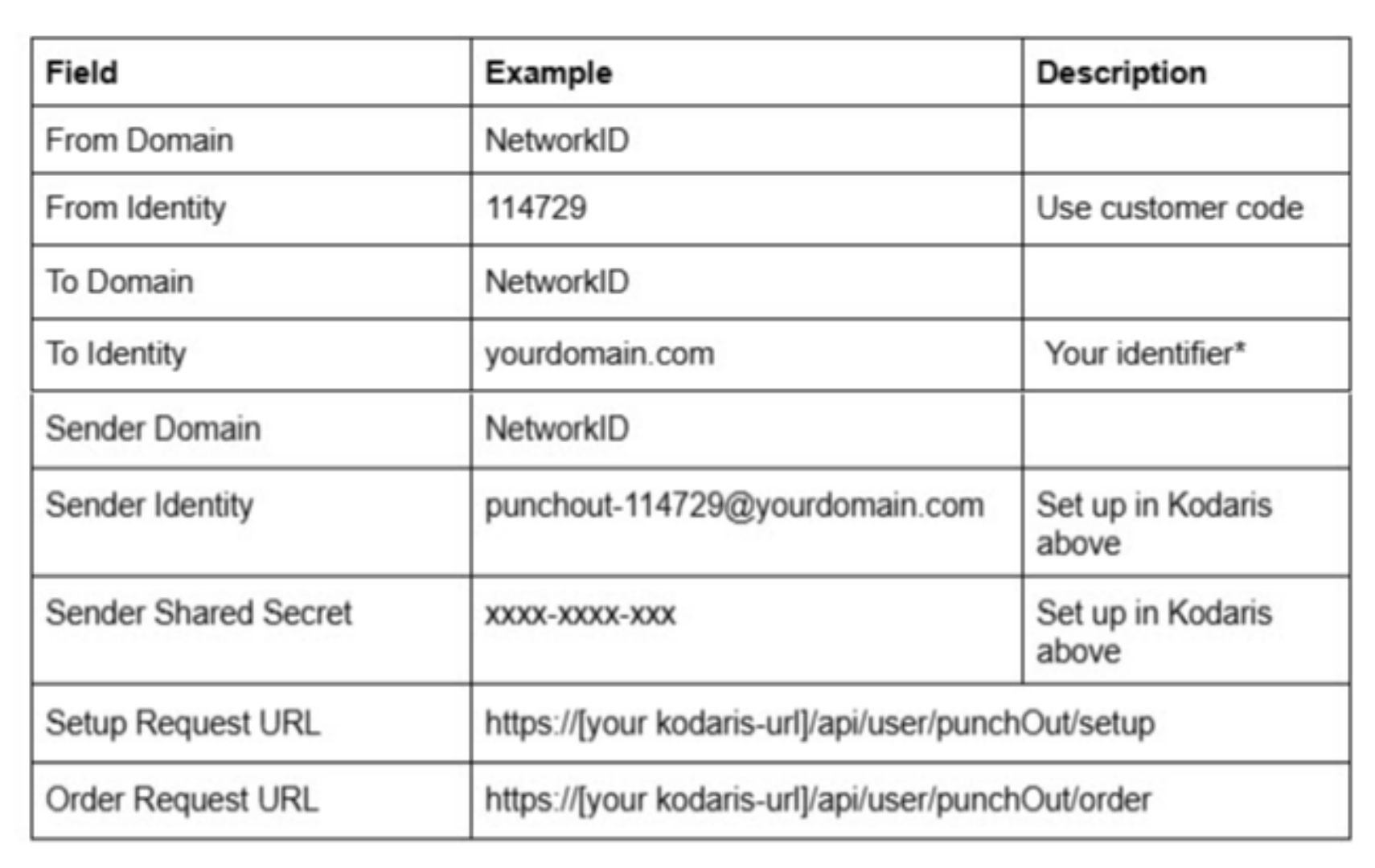
Your customer’s procurement system may ask you for the following information which is included in cXML messages between our systems. In some cases you may know these, and in some cases you may not. We do not validate these values other than the Sender identity and secret key. They will likely ask you for the From, To, and Sender Domain and Identity. In case you know them, the table shows the information using known identifiers.
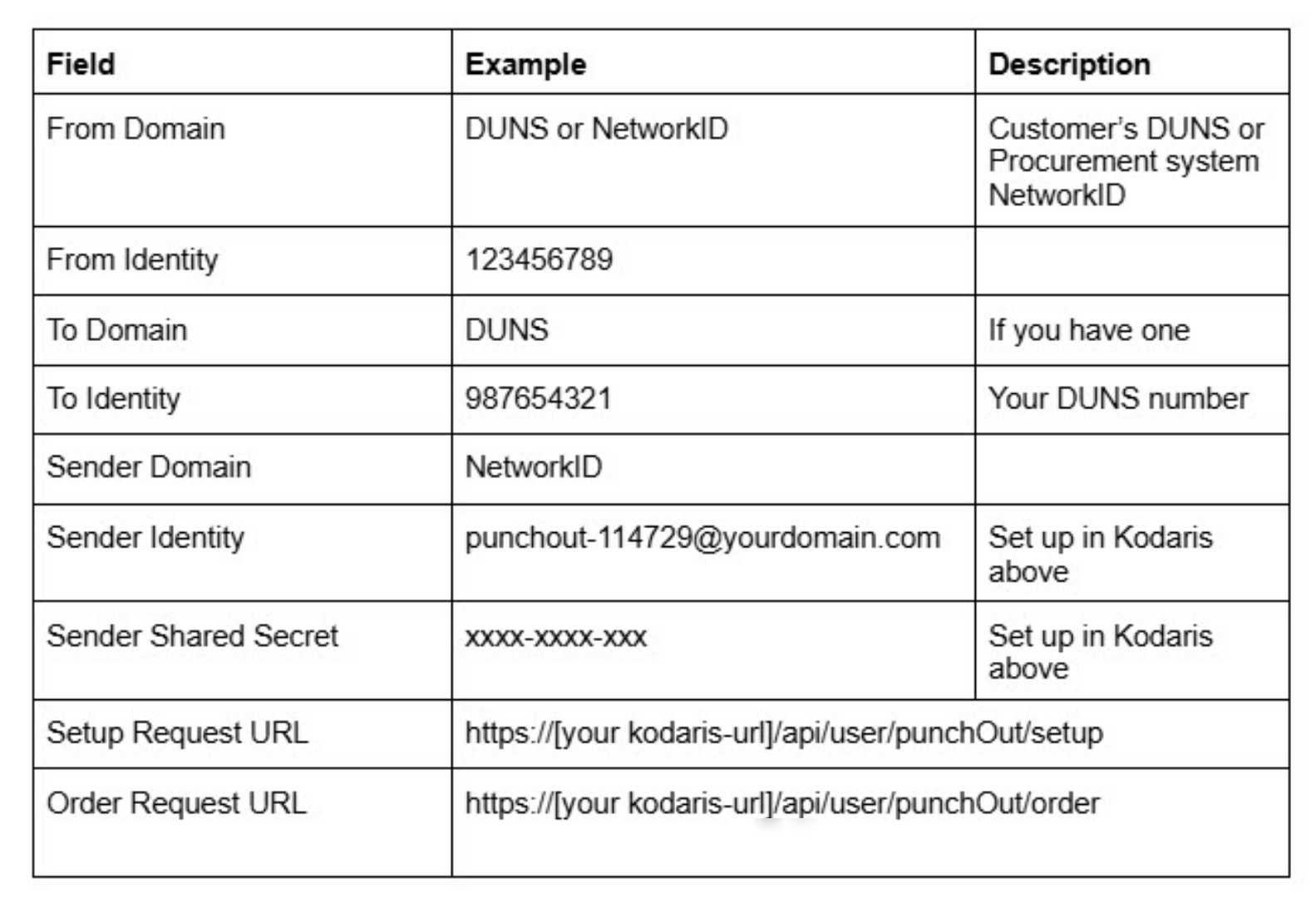
The following information in the table are recommended if the identifiers are unknown. The "identifier" in the "To Identity" field is a unique identifier for your company if you do not have a DUNS. You can use your name or a code for your company, but you must avoid spaces and special characters other than hyphens, underscores, and periods.