 Product Documentation
Product Documentation
Product Documentation
To receive general web order placed notifications, you can configure a subscription. Multiple subscriptions can be created to receive the web order placed notifications. To configure, navigate to "Marketing" section in the operations portal.

Click "Subscriptions". In order to access and update subscriptions, you will need to be set up either as an “administrator” or a “superuser”, or have the following roles: "subscriptionView" and "subscriptionEdit".

We need the following columns to configure the web order notifications: "Subscription List Code", "Email", "Subscribed", and "Communication Type".

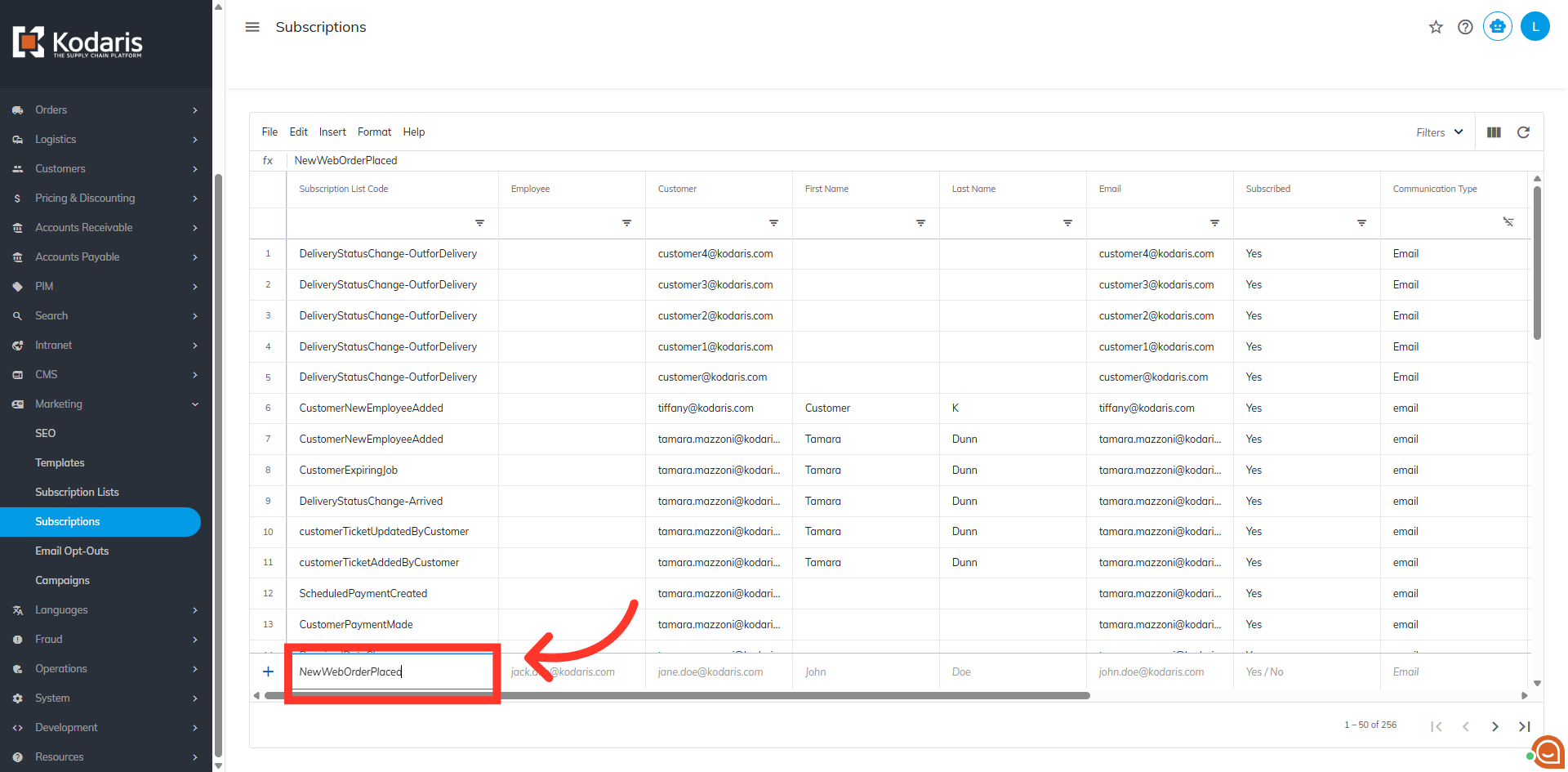
In the "Add a Row" section, under the "Subscription List Code" column, search for the "NewWebOrderPlaced" setting code and select from the dropdown.
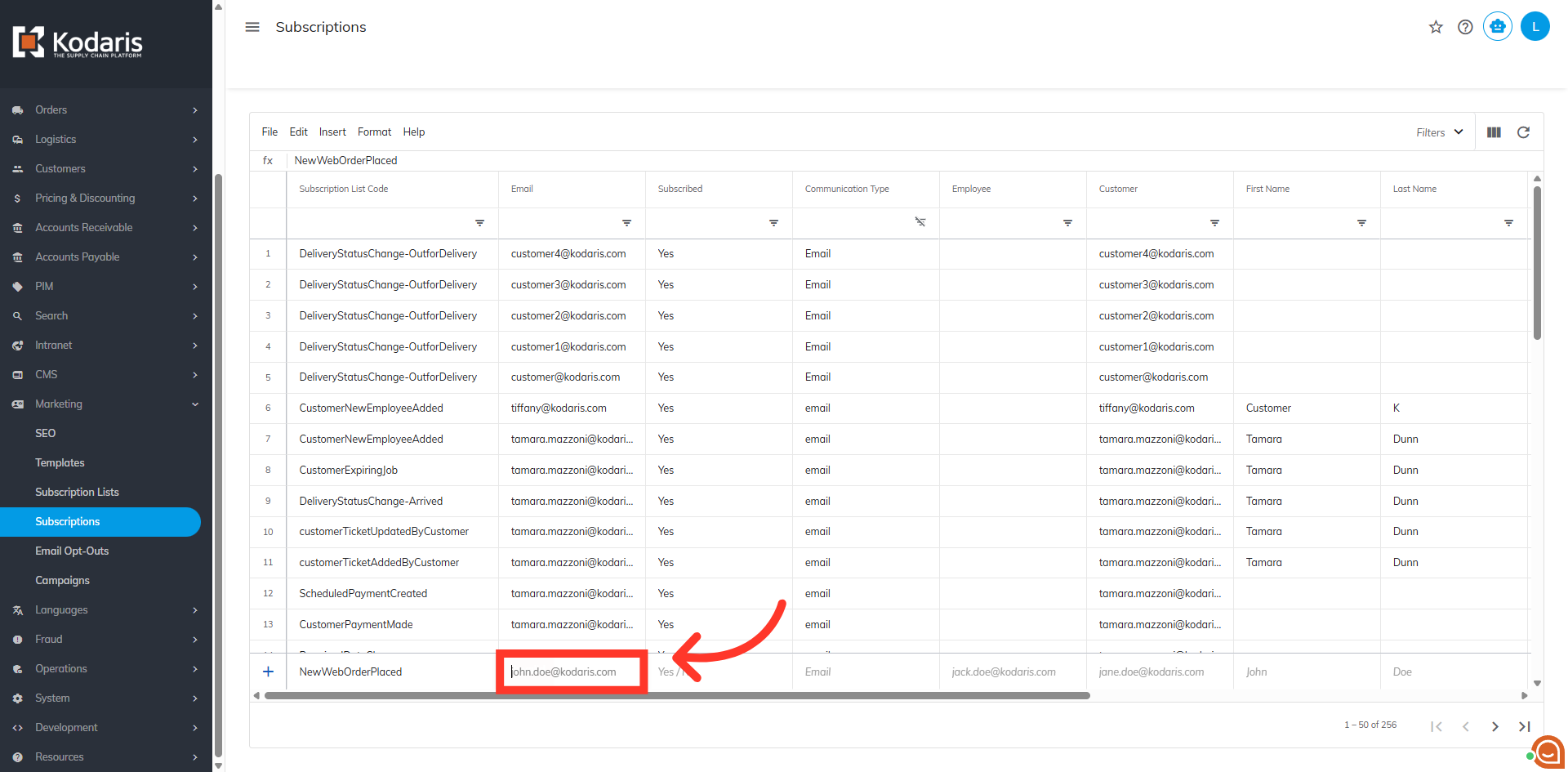
Then, in the "Email" column, enter the email address you'd like the notification to go to.
In the "Subscribed" column, select "Yes".

Then, select "Email" in the "Communication Type" column.

Hit "Enter" to save and add the new row. The user has been set up to receive general web order placed notifications.
