Product Documentation
Product Documentation
Product Documentation
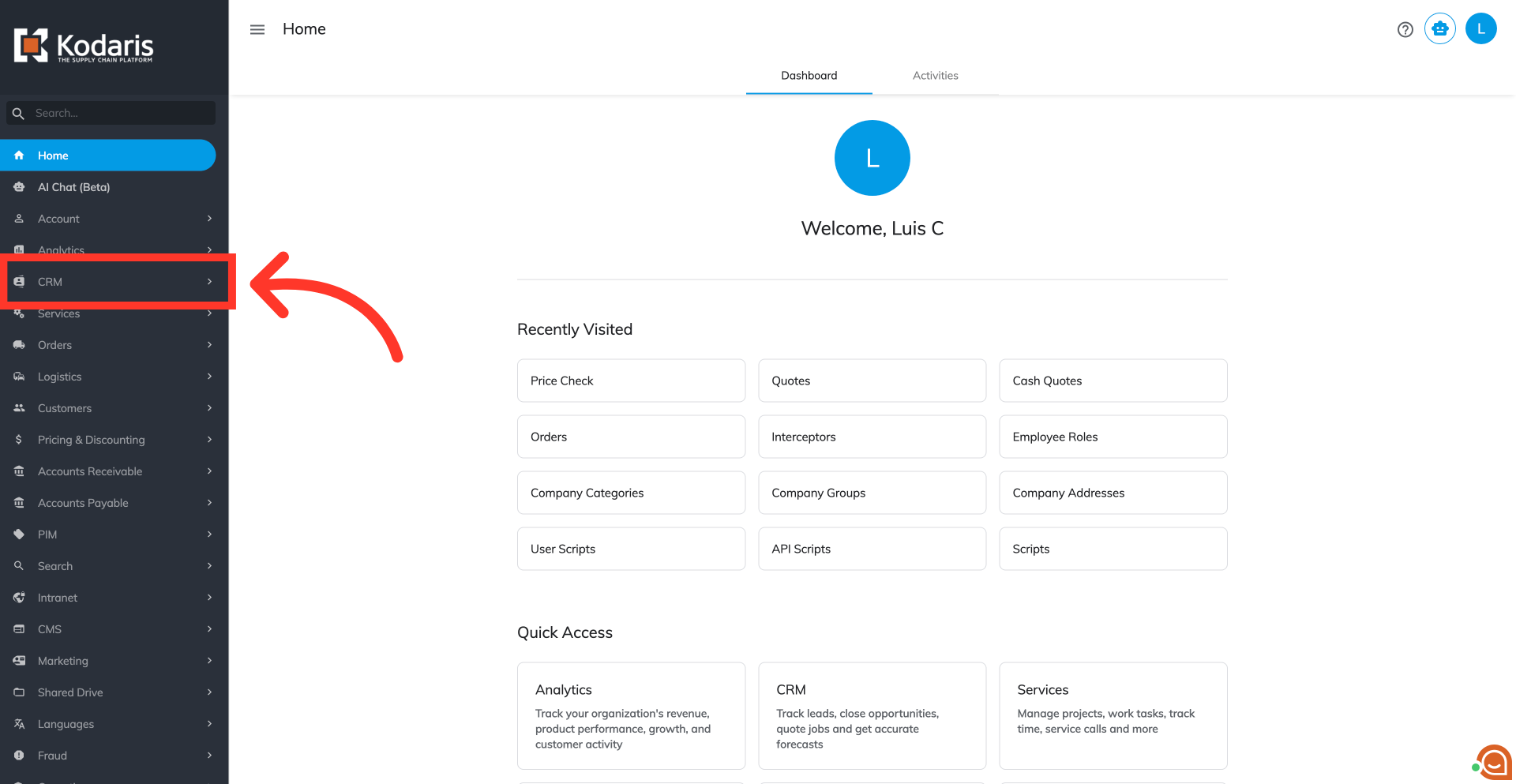
To view product purchase history while price checking, navigate to the "CRM" section in the Operations Portal.
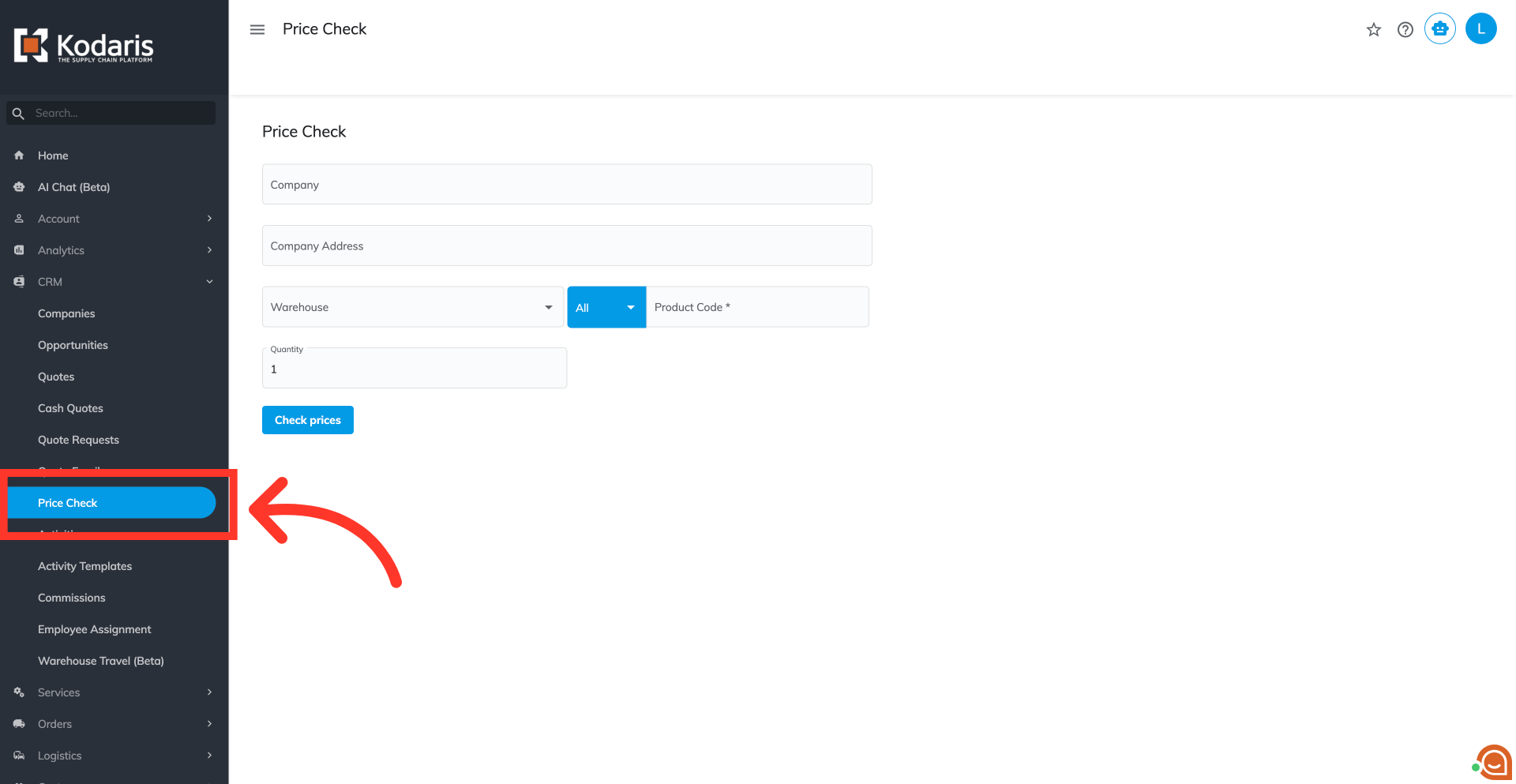
Then, click on the "Price Check" screen. In order to access "Price Check", you will need to be set up either as an "administrator" or a "superuser", or have the roles of: "companyView", "companyAddressView", "productView", "orderView", and "productPriceView".
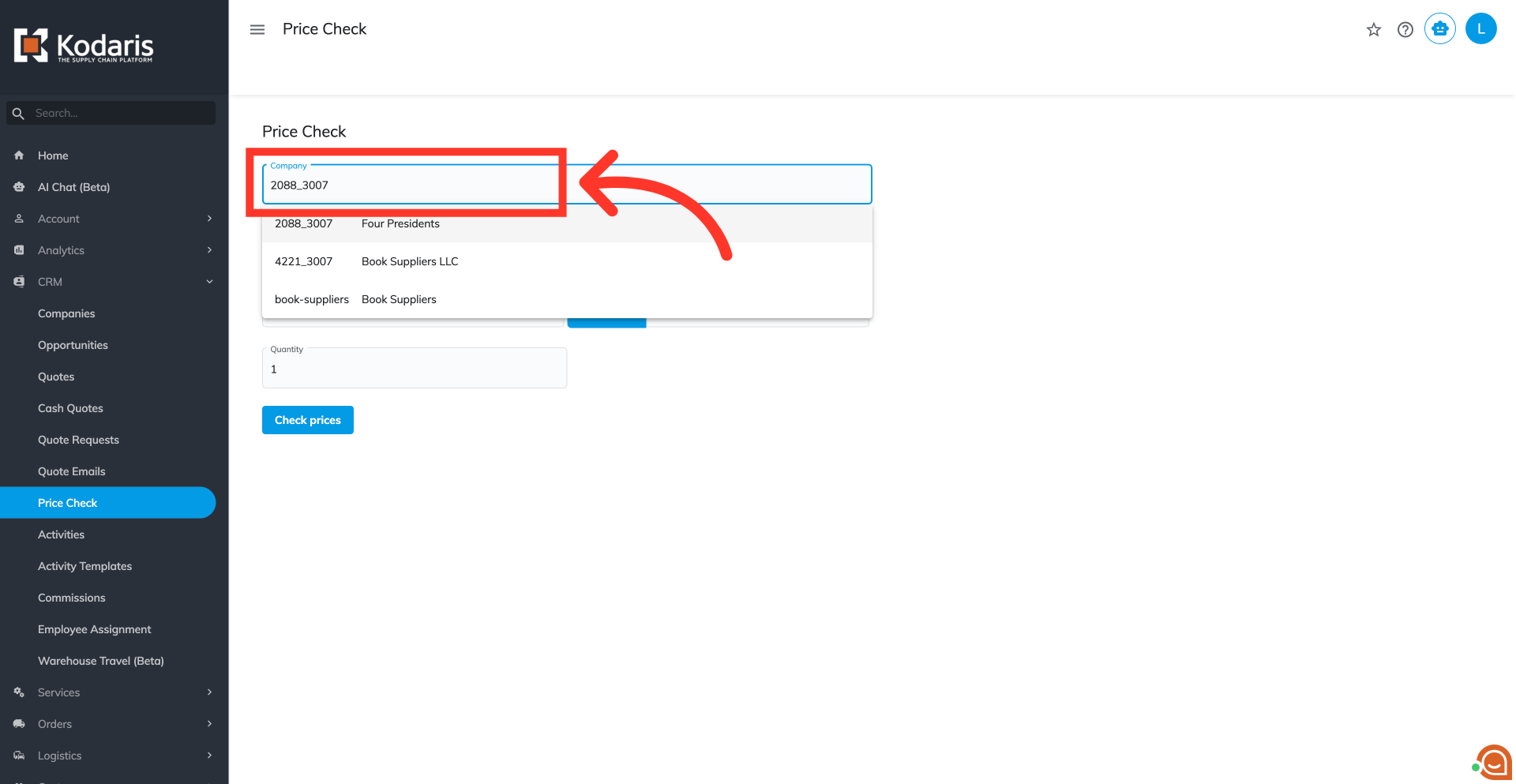
Type in the company code or company name to search for the company and select it from the options.
Search for the company address and select it from the options.
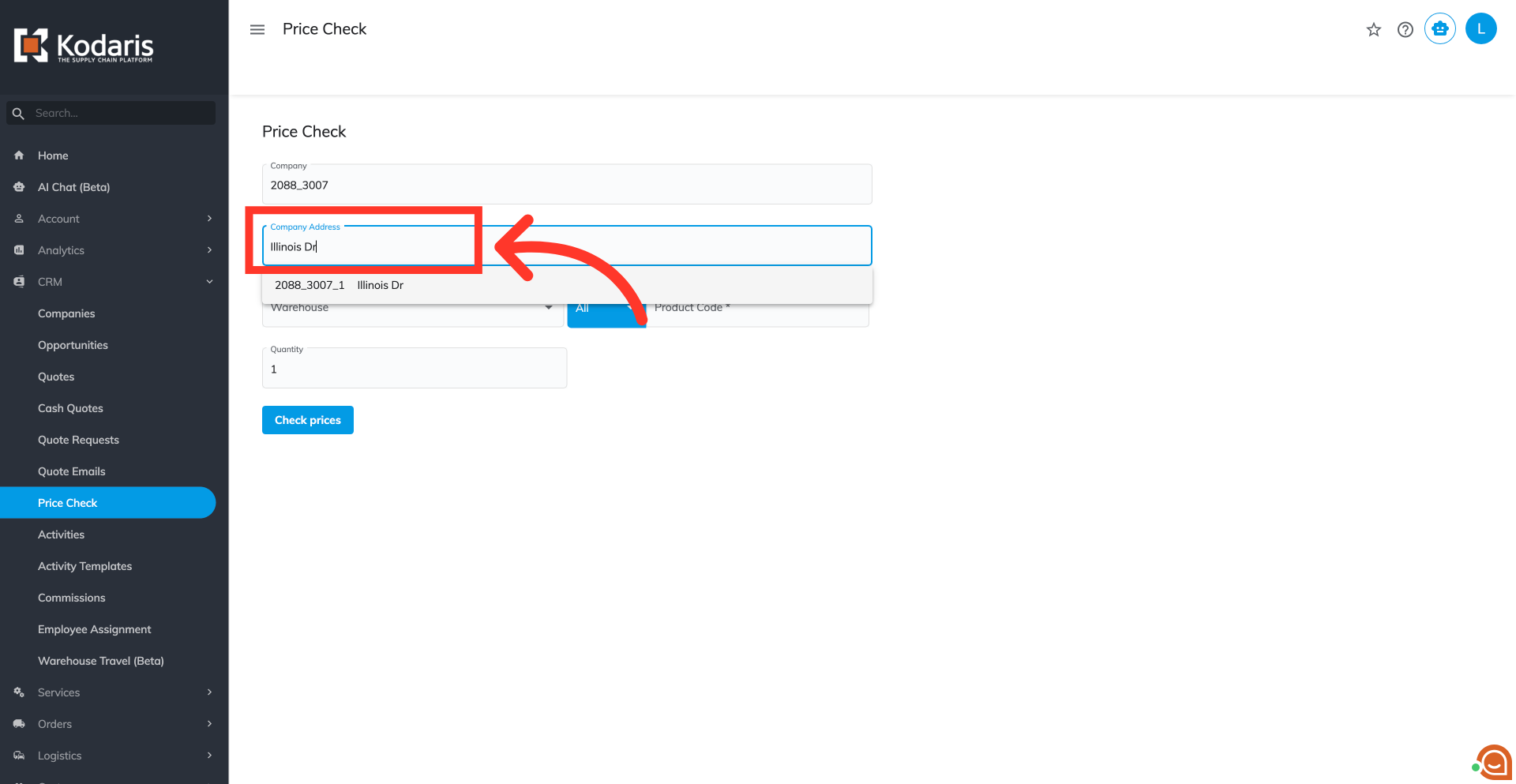
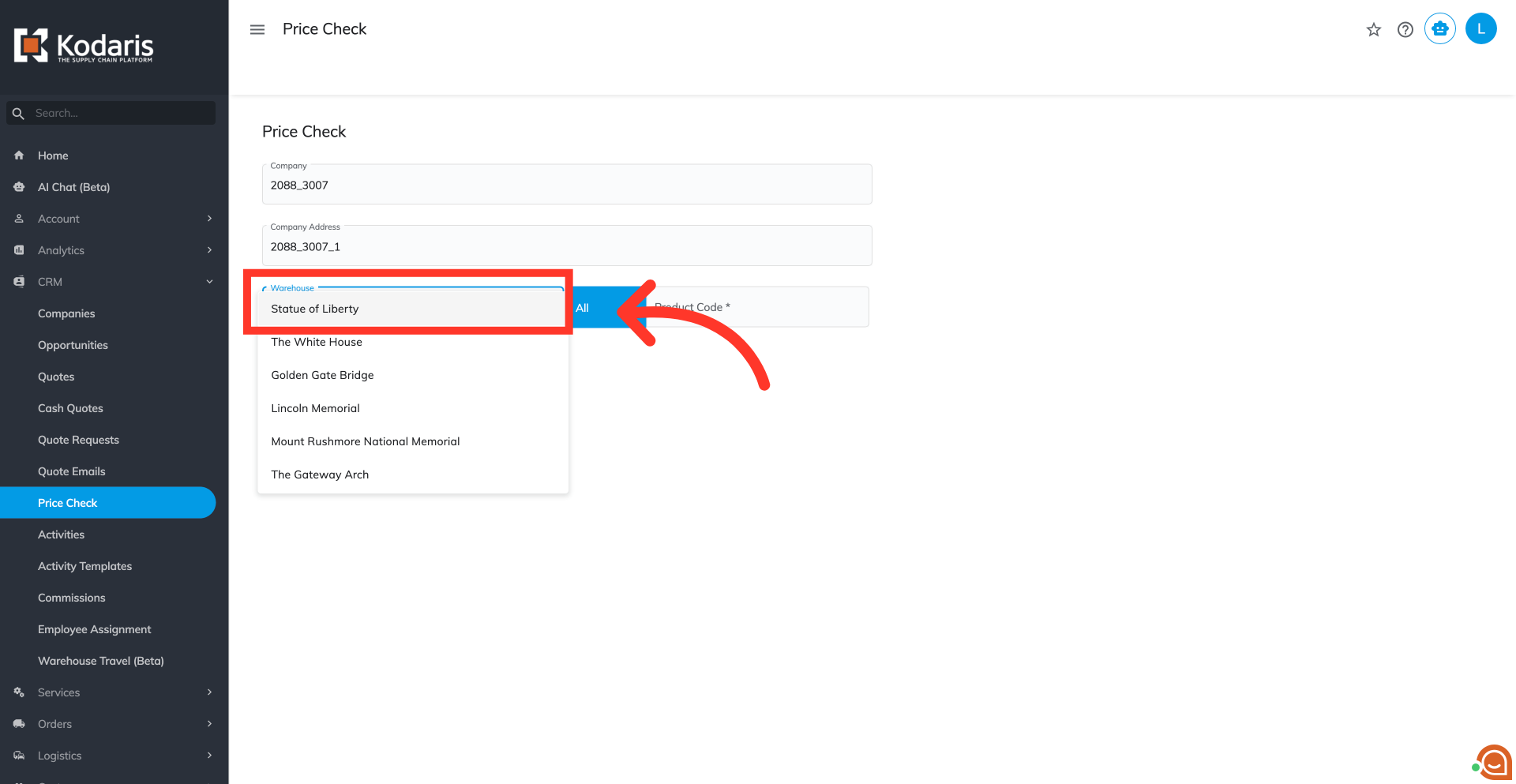
Search for the warehouse.
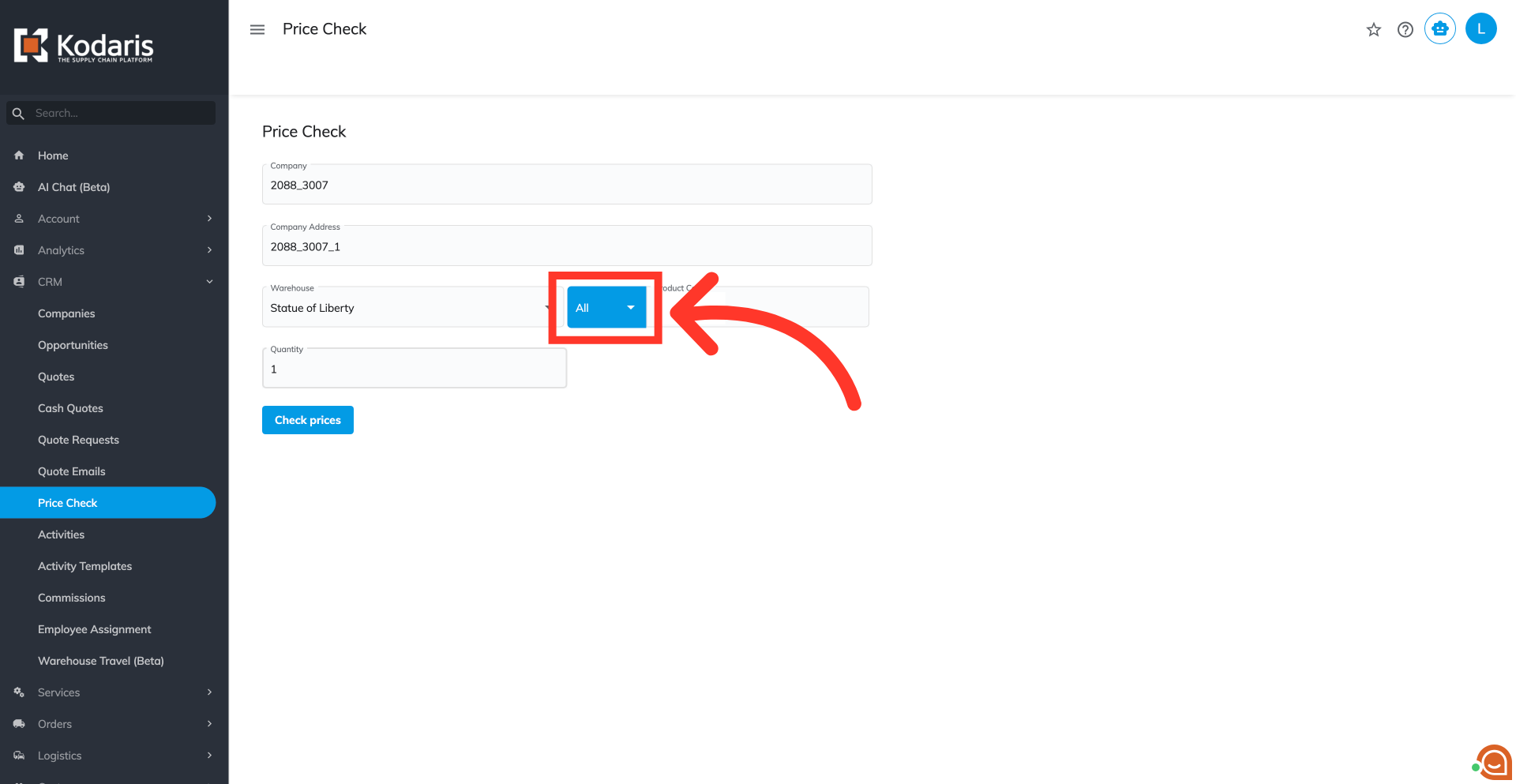
Click on the product code dropdown to see search filter options
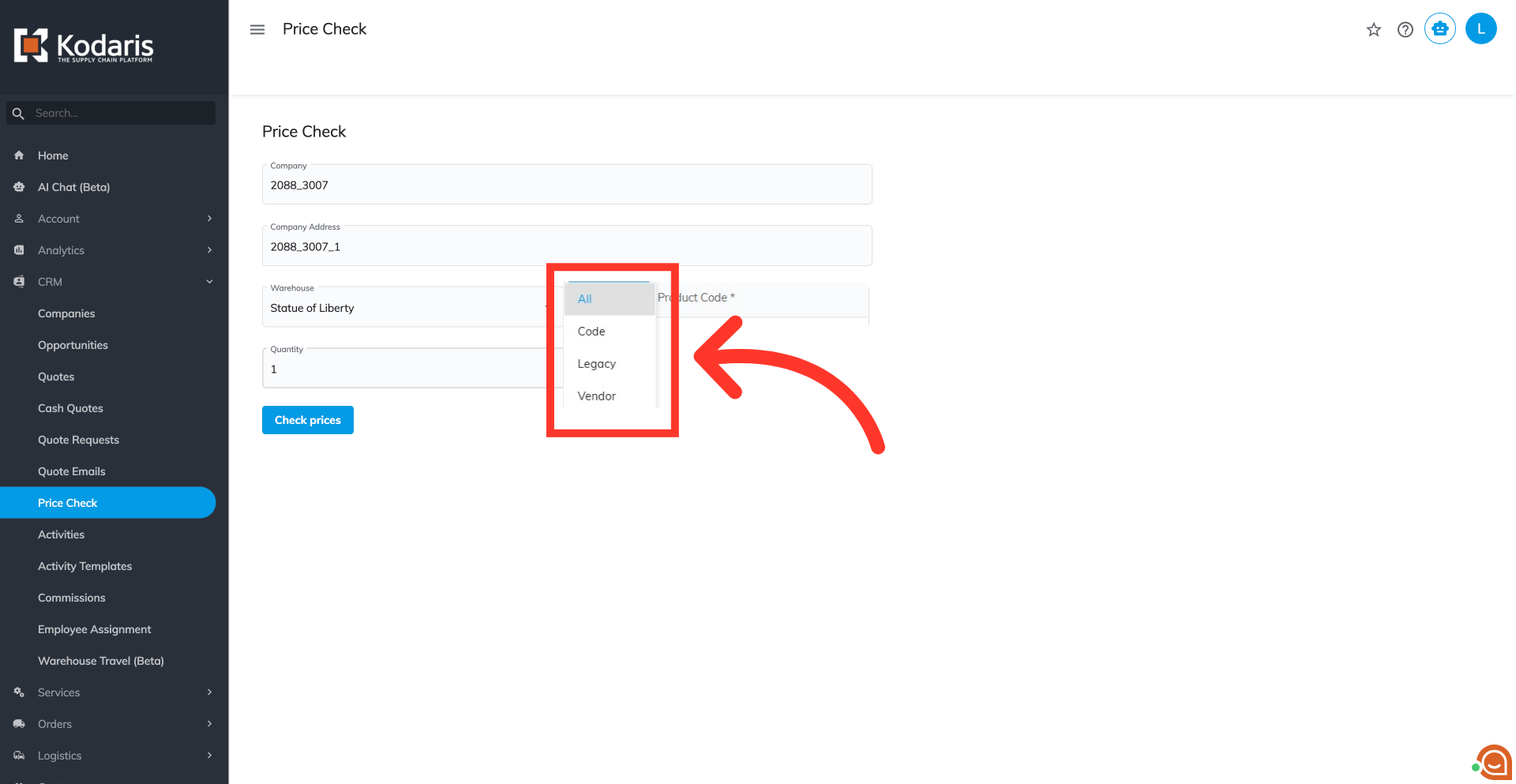
You can filter your searches by selecting from the following formats: "Code," "Legacy," "Vendor," or "All."
Enter the product code or name and select from the list.
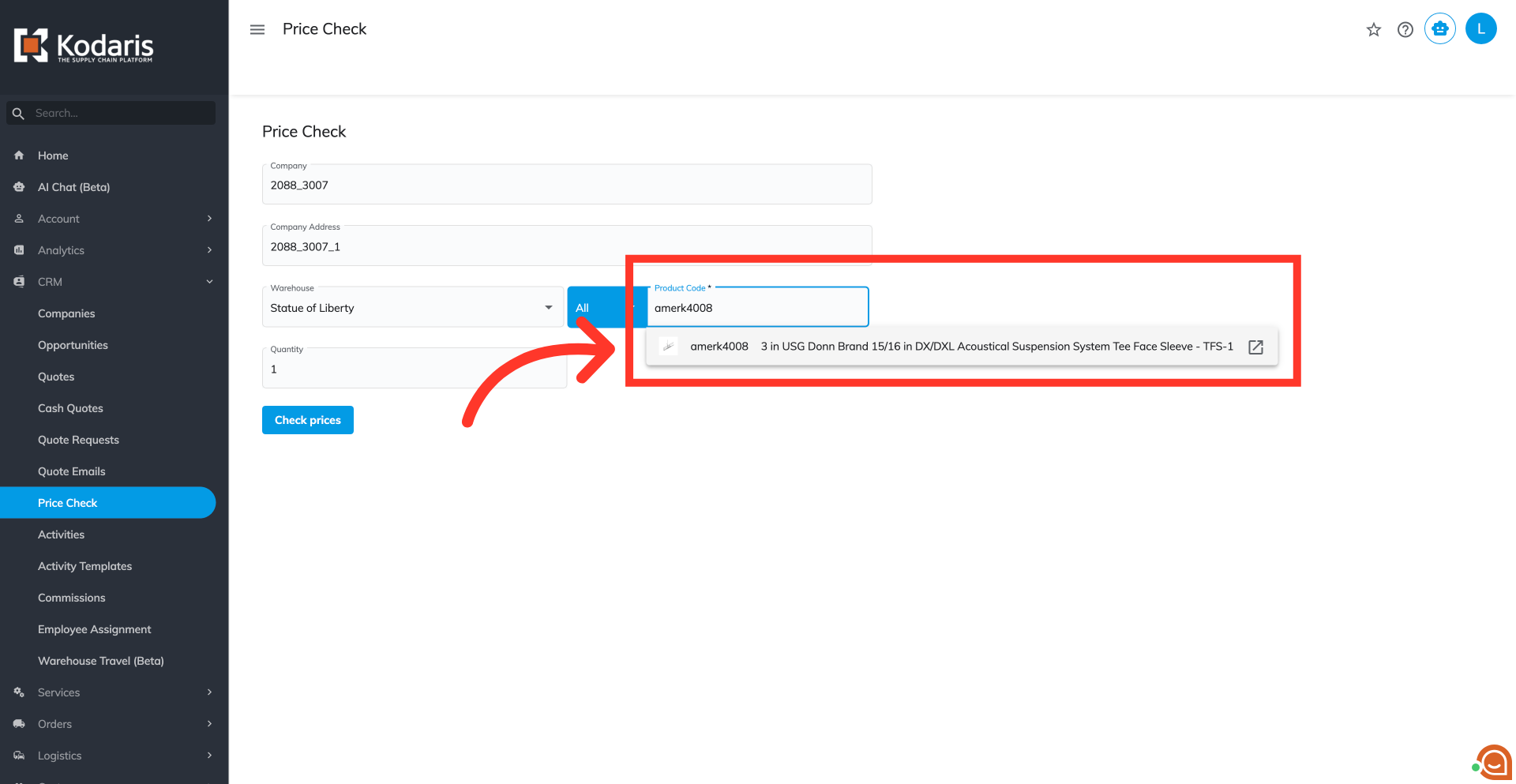
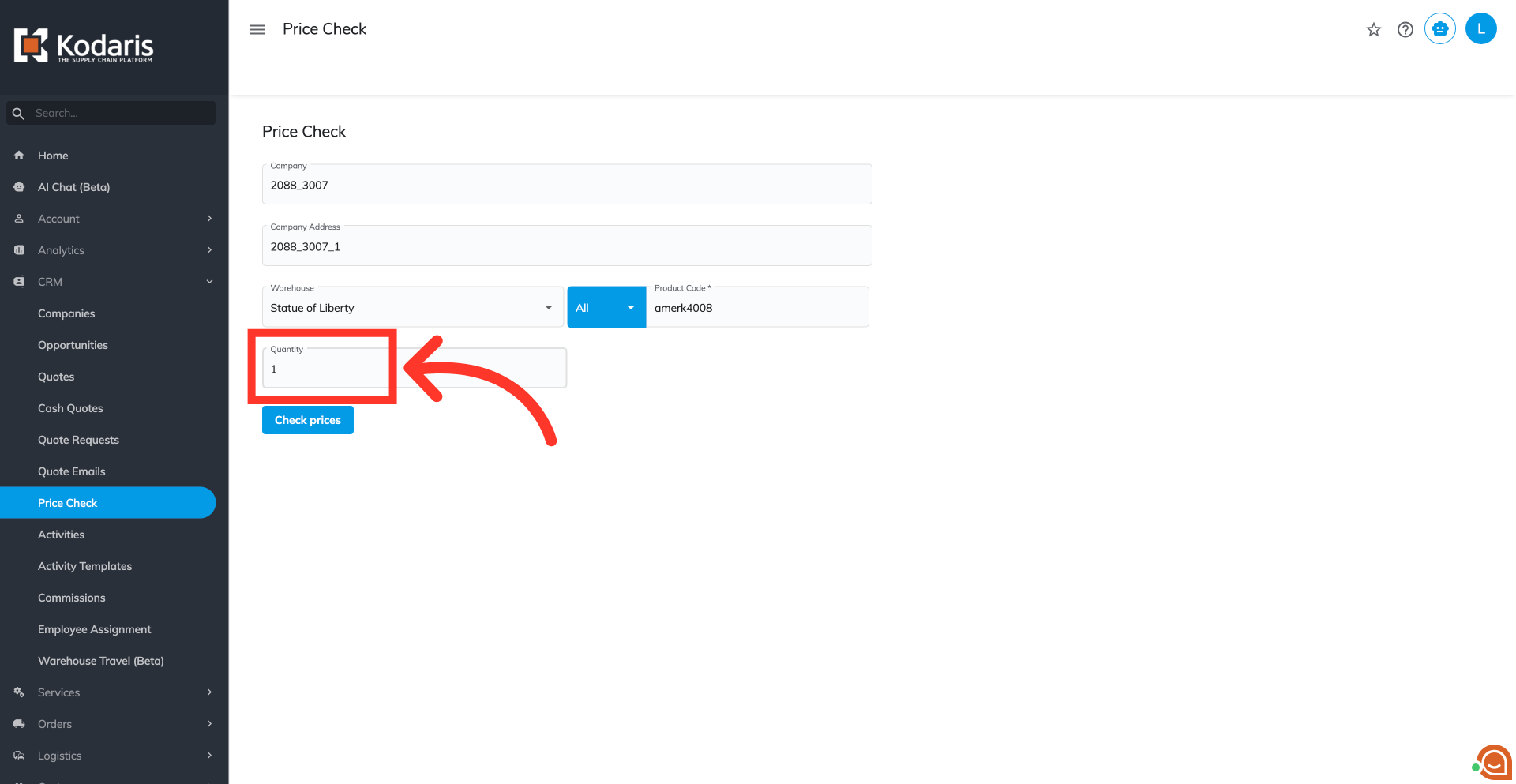
Click into the "Quantity" field, and enter the quantity.
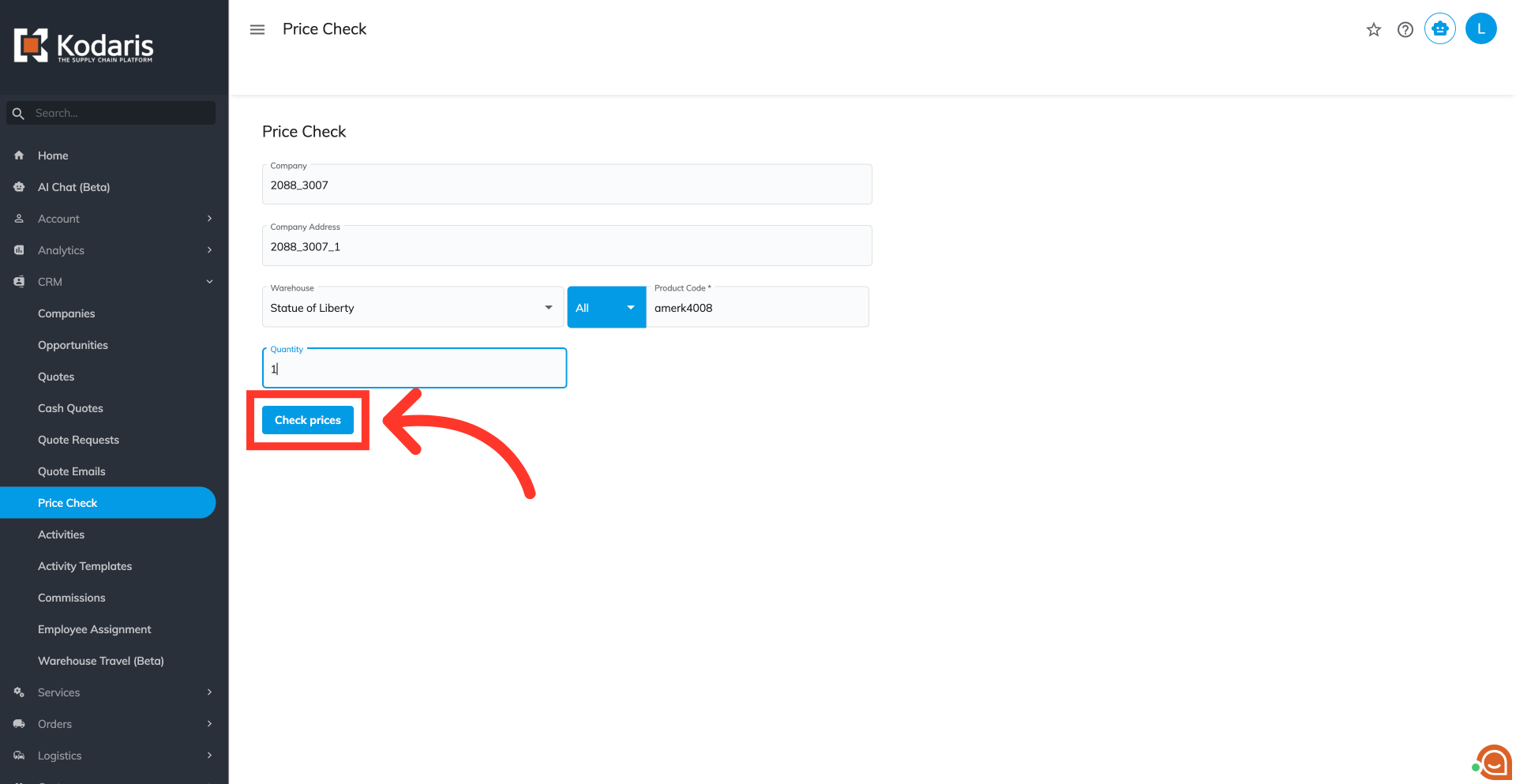
Click the "Check prices" button to start generating data.
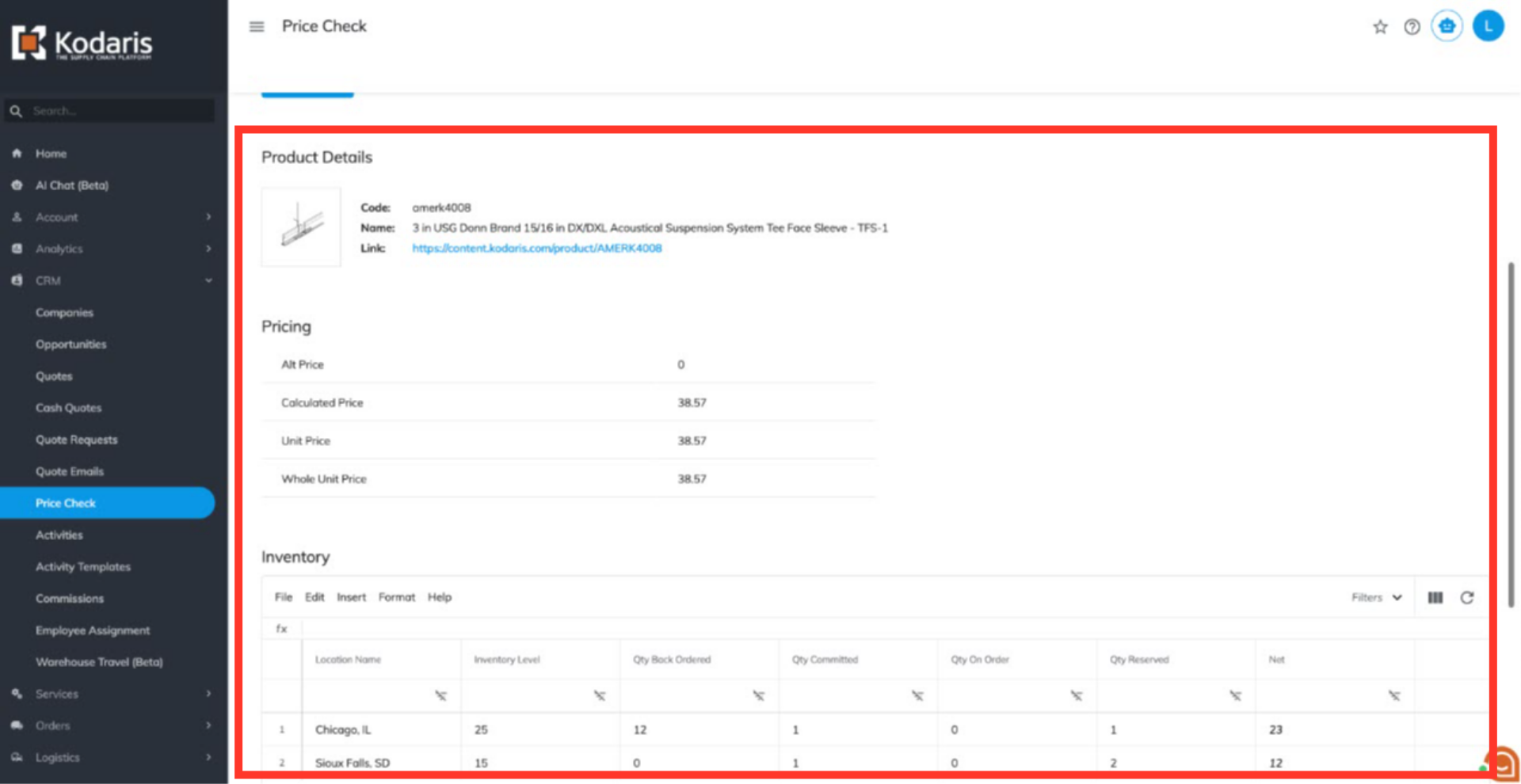
You will be able to view the product details, pricing, and inventory.
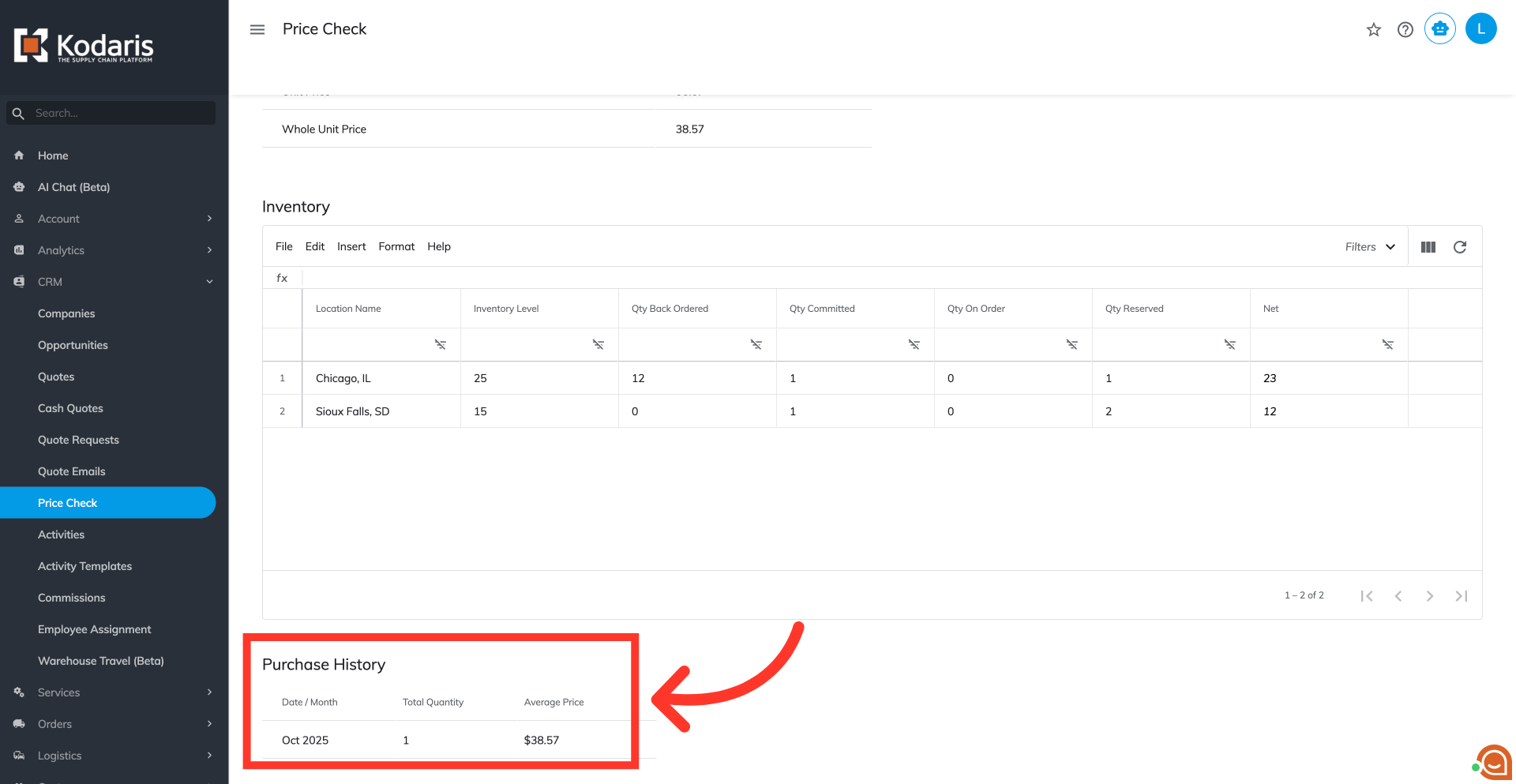
Scroll down to the "Purchase History" section to view past purchase dates, total quantity purchased, and the average purchase price of products.