Product Documentation
Product Documentation
Product Documentation
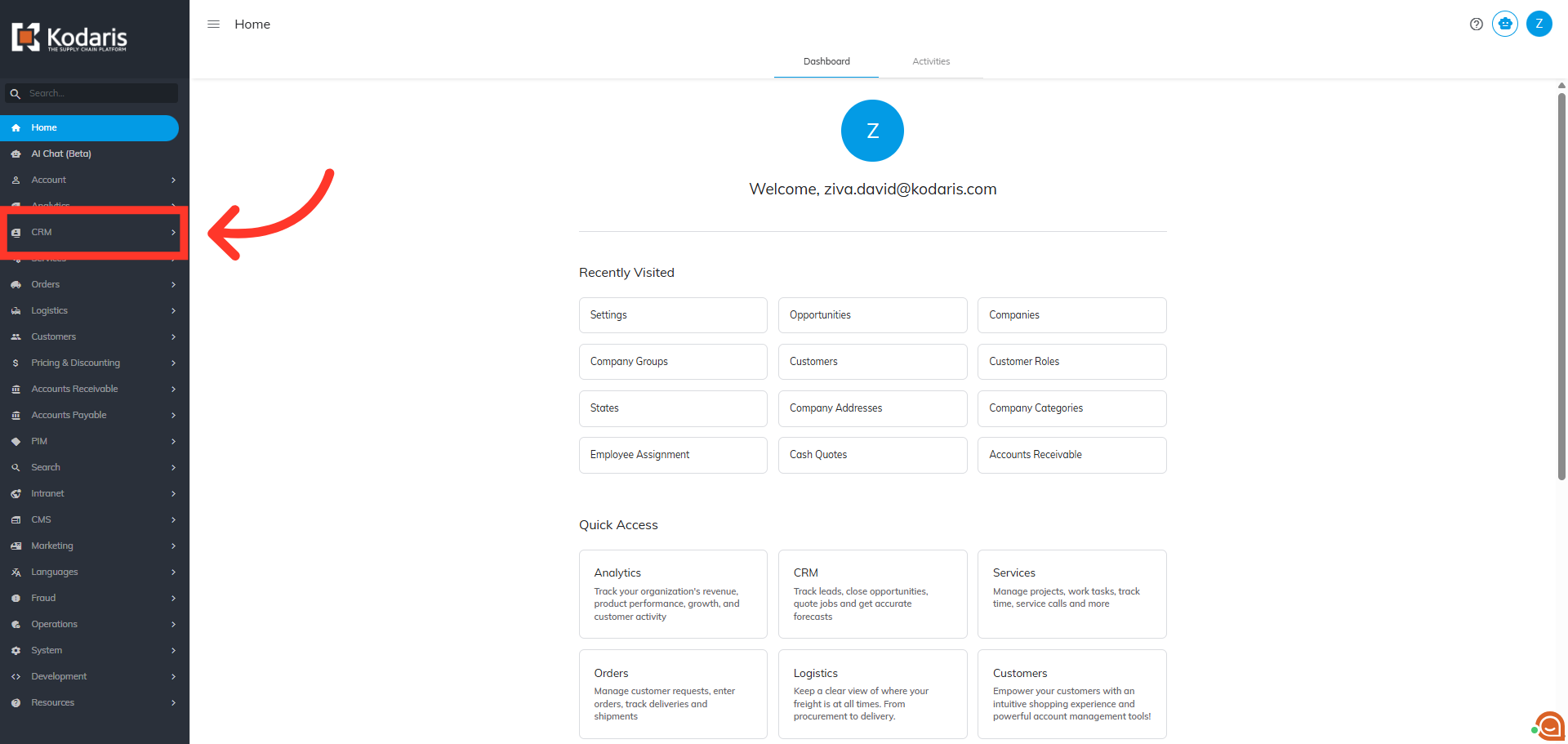
You can view the source link on a lead as a "clickable link" in the Operations Portal. Navigate to the "CRM" section.
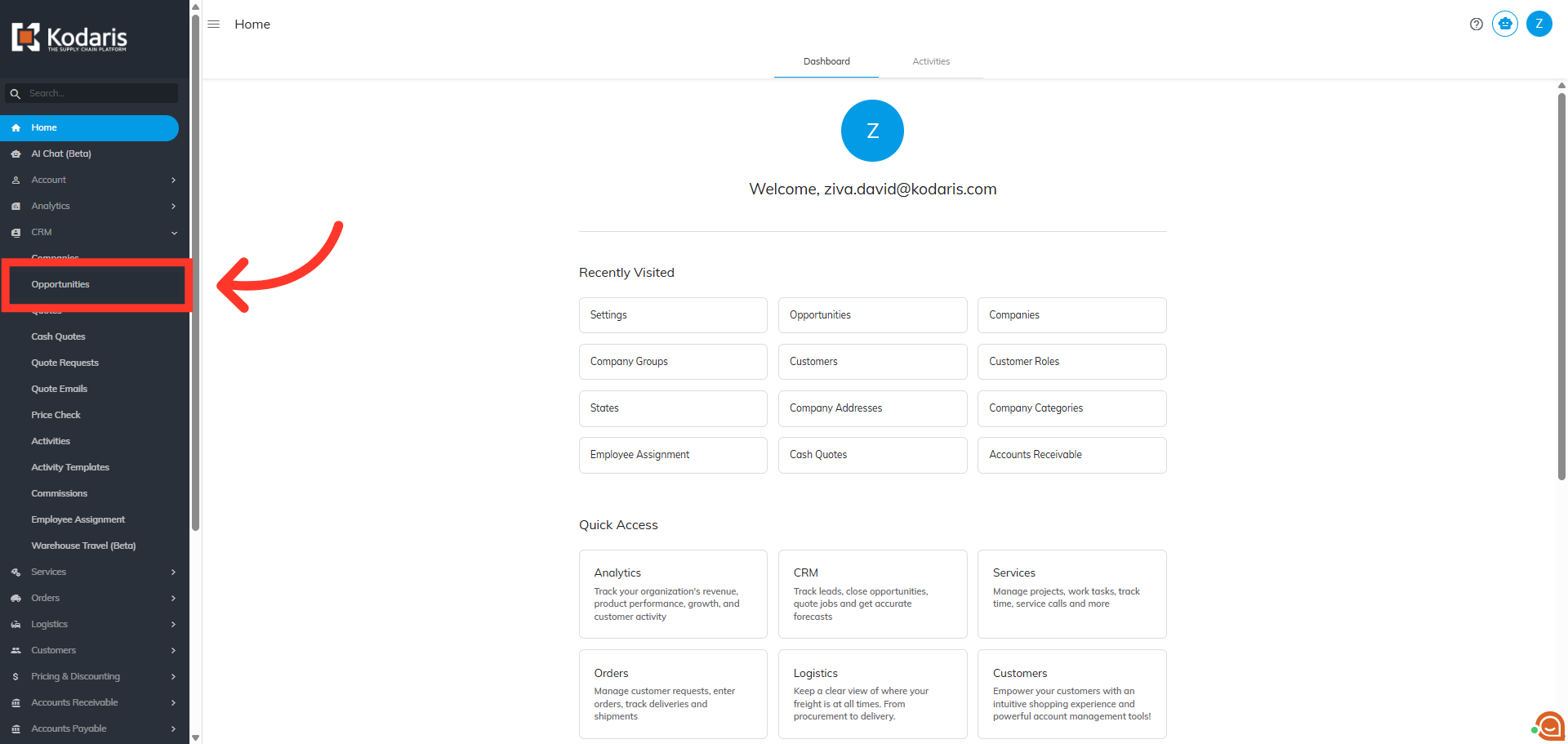
Then, click "Opportunities". In order to access and update leads, you will need to be set up either as an “administrator” or a “superuser”, or have the following roles: “accountQuoting”, “leadEdit”, and “leadView”.
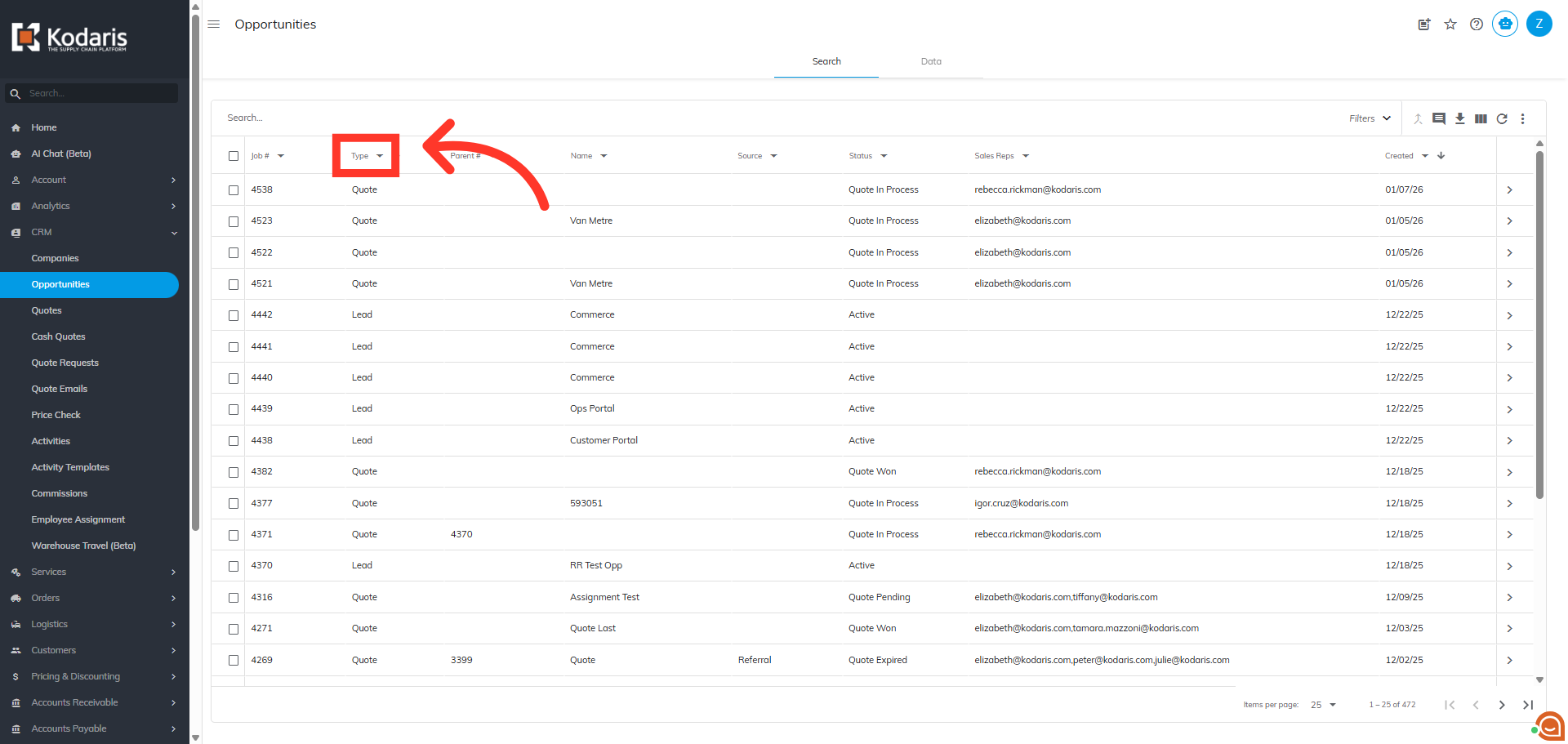
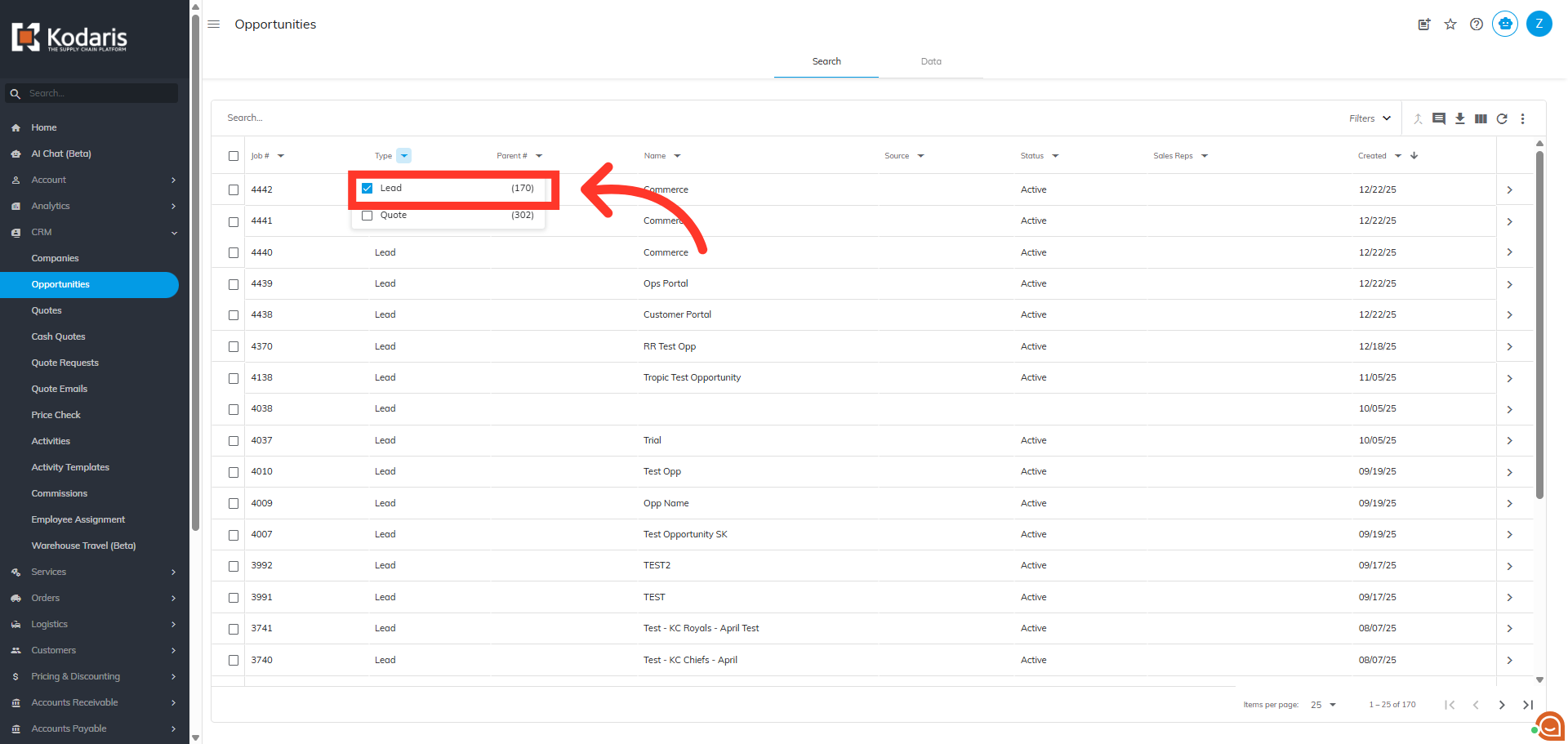
Next, click on the "Type" filter dropdown.
Filter the results displayed by selecting "Lead" from the dropdown menu.
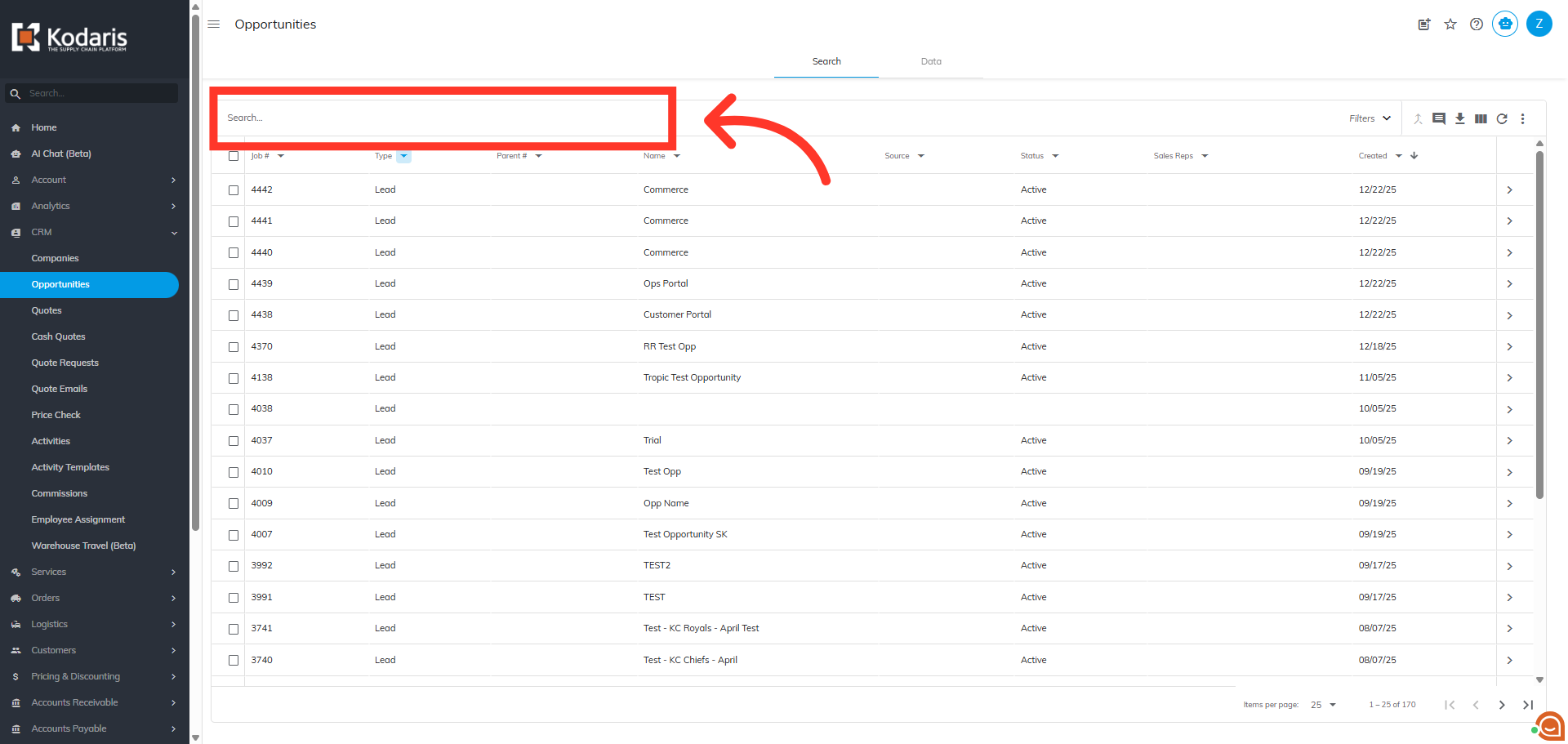
Find the lead by using the "Search" field.
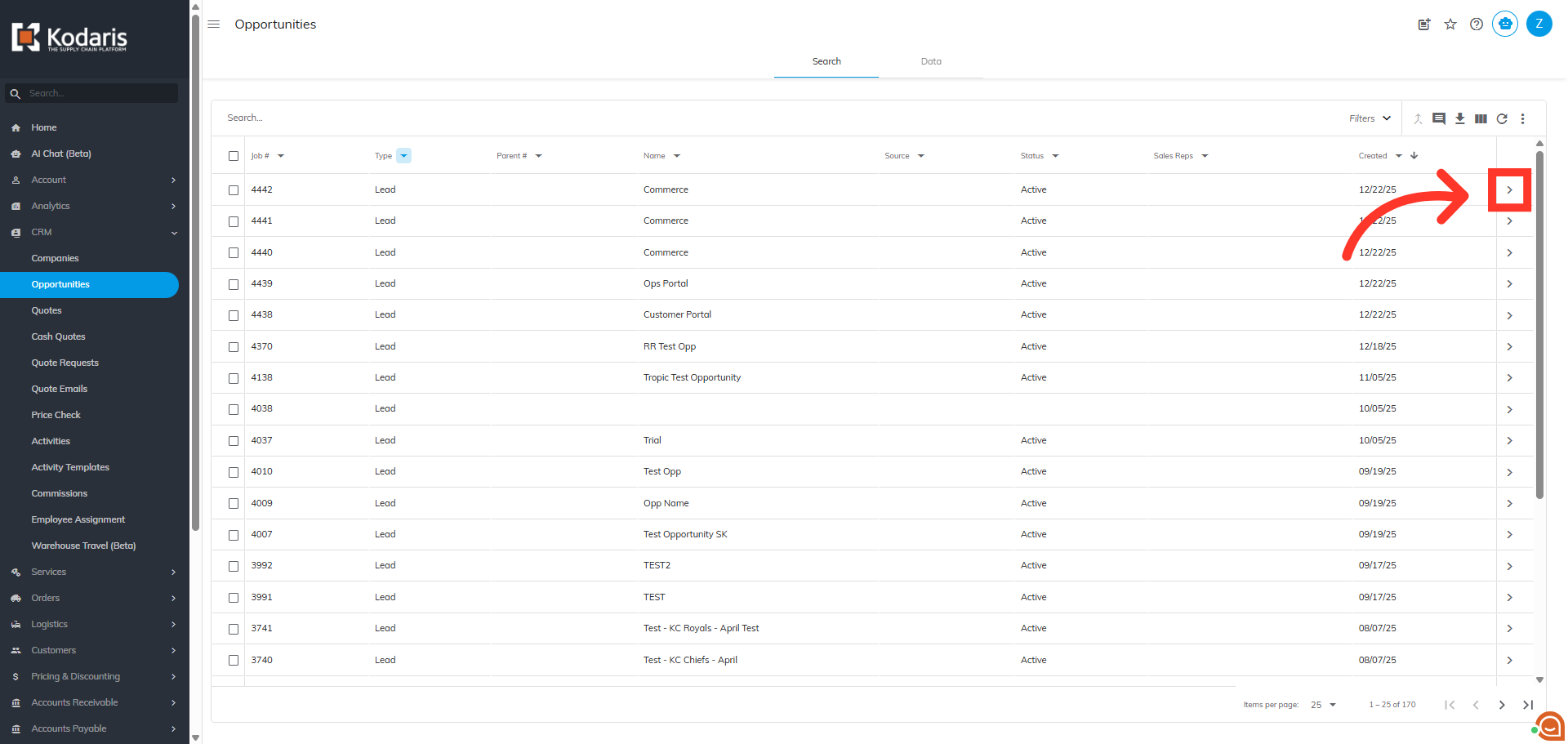
Click on the more details icon on the lead you wish to view.
In the Source Link field, click the "Open in New Tab" button.
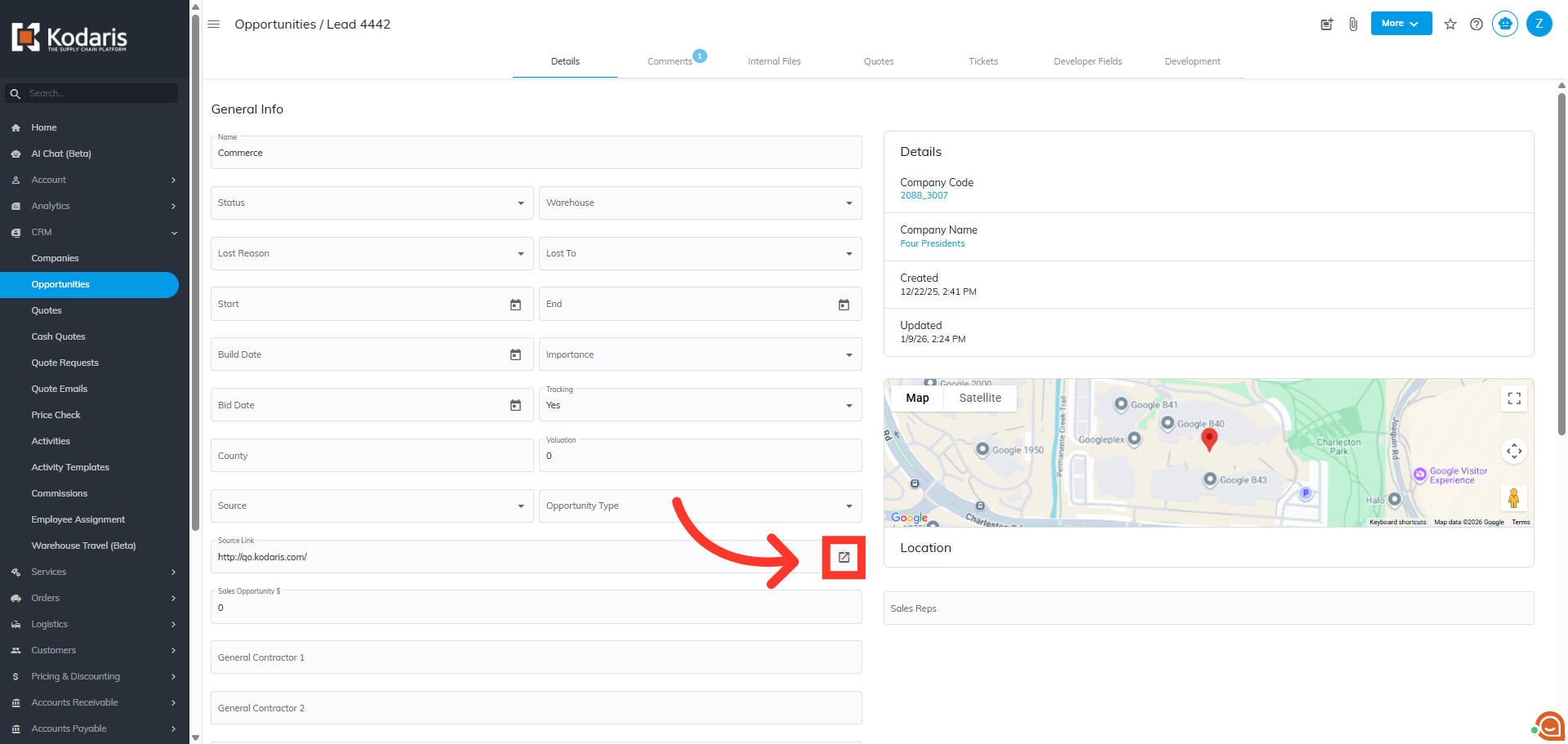
A new tab will open, taking you to the URL saved in the source link field. This feature makes it easier to access the URL without having to copy and paste the URL in a new page.