Product Documentation
Product Documentation
Product Documentation
The "Product Line" filter allows you to quickly find and add specific products to your orders. To start, navigate to the "Orders" section in the Operations Portal.
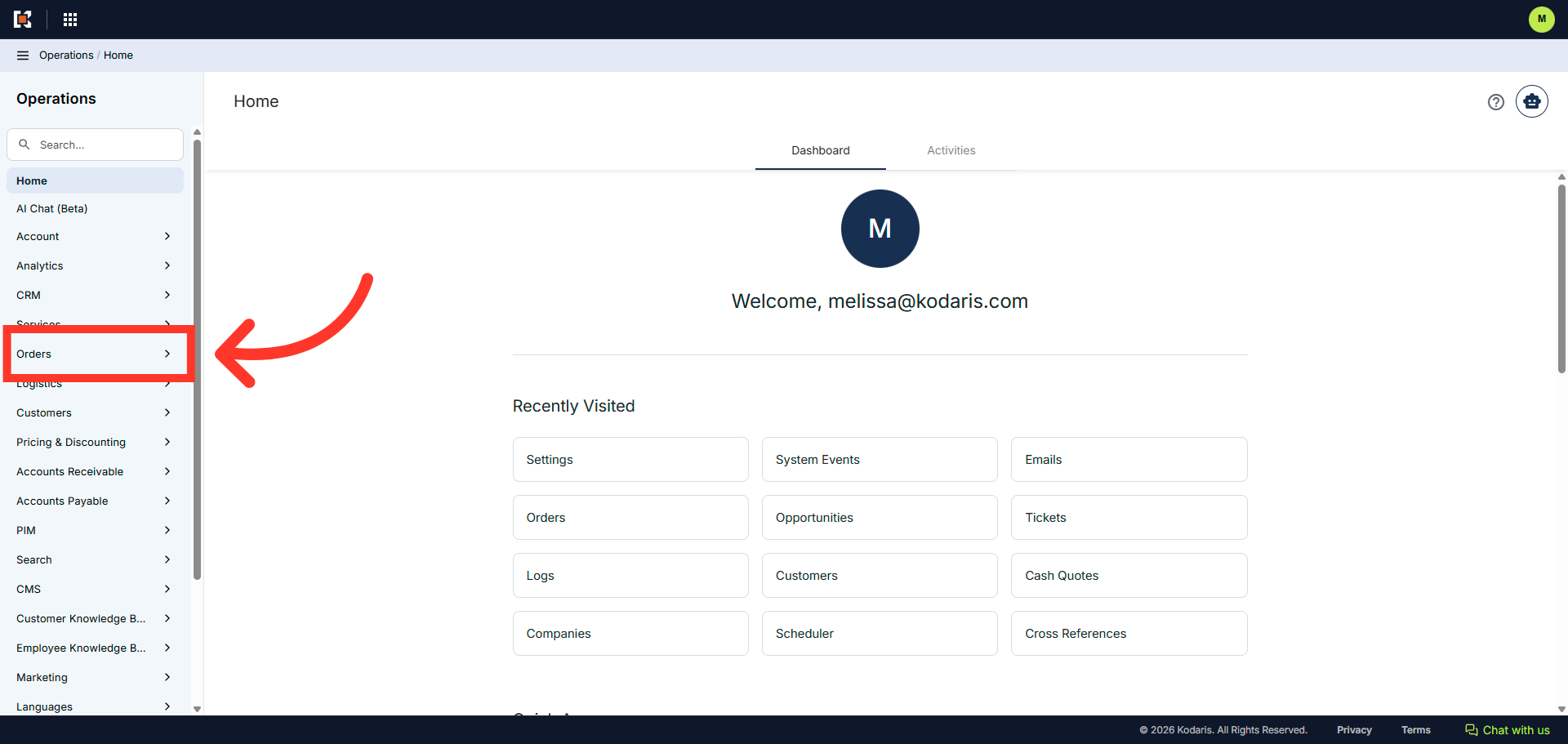
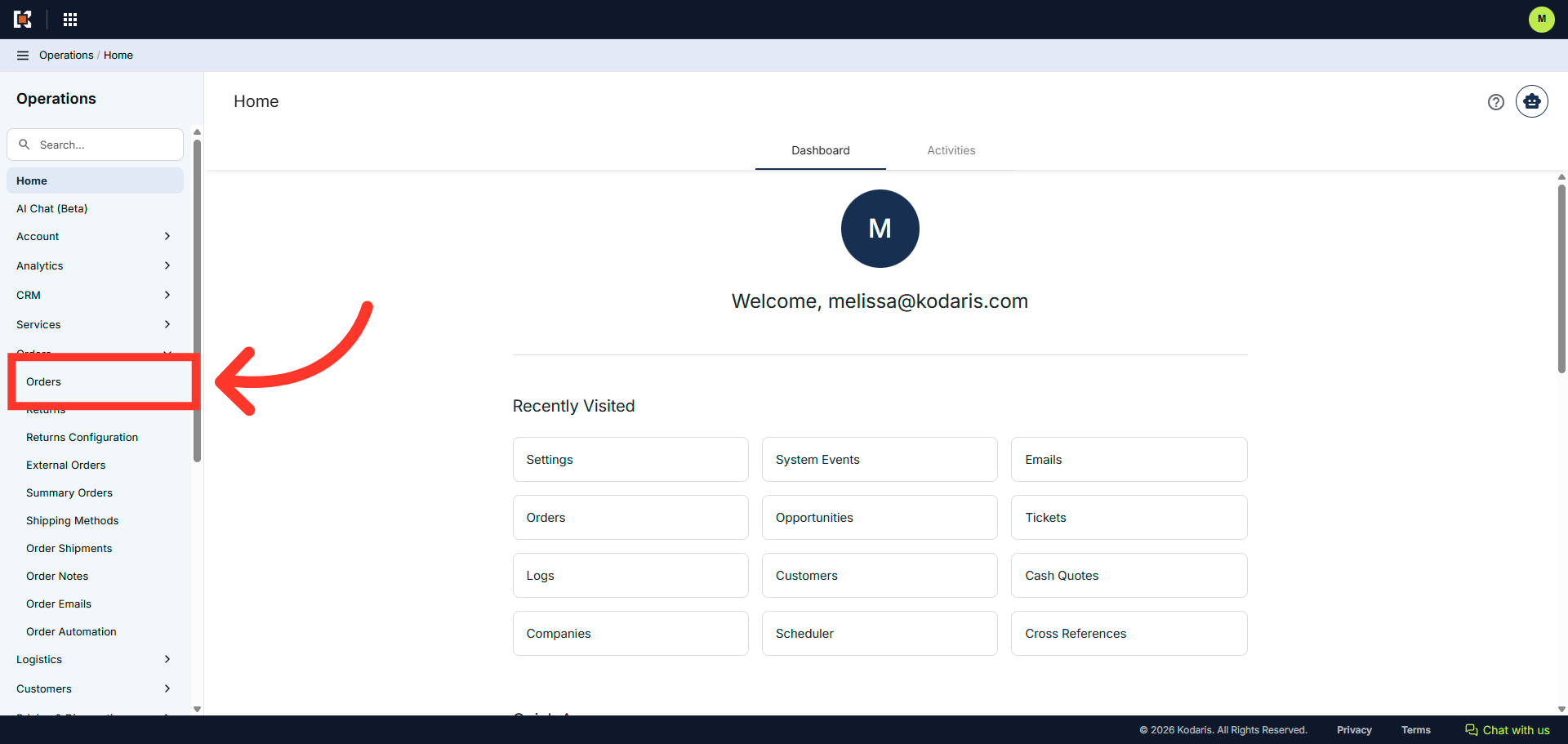
Then, click "Orders". In order to access and update "Orders", you will need to be set up either as an "administrator" or a "superuser", or have the following roles: "dispatch", "orderEdit", "crmCompanyOrderView" and "crmCompanyOrderEdit". Just a reminder, "crmCompanyOrderView" and "crmCompanyOrderEdit" access only allows employees to view company orders that are assigned to them.
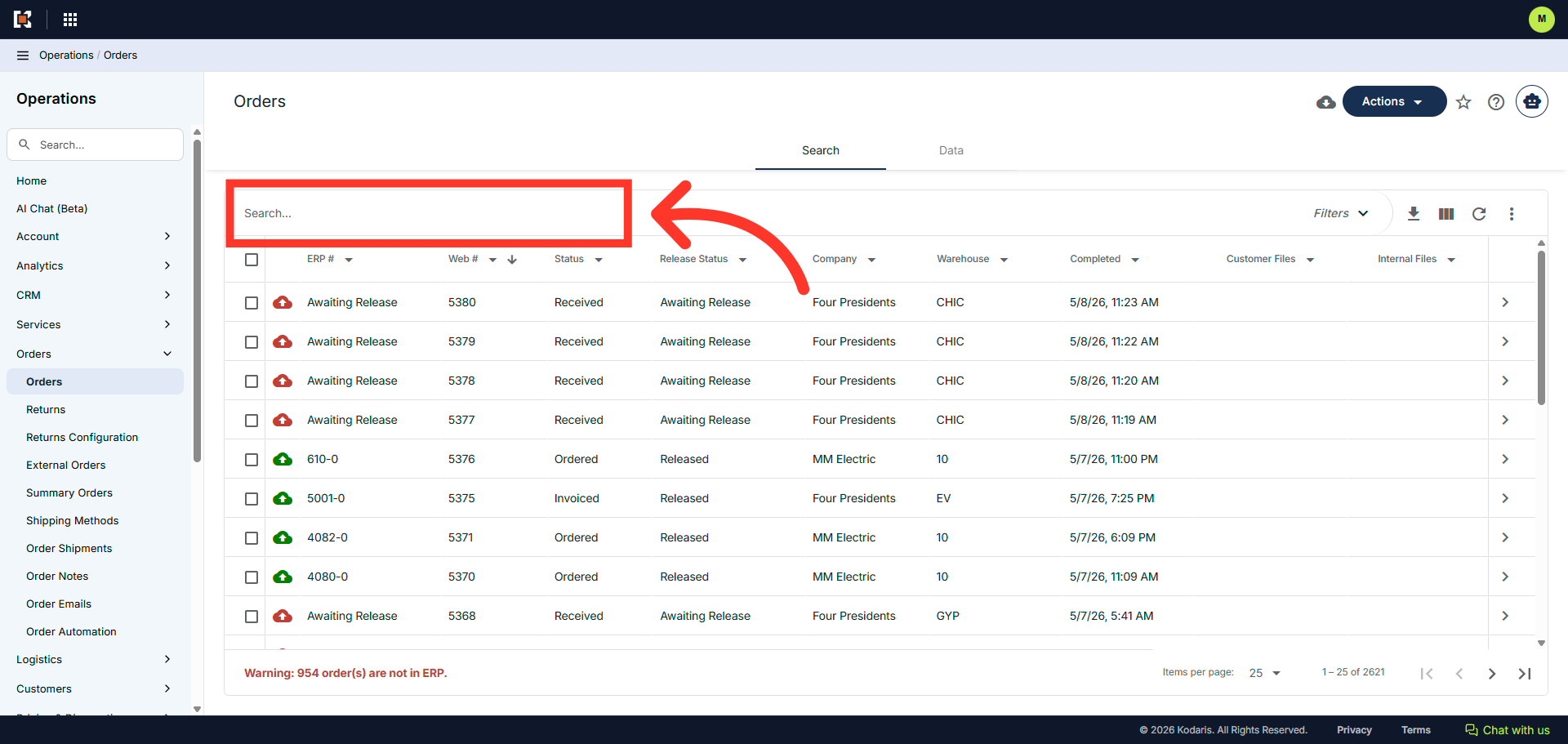
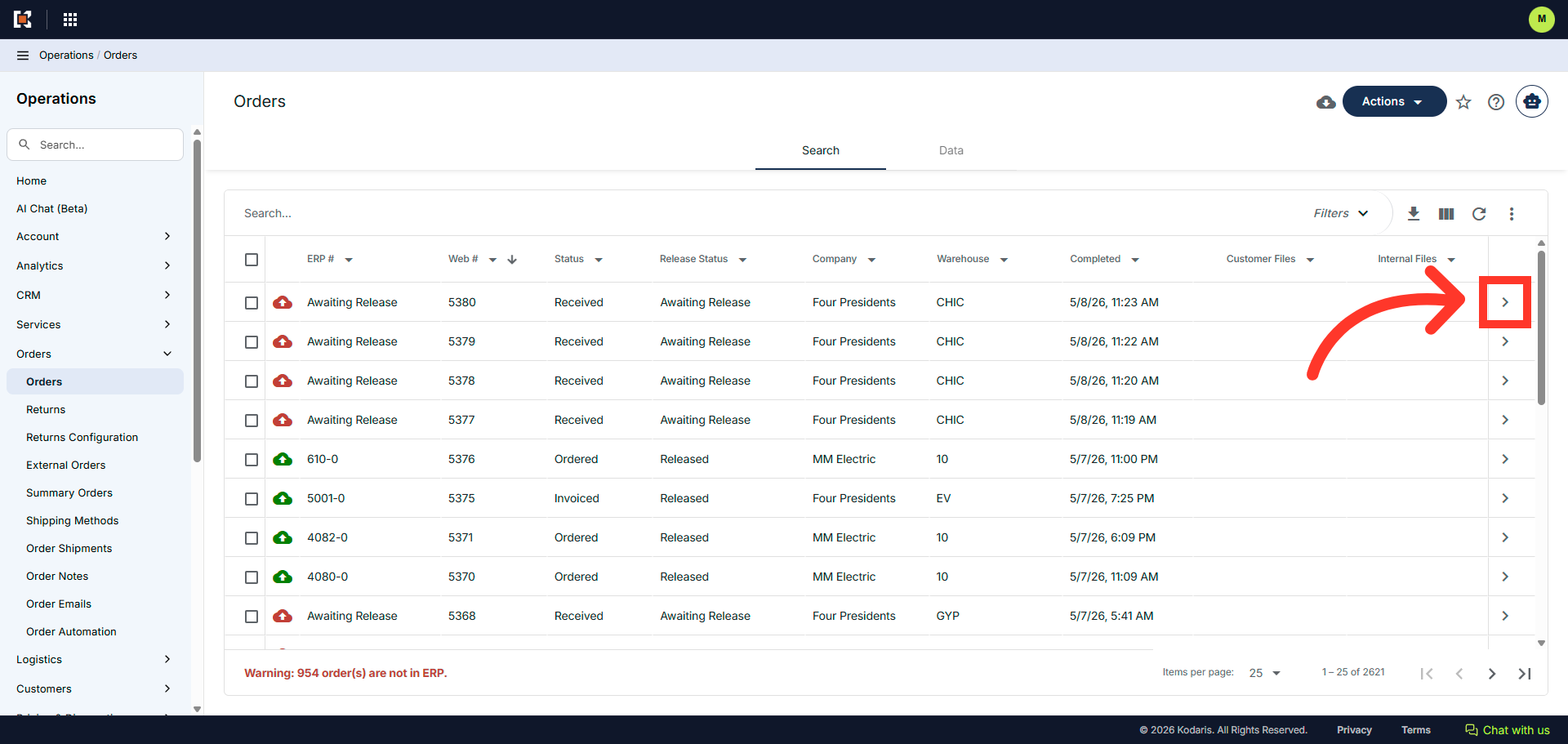
Search for the order in the "Search..." field.
Then, click on the more details icon to access order details
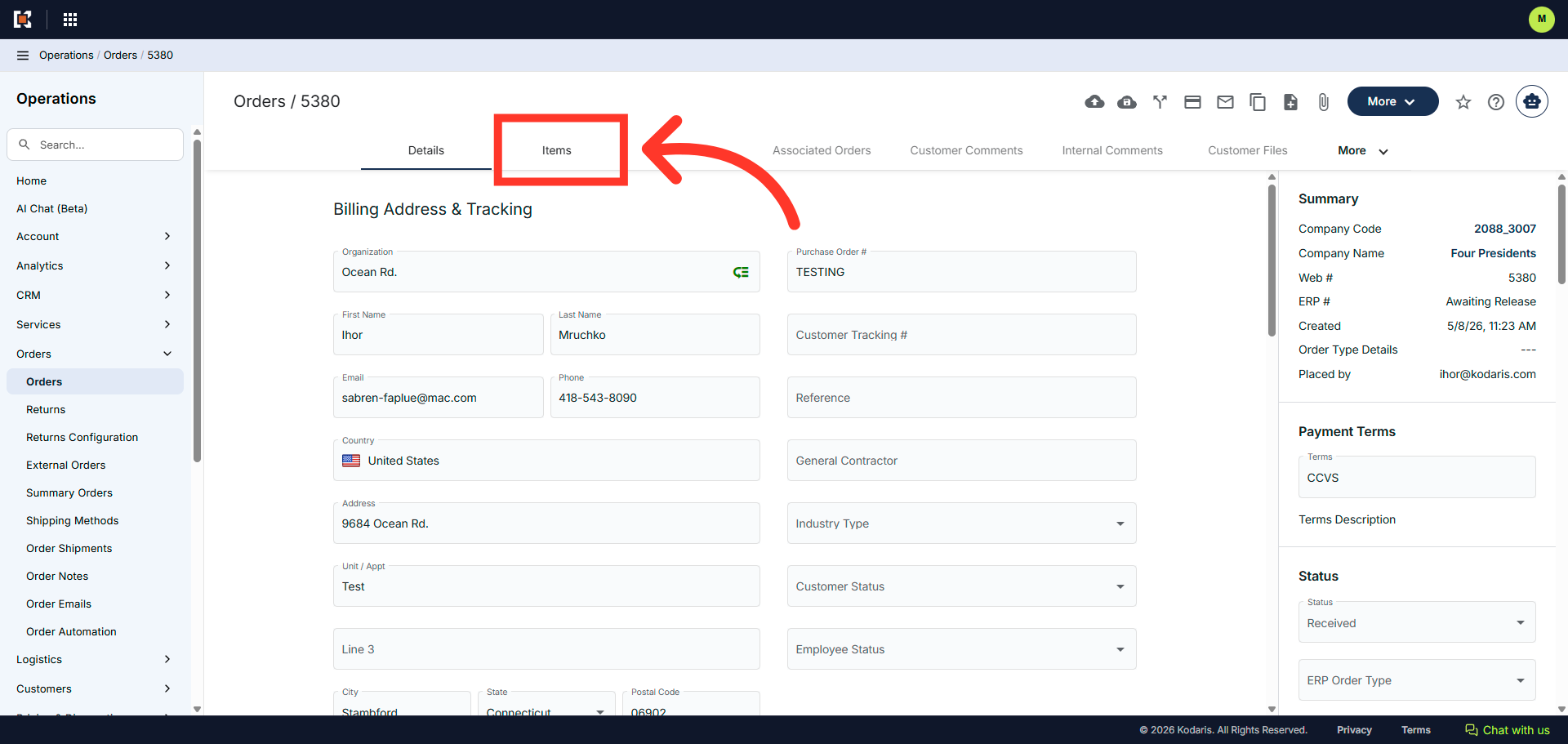
Go to the "Items" tab.
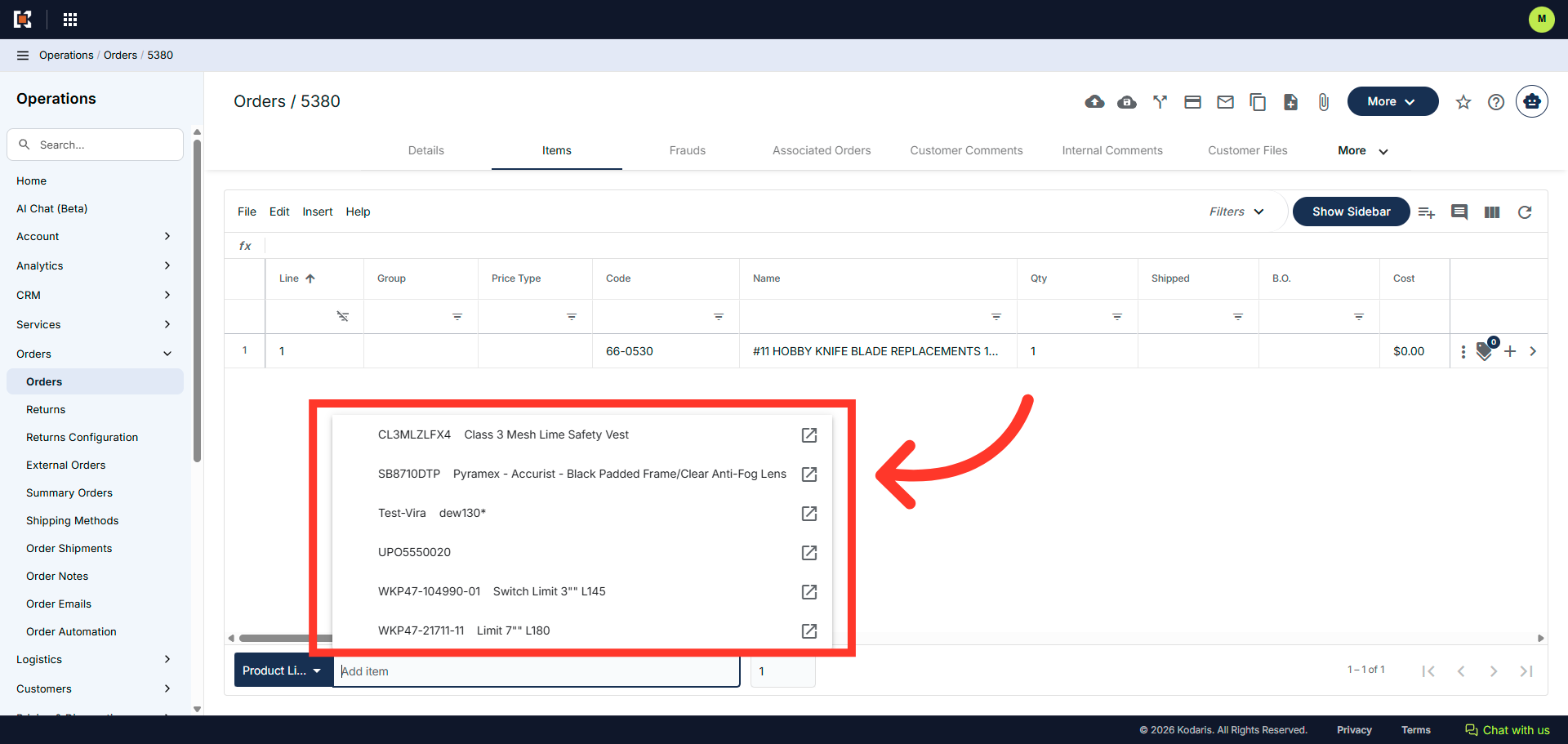
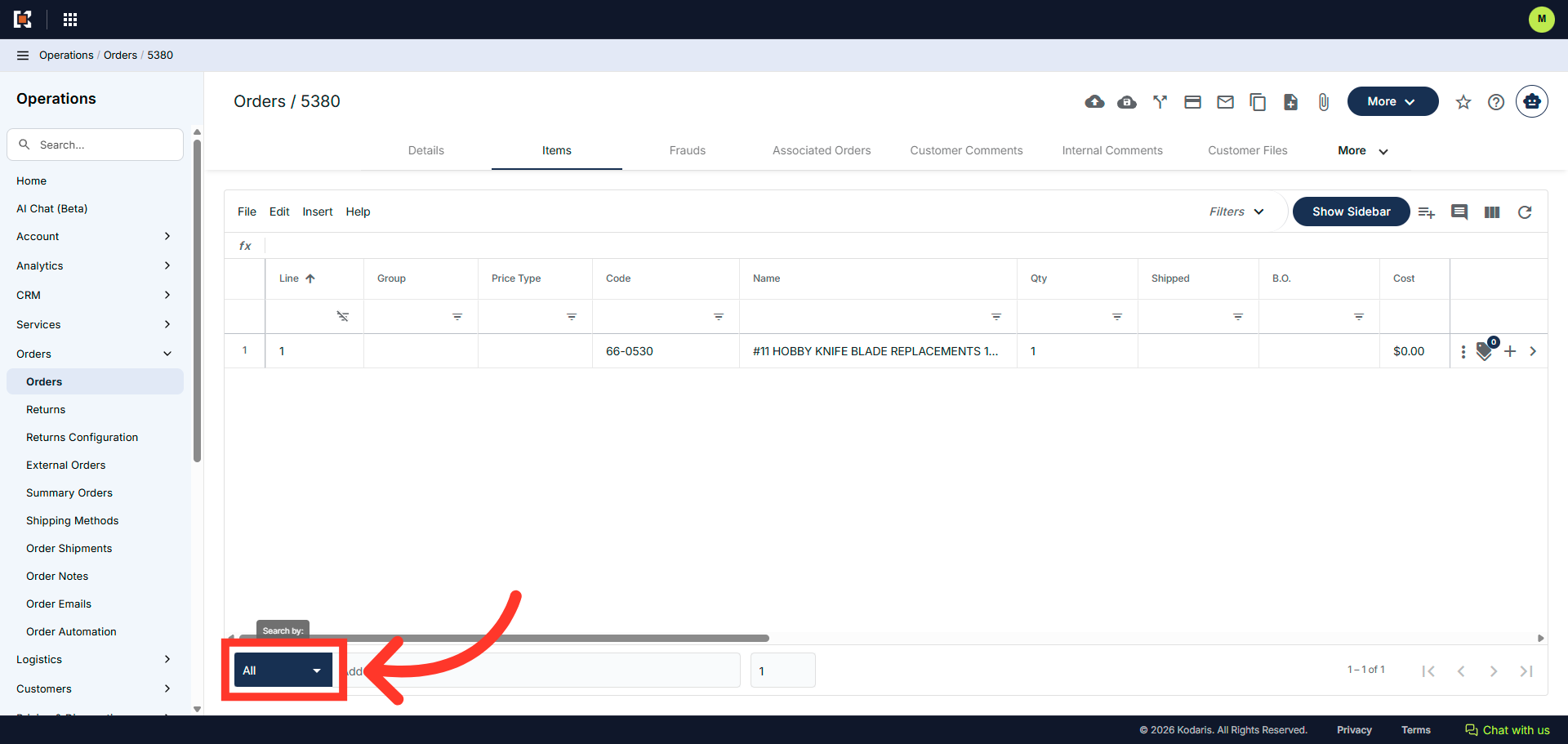
Click into the "Add Item" field or select the "Search by" dropdown.
You'll see the new "Product Line" option alongside the existing filters.
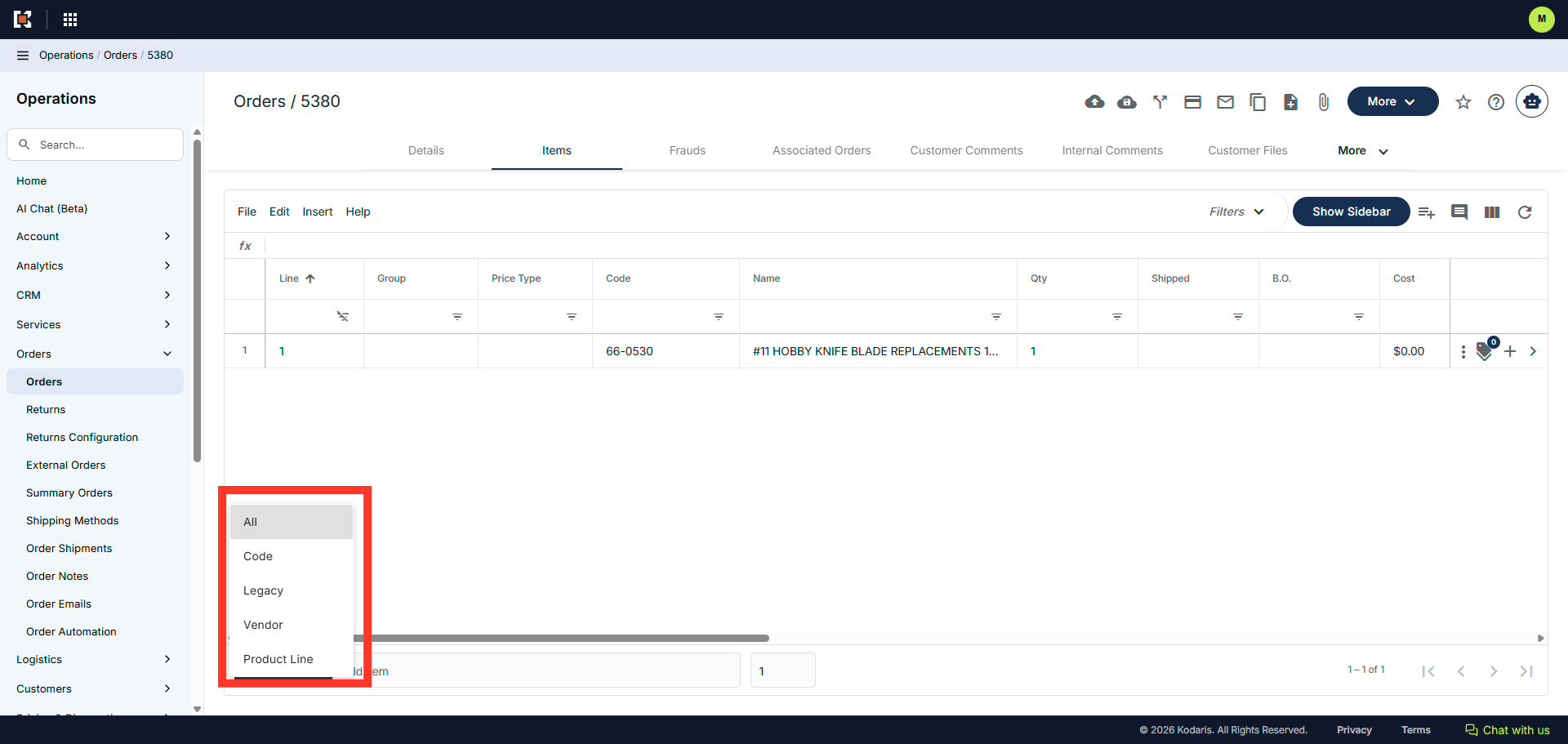
Click the "Product Line" option to access product line details.
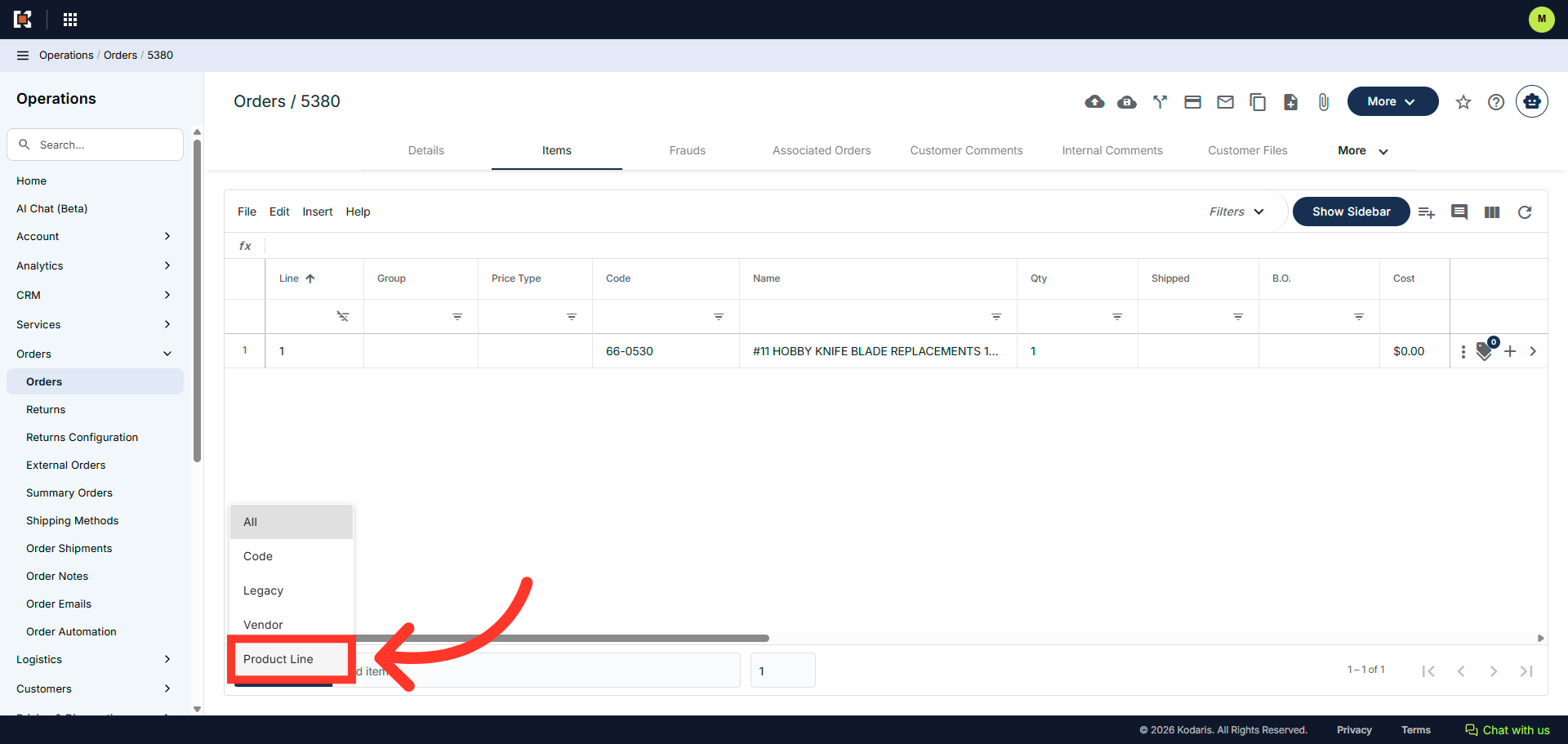
You can start typing, and items that have been labeled with the type "Product Line" will appear and products can be selected and added to the order.