 Product Documentation
Product Documentation
Product Documentation
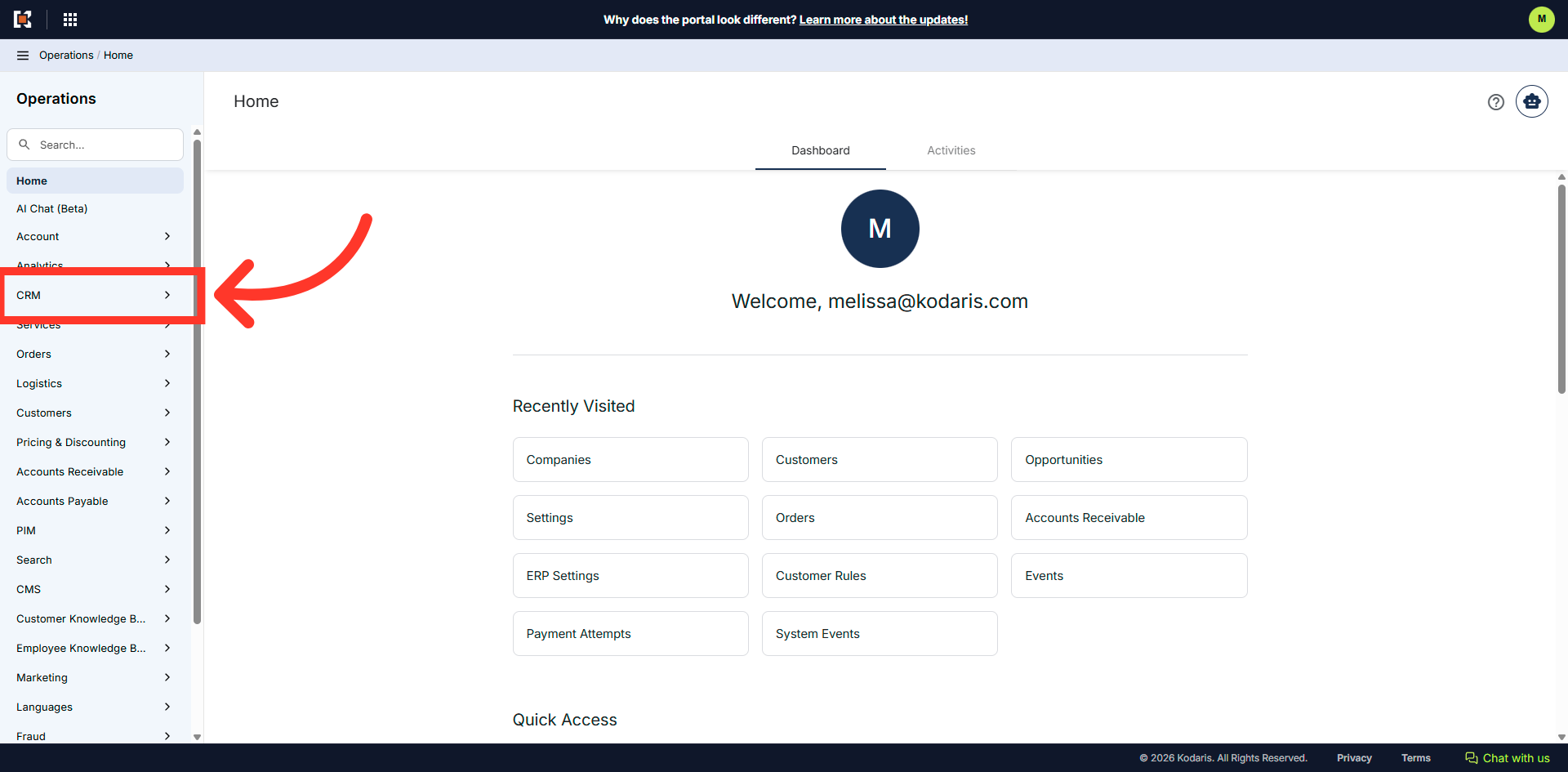
To search for an opportunity in the Operations Portal, navigate to the "CRM" section.
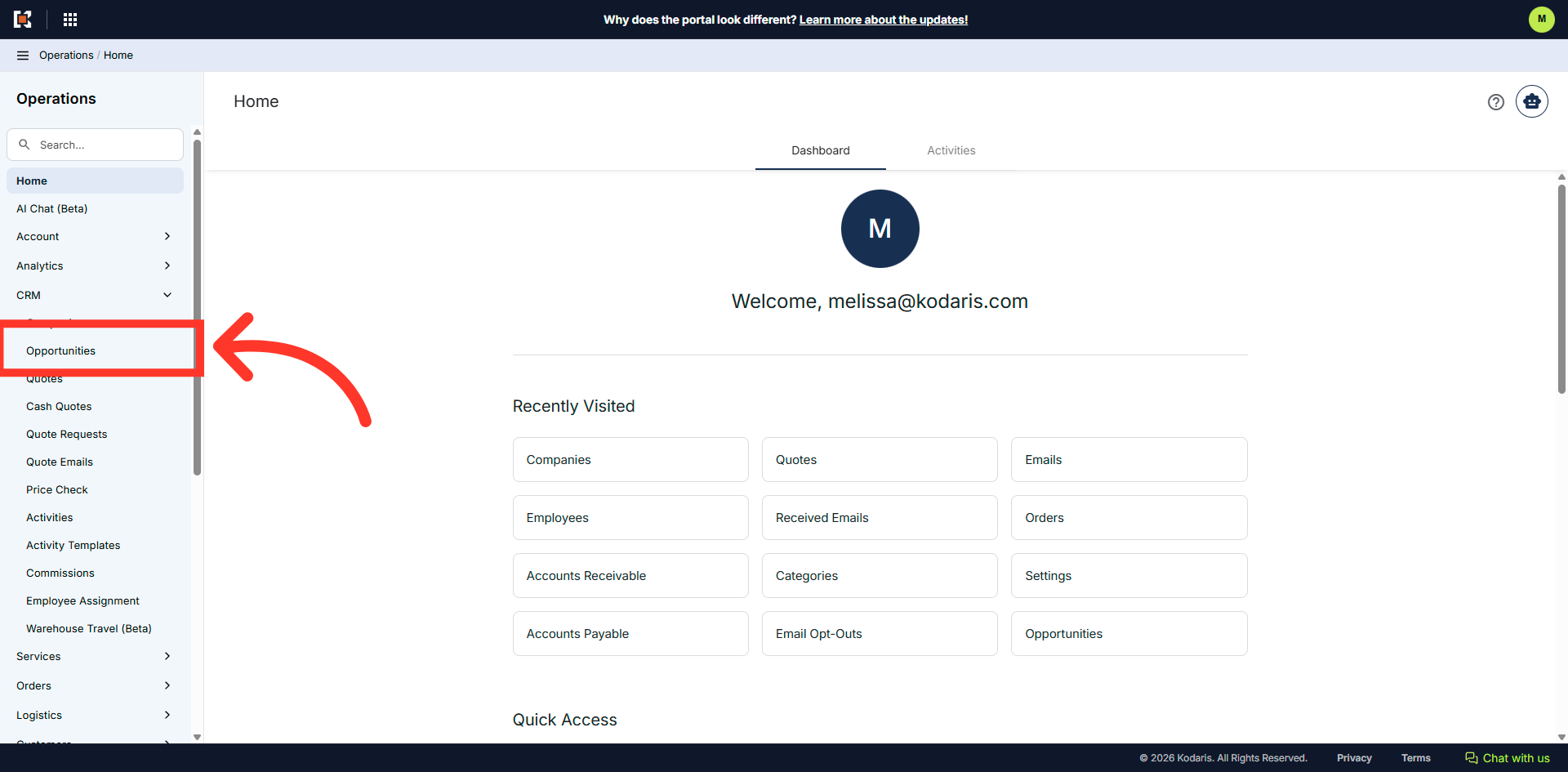
Then, click "Opportunities". In order to access and update "Opportunities" you will need to be set up either as an "administrator" or a "superuser", or have the roles of: "accountQuoting" and "dashboardSearch".
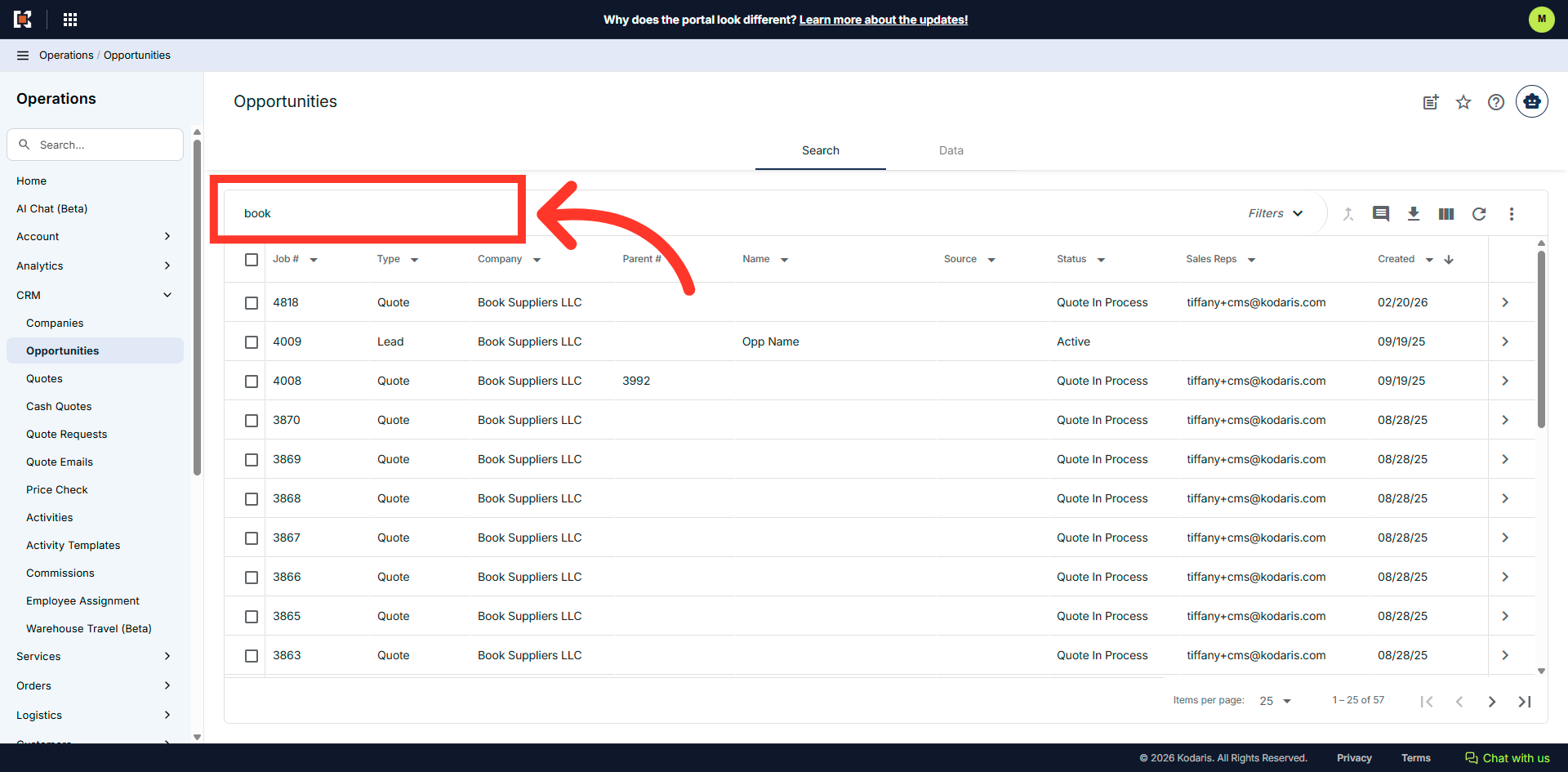
In the "Opportunities" screen, search for an opportunity either by browsing the list or by entering a keyword in the "Search..." field. Companies that match your keywords will appear as you type.
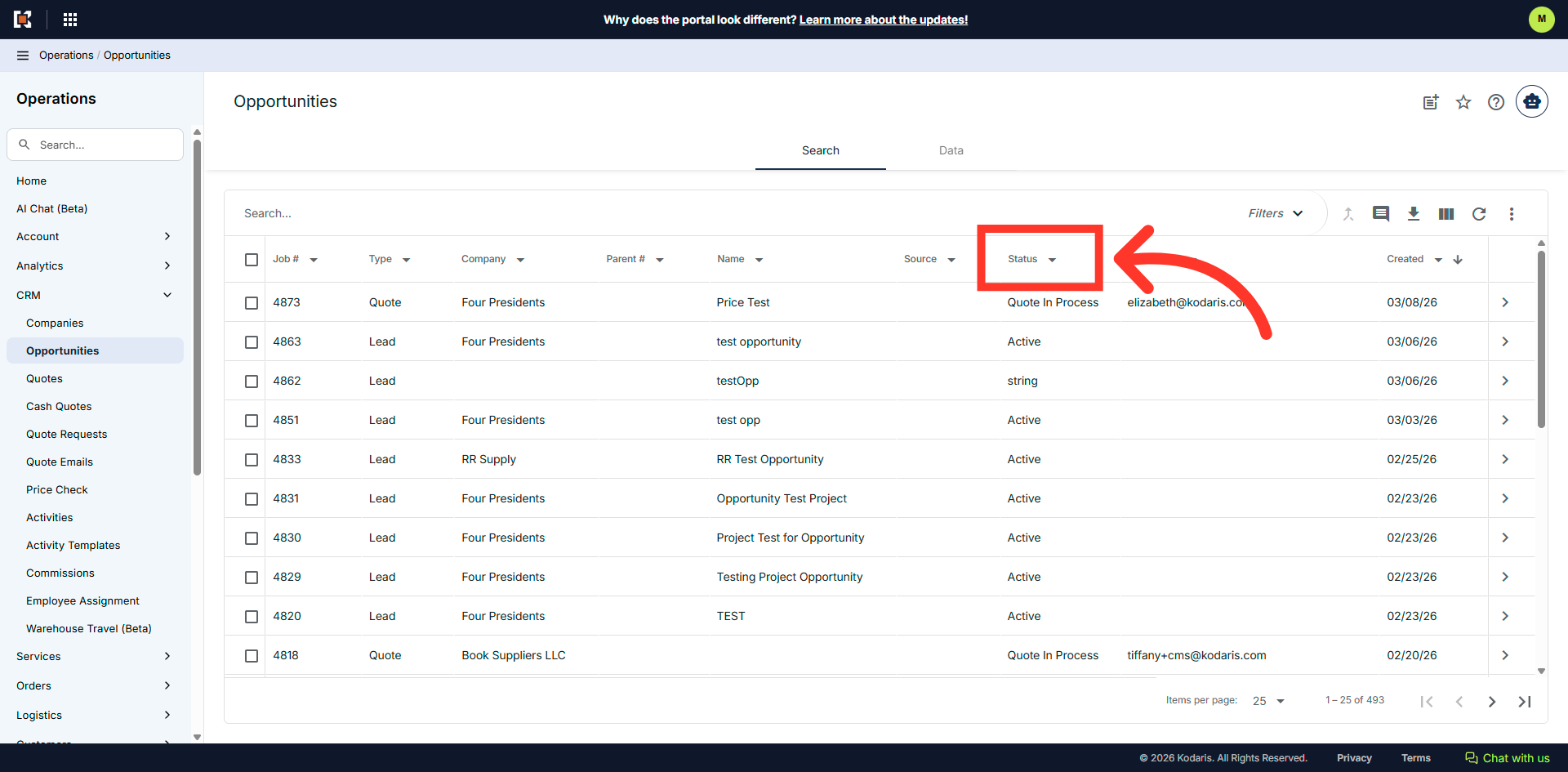
Another way to look for opportunities is to use the column filters. Each column with a dropdown arrow offers additional options to further refine the data.

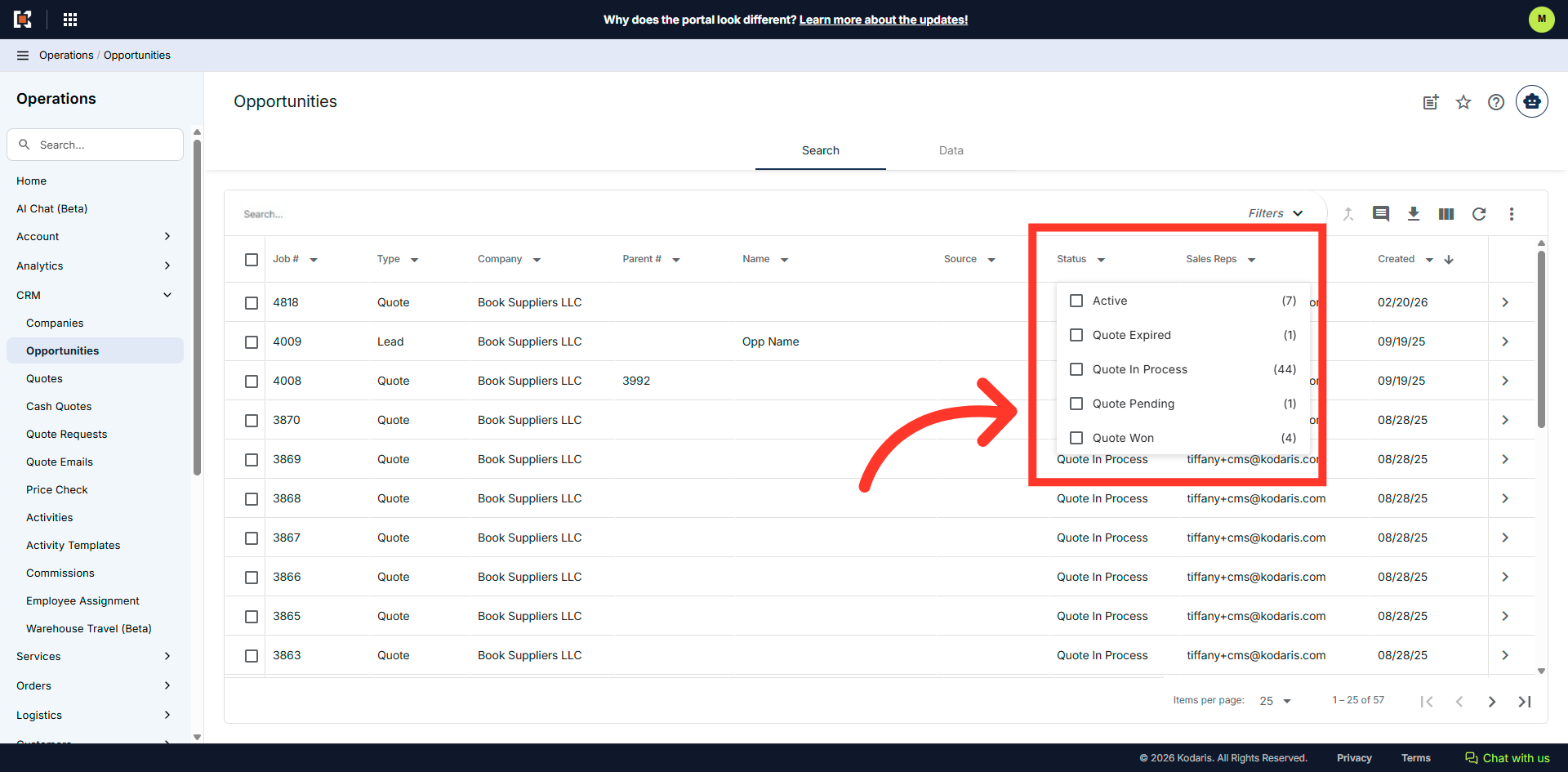
In this example, we will filter by "Status". Click the column filter dropdown to view the options.
Select from the dropdown list.
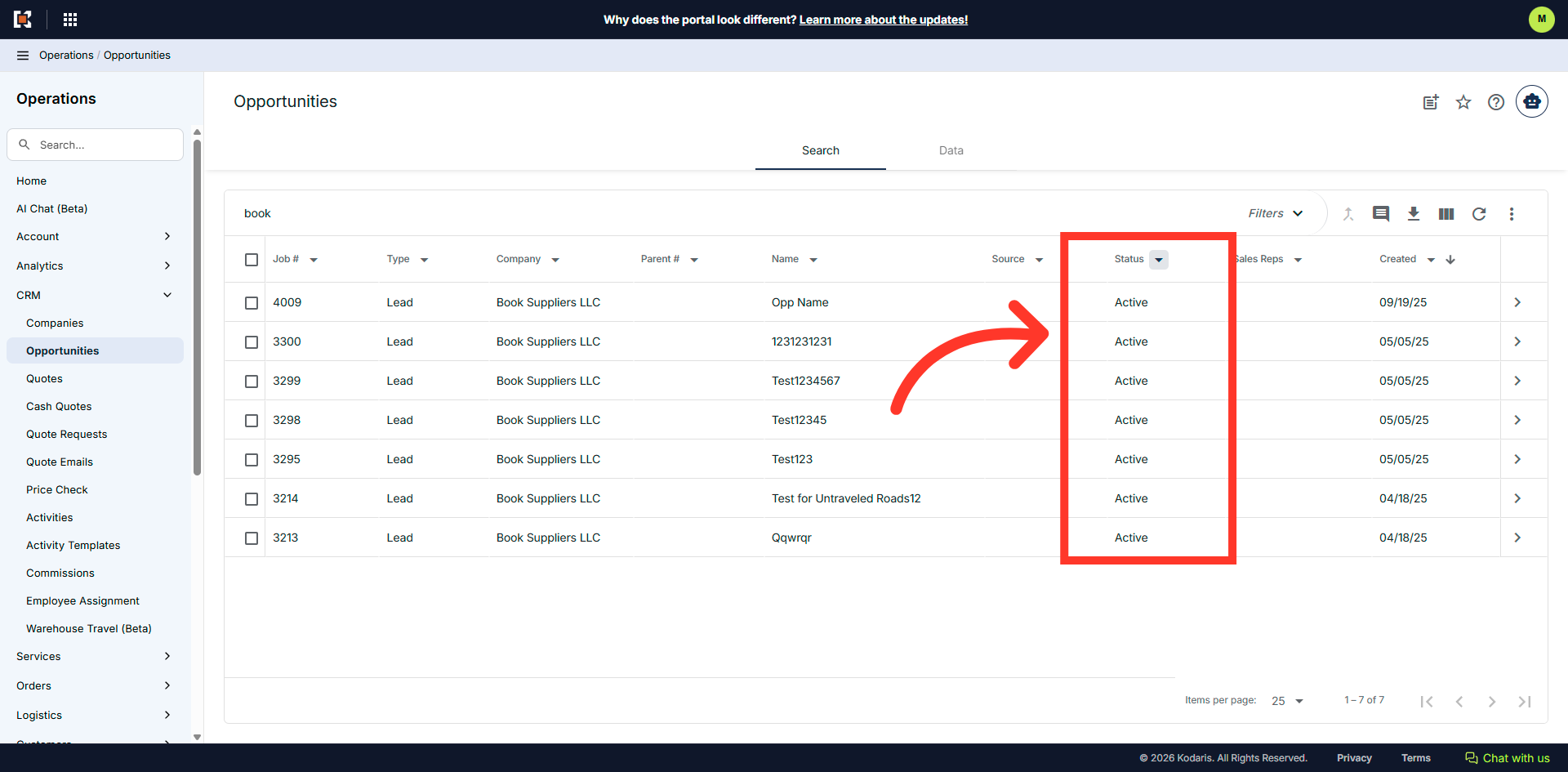
The filtered results will be displayed.
If you need more details when searching for an opportunity, click the "Show/Hide Columns" icon.
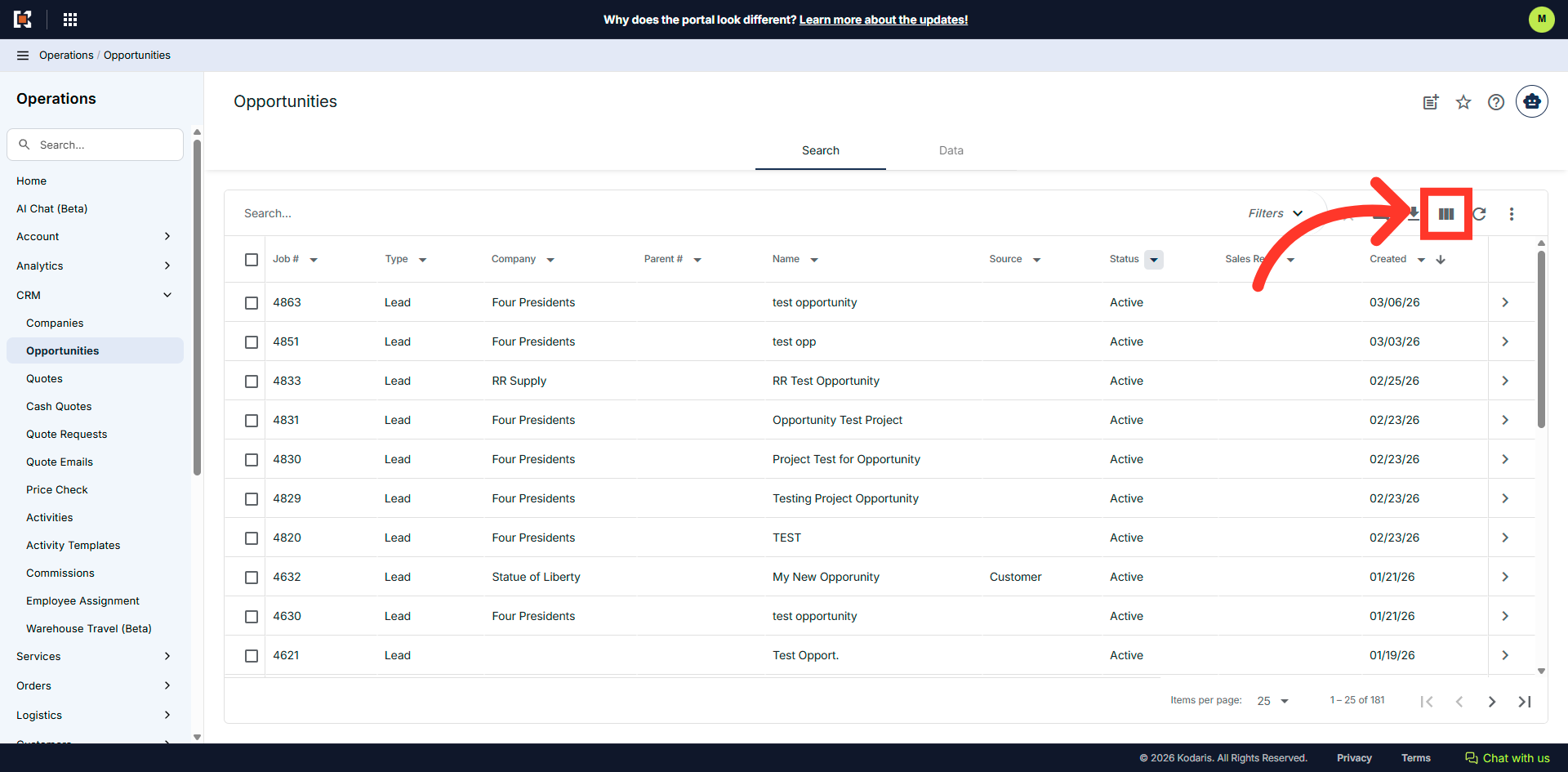
Select columns from the list. This will allow you to view the columns you need when searching for an opportunity. Check the box next to the option to select it; uncheck to deselect.
