Product Documentation
Product Documentation
Product Documentation
To use the filter and sort options when viewing customer data, navigate to the "Customers" section in the Operations Portal.
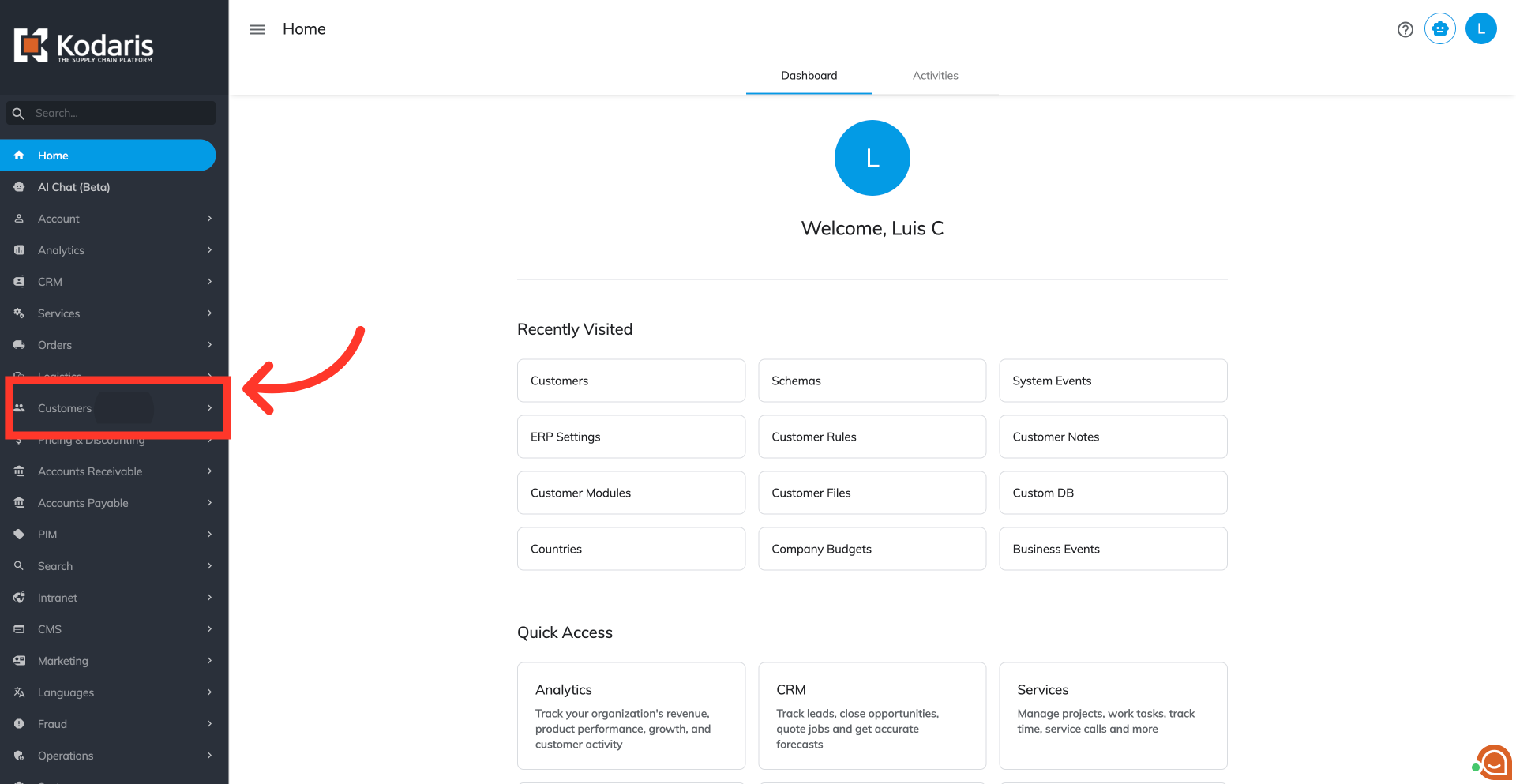
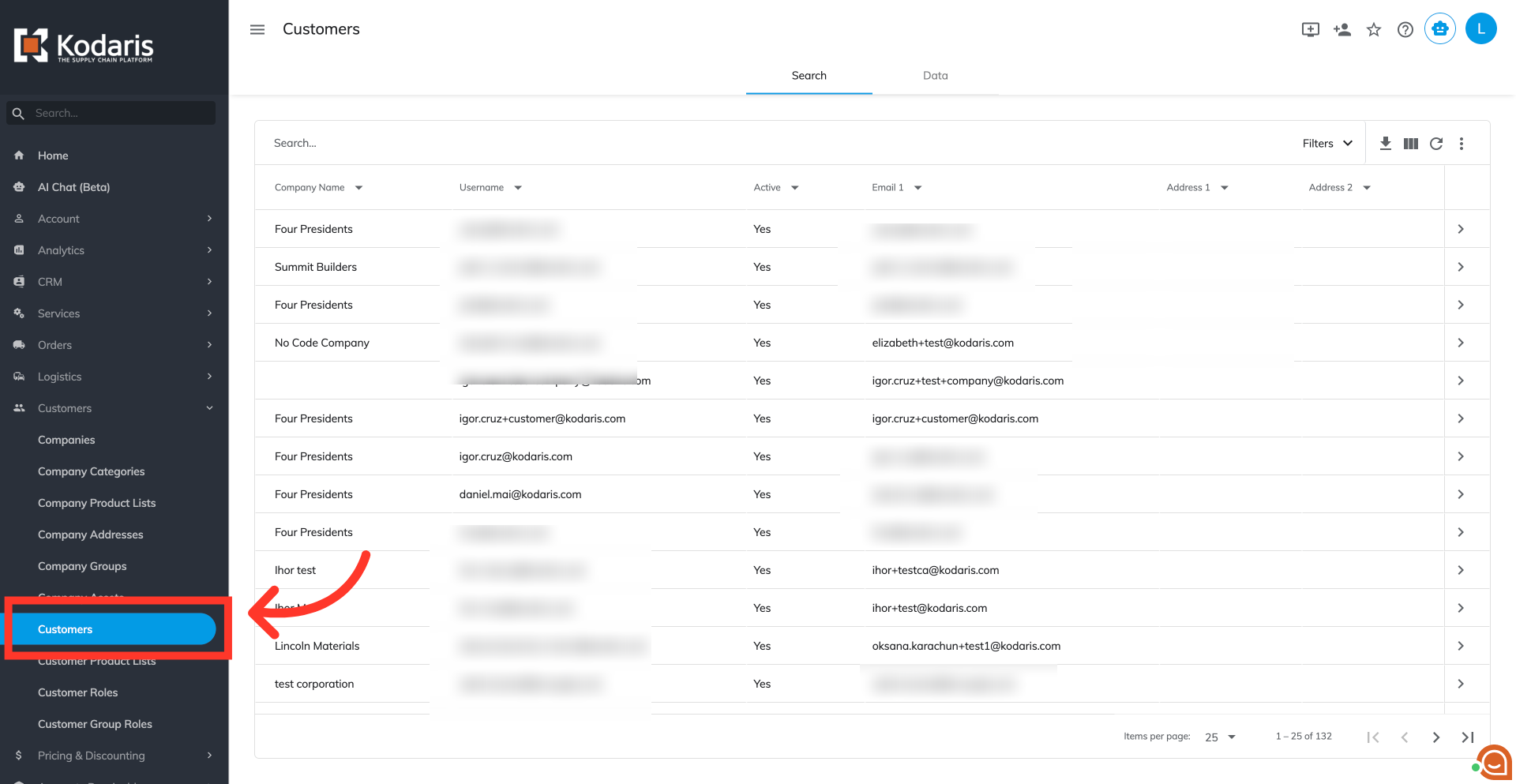
Then, click "Customers". In order to access "Customers" you will need to be set up either as an "administrator" or a "superuser", or have the appropriate roles: "customerView" and "customerEdit".
On your Search tab, click on the arrow icon next to a column header to sort the data in ascending or descending order.
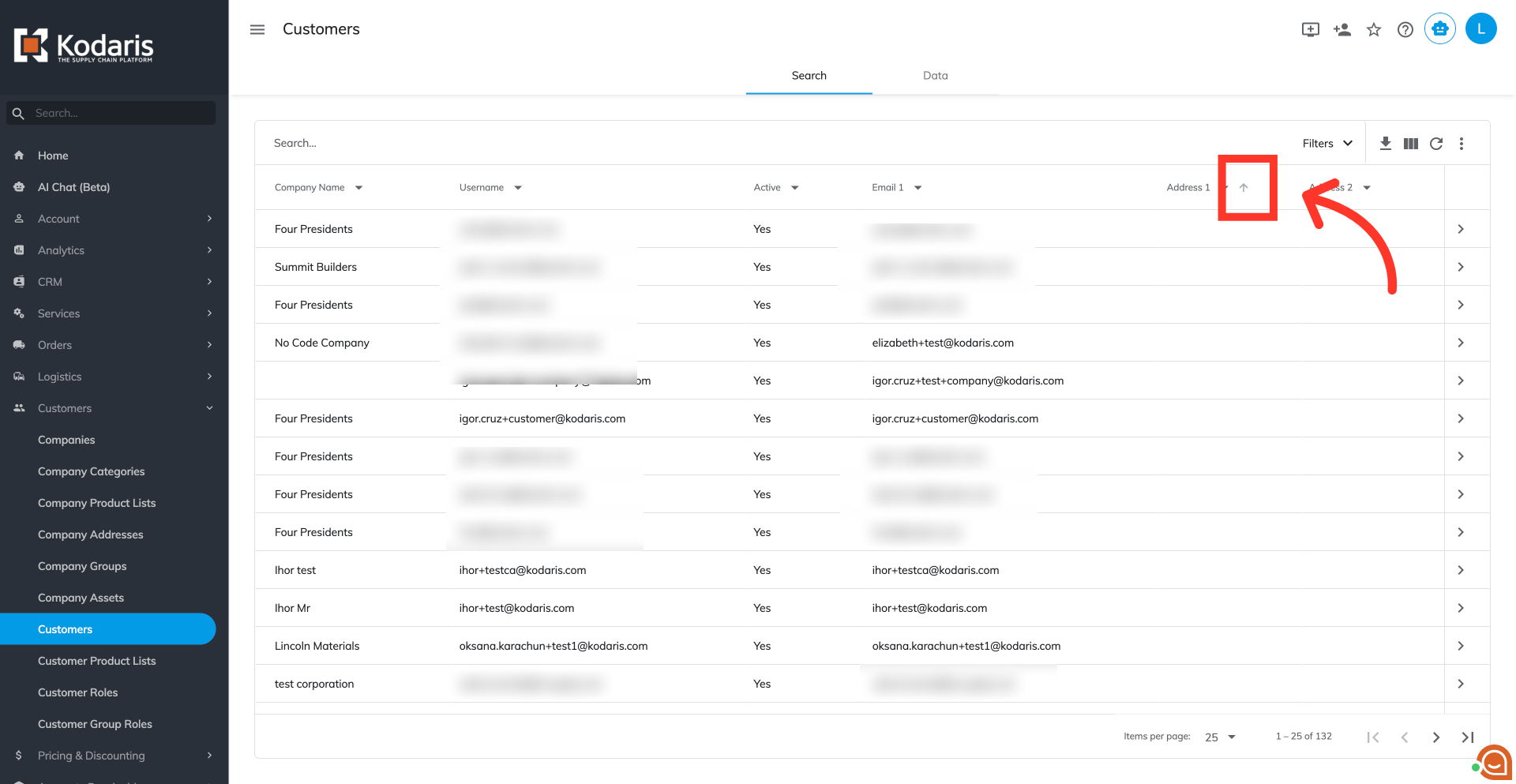
The screen now displays your data in either ascending or descending order.
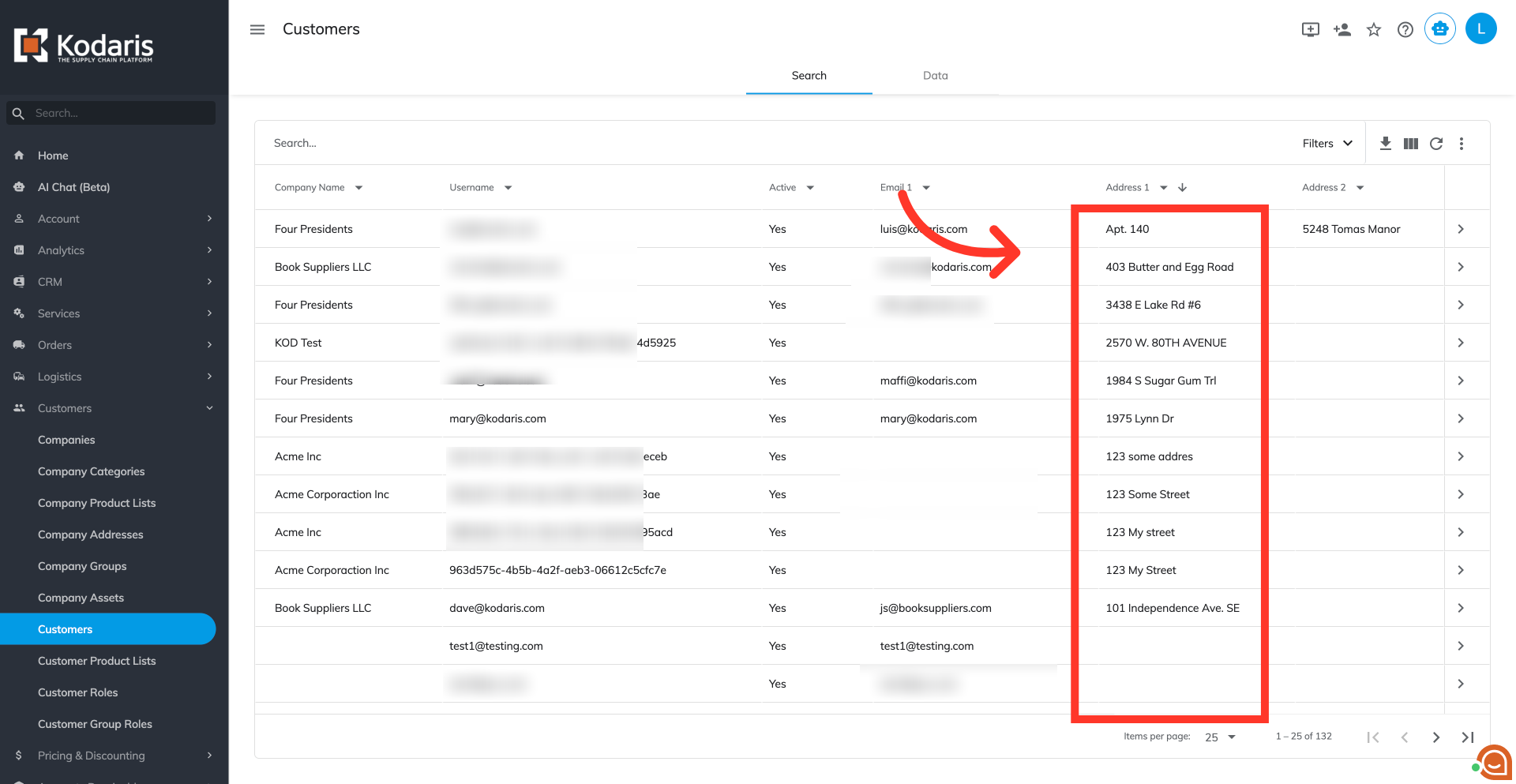
To filter, click on the filter icon next to a column header.
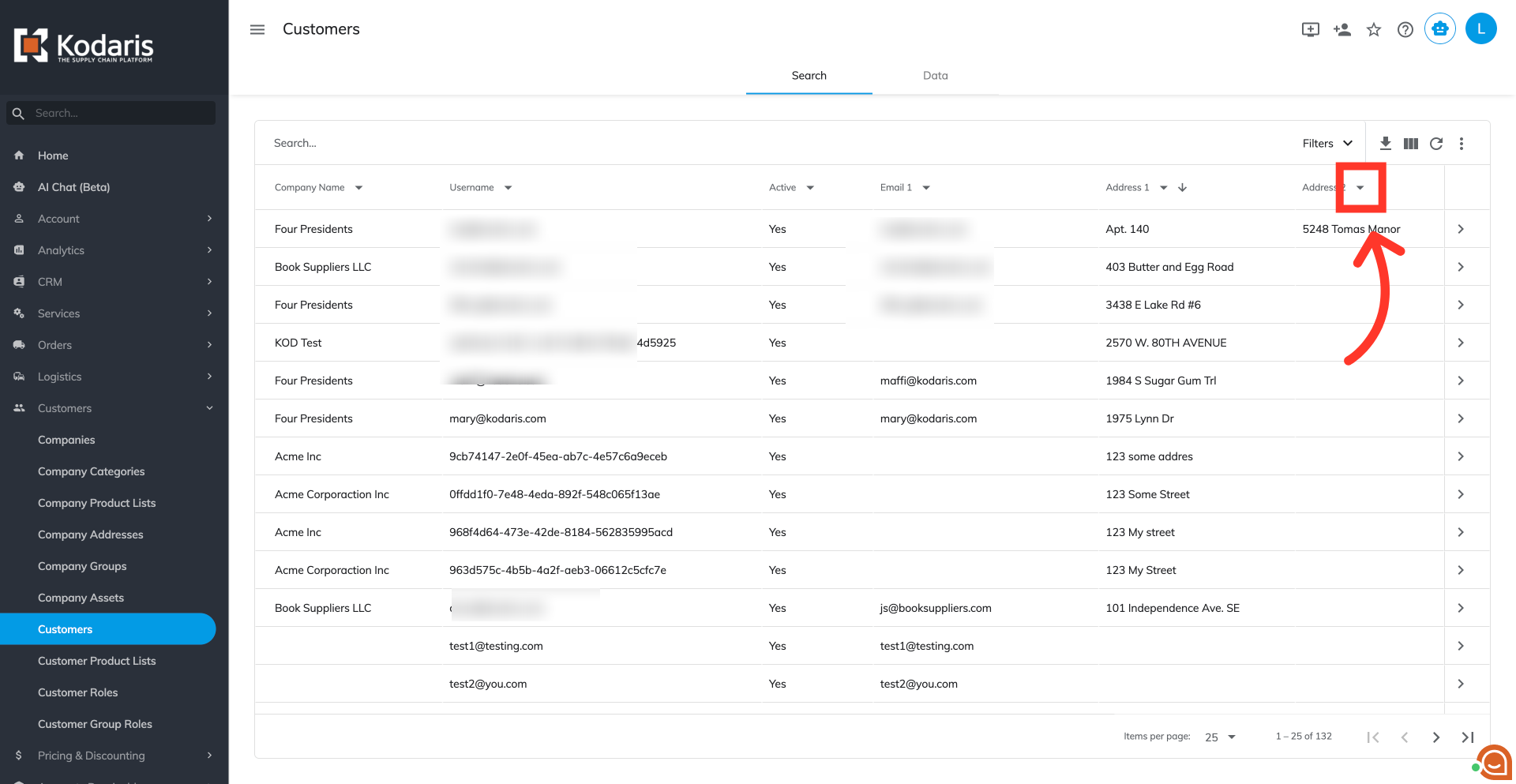
Click the dropdown to view and select filtering options.
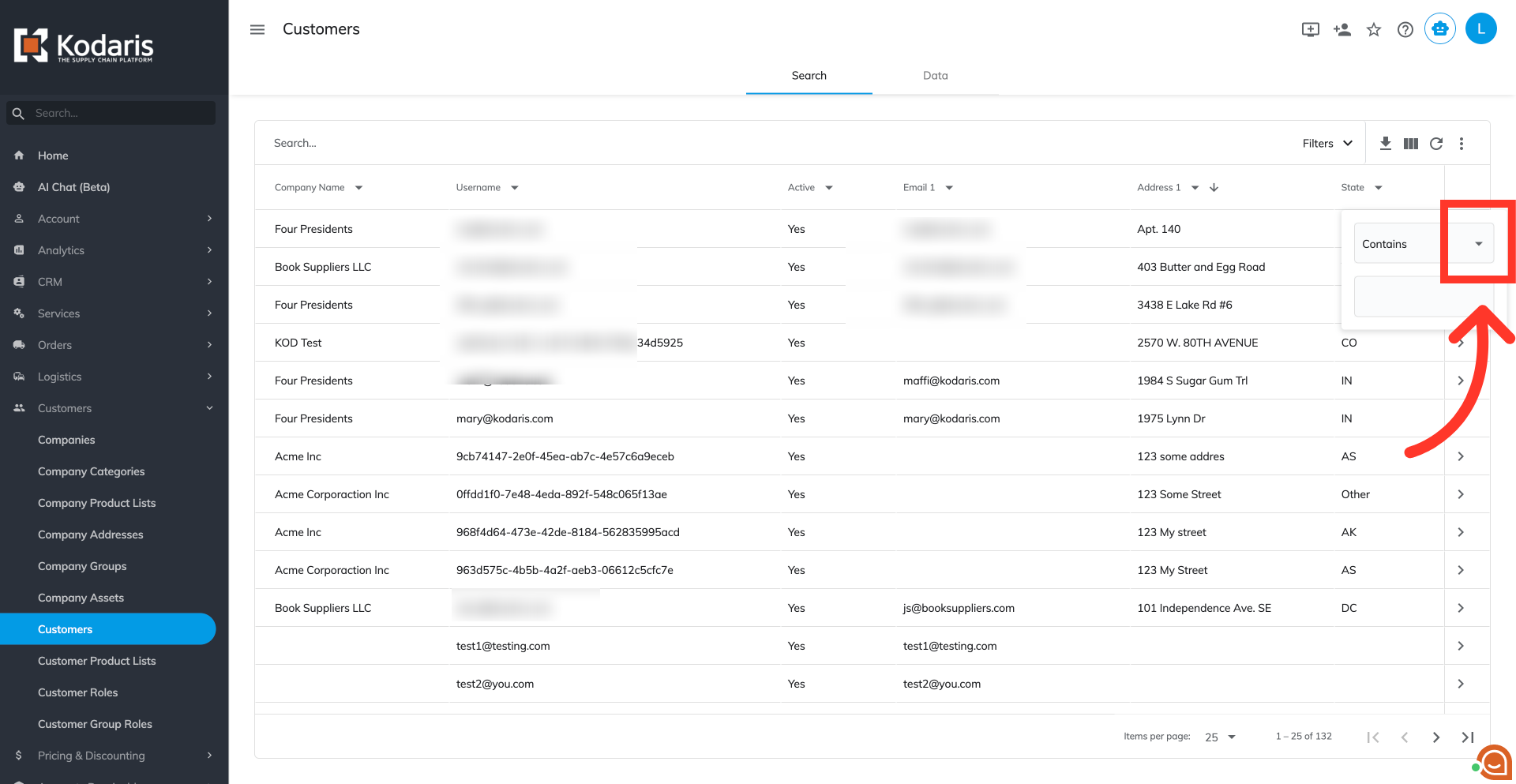
Once you select a filter, enter the text you would like to use and press the "Enter" key.
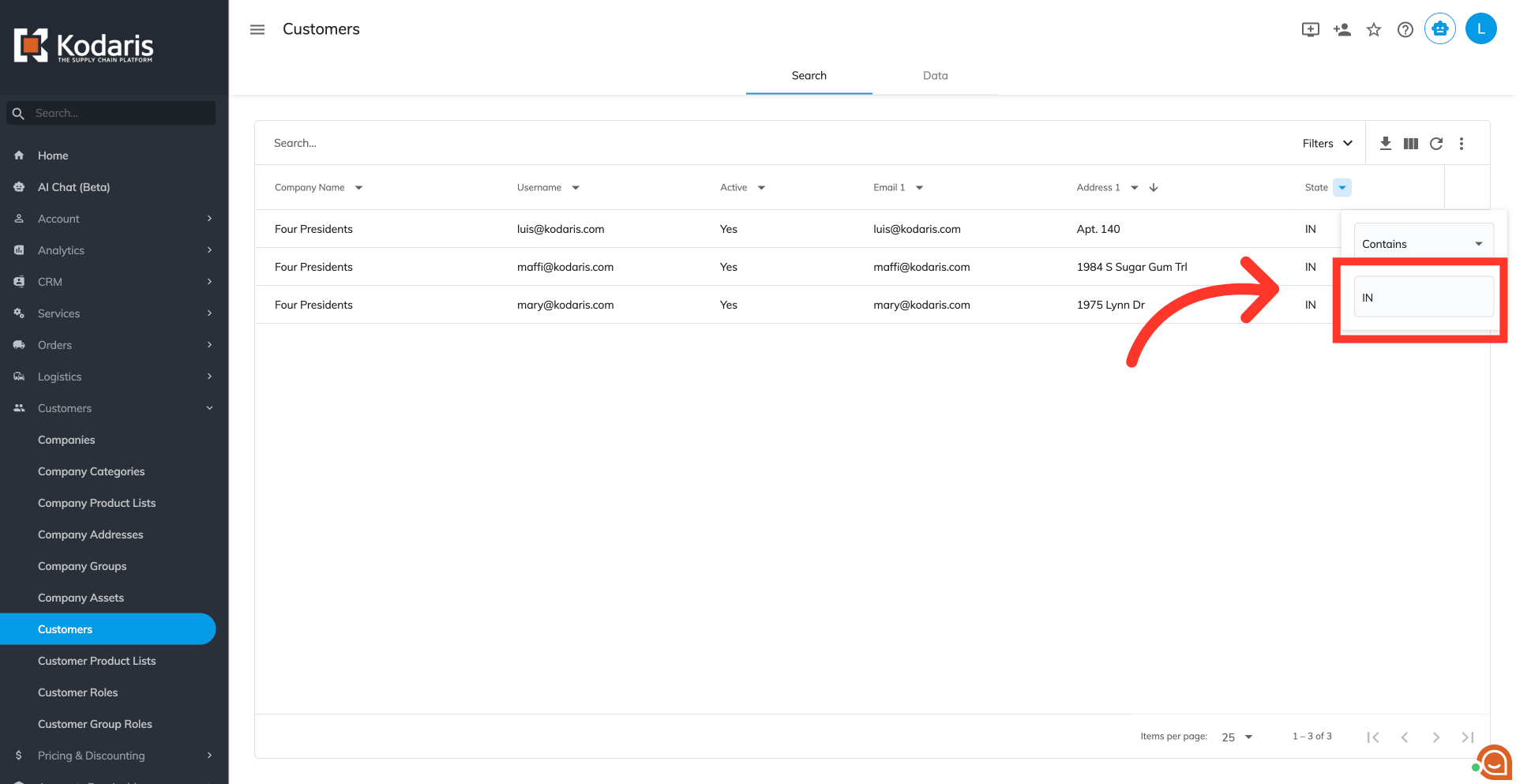
Select "Contains" option to display items where the specified text appears anywhere within the field.
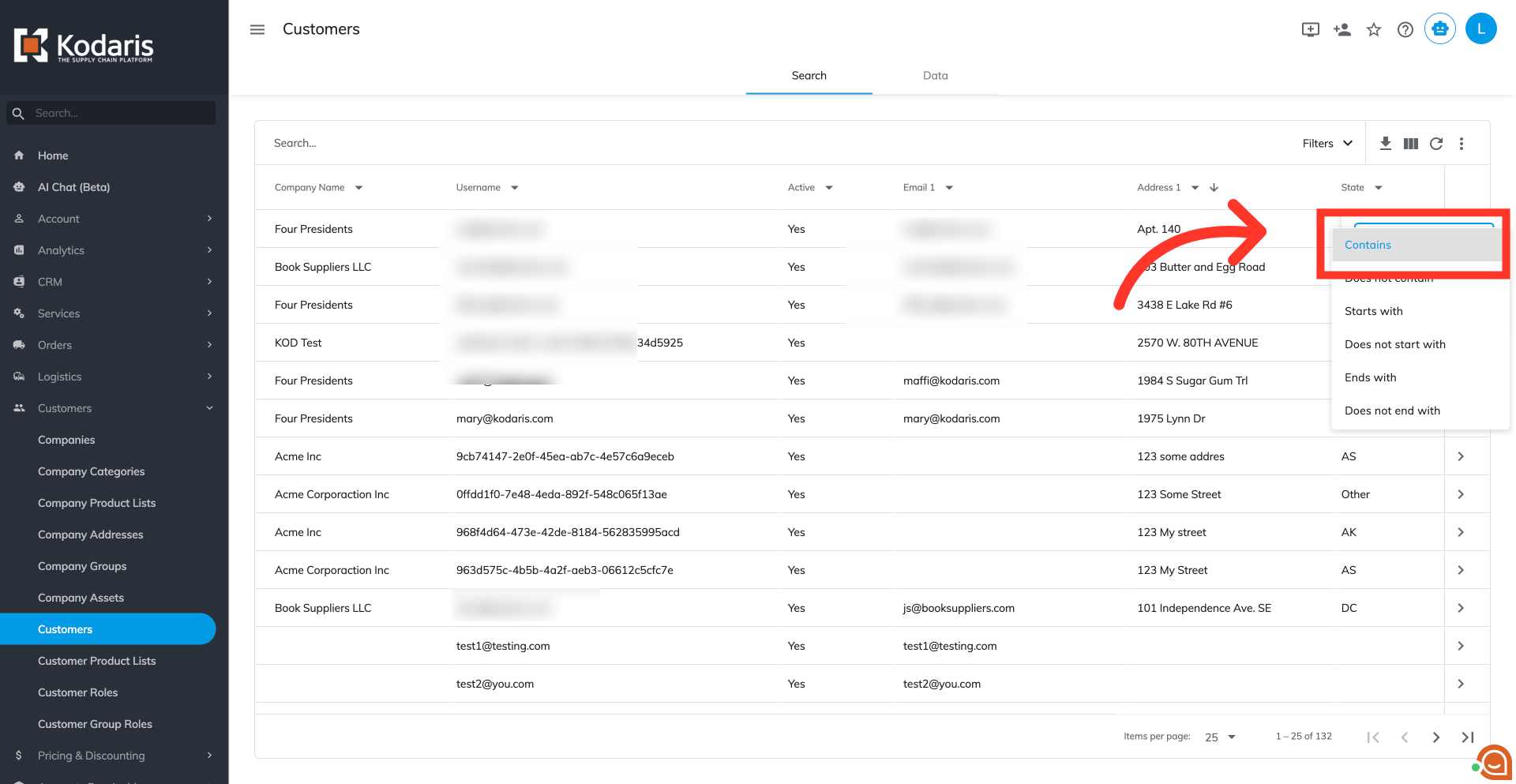
Choose "Does not contain" to view items in which the text is not included in the field.
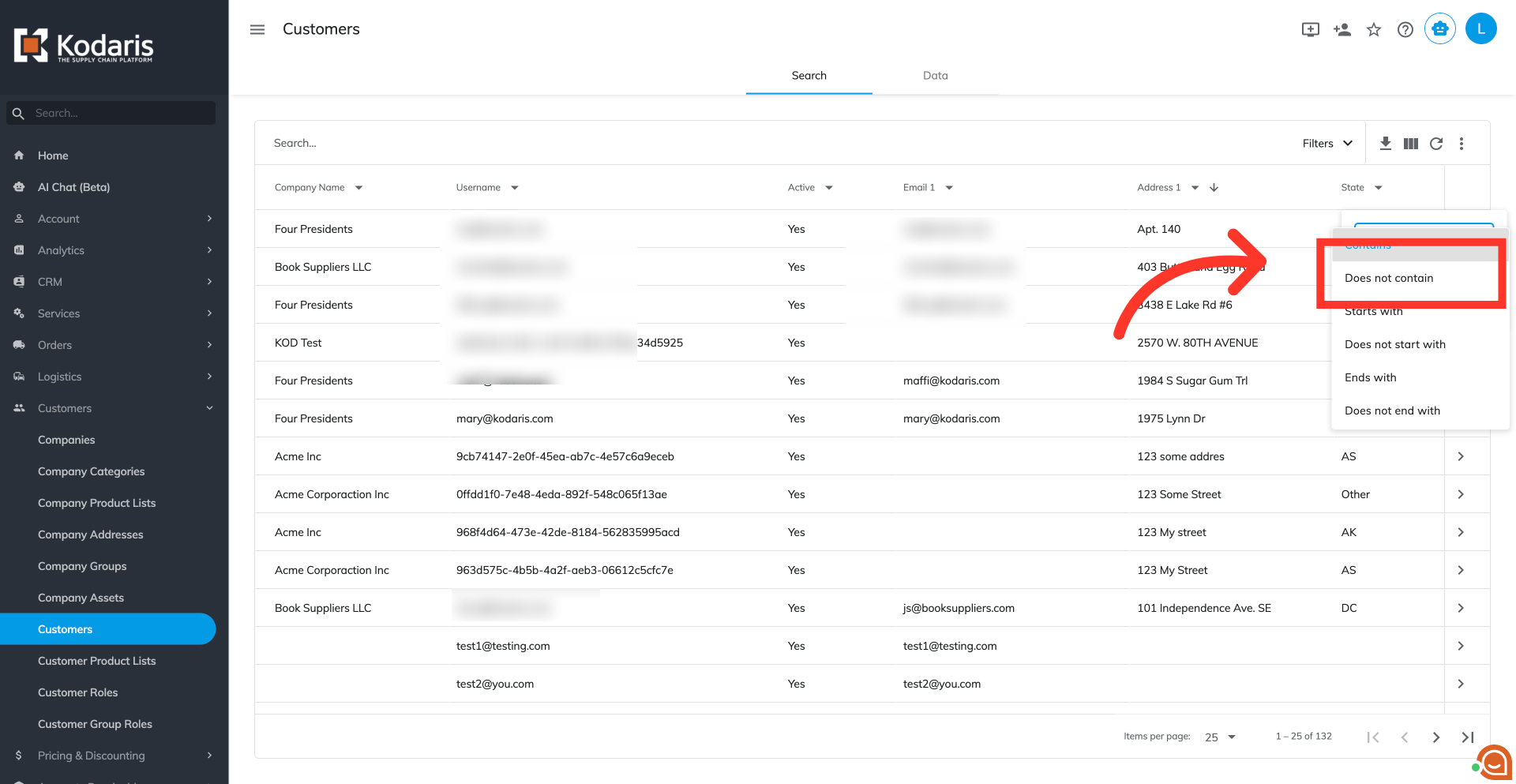
Select the "Starts with" option to show items where the field's content starts with the provided text.
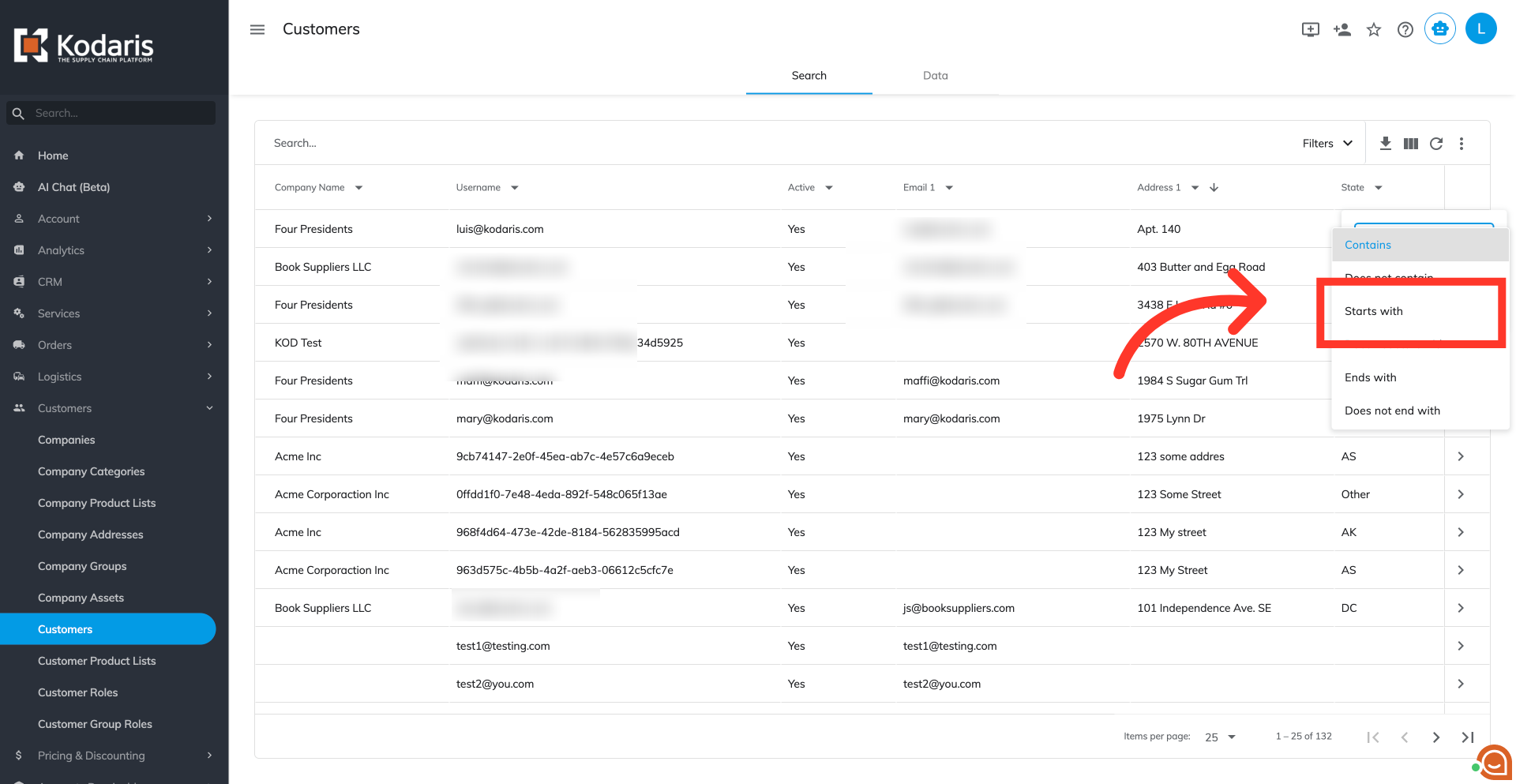
Use the "Does not start with" filter option to view items which content does not begin with the specified text.
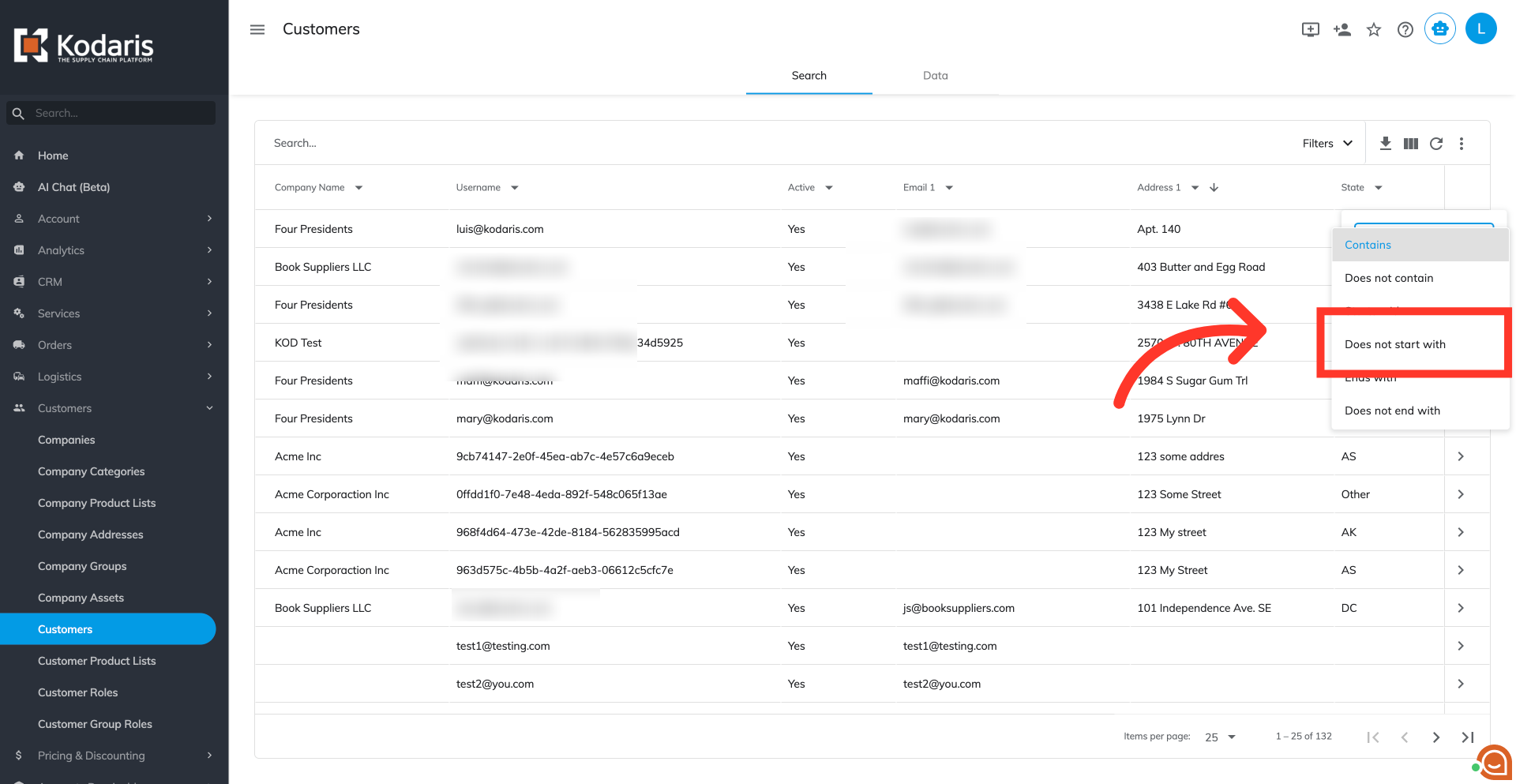
Choose "Ends with" and to show data where the field's content ends with the specified text.
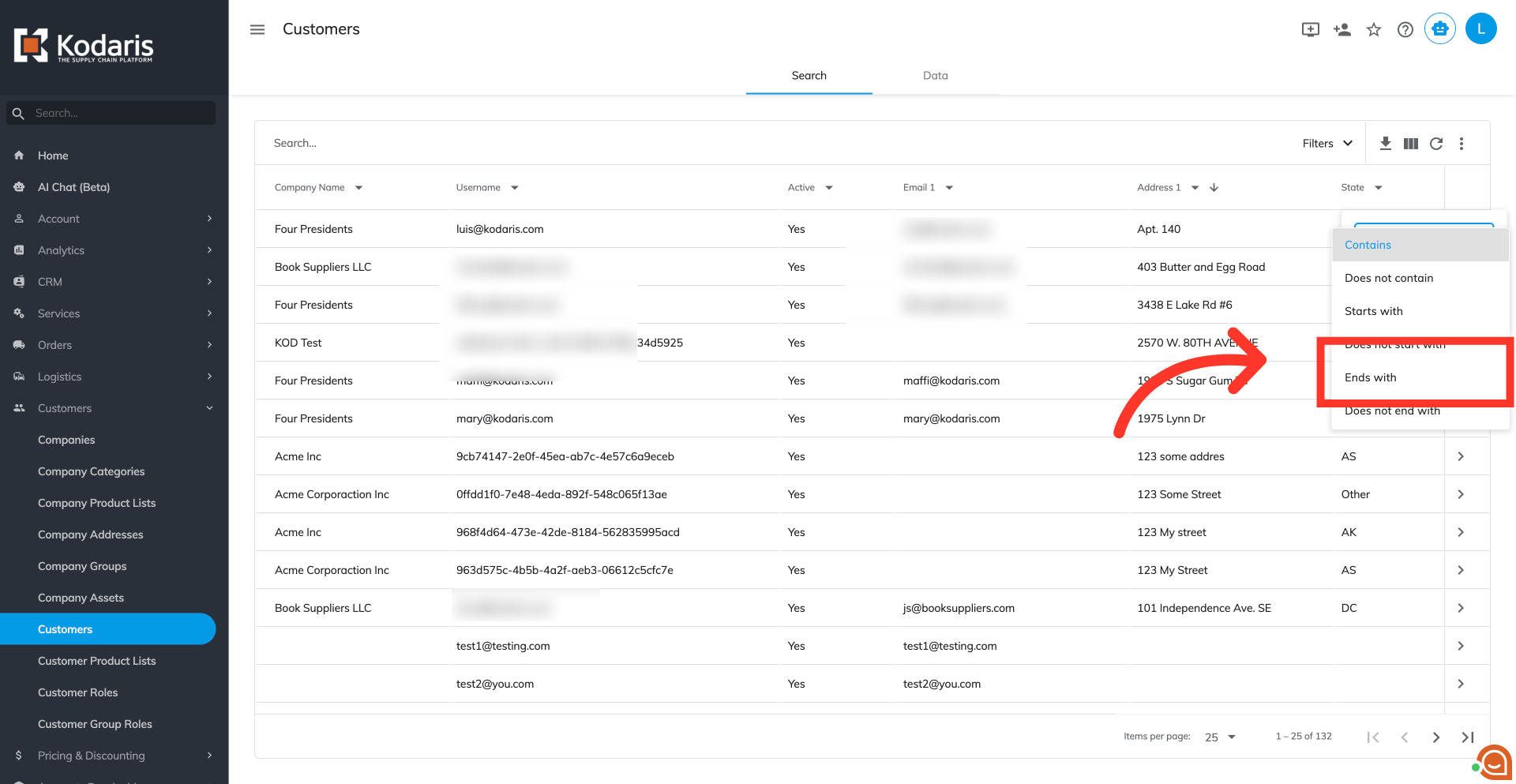
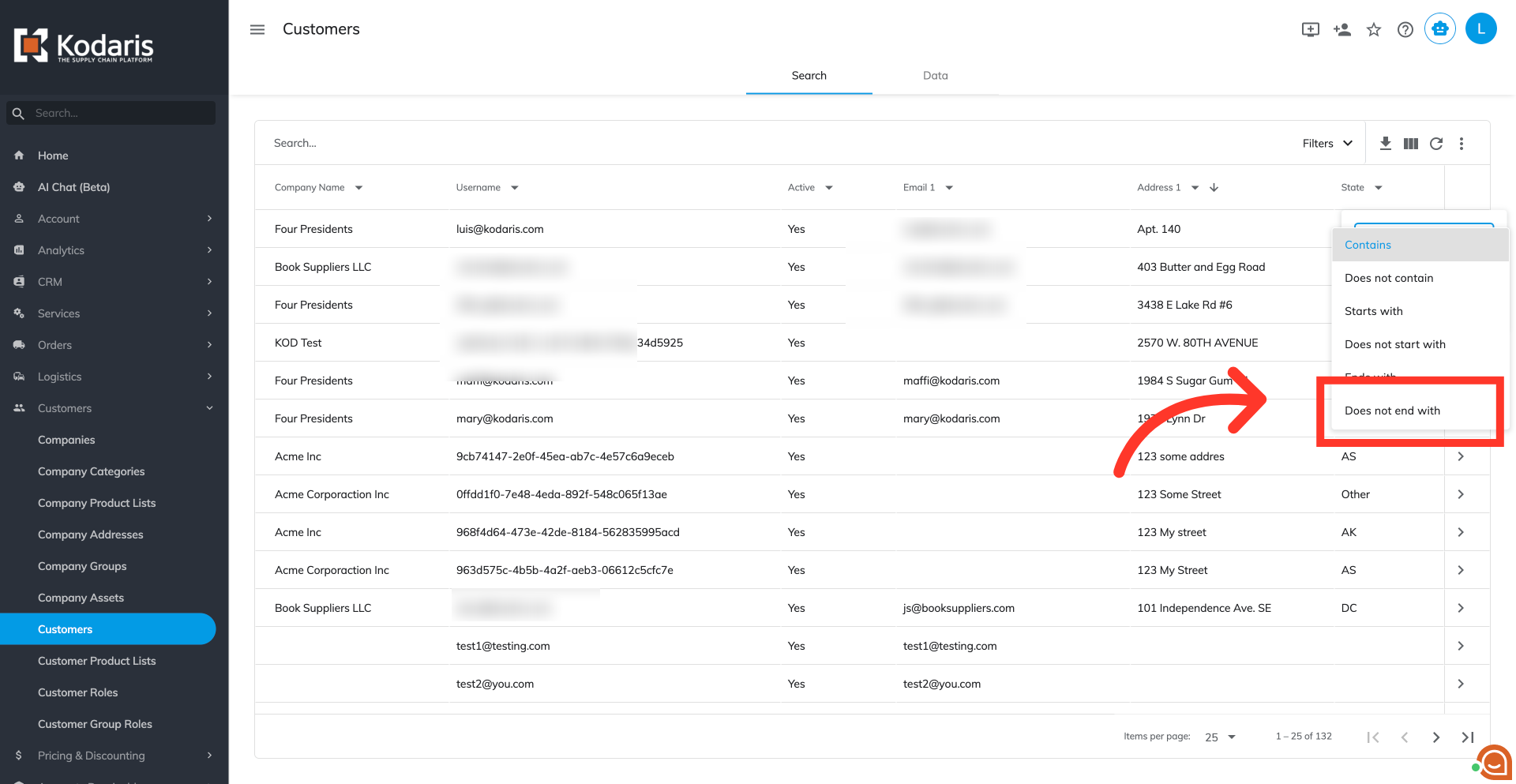
You can also select "Does not end with" option to view data where the field's content does not end with the specified text.
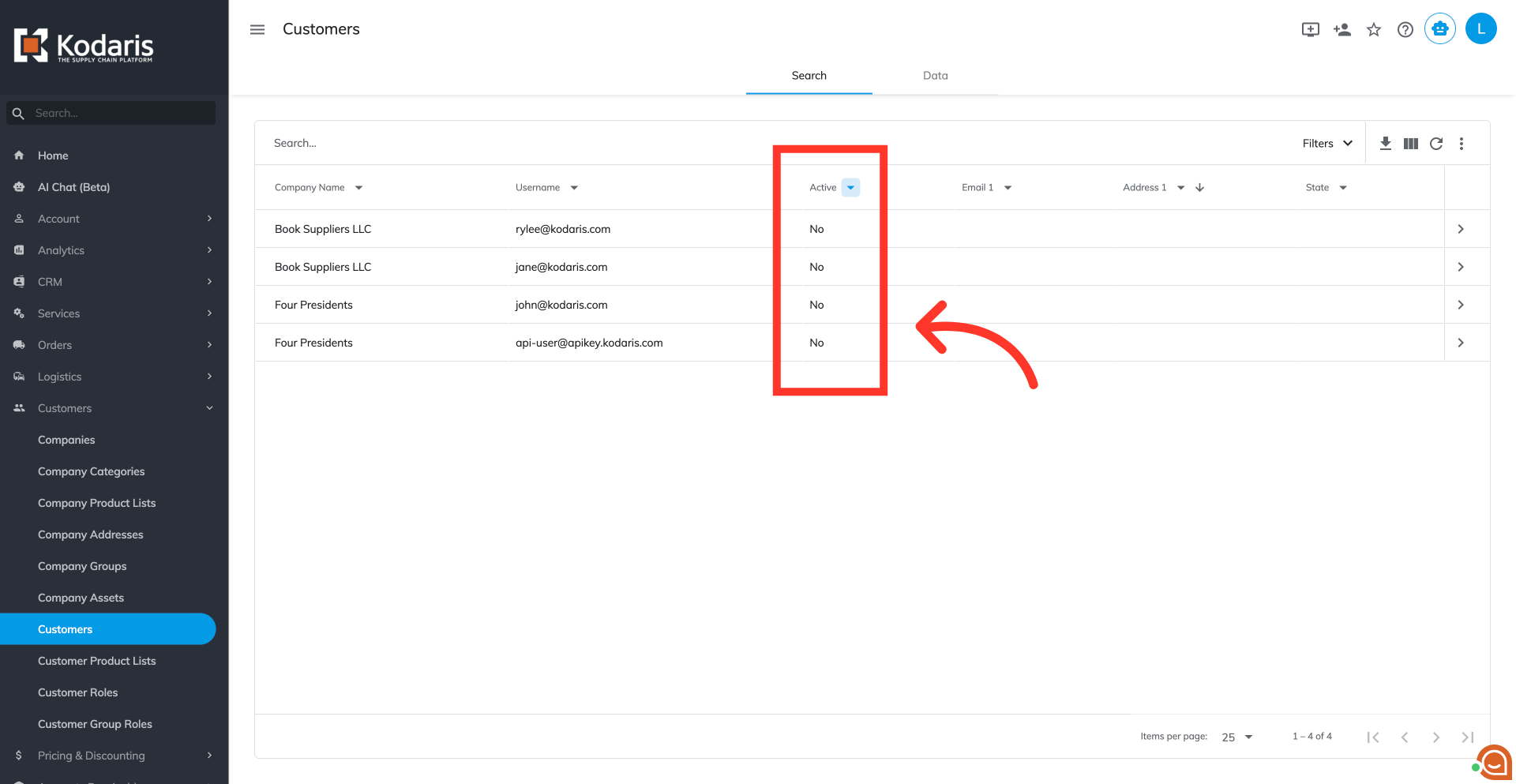
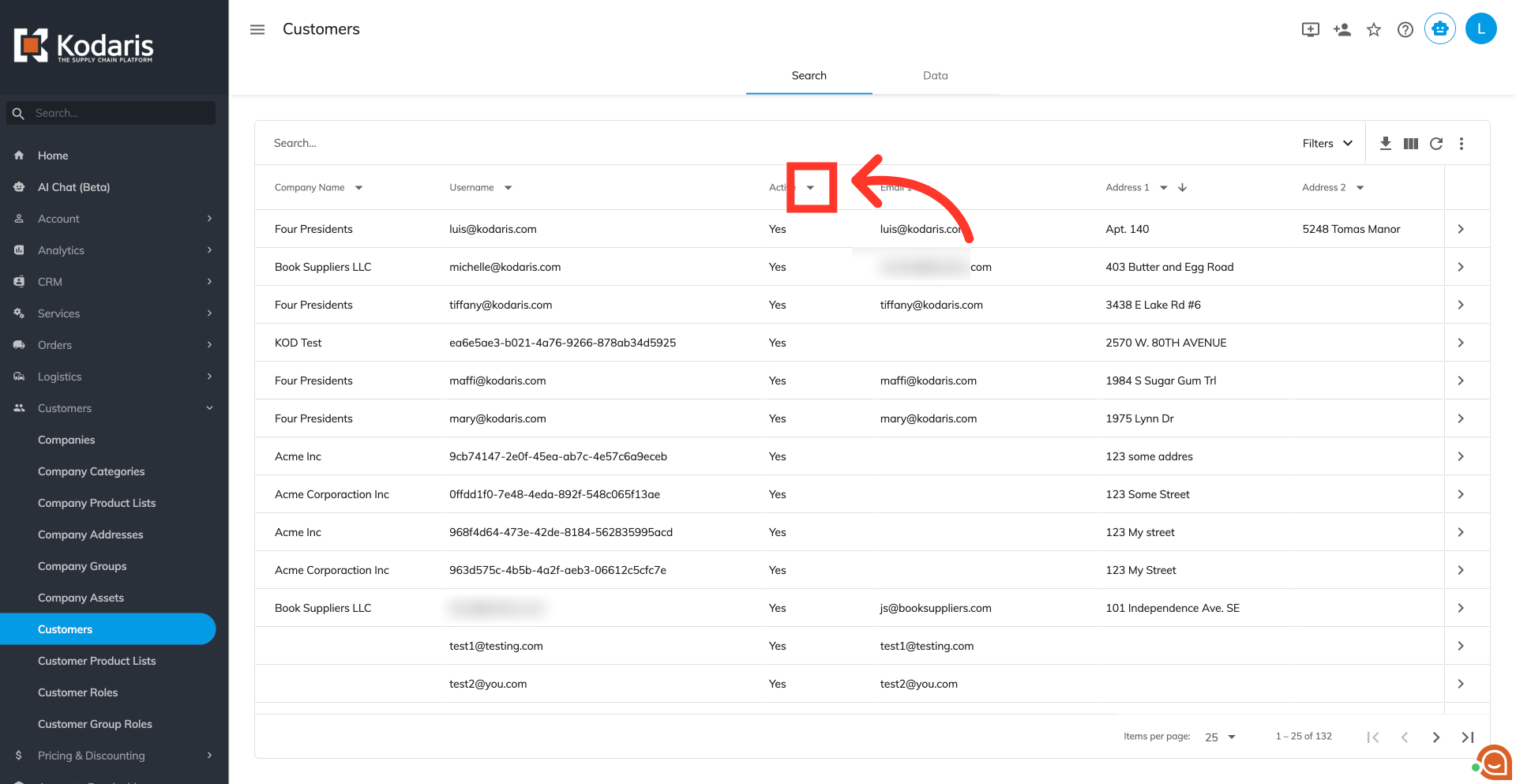
Some columns offer filters with dropdown options. These filters help you narrow down search results by having the option to select multiple filters at once. One example would be the "Active" column.
Click the checkboxes next to the desired values within the filter to narrow the results.
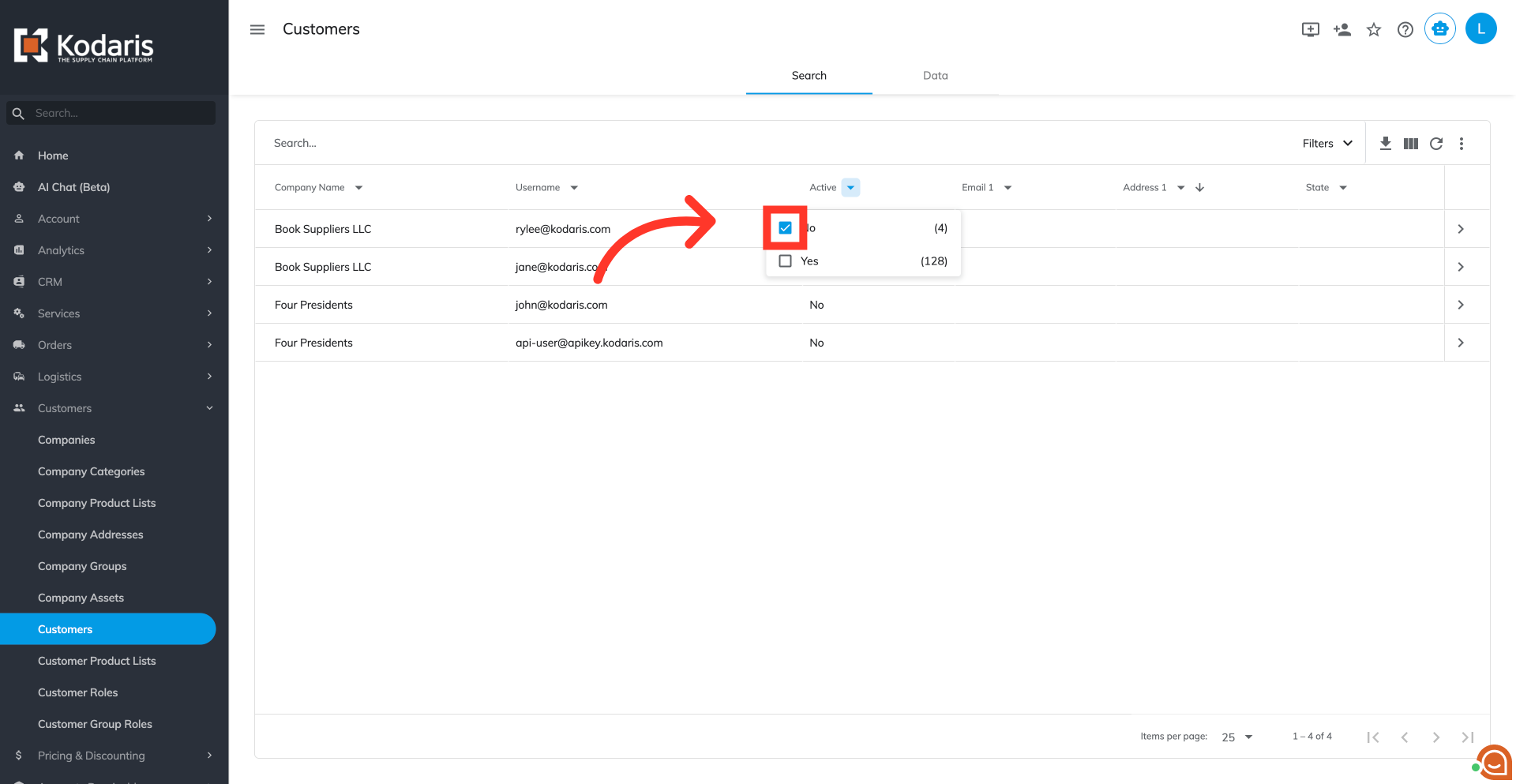
The screen now displays only the data matching your selected checkbox criteria.