Product Documentation
Product Documentation
Product Documentation
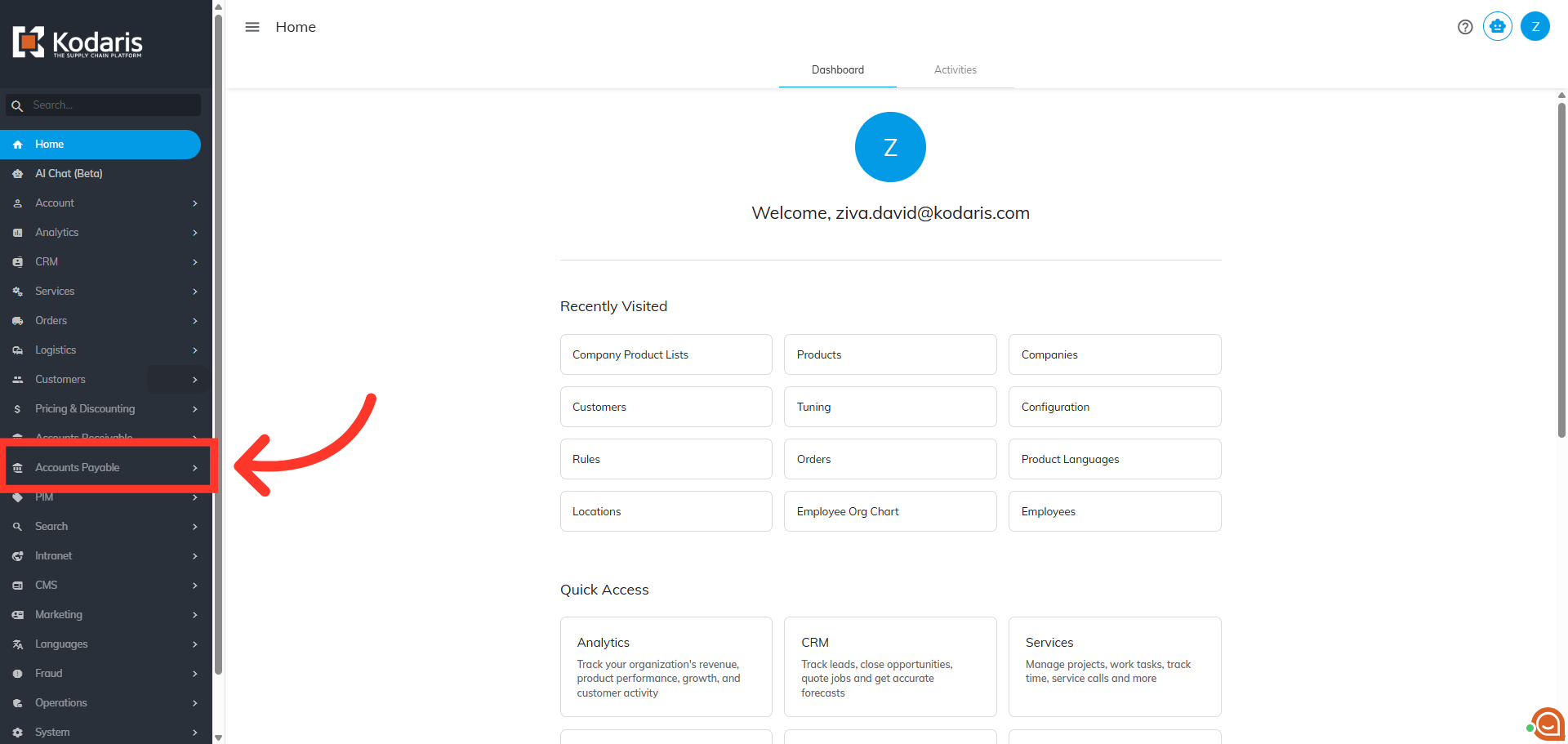
To create a Vendor Purchase Order, navigate to the "Accounts Payable" section in the Operations Portal.
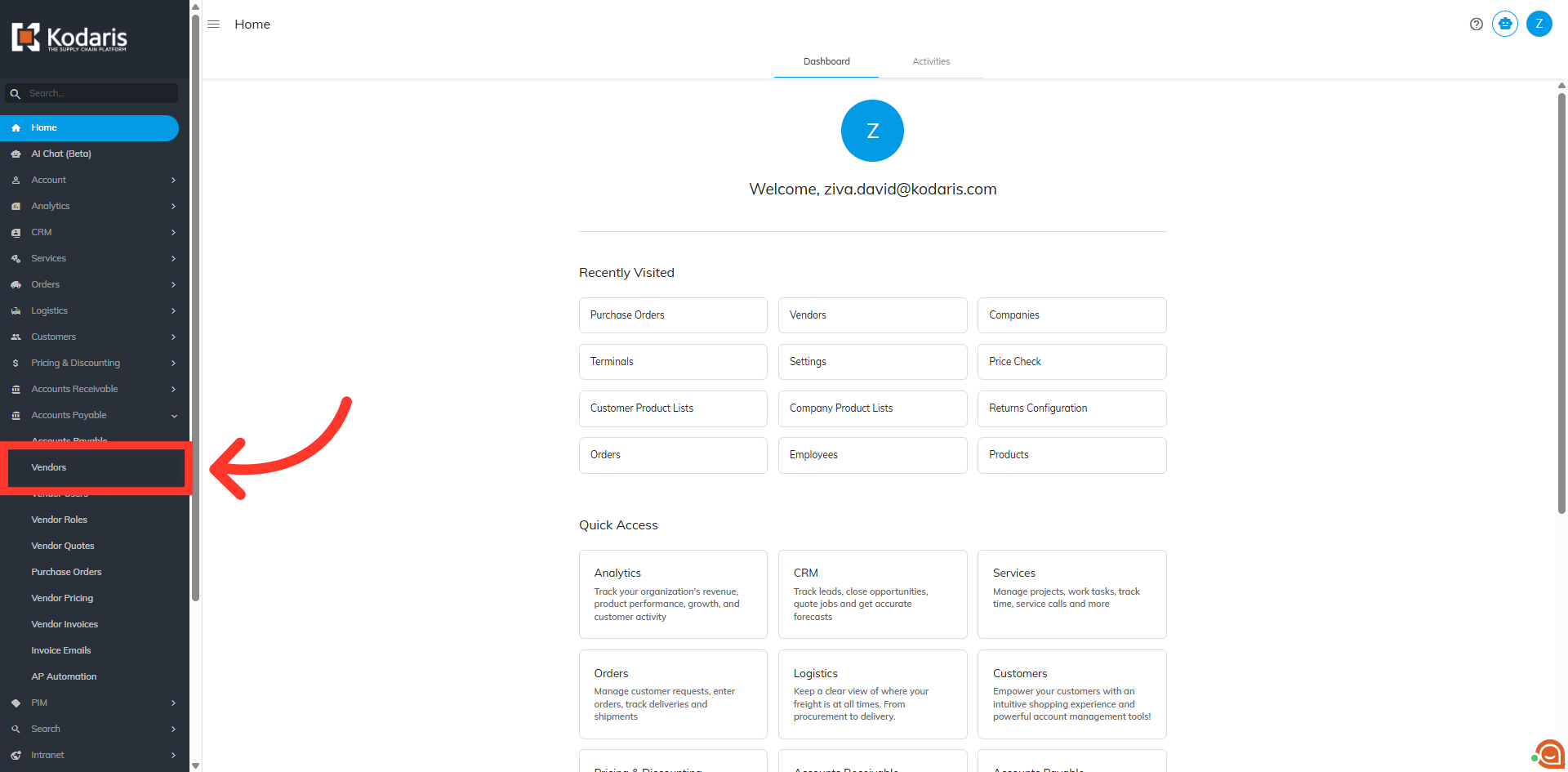
Then, click "Vendors". In order to access and update "Vendors, you will need to be set up either as an “administrator” or a “superuser”, or have the roles of: “vendorView” and “vendorEdit”. And to create a vendor purchase order, you must have the "purchaseOrderEdit" permission.
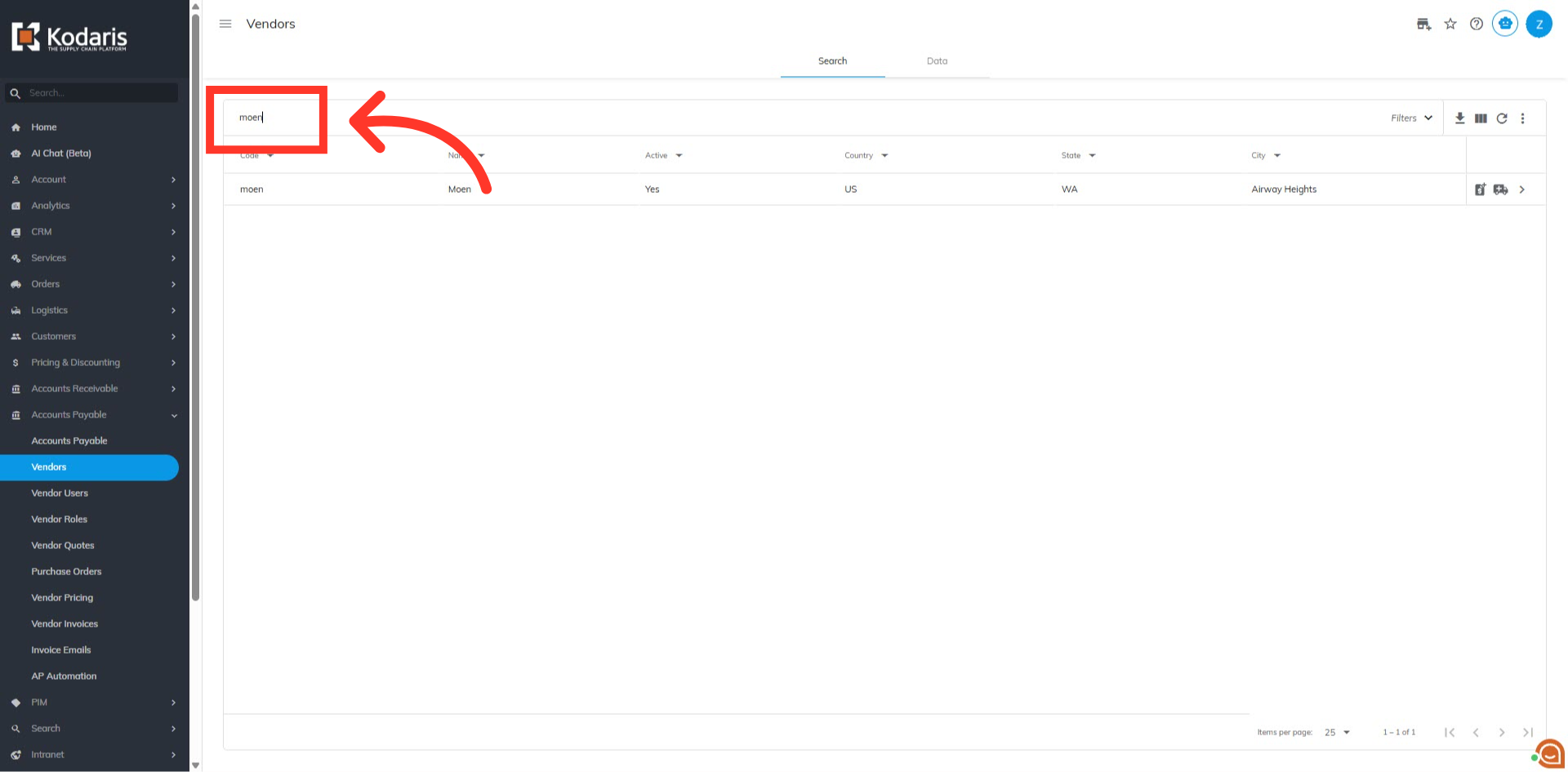
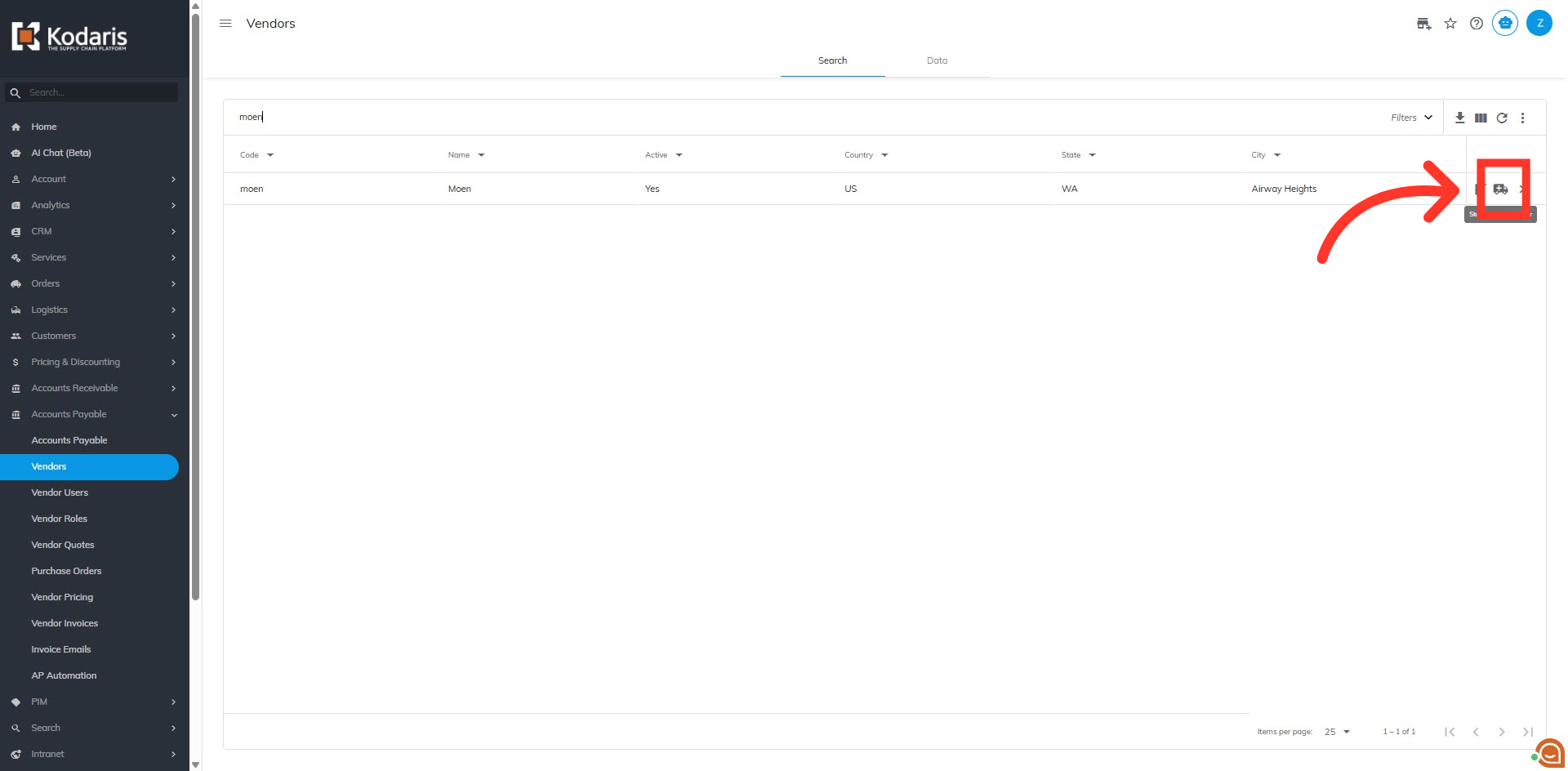
Next, search for the vendor you want to create a purchase order for by entering the Vendor's name or code in the search field.
Click "Start Purchase Order" icon to start creating a vendor purchase order.
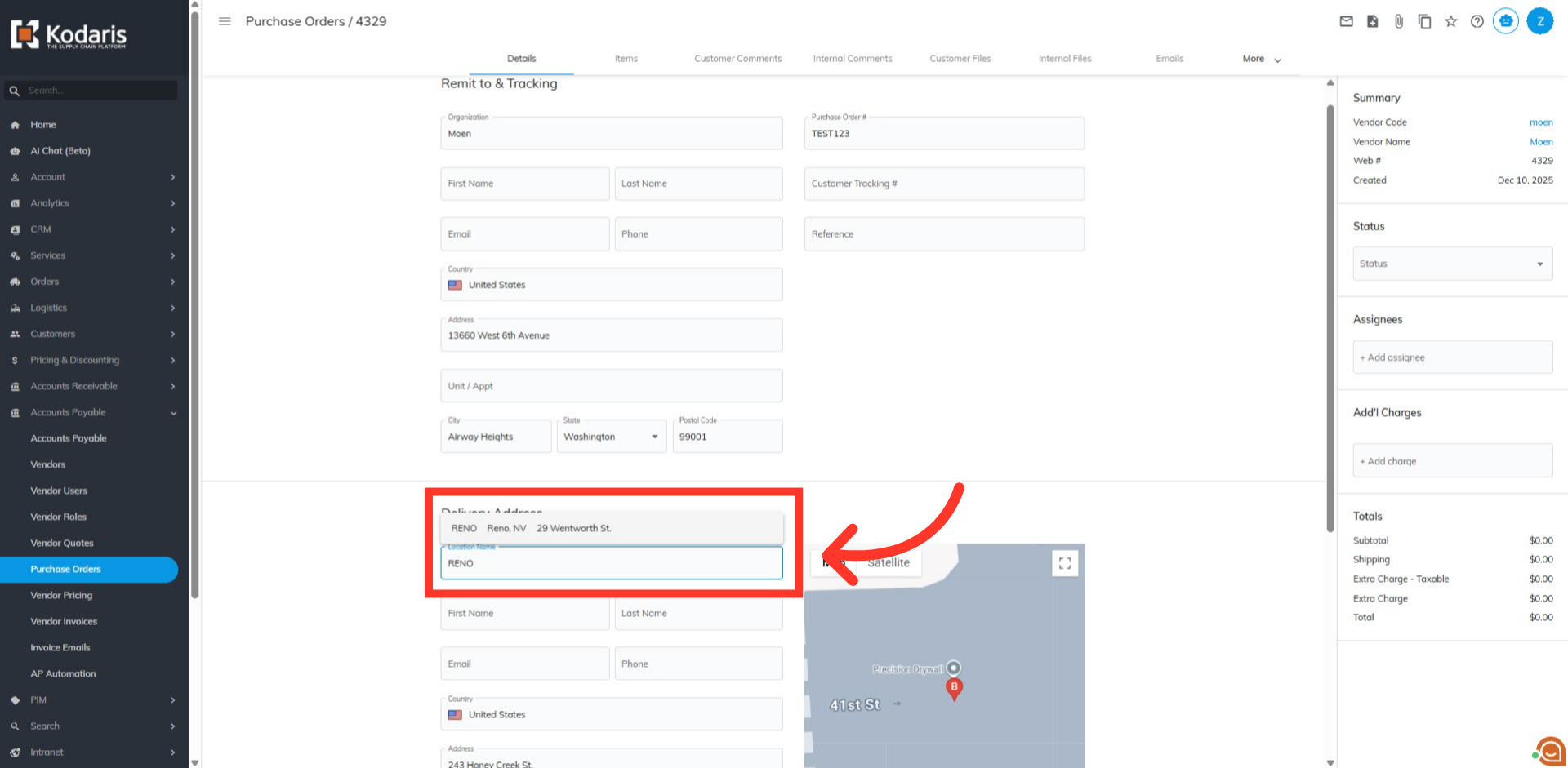
In the "Purchase Order" details tab, click on the "Location Name" field and search the specific warehouse location for which you are creating a purchase order.
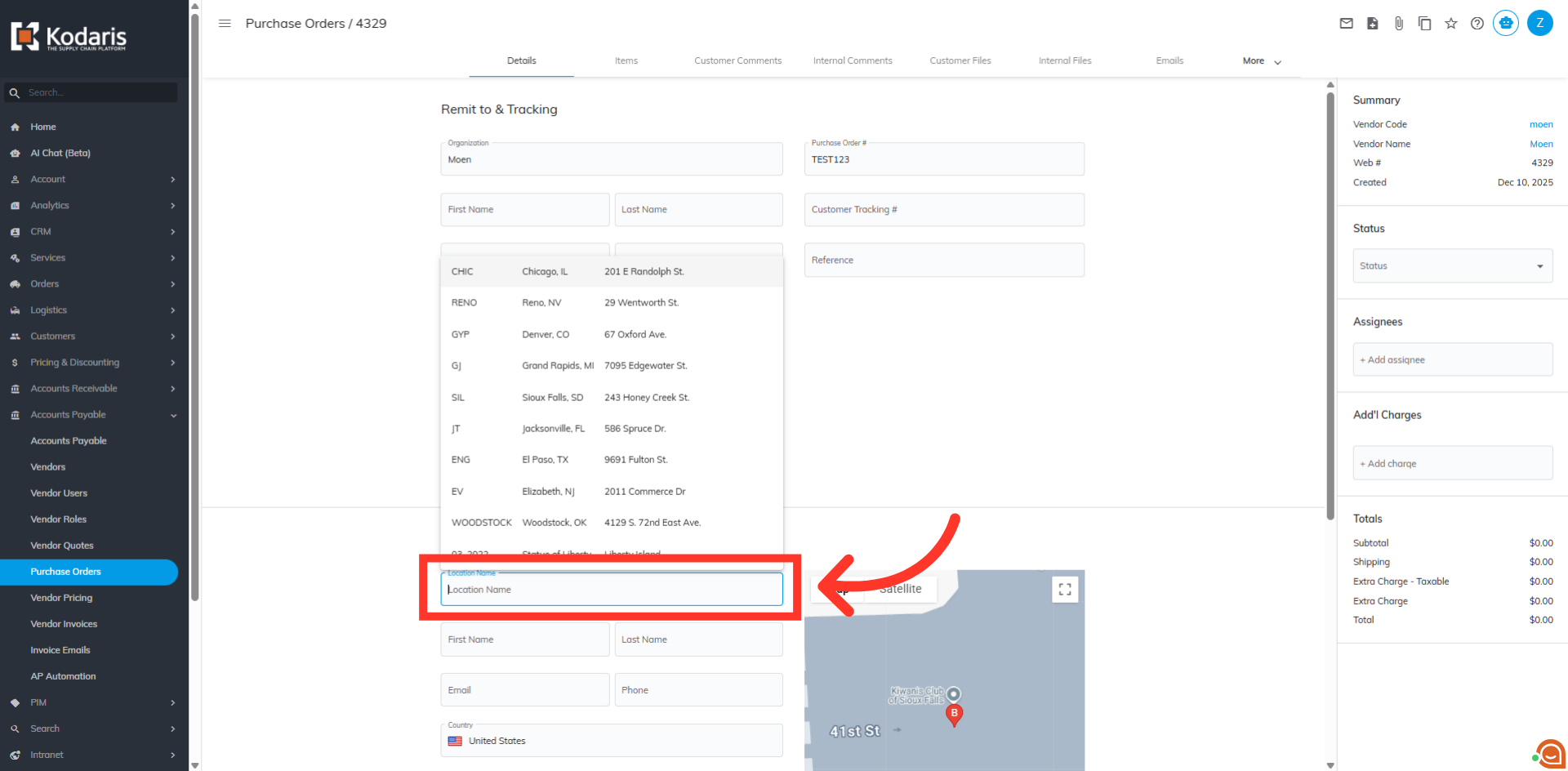
Lastly, select the warehouse from the result. Once you have completed these steps, you are ready to add items.