Product Documentation
Product Documentation
Product Documentation
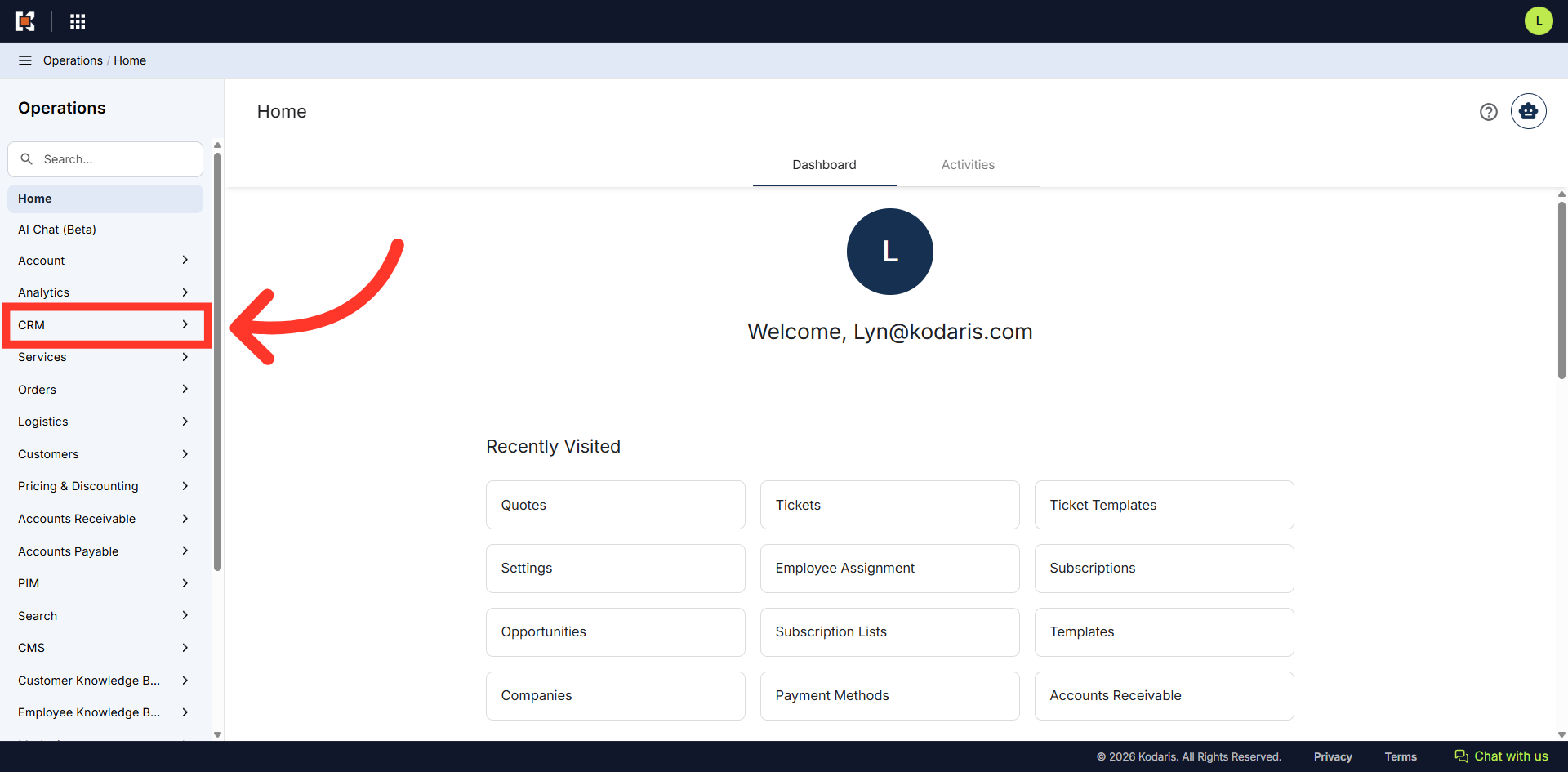
In order to view and calculate totals on the "Items" screen, navigate to the "CRM" section in the Operations Portal.
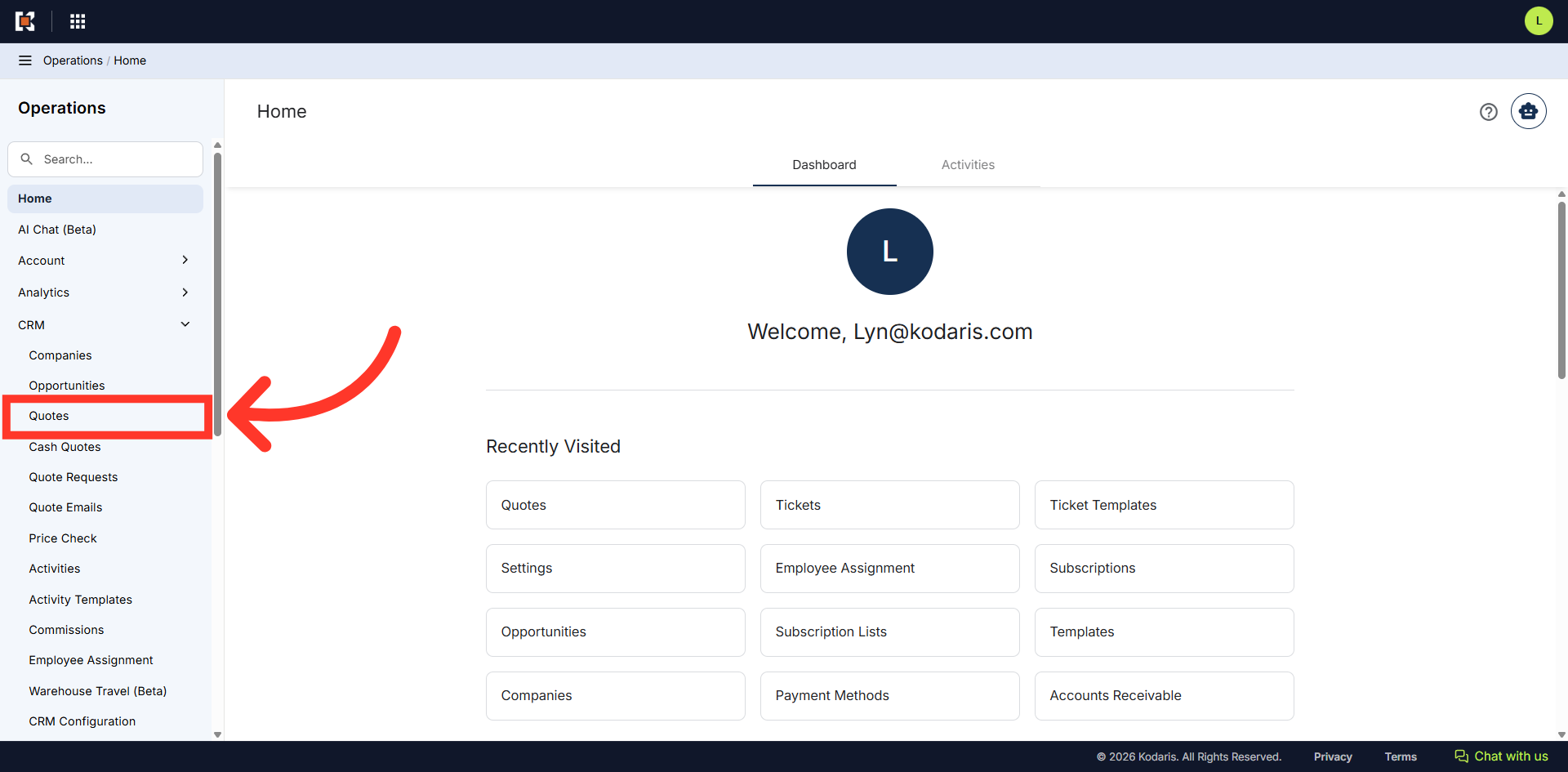
Then, click "Quotes". In order to access Quotes, you will need to have the role of "administrator" or "superuser", or have the roles of "quoteEdit" and "accountQuoting".
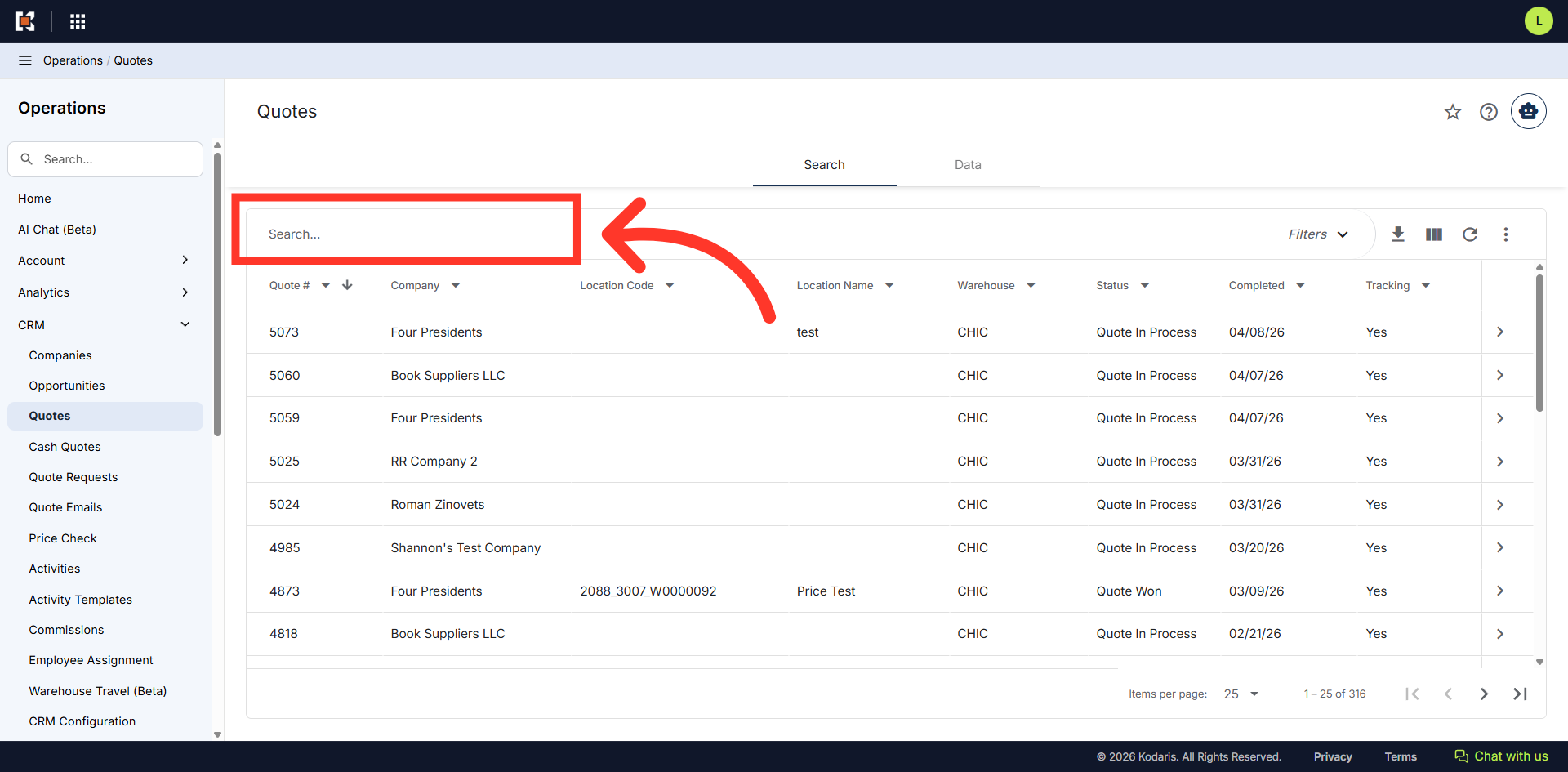
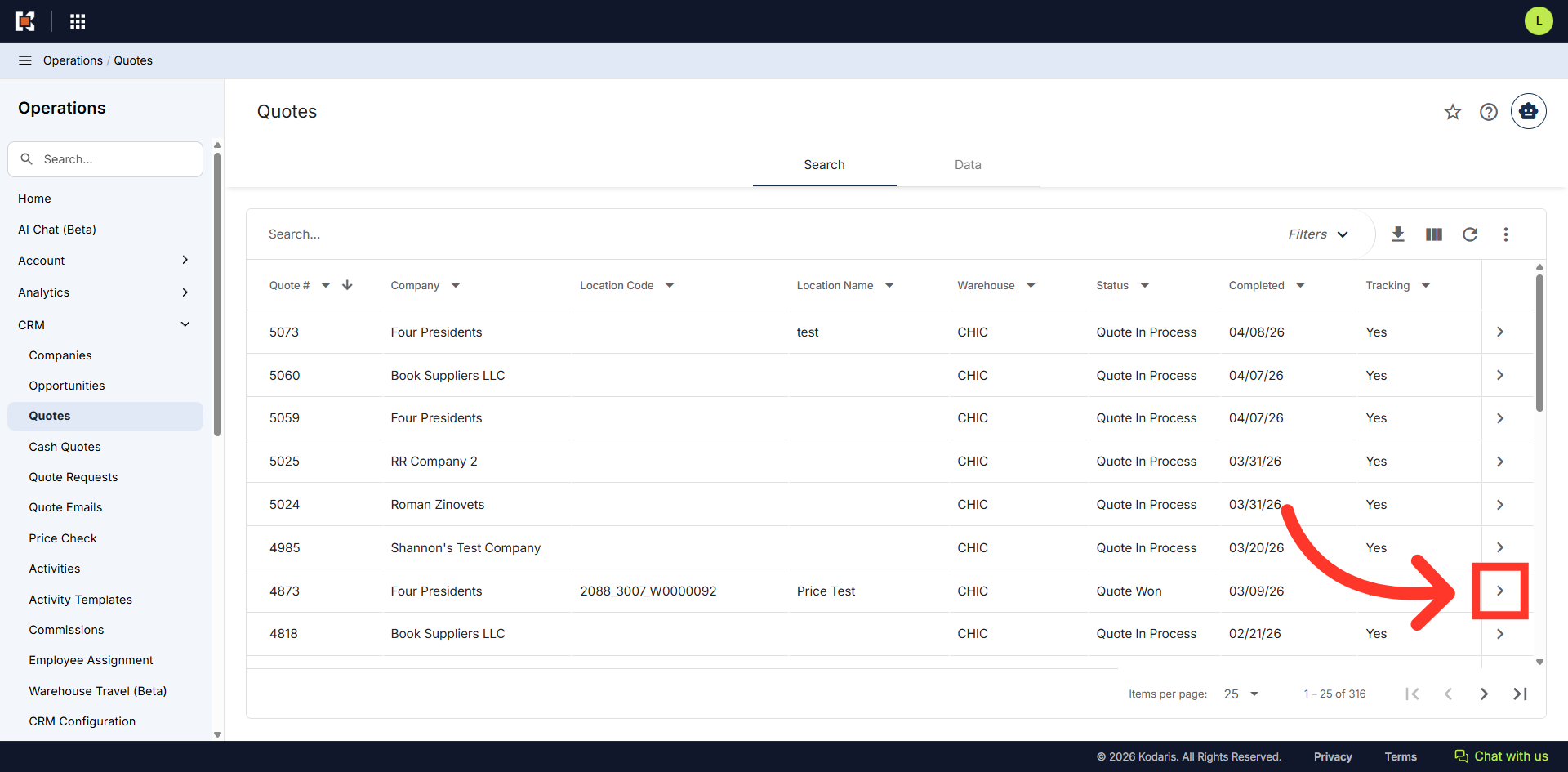
Find the quote by using the "Search..." field.
Click on the more details icon of the quote you want to view.
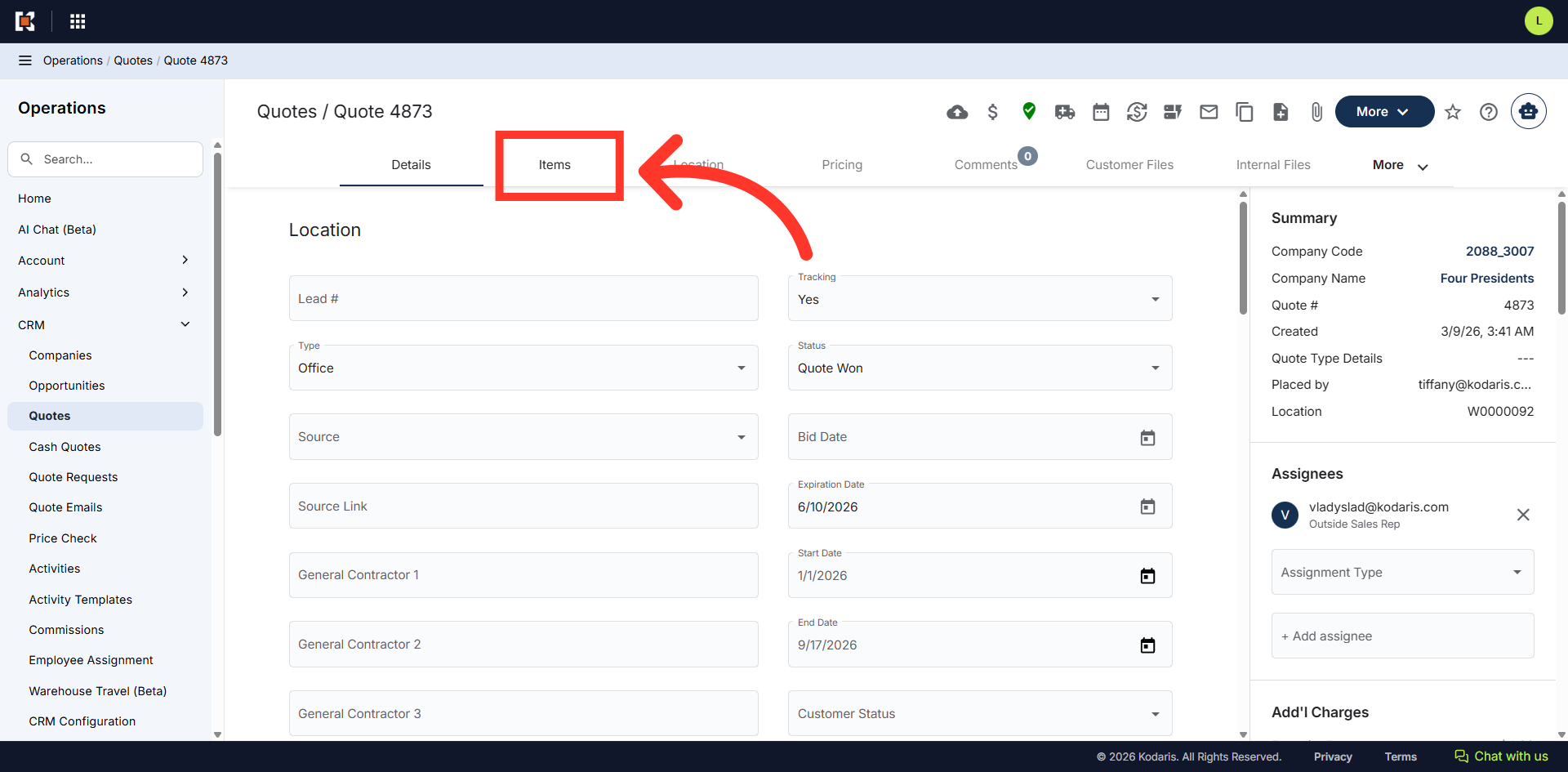
Go to the "Items" tab.
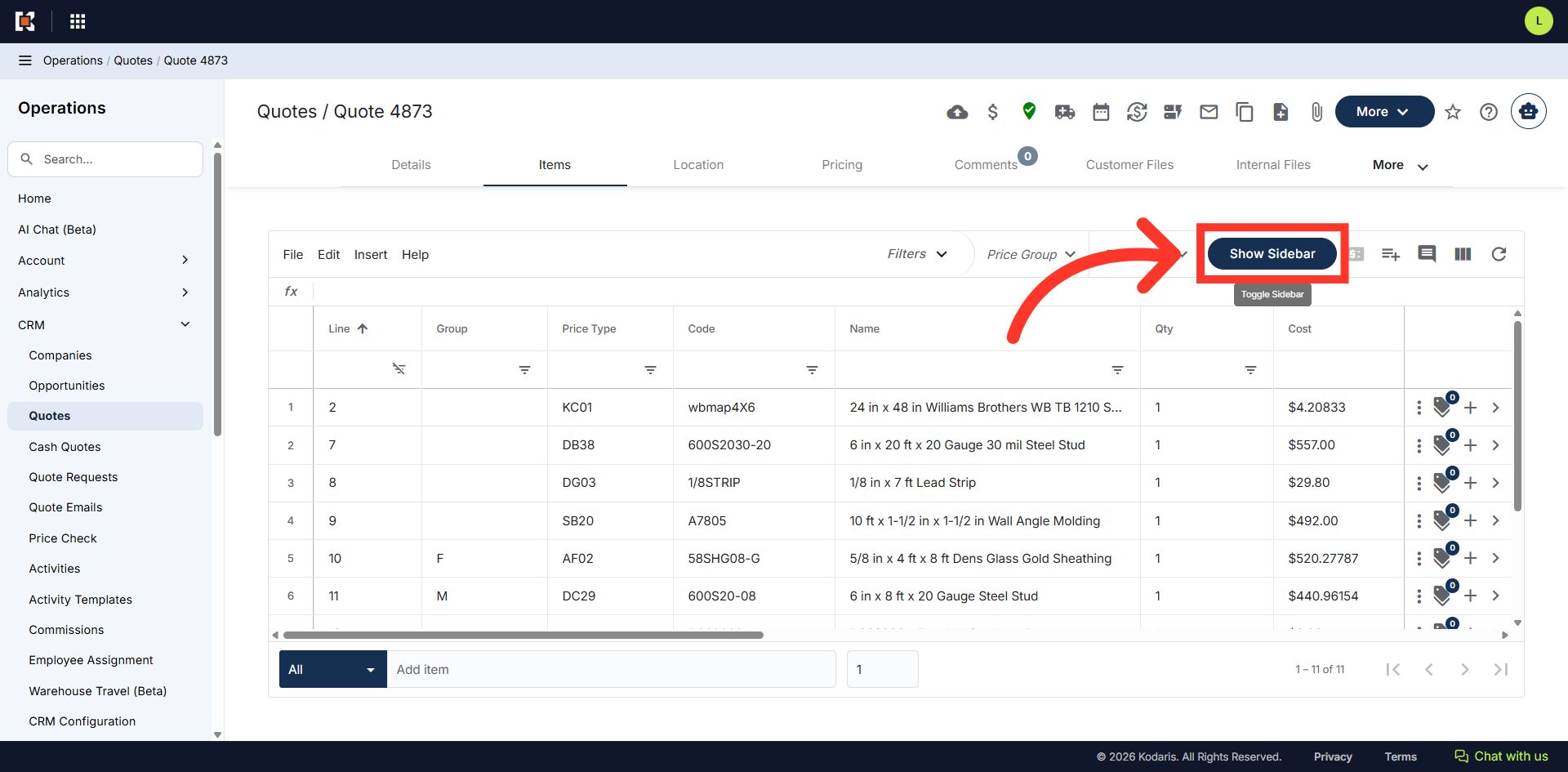
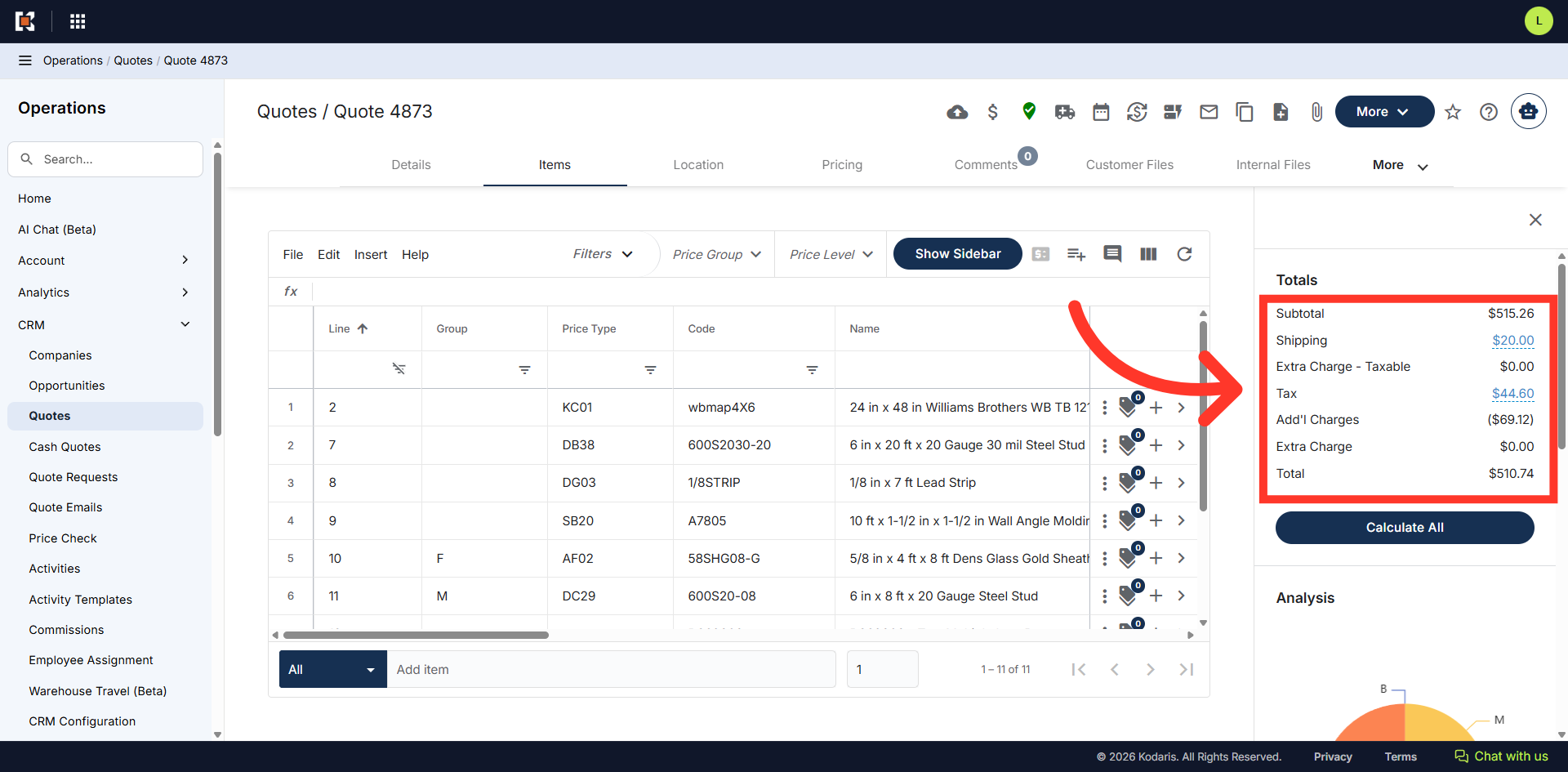
Click on the "Show Sidebar" button to open a panel on the right side of the screen.
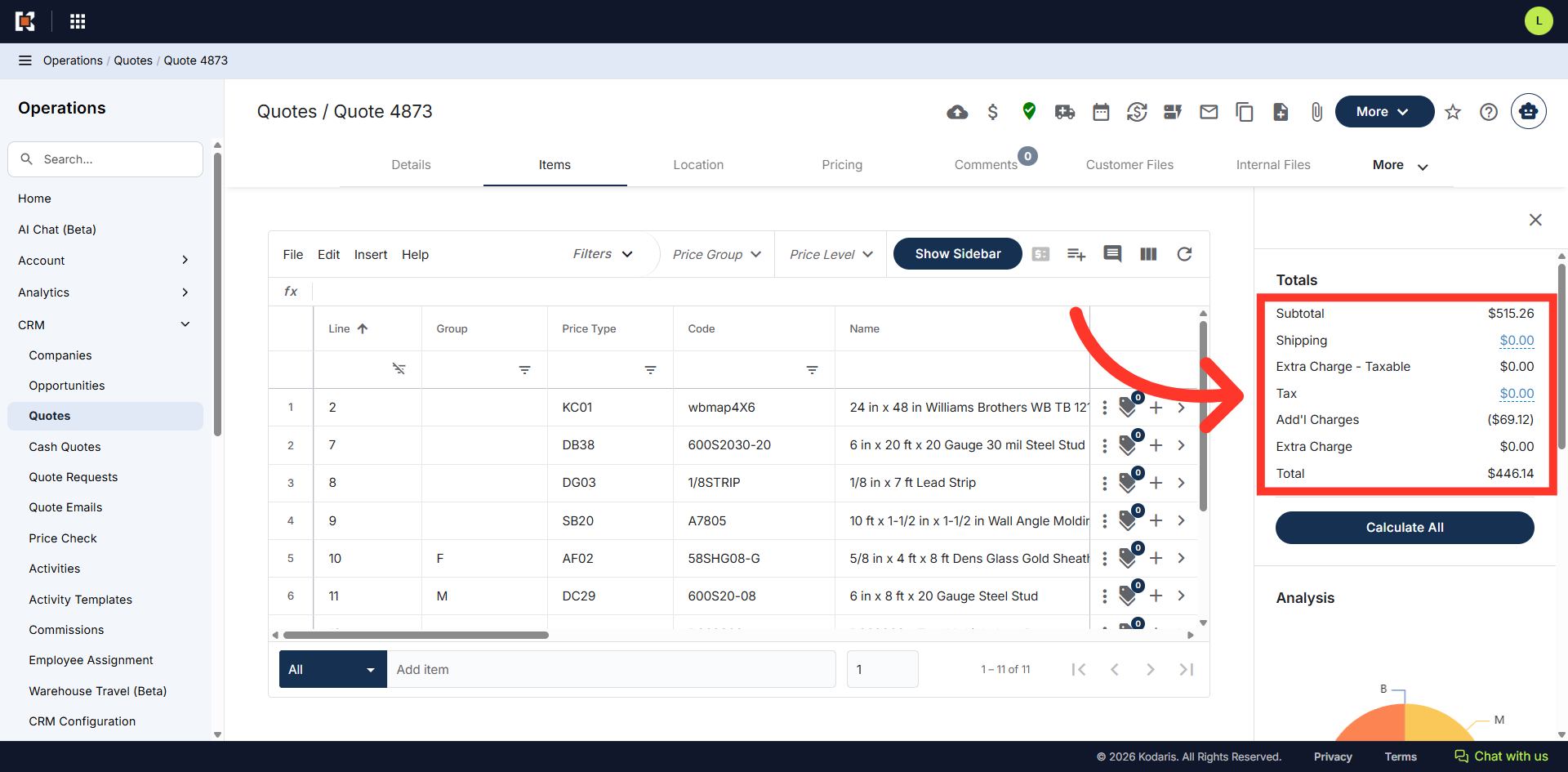
A financial summary will show under the "Totals" section. To perform the calculation, click on the "Calculate All" button.
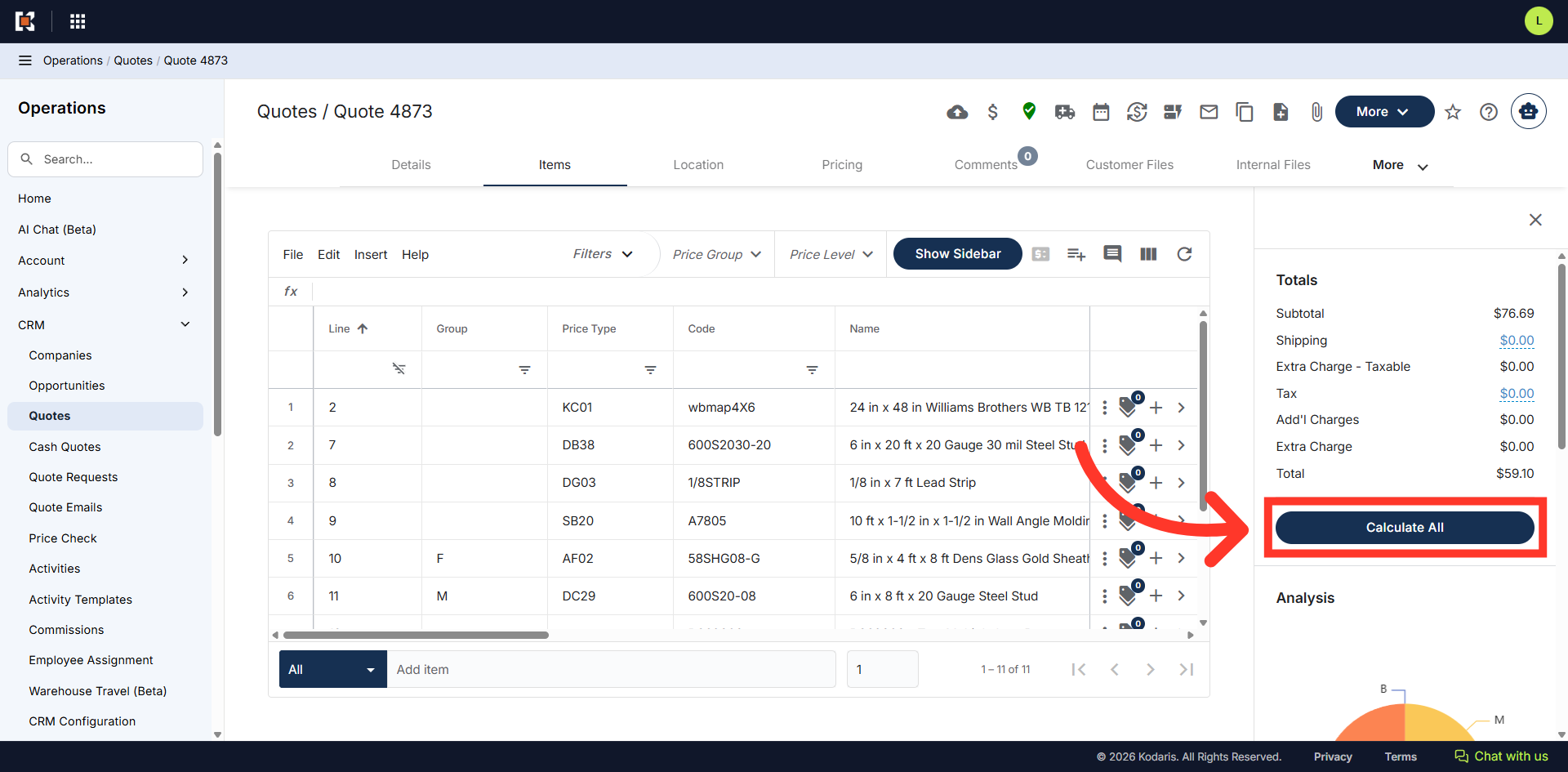
The system will calculate all the relevant amount and displays the updated values.
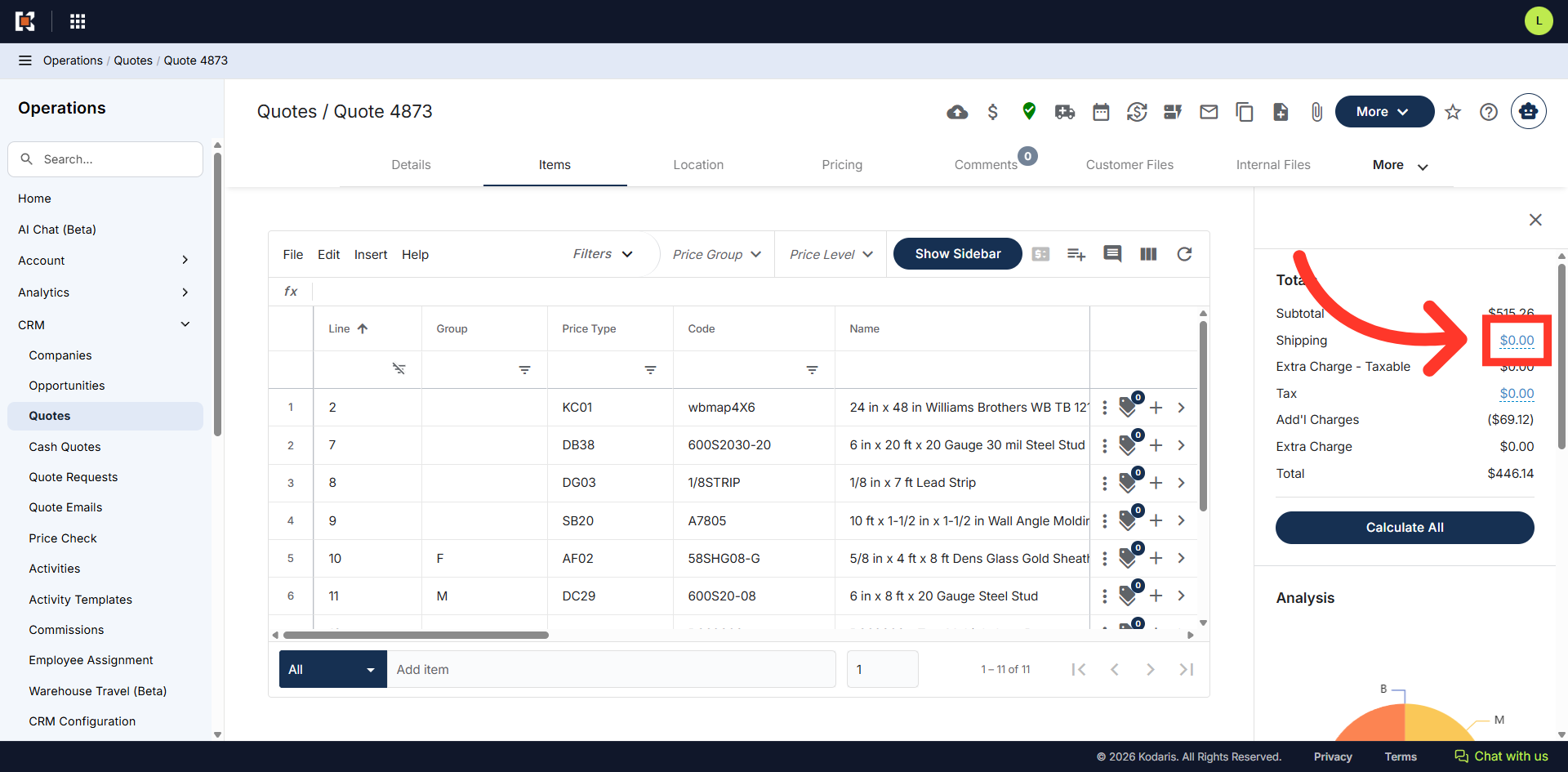
You can also update the shipping amount by clicking into the highlighted text.
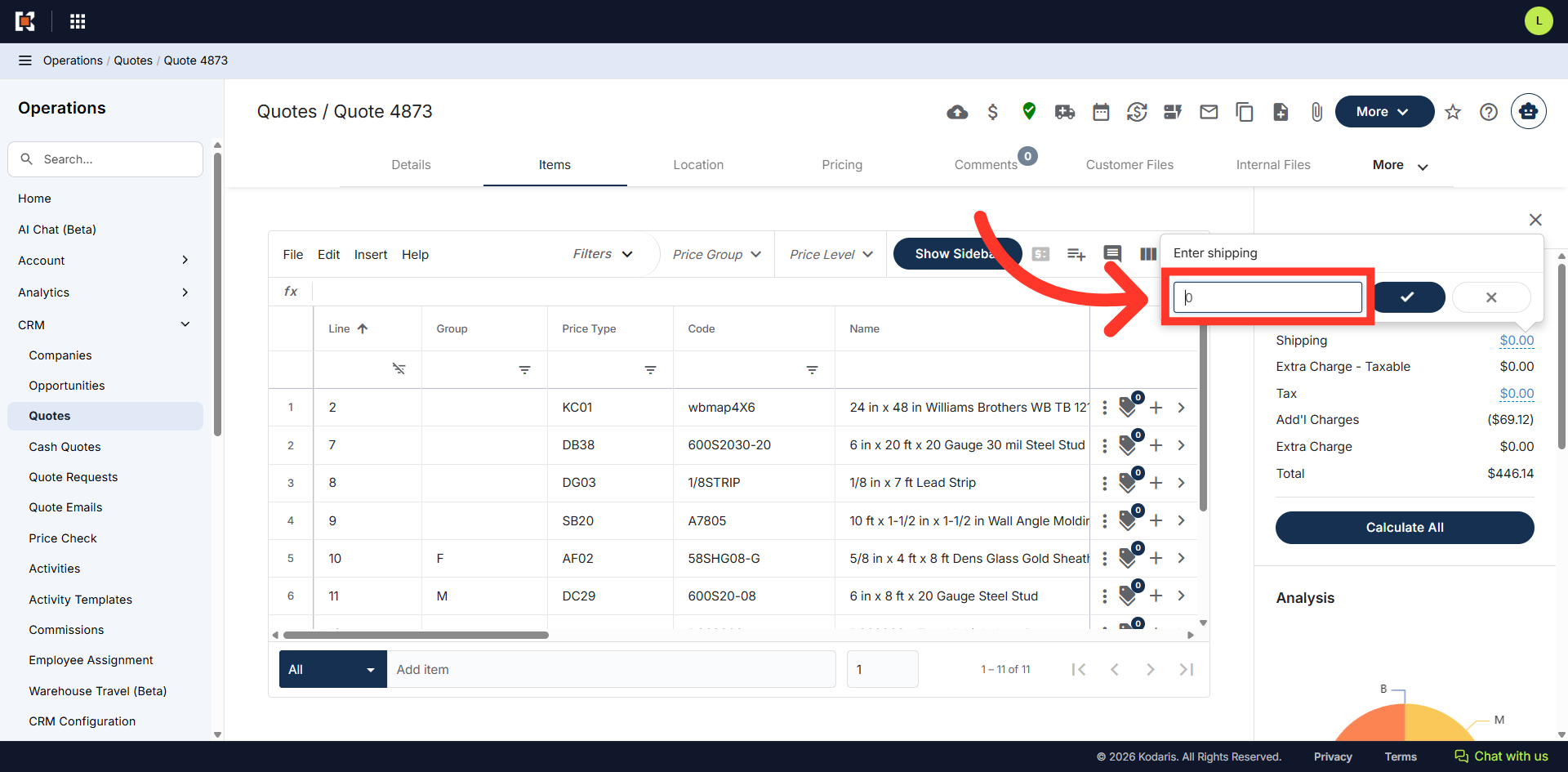
Enter the updated shipping amount.
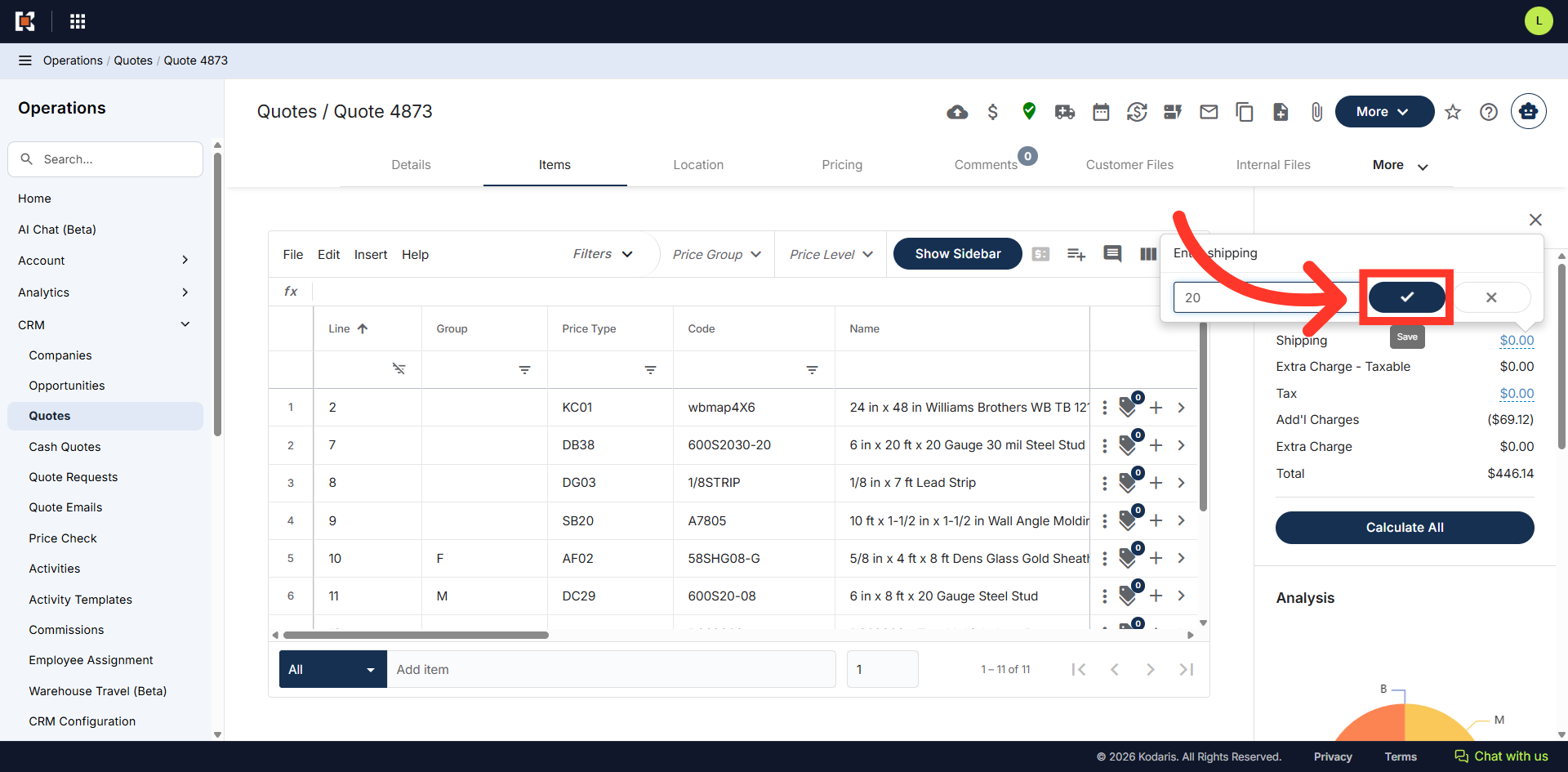
Then, click "Save".
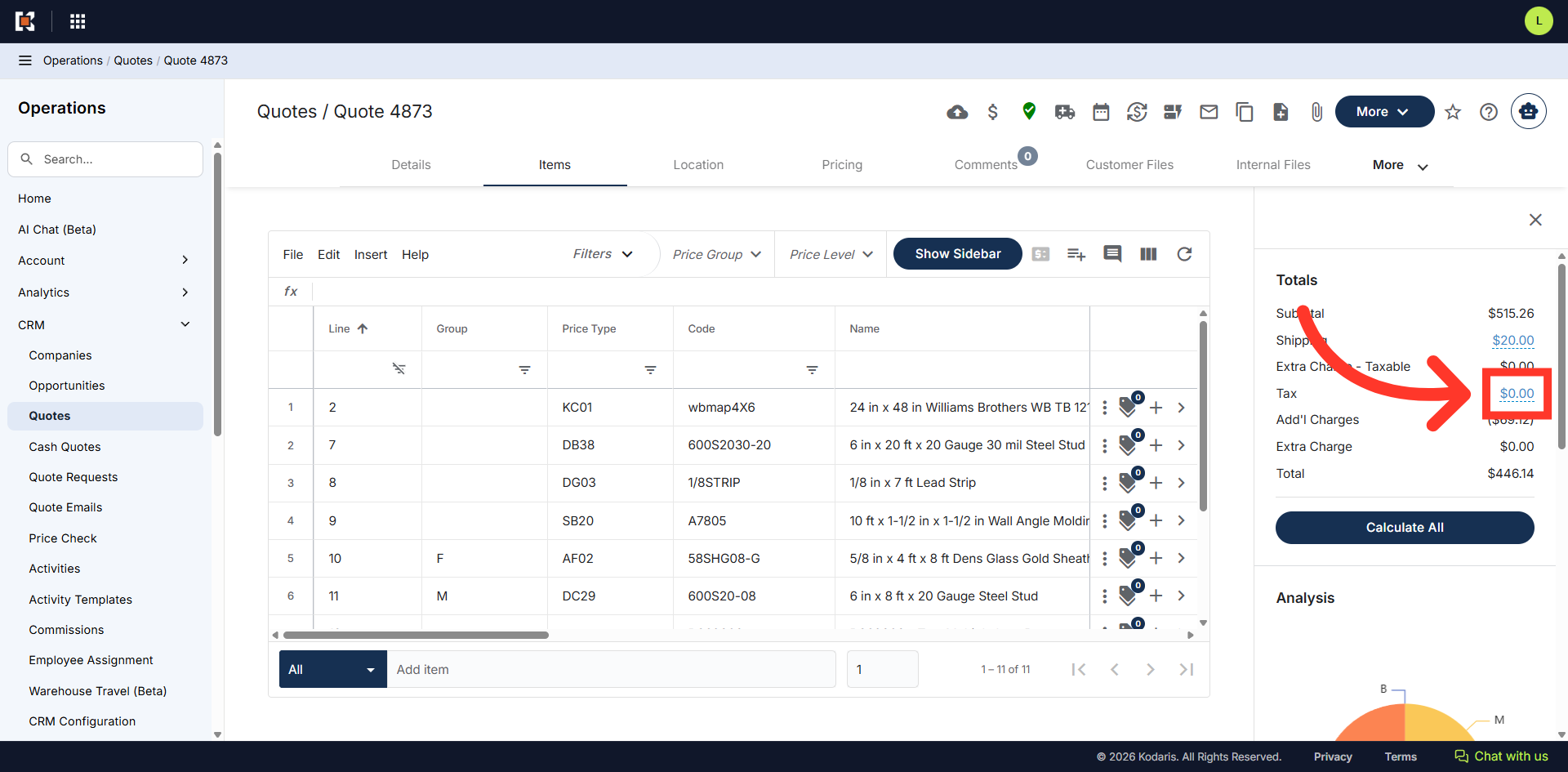
You can also update the tax amount by clicking on the highlighted tex.
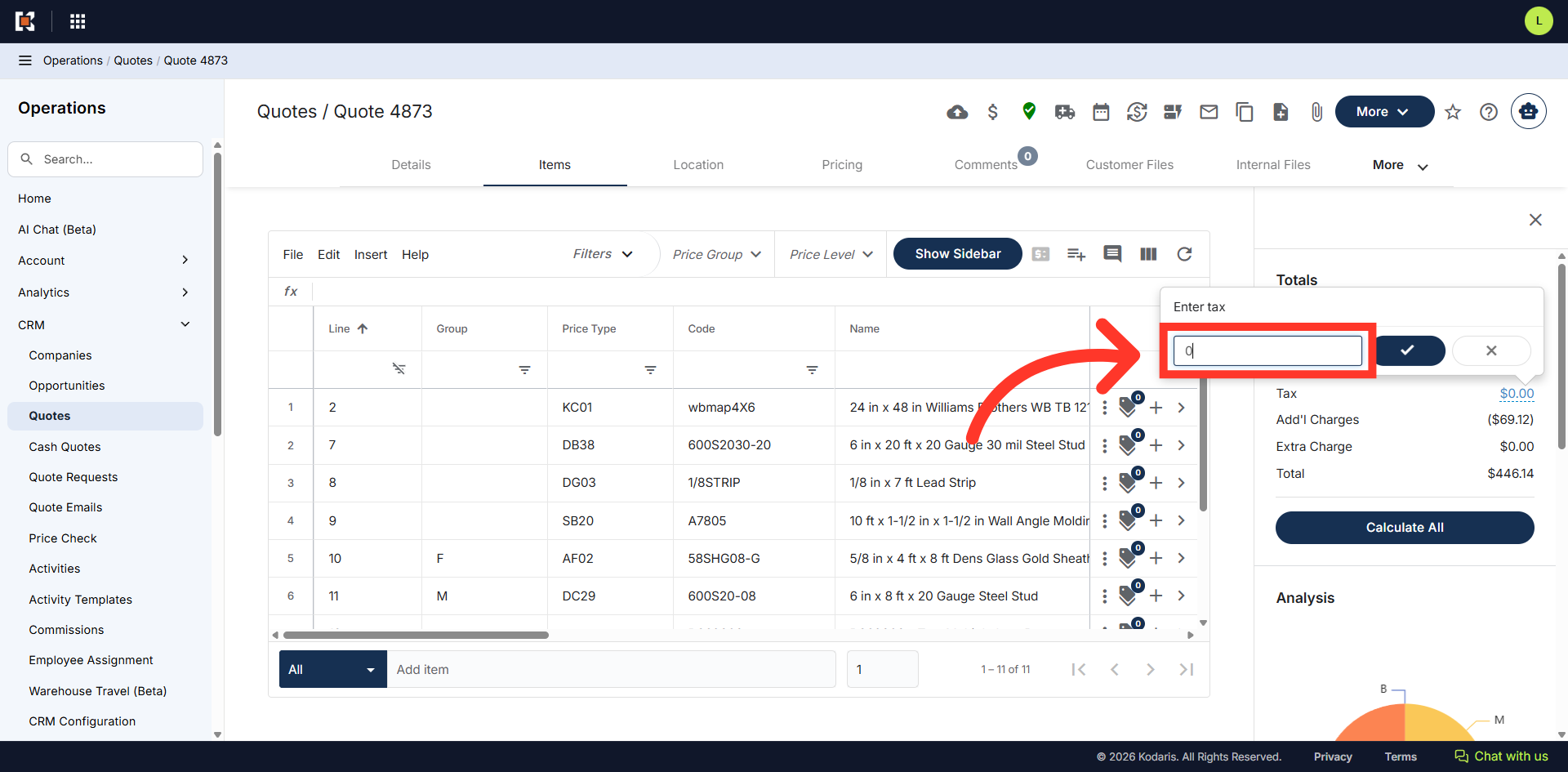
Enter the updated tax amount.
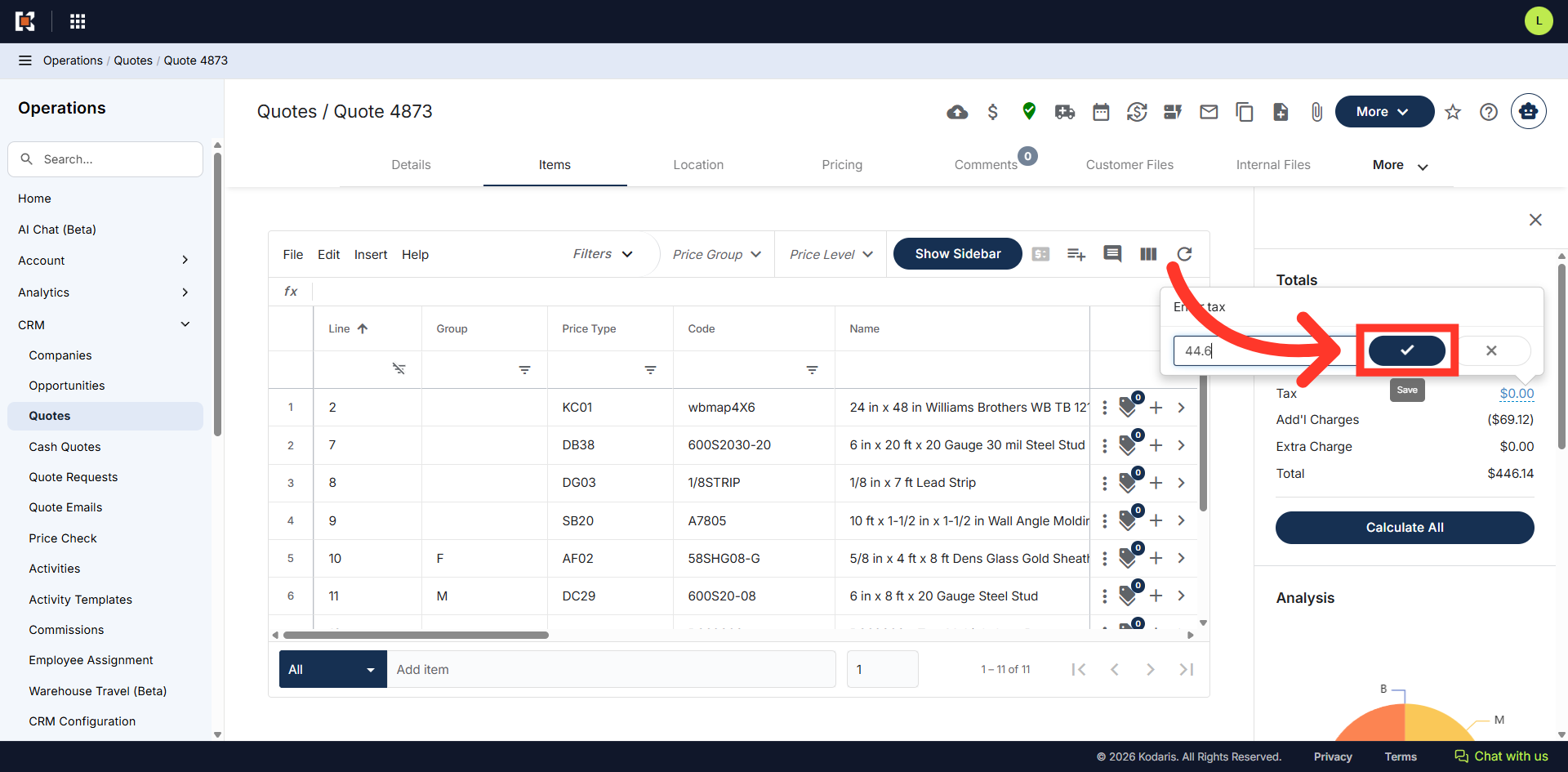
Then, click "Save".
Then, click "Calculate All" to recalculate the total of all the items in the quote.
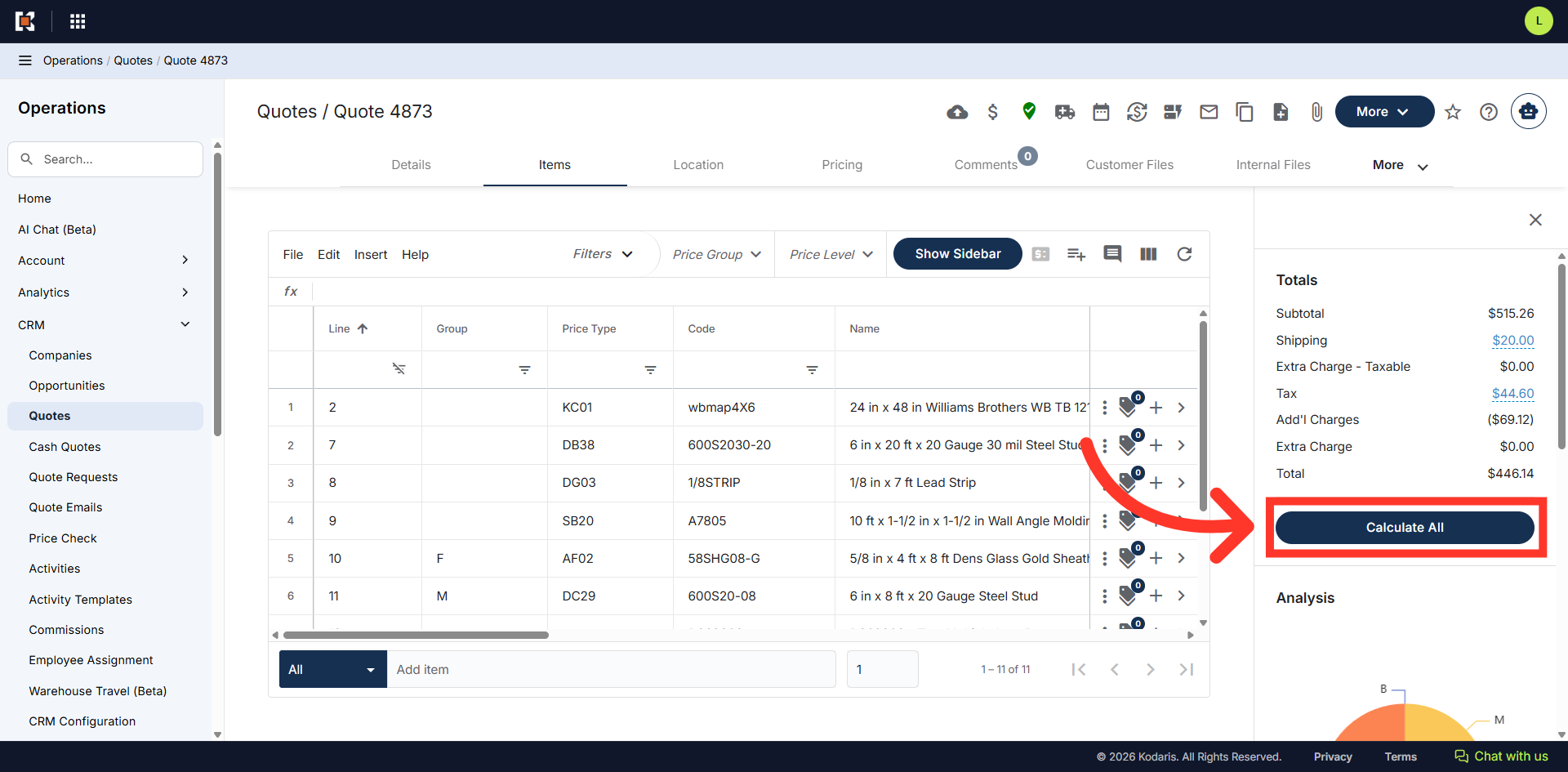
This exsample shows the updated calculation of the quote with the shipping and tax amounts updated.
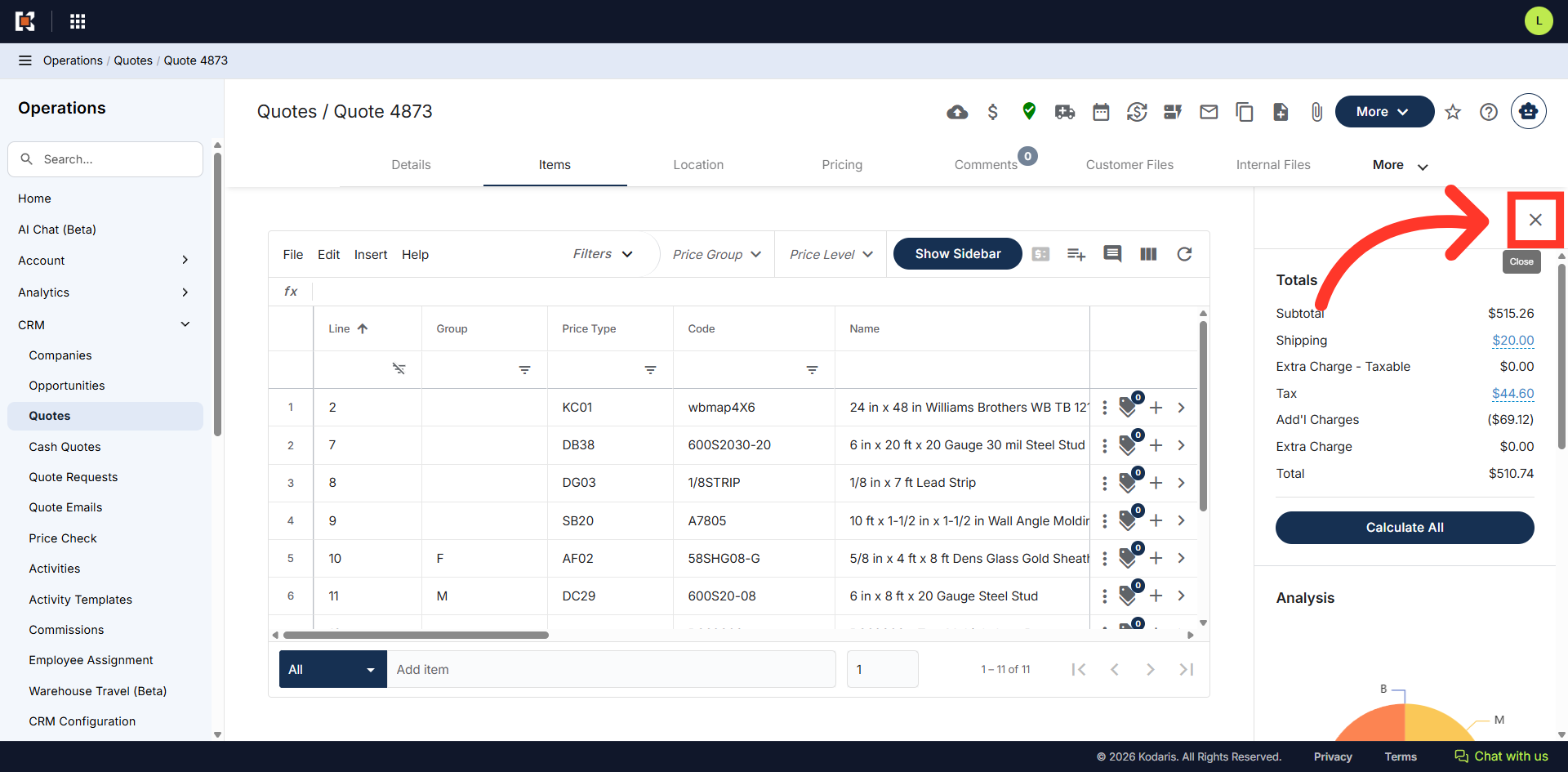
To close the panel, you can click on the "Show Sidebar" button or "X" button.