Product Documentation
Product Documentation
Product Documentation
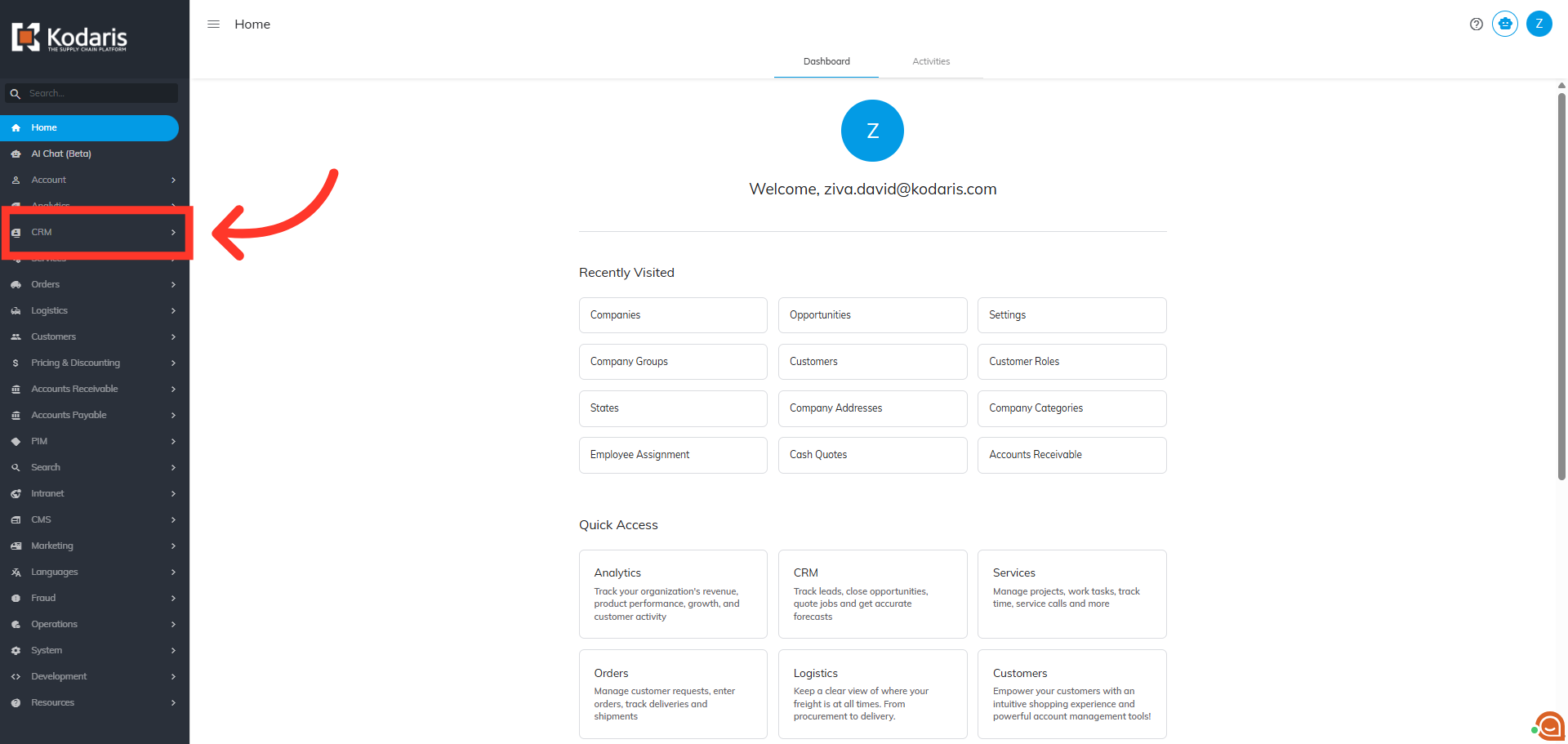
You can quickly assign multiple employees to companies in the operations portal when using the import feature. To do this, navigate to "CRM" section in the Operations Portal.
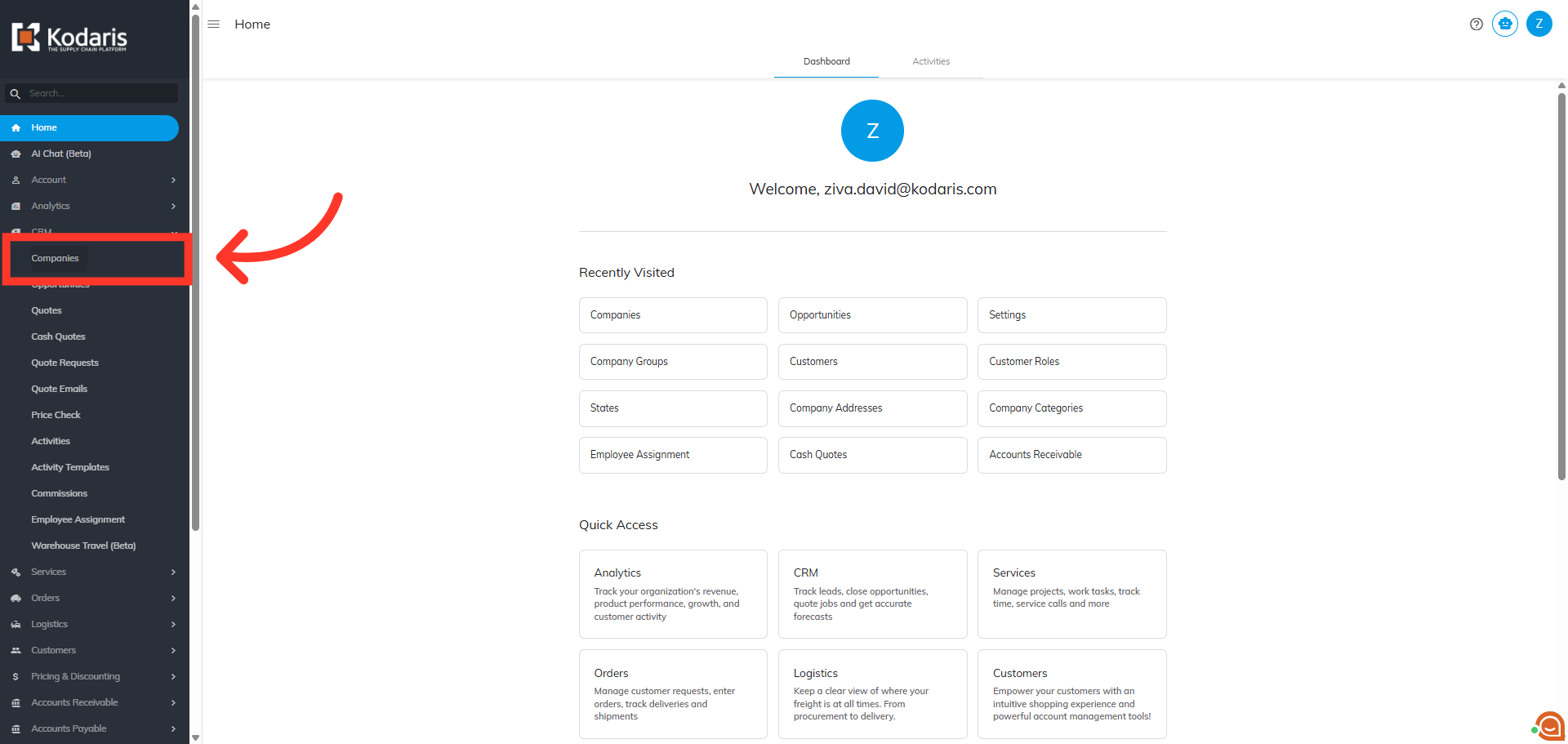
Then, click "Companies". In order to access "Companies" you will need to be set up either as an "administrator" or a "superuser", or have the appropriate roles: "companyView and companyEdit", or "crmCompanyView and crmCompanyEdit", along with "importEdit and "importView". These last two roles are needed for importing. Just a reminder, "crmCompanyView and crmCompanyEdit" access only allows employees to view companies that are assigned to them.
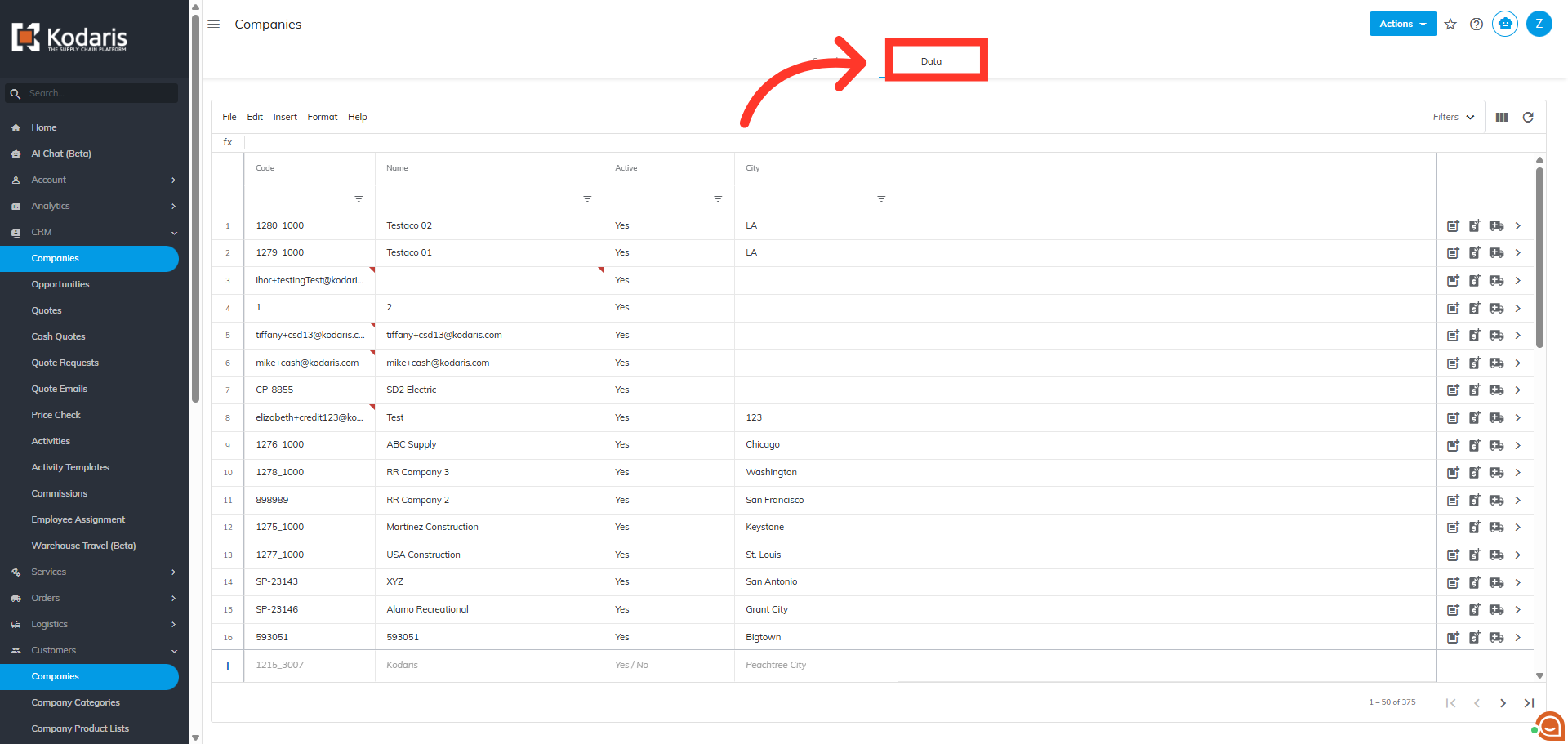
Next, click on the "Data" tab
Then, click the "File" menu.
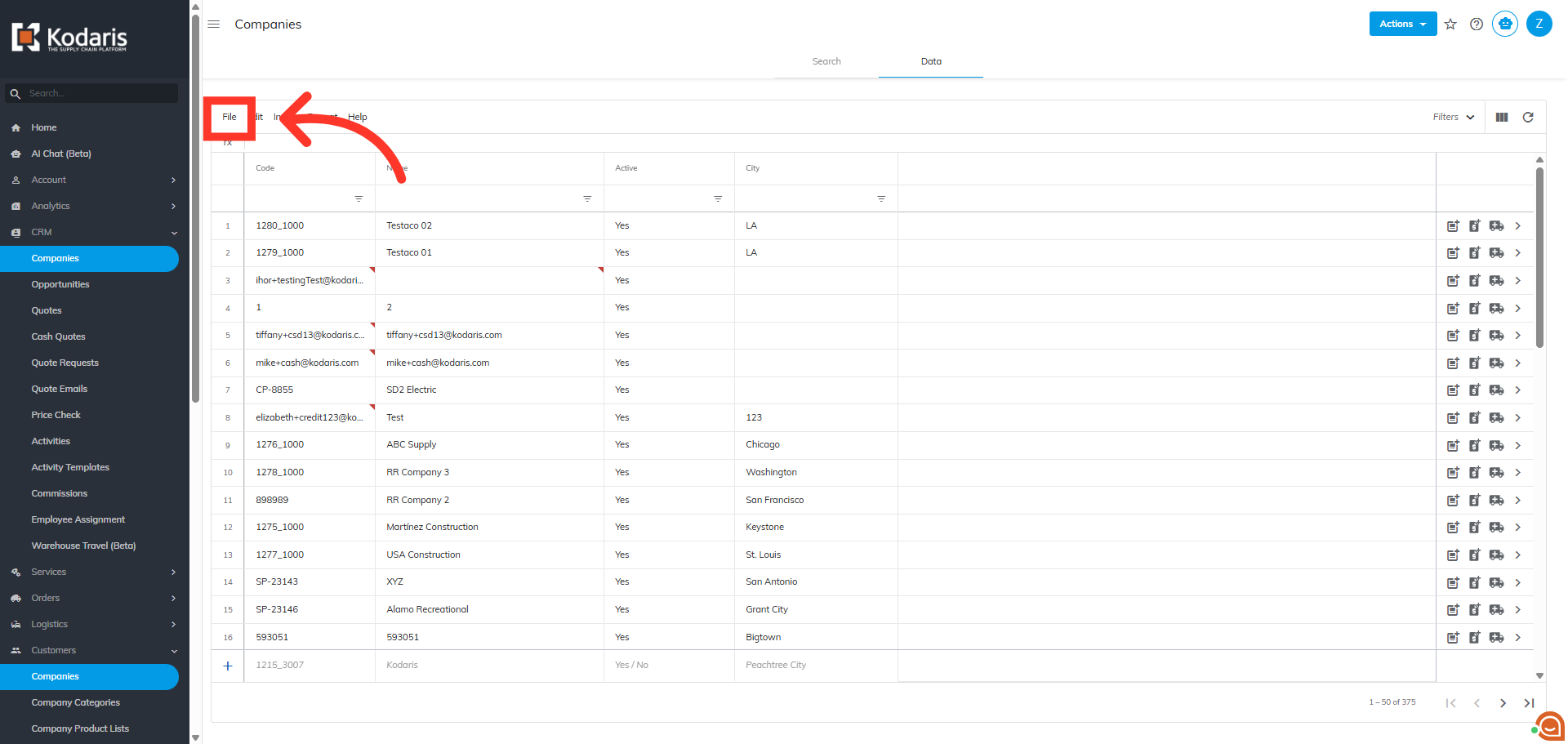
Now, click "Import".
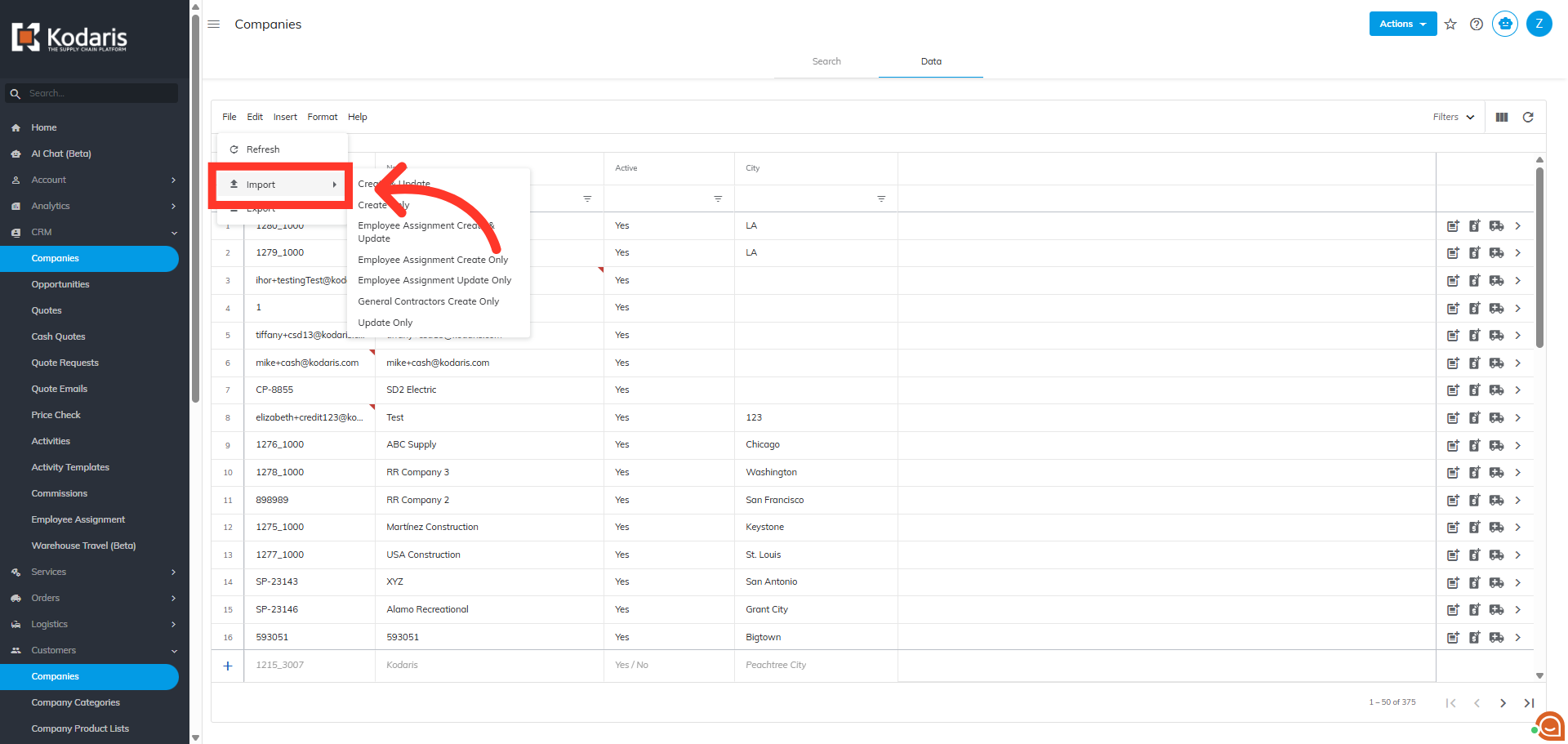
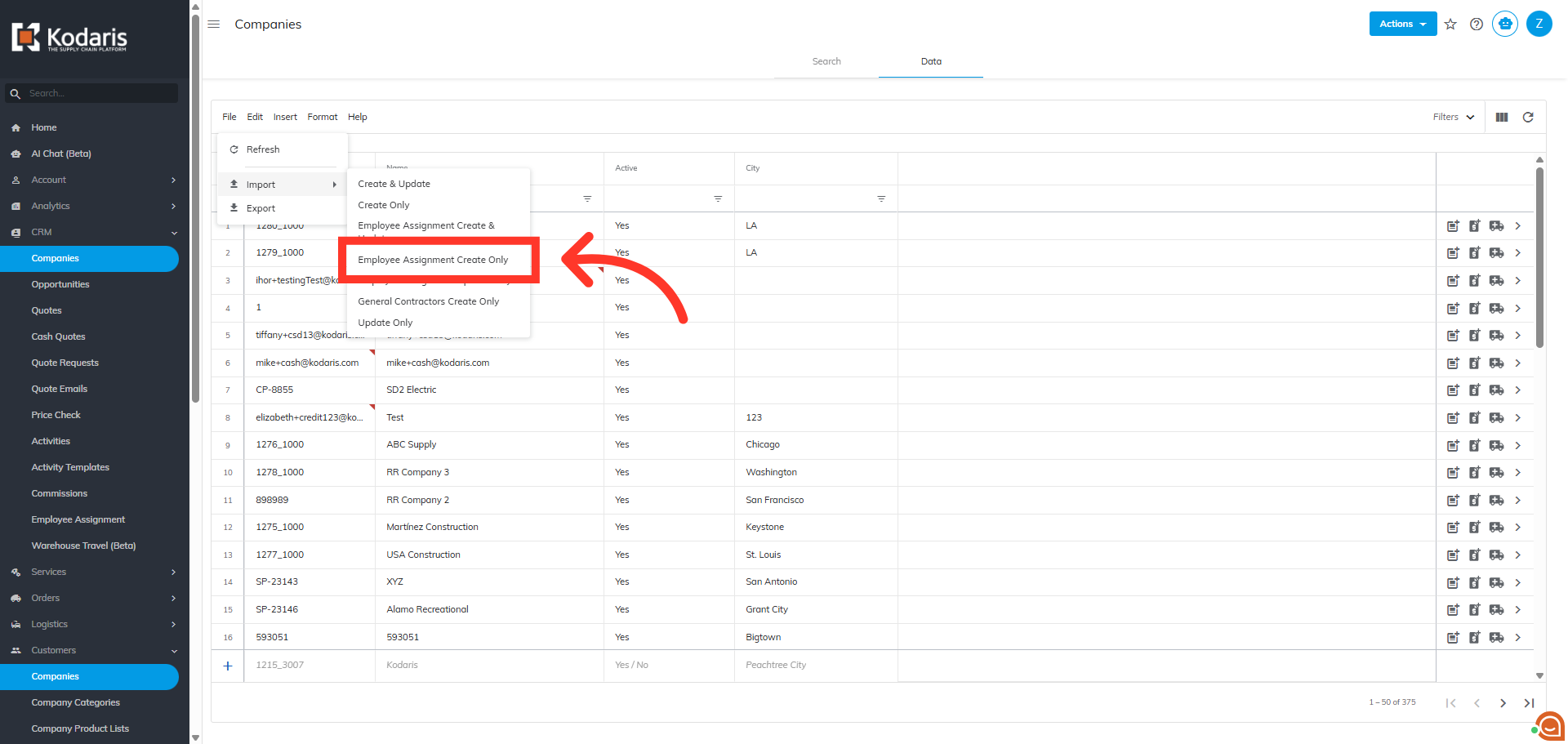
Choose your preferred import option from the available list. "Employee Assignment Create & Update" will create any new assignments included in the spreadsheet and also update existing employees. "Employee Assignment Update Only", will update existing employees with the data in your import. "Employee Assignment Create Only", will create new employee assignment with the data in your spreadsheet. Since we only want to add employees at this time, we will select the "Employee Assignment Create Only" option.
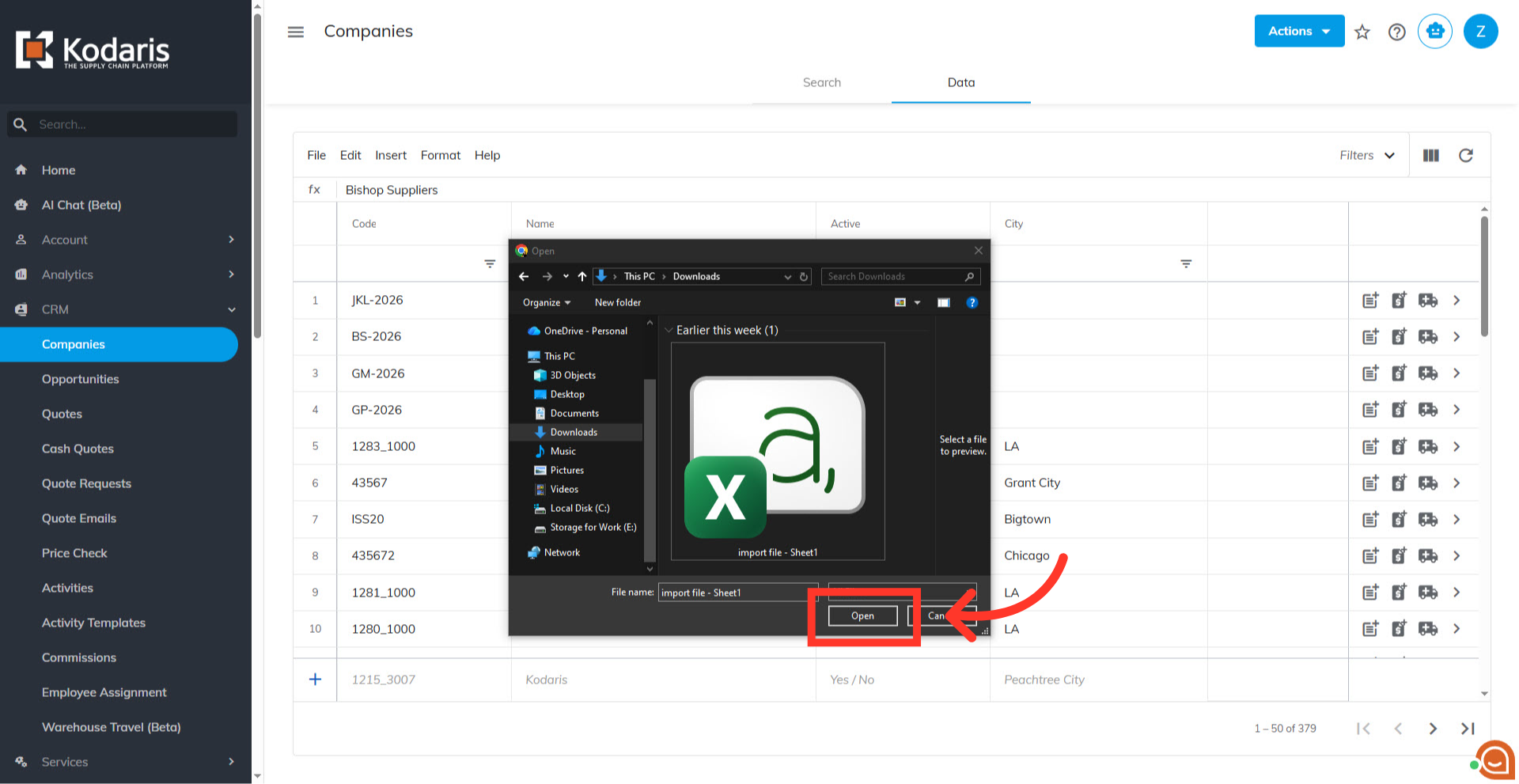
From your computer, select the .CSV file you would like to import and click "Open." Please be sure that you select the correct file, as there are no rollbacks for imports.
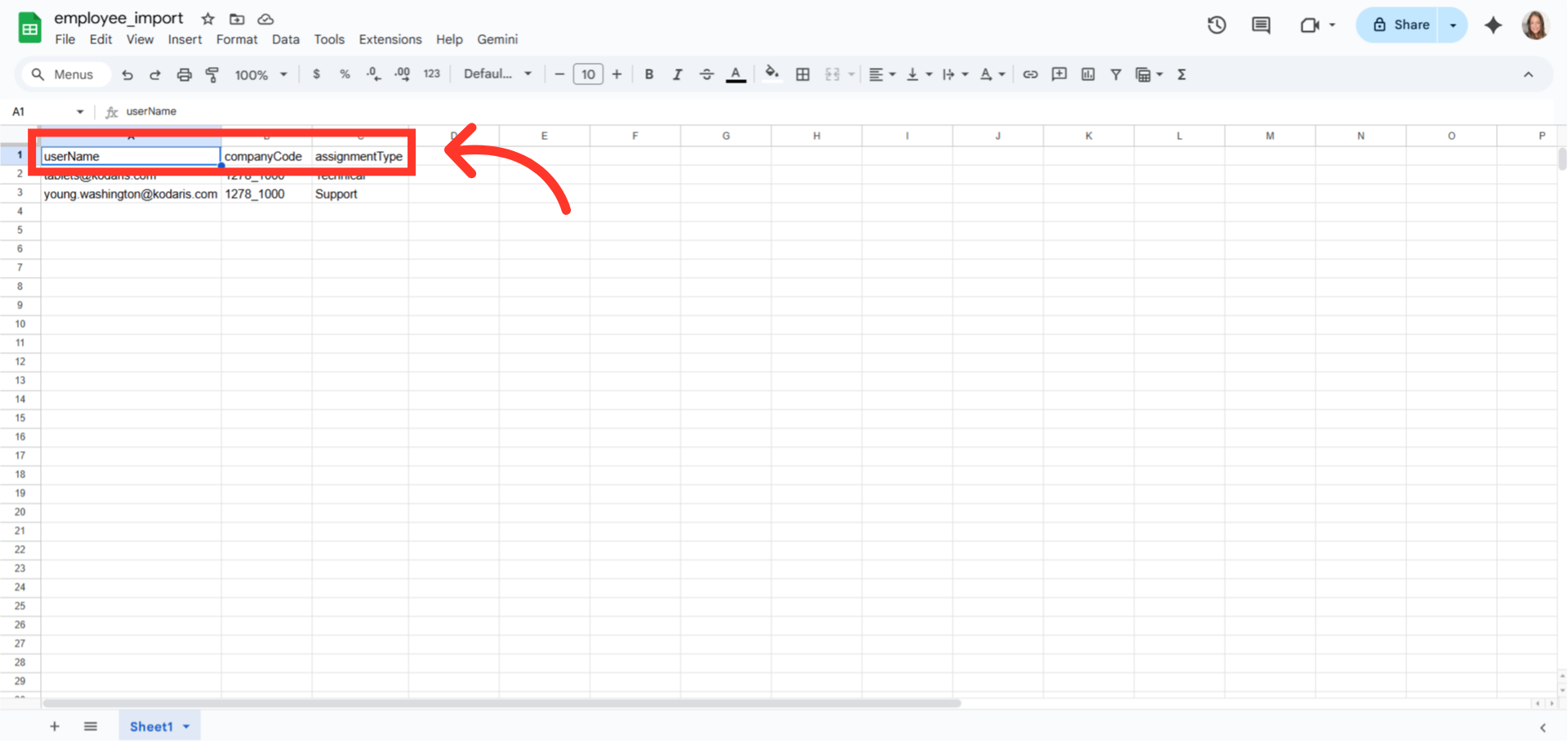
Your import file only needs three column headers for import. "userName", which is the email address of the assignee. "companyCode", which is the Company Code of the company you're assigning employees to. "assignmentType" which is the assignee type. These values will depend on the data that is currently set up in your system under the "companyAssignmentTypes" setting.
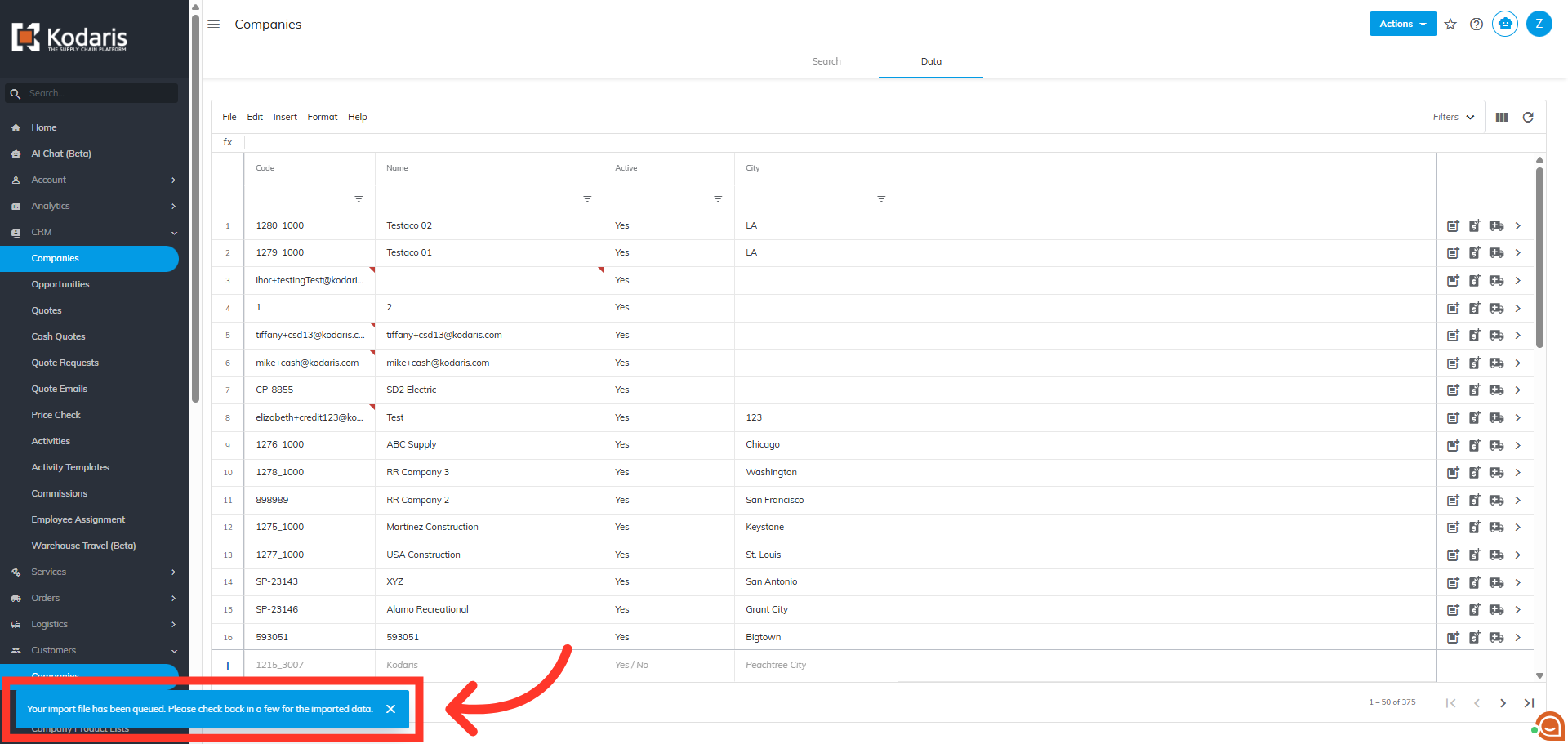
Once you start the import, a message will appear letting you know that the import file is in process and to check back in a few minutes for the imported data. If you are importing large amounts of data, it may take a short amount of time to complete. The import will continue to run in the background.
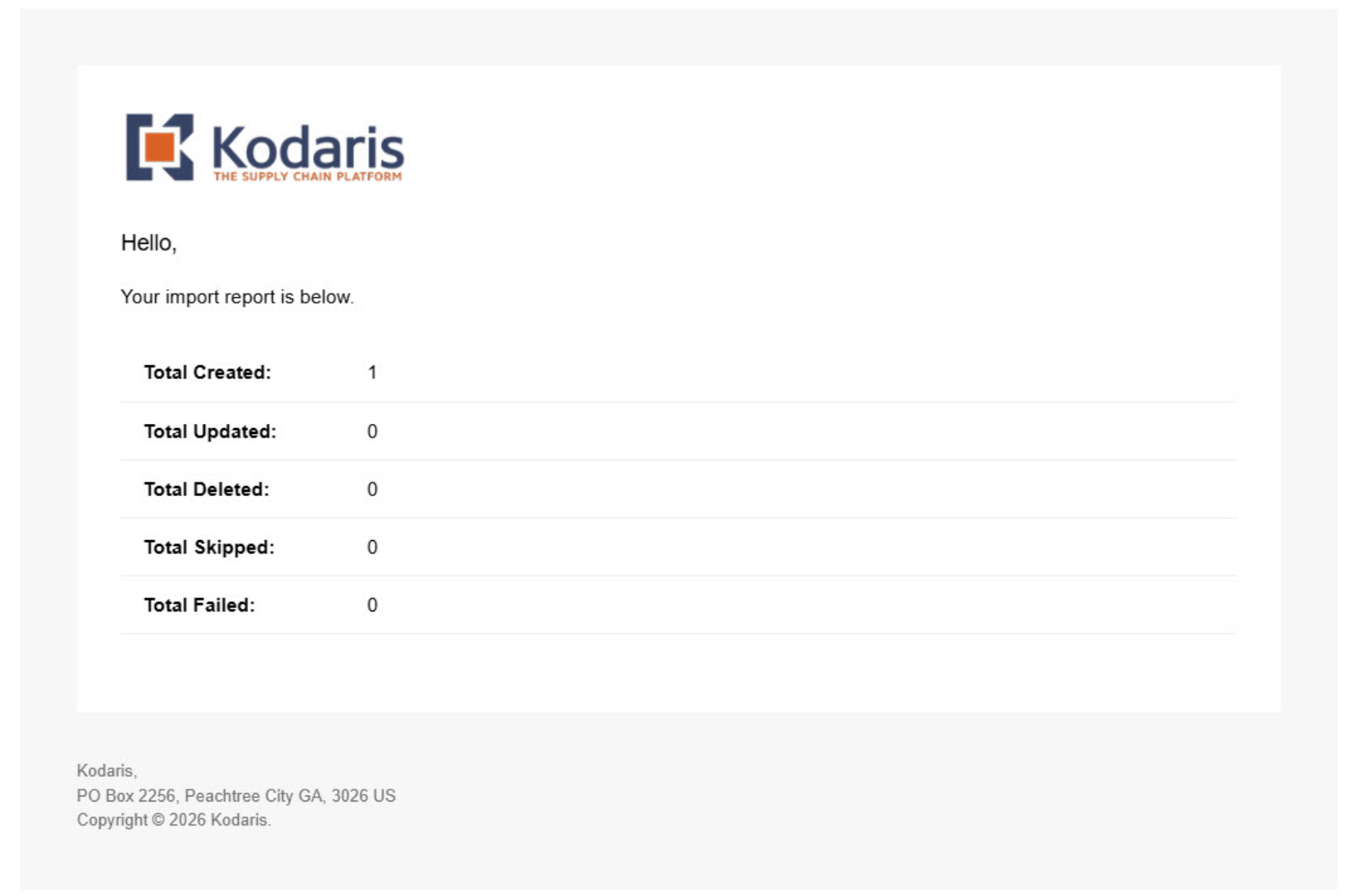
Once the import is complete, you should receive an import report in your email.
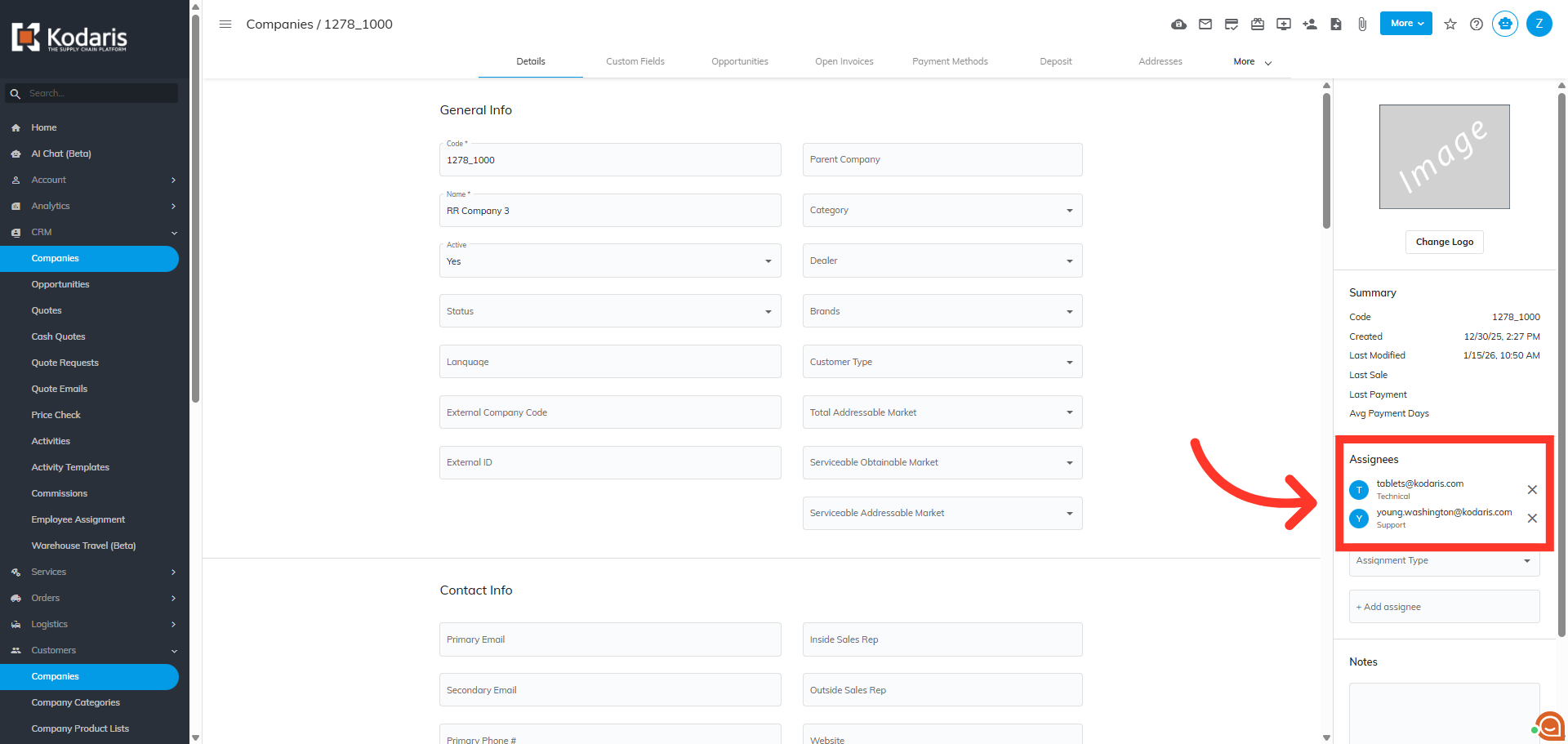
You can now view and check the "Assignees" section on the company to verify the newly imported employee assignments.